Snake Wrangling for Kids, Learning to Program with Python
by Jason R. Briggs
Version 0.7.2
Copyright c°2007.
Published by... ah, no one actually.
Cover art and illustrations by Nuthapitol C.
Website:
http://www.briggs.net.nz/log/writing/snake-wrangling-for-kids
Thanks To:
Guido van Rossum (for benevelont dictatorship of the Python language), the mem-bers of the Edu-Sig mailing list (for helpful advice and commentary), and author David Brin (the original instigator of this book).
License:
This work is licensed under the Creative Commons Attribution-Noncommercial-Share Alike 3.0 New Zealand License. To view a copy of this license, visit
http://creativecommons.org/licenses/by-nc-sa/3.0/nz/ or send a letter to Creative Commons, 171 Second Street, Suite 300, San Francisco, California, 94105, USA.
Below is a summary of the license.
You are free:
• to Share to copy, distribute and transmit the work
• to Remix to adapt the work
Under the following conditions:
Attribution. You must attribute the work in the manner specified by the author or licensor (but not in any way that suggests that they endorse you or your use of the work).
Share Alike. If you alter, transform, or build upon this work, you may distribute the resulting work only under the same or similar license to this one.
For any reuse or distribution, you must make clear to others the license terms of this work.
Any of the above conditions can be waived if you get permission from the copyright holder.
Contents
Preface iii
1 Not all snakes will squish you 1
1.1 A Few Words About Language . . . 3
1.2 The Order of Non-venomousConstricting Serpentes. . . . . . . 3
1.3 Your first Python program . . . 4
1.4 Your Second Python program. . .the same again? . . . . 5
2 8 multiplied by 3.57 equals. . . 9
2.1 Use of brackets and “Order of Operations” . . . 11
2.2 There’s nothing so fickle as a variable . . . 13
2.3 Using Variable. . . 15
2.4 A Piece of String? . . . 16
2.5 Tricks with Strings . . . 17
2.6 Not quite a shopping list . . . 19
2.7 Tuples and Lists. . . 22
2.8 Things to try . . . 23
3 Turtles, and other slow moving creatures 25 3.1 Things to try . . . 31
4 How to ask a question 33 4.1 Do this. . .or ELSE!!! . . . 34
4.2 Do this. . . or do this. . . or do this. . .or ELSE!!! . . . 35
4.3 Combining conditions . . . 36
4.4 Emptiness . . . 36
4.5 What’s the difference. . .? . . . 38
5 Again and again 41 5.1 When is a block not square? . . . 44
5.2 While we’re talking about looping. . . . . . 49
5.3 Things to try . . . 50
6 Sort of like recycling. . . 53
6.1 Bits and Pieces . . . 57
6.2 Modules . . . 58
6.3 Things to try . . . 61
7 A short chapter about Files 63 8 Turtles galore 65 8.1 Colouring in . . . 69
8.2 Darkness . . . 72
8.3 Filling things . . . 72
8.4 Things to try . . . 77
9 A bit graphic 79 9.1 Quick Draw . . . 80
9.2 Simple Drawing . . . 83
9.3 Drawing Boxes . . . 84
9.4 Drawing Arcs . . . 88
9.5 Drawing Ovals. . . 90
9.6 Drawing Polygons . . . 92
9.7 Drawing Images . . . 93
9.8 Basic Animation . . . 95
9.9 Reacting to events. . . . . . 98
10 Where to go from here 101
A Python Keywords 103
B Built-in Functions 115
C A Few Python Modules 123
D Answers to “Things to try” 133
Preface
A Note to Parents...
Dear Parental Unit or other Caregiver,
In order for your child to get started with programming, you’re going to need to install Python (at least version 2.4 or greater) on your computer. This is a fairly straight-forward task, but there are a few wrinkles depending upon what sort of Operating System you’re using. If you’ve just bought a shiny new computer, have no idea what to do with it, and that previous statement has filled you with a severe case of the cold chills, you’ll probably want to find someone to do this for you. Depending upon the state of your computer, and the speed of your internet connection, this could take anything from 15 minutes to a few hours.
First of all, download and install the latest version of Python (for example, 2.5) for your distribution. Given the large number of Linux flavours, it’s impossible to give exact details on installation for each—but chances are, if you’re running Linux, you already know what you’re doing anyway. In fact, you’re probably insulted by the very idea of being told how to install. . .anything
After installation. . .
. . .You might need to sit down next to your child for the first few chapters, but
hopefully after a few examples, they should be batting your hands away from the keyboard to do it themselves. They should, at least, know how to use a text editor of some kind before they start (no, not a Word Processor, like Microsoft Word—a plain, old-fashioned text editor)—they should at least able to open and close files, create new text files and save what they’re doing. Apart from that, this book will try to teach the basics from there.
Thanks for your time, and kind regards, THE BOOK
Chapter 1
Not all snakes will squish you
Chances are you were given this book for your birthday. Or possibly for Christmas. Aunty Mildred was going to give you mismatching socks that were two sizes too large (and you wouldn’t want to wear when you grew into them anyway). Instead, she heard someone talking about this printable book, remembered you had one of those computer-thingamabobs that you tried to show her how to use last Christmas (you gave up when she started trying to talk into the mouse), and got them to print another copy. Just be thankful you didn’t get the mouldy old socks.
I hope you’re not too disappointed that I popped out of the recycled wrap-ping paper, instead. A not-quite-so-talkative (okay, not-talking-at-all) book, with an ominous looking title on the front about “Learning. . .”. But take a moment to
think about how I feel. If you were the character from that novel about wizards that is sitting on the bookshelf in your bedroom, I’d possibly have teeth... or perhaps even eyes. I might have moving pictures inside me, or be able to make moaning ghostly sounds when you opened my pages. Instead, I’m printed out on dog-eared A4 sheets of paper, stapled together or perhaps bound in a folder. How would I know—I don’t have eyes.
I’d give anything for a nice, sharp set of teeth. . .
However it’s not as bad as it sounds. Even if I can’t talk... or bite your fingers when you’re not looking... I can tell you a little bit about what makes computers work. Not the physical stuff, with wires and computer-chips and cables and de-vices that would, more than likely, electrocute you as soon as you touched them (so don’t!!)—but the hidden stuff running around inside those wires and computer-chips and cables and bits, which make computers actually useful.
2 CHAPTER 1. NOT ALL SNAKES WILL SQUISH YOU
It’s a little like thoughts running around inside your head. If you didn’t have thoughts you’d be sitting on the floor of your bedroom, staring vacantly at the door and drooling down the front of your t-shirt. Without programs, computers would only be useful as a doorstop—and even then they wouldn’t be very useful, because you’d keep tripping over them in the night. And there’s nothing worse than a stubbed toe in the dark.
I’m just a book and even I know that.
Your family may have a Playstation, Xbox or Wii sitting in the lounge—they’re not much use without programs (Games) to make them work. Your DVD player, possibly your fridge and even your car, all have computer programs to make them more helpful than they would be otherwise. Your DVD player has programs to help it figure out what to play on a DVD; your fridge might have a simple program to make sure it doesn’t use too much electricity, but still keep your food cold; your car might have a computer with a program to warn the driver if they’re about to bump into something.
If you know how to write computer programs, you can do all sorts of useful things. Perhaps write your own games. Create web pages that actually do stuff, instead of just sitting there looking somewhat colourful. Being able to program could possibly even help with your homework.
1.1. A FEW WORDS ABOUT LANGUAGE 3
1.1
A Few Words About Language
Just like humans, certainly whales, possibly dolphins, and maybe even parents (al-though that’s debatable), computers have their own language. Actually, also like humans, they have more than one language. There are languages covering just about all the letters of the alphabet. A, B, C, D and E are not only letters, they’re also programming languages (which proves that adults have no imagination, and should be made to read either a dictionary or a thesaurus before naming anything).
There are programming languages named after people, named using simple acronyms (the capital letters of a series of words), and just a few named after a TV show. Oh, and if you add a few pluses and hashes (+, #) after a couple of those letters I just listed—that’s yet another couple of programming languages as well. Making matters worse, some of the languages are almost the same, and differ only slightly.
What did I tell you? No imagination!
Luckily, many of these languages have fallen into disuse, or vanished completely; but the list of different ways you can ‘talk’ to a computer is still rather worryingly large. I’m only going to discuss one of them—otherwise we might as well not even get started.
It would be more productive to sit in your bedroom and drool down the front of your t-shirt. . .
1.2
The Order of Non-venomous
Constricting Serpentes
. . .
. . .or Pythons, for short.
Apart from being a snake, Python is also a programming language. However, it was not named after a legless reptile; rather it is one of the few programming languages named after a TV show. Monty Python was a British comedy show popular during the 1970’s (and still popular now, actually), which you have to be a certain age to find amusing. Anyone below the age of about. . . let’s say 12. . . will
wonder what all the fuss is all about1.
There are a number of things about Python (the programming language, not the snake, nor the TV show) that make it extremely useful when you’re learning to
4 CHAPTER 1. NOT ALL SNAKES WILL SQUISH YOU
Figure 1.1: The Python console on Linux.
program. For us, at the moment, the most important reason is that you can start it up and do stuff really quickly.
This is the part where you hope Mum, Dad (or whomever is in charge of the computer), has read the part at the beginning of this book labelled “A Note for Mums and Dads”.
There’s a good way to find out if they actually have read it:
Ask Mum or Dad which terminal application you should use (it could be one called ‘Konsole’, ‘rxvt’, ‘xterm’ or any one of a dozen different programs—which is why you’ll probably need to ask). Start the terminal program and type ‘python’ (without the quotes), and hit enter. You should see something like Figure 1.1.
If you discover they haven’t read the section in the beginning
. . .
. . .because there is something missing when you try to follow those instructions—
then turn to the front of the book, poke it under their nose while they’re trying to read the newspaper, and look hopeful. Saying, “please please please please” over and over again, until it becomes annoying, might work quite well, if you’re having trouble convincing them to get off the couch. Of course, the other thing you can do, is turn to the front of the book, and follow the instructions in the Preface to install Python yourself.
1.3
Your first Python program
1.4. YOUR SECOND PYTHON PROGRAM. . .THE SAME AGAIN? 5
first start the console (or after entering a command), you’ll see what’s called a ‘prompt’. In the Python console, the prompt is three chevrons, or greater-than symbols (>) pointing to the right:
>>>
If you put enough Python commands together, you have a program that you can run in more than just the console. . . but for the moment we’re going to keep
things simple, and type our commands directly in the console, at the prompt (>>>).
So, why not start with typing the following:
print "Hello World"
Make sure you include the quotes (that’s these: ” ”), and hit enter at the end of the line. Hopefully you’ll see something like the following:
>>> print "Hello World" Hello World
The prompt reappears, to let you know that the Python console is ready to accept more commands.
Congratulations! You’ve just created your first Python program.
1.4
Your Second Python program
. . .
the same again?
Python programs wouldn’t be all that useful if you had to type the commands every single time you wanted to do something—or if you wrote a program for someone, and they had to type it in before they could use it.
The Word Processor that you might be using to write your school assignments, is probably somewhere between 10 and 100 million lines of code. Depending upon how many lines you printed on one page (and whether or not you printed on both sides of the paper), this could be around 400,000 printed pages. . .or a stack of paper
about 40 metres high. Just imagine when you brought that software home from the shop, there would be quite a few trips back and forth to the car, to carry that much paper. . .
. . .and you’d better hope there’s no big gust of wind while you’re carrying
6 CHAPTER 1. NOT ALL SNAKES WILL SQUISH YOU
Open a text editor (again you might have to ask Mum or Dad which one to use), then type the print command exactly as you typed it into the console:
print "Hello World"
Click on the File menu, then Save, and when prompted for a file name, call it hello.py and save it in your Home folder (there might be an icon called ‘Home’ somewhere in the Save dialog box). Next open up the terminal application (again Konsole, rxvt, etc... what we used earlier), and type:
python hello.py
You should see Hello World written to the window exactly as it was when you typed the command in the Python console (see Figure 1.2).
1.4. YOUR SECOND PYTHON PROGRAM. . .THE SAME AGAIN? 7
Figure 1.2: Running a python program from a text file on Linux.
If he did you can point at him and laugh.
Trust me on this one. You won’t get it. But he will.2
Be prepared to run away though.
The End of the Beginning
Welcome to the wonderful world of Programming. We’ve started really simply with a “Hello World” application—everyone starts with that, when they’re learning to program. In the next chapter we’ll start to do some more useful things with the Python console and then look at what goes into making a program.
2The Sinclair ZX81, released in the 1980’s was one of the first affordable home computers. A
Chapter 2
8 multiplied by 3.57 equals
. . .
What is 8 multiplied by 3.57? You’d have to use a calculator, wouldn’t you? Well perhaps you’re extremely smart and can do multiplication of fractions in your head— but that’s not the point. You can also do the same thing with the Python console. Start up the console again (see Chapter 1 for more information, if you’ve skipped ahead for some strange reason), and once you see the prompt, type 8∗3.57 and press the Enter key:
Python 2.5.1 (r251:54863, May 2 2007, 16:56:35)
Type "help", "copyright", "credits" or "license" for more information. >>> 8 * 3.57
28.559999999999999
The star (*), or asterisk key (shift 8 on some keyboards), is used for multi-plication, instead of the normal times symbol (X) that you use at school (using the
star key is necessary, otherwise how would the computer know whether you meant the letter x or the multiplication symbolX ?).
How about an equation that’s a bit more useful?
Suppose you do chores once a week, for which you get $5 pocket money, and you have a paper round which you do 5 times a week and get $30—how much money would you earn in a year?
If we were writing that on paper, we might write something like:
(5 + 30) x 52
10 CHAPTER 2. 8 MULTIPLIED BY 3.57 EQUALS. . .
Python is broken!?!?
If you just picked up a calculator and entered 8 x 3.57 the answer showing on the display will be:
28.56
Why is Python different? Is it broken?
Actually, no. The reason can be found in the way floating point (fractional numbers with a decimal place) numbers are handled by the computer. It’s a complicated and somewhat confusing problem for beginners, so it’s best to just remember that when you’re working with fractions (i.e. with a decimal place on a number),sometimes the result won’t be exactly what you were expecting. This is true for multiplication, division, addition or subtraction.
Which is $5 + $30 multiplied by 52 weeks in a year. Of course, we’re smart, and we know that 5 + 30 is 35, so the equation is really:
35 x 52
Which is easy enough to do in a calculator, or on paper. But we can do all of these calculations with the console as well:
>>> (5 + 30) * 52 1820
>>> 35 * 52 1820
So, what if you spend $10 each week? How much do you have left at the end of the year? We could write the equation on paper a couple of different ways, but let’s just type it into the console:
>>> (5 + 30 - 10) * 52 1300
2.1. USE OF BRACKETS AND “ORDER OF OPERATIONS” 11
far. We can do all of that with a calculator. But we’ll come back to this later and show how to make it much more useful.
You can do multiplication and addition (obviously), and subtraction and divi-sion in the Python console, along with a bunch of other maths operations that we won’t go into now. For the moment the basic maths symbols for Python (actually they’re called operators) are:
+ Addition
- Subtraction
* Multiplication
/ Division
The reason the forward-slash (/) is used for division, is that it would be rather difficult to draw a division line (plus they didn’t bother to put a division symbol
÷on the computer keyboard) as you’re supposed to use for written equations. For example if you had 100 eggs and 20 boxes, you might want to know how many eggs would go in each box, so you’d show dividing 100 into 20, by writing the following equation:
100 200
Or if you know about long division, you might write it out fully like this:
5 20 )100 100 0
Or you might even write it like this:
100÷20
However, in Python terms you would just type it as “100 / 20”.
Which is much easier, I think. But then, I’m a book—what do I know?
2.1
Use of brackets and “Order of Operations”
12 CHAPTER 2. 8 MULTIPLIED BY 3.57 EQUALS. . .
table above). There are more operators than those basic symbols, but for that simple list (addition, subtraction, multiplication and division), it’s enough to know that multiplication and division both have a higher order than addition and subtraction. Which means you do the multiplication or division part of an equation before you do the addition or subtraction part. In the following equation, all the operators are addition (+), the numbers are added in order:
>>> print 5 + 30 + 20 55
Similarly, in this equation, there are only addition and subtraction operators, so again Python considers each number in the order it appears:
>>> print 5 + 30 - 20 15
But in the following equation, there is a multiplication operator, so the numbers 30 and 20 are considered first. The equation is another way of saying, “multiply 30 by 20, then add 5 to the result” (multiplication first, because it has a higher order than addition):
>>> print 5 + 30 * 20 605
So what happens when we add brackets? The following equation shows the result:
>>> print (5 + 30) * 20 700
Why is the number different? Because brackets control the order of operations. With brackets, Python knows to do calculate using the operators in the brackets first, then do the operators outside. So that equation is another way of saying, “add 5 and 30, then multiply the result by 20”. The use of brackets can become more complicated. There can be brackets inside brackets:
>>> print ((5 + 30) * 20) / 10 70
2.2. THERE’S NOTHING SO FICKLE AS A VARIABLE 13
>>> 5 + 30 * 20 / 10 65
In this case 30 is multiplied by 20 first, then the result is divided by 10, finally 5 is added to the final result.
Remember that multiplication and division always go before addition and sub-traction, unless brackets are used to control the order of operations.
2.2
There’s nothing so fickle as a variable
A ‘variable’ is a programming term used to describe a place to store things. The ‘things’ can be numbers, or text, or lists of numbers and text—and all sorts of other items too numerous to go into here. For the moment, let’s just think of a variable as something a bit like a mailbox.
You can put things (such as a letter or a package) in a mailbox, just as you can put things (numbers, text, lists of numbers and text, etc, etc, etc) in a variable. This mailbox idea is the way many programming languages work. But not all.
14 CHAPTER 2. 8 MULTIPLIED BY 3.57 EQUALS. . .
>>> fred = 100
We’ve just created a variable called ‘fred’ and said that it points to the number 100. It’s a bit like telling Python to remember that number because we want to use it later. To find out what a variable is pointing at, we can just type ‘print’ in the console, followed by the variable name, and hit the Enter key. For example:
>>> fred = 100 >>> print fred 100
We can also tell Python we want the variable fredto point at something else:
>>> fred = 200 >>> print fred 200
On the first line we say we now want fred to point at the number 200. Then, in the second line, we ask what fred is pointing at just to prove it changed. We can also point more than one name at the same item:
>>> fred = 200 >>> john = fred >>> print john 200
In the code above, we’re saying that we want the name (or label)johnto point at the same thing fred is pointing to. Of course, ‘fred’ isn’t a very useful name for a variable. It doesn’t tell us anything about what it’s used for. A mailbox is easy— you use a mailbox for mail. But a variable can have a number of different uses, and can point at a whole bunch of different things, so we usually want something more informative as its name.
Suppose you started up the Python console, typed ‘fred = 200’, then went away—spent 10 years climbing Mount Everest, crossing the Sahara desert, bungy-jumping off a bridge in New Zealand, and finally, sailing down the Amazon river— when you came back to your computer, would you remember what that number 200 meant (and what it was for)?
I don’t think I would.
I just made it up now, and I have no idea what ‘fred = 200’ means (other than a name pointing at the number 200). So after 10 years, you’ll have absolutely no chance of remembering.
2.3. USING VARIABLE 15
>>> number_of_students = 200
We can do that because variable names can be made up of letters, numbers and ( ) underscores—although they cannot start with a number. If you come back after 10 years, ‘number of students’ still makes sense. You can type:
>>> print number_of_students 200
And you’ll immediately know that we’re talking about 200 students. It’s not always important to come up with meaningful names for variables. You can use anything from single letters (such as ‘a’) to large sentences; and sometimes, if you’re doing something quick, a simple and short variable name is just as useful. It depends very much upon whether you want to be able to look at that variable name later and figure out what on earth you were thinking at the time you typed it in.
this_is_also_a_valid_variable_name_but_perhaps_not_very_useful
2.3
Using Variable
Now we know how to create a variable, how do we use it? Remember that equation we came up with earlier? The one to work out how much money you’d have left at the end of the year, if you earned $5 a week doing chores, $30 a week on a paper round, and spent $10 per week. So far we have:
>>> print (5 + 30 - 10) * 52 1300
What if we turn the first 3 numbers into variables? Try typing the following:
>>> chores = 5 >>> paper_round = 30 >>> spending = 10
We’ve just created variables named ‘chores’, ‘paper round’ and ‘spending’. We can then re-type the equation to get:
16 CHAPTER 2. 8 MULTIPLIED BY 3.57 EQUALS. . .
Which gives the exact same answer. What if you get $2 more per week, for doing extra chores. Change the ‘chores’ variable to 7, then hit the up-arrow key (↑) on your keyboard a couple of times, until the equation re-appears, and hit the Enter key:
>>> chores = 7
>>> print (chores + paper_round - spending) * 52 1404
That’s a lot less typing to find out that you now end up with $1404 at the end of the year. You can try changing the other variables, then hit the up-arrow to perform the calculation again, and see what effect it has.
If you spend twice as much money per week: >>> spending = 20
>>> print (chores + paper_round - spending) * 52 884
You’re only left with $884 savings at the end of the year. This is still only slightly useful. We haven’t hit really useful yet. But for the moment, it’s enough to understand that variables are used to store things.
Think of a mailbox with a label on it!
2.4
A Piece of String?
If you’re paying attention, and not just skimming through looking for the good bits, you might remember I mentioned that variables can be used for all sorts of things— not just numbers. In programming, most of the time we call text a ‘string’. Which might seem a bit weird; but if you think that text is just ‘stringing together’ (or joining together) a bunch of letters, perhaps it might make a little more sense.
Then again, perhaps it doesn’t.
In which case, all you need to know, is that a string is just a bunch of letters and numbers and other symbols put together in some meaningful way. All the letters, and numbers, and symbols in this book could make up a string. Your name could be a string. So could your home address. The first Python program we created in Chapter 1, used a string: ‘Hello World’.
In Python, we create a string by putting quotes around the text. So we can take our useless fred variable, and put a string inside it like this:
2.5. TRICKS WITH STRINGS 17
And we can see what’s inside thefred variable, by typing print fred:
>>> print fred this is a string
We can also use single-quotes to create a string:
>>> fred = ’this is yet another string’ >>> print fred
this is yet another string
However, if you try to type more than one line of text for your string using a single quote (’) or double quote (”), you’ll get an error message in the console. For example, type the following line and hit Enter, and you’ll get a fairly scary error message similar to the following:
>>> fred = "this is two File "<stdin>", line 1
fred = "this is two ^
SyntaxError: EOL while scanning single-quoted string
We’ll talk more about errors later, but for the moment, if you want more than one line of text, you can use 3 single quotes:
>>> fred = ’’’this is two
... lines of text in a single string’’’
Print out the contents to see if it worked:
>>> print fred this is two
lines of text in a single string
By the way, you’ll see those 3 dots (...) quite a few times when you’re typing something that continues onto another line (like a multi line string). In fact, you’ll see it a lot more as we continue.
2.5
Tricks with Strings
Here’s an interesting question: what’s 10 * 5 (10 times 5)? The answer is, of course, 50.
All right, that’s not an interesting question at all.
18 CHAPTER 2. 8 MULTIPLIED BY 3.57 EQUALS. . .
>>> print 10 * ’a’ aaaaaaaaaa
This works with more than just single character strings:
>>> print 20 * ’abcd’
abcdabcdabcdabcdabcdabcdabcdabcdabcdabcdabcdabcdabcdabcdabcdabcdabcdabcdabcdabcd
Another trick with a string, is embedding values. You can do this by using %s, which is like a marker (or a placeholder) for a value you want to include in a string. It’s easier to explain with an example:
>>> mytext = ’I am %s years old’ >>> print mytext % 12
I am 12 years old
In the first line, the variable mytext is created with a string containing some words and a placeholder (%s). The %s is a little beacon saying “replace me with something” to the Python console. So on the next line, when we call print mytext, we use the % symbol, to tell Python to replace the marker with the number 12. We can reuse that string and pass in different values:
>>> mytext = ’Hello %s, how are you today?’ >>> name1 = ’Joe’
>>> name2 = ’Jane’ >>> print mytext % name1 Hello Joe, how are you today? >>> print mytext % name2 Hello Jane, how are you today?
In the above example, 3 variables (mytext, name1 and name2) are created—the first includes the string with the marker. Then we can print the variable ‘mytext’, and again use the % operator to pass in variables ‘name1’ and ‘name2’. You can use more than one placeholder:
>>> mytext = ’Hello %s and %s, how are you today?’ >>> print mytext % (name1, name2)
Hello Joe and Jane, how are you today?
2.6. NOT QUITE A SHOPPING LIST 19
2.6
Not quite a shopping list
Eggs, milk, cheese, celery, peanut butter, and baking soda. Which is not quite a full shopping list, but good enough for our purposes. If you wanted to store this in a variable you could create a string:
>>> shopping_list = ’eggs, milk, cheese, celery, peanut butter, baking soda’ >>> print shopping_list
eggs, milk, cheese, celery, peanut butter, baking soda
Another way would be to create a ‘list’, which is a special kind of object in Python:
>>> shopping_list = [ ’eggs’, ’milk’, ’cheese’, ’celery’, ’peanut butter’, ’baking soda’ ] >>> print shopping_list
[’eggs’, ’milk’, ’cheese’, ’celery’, ’peanut butter’, ’baking soda’]
This is more typing, but it’s also more useful. We could print the 3rd item in the list by using its position (called its index position), inside square brackets []:
>>> print shopping_list[2] cheese
Lists start at index position 0—so the first item in a list is 0, the second is 1, the third is 2. That doesn’t make a lot of sense to most people, but it does to programmers. Pretty soon, when you walk up some stairs you’ll start counting with zero rather than one. That will really confuse your little brother or sister.
We can show all the items from the 3rd item up to the 5th in the list, by using a colon inside the square brackets:
>>> print shopping_list[2:5]
[’cheese’, ’celery’, ’peanut butter’]
[2:5] is the same as saying that we are interested in items from index position 2 up to (but not including) index position 5. And, of course, because we start counting with 0, the 3rd item in the list is actually number 2, and the 5th item is actually number 4. Lists can be used to store all sorts of items. They can store numbers:
>>> mylist = [ 1, 2, 5, 10, 20 ]
20 CHAPTER 2. 8 MULTIPLIED BY 3.57 EQUALS. . .
>>> mylist = [ ’a’, ’bbb’, ’ccccccc’, ’ddddddddd’ ]
And mixtures of numbers and strings:
>>> mylist = [1, 2, ’a’, ’bbb’] >>> print mylist
[1, 2, ’a’, ’bbb’]
And even lists of lists:
>>> list1 = [ ’a’, ’b’, ’c’ ] >>> list2 = [ 1, 2, 3 ] >>> mylist = [ list1, list2 ] >>> print mylist
[[’a’, ’b’, ’c’], [1, 2, 3]]
In the above example, a variable called ‘list1’ is created with 3 letters, ‘list2’ is created with a 3 numbers, and ‘mylist’ is created using list1 and list2. Things can get rather confusing, rather quickly, if you start creating lists of lists of lists of lists. . .but luckily there’s not usually much need for making things that complicated
in Python. Still it is handy to know that you can store all sorts of items in a Python list.
And not just your shopping.
Replacing items
We can replace an item in the list, by setting its value in a similar way to setting the value of a normal variable. For example, we could change celery to lettuce by setting the value in index position 3:
>>> shopping_list[3] = ’lettuce’ >>> print shopping_list
[’eggs’, ’milk’, ’cheese’, ’lettuce’, ’peanut butter’, ’baking soda’]
Adding more items...
We can add items to a list by using a method called ‘append’. A method is an action or command that tells Python that we want to do something. We’ll talk more about methods later, but for the moment, to add an item to our shopping list, we can do the following:
>>> shopping_list.append(’chocolate bar’) >>> print shopping_list
[’eggs’, ’milk’, ’cheese’, ’lettuce’, ’peanut butter’, ’baking soda’, ’chocolate bar’]
2.6. NOT QUITE A SHOPPING LIST 21
. . .
and removing items
We can remove items from a list by using the command ‘del’ (short for delete). For example, to remove the 6th item in the list (baking soda):
>>> del shopping_list[5] >>> print shopping_list
[’eggs’, ’milk’, ’cheese’, ’lettuce’, ’peanut butter’, ’chocolate bar’]
Remember that positions start at zero, so shopping list[5] actually refers to the 6th item.
2 lists are better than 1
We can join lists together by adding them, as if we were adding two numbers:
>>> list1 = [ 1, 2, 3 ] >>> list2 = [ 4, 5, 6 ] >>> print list1 + list2 [1, 2, 3, 4, 5, 6]
We can also add the two lists and set the result to another variable:
>>> list1 = [ 1, 2, 3 ] >>> list2 = [ 4, 5, 6 ] >>> list3 = list1 + list2 >>> print list3
[1, 2, 3, 4, 5, 6]
And you can multiply a list in the same way we multiplied a string:
>>> list1 = [ 1, 2 ] >>> print list1 * 5
[1, 2, 1, 2, 1, 2, 1, 2, 1, 2]
In the above example, multiplying list1 by five is another way of saying “repeat list1 five times”. However, division (/) and subtraction (-) don’t make sense when working with lists, so you’ll get errors when trying the following examples:
>>> list1 / 20
Traceback (most recent call last): File "<stdin>", line 1, in <module>
TypeError: unsupported operand type(s) for /: ’list’ and ’int’
22 CHAPTER 2. 8 MULTIPLIED BY 3.57 EQUALS. . .
>>> list1 - 20
Traceback (most recent call last): File "<stdin>", line 1, in <module>
TypeError: unsupported operand type(s) for -: ’type’ and ’int’
You’ll get a rather nasty error message.
2.7
Tuples and Lists
A tuple (mentioned earlier) is a little bit like a list, but rather than using square brackets, you use round brackets—e.g. ‘(’ and ‘)’. You can use tuples in a similar way to a list:
>>> t = (1, 2, 3) >>> print t[1] 2
The main difference is that, unlike lists, tuples can’t change, once you’ve cre-ated them. So if you try to replace a value like we did earlier with the list, you’ll get another error message:
>>> t[0] = 4
Traceback (most recent call last): File "<stdin>", line 1, in ?
TypeError: ’tuple’ object does not support item assignment
That doesn’t mean you can’t change the variable containing the tuple to some-thing else. For example, this code will work fine:
>>> myvar = (1, 2, 3)
>>> myvar = [ ’a’, ’list’, ’of’, ’strings’ ]
2.8. THINGS TO TRY 23
2.8
Things to try
In this chapter we saw how to calculate simple mathematical equations using the Python console. We also saw how brackets can change the result of an equation, by controlling the order that operators are used. We found out how to tell Python to remember values for later use—using variables—plus how Python uses ‘strings’ for storing text, and lists and tuples, for handling more than one item.
Exercise 1
Make a list of your favourite toys and name it toys. Make a list of your favourite foods and name itfoods. Join these two lists and name the resultfavourites. Finally print the variablefavourites.
Exercise 2
If you have 3 boxes containing 25 chocolates, and 10 bags containing 32 sweets, how many sweets and chocolates do you have in total? (Note: you can do this with one equation with the Python console)
Exercise 3
Chapter 3
Turtles, and other slow moving
creatures
There are certain similarities between turtles in the real world and a Python turtle. In the real world, a turtle is a (sometimes) green reptile that moves around very slowly and carries its house on its back. In the world of Python, a turtle is a small black arrow that moves very slowly around the screen. No mention of house-carrying though.
In fact, considering that a Python turtle leaves a trail as it moves around the screen, this makes it less like a real turtle, and more like a snail or a slug. However, I suppose that a module called ‘slug’ wouldn’t be particularly attractive, so it makes sense to stick with turtles. Just imagine the turtle is carrying a couple of marker pens with it, and drawing as it goes.
In the deep, dark, and distant past, there was a simple programming language called Logo. Logo was used to control a robot turtle (called Irving). Over time, the turtle evolved from a robot that could move around the floor, to a small arrow moving around a screen.
Which just goes to show, things don’t always improve as technology advances— a little robot turtle would be a lot more fun.
Python’s turtle module (we’ll come to modules a bit later, but for now just just think of a module as something we can use inside a program) is a little bit like the Logo programming language, but while Logo was (is) fairly limited, Python has many more capabilities. The turtle module itself, is a useful way to learn how computers draw pictures on your computer screen.
Let’s get started and see just how it works. The first step is to tell Python we want to use turtle, by importing the module:
26 CHAPTER 3. TURTLES, AND OTHER SLOW MOVING CREATURES
Figure 3.1: An arrow representing the turtle.
>>> import turtle
Then we need to display a canvas to draw on. A canvas is just like the material an artist might use for painting; in this case it’s a blank space for drawing on:
>>> t = turtle.Pen()
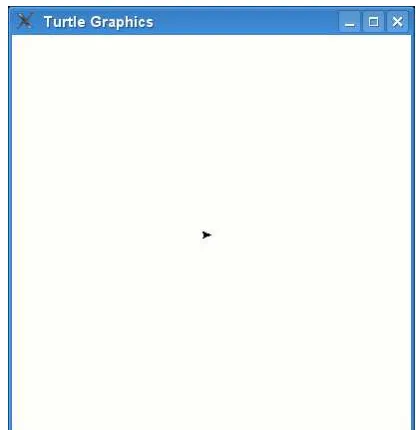
In this code, we call a special function (Pen) on the module turtle, which automatically creates a canvas we can draw on. A function is a re-useable piece of code (again we’ll come to functions later) that does something useful—in this case, an object which represents the turtle is returned by the Pen function—we set that object to the variable ‘t’ (in effect we’re giving our turtle canvas the name ‘t’). When you type the code into the Python console, you’ll see a blank box (the canvas) appear, looking something like figure 3.1.
Yes, that little arrow in the middle of the screen really is the turtle. And, no, it’s not very turtle-like.
You can send instructions to the turtle, by using functions on the object that was created (by calling turtle.Pen)—since we assigned that object to the variable
27
Figure 3.2: The turtle draws a line.
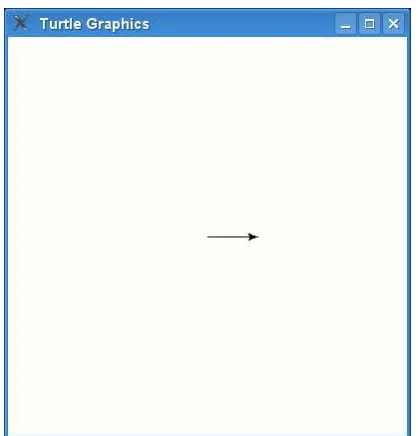
moment). Let’s tell the turtle to move forward 50 pixels (we’ll talk about pixels in a minute):
>>> t.forward(50)
You should see something like figure 3.2.
From the turtle’s point-of-view, she has moved forward 50 steps. From our point-of-view, she has moved 50 pixels.
So, what’s a pixel?
A pixel is a dot on the screen. When you look at your computer, everything is made up of tiny (square) dots. The programs you use and the games you play on the computer, or with a Playstation, or an Xbox, or a Wii; are all made up of a whole bunch of different coloured dots, arranged on the screen. In fact, if you look at your computer screen with a magnifying glass, you might just be able to make out some of those dots. So if we zoom in on the canvas and the line that was just drawn by the turtle, we can see the arrow representing the turtle, is also just a bunch of square dots, as you can see in figure 3.3.
We’ll talk more about these dots, or pixels, in a later chapter.
Next, we can tell the turtle to turn left or right:
28 CHAPTER 3. TURTLES, AND OTHER SLOW MOVING CREATURES
Figure 3.3: Zooming in on the line and the arrow.
Figure 3.4: The ‘divisions’ on a clock.
This tells the turtle to turn left, 90 degrees. You may not have learned about degrees in school so far, but the easiest way to think about them, is that they are like the divisions on the face of a clock as seen in figure 3.4.
The difference to a clock, is that rather than 12 divisions (or 60, if you’re counting minutes rather than hours), there are 360 divisions. So, if you count 360 divisions around the face of a clock, you get 90 where there’s normally a 3, 180 where there’s normally a 6, and 270 where there’s normally a 9; and 0 would be at the top (at the start), where you normally see a 12. Figure 3.5shows you the degree divisions.
So, what does it actually mean when you call left(90)?
29
Figure 3.5: Degrees.
30 CHAPTER 3. TURTLES, AND OTHER SLOW MOVING CREATURES
Figure 3.7: Drawing a square.
Let’s try the same commands again a few times:
>>> t.forward(50) >>> t.left(90) >>> t.forward(50) >>> t.left(90) >>> t.forward(50) >>> t.left(90)
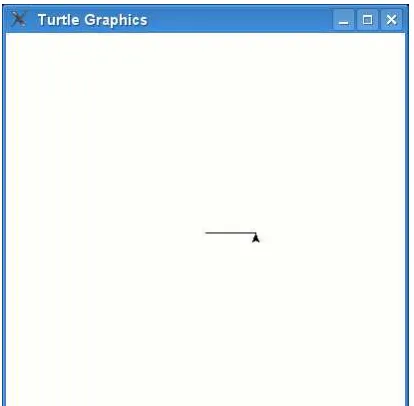
Our turtle has drawn a square and is left facing the same direction as she started (see figure 3.7).
We can erase what’s on the canvas by using clear:
>>> t.clear()
Some of the other basic functions you can use with your turtle are: reset, which also clears the screen, but puts the turtle automatically back into her starting position; backward, which moves the turtle backwards; right, which turns the turtle to the right; upwhich tells the turtle to stop drawing as she moves (in other words pick her pen up off the canvas); and finally down which tells the turtle to start drawing again. You call these functions in the same way we’ve used the others:
3.1. THINGS TO TRY 31
>>> t.right(90) >>> t.up() >>> t.down()
We’ll come back to the turtle module shortly.
3.1
Things to try
In this chapter we saw how to use turtle to draw simple lines, using left and right turns. We saw that turtle uses degrees to turn, a bit like the minute divisions on a clock face.
Exercise 1
Create a canvas using turtle’sPen function, and draw a rectangle.
Exercise 2
Chapter 4
How to ask a question
In programming terms, a question usually means we want to do either one thing, or another, depending upon the answer to the question. This is called anif-statement. For example:
How old are you? If you’re older than 20, you’re too old!
This might be written in Python as the following if-statement:
if age > 20:
print ’you are too old!’
An if-statement is made up of an ‘if’ followed by what is called a ‘condition’ (more on that in a second), followed by a colon (:). The lines following the if must be in a block—and if the answer to the question is ‘yes’ (or True, as we call it in programming terms) the commands in the block will be run.
A condition is a programming statement that returns ‘yes’ (True) or ‘no’ (False). There are certain symbols (or operators) used to create conditions, such as:
== equals
!= not equals
> greater than
< less than
>= greater than or equal to <= less than or equal to
For example, if you are 10 years old, then the conditionyour age == 10would return True (yes), but if you are not 10, it would return False. Remember: don’t
34 CHAPTER 4. HOW TO ASK A QUESTION
mix up the two equals symbols used in a condition (==), with the equals used in assigning values (=)—if you use a single = symbol in a condition, you’ll get an error message.
Assuming you set the variable age to your age, then if you are 12 years old, the condition. . .
age > 10
. . . would again return True. If you are 8 years old, it would return False. If
you are 10 years old, it would also return False—because the condition is checking for greater than (>) 10, and not greater than or equal (>=) to 10.
Let’s try a few examples:
>>> age = 10 >>> if age > 10:
... print ’got here’
If you enter the above example into the console, what might happen?
Nothing.
Because the value of the variable age is not greater than 10, the print command in the block will not be run. How about:
>>> age = 10 >>> if age >= 10: ... print ’got here’
If you try this example, then you should see the message got here printed to the console. The same will happen for the next example:
>>> age = 10 >>> if age == 10: ... print ’got here’ got here
4.1
Do this
. . .
or ELSE!!!
4.2. DO THIS. . . OR DO THIS. . . OR DO THIS. . .OR ELSE!!! 35
>>> age = 12 >>> if age == 12: ... print ’Hello’ ... else:
... print ’Goodbye’ Hello
Type in the above example and you should see ‘Hello’ printed to the console.
Change the value of the variable age to another number, and ‘Goodbye’ will be
printed:
>>> age = 8 >>> if age == 12: ... print ’Hello’ ... else:
... print ’Goodbye’
Goodbye
4.2
Do this
. . .
or do this
. . .
or do this
. . .
or ELSE!!!
We can extend an if-statement even further using elif (short for else-if). For example, we can check if your age is 10, or if it’s 11, or if it’s 12 and so on:
1. >>> age = 12 2. >>> if age == 10:
3. ... print ’you are 10’ 4. ... elif age == 11: 5. ... print ’you are 11’ 6. ... elif age == 12: 7. ... print ’you are 12’ 8. ... elif age == 13: 9. ... print ’you are 13’ 10. ... else:
11. ... print ’huh?’ 12. ...
13. you are 12
In the code above, line 2 checks whether the value of the age variable is equal to 10. It’s not, so it then jumps to line 4 to check whether the value of the age
36 CHAPTER 4. HOW TO ASK A QUESTION
4.3
Combining conditions
You can combine conditions together using the keywords ‘and’ and ‘or’. We can shrink the example above, a little, by using ‘or’ to join the conditions together:
1. >>> if age == 10 or age == 11 or age == 12 or age == 13: 2. ... print ’you are %s’ % age
3. ... else:
4. ... print ’huh?’
If any of the conditions in line 2 are true (i.e. if age is 10 or age is 11 or age is 12 or age is 13), then the block of code in line 3 is run, otherwise Python moves to line 4. We could shrink the example a little bit more by using the ‘and’, >= and <= symbols:
1. >>> if age >= 10 and age <= 13: 2. ... print ’you are %s’ % age 3. ... else:
4. ... print ’huh?’
Hopefully, you’ve figured out that if both the conditions on line 1 are true then the block of code in line 2 is run (if age is greater than or equal to 10 and age is less than or equal to 13). So if the value of the variable age is 12, then ‘you are 12’ would be printed to the console: because 12 is greater than 10 and it is also less than 13.
4.4
Emptiness
There is another sort of value, that can be assigned to a variable, that we didn’t talk about in the previous chapter: Nothing.
In the same way that numbers, strings and lists are all values that can be assigned to a variable, ‘nothing’ is also a kind of value that can be assigned. In Python, an empty value is referred to as None(in other programming languages, it is sometimes called null) and you can use it in the same way as other values:
>>> myval = None >>> print myval None
4.4. EMPTINESS 37
For example, if your football team were raising funds for new uniforms, and you were adding up how much money had been raised, you might want to wait until all the team had returned with the money before you started adding it all up. In programming terms, we might have a variable for each member of the team, and then set all the variables to None:
>>> player1 = None >>> player2 = None >>> player3 = None
We could then use an if-statement, to check these variables, to determine if all the members of the team had returned with the money they’d raised:
>>> if player1 is None or player2 is None or player3 is None: ... print ’Please wait until all players have returned’ ... else:
... print ’You have raised %s’ % (player1 + player2 + player3)
The if-statement checks whether any of the variables have a value of None, and prints the first message if they do. If each variable has a real value, then the second message is printed with the total money raised. If you try this code out with all variables set to None, you’ll see the first message (don’t forget to create the variables first or you’ll get an error message):
>>> if player1 is None or player2 is None or player3 is None: ... print ’Please wait until all players have returned’ ... else:
... print ’You have raised %s’ % (player1 + player2 + player3) Please wait until all players have returned
Even if we set one or two of the variables, we’ll still get the message:
>>> player1 = 100 >>> player3 = 300
>>> if player1 is None or player2 is None or player3 is None: ... print ’Please wait until all players have returned’ ... else:
... print ’You have raised %s’ % (player1 + player2 + player3) Please wait until all players have returned
Finally, once all variables are set, you’ll see the message in the second block:
>>> player1 = 100 >>> player3 = 300 >>> player2 = 500
>>> if player1 is None or player2 is None or player3 is None: ... print ’Please wait until all players have returned’ ... else:
38 CHAPTER 4. HOW TO ASK A QUESTION
4.5
What’s the difference
. . .
?
What’s the difference between 10 and ‘10’ ?
Not much apart from the quotes, you might be thinking. Well, from reading the earlier chapters, you know that the first is a number and the second is a string. This makes them differ more than you might expect. Earlier we compared the value of a variable (age) to a number in an if-statement:
>>> if age == 10:
... print ’you are 10’
If you set variable age to 10, the print statement will be called:
>>> age = 10 >>> if age == 10:
... print ’you are 10’ ...
you are 10
However, if age is set to ’10’ (note the quotes), then it won’t:
>>> age = ’10’ >>> if age == 10:
... print ’you are 10’ ...
Why is the code in the block not run? Because a string is different from a number, even if they look the same:
>>> age1 = 10 >>> age2 = ’10’ >>> print age1 10
>>> print age2 10
See! They look exactly the same. Yet, because one is a string, and the other is a number, they are different values. Therefore age == 10 (age equals 10) will never be true, if the value of the variable is a string.
4.5. WHAT’S THE DIFFERENCE. . .? 39
>>> age = ’10’
>>> converted_age = int(age)
The variable converted age now holds the number 10, and not a string. To convert a number into a string, you would use the function str:
>>> age = 10
>>> converted_age = str(age)
converted age now holds the string 10, and not a number. Back to that if-statement which prints nothing:
>>> age = ’10’ >>> if age == 10:
... print ’you are 10’ ...
If we convert the variablebefore we check, then we’ll get a different result:
>>> age = ’10’
>>> converted_age = int(age) >>> if converted_age == 10: ... print ’you are 10’ ...
Chapter 5
Again and again
There’s nothing worse than having to do the same thing over and over and over again. There’s a reason your parents tell you to count sheep to try to go to sleep, and it has got nothing to do with the amazing sleep-inducing powers of woolly mammals. It’s all to do with the fact that endlessly repeating something is boring, and your mind should drop off to sleep more easily, if it’s not focussing on something interesting.
Programmers don’t particularly like repeating themselves either. It puts them to sleep as well. Which is a good reason why all programming languages have what is called a for-loop. For example, to print hello 5 times in Python, you could do the following:
>>> print "hello" hello
>>> print "hello" hello
>>> print "hello" hello
>>> print "hello" hello
>>> print "hello" hello
Which is. . . rather tedious.
Or you could use a for-loop (note: there’s 4 spaces on the second line before the print statement—I’ve highlighted them using @ so that you can see where they are):
>>> for x in range(0, 5): ... @@@@print ’hello’ ...
hello
42 CHAPTER 5. AGAIN AND AGAIN
hello hello hello hello
range is a function and is a quick and easy way to create a list of numbers ranging between a start and end number. For example:
>>> print range(10, 20):
[10, 11, 12, 13, 14, 15, 16, 17, 18, 19]
So in the case of the for-loop, what the code ‘for x in range(0, 5)’ is actually telling Python, is to create a list of numbers (0, 1, 2, 3, 4) and then for each number, store the value in the variable x. We can then use the x in our print statement if we want to:
>>> for x in range(0, 5): ... print ’hello %s’ % x hello 0
hello 1 hello 2 hello 3 hello 4
If we get rid of the for-loop again, it might look something like this:
x = 0
print ’hello %s’ % x x = 1
print ’hello %s’ % x x = 2
print ’hello %s’ % x x = 3
print ’hello %s’ % x x = 4
print ’hello %s’ % x
43
WARNING!!!
If you’ve been trying out the examples as you go along, you might have got a funny error message when typing in the code for that for-loop. If you did, it might have looked something like this:
IndentationError: expected an indented block
If you see an error like this, then you missed typing the spaces on the second line. Spaces in Python (either a normal space or a tab) are extremely important. We’ll talk more about this shortly. . .
We don’t have to stick to using range, we can also use lists we’ve already created. Such as the shopping list we created in the last chapter:
>>> shopping_list = [ ’eggs’, ’milk’, ’cheese’, ’celery’, ’peanut butter’, ’baking soda’ ] >>> for i in shopping_list:
... print i eggs milk cheese celery peanut butter baking soda
The above code is a way of saying, “for each item in the list, store the value in the variable ‘i’ and then print the contents of that variable”. Again, if we got rid of the for-loop, we’d have to do something like this:
>>> shopping_list = [ ’eggs’, ’milk’, ’cheese’, ’celery’, ’peanut butter’, ’baking soda’ ] >>> print shopping_list[0]
eggs
>>> print shopping_list[1] milk
>>> print shopping_list[2] cheese
>>> print shopping_list[3] celery
>>> print shopping_list[4] peanut butter
>>> print shopping_list[5] baking soda
44 CHAPTER 5. AGAIN AND AGAIN
5.1
When is a block not square?
When it’s a block of code.
So what’s a ‘block of code’ then?
A block of code is a set of programming statements you want to group together. For example, in the for-loop example above, you might want to do more than just print out the items. Perhaps you’d want to buy each item and then print out what it was. Supposing we had a function called ‘buy’, you might write code like this:
>>> for i in shopping_list: ... buy(i)
... print i
Don’t bother typing that example into the Python console—because we don’t have a buy function and you’ll get an error message if you do try to run it—but it does demonstrate a simple Python block made up of 2 commands:
buy(i) print i
In Python, white space such as tab (when you press the tab key) and space (when you press the space bar) isvery important. Code that is at the same position is grouped together into blocks.
this would be block 1 this would be block 1 this would be block 1
this would be block 2 this would be block 2 this would be block 2 this would still be block 1 this would still be block 1
this would be block 3 this would be block 3
this would be block 4 this would be block 4 this would be block 4
But you must be consistent with your spacing. For example:
>>> for i in shopping_list: ... buy(i)
... print i
5.1. WHEN IS A BLOCK NOT SQUARE? 45
>>> for i in shopping_list: ... @@@@buy(i)
... @@@@@@print i
This would cause an error. Once you start using 4 spaces, you need to continue using 4 spaces. And if you want to put a blockinside another block, you’ll need 8 spaces (2 x 4) at the beginning of the lines for that inner block.
So the first block has 4 spaces (I’ll highlight them again so you can see them):
@@@@here’s my first block @@@@here’s my first block
And then the second block (which is ‘inside’ the first) needs 8 spaces:
@@@@here’s my first block @@@@here’s my first block @@@@@@@@here’s my second block @@@@@@@@here’s my second block
Why do we want to put one block ‘inside’ another? Usually we do this when the second block relies on the first in some way. Such as our for-loop. If the line with the for-loop is the first block, then the statements we want to run over and over again are in the second block—in a way they rely on the first block to work properly.
In the Python console, once you start typing code in a block, Python continues that block until you press the Enter key on a blank line (you’ll see the 3 dots at the beginning of the line showing that you’re still inside a block.
Let’s try some real examples. Open the console and type the following (re-member that you need to press the space bar 4 times at the beginning of the print lines):
>>> mylist = [ ’a’, ’b’, ’c’ ] >>> for i in mylist:
... print i ... print i ... a a b b c c
After the second print i, press the Enter key on the blank line—which tells the console you want to end the block. It will then print each item in the list twice.
46 CHAPTER 5. AGAIN AND AGAIN
>>> mylist = [ ’a’, ’b’, ’c’ ] >>> for i in mylist:
... print i ... print i ...
File <stdin>, line 3 print i
^
Syntax Error: invalid syntax
The second print line has 6 spaces, not 4, which Python doesn’t like because it wants spacing to stay the same.
REMEMBER
If you start your blocks of code with 4 spaces you must continue using 4 spaces. If you start blocks with 2 spaces, you must continue with 2 spaces. Stick to 4 spaces, because that’s what most people use.
Here’s a more complicated example with 2 blocks of code:
>>> mylist = [ ’a’, ’b’, ’c’ ] >>> for i in mylist:
... print i
... for j in mylist: ... print j ...
Where are the blocks in this code and what is it going to do...?
There are two blocks—number one is part of the first for-loop:
>>> mylist = [ ’a’, ’b’, ’c’ ] >>> for i in mylist:
... print i
--... for j in mylist: |-- these lines are the FIRST block
... print j
--...
Block number two is the single print line in the second for-loop:
>>> mylist = [ ’a’, ’b’, ’c’ ] >>> for i in mylist:
... print i
... for j in mylist:
5.1. WHEN IS A BLOCK NOT SQUARE? 47
Can you figure out what this little bit of code is going to do?
It’s going to print out the 3 letters from ‘mylist’, but how many times? If we look at each line, we can probably figure out the number. We know that the first loop statement will go through each of the items in the list, and then run the commands in block number 1. So it will print out a letter, then start the next loop. This loop will also go through each of the items in the list and then run the command in block number 2. So what we should get when this code runs, is ‘a’ followed by ‘a’, ‘b’, ‘c’, then ‘b’ followed by ‘a’, ‘b’, ‘c’ and so on. Enter the code into the Python console and see for yourself:
>>> mylist = [ ’a’, ’b’, ’c’ ] >>> for i in mylist:
... print i
... for j in mylist: ... print j ... a a b c b a b c c a b c
How about something more useful than just printing letters? Remember that calculation we came up with at the beginning of this book to work out how much you might have saved at the end of the year, if you earned $5 doing chores, $30 doing a paper route and spent $10 a week?
It looked like this:
>>> (5 + 30 - 10) * 52
(That’s $5 + $30 - $10 multiplied by 52 weeks in the year).
It might be useful to see how much your savings are increasing during the year, rather than working out what they will be at the very end. We can do this with another for-loop. But first of all, we need to load those numbers into variables:
>>> chores = 5 >>> paper = 30 >>> spending = 10
48 CHAPTER 5. AGAIN AND AGAIN
>>> (chores + paper - spending) * 52 1300
Or we can see the savings increase over the year, by creating another variable called savings, and then using a loop:
1. >>> savings = 0
2. >>> for week in range(1, 53):
3. ... savings = savings + chores + paper - spending 4. ... print ’Week %s = %s’ % (week, savings) 5. ...
On line 1 the variable ‘savings’ is loaded with 0 (because we haven’t saved anything yet).
Line 2 sets up the for-loop, which will run the commands in the block (the block is made up of lines 3 and 4). Each time it loops, the variable week is loaded with the next number in the range 1-52.
Line 3 is a bit more complicated. Basically, each week we want to add what we’ve saved to our total savings. Think of the variable ‘savings’ as something like a bank. We add up the money we earn doing odd jobs and the paper route, subtract our spending money and then take the rest to the bank. So in computer-speak, line 3 really means, “replace the contents of the variable savings with my current savings, plus what I’ve earned this week”. Basically, the equals symbol (=) is a bossy piece of code that is a way of saying, “work out some stuff on the right first and then save it for later, using the name on the left”.
Line 4 is a slightly more complicated print statement, which prints the week number and the total amount saved (for that week) to the screen. Check the section Tricks with Strings on page 17, if this line doesn’t make a lot of sense to you. So, if you run this program, you’ll see something like the following. . .
Week 1 = 25 Week 2 = 50 Week 3 = 75 Week 4 = 100 Week 5 = 125 Week 6 = 150 Week 7 = 175 Week 8 = 200 Week 9 = 225 Week 10 = 250 Week 11 = 275 Week 12 = 300 Week 13 = 325 Week 14 = 350 Week 15 = 375
5.2. WHILE WE’RE TALKING ABOUT LOOPING. . . 49
5.2
While we’re talking about looping
. . .
A for-loop isn’t the only kind of looping you can do in Python. There’s also the while-loop. If a for-loop is a loop where you know exactly when you’ll stop running, a while-loop is a loop where you don’t necessarily know ahead of time when you’ll stop. Imagine a staircase with 20 steps. You know you can easily climb 20 steps. That’s a for-loop.
>>> for step in range(0,20): ... print step
Now imagine a staircase going up a mountainside. You might run out of energy before you reach the top. Or the weather might turn bad forcing you to stop climbing. This is a while-loop.
>>> step = 0
>>> while step < 10000: ... print step ... if tired == True:
... break
... elif badweather == True:
... break
... else:
... step = step + 1
Don’t bother running the code sample above, because we haven’t bothered to create the variables tired and badweather. But it demonstrates the basics of a while-loop. While the value of variable step is less than 10000 (step < 10000) the
code in the block is executed. In the block, we print the value of step, then check whethertired orbadweatheris true. Iftired is true, then thebreak statement stops the code in the loop executing (basically we jump out of the loop to the next line of code immediately following the block). If badweather is true, we also break out of the loop. If not, then1is added to the value of step, and the condition of the while loop (step< 10000) is checked again.
So the steps of a while loop are basically:
⊲ check the condition,
⊲ execute the code in the block,
⊲ repeat
50 CHAPTER 5. AGAIN AND AGAIN
>>> x = 45 >>> y = 80
>>> while x < 50 and y < 100: ... x = x + 1
... y = y + 1 ... print x, y
In this loop, we create a variable x with the value 45, and a variable y with the value 80. There are two conditions that are checked by the loop: whether x is less than 50 and whether y is less than 100. While both conditions are true, the block of code is executed, adding 1 to both variables and then printing them. The output of this code is just:
46 81 47 82 48 83 49 84 50 85
Maybe you can figure out why these numbers are printed?1
Another common usage of a while-loop, is to create a semi-eternal loop. This is a loop that basically goes forever, or at least until something happens in the code to break out of it. For example:
>>> while True:
... lots of code here ... lots of code here ... lots of code here
... if some_condition == True:
... break
The condition for the while loop is just ‘True’. So it will always run the code in the block (thus the loop is eternal or infinite). Only if the variable some condition is true will the code break out of the loop. You can see a better example of this in
Appendix C (the section about the random module), but you might want to wait
until you’ve read the next chapter before taking a look at it.
5.3
Things to try
In this chapter we saw how to use loops to perform repetitive tasks. We used blocks of code inside the loops for the tasks to be repeated.
1We start counting at 45 in the variablexand at 80 in the variabley, and then increment (add
one) to each variable every time the code in the loop is run. The conditions check thatxmust be less than 50 and ymust be less than 100. After looping five times (adding 1 to each variable) the value in x reaches 50. Now the first condition (x<50) is no longer true, so Python knows to stop
5.3. THINGS TO TRY 51
Exercise 1
What do you think will happen with the following code?
>>> for x in range(0, 20): ... print ’hello %s’ % x ... if x < 9:
... break
Exercise 2
When you save money in a bank, you earn interest. ‘Interest’ is the money the bank pays you for letting them use your money—each year you are paid a small amount of money depending upon how much you’ve saved. This payment is usually added back to your savings account at the bank, and it also makes you money. . . which
Chapter 6
Sort of like recycling
. . .