Windows Server 2003 R2
Microsoft Corporation
Published: September 2005
Abstract
subject to change without notice. Unless otherwise noted, the example companies, organizations, products, domain names, e-mail addresses, logos, people, places, and events depicted herein are fictitious, and no association with any real company, organization, product, domain name, e-mail address, logo, person, place, or event is intended or should be inferred. Complying with all applicable copyright laws is the responsibility of the user. Without limiting the rights under copyright, no part of this document may be reproduced, stored in or introduced into a retrieval system, or transmitted in any form or by any means (electronic, mechanical, photocopying, recording, or otherwise), or for any purpose, without the express written permission of Microsoft Corporation.
Microsoft may have patents, patent applications, trademarks, copyrights, or other intellectual property rights covering subject matter in this document. Except as expressly provided in any written license agreement from Microsoft, the furnishing of this document does not give you any license to these patents, trademarks, copyrights, or other
intellectual property.
© 2005 Microsoft Corporation. All rights reserved.
Active Directory, Microsoft, Visual Basic, Windows, Windows NT, and Windows Server are either registered trademarks or trademarks of Microsoft Corporation in the United States and/or other countries.
Step-by-Step Guide for Print Management...5
What Is Print Management?...5
Who Should Use Print Management?...5
Benefits of Print Management...5
In This Guide... 6
Requirements for Print Management...6
Security Requirements...6
Steps for Deploying and Operating Print Management...7
Step 1: Install Print Management...7
Stopping Trustworthy Site Pop-up Messages...8
Step 2: Open Print Management...8
Step 3: Add and remove print servers...8
Adding a Print Server...8
Step 4: View Printers...10
Offline Print Servers...10
Printer Details... 10
Adding and Removing Columns...11
Showing Extended View...11
Filtering Views... 12
Step 5: Saving a custom view...14
Step 6: Manage Printers...14
Automatically Installing Printers to the Local Print Server...15
Using Print Management for Bulk Printer Management Tasks...15
Updating Device Drivers...16
Listing and Removing Printers in Active Directory...16
Exporting a List of Printers and Displayed Columns...17
Deploying Printers to Users or Computers by using Group Policy...17
Step 7: Troubleshoot Printers...21
Using the Printer Web Page...21
Setting E-mail Notifications...21
Setting Server Notifications...23
Printing a Test Page...23
Using Scripts... 23
Step 8: Troubleshoot Print Management...24
Step-by-Step Guide for Print
Management
Welcome to Print Management for the Microsoft® Windows Server™ 2003 R2 operating systems.
What Is Print Management?
Print Management is a snap-in in Microsoft Management Console (MMC) that enables you to install, view, and manage all of the printers in your organization from any computer running Windows Server 2003 R2. Print Management provides up-to-the-minute details about the status of printers and print servers on the network. You can use Print
Management to install printer connections to a group of client computers simultaneously. Print Management can help you find printers that have an error condition by using filters. It can also send e-mail notifications or run scripts when a printer or print server needs attention. On printer models that provide a Web page, Print Management has access to more data, such as toner and paper levels, which you can manage from remote
locations, if needed.
Who Should Use Print Management?
This guide is targeted at the following audiences:
Print Administrators and Help Desk professionals.
Information Technology (IT) planners and analysts who are evaluating the product.
Enterprise IT planners and designers.
Early adopters.
Benefits of Print Management
By using Print Management with Group Policy, you can automatically make printer connections available to users and computers in your organization. In addition, Print Management can automatically search for and install network printers on the local subnet of your local print servers.
In This Guide
Requirements for Print Management
Security Requirements
Steps for Deploying and Operating Print Management
Additional Resources
Requirements for Print Management
Here are some important notes about the requirements for Print Management and the print servers that you can monitor using Print Management:
You can install Print Management only on computers running Windows Server 2003 R2.
You can use Print Management to monitor printers that are on print servers running Microsoft® Windows® 2000 Server, Windows Server 2003, and Windows
Server 2003 R2 operating systems.
You can use Print Management to monitor multiple print servers at a time. Print Management can display and install printer drivers on computers running the Microsoft® Windows NT® Server 4.0 operating system, but it cannot display printer drivers that are already installed. It is not possible to display forms on computers running Windows NT 4.0.
Security Requirements
To take full advantage of Print Management, you must be logged on as an administrator or a member of the Administrators group on the print servers you are managing.
You can open Print Management and monitor any print server and printer without administrative privileges. However, you will be unable to perform certain functions such as adding and deleting printers and printer drivers.
Steps for Deploying and Operating Print
Management
To deploy and operate Print Management, complete the following tasks:
Step 1: Install Print Management
Installing Print Management is accomplished by adding or updating the print server role. Note that the computer on which Print Management is installed does not need to be a print server. Do one of the following:
If the print server role is not installed, perform the following procedure.
To install the print server role
1. Click Start, point to All Programs, point to Administrative Tools, and then click Manage Your Server.
2. Click Add or remove a role.
3. In the Configure Your Server Wizard, click Next to get to the Server Role
page.
4. On the Server Role page, click Print Server, and then click Next twice. Follow the steps in the wizard to complete the installation.
If you are running an earlier version of a Windows server operating system that has the print server role and at least one shared printer already installed, perform the following procedure.
To update the print server role
1. Click Start, point to All Programs, point to Administrative Tools, and then click Manage Your Server.
2. Click Update this role.
3. In the Print Server Role Wizard, click Next.
Stopping Trustworthy Site Pop-up Messages
Some printers are equipped with Web pages that provide access to additional features and functionality. Intermittent warning messages may appear from Internet Explorer as a result of communication with these Web pages. There are two ways to eliminate these messages. One method is to add each printer's Web site to the list of trusted Web sites in Internet Explorer. The second method is to turn off the Enhanced Security Configuration option in Internet Explorer by using Add or Remove Windows Components. For more information about how turning off this option affects your server's security, see "Managing Internet Explorer Enhanced Security Configuration" on the Microsoft Web site
(http://go.microsoft.com/fwlink?LinkId=28735).
Step 2: Open Print Management
After you install both Windows Server 2003 R2 and Print Management, then open Print Management. If you want to use Print Management on a computer in another location by using Remote Desktop, the remote computer must have Windows Server 2003 R2 and Print Management installed.
To open Print Management
Click Start, point to All Programs, point to Administrative Tools, and then click
Print Management.
Step 3: Add and remove print servers
You can add both a local print server and network print servers to Print Management. Note that the computer on which Print Management is installed does not need to be a print server.
Adding a Print Server
If the server on which you use Print Management is also a print server and you want to manage the printers that it hosts by using Print Management, use the following procedure to add the print server to Print Management.
To add print servers to Print Management
1. In the Print Management tree, right-click Print Management, and then click
2. In the Add/Remove Servers dialog box, under Specify print server, in Add server, do one of the following:
Type the name.
Click Browse to locate and select the print server. 3. Click Add to List.
4. Add as many print servers as you want, and then click OK.
Note
You can add the local server on which you are working by clicking Add the Local Server.
To remove print servers from Print Management
1. In the Print Management tree, right-click Print Management, and then click Add/ Remove Servers.
Step 4: View Printers
The Print Management tree contains three places where printer information is stored:
Custom Printer Filters, Print Servers, and Deployed Printers. The Custom Printer Filters folder contains the All Printers object, which contains a dynamic view of all of the printers on all of the servers available for managing by Print Management. All of the custom views, or filters, of printers that you create are stored in Custom Printer Filters.
The network printer servers that you add are stored in Print Servers. Every printer server automatically is given four objects that serve as filters for information about a server:
Drivers
Forms
Ports
Printers
To quickly access the Print Server Properties dialog box, right-click the Drivers,
Forms, or Ports objects, and then click Manage Drivers, Manage Forms, or Manage Ports.
Deployed Printers contains a list of all of the printers located in Print Management that are managed by Group Policy objects. For more information about managing printers by using Group Policy, see Deploying Printers to Users or Computers by using Group Policy
later in this guide.
Offline Print Servers
If a server goes offline, the printer server icon will change. You will be able to unable to manage the Drivers, Forms, Ports, and Printers objects until the server comes back online.
Printer Details
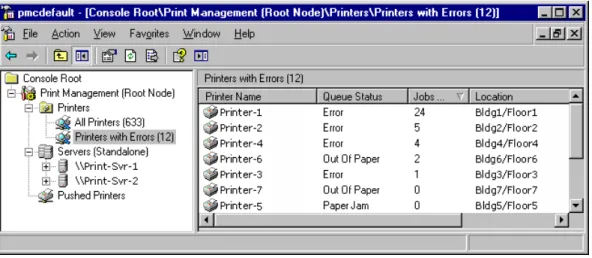
The details for each printer display in the results pane of the snap-in console. The results pane contains columns with values such as the printer name, queue status, jobs in the queue, printer location, and driver version. You can add and remove columns to show only certain characteristics of the printers, and you can filter among all the print servers in your organization to display only printers with specific criteria in the columns. Figure 1 shows both a filtered view and the resulting columns.
Figure 1 A view of printers where "Queue Status" does not equal "Ready"
You can also show an extended view, which shows more detail about the queue and provides access to the printer's Web page, if one is available. You can add, remove, and sort columns in extended view.
Adding and Removing Columns
When you click the Printers object in each printer server or an object in the Custom Printer Filters folder, you can view the columns in the results pane that contain printer details.
To add and remove columns
1. In the Print Management tree, under a print server, right-click Printers, point to
View, and then click Add/Remove Columns.
2. In the Add/Remove Columns dialog box, select the name of the column, and then click Add or Remove.
Showing Extended View
Extended view displays beneath the columns in the right pane, separated by a splitter bar. Extended view is useful when you want more information about the status of a print job, its owner, the number of pages, the size of the job, when it was submitted, its port, its priority, and so on.
specifications, and sometimes allows remote administration. For more information, see
Using the printer Web page later in this guide.
To show extended view
In the Print Management tree, under any print server, right-click Printers, and then click Show Extended View.
Note
To display or hide columns in extended view, select a printer. On the Jobs
tab, right-click the column heading row, and then click the name of the column that you want to display or hide.
Filtering Views
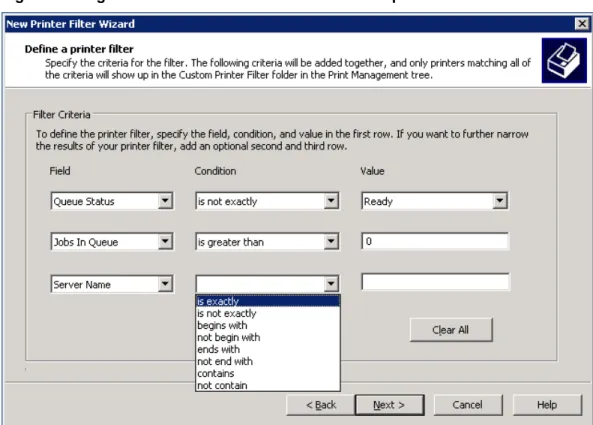
You can use the filtering feature to create custom views of printers, for example, it might be helpful to filter for printers with certain error conditions or those printers in a group of buildings regardless of the print server they use. Each view is dynamic, so the data is always up to date. All filtered views are stored in the Custom Printer Filters folder in the Print Management tree.
Figure 2 Using filter criteria to create a custom view of printers
For every filtered view that you set up, you have the option of setting notifications by e-mail or choosing to run a script. To learn how to use these options, see Troubleshoot Printers later in this guide.
To set up and save a filtered view
1. In the Print Management tree, right-click the Custom Printer Filters folder, and then click Add New Printer Filter. This will launch the New Printer Filter Wizard.
2. On the Printer Filter Name and Description wizard page, type a name and optional description for the printer filter. The name will appear in the Custom Printer Filters folder in the Print Management tree.
3. In Description, type an optional description.
4. To display the number of printers that satisfy the conditions of a filter, select the
Display the total number of printers next to the name of the printer filter
5. Click Next.
6. On the Define a printer filter wizard page, do the following:
a. In the Field list, click the print queue or printer status characteristic.
b. In the Condition list, click the condition.
c. In the Value box, type a value.
d. Continue adding criteria until your filter is complete, and then click Next.
7. On the Set Notifications (Optional) wizard page, do one or both of the following:
To set an e-mail notification, select the Send e-mail notification check box, and type one or more recipient and sender e-mail addresses. An SMTP server must be specified to route the message. Use the format
account@domain and semicolons to separate multiple accounts.
To set a script to run, select the Run script check box, and then type the path where the script file is located. To add more arguments, type them in the Additional Arguments box.
8. Click Finish.
Step 5: Saving a custom view
If you use customized views of Print Management, it might be useful to save one or more views. Print Management files are *.msc files.
The following are Print Management settings that you can customize for viewing:
Print servers added
Custom views (filters) and notifications
Column preferences
Step 6: Manage Printers
You can use Print Management to manage all of the printers in your enterprise, including printers in branch offices. You can use the same interface to control how printers are shared, update drivers, and control print queues. It is unnecessary to navigate to the individual folders for each printer on each printer server.
local print server in branch offices. This is helpful when branch office personnel are not trained in administrative duties. You can deploy a printer to an entire group of people or make a printer available to every computer in a particular room. For more information, see Deploying Printers to Users or Computers by using Group Policy later in this guide.
Automatically Installing Printers to the Local Print Server
As the administrator on the local print server, you can add and remove printers. Print Management can automatically detect all printers located on the same subnet as the print server, install the appropriate printer drivers, set up the queues, and share the printers. Unless a printer driver cannot be found, no intervention is needed.
You need to have administrator permissions on the computer where the printers will be added.
If you want to automatically detect printers for a branch office or another location beyond the subnet of your server, use Remote Desktop to log on to the remote print server and start the process from that computer. You need to have administrator permissions on the computer where the printers will be added. Once you connect to the remote server by using Remote Desktop, you can search for network printers by starting Print
Management or by running \windows\pmcsnap\fnprinters.exe from the command line.
To add network printers to the local printer server automatically
In the Print Management tree, right-click ServerName (local), click
Automatically Add Network Printers, and then click Start to automatically locate and install printers found on this server's local subnet.
Note
You may be prompted to specify which driver you want to install for a printer, but otherwise, the process is automatic.
Using Print Management for Bulk Printer Management Tasks
Bulk operations can be performed on all the printers on a particular server or all the printers under a particular filter.
The following is a list of the tasks that are possible to perform on multiple printers simultaneously:
Pause printing
Cancel All Jobs
List in Directory
Remove from Directory
Delete
Updating Device Drivers
Printer driver details are shown separately for each server that you have added to the Print Management snap-in console. By default, the driver name, driver version, environment, and provider columns are visible. You can add columns to show more details such as the config file path, data file path, default datatype, driver file path, manufacturer, and so on.
You can export the list of details to a text file for use outside of Print Management.
To manage device drivers
1. In the Print Management tree, under the appropriate print server, right-click
Drivers, and then click Manage Drivers.
2. Do one or more of the following:
To add a printer driver, click Add, and then complete the Add Printer Driver Wizard.
To remove a printer driver, select a driver from the list, and then click
Remove.
To reinstall a printer driver, select a driver, and then click Reinstall.
To view the details for a printer driver, select the driver, and then click
Properties.
Listing and Removing Printers in Active Directory
Listing printers in the Active Directory® directory service makes it easier for users to locate and install printers. After you install printers on a printer server, you can use Print Management to list them in Active Directory.
To list or remove printers in Active Directory
1. In the Print Management tree, under the appropriate print server, click Printers.
2. In the results pane, right-click the printer you want to list or remove from the directory service, and then click List in Directory or Remove from Directory.
Exporting a List of Printers and Displayed Columns
You can export a text file containing the data available on any Printers object, which includes the currently displayed columns.
To export a list of printers
1. In the Print Management tree, under the appropriate print server, right-click
Printers, then click Export List.
2. In the Export List dialog box, in File name, type the name of the file, and then click Save.
Deploying Printers to Users or Computers by using Group Policy
Print Management can be used with Group Policy to automatically add printer connections to a computer's Printers and Faxes folder.
Note
Before the Deploy Printer Connection feature will work, the schema needs to be updated. For more information about how to update the schema, see "Upgrading from a Windows 2000 domain" on the Microsoft Web site
(http://go.microsoft.com/fwlink/?LinkId=52146). For more information about schema updates, see the Microsoft Web site (http://go.microsoft.com/fwlink/? LinkId=51166).
To do this, you use the Deploy with Group Policy dialog box to automatically add a printer connection setting to an existing Group Policy object (GPO) in Active Directory. When Group Policy processing runs on client computers, the printer connection settings are applied to the users or computers associated with the GPO. Printers you deploy by using this method appear in the Deployed Printers object of Print Management tree when the print server they are connected to is being monitored. You will have Read Access on the GPO to which the printers are being deployed.
also useful in large organizations, where computers and printers are often separated by function, workgroup, or department, such as marketing or human resources.
A printer connection that has been installed by using a per-user connection is available to users on any computer the user logs on to in the network. A printer connection that has been installed by using a pushed per-machine connection appears in the printers and faxes folder, ready for use by any user the next time they log on to that computer.
To enable this feature, you must use a utility called PushPrinterConnections.exe.
Note
The PushPrinterConnections.exe utility is only needed on computers running Windows 2000, Windows XP, and Windows Server 2003 R2 client computers.
Important
In order for the PushPrinterConnections.exe utility to work, you must update your Active Directory schema with the Windows Server 2003 R2 changes. For more information on these schema updates, see the Microsoft Web siteMicrosoft Web site (http://go.microsoft.com/fwlink?linkid=51166).
First, add the PushPrinterConnections.exe utility to a machine startup script (for per-machine connections) or to a user logon script (for per-user connections). The utility reads the settings made by the GPO containing the printer setting and adds the printer connection.
It is a good idea to use the same GPO for both the printer connection settings and the PushPrinterConnections.exe computer startup or user logon script. This ensures that only users (or computers) that receive the printer connection settings will run the
PushPrinterConnections.exe utility.
Note
Only per-user printer connections are supported on computers running
Windows 2000. Either Windows XP or Windows Server 2003 is required for per-machine printer connections.
Important
For more information about using Group Policy, see "Enterprise Management with the Group Policy Management Console" on the Microsoft Web site
(http://go.microsoft.com/fwlink?linkid=22814).
To install printers to groups of users or computers by using Group Policy
1. In the Print Management tree, under the appropriate print server, click Printers.
2. In the results pane, right-click the printer you want to deploy, and then click Deploy with Group Policy.
3. In the Deploy with Group Policy dialog box, click Browse, and then choose a Group Policy object.
4. Click OK.
5. To assign the printer connection setting to the GPO, do one or both of the following:
As a per-user setting, select the The users that this GPO applies to (per user)
check box.
As a per-machine setting, select the The computers that this GPO applies to (per machine) check box.
6. Click Add.
8. Click OK.
To use the PushPrinterConnections.exe file
1. Using Group Policy Management console (Gpmc.msc), right-click the GPO with your printer connections settings and click Edit.
2. In the Group Policy Object Editor tree, navigate to one following locations:
If the printer connections are deployed per-machine, go to Computer Configuration, Windows Settings, Scripts (Startup/Shutdown).
If the printer connections are deployed per-user, go to User Configuration,
Windows Settings, Scripts (Logon/Logoff).
3. Right-click Startup or Logon, and then click Properties.
4. In the Logon Properties or Startup Properties dialog box, click Show Files.
5. Copy the PushPrinterConnections.exe file to this location and then close the window.
6. In the Logon Properties or Startup Properties dialog box, click Add.
7. Type PushPrinterConnections.exe in the Script Name box.
8. If you want to enable logging, type –log in the Script Parameters box. Log files are written to %windir%\Temp\PpcMachine.log (for per-computer connections) and %temp%\PpcUser.log (for per-user connections) on the computer on which the policy is applied.
9. Click OK.
Note
For per-computer connections, the printer connections will be added when the client computer restarts. For per-user connections, the printer connections will be added when the user logs on.
Note
If you remove the printer connection settings from the GPO, the
Step 7: Troubleshoot Printers
Print Management has several features that may help you identify and resolve printer problems—even in remote locations. Setting pre-defined filters lets you easily find all printers that are not in Ready status or that have a backed up queue. Many devices, regardless of manufacturer, provide rich status information, which is readily available to Print Management. By closely monitoring the printers in your organization, you may even be able to resolve problems before they happen, such as identifying when paper or toner is low.
You can set up e-mail notifications to alert you when a printer needs attention. This is especially useful when you have printers at multiple locations with different people responsible for managing them. By using an automated system to notify you when a printer or printer server is down, the problem may be resolved sooner and less attention may need to be focused on the monitoring program.
Note
Print Management must be running for notifications to be sent or for scripts to run.
Using the Printer Web Page
Multifunction printers sometimes have a Web page that is accessible though extended view in Print Management. The functionality on the printer Web page will vary depending upon both the model and the manufacturer of the printer. Some multifunction printers provide remote functions, the amount of paper in each tray, and the toner level. You may be able to delete print jobs or upgrade device drivers from the printer Web pages.
Note
If the printer is down due to a networking error, the printer Web page cannot be displayed.
Setting E-mail Notifications
When you create a view, or filter for specific printer criteria, you have the option of sending an automatic e-mail notification to someone when the conditions of the filter are met. This is useful for resolving printer problems, particularly in an organization with multiple buildings and administrators.
to another status, the administrator could receive a notification e-mail from Print Management.
To send these notifications, you must specify that the SMTP server forward the messages.
To set e-mail notifications
1. In the Print Management tree, do one of the following:
To set a notification on an existing filtered view, right-click the custom printer filter, and then click Properties. Click the Notification tab.
To set a notification on a new filtered view, right-click the Custom Printer Filters
folder, and then click Add New Printer Filter. Follow the instructions until you reach the Set Notifications page.
2. Select the Send e-mail notification check box.
3. Enter the following information:
In Recipient e-mail address(es), type the e-mail address of the recipient. Use the format account@domain. Use semicolons to separate multiple accounts.
In Sender e-mail address, type the e-mail address of the sender. Use the format
In SMTP Server, type the host name of the SMTP server that will forward the e-mail notifications.
In Message, type a text message describing the conditions of the printer problem.
Setting Server Notifications
In addition to setting notifications on a custom set of printers, you can set notifications on printer server objects. For example, if the server is offline, or the spooler goes down, an e-mail notification can be sent. To do this, right-click a print server object, click Set Notifications, and then follow steps 2 and 3 in "To set e-mail notifications."
Printing a Test Page
You can quickly print a test page from any printer in your organization. This is helpful for testing a printer, particularly when you are not in the same building.
To print a test page
1. In the Print Management tree, click the appropriate print server.
2. In the results pane, right-click the printer for which you want a test page, and then click Print Test Page.
Using Scripts
When you create a view, or filter for specific printer criteria, you have the option of running a script when the conditions of the filter are met. Script notifications are defined in the Set Notifications dialog box. Setting script notifications are useful for resolving printer problems and troubleshooting.
For example, you could automatically run a script to restart a spooler when printers go offline. You could also automatically run a script that prints a test page. The arguments are: UserSpecifiedArgumentsServerOfflineServerName
Scripts can be written in Visual Basic® Script (.vbs) or any scripting language available on the computer. The script has to be on the computer with Print Management. The script should be running with your credentials and you need to have the permissions to do whatever it is that you want the script to do.
An example of a command that you might use in a script is to start the print spooler:
Step 8: Troubleshoot Print Management
If you are using a firewall with Print Management, some or all of the printers on a network print server may not be displayed. To solve the problem, add File and Printer Sharing to the list of exceptions in the firewall software configuration. For example, in Windows Firewall the setting is on the Exceptions tab.
To display all of the printers on a network print server when using a firewall
1. Once File and Printer Sharing has been added, click Edit.
2. In the Edit a Service dialog box, click Change scope.
3. In the Change Scope dialog box, select Any computer (including those on the Internet).
Additional Resources
The following resources provide additional information about Print Management.
For information about using scripts, see "Script Repository: Printing" on the Microsoft Web site (http://go.microsoft.com/fwlink/?LinkId=50001).