Corporate Headquarters
Cisco Systems, Inc. 170 West Tasman Drive San Jose, CA 95134-1706 USA
http://www.cisco.com Tel: 408 526-4000
Catalyst 6500 Series Switch
MSFC Command Reference
THE SPECIFICATIONS AND INFORMATION REGARDING THE PRODUCTS IN THIS MANUAL ARE SUBJECT TO CHANGE WITHOUT NOTICE. ALL STATEMENTS, INFORMATION, AND RECOMMENDATIONS IN THIS MANUAL ARE BELIEVED TO BE ACCURATE BUT ARE PRESENTED WITHOUT WARRANTY OF ANY KIND, EXPRESS OR IMPLIED. USERS MUST TAKE FULL RESPONSIBILITY FOR THEIR APPLICATION OF ANY PRODUCTS. THE SOFTWARE LICENSE AND LIMITED WARRANTY FOR THE ACCOMPANYING PRODUCT ARE SET FORTH IN THE INFORMATION PACKET THAT SHIPPED WITH THE PRODUCT AND ARE INCORPORATED HEREIN BY THIS REFERENCE. IF YOU ARE UNABLE TO LOCATE THE SOFTWARE LICENSE OR LIMITED WARRANTY, CONTACT YOUR CISCO REPRESENTATIVE FOR A COPY.
The Cisco implementation of TCP header compression is an adaptation of a program developed by the University of California, Berkeley (UCB) as part of UCB’s public domain version of the UNIX operating system. All rights reserved. Copyright © 1981, Regents of the University of California.
NOTWITHSTANDING ANY OTHER WARRANTY HEREIN, ALL DOCUMENT FILES AND SOFTWARE OF THESE SUPPLIERS ARE PROVIDED “AS IS” WITH ALL FAULTS. CISCO AND THE ABOVE-NAMED SUPPLIERS DISCLAIM ALL WARRANTIES, EXPRESSED OR IMPLIED, INCLUDING, WITHOUT
LIMITATION, THOSE OF MERCHANTABILITY, FITNESS FOR A PARTICULAR PURPOSE AND NONINFRINGEMENT OR ARISING FROM A COURSE OF DEALING, USAGE, OR TRADE PRACTICE.
IN NO EVENT SHALL CISCO OR ITS SUPPLIERS BE LIABLE FOR ANY INDIRECT, SPECIAL, CONSEQUENTIAL, OR INCIDENTAL DAMAGES, INCLUDING, WITHOUT LIMITATION, LOST PROFITS OR LOSS OR DAMAGE TO DATA ARISING OUT OF THE USE OR INABILITY TO USE THIS MANUAL, EVEN IF CISCO OR ITS SUPPLIERS HAVE BEEN ADVISED OF THE POSSIBILITY OF SUCH DAMAGES.
CCIP, CCSP, the Cisco Arrow logo, the Cisco Powered Network mark, the Cisco Systems Verified logo, Cisco Unity, Follow Me Browsing, FormShare, iQ Net Readiness Scorecard, Networking Academy, and ScriptShare are trademarks of Cisco Systems, Inc.; Changing the Way We Work, Live, Play, and Learn, The Fastest Way to Increase Your Internet Quotient, and iQuick Study are service marks of Cisco Systems, Inc.; and Aironet, ASIST, BPX, Catalyst, CCDA, CCDP, CCIE, CCNA, CCNP, Cisco, the Cisco Certified Internetwork Expert logo, Cisco IOS, the Cisco IOS logo, Cisco Press, Cisco Systems, Cisco Systems Capital, the Cisco Systems logo, Empowering the Internet Generation, Enterprise/Solver, EtherChannel, EtherSwitch, Fast Step, GigaStack, Internet Quotient, IOS, IP/TV, iQ Expertise, the iQ logo, LightStream, MGX, MICA, the Networkers logo, Network Registrar, Packet, PIX, Post-Routing, Pre-Routing, RateMUX, Registrar, SlideCast, SMARTnet, StrataView Plus, Stratm, SwitchProbe, TeleRouter, TransPath, and VCO are registered trademarks of Cisco Systems, Inc. and/or its affiliates in the U.S. and certain other countries.
All other trademarks mentioned in this document or Web site are the property of their respective owners. The use of the word partner does not imply a partnership relationship between Cisco and any other company. (0303R)
Catalyst 6500 Series Switch MSFC Command Reference
C O N T E N T S
Preface
viiAudience
viiOrganization
viiRelated Documentation
viiConventions
viiiObtaining Documentation
ixObtaining Technical Assistance
xObtaining Additional Publications and Information
xiiC H A P T E R 1
Command-Line Interface
1-1Getting Help
1-1How to Find Command Options
1-2Using the No and Default Forms of Commands
1-5Using the CLI String Search
1-5Saving Configuration Changes
1-11MSFC CLI
1-11C H A P T E R 2
Catalyst 6500 Series Switch MSFC Commands
2-1clear ip auth-proxy watch-list
2-2config-register
2-3config-sync
2-4define interface-range
2-5high-availability
2-6interface range
2-8ip address
2-10ip auth-proxy max-login-attempts
2-12ip auth-proxy watch-list
2-13ip local-proxy-arp
2-15Contents
ipx network
2-23maximum-paths
2-27mls aclmerge algorithm
2-28mls ip
2-30mls ip cef load-sharing full
2-31mls ip cef rate-limit
2-32mls ip delete-threshold
2-34mls ip inspect
2-35mls ip install-threshold
2-36mls ip multicast consistency-check
2-37mls ip multicast stub
2-39mtu
2-40redundancy
2-42set traffic-index
2-43show fm features
2-44show fm inband-counters
2-46show fm insp
2-47show fm interface
2-48show fm reflexive
2-50show fm summary
2-51show fm vlan
2-52show ip auth-proxy watch-list
2-54show ip wccp web-cache detail
2-55show l3-mgr
2-57show microcode
2-59show msfc2 rom-monitor
2-60show redundancy
2-61show scp
2-62show slot0:
2-64show standby delay
2-67snmp-server enable traps
2-68standby delay minimum reload
2-71standby ip
2-73standby track
2-75Contents
A P P E N D I X A
Acronyms
A-1Preface
This preface describes the audience, organization, and conventions of this publication, and provides information on how to obtain related documentation.
Audience
This publication is for experienced network administrators who are responsible for configuring and maintaining Catalyst 6500 series switches.
Organization
This publication is organized as follows:
Related Documentation
The Catalyst 6500 series switch Cisco IOS documentation set includes these documents:
• Catalyst 6500 Series Switch Module Installation Guide
• Catalyst 6500 Series Switch IOS Software Configuration Guide
• Catalyst 6500 Series Switch IOS System Message Guide
• Release Notes for Catalyst 6500 Series Switch IOS Software Release X.X
Chapter Title Description
Chapter 1 Command-Line Interface Describes the Multilayer Switching Feature Card command-line interface.
Chapter 2 Catalyst 6500 Series Switch MSFC Commands
Lists alphabetically and provides detailed information for MSFC-specific commands. Appendix A Acronyms Defines the acronyms used in this
Preface Conventions
The Cisco IOS documentation set includes these documents:
• Configuration Fundamentals Configuration Guide
• Command Reference
For information about MIBs, refer to this URL:
http://www.cisco.com/public/sw-center/netmgmt/cmtk/mibs.shtml
Conventions
This document uses the following conventions:
Notes use the following conventions:
Note Means reader take note. Notes contain helpful suggestions or references to material not covered in the publication.
Convention Description
boldface font Commands, command options, and keywords are in
boldface.
italic font Arguments for which you supply values are in italics. [ ] Elements in square brackets are optional.
{ x | y | z } Alternative keywords are grouped in braces and separated by vertical bars. Braces can also be used to group keywords and/or aguments; for example, {interface interface type}.
[ x | y | z ] Optional alternative keywords are grouped in brackets and separated by vertical bars.
string A nonquoted set of characters. Do not use quotation marks around the string or the string will include the quotation marks.
screen font Terminal sessions and information the system displays are in
screen font.
boldface screen
font
Information you must enter is in boldface screen font.
italic screen font Arguments for which you supply values are in italic screen font.
^ The symbol ^ represents the key labeled Control—for example, the key combination ^D in a screen display means hold down the Control key while you press the D key.
< > Nonprinting characters, such as passwords are in angle brackets.
[ ] Default responses to system prompts are in square brackets.
Preface
Obtaining Documentation
Cautions use the following conventions:
Caution Means reader be careful. In this situation, you might do something that could result in equipment damage or loss of data.
Obtaining Documentation
Cisco provides several ways to obtain documentation, technical assistance, and other technical resources. These sections explain how to obtain technical information from Cisco Systems.
Cisco.com
You can access the most current Cisco documentation on the World Wide Web at this URL:
http://www.cisco.com/univercd/home/home.htm
You can access the Cisco website at this URL:
http://www.cisco.com
International Cisco websites can be accessed from this URL:
http://www.cisco.com/public/countries_languages.shtml
Documentation CD-ROM
Cisco documentation and additional literature are available in a Cisco Documentation CD-ROM package, which may have shipped with your product. The Documentation CD-ROM is updated regularly and may be more current than printed documentation. The CD-ROM package is available as a single unit or through an annual or quarterly subscription.
Registered Cisco.com users can order a single Documentation CD-ROM (product number DOC-CONDOCCD=) through the Cisco Ordering tool:
http://www.cisco.com/en/US/partner/ordering/ordering_place_order_ordering_tool_launch.html
All users can order monthly or quarterly subscriptions through the online Subscription Store:
http://www.cisco.com/go/subscription
Ordering Documentation
You can find instructions for ordering documentation at this URL:
http://www.cisco.com/univercd/cc/td/doc/es_inpck/pdi.htm
You can order Cisco documentation in these ways:
Preface Obtaining Technical Assistance
• Nonregistered Cisco.com users can order documentation through a local account representative by calling Cisco Systems Corporate Headquarters (California, U.S.A.) at 408 526-7208 or, elsewhere in North America, by calling 800 553-NETS (6387).
Documentation Feedback
You can submit comments electronically on Cisco.com. On the Cisco Documentation home page, click
Feedback at the top of the page.
You can e-mail your comments to [email protected].
You can submit comments by using the response card (if present) behind the front cover of your document or by writing to the following address:
Cisco Systems
Attn: Customer Document Ordering 170 West Tasman Drive
San Jose, CA 95134-9883
We appreciate your comments.
Obtaining Technical Assistance
Cisco provides Cisco.com, which includes the Cisco Technical Assistance Center (TAC) website, as a starting point for all technical assistance. Customers and partners can obtain online documentation, troubleshooting tips, and sample configurations from the Cisco TAC website. Cisco.com registered users have complete access to the technical support resources on the Cisco TAC website, including TAC tools and utilities.
Cisco.com
Cisco.com offers a suite of interactive, networked services that let you access Cisco information, networking solutions, services, programs, and resources at any time, from anywhere in the world.
Cisco.com provides a broad range of features and services to help you with these tasks:
• Streamline business processes and improve productivity
• Resolve technical issues with online support
• Download and test software packages
• Order Cisco learning materials and merchandise
• Register for online skill assessment, training, and certification programs
To obtain customized information and service, you can self-register on Cisco.com at this URL:
Preface
Obtaining Technical Assistance
Technical Assistance Center
The Cisco TAC is available to all customers who need technical assistance with a Cisco product, technology, or solution. Two types of support are available: the Cisco TAC website and the Cisco TAC Escalation Center. The type of support that you choose depends on the priority of the problem and the conditions stated in service contracts, when applicable.
We categorize Cisco TAC inquiries according to urgency:
• Priority level 4 (P4)—You need information or assistance concerning Cisco product capabilities, product installation, or basic product configuration. There is little or no impact to your business operations.
• Priority level 3 (P3)—Operational performance of the network is impaired, but most business operations remain functional. You and Cisco are willing to commit resources during normal business hours to restore service to satisfactory levels.
• Priority level 2 (P2)—Operation of an existing network is severely degraded, or significant aspects of your business operations are negatively impacted by inadequate performance of Cisco products. You and Cisco will commit full-time resources during normal business hours to resolve the situation.
• Priority level 1 (P1)—An existing network is “down,” or there is a critical impact to your business operations. You and Cisco will commit all necessary resources around the clock to resolve the situation.
Cisco TAC Website
The Cisco TAC website provides online documents and tools to help troubleshoot and resolve technical issues with Cisco products and technologies. To access the Cisco TAC website, go to this URL:
http://www.cisco.com/tac
All customers, partners, and resellers who have a valid Cisco service contract have complete access to the technical support resources on the Cisco TAC website. Some services on the Cisco TAC website require a Cisco.com login ID and password. If you have a valid service contract but do not have a login ID or password, go to this URL to register:
http://tools.cisco.com/RPF/register/register.do
If you are a Cisco.com registered user, and you cannot resolve your technical issues by using the Cisco TAC website, you can open a case online at this URL:
http://www.cisco.com/tac/caseopen
If you have Internet access, we recommend that you open P3 and P4 cases online so that you can fully describe the situation and attach any necessary files.
Cisco TAC Escalation Center
The Cisco TAC Escalation Center addresses priority level 1 or priority level 2 issues. These
classifications are assigned when severe network degradation significantly impacts business operations. When you contact the TAC Escalation Center with a P1 or P2 problem, a Cisco TAC engineer
Preface Obtaining Additional Publications and Information
Before calling, please check with your network operationscenter to determine the Cisco support services to which your company is entitled: for example, SMARTnet, SMARTnet Onsite, or Network Supported Accounts (NSA). When you call the center, please have available your service agreement number and your product serial number.
Obtaining Additional Publications and Information
Information about Cisco products, technologies, and network solutions is available from various online and printed sources.
• The Cisco Product Catalog describes the networking products offered by Cisco Systems, as well as ordering and customer support services. Access the Cisco Product Catalog at this URL:
http://www.cisco.com/en/US/products/products_catalog_links_launch.html
• Cisco Press publishes a wide range of networking publications. Cisco suggests these titles for new and experienced users: Internetworking Terms and Acronyms Dictionary, Internetworking
Technology Handbook, Internetworking Troubleshooting Guide, and the Internetworking Design Guide. For current Cisco Press titles and other information, go to Cisco Press online at this URL:
http://www.ciscopress.com
• Packet magazine is the Cisco quarterly publication that provides the latest networking trends,
technology breakthroughs, and Cisco products and solutions to help industry professionals get the most from their networking investment. Included are networking deployment and troubleshooting tips, configuration examples, customer case studies, tutorials and training, certification information, and links to numerous in-depth online resources. You can access Packet magazine at this URL:
http://www.cisco.com/go/packet
• iQ Magazine is the Cisco bimonthly publication that delivers the latest information about Internet business strategies for executives. You can access iQ Magazine at this URL:
http://www.cisco.com/go/iqmagazine
• Internet Protocol Journal is a quarterly journal published by Cisco Systems for engineering professionals involved in designing, developing, and operating public and private internets and intranets. You can access the Internet Protocol Journal at this URL:
http://www.cisco.com/en/US/about/ac123/ac147/about_cisco_the_internet_protocol_journal.html
• Training—Cisco offers world-class networking training. Current offerings in network training are listed at this URL:
C H A P T E R
1
Command-Line Interface
This chapter provides information for understanding and using the Catalyst 6500 series switch Cisco IOS software using the command-line interface (CLI). This chapter includes the following sections:
• Getting Help, page 1-1
• How to Find Command Options, page 1-2
• MSFC CLI, page 1-11
For an overview of the Catalyst 6500 series switch Cisco IOS software configuration, refer to the
Catalyst 6500 Series IOS Software Configuration Guide.
Getting Help
To obtain a list of commands that are available for each command mode, enter a question mark (?) at the system prompt. You also can obtain a list of any command’s associated keywords and arguments with the context-sensitive help feature.
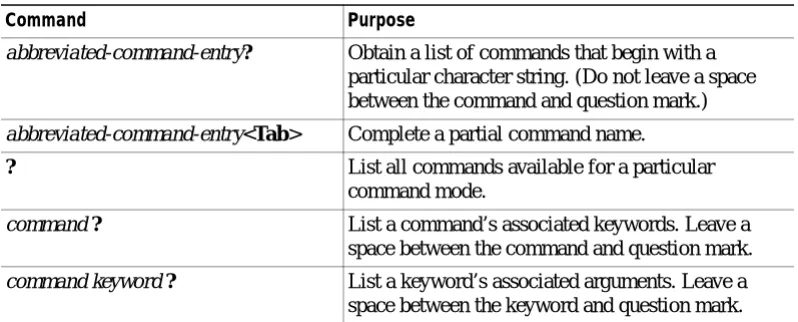
Table 1-1 lists commands you can enter to get help that is specific to a command mode, a command, a keyword, or an argument.
Table 1-1 Getting Help
Command Purpose
abbreviated-command-entry? Obtain a list of commands that begin with a particular character string. (Do not leave a space between the command and question mark.)
abbreviated-command-entry<Tab> Complete a partial command name.
? List all commands available for a particular command mode.
command ? List a command’s associated keywords. Leave a space between the command and question mark.
Chapter 1 Command-Line Interface How to Find Command Options
How to Find Command Options
This section provides an example of how to display syntax for a command. The syntax can consist of optional or required keywords. To display keywords for a command, enter a question mark (?) at the configuration prompt or after entering part of a command followed by a space. The Catalyst 6500 series switch software displays a list of available keywords along with a brief description of the keywords. For example, if you are in global configuration mode and want to see all the keywords for the arap command, you enter arap ?.
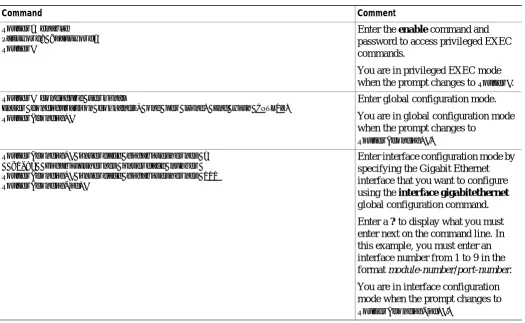
Table 1-2 shows examples of how you can use the question mark (?) to assist you in entering commands and also guides you through entering the following commands:
• interface gigabitethernet 1/1
• channel-group 1 mode auto
Table 1-2 How to Find Command Options
Command Comment
Router> enable
Password: <password> Router#
Enter the enable command and password to access privileged EXEC commands.
You are in privileged EXEC mode when the prompt changes to Router#.
Router# configure terminal
Enter configuration commands, one per line. End with CNTL/Z. Router(config)#
Enter global configuration mode.
You are in global configuration mode when the prompt changes to
Router(config)#.
Router(config)# interface gigabitethernet ?
<1-9> GigabitEthernet interface number
Router(config)# interface gigabitethernet 1/1
Router(config-if)#
Enter interface configuration mode by specifying the Gigabit Ethernet interface that you want to configure using the interface gigabitethernet global configuration command.
Enter a ? to display what you must enter next on the command line. In this example, you must enter an interface number from 1 to 9 in the format module-number/port-number.
You are in interface configuration mode when the prompt changes to
Chapter 1 Command-Line Interface
How to Find Command Options
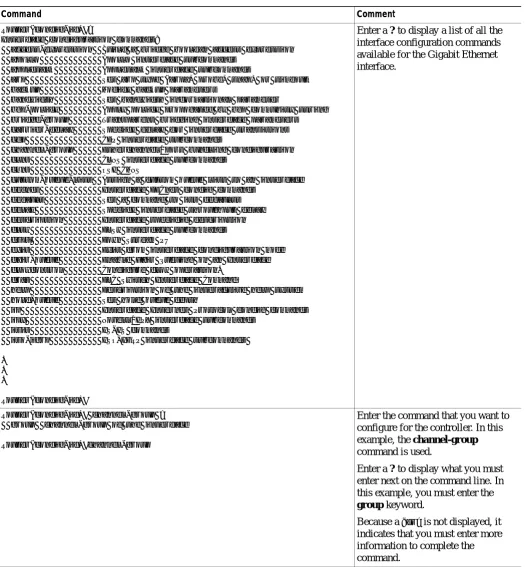
Router(config-if)#?
Interface configuration commands:
access-expression Build a bridge boolean access expression apollo Apollo interface subcommands
appletalk Appletalk interface subcommands
arp Set arp type (arpa, probe, snap) or timeout backup Modify backup parameters
bandwidth Set bandwidth informational parameter
bgp-policy Apply policy propogated by bgp community string bridge-group Transparent bridging interface parameters carrier-delay Specify delay for interface transitions cdp CDP interface subcommands
channel-group Etherchannel/port bundling configuration clns CLNS interface subcommands
cmns OSI CMNS
custom-queue-list Assign a custom queue list to an interface decnet Interface DECnet config commands
default Set a command to its defaults delay Specify interface throughput delay description Interface specific description dlsw DLSw interface subcommands dspu Down Stream PU
exit Exit from interface configuration mode fair-queue Enable Fair Queuing on an Interface flowcontrol Configure flow operation.
fras DLC Switch Interface Command
help Description of the interactive help system hold-queue Set hold queue depth
ip Interface Internet Protocol config commands ipx Novell/IPX interface subcommands
isis IS-IS commands
iso-igrp ISO-IGRP interface subcommands
. . .
Router(config-if)#
Enter a ? to display a list of all the interface configuration commands available for the Gigabit Ethernet interface.
Router(config-if)# channel-group ?
group channel-group of the interface
Router(config-if)#channel-group
Enter the command that you want to configure for the controller. In this example, the channel-group command is used.
Enter a ? to display what you must enter next on the command line. In this example, you must enter the
group keyword.
Because a <cr> is not displayed, it
indicates that you must enter more information to complete the command.
Table 1-2 How to Find Command Options (continued)
Chapter 1 Command-Line Interface How to Find Command Options
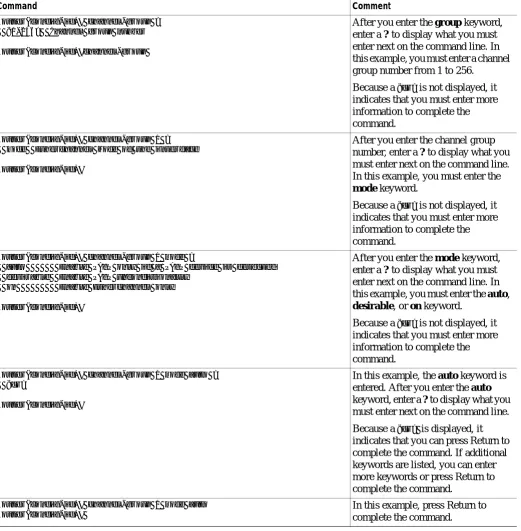
Router(config-if)# channel-group ?
<1-256> Channel group number
Router(config-if)#channel-group
After you enter the group keyword, enter a ? to display what you must enter next on the command line. In this example, you must enter a channel group number from 1 to 256.
Because a <cr> is not displayed, it
indicates that you must enter more information to complete the command.
Router(config-if)# channel-group 1 ?
mode Etherchannel Mode of the interface
Router(config-if)#
After you enter the channel group number, enter a ? to display what you must enter next on the command line. In this example, you must enter the
mode keyword.
Because a <cr> is not displayed, it
indicates that you must enter more information to complete the command.
Router(config-if)# channel-group 1 mode ?
auto Enable PAgP only if a PAgP device is detected desirable Enable PAgP unconditionally
on Enable Etherchannel only
Router(config-if)#
After you enter the mode keyword, enter a ? to display what you must enter next on the command line. In this example, you must enter the auto,
desirable, or on keyword.
Because a <cr> is not displayed, it indicates that you must enter more information to complete the command.
Router(config-if)# channel-group 1 mode auto ?
<cr>
Router(config-if)#
In this example, the auto keyword is entered. After you enter the auto keyword, enter a ? to display what you must enter next on the command line.
Because a <cr> is displayed, it
indicates that you can press Return to complete the command. If additional keywords are listed, you can enter more keywords or press Return to complete the command.
Router(config-if)# channel-group 1 mode auto
Router(config-if)#
In this example, press Return to complete the command.
Table 1-2 How to Find Command Options (continued)
Chapter 1 Command-Line Interface
Using the No and Default Forms of Commands
Using the No and Default Forms of Commands
Almost every configuration command has a no form. In general, enter the no form to disable a function. Use the command without the keyword no to reenable a disabled function or to enable a function that is disabled by default. For example, IP routing is enabled by default. To disable IP routing, specify the
no ip routing command and specify ip routing to reenable it. This publication provides the complete
syntax for the configuration commands and describes what the no form of a command does.
Configuration commands can have a default form. The default form of a command returns the command setting to its default. Most commands are disabled by default, so the default form is the same as the no form. However, some commands are enabled by default and have variables set to certain default values. In these cases, the default form of the command enables the command and sets variables to their default values. This publication describes what the default form of a command does if the command is not the same as the no form.
Using the CLI String Search
The pattern in the command output is referred to as a string. The CLI string search feature allows you to search or filter any show or more command output and allows you to search and filter at --More-- prompts. This feature is useful when you need to sort though large amounts of output, or if you want to exclude output that you do not need to see.
With the search function, you can begin unfiltered output at the first line that contains a regular expression you specify. You can then specify a maximum of one filter per command or start a new search from the --More-- prompt.
A regular expression is a pattern (a phrase, number, or more complex pattern) software uses to match against show or more command output. Regular expressions are case sensitive and allow for complex matching requirements. Examples of simple regular expressions are Serial, misses, and 138. Examples of complex regular expressions are 00210..., ( is ), and [Oo]utput.
You can perform three types of filtering:
• Use the begin keyword to begin output with the line that contains a specified regular expression.
• Use the include keyword to include output lines that contain a specified regular expression.
• Use the exclude keyword to exclude output lines that contain a specified regular expression.
You can then search this filtered output at the --More-- prompts.
Note The CLI string search function does not allow you to search or filter backward through previous output; filtering cannot be specified using HTTP access to the CLI.
Regular Expressions
Chapter 1 Command-Line Interface Using the CLI String Search
Single-Character Patterns
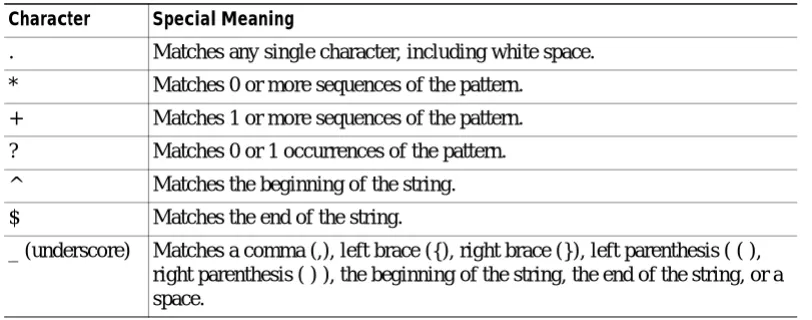
The simplest regular expression is a single character that matches the same single character in the command output. You can use any letter (A-Z, a-z) or digit (0-9) as a single-character pattern. You can also use other keyboard characters (such as ! or ~) as single-character patterns, but certain keyboard characters have special meaning when used in regular expressions. Table 1-3 lists the keyboard characters with special meaning.
To enter these special characters as single-character patterns, remove the special meaning by preceding each character with a backslash (\). These examples are single-character patterns matching a dollar sign, an underscore, and a plus sign, respectively.
\$ \_ \+
You can specify a range of single-character patterns to match against command output. For example, you can create a regular expression that matches a string containing one of the following letters: a, e, i, o, or u. One and only one of these characters must exist in the string for pattern matching to succeed. To specify a range of single-character patterns, enclose the single-character patterns in square brackets ([ ]). For example,
[aeiou]
matches any one of the five vowels of the lowercase alphabet, while
[abcdABCD]
matches any one of the first four letters of the lower- or uppercase alphabet.
You can simplify ranges by entering only the end points of the range separated by a dash (-). Simplify the previous range as follows:
[a-dA-D]
To add a dash as a single-character pattern in your range, include another dash and precede it with a backslash:
[a-dA-D\-]
You can also include a right square bracket (]) as a single-character pattern in your range. To do so, enter the following:
[a-dA-D\-\]]
Table 1-3 Characters with Special Meaning
Character Special Meaning
. Matches any single character, including white space.
* Matches 0 or more sequences of the pattern.
+ Matches 1 or more sequences of the pattern.
? Matches 0 or 1 occurrences of the pattern. ^ Matches the beginning of the string.
$ Matches the end of the string.
Chapter 1 Command-Line Interface
Using the CLI String Search
The previous example matches any one of the first four letters of the lower- or uppercase alphabet, a dash, or a right square bracket.
You can reverse the matching of the range by including a caret (^) at the start of the range. This example matches any letter except the ones listed:
[^a-dqsv]
This example matches anything except a right square bracket (]) or the letter d:
[^\]d]
Multiple-Character Patterns
When creating regular expressions, you can also specify a pattern containing multiple characters. You create multiple-character regular expressions by joining letters, digits, or keyboard characters that do not have special meaning. For example, a4% is a multiple-character regular expression. Put a backslash in front of the keyboard characters that have special meaning when you want to remove their special meaning.
With multiple-character patterns, order is important. The regular expression a4% matches the character a followed by a 4 followed by a % sign. If the string does not have a4%, in that order, pattern matching fails. This multiple-character regular expression
a.
uses the special meaning of the period character to match the letter a followed by any single character. With this example, the strings ab, a!, or a2 are all valid matches for the regular expression.
You can remove the special meaning of the period character by putting a backslash in front of it. In the following expression
a\.
only the string a. matches this regular expression.
You can create a multiple-character regular expression containing all letters, all digits, all keyboard characters, or a combination of letters, digits, and other keyboard characters. These examples are all valid regular expressions:
telebit 3107 v32bis
Multipliers
You can create more complex regular expressions to match multiple occurrences of a specified regular expression by using some special characters with your single- and multiple-character patterns. Table 1-4
lists the special characters that specify “multiples” of a regular expression.
Table 1-4 Special Characters Used as Multipliers
Character Description
* Matches 0 or more single- or multiple-character patterns.
+ Matches 1 or more single- or multiple-character patterns.
Chapter 1 Command-Line Interface Using the CLI String Search
This pattern requires that at least one letter a in the string is matched:
a+
This pattern matches the string bb or bab:
ba?b
This string matches any number of asterisks (*):
\**
To use multipliers with multiple-character patterns, you enclose the pattern in parentheses. In the following example, the pattern matches any number of the multiple-character string ab:
(ab)*
As a more complex example, this pattern matches one or more instances of alphanumeric pairs (but not none; that is, an empty string is not a match):
([A-Za-z][0-9])+
The order for matches using multipliers (*, +, or ?) is to put the longest construct first. Nested constructs are matched from outside to inside. Concatenated constructs are matched beginning at the left side of the construct. Thus, the regular expression matches A9b3, but not 9Ab3 because the letters are specified before the numbers.
Alternation
Alternation allows you to specify alternative patterns to match against a string. You separate the alternative patterns with a vertical bar (|). Exactly one of the alternatives can match the string. For example, the regular expression
codex | telebit
matches the string codex or the string telebit, but not both codex and telebit.
Anchoring
You can match a regular expression pattern against the beginning or the end of the string. That is, you can specify that the beginning or end of a string contains a specific pattern. You “anchor” these regular expressions to a portion of the string using the special characters shown in Table 1-5.
This regular expression matches a string only if the string starts with abcd:
^abcd
In contrast, this expression is in a range that matches any single letter, as long as it is not the letters a, b, c, or d:
[^abcd]
Table 1-5 Special Characters Used for Anchoring
Character Description
Chapter 1 Command-Line Interface
Using the CLI String Search
With this example, the regular expression matches a string that ends with .12:
$\.12
Contrast these anchoring characters with the special character underscore (_). The underscore matches the beginning of a string (^), the end of a string ($), parentheses ( ), space ( ), braces { }, comma (,), or underscore (_). With the underscore character, you can specify that a pattern exist anywhere in the string.
For example:
_1300_
matches any string that has 1300 somewhere in the string. The string’s 1300 can be preceded by or end with a space, brace, comma, or underscore. For example:
{1300_
matches the regular expression, but 21300 and 13000 do not.
Using the underscore character, you can replace long regular expression lists, such as the following:
^1300$ ^1300(space) (space)1300 {1300, ,1300, {1300} ,1300, (1300
with
_1300_
Parentheses for Recall
As shown in the “Multipliers” section on page 1-7, you use parentheses with multiple-character regular expressions to multiply the occurrence of a pattern. You can also use parentheses around a single- or multiple-character pattern to remember a pattern for use elsewhere in the regular expression.
To create a regular expression that recalls a previous pattern, you use parentheses to indicate a
remembered specific pattern and a backslash (\) followed by an integer to reuse the remembered pattern. The integer specifies the occurrence of the parentheses in the regular expression pattern. If you have more than one remembered pattern in your regular expression, then \1 indicates the first remembered pattern, \2 indicates the second remembered pattern, and so on.
This regular expression uses parentheses for recall:
a(.)bc(.)\1\2
This regular expression matches an a followed by any character (call it character 1), followed by bc followed by any character (character 2), followed by character 1 again, followed by character 2 again. The regular expression can match aZbcTZT. The software remembers that character 1 is Z and character 2 is T and then uses Z and T again later in the regular expression.
alt Keyword Usage
When you enable high-availability redundancy, every configuration command executed on the
Chapter 1 Command-Line Interface Using the CLI String Search
The two states for the configuration synchronization are as follows:
• Config Sync AdminStatus—Signifies what the user has configured for this feature at that moment
• Config Sync RuntimeStatus—Enabled only when the following occurs:
– The Config Sync AdminStatus is enabled on both the designated and nondesignated MSFCs
– The designated and nondesignated MSFCs are running compatible images
To configure both MSFCs from a single console, enter the alt keyword to specify an alternate
configuration. When specifying the alternate configuration, the configuration that is specified before the
alt keyword relates to the MSFC on the supervisor engine in slot 1 of the switch; the configuration that
is specified after the alt keyword relates to the MSFC on the supervisor engine in slot 2.
Note You must enter the alt keyword when you enable Config Sync AdminStatus.
When you enable the Config Sync RuntimeStatus, the following occurs:
• No configuration mode is available on the CLI of the nondesignated MSFC; EXEC mode is available. Configuration of both MSFCs is made through the console or a Telnet session on the designated MSFC.
• The alt keyword is available and required (see the “alt Keyword Usage” section on page 1-9 for more information on the alt keyword)
• The running and startup configurations are synchronized
When the Config Sync RuntimeStatus is in disabled mode, the following occurs:
• Configuration mode is available on the CLI of both MSFCs
• The alt keyword is available but optional
• The running and startup configurations are not synchronized
Table 1-6 shows the interface and global configuration commands that contain the alt keyword:
This example shows how the alt keyword is used when entering the ip address command:
Router-1(config-if)# ip address 1.2.3.4 255.255.255.0 alt ip address 1.2.3.5 255.255.255.0
Table 1-6 Interface and Global Configuration Commands Containing the alt Keyword
Interface Configuration Commands Global Configuration Commands
• [no] standby [group_number] ip [ip_address [secondary]] alt [no] standby [group_number] ip [ip_address [secondary]]
• [no] standby [group_number] priority priority [preempt [delay delay]] alt [no] standby
[group_number] priority priority [preempt [delay
delay]]
• [no] ip address ip_address mask [secondary] alt [no]
ip address ip_address mask [secondary]
• [no] ipx network network [encapsulation
encapsulation_type [secondary]] [alt [no] ipx
network network [encapsulation encapsulation_type
[secondary]]]
• [no] hostname hostname alt hostname hostname
• [no] ip default-gateway ip_address alt [no] ip
default-gateway ip_address
• router bgp autonomous_system
bgp router-id ip_address [alt ip_address]
• router ospf process_id
Chapter 1 Command-Line Interface
Saving Configuration Changes
Saving Configuration Changes
To save your configuration changes to your startup configuration so that they will not be lost if there is a system reload or power outage, enter the following command:
Router# copy system:running-config nvram:startup-config
Building configuration...
It might take a minute or two to save the configuration. After the configuration has been saved, the following output appears:
[OK] Router#
On most platforms, this step saves the configuration to NVRAM. On the Class A Flash file system platforms, this step saves the configuration to the location specified by the CONFIG_FILE environment variable. The CONFIG_FILE environment variable defaults to NVRAM.
MSFC CLI
You can access the Multilayer Switch Feature Card (MSFC) command-line interface (CLI) by entering commands from the supervisor engine CLI. These sections describe the MSFC CLI:
• Accessing the MSFC CLI from the Supervisor Engine CLI, page 1-11
• Cisco IOS Command Modes, page 1-12
• Cisco IOS Command-Line Interface, page 1-14
Accessing the MSFC CLI from the Supervisor Engine CLI
These sections describe how to access the MSFC CLI from a directly connected console port or from a Telnet session:
• Accessing the MSFC CLI from the Console Port, page 1-11
• Accessing the MSFC CLI from a Telnet Session, page 1-12
Accessing the MSFC CLI from the Console Port
You can enter the switch console command to access the MSFC CLI from the supervisor engine CLI directly connected to the console port. To exit from the MSFC CLI and return to the supervisor engine CLI, enter ^C^C^C at the Router> prompt.
To access the MSFC CLI from the supervisor engine CLI, perform this task:
Task Command
Access the MSFC CLI from the supervisor engine CLI. switch console [mod]1
Chapter 1 Command-Line Interface MSFC CLI
Note To access the MSFC CLI on the standby MSFC, connect to the console port of the standby supervisor engine.
This example shows how to access the active MSFC CLI from the active supervisor engine CLI, and how to exit the MSFC CLI and return to the supervisor engine CLI:
Console> (enable) switch console 15
Trying Router-15... Connected to Router-15. Type ^C^C^C to switch back... Router>^C^C^C
Console> (enable)
Accessing the MSFC CLI from a Telnet Session
You can enter the session mod command to access the MSFC CLI from the supervisor engine CLI using a Telnet session. To exit from the MSFC CLI back to the supervisor engine CLI, enter the exit command at the Router> prompt.
Note The supervisor engine software sees the MSFC as module 15 (when installed on a supervisor engine in slot 1) or module 16 (when installed on a supervisor engine in slot 2).
This example shows how to access the MSFC from the supervisor engine CLI, and how to exit the MSFC CLI and return to the supervisor engine CLI:
Console> (enable) session 15
Router> exit
Console> (enable)
Note In addition to the methods described in the “Accessing the MSFC CLI from the Supervisor Engine CLI” section on page 1-11, you can configure Cisco IOS software to support direct Telnet access to the MSFC. Refer to “Configuring Authentication” in the Cisco IOS
Security Configuration Guide at this URL:
http://www.cisco.com/univercd/cc/td/doc/product/software/ios121/121cgcr/secur_c/scprt1/scdathen. htm
Cisco IOS Command Modes
The Cisco IOS user interface is divided into many different modes. The commands available to you depend on which mode you are currently in. To get a list of the commands in a given mode, type a question mark (?) at the system prompt. For more information, see the “Getting a List of Cisco IOS Commands and Syntax” section on page 2-14.
Chapter 1 Command-Line Interface
MSFC CLI
The configuration modes allow you to make changes to the running configuration. If you later save the configuration, these commands are stored across supervisor engine reboots. You must start at global configuration mode. From global configuration mode, you can enter interface configuration mode, subinterface configuration mode, and a variety of protocol-specific modes.
ROM monitor mode is a separate mode used when the supervisor engine cannot boot properly. For example, the supervisor engine might enter ROM monitor mode if it does not find a valid system image when it is booting, or if its configuration file is corrupted at startup. For more information, see the “Catalyst 6500 Series IOS Command Reference.”
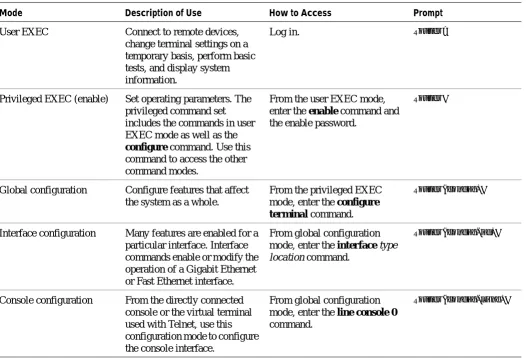
Table 1-7 lists and describes the most commonly used Cisco IOS modes.
The Cisco IOS command interpreter, called the EXEC, interprets and executes the commands that you enter. You can abbreviate commands and keywords by entering just enough characters to make the command unique from other commands. For example, you can abbreviate the show command to sh and the configure terminal command to config t.
When you type exit, the MSFC backs out one level. To exit configuration mode completely and return
Table 1-7 Frequently Used Cisco IOS Command Modes
Mode Description of Use How to Access Prompt
User EXEC Connect to remote devices, change terminal settings on a temporary basis, perform basic tests, and display system information.
Log in. Router>
Privileged EXEC (enable) Set operating parameters. The privileged command set includes the commands in user EXEC mode as well as the
configure command. Use this
command to access the other command modes.
From the user EXEC mode, enter the enable command and the enable password.
Router#
Global configuration Configure features that affect the system as a whole.
From the privileged EXEC mode, enter the configure
terminal command.
Router(config)#
Interface configuration Many features are enabled for a particular interface. Interface commands enable or modify the operation of a Gigabit Ethernet or Fast Ethernet interface.
From global configuration mode, enter the interface type
location command.
Router(config-if)#
Console configuration From the directly connected console or the virtual terminal used with Telnet, use this configuration mode to configure the console interface.
From global configuration mode, enter the line console 0 command.
Chapter 1 Command-Line Interface MSFC CLI
Getting a List of Cisco IOS Commands and Syntax
In any command mode, you can get a list of available commands by entering a question mark (?).
Router> ?
To obtain a list of commands that begin with a particular character sequence, type in those characters followed by the question mark (?). Do not include a space. This form of help is called word help, because it completes a word for you.
Router# co?
configure
To list keywords or arguments, enter a question mark in place of a keyword or argument. Include a space before the question mark. This form of help is called command syntax help, because it reminds you which keywords or arguments are applicable based on the command, keywords, and arguments you have already entered.
Router# configure ?
memory Configure from NV memory
network Configure from a TFTP network host
overwrite-network Overwrite NV memory from TFTP network host
terminal Configure from the terminal
To redisplay a command you previously entered, press the up-arrow key or Ctrl-P. You can continue to press the up-arrow key to see the last 20 commands that you entered.
Tips If you are having trouble entering a command, check the system prompt, and enter the question mark (?) for a list of available commands. You might be in the wrong command mode or using incorrect syntax.
Press Ctrl-Z in any mode to immediately return to privileged EXEC mode. Enter exit to return to the previous mode.
Cisco IOS Command-Line Interface
These sections describe basic Cisco IOS configuration tasks that you need to understand before you configure routing:
• Accessing Cisco IOS Configuration Mode, page 1-14
• Viewing and Saving the Cisco IOS Configuration, page 1-15
• Bringing Up an MSFC Interface, page 1-15
Accessing Cisco IOS Configuration Mode
To access the Cisco IOS configuration mode, perform this task:
Chapter 1 Command-Line Interface
MSFC CLI
Viewing and Saving the Cisco IOS Configuration
To view and save the configuration after you make changes, perform this task:
Bringing Up an MSFC Interface
In some cases, an MSFC interface might be administratively shut down. You can check the status of an interface using the show interface command.
Note In a redundant supervisor engine setup, if an interface on one MSFC is shut down, the matching VLAN interface on the redundant MSFC will stop forwarding packets.
Therefore, you should manually shut down the matching interface on the redundant MSFC.
To bring up an MSFC interface that is administratively shut down, perform this task in privileged mode:
Task Command
Step 1 If you are in the supervisor engine CLI, enter the MSFC CLI.
Console> switch console [mod_num]
Step 2 At the EXEC prompt, enter enable mode.
Router> enable
Step 3 At the privileged EXEC prompt, enter global configuration mode.
Router# configure terminal
Step 4 Enter the commands to configure routing.
(Refer to the appropriate configuration tasks in the Catalyst 6500
Series IOS Software Configuration Guide.)
Step 5 Exit configuration mode. Router(config)# Ctrl-Z
Task Command
Step 1 View the current operating configuration at the privileged EXEC prompt.
Router# show running-config
Step 2 View the configuration in NVRAM.
Router# show startup-config
Step 3 Save the current configuration to NVRAM.
Router# copy running-config startup-config
Task Command
Step 1 Specify the interface to bring up. Router(config)# interface interface_type interface_number
Step 2 Bring the interface up. Router(config-if)# no shutdown
C H A P T E R
2
Catalyst 6500 Series Switch MSFC Commands
This chapter contains an alphabetical listing of the Multilayer Switching Feature Card (MSFC) commands that support the Cisco IOS software.
The Catalyst 6500 Series Switch MSFC Command Reference—Release 12.1(13)E contains only those commands that are unique to the MSFC. For information about Cisco IOS commands not contained in this publication, refer to the current Cisco IOS documentation including:
• Cisco IOS Release 12.1 Configuration Fundamentals Configuration Guide
Chapter 2 Catalyst 6500 Series Switch MSFC Commands clear ip auth-proxy watch-list
clear ip auth-proxy watch-list
To delete a single watch-list entry or all watch-list entries, use the clear ip auth-proxy watch-list command.
clear ip auth-proxy watch-list {ip-addr | *}
Syntax Description
Defaults This command has no default settings.
Command Modes Privilieged EXEC
Command History
Usage Guidelines If there are entries in the watch list that you suspect are not valid, you can enter the clear ip auth-proxy
watch-list command to clear them manually instead of waiting for the watch list expiry-time to expire.
Examples This example shows how to delete a single watch-list entry:
Router# clear ip auth-proxy watch-list 12.0.0.2
Router#
This example shows how to delete all watch-list entries:
Router# clear ip auth-proxy watch-list *
Router#
Related Commands ip auth-proxy max-login-attempts ip auth-proxy watch-list
show ip auth-proxy watch-list
ip-addr Specifies the IP address to be deleted from the watch list.
* Removes all watch-list entries from the watch list.
Release Modification
Chapter 2 Catalyst 6500 Series Switch MSFC Commands
config-register
config-register
To change the configuration register settings, use the config-register command.
config-register value
Syntax Description
Defaults Refer to the documentation for your platform for the default configuration register value. For many newer platforms, the default is 0x2102, which causes the router to boot from Flash memory and the Break key to be ignored.
Command Modes Global configuration
Command History
Usage Guidelines This command applies only to platforms that use a software configuration register.
The lowest four bits of the configuration register (bits 3, 2, 1, and 0) form the boot field. The boot field determines if the router boots manually, from ROM, or from Flash or the network.
To change the boot field value and leave all other bits set to their default values, follow these guidelines:
• If you set the configuration register boot field value to 0x0, you must boot the operating system manually with the boot command.
• If you set the configuration register boot field value to 0x1, the router boots using the default ROM software.
• If you set the configuration register boot field to any value from 0x2 to 0xF, the router uses the boot field value to form a default boot filename for booting from a network server.
For more information about the configuration register bit settings and default filenames, see the appropriate router hardware installation guide.
Examples This example shows how to set the configuration register to boot the system image from Flash memory:
Router(config)# config-register 0x2102
Router(config)#
value Hexadecimal or decimal value that represents the 16-bit configuration register value that you want to use the next time the router is restarted; vaild values are from 0x0 to 0xFFFF (0 to 65535 in decimal).
Release Modification
Chapter 2 Catalyst 6500 Series Switch MSFC Commands config-sync
config-sync
To enable configuration synchronization, use the config-sync command. Use the no form of this command to disable configuration synchronization.
config-sync no config-sync
Syntax Description This command has no arguments or keywords.
Defaults This command has no default settings.
Command Modes High-availability redundancy submode
Command History
Examples This example shows how to enable configuration synchronization:
Router(config)# redundancy
Router(config-r)# high-availability
Router(config-r-ha)# config-sync
Router(config-r-ha)#
This example shows how to disable configuration synchronization:
Router(config)# redundancy
Router(config-r)# high-availability
Router(config-r-ha)# no config-sync
Router(config-r-ha)#
Release Modification
Chapter 2 Catalyst 6500 Series Switch MSFC Commands
define interface-range
define interface-range
To create an interface-range macro, use the define interface-range command.
define interface-range macro-name interface-range
Syntax Description
Defaults This command has no default settings.
Command Modes Global configuration
Command History
Usage Guidelines The macro name is a 32-character maximum character string.
A macro can contain up to five ranges. An interface range cannot span slots. When entering the
interface-range, these formats can be used:
• card-type {slot}/{first-interface} - {last-interface}
• card-type {slot}/{first-interface} - {last-interface}
Valid values for card-type are as follows:
• ge-wan
• pos
• vlan vlan-id (valid values are from 1 to 4094)
Examples This example shows how to create a multiple-interface macro:
Router(config)# define interface-range macro1 vlan 223, pos 6/1
Router(config)#
Related Commands interface range
macro-name Name of the interface range macro; the macro name can contain up to 32 characters.
interface-range Interface range; for a list of valid values for interface ranges, see the “Usage Guidelines” section.
Release Modification
Chapter 2 Catalyst 6500 Series Switch MSFC Commands high-availability
high-availability
To enable high-availability redundancy and enter the high-availability redundancy submode, use the
high-availability command. high-availability
Syntax Description This command has no arguments or keywords.
Defaults This command has no default settings.
Command Modes Redundancy configuration submode
Command History
Usage Guidelines Once you enter high-availability redundancy configuration submode, these options are available:
• [no] config-sync—Enables automatic startup and running-configuration synchronization. Use the
no form of this command to disable automatic startup and running-configuration synchronization.
When you enable the Config Sync RuntimeStatus, the following occurs:
– No configuration mode is available on the CLI of the nondesignated MSFC; EXEC mode is available
– The alt keyword is available and required (see the “alt Keyword Usage” section on page 1-9 for information on the alt keyword)
– The running and startup configurations are synchronized
When the Config Sync RuntimeStatus is in disabled mode, the following occurs:
– Configuration mode is available on the CLI of both MSFCs
– The alt keyword is available but optional
– The running and startup configurations are not synchronized
• exit—Exits from high-availability configuration mode
• no—Negates a command or set its defaults
• [no] single-router-mode—Enters single router mode. Use the no form of this command to exit out of single router mode. Once you enter single-router mode, this option is available:
– failover table-update-delay time—Sets the delay in seconds between the switch over detection
and the hardware FIB reload. The valid values for time are from 0 to 4294967295 seconds.
When you enable high-availability redundancy, every configuration command executed on the
designated MSFC is sent to the nondesignated MSFC. Also, the running configuration synchronization is updated when you enter the copy source running-config command on the designated MSFC.
Release Modification
Chapter 2 Catalyst 6500 Series Switch MSFC Commands
high-availability
When you enable high-availability redundancy, the configuration mode is disabled on the nondesignated MSFC; only the EXEC mode is available. For example, in the following, Router-16 is the nondesignated MSFC; high-availability redundancy and configuration synchronization are enabled:
Console>(enable) session 16
Trying Router-16... Connected to Router-16. Escape character is ’^]’.
Router-16> enable
Router-16# configure terminal
Config mode is disabled on non-designated Router, please configure from designated Router Router-16>
Examples This example shows how to enable high-availability redundancy and enter the high-availability redundancy submode:
Router(config)# redundancy
Router(config-r)# high-availability
Router(config-r-ha)#
Related Commands redundancy
Chapter 2 Catalyst 6500 Series Switch MSFC Commands interface range
interface range
To execute a command on multiple ports at the same time, use the interface range command.
interface range {port-range | macro name}
Syntax Description
Defaults This command has no default settings.
Command Modes Global or interface configuration
Command History
Usage Guidelines You can use the interface range command on existing VLAN SVIs only. To display VLAN SVIs, enter the show running config command. VLANs not displayed cannot be used in the interface range command.
The values entered with the interface range command are applied to all existing VLAN SVIs.
Before you can use a macro, you must define a range using the define interface-range command.
All configuration changes made to a port range are saved to NVRAM, but port ranges created with the
interface range command do not get saved to NVRAM.
You can enter the port range in two ways:
• Specifying up to five port ranges
• Specifying a previously defined macro
You can either specify the ports or the name of a port range macro. A port range must consist of the same port type, and the ports within a range cannot span slots.
You can define up to five port ranges on a single command, with each range separated by a comma.
When you define a range, you must enter a white space between the first port and the hyphen (-):
When you define a range, you must enter a white space before and after the hyphen (-) as follows:
interface range pos 7/1 - 7, pos9/5 - 408
If your system is configured with a Supervisor Engine 1, valid values for vlan-id are from 1 to 1005. If your system is configured with a Supervisor Engine 2, valid values for vlan-id are from 1 to 4094. Extended-range VLANs are not supported on systems configured with a Supervisor Engine 1.
port-range Port range; for a list of valid values for port-range, see the “Usage Guidelines” section.
macro name Specifies the name of a macro.
Release Modification
Chapter 2 Catalyst 6500 Series Switch MSFC Commands
interface range
When entering the port-range, these formats can be used:
• card-type {slot}/{first-port} - {last-port}
• card-type {slot}/{first-port} - {last-port}
Valid values for card-type are as follows:
• ge-wan
• pos
• vlan vlan-id
You cannot specify both a macro and an interface range in the same command. After creating a macro, the CLI does not allow you to enter additional ranges. If you have already entered an interface range, the CLI does not allow you to enter a macro.
You can also specify a single interface in port-range.
Examples This example shows how to execute a command on two port ranges:
Router(config)# interface range pos 7/1 - 7, pos 9/5 - 408
Router(config-if)#
This example shows how to execute a port-range macro:
Router(config)# interface range macro macro1
Router(config-if)#
Chapter 2 Catalyst 6500 Series Switch MSFC Commands ip address
ip address
To set a primary or secondary IP address for an interface, use the ip address command. Use the no form of this command to remove an IP address or disable IP processing..
ip address ip_address mask [secondary] no ip address ip_address mask [secondary]
Syntax Description
Defaults No IP address is defined for the interface.
Command Modes Interface configuration
Command History
Usage Guidelines The alt keyword is used to specify an alternate configuration and is used in the following:
[no] ip address ip-address mask [secondary] alt [no] ip address ip-address mask [secondary]
An interface can have one primary IP address and multiple secondary IP addresses. Packets generated by the Cisco IOS software always use the primary IP address. Therefore, all routers and access servers on a segment should share the same primary network number.
Hosts can determine subnet masks using the Internet Control Message Protocol (ICMP) Mask Request message. Routers respond to this request with an ICMP Mask Reply message.
You can disable IP processing on a particular interface by removing its IP address with the no ip address command. If the software detects another host using one of its IP addresses, it will print an error message on the console.
The optional keyword secondary allows you to specify an unlimited number of secondary addresses. Secondary addresses are treated like primary addresses, except the system never generates datagrams other than routing updates with secondary source addresses. IP broadcasts and ARP requests are handled properly, as are interface routes in the IP routing table.
Secondary IP addresses can be used in a variety of situations. The following are the most common applications:
ip-address IP address.
mask Mask for the associated IP subnet.
secondary (Optional) Specifies that the configured address is a secondary IP address. If this keyword is omitted, the configured address is the primary IP address.
Release Modification
Chapter 2 Catalyst 6500 Series Switch MSFC Commands
ip address
• There may not be enough host addresses for a particular network segment. For example, your subnetting allows up to 254 hosts per logical subnet, but on one physical subnet you need to have 300 host addresses. Using secondary IP addresses on the routers or access servers allows you to have two logical subnets using one physical subnet.
• Many older networks were built using Level 2 bridges. The judicious use of secondary addresses can aid in the transition to a subnetted, router-based network. Routers on an older, bridged segment can be easily made aware that there are many subnets on that segment.
• Two subnets of a single network might otherwise be separated by another network. This situation is not permitted when subnets are in use. In these instances, the first network is extended, or layered on top of the second network using secondary addresses.
Note If any router on a network segment uses a secondary address, all other devices on that same segment must also use a secondary address from the same network or subnet. Inconsistent use of secondary addresses on a network segment can very quickly cause routing loops.
Note When you are routing Open Shortest Path First (OSPF), ensure that all secondary addresses of an interface fall into the same OSPF area as the primary addresses.
To transparently bridge IP on an interface, you must do two things:
• Disable IP routing (specify no ip routing).
• Add the interface to a bridge group. (See the bridge-group command.)
To concurrently route and transparently bridge IP on an interface, see the bridge crb command.
Examples In the following example, 131.108.1.27 is the primary address and 192.31.7.17 and 192.31.8.17 are secondary addresses for Ethernet interface 0:
interface ethernet 0
ip address 131.108.1.27 255.255.255.0
ip address 192.31.7.17 255.255.255.0 secondary ip address 192.31.8.17 255.255.255.0 secondary
Related Commands Command Description
bridge crb Enables the Cisco IOS software to both route and bridge a given protocol on separate interfaces within a single router.
Chapter 2 Catalyst 6500 Series Switch MSFC Commands ip auth-proxy max-login-attempts
ip auth-proxy max-login-attempts
To limit the number of login attempts at a firewall interface, use the ip auth-proxy max-login-attempts command. Use the no form of this command to return to the default setting.
ip auth-proxy max-login-attempts 1-maxint no ip auth-proxy max-login-attempts
Syntax Description
Defaults 1-maxint is 5
Command Modes Interface configuration
Command History
Usage Guidelines This command is supported on firewall interfaces only.
The maximum login attempt functionality is independent of the watch-list feature. If you do not configure the watch-list feature (using the ip access-list hardware permit fragments command) and you configure the maximum login attempt functionality, the existing authentication proxy behavior occurs but with the new number for retries. If you configure the watch-list feature, once the configured number of attempts has been reached, the IP address is put in the watch list.
Examples This example shows how to set a limit to the number of login attempts at a firewall interface:
Router(config-if)# ip auth-proxy watch-list max-login-attempts 4
Router(config-if)#
Related Commands clear ip auth-proxy watch-list
ip access-list hardware permit fragments (see the Catalyst 6500 Series Switch Cisco IOS Command
Reference)
ip auth-proxy watch-list show ip auth-proxy watch-list
1-maxint S