Tool-based direct manipulation environments
Thomas E. Horton
a, Robert St. Amant
a∗,
John M. Daughtry
c, and Colin G. Butler
b∗a
Department of Computer Science, North Carolina State University;
b
Measurement, Inc.
c
Applied Research Laboratory, The Pennsylvania State University
Abstract
In this article we describe an interaction style for direct manipulation systems, based on a close analogy to the use of simple hand tools. We describe the prop-erties of physical tools and tool use and explain their implications for interactive software. To illustrate how the properties governing physical tool-based interac-tion can be applied to software design, we discuss systems in three applicainterac-tion domains: illustration, control of an optimization process, and text editing. Our work motivates and explains novel interaction techniques and gives insight into how some conventional techniques can be improved.
This is a preprint of an article submitted for consideration in Behaviour & Infor-mation Technology, 2011, copyright Taylor & Francis; Behaviour & InforInfor-mation Technology is available online at: http://www.tandf.co.uk/journals/tbit.
1
INTRODUCTION
Tool use is a fundamental aspect of the ways in which humans interact with their envi-ronments, both in the physical world and within the computer interface. In the physical environment, workshops, garages, and even kitchens each contain a wide array of tools assembled for a common purpose. These tools are usually arranged by category, as with a rack of screwdrivers, and within each category, there are often several different sizes and types, such as Phillips, Torx, and flat blade screwdrivers. Analogies in software environments follow naturally from our experience with tools in the real world. This is more than the commonplace observation that software applications can be viewed as conceptual tools; rather, software environments often contain components that delib-erately mimic the properties or organization of physical tools. For example, an illus-tration application might supply a palette of tool objects for drawing lines, circles, and various other shapes, with other aspects of functionality given in menus organized by appropriate categories.
The ubiquity and effectiveness of the tool metaphor in software environments sug-gests that people’s experiences with everyday physical tools carries over to the use of software tools. Yet little effort has been put into understanding the characteristics of physical tool use and how those characteristics may support or undermine interactions when adapted to software design. Our basic assumption is that in order to understand how people might apply their tool-using skills in a software environment, it will be helpful to have an abstract description of the use of physical tools. While physical tool use does not capture all of the complexity of the interaction with a software system, a conceptual framework for tool use may provide useful new insights to designers.
We believe that an improved understanding of the nature of tool use and its related concepts can help us to generate better explanations of why many software tools are effective. Further, the application of these concepts can lead to the development of novel interaction techniques. We have explored some of these new directions in our work, by building tool-based software environments that support drawing and other tasks with analogies to actions in the physical world.
Human-Guided Simple Search system [Anderson et al., 2000]. The other is a global find-and-replace dialog for use in a word processing application. The applications in this section illustrate how tools can influence design in domains that may have a less than obvious physical interpretation.
2
MOTIVATION
Computers are commonly viewed as cognitive tools, in the sense given by Hutchins [1995], Woods and Roth [1988], and Norman [1991]: cognitive tools transform the representation of problems so that they can be more easily solved. For example, sta-tistical packages and spreadsheets allows users to deal with abstract data objects and procedures for analysis and manipulation, rather than low-level computations on arrays of numbers. In principle, word processors allow users to concentrate on content, with issues of style and formatting handled automatically. It is reasonable to ask, then, how an analysis of physical tool use can help us to understand human-computer interaction. Physical tool use involves more than the execution of physical actions; it also en-tails the selection, construction, and adaptation of appropriate tools, the monitoring and evaluation of progress in applying tools, and the acquisition of sometimes complex skills [Baber, 2003]. Most interestingly, there is the common experience of engage-ment with physical tools, in which the tool user begins to think of a tool in hand as an extension of his or her own body, rather than as a separate object with which to interact Maravita and Iriki [2004]. All of these are key issues in the study of cognition and have received considerable attention in human-computer interaction.
Understanding the nature of physical tool use is especially important for the current generation of user interfaces. Our interaction with cognitive tools via direct manipula-tion software interfaces follows the convenmanipula-tions of interacmanipula-tion with physical artifacts. Terms for the objects with which users interact, such as windows, buttons, palettes, menus, and so forth, have become so familiar that it is easy to forget that they are metaphors for real world objects. The principles of direct manipulation interfaces ex-plicitly identify common properties between software and physical objects: objects are continuously represented in the interface, rather than appearing and disappearing with the actions taken by the user [Shneiderman, 1992]; users carry out actions di-rectly on objects, rather than communicating with or issuing commands to the inter-face [Hutchins, 1989, Shneiderman, 1992]. This means that the design of the physical metaphors in an interface, or, by extension, the design of tools in the interface that reflect physical considerations, can influence the effectiveness of the computer as a cognitive tool.
3
PHYSICAL TOOL USE
however, are to be found outside these fields, in ecological and experimental ogy [van Leeuwen et al., 1994, Wagman and Carello, 2001, 2003], animal psychol-ogy [Beck, 1980, Dent-Read and Zukow-Goldring, 1997, Gibson and Ingold, 1993, Povinelli, 2000, Russon et al., 1996, Tomasello and Call, 1997, St Amant and Horton, 2008], and studies of the evolution of cognition [Deacon, 1998, Mithin, 1996, Sterelny, 2003]. For our purposes, we can summarize this diverse literature by focusing on defi-nitions of tool use and the general types of tools that exist.
The most widely accepted definition of tool use is due to Beck [1980], in research on animal cognition:
Thus tool use is the external employment of an unattached environmental object to alter more efficiently the form, position or condition of another object, another organism, or the user itself when the user holds or carries the tool during or just prior to use and is responsible for the proper and effective orientation of the tool.
Researchers in non-human primate cognition offer colorful illustrations of different aspects of this definition. Tool use involves direct action [Vauclair, 1996]: a striking action with a stone, with the goal of cracking open a nut, is an example of tool use. In contrast, some primates show uncanny accuracy in dropping objects onto researchers’ heads [Ingmanson, 1996]; this is considered tool-related behavior rather than actual tool use. Tool use is goal-directed activity [Ingmanson, 1996]: sometimes desirable ends are achieved through the incidental or even accidental use of an object, which is not considered a tool in that case. Tool use involves effective behavior: one influential study involved monkeys given the task of pushing a reward out of a narrow, transparent tube; one monkey unwrapped a thick bundle of reeds held together with masking tape, but then tried to push with the tape instead of a reed [Visalberghi and Limongelli, 1996]. Tool use often amplifies existing behavior, such as using a stick to extend one’s reach (e.g., through a narrow opening, or to touch a moderately distant object). Amplification is a common aspect of tool use in experimental settings and in the wild [Povinelli, 2000].
Because tools are developed to meet problem-solving needs, the diversity of tasks faced by tool-using agents means that an enormous number of different kinds of tools exist. Catalogs of tools have been compiled for practical use (e.g., Duginske 2001), and some taxonomies have been developed in specialized areas. For example, Oswalt describes and compares a number of taxonomies related to tools for subsistence, with higher-level categories that include artifacts and naturefacts, and lower-level cateogories for implements and weapons [Oswalt, 1973]. We are aware of no general, domain-independent taxonomy of tools, however. To address this gap we have developed a small set of categories that give broad coverage of both common tools in the physical world and interaction mechanisms in software environments:
• Tools that produce a persistent effect on materials or the environment. We call theseeffectivetools. Examples in the physical world include hammers, saws, screwdrivers, and so forth. Though effective tools tend to be those that first come to mind when we think of tools,1this category does not encompass all types.
• Tools that provide information about materials or the environment. These have been calledinstrumentsin the tool use literature [Hutchins, 1995]. Instrumenta-tion may be built into an effective tool, as when a table saw indicates the angle at which it is cutting a board. Tools that act alone as instruments include measuring tapes, calipers, microscopes, magnifying glasses, and so forth.
• Tools that constrain or stabilize materials or the environment for the further ap-plication of effective tools.We call theseconstrainingtools; others have charac-terized them as metatools [Matsuzawa, 1991]. Examples include clamps, rulers, wedges, and other devices that limit movement or flexibility. We often find ar-tifacts that are simultaneously constraining and effective tools. For example, a handsaw is effective, in that the blade makes a cut in a piece of wood, but it also compensates for lateral movement, in that the breadth of the blade forces (or at least facilitates) a straight-line cut. That is, because the breadth of the blade must follow the toothed edge through the groove as the wood is cut, it is easier to cut in a straight line than not. Jigsaws and keyhole saws have a very narrow blade just to relax this constraint.
• Tools that demarcate the environment or materials. The goal of demarcating
tools is to distinguish similar areas or pieces of the environment so that they can be treated differently. Examples include the carpenter’s pencil, pushpins, and working surfaces inscribed with fixed markings, as on a seamstress’s table. Beck’s definition and our taxonomy give the basic outlines of the characteristics of tool use. Our analysis of the literature has led to a revised definition of tool use that takes the issues above into account [St Amant and Horton, 2008]:
Tool use is the exertion of control over a freely manipulable external object (the tool) with the goal of (1) altering the physical properties of another ob-ject, substance, surface or medium (the target, which may be the tool user or another organism) via a dynamic mechanical interaction, or (2) mediat-ing the flow of information between the tool user and the environment or other organisms in the environment.
Although the revised definition captures a wider range of tool-using behaviors, it is still quite abstract; we find that tools in use have many other properties worth con-sideration. For example, tools have affordances [Gibson, 1979]; tools are sometimes composite objects, where components are other tools; tools are applied to solve prob-lems in characteristic ways; the organization of tools follows specific patterns. In the following sections, we will attempt to explain these and other properties of tool use as arising naturally from properties of tool-using agents and tools as physical objects.
3.1
Tools in use
We now move to an explanation of the characteristic ways in which tools are conceptu-alized and used. For each of the points below, we describe the concept, give an example
of human tool use to illustrate the concept, and explain how it is related to the concepts we have introduced.
• Object status and manipulability. Tools such as screwdrivers and hammers can be picked up and used, as a direct implication of their status as persistent physical objects and a tool user’s manipulation capabilities.
• Affordance. The affordances of an object indicate how it can be used [Gibson, 1979, Norman, 1988].2 For example, the handle of a tool such as a hammer
affords grasping, because of its match to the dimensions of the human hand. Because tools are manipulated for their effect on other objects, they give rise to other affordances; when a tool is held in the hand, new affordances become relevant due to the tool’s transformation of the user’s interaction abilities. The shape of the head of the screwdriver is a specialized inverse match to the screws that it drives (e.g., a blade for slotted screws, a Phillips head for Phillips screws), which means that screws afford being driven by the screwdriver-in-hand.
• Specialized action. Closely related to the issue of affordance is the tailoring between tools and the necessary physical actions for their application in order to reach a desired result. For example, hammers and handsaws require distinctly different motor actions for effective use. This results from tools being designed to exploit the physical architecture of the human body.
• Open-loop versus closed-loop action. It is common to take a practice swing before first hammering a nail, to ensure that the following blows are accurate. Such a preparatory action is an example of closed-loop action, in motor action terms—a relatively controlled motion in which feedback is attended to. The actual effect is achieved by an open-loop, ballistic action without continuous monitoring of feedback, carried out after the earlier calibration stage. Open-loop action is not appropriate for all forms of tool use (e.g., consider the activities of watch repair or surgery), but it is common practice in many domains.
• Effect locality. Most physical tools in the real world must come in contact with an object to have an effect on it (leaving aside tools such as pressure hoses and air brushes.) This tends to enforce locality on the effect of actions. For example, a hammer strikes a nail at one point of contact; in contrast, the idea of making a hammer more efficient by giving it multiple heads or a single much larger head, so that several nails could be driven simultaneously, does not seem very plausi-ble. Effect locality is an immediate implication of two factors: a single focus of attention (a limited number of in-focus objects) and an inability to perfectly repli-cate actions. Even if the latter were possible, uncertainty about environmental factors would dictate that results be monitored, subject to attentional constraints, in order to ensure the success of actions.
• Iteration.Iteration is common in tool use. For example, hammering a nail often takes several blows of the hammer, and if several nails are required, they are
2Our discussion here relies on a significant simplification of different treatments of the concept of
visited in turn. Iteration is a way to compensate for effect locality, for the same reasons as given above. Because actions cannot be carried out with certainty, progress toward a goal is often incremental, so that monitoring by the perceptual system can ensure that mistakes are not made.
• Material consolidation.In some cases of tool use, it is possible to avoid the in-efficiency associated with iteration due to effect locality. For example, if several boards need to be cut to the same length, they can be stacked or clamped together and then cut at the same time. Consolidating materials can be seen as the pur-suit of two benefits. One is increased efficiency; applying a movement trajectory repeated on a composite object may take less effort and time than a series of trajectories iterated over individual objects, due to set-up time. The other benefit is a reduction in uncertainty. If the same result is desired for several objects, and these objects can be consolidated, actions carried out on the composite object can eliminate the need for precise, repeated measurements, which are subject to perceptual limitations and prone to action errors.
• Variation and duplication. Physical tools are rarely unique elements of a class. Instead, we often see different instances with slight variations, side by side, used for different purposes. For example, a tool chest might contain several screw-drivers of different types and sizes. Tools of similar or related functionality are grouped together for easy access. Many workshops even contain identical instances of the same tool, in different locations for convenience. These are as-pects of the effective use of space [Kirsh, 1995, Vauclair, 1996], required among other reasons because of the spatial extent of tools as objects. For example, many experienced tool users lay out their tools before beginning a task, on the assump-tion that some common tools are almost always eventually needed and should be ready to hand. Efficient organization, duplication, and variation of tools reduce the navigation cost of retrieving tools, as well as reducing uncertainty concerning the location of tools.
4
HABILISDRAW
Deriving its name from one of the first hominid species known to manufacture stone tools,Homo habilis, HabilisDraw is a prototype drawing application for exploring the use of software-based tools in an interactive system. We chose to start with a drawing application because it is a familiar domain for most computer users, has a well estab-lished set of interaction mechanisms, and clear parallels to physical tools in the real world. We begin this section with a description of the HabilisDraw interface and a dis-cussion of the HabilisDraw tool set. We then place the tool use in HabilisDraw within the framework described above and conclude with a brief qualitative analysis.
4.1
Interaction in HabilisDraw
Most existing drawing and painting applications already exploit a tool-using metaphor, with pens, brushes, rectangle tools, and the like. Some of these metaphors, however, such as the tools for drawing rectangles and circles via bounding boxes, have no simple analogs in the real-world. Others such as pens and brushes do bear some conceptual resemblance to their real-world counterparts, but are used in a manner far removed from that of physical tools. None qualify as tools in our taxonomy.
In contrast to the “tools” found in these applications, the tools in HabilisDraw were designed to mimic physical tools in as many respects as were practical. The most basic difference is that all tools in HabilisDraw are first-class artifacts. Palettes of buttons are replaced by tool boxes, and the use of menu-based commands is kept to a minimum. In HabilisDraw, tools are persistent objects rather than transient modes; they remain in place on the work surface until the user chooses to move or delete them, and multiple instances of a tool class may exist simultaneously, each instance with its own customized properties.
Though we have experimented with different input devices, the classic version of HabilisDraw is entirely mouse-based. Binding the necessary interactions to a single mouse button proved difficult, so we utilize both the left and right mouse buttons when manipulating tools in HabilisDraw. The general form for interaction is as follows: a right click plus drag “grasps” the tool, allowing the user to move it to a new location; while grasped, pressing the left mouse button activates the tool (e.g., causes a pen tool to draw, or a ruler tool to align objects). Releasing the left mouse button deactivates the tool, releasing the right mouse button drops the tool back onto the canvas. In early testing, this seemed to be the most difficult aspect for new users to learn. In order to provide a simpler mechanism, we also introduced an alternative control scheme: clicking and dragging with either button moves a tool to a new location; a single click with either button performs a “sticky grasp”, binding the tool to the cursor; as before, pressing the left mouse button activates the tool, releasing deactivates the tool; a single right click drops the tool back onto the canvas. While less efficient when the user needs to switch between tools frequently, this method is closer to the mode-based behavior many users may expect from a drawing application.
a menu selection. Like the screw on an adjustable wrench, or the switches and dials on many power tools, the control panel gives the user explicit control over all of the adjustable properties of the currently selected tool (e.g., the lengths and angles of rulers and compasses and the RGBA values of pens and ink wells).
Interaction with real-world tools tends to be much richer and more flexible than standard point-and-click mouse actions can easily replicate, and the use of both left and right mouse buttons, sometimes simultaneously, may seem overly complex. As noted, this proved to be the major problem for users trying to learn to use the system. Human hands have multiple degrees of freedom and may grasp the same tool with a variety of grips, depending on how the tool is to be manipulated. For example, a physical tool may be picked up and relocated with a very loose grip while a bit more effort would be expended in setting up a precision grip if the tool is to be used. In HabilisDraw, a left click is used for actions associated with effective tool use, while a right mouse button is used for actions relating to relocation.
To overcome such limitations of mouse-based interaction, we have developed a different version of HabilisDraw for the DiamondTouch table-top input device [Dietz and Leigh, 2001], which we have extended to support two-handed touch input. In HabilisDraw DT [Butler and St. Amant, 2004], objects are picked up with a pinching action of the thumb and forefinger, and can be moved or oriented with a single action, which significantly simplifies interaction. HabilisDraw DT adds another dimension to the original system, in terms of both interaction and tools; some of the discussion below applies only to the DiamondTouch version of the system, which we indicate where appropriate.
4.2
Tools in HabilisDraw
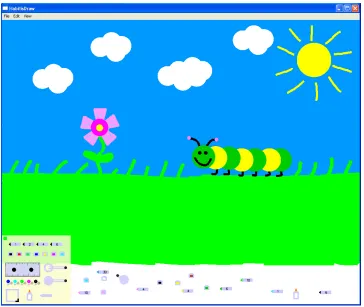
Some tools in HabilisDraw will already be familiar to users of common drawing appli-cations, though their usage in HabilisDraw tends to be very different. Pen tools draw lines and ink wells (similar to the “paint bucket” in most drawing packages) fill in the color of drawn objects. Other tools, such as rulers, which act as straight edges, and compass tools, for drawing circles, will be unfamiliar to new users. Figure 1 shows a sample drawing produced in the environment.
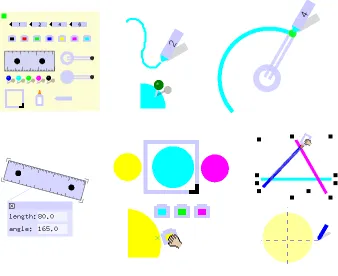
The list of tools in the original HabilisDraw includes pens, rulers, compasses, ink wells, push pins, glue tools, guide tools, and lenses, as shown in Figure 2, as well as a tool box from which new tools can be retrieved. Since the development of the original toolset, there have been two revisions. The first revision extended the original toolset by adding two new tools to provide automation, movers and rotators, and a new tool for composition, the bar tool. The second revision, mentioned above, is HabilisDraw DT, which features a slightly different toolkit, including a tape dispenser and a cutting arm.
Figure 1: The HabilisDraw environment
variations of a tool class. For example, the tool box contains a row of pen tools with different common line widths, and a row of ink wells containing different colors.
• Pens. The primary effective tools in all variants of HabilisDraw are pens. Each instance of a pen has a color and line width associated with it. When used alone, a pen simply produces a freehand line object. More complex drawing actions are possible by combining a pen tool with a ruler, which acts a straight edge, or with a compass, which constrains the pen tool to an arc.
Figure 2: Tools in HabilisDraw
on the right in Figure 3. Additionally, a ruler resting on the work surface will constrain the motion of an active pen, forcing it to follow a straight line for as long as the pen is held against the ruler’s edge. In this manner, a user can place multiple rulers together to form a jig for creating lines with specific angles.
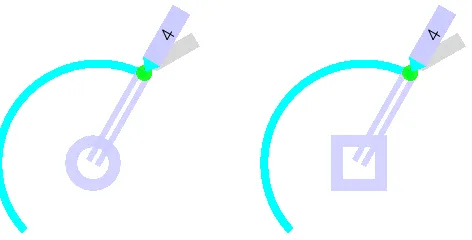
• Compasses.A compass tool consists of a central base and a handle at the end of an arm. The length and rotation of the arm is adjusted by dragging the handle. Activating a pen tool while it is over the handle of a compass constrains the pen tool to follow the arm as it rotates around the base at a fixed radius. Thus the compass tool is able to draw not only circles, but arcs as well. When a pen already constrained by a compass contacts the edge of a ruler, all three tools work together, resulting in an arc with a flat portion where the ruler forces the pen to follow a straight line, as shown in Figure 3.
Figure 3: Uses of the ruler tool
another well by activating the well while it is over the other tool. In Habilis-Draw DT, transfer of ink between ink wells is incremental, a mixing process that creates new colors.
• Push pins. Push pins constrain drawn objects and other tools. A drawn object with a push pin placed on it cannot be moved until the pin is removed. A ruler being pushed along the work surface or a compass being rotated will stop when it collides with a pin.
• Guide tools. Guide tools may be used to draw lines that are not intended to be part of the drawing, but provide notation or aid in alignment; they are demarcat-ing tools. The visibility of lines drawn with a guide tool may be toggled on and off.
• Glue tools. A glue tool may be used to join two or more drawn objects together. The drawn objects may then be moved or rotated as though they were a single object. Glue tools are constraining tools. Separating glued objects must currently be done via a menu command, as there is no “solvent” tool.
• Lenses. Lenses are instruments that provide a zoomed in view of the work sur-face underneath. Zoomed tools and drawn objects may be manipulated “through” a lens. The zoom factor of a lens may be set via the control panel, or multiple lenses may be overlaid to combine their effects.
• Bar tools.For more flexible tool composition, we introduced bar tools. Bar tools generate rigid connecting bars to which other tools may be attached. For exam-ple, by attaching several pens at regular intervals along a bar tool, a user creates a new tool for drawing parallel lines like those of a staff in music notation. Bars can be set to constrain the spatial relationship between other tools; alternatively, they can be set such that their length will vary automatically.
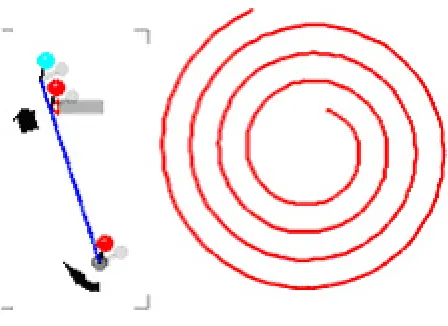
Figure 4: A composite tool for drawing spirals
tasks, such as drawing spirals (rotator plus pen plus shrinking bar), that would be impossible in a typical drawing application. Figure 4 shows the composite tool and a sample result.
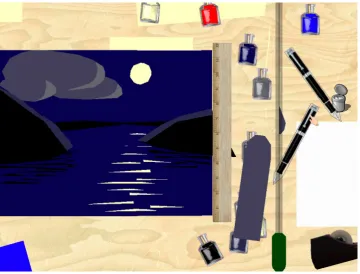
• Cutter and taper. In HabilisDraw, drawing operations result in changes to a global canvas. In HabilisDraw DT, drawing is carried out on explict sheets of paper. Paper objects are dragged from a stack and positioned on the working surface. A straight cutting arm, in a fixed position along the edge of the work-ing surface, cuts through any sheets of paper under it, allowwork-ing the creation of differently shaped pieces. The cutter is thus an effective tool. These pieces can be taped together, constrained into specific configurations. Combinations of cut-ting and taping operations can produce collages; overlapping pieces of paper can further act as simple stencils for drawing. A sample drawing produced by HabilisDraw DT is shown in Figure 5.
Figure 5: The HabilisDraw DT environment
in HabilisDraw are modeless and explicitly associated with the objects they modify. It’s important to notice that dialog boxes acting in this role do not make changes directly to the environment and are thus not equivalent to tools. Instead, they make changes to a tool, in a preparation phase, which can then affect the environment in a different way. In this restricted sense, dialogs are consistent with the physical tool metaphor.
4.3
Tool Use in HabilisDraw
In this section, we consider how tool use in HabilisDraw compares with tool use in the real world and with traditional software interfaces, and explore how the interaction techniques used in HabilisDraw apply the concepts of tool use developed above.
the categories are not exclusive, and even simple tools like pins and rulers may belong to more than one group.
To the extent that was practical, we tried to imbue the tools in HabilisDraw with the properties of physical tools. All drawing environments give some attention to physi-cal consistency, by the nature of the domain. Objects may overlap one another, for example, or be grouped together. With tools as visible objects, new opportunities for consistency with the physics of the environment become possible (even if some physi-cal laws, e.g., those dealing with dynamics, are neglected.)
In HabilisDraw, a ruler is provided for drawing straight lines, as shown in Figure 3. A pen can be used to draw freehand curves, but when it comes in contact with the long edge of a ruler, it is constrained to follow a straight line. This constraint extends to the drawing of other types of objects as well, as in the use of the compass tool. Drawing angles, semicircles, or circle quadrants (using two rulers) is a natural extension of the use of two or more familiar tools, rather than requiring an additional specialized tool. Physical consistency in the functionality of the ruler also extends to manipulation of objects after they have been created. To align objects on a canvas in a conventional in-terface, a menu or dialog is commonly provided for vertical or horizontal arrangement. In HabilisDraw, the ruler can be used to push objects into alignment, in any desired orientation.
HabilisDraw tools such as the ruler and the compass mediate the user’s actions in a way comparable to physical tools, largely by increasing physical realism in the be-havior of the software tools. Baber explains why this can be important. He describes a virtual reality environment in which the user grasps a 3D mouse and, by carrying out hammering motions, causes a virtual mallet to move accordingly in the environ-ment [Baber, 2003]. What distinguishes this from more realistic tool use is that the user gains an understanding of the procedure but not the practice of carrying out the task in the real world. If we were to further reduce the realism in the environment, say, by tracking the user’s empty hand with cameras, we would hardly say that the activity constituted tool use at all—a key element, the tool itself, is missing. As the engagement of the user with a tool decreases, both in duration and in the symmetry between actions and results, some of the basic nature of tool use is lost. This is part of the reason that pressing buttons and selecting modes are not examples of tool use in our conceptual framework.
In general, tool objects in HabilisDraw reflect the properties of physical tool use as follows.
• Object status and manipulability. All tools in HabilisDraw are persistent. They may be picked up, carried around, used, dropped anywhere, and left for later. When it is functionally appropriate, tools may be rotated and resized. Since interaction is limited to two dimensions and must be mediated by a mouse, more complex manipulations, such as rotation, must be performed as separate actions by adjustment of a tool’s drag handles.
Figure 6: Two compass designs
real world, a user might first adjust the angle of a ruler, then its position, and only then apply a pen to its edge. This is exactly how the task is accomplished in HabilisDraw.
• Affordances. HabilisDraw tools have affordances that most non-tool-based in-terfaces designed for the same tasks do not. These are mainly perceived af-fordances (a phrase due to Norman 1999) rather than physical afaf-fordances, but they share some important properties with the transformed affordances associ-ated with physical tools as discussed above.
In some cases, the affordances of a tool in HabilisDraw are based on an abstract representation of its real world counterpart. For example, pen tools reproduce the salient visible features of real pens—long and thin for a precision grip, with a pointed effector tip colored to indicate the shade of the pen’s ink. Ruler tools similarly reflect real world straightedges.
Other tools, such as the compass, bear little resemblance to real world objects, because real tools do not always translate into two dimensions in a reasonable way. The compass in HabilisDraw suggests its function by way of similarity to the shapes it creates. Contrast the compass shown on the left in Figure 6 with the modified representation on the right—even if these two tools had the same functionality, the visual representation of the tool on the left is more consistent with its behavior. We view the compass tool as providing a “true” affordance for drawing circles for two reasons. First, it constrains the movement of the pen to a circular path, and such physical constraints are closely associated with true affordances [Norman, 1999]. Second, this dynamic constraint is symmetrical with its appearance. This is more than a cultural or logical convention, as might be provided by changing the cursor to an arc, indicating that a circle will be produced by a dragging action. If we perceive the appropriateness of a physical tool for its task based on symmetry (as in the screwdriver and screw example earlier), we carry out an analogous process with software tools.
icon representing the desired shape, the cursor changes shape, and the user clicks and drags to identify two opposing corners of a bounding box. This approach definitely has its strengths - once a user learns how to create one kind of object, they can create any of the other types. But while users can quickly learn how to create objects in these interfaces, it is often very difficult for them to judge how to form the bounding box to generate the desired size, shape, and position. In HabilisDraw, the process of drawing a circle is identical to that of drawing an arc, but very different from drawing a straight line. However, both actions are consistent with the user’s experiences of drawing circles and lines in the real world, and so can be quite intuitive, as well as highly predicable. Further, it can be expected that specializing actions to the class of a tool will improve compat-ibility, facilitating recall and increasing familiarity, thus offsetting the increased memory requirements of remembering multiple mechanisms.
• Open/closed loop actions. Drawing tends to be precision work, so open loop actions in a drawing application, aside from scribbling with the pen, are generally counter-productive. However, supporting open loop actions as alternatives to targeted movements, when feasible, does reduce action execution time [Dulberg et al., 1999]. While it is not widely applied in the interface, HabilisDraw does allow for open loop action when creating circles. While drawing a circle, the compass constrains the pen tool to a fixed radius, and there is no difference between an arc that just closes a circle and one that exceeds 360 degrees. Thus once the compass has been set to the proper radius (a closed-loop action), all the user needs to do is activate the pen over the compass and drag in a vaguely circular motion. Multiple identical circles can be created without the need for further closed-loop actions.
• Effect locality. Increasing the locality of effects in an interface reduces indirec-tion, making results immediately visible and thus improving comprehensibility. Traditional drawing applications typically exploit this fact by localizing most ef-fects to the area immediately around the cursor. Similarly, efef-fects in HabilisDraw are localized around the active tool. But for certain functions, traditional inter-faces must resort to indirect, non-local menu commands or global modes. For example, in the case of alignment, a user might have to first highlight the objects to be aligned and then select an “align left” command from a pull-down menu. In HabilisDraw however, the effective region of a tool need not be restricted to a single point at the tip of a cursor in order to be local. Again taking alignment as an example, the entire length of a ruler could be used to simultaneously align objects across the extent of the work surface, without violating the principle of effect locality.
et al., 1996] embodies this functionality in a “clone tool.” While we include standard menu and keyboard-based cut, copy, and paste functions for both tools and drawn objects, HabilisDraw also supports a different, admittedly less effi-cient approach. Compasses, rulers, and pins can be combined to form “jigs.” A pen tool can then be used in repeated combination with a jig to create multiple identical objects. While less efficient than cloning, jigs are more powerful, in that they allow for some variation in the “copies,” to the extent that the jig under-constrains the pen’s motion. In the simplest case, a single ruler allows the user to create multiple lines at the same angle, but of different lengths.
• Material consolidation. In the classic version of HabilisDraw, there is limited opportunity for material consolidation, since rulers are the only class of tool capable of directly operating on multiple objects simultaneously. However, by using a gluer tool to first group a collection of drawn objects together, some additional opportunities become available (e.g., applying a new color to the entire collection with an ink well). Additionally, material consolidation is an important technique in HabilisDraw DT, where stacking allows multiple pieces of paper to be cut identically and simultaneously with the cutting arm.
• Variation and duplication.One of HabilisDraw’s most basic features is the abil-ity to have multiple instances of any class of tool, each with its own particular settings. This, combined with the ability to freely organize tools anywhere on the workspace can greatly improve the efficiency of drawing tasks. There is a tradeoff, in that if the user forgets where a tool was dropped, a visual search must be performed, or else the user must select a new instance from the tool box and reapply any custom settings. This can be more than offset by the benefits of keeping tools right next to the area where they are to be used and eliminating the need to keep changing a tool’s settings between frequently used values, reducing the costs of tool selection and preparation.
• Adjustability and composability. Like tools in the real world, tools in Habilis-Draw are often more effective or efficient when they are used in combination. The simplest case is using an ink well to quickly assign a new drawing color to a pen tool—moving a pen over an ink well and left clicking copies the ink well’s color into the pen. This effect is easily achieved in a conventional drawing application, but we note that the mechanism in HabilisDraw more closely reflects the interaction of plausible real-world tools.
4.4
Discussion
The HabilisDraw interface uses many techniques we believe to be novel, and we are aware of no other work as direct or extensive in applying tool concepts to the domain of software tools. Nevertheless we are not the first to explore the use of tool-based software techniques.
Conventional software environments incorporate some of the properties of physical tool use, most clearly in their effective use of space. Functionality, in the form of menu items, icon palettes, and so forth, commonly relies on grouping by similarity. Material consolidation is another way of describing the process of selecting objects before car-rying out an operation on them. Viewed as abstract tools, Unix utilities are composable via pipes and adjustable via flags. The concept of affordance, or its software equivalent, is also widely applied in direct manipulation interfaces [Gaver, 1991, Norman, 1991], though not without controversy about how interaction mechanisms can be interpreted in affordance terms [Norman, 1999].
Some systems have taken a more comprehensive approach to applying tool con-cepts. Of these, KidPad is the best known, a drawing environment developed by Beder-son et al. [1996] to study collaboration in software environments [Stewart et al., 1999]. KidPad introduced the concept of “local tools”—persistent instances of tools such as crayons and erasers that share some properties in common with the tools in Habilis-Draw, in particular the same kind of manipulability and the status of tools as objects. Many of the tools in KidPad have different effects when used in collaboration by two different users, allowing for a degree of composability. The x-ray window and magni-fication tools in KidPad are also similar to the lens tools in HabilisDraw; these types of instruments can be considered basic versions of a “Magic Lens,” the development of which also involved exploration of composibility between tools [Bier et al., 1993].
The “stick-based” tools due to Raisamo [1999] also make strong use of tool con-cepts. The “alignment stick” is a tool used in much the same way as HabilisDraw rulers; stick-based tools extend naturally to further functionality for sculpting and ma-nipulating objects in two dimensions. The emphasis on bimanual interaction and phys-ical consistency are paralleled in HabilisDraw and HabilisDraw DT.
nature of this tool and its exploitation of effect locality play a strong role in its useful-ness. The IntuPaint system [Vandoren et al., 2008] supports painting with fingers and tangible electronic brushes, taking advantage of users’ experience with the physical as-pects of painting with brushes in the real world. Specialized brushes can be used, with differing physical characteristics, to achieve different effects.
Aside from this work, there is surprisingly little exploitation of the other basic properties of physical tool use: manipulability, specialized action, effect locality, du-plication, composability, open-loop action, and so forth. In most direct manipulation user interfaces, very few of what are called tools actually have the properties of phys-ical tools. For example, the icons in the toolbar of a word processing application are not tools as we have characterized them. Even leaving aside the issue of manipulabil-ity, it is difficult to think of a physical tool that can be almost instantaneously picked up, applied for appropriate effect, and then released, as can be done by clicking on a Save File icon, for example. Other icons that set global modes, such as for italicized text, have no straightforward interpretation as tools in a physical sense. In drawing applications, different types of closed curves, such as circles and ellipses, rectangles, regular polygons, elliptical quadrants, and so forth, are all typically generated by the same non-specialized action of drawing a square or rectangular bounding box, though each is conceptually associated with a different tool. We do not view such interaction techniques as being flawed; on the contrary, some are famously successful. We believe, however, that alternative approaches, in particular those that adhere more closely and consistently to the properties of physical tool use, have a role to play as well.
When creating interfaces that rely as heavily as HabilisDraw does on the properties of physical tool use, an important open issue concerns the possible tradeoffs. We run several dangers. Software tools that more closely resemble physical tools may be less efficient, in a task analysis sense. They may be more difficult to use, by being overly constrained due to irrelevant physical considerations. They may be more difficult to learn in the first place; for example, in a conventional drawing application, many dif-ferent types of objects are created by selecting a mode and drawing a bounding box. This kind of consistency is missing from drawing tools in physical environments; their uses must be learned separately. It might even be argued that we are inappropriately conflating different types of tools: physical tools are associated with amplification, while cognitive tools are concerned with problem transformation [Hutchins, 1995]. Fi-nally, we face a practical limitation in working with conventional input devices, the keyboard and mouse, or even with touch-based interaction—some types of physical affordances and interactions simply will not transfer from richer, physical tool-using environments.
computers. We believe that this is due to the unified application of tool concepts to the domain of drawing, and to the increased realism and physical consistency of the implementation. For example, the highly intuitive way in which the compass tool can be used to draw arcs (often a difficult problem in traditional drawing applications) was particularly well received.
Perhaps the most important question about HabilisDraw concerns generality. Habilis-Draw demonstrates how concepts of tool use can be applied in a domain that has ob-vious physical analogs for objects and behavior, but do tool concepts have anything to contribute to interaction design in other domains? In the next section we show that this is the case.
5
OTHER APPLICATIONS
In the following two sections we discuss applications of tool use concepts for solving specialized problems, one in interactive search control, the other in word processing.
5.1
Interactive search control
Some types of computational problems common in industry and manufacturing are so large or complex that they can be solved only approximately; they are intractable in the worst case. Examples include scheduling in job shops, vehicle routing in transporta-tion, and layout in circuit board design. Work by Anderson et al. [2000] on Human-Guided Simple Search (HuGSS) offers a promising direction for practical solutions: problem-solving responsibilities can be carefully allocated between the computer and a user, such that the collaboration results in solutions better than either party might come up with working alone.
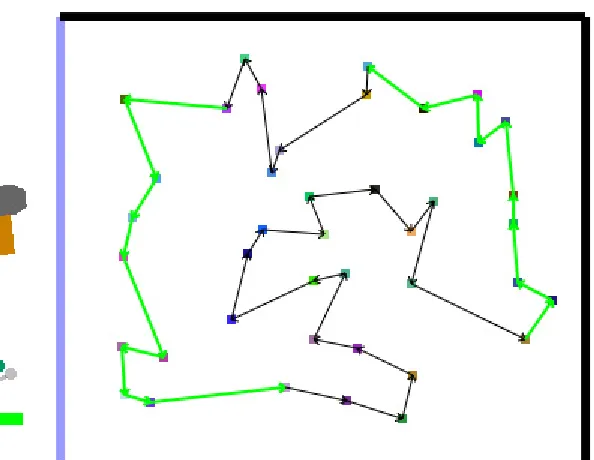
One HuGSS application has been to a variant of the traveling salesman problem, which involves a salesman who must visit a number of geographically distributed cities while keeping the distance traveled as small as possible. The user works with HuGSS through a graphical display of routes that the system has found. The user can iteratively activate a search process that computes the best route it can find within a fixed period of time. The user examines the solution and modifies it by selecting parts of the route that need further refinement or identifying those parts that already have a reasonable solution. The amount and timing of the system’s effort are always under the user’s control.
Figure 7: A randomized search interface
The user specifies an initial energy value, the equivalent of a temperature, at which the search begins. The initial state is a random solution (i.e., all locations in a random path order.) At each iteration of the annealing algorithm, one location is selected and placed in a different position along the path order. If the change shortens the path, it is always accepted. If the path is lengthened, the new order may still be accepted, with a probability based on the degree of change and on how much energy is left in the system. When the energy is high, it is possible that orderings that dramatically increase the path length may be accepted. With each iteration however, energy is dissipated, and the probability of accepting a change that increases the path length drops toward zero. When the search comes to quiescence, the user can specify a new energy value, higher or lower than the original value, for a repetition of the process.
The application shown in Figure 7 demonstrates how tool concepts can be applied to the interaction with such a system. Our basic design directly exploits the energy metaphor of the simulated annealing process, by allowing the user to strike the box in Figure 7 with a simulated hammer, providing energy values for the search. Three tools are defined within this framework; the tools constitute a mixed metaphor, but they work together well:
location is created. If the user moves the mouse cursor over an existing location, a pushpin appears, which the user can then move to a new location or drag out of the box to delete the location entirely. (This tool actually behaves more like a pin dispenser than an individual pushpin, to avoid the need for repeated selection of new pins.)
• A marking pen. The marking pen serves to connect specific locations. The user picks up the marking pen and draws a stroke between two locations to guarantee that a direct route is included in any solutions that the system generates. The effect of marking an already-marked segment is to toggle it off, removing the constraint on possible solutions.
• A hammer. A hammer tool gives the user approximate control over the search process. Figure 7 shows the hammer in the midpoint of a striking action. The hammer is initially displayed in a horizontal position; when the user picks it up and brings it closer to the box, it rotates until its head is parallel to the edge of the box, simulating a striking motion. The user strikes the box by dragging the hammer into contact with it. This motion is equivalent to providing an approxi-mate energy value for a new search starting from the current state. The speed of the motion is linearly correlated with the magnitude of the energy level. That is, small taps with the hammer will result in small changes to the current solution, while a higher-speed “impact” will result in larger changes.
Because “dropping” errors are a problem for drag actions (i.e., the mouse being inadvertently released while dragging an object [MacKenzie et al., 1991]), all of the tools are selected by clicking rather than dragged to use. Four users informally asked to experiment with the application had no problems using it.
We see this as a novel application of tool ideas potentially useful in specialized situations. For example, with anti-lock braking systems (ABS) the driver is not ex-pected to understand the details of the microprocessors that activate and deactivate the brakes depending on surface conditions; instead, the driver moderates the system’s behavior through a relatively simple interface. Similarly, interactions analogous to those in Smithy could be applied to information processing tasks such as automated layout [Sears, 1993], planning and scheduling [St. Amant, 1997], or information ex-ploration [Williams, 1984], in general, tasks in which it is less important for the user to understand the internal activities of the software than it is to apply guidance or steer-ing: more or less of some approximate quantity, a solution along these lines rather than those. In Smithy, simple input requirements are matched by simple tool-based techniques whose efficiency would be difficult to match with more conventional inter-action mechanisms.
5.2
A find and replace dialog
It is relatively common, at least based on anecdotal evidence, for users to enter an overly general or overly specific string into a search dialog box in word processing applications. For example, a user might search for occurrences of the word “image”, in order to replace them with the word “icon”. Globally replacing “image” with “icon”, however, may produce unexpected changes, such as “iconery” from “imagery”, or the less likely “pilgricon” from “pilgrimage”. If the user naively adds spaces before or after “image” in the search, then occurrences adjacent to newlines or punctuation (e.g., commas, periods, or parentheses) will be missed. The safest route is to iterate through matching occurrences, deciding whether to change each one in context. This has its own difficulties, however, with each successive match appearing at an unpredictable place on the screen and sometimes even with the dialog box moving to avoid obscuring the matched string in the document.
A consideration of the properties of tool use offers a more principled way of ad-dressing these issues. In particular, a problem arises when a user carries out an action that has global (i.e., non-local) effects beyond the immediately visible context. Poten-tial problems are thus not amenable to quick identification and resolution.
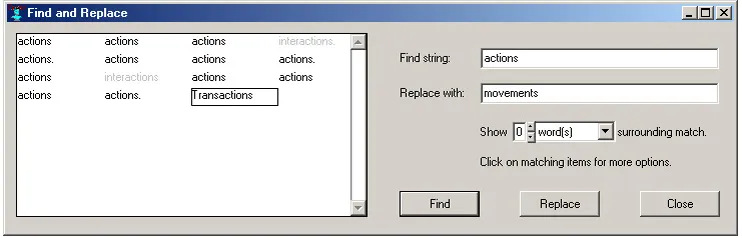
The Find and Replace dialog shown in Figure 8 extends the local effect tool prop-erty to global replacements. After entering a search string, the user clicks the Find button. The dialog displays all matches in the document so that the user can inspect the result of a global replace operation to eliminate unintentional replacements. The items are displayed in column form to facilitate the visual identification of similar or different items.
In this design, the Find button essentially prepares the environment for the Re-place action, by consolidating the source information (i.e., the “materials”, in physical terms.) No change is made to the document during this preparation phase. The effect of clicking on the Replace button is localized to the visible display, though the effects are simultaneously duplicated in the text in the document. Locality cannot be guaranteed, because the number of items to be displayed may be larger than the display box, but the improvement to locality is clear.
Figure 8: A Find and Replace dialog with local effects
constraints. The user can add such constraints by selecting one of the matching items, which automatically raises a menu with the following actions:
• Remove this match.This grays out the selected item so that clicking the Replace button does not affect it. Two matches in Figure 6 have been treated in this way.
• Remove all identical matches. This grays out all items that are identical to the selected item (recall that all matching items may not be identical to the search string), removing them from consideration for replacement.
• Include this matchandInclude all identical matches. These actions re-activate grayed-out items so that they will be affected by the Replace button action.
• Undo this replacement and Undo replacements for identical matches. After clicking the Replace button, these menu actions locally undo the replacement. This means that users can selectively evaluate which matches are to be finally replaced either before or after clicking the Replace button.
• Replace this matchandReplace all identical matches. Through these menu ac-tions the user can locally achieve the same effect as the global Replace button. This is meant for situations in which a search string produces a large number of matches of which only a few need to be changed.
• Go to occurrence.This scrolls the document to the selected item, replicating the functionality of a conventional Find Next Occurrence button.
The dialog box can also display the text surrounding each matching occurrence, to provide more context for the user’s actions. The user can elect to see a specific number of words or characters on both sides of a match by changing the relevant settings.
key to walk through the document. If the user simply ignores the displayed matches, it is no slower than a global find and replace action, and achieves the same results; the costs of visual search and adding replacement constraints, if any, are offset by the benefit of avoiding errors. It is even possible by way of the menu functions to iterate through the document to examine and change each match in turn (in case an entire paragraph is needed for context), though this is less efficient than in a conventional dialog.
A formative evaluation of this interaction technique with four users led to useful discussions about whether cancellation should be provided within the dialog or by the word processing system, whether the document should scroll to the first matching oc-currence when the Find button is clicked so that the user will see the mirroring between the dialog and the document, and whether identical matches should be distinctly col-ored. The participants found the dialog usable in the form presented here, and remarked on a few positive aspects: compared with other dialogs for Find and Replace, it shows more information, and it provides feedback on a global action of the system that would otherwise not be available except by iterative browsing. They also were of the opinion that this dialog would be faster than an iterative find and replace strategy, and more robust against inadvertent errors than a standard global find and replace action without detailed feedback.
Ensuring that actions have local effects can improve other interaction techniques as well, such as in tabbing dialogs and some kinds of menu selection. For example, in some interfaces, users can select multiple items from a scrolling menu. Pressing a modifier key while clicking the mouse causes new items to be added to the selected set, while clicking the mouse alone causes the clicked item to be selected and all other selections to be abandoned. This process is prone to error if pressing the modifier key and clicking the mouse are not synchronized; if already selected items have scrolled out of view, the user may not even realize that only the last item clicked has been selected, with all previously clicked items inadvertently deselected. Some interfaces maintain a separate list of selected items to avoid this problem. Each selection action made by the user causes a locally visible effect of adding an item to the selection list.
6
CONCLUSION
As platforms become more diverse and computer software more sophisticated, inter-action designers will face more difficult and challenging problems. We believe that a close analysis of existing design concepts can lead to a better understanding of why some interfaces work as well as they do and why others fail. Specifically, we have focused on interface designs that draw upon the human facility for tool use.
While the tool metaphor is widespread in interface design, the metaphor is often quite shallow, with tools in many software interfaces sharing only a passing resem-blance to physical tools. Such a design may be deliberate and well-founded, but we argue that it is important to be aware of these inconsistencies and to understand the underlying design choices.
Further, an exploration of the concepts underlying the tool metaphor in software interfaces can lead to opportunities for novel approaches to new and existing prob-lems. We have presented three examples of interfaces that make novel use of the tool use metaphor, both in domains with clear physical analogs (drawing, mixed initia-tive search), and in domains where the relation to physical tool use is more abstract (find/replace dialogs).
One of the lessons we learned from our early work with drawing applications was that mapping mouse-based input to the control of even moderately complex interface tools can be awkward, especially for novice users accustomed to simple point and click actions. We found that the use of a touch sensitive interface provided a more intuitive method of control. We are hopeful that the growing presence of touch-based (as well as motion and orientation-sensitive) interfaces in mobile and tablet computing will provide additional avenues for the development of novel tool-based interfaces.
References
Philip Agre and Ian Horswill. Lifeworld analysis. Journal of Artificial Intelligence Research, 6:111–145, 1997.
David Anderson, Emily Anderson, Neal Lesh, Joe Marks, Brian Mirtich, David Rata-jczak, and Kathy Ryall. Human-guided simple search. InProceedings of AAAI, pages 209–216. AAAI Press, 2000.
Christopher Baber. Cognition and Tool Use: Forms of Engagement in Human and Animal Use of Tools. Taylor and Francis, 2003.
R. Balakrishnan, G. Fitzmaurice, G. Kurtenbach, and W. Buxton. Digital tape drawing. InProceedings of the 12th annual ACM symposium on User interface software and technology, pages 161–169. ACM, 1999.
Michel Beaudouin-Lafon. Instrumental interaction: An interaction model for designing post-wimp user interfaces. InProceedings of CHI 2000 (ACM Conference on Human Factors in Computing). ACM Press, 2000.
B. B. Beck.Animal Tool Behavior: The Use and Manufacture of Tools. Garland Press, New York, NY, 1980.
H. Benko and S. Feiner. Balloon selection: A multi-finger technique for accurate low-fatigue 3d selection. In3D User Interfaces, 2007. 3DUI’07. IEEE Symposium on. IEEE, 2007.
E.A. Bier, M.C. Stone, K. Pier, W. Buxton, and T.D. DeRose. Toolglass and magic lenses: the see-through interface. InProceedings of the 20th annual conference on Computer graphics and interactive techniques, pages 73–80. ACM, 1993. J. M. Brady, P. E. Agre, D. J. Braunegg, and J. H. Connell. The mechanic’s mate.
Artificial Intelligence, 72(1–2):173–215, 1984.
Colin G. Butler and Robert St. Amant. HabilisDraw DT: A bimanual tool-based direct manipulation drawing environment (short paper). In Proceedings of the ACM Conference on Human Factors in Computing Systems (CHI), pages 1301–1304. ACM, 2004.
John M. Daughtry and Robert St. Amant. Power tools and composite tools: Integrating automation into direct manipulation interfaces (short paper). InProceedings of the International Conference on Intelligent User Interfaces (IUI), pages 233–235. ACM, 2003.
T. W. Deacon. The symbolic species: The coevolution of language and the brain. W. W. Norton & Company, 1998.
Cathy Dent-Read and Patricia Zukow-Goldring, editors. Evolving explanations of de-velopment: Ecological approaches to organism-environment systems. American Psychological Association, Washington DC, 1997.
P. Dietz and D. Leigh. DiamondTouch: a multi-user touch technology. InProceedings of the 14th annual ACM symposium on User interface software and technology, pages 219–226. ACM New York, NY, USA, 2001.
Mark Duginske, editor.Tools: A Complete Illustrated Encyclopedia. Free Press, 2001. Martin S. Dulberg, Robert St. Amant, and Luke Zettlemoyer. An imprecise mouse gesture for the fast activation of controls. InINTERACT ’99, pages 375–382. IOS Press, 1999.
Gerhard Fischer. Turning breakdowns into opportunities for creativity. Knowledge-Based Systems, 7(4):221–232, 1994.
William W. Gaver. Technology affordances. InProceedings of CHI’91 (ACM Confer-ence on Human Factors in Computing), pages 79–84. ACM Press, 1991.
Don Gentner and Jakob Nielsen. The anti-mac interface.Communications of the ACM, 39(8):70–82, August 1996.
Kathleen R. Gibson and Tim Ingold, editors.Tools, language, and cognition in human evolution. Cambridge University Press, Cambridge, UK, 1993.
Edwin Hutchins. Metaphors for interface design. In M. M. Taylor, F. Neel, and D. G. Bouwhuis, editors,The Structure of Multimodal Dialogue, pages 11–28. North-Holland, Elsevier Science Publishers, Amsterdam, 1989.
Edwin Hutchins.Cognition in the Wild. MIT Press, Cambridge, MA, 1995.
Ellen J. Ingmanson. Tool-using behavior in wildpan paniscus: Social and ecological considerations. In Anne E. Russon, Kim A. Bard, and Sue Taylor Parker, editors,
Reaching into Thought: The minds of the great apes, chapter 9, pages 190–210. Cambridge University Press, Cambridge, UK, 1996.
Charles M. Keller and Janet Dixon Keller. Cognition and tool use: The blacksmith at work. Cambridge University Press, Cambridge, UK, 1996.
David Kirsh. The intelligent use of space.Artificial Intelligence, 73(31–68), 1995. I. Scott MacKenzie, Abigail Sellen, and William Buxton. A comparison of input
de-vices in elemental pointing and dragging tasks. InProceedings of the Human Factors Society, pages 161–166, Santa Monica, CA, 1991.
Angelo Maravita and Atsushi Iriki. Tools for the body (schema). Trends in Cognitive Sciences, 8(2):79–86, 2004.
T. Matsuzawa. Nesting cups and metatools in chimpanzees. Behavioral and Brain Sciences, 14:570–571, 1991.
Steven Mithin.The Prehistory of the Mind: The Cognitive Origins of Art, Religion and Science. Thames & Hudson, London, 1996.
Donald A. Norman.The Design of Everyday Things. Doubleday, 1988.
Donald A. Norman. Cognitive artifacts. In John M. Carroll, editor,Designing inter-action: psychology at the human-computer interface, pages 17–38. Cambridge University Press, 1991.
Donald A. Norman. Affordance, conventions, and design. interactions, 6(3):38–43, May/June 1999.
Wendell H. Oswalt.Habitat and Technology: The Evolution of Hunting. Holt, Rinehart, & Winston, New York, NY, 1973.
R. Owen, G. Kurtenbach, G. Fitzmaurice, T. Baudel, and B. Buxton. When it gets more difficult, use both hands: exploring bimanual curve manipulation. In Pro-ceedings of Graphics Interface 2005, pages 17–24. Canadian Human-Computer Communications Society, 2005.
Beth Preston. Cognition and tool use.Mind and Language, 13(4):513–547, December 1998.
Roope Raisamo. An alternative way of drawing. InProceedings of CHI’99 (ACM Conference on Human Factors in Computing), pages 175–182, 1999.
Anne E. Russon, Kim A. Bard, and Sue Taylor Parker, editors.Reaching into Thought: The minds of the great apes. Cambridge University Press, Cambridge, UK, 1996. Andrew Sears. Layout appropriateness: A metric for evaluating user interface widget
layout.IEEE Transactions on Software Engineering, 19(7):707–719, 1993. G¨un R. Semin. Cognition, language, and communication. In Susan R. Fussell and
Roger J. Kreuz, editors,Social and Cognitive Approaches to Interpersonal Com-munication, pages 229–258. Lawrence Erlbaum, Mahwah, NJ, 1998.
Ben Shneiderman. Designing the user interface: strategies for effective human-computer interaction. Addison-Wesley, 1992.
R. St Amant and T.E. Horton. Revisiting the definition of animal tool use. Animal Behaviour, 75(4):1199–1208, 2008.
Robert St. Amant. Navigation and planning in a mixed-initiative user interface. In
Proceedings of the National Conference on Artificial Intelligence, pages 64–69. AAAI Press, 1997.
Robert St. Amant. User interface affordances in a planning representation. Human Computer Interaction, 14(3):317–354, 1999.
Robert St. Amant and Thomas E. Horton. A tool-based interactive drawing environ-ment (short paper). InProceedings of the ACM Conference on Human Factors in Computing Systems (CHI), pages 762–763. ACM, 2002a.
Robert St. Amant and Thomas E. Horton. Characterizing tool use in an interactive drawing environment. InSecond International Symposium on Smart Graphics, pages 86–93. ACM, 2002b.
Kim Sterelny.Thought in a Hostile World: The Evolution of Human Cognition. Black-well Publishers, Oxford, 2003.
J. Stewart, B. Bederson, and A. Druin. Single display groupware: A model of co-present collaboration. InProceedings of the ACM Conference on Human Factors in Computing Systems (CHI ’99), pages 286–293. ACM Press, 1999. (Pittsburgh, PA, May, 1999).
L. Terrenghi, T. Fritsche, and A. Butz. The EnLighTable: Design of Affordances to Support Collaborative Creativity. InSmart Graphics, pages 206–217. Springer, 2006.
Lieselotte van Leeuwen, Ad Smitsman, and Cees van Leeuwen. Affordances, per-ceptual complexity, and the development of tool use. Journal of Experimental Psychology: Human Perception and Performance, 20(1):174–191, 1994.
P. Vandoren, T. Van Laerhoven, L. Claesen, J. Taelman, C. Raymaekers, and F. Van Reeth. IntuPaint: Bridging the gap between physical and digital painting. InHorizontal Interactive Human Computer Systems, 2008. TABLETOP 2008. 3rd IEEE International Workshop on, pages 65–72. IEEE, 2008.
Jacques Vauclair.Animal Cognition. Harvard University Press, Cambridge, MA, 1996. Elisabetta Visalberghi and Luca Limongelli. Acting and understanding: Tool use revis-ited through the minds of capuchin monkeys. In Anne E. Russon, Kim A. Bard, and Sue Taylor Parker, editors,Reaching into Thought: The minds of the great apes, pages 57–79. Cambridge University Press, Cambridge, UK, 1996.
J. B. Wagman and C. Carello. Affordances and inertial constraints on tool use. Eco-logical Psychology, 13:173–195, 2001.
J. B. Wagman and C. Carello. Haptically creating affordances: The user-tool interface.
Journal of Experimental Psychology: Applied, 9:175–186, 2003. M. D. Williams. What makes RABBIT run. 21:333–352, 1984.