Voice / Fax over IP Networks
Standalone Voice/IP Gateway
Model MVP200
H.323 Mode
82098177 Revision C
MultiVOIP 200 (Model MVP200)
This publication may not be reproduced, in whole or in part, without prior expressed written permission from Multi-Tech Systems, Inc. All rights reserved.
Copyright © 2000, by Multi-Tech Systems, Inc.
Multi-Tech Systems, Inc. makes no representations or warranties with respect to the contents hereof and specifically disclaims any implied warranties of merchantability or fitness for any particular purpose. Furthermore, Multi-Tech Systems, Inc. reserves the right to revise this publication and to make changes from time to time in the content hereof without obligation of Multi-Tech Systems, Inc. to notify any person or organization of such revisions or changes.
Record of Revisions
Revision Description
A Initial Release; covers software version 2.01.
(5/5/99)
B Added H.323 protocol support and software version 2.50.
(6/14/00)
C Added software version 2.51 with Upgrade Software icon.
(12/29/00)
Patents
This Product is covered by one or more of the following U.S. Patent
Numbers: 5.301.274; 5.309.562; 5.355.365; 5.355.653; 5.452.289;
5.453.986. Other Patents Pending.
TRADEMARK
Trademark of Multi-Tech Systems, Inc. is the Multi-Tech logo. Windows and Netmeeting are registered trademarks of Microsoft.
Multi-Tech Systems, Inc. 2205 Woodale Drive Mounds View, Minnesota 55112 (763) 785-3500 or (800) 328-9717
U.S. Fax 763-785-9874 Technical Support (800) 972-2439
Contents
Introduction ... 4
Related Documentation ... 5
Installing Your MultiVOIP 200 ... 6
Installing and Configuring Your MultiVOIP 200 ... 6
Deploying the VOIP Network ... 7
Unpacking Your MultiVOIP 200 ... 8
Safety Warnings ... 8
Cabling Your MultiVOIP 200 ... 9
Cabling Procedure ... 9
E&M Jumper Block Positioning Procedure ... 11
Installing Your MultiVOIP 200 Software ... 12
Configuring Your MultiVOIP 200 ... 17
Registering with a Gatekeeper Phone Directory ... 27
Building a Proprietary Phonebook Directory ... 30
Configuring Your Slave MultiVOIP 200s ... 42
Deploying the VOIP Network ... 55
Remote Site Administrator ... 56
Limited Warranty ... 59
Technical Support ... 60
Introduction
Welcome to Multi-Tech's new stand-alone Voice/IP Gateway, the MultiVOIP, model MVP200. The MultiVOIP 200 allows analog voice and fax communication over an IP network. Multi-Tech’s voice/fax gateway technology allows voice/fax
communication to be transmitted, with no additional expense, over your existing IP network, which has traditionally been data-only. To access this free voice and fax communication, all you have to do is connect the MultiVOIP 200 to your telephone equipment, and then to your existing Internet connection. Once configured, the MultiVOIP 200 then allows voice and fax to travel down the same path as your traditional data
communications.
The MultiVOIP 200 supports the H.323 standards-based protocol enabling your MultiVOIP 200 to communicate with other third-party VOIP Gateways or other endpoints that support the H.323 protocol (e.g., Microsoft NetMeeting® ). The
H.323 standard defines how endpoints make and receive calls, how endpoints negotiate a common set of audio and data capabilities, and how information is formatted and sent over the network. This version of the software also supports communication with a Multi-Tech MVPGK1 Gatekeeper or an optional 3rd party H.323 Gatekeeper which, when enabled, maintains its own phonebook database, pre-registers all users, controls the bandwidth, and handles all conferencing issues such as transferring of calls.
Introduction
The MVP200 has two independent voice/fax channels (each with three voice/fax interfaces), a 10 Mbps Ethernet LAN interface, and a Command port for configuration.
System management is provided through the Command port using bundled Windows® software which provides easy-to-use
configuration menus and comprehensive on-line Help.
Related Documentation
The MultiVOIP 200 Quick Start Guide is intended to be used by qualified systems administrators and network managers. This Quick Start Guide provides the necessary information for a qualified person to unpack, cable, load software, and configure the unit for proper operation.
A detailed MultiVOIP 200 User Guide is included on your system CD and provides in-depth information on the features and functionality of Multi-Tech’s MultiVOIP 200.
The CD media is produced using Adobe AcrobatTM for viewing
and printing the user guide. To view or print your copy of a user guide, load Acrobat ReaderTM onto your system from the
CD, or obtain it as a free download from Adobe’s Web site:
http://www.adobe.com/prodindex/acrobat/readstep.html
The MultiVOIP 200 User Guide is also available on Multi-Tech’s Web site at:
http://www.multitech.com
Viewing and printing a user guide from the Web also requires that you have the Acrobat Reader loaded on your system. To select the MultiVOIP 200 User Guide from the Multi-Tech Systems home page, click Documents, then click MultiVOIP in the product list drop-down window, then click MultiVOIP
Manuals. All MultiVOIP 200 documents will be displayed at the
Installing Your MultiVOIP 200
The basic steps of installing your MultiVOIP 200 network involve unpacking the units, connecting the cables, and configuring the units using management software (MultiVOIP 200 Configuration). This process results in a fully functional Voice Over IP network. A brief description is provided below with detailed instructions provided later.
Installing and Configuring Your MultiVOIP 200
The VOIP administrator must first install the MultiVOIP 200 software and then configure each MultiVOIP 200 for its specific function. During the configuration process, it’s important to note that the Phone Directory Database is configured differently depending on whether or not you have Gatekeeper support on your VOIP network.
If your VOIP network supports an H.323 Gatekeeper, you must pre-register or remotely register all H.323 endpoints with the Gatekeeper. The procedure for doing this is explained in the section “Registering with a Gatekeeper Phone Directory.”
If your VOIP network does not have Gatekeeper software or the Gatekeeper software is not enabled, then you must build a proprietary phonebook with a “Master” MultiVOIP 200 and “Slave” MultiVOIP 200s. The “Master” unit includes the assignment of a unique LAN IP address, subnet mask, and Gateway IP address; as well as the selection of appropriate channel interface type for each of the Voice/Fax channels. Once all connections have been made, the VOIP administrator configures the unit and builds the Phone Directory Database that will reside with the Master unit.
Introduction
Phone Directory Database option is set to Slave, and the IP address of the Master MultiVOIP 200 is entered. Once all Slave units are configured, the process moves on to the “Deploying the VOIP Network” section.
Deploying the VOIP Network
The final phase of the installation is deployment of the network. When the remote MultiVOIP 200s are sent to their remote sites, the remote site administrators need only connect the units to their LAN and telephone equipment. A full Phone Directory Database (supplied by the Master MultiVOIP 200 Proprietary Phonebook will be loaded into their units within minutes of being connected and powered up. For remote VOIPs that were configured with the Gatekeeper option enabled, each MultiVOIP 200 will be remotely or pre-registered with the Gatekeeper (i.e., the Gatekeeper
phonebook directory is NOT downloaded to the remote units).
Unpacking Your MultiVOIP 200
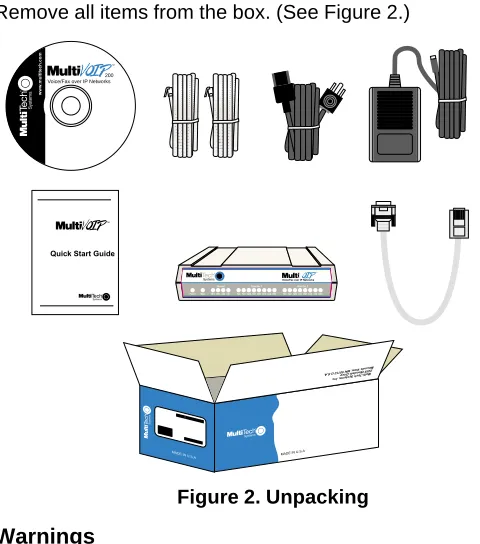
Remove all items from the box. (See Figure 2.)
MADE IN
U.S.A MADE IN U.S.A
www
.multitech.comVoice/Fax over IP Networks200
Figure 2. Unpacking
Safety Warnings
Caution: Danger of explosion if battery is incorrectly replaced.
A lithium battery on the circuit board provides backup power for the time keeping capability. The battery has an estimated life expectancy of ten years.
When the battery starts to weaken, the date and time may be incorrect. If the battery fails, the board must be sent back to Multi-Tech Systems for battery replacement.
Cabling
Cabling Your MultiVOIP 200
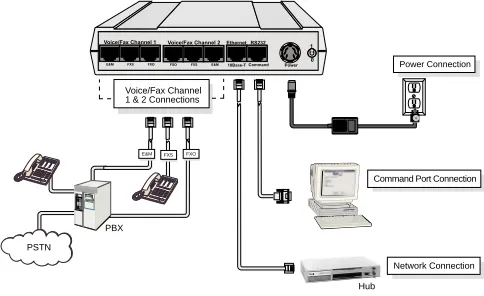
Cabling your MultiVOIP 200 involves making the proper Power, Command Port, and Internet connections. Figure 6 shows the back panel connectors and the associated cable connections. The Cabling Procedure section provides step-by-step instructions for cabling your MultiVOIP 200.
Note: Before cabling your MultiVOIP 200, perform the E&M
Jumper Block Positioning Procedure if either voice/fax channel (1 or 2) will be connected to an E&M trunk that is a Type 1,3, 4, or 5 rather than a Type 2 (the default).
Cabling Procedure
1. Using the supplied cable, connect the power supply to a live AC outlet, then plug the power supply into the
MultiVOIP 200 as shown in Figure 3. The power connector is a 6-pin circular DIN connector.
Voice/Fax Channel 1 & 2 Connections
Network Connection Power Connection
FXS
E&M FXO
PSTN
Command Port Connection
Hub PBX
Voice/Fax Channel 1
E&M FXS FXO
Voice/Fax Channel 2
FXO FXS E&M
1 0 Power Ethernet RS232 Command 10Base-T
Figure 3. Cable Connections
3. Connect a network cable to the Ethernet 10Base-T connector on the back of the MultiVOIP 200. Connect the other end of the cable to your network.
4. If you are connecting a station device; e.g., analog telephone, fax machine, or Key Telephone System (KTS) to your MultiVOIP 200, connect the smaller end of a special adapter cable (supplied) to the Voice/Fax Channel
1 FXS connector on the back of the MultiVOIP 200 and the
other end to the station device.
If you are connecting a PBX extension to your MultiVOIP 200, connect the smaller end of a special adapter cable (supplied) to the Voice/Fax Channel 1 FXO connector on the back of the MultiVOIP 200 and the other end to the PBX extension.
If you are connecting an E&M trunk from a telephone switch to your MultiVOIP 200, connect one end of an RJ-45 cable (not supplied) to the Voice/Fax Channel 1 E&M connector on the back of the MultiVOIP 200 and the other end (8 spade lugs or 8 wires to connect directly to the punch-down block) to the PBX trunk card.
Note: For customers building their own E&M connector,
App. B of the User Guide has a pinout diagram showing the E&M back panel connector on the MultiVOIP 200.
5. Repeat step 4 to connect the remaining phone equipment to each Voice/Fax Channel on your MultiVOIP 200.
6. Turn on power to the MultiVOIP 200 by setting the power switch on the back panel to the 1 (up, On) position. Wait for the Boot LED on the MultiVOIP 200 to go Off before proceeding. This may take a couple of minutes.
Cabling
E&M Jumper Block Positioning Procedure
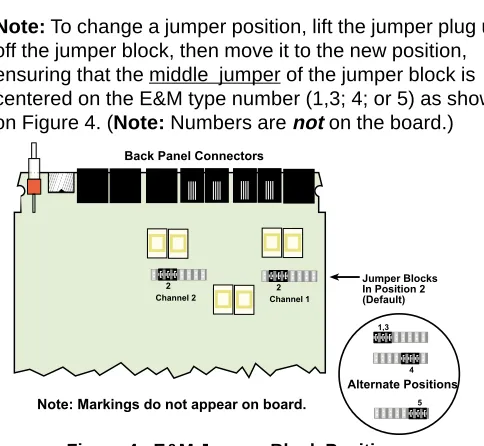
Each voice/fax channel on the MultiVOIP 200 has a separate E&M jumper block located near the jacks on the back panel of the MultiVOIP 200. Each jumper block has 8 pairs of pins with a jumper plug on three adjacent pairs of pins. The jumper plug must be centered on the E&M type number (see Figure 7) that matches the E&M connection for that channel. Perform the following procedure if you need to move the E&M jumper block from its default (Type 2) position.
1. Ensure that the external power supply is disconnected from the MultiVOIP 200.
2. Turn the MultiVOIP 200 upside down and remove the cabinet mounting screw at the center back of the cabinet.
3. Return the MultiVOIP 200 to its upright position, then slide the base out the rear of the cabinet.
Note: To change a jumper position, lift the jumper plug up
off the jumper block, then move it to the new position, ensuring that the middle jumper of the jumper block is centered on the E&M type number (1,3; 4; or 5) as shown on Figure 4. (Note: Numbers are not on the board.)
Jumper Blocks In Position 2 (Default)
Note: Markings do not appear on board.
Back Panel Connectors
2 2
Channel 2 Channel 1
Alternate Positions
4 5 1,3
4. Change the jumper block position for any voice/fax channel to be connected to an E&M trunk that is not a Type 2 (the default position).
5. Slide the base all the way into the cabinet until it stops.
6. Turn the MultiVOIP 200 upside down and replace the cabinet mounting screw that was removed in step 2.
7. Return the MultiVOIP 200 to its upright position, then perform the cabling procedure.
Installing Your MultiVOIP 200 Software
The following installation procedures do not provide every screen or option in the process of installing the MultiVOIP 200 software. It is assumed that a technical person with a thorough knowledge of Windows and the software loading process is doing the installation. Once you have installed the software, you will be instructed on how to configure your MultiVOIP 200, and finally, on how to deploy your MultiVOIP 200. Additional information on the MultiVOIP 200 software is provided in the on-line Help.
Note: The phonebook directory configuration process is
different depending on whether or not you have an enabled H.323 Gatekeeper resident in your network. The section on “Configuring Your MultiVOIP 200” will explain these
differences.
The MultiVOIP 200 software and User Guide are contained on the MultiVOIP 200 CD. The CD is auto-detectable, so when you insert it into your CD-ROM drive it will start up
automatically. When you have finished configuring your MultiVOIP 200, you can view and print the User Guide by clicking on the Install Manuals icon.
CAUTION: If you are installing a MultiVOIP 200 behind a
Installing the Software
1. Make certain that your MultiVOIP 200 has been properly cabled and that it is powered on.
2. Insert the MultiVOIP 200 CD into a CD-ROM drive. The CD is auto-detectable, so it starts automatically. It may take 10 to 20 seconds for the Multi-Tech Installation CD screen to appear.
If the Multi-Tech Installation CD Screen does not appear automatically, click My Computer, then right-click the
CD-ROM drive icon, click Open, then click the Autorun icon.
3. When the Multi-Tech Installation CD Screen is displayed, click the Install Software icon.
Press Enter or click Next> to continue.
5. The Choose Destination Location dialog box is displayed. Follow the on-screen instructions.
You can either choose the Destination Location of your MultiVOIP 200 software or select the default destination by clicking Next>. If you click Browse, you can select a different destination folder for the MultiVOIP 200 software.
Installing the Software
choose where you want the program file to be located.
Verify the path and click Next > to continue.
7. The Copying program files ... screen is displayed followed by the MultiVOIP 200 Setup dialog box. This dialog box enables you to select the COM port of your PC that is connected to the Command port of the MultiVOIP 200. From the Select Port drop-down list, choose the COM port of your PC.
8. The Setup Complete dialog is displayed.
Click Finish to continue.
9. The following message is displayed:
Click Yes to continue.
10. The following message is displayed.
Configuring the MultiVOIP
Configuring Your MultiVOIP 200
The following steps provide instructions for configuring your MultiVOIP 200. The configuration sequence includes IP Protocol default setup, Channel setup, and Phone Directory Database setup. The Phone Directory Database setup is configured differently depending on whether or not the Gatekeeper function is available and enabled on the Phone
Directory Database dialog box (See Step 26).
11. The IP Protocol Default Setup dialog box is displayed.
The default Frame Type is TYPE_II. If this does not match your IP network, change the Frame Type by clicking the drop-down arrow and selecting SNAP. The available Frame Type choices are TYPE_II and SNAP.
12. In the Ethernet group, enter the IP Address, Subnet
Mask, and Gateway Address unique to your IP LAN in
the corresponding fields.
The IP address is the unique LAN IP address that is assigned to the MultiVOIP 200, and the Gateway address is the IP address of the device connecting your MultiVOIP 200 to the Internet.
13. The Channel Setup dialog box is displayed. The four tabs in this dialog box define the channel interface, voice/fax parameters, billing/miscellaneous parameters, and regional telephone parameters for each channel.
Configure each channel for the type of interface you are connecting to. The Interface tab defaults to Channel 1 in the Select Channel field. To change the channel number, click the drop-down arrow and the list of channels is displayed. Highlight the channel you want to configure.
Note: Feature options are enabled or disabled (grayed
out) according to the interface type that you select. The one option available for all interface types is the Inter Digit
Time option. This option defines the maximum amount of
Configuring the MultiVOIP
14. The Interface group defaults to FXS (Loop Start). Select the interface option that corresponds to the interface type being connected to the Voice/Fax Channel 1 jack on the back panel of the MultiVOIP 200.
FXS (Loop Start): If a station device; e.g., an analog
telephone, fax machine, or KTS (Key Telephone System) is connected to the Voice/Fax connector on the back of the unit, FXS (Loop Start) will likely be the correct Interface.
FXS (Ground Start): If the station device uses ground
start, then choose the FXS (Ground Start) option. Refer to the device’s user documentation.
For both FXS Loop Start and FXS Ground Start , the Ring
Count FXS window allows you to set the maximum
number of rings output on the FXS interface before hanging up and releasing the line to another call. The default setting is 8 rings.
Note: Zero (0) means no rings - caller hears a busy tone.
FXO: If you are using an analog extension from your PBX,
then choose the FXO option. Check with your in-house phone personnel to verify the connection type.
If FXO is selected, the Dialing Options Regeneration,
Flash Hook Timer, and Ring Count groups are enabled.
Note: Zero (0) means that the MultiVOIP 200 never
answers.
For FXO-to-FXO communications, you can enable a specific type of FXO Disconnect; Current Loss, Tone
Detection, or Silence Detection. (Check with your
in-house phone personnel to verify the preferred type of disconnect to use.) Enabling Tone Detection activates the Disconnect Tone Sequence options. For Disconnect Tone
Sequence, you can select from drop-down lists either one
or two tones that will cause the line to be disconnected; the person hanging up a call must then hit the key(s) that will produce those tones. For Silence Detection, select
One Way or Two Way, then set the timer for the number
of seconds of silence before disconnect. Note that the default value of 15 seconds may be shorter than desired for your application.
E&M: If you are connecting to an analog E&M trunk on
your PBX, then choose the E&M interface option to enable the E&M Options group. Check with your local in-house phone personnel to determine if the signaling is Dial Tone or Wink and if the connection is 2-wire or 4-wire. If Wink signaling is used, then the Wink Timer is enabled with a default of 250 milliseconds. The range of the Wink Timer is from 100 to 350 milliseconds. Consult with your local in-house phone personnel for this timer setting.
Note: After configuring a given channel (1 or 2), you can
copy that channel’s configuration by clicking the Copy button and everything on the Interface tab will be copied to the other channel.
Configuring the MultiVOIP
16. The Voice/Fax tab displays the parameters for the voice gain, DTMF (Dual Tone Multi-Frequency) gain, voice coder, faxing, and advanced features such as Silence Compression, Echo Cancellation, and Forward Error Correction.
17. You can set up the input and output voice gain so that the volume can be increased or decreased. Input gain modifies the level of the audio coming in to the voice channel before it is sent over the Internet to the remote MultiVOIP 200; and, output gain modifies the level of the audio being output to the device attached to the voice channel. Make your selections from the Input and Output drop-down lists in the Voice Gain group. The valid range is +31dB to –31dB with a recommended/default value of 0.
You can also set up the DTMF gain (or output level in decibels - dB) for the higher and lower frequency groups of the DTMF tone pair. Make your selections in the drop-down lists in the DTMF Gain group. When DTMF Out of
Band is checked, the unit reproduces the DTMF tones
Note: Only change the DTMF gain under the direction of
Multi-Tech Technical Support supervision.
18. To change the voice coder, first select the channel by clicking the Select Channel down arrow (highlighting the channel number) then click Manual in the Coder group. To select the appropriate coder, click the Selected Coder down arrow and highlight your new voice coder entry.
If you changed the voice coder, ensure that the same voice coder is used on the voice/fax channel you are calling; otherwise, you will always get a busy signal.
Note: If you allow the Coder to be selected automatically,
then you need to select the Max Bandwidth from the drop-down list. Check with your Network Administrator to determine how much bandwidth is available.
19. The Fax group enables you to send/receive faxes on the selected voice/fax channel. You can set the maximum baud rate for faxes and the fax volume in the two drop-down lists and change the jitter value in milliseconds.
When receiving fax packets from a remote MultiVOIP 200, it is possible for individual packets to be delayed or received out of order due to traffic conditions on the network. To compensate for this effect, the MultiVOIP 200 uses a Jitter Buffer. The Jitter Value field allows the MultiVOIP 200 to wait a user-definable period of time, in milliseconds, for delayed or out of order fax packets. The range of allowable Jitter Values is 0 to 400 with a default of
400 milliseconds.
If you do not plan to send or receive faxes on a given voice/fax channel, you can disable faxes in the Fax group.
Configuring the MultiVOIP
The Silence Compression option defines whether silence compression is enabled (checked) for this voice channel. If silence compression is enabled, the MultiVOIP 200 will not transmit voice packets when silence is detected, thereby reducing the amount of network bandwidth that is being used by the voice channel.
The Echo Cancellation option defines whether echo cancellation is enabled (checked) for this voice channel. If echo cancellation is enabled, the MultiVOIP 200 will remove echo which improves the quality of sound.
The Forward Error Correction (FEC) option defines whether forward error correction is enabled (checked) for this voice channel. The FEC feature allows some of the voice packets that were corrupted (or lost) to be
recovered. FEC adds an additional 50% overhead to the total network bandwidth consumed by the voice channel.
Note: After configuring a given channel (1 or 2), you can
21. The Billing/Misc tab displays the parameters for auto call, automatic disconnection, billing options, and dynamic jitter buffer.
If you want to dedicate a local voice/fax channel to a remote voice/fax channel (so you will not have to dial the remote channel), click the Auto Call Enable option in the
Auto Call group. Then enter the phone number of the
remote MultiVOIP 200 in the Phone Number field.
22. The Automatic Disconnection group provides three options to be used singly or in combination.
Configuring the MultiVOIP
Consecutive Packets Lost defines the number of
consecutive packets that are lost after which the call is automatically disconnected. The default setting is 30.
Call Duration defines the maximum length of time (in
seconds) that a call remains connected before the call is automatically disconnected. The default setting is 180 seconds. A call limit of three minutes may be too short for most configurations. Therefore, you may want to increase this default value.
23. You can set billing options for inbound and/or outbound calls by checking them in the Billing Options group and then entering the charge in cents per number of seconds.
24. A minimum and maximum set of values can be set for
Dynamic Jitter Buffer. When receiving voice packets
from a remote MultiVOIP 200, it is possible to experience varying delays between packets due to traffic conditions on the network. This is called Jitter. To compensate for this effect, the MultiVOIP 200 uses a Dynamic Jitter Buffer. The Jitter Buffer allows the MultiVOIP 200 to wait for delayed voice packets by automatically adjusting the length of the Jitter Buffer between configurable minimum and maximum values. An Optimization Factor
adjustment controls how quickly the length of the Jitter Buffer is increased when jitter increases on the network. The length of the jitter buffer directly effects the voice delay between MultiVOIP 200 gateways.
The Minimum Jitter Value default setting is 150
milliseconds, the Maximum Jitter Value default setting is
300 milliseconds, and the Optimization Factor default
setting is 7.
Note: After configuring a given channel (1 or 2), you can
If your country/region is not the default USA, click the
Regional tab and proceed to step 25; otherwise, proceed
to step 26 to begin building your phone directory database.
25. To change the Tone Pairs on the Regional tab, click the
Country/Region down arrow and highlight your specific
country or region.
Note: If your country or region is not listed, click the Custom button to define it.
The Tone Pairs group enables you to select/modify the parameters according to choice. Click OK when finished. Proceed to step 26 to begin building your phone directory database.
Configuring the MultiVOIP
and enabled, you can register your phone numbers with the Gatekeeper (Go to the following section “Registering with a Gatekeeper Phone Directory”).
Registering with a Gatekeeper Phone Directory
This section describes what a Gatekeeper is and how to register H.323 endpoints with the Gatekeeper. The H.323 Gatekeeper function resides at a PC acting as the central point for all calls within its zone and providing call control services to registered endpoints. The Gatekeeper performs two important call control functions: address translation from LAN aliases to IP addresses, and bandwidth management where the network manager has specified a threshold for the number of simultaneous conferences on the LAN.
The Phone Directory Database dialog box is displayed.
Enable the Gatekeeper option, enter the Gatekeeper IP Address in the IP Address field in the RAS Parameters group, accept the default Port Number, then click the Add
(+) button. Use Fast Start is checked (default) for
CAUTION: The default setting for the Gatekeeper Port
Number is 1719. This can be changed to a different value by the Gatekeeper administrator. If you decide to change the default Port Number, you must use the same number on the Gatekeeper and all other H.323 endpoints.
The Add/Edit Phone Entry dialog box is displayed.
The information provided in the Add/Edit Phone
Directory dialog box depends on how the Gatekeeper will
be set up with the Gatekeeper administrator. Phonebook information can be registered with the H.323 Gatekeeper in two ways:
a. If the Gatekeeper is set up to allow remote registration, enter the Phone Number, Description, Channel, H323 ID, optional IP Address for this H.323 endpoint, and accept the Port default.
Note: To avoid possible phone number and H323 ID
Configuring the MultiVOIP
b. If the Gatekeeper does not allow remote registration, you must contact the Gatekeeper administrator (by phone or e-mail) and provide the IP Address (mandatory) to be
registered (entered manually) by the administrator at the Gatekeeper site. This process is called pre-registering.
Note: The Gatekeeper administrator assigns the H323 ID.
Together (you and the Gatekeeper administrator) determine the Phone Number and H323ID entries.
For both 1) remote registration and 2) pre-registration, enter the unique phone number of the local device in the
Phone Number field (e.g. 101) and indicate in the Voice Channel field that the device is connected to Channel 1.
The Description field is optional, but can be useful in associating the channel to the extension. If you wish, enter a description of your local phone number. This description identifies the phone number you entered in the previous step. For this example, you could enter a description such as “New York Office 1”.
Use the default Port Number 1720 for this H.323 endpoint.
Building a Proprietary Phonebook Directory
27. To build your proprietary MultiVOIP 200 Phone Directory (i.e., in an H.323 environment without the Gatekeeper option enabled), you will first need to enable (check) the
Proprietary Phonebook option and then configure the
“Master” MultiVOIP 200 and then add the “Slave” MultiVOIP 200s (or other H.323 endpoints). Configuring the “Slave” MultiVOIP 200 is discussed later.
The first MultiVOIP 200 to be configured is designated the “Master” and contains the proprietary phonebook
database. All subsequent MultiVOIP 200s added to the proprietary phonebook database are designated “Slaves.” The master database contains the phone numbers of all H.323 endpoints available for communication on an IP network. This database is downloaded to each Slave MultiVOIP 200 as it comes on-line.
28. To configure the “Master” MultiVOIP 200, make certain that the Proprietary Phonebook and Master options are enabled. The Master IP Address, Send Status Report to
Master, and RAS Parameters group will be disabled
Configuring the MultiVOIP
Note: The Slave Status button displays the Slave VOIP Status dialog box used for viewing phone number, IP
address, status, and description of slave units (See “Configuring Your Slave MultiVOIP 200s” for details).
Click Add (+) to begin building your phone directory database. The Add/Edit Phone Entry dialog box is displayed.
29. Enter the unique phone number of the local device in the
Phone Number field (e.g., 101) and indicate that the local
device is connected to Channel 1 in the Voice Channel field.
31. The Station Identification group includes a Hunt Group drop-down list. This list enables you to indicate which Hunt Group you want the phone number to be associated with; or, you can select NO HUNT if you don’t want this entry to participate in hunting.
Note: Hunting is a series of telephone lines organized in
such a way that if the first line is busy the next line is hunted and so on until a free line is found. For this example, assign the phone entry to HUNT GROUP #1.
Once you have assigned this entry to a Hunt Group (or NO HUNT), you must enter the IP Address of the Master MultiVOIP 200 in the IP Address field (e.g.,
204.022.122.118).
Note: The Port field becomes active as you begin to enter
Configuring the MultiVOIP
32. Click OK to return to the Phone Directory Database dialog box. It now includes phone number (101), destination details (204.022.122.118 Channel 1), and description (New York Office 1).
33. To configure Channel 2 on the Master MultiVOIP 200, click
Add (+) and the Add/Edit Phone Entry dialog box is
displayed again.
34. Enter the phone number for the MultiVOIP 200 in the
Station Information group Phone Number field (e.g.,
102).
36. In the Station Identification group, select HUNT GROUP #1 from the Hunt Group drop-down list, enter the New York Office 2’s IP Address (204.022.122.118), and accept the H.323 industry standard Port value (1720) used to communicate with other H.323 endpoints.
37. Click OK and you are returned to the Phone Directory
Database dialog box which now includes the second
Configuring the MultiVOIP
You have completed configuration of the “Master”
MultiVOIP 200. Both voice channels belong to Hunt Group # 1. If a call from an H.323 endpoint (a MultiVOIP 200 or a stand-alone H.323 endpoint) to Phone Number 101 is unable to be connected, it will automatically connect to the next available phone number in Hunt Group #1, i.e., Phone Number 102.
38. At this point it is time to add all other phone numbers (slave units and stand-alone units) to the Phone Directory database. To add Channel 1 of the Slave MultiVOIP 200, click Add (+) and the Add/Edit Phone Entry dialog box is displayed again.
39. Enter the phone number for the “Slave” MultiVOIP 200 in the Phone Number field (e.g., 201).
40. Click inside the Description field and enter a description for the remote MultiVOIP 200 phone number for Channel 1; for example, “London Office 1.”
42. Click OK and you are returned to the Phone Directory
Database dialog box which now includes the remote
phone number and related information in the Phone
Number list.
43. To add Channel 2 of the Slave MultiVOIP 200, click Add
(+) and the Add/Edit Phone Entry dialog box is displayed
again.
44. Enter the phone number for the remote (Slave) MultiVOIP 200 in the Station Information group Phone Number field (e.g., 202).
45. Click inside the Description field and enter a description for the remote MultiVOIP 200 phone number for Channel 2. For example, “London Office 2.”
Configuring the MultiVOIP
Note: Depending on your requirements, you may want
calls that cannot make a connection to London Office 1 (Hunt Group #2) to roll over to the New York office instead. In this case, you would configure that phone entry to be listed as a member of HUNT GROUP #1.
47. Click OK and you are returned to the Phone Directory
Database dialog box which now includes the remote
phone number and related information in the Phone
48. To configure a stand-alone endpoint (e.g., a PC with NetMeeting software), click Add (+) and the Add/Edit
Phone Entry dialog box is displayed again.
49. Enter the phone number for the stand-alone endpoint in the Station Information group Phone Number field (e.g., 301).
50. Click inside the Description field and enter a description for the remote MultiVOIP 200 phone number. For example, “Human Resources Desk.”
Note: Because the H.323 endpoint is not a MultiVOIP 200,
the Phone Directory database ignores the Voice Channel entry, i.e., it does not matter what value is entered.
51. In the Station Identification group, select NO HUNT from the Hunt Group drop-down list, enter the Human
Resource Desk’s IP Address (e.g., 202.198.100.04), and accept the H.323 industry standard Port value (1720) used to communicate with other H.323 endpoints.
Note: This stand-alone was not configured as part of a
Configuring the MultiVOIP
52. Click OK and you are returned to the Phone Directory
Database dialog box which now includes the stand-alone
phone number and related information in the Phone
Number list.
53. When you have finished, click OK to download the setup configuration to the MultiVOIP 200.
55. Once the setup program receives a response from the MultiVOIP 200, the Writing Setup dialog box is displayed indicating that the setup configuration is being written to the MultiVOIP 200.
56. After the setup has been written to the MultiVOIP 200, the unit is rebooted.
Configuring the MultiVOIP
58. You are returned to the Multi-Tech Installation CD screen from which you can load the Acrobat Reader to your PC. This allows you to view and/or print the User Guide by clicking on the Install Manuals icon.
Configuring Your Slave MultiVOIP 200s
If the Proprietary Phonebook option on the Phone Directory
Database dialog box was enabled, then you will need to
configure all remote H.323 endpoints as “Slave” units. For example, the MultiVOIP 200 at the company’s subsidiary office in London would need to be configured as a “Slave.”.
CAUTION: If you are installing a MultiVOIP 200 behind a
Firewall, the Firewall must support H.323. Refer to your Firewall user documentation to enable H.323 support. 1. Disconnect the PC from the Command port of the Master
MultiVOIP 200 and connect it to the Command port on the Slave MultiVOIP 200.
2. Win 3.1 users - from the Program Manager, click the MultiVOIP 200 Configuration icon in the MultiVOIP 200
Program Group. The Main menu is displayed.
Configuring MultiVOIP Slaves
3. Click IP to display the IP Setup dialog box.
Click (check) the Enable Diffserv box if you have routers that support Diffserv (sometimes called IP Precedence). This feature gives priority to voice packets so they are not delayed because of large data files being downloaded.
The default Frame Type is TYPE_II. If this does not match your IP network, change the Frame Type by clicking on the drop-down arrow. The Frame Type choices are TYPE_II and SNAP.
4. In the Port Address group, enter the IP Address and IP
Mask. In the Gateway Address group, enter the gateway
IP address for the slave unit.
The IP Address is the unique IP address that you assign to the MultiVOIP 200, and the Gateway Address is the IP address of the device (e.g., network router) connected to the Internet/Intranet.
5. From the Main menu, click Voice Channels to display the
Channel Setup dialog box. The Channel Setup dialog
box is displayed. The four tabs in this dialog box define the channel interface, voice/fax parameters, Billing/Misc parameters, and regional telephone parameters for each channel.
Configure each channel for the type of interface you are connecting to. The Interface tab defaults to Channel 1 in the Select Channel field. To change the channel number, click the drop-down arrow and the list of channels is displayed. Highlight the channel you want to configure.
Feature options are enabled or disabled (grayed out) according to the interface type that you select. The one option available for all interface types is the Inter Digit
Time option. This option defines the maximum amount of
Configuring MultiVOIP Slaves
6. The Interface group defaults to FXS (Loop Start). Select the interface option that corresponds to the interface type being connected to the Voice/Fax Channel 1 jack on the back panel of the MultiVOIP 200.
FXS (Loop Start): If a station device; e.g., an analog
telephone, fax machine, or KTS (Key Telephone System) is connected to the Voice/Fax connector on the back of the unit, FXS (Loop Start) will likely be the correct Interface option.
FXS (Ground Start): If the station device uses ground
start, then choose the FXS (Ground Start) option. Refer to the device’s user documentation.
For both FXS Loop Start and FXS Ground Start , the Ring
Count FXS window allows you to set the maximum
number of rings output on the FXS interface before hanging up and releasing the line to another call. The default setting is 8 counts.
Note: Zero (0) means no rings - caller hears a busy tone.
FXO: If you are using an analog extension from your PBX,
then choose the FXO option. Check with your in-house phone personnel to verify the connection type.
If FXO is selected, the Dialing Options Regeneration,
Flash Hook Timer, and Ring Count groups are enabled.
Note: Zero (0) means that the MultiVOIP 200 never
answers.
For FXO-to-FXO communications, you can enable a specific type of FXO Disconnect; Current Loss, Tone
Detection, or Silence Detection. (Check with your
in-house phone personnel to verify the preferred type of disconnect to use.) Enabling Tone Detection activates the Disconnect Tone Sequence options. For Disconnect Tone
Sequence, you can select from drop-down lists either one
or two tones that will cause the line to be disconnected; the person hanging up a call must then hit the key(s) that will produce those tones. For Silence Detection, select
One Way or Two Way, then set the timer for the number
of seconds of silence before disconnect. Note that the default value of 15 seconds may be shorter than desired for your application.
E&M: If you are connecting to an analog E&M trunk on
your PBX, then choose the E&M interface option to enable the E&M Options group. Check with your local in-house phone personnel to determine if the signaling is Dial Tone or Wink and if the connection is 2-wire or 4-wire. If Wink signaling is used, then the Wink Timer is enabled with a default of 250 milliseconds. The range of the Wink Timer is from 100 to 350 milliseconds. Consult with your local in-house phone personnel for this timer setting.
Note: After configuring a given channel (1 or 2), you can
copy that channel’s configuration by clicking the Copy button and everything on the Interface tab will be copied to the other channel.
Configuring MultiVOIP Slaves
8. The Voice/Fax tab displays the parameters for the voice gain, DTMF (Dual Tone Multi-Frequency) gain, voice coder, faxing, and advanced features such as Silence Compression, Echo Cancellation, and Forward Error Correction.
9. You can set up the input and output voice gain so that the volume can be increased or decreased. Input gain modifies the level of the audio coming in to the voice channel before it is sent over the Internet to the remote MultiVOIP 200; and, output gain modifies the level of the audio being output to the device attached to the voice channel. Make your selections from the Input and Output drop-down lists in the Voice Gain group. The valid range is +31dB to –31dB with a recommended/default value of 0.
Note: Only change the DTMF gain under the direction of
Multi-Tech Technical Support supervision.
10. To change the voice coder, first select the channel by clicking the Select Channel down arrow (highlighting the channel number) then click Manual in the Coder group. To select the appropriate coder, click the Selected Coder down arrow and highlight your new voice coder entry.
If you changed the voice coder, ensure that the same voice coder is used on the voice/fax channel you are calling; otherwise, you will always get a busy signal.
Note: If you allow the Coder to be selected automatically,
then you need to select the Max Bandwidth from the drop-down list. Check with your VOIP administrator to determine how much bandwidth is available.
11. The Fax group enables you to send/receive faxes on the selected voice/fax channel. You can set the maximum baud rate for faxes and the fax volume in the two drop-down lists and change the jitter value in milliseconds.
When receiving fax packets from a remote MultiVOIP 200, it is possible for individual packets to be delayed or received out of order due to traffic conditions on the network. To compensate for this effect, the MultiVOIP 200 uses a Jitter Buffer. The Jitter Value field allows the MultiVOIP 200 to wait a user-definable period of time, in milliseconds, for delayed or out of order fax packets. The range of allowable Jitter Values is 0 to 400 with a default of
400 milliseconds.
If you do not plan to send or receive faxes on a given voice/fax channel, you can disable faxes in the Fax group.
Configuring MultiVOIP Slaves
The Silence Compression option defines whether silence compression is enabled (checked) for this voice channel. If silence compression is enabled, the MultiVOIP 200 will not transmit voice packets when silence is detected, thereby reducing the amount of network bandwidth that is being used by the voice channel.
This Echo Cancellation option defines whether echo cancellation is enabled (checked) for this voice channel. If echo cancellation is enabled, the MultiVOIP 200 will remove echo-delay which improves the quality of sound.
The Forward Error Correction (FEC) option defines whether forward error correction is enabled (checked) for this voice channel. The FEC feature allows some of the voice packets that were corrupted (or lost) to be
recovered. FEC adds an additional 50% overhead to the total network bandwidth consumed by the voice channel.
Note: After configuring a given channel (1 or 2), you can
The Billing/Misc tab displays the parameters for auto call, automatic disconnection, billing options and dynamic jitter buffer.
13. If you want to dedicate a local voice/fax channel to a remote voice/fax channel (so you will not have to dial the remote channel), click the Auto Call Enable option in the
Auto Call group. Then enter the phone number of the
remote MultiVOIP 200 in the Phone Number field.
14. The Automatic Disconnection group provides three options to be used singly or in combination.
Configuring MultiVOIP Slaves
Consecutive Packets Lost defines the number of
consecutive packets that are lost after which the call is automatically disconnected. The default setting is 30 packets.
Call Duration defines the maximum length of time (in
seconds) that a call remains connected before the call is automatically disconnected. The default setting is 180 seconds. A call limit of three minutes may be too short for most configurations. Therefore, you may want to increase this default value.
15. You can set billing options for inbound and/or outbound calls by checking them in the Billing Options group and then entering the charge in cents per number of seconds.
16. A minimum and maximum set of values can be set for
Dynamic Jitter Buffer. When receiving voice packets
from a remote MultiVOIP 200, it is possible to experience varying delays between packets due to traffic conditions on the network. This is called Jitter. To compensate for this effect, the MultiVOIP 200 uses a Dynamic Jitter Buffer. The Jitter Buffer allows the MultiVOIP 200 to wait for delayed voice packets by automatically adjusting the length of the Jitter Buffer between configurable minimum and maximum values. An Optimization Factor
adjustment controls how quickly the length of the Jitter Buffer is increased when jitter increases on the network. The length of the jitter buffer directly effects the voice delay between MultiVOIP 200 gateways.
The Minimum Jitter Value default setting is 150
milliseconds, the Maximum Jitter Value default setting is
300 milliseconds, and the Optimization Factor default
Note: After configuring a given channel (1 or 2), you can
copy that channel’s configuration to the other channel by clicking the Copy button. Everything on the Billing/Misc tab will be copied to the other channel.
If your country/region is not the default USA, click the
Regional tab and proceed to step 17; otherwise, proceed
to step 18 to begin building your phone directory database.
17. To change the Tone Pairs on the Regional tab, click the
Country/Region down arrow and highlight your specific
country or region.
Note: If your country or region is not listed, click the Custom button to define it.
Configuring MultiVOIP Slaves
18. From the Main menu, click Phone Book to display the
Phone Directory Database dialog box. Make certain the Proprietary Phonebook option is enabled and in the Database Type group, click the Slave option. The Master IP Address field becomes active.
Note: After you have enabled the Slave option, the Slave Status button is replaced by the Update button. Once
your Phone Directory database has been established, you can click this button to refresh the entries in the Phone Directory Database window.
19. Enter the IP address (204.022.122.118) of the New York Office MultiVOIP 200 in the Master IP Address field and enable the Send Status Report to Master so that status reports are sent to the Master MultiVOIP 200.
Note: In a Dial-On-Demand (DOD) network, you should
leave Send Status Report to Master disabled (not checked). This allows the router to disconnect whenever there is no voice activity. Note that Slaves with Send
Status Report to Master disabled will show up as
20. Click OK to return to the Main menu.
21. Click Download Setup to write the new configuration to the slave unit. The Save Setup dialog box is displayed.
22. Select (check) the Save Current Setup as User Default Configuration and click OK. The Writing Setup dialog box is displayed as the setup configuration is written to the MultiVOIP 200.
After the setup is written to the MultiVOIP 200, it reboots.
23. Check that the Boot LED on the MultiVOIP 200 is off after the download is complete. This may take several minutes as the MultiVOIP 200 reboots.
24. You are returned to the Main menu.
Your MultiVOIP 200 is operational at this time.
Deploy VOIP Network
Deploying the VOIP Network
With the Proprietary Protocol option enabled on the Phone
Directory Database dialog box, the VOIP Administrator must
develop the VOIP Dialing Directory and deploy the pre-configured slave MultiVOIP 200s to their remote sites. The remote site administrators need only connect power to the pre-configured MultiVOIP 200, connect the MultiVOIP 200 to their Ethernet LAN and predefined telephone equipment, and then wait for the phone directory database to be downloaded. With the Gatekeeper option enabled on the Phone Directory
Database dialog box, all MultiVOIP 200s are configured as
“Master” and cannot be downloaded. In this case, each MultiVOIP 200 Phone Book will be programmed with phone numbers for its own channels. These phone numbers are remotely registered or pre-registered with the H.323
Gatekeeper (See the “Registering with a Gatekeeper Phone Directory” section discussed earlier.
VOIP Administrator
The VOIP administrator is responsible for the following two steps.
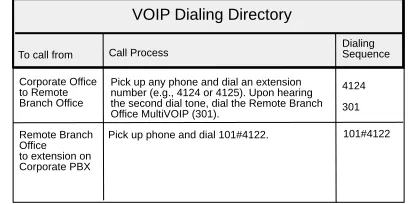
1. Establish your VOIP Dialing Directory based on your Phone Directory Database for the numbers to connect the MultiVOIP 200s to your VOIP network and the telephone extension number you need to connect to the Voice/Fax channels. A sample VOIP Dialing Directory is provided below for your consideration and use. It is keyed to Figure 1-2, Typical VOIP Application, in the User Guide.
Note: The # sign used in the table below indicates a
To call from Call Process
Pick up any phone and dial an extension number (e.g., 4124 or 4125). Upon hearing the second dial tone, dial the Remote Branch Office MultiVOIP (301).
Dialing Sequence
4124
301
Pick up phone and dial 101#4122. 101#4122
VOIP Dialing Directory
Remote Branch Office to extension on Corporate PBX Corporate Office to Remote Branch Office
2. Send the slave MultiVOIP 200s to their remote sites.
Remote Site Administrator
The following steps are for MultiVOIP 200 H.323 endpoints. For non-MultiVOIP 200 H.323 endpoints, refer to the appropriate installation documentation.
3. Unpack your MultiVOIP 200.
4. Connect one end of the power supply to a live AC outlet and connect the other end to the Power connection on your MultiVOIP 200 (See Figure 8).
FXS E&M FXO PSTN Ethernet Connection Power Connection 10BASET ETHERNET POWER Voice/Fax Channel Connections
E&M FXO FXS
Figure 8. Remote Site Cable Connection
Deploy VOIP Network
6. If you are connecting a station device (e.g., analog telephone, fax machine, or Key Telephone System (KTS) to your MultiVOIP 200, connect the smaller end of a special adapter cable (supplied) to the Voice/Fax Channel
1 FXS connector on the back of the MultiVOIP 200 and the
other end to the station device.
If you are connecting a PBX extension to your MultiVOIP 200, connect the smaller end of a special adapter cable (supplied) to the Voice/Fax Channel 1 FXO connector on the back of the MultiVOIP 200 and the other end to the PBX extension.
If you are connecting an E&M trunk from a telephone switch to your MultiVOIP 200, connect one end of an RJ-45 phone cord to the Voice/Fax Channel 1 E&M
connector on the back of the unit and the other end to the trunk phone jack.
If you are connecting to an E&M trunk, you need to ensure that the E&M trunk jumper is in the correct position for the E&M type trunk. The default E&M jumper position is E&M type 2. To change the E&M jumper position, perform the E&M jumper block positioning procedure.
7. Repeat the above step to connect the remaining telephone equipment to each Voice/Fax Channel on your MultiVOIP.
8. Turn on power to the MultiVOIP 200 by placing the ON/ OFF switch on the back panel to the ON position. Wait for the BOOT LED on the MultiVOIP 200 to go OFF before proceeding. This may take a couple of minutes.
If your H.323 endpoint is not a MultiVOIP 200 (e.g., a PC with NetMeeting software), the Systems Administrator for your VOIP network should do the following.
1. Make certain that the H.323 endpoint (e.g., PC with NetMeeting, router with voice, etc.) have been properly connected to the network. Refer to the appropriate end user documentation.
2. Acquire the relevant IP Addresses and/or H323 IDs (H323 IDs are required if Gatekeeper is enabled) from the other H.323 endpoints that will participate in H.323 calls.
Warranty and Regulatory Information
Limited Warranty
Multi-Tech Systems, Inc. (“MTS”) warrants that its products will be free from defects in material or workmanship for a period of two years from the date of purchase, or if proof of purchase is not provided, two years from date of shipment. MTS MAKES NO OTHER WARRANTY, EXPRESSED OR IMPLIED, AND ALL IMPLIED WARRANTIES OF MERCHANTABILITY AND FITNESS FOR A PARTICULAR PURPOSE ARE HEREBY DISCLAIMED. This warranty does not apply to any products which have been damaged by lightning storms, water, or power surges or which have been neglected, altered, abused, used for a purpose other than the one for which they were manufactured, repaired by the customer or any party without MTS’s written authorization, or used in any manner
inconsistent with MTS’s instructions.
MTS’s entire obligation under this warranty shall be limited (at MTS’s option) to repair or replacement of any products which prove to be defective within the warranty period, or, at MTS’s option, issuance of a refund of the purchase price. Defective products must be returned by Customer to MTS’s factory transportation prepaid.
MTS WILL NOT BE LIABLE FOR CONSEQUENTIAL DAMAGES AND UNDER NO CIRCUMSTANCES WILL ITS LIABILITY EXCEED THE PURCHASE PRICE FOR
Technical Support
Multi-Tech Systems has an excellent staff of technical support personnel available to help you get the most out of your Multi-Tech product. If you have any questions about the operation of this unit, or experience difficulty during installation you can contact Tech Support via the following:
Phone:
(800) 972-2439 (USA and Canada) (763) 785-3500 (international and local) Internet:
http://www.multitech.com
Warranty and Regulatory Information
FCC Declaration
NOTE: This equipment has been tested and found to comply with
the limits for a Class A digital device, pursuant to Part 15 of the FCC Rules. These limits are designed to provide reasonable protection against harmful interference when the equipment is operated in a commercial environment. This equipment generates, uses and can radiate radio frequency energy, and if not installed and used in accordance with the instructions, may cause harmful interference to radio communications. Operation of this equipment in a residential area is likely to cause harmful interference in which case the user will be required to correct the interference at his own expense.
Warning: Changes or modifications to this unit not expressly