XMU+ QuickStart Guide
MA18510R10E7.5
All rights reserved. No part of this book, including interior design, cover design, and icons, may be reproduced or transmitted in any form, by any means (electronic, photocopying, recording, or otherwise) without the prior written permission of Interalia
Inc. Interalia Inc. Marketing Department
4110 - 79th Street N.W. Calgary, Alberta, Canada T3B 5C2
Phone: (403) 288-2706 Fax: (403) 288-5935
Interalia and the publisher have used their best efforts in preparing this book as accurately and completely as possible, however we do not make any guarantees or
warranties regarding its content.
Trademarks
Interalia is a registered trademark of Interalia Inc. XMU+ is a registered trademark of Interalia Inc.
All other product names and services identified throughout this book are used in an editorial fashion only, and for the benefit of such companies. No such use, or the use of any trade name, is intended to convey endorsement or other affiliation
Note: For the latest revision of this guide please go to http://www.interalia.com/Support/Manuals
Table of Contents
Chapter 1: Introducing XMUCOM+
In This Chapter...1
About the XMU+ Announcement and Call Processing System...3
Who Uses XMU+ ...3
About the XMUCOM+ Application ...3
XMU+ Product Overview ...4
Typical Uses for XMU+ ...5
About XMU+ Line Cards ...7
In This Book ...8
For More Information... 10
Chapter 2: Installing the XMUCOM+ Application
In This Chapter... 11Overview ... 13
About the Installation Process... 14
Meeting System Requirements ... 15
Operating System Requirements ... 15
Installing Microsoft Dial-Up Networking for Modem... 15
Removing XMUCOM Software... 16
Removing Older Versions Of XMUCOM+ Software ... 16
Installing XMUCOM+ Software... 17
To Install XMUCOM+ Software ... 17
To Start XMUCOM+ ... 18
File Menu ... 24 Communication Menu ... 25 Configuration Menu ... 26 Administration Menu ... 27 Window Menu ... 27 About Menu ... 28
About XMUCOM+ File Formats... 28
About .XMP Files ... 28
About .WAV Message and Music Files ... 29
About .CSV Files ... 29
Chapter 3: Planning and Defining Your XMU+ Sites
In This Chapter... 31Overview - Site Preparation ... 33
About XMU+ Sites ... 33
Preparing to Manage Multiple Sites ... 34
Setting Up Directories For Each Site ... 38
To create site specific directories from Windows Explorer ... 38
Entering Site Specific Information ... 40
Site Book Window ... 40
New Site and Edit Site Windows ... 41
To set file handling defaults ... 44
Chapter 4: Setting Up PC to XMU+ Communication
In This Chapter... 45Overview ... 47
Process Flow for XMU+ Communication Setup ... 49
About Connecting the XMU+ Units with XMUCOM+ PC ... 50
Preparing for Networking ... 51
To prepare for standard networking ... 51
To prepare for dial-up networking ... 52
About Microsoft Dial-Up Networking ... 53
Process flow for Setting Up Dial-Up Networking ... 53
To set up Dial-Up Networking for Modem Connections for Windows XP ... 54
To set up Dial-Up Networking for Modem Connections for Windows 7 ... 61
To Set Properties for all dial-up connections ... 64
XMU+ QuickStart Guide rev.10 iii
Setting up Modem Based PC to XMU+ Connections ... 70
To connect to the XMU+ modem with an analog line ... 70
To set up XMUCOM+ to use a modem connection ... 71
Testing Modem Communication ... 71
To test modem communication ... 72
Setting up LAN or Ethernet Based PC to XMU+ Communication ... 73
To connect the XMU+ unit to the PC through an Ethernet network ... 73
Testing Ethernet Communication ... 75
To test Ethernet connections ... 75
Specifying XMUCOM+ Connection Information ... 77
To specify connection details to the XMUCOM+ ... 77
Testing XMU+ to XMUCOM+ Communication... 79
Testing the Physical Connection Between XMU+ and PC ... 79
To test a modem connection ... 80
Testing Information Transfer between XMUCOM+ and XMU+ ... 82
To retrieve XMU+ system information ... 82
Using the XMU+ debug interface via a Telnet session. ... 84
To access the debug interface. ... 84
A description of the XMU+ Debug Interface ... 85
Troubleshooting XMU+ Communication ... 86
To determine and correct modem communication failure ... 86
To determine and correct Ethernet communication failure ... 87
Chapter 5: Configuring XMU+ Line Cards
In This Chapter... 89About XMU+ Line Cards... 91
Line cards supported by XMU+ ... 92
Validating XMU+ Line Cards ... 94
To validate XMU+ line cards from the Delivery Checklist ... 94
To upload the default XMU+ configuration ... 94
Specifying Line Cards to the XMUCOM+... 95
To specify line cards to the XMUCOM+ application ... 95
Configuring XMU+ Line Cards ... 98
About PBX types ... 99
About XMU+ Operating Modes ...100
Applying Line Card Configurations ...101
To return line card configurations to their default values ...101
To view current line card configurations ...102
To edit or change line card configurations ...103
To send configurations to XMU+ ...105
To set the start node ...106
Chapter 6: Recording, Playing, and Transferring Messages
In This Chapter...109About XMU+ Music and Messages ...111
XMU+ Message Administration Methods ...112
About .WAV Message and Music Files ...112
Naming Message Files ...112
About Recording and Playing Messages ...113
Recording Messages ...114
To record messages from the Front Panel ...114
To record messages with Remote Telephone Access ...114
To record messages in a Studio ...115
To record messages and music from your PC ...115
Playing Messages ...117
To play messages from the Front Panel ...117
To play messages via Remote Access ...117
To play messages and music on your PC ...118
Deleting Messages ...119
To delete messages from the Front Panel ...119
To delete messages with Remote Telephone Access ...119
Sending Messages to the XMU+...120
To send messages from your PC to XMU+ Unit ...120
Receiving Messages from XMU+ ...123
To receive messages from XMU+ to your PC ...123
Chapter 7: About XMU+ Nodes and Program Configurations
In This Chapter...127Accessing XMU+ ...129
About Programming XMU+ For Your Use...131
About XMU+ Ports...132
About Basic XMU+ Commands ...132
About XMU+ Nodes...133
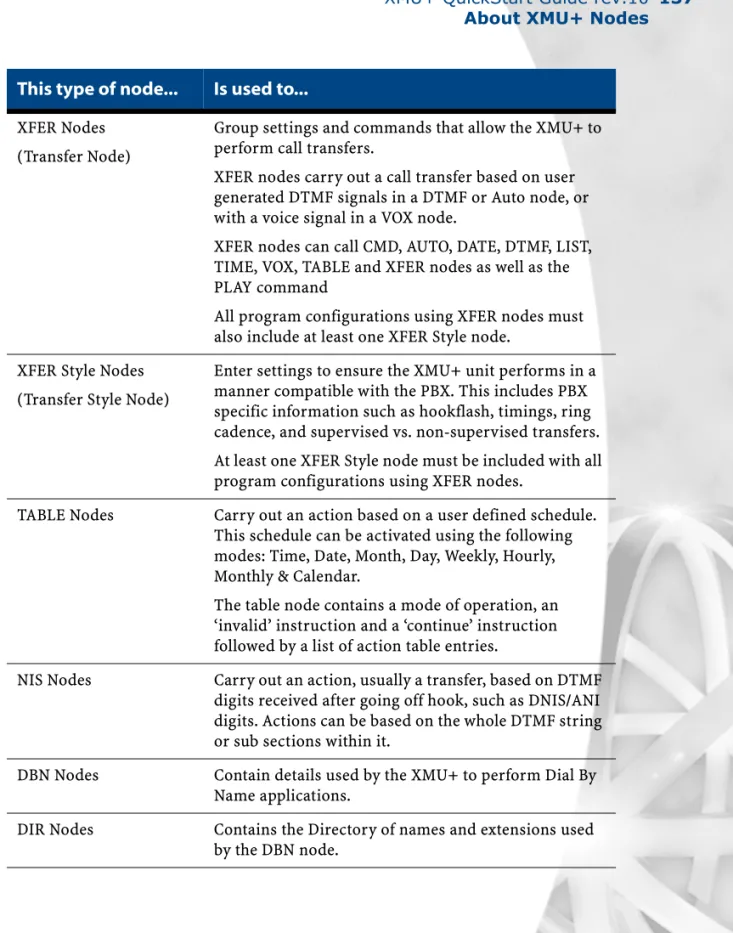
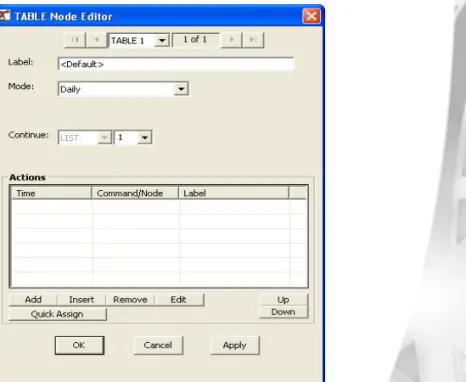
Types of nodes ...133
Field Descriptions For Nodes ...138
Command Node. ...138
List Node ...139
Time/Date nodes ...139
Time node ...139
Date node (Day and Date configurations) ...140
XMU+ QuickStart Guide rev.10 v VOX node ...143 Xfer/Style nodes ...144 Style node ...146 Message node ...148 MOH node ...149 Table node ...151 NIS node ...153 DBN Node ...154 DIR Node ...157
About XMU+ Program Configurations...159
Planning for an XMU+ Program Configuration ...159
XMU+ Program Configurations: Types and Description ...161
Sample XMU+ Call Flow Diagram ...165
Chapter 8: Tutorials: Audio Text and Dial By Name
In This Chapter...167Overview ...169
About Programming Audio Text Configurations...169
System Prerequisites ...170
Before You Start...172
Configuration Chart for this Program Configuration ...174
Using XMU+ Nodes...176
DTMF Nodes for Audio Text Tutorial ...176
MSG Nodes for the Audio Text Tutorial ...177
Audio Text Call Flow Diagrams and Tables...178
Call Flow Sequence Table for Audio Text Tutorial ...178
Call Flow Diagram for Audio Text Tutorial ...179
Entering Audio Text Call Flow into XMUCOM+...181
Set up a New Program Configuration ...182
To start a new program configuration ...182
To set partition and system parameters for the program configuration ..183
Working with Message Nodes ...184
To create message nodes for each message ...184
Working with DTMF Nodes ...186
To create a DTMF node ...187
To enter DTMF prompts ...188
To enter DTMF actions ...189
To enter DTMF exceptions ...190
To enter DTMF controls ...191
Assigning a Line card and Start Node for the Audio Text Program...192
Sending and Testing the Configuration ...195
To download the configuration to XMU+ unit ...195
To send Audio Text messages to the XMU+ ...195
To test the configuration ...197
Dial By Name Tutorial...197
Create a Dial by Name Application ...198
Create a DBN Node ...199
Edit the XFER Nodes ...200
Edit The Style Node ...200
Edit The DIR Node ...201
Edit MSG Nodes ...202
Card Configuration ...202
Send the Configuration to the XMU+ ...205
Record the Messages ...206
Dial by Name Application Completed! ...206
Chapter 9: Troubleshooting Configuration
In This Chapter...207About Troubleshooting Program Configurations...209
Setting Start Nodes ...210
To ensure the start node is set properly ...210
Checking Messages ...211
To perform an integrity check ...211
To download, verify, and resend messages to the XMU+ unit ...212
To verify and correct total record time for a partition ...212
To increase the message length ...214
Dealing with Communication Failures ...215
About SchedulerPlus ...215
To check SchedulerPlus ...216
When XMU+ is Not Answering ...218
Working with XMUCOM+ Tools ...220
Retrieving XMU+ Statistics ...220
To retrieve XMU+ statistics ...220
Retrieving configurations from the XMU+ ...222
To retrieve a configuration from XMU+ ...222
Retrieving messages from the XMU+ ...224
To retrieve messages from the XMU+ ...224
Chapter 10: About Statistics
In This Chapter...227XMU+ QuickStart Guide rev.10 vii
Overview ...229
Sample Statistical Reports ...230
Line Call Counts ...230
Simultaneously Active Lines ...231
Node Access Count ...232
Line Xfer Count ...234
Selections Made ...236
DTMF, AUTO and VOX Selection Count ...237
Clearing Statistics...241
Chapter 11: Mini Weather Radio
In This Chapter...243 Overview ...244 Who uses MWR ...244 Equipment Necessary ...244 Enabling MWR in XMUCOM+ ...245 XMU+: MWR Functionality ...246 Default Settings ...246Default Settings (Quebec Region) ...246
Configuring the XMU+ MWR Line Card...247
Using the List Node as the Starting Node ...247
Creating A Message Node ...248
MWR Message Attributes ...248
Setting up an XMU+ MWR Application ...249
Application Design ...249
Mode of Operation (Card Configuration Window) ...249
Assigning Messages to a Line ...249
Recording / Sending the messages to the XMU+ ...250
MWR Remote Access (Telephone & AVIPADS®) ...254
Specific Area Message Encoding (S.A.M.E.)...257
Introduction ...257
Front Panel Configuration ...258
Remote Telephone Access Operation ...258
S.A.M.E. Format ...259
XMU+ FTP Function Reference...265
Function Reference ...265
Connection Establishment ...265
Security Commands ...265
Message Transfer Commands ...266
S.A.M.E. message creation ...268
S.A.M.E. format ...269
UTILITY Commands ...270
Other Responses ...270
Example 1 ...270
Example 2 - S.A.M.E. file creation ...271
Example 3 - S.A.M.E. Set Command ...271
XMUCOM+ S.A.M.E. Watchdog Timer ...272
Setting up a Watchdog S.A.M.E. event ...274
Field Description ...275
Time Zone ...275
Originator ...275
Glossary
Index
End User License Agreement
Important Read Carefully ...296Software Product License ...296
1
Introducing XMUCOM
+
Read this chapter to gain an understanding of the XMUCOM+ application and of how this QuickStart guide can help you get started in installing and using this application to create program configurations for the XMU+.
In This Chapter
About the XMU+ Announcement and Call Processing System on page 3.
Who Uses XMU+ on page 3
About the XMUCOM+ Application on page 3.
XMU+ Product Overview on page 4.
Typical Uses for XMU+ on page 5.
About XMU+ Line Cards on page 7.
In This Book on page 8.XMU+ QuickStart Guide rev.10 3 About the XMU+ Announcement and Call Processing System
About the XMU
+
Announcement and Call
Processing System
The XMU+ Digital Call Processor is a microprocessor based, voice announcement and call processing system.
Modular in design and field upgradable, the XMU+ offers major advantages in processing customer calls for a broad range of customer needs. The XMU+ delivers:
High quality ACD/UCD announcements.
Interactive auto attendant functionality.
Pre-recorded messages that play to assigned port(s) when the unit isactivated by an incoming call.
Ability for users to navigate through different levels of messages by entering commands with a touch-tone telephone.
Flash memory that ensures configurations and messages are not lost in theevent of power failures.
Who Uses XMU
+
XMU+ is used by a broad range of industries for a variety of functions such as:
Passive announcements.
Interactive announcements.
Music on Hold.
Public Announcements.
Interactive Auto Attendants.
Call Processing and Transferring.See Typical Uses for XMU+ on page 5 for more information about each of the above
functions.
About the XMUCOM
+
Application
The XMUCOM+ application is a Windows based program that works in conjunction with the XMU+ unit, and allows you to program, receive, download, update, and backup configurations and messages between the PC and XMU+ unit.
The intuitive XMUCOM+ interface displays configuration outlines and structures within a tree-style navigational pane, and provides detailed node information in a parallel pane.
Configurations designed with XMUCOM+ are transmitted to the XMU+ unit through an XMU+ to PC connection, a modem connection, or a LAN based (Ethernet) network. ACD Automatic Call Distribution UCD Uniform Call Distribution
XMU
+
Product Overview
XMU+ units are compatible with all major telephone systems and can be remotely managed through a modem, telephone, or Ethernet connection that uses XMUCOM+.
See About the XMUCOM+ Application on page 3 for more information.
XMU+ is available in two sizes:
Large Chassis.
Small Chassis.XMU+ Large Chassis 2-64 channels
XMU+ large chassis provides state-of-the-art design, and flexible
configuration options for users requiring up to:
64 analog channels.
48 T1 channels.
6 hours of recording time for music and messages.The XMU+ large chassis handles up to 8 line cards for call processing, Audio Text, ACD announcements, and Auto Attendant.
It can also act as a music/messaging on-hold system with 2 music inputs and 4 different outputs on each card.
XMU+ Small Chassis 2-8 channels
The XMU+ small chassis provides an effective solution for users requiring only one line card.
The XMU+ small chassis provides up to:
8 analog channels.XMU+ QuickStart Guide rev.10 5 About the XMU+ Announcement and Call Processing System
Typical Uses for XMU
+
The XMU+ can be used for a broad range of purposes.
XMU
+is used as a...
In this manner...
Passive Announcer An XMU+ can be used as a Passive Announcement
system. Typical uses include:
ACD/UCD customized announcements.
Day of week announcement.
Time of day announcements.
Date specific announcements.Interactive Auto Attendant
An XMU+ can be used as an Interactive Auto Attendant system. Typical uses include:
Audio Text/Information lines that provideautomated messages to callers. An extremely flexible system, the XMU+ can be configured to play different messages depending on:
Time of day.
Day of week.
Date and selections made by a caller.
Interactive Auto Attendants such as:
Press 1 for Sales, Press 2 for Technical Support.
Please enter the extension of the person you wish to speak to.DTMF Call Processing System
An XMU+ can be used as a DTMF Call Processing system.
Typical uses include Call Centre routing with either front ending or back ending ACD queues:
In front-ending ACD queues, XMU+ presents amenu, and transfers the call to the appropriate queue.
In back-ending ACD queues, the client’s telephone system answers the call and places the user in the queue. XMU+ plays the appropriate holding messages, and transfers the caller to the appropriate person when the line becomes available.Music On Hold Player An XMU+ equipped with a Music On Hold (MOH) line
card can be set up to combine music and messages to create an “On Hold” environment for your callers. The music source (such as radio or CD) can be:
Stored in and played from a solid state medium onthe Control card’s flash memory.
Played directly to the MOH from an external audiofeed.
Each MOH system provides up to six hours of recording time. Messages can be recorded from four sources:
Telephone handset.
Tape unit.
Remote access using a touch tone telephone.
WAV files that are downloaded using a PC.XMU
+is used as a...
In this manner...
DTMF Dual Tone Multi Frequency DNIS Dialed number identification service.
XMU+ QuickStart Guide rev.10 7 About the XMU+ Announcement and Call Processing System
About XMU
+
Line Cards
Depending on the chassis size, the XMU+ can support several different line cards. As well, each line card may have several variants, depending on the number of ports required and the country of use.
The XMU+ supports the following types of line cards:
Hybrid Analog line card.
Low Impedance line card.
MWR (Mini Weather Radio) line card - Canada only.
MOH (Music On Hold) line card.
T1 line card.For more information about XMU+ line cards:
See Chapter 5: Configuring XMU+ Line Cards for more information aboutconfiguring XMU+ line cards with the XMUCOM+ application.
Visit the Interalia website at www.interalia.com for details and descriptions of each line card.
See “XMU+ Technical Specifications and Approvals” in the XMU+Installation and Maintenance Guide for more information about the XMU+ approving bodies in the countries where XMU+ is used.
In This Book
This guide helps you to set up the XMUCOM+ application on your Personal Computer and introduces you to the fundamentals of designing and building program configurations for the XMU+ system.
See the following for a brief description about each chapter.
Read this chapter...
To understand...
Chapter 1: IntroducingXMUCOM+
The XMU+ product and how it can be used to address the needs of your organization.
Chapter 2: Installing the XMUCOM+ Application
The prerequisites for installing the XMUCOM+ application and the installation procedure you must follow. This chapter also introduces you to the fundamentals of the XMUCOM+ application interface.
Chapter 3: Planning and Defining Your XMU+ Sites
How to set up the physical
connections between your personal computer and the XMU+ unit. Also learn how to set up the individual XMU+ sites that your organization requires.
Chapter 4: Setting Up PC to XMU+
Communication
How to set up the communication systems between your personal computer and the XMU+ unit.
Chapter 5: Configuring XMU+ Line Cards
How to configure and prepare the line cards in your XMU+ unit.
Chapter 6: Recording, Playing, and
Transferring Messages
The techniques and methodology for preparing, generating, and working with messages and music for your XMU+ unit. In the Q uickStart G uide... 1 Introducing XM U C O M + 2 Installing the XM U C O M + A pplication 3 P lanning and D efining your XM U + Sites 4 S etting up P C to XM U + C om m unication 5 C onfiguring X M U + Line C ards 6 R ecording, Playing, and Transferring M essages 7 A bout XM U + N odes and Program C onfigurations 8 Tutorials 9 Troubleshooting C onfiguration 10 G lossary Index 11 Special A pplications
XMU+ QuickStart Guide rev.10 9 In This Book
Chapter 7: About XMU+ Nodes and Program
Configurations
The basic concepts and ideas behind using nodes and developing program configurations for the XMU+ system.
Chapter 8: Tutorials: Audio Text and Dial By Name
How to develop, test, and operate your own XMU+ program
configuration. The tutorials in this chapter provide all the fundamentals you require to get started in using the XMUCOM+ application and
implement a simple program configuration.
Chapter 9: Troubleshooting Configuration
Typical errors that users encounter when developing program
configurations, and how to resolve these errors.
Chapter 10: About Statistics
The basic concepts and ideas behind developing program configurations for the XMU+ system and producing statistical reports.
Chapter 11: Mini Weather Radio
Information about Mini Weather Radio and Estimated Wait Times.
Glossary Industry standard terminology used
in our documentation.
Index Alphabetic list of all the activities and
concepts documented in this guide.
Please refer to the following for more information:
XMU+ Installation and Maintenance Guide
XMU+ Installation Handbook
Interalia Web Site at www.interalia.com.In addition, as a customer, you can call any of the following technical support lines for expert help during normal business hours.
United States: 1-800-531-0115 (952-942-6088)
Canada/Latin America: 1-800-661-9406 (403-288-2706)
Europe/Middle East/Africa: +44 (0) 1476-594-2072
Installing the XMUCOM
+
Application
Read this chapter to ensure you meet system prerequisites for using the XMUCOM+ application, to install the application, and to learn about the XMUCOM+ interface.
In This Chapter
Overview on page 13.
About the Installation Process on page 14.
Meeting System Requirements on page 15.
Operating System Requirements on page 15
Installing Microsoft Dial-Up Networking for Modem on page 15.
Removing XMUCOM Software on page 16.
Removing Older Versions Of XMUCOM+ Software on page 16
Installing XMUCOM+ Software on page 17.
To Install XMUCOM+ Software on page 17
To Start XMUCOM+ on page 18
Understanding the XMUCOM+ Application Interface on page 21.
XMUCOM+ Toolbar on page 22.
XMUCOM+ Menu Commands on page 24
About XMUCOM+ File Formats on page 28.
About .XMP Files on page 28.
About .WAV Message and Music Files on page 29.XMU+ QuickStart Guide rev.10 13 Overview
Overview
The XMUCOM+ application is a Windows compatible program capable of running on Windows XP, Windows Vista Ultimate (32 bit), and Windows 7 Professional (32 and 64 bit). (Please ensure latest service packs are installed.)
It provides an intuitive interface for:
Easily developing XMU+ program configurations for your organization.
Quickly downloading and uploading XMU+ system and program configurationsand messages from the XMU+ unit to the PC, and vice-versa.
Managing and maintaining XMU+ units.The XMUCOM+ application provides standard pull-down menus, graphical
interfaces, popup dialog boxes, and other components familiar to all Windows users. With XMUCOM+, users can download, upload, and modify program configurations quickly and easily. There is little guesswork on the part of the user since the pull-down menus and pop-up windows only present programmable options.
Note: Your XMUCOM+ CD is in the bag of accessories.
Note: Administrator privileges are required to install on Windows XP, Windows Vista, and Windows 7.
About the Installation Process
Users should complete the following activities before actually installing the XMUCOM+ software application.
See the following procedures for more information:
Meeting System Requirements on page 15.
Installing Microsoft Dial-Up Networking for Modem on page 15.
Removing XMUCOM Software on page 16.
Installing XMUCOM+ Software on page 17.XMUCOM+
Installation Process
Ensure you meet all system requirements.
Ensure Microsoft Networking is set up
on your PC.
If required, export Site Book information and back up configurations. Back up all MSG files. Uninstall pre-existing versions of XMUCOM+ software.
Install the current version of XMUCOM+.
XMU+ QuickStart Guide rev.10 15 Meeting System Requirements
Meeting System Requirements
XMUCOM+ is a versatile tool that can operate on Windows XP, Windows Vista, or Windows 7.
Ensure that your operating system has had the latest service packs installed and meets the following requirements before installing XMUCOM+.
Operating System Requirements
The following list outlines the suggested minimum operating system requirements for running XMUCOM+.
Intel Pentium 4 processors or equivalent
XP, Vista Ultimate (32 bit) or Windows 7 Professional (32 or 64 bit)
100 MB of available hard drive space
A CD-ROM drive
A network or modem interface for communications
Monitor resolution setting no lower than 800x600Installing Microsoft Dial-Up Networking for
Modem
In order for XMUCOM+ software to function correctly, Microsoft Dial-Up Networking
must be installed on your PC. Dial-Up Networking enables you to connect one computer to another by using a modem.
Depending on the type of communication option you have selected, you must set up the appropriate Microsoft Networking options.
Set up individual Microsoft Dial-Up Networking for Modem connections.
Set up Standard Microsoft Networking with TCP/IP for LAN/WANconnections.
Please refer to your PC and Windows documentation for detailed procedures about setting up Microsoft Dial-Up and Standard Networking. The setup process varies depending on the Operating System that you are currently running.
Note: XMUCOM+ will not operate correctly unless Microsoft Dial-Up Networking is installed before installing XMUCOM+ on your system.
Removing XMUCOM Software
XMUCOM+ only operates with XMU+ units. It cannot be used to operate older XMUs. So if you have XMUs, you should keep the older XMUCOM program installed. Otherwise, you can uninstall XMUCOM.
Removing Older Versions Of XMUCOM+ Software
Before you install a new version of XMUCOM+, use the following procedure to uninstall the old version.
This procedure only removes the application. It does not remove files created (configuration files, message files, music files) when the older version was used. However you may still wish to back up your site information, as described in To Back
Up XMUCOM+ Site Information on page 19, before uninstalling the old version.
1. Choose Start > Programs > XMUCOM+ > Uninstall XMUCOM+from the
Windows Start menu.
2. Click YES when the Windows Installer confirmation window is displayed.
XMU+ QuickStart Guide rev.10 17 Installing XMUCOM+ Software
Installing XMUCOM
+
Software
Installing the XMUCOM+ software is a simple process. The Install Shield Wizard guides you through the complete installation process.
Note: If you are upgrading from a previous version of XMUCOM+, you must first remove the older version before installing the new version. See Removing Older Versions Of XMUCOM+ Software on page 16.
To Install XMUCOM
+
Software
1. Insert the XMUCOM+ CD in the computer’s CD-ROM drive.
2. Choose Start > Run.
3. Click Browse and select the Setup.exe file on the XMUCOM+CD.
4. Click OK to begin the installation.
5. Follow the on-screen instructions to complete the installation.
6. If prompted, restart your computer.
Note: The Installation Program uses Windows Installer to install the software. If your PC does not have an installed version of Windows Installer, the installation program will first install Windows Installer. You may be prompted to restart Windows before the XMU+ installation process can continue.
To Start XMUCOM
+
1. Choose Start > Programs > XMUCOM+ > XMUCOM+.
XMUCOM+ displays the startup window.
2. Choose File > New to start a new program configuration.
Tip...
The XMUCOM+ installation process creates a shortcut on your desktop.
Go to step 2 to create new configurations.
Go to step 3 to work with existing and stored configurations. Go to Understanding the XMUCOM+ Application Interface on page 21for more information about importing existing sites into the XMUCOM+ database.
XMU+ QuickStart Guide rev.10 19 Installing XMUCOM+ Software
3. Choose File >Open and find and select the configuration with which you want
to work.
4. Use the XMUCOM+ menu options to control and manage your XMU+ unit.
See the following pages for more information about the XMUCOM+ interface and its features.
To Back Up XMUCOM+ Site Information
To back up site information:
1. Start the current version of XMUCOM+.
2. Choose Communicate > Export Site Book.
3. Enter a filename under which the Site information can be stored and click Save.
Navigate to the folder where your existing XMU+ configurations are stored. Select the Configuration you want to work with and click Open.
Enter the filename in which the site information can be stored.
Select the folder in which you want to store the backup configurations.
The Export Site command extracts the site information from the database and saves it as a .xms file which can be imported into the new database.
4. Choose File>Exit to exit XMUCOM+.
Now, if your installation of XMUCOM+ get corrupted, you can reinstall the software and import this backup by choosing Communication > Import Site Book.
This also allows you to share configuration information with other users who are also using XMUCOM+. Any version of XMUCOM+ can read a site book exported from any other version of XMUCOM+.
XMU+ QuickStart Guide rev.10 21 Understanding the XMUCOM+ Application Interface
Understanding the XMUCOM
+
Application
Interface
The XMUCOM+ interface consists of a main screen, pull-down menus, tab-based series of screens, and button-based options that provide access to a variety of functions.
The following illustration shows some of the key components of the XMUCOM+ interface, and uses the Site Book and Edit Site windows as examples.
Menu Bar Tool Bar
Site List window
Edit Site window
XMUCOM
+
Toolbar
The XMUCOM+ Toolbar provides quick access to commonly used commands and tools. The Toolbar remains accessible through all XMUCOM+ functions and screens.
The following table provides a brief description of each of these toolbar commands.
This command...
Is used to...
Exit XMUCOM+ Exit the XMUCOM+ application. You will be asked to
confirm and save changes. New System
Configuration
Create a new system configuration. System configurations can be applied to any number of XMU+ sites.
Open System Configuration
Open an existing system configuration. This command also opens the Config Builder window so that you can immediately begin editing program configurations for this site.
Save Current Configuration
Save the current system configuration to the database. View System
Configuration
Display a text-based view of your current system configuration. This file provides summary information about all the partitions, cards, default nodes, program nodes, commands, and messages that make up your current system configuration.
Exit XMUCOM+ New System Configuration Open System Configuration Save Current Configuration Open Configuration Builder for current System Configuration. Communicate with XMU+ View Card Configuration View System Configuration
XMU+ QuickStart Guide rev.10 23 Understanding the XMUCOM+ Application Interface
Communicate with XMU+
Open the Communication window so that you can send or
receive system configurations and messages to and from the XMU+ unit. This window also lets you schedule retrieval and resetting of statistics for each XMU+ unit. View Card
Configuration
Open the Card Configuration window so that you can configure and set options for the various cards in the XMU+ unit. This includes:
Specifying the types of cards on your XMU+ unit.
Identifying the program configuration (start nodes) that are to run from each line and partition.
Setting Line and Partition behaviors.Once these options are set and stored in the system configuration for this site, users can use the Communicate command to download these settings to the XMU+ unit.
Open Config Builder Open the Config Builder window where you can design,
edit, modify, or delete program configurations, their associated nodes, and their partition settings.
Developers can create the program configuration on the XMUCOM+ (independent of the XMU+ unit) and download them by using the Communication command when they are ready to test and implement them.
XMUCOM
+
Menu Commands
The XMUCOM+ application uses pull-down menus to provide access to all the main elements of the system. Menus include File, Communication, Configuration, Administration, and About. The following provides a brief description of each menu command and its function.
Tools Menu.
File Menu
This command...
Is used to...
Select Site Book Choose a site book stored on the local drive of your PC,
or one saved onto a network drive if shared access is required.
Options Enable, disable or modify the Auto Save feature, the User
Login feature, and notify unprocessed completed tasks.
This command...
Is used to...
New Create a new XMU+ system configuration.
Open Open an existing system configuration.
Close Close current configuration.
Save Save the current program or system configuration to the
database.
Save As Save the current system configuration under a new file
name.
Recent Files Open the nine most recently used configurations.
XMU+ QuickStart Guide rev.10 25 Understanding the XMUCOM+ Application Interface
Communication Menu
This command...
Is used to...
Site Book Manage and enter site specific information such as site
name, site ID, connection methods, file handling standards, and configuration and statistic file handling guidelines.
Import Site Book Import previously stored site information into
XMUCOM+. Imported site information is stored in the XMUCOM+ database. This process will overwrite any existing entries.
Export Site Book Export site information from XMUCOM+ into a backup
file. See To Back Up XMUCOM+ Site Information on page 19.
Communicate Enter and manage uploads and downloads of
configurations to and from the XMU+. These tabs allow you to identify the elements to be downloaded or uploaded, and lets you set schedules for certain activities, such as generating statistics.
Completed Scheduled Tasks
View a list of completed scheduled tasks. This menu lets you determine which scheduled communication tasks are completed and can be processed.
Delete Partition Delete a selected partition from the XMU+ configuration
Synchronize This feature allows the user to cross reference the PC
software configuration with the one currently residing on the XMU+. A list of nodes/messages existing on the XMU+, but not found in the PC software file will be displayed and can be deleted from the XMU+ at this time if required.
Launch ReScheduler Open an application which tracks all tasks scheduled
and/or repeated in the future before submitting them to SchedulerPlus to be executed.
Launch Dashboard Open the communication dashboard which displays
Configuration Menu
This command...
Is used to...
Card Configuration Open the Card Configuration window so that you can
configure and set options for the various cards in the XMU+ unit. This includes:
Specifying the types of cards on your XMU+ unit.
Identifying the program configuration (start nodes) that are to run from each line and partition.
Setting Line and Partition behaviors.Once these options are set and stored in the system configuration for this site, users can use the
Communicate command to download these settings to the XMU+ unit.
Configuration Builder Open the Config Builder window, where you can design,
edit, modify, or delete program configurations, their associated nodes, and their partition settings.
Developers can create the program configuration on the XMUCOM+ (independent of the XMU+ unit) and download them using the Communications command when they are ready to test and implement them.
View Configuration Display a text-based view of your current system
configuration. This file provides summary information about all the partitions, cards, default nodes, program nodes, commands, and messages that make up your current system configuration.
XMU+ QuickStart Guide rev.10 27 Understanding the XMUCOM+ Application Interface
Administration Menu
Window Menu
This command...
Is used to...
System Set XMU+ system settings, access codes, session limits,
partitioning, and other XMU+ options. The four main sub-menu options are:
XMU+ Settings: Use this window to set access codes, session limits, enable partitioning, modes of operation, and language of operation.
Override: Use this window to set the start node for the override configuration (for each line on each card) of an XMU+ unit.
Daylight Savings: Use this window to set the start and stop dates for daylight savings. This command is only required for those parts of the country that implement daylight savings.
System Commands: Lets you set, retrieve, and send date, time, and firmware related information to the selected XMU+ unit. These tasks are not commonly used. Most of these tasks can also be performed directly from the Front Panel of the XMU+ box.
Statistics Retrieve and view statistics for a specific site and
partition of the selected XMU+ unit. Users can also choose to view existing or already retrieved statistics.
This command...
Is used to...
About Menu
About XMUCOM
+
File Formats
There are three major types of files generated by the XMUCOM+ program. These are:
Configuration files stored with an .XMP file extension.
Audio messages and music files are stored with a .WAV file extension.
Statistic files are stored with a .CSV file extension.Note: XMUCOM+ uses the following default directories (if you do not enter specific directories) for storage of these files.
For WIndows XP:
C:\Program Files\XMUCOM+\CONFIGS
C:\Program Files\XMUCOM+\MSGS
C:\Program Files\XMUCOM+\STATS For Windows Vista and Windows 7:
C:\Users\Public\Documents\Interalia\XMUCOM+\configs
C:\Users\Public\Documents\Interalia\XMUCOM+\Msgs
C:\Users\Public\Documents\Interalia\XMUCOM+\StatsAbout .XMP Files
. XMP files store XMUCOM+ configurations or programs. They can be downloaded to and from the XMU+ unit.
For example, if you design a Music on Hold (MOH) configuration on the XMUCOM+, the .XMP file would contain all the instructions for when to play each music file, how long to play it, and any other details that you specified. The actual music files are stored separately as .WAV files.
This command...
Is used to...
About Interalia’s XMUCOM+
Provide general information about the XMUCOM+ application, its version, and contact information.
XMU+ QuickStart Guide rev.10 29 About XMUCOM+ File Formats
You must set up a default directory for storing these .XMP configuration files. See
Setting Up Directories For Each Site on page 38 for more information.
About .WAV Message and Music Files
All music and message files must be stored in .WAV format. In order to be included or used within a program configuration, the WAV files must have the following
properties:
See Chapter 6: Recording, Playing, and Transferring Messages for more information
about .WAV files, naming of message and music files, and the processes involved in creating, receiving, and sending .WAV files to the XMU+ unit.
About .CSV Files
XMU+ Statistics and reports are generated in .CSV (comma separated) files. These .CSV text files can be imported into any word processor or spreadsheet for viewing, editing, or report generation purposes.
All statistics for a site are downloaded to the default directory specified in the File Handling section of the Site Book window. You must set up a default directory, for each XMU+ site, where .CSV statistic files can be stored.
See Setting Up Directories For Each Site on page 38 for more information.
8 bit compression.
8K sampling rate.
Mono sound
CCITT µ-Law Format - providing compliance with the3
Planning and Defining Your
XMU+ Sites
Follow the instructions in this chapter to connect your XMU+ units to your XMUCOM+ PC, and to ensure that organizations using multiple XMU+ units are properly planned and set up.
In This Chapter
Overview - Site Preparation on page 33.
About XMU+ Sites on page 33.
Preparing to Manage Multiple Sites on page 34.
Setting Up Directories For Each Site on page 38.
To create site specific directories from Windows Explorer on page38
Entering Site Specific Information on page 40.
Site Book Window on page 40XMU+ QuickStart Guide rev.10 33 Overview - Site Preparation
Overview - Site Preparation
XMU+ units can be installed at multiple sites or locations. Organizations that choose to install XMU+ at multiple sites must properly organize, document, and prepare site specific information. XMUCOM+ site management features let you manage multiple XMU+ sites from a single location.
About XMU+ Sites
A single organization can place multiple XMU+ units at different locations within a city, in multiple cities, or across the country. Using XMUCOM+, each unit can be programmed, to execute only the program configurations specific to that site. XMUCOM+ supports easy management and control of these sites by allowing you to develop and administer all system and program configurations, for all sites, from a single central XMUCOM+ system. Developed configurations are downloaded to the appropriate site through Ethernet or modem connections. To set up your sites, you must carry out the following procedures:
Preparing to Manage Multiple Sites on page 34.
Setting Up Directories For Each Site on page 38.
Entering Site Specific Information on page 40.
Setting Up PC to XMU+ Communication on page 45Setting up XMU+
Obtain site specific information for the
XMU+ unit.
Enter site specific information into
XMUCOM+.
Set up telecommunication between XMU+ and the
XMUCOM+ software. Repeat this
procedure for each XMU+ unit n your organization.
Modem Communication.
Ethernet Communication. Set up directories on
your PC for the XMU+ site. Tip... Follow the procedures in the XMU+ Installation and Maintenance Guide to install each XMU+ unit at its specific site.
Preparing to Manage Multiple Sites
Each XMU+ unit is considered to be an individual site. A location with multiple XMU+ units is considered to contain multiple XMU+ sites. Each unit must be individually set up and managed.
Effective management and organization of site specific information, configurations, messages, and so on is critical for proper functioning of multiple XMU+ units. To do this, Installers must collect and provide the following information about each site in the XMU+ Delivery Checklist, which is a part of the XMU+ Installation and
Maintenance Guide:
Collect...
Description...
Modem Phone Number Obtain the modem phone number for XMU+ units
that use a modem connection to communicate with
the XMUCOM+application.
IP Address & Netmask Obtain the IP address for XMU+ units that use an
Ethernet LAN/WAN connection to communicate with
the XMUCOM+application. Provide this information
to the installer of the XMU+ unit. Remote Telephone
Access Phone Number and Code
Obtain the remote telephone access phone number if you plan to access and control the XMU+ unit remotely with a telephone. Remote telephone access also requires an access code that the installer may have to set up for you.
Access Codes Every XMU+ unit can be assigned unique access codes
during installation. This access code is required to update configurations and administrate the XMU+ unit.
Site
A site refers to the location of any single XMU+ unit.
Each XMU+ unit is considered to be a site.
Each site is managed individually within XMUCOM+. Each site has a
system configuration
and associated pro-gram configurations.
Note: Site book access code must be the same as the XMU+ “XMUCOM+ access” code, see front panel - System / Access Codes / XMUCOM+ access.
XMU+ QuickStart Guide rev.10 35 Preparing to Manage Multiple Sites
In addition to this installation information, the operator of the XMUCOM+ application must also decide on how to organize and maintain the site setup information for each site.
XMU+ Delivery Checklist
This checklist should have been completed, and delivered to you, by the XMU+ Installer. It includes information about one or more of the following:
Installation Specifications.
Power Supply Specifications.
Control card Specifications.
Line card Specifications.
Firmware Specifications
Message Specifications.
Hybrid Hardware Settings.
MOH Hardware Settings.
T1 Hardware Settings.
Telephone and Extension Specifications.
PBX Specifications.
XMU+ to XMUCOM+ Specifications.You will require this information to complete the Site and Communications setup for the XMUCOM+.
For...
Determine the following...
Site ID Number Each XMU+ site should be assigned a Site ID. Site ID’s
can be a maximum of 15 characters. XMUCOM+ does not require these numbers to be unique.
Site Name Each site should be given an identifying site name. Use
a logical system for naming each site. Site ID’s can be a maximum of 25 characters. For example, to allow easy site identification for XMU+ units in different cities, you may want to include the city name in each site name.
XMUCOM+ does not require these names to be unique.
System Configuration Files
Each XMU+ unit contains one system configuration. System configurations contain all relevant XMU+ information such as system settings, partitioning information, card configurations, and the various program configurations that can run on that XMU+ unit.
Keep the following in mind when defining your system configurations.
Include the site ID when saving systemconfiguration file names. For a shorter file name, you may want to prefix the configuration name with the site ID number.
For example: 1243-MOH where 1243 is the site ID, and MOH is the type of system configuration.
Allow the XMUCOM+ application toauto-increment system configuration file names, so that new or updated system configurations do not accidentally overwrite existing system configurations.
It is possible to define and store multiple system configurations for a single site by using your XMUCOM+. You can choose to download only the configuration that meets your current needs.
Define a site-specific directory to which you can download configurations belonging to each site. Enter this unique directory name as the Default Pathname for all configurations for this site.
Label the starting node for each program configuration with a meaningful name that describes the purpose of this program configuration.XMU+ QuickStart Guide rev.10 37 Preparing to Manage Multiple Sites
Message Files Many XMU+ program configurations use message files
as part of their program. Message files can contain voice messages or music. To allow for easy
identification of these message files, consider doing the following:
Include the Site ID and program configuration typein all message names or message labels. For a shorter file name, you may want to prefix the message name with the Site ID number, followed by an abbreviation for the type of configuration you are creating.
For example: 1243-MOH-Hello Msg.
Define a site-specific directory to which you can download messages belonging to that site. Enter this unique directory name as the Default Pathnamefor all messages for this site.
Note: Messages uploaded from the XMU+ unit are assigned default file names. See Naming Message Files on page 112 for more information.
Statistics Files Statistic files are generated when you generate
statistics reports from XMUCOM+. To quickly identify these files, and when they were created, consider doing the following:
Include the Site ID in the name of all statistics files.
Allow the system to auto-increment statistic file names, so that new statistic reports do not accidentally overwrite existing reports.
Define a site-specific directory to which you can upload statistics belonging to that site. Enter this unique directory name as the Default Pathname for all statistics generated for this site.Setting Up Directories For Each Site
Ideally, each physical XMU+ site should have an associated directory on the
XMUCOM+ PC. All files belonging to that site should exist within sub-directories for that site, and have unique names that identify the site and configuration to which they belong. For more information, see:
Preparing to Manage Multiple Sites on page 34.
Entering Site Specific Information on page 40.The following diagram illustrates a sample directory organization for an organization with multiple XMU+ sites:
You can create site specific directories from Windows Explorer, and specify site information in XMUCOM+ with the Site Book feature. These site specific folders are used by XMUCOM+ to download messages, statistics, and configurations that were retrieved from the XMU+ unit. See:
To create site specific directories from Windows Explorer on page 38.
For Windows XP: on page 41.
To set file handling defaults on page 44.To create site specific directories from Windows Explorer
Perform the following steps for each XMU+ site in your organization.
1. Decide on a unique site name and Site ID for each XMU+ location. Record these
decisions for convenient access.
2. Collect and prepare site information for this site. See Preparing to Manage
Multiple Sites on page 34 for details.
Configurations in Calgary could be named:
1243-MOH.XMP 1243-Welcome.XMP
Messages for MOH in Calgary could be named:
1243-MOH_Welcome.WAV 1243-MOH_Sales.WAV
XMU+ QuickStart Guide rev.10 39 Setting Up Directories For Each Site
3. Open Windows Explorer and navigate to the XMUCOM+ application folder.
For Windows XP, the default location for this folder is:
C:\Doucuments and Settings\All Users\Documents\Interalia\XMUCOM+
For Windows Vista and Windows 7, the default location for this folder is:
C:\Users\Public\Documents\Interalia\XMUCOM+
4. Within the main XMUCOM+ folder, create a folder for each XMU+ site in your
organization. Use the File > New > Folder command to add these folders, and then rename them to suit your site. In this example we named it “XMU+ Sites”. Include the site location (and optionally the site number) in the folder name. For example: Calgary 1243
5. Within each new site folder, create sub-folders for Configurations, Messages, and Statistics.
6. Repeat steps 4-5 for each XMU+ site in your organization. Upon completion,
your directory structure should look similar to the following, but with your unique, site specific names.
7. For each site, enter site details as described in Entering Site Specific
Information on page 40.
Tip...
During installation, XMUCOM+ automatically creates default folders for storing system configurations, messages, and statistics.
If you do not create site specific folders, XMUCOM+ will use these default folders to hold these elements.
Default folder for System Configurations.
Default folder for Message.
Default folder for XMU+ Statistics and Reports.
Folder containing Configuration, Messages, and Statistics folders for the Edmonton site.
Optionally, you can create a master folder called
XMU+ Sites, that contains all your site specific information. This lets you easily back up all XMUCOM+ site information.
Entering Site Specific Information
Every XMU+ site must be defined, named, and have its defaults set before you begin building and using program configurations. This ensures clean operation of the XMU+ and XMUCOM+, and helps you manage and organize your site specific information.
You can enter all site specific information directly into the XMUCOM+ application, where you can easily maintain site information and ensure that all standards for multiple XMU+ sites are met.
Ensure that you have collected and prepared the following information about each
site before beginning to enter site information into XMUCOM+, and before setting Microsoft Dial-Up Network Connections.
Site Name.
Site ID.
Access codes for each site.
Modem phone number (for modem based connections).
IP address of site (for Ethernet based connections).
Path name of directories where configurations, messages, and statistics are to be stored for this site.See the following for entering and managing site specific information:
Site Book Window on page 40.
New Site and Edit Site Windows on page 41.Site Book Window
The Site Book window lets you:
View a list of existing sites.
Add new sites.
Edit existing sites.
Delete sites.
Sort by columnList of sites currently defined to XMUCOM+.
Click these buttons to edit selected sites, add new sites, or delete selected sites.
XMU+ QuickStart Guide rev.10 41 Entering Site Specific Information
New Site and Edit Site Windows
Use the New Site and Edit Site windows to enter information about each site, to set site defaults, and to specify site specific connection information. See the following topics for more information about each topic:
For Windows XP: on page 41.
To set file handling defaults on page 44.
To specify connection details to the XMUCOM+ on page 77.To enter site information:
For Windows Vista and Windows 7:1. Choose Communication > Site Book to navigate to the Site Book window.
2. Click New to add a new site, or select an existing site and click Edit.
List of sites currently defined to XMUCOM+.
XMU+ QuickStart Guide rev.10 43 Entering Site Specific Information
3. Enter the following information into the Site Information section of the New Site window:
Site Name - Apply the naming conventions that you selected for your sites.See Preparing to Manage Multiple Sites on page 34 for more information
about naming conventions.
Site ID - Enter a brief, unique Site ID.
Access Code - See the XMU+ Delivery Checklist for the access code assigned to the XMU+ unit during installation. Leave this field blank if no access code has been assigned.4. Click Apply to save your changes.
5. Follow the procedures in:
To set file handling defaults on page 44 to enter the default directories towhich you want to save files.
To specify connection details to the XMUCOM+ on page 77 to specify thetype of connections you will be using to communicate between XMU+ and XMUCOM+.
6. Click OK to save your changes and return to the Site Book window.
Note: Site book access code must be the same as the XMU+ “XMUCOM+ access” code, see front panel - System / Access Codes / XMUCOM+ access.
To set file handling defaults
1. Ensure that you have followed the instructions in Setting Up Directories For
Each Site on page 38 before beginning this procedure.
2. Navigate to the New Site or Edit Site window, and review the contents of the File Handling section.
3. For each section, click the Browse button, and locate the directories you have
defined for Messages, Configurations, and Statistics.
4. Select the appropriate folders for the site that you are currently working with. If you have not completed Step 1, XMUCOM+ lets you define new folders as required.
5. Choose the appropriate incrementation options for Configuration and Statistic
files. These incrementation options are only applied when the user schedules retrieval of configurations, messages, or statistics from the XMU+ unit. They are not applied when the user performs Save or Save As.
Overwrite: XMUCOM+ overwrites the current version of the system configuration with the new version. This overwrite only affects the file on the PC. The system configuration on the XMU+ unit is not overwritten until you download the file to the XMU+ unit.
Auto increment: XMUCOM+ automatically increments the name of the file to ensure that the original system configuration file is not overwritten.
6. Click Apply to save your changes.
7. Click OK to save your changes and return to the Site Book window.
XMUCOM+ displays the default file locations for new sites.
Browse directories button. Click this button to search for the directory in which you want to store these files.
4
Setting Up PC to XMU+
Communication
This chapter describes how to set up, test, maintain, and troubleshoot communication between the XMU+ unit and the XMUCOM+ application.
In This Chapter
Overview on page 47.
About Connecting the XMU+ Units with XMUCOM+ PC on page 50.
Preparing for Networking on page 51.
About Microsoft Dial-Up Networking on page 53.
Setting the Physical Communications for XMU+ on page 69.
Specifying XMUCOM+ Connection Information on page 77.
Testing XMU+ to XMUCOM+ Communication on page 79.XMU+ QuickStart Guide rev.10 47 Overview
Overview
XMU+ is an extremely versatile unit that allows you to use a couple of connection options to connect the unit to a PC (from either a local or remote location). It is important to consider all possible options before setting up your communications.
Your decisions on which communications option to use should be made before the
XMU+ unit is installed. The best way for XMU+ to communicate with XMUCOM+ is dependant upon the communication systems currently available in your
organization’s environment. You can choose from one of the following communication options:
Modem.
Ethernet (network).Whichever method is chosen XMUCOM+ always uses the same sequence for tracking and executing the communication. For communications which are to happen
immediately SchedulerPlus carries out the selected tasks, for communications which have been scheduled in the future and/or which need to be repeated regularly, ReScheduler stores and tracks the selected tasks, only submitting them, automatically, to SchedulerPlus when the time of execution arrives.
Access the ReScheduler window by clicking the clock icon in the Windows Program Bar.
The progress and status of a communication session can be viewed via the SchedulerPlus window. The dashboard, located at the bottom of the SchedulerPlus window displays data transfer in real time.
You will need to provide the appropriate information to the XMU+ installer about the selected communication option. Ideally, the physical XMU+ communication setup will have been completed by the installer of the XMU+ unit.
The installer of the XMU+ unit should have recorded the selected communication option and any additional information in the XMU+ Delivery Checklist. Refer to this checklist in the XMU+ Installation and Maintenance Guide for more information.
Note: You can setup XMUCOM+ and XMU+ to use all possible communications. However, at any one time, only one communication option can be used.
XMU+ QuickStart Guide rev.10 49 Overview
Process Flow for XMU+ Communication Setup
You need to complete all the steps in the following process flow for each XMU+ unit in your organization. These basic procedures must be followed for each type of
connection.
Setting Up PC to XMU+ Communications
Prepare fornetworking.
Set up Dial-Up Networking.
Set up and test physical connections. Specify communication options. Test communication. Troubleshoot communications. Set up dial-up networking for modems.
Set up modem connections. Set up Ethernet connections. Test modem connections. Test Ethernet connections. Execute this process for EACH XMU+ unit that you are installing.
About Connecting the XMU+ Units with XMUCOM+ PC
Users that have XMU+ units distributed across multiple geographical sites must consider how they want to interconnect and communicate with the various units. Depending on the location, available network facilities, and modem capabilities of the XMUCOM+ system and XMU+ units, users can choose to apply one or more of the following connection methods to their XMU+ sites:
Use... To let the XMU+ communicate with XMUCOM+...
Modem Connection Through a dial-up modem connection. This method is
effective for sites that are not linked through LAN/WAN networks.
Modem connections require PC’s with a modem, and the
modem phone numbers for the XMU+ unit. See Setting up
Modem Based PC to XMU+ Connections on page 70 for more
information. Ethernet
Connection
Through LAN/WAN networks. This method is effective for organizations that have existing LAN/WAN networks operating at all XMU+ sites.
Ethernet connections require:
A network card to be installed within the XMUCOM+ PC.
Both the PC and XMU+ unit be connected to the network.
A static IP address for the XMU+ unit.
An IP address for the XMUCOM+ PC.See Setting up LAN or Ethernet Based PC to XMU+