Overview EmpowHR Security 9.0
. . .
1
Introduction . . . 2
Purpose And Scope . . . 2
Organization . . . 2
Points Of Contact. . . 2
Security Administrator Responsibilities . . . 2
Distributed Security Administrator Responsibilities . . . 3
Information Security System Office (ISSO) Responsiblities. . . 3
Permissions
. . .
4
Understanding Data Security And Row-Level Security Permission Lists . . . 5
Understanding Roles . . . 6
Understanding User Profiles . . . 9
Understanding NFC Organizational Codes And EmpowHR DEPTIDs. . . 11
Understanding The Department Security Tree . . . 12
Understanding User Access And Row-Level Security . . . 13
Security Administrator
. . .
15
Creating A Distributed Security Administrator Role . . . 15
Defining Roles That The Distributed Security Administrator Can Grant . . . . 16
Assigning The Distributed Security Administrator Roles To A User. . . 18
Distributed Security Administrator
. . .
21
Granting Roles And Row-Level Permission Lists . . . 21
Creating A Row-Level Permission List . . . 23
4
Overview EmpowHR Security 9.0
Security is critical for core business applications. Typically, not every group in the
organization should have access to all of the application features or have access to all the data within the application.
The EmpowHR application provides security features to ensure that agency’s sensitive data does not fall into the wrong hands.
The Security Administrator can apply security application to all users, including employees, managers, customers, and contractors. They can group users according to defined roles. which gives them different degrees of access.
EmpowHR also enables the agency to restrict user access to records/data within a
component. Thus, a Security Administrator can limit a user’s access to only records/data that belong in those organizational codes (DEPTID) associated with a specifically defined Row-Security Permission List. This data access level is defined for each user in each user’s individual profile by the Row-Security Permission List that is assigned to that profile. The Security Administrator is at the highest level in the Department Tree (Organizational Structure, TMGT, Table 5). A Security Administrator can delegate all or part of security functions to a person(s) who is called a Distributed Security Administrator. The Distributed Security Administrative access can be limited to a specific agency within the Department Tree (Figure 11).
EmpowHR Department IDs are used in place of the NFC Organizational Codes and are required for various types of transactions within the application. Prior to data being loaded into the EmpowHR application, these IDs must be established in order to translate each unique NFC Organizational Code for organizations into unique EmpowHR department IDs (DEPTID).
Also, prior to the agency data being loaded into the EmpowHR application and based on information the agency provides, a security tree is created that represents the agency’s organization’s security hierarchy. Security trees enable that agency to grant (or deny) access to an employee’s data by granting access to the entity (DEPTIDs) to which the user reports to. To grant access to a group of entities (DEPTIDs), grant access to the entity (DEPTID) within the security tree to which all of those entities report to. Access can be restricted to individual entities or to a group of entities.
The following topics are included in this section:
Introduction Purpose And Scope Organization Points Of Contact
Security Administrator Responsibilities
Distributed Security Administrator Responsibilities
Introduction
This Training Manual contains all essential information for the user to make full use of the delivered EmpowHR Security functionality. This manual also includes a description of the system functions and capabilities regarding this process.
Purpose And Scope
The purpose and scope of this Training Manual is to provide each Security Administrators and Distributed Security Administrators with a clear understanding of the system capabilities and their required role. This Training Manual will also explain the step-by-step description of the new Security features offered in 9.0.
Organization
This Training Manual describes the functions and responsibilities of the Agency Security Administrator. It will also describe other supporting menus and component selections of Tree Viewer and Security By Department Tree, and the primary Distributed User Profiles menu group. This manual is organized to provide answers for only the points of interest within this realm.
Points Of Contact
The following are the points of contact and their functions:
• For EmpowHR Application issues, contact the EmpowHR Help desk at 888-367-9641 or [email protected].
• For password/access issues contact the Security Administrator/Distributed Security Administrator
• For security issues the Security Administrator should contact the NFC Operations and Security Center at 800-767-9641 or [email protected].
Security Administrator Responsibilities
The Security Administrator will be responsible for the following:
• Monitoring new user access created by the Distributed Security Administrators. • Deleting new agency user profiles if the proper procedures/clearances are not followed. • Establishing new and/or updating existing Department Security access by
Row-Security Permission Lists. • Deleting user profiles.
6
• Creating new and/or modifying existing agency Roles and Permission List. • Resolving issues that may not be covered in this manual.
Distributed Security Administrator Responsibilities
The Distributed Security Administrator will have the capability and responsibility for the following:
• Maintain documentation on all security user access to EmpowHR environment. • Review existing agency security access by Row-Security Permission List, and make
modifications/creation of a new Row-Security Permission List for their agency. • Follow the proper procedures and naming conventions for the agency when creating
new profiles.
• Establish accurate Row-Level Security access for each agency user. • Reset user profile passwords within the agency.
• Locking and unlocking user profiles within the agency. • Create and/or update user profile email addresses.
• Add or subtract Application Roles to agency user profiles where these Roles may provide access to specific menu selections, Workflow groups, and Report Distribution groups.
• Reassign User Worklist items from one agency user ID to another.
• Set up temporary alternate agency user IDs for receipt of chosen Users Worklist items.
Information Security System Office (ISSO) Responsiblities
Below are the ISSO responsibilities:
• Receive Security Request Forms from the Security Administrators • Process security requests to the EmpowHR and NEIS
Permissions
Permission lists are the building blocks of user security authorizations. Permission lists are created before roles and user profiles are created. When defining permission lists, consider the roles, data, and user profiles that will be used with them. Recall that roles are
intermediary objects between permission lists and users. Use roles to assign application permissions (Position Management, PAR, ESS, MSS, etc.) to users automatically.
Application Permission lists may contain a variety of accessibility, such as sign-in times, and view/update/add page access authority. Application Permission lists are more flexible and scalable when they contain fewer permissions but require more effort to maintain.
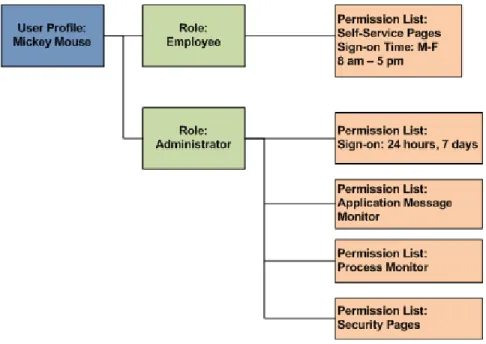
The following example diagram illustrates how Application Permission Lists are assigned to Roles, which are then assigned to User Profiles. A role may contain numerous application permissions, and a user profile may have numerous roles assigned. A user inherits all
permissions assigned to each role to which the user belongs. User access is determined by the combination of all assigned roles. The diagram below (Figure 1) represents the security authorizations of Mickey Mouse. Mickey inherits the five permission lists assigned to the two roles assigned to his profile. If Mickey’s role changes and he becomes a manager, then the Manager role would be added to his user profile.
Figure 1. Security Hierarchy
This section contains the following topic:
Understanding Data Security And Row-Level Security Permission Lists Understanding Roles
Understanding User Profiles
NFC Organization Codes And EmpowHR DEPTIDs Understanding The Department Security Tree Understanding User Access And Row-Level Security
8
Understanding Data Security And Row-Level Security Permission Lists
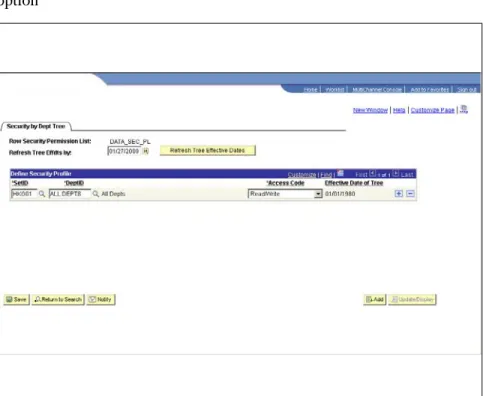
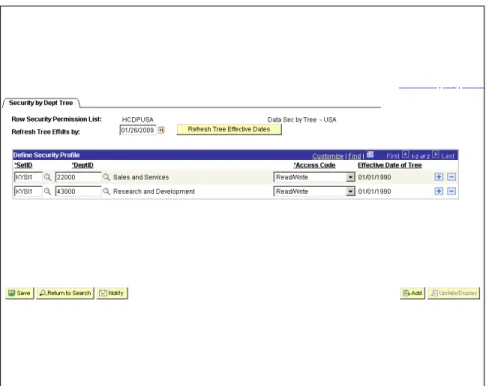
The Permission List relationship to the Department Security Tree is what defines the Permission List as a Row-Security Permission List. SETIDs (agencies), associated DEPTID’s, and Access Codes are what sets apart a Row-Security Permission List from a standard application Permission List. The SETID determines the Tree, the DEPTID determines the position on the Tree, and the Access Code designates whether or not the DEPTID is accessible or blocked. This provides the translational information for the user profiles access to data via Row-Security Permission List and the organization’s Department Security Tree.
Below displays (Figure 2) an established Row-Security Permission List. Since the agency is located at the very top of the Department Security Tree (Figure 3), any user assigned to this Row-Level Permission List will have access to all agency data when accessing a particular menu option
10
Understanding Roles
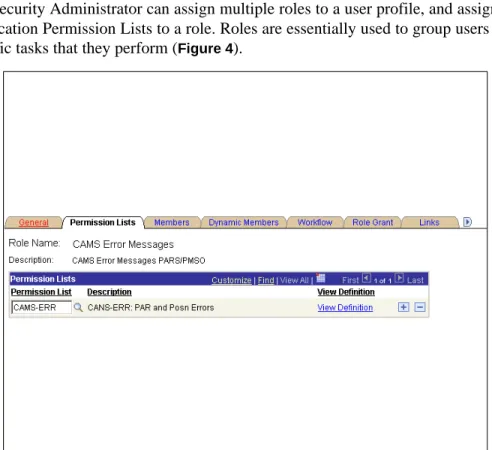
Roles are intermediate objects that usually link user profiles to Application Permission Lists. The Security Administrator can assign multiple roles to a user profile, and assign multiple Application Permission Lists to a role. Roles are essentially used to group users by the specific tasks that they perform (Figure 4).
Figure 4. Permission Lists page
Non-permission list based roles link user profiles directly to groups of users without an inherited menu access within the EmpowHR application (Figure 5).
Figure 5. Non-Permission List Role page
Understanding User Profiles
User profiles define the individual EmpowHR users access. User profiles are defined and are linked to one or more roles. A user profile must be linked to at least one role in order to be a valid profile. The majority of values that make up a user profile are inherited from the linked roles.
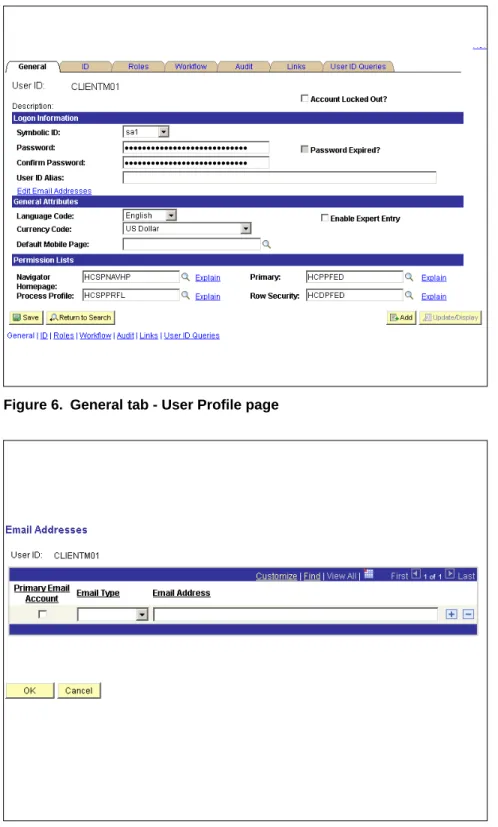
Define user profiles by entering the appropriate values on the user profile pages. The user profile contains values that are specific to a user, such as a user password, an email address, a Row-Security Permission List, etc. (Figure 6), (Figure 7), (Figure 8), and (Figure 9).
The User ID and description appear at the top of the each page for reference while viewing or modifying a user profile.
12
Figure 6. General tab - User Profile page
Figure 8. ID tab - User Profile page
Figure 9. Roles tab - User Profiles
Understanding NFC Organizational Codes And EmpowHR DEPTIDs
EmpowHR Department IDs are used in place of the NFC Organizational Structure Codes and are required for various types of transactions within the application. Prior to the agency’s
14
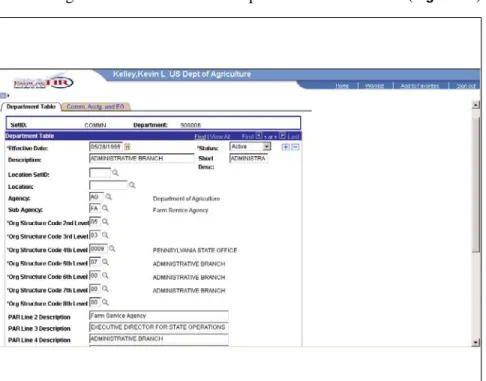
data being loaded into the EmpowHR application, department IDs must be established in order to translate each of the unique NFC organizational structure codes for the agency’s organization into unique EmpowHR Department IDs (DEPTID). The following is an example of an organizational structure to Department ID translation (Figure 10).
Figure 10. Department Table tab
Understanding The Department Security Tree
Prior to the agency’sdata being loaded into the EmpowHR application and based on information provided to NFC, a security tree is created that represents the agency’s
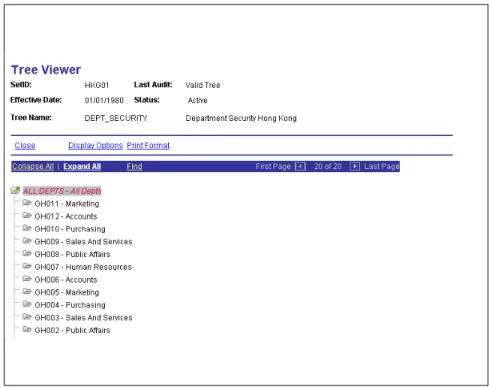
organizational security hierarchy. Security trees enable security administrators to grant/deny access to an employee’s data by granting access to the entity (DEPTID) to which they belong. To grant access to a group of DEPTIDs, grant access to the DEPTID within the security tree to which all of those belong. Access can be restricted to individual DEPTIDs or to a group of DEPTIDs (Figure 11).
In the example provided below, Department ID 921540 reports directly to Department ID 921539. Department ID 921539 reports directly to 921538 who belongs directly to the Department ID GAO.
The menu path to review Department Security Tree information is as follows, and should be used by Sub-Agency Security Administrator when data access questions arise.
Figure 11. Tree Viewer page
Understanding User Access And Row-Level Security
A Row-Security Permission List for each user profile is required for enabling access to data/records within the EmpowHR application. The menu path to review the Row-Security Permission List information is as follows:
16
Security Administrator
This portion of the Training Manual provides the Security Administrator with a step-by-step guide for the changes to the Security 9.0.
This section contains the following topics:
Creating A Distributed Security Administrator Role
Defining Roles That The Distributed Security Administrator Can Grant Assigning The Distributed Security Administrator Roles To A User
Creating A Distributed Security Administrator Role
This component is used by the Security Administrator (Super User) to create a new role in EmpowHR. This role is created for the Distributed Security Administrator (Sub-Agency Administrator).
The following describes the procedure for adding roles:
1. Select the Peoples Tools menu group.
2. Select the Security menu.
3. Select the Permissions & Roles menu item.
4. Select the Roles component. The Add A New Value tab - Roles page(Figure 13) is displayed.
18
5. Enter the Role Name.
6. Click Add. The General tab - Role page(Figure 14) is displayed.
Figure 14. General tab - Role page
7. Enter the description of the role.
8. Click Save.
Defining Roles That The Distributed Security Administrator Can Grant
Below is a step-by-step process that allows the Security Administrator to assign a role(s) that the Distributed Security Administrator role will be able grant.
1. Select the Peoples Tools menu group.
2. Select the Security menu.
3. Select the Permissions & Roles menu item.
4. Select the Roles component. The Find An Existing Value tab - Roles page(Figure 15) is displayed.
Figure 15. Find An Existing Value tab - Roles page
5. Select Description or Role Name from the drop-down list.
6. Enter all, or part of the Description or Role Name based on the selection from the
drop-down list.
Note: If no information is entered, click the search icon for a list of values..
7. Click Search.
8. Select a value.
20
Figure 16. Role Grant tab - Roles page
10. Enter the Role Name in the Roles That Can Be Granted By This Role section, then
click the lookup icon.
11. Click Search.
12. Select a value.
13. Click Save.
Note: Click the Members tab to display a list of User IDs that have the selected role.
Assigning The Distributed Security Administrator Roles To A User
Below is a step-by-step process for the Security Administrator to assign the Distributed Security Administrator role to an Operator ID (OPRID).
1. Select the Peoples Tools menu group.
2. Select the Security menu.
3. Select the User Profiles menu item.
4. Select the User Profiles component. The Find An Existing Value tab - User Profiles page(Figure 17) is displayed.
Figure 17. Find An Existing Value tab - User Profles page
5. Select Description or User ID from the drop-down list.
6. Enter all or part of the Description or User ID.
7. Select the Role Name from the look up results.
Note: If no information is entered, click the search icon for a list of values..
8. Click Search.
22
Figure 18. Roles tab - User Profiles page
10. Click Add to add a new row.
11. Click the lookup icon.
12. Select the Role Name from the look up results.
Distributed Security Administrator
This section of the Training Manual will explain the process for the Distributed Security Administrator to grant Roles and Row-Level Permission Lists to a OPRID (user). This section contains the following topics:
Granting Roles And Row-Level Permission Lists Creating A Row-Level Permission List
Associating Department Security To New Row-Level Permission List Assigning Department Security To A Permission List
Granting Roles And Row-Level Permission Lists
Below is the step-by-step process for The Security Administor to grant roles and row level permission lists to the Distributed Security Administrator for administration:
1. Select the Peoples Tools menu group.
2. Select the Security menu.
3. Select the User Profiles menu item.
4. Select the Distributed User Profiles component. The Find An Existing Value tab - Distributed User Profile page(Figure 19) is displayed.
Figure 19. Find An Existing Value tab - Distributed User Profiles page
24
6. Enter all or part of the Description or User ID.
Note: If no information is entered, click the search icon for a list of values..
7. Click Search.
8. Select a Role Name from the search criteria.
9. Select the User Roles tab. The User Roles tab - Distribute User Profiles page(Figure20)
is displayed.
Figure 20. User Roles tab - Distributed User Profiles page
10. Click + to add an additional Role.
11. Click the lookup icon to display the roles that the Distributed Security Administrator
can grant. The roles that the Distributed Security Administrator can grant are defined by the Security Administrator.
12. Select the applicable Role Name.
13. Click Save.
14. Click the General tab. The General tab - Distributed User Profiles page(Figure 21) is displayed.
Figure 21. General tab - Distributed User Profiles page
15. Click the lookup icon next to the Row Security field to display Permission List(s).
16. Select the applicable Permission List. This field grants access to the user ID in order to
view data in a component within the application.
17. Click Save.
Creating A Row-Level Permission List
Below is the step-by-step process that will allow the Security Administrator to create a Row-Level Permission List for the Distributed Security Administrator for administration (access to the data within a component).
1. Select the Peoples Tools menu group.
2. Select the Security menu.
3. Select the Permissions & Roles menu item.
4. Select the Permission Lists component. The Find An Existing Value tab - Permission List page(Figure 22) is displayed.
26
Figure 22. Find An Existing Value tab - Permission Lists page
5. Select the Add A New Value tab. The Add A New Value tab - Permission List
page(Figure 23) is displayed.
Figure 23. Add A New Value tab - Permission List page
6. Enter the name of the new permission list.
Figure 24. General tab - Permission Lists page
8. Click Save.
Associating Department Security To New Row-Level Permission Lists
Below is the step-by-step process that will allow the Security Administrator to associate the Department Tree Security to the new Row-Level Permission List.
1. Select the Set Up HRMS menu group.
2. Select the Security menu.
3. Select the Core Row Level Security menu item.
4. Select the Security By Dept Tree component. The Find An Existing Value tab - Setup Dept Security Tree Acc. page is displayed.
5. Select the Add A New Value tab. The Add A New Value tab- Setup Dept Security Tree
28
Figure 25. Add A Value tab - Setup Dept Security Tree Acc. page
6. Click the look-up to display the Row Security Permission List.
7. Select the applicable Permission List.
8. Click Add. The Security By Dept tab page (Figure 26) is displayed.
Figure 26. Security By Dept Tree tab - Security By Dept Tree page
10. Click the look-up for the Department ID. Select the appplicable Department ID.
30
A
Assigning The Distributed Security Administrator Roles To A User, 18 Associating Department Security To New Row−Level Permission Lists, 25
C
Creating A Distributed Security Administrator Role, 15 Creating A Row−Level Permission List, 23
D
Defining Roles That The Distributed Security Administrator Can Grant, 16 Distributed Security Administrator, 21
Distributed Security Administrators Responsibilities, 4
G
Granting Roles And Row−Level Permission Lists, 21
I
Information Security System Office (ISSO) Responsiblities, 4 Introduction, 3
O
Organization, 3
Overview EmpowHR Security 9.0, 2
P
Permissions, 5 Points Of Contact, 3 Purpose And Scope, 3
S
Security Administrator, 15
Security Administrators Responsibilities, 3
U
Understanding NFC Organizational Codes And EmpowHR DEPTIDs, 11 Understanding Roles, 8
Understanding The Department Security Tree, 12 Understanding User Access And Row−Level Security, 13 Understanding User Profiles, 9