
Greenplum
®
Database
Version 4.3
Installation Guide
Rev: A03
THE INFORMATION IN THIS PUBLICATION IS PROVIDED "AS IS." PIVOTAL SOFTWARE, INC. ("Pivotal") MAKES NO REPRESENTATIONS OR WARRANTIES OF ANY KIND WITH RESPECT TO THE INFORMATION IN THIS PUBLICATION, AND SPECIFICALLY DISCLAIMS IMPLIED WARRANTIES OF MERCHANTABILITY OR FITNESS FOR A PARTICULAR PURPOSE.
Use, copying, and distribution of any Pivotal software described in this publication requires an applicable software license.
All trademarks used herein are the property of Pivotal or their respective owners.
Table of Contents iii
Greenplum Database Installation Guide 4.3 - Contents
Preface... 1
About This Guide... 1
About the Greenplum Database Documentation Set... 2
Document Conventions... 2
Text Conventions... 3
Command Syntax Conventions... 4
Getting Support... 4
Product information and Technical Support... 4
Chapter 1: Introduction to Greenplum... 5
The Greenplum Master... 6
Master Redundancy... 6
The Segments... 7
Segment Redundancy... 7
Example Segment Host Hardware Stack... 8
Example Segment Disk Layout... 9
The Interconnect...10
Interconnect Redundancy...10
Network Interface Configuration...10
Switch Configuration...11
ETL Hosts for Data Loading...12
Greenplum Performance Monitor...14
Chapter 2: Estimating Storage Capacity...16
Calculating Usable Disk Capacity...16
Calculating User Data Size...17
Calculating Space Requirements for Metadata and Logs...17
Chapter 3: Configuring Your Systems and Installing Greenplum...19
System Requirements...19
Setting the Greenplum Recommended OS Parameters...21
Linux System Settings...21
Solaris System Settings...23
Mac OS X System Settings...23
Running the Greenplum Installer...24
Installing and Configuring Greenplum on all Hosts...25
Confirming Your Installation...26
Installing Oracle Compatibility Functions...27
Installing Greenplum Database Extensions...27
Creating the Data Storage Areas...27
Synchronizing System Clocks...28
Enabling iptables...29
Example iptables Rules...30
Next Steps...33
Chapter 4: Validating Your Systems...34
Validating OS Settings...34
Validating Hardware Performance...35
Table of Contents iv
Validating Disk I/O and Memory Bandwidth...36
Chapter 5: Configuring Localization Settings...38
About Locale Support in Greenplum Database...38
Locale Behavior...39
Troubleshooting Locales...40
Character Set Support...40
Setting the Character Set...42
Character Set Conversion Between Server and Client...42
Chapter 6: Initializing a Greenplum Database System...45
Overview...45
Initializing Greenplum Database...45
Creating the Initialization Host File...46
Creating the Greenplum Database Configuration File...46
Running the Initialization Utility...48
Setting Greenplum Environment Variables...49
Next Steps...50
Allowing Client Connections...50
Creating Databases and Loading Data...50
Appendix A: Installation Management Utilities
...51gpactivatestandby...52 gpaddmirrors...55 gpcheck...60 gpcheckperf...63 gpdeletesystem...67 gpinitstandby...69 gpinitsystem...72 gppkg...79 gpscp...82 gpseginstall...84 gpssh-exkeys...87 gpssh...90 gpstart...93 gpstop...96 gptransfer...99
Appendix B: Greenplum Environment Variables
... 108Required Environment Variables... 108
About This Guide 1
Preface
This guide describes the tasks you must complete to install and start your Greenplum Database system.
• About This Guide • Document Conventions • Getting Support
About This Guide
This guide provides information and instructions for installing and initializing a Greenplum Database system. This guide is intended for system administrators responsible for building a Greenplum Database system.
This guide assumes knowledge of Linux/Unix system administration, database management systems, database administration, and structured query language (SQL). This guide contains the following chapters and appendices:
• Chapter 1, “Introduction to Greenplum” — Information about the Greenplum system architecture and components.
• Chapter 2, “Estimating Storage Capacity” — Guidelines for sizing a Greenplum Database system.
• Chapter 3, “Configuring Your Systems and Installing Greenplum” — Instructions for installing and configuring the Greenplum software on all hosts in your Greenplum Database array.
• Chapter 4, “Validating Your Systems” — Validation utilities and tests you can perform to ensure your Greenplum Database system will operate properly. • Chapter 5, “Configuring Localization Settings” — Localization features of
Greenplum Database. Locale settings must be configured prior to initializing your Greenplum Database system.
• Chapter 6, “Initializing a Greenplum Database System” — Instructions for initializing a Greenplum Database system. Each database instance (the master and all segments) must be initialized across all of the hosts in the system in such a way that they can all work together as a unified DBMS.
• Appendix A, “Installation Management Utilities” — Reference information about the command-line management utilities you use to install and initialize a
Greenplum Database system.
• Appendix B, “Greenplum Environment Variables” — Reference information about Greenplum environment variables you can set in your system user’s profile file.
About the Greenplum Database Documentation Set 2
About the Greenplum Database Documentation Set
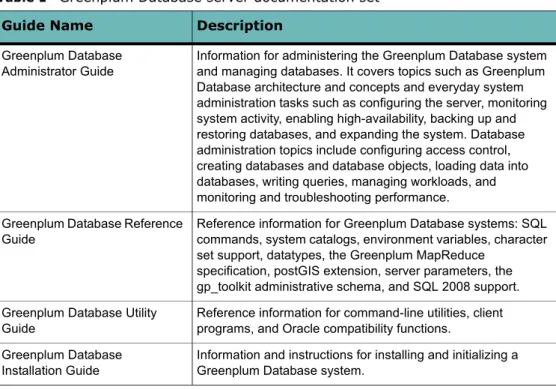
The Greenplum Database 4.3 server documentation set consists of the following guides.
Table 1 Greenplum Database server documentation set
Guide Name Description
Greenplum Database Administrator Guide
Information for administering the Greenplum Database system and managing databases. It covers topics such as Greenplum Database architecture and concepts and everyday system administration tasks such as configuring the server, monitoring system activity, enabling high-availability, backing up and restoring databases, and expanding the system. Database administration topics include configuring access control, creating databases and database objects, loading data into databases, writing queries, managing workloads, and monitoring and troubleshooting performance. Greenplum Database Reference
Guide
Reference information for Greenplum Database systems: SQL commands, system catalogs, environment variables, character set support, datatypes, the Greenplum MapReduce
specification, postGIS extension, server parameters, the gp_toolkit administrative schema, and SQL 2008 support. Greenplum Database Utility
Guide
Reference information for command-line utilities, client programs, and Oracle compatibility functions.
Greenplum Database Installation Guide
Information and instructions for installing and initializing a Greenplum Database system.
Document Conventions
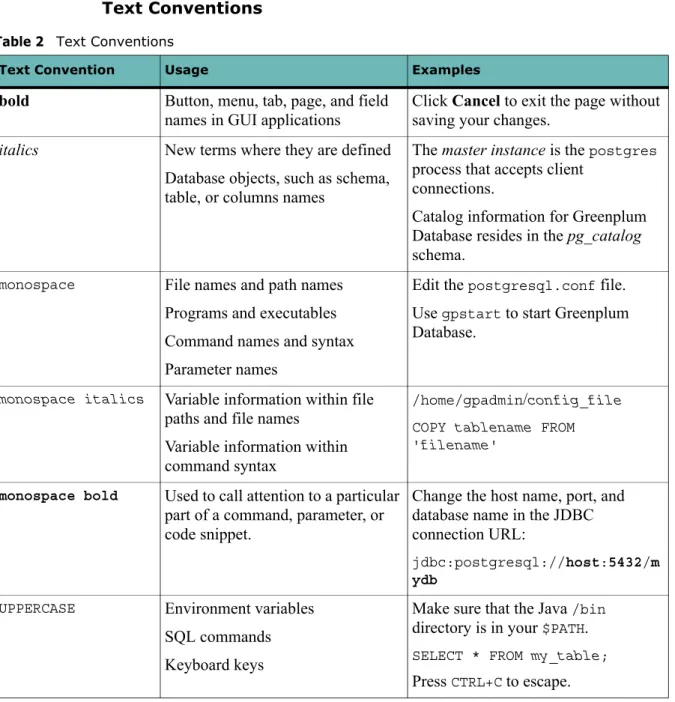
Greenplumdocumentation adheres to the following conventions to help you identify certain types of information.
• Text Conventions
Document Conventions 3 Text Conventions
Table 2 Text Conventions
Text Convention Usage Examples
bold Button, menu, tab, page, and field
names in GUI applications
Click Cancel to exit the page without saving your changes.
italics New terms where they are defined Database objects, such as schema, table, or columns names
The master instance is the postgres
process that accepts client connections.
Catalog information for Greenplum Database resides in the pg_catalog
schema.
monospace File names and path names
Programs and executables Command names and syntax Parameter names
Edit the postgresql.conf file.
Use gpstart to start Greenplum
Database.
monospace italics Variable information within file
paths and file names
Variable information within command syntax
/home/gpadmin/config_file
COPY tablename FROM 'filename'
monospace bold Used to call attention to a particular part of a command, parameter, or code snippet.
Change the host name, port, and database name in the JDBC connection URL:
jdbc:postgresql://host:5432/m ydb
UPPERCASE Environment variables
SQL commands Keyboard keys
Make sure that the Java /bin
directory is in your $PATH. SELECT * FROM my_table;
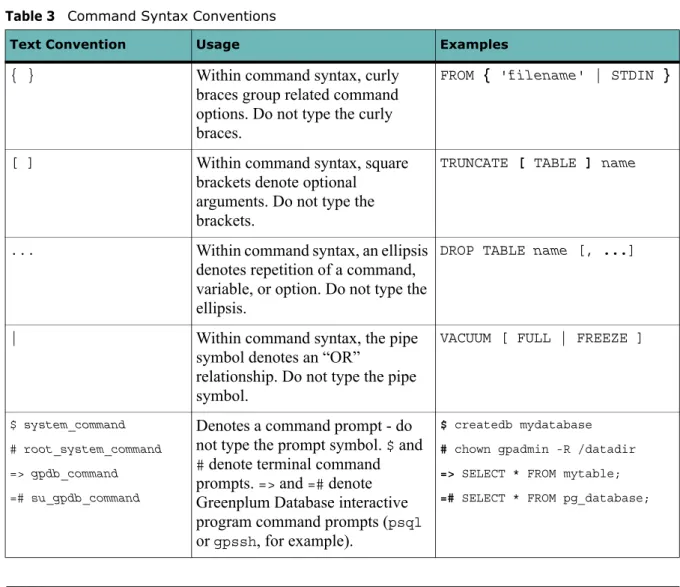
Getting Support 4 Command Syntax Conventions
Table 3 Command Syntax Conventions
Text Convention Usage Examples
{ } Within command syntax, curly
braces group related command options. Do not type the curly braces.
FROM { 'filename' | STDIN }
[ ] Within command syntax, square
brackets denote optional arguments. Do not type the brackets.
TRUNCATE [ TABLE ] name
... Within command syntax, an ellipsis
denotes repetition of a command, variable, or option. Do not type the ellipsis.
DROP TABLE name [, ...]
| Within command syntax, the pipe
symbol denotes an “OR”
relationship. Do not type the pipe symbol.
VACUUM [ FULL | FREEZE ]
$ system_command
# root_system_command
=> gpdb_command
=# su_gpdb_command
Denotes a command prompt - do not type the prompt symbol. $ and # denote terminal command
prompts. => and =# denote
Greenplum Database interactive program command prompts (psql
or gpssh, for example).
$ createdb mydatabase
# chown gpadmin -R /datadir
=> SELECT * FROM mytable;
=# SELECT * FROM pg_database;
Getting Support
Pivotal/Greenplum support, product, and licensing information can be obtained as follows.
Product information and Technical Support
For technical support, documentation, release notes, software updates, or for information about Pivotal products, licensing, and services, go to
www.gopivotal.com.
Additionally, you can still obtain product and support information from the EMCSupport Site at:
5
1.
Introduction to Greenplum
Greenplum Database stores and processes large amounts of data by distributing the load across several servers or hosts. A logical database in Greenplum is an array of individual PostgreSQL databases working together to present a single database image. The master is the entry point to the Greenplum Database system. It is the database instance to which users connect and submit SQL statements. The master coordinates the workload across the other database instances in the system, called segments, which handle data processing and storage. The segments communicate with each other and the master over the interconnect, the networking layer of Greenplum Database.
Figure 1.1
Greenplum Database is a software-only solution; the hardware and database software are not coupled. Greenplum Database runs on a variety of commodity server platforms from Greenplum-certified hardware vendors. Performance depends on the hardware on which it is installed. Because the database is distributed across multiple machines in a Greenplum Database system, proper selection and configuration of hardware is vital to achieving the best possible performance.
This chapter describes the major components of a Greenplum Database system and the hardware considerations and concepts associated with each component: The
Greenplum Master, The Segments and The Interconnect. Additionally, a system may have optional ETL Hosts for Data Loading and the Greenplum Performance Monitor
The Greenplum Master 6
The Greenplum Master
The master is the entry point to the Greenplum Database system. It is the database server process that accepts client connections and processes the SQL commands that system users issue. Users connect to Greenplum Database through the master using a PostgreSQL-compatible client program such as psql or ODBC.
The master maintains the system catalog (a set of system tables that contain metadata about the Greenplum Database system itself), however the master does not contain any user data. Data resides only on the segments. The master authenticates client connections, processes incoming SQL commands, distributes the work load between segments, coordinates the results returned by each segment, and presents the final results to the client program.
Because the master does not contain any user data, it has very little disk load. The master needs a fast, dedicated CPU for data loading, connection handling, and query planning because extra space is often necessary for landing load files and backup files, especially in production environments. Customers may decide to also run ETL and reporting tools on the master, which requires more disk space and processing power.
Master Redundancy
You may optionally deploy a backup or mirror of the master instance. A backup master host serves as a warm standby if the primary master host becomes
nonoperational. You can deploy the standby master on a designated redundant master host or on one of the segment hosts.
The standby master is kept up to date by a transaction log replication process, which runs on the standby master host and synchronizes the data between the primary and standby master hosts. If the primary master fails, the log replication process shuts down, and an administrator can activate the standby master in its place. When an the standby master is active, the replicated logs are used to reconstruct the state of the master host at the time of the last successfully committed transaction.
Since the master does not contain any user data, only the system catalog tables need to be synchronized between the primary and backup copies. When these tables are updated, changes automatically copy over to the standby master so it is always synchronized with the primary.
The Segments 7
The Segments
In Greenplum Database, the segments are where data is stored and where most query processing occurs. User-defined tables and their indexes are distributed across the available segments in the Greenplum Database system; each segment contains a distinct portion of the data. Segment instances are the database server processes that serve segments. Users do not interact directly with the segments in a Greenplum Database system, but do so through the master.
In the reference Greenplum Database hardware configurations, the number of segment instances per segment host is determined by the number of effective CPUs or CPU core. For example, if your segment hosts have two dual-core processors, you may have two or four primary segments per host. If your segment hosts have three quad-core processors, you may have three, six or twelve segments per host. Performance testing will help decide the best number of segments for a chosen hardware platform.
Segment Redundancy
When you deploy your Greenplum Database system, you have the option to configure
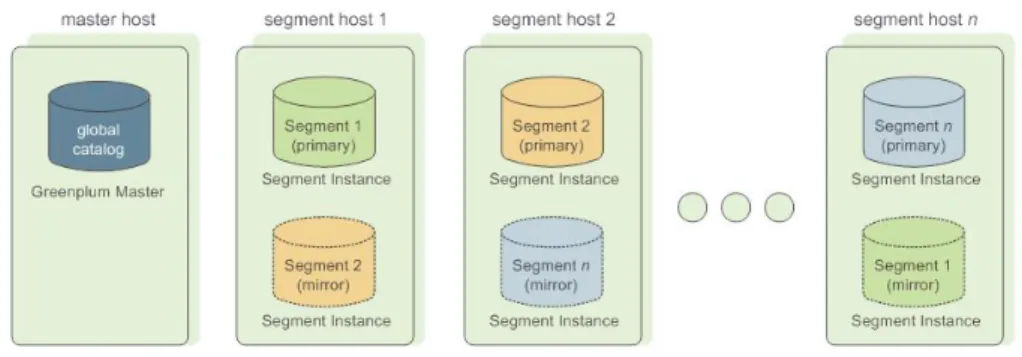
mirror segments. Mirror segments allow database queries to fail over to a backup segment if the primary segment becomes unavailable. To configure mirroring, you must have enough hosts in your Greenplum Database system so the secondary segment always resides on a different host than its primary. Figure 1.3 shows how table data is distributed across the segments when mirroring is configured. The mirror segment always resides on a different host than its primary segment.
Figure 1.3 Data Mirroring in Greenplum Database Segment Failover and Recovery
When mirroring is enabled in a Greenplum Database system, the system automatically fails over to the mirror copy if a primary copy becomes unavailable. A Greenplum Database system can remain operational if a segment instance or host goes down only if all portions of data are available on the remaining active segments.
The Segments 8
If the master cannot connect to a segment instance, it marks that segment instance as
invalid in the Greenplum Database system catalog. The segment instance remains invalid and out of operation until an administrator brings that segment back online. An administrator can recover a failed segment while the system is up and running. The recovery process copies over only the changes that were missed while the segment was nonoperational.
If you do not have mirroring enabled and a segment becomes invalid, the system automatically shuts down. An administrator must recover all failed segments before operations can continue.
Example Segment Host Hardware Stack
Regardless of the hardware platform you choose, a production Greenplum Database processing node (a segment host) is typically configured as described in this section. The segment hosts do the majority of database processing, so the segment host servers are configured in order to achieve the best performance possible from your Greenplum Database system. Greenplum Database’s performance will be as fast as the slowest segment server in the array. Therefore, it is important to ensure that the underlying hardware and operating systems that are running Greenplum Database are all running at their optimal performance level. It is also advised that all segment hosts in a Greenplum Database array have identical hardware resources and configurations. Segment hosts should also be dedicated to Greenplum Database operations only. To get the best query performance, you do not want Greenplum Database competing with other applications for machine or network resources.
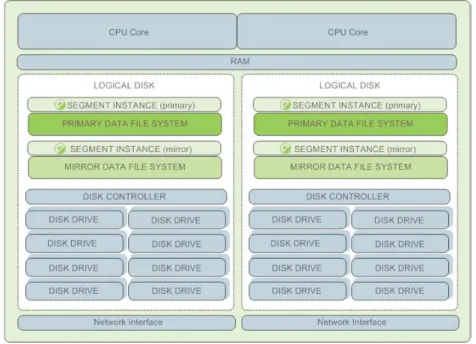
The following diagram shows an example Greenplum Database segment host hardware stack. The number of effective CPUs on a host is the basis for determining how many primary Greenplum Database segment instances to deploy per segment
The Segments 9
host. This example shows a host with two effective CPUs (one dual-core CPU). Note that there is one primary segment instance (or primary/mirror pair if using mirroring) per CPU core.
Figure 1.4 Example Greenplum Database Segment Host Configuration Example Segment Disk Layout
Each CPU is typically mapped to a logical disk. A logical disk consists of one primary file system (and optionally a mirror file system) accessing a pool of physical disks through an I/O channel or disk controller. The logical disk and file system are provided by the operating system. Most operating systems provide the ability for a logical disk drive to use groups of physical disks arranged in RAID arrays.
Figure 1.5 Logical Disk Layout in Greenplum Database
Depending on the hardware platform you choose, different RAID configurations offer different performance and capacity levels. Greenplum supports and certifies a number of reference hardware platforms and operating systems. Check with your sales account representative for the recommended configuration on your chosen platform.
The Interconnect 10
The Interconnect
The interconnect is the networking layer of Greenplum Database. When a user connects to a database and issues a query, processes are created on each of the segments to handle the work of that query. The interconnect refers to the inter-process communication between the segments, as well as the network infrastructure on which this communication relies. The interconnect uses a standard Gigabit Ethernet
switching fabric.
By default, the interconnect uses UDP (User Datagram Protocol) to send messages over the network. The Greenplum software does the additional packet verification and checking not performed by UDP, so the reliability is equivalent to TCP (Transmission Control Protocol), and the performance and scalability exceeds that of TCP.
Interconnect Redundancy
A highly available interconnect can be achieved by deploying dual Gigabit Ethernet switches on your network, and redundant Gigabit connections to the Greenplum Database master and segment host servers.
Network Interface Configuration
A segment host typically has multiple network interfaces designated to Greenplum interconnect traffic. The master host typically has additional external network interfaces in addition to the interfaces used for interconnect traffic.
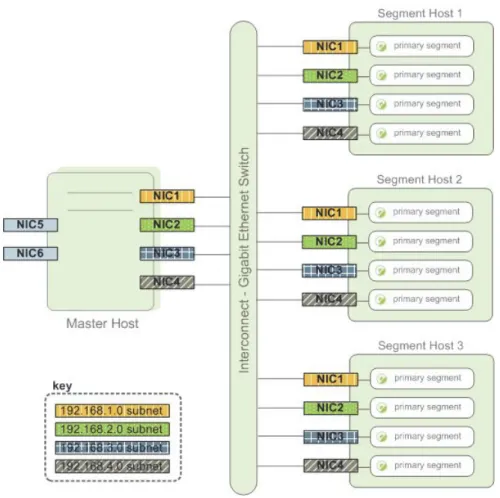
Depending on the number of interfaces available, you will want to distribute
interconnect network traffic across the number of available interfaces. This is done by assigning segment instances to a particular network interface and ensuring that the primary segments are evenly balanced over the number of available interfaces. This is done by creating separate host address names for each network interface. For example, if a host has four network interfaces, then it would have four corresponding host addresses, each of which maps to one or more primary segment instances. The
/etc/hosts file should be configured to contain not only the host name of each
machine, but also all interface host addresses for all of the Greenplum Database hosts (master, standby master, segments, and ETL hosts).
The Interconnect 11
With this configuration, the operating system automatically selects the best path to the destination. Greenplum Database automatically balances the network destinations to maximize parallelism.
Figure 1.6 Example Network Interface Architecture Switch Configuration
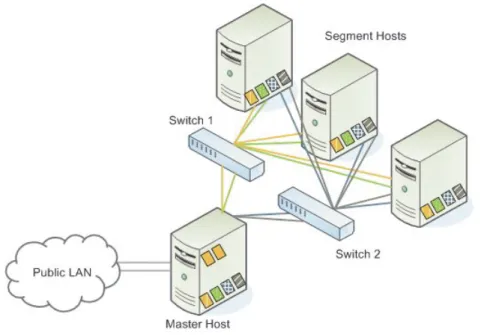
When using multiple Gigabit Ethernet switches within your Greenplum Database array, evenly divide the number of subnets between each switch. In this example configuration, if we had two switches, NICs 1 and 2 on each host would use switch 1 and NICs 3 and 4 on each host would use switch 2. For the master host, the host name bound to NIC 1 (and therefore using switch 1) is the effective master host name for the
ETL Hosts for Data Loading 12
array. Therefore, if deploying a warm standby master for redundancy purposes, the standby master should map to a NIC that uses a different switch than the primary master.
Figure 1.7 Example Switch Configuration
ETL Hosts for Data Loading
Greenplum supports fast, parallel data loading with its external tables feature. By using external tables in conjunction with Greenplum Database’s parallel file server (gpfdist), administrators can achieve maximum parallelism and load bandwidth
from their Greenplum Database system. Many production systems deploy designated ETL servers for data loading purposes. These machines run the Greenplum parallel file server (gpfdist), but not Greenplum Database instances.
One advantage of using the gpfdist file server program is that it ensures that all of
the segments in your Greenplum Database system are fully utilized when reading from external table data files.
The gpfdist program can serve data to the segment instances at an average rate of
about 350 MB/s for delimited text formatted files and 200 MB/s for CSV formatted files. Therefore, you should consider the following options when running gpfdist in
ETL Hosts for Data Loading 13 • If your ETL machine is configured with multiple network interface cards (NICs)
as described in “Network Interface Configuration” on page 10, run one instance of
gpfdist on your ETL host and then define your external table definition so that
the host name of each NIC is declared in the LOCATION clause (see CREATE EXTERNAL TABLE in the Greenplum Database Reference Guide). This allows
network traffic between your Greenplum segment hosts and your ETL host to use all NICs simultaneously.
Greenplum Performance Monitor 14 • Run multiple gpfdist instances on your ETL host and divide your external data
files equally between each instance. For example, if you have an ETL system with two network interface cards (NICs), then you could run two gpfdist instances on
that machine to maximize your load performance. You would then divide the external table data files evenly between the two gpfdist programs.
Figure 1.9 External Tables Using Multiple gpfdist Instances with Multiple NICs
Greenplum Performance Monitor
Greenplum also provides an optional monitoring and management tool that
administrators can install and enable with Greenplum Database. To use the Greenplum Performance Monitor, each host in your Greenplum Database array must have a data collection agent installed and enabled. When you start the Greenplum Performance Monitor, the agents begin collecting data on queries and system utilization. Segment agents send their data to the Greenplum master at regular intervals (typically every 15 seconds). Users can query the Greenplum Performance Monitor database to see query and system performance data for both active queries and historical queries.
Greenplum Performance Monitor also has a graphical web-based user interface for viewing these performance metrics and otherwise managing their Greenplum Database system.
Figure 1.10 Greenplum Performance Monitor Architecture
Calculating Usable Disk Capacity 16
2.
Estimating Storage Capacity
To estimate how much data your Greenplum Database system can accommodate, use the following measurements as guidelines. Also keep in mind that you may want to have extra space for landing backup files and data load files on each segment host. • Calculating Usable Disk Capacity
• Calculating User Data Size
• Calculating Space Requirements for Metadata and Logs
Calculating Usable Disk Capacity
To calculate how much data a Greenplum Database system can hold, you have to calculate the usable disk capacity per segment host and then multiply that by the number of segment hosts in your Greenplum Database array. Start with the raw capacity of the physical disks on a segment host that are available for data storage (raw_capacity), which is:
disk_size * number_of_disks
Account for file system formatting overhead (roughly 10 percent) and the RAID level you are using. For example, if using RAID-10, the calculation would be:
(raw_capacity * 0.9) / 2 = formatted_disk_space
For optimal performance, Pivotal recommends that you do not completely fill your disks to capacity, but run at 70% or lower. So with this in mind, calculate the usable disk space as follows:
formatted_disk_space * 0.7 = usable_disk_space
Once you have formatted RAID disk arrays and accounted for the maximum
recommended capacity (usable_disk_space), you will need to calculate how much
storage is actually available for user data (U). If using Greenplum Database mirrors for
data redundancy, this would then double the size of your user data (2 * U).
Greenplum Database also requires some space be reserved as a working area for active queries. The work space should be approximately one third the size of your user data (work space = U/3):
With mirrors: (2 * U) + U/3 = usable_disk_space
Without mirrors: U + U/3 = usable_disk_space
Guidelines for temporary file space and user data space assume a typical analytic workload. Highly concurrent workloads or workloads with queries that require very large amounts of temporary space can benefit from reserving a larger working area. Typically, overall system throughput can be increased while decreasing work area usage through proper workload management. Additionally, temporary space and user space can be isolated from each other by specifying that they reside on different tablespaces.
Calculating User Data Size 17
In the Greenplum Database Administrator Guide, see these topics:
• “Managing Workload and Resources” for information about workload management
• “Creating and Managing Tablespaces” for information about moving the location of temporary files
• “Monitoring System State” for information about monitoring Greenplum Database disk space usage
Calculating User Data Size
As with all databases, the size of your raw data will be slightly larger once it is loaded into the database. On average, raw data will be about 1.4 times larger on disk after it is loaded into the database, but could be smaller or larger depending on the data types you are using, table storage type, in-database compression, and so on.
• Page Overhead - When your data is loaded into Greenplum Database, it is divided into pages of 32KB each. Each page has 20 bytes of page overhead. • Row Overhead - In a regular ‘heap’ storage table, each row of data has 24 bytes
of row overhead. An ‘append-optimized’ storage table has only 4 bytes of row overhead.
• Attribute Overhead - For the data values itself, the size associated with each attribute value is dependent upon the data type chosen. As a general rule, you want to use the smallest data type possible to store your data (assuming you know the possible values a column will have).
• Indexes - In Greenplum Database, indexes are distributed across the segment hosts as is table data. The default index type in Greenplum Database is B-tree. Because index size depends on the number of unique values in the index and the data to be inserted, precalculating the exact size of an index is impossible. However, you can roughly estimate the size of an index using these formulas. B-tree:unique_values * (data_type_size + 24 bytes)
Bitmap: (unique_values * number_of_rows * 1 bit * compression_ratio /
8) + (unique_values * 32)
Calculating Space Requirements for Metadata and Logs
On each segment host, you will also want to account for space for Greenplum Database log files and metadata:
• System Metadata — For each Greenplum Database segment instance (primary or mirror) or master instance running on a host, estimate approximately 20 MB for the system catalogs and metadata.
Calculating Space Requirements for Metadata and Logs 18 • Write Ahead Log — For each Greenplum Database segment (primary or mirror)
or master instance running on a host, allocate space for the write ahead log (WAL). The WAL is divided into segment files of 64 MB each. At most, the number of WAL files will be: 2 * checkpoint_segments + 1 . You can use
this to estimate space requirements for WAL. The default checkpoint_segments
setting for a Greenplum Database instance is 8, meaning 1088 MB WAL space allocated for each segment or master instance on a host.
• Greenplum Database Log Files — Each segment instance and the master instance generates database log files, which will grow over time. Sufficient space should be allocated for these log files, and some type of log rotation facility should be used to ensure that to log files do not grow too large.
• Command Center Data — The data collection agents utilized by Command Center run on the same set of hosts as your Greenplum Database instance and utilize the system resources of those hosts. The resource consumption of the data collection agent processes on these hosts is minimal and should not significantly impact database performance. Historical data collected by the collection agents is stored in its own Command Center database (named gpperfmon) within your
Greenplum Database system. Collected data is distributed just like regular database data, so you will need to account for disk space in the data directory locations of your Greenplum segment instances. The amount of space required depends on the amount of historical data you would like to keep. Historical data is not automatically truncated. Database administrators must set up a truncation policy to maintain the size of the Command Center database.
System Requirements 19
3.
Configuring Your Systems and Installing
Greenplum
This chapter describes how to prepare your operating system environment for Greenplum, and install the Greenplum Database software binaries on all of the hosts that will comprise your Greenplum Database system. Perform the following tasks in order:
1. Make sure your systems meet the System Requirements 2. Setting the Greenplum Recommended OS Parameters 3. (master only) Running the Greenplum Installer 4. Installing and Configuring Greenplum on all Hosts 5. (Optional) Installing Oracle Compatibility Functions 6. (Optional) Installing Greenplum Database Extensions 7. Creating the Data Storage Areas
8. Synchronizing System Clocks 9. Next Steps
Unless noted, these tasks should be performed for all hosts in your Greenplum Database array (master, standby master and segments).
Note: For information about upgrading Greenplum Database from a previous version, see the Greenplum Database Release Notes for the release that you are installing.
System Requirements
The following table lists minimum recommended specifications for servers intended to support Greenplum Database in a production environment. Greenplum also provides hardware build guides for its certified hardware platforms. It is
recommended that you work with a Greenplum Systems Engineer to review your anticipated environment to ensure an appropriate hardware configuration for Greenplum Database.
Table 3.1 System Prerequisites for Greenplum Database 4.3
Operating System SUSE Linux Enterprise Server 11 SP2 CentOS 5.0 or higher
RedHat Enterprise Linux 5.0 or higher Oracle Unbreakable Linux 5.5 Solaris x86 v10 update 7
Note: See the Greenplum Database Release Notes for current supported platform information.
System Requirements 20 Important: For all Greenplum Database host systems, the SELinux must be
disabled. Pivotal recommends that firewall software such as iptables also be
disabled. You can enable iptables if it is required for security purposes. For
information about enabling and configuring iptables, see “Enabling iptables” on
page 29.
For example, this command checks the status of iptables when run as root: # /sbin/chkconfig --list iptables
This is the output if iptables is disabled.
iptables 0:off 1:off 2:off 3:off 4:off 5:off 6:off
This command checks the status of SELinux when run as root:
# sestatus
SELinuxstatus: disabled
One method of disabling iptables is to become root, run this command, and then
reboot the system:
/sbin/chkconfig iptables off
You can disable SELinux by editing the /etc/selinux/config file. As root, change
the value of the SELINUX parameter in the config file and reboot the system: SELINUX=disabled
For information about disabling firewall software, see the documentation for the firewall or your operating system. For information about disabling SELinux, see the SELinux documentation.
File Systems • xfs required for data storage on SUSE Linux and Red Hat (ext3 supported for root file system)
• zfs required for data storage on Solaris (ufs supported for root file system)
Minimum CPU Pentium Pro compatible (P3/Athlon and above)
Minimum Memory 16 GB RAM per server
Disk Requirements • 150MB per host for Greenplum installation
• Approximately 300MB per segment instance for meta data
• Appropriate free space for data with disks at no more than 70% capacity
• High-speed, local storage
Network Requirements Gigabit Ethernet within the array Dedicated, non-blocking switch
Software and Utilities bash shell GNU tar GNU zip
GNU ed (used by the Greenplum Database installer) GNU readline (Solaris only)1
1. On Solaris platforms, you must have GNU Readline in your environment to support interactive Greenplum administrative utilities such as gpssh.
Setting the Greenplum Recommended OS Parameters 21 Important: SSL is supported only on the Greenplum Database master host system. It is not supported on the segment host systems.
Setting the Greenplum Recommended OS Parameters
Greenplum requires the certain operating system (OS) parameters be set on all hosts in your Greenplum Database system (masters and segments).
• Linux System Settings • Solaris System Settings • Mac OS X System Settings
In general, the following categories of system parameters need to be altered: • Shared Memory - A Greenplum Database instance will not work unless the
shared memory segment for your kernel is properly sized. Most default OS installations have the shared memory values set too low for Greenplum Database. On Linux systems, you must also disable the OOM (out of memory) killer. • Network - On high-volume Greenplum Database systems, certain
network-related tuning parameters must be set to optimize network connections made by the Greenplum interconnect.
• User Limits - User limits control the resources available to processes started by a user's shell. Greenplum Database requires a higher limit on the allowed number of file descriptors that a single process can have open. The default settings may cause some Greenplum Database queries to fail because they will run out of file descriptors needed to process the query.
Linux System Settings
• Set the following parameters in the /etc/sysctl.conf file and reboot: kernel.shmmax = 500000000 kernel.shmmni = 4096 kernel.shmall = 4000000000 kernel.sem = 250 512000 100 2048 kernel.sysrq = 1 kernel.core_uses_pid = 1 kernel.msgmnb = 65536 kernel.msgmax = 65536 kernel.msgmni = 2048 net.ipv4.tcp_syncookies = 1 net.ipv4.ip_forward = 0 net.ipv4.conf.default.accept_source_route = 0 net.ipv4.tcp_tw_recycle = 1 net.ipv4.tcp_max_syn_backlog = 4096 net.ipv4.conf.all.arp_filter = 1 net.ipv4.ip_local_port_range = 1025 65535 net.core.netdev_max_backlog = 10000
Setting the Greenplum Recommended OS Parameters 22
net.core.rmem_max = 2097152 net.core.wmem_max = 2097152 vm.overcommit_memory = 2
• Set the following parameters in the /etc/security/limits.conf file: * soft nofile 65536
* hard nofile 65536 * soft nproc 131072 * hard nproc 131072
Note: For RedHat Enterprise Linux 6.x and CentOS 6.x, parameter values in the
/etc/security/limits.d/90-nproc.conf file override the values in the limits.conf file. If a parameter value is set in both conf files, ensure that the
parameter is set properly in the 90-nproc.conf file. The Linux module
pam_limits sets user limits by reading the values from the limits.conf file and
then from the 90-nproc.conf file. For information about PAM and user limits, see
the documentation on PAM and pam_limits.
• XFS is the preferred file system on Linux platforms for data storage. Greenplum recommends the following xfs mount options:
rw,noatime,inode64,allocsize=16m
See the manual page (man)for the mount command for more information about
using that command (man mount opens the man page).
The XFS options can also be set in the /etc/fstab file. This example entry from
an fstab file specifies the XFS options.
/dev/data /data xfs nodev,noatime,inode64,allocsize=16m 0 0
• The Linux disk I/O scheduler for disk access supports different policies, such as
CFQ, AS, and deadline.
Greenplum recommends the following scheduler option: deadline. To specify a
scheduler until the next system reboot, run the following:
# echo schedulername > /sys/block/devname/queue/scheduler
For example:
# echo deadline > /sys/block/sbd/queue/scheduler
You can specify the I/O scheduler at boot time with the elevator kernel
parameter. Add the parameter elevator=deadline to the kernel command in the
file /boot/grub/grub.conf, the GRUB boot loader configuration file. After
adding the parameter, reboot the system.
• Each disk device file should have a read-ahead (blockdev) value of 16384.
To verify the read-ahead value of a disk device:
# /sbin/blockdev --getra devname
For example:
# /sbin/blockdev --getra /dev/sdb
To set blockdev (read-ahead) on a device:
# /sbin/blockdev --setra bytes devname
For example:
Setting the Greenplum Recommended OS Parameters 23
See the manual page (man) for the blockdev command for more information
about using that command (man blockdev opens the man page).
• Edit the /etc/hosts file and make sure that it includes the host names and all
interface address names for every machine participating in your Greenplum Database system.
Solaris System Settings
• Set the following parameters in /etc/system: set rlim_fd_cur=65536
set zfs:zfs_arc_max=0x600000000 set pcplusmp:apic_panic_on_nmi=1 set nopanicdebug=1
• Change the following line in the /etc/project file from: default:3::::
to:
default:3:default
project:::project.max-sem-ids=(priv,1024,deny); process.max-file-descriptor=(priv,252144,deny)
• Add the following line to /etc/user_attr:
gpadmin::::defaultpriv=basic,dtrace_user,dtrace_proc
• Edit the /etc/hosts file and make sure that it includes all host names and
interface address names for every machine participating in your Greenplum Database system.
Mac OS X System Settings
Note: Mac OSX is a development and evaluation platform only. It is not supported as a production platform.
• Add the following to /etc/sysctl.conf: kern.sysv.shmmax=2147483648 kern.sysv.shmmin=1 kern.sysv.shmmni=64 kern.sysv.shmseg=16 kern.sysv.shmall=524288 kern.maxfiles=65535 kern.maxfilesperproc=65535 net.inet.tcp.msl=60
• Add the following line to /etc/hostconfig: HOSTNAME="your_hostname"
Running the Greenplum Installer 24
Running the Greenplum Installer
To configure your systems for Greenplum Database, you will need certain utilities found in $GPHOME/bin of your installation. Log in as root and run the Greenplum
installer on the machine that will be your master host. To install the Greenplum binaries on the master host
1. Download or copy the installer file to the machine that will be the Greenplum Database master host. Installer files are available from Greenplum for RedHat (32-bit and 64-bit), Solaris 64-bit and SuSe Linux 64-bit platforms.
2. Unzip the installer file where PLATFORM is either RHEL5-i386 (RedHat 32-bit), RHEL5-x86_64 (RedHat 64-bit), SOL-x86_64 (Solaris 64-bit) or SuSE10-x86_64
(SuSe Linux 64 bit). For example:
# unzip greenplum-db-4.3.x.x-PLATFORM.zip
3. Launch the installer using bash. For example:
# /bin/bash greenplum-db-4.3.x.x-PLATFORM.bin
4. The installer will prompt you to accept the Greenplum Database license agreement. Type yes to accept the license agreement.
5. The installer will prompt you to provide an installation path. Press ENTER to
accept the default install path (/usr/local/greenplum-db-4.3.x.x), or enter
an absolute path to an install location. You must have write permissions to the location you specify.
6. Optional. The installer will prompt you to provide the path to a previous installation of Greenplum Database. For example:
/usr/local/greenplum-db-4.3.x.x)
This installation step will migrate any Greenplum Database add-on modules (postgis, pgcrypto, etc.) from the previous installation path to the path to the
version currently being installed. This step is optional and can be performed manually at any point after the installation using the gpkg utility with the -migrate option. See “gppkg” on page 79 for details.
Press ENTER to skip this step.
7. The installer will install the Greenplum software and create a greenplum-db
symbolic link one directory level above your version-specific Greenplum installation directory. The symbolic link is used to facilitate patch maintenance and upgrades between versions. The installed location is referred to as $GPHOME.
8. To perform additional required system configuration tasks and to install
Greenplum Database on other hosts, go to the next task Installing and Configuring Greenplum on all Hosts.
About Your Greenplum Database Installation
• greenplum_path.sh — This file contains the environment variables for
Greenplum Database. See “Setting Greenplum Environment Variables” on page
Installing and Configuring Greenplum on all Hosts 25 • GPDB-LICENSE.txt — Greenplum license agreement.
• bin — This directory contains the Greenplum Database management utilities. This directory also contains the PostgreSQL client and server programs, most of which are also used in Greenplum Database.
• demo — This directory contains the Greenplum demonstration programs. • docs — The Greenplum Database documentation (PDF files).
• etc — Sample configuration file for OpenSSL.
• ext — Bundled programs (such as Python) used by some Greenplum Database utilities.
• include — The C header files for Greenplum Database. • lib — Greenplum Database and PostgreSQL library files. • sbin — Supporting/Internal scripts and programs.
• share — Shared files for Greenplum Database.
Installing and Configuring Greenplum on all Hosts
When run as root, gpseginstall copies the Greenplum Database installation from the current host and installs it on a list of specified hosts, creates the Greenplum system user (gpadmin), sets the system user’s password (default is changeme), sets
the ownership of the Greenplum Database installation directory, and exchanges ssh keys between all specified host address names (both as root and as the specified
system user). About gpadmin
When a Greenplum Database system is first initialized, the system contains one predefined superuser role (also referred to as the system user), gpadmin. This is the
user who owns and administers the Greenplum Database.
Note: If you are setting up a single node system, you can still use gpseginstall to perform the required system configuration tasks on the current host. In this case, the
hostfile_exkeys would just have the current host name only.
To install and configure Greenplum Database on all specified hosts 1. Log in to the master host as root:
$ su
-2. Source the path file from your master host’s Greenplum Database installation directory:
# source /usr/local/greenplum-db/greenplum_path.sh
3. Create a file called hostfile_exkeys that has the machine configured host
names and host addresses (interface names) for each host in your Greenplum system (master, standby master and segments). Make sure there are no blank lines or extra spaces. For example, if you have a master, standby master and three segments with two network interfaces per host, your file would look something like this:
Installing and Configuring Greenplum on all Hosts 26 mdw mdw-1 mdw-2 smdw smdw-1 smdw-2 sdw1 sdw1-1 sdw1-2 sdw2 sdw2-1 sdw2-2 sdw3 sdw3-1 sdw3-2
Check the /etc/hosts file on your systems for the correct host names to use for
your environment.
Note: The Greenplum Database segment host naming convention is sdwN where sdw is a prefix and N is an integer. For example, on a Greenplum Database DCA
system, segment host names would be sdw1, sdw2 and so on. For hosts with
multiple interfaces, the convention is to append a dash (-) and number to the host
name. For example, sdw1-1 and sdw1-2 are the two interface names for host sdw1.
4. Run the gpseginstall utility referencing the hostfile_exkeys file you just
created. Use the -u and -p options to create the Greenplum system user
(gpadmin) on all hosts and set the password for that user on all hosts. For
example:
# gpseginstall -f hostfile_exkeys -u gpadmin -p P@$$word
Recommended security best practices:
• Do not use the default password option for production environments. • Change the password immediately after installation.
Confirming Your Installation
To make sure the Greenplum software was installed and configured correctly, run the following confirmation steps from your Greenplum master host. If necessary, correct any problems before continuing on to the next task.
1. Log in to the master host as gpadmin: $ su - gpadmin
2. Source the path file from Greenplum Database installation directory:
# source /usr/local/greenplum-db/greenplum_path.sh
3. Use the gpssh utility to see if you can login to all hosts without a password
prompt, and to confirm that the Greenplum software was installed on all hosts. Use the hostfile_exkeys file you used for installation. For example:
Installing Oracle Compatibility Functions 27
If the installation was successful, you should be able to log in to all hosts without a password prompt. All hosts should show that they have the same contents in their installation directories, and that the directories are owned by the gpadmin
user.
If you are prompted for a password, run the following command to redo the ssh key exchange:
$ gpssh-exkeys -f hostfile_exkeys
Installing Oracle Compatibility Functions
Optional. Many Oracle Compatibility SQL functions are available in Greenplum Database. These functions target PostgreSQL.
Before using any Oracle Compatibility Functions, you need to run the installation script $GPHOME/share/postgresql/contrib/orafunc.sql once for each
database. For example, to install the functions in database testdb, use the command $ psql –d testdb –f \
$GPHOME/share/postgresql/contrib/orafunc.sql
To uninstall Oracle Compatibility Functions, use the script:
$GPHOME/share/postgresql/contrib/uninstall_orafunc.sql.
Note: The following functions are available by default and can be accessed without running the Oracle Compatibility installer: sinh, tanh, cosh and decode.
For more information about Greenplum’s Oracle compatibility functions, see “Oracle Compatibility Functions” in the Greenplum Utility Guide.
Installing Greenplum Database Extensions
Optional. Use the Greenplum package manager (gppkg) to install Greenplum
Database extensions such as pgcrypto, PL/R, PL/Java, PL/Perl, and PostGIS, along with their dependencies, across an entire cluster. The package manager also integrates with existing scripts so that any packages are automatically installed on any new hosts introduced into the system following cluster expansion or segment host recovery. See “gppkg” on page 79 for more information, including usage.
Creating the Data Storage Areas
Every Greenplum Database master and segment instance has a designated storage area on disk that is called the data directory location. This is the file system location where the directories that store segment instance data will be created. The master host needs a data storage location for the master data directory. Each segment host needs a data directory storage location for its primary segments, and another for its mirror segments.
Synchronizing System Clocks 28 To create the data directory location on the master
The data directory location on the master is different than those on the segments. The master does not store any user data, only the system catalog tables and system metadata are stored on the master instance, therefore you do not need to designate as much storage space as on the segments.
1. Create or choose a directory that will serve as your master data storage area. This directory should have sufficient disk space for your data and be owned by the
gpadmin user and group. For example, run the following commands as root: # mkdir /data/master
2. Change ownership of this directory to the gpadmin user. For example: # chown gpadmin /data/master
3. Using gpssh, create the master data directory location on your standby master as well. For example:
# source /usr/local/greenplum-db-4.3.x.x/greenplum_path.sh # gpssh -h smdw -e 'mkdir /data/master'
# gpssh -h smdw -e 'chown gpadmin /data/master'
To create the data directory locations on all segment hosts 1. On the master host, log in as root:
# su
2. Create a file called hostfile_gpssh_segonly. This file should have only one
machine configured host name for each segment host. For example, if you have three segment hosts:
sdw1 sdw2 sdw3
3. Using gpssh, create the primary and mirror data directory locations on all segment hosts at once using the hostfile_gpssh_segonly file you just
created. For example:
# source /usr/local/greenplum-db-4.3.x.x/greenplum_path.sh # gpssh -f hostfile_gpssh_segonly -e 'mkdir /data/primary' # gpssh -f hostfile_gpssh_segonly -e 'mkdir /data/mirror' # gpssh -f hostfile_gpssh_segonly -e 'chown gpadmin /data/primary'
# gpssh -f hostfile_gpssh_segonly -e 'chown gpadmin /data/mirror'
Synchronizing System Clocks
Greenplum recommends using NTP (Network Time Protocol) to synchronize the system clocks on all hosts that comprise your Greenplum Database system. See
Enabling iptables 29
NTP on the segment hosts should be configured to use the master host as the primary time source, and the standby master as the secondary time source. On the master and standby master hosts, configure NTP to point to your preferred time server.
To configure NTP
1. On the master host, log in as root and edit the /etc/ntp.conf file. Set the server parameter to point to your data center’s NTP time server. For example (if
10.6.220.20 was the IP address of your data center’s NTP server):
server 10.6.220.20
2. On each segment host, log in as root and edit the /etc/ntp.conf file. Set the first server parameter to point to the master host, and the second server parameter to
point to the standby master host. For example:
server mdw prefer server smdw
3. On the standby master host, log in as root and edit the /etc/ntp.conf file. Set
the first server parameter to point to the primary master host, and the second
server parameter to point to your data center’s NTP time server. For example:
server mdw prefer server 10.6.220.20
4. On the master host, use the NTP daemon synchronize the system clocks on all Greenplum hosts. For example using gpssh:
# gpssh -f hostfile_gpssh_allhosts -v -e 'ntpd'
Enabling iptables
On Linux systems, you can configure and enable the iptables firewall to work with
Greenplum Database.
Note: Greenplum Database performance might be impacted when iptables is
enabled. You should test the performance of your application with iptables enabled
to ensure that performance is acceptable.
For more information about iptables see the iptables and firewall documentation
for your operating system. How to Enable iptables
1. As gpadmin, the Greenplum Database administrator, run this command on the Greenplum Database master host to stop Greenplum Database:
$ gpstop -a
2. On the Greenplum Database hosts:
1. Update the file /etc/sysconfig/iptables based on the Example iptables
Rules.
2. As root user, run these commands to enable iptables: # chkconfig iptables on
Enabling iptables 30
# service iptables start
3. As gpadmin, run this command on the Greenplum Database master host to start Greenplum Database:
$ gpstart -a
Warning: After enabling iptables, this error in the /var/log/messages file
indicates that the setting for the iptables table is too low and needs to be increased. ip_conntrack: table full, dropping packet.
As root user, run this command to view the iptables table value: # sysctl net.ipv4.netfilter.ip_conntrack_max
The following is the recommended setting to ensure that the Greenplum Database workload does not overflow the iptables table. The value might need to be adjusted
for your hosts:
net.ipv4.netfilter.ip_conntrack_max=6553600
You can update /etc/sysctl.conf file with the value. For setting values in the file,
see “Setting the Greenplum Recommended OS Parameters” on page 21. To set the value until the next reboots run this command as root.
# sysctl net.ipv4.netfilter.ip_conntrack_max=6553600
Example iptables Rules
When iptables is enabled, iptables manages the IP communication on the host
system based on configuration settings (rules). The example rules are used to configure iptables for Greenplum Database master host, standby master host, and
segment hosts.
• Example Master and Standby Master iptables Rules • Example Segment Host iptables Rules
The two sets of rules account for the different types of communication Greenplum Database expects on the master (primary and standby) and segment hosts. The rules should be added to the /etc/sysconfig/iptables file of the Greenplum Database
hosts. For Greenplum Database, iptables rules should allow the following
communication:
• For customer facing communication with the Greenplum Database master, allow at least postgres and 28080 (eth1 interface in the example).
• For Greenplum Database system interconnect, allow communication using tcp, udp, and icmp protocols (eth4 and eth5 interfaces in the example).
The network interfaces that you specify in the iptables settings are the
interfaces for the Greenplum Database hosts that you list in the
hostfile_gpinitsystem file. You specify the file when you run the
gpinitsystem command to intialize a Greenplum Database system. See Chapter
6, “Initializing a Greenplum Database System” for information about the
Enabling iptables 31 • For the administration network on a Greenplum DCA, allow communication
using ssh, snmp, ntp, and icmp protocols. (eth0 interface in the example).
In the iptables file, each append rule command (lines starting with -A) is a single
line.
The example rules should be adjusted for your configuration. For example:
• The append command, the -A lines and connection parameter -i should match the
connectors for your hosts.
• the CIDR network mask information for the source parameter -s should match
the IP addresses for your network.
Example Master and Standby Master iptables Rules
Example iptables rules with comments for the /etc/sysconfig/iptables file on
the Greenplum Database master host and standby master host.
*filter
# Following 3 are default rules. If the packet passes through # the rule set it gets these rule.
# Drop all inbound packets by default. # Drop all forwarded (routed) packets. # Let anything outbound go through. :INPUT DROP [0:0]
:FORWARD DROP [0:0] :OUTPUT ACCEPT [0:0]
# Accept anything on the loopback interface. -A INPUT -i lo -j ACCEPT
# If a connection has already been established allow the # remote host packets for the connection to pass through. -A INPUT -m state --state ESTABLISHED,RELATED -j ACCEPT # These rules let all tcp and udp through on the standard
# interconnect IP addresses and on the interconnect interfaces. # NOTE: gpsyncmaster uses random tcp ports in the range 1025 to 65535
# and Greenplum Database uses random udp ports in the range 1025 to 65535. -A INPUT -i eth4 -p udp -s 172.28.8.0/22 -j ACCEPT
-A INPUT -i eth5 -p udp -s 172.28.12.0/22 -j ACCEPT
-A INPUT -i eth4 -p tcp -s 172.28.8.0/22 -j ACCEPT --syn -m state --state NEW
-A INPUT -i eth5 -p tcp -s 172.28.12.0/22 -j ACCEPT --syn -m state --state NEW
# Allow snmp connections on the admin network on Greenplum DCA. -A INPUT -i eth0 -p udp --dport snmp -s 172.28.0.0/21 -j ACCEPT
-A INPUT -i eth0 -p tcp --dport snmp -s 172.28.0.0/21 -j ACCEPT --syn -m state --state NEW
# Allow udp/tcp ntp connections on the admin network on Greenplum DCA. -A INPUT -i eth0 -p udp --dport ntp -s 172.28.0.0/21 -j ACCEPT
-A INPUT -i eth0 -p tcp --dport ntp -s 172.28.0.0/21 -j ACCEPT --syn -m state --state NEW
# Allow ssh on all networks (This rule can be more strict).
Enabling iptables 32
--state NEW
# Allow Greenplum Database on all networks.
-A INPUT -p tcp --dport postgres -j ACCEPT --syn -m state --state NEW
# Allow Greenplum Command Center on the customer facing network.
-A INPUT -i eth1 -p tcp --dport 28080 -j ACCEPT --syn -m state --state NEW
# Allow ping and any other icmp traffic on the interconnect networks. -A INPUT -i eth4 -p icmp -s 172.28.8.0/22 -j ACCEPT
-A INPUT -i eth5 -p icmp -s 172.28.12.0/22 -j ACCEPT # Allow ping only on the admin network on Greenplum DCA.
-A INPUT -i eth0 -p icmp --icmp-type echo-request -s 172.28.0.0/21 -j ACCEPT
# Log an error if a packet passes through the rules to the default # INPUT rule (a DROP).
-A INPUT -m limit --limit 5/min -j LOG --log-prefix "iptables denied: " --log-level 7
COMMIT
Example Segment Host iptables Rules
Example iptables rules for the /etc/sysconfig/iptables file on the Greenplum
Database segment hosts. The rules for segment hosts are similar to the master rules with fewer interfaces and and fewer udp and tcp services.
*filter :INPUT DROP :FORWARD DROP :OUTPUT ACCEPT
-A INPUT -i lo -j ACCEPT
-A INPUT -m state --state ESTABLISHED,RELATED -j ACCEPT -A INPUT -i eth2 -p udp -s 172.28.8.0/22 -j ACCEPT -A INPUT -i eth3 -p udp -s 172.28.12.0/22 -j ACCEPT
-A INPUT -i eth2 -p tcp -s 172.28.8.0/22 -j ACCEPT --syn -m state --state NEW
-A INPUT -i eth3 -p tcp -s 172.28.12.0/22 -j ACCEPT --syn -m state --state NEW
-A INPUT -i eth0 -p udp --dport snmp -s 172.28.0.0/21 -j ACCEPT -A INPUT -i eth0 -p tcp --dport snmp -j ACCEPT --syn -m state --state NEW
-A INPUT -p tcp --dport ssh -j ACCEPT --syn -m state --state NEW
-A INPUT -i eth2 -p icmp -s 172.28.8.0/22 -j ACCEPT -A INPUT -i eth3 -p icmp -s 172.28.12.0/22 -j ACCEPT
-A INPUT -i eth0 -p icmp --icmp-type echo-request -s 172.28.0.0/21 -j ACCEPT
-A INPUT -m limit --limit 5/min -j LOG --log-prefix "iptables denied: " --log-level 7
Next Steps 33
Next Steps
After you have configured the operating system environment and installed the Greenplum Database software on all of the hosts in the system, the next steps are: • “Validating Your Systems” on page 34
Validating OS Settings 34
4.
Validating Your Systems
Greenplum provides the following utilities to validate the configuration and performance of your systems:
• gpcheck
• gpcheckperf
These utilities can be found in $GPHOME/bin of your Greenplum installation.
The following tests should be run prior to initializing your Greenplum Database system.
• Validating OS Settings
• Validating Hardware Performance
Validating OS Settings
Greenplum provides a utility called gpcheck that can be used to verify that all hosts in your array have the recommended OS settings for running a production Greenplum Database system. To run gpcheck:
1. Log in on the master host as the gpadmin user.
2. Source the greenplum_path.sh path file from your Greenplum installation. For
example:
$ source /usr/local/greenplum-db/greenplum_path.sh
3. Create a file called hostfile_gpcheck that has the machine-configured host
names of each Greenplum host (master, standby master and segments), one host name per line. Make sure there are no blank lines or extra spaces. This file should just have a single host name per host. For example:
mdw smdw sdw1 sdw2 sdw3
4. Run the gpcheck utility using the host file you just created. For example:
$ gpcheck -f hostfile_gpcheck -m mdw -s smdw
5. After gpcheck finishes verifying OS parameters on all hosts (masters and segments), you might be prompted to modify certain OS parameters before initializing your Greenplum Database system.
Validating Hardware Performance 35
Validating Hardware Performance
Greenplum provides a management utility called gpcheckperf, which can be used to identify hardware and system-level issues on the machines in your Greenplum Database array. gpcheckperf starts a session on the specified hosts and runs the following performance tests:
• Network Performance (gpnetbench*)
• Disk I/O Performance (dd test)
• Memory Bandwidth (stream test)
Before using gpcheckperf, you must have a trusted host setup between the hosts
involved in the performance test. You can use the utility gpssh-exkeys to update the known host files and exchange public keys between hosts if you have not done so already. Note that gpcheckperf calls to gpssh and gpscp, so these Greenplum utilities must be in your $PATH.
Validating Network Performance
To test network performance, run gpcheckperf with one of the network test run options: parallel pair test (-r N), serial pair test (-r n), or full matrix test (-r M). The
utility runs a network benchmark program that transfers a 5 second stream of data from the current host to each remote host included in the test. By default, the data is transferred in parallel to each remote host and the minimum, maximum, average and median network transfer rates are reported in megabytes (MB) per second. If the summary transfer rate is slower than expected (less than 100 MB/s), you can run the network test serially using the -r n option to obtain per-host results. To run a
full-matrix bandwidth test, you can specify -r M which will cause every host to send
and receive data from every other host specified. This test is best used to validate if the switch fabric can tolerate a full-matrix workload.
Most systems in a Greenplum Database array are configured with multiple network interface cards (NICs), each NIC on its own subnet. When testing network
performance, it is important to test each subnet individually. For example, considering the following network configuration of two NICs per host:
Table 4.1 Example Network Interface Configuration
Greenplum Host Subnet1 NICs Subnet2 NICs
Segment 1 sdw1-1 sdw1-2
Segment 2 sdw2-1 sdw2-2
Validating Disk I/O and Memory Bandwidth 36
You would create four distinct host files for use with the gpcheckperf network test:
Table 4.2 Example Network Test Host File Contents
hostfile_gpchecknet_ic1 hostfile_gpchecknet_ic2
sdw1-1 sdw1-2
sdw2-1 sdw2-2
sdw3-1 sdw3-2
You would then run gpcheckperf once per subnet. For example (if testing an even number of hosts, run in parallel pairs test mode):
$ gpcheckperf -f hostfile_gpchecknet_ic1 -r N -d /tmp > subnet1.out
$ gpcheckperf -f hostfile_gpchecknet_ic2 -r N -d /tmp > subnet2.out
If you have an odd number of hosts to test, you can run in serial test mode (-r n).
Validating Disk I/O and Memory Bandwidth
To test disk and memory bandwidth performance, run gpcheckperf with the disk and stream test run options (-r ds). The disk test uses the dd command (a standard UNIX utility) to test the sequential throughput performance of a logical disk or file system. The memory test uses the STREAM benchmark program to measure sustainable memory bandwidth. Results are reported in MB per second (MB/s).
To run the disk and stream tests
1. Log in on the master host as the gpadmin user.
2. Source the greenplum_path.sh path file from your Greenplum installation. For
example:
$ source /usr/local/greenplum-db/greenplum_path.sh
3. Create a host file named hostfile_gpcheckperf that has one host name per
segment host. Do not include the master host. For example:
sdw1 sdw2 sdw3 sdw4
4. Run the gpcheckperf utility using the hostfile_gpcheckperf file you just
created. Use the -d option to specify the file systems you want to test on each host
(you must have write access to these directories). You will want to test all primary and mirror segment data directory locations. For example:
$ gpcheckperf -f hostfile_gpcheckperf -r ds -D \ -d /data1/primary -d /data2/primary \
Validating Disk I/O and Memory Bandwidth 37 5. The utility may take a while to perform the tests as it is copying very large files
between the hosts. When it is finished you will see the summary results for the Disk Write, Disk Read, and Stream tests.



![[U289.Ebook] Download Ebook Current Diagnosis And Treatment Pediatrics Twenty Third Edition Lange By William W Hay Jr Myron J Levin Robin R Deterding Mark.pdf](data:image/gif;base64,R0lGODlhAQABAIAAAP///wAAACH5BAEAAAAALAAAAAABAAEAAAICRAEAOw==)