Release 7.0
The ownCloud developers
1 Introduction 1
1.1 Target Audience . . . 1
1.2 Document Structure . . . 1
2 What’s New for Admins in ownCloud 7 5 2.1 New User Management . . . 5
2.2 External Storage . . . 5
2.3 Object Stores as Primary Storage . . . 5
2.4 Server to Server Sharing . . . 5
2.5 SharePoint Integration (Enterprise Edition only) . . . 5
2.6 Windows Network Drive Integration (Enterprise Edition only) . . . 6
2.7 Sharing . . . 6
2.8 Email Configuration Wizard . . . 6
2.9 Editable Email Templates . . . 6
2.10 Active Directory and LDAP Enhancements . . . 7
3 Installation 9 3.1 ownCloud Appliances . . . 9
3.2 Installing and Managing Apps . . . 9
3.3 Hiawatha Configuration . . . 12 3.4 Installation Wizard . . . 12 3.5 Lighttpd Configuration . . . 16 3.6 Linux Distributions. . . 16 3.7 Mac OS X . . . 17 3.8 Nginx Configuration . . . 17
3.9 Other Installation Methods . . . 19
3.10 Manual Installation . . . 19
3.11 Univention Corporate Server. . . 26
3.12 Windows 7 and Windows Server 2008. . . 32
3.13 Yaws Configuration . . . 38
4 Configuration 41 4.1 Configuring the ClamAV Antivirus Scanner . . . 41
4.2 Automatic Configuration Setup . . . 45
4.3 Defining Background Jobs . . . 47
4.4 Uploading big files > 512MB (as set by default) . . . 48
4.5 Configuring the Collaborative Documents App . . . 49
4.6 Enabling the Documents App . . . 49
4.7 Config.php Parameters . . . 50
4.10 Email Configuration . . . 69
4.11 Encryption Configuration . . . 76
4.12 Configuring External Storage (GUI) . . . 81
4.13 Configuring External Storage (Configuration File) . . . 94
4.14 File Sharing . . . 100
4.15 Files Locking App Configuration . . . 102
4.16 JavaScript and CSS Asset Management . . . 102
4.17 Knowledge Base Configuration . . . 103
4.18 Language Configuration . . . 103
4.19 Logging Configuration . . . 104
4.20 Previews Configuration . . . 105
4.21 Reverse Proxy Configuration. . . 106
4.22 Enabling Full-Text Search . . . 107
4.23 Configuring Server-to-Server Sharing . . . 108
4.24 Serving Static Files for Better Performance . . . 109
4.25 Using Third Party PHP Components. . . 112
4.26 User Authentication with IMAP, SMB, and FTP . . . 112
4.27 User Authentication with LDAP . . . 114
4.28 User Management . . . 126
5 Maintenance 131 5.1 Maintenance Mode Configuration . . . 131
5.2 Backing up ownCloud . . . 131
5.3 Updating ownCloud with the Updater App . . . 132
5.4 Upgrading Your ownCloud Server . . . 137
5.5 Restoring ownCloud . . . 139
5.6 Migrating ownCloud Installations . . . 140
5.7 Converting Database Type . . . 140
ONE
INTRODUCTION
Welcome to the ownCloud Administrator Guide. This guide describes administrator tasks for ownCloud; a flexible, open source, file synchronization and sharing solution. ownCloud is comprised of a server running on either a Linux or Microsoft Windows platform as well as client applications for Microsoft Windows, Mac OS X and Linux (Desktop Client) and mobile clients for both the Android and Apple iOS operating system.1.1 Target Audience
This guide is targeted towards people who want to install, administer, and optimize the ownCloud server. If you want to learn more about the ownCloud Web user interface or how to install clients on the server, refer to the following:
• User Manual
• Desktop Client Manual
1.2 Document Structure
This document is broken out into three major sections – Installation, Configuration, and Maintenance. The Issues sections has instructions for reporting bugs. The following sections provide detailed information about various tasks associated with each of these sections.
1.2.1 Installation
This section provides detailed instructions on how to install ownCloud in different scenarios. It contains the following topics:
• ownCloud Appliances • Installing and Managing Apps • Hiawatha Configuration • Installation Wizard • Lighttpd Configuration
• Linux Distributions(recommended) • Mac OS X(not supported)
• Nginx Configuration
• Other Installation Methods • Manual Installation
• Univention Corporate Server • Windows 7 and Windows Server 2008 • Yaws Configuration
Note: If you just want to try out ownCloud in a virtual machine, without any configuration, refer to ownCloud Appliances. For your convenience, this topic contains ready-to-use images.
1.2.2 Configuration
This section describes how to configure ownCloud and your Web server. It contains the following topics: • Configuring the ClamAV Antivirus Scanner
• Automatic Configuration Setup • Defining Background Jobs
• Uploading big files > 512MB (as set by default) • Configuring the Collaborative Documents App • Config.php Parameters
• Custom Client Configuration • Database Configuration • Email Configuration
• Configuring External Storage (GUI)
• Configuring External Storage (Configuration File) • File Sharing
• Files Locking App Configuration • JavaScript and CSS Asset Management • Knowledge Base Configuration • Language Configuration • Logging Configuration • Previews Configuration • Reverse Proxy Configuration • Enabling Full-Text Search • Encryption Configuration
• Configuring Server-to-Server Sharing • Serving Static Files for Better Performance • Using Third Party PHP Components
• User Authentication with LDAP • User Management
1.2.3 Maintenance
This sections describes the maintenance tasks associated with the ownCloud server (for example, updating or migrating to a new version of ownCloud). It contains the following topics:
• Backing up ownCloud • Converting Database Type • Maintenance Mode Configuration • Migrating ownCloud Installations • Restoring ownCloud
• Updating ownCloud with the Updater App • Upgrading Your ownCloud Server
1.2.4 Issues
What to do when you have problems, and where to report bugs. • Issues
TWO
WHAT’S NEW FOR ADMINS IN
OWNCLOUD 7
2.1 New User Management
Admins can now view all ownCloud users in a single scrolling window, filter user lists by group, and search by user display name using the new text filter. User attributes have also been added, included the file storage location for each user and the last time they logged in. New groups can be added with a click of a button.
2.2 External Storage
Major improvements to the external storage app include support for FTP, Dropbox, Google Drive, SFTP, Swift, S3, WebDAV, SMB/CIFS and more storage locations to the ownCloud instance. You can control which storage types your users can set up in their Personal tabs. Further performance improvements have made externally mounted storage faster and more responsive.
2.3 Object Stores as Primary Storage
Primary storage in ownCloud is where all files and folders are stored by default. In contrast to secondary storage, primary storage is completely managed by the ownCloud application. With ownCloud 7, ownCloud can now leverage SWIFT and S3 (S3 is enterprise only) object stores as primary storage for ownCloud files. Now admins can choose the best option for their specific need, including local storage, network file system mounts, and object stores.
2.4 Server to Server Sharing
ownCloud 7 servers can now connect shares with each other. With just a few clicks you can easily and securely create public shares that are available to other ownCloud 7 users on remote servers, and optionally allow your users to also create their own public shares.
2.5 SharePoint Integration (Enterprise Edition only)
Native SharePoint support has been added to ownCloud 7 Enterprise Edition as a secondary storage location for SharePoint 2007, 2010 and 2013. When this is enabled, users can access and sync all of their SharePoint content
via ownCloud, whether in the desktop sync, mobile or Web interfaces. Updated files are bi-directionally synced automatically. SharePoint shares are created by the ownCloud admin, and optionally by any users who have SharePoint credentials. ownCloud preserves SharePoint ACLs to ensure content is restricted per SharePoint rules.
2.6 Windows Network Drive Integration (Enterprise Edition only)
ownCloud has always supported mounting Windows network drives, and in OC7 EE it is easier than ever for the administrator to mount Windows Network Drives for a user, a group or the entire ownCloud instance, and allow each user to access the network drives and preserve their ACLs. The network drives appear as normal folders and files, and changes are bi-directionally synced between user devices and the Windows network drives.2.7 Sharing
Sharing has been dramatically enhanced and streamlined, making it more flexible, faster and accessible. Improvements include:
• Force Password: Admins can now force users to set a password when they create shared links. This ensures that files shared outside of ownCloud via a link are properly secured by users.
• Share Link Default and Max Expiration: When sharing a file with a link, admins can now require users to set a specific expiration duration for the link.
• Antivirus Action Updates: The Antivirus app has been enhanced to allow – with some minor customization – the use of external virus scanners (rather than the default ClamAV) in scanning files as they arrive on the server.
• The Shared folder has been removed from new installations of ownCloud 7: Shared files now appear in the top level of your file tree on your Files page, and you can change the default shared folder to any folder with
the’share_folder’directive inconfig.php. If you are upgrading from older ownCloud versions
you will still have your old Shared folder.
• Local shares do not expire with public shares: In older versions of ownCloud, you could set an expiration date on both local and public shares. Now you can set an expiration date only on public shares, and local shares do not expire when public shares expire.
2.8 Email Configuration Wizard
The new graphical Email configuration wizard connects to your mail server in just a few clicks, so that ownCloud can send automated messages to users. ownCloud connects via PHP, Sendmail, or standard SMTP.
2.9 Editable Email Templates
ownCloud admins can now edit the email templates that ownCloud uses for automatic notifications on the Admin page.
2.10 Active Directory and LDAP Enhancements
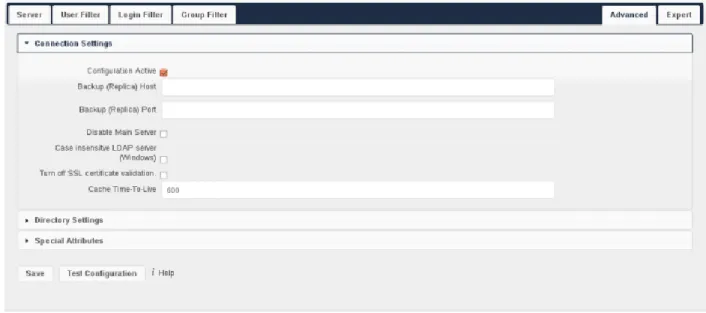
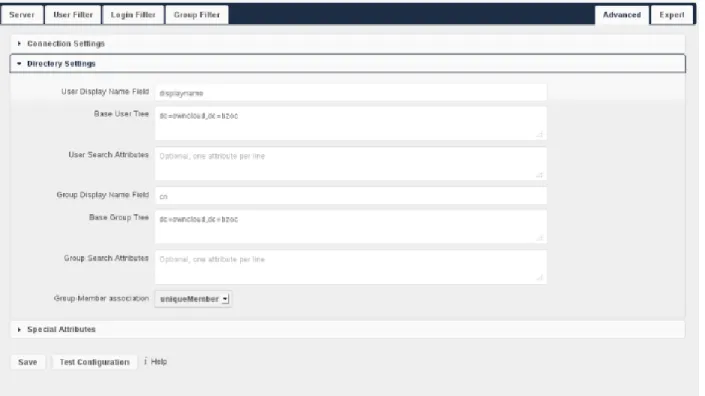
Several improvements have been made to the LDAP and Active Directory plug-in application, improving both the performance of the application as well as the compatibility with OpenLDAP and Active Directory.
THREE
INSTALLATION
3.1 ownCloud Appliances
If you are looking for virtual machine images, check the Software Appliances section. The Hardware Appliances section is of interest for people seeking to run ownCloud on appliance hardware (i.e. NAS filers, routers, etc.).
3.1.1 Software Appliances
There are number of pre-made virtual machine-based appliances:
• SUSE Studio, ownCloud on openSuSE, runnable directly from an USB stick. • Ubuntu charm, ownCloud
• Amahi home server
3.1.2 ownCloud on Hardware Appliances
These are tutorials provided by the user communities of the respective appliances:
• ownCloud 7 on Raspberry Pi (Arch Linux) using Lighttpdfor the popular credit-card sized computer • QNAP Guidefor QNAP NAS appliances
• OpenWrt Guidefor the popular embedded distribution for routers and NAS devices. • Synology Packagefor Synology NAS products
Todo
Tutorials for running ownCloud on Dreamplug.
3.2 Installing and Managing Apps
After installing ownCloud, you may provide added functionality by installing applications.
3.2.1 Viewing Enabled Apps
During the ownCloud installation, some apps are enabled by default. To see which apps are enabled: 1. ClickAppsin the Apps Selection Menu.
The apps available for use with ownCloud appear in the Apps Information Field.
Figure 3.1:Administrator application page 2. Scroll down the Apps Information Field to view the enabled apps.
Apps that are enabled appear at he top of the list of apps.
3.2.2 Managing Apps
In the Apps page, you can enable or disable applications. If an app is already enabled, it appears highlighted in the list. In addition, enabled apps appear at the top of the app list in the Apps Information Field. In contrast, disabled apps appear below any enabled apps in the list and are not highlighted. Some apps have some configurable options on the Apps page, but mainly they are enabled or disabled here, and they are configured on your ownCloud Admin page.
3.2.3 Adding Third Party Apps
Some apps are developed and supported by ownCloud directly, while other apps are created by third parties and either included in or available for your ownCloud server installation. Any apps that are not developed by ownCloud show a 3rd partydesignation. Install unsupported apps at your own risk.
Sometimes the installation of a third-party app fails silently, possibly because’appcodechecker’ => true,is enabled inconfig.php. Whenappcodecheckeris enabled it checks if third-party apps are using the private API, rather than the public API. If they are then they will not be installed.
To understand what an application does, you can click the app name to view a description of the app and any of the app settings in the Application View field. Clicking theEnablebutton will enable the app. If the app is a third party app, it will be downloaded from the app store, installed and enabled.
Though ownCloud provides many apps in the server installation, you can view more in theownCloud apps store. To view or install apps from the ownCloud apps store:
1. Scroll to the bottom of the Apps Information Field. 2. ClickMore apps.
The ownCloud apps store launches.
3. Read about any of the apps in the ownCloud app store and download any that you like.
4. Extract a downloaded compressed file and place the contents (which should themselves be contained in a folder with the app name) in the apps folder in your ownCloud installation, typicallyowncloud/apps.
5. Ensure the permissions and ownership are similar to the other ownCloud apps. Typically, access rights are rwxr-x—, or0750in octal notation, and the owner and group are your HTTP user. On CentOS this isapache, Ubuntu is
www-data, and on openSUSE is itwwwrun:www.
Note: If you would like to create or add your own ownCloud app, please use theAdd your App...button on the same page. This button redirects you to ourDeveloper Centerwhere you can find information about creating and adding your own apps.
3.2.4 Setting App Parameters
Most app parameters are configured on your Admin page, and some are set inconfig/config.php. Always try your Admin page first.
3.2.5 Using Custom App Directories
Use theapps_pathsarray inconfig.phpto set any custom apps directory locations. The keypathdefines the absolute file system path to the app folder. The keyurldefines the HTTP web path to that folder, starting at the ownCloud web root. The keywritableindicates if a user can install apps in that folder.
Note: To ensure that the default/apps/ folder only contains apps shipped with ownCloud, follow this example to setup an/apps2/folder which will be used to store all other apps.
<?php "apps_paths" => array ( 0 => array ( "path" => OC::$SERVERROOT."/apps", "url" => "/apps", "writable" => false, ), 1 => array ( "path" => OC::$SERVERROOT."/apps2", "url" => "/apps2", "writable" => true, ), ),
3.2.6 Using Your Own Appstore
You can enable the installation of apps from your own apps store. This requires that you can write to at least one of the configured apps directories.
To enable installation from your own apps store: 1. Set theappstoreenabledparameter to “true”.
This parameter is used to enable your apps store in ownCloud. 2. Set theappstoreurlto the URL of your ownCloud apps store.
This parameter is used to set the http path to the ownCloud apps store. The appstore server must use OCS (Open Collaboration Services).
<?php
"appstoreenabled" => true,
"appstoreurl" => "http://api.apps.owncloud.com/v1",
3.3 Hiawatha Configuration
AddWebDAVapp = yes to the ownCloud virtual host. Users accessing WebDAV from MacOS will also need to
addAllowDotFiles = yes.
Disable access to data folder: UrlToolkit {
ToolkitID = denyData Match ^/data DenyAccess }
3.4 Installation Wizard
When ownCloud prerequisites are fulfilled and all ownCloud files are installed on the server, the last thing left to do for finishing the installation is running the Installation Wizard.
• Open your web browser
• Navigate to your ownCloud instance.
– If you are installing ownCloud on the same machine as you are accessing the install wizard from, the url will behttps://localhost/owncloud
– If you are installing ownCloud on a different machine, you’ll have to access it by its hostname or IP address, e.g.https://example.com/owncloud
– Please take notice of the note at the end of the site if you’re accessing your ownCloud instance via a different IP address or host name during setup than your users are going to use later on (or if your ownCloud instance should be accessible via more than one host name or IP address).
– If you are using a self-signed certificate, you will be presented with a security warning about the issuer of the certificate not being trusted which you can ignore.
3.4.1 Required Settings
Under “create an admin account” you are requested to enter a username and password for the administrative user account. You can choose any username and password as you see fit, just make sure to remember it, you will need it later whenever you want to configure something for your ownCloud instance.
3.4.2 Advanced Options
• Advanced settings are available for configuring a different database or data directory than the default ones. • If you are not using Apache as the web server, it is highly recommended to configure the data directory to a
location outside of the document root. Otherwise all user data is potentially publicly visible! • Show these additional options by clicking on “Advanced”:
Database choice
• For a guideline on which database system to choose, and on pointers how to set them up for being available for php/ownCloud, seeDatabase Configuration
• Note that you will only be able to choose among the PHP database connectors which are actually installed on the system.
• It is not easily possible to migrate to another database system once you have set up your ownCloud to use a specific one. So make sure to carefully consider which database system to use.
• When using MySQL or PostgreSQL you have two options regarding the database name and user account you specify:
– You can specify either an admin/root user, and the name of a database which does not yet exist. This lets ownCloud create its own database; it will also create a database user account with restricted rights (with the same username as you specified for the administrative user, plus anoc_prefix) and will use that for all subsequent database access.
theMySQL Schema Object Names documentationfor details); * Make sure to choose a name under which no database exists yet
* ownCloud will use the provided credentials and create its own user with permissions only on its own database.
– You can enter the name of an existing database and the username/password of a user with permissions restricted to this one database only
* You can create such a user yourself, e.g. via phpmyadmin. * This user shouldn’t have permission to create a database.
* It should have full permissions on the (existing) database with the name you specify.
3.4.3 Finish Installation
• Once you’ve entered all settings, press “Finish Setup”
• ownCloud will set up your cloud according to the given settings
• When its finished, it will log you in as administrative user and present the “Welcome to ownCloud” screen.
3.4.4 Note
ownCloud will take the URL used to access the Installation Wizard and insert that into the config.php file for the ‘trusted_domains’ setting. All needed domain names of the owncloud server go into the ‘trusted_domains’ setting. No domain names of clients go there.
Users will only be able to log into ownCloud when they point their browsers to a domain name listed in the ‘trusted_domains’ setting. An IPv4 address can be specified instead of a domain name.
In the event that a load balancer is in place, there will be no issues, as long as it sends the correct X-Forwarded-Host header.
It should be noted that the loopback address, ‘127.0.0.1’, is whitelisted and therefore users on the ownCloud server who access ownCloud with the loopback interface will be able to successfully login. In the event that an improper URL is used, the following error will appear:
For configuration examples, refer to theconfig/config.sample.phpdocument.
3.5 Lighttpd Configuration
This assumes that you are familiar with installing PHP applications on Lighttpd.
It is important to note that the.htaccessused by ownCloud to protect thedatafolder is ignored by lighttpd, so you have to secure it by yourself, otherwise yourowncloud.dbdatabase and user data are publicly readable even if directory listing is off. You need to add these two snippets to your Lighttpd configuration file:
Disable access to data folder:
$HTTP["url"] =~ "^/owncloud/data/" { url.access-deny = ("") }
Disable directory listing:
$HTTP["url"] =~ "^/owncloud($|/)" { dir-listing.activate = "disable" }
Note for Lighttpd users on Debian stable (wheezy):
Recent versions of ownCloud make use of theHTTP PATCHfeature, which was added to Lighttpd at version 1.4.32 while Debian stable only ships 1.4.31. The patch is simple, however, and easy to integrate if you’re willing to build your own package.
Download the patch fromhttp://redmine.lighttpd.net/attachments/download/1370/patch.patch Make sure you have the build tools you need:
apt-get build-dep lighttpd
apt-get install quilt patch devscripts
Patch the package source: apt-get source lighttpd cd lighttpd-1.4.31
export QUILT_PATCHES=debian/patches # This tells quilt to put the patch in the right spot
quilt new http-patch.patch
quilt add src/connections.c src/keyvalue.c src/keyvalue.h # Make quilt watch the files we’ll be changing
patch -p1 -i /patch/to/downloaded/patch.patch quilt refresh
Increment the package version withdch -i. This will open the changelog with a new entry. You can save as-is or add info to it. The important bit is that the version is bumped so apt will not try to “upgrade” back to Debian’s version. Then build withdebuildand install the .debs for any Lighttpd packages you already have installed.
3.6 Linux Distributions
3.6.1 Supported Distribution Packages
Ready-to-use packages are available atopenSUSE Build Servicefor a variety of Linux distributions. If your distribution is not listed please followManual Installation.
Additional installation guides and notes
Fedora:Make sureSELinux is disabledor else the installation process might fail.
Archlinux:The are two packages for ownCloud:stable versionin the official community repository anddevelopment versionin AUR.
PCLinuxOS:Follow the TutorialownCloud, installation and setupon the PCLinuxOS web site. Follow the wizard to complete your installation
For setting up your ownCloud instance after installation, please refer to theInstallation Wizardsection.
3.7 Mac OS X
Note: Due to anissuewith Mac OS Unicode support, installing ownCloud Server 7.0 on Mac OS is currently not supported.
3.8 Nginx Configuration
• You need to insert the following code intoyour nginx config file.
• The config assumes that ownCloud is installed in /var/www/owncloud and that it is accessed via http(s)://cloud.example.com.
• Adjustserver_name,root,ssl_certificateandssl_certificate_keyto suit your needs.
• Make sure your SSL certificates are readable by the server (seeNginx HTTP SSL Module documentation). upstream php-handler { server 127.0.0.1:9000; #server unix:/var/run/php5-fpm.sock; } server { listen 80; server_name cloud.example.com; # enforce https return 301 https://$server_name$request_uri; } server { listen 443 ssl; server_name cloud.example.com; ssl_certificate /etc/ssl/nginx/cloud.example.com.crt; ssl_certificate_key /etc/ssl/nginx/cloud.example.com.key;
# Path to the root of your installation root /var/www/owncloud/;
# set max upload size client_max_body_size 10G; fastcgi_buffers 64 4K;
rewrite ^/caldav(.*)$ /remote.php/caldav$1 redirect; rewrite ^/carddav(.*)$ /remote.php/carddav$1 redirect; rewrite ^/webdav(.*)$ /remote.php/webdav$1 redirect; index index.php; error_page 403 /core/templates/403.php; error_page 404 /core/templates/404.php; location = /robots.txt { allow all; log_not_found off; access_log off; } location ~ ^/(?:\.htaccess|data|config|db_structure\.xml|README){ deny all; } location / {
# The following 2 rules are only needed with webfinger
rewrite ^/.well-known/host-meta /public.php?service=host-meta last;
rewrite ^/.well-known/host-meta.json /public.php?service=host-meta-json last;
rewrite ^/.well-known/carddav /remote.php/carddav/ redirect; rewrite ^/.well-known/caldav /remote.php/caldav/ redirect;
rewrite ^(/core/doc/[^\/]+/)$ $1/index.html;
try_files $uri $uri/ /index.php; }
location ~ \.php(?:$|/) {
fastcgi_split_path_info ^(.+\.php)(/.+)$; include fastcgi_params;
fastcgi_param SCRIPT_FILENAME $document_root$fastcgi_script_name; fastcgi_param PATH_INFO $fastcgi_path_info;
fastcgi_param HTTPS on; fastcgi_pass php-handler; }
# Optional: set long EXPIRES header on static assets location ~* \.(?:jpg|jpeg|gif|bmp|ico|png|css|js|swf)$ {
expires 30d;
# Optional: Don’t log access to assets access_log off;
}
}
Note: You can use ownCloud over plain http, but we strongly encourage you to use SSL/TLS to encrypt all of your server traffic, and to protect user’s logins and data in transit.
• Remove the server block containing the redirect • Changelisten 443 ssltolisten 80;
• Removefastcgi_params HTTPS on;
Note: If you want to effectively increase maximum upload size you will also have to modify yourphp-fpm con-figuration(usually at /etc/php5/fpm/php.ini) and increaseupload_max_filesizeandpost_max_sizevalues. You’ll need to restart php5-fpm and nginx services in order these changes to be applied.
3.9 Other Installation Methods
3.9.1 PageKite Configuration
You can use thisPageKite how toto make your local ownCloud accessible from the internet using PageKite.
3.10 Manual Installation
If you do not want to use packages, here is how you setup ownCloud from scratch using a classic LAMP (Linux, Apache, MySQL, PHP) setup:
This document provides a complete walk-through for installing ownCloud on Ubuntu 14.04 LTS Server with Apache and MySQL.
3.10.1 Prerequisites
Note: This tutorial assumes you have terminal access to the machine you want to install ownCloud on. Although this is not an absolute requirement, installation without it is highly likely to require contacting your hoster (e.g. for installing required modules).
To run ownCloud, your web server must have the following installed: • php5 (>= 5.3.8, minimum recommended 5.4) • PHP module ctype • PHP module dom • PHP module GD • PHP module iconv • PHP module JSON • PHP module libxml • PHP module mb multibyte • PHP module SimpleXML • PHP module XMLWriter • PHP module zip • PHP module zlib
Database connectors (pick at least one):
• PHP module sqlite (>= 3, usually not recommended for performance reasons)
• PHP module mysql
• PHP module pgsql (requires PostgreSQL >= 9.0) Recommendedpackages:
• PHP module curl (highly recommended, some functionality, e.g. http user authentication, depends on this) • PHP module fileinfo (highly recommended, enhances file analysis performance)
• PHP module bz2 (recommended, required for extraction of apps)
• PHP module intl (increases language translation performance and fixes sorting of non-ASCII characters) • PHP module mcrypt (increases file encryption performance)
• PHP module openssl (required for accessing HTTPS resources)
Required for specific apps (if you use the mentioned app, you must install that package): • PHP module ldap (for ldap integration)
• smbclient (for SMB storage) • PHP module ftp (for FTP storage) Recommended for specific apps (optional):
• PHP module exif (for image rotation in pictures app) • PHP module gmp (for SFTP storage)
For enhanced performance (optional/ select only one of the following): • PHP module apc
• PHP module apcu • PHP module xcache For preview generation (optional):
• PHP module imagick • avconv or ffmpeg • OpenOffice or libreOffice Remarks:
• Please check your distribution, operating system or hosting partner documentation on how to install/enable these modules.
• Make sure your distribution’s php version fulfils the version requirements specified above. If it doesn’t, there might be custom repositories you can use. If you are e.g. running Ubuntu 10.04 LTS, you can update your PHP using a customPHP PPA:
sudo add-apt-repository ppa:ondrej/php5 sudo apt-get update
sudo apt-get install php5
• You don’t need any WebDAV support module for your web server (i.e. Apache’s mod_webdav) to access your ownCloud data via WebDAV. ownCloud has a built-in WebDAV server of its own.
3.10.2 Example installation on Ubuntu 14.04 LTS Server
On a machine running a pristine Ubuntu 14.04 LTS server, you would install the required and recommended modules for a typical ownCloud installation, using Apache and MySQL by issuing the following commands in a terminal: apt-get install apache2 mysql-server libapache2-mod-php5
apt-get install php5-gd php5-json php5-mysql php5-curl apt-get install php5-intl php5-mcrypt php5-imagick
Remarks:
• This installs the packages for the ownCloud core system. If you are planning on running additional apps, keep in mind that they might require additional packages. See the Prerequisites section (above) for details.
• At the execution of each of the above commands you might be prompted whether you want to continue; press “Y” for Yes (that is if your system language is English. You might have to press a different key if you have a different system language).
• At the installation of the MySQL server, you will be prompted for a root password. Be sure to remember the password you enter there for later use as you will need it during ownCloud database setup.
Now download the archive of the latest ownCloud version: • Navigate to theownCloud Installation Page. • Click theArchive file for server ownersbutton. • ClickDownload Unix.
• This downloads a file named owncloud-x.y.z.tar.bz2 (where x.y.z is the version number of the current latest version).
• Save this file on the machine you want to install ownCloud on. • Verify the MD5 or SHA256 sum:
md5sum owncloud-x.y.z.tar.bz2 sha256sum owncloud-x.y.z.tar.bz2
• You may also verify the PGP signature:
wget https://download.owncloud.org/community/owncloud-x.y.z.tar.bz2.asc wget https://owncloud.org/owncloud.asc
gpg --import owncloud.asc gpg owncloud-x.y.z.tar.bz2
• Now you can extract the archive contents. Open a terminal, navigate to your download directory, and run: tar -xjf owncloud-x.y.z.tar.bz2
• Copy the ownCloud files to their final destination in the document root of your web server: cp -r owncloud /path/to/webserver/document-root
where/path/to/webserver/document-rootis replaced by the document root of your Web server. Typically, on Ubuntu systems this/var/www/owncloud, so your copying command is:
cp -r owncloud /var/www/
3.10.3 Setting Secure Directory Permissions
Your HTTP user must own at least the config/,data/andapps/directories in your ownCloud directory so that you can configure ownCloud, create, modify and delete your data files, and install apps via the ownCloud Web interface. We recommend setting the directory permissions as strictly as possible for stronger security.
You can find your HTTP user in your HTTP server configuration files. Or you can create a PHP page to find it for you. To do this, create a plain text file with a single line in it:
<?php echo exec(’whoami’); ?>
Name it whoami.phpand place it in your/var/www/htmldirectory, and then open it in a Web browser, for examplehttp://localhost/whoami.php. You should see a single line in your browser page with the HTTP user name.
Note: When using an NFS mount for the data directory, do not change ownership as above. The simple act of mounting the drive will set proper permissions for ownCloud to write to the directory. Changing ownership as above could result in some issues if the NFS mount is lost.
The generic command to change ownership of all files and subdirectories in a directory is: chown -R <http-user>:<http-user> /path/to/owncloud/
For hardened security we highly recommend setting the permissions on your ownCloud directory as strictly as possible. These commands should be executed immediately after the initial installation:
chown -R root:root /path/to/owncloud/ chmod -R 755 /path/to/owncloud/
chown <http-user>:<http-user> /path/to/owncloud/config/config.php chmod 750 /path/to/owncloud/config/config.php
chown -R <http-user>:<http-user> /path/to/owncloud/data/ chmod -R 750 /path/to/owncoud/data
chown root:root /path/to/owncloud/data/.htaccess chmod 755 /path/to/owncloud/data/.htaccess
chown <http-user>:<http-user> /path/to/owncloud/apps/ chmod 750 /path/to/owncloud/apps/
These strict permissions will prevent the Updater app from working. If you use the Updater app, it needs your whole ownCloud directory to be owned by the http-user, like these examples:
• This example is for Ubuntu 14.04 LTS server:
chown -R www-data:www-data /var/www/owncloud
• Arch Linux:
chown -R http:http /path/to/owncloud/
• Fedora:
chown -R apache:apache /path/to/owncloud/
• openSUSE:
chown -R wwwrun:www /path/to/owncloud/
After the Update app has run, you should re-apply the strict permissions. Apache is the recommended Web server.
3.10.4 Apache Web Server Configuration
Note: You can use ownCloud over plain http, but we strongly encourage you to use SSL/TLS to encrypt all of your server traffic, and to protect user’s logins and data in transit.
3.10.5 Enabling SSL
An Apache installed under Ubuntu comes already set-up with a simple self-signed certificate. All you have to do is to enable the ssl module and the according site. Open a terminal and run:
a2enmod ssl
a2ensite default-ssl service apache2 reload
If you are using a different distribution, check your documentation on how to enable SSL.
Note: Self-signed certificates have their drawbacks - especially when you plan to make your ownCloud server publicly accessible. You might want to consider getting a certificate signed by commercial signing authority. Check with your domain name registrar or hosting service, if you’re using one, for good deals on commercial certificates.
3.10.6 Configuring ownCloud
Since there was a change in the way versions 2.2 and 2.4 are configured, you’ll have to find out which Apache version you are using.
Usually you can do this by running one of the following commands: apachectl -v
apache2 -v
Example output:
Server version: Apache/2.4.7 (Ubuntu) Server built: Jul 22 2014 14:36:38
Example config for Apache 2.2: <Directory /path/to/owncloud>
Options Indexes FollowSymLinks MultiViews AllowOverride All
Order allow,deny allow from all </Directory>
Example config for Apache 2.4: <Directory /path/to/owncloud>
Options Indexes FollowSymLinks MultiViews AllowOverride All
Require all granted </Directory>
• This configuration entry needs to go into the configuration file of the “site” you want to use.
• On a Ubuntu system, this typically is the “default-ssl” site (to be found in the
/etc/apache2/sites-available/default-ssl.conf).
• Add the entry shown above immediately before the line containing: </VirtualHost>
(this should be one of the last lines in the file).
• A minimal site configuration file on Ubuntu 14.04 might look like this: <IfModule mod_ssl.c> <VirtualHost _default_:443> ServerName YourServerName ServerAdmin webmaster@localhost DocumentRoot /var/www <Directory /> Options FollowSymLinks AllowOverride None </Directory> <Directory /var/www/>
Options Indexes FollowSymLinks MultiViews AllowOverride None
Order allow,deny allow from all </Directory>
ErrorLog ${APACHE_LOG_DIR}/error.log LogLevel warn
CustomLog ${APACHE_LOG_DIR}/ssl_access.log combined SSLEngine on SSLCertificateFile /etc/ssl/certs/ssl-cert-snakeoil.pem SSLCertificateKeyFile /etc/ssl/private/ssl-cert-snakeoil.key <FilesMatch "\.(cgi|shtml|phtml|php)$"> SSLOptions +StdEnvVars </FilesMatch> <Directory /usr/lib/cgi-bin> SSLOptions +StdEnvVars </Directory> BrowserMatch "MSIE [2-6]" \ nokeepalive ssl-unclean-shutdown \ downgrade-1.0 force-response-1.0
BrowserMatch "MSIE [17-9]" ssl-unclean-shutdown <Directory /var/www/owncloud>
Options Indexes FollowSymLinks MultiViews AllowOverride All
Allow from all Require all granted Dav Off
Satisfy Any </Directory>
</VirtualHost> </IfModule>
• For ownCloud to work correctly, we need the modulemod_rewrite. Enable it by running: a2enmod rewrite
• In distributions that do not come witha2enmod, the module needs to be enabled manually by editing the Apache config files, usually/etc/httpd/httpd.conf. Consult the Apache documentation or your Linux distribution’s documentation.
• In order for the maximum upload size to be configurable, the .htaccess in the ownCloud folder needs to be made writable by the server (this should already be done, see section Set the Directory
Permissions).
• You should make sure that any built-in WebDAV module of your web server is disabled (at least for the own-Cloud directory), as it will interfere with ownown-Cloud’s built-in WebDAV support.
If you need the WebDAV support in the rest of your configuration, you can turn it off specifically for the ownCloud entry by adding the following line in the<Directorysection for your ownCloud server. Add the following line directly after theallow from all/Require all grantedline:
Dav Off
• You must disable any server-configured authentication for ownCloud, as it uses Basic authentication internally for DAV services. If you have turned on authentication on a parent folder (via e.g. anAuthType Basic directive), you can turn off the authentication specifically for the ownCloud entry. Following the above example configuration file, add the following line directly after theallow from all/Require all granted line in the<Directorysection:
Satisfy Any
• When using ssl, take special note on the ServerName. You should specify one in the server configuration, as well as in the CommonName field of the certificate. If you want your ownCloud to be reachable via the internet, then set both of these to the domain you want to reach your ownCloud server.
Note: By default, the certificates’ CommonName will be set to the host name at the time the ssl-cert package was installed.
• Finally, restart Apache. – On Ubuntu systems run:
service apache2 restart
– On systemd systems (Fedora, Arch Linux, OpenSUSE), run: systemctl restart httpd.service
3.10.7 Install Wizard
Finish setting up your ownCloud server by following theInstallation Wizard.
3.10.8 Other Web Servers
Microsoft Internet Information Server (IIS)
SeeWindows 7 and Windows Server 2008for further instructions. Nginx Configuration
SeeNginx Configuration Lighttpd Configuration SeeLighttpd Configuration Yaws Configuration SeeYaws Configuration
Hiawatha Configuration SeeHiawatha Configuration
3.11 Univention Corporate Server
Subscribers to the ownCloud Enterprise edition can also integrate with UCS (Univention Corporate Server).
3.11.1 Pre configuration
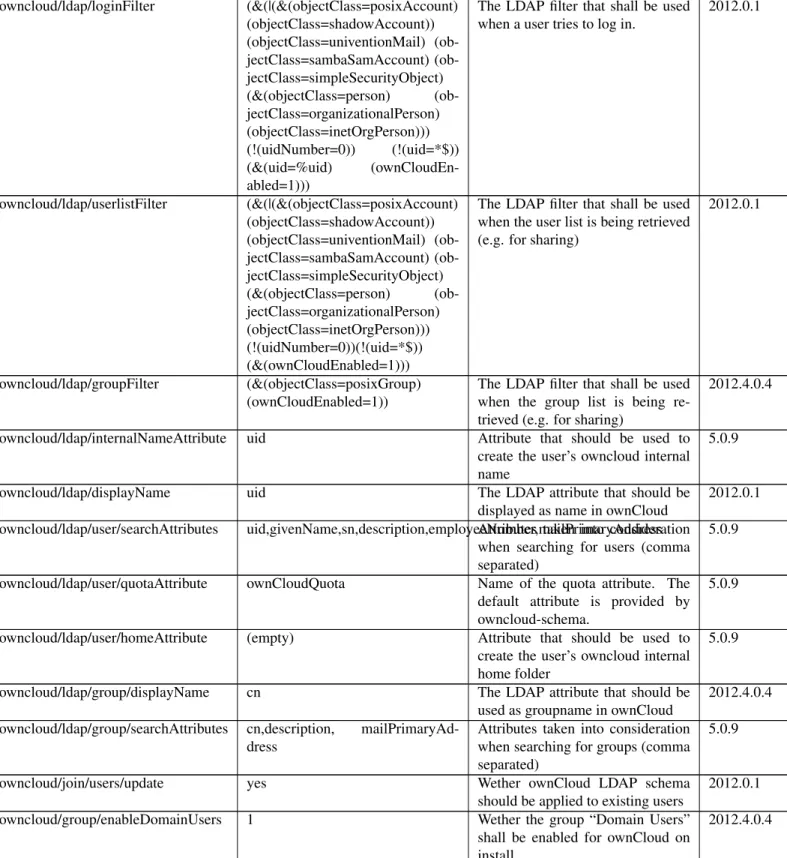
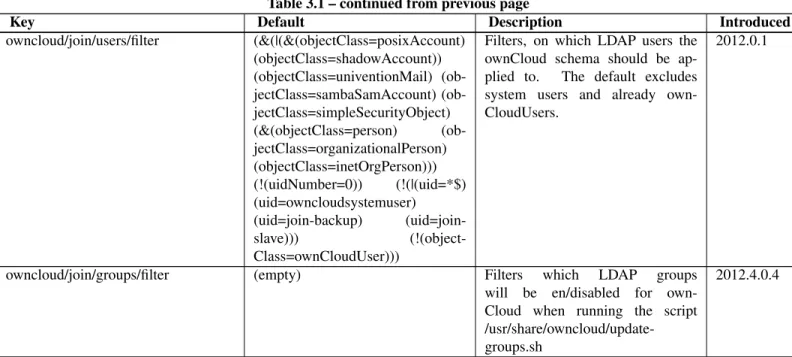
ownCloud makes use of the UCR, the Univention Configuration Registry. The values are being read during installation, most of them can be changed later, too. Changes done directly via ownCloud are not taken over to UCR. We think we found sane defaults, nevertheless you might have your own requirements. The installation script will listen to the UCR keys listed below. In case you want to override any default setting, simply add the key in question to the UCR and assign your required value.
Key Default Description Introduced
owncloud/directory/data /var/lib/owncloud Specifies where the file storage will be placed
2012.0.1
owncloud/db/name owncloud Name of the MySQL database.
ownCloud will create an own user for it.
2012.0.1
owncloud/user/quota (empty) The default quota, when a user is
being added. Assign values in hu-man readable strings, e.g. “2 GB”. Unlimited if empty.
2012.0.1
owncloud/user/enabled 0 Whether a new user is allowed to
use ownCloud by default.
2012.0.1
owncloud/group/enabled 0 Whether a new group is allowed to
be used in ownCloud by default.
2012.4.0.4 owncloud/ldap/base/users cn=users,$ldap_base The users-subtree in the LDAP
di-rectory. If left blank it will fall back to the LDAP base.
2012.4.0.4
owncloud/ldap/base/groups cn=groups,$ldap_base The groups-subtree in the LDAP di-rectory. If left blank it will fall back to the LDAP base.
2012.4.0.4
owncloud/ldap/groupMemberAssoc uniqueMember The LDAP attribute showing the group-member relationship. Possi-ble values: uniqueMember, mem-berUid and member
2012.4.0.4
owncloud/ldap/tls 1 Whether to talk to the LDAP server
via TLS.
2012.0.1
owncloud/ldap/disableMainServer 0 Deactivates the (first) LDAP
Con-figuration
5.0.9
owncloud/ldap/cacheTTL 600 Lifetime of the ownCloud LDAP
Cache in seconds
5.0.9
owncloud/ldap/UUIDAttribute (empty) Attribute that provides a unique
value for each user and group entry. Empty value for autodetection.
5.0.9
Table 3.1 – continued from previous page
Key Default Description Introduced
owncloud/ldap/loginFilter (&(|(&(objectClass=posixAccount) (objectClass=shadowAccount)) (objectClass=univentionMail) jectClass=sambaSamAccount) (ob-jectClass=simpleSecurityObject) (&(objectClass=person) (ob-jectClass=organizationalPerson) (objectClass=inetOrgPerson))) (!(uidNumber=0)) (!(uid=*$)) (&(uid=%uid) (ownCloudEn-abled=1)))
The LDAP filter that shall be used when a user tries to log in.
2012.0.1 owncloud/ldap/userlistFilter (&(|(&(objectClass=posixAccount) (objectClass=shadowAccount)) (objectClass=univentionMail) jectClass=sambaSamAccount) (ob-jectClass=simpleSecurityObject) (&(objectClass=person) (ob-jectClass=organizationalPerson) (objectClass=inetOrgPerson))) (!(uidNumber=0))(!(uid=*$)) (&(ownCloudEnabled=1)))
The LDAP filter that shall be used when the user list is being retrieved (e.g. for sharing)
2012.0.1
owncloud/ldap/groupFilter (&(objectClass=posixGroup) (ownCloudEnabled=1))
The LDAP filter that shall be used when the group list is being re-trieved (e.g. for sharing)
2012.4.0.4
owncloud/ldap/internalNameAttribute uid Attribute that should be used to create the user’s owncloud internal name
5.0.9
owncloud/ldap/displayName uid The LDAP attribute that should be
displayed as name in ownCloud
2012.0.1 owncloud/ldap/user/searchAttributes uid,givenName,sn,description,employeeNumber,mailPrimaryAddressAttributes taken into consideration
when searching for users (comma separated)
5.0.9
owncloud/ldap/user/quotaAttribute ownCloudQuota Name of the quota attribute. The default attribute is provided by owncloud-schema.
5.0.9
owncloud/ldap/user/homeAttribute (empty) Attribute that should be used to create the user’s owncloud internal home folder
5.0.9
owncloud/ldap/group/displayName cn The LDAP attribute that should be
used as groupname in ownCloud
2012.4.0.4 owncloud/ldap/group/searchAttributes cn,description,
mailPrimaryAd-dress
Attributes taken into consideration when searching for groups (comma separated)
5.0.9
owncloud/join/users/update yes Wether ownCloud LDAP schema
should be applied to existing users
2012.0.1
owncloud/group/enableDomainUsers 1 Wether the group “Domain Users”
shall be enabled for ownCloud on install
2012.4.0.4
Continued on next page
Table 3.1 – continued from previous page
Key Default Description Introduced
owncloud/join/users/filter (&(|(&(objectClass=posixAccount) (objectClass=shadowAccount)) (objectClass=univentionMail) jectClass=sambaSamAccount) (ob-jectClass=simpleSecurityObject) (&(objectClass=person) (ob-jectClass=organizationalPerson) (objectClass=inetOrgPerson))) (!(uidNumber=0)) (!(|(uid=*$) (uid=owncloudsystemuser) (uid=join-backup) (uid=join-slave))) (!(object-Class=ownCloudUser)))
Filters, on which LDAP users the ownCloud schema should be ap-plied to. The default excludes system users and already own-CloudUsers.
2012.0.1
owncloud/join/groups/filter (empty) Filters which LDAP groups
will be en/disabled for own-Cloud when running the script /usr/share/owncloud/update-groups.sh
2012.4.0.4
If you want to override the default settings, simply create the key in question in the UCR and assign your required value, for example:
ucr set owncloud/user/enabled=1
3.11.2 Installation
Now, we are ready to install ownCloud. This can be either done through the UCS App Center (recommended) or by downloading the packages.
UCS App Center
Open the Univention Management Console and choose the App Center module. You will see a variety of available applications, including ownCloud.
Click on ownCloud 5 and follow the instructions.
In the UCS App Center, you can also upgrade from ownCloud 4.5 by installing ownCloud 5.0. They are provided as separate apps. It is only possible to have one version of ownCloud installed.
Manually by download
Download the integration packagesfrom our websiteand install them from within your download folder (note: the package owncloud-unsupported is optional) via command line:
dpkg -i owncloud*.deb
ownCloud will be configured to fully work with LDAP.
Reinstallation
When ownCloud was installed before and uninstalled via AppCenter or via command line using apt-get remove, ownCloud can be simply installed again. The old configuration will be used again.
When an older ownCloud was installed and has been purged (only possible via command line using apt-get purge) the old configuration is gone, but data is left. This blocks an installation. You can either install the old version and upgrade to ownCloud 5 or (re)move the old data. This is done by removing the MySQL database “ownCloud” using the command line:
mysql -u root -e "DROP DATABASE owncloud" -p‘tail /etc/mysql.secret
In this case you probably also want to remove the data directory/var/lib/owncloudalthough this is not mandatory.
3.11.3 Postconfiguration (optional)
There is only one local admin user “owncloudadmin”, you can find his password in/etc/owncloudadmin.secret. Use this account, if you want to change basic ownCloud settings.
In the installation process a virtual host is set up (Apache is required therefore). If you want to modify the settings, edit
/etc/apache2/sites-available/owncloudand restart the web server. You might want to do it to enable
HTTPS connections. Besides that, you can edit the.htaccess-File in /var/www/owncloud/. In the latter file there are also the PHP limits for file transfer specified.
3.11.4 Using ownCloud
If you decided to enable every user by default to use ownCloud, simply open uphttp://myserver.com/owncloud/and log in with your LDAP credentials and enjoy.
If you did not, go to the UMC and enable the users who shall have access (see picture below). Then, login at http://myserver.com/owncloud/with your LDAP credentials.
Updating users can also be done by the script/usr/share/owncloud/update-users.sh. It takes the fol-lowing UCR variables as parameters:owncloud/user/enabledfor enabling or disabling,owncloud/user/quotaas the Quota value andowncloud/join/users/filteras LDAP filter to select the users to update.
Groups 2012.4.0.4
Since ownCloud Enterprise 2012.4.0.4 group support is enabled. Groups, that are activated for ownCloud usage, can be used to share files to instead of single users, for example. It is also important to note, that users can only share within groups where they belong to. Groups can be enabled and disabled via UCM as shown in the screen shot below.
Another way to enable or disable groups is to use the script/usr/share/owncloud/update-groups.sh. Currently, it takes an argument which can be 1=enable groups or 0=disable groups. The filter applied is being taken from the UCR variableowncloud/join/groups/filter. In case it is empty, a message will be displayed.
3.12 Windows 7 and Windows Server 2008
Note: While ownCloud will run in any standard PHP environment, including IIS or Apache on Windows, there are known issues. For the basic sync and share capabilities of ownCloud, Windows web servers (Apache and IIS) will function properly. However, as apps like external storage are added, particularly SMB mounts, and non-English characters are used in filenames, some of the known Windows and IIS/Apache challenges start to appear as bugs. ownCloud is not supported on the Internet Server Application Programming Interface (ISAPI).
Microsoft SQL Server is not supported.
For these reasons, while ownCloud server will run on Windows, it is not recommended at this time.
Note: You must move the data directory outside of your public root (See advanced installation settings) This section describes how to install ownCloud on Windows with IIS (Internet Information Services).
These instructions assume that you have a standard, non-IIS enabled Windows machine using Windows 7 or Server 2008. After enabling IIS, the procedures are essentially identical for both Windows 7 and Windows Server 2008. For installation, ownCloud physical access or a remote desktop connection is required. We recommend that you leverage MySQL as the backend database for ownCloud. If you do not want to use MySQL, you can use Postgres or SQLite instead. However, Microsoft SQL Server is not yet supported.
Enabling SSL is not yet covered by this section.
Note: If you make your desktop machine or server available outside of your LAN, you must maintain it. Make sure to monitor the logs, manage the access, and apply patches to avoid compromising the system as a whole.
There are four primary steps to the installation, and then an added fifth step required for configuring everything to allow files larger than the default 2 MB size.
1. Install IIS with CGI support – enable IIS on your Windows machine. 2. Install PHP – Grab, download and install PHP.
3. Install MySQL – Setup the MySQL server manager and enable ownCloud to create an instance. 4. Install ownCloud – The whole reason we are here!
5. Configure upload sizes and timeouts to enable large file uploads – So that you can upload larger files.
3.12.1 Activate IIS with CGI Support
Windows 7To activate IIS on Microsoft Windows 7:
1. Navigate toStart –> Control Panel –> Programs.
3. Expand the box labeledInternet Information Services.
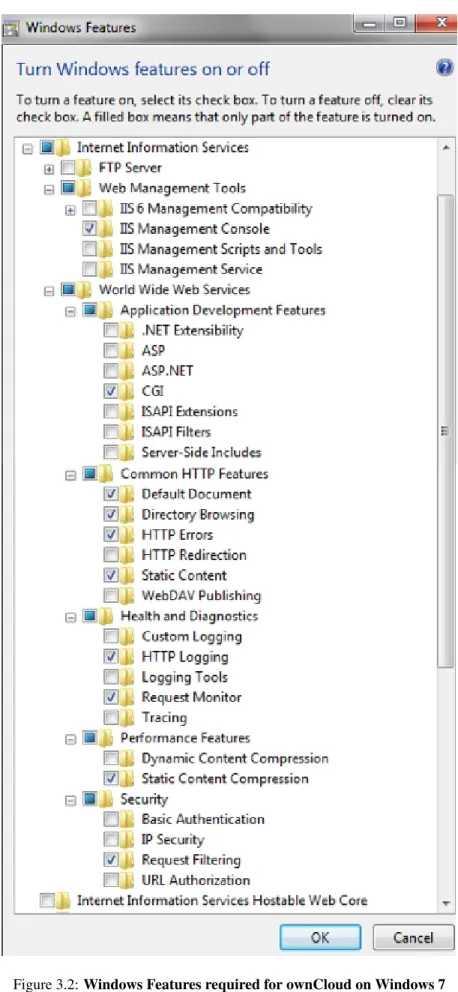
4. ExpandWorld Wide Web Servicesand all of the folders beneath it. 5. Select the folders as shown in the image below to launch the IIS server.
6. Because a running FTP server is not required, turn off that feature for your server.
7. Ensure that you have the IIS Management Console. An IIS management console is the easiest way to start, stop, and restart your server. This console also enables you to change certificate options and manage items like file upload size.
8. Check the CGI checkbox underApplication Development Featuresin order to enable PHP on IIS. 9. Turn off WebDAV publishing to avoid conflicts between the Windows WebDAV and the ownCloud WebDAV
interface.
Note: This feature might already be turned off for you. However, we recommend that you ensure that it remains off. The common HTTP features are the features you would expect from a web server. After implementing the selections on this page, IIS serves up a web page.
10. Restart IIS by going to the IIS manager (Start –> IIS Manager). 11. Select your website.
On the far right side of the opening page you will see a section titledManage Server. 12. Make sure that the service is started, or clickStartto start the services selected. 13. Go to a web browser and navigate tohttp://localhost.
The standard IIS 7 splash page opens. This page displays a static image that indicates that your web server is running. Assuming you were able to reach splash page, your web server is now up and running.
Continue byinstalling PHP.
Windows Server 2008
1. Navigate toStart –> Control Panel –> Programs.
2. Under Programs and Features, click the link titledTurn Windows Features on and Off. The Server Manager starts.
3. In the Server Manager, clickRoles 4. ClickAdd Roles.
5. Use theAdd Roles Wizardto add the web server role.
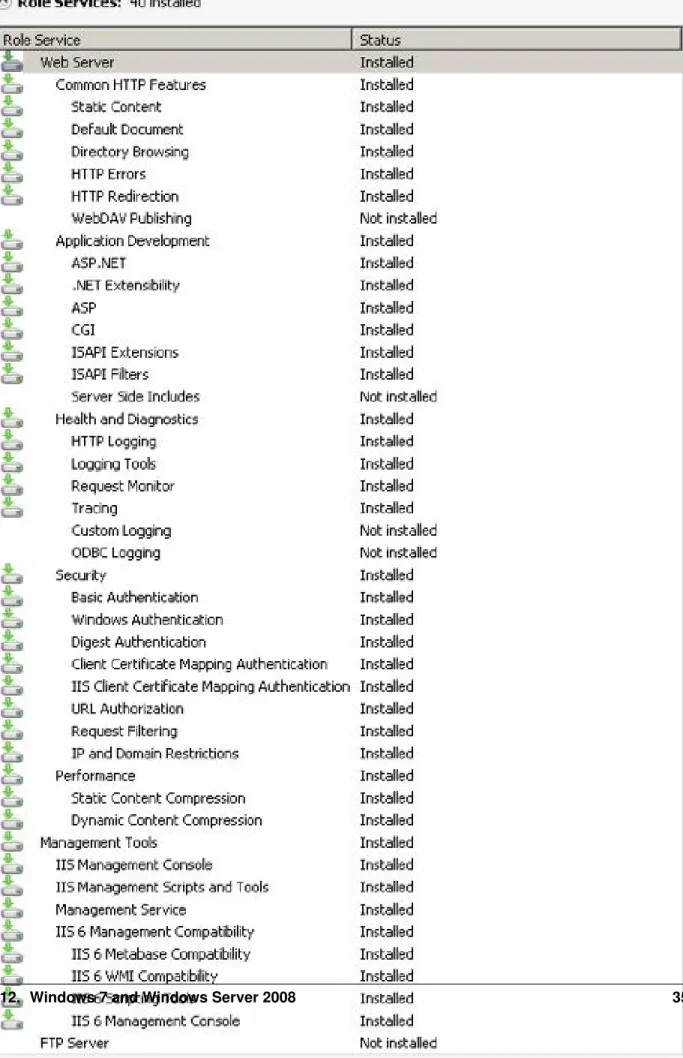
6. Make sure that, at a minimum, the same boxes are checked in this wizard that are checked in the Windows 7 Section. For example, make sure that the CGI box is checked under Application Development Features, and that WebDAV Publishing is turned off. With Remote Desktop Sharing turned on, the detailed role service list looks like the figure “Role Services”.
7. Go to the IIS manager (Start –> IIS Manager) and restart IIS. 8. Select your website
9. Once this is complete, you should be able to go to a web browser and typelocalhost. This should open the standard IIS 7 splash page, which is just a static image that says your web server is running. Assuming you were able to get the splash page, it is safe to say your web server is now up and running.
Continue byinstalling PHP.
Figure 3.3:Server roles required for ownCloud
3.12.2 Installing PHP
1. Go to thePHP for Windowsdownload page.
Note: The instructions below are for IIS only. If using a different server software, make sure to follow the hints on “Which version do I choose” on the left hand side of the page linked above.
2. Download the Installer for PHP 5.3, the “VC9 Non Thread Safe” version, either 32 or 64 bit, depending on your system.
3. Run the downloaded installation executable.
4. Read the license agreement, agree, select an install directory. 5. Then select IIS FastCGI as the install server.
6. Take the default selections for the items to install, and click next. Then clickinstall. 7. Once the installer is finished, PHP is installed.
Continue byinstalling MySQL.
3.12.3 Installing MySQL
To install MySQL on your Windows machine:
1. Use your browser to migrate tohttp://dev.mysql.com/downloads/.
2. Download the latest community edition for your operating system, choosing either the 32 or 64 bit version as applicable.
3. Download theMSI Installerto assist with the install.
4. Once the download completes, install MySQL (5.5 at the time of writing), selecting the typical installation. 5. Once the installation completes, check the checkbox to launch the MySQL Instance Configuration Wizard and
clickFinish.
6. Select a standard configuration, as this will be the only version of MySQL on this machine.
7. Select the option to install as a windows service, and Check the Launch the MySQL Server
Automaticallybutton.
8. Select the modify security settings checkbox on the next page, and enter a password.
Note: Make sure to note your chosen password. You will need this password when you configure ownCloud.
9. Uncheckenable root access from remote machinesfor security reasons. 10. Click execute. The instance is created and launched.
11. Once the instance launches, click Finish.
Take particular note of your MySQL password, as the user namerootand the password you select will be necessary later on in the ownCloud installation. As an aside, the following link is an excellent resource for questions on how to configure your MySQL instance, and also to configure PHP to work with MySQL. This, however, is not strictly necessary as much of this is handled when you download ownCloud.
More information in this topic can be found in atutorial on the IIS web site. http://learn.iis.net/page.aspx/353/install-and-configure-mysql-for-php- applications-on-iis-7-and-above/
3.12.4 Installing ownCloud
1. Download the latest version of ownCloud fromhttp://owncloud.org/download. The file is downloaded in tar.bz2 format.
2. Unzip the file and save it locally.
Note: You can use jZip for a free utility (like Peazip) to unzip the file. 3. Copy the file to yourwwwrootdirectory (for example,C:\inetpub\wwwroot).
Note: Only the administrator can install directly into the directorywwwrootfrom an unzipping application. However, you can save the file in a different folder and then move the files intowwwroot in windows explorer. This process installs ownCloud locally in your root web directory. You can use a subdirectory called owncloud (or whatever name you choose).
4. To enable write access to the ownCloud directory to the ownCloud server, navigate your windows explorer to inetpub/wwwroot/owncloud(or the installation directory you selected).
5. Right click and select properties.
6. Click the security tab, and select the button “to change permissions, click edit”. 7. Select the “users” user from the list, and check the box “write”.
8. Apply these settings and close the window.
Continue by following theInstallation Wizard. Select MySQL as the database, and enter your MySQL database user name, password and desired instance name – use the user name and password you setup during MySQL installation, and pick any name for the database instance.
3.12.5 Ensure Proper HTTP-Verb Handling
IIS must pass all HTTP and WebDAV verbs to the PHP/CGI handler, and must not attempt to handle them by itself or syncrhonizing with the Desktop and Mobile Clients will fail.
To ensure your configuration is correct: 1. Open IIS Manager7.
2. In theConnectionsbar, select your site belowSites, or choose the top level entry if you want to modify the machine-wide settings.
3. Choose theHandler Mappingsfeature. 4. ClickPHP_via_fastCGI.
5. ChooseRequest Restrictionsand locate theVerbstab. 6. EnsureAll Verbsis checked.
7. ClickOK.
7. Choose theRequest Filteringfeature from the IIS Manager.
8. Ensure that all verbs are permitted (or none are forbidden) in theVerbstab. You need to allow the verbsGET,
HEAD,POST,OPTIONS,PROPFIND,PUT,MKCOL,MKCALENDAR,DELETE,COPY, andMOVE.
Note: Because ownCloud must be able to use WebDAV on the application level, you must also ensure that you do not enable the WebDAV authoring module.
3.12.6 Configuring ownCloud, PHP and IIS for Large File Uploads
Before you begin to use ownCloud heavily, it is important to make a few configuration changes to enhance the service and make it more useful. For example, you might want to increase themax upload size. The default upload is set to 2MB, which is too small for many files (for example, most MP3 files).
To adjust the maximum upload size, you must access yourPHP.inifile. You can locate this file in yourC:\Program Files (x86)\PHPfolder.
To adjust the maximum upload size, open thePHP.inifile in a text editor, find the following key attributes, and change them to what you want to use:
• upload_max_filesize– Changing this value to something like 1G will enable you to upload much larger files. • post_max_size– Change this value to be larger than your max upload size you chose.
You can make other changes in thePHP.inifile (for example, the timeout duration for uploads). However, most default settings in thePHP.inifile should function appropriately.
To enable file uploads on the web server larger than 30 MB, you must also change some settings in the IIS manager. To modify the IIS Manager:
1. Go to the start menu, and typeiis manager. IIS manager launches. 2. Select the website that you want to accept large file uploads.
3. In the main (middle) window, double click the iconRequest filtering. A window opens displaying a number of tabs across the top.
4. SelectEdit Feature Settings
5. Modify theMaximum allowed content length (bytes)value to 4.1 GB. Note: This entry is in bytes, not kilobytes.
You should now have ownCloud configured and ready for use.
3.13 Yaws Configuration
This should be in youryaws_server.conf. In the configuration file, thedir_listings = falseis important and also the redirect fromdata/to somewhere else, because files will be saved in this directory and it should not be accessible from the outside. A configuration file would look like this
<server owncloud.myserver.com/> port = 80
listen = 0.0.0.0
docroot = /var/www/owncloud/src allowed_scripts = php
php_handler = <cgi, /usr/local/bin/php-cgi> errormod_404 = yaws_404_to_index_php
dir_listings = false <redirect>
/data == / </redirect>
</server>
The Apache .htaccessthat comes with ownCloud is configured to redirect requests to non-existent pages. To emulate that behaviour, you need a custom error handler for yaws. See thisgithub gist for further instructionson how to create and compile that error handler.
FOUR
CONFIGURATION
4.1 Configuring the ClamAV Antivirus Scanner
You can configure your ownCloud server to automatically run a virus scan on newly-uploaded files with the Antivirus App for Files. The Antivirus App for Files integrates the open source anti-virus engineClamAVwith ownCloud. ClamAV detects all forms of malware including Trojan horses, viruses, and worms, and it operates on all major file types including Windows, Linux, and Mac files, compressed files, executables, image files, Flash, PDF, and many others. ClamAV’s Freshclam daemon automatically updates its malware signature database at scheduled intervals. ClamAV runs on Linux and any Unix-type operating system, and Microsoft Windows. However, it has only been tested with ownCloud on Linux, so these instructions are for Linux systems. You must first install ClamAV, and then install and configure the Antivirus App for Files on ownCloud.
4.1.1 Installing ClamAV
As always, the various Linux distributions manage installing and configuring ClamAV in different ways.
Debian, Ubuntu, Linux Mint On Debian and Ubuntu systems, and their many variants, install ClamAV with these commands:
apt-get install clamav clamav-daemon
The installer automatically creates default configuration files and launches theclamdandfreshclamdaemons. You don’t have to do anything more, though it’s a good idea to review the ClamAV documentation and your settings
in/etc/clamav/. Enable verbose logging in bothclamd.confandfreshclam.confuntil you get any kinks
worked out.
Red Hat 7, CentOS 7 On Red Hat 7 and related systems you must install the Extra Packages for Enterprise Linux (EPEL) repository, and then install ClamAV:
yum install epel-release
yum install clamav clamav-scanner clamav-scanner-systemd clamav-server clamav-server-systemd clamav-update
This installs two configuration files: /etc/freshclam.conf and/etc/clamd.d/scan.conf. You must edit both of these before you can run ClamAV. Both files are well-commented, andman clamd.confandman
freshclam.confexplain all the options. Refer to/etc/passwdand/etc/groupwhen you need to verify
the ClamAV user and group.
First edit/etc/freshclam.confand configure your options. freshclamupdates your malware database, so you want it to run frequently to get updated malware signatures. Run it manually post-installation to download your first set of malware signatures:
freshclam
The EPEL packages do not include an init file forfreshclam, so the quick and easy way to set it up for regular checks is with a cron job. This example runs it every hour at 47 minutes past the hour:
# m h dom mon dow command
47 * * * * /usr/bin/freshclam --quiet
Please avoid any multiples of 10, because those are when the ClamAV servers are hit the hardest for updates.
Next, edit/etc/clamd.d/scan.conf. When you’re finished you must enable theclamdservice file and start
clamd:
systemctl enable [email protected] systemctl start [email protected]
That should take care of everything. Enable verbose logging in scan.confandfreshclam.confuntil it is running the way you want.
4.1.2 Enabling the Antivirus App for Files
Simply go to your ownCloud Apps page to enable it.4.1.3 Configuring ClamAV on ownCloud
Next, go to your ownCloud Admin page and set your ownCloud logging level to Everything.
Now find your Antivirus Configuration panel on your Admin page. ClamAV runs in one of three modes:
• Daemon (Socket): ClamAV is running on the same server as ownCloud. The ClamAV daemon,clamd, runs in the background. When there is no activityclamdplaces a minimal load on your system. If your users upload large volumes of files you will see high CPU usage.
• Daemon: ClamAV is running on a different server. This is a good option for ownCloud servers with high volumes of file uploads.
• Executable: ClamAV is running on the same server as ownCloud, and theclamscancommand is started and then stopped with each file upload.clamscanis slow and not always reliable for on-demand usage; it is better to use one of the daemon modes.
Daemon (Socket) ownCloud should detect your clamd socket and fill in the Socket field. This is the
LocalSocketoption inclamd.conf. You can runnetstatto verify:
netstat -a|grep clam
unix 2 [ ACC ] STREAM LISTENING 15857 /var/run/clamav/clamd.ctl
TheStream Lengthvalue sets the number of bytes read in one pass. 10485760 bytes, or ten megabytes,
is the default. This value should be no larger than the PHPmemory_limitsettings, or physical memory if
memory_limitis set to -1 (no limit).
Action for infected files found while scanninggives you the choice of logging any alerts
without deleting the files, or immediately deleting infected files.
Daemon For the Daemon option you need the hostname or IP address of the remote server running ClamAV, and the server’s port number.
Executable The Executable option requires the path toclamscan, which is the interactive ClamAV scanning com-mand. ownCloud should find it automatically.
When you are satisfied with how ClamAV is operating, you might want to go back and change all of your logging to less verbose levels.
4.2 Automatic Configuration Setup
If you need to install ownCloud on multiple servers, you normally do not want to set up each instance separately as described in theDatabase Configuration. For this reason, ownCloud provides an automatic configuration feature. To take advantage of this feature, you must create a configuration file, called
../owncloud/config/autoconfig.php, and set the file parameters as required. You can specify any
number of parameters in this file. Any unspecified parameters appear on the “Finish setup” screen when you first launch ownCloud.
The../owncloud/config/autoconfig.phpis automatically removed after the initial configuration has been
applied.
4.2.1 Parameters
When configuring parameters, you must understand that two parameters are named differently in this configuration file when compared to the standardconfig.phpfile.
autoconfig.php config.php directory datadirectory
dbpass dbpassword
4.2.2 Automatic Configurations Examples
The following sections provide sample automatic configuration examples and what information is requested at the end of the configuration.
Data Directory
Using the following parameter settings, the “Finish setup” screen requests database and admin credentials settings. <?php
$AUTOCONFIG = array(
"directory" => "/www/htdocs/owncloud/data", );
SQLite Database
Using the following parameter settings, the “Finish setup” screen requests data directory and admin credentials set-tings. <?php $AUTOCONFIG = array( "dbtype" => "sqlite", "dbname" => "owncloud", "dbtableprefix" => "", ); MySQL Database
Using the following parameter settings, the “Finish setup” screen requests data directory and admin credentials set-tings.