2N® EasyGate Pro
Mobile network gateway
User Manual
Version
1.03
The 2N TELEKOMUNIKACE a.s. joint-stock company is a Czech manufacturer and supplier of telecommunications equipment.
The product family developed by 2N TELEKOMUNIKACE a.s. includes GSM gateways, private branch exchanges (PBX), and door and lift communicators. 2N TELEKOMUNIKACE a.s. has been ranked among the Czech top companies for years and represented a
symbol of stability and prosperity on the telecommunications market for almost two decades. At present, we export our products into over 120 countries worldwide and have exclusive distributors on all continents.
2N® is a registered trademark of 2N TELEKOMUNIKACE a.s.. Any product and/or other
names mentioned herein are registered trademarks and/or trademarks or brands protected by law.
2N TELEKOMUNIKACE administers the FAQ database to help you quickly find information and to answer your questions about 2N products and services. On faq.2n.cz you can find information regarding products adjustment and instructions for optimum use and procedures „What to do if...“.
Declaration of Conformity
2N TELEKOMUNIKACE a.s. hereby declares that the 2N® EasyGate product complies with
all basic requirements and other relevant provisions of the 1999/5/EC directive. For the full wording of the Declaration of Conformity see the CD-ROM enclosed and at www.2n.cz.
The 2N TELEKOMUNIKACE company is a holder of the ISO 9001:2000 certificate. All development, production and distribution processes of the company are managed by this standard and guarantee a high quality and advanced technical level of and a professional approach to all of our products.
Table of Contents
1.
Product Overview ... 7
1.1 Product Description ... 8
Basic Features ... 8
Advantages of EasyGate use ... 8
Safety Precautions ... 9
1.2 Changes ... 10
1.3 Terms and Symbols Used ... 11
Manual Symbols ... 11
Future functions ... 11
2.
Description and Installation ... 13
2.1 Description ... 14
Telephone Line Tones – Operational Tones ... 15
Telephone Line Tones – Programming Mode ... 16
2.2 Before You Start ... 17
Product Completeness Check ... 17
Installation requirements ... 17
2.3 Mounting ... 19
External Antenna Connection ... 19
SIM Card Installation ... 19
Power Supply Connection ... 19
2.4 Telephone line connection ... 21
PBX Connection... 21
Telephone Set (Answering Machine, Coin Telephone Station) Connection ... 21
2.5 SMS Sending Input Connection ... 22
3.
Configuration 2N
®EasyGate Pro ... 23
3.1 2N® EasyGate Pro parameters configuration ... 24
PC Connection ... 24
EasyGate Parameter Programming ... 24
Telephone Line based Programming ... 24
PC based Programming ... 25
Further Data Handling Options ... 26
Monitoring ... 28
Firmware Upgrade ... 28
3.2 Table of Parameters ... 29
Telephone interface FXS parameters ... 29
FXS Routing Parameters ... 34
Free minutes bank ... 39
SMS Sending Input Parameters ... 40
GSM & SIM Parameters ... 40
Service ... 43
Initialization ... 44
Security Parameters ... 45
4.
Function and Use ... 47
4.1 Voice function ... 48
Outgoing Call ... 48
Incoming Call ... 48
Automatic Call ("Baby Call") ... 48
Tariff pulses 16 or 12 kHz ... 49
Configuration of network services ... 49
Call forwarding ... 50
Call waiting ... 52
Call hold... 52
4.2 FAX and Data function ... 53
Sending fax message or modem connection to and from GSM ... 53
Supported fax and data protocols ... 54
4.3 SMS Sending Input ... 55
4.4 Data connection using USB port ... 56
CSD PC-PC Data Transmission ... 56
Internet Data Connection ... 56
SMS Sending and Receiving ... 58
Combination of serial connction with Voice Calls ... 58
List of Supported AT Commands ... 59
4.5 SIM Card PIN protection ... 60
PIN Entering by PCManager ... 60
PIN Entering via Telephone Line ... 60
Automatic PIN Entering ... 60
4.6 Free minutes option ... 61
Basic description ... 61
Parameters – password access ... 61
Commands – direct access ... 62
Setting of free minutes option - PCManager ... 63
Using Free minutes option – step by step ... 64
5.
Technical parameters ... 65
5.1 Technical Parameters ... 66
GSM version ... 66
UMTS version ... 66
Power Supply ... 67
Battery backup (optional) ... 67
SMS Sending Input ... 68
Serial interface ... 68
Versions of product ... 68
Other parameters ... 69
6.
Supplementary Information ... 71
6.1 Regulations and directives ... 72
6.2 List of Figures ... 73
6.3 Troubleshooting ... 74
6.4 List of Abbreviations... 75
6.5 General Instructions and Cautions ... 77
1
1.Product
Overview
In this section, we introduce the 2N® EasyGate Pro (from now only ‘Easy Gate’) product, outline its application options and highlight the advantages following from its use. This chapter also includes safety instructions.
Here is what you can find in this section:
n Product Description
n Manual changes description
Product Description
1.1
8
1.1 Product Description
Basic Features
n The primary purpose of EasyGate is to transmit voice between a mobile
network and an attached FXO-interface terminal (PBX, telephone, answering machine, etc.).
n Easy Gate is produced in two basic modifications – GSM and UMTS. Some
GSM models supports analogue fax connection.
n You can establish data connections and send/receive SMS using EasyGate in
combination with a PC and appropriate software. Version GSM supports GPRS and CSD connection, UMTS version supports HSDPA connection (up to 3,6 Mbps download).
n You can send an SMS to a pre-programmed number using the SMS sending
input.
n Version of EasyGate with Battery backup allows the function in case of power
failure.
Advantages of EasyGate use
n Call cost cutting
by forwarding calls to mobile network over EasyGate you save a lot on PSTN – mobile network calls.
n Easy installation
EasyGate is designed for immediate use without programming.
n You get all you need in the delivery
your EasyGate delivery contains all you need to operate the system (the power supply adapter, telephone cable, PC USB cable, SMS input connector, CD-ROM with software).
n Solution for sites without telephone lines
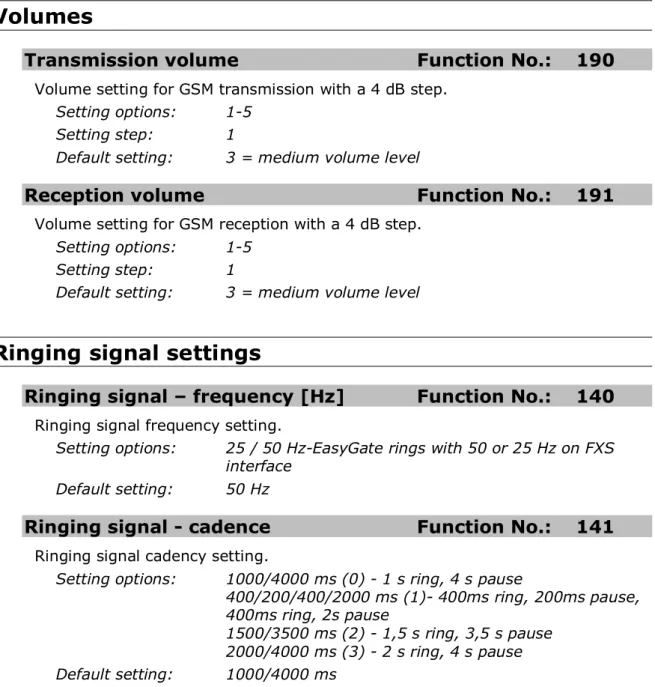
such as mountain chalets, exhibitions, conferences, etc.
n CLIP
EasyGate is equipped with the FSK-based CLIP feature, so if a terminal capable of receiving the CLIP is used you know the caller‘s number.
n Data connection
EasyGate UMTS version allows connection to internet using HSDPA connection (download up to 3,6 Mbps), WCDMA upload (up to 384 kbps). EasyGate GSM version supports GPRS connection (GPRS class 10, max. 85.6 kbps).
n SMS sending input
simply send an SMS to a pre-programmed number by closing the contact. Recommended for easy supervision, simple securing, etc.
n Radiation hazard minimization
you are not exposed to a direct effect of the antenna RF electromagnetic field while telephoning as opposed to mobile telephones.
Product Description
1.1
Safety Precautions
Do not switch on EasyGate in the vicinity of medical apparatuses to avoid interference. The minimum distance of the antenna and pacemakers should be 0.5m.
Do not switch on EasyGate aboard of a plane.
Do not switch on EasyGate near petrol stations, chemical facilities or sites where explosives are used.
Any mobile telephone use prohibition based on RF energy radiation applies to EasyGate too.
EasyGate may disturb the function of TV sets, radio sets and PCs.
Warning! EasyGate contains components that can be swallowed by small children (SIM card, antenna, etc.).
The voltage value mentioned on the adapter may not be exceeded. If you connect EasyGate to another power supply, make sure that the voltage value is in the acceptable range.
When your EasyGate comes to the end of its operational life, dispose of it in accordance with applicable regulations.
Changes
1.2
10
1.2 Changes
Manual
Version Amendments to Earlier Versions
1.00 The User Manual applies to 2N® EasyGate II product line: 501323, 501333, 501343 and 501353.
1.01 Name changed to EasyGate Pro, minor changes
1.02 Free minutes option added (for Firmware version 3.5x only)
1.03 UMTS version added
Cautions
n The manufacturer continuously meets customer requirements by
improving the firmware. For the latest EasyGate processor firmware, programming tool and User Manual see www.2n.cz.
n For a detailed description of the EasyGate firmware upgrade refer to the
Terms and Symbols Used
1.3
1.3 Terms and Symbols Used
Manual Symbols
Safety
n Always abide by this information to prevent persons from injury.
Warning
n Always abide by this information to prevent damage to the device.
Caution
n Important information for system functionality.
Tip
n Useful information for quick and efficient functionality.
Note
n Routines or advice for efficient use of the device.
Future functions
Grey marked text in this document specifies functions of EasyGate , which will be supported in the future.
2
2.Description and
Installation
This section describes the 2N® EasyGate Pro product and its installation. Here is what you can find in this section:
n Product Description
n Before You Start
n Mounting
Description
2.1
14
2.1 Description
EasyGate consites of GSM (UMTS) gateway in white plastic cover, removable antenna and cables for connecting to phone set and PC
2N® EasyGate ’s status is indicated by LED diodes on its front side. All possible states
are described in the following figure.
USB (USB 2.0) Power supply connector (DC Jack 2.1 mm, internal contact +) Telephone line (RJ 12, 6/2) SMS connector (SMS sending input) SIM Switch (ON/OFF) Figure 2.2 EasyGate Connectors Figure 2.1 EasyGate LED indicators No light Standby
Flashes quickly line off-hook or ringing
Lights yellow call FXS – GSM (UMTS)
Fax models only: Flashes 2x then pause
Fax or modem connection in progress; after power on signalizes need of FW upgrade
Flashes 3x then pause
fax or modem connection in progress
Telephone line
Lights blue device is powered from the grid.
Lights yellow device is powered from the battery.
Flashes 1x in 2s HW error, contact the manufacturer
No light Power switched off or HW error
Power supply
Lights blue Registered to GSM (UMTS)
Flashes:
1x in 1s not registered, SIM card inserted
1x in 3s not registered, SIM card not inserted
4x quickly enter your PIN
8x quickly enter your PUK (use mobile phone)
Quickly and continuously
All functions are blocked. Your SIM doesn’t correspond to the operator lock.
Mobile network
Lights green PC connected
Flashes:
Quickly incoming data call (CSD)
1x in 3s data connection (CSD or GPRS)
No light PC not connected Data – PC connection status
Steady state – signalization of signal strength
FXS line off hook – signalization of battery state (battery backup type only) Signal strength/battery indicator
Description
2.1
Telephone Line Tones – Operational Tones
The GSM (UMTS) gateway sends tones to the telephone line to indicate the line status. Following part describes the factory default setting. The tone frequency is 425 Hz.
Dial tone
n continuous or morse A
n EasyGate is registered to GSM (UMTS) network and ready to receive dialing.
Ringing tone
nn The called subscriber's telephone is ringing.
n The GSM (UMTS) network transmits this tone.
Busy tone
nThe busy tone is transmitted in any of the following cases:
n The SIM card has not been installed.
n EasyGate is logged-out.
n EasyGate is logged-in to a foreign network but roaming is disabled.
n The called number has too many digits (more than 30).
n The called number is barred.
n The called subscriber line is busy.
n The called subscriber has hung up (disconnection).
Dialing end signaling
nn Dialing reception has been terminated. Connection is being established.
PIN tone
nn Enter the PIN code.
Description
2.1
16
PUK tone
n
n Enter the PUK code.
n This tone is transmitted upon repeated wrong PIN entering attempts. SIM
card is blocked. PUK code can’t be inserted in the gateway, it is necessary to use mobile phone.
Telephone Line Tones – Programming Mode
Tones confirming/refusing the values entered are transmitted during telephone line based programming. Each tone has a different melody.
Confirmation
nn Confirms that the service password or parameter number entered is correct
and has been accepted.
Refusal
n
n Incorrect parameter number;
n Incorrect parameter value
n Transmitted when a parameter is cancelled with a .
Saving
nBefore You Start
2.2
2.2 Before You Start
Product Completeness Check
Check the product for completeness before installation please:
n 1× 2N® EasyGate
n 1× Antenna for direct connection1)
n 1× Magnetic Antenna with coax cable1)
n 1× Supply adapter
n 1× Telephone Cable
n 1× PC-connection USB cable
n 1× SMS sending input connector
n 2× Dowel
n 2× Bolt
n 1× Quick Installation Guide
n 1× CD-ROM with User Manual and software2)
Note
n 1) Antenas:
The delivery includes an antenna to be connected directly to the EasyGate SMA connector and an antenna with a cable. The antenna with a cable should be used when GSM (UMTS) signal is poor, in case of interference with other devices or when poor quality of voice appears. You have to find the best place for the antenna.
n 2) Enclosed software and manuals:
Software for gateway configuration and upgrade PCManager UNI Simple SMS program for SMS sending and receiving
EasyGate Drivers for PC allowing data connection to internet User Manual and QuickStart in format PDF
Lists of AT Commands
n For some types of Easy Gate can by the accessory modified according
customers demand.
Installation requirements
n EasyGate is designed for vertical mounting on suspension holes. This position
is the best for signal reception when the antenna without cable is used. EasyGate can be operated in the horizontal position too where the GSM (UMTS) signal is good or when the antenna with cable is used.
n Install EasyGate with respect to the signal strength – check the signal strength using the PCManager or LED indicator.
Before You Start
2.2
18
n Place EasyGate out of range of sensitive devices and human bodies forelectromagnetic interference reasons.
n For the allowed range of operating temperatures refer to the “Technical
Parameters”.
n It is impossible to operate EasyGate on sites exposed to direct solar radiation or near heat sources.
n EasyGate is designed for indoor use. It may not be exposed to rain, flowing water, condensed moisture, fog, etc.
n EasyGate may not be exposed to aggressive gas, acid vapours, solvents, etc. n EasyGate is not designed for environments with high vibrations such as means of
transport, machine rooms, etc .
Caution
n Check that you have everything needed for EasyGate start-up (SIM card,
Mounting
2.3
2.3 Mounting
External Antenna Connection
Screw the antenna enclosed into the SMA antenna connector.
Caution
n Tighten the antenna connector gently with your hand – never use
wrenches!
Note
n The antenna without cable has a sufficient gain for trouble-free operation in normal conditions. If the signal is poor, if the interference occur or you want to place your antenna separately from EasyGate , you can use an antenna with an SMA-connector terminated cable. The antenna should be mounted vertically.
n The Antenna shall be located within the same building as the main equipment.
n For antenna parameters see the “Technical Parameters”.
SIM Card Installation
Slot for SIM card is placed on the connector panel. Insert the SIM card to the slot with contacts oriented to the front panel with LED. Make sure that the card is locked
properly.
Cautions
n Make sure that the provider’s SIM card is compatible with the GSM (UMTS)
network supported by your EasyGate version.
n Operator services and SIM card services, such as preferred networks, SMS
service centre, PIN protection etc. must be set in your mobile phone before inserting your SIM card into EasyGate.
Power Supply Connection
EasyGate is fed with 10-16V DC. Where a source other than the included power supply adapter is used, the voltage range and polarity have to be maintained. See technical parameters.
EasyGate with battery option allows to support functionality in case of power failure. For backup use four pieces of accumulators NiMh size AA. These accumulators are usually not part of delivery. Put the accumulators to the battery holder on the bottom side under the cover prior to installation. Polarity of accumulators is marked inside of the battery space.
Mounting
2.3
20
Warning
n Do not activate the power supply until the antenna is connected to
EasyGate to avoid the wireless module damage.
n For backup use only suggested type of accumulators NiMh size AA. Only
this type of storage batteries is permitted for use!.When another type of batteries is used, there is a danger of damage of device or even explosion!
n The battery should never be placed in municipal waste. Please
Telephone line connection
2.4
2.4 Telephone line connection
PBX Connection
Connect EasyGate to a free CO line of your PBX. Configure your PBX in such a manner that mobile network outgoing calls are routed to EasyGate.
Tip
n EasyGate is equipped with the FSK-based CLIP function. If your PBX is
able to process the caller’s ID, you are advised to enable this function.
Telephone Set (Answering Machine, Coin Telephone
Station) Connection
You can connect a standard telephone, answering machine or any other FXO-interface terminal to EasyGate. Optionally you can connect analogue fax (special model of EasyGate).
Tip
n EasyGate is equipped wit the FSK-based CLIP and so it is advantageous to
SMS Sending Input Connection
2.5
22
2.5 SMS Sending Input Connection
You have got a special connector for easy connection to EasyGate. The connector is equipped with screwing clamps to connect wires leading to a switching contact (device to be monitored). The other connector end can be connected to the respective
EasyGate panel connector.
The input is designed for the switching contact connected between the input pins. The input is activated by contact closing (pin interconnection).
A transistor switch or logic signal can be used too. The pin near the telephone line connector is connected to GND of the device the second one is active. Please, respect the loop current polarity. The input is over-voltage protected (up to +12V DC).
3
3.Configuration
2N
®
EasyGate
Pro
This section describes configuration of the product 2N® EasyGate Pro.
Here is what you can find in this section:
n PC Connection to EasyGate
n EasyGate Parameter Programming
2N® EasyGate Pro parameters configuration
3.1
24
3.1 2N
®
EasyGate Pro parameters
configuration
PC Connection
An USB cable is added to the package. Use it to interconnection PC and EasyGate.
Caution
n If is used another USB cable make sure that a longer cable works properly
to avoid errors at high transmission rates.
EasyGate Parameter Programming
All EasyGate parameters have such default values that meet most users’ demands and need not be changed. To change EasyGate parameters in spite of that, you can either:
n Use a PC with the PCManager UNI installed. All functions supported by
EasyGate can be set using the PC.
n Or use the DTMF programming on a telephone line. Not all functions can be
set in this way.
Telephone Line based Programming
1. Hook off the telephone, you can hear the dial tone or the busy tone, and the Line LED starts flashing.
2. Enter the service password (12345 by default, can be changed) with the
DTMF; to cancel a wrong password hang up before sending the character.
3. To confirm password enter a .
4. If you have entered a correct password, you hear the confirmation tone. If not, the dialed number may be sent to the mobile network as a call. To prevent this, hang up when you do not hear the confirmation tone.
5. EasyGate shall remain in the programming mode until hang-up.
6. Enter the number of the parameter to be programmed and press a . If the
parameter number is correct, you can hear the confirmation tone, if not, you get the refusal tone and can re-enter the parameter number.
7. When the parameter number is confirmed, enter the allowed parameter value
and press a . If the parameter value is in the allowed range, you can hear
the saving tone, if not, you get the refusal tone. You can enter another parameter number in either case.
Numeric parameters are programmed using numbers in units included in the
2N® EasyGate Pro parameters configuration
3.1
To cancel any programming step in the programming mode, press a . Having done
so, you can hear the refusal tone and can enter a new parameter number. Parameters are saved when the saving tone is transmitted. Hang up to quit programming.
Example:
Dial Confirma on Descrip on
Password entering, OK
Transmission volume parameter, OK Set to medium level, saved
Non-existent parameter number, refusal
PC based Programming
For programming, connect EasyGate to a PC with a USB cable and make sure that the PCManager UNI is installed. Programming is intuitive and easy. All steps are
accompanied with texts hints above all items you point at with the mouse.
EasyGate data uploading and storing, including firmware upgrade, are executed in a special mode, in which EasyGate waits for about 3s after power up (all LEDs are on). If instructed so by the PCManager UNI during this timeout, EasyGate remains in this mode as long as it is necessary. If EasyGate is not reset after the PCManager UNI is terminated, switch the system off and on again.
Language selection Data handling Programming tables Monitoring Figure 3.1 EasyGate PC Manager UNI basic screen
2N® EasyGate Pro parameters configuration
3.1
26
Installation and setting of EasyGate PCManager (Win7)
1. Connect EasyGate to the PC using USB connection. EasyGate must be switched
off.
2. After connecting is the virtual serial port in PC installed automatically. I case, that the port doesn’t install automatically and unknown device is detected, install drivers by using file: Drivers/win/CDM20814_Setup.exe.
3. Find the number of virtual port using Device manager. Look at setting of COM
ports and find port marked as USB Serial Port(COMn).
4. Install PCManagerSmG from CD.
5. Run EasyGate PCManager, select the language on the upper bar.
6. In menu Program select Setup. Set the COM port – local and select COM port number according information from point 3.
Using of PCManager - basic
1. The main purpose of PCManager UNI is setting of configuration and upgrade
firmware of EasyGate.
2. When the configuration in EasyGate should be changed, the configuration must
be first loaded from EasyGate, than edited using PCManager and finaly saved back to EasyGate.
3. The groups of parameters are listed is in the left window of the program. All parameters are described in next part of this manual. There is interactive help in PCManager for all parameters.
4. When you start with any operation which needs communication with EasyGate,
the gateway must be switched to special programming mode. PCManager will show you the demand to switch the gateway off and on to set it to this mode.
Further Data Handling Options
In addition to the EasyGate memory, settings can be saved in a PC file and reloaded into the PCManager. This is recommended for backing up of current configurations or saving the same configuration to another Easy Gate unit.
Caution
n The table Security includes the PIN code and service password. These
parameters have a special handling. They are not saved in a PC file for security reasons. If you load a PC file into the PCManager UNI and then into EasyGate, the PIN and service password should not change unless you change them manually before saving.
Caution
n All tables are filled-in with default values when PCManager UNI starts. It is recommended to load data from EasyGate before parameters
programming and saving. If you only save data after PCManager UNI start, all parameters except the PIN and service password in the EasyGate memory will have default values.
2N® EasyGate Pro parameters configuration
3.1
Caution
n The PIN and service password can only be modified either manually or by
2N® EasyGate Pro parameters configuration
3.1
28
Monitoring
Monitoring is active when EasyGate is in operation and registered to the mobilní network. If EasyGate is not registered to mobile network, the COM is locked and no monitoring can be made.
This simple informative function helps you identify:
n The GSM (UMTS) module type and IMEI ID;
n The SIM card IMSI ID and selected SMS service centre necessary for SMS
sending;
n The mobile provider's name and signal strength received by EasyGate - this
information helps you find the optimum signal location (the information is updated in 10s intervals);
n The EasyGate line status – standby, outgoing call, incoming call including
telephone number. The serial port is locked during dialing and incoming call ringing, so the PCManager reports serial port blocking.
Firmware Upgrade
The firmware actualization of 2N® Easy Gate is done in programming mode using
PCManager UNI. Description of upgrade follows.
Upgrading procedure:
1. Run the PCManager UNI, select the language for displaying texts on the
right-hand side.
2. In menu File use Upgrade or select proper icon from bar. When the gateway is not in programming mode, you will be instructed to switch the gateway on and on.
3. If there is more then one file in the PCManager directory, chose one of them.
The upgrade takes place automatically. Do not switch your PC or EasyGate
off during the process of upgrading!
Caution
n The PCManager checks the software version in EasyGate and the upgrade
file. If the version in the file is new, everything is all right. An identical or earlier software version is stored in EasyGate too but the PCManager requires confirmation to be on the safe side.
Caution
n The manufacturer responds to clients' requirements with periodical
firmware updating. The current EasyGate firmware, PCManager and User Manual are available on www.2n.cz.
Table of Parameters
3.2
3.2 Table of Parameters
All programmable parameters are listed in this section. Each parameter is
accompanied with the unit used, function number (if available) for programming via a telephone line, description of EasyGate's behavior, setting options, setting step and default (initialization) value.
Numeric parameters must be set in unit listed in the parameter description. For parameters with different setting are values defined in the parameters description (for phone line programming in parenthesis). When phone line programming is used, character can’t be included in the string, because it is dedicated for confirmation of the new parameter value.
Telephone interface FXS parameters
Dialing parameters
Type of dialing
Function No.: 100
Select the dialing type to be received by EasyGate on the FXS interface. 2N® EasyGate accepts only the selected type of dialing, ignoring the others.
Setting options: DTMF (0) -EasyGate receives tone dialing only. Pulse (1) -EasyGate receives pulse dialing only Default setting: DTMF
Time to dial [s]
Function No.: 101
Timeout during which EasyGate waits for further digits to be dialed. It starts to establish connection when this timeout passes.
Setting options: 1-255 s Setting step: 1 s Default setting: 5 s
Minimal On Hook [ms]
Function No.: 102
The minimum line current break that EasyGate evaluates as hang-up. Setting options: 100-25500 ms
Setting step: 100 ms Default setting: 500 ms
DTMF during call
Function No.: 107
When DTMF is transmitted in voice channel of GSM or UMTS network problem with quality can occur, because the compression used for voice transmit can damage the signal. You can set digital transmission mode, than SmartGate mutes original DTMF signal from telephone line, and instead of this transmits digital DTMF in
Table of Parameters
3.2
30
signaling channel. This function can’t solve problems, when Easy Gate receives DTMF, it influences sending direction only and it is active only when Easy Gate originates the call.Setting options: Analogue – DTMF transmission trough voice channel without change (0)
Digital – DTMF is muted in voice channel and is transmitted digitally (1)
Default setting: Analogue
Beep after dialing end
Function No.: 103
Select a beep to signal the end of dialing (beginning of outgoing call establishing).
Setting options: YES(1)/NO(0) Default setting: YES
Signaling
Line reversal indication for call in progress Function No.:110
Select call in progress signaling by telephone line polarity reversal on FXS interface. There is voltage of reversed polarity on the telephone line during the whole call.
Setting options: YES(1)/NO(0) Default setting: NO
Tariff pulse when call starts/ends
Function No.: 111
Signaling of call start or end by tariff pulse.
Setting options: None (0)- EasyGate doesn't send tariff pulse as signaling of callstart/end.
Call end (1) - EasyGate sends tariff pulse when call ends.
Call start (2)- EasyGate sends tariff pulse when call starts.
Call start and end (3) - EasyGate sends tariff pulse when call starts and ends too.
Default setting: None
Tariff pulse frequency
Function No.: 112
Tariff pulse frequency setting.
Setting options: 16 kHz (0) - EasyGate transmits 16 kHz tariff pulses 12 kHz (1)- EasyGate transmits 12 kHz tariff pulses Default setting: 16 kHz
Table of Parameters
3.2
Tone settings
Dial tone – Double frequency tone[Hz]
Function No.: -
Parameter can be set for all three types of tone (Dial tone, Busy tone,Ringbacktone). This parameter is intended for switching between single tone and double tone setting. When the parameter is set, the second frequency of appropriate tone must be set too. When this parameter isn’t set, the second frequency is automatically set to the same value, which results in single tone generation. This parameter can’t be set using phone line programming. When the phone line programming is used for frequency change, both tones must be set (for single frequency to the same value).
Setting options: YES/NO Default setting: NO
Dial tone – frequency 1[Hz]
Function No.: 120
Setting of frequency 1 of dial tone. This tone is generated after Off-Hook in case EasyGate is ready to accept dialing.
Setting options: 1-3400 Hz Setting step: 1 HzD efault setting: 425 Hz
Dial tone – frequency 2[Hz]
Function No.: 121
Setting of frequency 2 of dial tone. Setting options: 1-3400 Hz Setting step: 1 Hz Default setting: 425 Hz
Dial tone - cadence
Function No.: 122
Dial tone cadence setting.
Setting options: Continuous ( 0) - EasyGate generate continuous dial tone
Morse A (1) - EasyGate generate dial tone with 330/330/660/660 ms timing
Default setting: Continuous
Busy tone – frequency 1[Hz]
Function No.: 123
Setting of frequency 1 of busy tone. Setting options: 1-3400 Hz Setting step: 1 Hz Default setting: 425 Hz
Busy tone – frequency 2[Hz]
Function No.: 124
Setting of frequency 2 of busy tone. Setting options: 1-3400 Hz Setting step: 1 Hz Default setting: 425 Hz
Table of Parameters
3.2
32
Busy tone - cadence
Function No.: 125
Busy tone cadence setting.
Setting options: 330/330 ms (0) -cadence 330 ms tone, 330 ms pause 200/200 ms (1) -cadence 200 ms tone, 200 ms pause 250/250 ms (2) -cadence 250 ms tone, 250 ms pause 375/375 ms (3) -cadence 375 ms tone, 375 ms pause 500/500 ms (4) -cadence 500 ms tone, 500 ms pause Default setting: 330/330 ms
Ring back tone – frequency 1 [Hz]
Function No.: 126
Setting of frequency 1 of ringback tone. This tone is send after dialing end, before the mobile network starts to generate its own Ringback tone.
Setting options: 1-3400 Hz Setting step: 1 Hz Default setting: 425 Hz
Ringback tone – frequency 2 [Hz]
Function No.: 127
Setting of frequency 2 of ringback tone. Setting options: 1-3400 Hz Setting step: 1 Hz Default setting: 425 Hz
Ringback tone - cadence
Function No.: 128
Ringback tone cadence setting. Setting options:
OFF (0) -not generated, only network tone 1000/4000 ms (1) -cadence 1 s tone, 4 s pause 400/200/400/2000 ms (2) -cadence 2x400 ms tone, 2 s pause
1500/3500 ms (3) -cadence 1,5 s tone, 3,5 s pause 2000/4000 ms (4) -cadence 2 s tone, 4 s pause Default setting: OFF
Tone after disconnection
Function No.: 129
If the remote subscriber hangs up first, the EasyGate subscriber can hear the tone selected here.
Setting options: Busy (0)-EasyGate transmits the busy tone upon call end.
Permanent (1) -EasyGate transmits the permanent tone upon call end.
Table of Parameters
3.2
Volumes
Transmission volume
Function No.: 190
Volume setting for GSM transmission with a 4 dB step. Setting options: 1-5
Setting step: 1
Default setting: 3 = medium volume level
Reception volume
Function No.: 191
Volume setting for GSM reception with a 4 dB step. Setting options: 1-5
Setting step: 1
Default setting: 3 = medium volume level
Ringing signal settings
Ringing signal – frequency [Hz]
Function No.: 140
Ringing signal frequency setting.
Setting options: 25 / 50 Hz-EasyGate rings with 50 or 25 Hz on FXS interface
Default setting: 50 Hz
Ringing signal - cadence
Function No.: 141
Ringing signal cadency setting.
Setting options: 1000/4000 ms (0) - 1 s ring, 4 s pause
400/200/400/2000 ms (1)- 400ms ring, 200ms pause, 400ms ring, 2s pause
1500/3500 ms (2) - 1,5 s ring, 3,5 s pause 2000/4000 ms (3) - 2 s ring, 4 s pause Default setting: 1000/4000 ms
CLI transmitting
Function No.: 148
Set this item to enable/disable identification of a telephone line calling from a mobile network. The function can be enabled if you have a device on your telephone line that is capable of receiving FSK according to ETSI standards.
Setting options: Disable (0) - EasyGate does not transmit the CLI. FSK during ringing (1) -EasyGate transmits the FSK-based CLI according to the ETSI EN 300 659 standard (transmission during ringing).
Table of Parameters
3.2
34
Replace character + in CLI by
Function No.: 149
If this parameter is filled, the + character in the international prefix of CLI is replaced by the defined string. The + character can neither be transmitted by the FSK protocol nor dialed by the DTMF from a terminal.
Setting options: 0-4 characters (0-9,*,#) Default setting: blank
Automatic call
BabyCall number
Function No.: 180
A number to be dialed for the automatic call function. If this item is blank, the function is disabled.
Setting options: 0-15 characters (0-9,*,#,+) Default setting: blank
BabyCall timeout [s]
Function No.: 181
Time between line Off-Hook and automatic call beginning (if enabled). During this timeout EasyGate waits for dialing that cancels the automatic call. You can make standard call if the BabyCall function is enabled.
Setting options: 0-15 s Setting step: 1 s Default setting: 0 s
FXS Routing Parameters
All parameters related to the number dialed for an outgoing call are arranged in this table. According to the prefix you can:
n Bar the number to be dialed - the calling subscriber hears the busy tone;
n Accelerate connection establishing by knowing the number length for the
given prefix;
n Accelerate connection establishing by allowing to terminate dialing with a #;
n Modify the number to be dialed by removing and/or adding digits.
n Set tariff metering for the given prefix. n Set time limit for call
Every table line includes a prefix (of variable length) plus parameters that define EasyGate's behavior in case the beginning of the dialed number matches this prefix. The table can contain up to 120 different prefixes.
There may be exceptions to the rule - a number may start with the same digits but has to be served in a different way. Any table line that starts with the same prefix followed by one or more digits is considered an exception of the line with shorter prefix.
Remember to complete the "Other numbers" line for a number whose prefix is not included in the table.
Table of Parameters
3.2
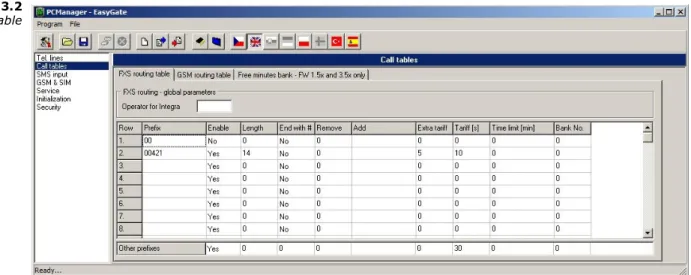
An example in the figure below shows how to bar all international calls with the exception of calls to Slovakia including dialing acceleration by selecting the number length parameter and tariff setting (5 impulses after call connect and then one impulse every 10 seconds). All other calls are enabled and their tariff is one impulse every 30 second.
Operator for Integra
Function No.: 405
In some networks you can add to dialed number # character and PBX subscriber number. Subscriber number is displayed on other side together with CLI. This parameter take place when dialed number doesn't contain # character.
Setting options: 0-8 characters (0-9) Default setting: blank
Caution!
n Configuration using phone line programming (DTMF) is applicable for line
‘Other prefixes’ only.
Prefix
Function No.: -
A prefix identifying the call type (mobile, trunk call, free call, etc.). The letter ‘?’ can be used instead of any number. "Other numbers" line is used for calls with prefixes that are not included in the table.
Setting options: 0-14 characters (0-9,*,#) Default setting: blank
Call enable
Function No.: 391
This parameter allows/bars calls with prefixes included on the same line. Setting options: YES/NO
Default setting: YES
Figure 3.2
Table of Parameters
3.2
36
Number length
Function No.: 393
The parameter defines the expected length of a number with a prefix included on the same line. This enables to start dialing into a mobile network immediately after the last digit is dialed. If the telephone number to be dialed is shorter, a timeout is respected. The "0" setting means that the function is disabled.
Setting options: 0, 3-15 Setting step: 1 Default setting: 0
End with #
Function No.: 394
This parameter enables to establish the call when a # is received. The # character is removed from the dialed number. If a # should be part of the dialed number, this function cannot be used for the given prefix.
Setting options: YES (1)/NO (0) Default setting: NO
Remove
Function No.: 395
The Remove parameter is used for automatic call routing. A defined count of digits (prefix) is removed from the number beginning.
Setting options: 0-20 Setting step: 1 Default setting: 0
Add
Function No.: 396
The Add parameter is used for automatic call routing. A defined string (prefix) is added to the beginning of the number to be dialed.
Setting options: 0-8 characters (0-9,*,#,+) Default setting: blank
Extra tariff
Function No.: 397
Pseudo tariff metering setting (tariff is based on call duration). The Extra tariff parameter defines transmitting of fixed quantity of tariff pulses after call start. This parameter sets minimal call cost.
Setting options: 0-255 Setting step: 1 Default setting: 0
Tariff [s]
Function No.: 398
Pseudo tariff metering setting (tariff is based on call duration). The Tariff
parameter sets the call cost according to call duration. Set how often in seconds do you want to transmit pulses. Smaller number means more expansive call. Zero means not to transmit pulses according to call duration.
Table of Parameters
3.2
Setting step: 1 sDefault setting: 0 s
Time limit [min]
Function No.: 399
After time elapsing is call connection terminated immediately. You can hear beep 30s before end of call. 10s before end you can hear beep every second. The "0" setting means that the function is disabled.
Setting options: 0-255 min Setting step: 1 min Default setting: 0 (disabled)
Bank No
Function No.: -
Special function – with FW 1.5x and 3.5x only. Don’t use this parameter and the menu ‘Free minutes bank’, with detailed setting of free minutes banks, for standard Easy Gate.
GSM or UMTS routing parameters
Incoming calls from mobile network contain the CLI. According to received CLI Easy Gate can do following:
· Reject the call;
· Use function CallBack – automatic call to the GSM subscriber;
· Automatic dial in. EasyGate dials preprogrammed PBX subscriber number (for example switchboard operator) to be connected with calling subscriber.
FXS line Off-Hook to DISA timeout [ms]
Function No.: 500
Timeout between FXS line Off-Hook and automatic dial in according to parameter "Dial in" in the table.
Setting options: 100-25500 ms Setting step: 100 ms
Default setting: 2000 ms
Max. ring time for CallBack
Function No.: 502
Parameter sets up a behaviour for CallBack function. You've got 2 options how to use a Callback on the FXS port:
Simple CallBack - set up for 0. During an incoming call the FXS port gives a ringing. When the FXS port is off-hooked an incoming call is rejected and after 10s the gateway calls back. During those 10s the caller must hang up to be ready for answering the callback call. On the FXS port a melody is played.
Advanced Callback - set up for 1-255. During an incoming call the FXS port gives a ringing. If the caller wants to use a callback functionality he/she must hang up before the parameter Max. ring time for Callback runs out. The gateway then calls back immediately. If the call is answered on the analog side earlier the called party hears the melody. If the call is answered on the mobile network side
Table of Parameters
3.2
38
first then the calling party number hears the melody. If the caller doesn't want to use the Callback he just doesn't hang up and the call is handled as a standard incoming call.Setting options: 0-255 s Setting step: 1 s
Default setting: 5 s
FAX from GSM route to
Function No.: 509
Incoming FAX call from GSM network you can route to telephone line FXS, or to serial line (PCFax). Parameter takes place only on models with FAX converter, on other models FAX calls are routed always to serial line.
Setting options:
-FXS line - Incoming FAX call is routed to FAX machine on FXS line. -COM - Incoming FAX call is routed to serial line
Default setting: FXS line
DATA from GSM route to
Function No.: 508
Incoming DATA call from GSM network you can route to telephone line FXS, or to serial line. Parameter takes place only on models with FAX/DATA converter, on other models DATA calls are routed always to serial line.
Setting options:
-FXS line - Incoming DATA call is routed to modem on FXS line -COM - Incoming DATA call is routed to serial port connected to PC Default setting: FXS line
Caution
n Configuration using phone line programming (DTMF) is applicable for line
‘Other prefixes’ only.
CLI – calling number
Function No.: -
Fill in CLI, to route the call according to parameter on the same table line. It is possible to fill in only prefix for group of CLI's. If parameter "Substring" = 0, you must fill prefix as you see it on display of your mobile phone - It means inclusive of + and international prefix if they are included. If parameter "Substring" > 0, Easy Gate searches filled prefix as substring of the received CLI, but max. to position given by "Substring" parameter. Positions are counted from zero. See examples in "Substring" parameter hint.
Setting options: 0-16 characters (0-9,*,#,+) Default setting: blank
Substring
Function No.: -
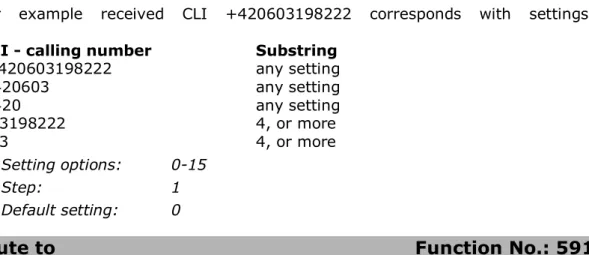
Parameter is used to make filling CLI prefix easier. If parameter "Substring" > 0, EasyGate searches filled prefix as substring of the received CLI, but max. to position given by "Substring" parameter. Positions are counted from zero.
Table of Parameters
3.2
for example received CLI +420603198222 corresponds with settings:CLI - calling number Substring
+420603198222 any setting +420603 any setting +420 any setting 603198222 4, or more 603 4, or more Setting options: 0-15 Step: 1 Default setting: 0
Route to
Function No.: 591
It is possible to route incoming call from mobile network to FXS interface or reject it. When the call is routed to FXS port you can use the CallBack feature. For correct functionality please set up "Max. ring time for Callback" parameter.
Setting options: FXS (0) -incoming call is routed to FXS
FXS CallBack (2) -incoming call is routed to FXS with CallBack functionality
Reject (4) -incoming call is rejected Default setting: FXS
Dial in
Function No.: 592
Parameter "Dial in" is used for automatic connection to switchboard operator, or directly to other subscriber. If this parameter is blank, calling person has telephone line fully at disposal and has to dial the subscriber number by DTMF. You can fill only # character to disable Dial in function.
Setting options: 0-16 characters (0-9,*,#) Default setting: blank
Time limit [min]
Function No.: 599
After time elapsing is call connection terminated immediately. You can hear beep 30s before end of call. 10s before end you can hear beep every second. The "0" setting means that the function is disabled.
Setting options: 0-255 min Setting step: 1 min Default setting: 0 min
Free minutes bank
See section 4.6 for detailed description. This option can be used with Firmware 3.5x only.
Table of Parameters
3.2
40
SMS Sending Input Parameters
Telephone number for SMS
Function No.: 600
The telephone number to which an SMS is sent upon SMS input activation. If blank, the function is off.
Setting options: 0-16 characters (0-9,*,#,+) Default setting: blank
SMS text
Function No.: -
The SMS text to be sent to the preset telephone number. If the SMS text is blank, an empty SMS is sent.
Setting options: 0-40 characters Default setting: blank
Send if activated longer than [ms]
Function No.: 601
Set the SMS activation time necessary for SMS sending. This parameter prevents SMS sending in the event of short-time activation. If a "0" is selected, SMS is sent immediately upon the input activation.
Setting options: 0-25500 ms Setting step: 100 ms Default setting: 0 ms
Timeout after sending [s]
Function No.: 602
Set the Time of inactivity after SMS sending. During this timeout no SMS is sent even if the SMS input gets activated. This prevents sending multiple SMS units in the case of repeated activation of the input.
Setting options: 0-2550 s Setting step: 10 s Default setting: 0 s
GSM & SIM Parameters
Blocked for operator
For information only – not to be set. Provider blocking is set by manufacturer in EasyGate. If EasyGate is blocked to the provider, no other mobile provider's SIM card can be used. If an unacceptable SIM card is used, the gateway does not registered to the network, LED network flashes quickly.
Table of Parameters
3.2
CLIR - incognito
Function No.: 701
Sets the calling line identification restriction (CLIR) for outgoing calls from Easy Gate. Attention, before enabling it is necessary to activate this feature by mobile operator, otherwise outgoing calls can be rejected by the mobile network.
Setting options: -According to provider (0) - depending on how the function is selected in the moble network
-Activation (1) - ID is not sent. -Suppression (2) - ID is always sent Default setting: According to provider
Roaming enable
Function No.: 702
You can make EasyGate work even if it is registered to a foreign mobilní network. Setting options: -Disable (0) – the gateway logs out of a foreign
network and attempts to register again in within 5 minutes.
-Enable (1) - EasyGate works in any mobile network. Default setting: Disable
Call Handover workaround
Function No.: 703
This parameter offers a workaround to prevent problems during call handover into the 1800 MHz (or 1900 MHz) band, caused by non-conforming configurations of the network.
Setting options: -Disable (0) -Disable workaround. -Enable (1) -Enable workaround.
-Select only when handover into a 1800/1900MHz band fails.
Default setting: Disable
GPRS APN
Function No.: -
GPRS APN (Access Point Name) for automatic setting. Setting options: 0-40 characters
Default setting: blank
AMR Enable
Function No.: 704
You can disable AMR (Adaptive Multi Rate) to improve voice quality in some GSM networks
Setting options: -Enable (1) -Disable (0) Default setting: Enable
Table of Parameters
3.2
42
Low credit checking with prepaid SIM
Time period for low credit checking [h]
Function No.: 710
Set to change time interval between credit checks. If your credit drops under defined value, EasyGate sends SMS "LOW CREDIT". The "0" setting means that the function is disabled.
Setting options: 0-255 h
Step: 1 h
Default setting: 0
Code for credit checking
Function No.: 711
Credit in prepaid SIM cards is checked by network function, which displays text message on mobile phone display. Code of network function must be terminated with "#" symbol.
Attention
n Find out if you have to pay for this function. Every check can lower your
credit.
Setting options: 0-8 characters (0-9,*,#,+) Default setting: blank
Minimal credit
Function No.: 712
Set minimal credit value to send warning SMS "LOW CREDIT". If credit is lower then given value, warning SMS is send after every credit check, until you recharge your SIM card.
Setting options: 0-999
Step: 1
Default setting: 0
Credit value position in received SMS
Function No.: 713
If there are more numbers except credit value in text answer (e.g. date, time and so on) EasyGate seeks the number corresponding with credit value from given position in text. The seek algorithm skips every non-number character. If credit value is the first number in text you can leave setting 0. If there are other numbers before credit value, set parameter to text position, from which the algorithm will seek.
Setting options: 0-180
Step: 1
Table of Parameters
3.2
Telephone number for service SMS
Telephone number for service SMS. The number is common for GGMC SMS, for "LOW CREDIT" SMS on prepaid SIM cards and for battery status SMS. To be set in part Service.
Service
Hardware version
EasyGate hardware version - for information only (cannot be modified). Must be used for communication with the manufacturer.
Firmware version
EasyGate firmware version - EasyGate central processor program version. The manufacturer can issue upgrades to extend functions. To load new firmware into EasyGate use the Upgrade function. Keep communicating with the manufacturer.
Serial number
EasyGate serial number - for information only (cannot be changed). Must be used for communication with the manufacturer.
Blocked to operator
Refer to GSM & SIM Parameters.
COM enable
Function No.: 960
With this parameter you can enable/disable the serial interface function. You can disable communication in the operating mode, maintaining the special
programming mode after power up. Setting options: YES/NO Default setting: YES
Time limit for data connections
Function No.: -
After time elapsing is data/fax connection terminated immediately without warning. The "0" setting means that the function is disabled.
Setting options: 0-255 min
Step: 1 min
Table of Parameters
3.2
44
Telephone number for service SMS
Function No.: 714
Telephone number for service SMS. The number is common for GGMC SMS and "LOW CREDIT" SMS on prepaid SIM cards.
Setting options: 0-16 characters (0-9,*,#,+) Default setting: blank
Time period for GGMC SMS [h]
Function No.: 970
Time interval for GGMC SMS sending. GGMC = GSM Gateway Monitoring Centre. The "0" setting means that the function is disabled.
Setting options: 0-255 h
Step: 1 h
Default setting: 0
Battery status SMS
Function No.: 962
Setting of this parameter allows sending SMS with information with battery status. Disconnecting of battery (Battery Error) and connecting of battery (Battery Ready) and critically low voltage (Battery flat) is reported by SMS.
Setting options: enable (1) disable (0) Default setting: disable
Power failure SMS
Function No.: 963
Mains status can be reported when this parameter is set. The report about mains failure and recover is sent with defined delay (Power off/on).
Setting options: disable (0)
Enable with delay 1-255 min Default setting: disable
Initialization
All programmable parameters are arranged in tables according to their functions. You can initialize either all parameters at once or one table of parameters.
Telephone line initialization FXS
Function No.: -
Initialization of all parameters necessary for the telephone line FXS.
Call table initialization FXS
Function No.: -
Initialization of all parameters related to FXS routing table.
Call table initialization GSM
Function No.: -
Table of Parameters
3.2
Initialization of GSM & SIM
Function No.: -
Initialization of all parameters related to the GSM (UMTS) network and SIM card (except the PIN code).
SMS input initialization
Function No.: -
Initialization of all parameters for SMS sending upon SMS input activation.
Global initialization
Function No.: 999
Initialization of all EasyGate parameters including the PIN and service password. Only Global initialization can be done by phone line programming. As parameter of this function service password followed by must be used. This operation isn’t followed by confirmation tone. Successful setting is followed by pause (aprox.10s), during this time period is performed reset of configuration memory. Than is the gateway restarted.
Security Parameters
PIN - value
Function No.: 700
Fill in the PIN value for automatic PIN entering upon EasyGate power up. It is applied only if the SIM card is PIN secured. If the given PIN fails to match the SIM, it is deleted automatically. If entered via a telephone line upon EasyGate start, the PIN is stored automatically.
Setting options: 0, 4-8 characters (0-9) Upon full initialization: blank
Service password
Function No.: 900
Fill the service password for programming via a telephone line. Some parameters can be programmed by DTMF dialing and so the access to programming must be password-protected.
Setting options: 4-8 characters (0-9) Upon full initialization: 12345
4
4.Function and
Use
This section describes the basic and extending functions of the product
2N® EasyGate Pro
Here is what you can find in this section:
n Voice function
n FAX and Data function (optional)
n SMS Sending Input
n USB data connection
Voice function
4.1
48
4.1 Voice function
Outgoing and incoming call establishing procedures for an analog telephone are described for illustration. The procedures are the same for the EasyGate-PBX connection, just remember to program call routing to PBX line with connected EasyGate properly. Check EasyGate’s function by connecting a telephone before. Suppose that a SIM card has been inserted, the PIN code entered or not required, the antenna connected and EasyGate registered to the mobile network – the LED network is permanently on - and you can hear the dial tone upon off-hook.
Outgoing Call
1. Hook off the telephone, you can hear the dial tone and the LED Line starts flashing.
2. Dial the required subscriber number. Since EasyGate receives tone dialing by
default, select the DTMF mode. If your telephone transmits pulse dialing only, program EasyGate to receive pulse dialing.
3. The delay between digits to be dialed may not exceed 5 s (programmable
parameter). After the latest digit and this delay the dialing end is signaled and connection is established.
4. If the called subscriber is available, you can hear the ringing tone. If not, you can hear the busy tone or any of the mobile network provider’s messages. 5. When the called subscriber answers the call, a call is established. The LED
Line is permanently on during the call.
6. Hang up to terminate the call. The LED Line goes off. If the called subscriber is the first to hang up, you can hear the busy tone and hang up.
Incoming Call
1. Ringing signals an incoming call. The Line LED flashes during ringing. If programmed so, EasyGate transmits the CLIP by FSK between the first and second rings. Advanced telephone sets are able to display the CLI.
2. Hook off the phone to establish the call. The Line LED is permanently on
during the call.
3. Hang up to terminate the call. The Line LED goes off. If the called subscriber is the first to hang up, you can hear the busy tone and hang up.
Automatic Call ("Baby Call")
If the BabyCall function is enabled, a pre-programmed period of time is counted down after off-hook. If you do not start dialing within this timeout, EasyGate signals dialing end and starts establishing a call to the pre-programmed number automatically – from now on EasyGate behaves as if a standard outgoing call had been established. Any dialing during the BabyCall timeout cancels this function and a standard outgoing call can be made.
Voice function
4.1
Tariff pulses 16 or 12 kHz
EasyGate has tariff pulse transmitter. You can use tariff pulses for outgoing call pricing. EasyGate offer pseudotariff only – tariff metering doesn’t correspond to real price of call, tariff pulses are transmitted according to programmed parameters and call duration. You must program specific parameters in call table to set tariff metering for different prefixes of dialed numbers.
You can also program EasyGate to transmit tariff pulses as call connect/disconnect signaling if your PBX cannot receive telephone line polarity change signaling.
Configuration of network services
EasyGate provides some of network services to improve possibility of usage. The configuration is done by standard Star-Hash codes you can know from mobile phones. To configure these services:
1. Hook off the telephone, you can hear the dial tone.
2. Enter the Star-Hash code described below.
3. Wait for information tone. You may wait about 3 seconds.
4. Hook on.
Information tones:
Confirmation - OK:
n Confirms that the service was configured correctly.
Confirmation - bad:
n Service was not correctly configured
n Service isn’t activated by your provider
Confirmation - service activated:
n Confirms that the service was configured correctly and the service is
activated.
Confirmation - service deactivated:
n Confirms that the service was configured correctly and the service is
Voice function
4.1
50
Call forwarding
For forwarding activation you must specify <Telephone number> the calls will be forwarded to. You may specify <Call type>, if you want to forward specified call type only. You may specify <Delay time> in seconds for forwarding if no answer too. Description of <Call type> field codes:
Voice: Data: Fax:
Call forwarding unconditional
If activated, incoming calls will be always forwarded to the configured telephone number.
Activation for all call types:
<Telephone number> Activation for selected call type:
<Telephone number> <Call type> Deactivation:
Status check:
Call forwarding if busy
If activated, incoming calls will be forwarded to the configured telephone number if there is call in progress on EasyGate.
Activation for all call types:
<Telephone number> Activation for selected call type:
<Telephone number> <Call type> Deactivation:
Voice function
4.1
Call forwarding if no answer
If activated, incoming calls will be forwarded to the configured telephone number if incoming call isn’t answered during specified timeout. Default timeout is 20 seconds.
Activation for all call types:
<Telephone number> Activation for selected call type:
<Telephone number> <Call type> Activation for all call types and specified delay time:
<Telephone number> <Delay time> Activation for selected call type and specified delay time:
<Telephone number> <Call type> <Delay time>
Deactivation:
Status check:
Call forwarding if not accessible
If activated, incoming calls will be forwarded to the configured telephone number if your EasyGate is not accessible in the mobile network.
Activation for all call types:
<Telephone number> Activation for selected call type:
<Telephone number> <Call type> Deactivation:
Voice function
4.1
52
Call waiting
If the call waiting is activated the incoming call isn’t refused if there is call in progress on EasyGate. If there is the other incoming call during connected call it will be
indicated by tone. See 0. for multiple calls management. Activation:
Deactivation:
Status check:
Call hold
Check if your network supports the service before you use it.
This service relates to Call waiting described in 5.7. If there is call waiting on the line, you have more possibilities what to do. Every action is made by FLASH and DTMF code:
To terminate all held calls, or reject waiting call dial:
To terminating active call and accept the held or waiting call dial:
To place the active call on hold and accept the held or waiting call (switching between two calls) or
To place the active call on hold to have possibility to dial other outgoing call dial:
To place all held calls to active