WSL Course Introduction to Statistics
Software, Installation and Use
Christian W. Hoffmann
Swiss Federal Research Institute WSL
2009-12-06, 14:03:31
Contents
1 Documents and Programs needed, and where to get them 2
2 Editors 3
3 Hints for installation 3
4 Install the Course Material 4
4.1 Get the Course Data . . . 4
4.2 Starting Rfor the first time . . . 4
4.3 Create the working file . . . 5
4.4 QuittingR. . . 5
5 Working with the files 5 5.1 If the html help does not appear . . . 5
5.2 Editing files . . . 5
5.3 Running scripts inR . . . 5
5.4 Results . . . 5
5.5 Improvements . . . 5
6 Automatic Generation of .pdf files 6 6.1 Sweave.sty . . . 6
6.2 Sweave, LATEX, Acrobat . . . . 6
Contact:
• [email protected], most reachable here. • Office: WSL HP D60
• Tel intern: 277, with answering machine Conventions:
• >means ’Item in Menu’ or ’Link to (Double-) Click’
• The Promptof Rwill also be marked by >; it will be mentioned in the first few examples, and must never be typed. After text input<RT>must be pressed.
1 Documents and Programs needed, and where to get them
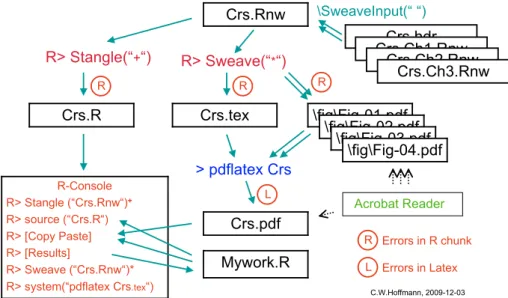
According to one’s needs the course material can be worked on at different levels. The diagram of the structure of data and programs can help to understand better this document, see Fig. 1 on p. 7. All further material is available through
http://www.wsl.ch/forschung/forschungsunits/wald/infomanagement/courses/statistics/ index_EN(English), and
http://www.wsl.ch/forschung/forschungsunits/wald/infomanagement/courses/statistics/ index_DE(German).
These directories will be referred to in the following text.
1. Walk through the course manuscript Crs.pdf (see index_EN), an Adobe Acrobat Reader is needed (newer version!).
2. Working on the programming code Crs.R (see index_EN) using the statistical pro-gramming software package R:
a) Create (on theDesktop, preferably) yourWorking Directory(”WD”)StatsCrs(as you may call it),
b) Installation of the software packageRin the newest versionR-xxx, where at the mo-mentxxx = 2.10.0, by downloading and following the directions in (or: r-project.org ->R FAQ ->R Basics ->How Can R be Installed ->Choose your OS)
• Windows: http://cran.r-project.org/ > Windows > base > R-xxx-win32.exeand README.R-xxx,
• Mac OSX:http://cran.r-project.org/ > MacOSX > R-xxx.dmgandNEWS(the latter will show up as ”The Comprehensive R Archive Network.html” and as a directory of the same name),
c) Copying ofCrs.R(seeindex_EN) (andCrs.Readme.pdf) to theWD, generation of the subdirectory fig in theWD.
d) Downloading of Crs.zip (see index_EN) and unpacking to the WD. If you are more interested, also download AdditionalZusatz.zip.
e) The fileCrs.Rprofiledetermines the starting process of Rand the loading of addi-tional packages needed, see 4.2.
f) Execution of R> source("Crs.R"). All variables and figures of the course. From now on any parts of the Rcode can be executed in any order without fear of being stuck with missing variables.
3. Modification of individual chapters or generation of an own manuscript: a) Installation of editors (see Chap. 2) and of a LATEX system:
• Windows: TexLive fromhttp://www.tug.org/texlive/acquire.html
• Mac OSX: TexShop.dmg from http://www.tug.org/mactex/ > MacTeX.mpkg. zip.
b) Using the editors (e.g. Tinn-R and Aquamacs) on data of type.Rnw,
c) Treating of..Rnwwith RexecutingR> Sweave("..Rnw"), resulting in files..tex, d) Type setting of..texexecutingpdflatexorTexShop, resulting in files ..pdf. In the following chapters some of these points will be clarified some more.
2 Editors
• Windows:– Tinn-R from http://www.sciviews.org/Tinn-R/
– TextPad from http://www.textpad.com/
– NotePad2 fromhttp://www.flos-freeware.ch/notepad2.html
– Crimson Editor from http://www.crimsoneditor.com/
• Mac OSX:
– Aquamacs.dmg fromhttp://www.cognitiones.de/doku.php/aquamacs
– TexShop.dmg from http://www.tug.org/mactex/
– Alpha fromhttp://www.kelehers.org/alpha/
– TotalEdits fromhttp://totaledit.softonic.de/
The editors mentioned can be tuned to show pairs of brackes and braces, key words of the syntax, and thus assist substantially to write correct programs. Some offer the possibility to send code lines and whole regions directly to theRprocess. At any rate, the pedestrian way of Copy/Pastefrom the editor to the command line of R.
3 Hints for installation
1. Windows: Create a shortcut of the programm ”C:\ProgramFiles\R\R-xxx\bin\Rgui. exe” and specify the ”Working directory” in ”Properties” as the (”WD”) of Ch.1. This is very important!, if you want to start via this shortcut.
2. Mac OSX: At the start of Rthere will pop up the question for the starting directory. If not an explicit setwd(WD})(like
setwd("/Users/OWN_USERNAME/Desktop/StatsCrs")) will bring us to the working direc-tory.
4 Install the Course Material
4.1 Get the Course DataUnpack the course files from Crs.zip (see Ch.1) into the WD StatsCrs. Take care that the subdirectoryfigexists, otherwise create it.
Important: It may happen when unpacking, that an additional StatsCrs inside of (”below”)WD StatsCrsis created which then contains all files (and subdirectories) of the course. In order to establish the correct hierarchy all these files will have to be moved ”up” into WD StatsCrs. The emptied and now superfluousStatsCrsshould be deleted.
Again: Instead of.../Desktop/StatsCrs/StatsCrs/<course files> now correctly
.../Desktop/StatsCrs/<course files>und deletion of.../Desktop/StatsCrs/StatsCrs/.
4.2 Starting R for the first time
1. Windows: Doubleclick the icon R on the desktop, and RGui opens. Navigate File >
Change directory >choose ..Desktop/StatsCrs. 2. Mac OSX:Programs> startAquamacs.app,
• Press consecutively the keys Esc, x and R <RT>, or
• open the fileCrs.R (inWD), press the iconRin the menu bar.
In a frame of Aquamacs the Rprocess will now be started. The question for the starting directory will show (and may be correctly suggested as WD), or do explicitly
R> setwd("/Users/OWN_USERNAME/Desktop/StatsCrs").
3. To adjust the starting process R> source("Crs.Rprofile") has to be executed, then
R> .First(). When a list of source locations is shown, chooseSwitzerlandand acknowl-edge with OK. Expand the window to full screen to show the OK-Button! The required packages are loaded.
4. At the start ofR, in the browser a window there should appearfile:/.../.R/doc/html/ index.html (or similar) showing:
Statistical Data Analysis (R-Logo) Manuals
An Introduction to R The R Language Definition
Writing R Extensions R Installation and Administration
R Data Import/Export R Internals
Reference
Packages Search Engine & Keywords
Miscellaneous Material
About R Authors Resources
License Frequently Asked Questions Thanks
Checking the version of Rcan be done with R> R.Version().
Error messagesshowing up in theRConsole must be taken serously. They help to configure the startup process correctly. Call for help, if necessary.
4.3 Create the working file
Use the fileCrs.R as supplied, or create it usingR> Stangle("Crs.Rnw").
4.4 Quitting R
R> q(), answer ”Save Workspace:” by typing ”y”.
5 Working with the files
5.1 If the html help does not appear
At the start of R the R-help should appear in the browser, see Ch. 4.2. If this ist not the case or if one has killed this browser window inadvertantly, one can get it back by executing
R> help.start(). 5.2 Editing files
Use one of the editors Tinn-R, TextPad, Aquamacs, or TexShop. TexShop offers excellent help and even some courses on writing in LATEX.
1. Windows: If you do not want to useTinn-R, go to theRconsoleR>File>Open Script
> e.g. Crs.R. This editor internal to R does not offer syntax highlighting. Alternative editors are mentioned in Chap. 2.
2. Mac OSX:Aquamacsis an integral working environment, one can work withRseamlessly. It offers good syntax highlighting, data comparison, etc., but you will have to get used to it (it is Emacs after all). TexShopcan also edit files, and will be used for type setting, i.e. it produces.pdf files from LATEX´s .texfiles.
5.3 Running scripts in R
ExecuteR> source("Crs.R"), or copy lines fromCrs.pdfto the command line ofRand execute there.
Results of computations and error messages are shown in the ”RConsole” at theRprompt. When graphic plots are generated, they will be shown in a window titledR Graphics .... 5.4 Results
Results of computations can be copied from the R Console to an own file and then be saved. Whole sessions can be saved by a special command, in Aquamcs use File > Save Buffer as
on the R buffer. The window with a plot inside can be saved from its menu, under a suitable name, e.g. in the subdirectoryfigof the WD.
5.5 Improvements
6
Automatic Generation of .pdf files
6.1 Sweave.styA fileSweave.styis supplied, it should also go in theWD. It is used in R> Sweave().
6.2 Sweave, LATEX, Acrobat
1. ExecuteR> Sweave("Crs.Rnw")and wait for the message ”You can now ... ”.
2. Windows: R> system("pdflatex Crs") (execute twice!), this will create Crs.pdf which can be opened with the Adobe Acrobat Reader. Do not forget to get the newest version of the Reader!
3. Mac OSX: InTexShopdo> Ablage > "OffnenoderZuletzt benutzte Dokumente > Crs.tex,
Command-T (execute twice!), this will create Crs.pdfand open it.
7 Information flow and
R
internal programming
Crs.hdr R-Console R> Stangle (“Crs.Rnw“)+ R> source (“Crs.R“) R> [Copy Paste] R> [Results] R> Sweave (“Crs.Rnw“)* R> system(“pdflatex Crs.tex“) Crs.pdf \fig\Fig-01.pdf Crs.tex Crs.R Crs.Rnw R> Stangle(“+“) R> Sweave(“*“) \SweaveInput(“ “) \fig\Fig-02.pdf \fig\Fig-03.pdf \fig\Fig-04.pdf > pdflatex Crs R L R R R L Errors in R chunk Errors in Latex Acrobat Reader Crs.Ch1.Rnw Crs.Ch2.Rnw Crs.Ch3.Rnw Mywork.R C.W.Hoffmann, 2009-12-03Figure 1: Files and programs, information flow in the system ”R”, ”LaTeX”, ”Acrobat”. For Mac OSX we have ”TexShop, Command-T” instead of ”pdflatex Crs”.