c++
User's Guide
Refer to the file REDIST.TXT in the \BCS\DOC directory for a list of files that you can redistribute in accordance with the No-Nonsense License Statement.
Borland may have patents and/or pending patent applications covering subject matter in this document. The furnishing of this document does not give you any license to these patents. \
COPYRIGHT © 1996 Borland International. All rights reserved. All Borland products are trademarks or registered trademarks of Borland International, Inc. Other brand and product names are trademarks or registered trademarks of their respective holders.
Printed in the U.S.A.
lEOR0196 WBC1350WW21770 97989900-9 8 7 6 5 4
D2
Contents
Introduction
1
How this book is organized. . . 1
Typefaces and icons used in this book . . . 1
Part I
The integrated development
3
Chapter 1
Getting started
5
Starting the Borland C++ IDE. . . 5The IDE menu system . . . . 6
The IDE SpeedBar. . . . 7
Using SpeedMenus in the IDE . . . 7
Using the Edit window . . . 7
Creating a new file.. . . . 8
Working with simple projects . . . 8
Creating a DOS program using EasyWin. . . 9
Creating a Windows program . . . 10
Modifying the program target . . . 11
Single file programs. .-. . . 12
Customizing the IDE. . . .12
Configuring the IDE editor . . . 13
Syntax highlighting. . . 14
Customizing the SpeedBars. . . 14
Setting IDE preferences . . . 16
Saving your IDE settings. . . 16
Running other programs from the IDE . . . . .16
Using online Help in Borland C++ . . . 16
Online Help Organization. . . 17
Getting Help in Borland C++ . . . 17·
Getting context-sensitive Help . . . 18
Accessing and using contents screens. . . . 18
Using the index . . . 18
Searching for keywords . . . 18
Help SpeedMenus . . . 19
Using Windows Help . . . .19
Chapter 2
Managing projects
21
What is project management? . . . .21Using the Project Manager . . . .22
Creating a project. . . .24
Setting target options with the New Target dialog box . . . 24
. Specifying the source node types . . . 27
Opening existing projects. . . 27
Adding source nodes to your project . . . . .27
Deleting source nodes. . . 28
Adding files without relative path information . . . .28
Editing source node attributes . . . .28
Adding target nodes to your project. . . .29
Deleting target nodes.. . . 29
Editing target attributes using TargetExpert. . . .30
Moving nodes within a project. . . .30
Copying nodes in a project . . . .30
Converting project files into makefiles . . . .31
Customizing the Project window . . . .31
Grouping sets of files with Source Pools. . . . 32
Creating a Source Pool. . . .33
Translators, viewers, and tools .. . . . 33
Adding translators, viewers, and tools to the IDE . . . 34
Chapter 3
Specifying project options
and compiling
37
Setting project options . . . 37Using Style Sheets . . . 38
Predefined Style Sheets . . . 38
The default project options . . . 38
Managing Style Sheets. . . 38
Attaching Style Sheets to a node. . . 39
Sharing Style Sheets between projects . . . 40
Project Description Language files. . . 40
Setting local overrides. . . 41
Viewing project options. . . .42
Compiling projects . . . . .43
Compiling part of a project. . . 44
Fixing compile-time errors. . . 44
Viewing errors . . . .45
Fixing errors. . . .45
Calling Conventions. . . .45
C . . . 46
Pascal . . . .46
Register . . . .46
Entry/Exit code . . . 46
Windows all functions exportable . . . .46
Windows explicit functions exported. . . . .47
Windows smart callbacks, all functions exportable. . . .47
Windows smart callbacks, explicit functions exportable . . . .48
Windows DLL, all functions exportable . . . .48
Windows DLL, explicit functions exported. . . .48
Memory model. . . .48
Assume SS equals DS . . . .49
Always (DOS only) . . . .49
Default for memory model. . . .49
Never . . . 49
. Automatic far data. . . .49
Far data threshold . . . .50
Far virtual tables . . . .50
Fast huge pointers . . . .50
Model . . . .51
Compact . . . 51
Huge . . . 51
Large . . . 51
Medium . . . 51
Small. " . . . 52
Tiny . . . 52
Put considlli ::;irlllg,::; III cuue ::;eg,UlellL::; . . . .J2 Processor. . . .52
16-bit instruction set. . . . .52
80186 . . . 52
80286 . . . 53
80386 . . . 53
8086 . . . 53
i486 . . . 53
Data alignment. . . .53
Byte alignment . . . .53
Double word (4-byte) . . . 53
Quad word (8-byte) . . . 54
Word alignment (2-byte) . . . 54
Segment names code. . . .54
Code . . . 54
Code class. . . .54
Code group . . . 54
Code segment . . . 54
Segment names data. . . .55
Initialized Data . . . .55
Initialized data class . . . .55
Initialized data group . . . 55
Initialized data segment. . . . 55
Uninitialized data . . . .55
ii Uninitialized data (BSS class) . . . 56
Uninitialized data (BSS group) . . . 56
Uninitialized data (BSS segment) . . . 56
Segment names far data. " . . . .56
Far data . . . 56
Far data class . . ; . . . 56
Far data group. . . 56
Far data segment . . . 56
Far virtual tables . . . 57
Virtual table class. . . 57
Virtual table segment. . . 57
32-bit compiler options . . . 57
Use Borland optimizing compiler . . . .57
Use Intel optimizing compiler . . . 57
32-bit compiler options . . . .57
Calling conventions . . . 58
C . . . 58
Pascal . . . 58
Register. . . 58
Standard Call (32-bit compiler onlyf .. 58
Processor. . . ... . . 59
32-bit instruction set . . . 59
Build Attributes options . . . 60
Always build . . . .60
Build when out of date. .60 Can't build. . . .60
Exclude from parent. . .60
Never build . . . .60
C++ options . . . 60
C++ compatibility . . . 61
'deep'virtualbases . . . 61
Calling convention mangling compatibility . . . 61
Disable constructor displacements . . . 61
Do not treat 'char' as distinct type . . . 61
Don't restrict scope of 'for'loop expression variables. . . 62
Pass class values via reference to temporary . . . 62
Push 'this' first for Pascal member functions. . . 62
Treat 'far' classes as 'huge' . . . 63
Virtual base pointers. . . 63
Always near. . . 63
Same size as 'this' pointer . . . 63
Vtable pointer follows data members. . . . 64
Exception handling / RTTI. . . . .64
Enable exceptions . . . . 64
Enable run-time type information. . . . 64
Enable compatible exceptions . . . 64
Enable destructor cleanup. . . 65
General . . . 65
Zero-length empty base classes . . . 65
Member pointers . . . , . . . 66
Honor precision of member pointers . . . . 66
Member pointer representation . . . 66
Smallest for class . . . 66
Support all cases . . . 66
Support multiple inheritance . . . 66
Support single inheritance . . . 66
Templates . . . 67
Templates instance generation . . . 67
External. . . . 67
Global. . . . 67
Smart . . . 67
Virtual Tables . . . 68
Virtual tables linkage . . . 68
External. . . 68
Local . . . 68
Public . . . 68
Smart . . . 68
Compiler options. . . .69
Defines . . . 69
Defining macros from the IDE . . . 69
Defining macros on the command line . . . 69
Code generation. . . 69
Allocate enums as ints. . . 70
Duplicate strings merged . . . 70
fastthis . . . 70
Register variables. . . . 71
Automatic . . . . 71
None . . . 71
Register keyword. . . . 71
Unsigned characters . . . 72
Floating point . . . 72
Correct Pentium FDN flaw. . . 72
Fast floating point . . . 73
No floating point. . . 73
Compiler output. . . 73
Autodependency information . . . 73
Generate COMDEFs. . . 74
Generate underscores . . . 74
Source . . . 74
Identifierlength . . . 74
Language compliance . . . 75
ANSI ... , . . . 75
Borland extensions . . . 75
Kernighan and Ritchie. . . 75
UNIX V' . . . 75
MFC compatibility. . . 75
Nested comments . . . 76
Debugging . . . 76
Browser reference information in OBJs . . . 76
Line numbers. . . 77
Out-of-line inline functions. . . 77
Standard stack frame . . . 78
Test Stack Overflow . . . 78
Precompiled headers. . . .78
Cache precompiled header. . . 79
Precompiled header name . . . 79
Precompiled headers . . . 79
Do not generate or use. . . 79
Generate and use . . . 79
Use but do not generate . . . 79
Stop precompiling after header file . . . 80
Directories options. . . 80
Source directories. . . .80
Include . . . 80
Library . . . 80
Source . . . 80
Specifying multiple directories . . . 81
File search algorithms . . . .81
#include-file search algorithms . . . 81
Library file search algorithms . . . 81
Output Directories . . . .82
Intermediate . . . 82
Final . . . 82
Guidelines for entering directory names . . . 82
Librarian options. . . 83
Case-sensitive library . . . . 83
Create extended dictionary . . .83
Generate list file. . . . 83
Library page size . . . .83
Purge comment records. . . .84
Linker options . . . . 84
16-bit linker . . . .. . . . . 84
Discard nonresident name table. . . 84
Enable 32-bit processing . . . 84
Inhibit optimizing far call to near . . . 84
Initialize segments . . . 85
Linker goodies . . . 85
Segment alignment. . . 85
Transfer resident names to nonresident names table . . . 85
16-bit optimizations . . . .86
Chain fixups. . . 86
Iterate data . . . 87
Minimize resource alignment . . . 87
Minimize segment alignment . . . 87
32-bit linker . . . 87
Allow import by ordinal . . . 88
File alignment (in hexadecimal) . . . 88
Image base address (in hexadecimal) . . . . 89
Image is based . . . 89
Maximum linker errors . . . 89
Object alignment (in hexadecimal) . . . 89
Reserved heap size (in hexadecimal) . . . : 90
Reserved stack size (in hexadecimal) . . . . 90
Verbose. . . . ~ . . . 90
General . . . 91
Case-sensitive exports and imports . . . 91
Case-sensitive link . . . 91
Code pack size . . . 91
Default libraries. . . 91
Include debug information . . . 92
Pack code segments . . . 92
Subsystem version (major.minor) . . . 92
Command-line usage . . . 93
Map file . . . 93
Include source line numbers . . . 93
Map file . . . 93
Off . . . 93
Publics . . . 94
Segments. . . 94
Print mangled names in map file. . . 95
Warnings. . . 95
"No stack" warning. . . 95
32-bit warnings. . . 95
Warn duplicate symbol in .LIB . . . 95
Make options . . . .96
Autodependencies . . . 96
Cache . . . 96
Cache and display . . . 96
None . . . 96
Use . . . 96
Break make on. . . : . . . 96
Errors . . . 96
Fatal errors. . . 96
Warnings . . . 97
New node path . . . 97
Messages options. . . .97
ANSI Violations. . . 97
Display warnings. . . 98
All . . . 98
None . . . 98
Selected . . . 98
General . . . 98
User-defined warnings . . . 99
Inefficient C++ coding . . . 99
Inefficient coding . . . 99
Obsolete C++ . . .100
Portability . . . . . .100
iv Potential C++ Errors. . . . .. 100
Potential errors. . . . 101
Stop after ... errors . . . .. . 101
Stop after ... warnings . . . 102
Optimization options . . . 102
General settings. . . . 102
16 and 32-bit. . . . 102
Common subexpression. .. . . .102
No optimization. . . .102
Optimize Globally . . . .103
Optimize locally . . . 103
Induction variables . . . 103
Inline intrinsic functions. . . .104
16-bit . . . 104
Assume no pointer aliasing. . . .104
Copy propagation . . . .105
Dead code elimination. . . .105
Global register allocation . . . 105
Invariant code motion. . . .105
Jump optimization . . . 106
Loop optimization . . . 106
Suppress redundant loads . . . . 107
Windows prolog/ epilog . . . .107
32-bit . . . 107
Cache hit optimizations (Intel compiler only) . . . 107
Optimize across function boundaries (Intel compiler only) . . . 107
Pentium instruction scheduling . . . . 108
General optimization settings . . . . 109
Disable all optimizations . . . 109
Optimize for size. . . . 109
.Optimize for speed . . . 109
Use selected optimizations . . . 110
Resources options . . . 110
16-bit Resources. . . . 110
Target windows version . . . .. 110
Windows 3.1. . . ... 110
Windows 95 . . . 110
Pack fastload area . . . . 111
Librarian. . . .. . . . 111
Case-sensitive library . . . . 111
Create extended dictionary. . . .111
Generate list file . . . . 111
Library page size. . . . .. . . . .111
Purge comment records. . . .112
32-bit Resources . . . 112
Language . . . .112
Major . . . 112
Minor . . . 112
Target Windows version . . . . . . . 112
Object search paths . . . .113
16 and 32-bit command-line switches . . . .113
C++ compile. . . .113
Compile .OBJ to filename . . . 114
Compile to .ASM, then assemble . . . 114
Compile to .OBJ, no link . . . 114
Compile to assembler . . . 114
Create a map file . . . 114
Pass option to linker . . . .114
Specify assembler. . . .114
Specify assembler option . . . .115
Specify executable file name . . . .115
Undefine symbol. . . .115
16-bit command-line switches. . .. . . . . .115
Compile to DOS .COM . . . .115
Compile to DOS .EXE . . . ... 115
Compile to DPMI .EXE . . . .115
Enable backward compatibility options .. 115
Expanded memory swapping . . . ..116
Extended memory swapping. . . .116
Generate 8087 instructions . . . .116
Generate overlay code. . . .116
Link DOS .COM . . . .116
Link OOS .EXE . . . .116
Link DPMI.EXE . . . .. . . . .117
Link Windows .DLL . . . ' . . . 117
Link Windows .EXE . . . .117
Overlay the compiled files . . . .117
Overlay the compiled files . . . . J,J7 Specify option to RLINK . . . .117
32-bit command-line switches. . . .117
Generate a multi-threaded target . . . .118
Link 32-bit.DLL file . . . 118
Link 32-bit.EXE file . . . 118
Link for 32-bit console application. . . .118
Link using 32-bit Windows API . . . .118
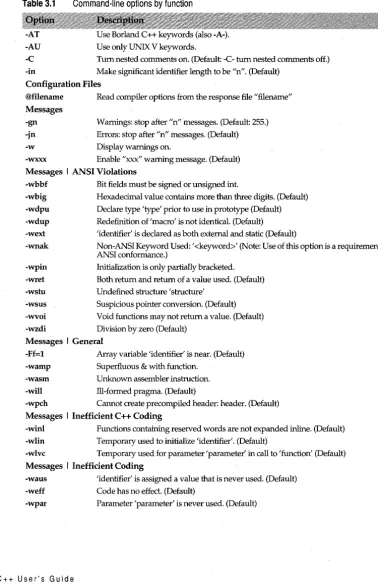
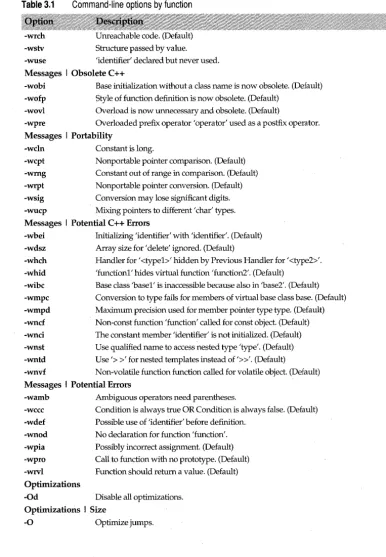
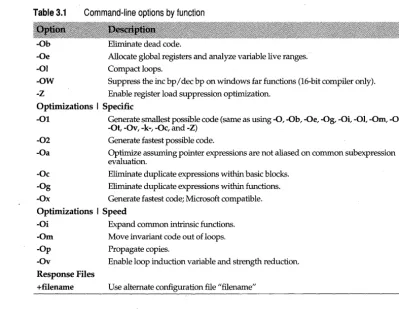
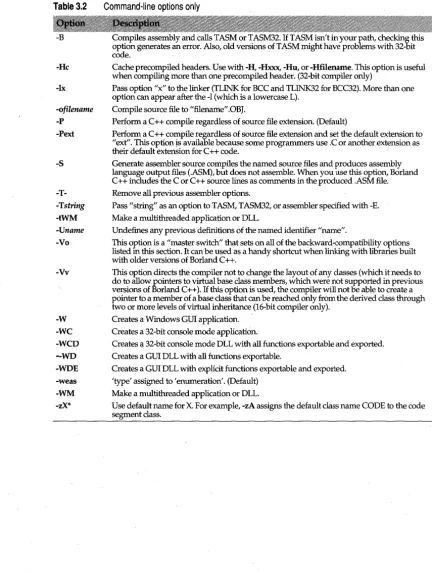
Command-line options by function . . . 118
Command-line options quick reference. . . 124
Chapter 4
Building Applications with
AppExpert
127
Steps for Creating an Application with AppExpert. . . . 128Application options. . . . 128
Application I Window Model . . . .129
MDI (Multiple Document Interface) . . . 129
SDI (Single Document Interface). . . .129
Dialog Client . . . .129
Document/View. . . .129
Application I Basic Options . . . . 129
Target Name . . . .129
Base Directory . . . .. . . . .130
Application I Basic Options I Features to Include . . . . 130
Dockable Toolbar. . . .. 130
Status Line. . . . 130
Recently Used Files List . . . 130
Registry Support. . . . 130
Drag/Drop . . . .. . . .130
Printing . . . . 130
Mail Support . . . .130
Help File Support . . . .. 131
Help File Name. . . .. 131
Application I Advanced Options . . . . 131
Application Startup State. . . .. 131
Control Style . . . .131
Application I Advanced Options I Application Startup State . . . . 131
Normal (sizeable). . . ; . . . . .. 131
Minimized (iconic). . . .131
Maximized (entire screen) . . . 132
Application I Advanced Options I Control Style . . . . 132
Standard Windows . . . .132
Borland BWCC. . . . . . . 132
MS Control 3D . . . .132
Application I OLE 2 Options. . . . 132
OLE 2 Container Options. . . .132
OLE 2 Server Options. . . .132
Enable Automation in the Application . . .132
Server ill. . . . .132
Application I Code Generation Control . . 133 Target Name . . . .133
Base Directory . . . .133
Source Directory . . . .133
Header Directory. . . .133
Main Source File . . . . ~. . . . .133
Main Header File. . . ... 133
Application Class. . . .133
About Dialog Class . . . .134
Use Long File Names . . . .. 134
Comments. . . .. 134
Terse . . . 134
Verbose. . . .134
Application I Administrative Options . . . 134
Version Number . . . .134
Copyright . . . • . . . .134
Description . . . . 134
Author . . . 134
Main Window options. . . . 135
Window Title . . . . 135
Main Window I Background Color . . . . .135
Use Default Color . . . 135
Use System Color Constant. . . . .135
Use Specified Color . . . . .135
Main Window I Basic Options. . . . .135
Window Styles . . . . .136
Caption. . . .. . . . . .136
Border . . . 136
Max Box . . . 136
MinBox . . . 136
Vertical Scroll . . . 136
Horizontal Scroll . . . . .136
System Menu . . . . .136
Visible . . . . .136
Disabled . . . 136
Thick Frame. . . . .136
Clip Siblings: . . . . .137
Clip Children . . . . .137
Main Window I SDI Client Window . . . .137
Client/View Class . . . . .137
Document Class . . . . .137
Description . . . . .137
Filters. . . . .137
Default Extension. . . . .137
Class Name . . . . .137
Source File. . . . .. . . . .138
Header File . . . . .138
Client/View Class . . . . .138
Main Window I MDI Client Window. . . .138
Client Class . . . . .138
Source File. . . . .138
Header File . . . . .139
Main Window I Dialog Client Window . .139 Client Class . . . . .139
Source File. . . . .139
Header File . . . . .139
Dialog ID. . . . .139
Include a Menu Bar . . . . .139
MDI Child/View Options. . . . 139
MDI Child Class . . . 140
Source File . . . . 140
Header File. . . . 140
MDI Child/View I Basic Options . . . 140
MDI Client/View Class . . . 140
Document Class . . . . .140
Description . . . 141
Filters. . . . .141
Default Extension . . . 141
Class Name . . . 141
Source File . . . 141
Header File . . . . .141
vi
ChapterS
Managing classes with ClassExpert 143
Starting ClassExpert. . . . 143ClassExpert Classes pane . . . . 144
Classes pane SpeedMenu. . . . 144
Add New Class. . . ... 144
Automate Class. . . . .144
Delete Automation . . . 144
View Document Templates . . . 144
View Class Info . . . .. .144
Edit Source . . . 145
Edit Header . . . 145
Edit Dialog . . . 145
Edit Menu . . . . .145
ClassExpert Events pane . . . . 145
Events pane SpeedMenu . . . . .145
Add Handler . . . . .146
Delete Handler . . . . .146
Add Instance Variable . . . . .146
Delete Instance Variable . . . 147
Add Data . . . 147
Delete Data . . . .. . . . 147
View Data . . . . .147
Add Method. . . .. 147
Delete Method. . . . .148
View Method . . . . .148
Add Property . . . . .148
Delete Property . . . . 148
View Property. . . . .148
Events I Automation . . . . .149
Events I Command Notifications. . . . 149
Events I Control Notifications . . . 149
Events I Virtual Functions . . . . .149
Events I Windows Messages . . . 149
ClassExpert Edit pane . . . . 150
Edit pane SpeedMenu. . . . .150
Use Class. . . . .150
Using Rescan. . . . 150
Deleting a class . . . . 150
Moving a class . . . . 151
Renaming an AppExpert element. . . . 151
Importing a class . . . . 151
Rebuilding the .APX database file. . . . 152
Chapter
6
Browsing through your code
153
Using the Browser. . . 153Starting the Browser . . . . 154
Browser views . . . . .154
Browsing objects (class overview) . . . 154
Browsing global symbols . . . . 154
Search . . . 155
Browsing symbols in your code . . . . 155
Symbol declaration window . . . .155
Browsing references . . . .156
Class inspection window . . . .156
Browser filters and letter symbols . . . . 156
To view all instances of a particular type of symbol. . . . 157
To hide all instances of a particular type of symbol. . . . 157
To change several filter settings at once . . . 157
Customizing the Browser . . . . 157
Chapter 7
USing the integrated debugger
159
Types of bugs . . . " . , . 159 Run-time errors . . . .159Logic errors . . . 160
Planning a debugging strategy. . . . 160
Starting a debugging session . . . . 160
Compiling with debug information . . .. .161
Running your program in the IDE . . . .161
Specifying program arguments . . . .162
Controlling program execution. . . . 162
Running to the cursor location . . . 163
The execution point. . . .163
Finding the execution point. . . .163
Stepping through code. . . . 164
Statement Step Into . . . 164
Statement Step Over. . . .166
Debugging member functions and external code . . . .166
Running to a breakpoint. . . . 166
Pausing the program. . . . 166
Terminating the program . . . 167
Using breakpoints . . . 167
Debugging with breakpoints . . . . 167
Setting breakpoints. . . .168
Setting an unconditional breakpoint . . . .168
Setting a conditional breakpoint. . . .168
Setting other breakpoints . . . .. . . . .168
Setting breakpoints after program execution begins . . . .169
Creating conditional breakpoints. . . . 169
Removing breakpoints. . . . .. . . .170
From an Edit window. . . .170
From an Edit window or the Disassembly pane of the CPU window. . . .. 170
From the Breakpoints window. . . .170
Viewing and editing code at a breakpoint . 171 Viewing code at a breakpoint . . . ... 171
Editing code at a breakpoint . . . .171
Resetting invalid breakpoints. . . . 172
Using breakpoint groups . . . . 172
Creating a breakpoint group. . . .172
Disabling or enabling a breakpoint group . . . 172
Using breakpoint option sets . . . 172
Creating a breakpoint option set. . . .173
Associating a breakpoint with an option set . . . 173
Changing breakpoint options. . . . 173
Changing the color of breakpoint lines . . . 173
Using the Breakpoints window . . . 174
Aboutthe Breakpoints window . . . 174
Integrated debugger features . . . 175
Add breakpoint. . . .175
Qualifiers . . . . . . . . 175
Other . . . 175
Source breakpoint . . . 175
Address breakpoint . . . .176
Data watch breakpoint . . . .. 176
C++ exception breakpoint . . . 176
as
exception breakpoint . . . 177Thread breakpoint. . . .177
Module breakpoint. . . .. 177
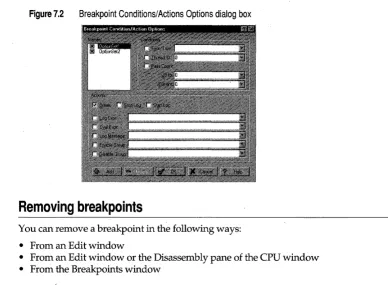
Breakpoint Conditions/ Action Options .. 177
Names . . . 178
Conditions . . . . . . . .178
Expr. True. . . . . . . .. 178
Thread ID . . . . .179
Pass Count . . . 179
Actions . . . .179
Break . . . 180
Stop Log. . . .180
Start Log . . . 180
Log Expr . . . 1 8 0 Eval Expr . . . ... . . .180
Log Message . . . . . . . . .180
Disable Group . . . . . . . .181
Enable Group . . . 1 8 1 Add Breakpoint Conditions / Action Option Set.... . . .181
Edit Breakpoint dialog box . . . .181
Examining program data values . . . 181
ModifYing program data values. . . . 182
Understanding watch expressions. . . . 182
Using the Watches window . . . 182
Formatting watch expressions . . . . 183
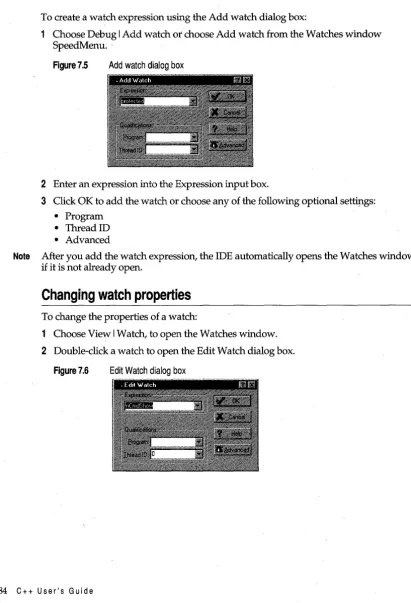
Changing watch properties . . . . 184
Edit Watch dialog box. . . .185
Disabling and enabling watches . . . . 185
Deleting a watch. . . . 185
Evaluating and modifying expressions . . . 185
Evaluating expressions . . . .186
Modifyjng the values of variables . . . .187
Inspecting data elements . . . 188
Displaying low-level information about a running program . . . . 189
Resizing the CPU window panes. . . .189
Listing addresses of disassembled instructions. . . . 189
The Disassembly pane SpeedMenu . . ... 190
Run to . . . 190
Toggle Breakpoint . . . 190
Goto address . . . 190
Goto current Pc. . . ... 190
Goto source . . . .191
Change thread . . . 191
Displaying raw values in addressable areas . of your program. . . . 191
The Dump pane SpeedMenu. . . .. 191
Displayas . . . 192
Displaying raw values in your program stack . . . " . . . 192
The Stack pane SpeedMenu. . . . . . . 192
Goto top frame . . . .193
Goto top of stack . . . .193
Displaying CPU registers . . . 193
The Registers pane SpeedMenu . . . .. 193
Change Thread . . . .193
Increment register . . . ... 193
Decrement register. .. . . . .. 193
Zero register. . . .193
Change register. . . .194
Show old registers/Show current registers. 194 Displaying flags and current information. .194 The Flags pane SpeedMenu. . . .. 194
Toggle flag . . . 195
Viewing function calls. . . . 195
Navigating to function calls. . . .195
Debugging dynamic-link libraries. . . . 196
Chapter 8
Compiling and linking from the
command line
197
Using the command-line compilers . . . : 197viii Command-line compiler syntax . . . . 198
Default settings . . . 198
Command-line options . . . . 198
Option precedence rules . . . . 199
Using compiler configuration files. . . . 199
Using response files . . . . 199
Entering directories for command-line options . . . . 200
Using TLINK and TLINK32. . . 201
!LINK command-line syntax. . . . 201
Linker configuration files . . . . 203
Linker response files. . . . 203
Using the linkers with the command-line compilers. . . . 204
Linking libraries . . . . 204
Module definition file reference. . . 205
Module definition file defaults . '. . . . 206
CODE statement . . . .. . . . . 206
DATA statement . . . 207
DESCRIPTION statement. . . . 207
EXETYPE statement . . . . 207
EXPORTS statement. . . . 208
HEAPSIZE statement . . . . 209
IMPORTS statement. . . . 209
LIBRARY statement . . . . 210
NAME statement. . . . 210
SECTIONS statement . . . . 211
SEGMENTS statement. . . . 211
STACKSIZE statement. . . . 212
STUB statement. . . . 213
, SUBSYSTEM statement . .'. . . . 213
Example module definition file. . . . 214
Part II
Resource Workshop user's guide
217
Chapter 9
Getting started with Resource
Workshop
219
What is a resource? . . . .. . . . 219Why you should link resources to your applications. . . 220
What is a resource script(.RC) file? . . . 220
What is a binary resource (.RES) file? . . . . 221
Setting preferences. _. . . 221
Edit I Undo . . . 222
Edit I Redo . . . 222
Starting Resource WorkShop. . . . 222
Chapter 10
Working with resource p,rojects
223
Creating a new resource project . . . .223Opening an existing resource project . . . .224
Saving a resource project. . . .224
Embedding a resource in a resource project 225 Linking a resource to a resource project. . .225
Using the Resource Project window. . . . .226
Embedded and linked resources. . . . .226
Status line . . . . .226
Chapter 11
Creating bitmaps, cursors, and
icons
229
Working with bitmaps. . . . 229Creating a new bitmap. . . . 229
Creating a new bitmap in a standalone file. . 230 Editing an existing bitmap . . . . 230
Changing the attributes of a bitmap. . . . 231
Deleting a bitmap resource . . . . 231
Testing a bitmap . . . . 231
Programming a bitmap with OWL . . . . 231
Progra:rnmmg a bitmap with the Windows API . . . . 232
Working with cursors . . . . 232
Creating a new cursor . . . . 233
Creating a new cursor in a standalone file. . 233 Editing an existing cursor. . . . 233
Design issues. . . .234
Setting the hot spot for a cursor. . . . 234
Deleting a cursor . . . . 234
Deleting a cursor resource. . . .235
Deleting a cursor image . . . .235
Testing a cursor. . . . 235
Adding an image to a cursor resource. . . . . 235
Changing the attributes of a cursor . . . . 236
Copying a cursor image to a new color format . . . 236
Progra:rnmmg a cursor with OWL. . . . 236
Progra:rnmmg a cursor with the Windows API . . . 237
Working with icons. . . 237
Creating a new icon. . . 237
Creating a new icon in a standalone file. . . 238
Editing an existing icon. . . 238
Design issues . . . . 238
Drop shading. . . . . . . . . .239
Adding an image to an icon resource . . . . 239
Changing the attributes of an icon . . . 239
Copying an icon image to a new color format. . . 239
Deleting an icon resource or image. . . 240
Deleting an icon resource . . . . 240
Deleting an icon image . . . . 240
Testing an icon . . . 241
Progra:rnmmg an icon with ObjectWindows 241 J Progra:rnmmg an icon with the Windows API. . . . 241
Chapter 12
Using the Graphics editor
243
Using the Color palette. . . 244Selecting a foreground color. . . 244
Selecting a background color . . . 244
, Transparent and inverted areas. . . 245
Hiding and showing the Color palette. . . . 246
Choosing the number of colors for a resource . . . 246
Customizing colors . . . 246
Modifying the Color palette . . . . 246
Selecting a pen style. . . 247
Selecting a brush shape. . . 247
Selecting a paint pattern . . . 248
Drawing and painting . . . 248
Drawing a line. . . 248
Drawing a shape. . . 249
Filling an area with color . . . 249
Adding text. . . 249
Erasing an area . . . 250
Selecting an area. .,. . . : . . . . 250
Aligning an area.. . . 251
Moving or resizing an area. . . 251
Copying an area . . . 251
Removing an area. . . 252
Moving a graphic around in the
drawing area. . . . 253
Tool palette. . . . ... . . .. . . . . 253
Hiding and showing the Tool palette. . . . . 254
Pick Rectangle tool . . . . 254
Scissors tool . . . . 254
Zoom tool . . . ; . . . . 255
Eraser tool . . . . 255
Pen tool. . . . 255
Paintbrush tool . . . . 256
Airbrush tool . . . . 256
Paint Can tool . . . . 256
Line tool . . . . 257
Text tool . . . '.' . . . . 257
Empty frame tools . . . . 258
Ellipse tool . . . .258
Rectangle tool . . . .258
Rounded Rectangle tool . . . .258
Filled-in frame tools . . . . 258
Filled Rectangle tool . . . .259
Filled Rounded Rectangle tool . . . .259
Filled Ellipse tool . . . .259
Eye Dropper tool . . . .. . 259
Arc tool. . . . 260
Hand tool. . . . 260
Pattern style tool . . ~ . . . . 261
Pen style tool. . . . 261
Airbrush shape tool. . . . 261
Paintbrush shape tool . . . . 262
Chapter 13
Working with resources
263
Resource file types . . . . 264Executable and dynamic-link library files . . 264 Working with binary files . . . .264
Opening and saving .EXE, .DLL, and .RES files . . . .. . . . . .265
Using a resource editor . . . . 265
Renaming a resource. . . ; 265
Deleting a resource . . . .266
Specifying resource memory options . . . .266
Moving a resource . . . .266
16-bit vs. 32-bit resources . . . 266
Saving a resource . . . .267
Saving a resource in a resource script file . .267 x Saving a bitmapped resource as a file. . . . 268
Editing a resource as text . . . . 268
Chapter
14
Working with dialog boxes
271
Using DLGINIT resources. . . 271Creating a new dialog box. . . 272
Creating a new dialog box in a resource script file. . . 272
Editing an existing dialog box. . . 272
Adding a caption to a dialog box. . . 273
Including a menu in a dialog box. . . 273
Choosing a window type, frame style, and dialog box style. . . 273
Specifying dialog box fonts . . . 274
Assigning a custom class to a dialog box . . 274
Setting the position of a dialog box. . . 275
Testing a dialog box. . . 275
Programming a dialog box with OWL. . . . 275
Programming a dialog box with the Windows API. . . 276
Working with controls . . . 276
Adding controls to a dialog box. . . 276
Working with custom controls . . . 277
Duplicating a control . . . 278
Moving and resizing a single control. . . 278
Selecting multiple controls. . . 279
Aligning multiple controls. . . 279
Resizing multiple controls . . . 280
Reordering controls. . . 281
Grouping controls. . . 281
Specifying which controls are tab stops . . . 282
Editing control properties . . . 282
Chapter 15
Using the Dialog editor
283
Using the Property Inspector . . . 283The modal Property Inspector . . . . 283
. The modeless Property Inspector . . . . 284
Displaying the Property Inspector . . . 284
About the Control palette . . . 285
Moving the Control palette. . . . 285
Hiding and showing the Control palette . . 285 To place a control. . . . 285
Selector tool . . . . 286
Push Button tool . . . . 286
Radio Button tool. . . . 287
Check Box tool. . . . 287
Static Text tool . . . 287
Text Edit tool . . . . 288
List Box tool . . . . 288
Combo Box tool. . . . 288
Horizontal Scroll Bar tool . . . . 288
Vertical Scroll Bar tool . . . . 289
Group Box tool . . . . 289
Static Frame tool . . . . 289
Static Rectangle tool . . . . 289
Horizontal Static Line tool. . . . 289
Vertical Static Line tool. . . . 289
Static Picture tool . . . 290
Common page of the Control palette . . . . . 290
Animation tool . . . 290
Tab Controltool. . . . 290
Tree View tool. . . . 291
List View tool . . . . 291
Hot Key tool. . . . 291
Progress Bar tool . . . . 291
Up-Down tool. . . . 291
Track Bar tool . . . . 292
Header tool . . . . 292
Rich Text Edit tool . . . . 292
Status Window tool. . . . 292
Tool Bar tool. . . . 292
BWCC page of the Control palette. . . . 293
BWCC Push Button tool. . . . 293
Adding a bitmap to a BWCC pushbutton. .293 BWCC Check Box tool. . . . 294
BWCC Group Box tool. . . . 294
BWCC Horizontal Line tool. . . . 294
BWCC Radio Button tool. . . . 295
BWCC Vertical Line tool. . . . 295
BWCC Static Text tool . . . 295
Custom page of the Control palette . . . . 295
Data Access page of the Control palette. . . . 295
Data Aware page of the Control palette. . . . 295
Tool palette. . . . 296
Left Sides tool . . . . 296
Horizontal Centers tool . . . . 296
Right Sides tool. . . '. . . 296
Horizontal Center in Dialog tool . . . 297
Tops tool . . . ... . . . 297
Vertical Centers tool. . . 297
Bottoms tool . . . 297
Vertical Centers in Dialog tool. . . 297
Space Horizontally Equal tool. . . 297
Space Vertically Equal tool. . . 297
Chapter 16
About menus
299
Terminology . . . 299Working with menus. . . 299
Using the menu editor . . . 300
Edit window . . . 300
Creating a new menu. . . 300
Editing an existing menu. . . 300
Moving and copying menu statements . . . 301
Undoing errors. . . .. . . . 301
Adding menu items and separators . . . 301
Editing a menu item. . . 302
Deleting a menU item. . . 302
Creating a pop-up menu .. . . . 302
Adding accelerator text to menus. . . 303
Adding accelerator resources to menus . . . 303
Testing a menu. . . 303
Testing for duplicate menu items . . . 303
Programming menus and accelerators with OWL. . . 304
Programming menus and accelerators with the Windows API . . . 304
Chapter 17
Working with identifiers
305
Identifiers. . . 305Identifier files. . . 306
Creating an identifier file. . . 306
Adding identifiers. . . 306
Editing identifiers . . . 306
Moving identifiers from one file to another. 307 Deleting identifiers . . . 307
Listing identifiers . . . 308
Chapter 18
Using the Text editor
309
Saving your changes. . . . 309
Compiling a text version of a resource . . . . 309
Creating resources with the Text editor . . . . 310
Writing resource scripts . . . 310
Chapter 19
Working with user-defined
resources
313
Creating a resource type. . . . 313Adding a user-defined resource . . . . 314
Using the RCDATA resource type . . . 314
Editing a user-defined resource . . . 315
Embedding resource data in a project file. . . 315
Entering data in the resource script . . . 315
Testing a user-defined resource . . . 316
Part III
Borland C++ tools and utilities
317
Using a macro . . . ' . . . 329String substitutions in macros . . . . 330
Default MAKE macros. . . . 330
Modifying default macros. . . . 331
Using MAKE directives . . . 331
.autodepend. . . . .. . . . 332
!error . . . 332
Summing up error-checking controls. . . . 332
!if and other conditional directives. . . . 333
!include. . . . 334
!message . . . . 334
.path.ext . . . 334
.precious . . . . 335
. suffixes. . . . 335
!undef .. ' . . . 335
Using macros in directives . . . 336
Null macros . . . . 336
Chapter 21
,
Using command-line
resource tools
337
Resource compiler (BRCC32) . . . 337Resource linkers (RLINK and RL1NK32) . . 339
Chapter 20
Using MAKE
319
Resource shell (BRC32). . . 340MAKE basics . . . . 319
BUlL TINS.MAK . . . 320
Using TOUCH.EXE. . . .321
MAKE options. . . .321
Setting options on as defaults . . . 322
Compatibility with Microsoft's NMAKE. .323 Using makefiles. . . . 323
Symbolic targets. . . .324
Rules for symbolic targets. . . .324
Explicit and implicit rules. . . . 324
Explicit rule syntax . . . 324
Single targets with multiple rules . . . .325
Implicit rule syntax. . . .326
Explicit rules with implicit commands . . .326
Commands syntax . . . . .. . . . .326
Command prefixes. . . .327
Using@ . . . 327
Using -num and - . . . .327
Using& . . . 327
Command operators. . . .328
Debugging with temporary files. . . .328
Using MAKE macros. . . . 328
Defining macros. . . .329
xii
Chapter 22
WinSight
343
Starting and stopping screen updates . . . . 343Turning off message tracing . . . . 344
Choosing a view. . . 344
Class List view. . . 344
Using the Class List view . . . . 345
Spying on classes. . . . 345
Window Tree view . . . 345
Finding a window . . . . 346
Leaving Find Window mode. . . .346
Spying on windows . . . . 347
Choosing messages to trace . . . 347
Using the Message Trace view. . . . 347
. Other tracing options . . . .347
Chapter 23
WinSpector
353
Configuring WINSPCTR.LOG . . . 354WINSPCTR.LOG reference . . . 355
Stack Trace section . . . .356
Register section . . . .357
Message Queue section . . . .357
Tasks section. . . .357
Modules section. . . .358
USER and GDI heap section. . . .358
System Information section . . . .358
Processing WinSpector data. . . . 359
DFA output . . . .359
UsingDFA with WINSPCTR.LOG . . . 359
Using DFA with WINSPCTR.BIN . . . 360
Other WinSpector tools . . . . 360
Using'EXEMAP.EXE . . . 361
Using TMAPSYM.EXE . . . 361
Using BUILDSYM.EXE. . . .361
Part IV
Turbo
Prof Her user's guide
363
Chapter 24
A sample profiling session
367
About the sample programs . . . . 368Profiling a program (PRIMEO) . . . . 368
Setting up the profile options . . . .369
Collecting data . . . 370
Displaying statistics. . . .370
. Printing modules and statistics. . . . 372
Time and counts profile listing . . . .372
Profile statistics report . . . .373
Saving and restoring statistics . . . . 374
Analyzing the statistics . . . . 374
Viewing both source code and statistics. . .375
Saving the window configuration. . . .376
Measuring an area's efficiency . . . .376
A modularized primes test (PRIME1). . . . . 377
Modifying the program and reprofiling . . . 378
Loading another program (PRIME2). . . . .378
Reducing calls to a routine (PRIME3) . . . .378
Still more efficiency (PRIME4) . . . .379
Eliminating CR/LF pairs (PRIMES) . . . . .380
Where to now? . . . . 380
Chapter 25
The Turbo
Prof Her environment
381
Part 1: The environment components. . . . . 381Choosing menu commands from the keyboard. . . .. . . . .382
SpeedMenus. . . .. . . . .. . .. . . . .382
Choosing menu commands with the mouse . . . 382
Shortcuts. . . . 382
Turbo Profiler windows. . . . 383
Window management. . . .. 383
The status line. . . . 384
Dialog boxes. . . . 385
Part 2: The menu reference. . . 385
== menu (System) . . . . 385
Repaint Desktop . . . .385
Restore Standard. . . .. . . . .385
About . . . 386
File menu . . . . 386
Open . . . ' . . . 386
Session Saving. . . .. 387
Get Info . . . .388
DOS Shell . . . .388
Quit . . . 389
View menu . . . ... . . . 389
SpeedMenus . . . . . . . 389
Module . . . 390
Line . . . ' . . . 391
Search . . . 391
Next. . . . 391
Goto . . . 391
Add Areas. . . .392
Remove Areas. . . .392
Operation . . . .392
Callers . . . .393
Module . . . 394
File . . . 394
Edit command. . . .395
Execution Profile. . . .395
Display. . . .396
Filter . . . 397
Module . . . 397
Position. . . .398
Remove . . . 398
Callers . . . .398
Inspect (left pane). . . .401
Inspect (right pane) . . . .401
Sort (right pane). . . .401
Overlays . . . 401
Display . . . 402
Inspect . . . .402
Interrupts . . . .'. . . .402
Collection (top pane). . . .403
Subfunctions (top pane) . . . .403
Add (top pane) . . . : . . . .403
Pick (top pane) . . . .403
Delete All (top pane) . . . .403
Display (bottom pane) . . . .404
Files . . . .404
Collection (top pane) . . . .405
Detail (top pane) . . . .405
When Full (top pane). . . .405
Display (bottom pane) . . . .405
Areas . . . .405
Add Areas . . . .406
~ Remove Areas. . . .407
Inspect . . . .407
Options. . . .407
Sort . . . .408
Routines . . . .408
Local Module (right pane) . . . .409
Areas (both panes) . . . .409
Callers (both panes) . . . .409
Module (both panes) . . . .409
Profile (both panes). . . .409
Disassembly (CPU). . . .409
Goto . . . .410
Origin . . . .410
Follow . . . .411
Previous . . . .411
View Source . . . .411
Mixed . . . .411
Text File . . . .412
Goto . . . .412
Search . . . .412
Next . . . .412
File . . . .413
Edit . . . .413
Coverage. . . ... . . .413
Add All Modules (left pane) . . . .414
Remove All Modules (left pane) . . . . .414
Add Module (left pane) . . . .414
Remove Module (left pane) . . . .414
Delete This Item (left pane) . . . .414
Display (right pane) . . . .414
Position (right pane) . . . .415
Module (right pane) . . . .415
Run menu . . . .416
Run . . . 416
Program Reset . . . .416
Arguments. . . .416
Statistics menu . . . .417
Callers . . . .417
Files . . . .418
Interrupts . . . .418
Overlays . . . .. . . . .418
Profiling Options. . . .418
Accumulation. . . .420
Disabling accumulation . . . .420
Delete All . . . .422
xiv Save . . . 422
Saving Files . . . .422
Restore. . . .422
Print menu. . . . 423
Statistics . . . .423
Module . . . .423
Options . . . .424
Options menu. . . . 424
Macros . . . 425
Create . . . 425
Stop Recording . . . .425
Remove . . . 425
Delete All . . . .425
Recording macros. . . .425
Display Options . . . . ., . . . .426
Display Swapping . . . .426
Screen Lines . . . .427
Tab Size . . . .427
Width of Names . . . .427
Path for Source . . . .427
Save Options . . . .427
Restore Options. . . .428
Window menu . . . 429
Zoom . . . 429
Next . . . .429
Next Pane . . . .429
Size/Move . . . : .. 429
Iconize /Restore. . . .429
Close . . . 430
Undo Close . . . .430
User Screen . . . .430
The open window list . . . .430
Help menu. . . . 430
Index . . . 430
Previous Topic . . '. . . .431
Help on Help . . . 431
Chapter 26
Profiling strategies
433
Preparing to profile . . . 434Adjusting your program . . . . 434
Compiling your program. . . . 435
Setting profile areas . . . . 435
What level of detail do you need? . . . .436
Adding areas . . . .437
What type of data do you need? . . . .437
When should data collection start? ; . . . . 438
How do you want time data grouped? .. .438
Profiling your program . . . . 439
Focusing the profile session. . . . .439
Testing algorithms . . . 440
Verifying and testing programs . . . . .440
Timing execution and monitoring performance. . . . .440
Studying unfamiliar code ... ' . . . 441
Which analysis mode to use. . . . .441
Active analysis . . . 442
Passive analysis. . . . .442
Passive versus active analysis. . . . .443
Coverage analysis . . . 443
Speeding up profiling . . . . .443
Improving statistical accuracy. . . . .443
Insufficient data. . . . . . 444
Resonance . .. . . . .444
Some tips for profiling overlays. . . .444
Profiling object-oriented programs. . . .445
Interpreting and applying the profile results . . . . 445
Analyzing profile data . . . .445
Execution Profile window. . . . .446
Callers window. . . . .446
Overlays window . . . . . . 446
Interrupts window. . . . .446
Files window . . . 446
Coverage window . . . . .446
Filtering collected data. . . . .447
Revising your program. . . .448
Modifying data structures . . . 448
Storing precomputed results . . . . .449
Caching frequently accessed data . . . . . .449
Evaluating data as needed . . . . . . . 449
Optimizing existing code . . . . .449
Wrapping it up . . . . 450
Chapter 27
Inside the profiler
451
Area boundaries . . . . 452Time and count collection . . . .452
Showing routine call overhead . . . .453
Who pays forloops? . . . .453
Multiple return statements . . . .455
Disabling often-called functions . . . .455
Logging callers . . . . 456
Sampling vs. counting. . . . 457
Profilermemory use . . . . 458
Chapter 28
Turbo Profiler's command-line
options
459
The command-line options. . . . 459Batch mode (-b) . . . .460
Configuration file (-c) . . . .461
Display update (-d) . . . .461
Help (-h and -?) . . . .461
Session-state saving (-jn). . . . .462
Mouse support (-p). . . .462
Remote profiling (-r) . . . .462
Source code and symbols (-s). . . .462
Video hardware (-v) . . . .463
Chapter 29
Customizing Turbo Profiler
465
Rmming TFINST . . . 465Setting the screen colors. . . 466
Customizing screen colors. . . .466
Windows. . . . 466
Dialog boxes and menus. . . . 466
Screen . . . 467
The default colors. . . .467
Setting Turbo Profiler display parameters. . . 467
Display Swapping. . . .467
Screen Lines . . . .468
Fast Screen Update . . . .468
Permit 43/50 Lines . . . .468
Full Graphics Saving . . . .468
Tab Size. . . .468
User Screen Updating . . . .469
Turbo Profiler options. . . 469
The Directories dialog box. . . .469
The User Input and Prompting dialog box. . . .469
History List Length. . . . 470
Interrupt Key . . . . . . . . 470
Mouse Enabled . . . . .. . . . . 470
Beep on Error . . . . 470
Control Key Shortcuts . . . . 470
The Miscellaneous Options dialog box . . .470
Printer Output. . . . 471
NMI Intercept. . . . 471
International support . . . .471
DOS Shell Swap Size (Kb). . . .'. . . .472
Remote type. . . . ~ . . . .472
Remote Link Port. . . .472
Link Speed. . . .472
Network local name . . . .472
Network remote name. . . .472
Setting the mode for display. . . . '.' . . . .472
Default . . . .472
Color . . . .473
Black and White. . . .473
Monochrome . . . . . . . 473
LCD . . . 473
When you're through... . . . 473
Saving changes . . . .473
Save Configuration File . . . .473
Modify TPROF.EXE . . . .473
Exiting TFINST . . . .474
Command-line options and TFINST equivalents. . . . 474
Chapter 30
Remote profiling
477
Hardware and software requirements . . . . 478Profiling remote DOS applications. . . . 478
Setting up the remote system . . . .478
Configuring TFREMOTE . . . .479
Customizing TFREMOTE. . . .479
The remote DOS driver . . . .480
Starting the remote s~rial driver . . . .480
Starting the remote LAN driver . . . .480
Establishing the remote DOS link . . . . . .481
Serial connection . . . .481
LAN connection . . . .481
Profiling remote Windows applications . . . 482
Setting up the remote system . . . .482
Configuring WREMOTE. . . .482
Serial configuration . . . .483
LAN configuration. . . .483
WREMOTE command-line options. . . . .484
Starting the remote Windows driver. . . . .484
Establishing the remote Windows link . . .484
LAN connection . . . .485
Loading programs onto the remote system . . . ',' . . . 485
Remote profiling sessions. . . . 485
Troubleshooting . . . ; . . . 486
TFREMOTE messages. . . ... . . . 486 .
WREMOTE messages . . . 487
xvi
Chapter 31
Turbo Profiler for Windows
489
Installing TPROFW . . . . 490Jnstalling TDDEBUG.386 . . . .490
Configuring TPROFW. . . 490
Using TPROFW command-line options. . .491
Using TFINST with TPROFW. . . .491
UsingTPROFW . . . 492
Profiling window procedures. . . .492
The Window Procedure Messages dialog box . . . .' . . . 493
Profiling dynamic-link libraries (DLLs) .. .494
TPROFW error messages. . . 495
Chapter 32
Prompts and error messages
497
Turbo Prdfiler prompts . . . 497Turbo Profiler error messages . . . 499
Appendix A
Borland C++ error messages
and warnings
507
Message categories. . . 507Fatal errors . . . 507
Errors . . . .' . . . .507
Warnings. . . .508
Informational messages . . . .508 .
Message generators . . . 508
Compiler errors and warnings . . . .508
Run-time errors and warnings . . . .509
Linker errors and warnings . . . .509
Librarian errors and warnings . . . 510
IDE debugger messages . . . .510
ObjectScripting error messages. . . .510
Help compiler messages . . . 510
Message formats . . . . 510
Symbols in messages . . . .511
Alphabetical list of messages. . . 512
Introduction
Borland C++ is a powerful, professional programming tool for creating and maintaining DOS, Win16, and Win32 applications. Borland C++ supports both the C and C++ languages with its integrated development environment and command-line tools.
How this book is organized
This book is divided into the following parts:
Part I, "The integrated development environment," introduces you to the integrated development environment (commonly known as the IDE).
Part II, "Resource Workshop user's guide," teaches you how to use Resource Workshop to build resources for your Windows applications.
Part III, "Borland C++ tools and utilities," describes additional tools you can use to build and debug your applications.
Part IV, "Turbo Profiler user's guide," explains how to use Turbo Profiler to analyze the performance of your program as well as to monitor critical computer resources.
Appendix A, "Borland C++ error messages and warnings," lists and describes the error messages that can be generated by the Borland C++ programming tools.
Typefaces and icons used in this book
This book uses the following special fonts:
Monospace
Italics
Bold
Keycap
This type represents text that you type or text as it appears onscreen. These are used to emphasize and introduce words, and to indicate variable names (identifiers), function names, class names, and structure names.
This type indicates reserved keywords words, format specifiers, and command -line options.
Key1+Key2
ALL CAPS
This indicates a command that requires you to press Key1 with Key2.
For example, Shift+a (although not a command) indicates the uppercase letter" A."
This type represents disk directories, file names, and application names. (However, header file names are presented in lowercase to be consistent with how these files are usually written in source code.)
Menu I Choice This represents menu commands. Rather than use the phrase" choose the Save co:tnmand from the File menu," Borland manuals use the convention "choose File I Save."
Note This icon indicates material that you should take special notice of.
Using the integrated development
environment
Part I of this manual describes how to use the components of the Borland C++ integrated development environment (IDE).
The IDE integrates development of DOS, Win16, and Win32 applications. Using the Project Manager, you can easily build several application types from a single project file. AppExpert and ClassExpert let you take advantage of ObjectWindows 5.0. The
integrated debugger and browser let you debug your source code and browse class objects and hierarchies without leaving the IDE.
The following chapters cover the tools available through the IDE:
• Chapter 1, "Getting started," introduces you to the Borland C++ IDE and takes you through the creation of simple DOS, Windows, and 32-bit Windows programs.
• Chapter 2, "Managing projects," describes the Project Manager and shows you how to use the TargetExpert and Source Pools to create the projects for your applications.
• Chapter 3, "Specifying project options and compiling," shows you how to use Style Sheets and local overrides to set your project options and how to compile from the IDE. It also contains a complete reference to the options available for both the IDE and the command-line tools.
• Chapter 4, "Building applications with AppExpert," describes AppExpert and shows you how to create the source-code foundation for your ObjectWindows applications.
• Chapter 6, uBrowsing classes and objects," shows you how to use the browser to examine your C++ classes.
• Chapter 7, UUsing the integrated debugger," describes the integrated debugger and how to use it to step and trace through your program code.
• Chapter 8, UUsing the command-line tools," provides an overview of using command-line tools rather than the IDE as you program.
Getting started
Borland C++ is a development package that contains the compilers, tools, and utilities you need for developing Win16, Win32, and DOS applications. While the tools included with Borland C++ can be run from either Windows or the DOS command-line, you'll find that you can accomplish most of your application development using the Integrated Development Environment (IDE).
To help you get familiar with the IDE, this chapter offers an overview of the following IDE features:
• Starting the Borland C++ IDE • Using SpeedMenus in the IDE • Using the Edit window • Working with simple projects • Customizing the IDE
• Running other programs from the IDE
Starting the Borland C++ IDE
After installing Borland C++, the Program Manager contains a program group titled Borland C++ 5.0. Open this group to reveal the icons for the C++ IDE (labeled Borland C++) and the other programming tools that ship with Borland C++.
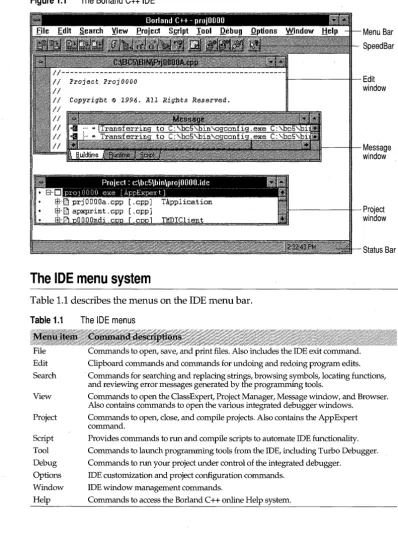
Figure 1.1 The Borland C++ IDE
Menu Bar
SpeedBar
H - - - i t - -Edit
window
- - - f l - -Message
window
- - - f t - -Project
window
Status Bar
The IDE menu system
Table 1.1 describes the menus on the IDE menu bar.
Table 1.1
File
Edit Search
View
Project
Script Tool
Debug Options
Window Help
6 c++ User's Guide
The IDE menus
Commands to open, save, and print files. Also includes the IDE exit command. Clipboard commands and commands for undoing and redoing program edits. Commands for searching and replacing strings, browsing symbols, locating functions, and reviewing error messages generated by the programming tools.
Commands to open the ClassExpert, Project Manager, Message window, and Browser. Also contains commands to open the various integrated debugger windows.
Commands to open, close, and compile projects. Also contains the AppExpert command.
Provides commands to run and compile scripts to automate IDE functionality. Commands to launch programming tools from the IDE, including Turbo Debugger. Commands to run your project under control of the integrated debugger.
IDE customization and project configuration commands. IDE window management commands.
The IDE SpeedBar
The SpeedBar (located under the main menu) has buttons that give quick access to menu commands which relate to the area of the IDE you're working in. For example, if you're editing code, the SpeedBar contains cut and paste commands, file save
commands, and so on. When the Project window has focus, the SpeedBar has buttons that pertain to projects, such as commands for adding project nodes and browsing option settings.
The Status Bar at the bottom of the IDE contains "flyby" help hints; when the cursor is over a button, the Status Bar describes the button command. You can configure the flyby hints and other SpeedBar options as described in "Customizing the SpeedBars" on page 14.
Using
Speed Menus
in the IDE
Right-clicking (clicking the right mouse button) accesses the Borland C++ SpeedMenus. SpeedMenus contain commands that are context-sensitive to the area of the program you're working in. For example, the SpeedMenu for the Edit window contains commands that are related to the editor. In the Project Manager, the SpeedMenus contain commands to help you with managing your projects.
To get a feeling for SpeedMenus, try the following:
1 From the IDE, choose Project I Open, then open the project file MULTITRG.IDE in the \ BCS\ EXAMPLES\IDE \ MULTITRG directory.
2 Double-click the MULTITRG [.CPP] node to open the file in an Edit window.
3 Move the cursor to the string.h header file reference by clicking on the file name in the source code.
4 Right click to open the Edit window SpeedMenu, then choose Open Source to open an Edit window that contains this header file.
Note In addition to right-clicking, the IDE speedmenus can be accessed at any time by pressing Alt+F10.
Using the Edit window
Edit windows contain the Borland C++ editor, which you can use to create and edit your program code. When you're editing a file, the IDE status bar displays the following information about the file you're editing:
• The line number and character position of the cursor. For example, if the cursor is on the first line and first character of an Edit window, you'll see 1:1 in the status bar; if the cursor is on line 68 and character 23, you'll see 68:23.
• The file's save status. The word Modified appears if you've made changes to the file in the active Edit window, and you have not yet saved your edits or changes.
Note The Borland C++ editor contains many powerful features to help you enter and modify your program code. For example, you can undo multiple edits by choosing Edit I Undo or pressing Alt+Backspace. You can also open multiple Edit windows; tile the windows as you wish; subdivide the window into different Edit panes; and cut, copy, and paste text between any open files.
Although this chapter provides a brief introduction to the editor, complete details on how to use and customize the editor can be found in the online Help that accompanies the IDE. Choose Help I Contents, then' click Integrated Development Environment for a list of topics that relate to the IDE. From here, view the Editor topic, and the Menu - Commands topics Edit Menu and Search Menu.
Creating a new file
To introduce you to the editor, step through the following instructions to create a DOS program that's used as an example later in this chapter.
Create the directory \MYSOURCE using the File Manager or DOS (you'll use this directory to hold the project files you create later in this chapter).
2 From the IDE, choose File I New to open a new Edit window with an empty file.
By default, Borland C++ names new files NONAMExx.CPP, where xx is a number
that's incremented with each new file opened. .
3 In the Edit window, type the following C++ code to create a DOS program:
#include <iostream.h>
int main (void)
cout « "Welcome to the World of DOS! \n" ; return(O);
//print text
4 Choose File I Save As, and save your new file in the \MYSOURCE directory with the file name DOS_TEST.CPP (this file is used later in this chapter).
Working with simple projects
After you first install Borland C++, you'll want to make sure the program is correctly set up; the details of the compiler and the IDE can wait until later. The best way to test your setup is to compile a few sample programs.
In this section, you'll learn how to create and run several simple programs. The first program is a DOS program. After creating the DOS program, you'll be taken through the steps to create a 16-bit Windows program. Then, using the TargetExpert, you'll be shown how to change the 16-bit program into a 32-bit program.
Creating a DOS program using EasyWin
You can become familiar with the Project Manager and the c++ compiler by following these steps to create a simple DOS program:
1 From the IDE, choose Project I New Project, then set the following options in the New Target dialog box:
1 Type the path and name for your new project in the Project Path And Name input box. In this case, type:
\mysource\dos_test.ide
Note If the directory doesn't exist, the IDE creates the directory for you.
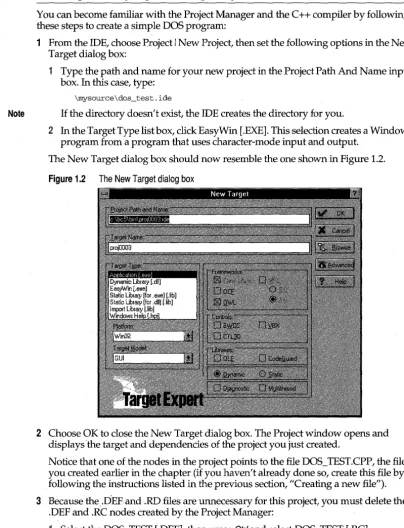
2 In the Target Type list box, click EasyWin [.EXE]. This selection creates a Windows program from a program that uses character-mode input and output.
[image:28.492.42.446.57.585.2]The New Target dialog box should now resemble the one shown in Figure 1.2.
Figure 1.2 The New Target dialog box
2 Choose OK to close the New Target dialog box. The Project window opens and displays the target and dependencies of the project you just created.
Notice that one of the nodes in the project points to the file DOS_TEST.CPP, the file you created earlier in the chapter (if you haven't already done so, create this file by following the instructions listed in the previous section, uCreating a new file").
3 Because the)JEFand .RD files are unnecessary for this project, you must delete the .DEF and .RC nodes created by the Project Manager:
2 From the Project Manager SpeedMenu (press the right mouse button), choose Delete Node, then choose Yes to confirm your request to delete 2 project nodes. 4 Compile and run the program by double-clicking the DOS_TEST [.EXE] project node.
If you correctly followed all the steps in this section, the program builds without errors and then runs in a window