Departamento de Engenharia Informática
Minds-On
Basics of Android Development
1
Paulo Baltarejo Sousa [email protected]
2016
1The content of this document is based on the material presented at
1
Activities
An activity provides a user interface for a single screen in your app. Activities can move into the background and then be resumed with their state restored An app usually consists of multiple activities that are loosely bound to each other. Typically, one activity in an app is specified as the "main" activity, which is presented to the user when launching the app for the first time. Each activity can then start another activity in order to perform different actions. Each time a new activity starts, the previous activity is stopped, but the system preserves the activity in a stack (the "back stack"). When a new activity starts, it is pushed onto the back stack and takes user focus. The back stack abides to the basic "last in, first out" stack mechanism, so, when the user is done with the current activity and presses the Back button, it is popped from the stack (and destroyed) and the previous activity resumes. (The back stack is discussed more in the next section)
When an activity is stopped because a new activity starts, it is notified of this change in state through the activity’s lifecycle callback methods. There are several callback methods that an activity might receive, due to a change in its state whether the system is creating it, stopping it, resuming it, or destroying it, and each callback provides you the opportunity to perform specific work that’s appropriate to that state change. For instance, when stopped, your activity should release any large objects, such as network or database connections. When the activity resumes, you can reacquire the necessary resources and resume actions that were interrupted. These state transitions are all part of the activity lifecycle.
2
Tasks and Back Stack
An app usually contains multiple activities. Each activity should be designed around a specific kind of action the user can perform and can start other activities. For example, an email app might have one activity to show a list of new email. When the user selects an email, a new activity opens to view that email.
An activity can even start activities that exist in other apps on the device. For example, if your app wants to send an email, you can define an intent to perform a "send" action and include some data, such as an email address and a message. An activity from another app that declares itself to handle this kind of intent then opens. In this case, the intent is to send an email, so an email app’s "compose" activity starts (if multiple activities support the same intent, then the system lets the user select which one to use). When
the email is sent, your activity resumes and it seems as if the email activity was part of your app. Even though the activities may be from different apps, Android maintains this seamless user experience by keeping both activities in the same task.
A task is a collection of activities that users interact with when performing a certain job. The activities are arranged in a stack (the "back stack"), in the order in which each activity is opened.
The device Home screen is the starting place for most tasks. When the user touches an icon in the app launcher (or a shortcut on the Home screen), that app’s task comes to the foreground. If no task exists for the app (the app has not been used recently), then a new task is created and the "main" activity for that app opens as the root activity in the stack.
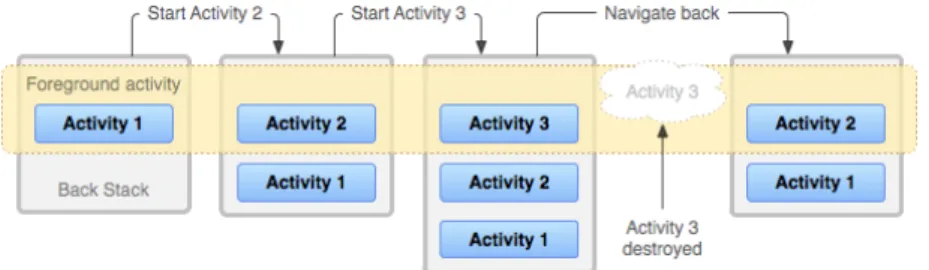
When the current activity starts another, the new activity is pushed on the top of the stack and takes focus. The previous activity remains in the stack, but is stopped. When an activity stops, the system retains the current state of its user interface. When the user presses the Back button, the current activity is popped from the top of the stack (the activity is destroyed) and the previous activity resumes (the previous state of its UI is restored). Activities in the stack are never rearranged, only pushed and popped from the stack pushed onto the stack when started by the current activity and popped off when the user leaves it using the Back button. As such, the back stack operates as a "last in, first out" object structure. Figure 1 visualizes this behavior with a timeline showing the progress between activities along with the current back stack at each point in time.
Fig. 1: Task and back stack.
3
Activity Lifecycle
Managing the lifecycle of your activities by implementing callback methods is crucial to developing a strong and flexible app. The lifecycle of an activity
is directly affected by its association with other activities, its task and back stack.
An activity can exist in essentially three states:
Resumed : The activity is in the foreground of the screen and has user
focus. (This state is also sometimes referred to as "running".)
Paused : Another activity is in the foreground and has focus, but this one
is still visible. That is, another activity is visible on top of this one and that activity is partially transparent or doesn’t cover the entire screen. A paused activity is completely alive (the Activity object is retained in memory, it maintains all state and member information, and remains attached to the window manager), but can be killed by the system in extremely low memory situations.
Stopped : The activity is completely obscured by another activity (the
activity is now in the "background"). A stopped activity is also still alive (the Activity object is retained in memory, it maintains all state and member information, but is not attached to the window manager). However, it is no longer visible to the user and it can be killed by the system when memory is needed elsewhere.
If an activity is paused or stopped, the system can drop it from memory either by asking it to finish (calling its finishmethod), or simply killing its process. When the activity is opened again (after being finished or killed), it must be created all over. The activity lifecycle:
The entire lifetime of an activity happens between the call to onCreate
and the call to onDestroy. Your activity should perform setup of "global" state (such as defining layout) in onCreate, and release all remaining resources in onDestroy. For example, if your activity has a thread running in the background to download data from the network, it might create that thread in onCreate and then stop the thread in
onDestroy.
The visible lifetime of an activity happens between the call to onStart
and the call to onStop. During this time, the user can see the activity on-screen and interact with it. For example, onStop is called when a new activity starts and this one is no longer visible. Between these two methods, you can maintain resources that are needed to show the ac-tivity to the user. For example, you can register aBroadcastReceiver
in onStartto monitor changes that impact your UI, and unregister it in onStop when the user can no longer see what you are displaying.
The system might call onStart and onStop multiple times during the entire lifetime of the activity, as the activity alternates between being visible and hidden to the user.
The foreground lifetime of an activity happens between the call toonResume
and the call to onPause. During this time, the activity is in front of all other activities on screen and has user input focus. An activity can fre-quently transition in and out of the foreground, for example,onPauseis called when the device goes to sleep or when a dialog appears. Because this state can transition often, the code in these two methods should be fairly lightweight in order to avoid slow transitions that make the user wait.
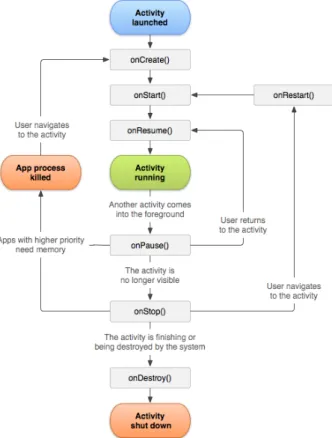
Figure 2 illustrates these loops and the paths an activity might take between states. The rectangles represent the callback methods you can im-plement to perform operations when the activity transitions between states.
Fig. 2: The activity lifecycle.
Note that, an activity might be killed when it is on three methods:
once the activity is created, onPauseis the last method that’s guaranteed to be called before the process can be killed ? if the system must recover
memory in an emergency, then onStop and onDestroy might not be
called. Therefore, you should use onPause to write crucial persistent data (such as user edits) to storage. However, you should be selective about what information must be retained during onPause, because any blocking proce-dures in this method block the transition to the next activity and slow the user experience.
3.1
Creating an Activity
To create an activity, you must create a subclass of Activity (or an existing subclass of it). In your subclass, you need to implement callback methods that the system calls when the activity transitions between various states of its lifecycle, such as when the activity is being created, stopped, resumed, or destroyed. The two most important callback methods are:
onCreate : You must implement this method. The system calls this when creating your activity. Within your implementation, you should initial-ize the essential components of your activity. Most importantly, this is where you must call setContentView to define the layout for the activity’s user interface.
onPause : The system calls this method as the first indication that the user
is leaving your activity (though it does not always mean the activity is being destroyed). This is usually where you should commit any changes that should be persisted beyond the current user session (because the user might not come back).
The user interface for an activity is provided by a hierarchy of views?objects derived from the View class. Each view controls a particular rectangular space within the activity’s window and can respond to user interaction. For example, a view might be a button that initiates an action when the user touches it. Android provides a number of ready-made views that you can use to design and organize your layout. "Widgets" are views that provide a visual (and interactive) elements for the screen, such as a button, text field, checkbox, or just an image. "Layouts" are views derived from ViewGroup
that provide a unique layout model for its child views, such as a linear lay-out, a grid laylay-out, or relative layout. You can also subclass the View and
ViewGroup classes (or existing subclasses) to create your own widgets and layouts and apply them to your activity layout. The most common way to define a layout using views is with an XML layout file saved in your app
resources. This way, you can maintain the design of your user interface sep-arately from the source code that defines the activity’s behavior. You can set the layout as the UI for your activity with setContentView, passing the resource ID for the layout.
3.2
Declaring the activity in the manifest
You must declare your activity in the manifest file in order for it to be ac-cessible to the system. To declare your activity, open your manifest file and add an <activity> element as a child of the <application> element. For example: < m a n i f e s t ... > < a p p l i c a t i o n ... > < a c t i v i t y a n d r o i d : n a m e = " . E x a m p l e A c t i v i t y " / > ... </ a p p l i c a t i o n ... > ... </ m a n i f e s t >
3.3
Starting an Activity
You can start another activity by calling startActivity, passing it an
Intent that describes the activity you want to start. The intent specifies either the exact activity you want to start or describes the type of action you want to perform (and the system selects the appropriate activity for you, which can even be from a different app). An intent can also carry small amounts of data to be used by the activity that is started. When working within your own app, you’ll often need to simply launch a known activity. You can do so by creating an intent that explicitly defines the activity you want to start, using the class name. For example, here’s how one activity starts another activity named SignInActivity:
I n t e n t i n t e n t = new I n t e n t ( this , S i g n I n A c t i v i t y . c l a s s ) ; s t a r t A c t i v i t y ( i n t e n t ) ;
4
Implementing a lifecycle Activity app
4.1
Create a project
Start a new Android project.
1. Select File > New > New Project....
2. Fill in the project details with the following values:
• New Project: Application name: Activity Lifecycle
• Target Android Devices: Phone and Tablet
• Target Android Devices: Minimum SDK: API10
• Add an Activity to Mobile: Empty Activity
• ...
4.2
Implementing callbacks
From Android studio, open MainActivity.java file. Implement the follow-ing methods:
• onDestroy
• onPause
• onResume
• onStart
• onStop
Whenever the name of a method is writing a pop-up window is presented with a list of suggestions. Select one of them.
Add a global variableTAG:private static final String TAG="MainActivity:";
Add to each activity lifecycle callbacks the following code:
Log.i(getString(R.string.app_name),TAG+"onXXXXX");
p u b l i c c l a s s M a i n A c t i v i t y e x t e n d s A p p C o m p a t A c t i v i t y { p r i v a t e s t a t i c f i n a l S t r i n g TAG = " M a i n A c t i v i t y : " ; @ O v e r r i d e p r o t e c t e d v o i d o n C r e a t e ( B u n d l e s a v e d I n s t a n c e S t a t e ) { s u p e r . o n C r e a t e ( s a v e d I n s t a n c e S t a t e ) ; s e t C o n t e n t V i e w ( R . l a y o u t . a c t i v i t y _ m a i n ) ; Log . i ( g e t S t r i n g ( R . s t r i n g . a p p _ n a m e ) , TAG + " o n C r e a t e " ) ; } @ O v e r r i d e p r o t e c t e d v o i d o n S t a r t () { s u p e r . o n S t a r t () ; Log . i ( g e t S t r i n g ( R . s t r i n g . a p p _ n a m e ) , TAG + " o n S t a r t " ) ; } @ O v e r r i d e p r o t e c t e d v o i d o n R e s t a r t () { s u p e r . o n R e s t a r t () ; Log . i ( g e t S t r i n g ( R . s t r i n g . a p p _ n a m e ) , TAG + " o n R e s t a r t " ) ; } @ O v e r r i d e p r o t e c t e d v o i d o n R e s u m e () { s u p e r . o n R e s u m e () ; Log . i ( g e t S t r i n g ( R . s t r i n g . a p p _ n a m e ) , TAG + " o n R e s u m e " ) ; } @ O v e r r i d e p r o t e c t e d v o i d o n P a u s e () { s u p e r . o n P a u s e () ; Log . i ( g e t S t r i n g ( R . s t r i n g . a p p _ n a m e ) , TAG + " o n P a u s e " ) ; } @ O v e r r i d e p r o t e c t e d v o i d o n S t o p () { s u p e r . o n S t o p () ; Log . i ( g e t S t r i n g ( R . s t r i n g . a p p _ n a m e ) , TAG + " o n S t o p " ) ; } @ O v e r r i d e p r o t e c t e d v o i d o n D e s t r o y () { s u p e r . o n D e s t r o y () ; Log . i ( g e t S t r i n g ( R . s t r i n g . a p p _ n a m e ) , TAG + " o n D e s t r o y " ) ; } }
Run app and check the LogCat.
4.3
LogCat
The Android logging system provides a mechanism for collecting and viewing system debug output. Logs from various apps and portions of the system are collected in a series of circular buffers, which then can be viewed and filtered by the logcat command. You can use logcat to view the log messages.
4.4
Adding a new activity
1. Right-click on the package name, selectNew > Activity > Empty Activity
3. Click Finish.
This activity creation procedure automatically adds the new activity to the
manifest.xml file.
Implement the following methods: • onCreate • onDestroy • onPause • onRestart • onResume • onStart • onStop
Add a global variable TAG:
private static final String TAG="Main2Activity:";
Add to each activity lifecycle callbacks the following code:
Log.i(getString(R.string.app_name),TAG+"onXXXXX");
p u b l i c c l a s s M a i n 2 A c t i v i t y e x t e n d s A p p C o m p a t A c t i v i t y { p r i v a t e s t a t i c f i n a l S t r i n g TAG = " M a i n 2 A c t i v i t y : " ; @ O v e r r i d e p r o t e c t e d v o i d o n C r e a t e ( B u n d l e s a v e d I n s t a n c e S t a t e ) { s u p e r . o n C r e a t e ( s a v e d I n s t a n c e S t a t e ) ; s e t C o n t e n t V i e w ( R . l a y o u t . a c t i v i t y _ m a i n 2 ) ; Log . i ( g e t S t r i n g ( R . s t r i n g . a p p _ n a m e ) , TAG + " o n C r e a t e " ) ; } @ O v e r r i d e p r o t e c t e d v o i d o n R e s t a r t () { s u p e r . o n R e s t a r t () ; Log . i ( g e t S t r i n g ( R . s t r i n g . a p p _ n a m e ) , TAG + " o n R e s t a r t " ) ; } @ O v e r r i d e p r o t e c t e d v o i d o n S t a r t () { s u p e r . o n S t a r t () ; Log . i ( g e t S t r i n g ( R . s t r i n g . a p p _ n a m e ) , TAG + " o n S t a r t " ) ; } @ O v e r r i d e p r o t e c t e d v o i d o n R e s u m e () { s u p e r . o n R e s u m e () ; Log . i ( g e t S t r i n g ( R . s t r i n g . a p p _ n a m e ) , TAG + " o n R e s u m e " ) ; } @ O v e r r i d e p r o t e c t e d v o i d o n P a u s e () { s u p e r . o n P a u s e () ; Log . i ( g e t S t r i n g ( R . s t r i n g . a p p _ n a m e ) , TAG + " o n P a u s e " ) ; } @ O v e r r i d e p r o t e c t e d v o i d o n S t o p () { s u p e r . o n S t o p () ; Log . i ( g e t S t r i n g ( R . s t r i n g . a p p _ n a m e ) , TAG + " o n S t o p " ) ; } @ O v e r r i d e p r o t e c t e d v o i d o n D e s t r o y () { s u p e r . o n D e s t r o y () ; Log . i ( g e t S t r i n g ( R . s t r i n g . a p p _ n a m e ) , TAG + " o n D e s t r o y " ) ; } }
4.5
Starting one Activity from another Activity
Add aButton element to theactivity_main.xml file: <? xml v e r s i o n = " 1.0 " e n c o d i n g = " utf -8 " ? >
< R e l a t i v e L a y o u t
x m l n s : a n d r o i d = " h t t p :// s c h e m a s . a n d r o i d . com / apk / res / a n d r o i d " x m l n s : t o o l s = " h t t p :// s c h e m a s . a n d r o i d . com / t o o l s " a n d r o i d : l a y o u t _ w i d t h = " m a t c h _ p a r e n t " a n d r o i d : l a y o u t _ h e i g h t = " m a t c h _ p a r e n t " a n d r o i d : p a d d i n g B o t t o m = " @ d i m e n / a c t i v i t y _ v e r t i c a l _ m a r g i n " a n d r o i d : p a d d i n g L e f t = " @ d i m e n / a c t i v i t y _ h o r i z o n t a l _ m a r g i n " a n d r o i d : p a d d i n g R i g h t = " @ d i m e n / a c t i v i t y _ h o r i z o n t a l _ m a r g i n " a n d r o i d : p a d d i n g T o p = " @ d i m e n / a c t i v i t y _ v e r t i c a l _ m a r g i n " t o o l s : c o n t e x t = " pt . a n d r o i d d o c . l i f e c y c l e . M a i n A c t i v i t y " > < T e x t V i e w a n d r o i d : l a y o u t _ w i d t h = " w r a p _ c o n t e n t " a n d r o i d : l a y o u t _ h e i g h t = " w r a p _ c o n t e n t " a n d r o i d : t e x t = " H e l l o W o r l d ! " a n d r o i d : id = " @ + id / t e x t V i e w " / > < B u t t o n a n d r o i d : l a y o u t _ w i d t h = " m a t c h _ p a r e n t " a n d r o i d : l a y o u t _ h e i g h t = " w r a p _ c o n t e n t " a n d r o i d : t e x t = " O p e n M a i n 2 A c t i v i t y " a n d r o i d : id = " @ + id / b u t t o n " a n d r o i d : l a y o u t _ b e l o w = " @ + id / t e x t V i e w " a n d r o i d : l a y o u t _ a l i g n P a r e n t L e f t = " t r u e " a n d r o i d : l a y o u t _ a l i g n P a r e n t S t a r t = " t r u e " a n d r o i d : l a y o u t _ m a r g i n T o p = " 68 dp " / > </ R e l a t i v e L a y o u t >
p u b l i c c l a s s M a i n A c t i v i t y e x t e n d s A p p C o m p a t A c t i v i t y { p r i v a t e s t a t i c f i n a l S t r i n g TAG = " M a i n A c t i v i t y : " ; // E v e n t L i s t e n e r O n C l i c k L i s t e n e r b t _ l i s t n e r = new V i e w . O n C l i c k L i s t e n e r () { // E v e n t h a n d l e r @ O v e r r i d e p u b l i c v o i d o n C l i c k ( V i e w v ) { I n t e n t i n t e n t = new I n t e n t ( M a i n A c t i v i t y . this , M a i n 2 A c t i v i t y . c l a s s ) ; s t a r t A c t i v i t y ( i n t e n t ) ; Log . i ( g e t S t r i n g ( R . s t r i n g . a p p _ n a m e ) , TAG + " o n C l i c k " ) ; } }; @ O v e r r i d e p r o t e c t e d v o i d o n C r e a t e ( B u n d l e s a v e d I n s t a n c e S t a t e ) { s u p e r . o n C r e a t e ( s a v e d I n s t a n c e S t a t e ) ; s e t C o n t e n t V i e w ( R . l a y o u t . a c t i v i t y _ m a i n ) ; Log . i ( g e t S t r i n g ( R . s t r i n g . a p p _ n a m e ) , TAG + " o n C r e a t e " ) ; B u t t o n bt = ( B u t t o n ) f i n d V i e w B y I d ( R . id . b u t t o n ) ; // R e g i s t e r for e v e n t l i s t e n e r bt . s e t O n C l i c k L i s t e n e r ( b t _ l i s t n e r ) ; } @ O v e r r i d e p r o t e c t e d v o i d o n S t a r t () { . . . } @ O v e r r i d e p r o t e c t e d v o i d o n R e s t a r t () { . . . } @ O v e r r i d e p r o t e c t e d v o i d o n R e s u m e () { . . . } @ O v e r r i d e p r o t e c t e d v o i d o n P a u s e () { . . . } @ O v e r r i d e p r o t e c t e d v o i d o n S t o p () { . . . } @ O v e r r i d e p r o t e c t e d v o i d o n D e s t r o y () { . . . } }