Red Hat OpenShift Documentation
Team
3.1
Architecture
Copyright © 2016 Red Hat, Inc.
The text of and illustrations in this document are licensed by Red Hat under a Creative Commons
Attribution–Share Alike 3.0 Unported license ("CC-BY-SA"). An explanation of CC-BY-SA is
available at
http://creativecommons.org/licenses/by-sa/3.0/
. In accordance with CC-BY-SA, if you distribute this document or an adaptation of it, you must
provide the URL for the original version.
Red Hat, as the licensor of this document, waives the right to enforce, and agrees not to assert,
Section 4d of CC-BY-SA to the fullest extent permitted by applicable law.
Red Hat, Red Hat Enterprise Linux, the Shadowman logo, JBoss, MetaMatrix, Fedora, the Infinity
Logo, and RHCE are trademarks of Red Hat, Inc., registered in the United States and other
countries.
Linux ® is the registered trademark of Linus Torvalds in the United States and other countries.
Java ® is a registered trademark of Oracle and/or its affiliates.
XFS ® is a trademark of Silicon Graphics International Corp. or its subsidiaries in the United States
and/or other countries.
MySQL ® is a registered trademark of MySQL AB in the United States, the European Union and
other countries.
Node.js ® is an official trademark of Joyent. Red Hat Software Collections is not formally related to
or endorsed by the official Joyent Node.js open source or commercial project.
The OpenStack ® Word Mark and OpenStack Logo are either registered trademarks/service marks
or trademarks/service marks of the OpenStack Foundation, in the United States and other countries
and are used with the OpenStack Foundation's permission. We are not affiliated with, endorsed or
sponsored by the OpenStack Foundation, or the OpenStack community.
All other trademarks are the property of their respective owners.
Abstract
Learn the architecture of OpenShift Dedicated 3.1 including the infrastructure and core components.
These topics also cover authentication, networking and source code management.
. . . .
. . . .
. . . .
. . . .
Table of Contents
CHAPTER 1. OVERVIEW
1.1. WHAT ARE THE LAYERS?
1.2. WHAT IS THE OPENSHIFT ARCHITECTURE? 1.3. HOW IS OPENSHIFT SECURED?
CHAPTER 2. INFRASTRUCTURE COMPONENTS 2.1. KUBERNETES INFRASTRUCTURE
2.2. IMAGE REGISTRY 2.3. WEB CONSOLE
CHAPTER 3. CORE CONCEPTS 3.1. OVERVIEW
3.2. CONTAINERS AND IMAGES 3.3. PODS AND SERVICES 3.4. PROJECTS AND USERS 3.5. BUILDS AND IMAGE STREAMS 3.6. DEPLOYMENTS
3.7. ROUTES 3.8. TEMPLATES
CHAPTER 4. ADDITIONAL CONCEPTS 4.1. NETWORKING
4.2. OPENSHIFT SDN 4.3. AUTHENTICATION 4.4. AUTHORIZATION 4.5. PERSISTENT STORAGE 4.6. REMOTE COMMANDS 4.7. PORT FORWARDING 4.8. THROTTLING
4.9. SOURCE CONTROL MANAGEMENT 4.10. OTHER API OBJECTS
3 3 3 4 5 5 10 12 16 16 16 17 22 24 32 35 45 48 48 49 52 56 65 70 71 71 71 72
CHAPTER 1. OVERVIEW
OpenShift v3 is a layered system designed to expose underlying Docker and Kubernetes concepts as accurately as possible, with a focus on easy composition of applications by a developer. For example, install Ruby, push code, and add MySQL.
Unlike OpenShift v2, more flexibility of configuration is exposed after creation in all aspects of the model. The concept of an application as a separate object is removed in favor of more flexible composition of "services", allowing two web containers to reuse a database or expose a database directly to the edge of the network.
1.1. WHAT ARE THE LAYERS?
Docker provides the abstraction for packaging and creating Linux-based, lightweight containers. Kubernetes provides the cluster management and orchestrates Docker containers on multiple hosts. OpenShift adds:
Source code management, builds, and deployments for developers
Managing and promoting images at scale as they flow through your system Application management at scale
Team and user tracking for organizing a large developer organization Figure 1.1. OpenShift Architecture Overview
1.2. WHAT IS THE OPENSHIFT ARCHITECTURE?
OpenShift has a microservices-based architecture of smaller, decoupled units that work together. It can run on top of (or alongside) a Kubernetes cluster, with data about the objects stored in etcd, a reliable clustered key-value store. Those services are broken down by function:
Controllers, which read those APIs, apply changes to other objects, and report status or write back to the object.
Users make calls to the REST API to change the state of the system. Controllers use the REST API to read the user’s desired state, and then try to bring the other parts of the system into sync. For example, when a user requests a build they create a "build" object. The build controller sees that a new build has been created, and runs a process on the cluster to perform that build. When the build completes, the controller updates the build object via the REST API and the user sees that their build is complete.
The controller pattern means that much of the functionality in OpenShift is extensible. The way that builds are run and launched can be customized independently of how images are managed, or how deployments happen. The controllers are performing the "business logic" of the system, taking user actions and transforming them into reality. By customizing those controllers or replacing them with your own logic, different behaviors can be implemented. From a system administration perspective, this also means the API can be used to script common administrative actions on a repeating schedule. Those scripts are also controllers that watch for changes and take action. OpenShift makes the ability to customize the cluster in this way a first-class behavior.
To make this possible, controllers leverage a reliable stream of changes to the system to sync their view of the system with what users are doing. This event stream pushes changes from etcd to the REST API and then to the controllers as soon as changes occur, so changes can ripple out through the system very quickly and efficiently. However, since failures can occur at any time, the controllers must also be able to get the latest state of the system at startup, and confirm that everything is in the right state. This resynchronization is important, because it means that even if something goes wrong, then the operator can restart the affected components, and the system double checks everything before continuing. The system should eventually converge to the user’s intent, since the controllers can always bring the system into sync.
1.3. HOW IS OPENSHIFT SECURED?
The OpenShift and Kubernetes APIs authenticate users who present credentials, and then authorize them based on their role. Both developers and administrators can be authenticated via a number of means, primarily OAuth tokens and SSL certificate authorization.
Developers (clients of the system) typically make REST API calls from a client program like oc or to the web console via their browser, and use OAuth bearer tokens for most communications.
Infrastructure components (like nodes) use client certificates generated by the system that contain their identities. Infrastructure components that run in containers use a token associated with their service account to connect to the API.
Authorization is handled in the OpenShift policy engine, which defines actions like "create pod" or "list services" and groups them into roles in a policy document. Roles are bound to users or groups by the user or group identifier. When a user or service account attempts an action, the policy engine checks for one or more of the roles assigned to the user (e.g., cluster administrator or administrator of the current project) before allowing it to continue.
Since every container that runs on the cluster is associated with a service account, it is also possible to associate secrets to those service accounts and have them automatically delivered into the container. This enables the infrastructure to manage secrets for pulling and pushing images, builds, and the deployment components, and also allows application code to easily leverage those secrets.
CHAPTER 2. INFRASTRUCTURE COMPONENTS
2.1. KUBERNETES INFRASTRUCTURE
2.1.1. Overview
Within OpenShift, Kubernetes manages containerized applications across a set of containers or hosts and provides mechanisms for deployment, maintenance, and application-scaling. Docker packages, instantiates, and runs containerized applications.
A Kubernetes cluster consists of one or more masters and a set of nodes. You can optionally configure your masters for high availability (HA) to ensure that the cluster has no single point of failure.
2.1.2. Masters
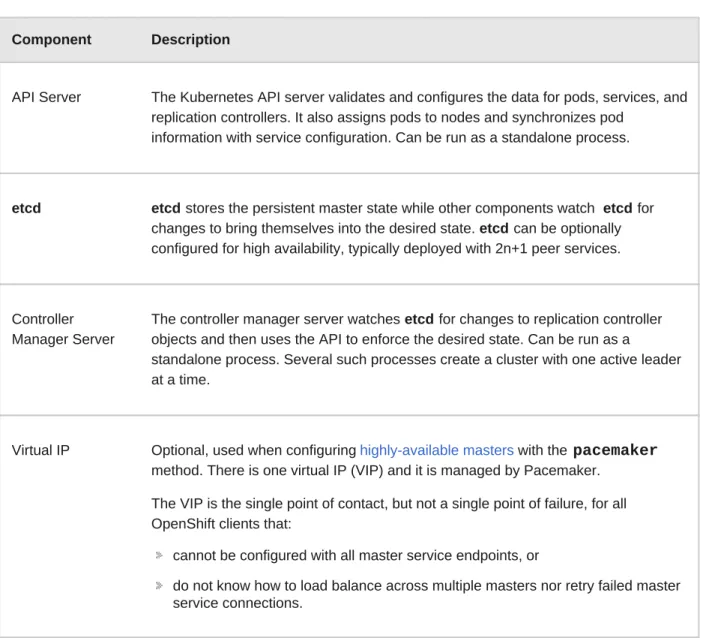
The master is the host or hosts that contain the master components, including the API server, controller manager server, and etcd. The master manages nodes in its Kubernetes cluster and schedules pods to run on nodes.
Table 2.1. Master Components
Component Description
API Server The Kubernetes API server validates and configures the data for pods, services, and replication controllers. It also assigns pods to nodes and synchronizes pod
information with service configuration. Can be run as a standalone process.
etcd etcd stores the persistent master state while other components watch etcd for
changes to bring themselves into the desired state. etcd can be optionally configured for high availability, typically deployed with 2n+1 peer services.
Controller Manager Server
The controller manager server watches etcd for changes to replication controller objects and then uses the API to enforce the desired state. Can be run as a
standalone process. Several such processes create a cluster with one active leader at a time.
Virtual IP Optional, used when configuring highly-available masters with the pacemaker method. There is one virtual IP (VIP) and it is managed by Pacemaker.
The VIP is the single point of contact, but not a single point of failure, for all OpenShift clients that:
cannot be configured with all master service endpoints, or
do not know how to load balance across multiple masters nor retry failed master service connections.
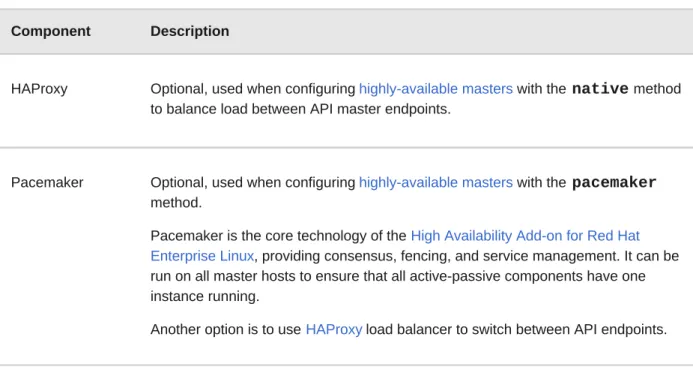
HAProxy Optional, used when configuring highly-available masters with the native method to balance load between API master endpoints.
Pacemaker Optional, used when configuring highly-available masters with the pacemaker method.
Pacemaker is the core technology of the High Availability Add-on for Red Hat Enterprise Linux, providing consensus, fencing, and service management. It can be run on all master hosts to ensure that all active-passive components have one instance running.
Another option is to use HAProxy load balancer to switch between API endpoints.
Component Description
2.1.2.1. High Availability Masters
While in a single master configuration, the availability of running applications remains if the master or any of its services fail. However, failure of master services reduces the ability of the system to respond to application failures or creation of new applications. You can optionally configure your masters for high availability (HA) to ensure that the cluster has no single point of failure.
To mitigate concerns about availability of the master, two activities are recommended:
1. A runbook entry should be created for reconstructing the master. A runbook entry is a necessary backstop for any highly-available service. Additional solutions merely control the frequency that the runbook must be consulted. For example, a cold standby of the master host can adequately fulfill SLAs that require no more than minutes of downtime for creation of new applications or recovery of failed application components.
2. Use a high availability solution to configure your masters and ensure that the cluster has no single point of failure. OpenShift’s advanced installation method (see the OpenShift
Enterprise Cluster Administration documentation for details) provides specific examples using either the native or pacemaker HA method, configuring HAProxy or Pacemaker, respectively. You can also take the concepts and apply them towards your existing HA solutions using the native method instead of HAProxy.
When using the native HA method with HAProxy, master components have the following availability:
Table 2.2. Availability Matrix with HAProxy
Role Style Notes
etcd Active-active Fully redundant deployment with load balancing
Controller Manager Server
Active-passive One instance is elected as a cluster leader at a time
HAProxy Active-passive Balances load between API master endpoints
Role Style Notes
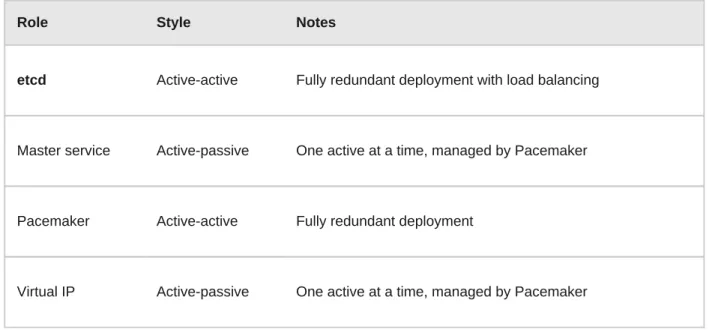
When using the pacemaker method, the availability table is slightly different:
Table 2.3. Availability Matrix with Pacemaker
Role Style Notes
etcd Active-active Fully redundant deployment with load balancing
Master service Active-passive One active at a time, managed by Pacemaker
Pacemaker Active-active Fully redundant deployment
Virtual IP Active-passive One active at a time, managed by Pacemaker
2.1.3. Nodes
A node provides the runtime environments for containers. Each node in a Kubernetes cluster has the required services to be managed by the master. Nodes also have the required services to run pods, including Docker, a kubelet, and a service proxy.
OpenShift creates nodes from a cloud provider, physical systems, or virtual systems. Kubernetes interacts with node objects that are a representation of those nodes. The master uses the
information from node objects to validate nodes with health checks. A node is ignored until it passes the health checks, and the master continues checking nodes until they are valid. The Kubernetes documentation has more information on node management.
2.1.3.1. Kubelet
Each node has a kubelet that updates the node as specified by a container manifest, which is a YAML file that describes a pod. The kubelet uses a set of manifests to ensure that its containers are started and that they continue to run. A sample manifest can be found in the Kubernetes
documentation.
A container manifest can be provided to a kubelet by:
A file path on the command line that is checked every 20 seconds.
An HTTP endpoint passed on the command line that is checked every 20 seconds.
The kubelet watching an etcd server, such as /registry/hosts/$(hostname -f), and acting on any changes.
2.1.3.2. Service Proxy
Each node also runs a simple network proxy that reflects the services defined in the API on that node. This allows the node to do simple TCP and UDP stream forwarding across a set of back ends.
2.1.3.3. Node Object Definition
The following is an example node object definition in Kubernetes:
apiVersion defines the API version to use.
kind set to Node identifies this as a definition for a node object.
metadata.labels lists any labels that have been added to the node.
metadata.name is a required value that defines the name of the node object. This value is shown in the NAME column when running the oc get nodes command.
apiVersion: v1
kind: Node
metadata:
creationTimestamp: null labels:
kubernetes.io/hostname: node1.example.com name: node1.example.com
spec:
externalID: node1.example.com
status: nodeInfo: bootID: ""
containerRuntimeVersion: ""
kernelVersion: ""
kubeProxyVersion: ""
kubeletVersion: ""
machineID: ""
osImage: ""
systemUUID: ""
1
2
3
4
5
1 2
3
4
spec.externalID defines the fully-qualified domain name where the node can be reached. Defaults to the metadata.name value when empty.
The REST API Reference has more details on these definitions.
2.2. IMAGE REGISTRY
2.2.1. Overview
OpenShift can utilize any server implementing the Docker registry API as a source of images, including the canonical Docker Hub, private registries run by third parties, and the integrated OpenShift registry.
2.2.2. Integrated OpenShift Registry
OpenShift provides an integrated Docker registry that adds the ability to provision new image repositories on the fly. This allows users to automatically have a place for their builds to push the resulting images.
Whenever a new image is pushed to the integrated registry, the registry notifies OpenShift about the new image, passing along all the information about it, such as the namespace, name, and image metadata. Different pieces of OpenShift react to new images, creating new builds and deployments.
2.2.3. Third Party Registries
OpenShift can create containers using images from third party registries, but it is unlikely that these registries offer the same image notification support as the integrated OpenShift registry. In this situation OpenShift will fetch tags from the remote registry upon imagestream creation. Refreshing the fetched tags is as simple as running oc import-image <stream>. When new images are detected, the previously-described build and deployment reactions occur.
To create an image stream from an external registry, set the spec.dockerImageRepository field appropriately. For example:
{
"apiVersion": "v1", "kind": "ImageStream", "metadata": {
"name": "ruby" },
"spec": {
"dockerImageRepository": "openshift/ruby-20-centos7" }
}
After OpenShift synchronizes the tag and image metadata, it looks something like this:
{
"kind": "ImageStream", "apiVersion": "v1", "metadata": {
"name": "ruby",
"selfLink": "/osapi/v1/namespaces/default/imagestreams/ruby", "uid": "9990ea5f-f35a-11e4-937e-001c422dcd49",
"resourceVersion": "53",
"creationTimestamp": "2015-05-05T19:11:57Z", "annotations": {
"openshift.io/image.dockerRepositoryCheck": "2015-05-05T19:12:00Z"
} },
"spec": {
"dockerImageRepository": "openshift/ruby-20-centos7" },
"status": {
"dockerImageRepository": "openshift/ruby-20-centos7", "tags": [
{
"tag": "latest", "items": [
{
"created": "2015-05-05T19:11:58Z",
"dockerImageReference": "openshift/ruby-20-centos7:latest",
"image":
"94439378e4546d72ef221c47fe2ac30065bcc3a98c25bc51bed77ec00efabb95" }
] }, {
"tag": "v0.4", "items": [ {
"created": "2015-05-05T19:11:59Z",
"dockerImageReference": "openshift/ruby-20-centos7:v0.4", "image":
"c7dbf059225847a7bfb4f40bc335ad7e70defc913de1a28aabea3a2072844a3f" }
] } ] } }
Note
Querying external registries to synchronize tag and image metadata is not currently an automated process. To resynchronize manually, run oc import-image <stream>. Within a short amount of time, OpenShift will communicate with the external registry to get up to date information about the Docker image repository associated with the image stream.
OpenShift can communicate with registries to access private image repositories using credentials supplied by the user. This allows OpenShift to push and pull images to and from private repositories. The Authentication topic has more information.
2.3. WEB CONSOLE
2.3.1. Overview
The OpenShift web console is a user interface accessible from a web browser. Developers can use the web console to visualize, browse, and manage the contents of projects.
Note
JavaScript must be enabled to use the web console. For the best experience, use a web browser that supports WebSockets.
2.3.2. Project Overviews
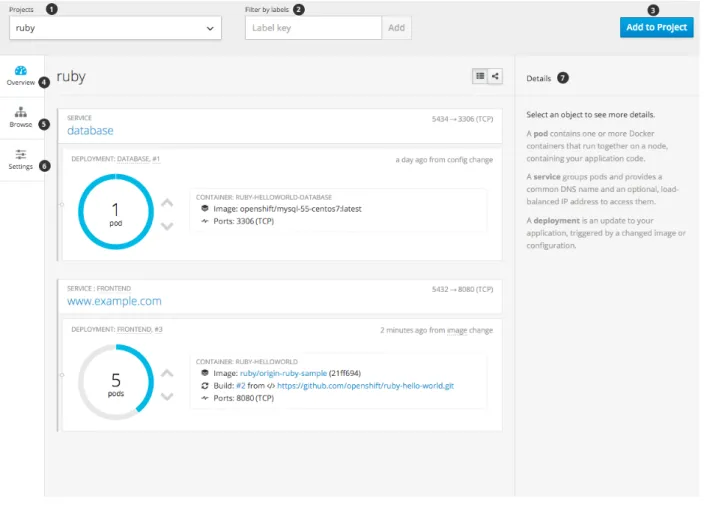
After logging in, the web console provides developers with an overview for the currently selected project:
The project selector allows you to switch between projects you have access to.
Filter the contents of a project page by using the labels of a resource.
Create new applications using a source repository or using a template.
The Overview tab (currently selected) visualizes the contents of your project with a high-level view of each component.
The Browse tab explores the different objects types within your project: Builds, Deployments, Image Streams, Pods, and Services.
The Settings tab provides general information about your project, as well as the quota and resource limits that are set on your project.
When you click on one of your objects in the Overview page, the Details pane displays detailed information about that object. In this example, the cakephp-mysql-example deployment is selected, and the Details pane is displaying details on the related replication controller.
2.3.3. JVM Console
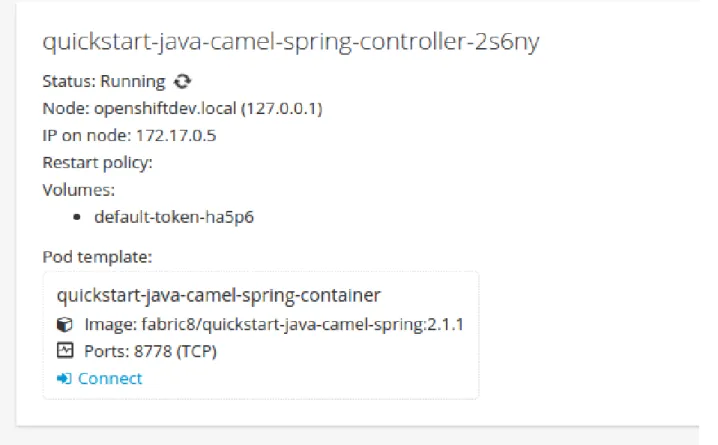
For pods based on Java images, the web console also exposes access to a hawt.io-based JVM console for viewing and managing any relevant integration components. A Connect link is displayed in the pod’s details on the Browse → Pods page, provided the container has a port named jolokia.
After connecting to the JVM console, different pages are displayed depending on which components are relevant to the connected pod.
Figure 2.4. JVM Console
Page Description
JMX View and manage JMX domains and mbeans.
Threads View and monitor the state of threads.
ActiveMQ View and manage Apache ActiveMQ brokers.
CHAPTER 3. CORE CONCEPTS
3.1. OVERVIEW
The following topics provide high-level, architectural information on core concepts and objects you will encounter when using OpenShift. Many of these objects come from Kubernetes, which is extended by OpenShift to provide a more feature-rich development lifecycle platform.
Containers and images are the building blocks for deploying your applications.
Pods and services allow for containers to communicate with each other and proxy connections. Projects and users provide the space and means for communities to organize and manage their content together.
Builds and image streams allow you to build working images and react to new images. Deployments add expanded support for the software development and deployment lifecycle. Routes announce your service to the world.
Templates allow for many objects to be created at once based on customized parameters.
3.2. CONTAINERS AND IMAGES
3.2.1. Containers
The basic units of OpenShift applications are called containers. Linux container technologies are lightweight mechanisms for isolating running processes so that they are limited to interacting with only their designated resources. Many application instances can be running in containers on a single host without visibility into each others' processes, files, network, and so on. Typically, each container provides a single service (often called a "micro-service"), such as a web server or a database, though containers can be used for arbitrary workloads.
The Linux kernel has been incorporating capabilities for container technologies for years. More recently the Docker project has developed a convenient management interface for Linux containers on a host. OpenShift and Kubernetes add the ability to orchestrate Docker containers across multi-host installations.
Though you do not directly interact with Docker tools when using OpenShift, understanding Docker’s capabilities and terminology is important for understanding its role in OpenShift and how your
applications function inside of containers. Docker is available as part of RHEL 7, as well as CentOS and Fedora, so you can experiment with it separately from OpenShift. Refer to the article Get Started with Docker Formatted Container Images on Red Hat Systems for a guided introduction.
3.2.2. Docker Images
Docker containers are based on Docker images. A Docker image is a binary that includes all of the requirements for running a single Docker container, as well as metadata describing its needs and capabilities. You can think of it as a packaging technology. Docker containers only have access to resources defined in the image, unless you give the container additional access when creating it. By deploying the same image in multiple containers across multiple hosts and load balancing between them, OpenShift can provide redundancy and horizontal scaling for a service packaged into an image.
You can use Docker directly to build images, but OpenShift also supplies builders that assist with creating an image by adding your code or configuration to existing images.
Since applications develop over time, a single image name can actually refer to many different versions of the "same" image. Each different image is referred to uniquely by its hash (a long hexadecimal number e.g. fd44297e2ddb050ec4f…) which is usually shortened to 12 characters (e.g. fd44297e2ddb). Rather than version numbers, Docker allows applying tags (such as v1, v2.1, GA, or the default latest) in addition to the image name to further specify the image desired, so you may see the same image referred to as centos (implying the latest tag),
centos:centos7, or fd44297e2ddb.
3.2.3. Docker Registries
A Docker registry is a service for storing and retrieving Docker images. A registry contains a collection of one or more Docker image repositories. Each image repository contains one or more tagged images. Docker provides its own registry, the Docker Hub, but you may also use private or third-party registries. Red Hat provides a Docker registry at registry.access.redhat.com for subscribers. OpenShift can also supply its own internal registry for managing custom Docker images.
The relationship between Docker containers, images, and registries is depicted in the following diagram:
3.3. PODS AND SERVICES
3.3.1. Pods
OpenShift leverages the Kubernetes concept of a pod, which is one or more containers deployed together on one host, and the smallest compute unit that can be defined, deployed, and managed. Pods are the rough equivalent of OpenShift v2 gears, with containers the rough equivalent of v2 cartridge instances. Each pod is allocated its own internal IP address, therefore owning its entire port space, and containers within pods can share their local storage and networking.
Pods have a lifecycle; they are defined, then they are assigned to run on a node, then they run until their container(s) exit or they are removed for some other reason. Pods, depending on policy and exit code, may be removed after exiting, or may be retained in order to enable access to the logs of their containers.
OpenShift treats pods as largely immutable; changes cannot be made to a pod definition while it is running. OpenShift implements changes by terminating an existing pod and recreating it with modified configuration, base image(s), or both. Pods are also treated as expendable, and do not maintain state when recreated. Therefore pods should usually be managed by higher-level controllers, rather than directly by users.
Below is an example definition of a pod that provides a long-running service, which is actually a part of the OpenShift infrastructure: the private Docker registry. It demonstrates many features of pods, most of which are discussed in other topics and thus only briefly mentioned here:
Example 3.1. Pod Object Definition (YAML)
apiVersion: v1 kind: Pod metadata:
annotations: { ... }
labels: deployment: docker-registry-1
deploymentconfig: docker-registry docker-registry: default
generateName: docker-registry-1- spec:
containers: - env: - name: OPENSHIFT_CA_DATA
value: ...
- name: OPENSHIFT_CERT_DATA value: ...
- name: OPENSHIFT_INSECURE value: "false"
- name: OPENSHIFT_KEY_DATA value: ...
- name: OPENSHIFT_MASTER
value: https://master.example.com:8443
image: openshift/origin-docker-registry:v0.6.2 imagePullPolicy: IfNotPresent
name: registry
ports: - containerPort: 5000
protocol: TCP resources: {}
securityContext: { ... } volumeMounts: 1 2 3 4 5 6 7 8
Pods can be "tagged" with one or more labels, which can then be used to select and manage groups of pods in a single operation. The labels are stored in key/value format in the metadata hash. One label in this example is docker-registry=default.
Pods must have a unique name within their namespace. A pod definition may specify the basis of a name with the generateName attribute, and random characters will be added automatically to generate a unique name.
containers specifies an array of container definitions; in this case (as with most), just one.
Environment variables can be specified to pass necessary values to each container.
Each container in the pod is instantiated from its own Docker image.
The container can bind to ports which will be made available on the pod’s IP.
- mountPath: /registry name: registry-storage
- mountPath: /var/run/secrets/kubernetes.io/serviceaccount name: default-token-br6yz
readOnly: true dnsPolicy: ClusterFirst imagePullSecrets:
- name: default-dockercfg-at06w restartPolicy: Always
serviceAccount: default volumes: - emptyDir: {}
name: registry-storage - name: default-token-br6yz secret:
secretName: default-token-br6yz
1
2
3
4
5
6
7
9 10
OpenShift defines a security context for containers which specifies whether they are allowed to run as privileged containers, run as a user of their choice, and more. The default context is very restrictive but administrators can modify this as needed.
The container specifies where external storage volumes should be mounted within the container. In this case, there is a volume for storing the registry’s data, and one for access to credentials the registry needs for making requests against the OpenShift API.
Pods making requests against the OpenShift API is a common enough pattern that there is a serviceAccount field for specifying which service account user the pod should
authenticate as when making the requests. This enables fine-grained access control for custom infrastructure components.
The pod defines storage volumes that are available to its container(s) to use. In this case, it provides an ephemeral volume for the registry storage and a secret volume containing the service account credentials.
Note
This pod definition does not include attributes that are filled by OpenShift automatically after the pod is created and its lifecycle begins. The Kubernetes API documentation has complete details of the pod REST API object attributes, and the Kubernetes pod
documentation has details about the functionality and purpose of pods.
3.3.2. Services
A Kubernetes service serves as an internal load balancer. It identifies a set of replicated pods in order to proxy the connections it receives to them. Backing pods can be added to or removed from a service arbitrarily while the service remains consistently available, enabling anything that depends on the service to refer to it at a consistent internal address.
Services are assigned an IP address and port pair that, when accessed, proxy to an appropriate backing pod. A service uses a label selector to find all the containers running that provide a certain network service on a certain port.
Like pods, services are REST objects. The following example shows the definition of a service for the pod defined above:
Example 3.2. Service Object Definition (YAML)
8
9
10
apiVersion: v1
kind: Service
The service name docker-registry is also used to construct an environment variable with the service IP that is inserted into other pods in the same namespace.
The label selector identifies all pods with the docker-registry=default label attached as its backing pods.
Virtual IP of the service, allocated automatically at creation from a pool of internal IPs.
Port the service listens on.
Port on the backing pods to which the service forwards connections.
The Kubernetes documentation has more information on services.
3.3.3. Labels
Labels are used to organize, group, or select API objects. For example, pods are "tagged" with labels, and then services use label selectors to identify the pods they proxy to. This makes it possible for services to reference groups of pods, even treating pods with potentially different Docker containers as related entities.
Most objects can include labels in their metadata. So labels can be used to group arbitrarily-related objects; for example, all of the pods, services, replication controllers, and deployment configurations of a particular application can be grouped.
Labels are simple key/value pairs, as in the following example:
name: docker-registry
spec:
selector: docker-registry: default portalIP: 172.30.136.123 ports:
- nodePort: 0
port: 5000 protocol: TCP
targetPort: 5000
1
2
3
4
5
1 2 3
4 5
Consider:
A pod consisting of an nginx Docker container, with the label role=webserver.
A pod consisting of an Apache httpd Docker container, with the same label role=webserver. A service or replication controller that is defined to use pods with the role=webserver label treats both of these pods as part of the same group.
The Kubernetes documentation has more information on labels.
3.4. PROJECTS AND USERS
3.4.1. Users
Interaction with OpenShift is associated with a user. An OpenShift user object represents an actor which may be granted permissions in the system by adding roles to them or to their groups. Several types of users can exist:
Regular users This is the way most interactive OpenShift users will be represented. Regular users are created automatically in the system upon first login, or can be created via the API. Regular users are represented with the User object. Examples: joealice
System users Many of these are created automatically when the infrastructure is defined, mainly for the purpose of enabling the infrastructure to interact with the API securely. They include a cluster administrator (with access to everything), a per-node user, users for use by routers and registries, and various others. Finally, there is an
anonymous system user that is used by default for unauthenticated requests. Examples: system:adminsystem:openshift-registry
system:node:node1.example.com
Service accounts
These are special system users associated with projects; some are created automatically when the project is first created, while project administrators can create more for the purpose of defining access to the contents of each project. Service accounts are represented with the ServiceAccount object. Examples: system:serviceaccount:default:deployer
system:serviceaccount:foo:builder
Every user must authenticate in some way in order to access OpenShift. API requests with no authentication or invalid authentication are authenticated as requests by the anonymous system user. Once authenticated, policy determines what the user is authorized to do.
3.4.2. Namespaces
labels:key1: value1 key2: value2
A Kubernetes namespace provides a mechanism to scope resources in a cluster. In OpenShift, a project is a Kubernetes namespace with additional annotations.
Namespaces provide a unique scope for:
Named resources to avoid basic naming collisions. Delegated management authority to trusted users. The ability to limit community resource consumption.
Most objects in the system are scoped by namespace, but some are excepted and have no namespace, including nodes and users.
The Kubernetes documentation has more information on namespaces.
3.4.3. Projects
A project is a Kubernetes namespace with additional annotations, and is the central vehicle by which access to resources for regular users is managed. A project allows a community of users to organize and manage their content in isolation from other communities. Users must be given access to
projects by administrators, or if allowed to create projects, automatically have access to their own projects.
Projects can have a separate name, displayName, and description.
The mandatory name is a unique identifier for the project and is most visible when using the CLI tools or API.
The optional displayName is how the project is displayed in the web console (defaults to name).
The optional description can be a more detailed description of the project and is also visible in the web console.
Each project scopes its own set of:
Objects Pods, services, replication controllers, etc.
Policies Rules for which users can or cannot perform actions on objects.
Constraints Quotas for each kind of object that can be limited.
Service accounts
Service accounts act automatically with designated access to objects in the project.
Cluster administrators can create projects and delegate administrative rights for the project to any member of the user community. Cluster administrators can also allow developers to create their own projects.
Developers and administrators can interact with projects using the CLI or the web console.
3.5. BUILDS AND IMAGE STREAMS
3.5.1. Builds
A build is the process of transforming input parameters into a resulting object. Most often, the process is used to transform source code into a runnable image. A BuildConfig object is the definition of the entire build process.
The OpenShift build system provides extensible support for build strategies that are based on selectable types specified in the build API. There are three build strategies available:
Docker build
Source-to-Image (S2I) build Custom build
By default, Docker builds and S2I builds are supported.
The resulting object of a build depends on the builder used to create it. For Docker and S2I builds, the resulting objects are runnable images. For Custom builds, the resulting objects are whatever the builder image author has specified.
For a list of build commands, see the Developer’s Guide.
3.5.1.1. Docker Build
The Docker build strategy invokes the plain docker build command, and it therefore expects a repository with a Dockerfile and all required artifacts in it to produce a runnable image.
3.5.1.2. Source-to-Image (S2I) Build
Source-to-Image (S2I) is a tool for building reproducible Docker images. It produces ready-to-run images by injecting application source into a Docker image and assembling a new Docker image. The new image incorporates the base image (the builder) and built source and is ready to use with the docker run command. S2I supports incremental builds, which re-use previously downloaded dependencies, previously built artifacts, etc.
The advantages of S2I include the following:
Image flexibility
S2I scripts can be written to inject application code into almost any existing Docker image, taking advantage of the existing ecosystem. Note that, currently, S2I relies on tar to inject application source, so the image needs to be able to process tarred content.
Speed With S2I, the assemble process can perform a large number of complex operations without creating a new layer at each step, resulting in a fast process. In addition, S2I scripts can be written to re-use artifacts stored in a previous version of the application image, rather than having to download or build them each time the build is run.
Patchability S2I allows you to rebuild the application consistently if an underlying image needs a patch due to a security issue.
Operational efficiency
By restricting build operations instead of allowing arbitrary actions, as a Dockerfile would allow, the PaaS operator can avoid accidental or intentional abuses of the build system.
Operational security
Building an arbitrary Dockerfile exposes the host system to root privilege escalation. This can be exploited by a malicious user because the entire Docker build process is run as a user with Docker privileges. S2I restricts the operations performed as a root user and can run the scripts as a non-root user.
User efficiency
S2I prevents developers from performing arbitrary yum install type operations, which could slow down development iteration, during their application build.
Ecosystem S2I encourages a shared ecosystem of images where you can leverage best practices for your applications.
3.5.1.3. Custom Build
The Custom build strategy allows developers to define a specific builder image responsible for the entire build process. Using your own builder image allows you to customize your build process. The Custom builder image is a plain Docker image with embedded build process logic, such as building RPMs or building base Docker images. The openshift/origin-custom-docker-builder image is used by default.
3.5.2. Image Streams
An image stream can be used to automatically perform an action, such as updating a deployment, when a new image, such as a new version of the base image that is used in that deployment, is created.
An image stream comprises one or more Docker images identified by tags. It presents a single virtual view of related images, similar to a Docker image repository, and may contain images from any of the following:
1. Its own image repository in OpenShift’s integrated Docker Registry 2. Other image streams
3. Docker image repositories from external registries
OpenShift components such as builds and deployments can watch an image stream to receive notifications when new images are added and react by performing a build or a deployment.
3.5.2.1. Image Stream Mappings
When the integrated OpenShift Docker Registry receives a new image, it creates and sends an ImageStreamMapping to OpenShift. This informs OpenShift of the image’s namespace, name, tag, and Docker metadata. OpenShift uses this information to create a new image (if it does not already exist) and to tag the image into the image stream. OpenShift stores complete metadata about each image (e.g., command, entrypoint, environment variables, etc.). Note that images in OpenShift are immutable.
The example ImageStreamMapping below results in an image being tagged as test/origin-ruby-sample:latest.
Example 3.4. Image Stream Mapping Object Definition
{
"kind": "ImageStream", "apiVersion": "v1", "metadata": {
"name": "origin-ruby-sample", "namespace": "p1",
"selfLink": "/osapi/v1/namesapces/p1/imageStreams/origin-ruby-sample",
"uid": "480dfe73-f340-11e4-97b5-001c422dcd49", "resourceVersion": "293",
"creationTimestamp": "2015-05-05T16:03:34Z", "labels": {
"template": "application-template-stibuild"
} },
"spec": {}, "status": {
"dockerImageRepository": "172.30.30.129:5000/p1/origin-ruby-sample",
"tags": [ {
"tag": "latest", "items": [
{
"created": "2015-05-05T16:05:47Z",
"dockerImageReference": "172.30.30.129:5000/p1/origin-
ruby-sample@sha256:4d3a646b58685449179a0c61ad4baa19a8df8ba668e0f0704b9ad16f5 e16e642",
"image":
"sha256:4d3a646b58685449179a0c61ad4baa19a8df8ba668e0f0704b9ad16f5e16e64 2"
} ] } ] } }
{
"kind": "ImageStreamMapping", "apiVersion": "v1",
"metadata": {
"name": "origin-ruby-sample", "namespace": "test"
},
"image": { "metadata": { "name":
"a2f15cc10423c165ca221f4a7beb1f2949fb0f5acbbc8e3a0250eb7d5593ae64"
},
"dockerImageReference":
"172.30.17.3:5001/test/origin-ruby-sample:a2f15cc10423c165ca221f4a7beb1f2949fb0f5acbbc8e3a0250eb7d5593ae64 ",
"dockerImageMetadata": { "kind": "DockerImage", "apiVersion": "1.0", "Id":
"a2f15cc10423c165ca221f4a7beb1f2949fb0f5acbbc8e3a0250eb7d5593ae64", "Parent":
"3bb14bfe4832874535814184c13e01527239633627cdc38f18fa186e73a6b62c", "Created": "2015-01-23T21:47:04Z",
"Container":
"f81db8980c62d7650683326173a361c3b09f3bc41471918b6319f7df67943b54", "ContainerConfig": {
"Hostname": "f81db8980c62", "User": "ruby",
"AttachStdout": true, "ExposedPorts": { "9292/tcp": {} },
"OpenStdin": true, "StdinOnce": true, "Env": [
"OPENSHIFT_BUILD_NAME=4bf65438-a349-11e4-bead-001c42c44ee1", "OPENSHIFT_BUILD_NAMESPACE=test", "OPENSHIFT_BUILD_SOURCE=git://github.com/openshift/ruby-hello-world.git", "PATH=/opt/ruby/bin:/usr/local/sbin:/usr/local/bin:/usr/sbin:/usr/bin:/ sbin:/bin", "STI_SCRIPTS_URL=https://raw.githubusercontent.com/openshift/sti-ruby/master/2.0/.sti/bin", "APP_ROOT=.", "HOME=/opt/ruby" ],
"Cmd": [ "/bin/sh", "-c",
"tar -C /tmp -xf - \u0026\u0026 /tmp/scripts/assemble"
],
"Image": "openshift/ruby-20-centos7", "WorkingDir": "/opt/ruby/src"
3.5.2.2. Referencing Images in Image Streams
When defining tags in an image stream, you can decide if the tag should be imported or just referenced from an image stream. This is achieved by setting reference. By default reference is false, which means tag’s metadata will be imported during the import. Setting it to true on the other hand, will mark the tag as a reference.
An ImageStreamTag is used to reference or retrieve an image for a given image stream and tag. It uses the following convention for its name: <image stream name>:<tag>.
An ImageStreamImage is used to reference or retrieve an image for a given image stream and image name. It uses the following convention for its name: <image stream name>@<name>. A DockerImage is used to reference or retrieve an image for a given external registry. It uses standard docker pull specification for its name, eg openshift/ruby-20-centos7:2.0. When no tag is specified it is assumed the latest will be used.
"DockerVersion": "1.4.1-dev", "Config": {
"User": "ruby", "ExposedPorts": { "9292/tcp": {} },
"Env": [
"OPENSHIFT_BUILD_NAME=4bf65438-a349-11e4-bead-001c42c44ee1", "OPENSHIFT_BUILD_NAMESPACE=test",
"OPENSHIFT_BUILD_SOURCE=git://github.com/openshift/ruby-hello-world.git",
"PATH=/opt/ruby/bin:/usr/local/sbin:/usr/local/bin:/usr/sbin:/usr/bin:/ sbin:/bin",
"STI_SCRIPTS_URL=https://raw.githubusercontent.com/openshift/sti-ruby/master/2.0/.sti/bin",
"APP_ROOT=.", "HOME=/opt/ruby"
],
"Cmd": [
"/tmp/scripts/run"
],
"WorkingDir": "/opt/ruby/src"
},
"Architecture": "amd64", "Size": 11710004
},
"dockerImageMetadataVersion": "1.0"
},
"tag": "latest"
Note
When looking at an example image stream definition, such as the example centos image streams, you will notice that it will contain definitions of ImageStreamTags and references to DockerImages, but nothing related to ImageStreamImages. This is because the
ImageStreamImage objects are automatically created in the OpenShift server whenever you import or tag an image into the ImageStream. You should never have to explicitly define an ImageStreamImage object in any ImageStream JSON or YAML that you use to create ImageStreams.
The sample image below is from the ruby image stream and was retrieved by asking for the ImageStreamImage with the name ruby@371829c:
Example 3.5. Definition of an Image Object retrieved via ImageStreamImage
{
"kind": "ImageStreamImage", "apiVersion": "v1",
"metadata": {
"name": "ruby@371829c",
"uid": "a48b40d7-18e2-11e5-9ba2-001c422dcd49", "resourceVersion": "1888",
"creationTimestamp": "2015-06-22T13:29:00Z"
},
"image": {
"metadata": { "name":
"371829c6d5cf05924db2ab21ed79dd0937986a817c7940b00cec40616e9b12eb", "uid": "a48b40d7-18e2-11e5-9ba2-001c422dcd49",
"resourceVersion": "1888",
"creationTimestamp": "2015-06-22T13:29:00Z"
},
"dockerImageReference": "openshift/ruby-20-centos7:latest", "dockerImageMetadata": {
"kind": "DockerImage", "apiVersion": "1.0", "Id":
"371829c6d5cf05924db2ab21ed79dd0937986a817c7940b00cec40616e9b12eb", "Parent":
"8c7059377eaf86bc913e915f064c073ff45552e8921ceeb1a3b7cbf9215ecb66", "Created": "2015-06-20T23:02:23Z",
"ContainerConfig": {}, "DockerVersion": "1.6.0",
"Author": "Jakub Hadvig \[email protected]\u003e", "Config": {
"User": "1001", "ExposedPorts": { "8080/tcp": {} },
"Env": [
"PATH=/opt/openshift/src/bin:/opt/openshift/bin:/usr/local/sti:/usr/loc al/sbin:/usr/local/bin:/usr/sbin:/usr/bin:/sbin:/bin",
3.5.2.3. Image Pull Policy
Each container in a pod has a Docker image. Once you have created an image and pushed it to a registry, you can then refer to it in the pod.
When OpenShift creates containers, it uses the container’s imagePullPolicy to determine if the image should be pulled prior to starting the container. There are three possible values for
imagePullPolicy:
Always - always pull the image.
IfNotPresent - only pull the image if it does not already exist on the node. Never - never pull the image.
If a container’s imagePullPolicy parameter is not specified, OpenShift sets it based on the image’s tag:
1. If the tag is latest, OpenShift defaults imagePullPolicy to Always. 2. Otherwise, OpenShift defaults imagePullPolicy to IfNotPresent.
3.5.2.4. Importing Tag and Image Metadata
"STI_SCRIPTS_URL=image:///usr/local/sti", "HOME=/opt/openshift/src",
"BASH_ENV=/opt/openshift/etc/scl_enable", "ENV=/opt/openshift/etc/scl_enable",
"PROMPT_COMMAND=. /opt/openshift/etc/scl_enable", "RUBY_VERSION=2.0"
],
"Cmd": [ "usage"
],
"Image":
"8c7059377eaf86bc913e915f064c073ff45552e8921ceeb1a3b7cbf9215ecb66", "WorkingDir": "/opt/openshift/src",
"Labels": {
"io.openshift.s2i.scripts-url":
"image:///usr/local/sti",
"k8s.io/description": "Platform for building and running Ruby 2.0 applications",
"k8s.io/display-name": "Ruby 2.0",
"openshift.io/expose-services": "8080:http", "openshift.io/tags": "builder,ruby,ruby20"
} },
"Architecture": "amd64", "Size": 53950504
},
"dockerImageMetadataVersion": "1.0"
} }
An image stream can be configured to import tag and image metadata from an image repository in an external Docker image registry. See Image Registry for more details.
3.5.2.5. Tag Tracking
An image stream can also be configured so that a tag "tracks" another one. For example, you can configure the latest tag to always refer to the current image for the tag "2.0":
You can also do the same using the oc tag command: oc tag ruby:latest ruby:2.0
3.5.2.6. Tag Removal
You can stop tracking a tag simply by removing it. For example, you can stop tracking the latest tag you set above:
oc tag -d ruby:latest
Important
The above command will remove the tag from the image stream spec, but not from the image stream status. The image stream spec is user-defined whereas the image stream status reflects the information the system has from the specification. If you wish to remove a tag completely from an image stream, then you will have to run:
oc delete istag/ruby:latest
3.5.2.7. Importing Images from Insecure Registries
An image stream can be configured to import tag and image metadata from insecure image
registries, such as those signed with a self-signed certificate or using plain HTTP instead of HTTPS.
{
"kind": "ImageStream", "apiVersion": "v1", "metadata": {
"name": "ruby"
},
"spec": { "tags": [ {
"name": "latest", "from": {
"kind": "ImageStreamTag", "name": "2.0"
} } ] } }
To configure this, add the openshift.io/image.insecureRepository annotation and set it to
true. This setting bypasses certificate validation when connecting to the registry:
Set the openshift.io/image.insecureRepository annotation to true
3.6. DEPLOYMENTS
3.6.1. Replication Controllers
A replication controller ensures that a specified number of replicas of a pod are running at all times. If pods exit or are deleted, the replication controller acts to instantiate more up to the defined number. Likewise, if there are more running than desired, it deletes as many as necessary to match the defined amount.
A replication controller configuration consists of:
1. The number of replicas desired (which can be adjusted at runtime). 2. A pod definition to use when creating a replicated pod.
3. A selector for identifying managed pods.
A selector is a set of labels assigned to the pods that are managed by the replication controller. These labels are included in the pod definition that the replication controller instantiates. The replication controller uses the selector to determine how many instances of the pod are already running in order to adjust as needed.
The replication controller does not perform auto-scaling based on load or traffic, as it does not track either. Rather, this would require its replica count to be adjusted by an external auto-scaler.
A replication controller is a core Kubernetes object called ReplicationController. The following is an example ReplicationController definition:
kind: ImageStream
apiVersion: v1
metadata: name: ruby annotations:
openshift.io/image.insecureRepository: "true"
spec:
dockerImageRepository: my.repo.com:5000/myimage
1
apiVersion: v1
kind: ReplicationController
metadata:
name: frontend-1
spec:
replicas: 1 selector:
1
1 2
1. The number of copies of the pod to run. 2. The label selector of the pod to run.
3. A template for the pod the controller creates.
4. Labels on the pod should include those from the label selector.
3.6.2. Jobs
A job is similar to a replication controller, in that its purpose is to create pods for specified reasons. The difference is that replication controllers are designed for pods that will be continuously running, whereas jobs are for one-time pods. A job tracks any successful completions and when the specified amount of completions have been reached, the job itself is completed.
The following example computes π to 2000 places, prints it out, then completes:
apiVersion: extensions/v1 kind: Job
metadata: name: pi spec:
selector: matchLabels: app: pi template: metadata: name: pi labels: app: pi spec:
containers: - name: pi image: perl
command: ["perl", "-Mbignum=bpi", "-wle", "print bpi(2000)"] restartPolicy: Never
See the Jobs topic for more information on how to use jobs.
3.6.3. Deployments and Deployment Configurations
name: frontend template: metadata: labels:
name: frontend spec:
containers:
- image: openshift/hello-openshift name: helloworld
ports:
- containerPort: 8080 protocol: TCP
restartPolicy: Always 3
Building on replication controllers, OpenShift adds expanded support for the software development and deployment lifecycle with the concept of deployments. In the simplest case, a deployment just creates a new replication controller and lets it start up pods. However, OpenShift deployments also provide the ability to transition from an existing deployment of an image to a new one and also define hooks to be run before or after creating the replication controller.
The OpenShift DeploymentConfiguration object defines the following details of a deployment:
1. The elements of a ReplicationController definition. 2. Triggers for creating a new deployment automatically. 3. The strategy for transitioning between deployments. 4. Life cycle hooks.
Each time a deployment is triggered, whether manually or automatically, a deployer pod manages the deployment (including scaling down the old replication controller, scaling up the new one, and running hooks). The deployment pod remains for an indefinite amount of time after it completes the deployment in order to retain its logs of the deployment. When a deployment is superseded by another, the previous replication controller is retained to enable easy rollback if needed.
For detailed instructions on how to create and interact with deployments, refer to Deployments. Here is an example DeploymentConfiguration definition with some omissions and callouts:
1. A ConfigChange trigger causes a new deployment to be created any time the replication controller template changes.
2. An ImageChange trigger causes a new deployment to be created each time a new version of the backing image is available in the named image stream.
3. The default Rolling strategy makes a downtime-free transition between deployments. apiVersion: v1
kind: DeploymentConfig metadata:
name: frontend spec:
replicas: 5
selector:
name: frontend
template: { ... } triggers:
- type: ConfigChange - imageChangeParams: automatic: true containerNames: - helloworld from:
kind: ImageStreamTag
name: hello-openshift:latest type: ImageChange
strategy:
type: Rolling 1
2 3
3.7. ROUTES
3.7.1. Overview
An OpenShift route is a way to expose a service by giving it an externally-reachable hostname like www.example.com.
A defined route and the endpoints identified by its service can be consumed by a router to provide named connectivity that allows external clients to reach your applications. Each route consists of a route name, service selector, and (optionally) security configuration.
3.7.2. Routers
An OpenShift administrator can deploy routers in an OpenShift cluster, which enable routes created by developers to be used by external clients. The routing layer in OpenShift is pluggable, and two available router plug-ins are provided and supported by default.
OpenShift routers provide external host name mapping and load balancing to services over
protocols that pass distinguishing information directly to the router; the host name must be present in the protocol in order for the router to determine where to send it.
Router plug-ins assume they can bind to host ports 80 and 443. This is to allow external traffic to route to the host and subsequently through the router. Routers also assume that networking is configured such that it can access all pods in the cluster.
Routers support the following protocols: HTTP
HTTPS (with SNI) WebSockets TLS with SNI
Note
WebSocket traffic uses the same route conventions and supports the same TLS termination types as other traffic.
A router uses the service selector to find the service and the endpoints backing the service. Service-provided load balancing is bypassed and replaced with the router’s own load balancing. Routers watch the cluster API and automatically update their own configuration according to any relevant changes in the API objects. Routers may be containerized or virtual. Custom routers can be deployed to communicate modifications of API objects to an external routing solution.
In order to reach a router in the first place, requests for host names must resolve via DNS to a router or set of routers. The suggested method is to define a cloud domain with a wildcard DNS entry pointing to a virtual IP backed by multiple router instances on designated nodes. Router VIP configuration is described in the OpenShift Enterprise Cluster Administration documentation. DNS for addresses outside the cloud domain would need to be configured individually. Other approaches may be feasible.
A template router is a type of router that provides certain infrastructure information to the underlying router implementation, such as:
A wrapper that watches endpoints and routes.
Endpoint and route data, which is saved into a consumable form.
Passing the internal state to a configurable template and executing the template. Calling a reload script.
3.7.3. Available Router Plug-ins
The following router plug-ins are provided and supported in OpenShift.
3.7.3.1. HAProxy Template Router
The HAProxy template router implementation is the reference implementation for a template router plug-in. It uses the openshift3/ose-haproxy-router repository to run an HAProxy instance
alongside the template router plug-in.
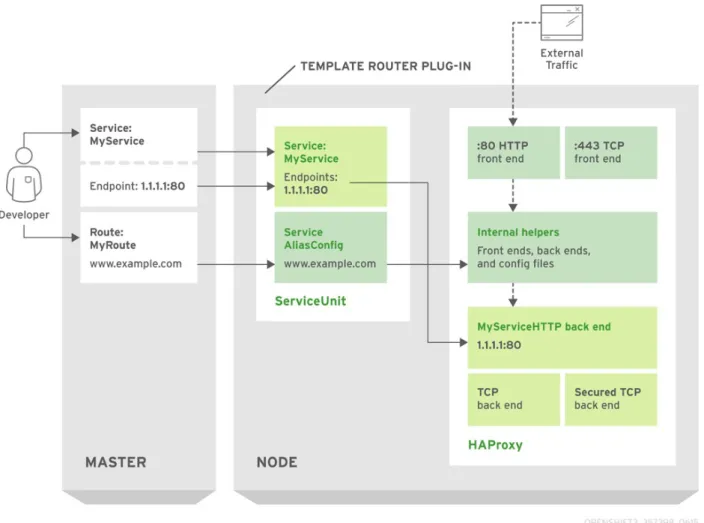
The following diagram illustrates how data flows from the master through the plug-in and finally into an HAProxy configuration:
Figure 3.1. HAProxy Router Data Flow
template implements sticky sessions using the balance source directive which balances based on the source IP. In addition, the template router plug-in provides the service name and namespace to the underlying implementation. This can be used for more advanced configuration such as implementing stick-tables that synchronize between a set of peers.
Specific configuration for this router implementation is stored in the haproxy-config.template file located in the /var/lib/haproxy/conf directory of the router container.
Note
The balance source directive does not distinguish between external client IP addresses; because of the NAT configuration, the originating IP address (HAProxy remote) is the same. Unless the HAProxy router is running with hostNetwork: true, all external clients will be routed to a single pod.
3.7.3.2. F5 Router
The F5 router plug-in integrates with an existing F5 IP® system in your environment. F5
BIG-IP® version 11.4 or newer is required in order to have the F5 iControl REST API. The F5 router
supports unsecured, edge terminated, re-encryption terminated, and passthrough terminated routes matching on HTTP vhost and request path.
The F5 router has feature parity with the HAProxy template router, which means it has feature parity, and then additional features, compared to to the F5 BIG-IP® support in When comparing with the OpenShift routing-daemon used in earlier versions, the F5 router additionally supports:
path-based routing (using policy rules),
re-encryption (implemented using client and server SSL profiles), and
passthrough of encrypted connections (implemented using an iRule that parses the SNI protocol and uses a data group that is maintained by the F5 router for the servername lookup).
Note
Passthrough routes are a special case: path-based routing is technically impossible with passthrough routes because F5 BIG-IP® itself does not see the HTTP request, so it cannot examine the path. The same restriction applies to the template router; it is a technical limitation of passthrough encryption, not a technical limitation of OpenShift.
Routing Traffic to Pods Through the SDN
Because F5 BIG-IP® is external to the OpenShift SDN, a cluster administrator must create a peer-to-peer tunnel between F5 BIG-IP® and a host that is on the SDN, typically an OpenShift node host. This ramp node can be configured as unschedulable for pods so that it will not be doing anything except act as a gateway for the F5 BIG-IP® host. It is also possible to configure multiple such hosts and use the OpenShift ipfailover feature for redundancy; the F5 BIG-IP® host would then need to be configured to use the ipfailover VIP for its tunnel’s remote endpoint.
F5 Integration Details
The operation of the F5 router is similar to that of the OpenShift routing-daemon used in earlier versions. Both use REST API calls to:
create and delete pools,
add endpoints to and delete them from those pools, and configure policy rules to route to pools based on vhost.
Both also use scp and ssh commands to upload custom TLS/SSL certificates to F5 BIG-IP®. The F5 router configures pools and policy rules on virtual servers as follows:
When a user creates or deletes a route on OpenShift, the router creates a pool to F5 BIG-IP® for the route (if no pool already exists) and adds a rule to, or deletes a rule from, the policy of the appropriate vserver: the HTTP vserver for non-TLS routes, or the HTTPS vserver for edge or re-encrypt routes. In the case of edge and re-re-encrypt routes, the router also uploads and configures the TLS certificate and key. The router supports host- and path-based routes.
Note
Passthrough routes are a special case: to support those, it is necessary to write an iRule that parses the SNI ClientHello handshake record and looks up the servername in an F5 data-group. The router creates this iRule, associates the iRule with the vserver, and updates the F5 data-group as passthrough routes are created and deleted. Other than this implementation detail, passthrough routes work the same way as other routes.
When a user creates a service on OpenShift, the router adds a pool to F5 BIG-IP® (if no pool already exists). As endpoints on that service are created and deleted, the router adds and removes corresponding pool members.
When a user deletes the route and all endpoints associated with a particular pool, the router deletes that pool.
3.7.4. Route Host Names
In order for services to be exposed externally, an OpenShift route allows you to associate a service with an externally-reachable host name. This edge host name is then used to route traffic to the service.
When two routes claim the same host, the oldest route wins. If additional routes with different path fields are defined in the same namespace, those paths will be added. If multiple routes with the same path are used, the oldest takes priority.
Example 3.6. A Route with a Specified Host:
apiVersion: v1
kind: Route
metadata:
name: host-route
spec:
host: www.example.com to:
kind: Service name: service-name