www.smartaccessnewsletter.com Smart Access October 2002 11
Select * From SharePoint
Where db = ‘Access’
Nikander and Margriet Bruggeman
One of the key things SharePoint Portal Server is known for is its enterprise scalable search. SharePoint Portal Server can be used to search through a wide variety different kinds of content sources. Nikander and Margriet Bruggeman explain how to search an Access database from SharePoint.F
IRST of all, this article isn’t intended for people with no prior knowledge of SharePoint Portal Server. If you need an introductory article about SharePoint, please read our article, “Meeting SharePoint Portal Server” which was published in last month’s issue of Smart Access. This article covers a more specific topic— how to index and search an Access database using SharePoint Portal Server.Available content sources
In order for SharePoint Portal Server to search through various content sources, a protocol handler for the content source must be provided. Out of the box, SharePoint Portal Server ships with a default set of protocol handlers (it’s also possible for you to create your own protocol handlers). To find out which protocol handlers are installed on your server, look at the following key in the Windows Registry:
HKLM\Software\Microsoft\Search\1.0\ProtocolHandlers.
The following content sources are currently available:
• Lotus Notes
• Exchange 5.5 public folders • Exchange 2000 public folders • SharePoint Portal Server workspaces • SharePoint Team Services Web sites • file shares
• Web sites • ftp sites
The ftp sites content source is optional. To get that protocol handler, you’ll need to download it from the Microsoft Web site.
As you can see, databases like SQL Server and Access aren’t included. Don’t despair—this doesn’t mean these databases can’t be searched. You do have to perform a couple of steps before you’ll be able to access their data, however.
Soccer example
To demonstrate how to search an Access database, we’ve created a table called Players and filled it with information about five players from the English football club Manchester United (see Table 1 and Figure 1). What we want to accomplish in our example is to enable users of a SharePoint Portal Server portal site to search for this player information using the standard SharePoint Portal Server search interface.
Smart
Access
12 Smart Access October 2002 www.smartaccessnewsletter.com In the next section we’ll explore how this data would
typically be stored if it was accessed in SharePoint Portal Server.
Document profile
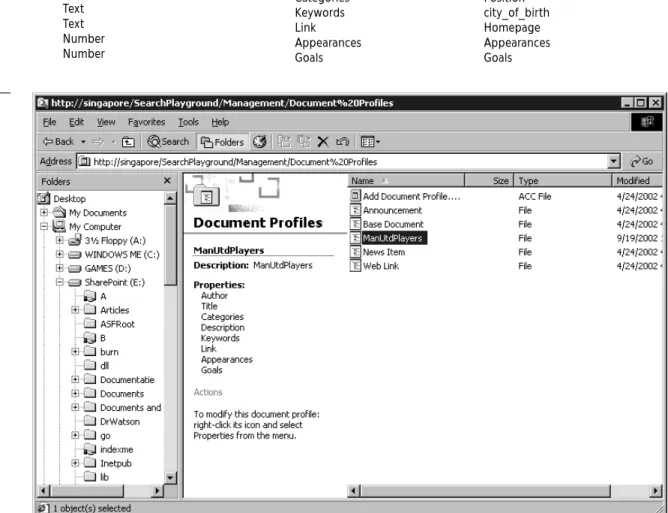
All information in SharePoint Portal Server is associated with document profiles. A document profile can loosely be compared to a table definition. The same data in SharePoint Portal Server is captured in a document profile called ManUtdPlayers, as shown in Figure 2.
In order to search an Access database you need to create a mapping between Access tables and a SharePoint Portal Server document profile. For our example, that mapping appears in Table 2.
In the next section we’ll show you how to implement this mapping.
Access content source
The next step is generating the Access data in a searchable
format. Because you cannot search an Access content source directly from SharePoint, we’ll create a content source that can be searched by SharePoint Portal Server: a Web site. We’ve created a set of static HTML pages with player information, which we’ve exported from Access. You can export data either from the Access user interface or through code in your application. At the end of the article, we’ll show you some code that retrieves data dynamically from Access. This code would allow you to generate your SharePoint searchable store at the time that the data is indexed.
The first HTML code that we’ll show is the code for a general overview page. This page would allow users to view the Web site from a browser. Detailed information about a player can be retrieved by following the links on this page:
<html> <head>
<meta name="robots" content="noindex,follow" />
Figure 2. A SharePoint document profile to match the Players table.
Table 2. Mapping a SharePoint document profile to an Access table.
Document profile property Access column
Title player_name Description player_description Categories Position Keywords city_of_birth Link Homepage Appearances Appearances Goals Goals
Table 1. The table layout for our sample table. Field name Data type
Id AutoNumber player_name Text player_description Text city_of_birth Text Position Text Homepage Text Appearances Number Goals Number
www.smartaccessnewsletter.com Smart Access October 2002 13 </head> <body> <a href="Ruud.asp">Ruud</a><br /> <a href="David.asp">David</a><br /> <a href="Fabien.asp">Fabien</a><br /> <a href="Roy.asp">Roy</a><br /> <a href="Laurent.asp">Laurent</a> </body> </html>
A more generalized solution uses a single page for all users with a query string value that specifies which player’s information to use:
<html> <head>
<meta name="robots" content="noindex,follow" /> </head> <body> <a href="Player.asp?id=1">Ruud</a><br /> <a href="Player.asp?id=2">David</a><br /> <a href="Player.asp?id=3">Fabien</a><br /> <a href="Player.asp?id=4">Roy</a><br /> <a href="Player.asp?id=5”>Laurent</a> </body> </html>
We’ll return to this design when we create a dynamic data solution near the end of this article.
The robots <meta> prevents the general overview page from being indexed by SharePoint Portal Server (the noindex entry in the content attribute). The follow entry causes SharePoint to follow the links to the detail pages so
that they can be indexed.
Next, we have an example of a detail page:
<html> <head>
<title>Ruud van Nistelrooy</title>
<meta name="MetaAuthor" content="Bruggeman" /> <meta name="MetaDescription"
content="Forward of Manchester United." /> <meta name="MetaCategories" content=":Forward" /> <meta name="MetaKeywords" content="Oss" /> <meta name="MetaContentClass"
content="urn:content-classes:ManUtdPlayers" /> <meta name="MetaLink"
content="http://www.manutd.com/ruud" /> <meta name="MetaAppearances" content="56" /> <meta name="MetaGoals" content="39" /> </head>
<body> </body> </html>
As you can see, the HTML page contains <meta> tags that are mapped either to the columns in the Access table or to properties in the SharePoint Portal Server document profile.
The MetaCategories <meta> tag is especially important. In SharePoint Portal Server the Categories document property is an existing system property that can have multiple values. In a Web page the meta tag can only have one value if it’s to be mapped to the Categories document property. The colon (:) before a category name
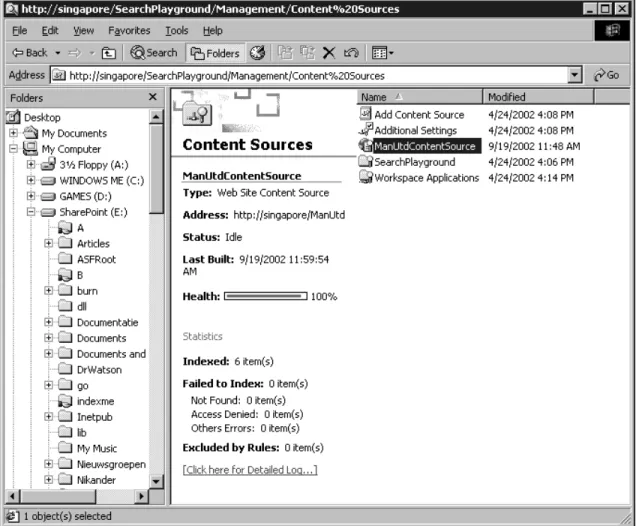
Figure 3. The sample content source.
14 Smart Access October 2002 www.smartaccessnewsletter.com is mandatory, because all category names in SharePoint
Portal Server start with a colon.
The next step is to create a Web site content source. Here are the steps you need to take:
1. In Windows Explorer, go to your SharePoint Portal Server workspace.
2. Go to management/content sources and double-click “Add content source,” which will start the content source wizard.
3. On the welcome screen, click Next.
4. On the content source type screen, choose “Web site” and click Next.
5. On the content source screen, type the URL where you stored your HTML pages: http:// myservername/myvirtualdir. In our case this is http://singapore/ManUtd (see Figure 3).
6. On the content source screen under “Create an index of:” choose “This site—follow links to all pages on this site” and click Next.
7. On the name screen, type “ManUtdContentSource” and click Next.
8. On the last screen of the content source wizard, make sure the check box “Start creating an index” is not checked. You shouldn’t index the Web site yet because you haven’t mapped the HTML meta tags to the document profile.
9. Click Finish.
Making the mapping
We’ve included a file available for Download (with the monthly source code at www.smartaccessnewsletter.com)
called propmap.xml, that contains a mapping between HTML meta tags and SharePoint Portal Server
document properties. This listing shows a small section of the file: <?xml version="1.0"?> <propertyMap> <server> <name>singapore</name> <workspace> <name>searchplayground</name> <contentSource> <name>ManUtdContentSource</name> <targetContentClass> ManUtdPlayers </targetContentClass> <property> <sourceName>MetaDescription</sourceName> <sourceType>string</sourceType> <targetName>Description</targetName> </property> ... </contentSource> </workspace> </server> </propertyMap>
We’ve also included a script called propmap.wsf. This script can be called from the command line using cscript propmap.wsf. This script looks for propmap.xml in the same directory and adjusts the created content source so that the mapping between the meta data in HTML and SharePoint Portal Server is made.
The script creates a site path rule that needs to be edited manually before the content source can be indexed. These steps take care of that:
1. Return to your SharePoint Portal Server workspace. 2. Go to the management/content sources folder and
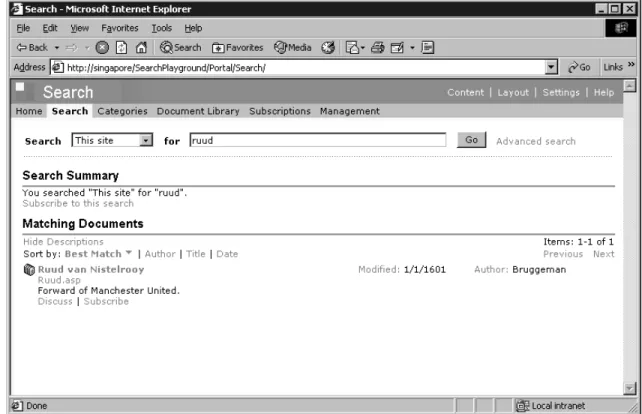
Figure 4. A simple SharePoint search.
www.smartaccessnewsletter.com Smart Access October 2002 15
double-click “Additional settings.” 3. Click the “Site paths…” button.
4. Choose the ManUtd site path rule and click Edit. 5. Click Options.
6. Click the “Enable complex links” check box. This ensures that query string parameters are taken into account when searching. This is necessary when indexing dynamic pages. Strictly speaking, it isn’t necessary at this point because initially we’re generating static HTML pages from our Access database. However, we’re already looking ahead to the query strings we use in our dynamic solution. 7. Press the successive OK buttons to exit the dialogs
but, again, don’t start an index yet.
Indexing
After all these changes, the following services need to be restarted to flush any cached schema:
• Microsoft Exchange Information Store • Microsoft Search
• SharePoint Portal Server
Finally, you can start indexing the content source by right-clicking the content source in your Web Folders and choosing “Start full update.” Figure 4 shows a screenshot taken from a test portal site. We’ve used the SharePoint Portal Server search Web part to look for our favorite player “Ruud van Nistelrooy.”
Since we made a mapping to the SharePoint Portal Server Categories document property, we can also use the
Categories dashboard to search for midfielders, as shown in Figure 5.
Dynamic pages
We wrote some code for dynamic pages that query our Access database. What will happen is that, as the indexing engine follows the links, the pages will execute this code. The code will extract the data from the Access database and return it to the requesting user—in this case, the SharePoint indexing function. From the indexer’s point of view, it followed a link and got something to index. The fact that the page was generated dynamically isn’t relevant.
You can use this code as a building block for
implementing your own solutions. Our example is written in .NET and C#. We won’t list the entire code but just the part that retrieves data from Access.
This is the code snippet to extract the data to generate the overview page. The page itself would has a DataList control called ManUtdDataList that is filled with the data on the last line:
string ConnectionString = "[MyConnectionString]"; string Query = "select * from players";
OleDbConnection Conn =
new OleDbConnection(ConnectionString); Conn.Open();
OleDbDataAdapter Adapter =
new OleDbDataAdapter(Query, Conn); DataSet Ds = new DataSet();
Adapter.Fill(Ds); ManUtdDataList.DataSource = Ds; ManUtdDataList.DataBind(); Figure 5. The Categories dashboard. Continues on page 23
www.smartaccessnewsletter.com Smart Access October 2002 23
This code generates a detail page. The Request .QueryString extracts the player number passed in the URL from the overview page:
string Query = "select * from players
where id = " + Request.QueryString["id"]; OleDbConnection Conn =
new OleDbConnection(ConnectionString); Conn.Open();
OleDbCommand Command =
new OleDbCommand(Query, Conn); Reader = Command.ExecuteReader(); Reader.Read();
The entire code sample can be downloaded from the Smart Access Download site.
Don’t let the limited set of default content sources in SharePoint Portal Server fool you. It’s possible to use a workaround to search in every imaginable content source. This article showed you how to search in Access. ▲
SHPSLCT.ZIP at www.smartaccessnewsletter.com Nikander and Margriet Bruggeman both work for a Dutch software company called Macaw (www.macaw.nl), which specializes in building Internet applications using the latest Microsoft technology.
Select * From SharePoint...
Continued from page 15
Passwords, Workgroups...
Continued from page 6
shortcut properties to find the password. Anyway, it’s likely that your users will just write the password on a post-it note on the front of their computer screen for all to find out!
To my mind, Access security is a process of reducing the business risks for our clients. With every additional security option that you add to your database, there’s generally a security penalty (such as remembering a password or 20 more hours of programming). The examples that I’ve shown for ADO connections have a lot of appeal in that they allow the software to interact with your database without giving away the vital
passwords. If you’re like me, any article or example that shows you how to use ADO in your software is just one step closer to the day when ADO becomes your second language. ▲
ADOPSWD.ZIP at www.smartaccessnewsletter.com Garry Robinson runs GR-FX Pty Limited, a company based in Sydney, Australia. If you want to keep up to date with the his latest postings on Access issues, visit his company’s Web site at www.vb123.com or sign up for his Access e-mail newsletter by sending a blank e-mail to [email protected]. The site features Access Source Code tools and resources. Garry discovered a lot of this code when writing an Access security product called The Workbench which is available for download at his site. [email protected].
statement, substituting question marks for the value to be used in the comparison. On this form, the WHERE clause works out to:
WHERE (dbo.tblTask.TaskID= ?)
If you try to enter data on this form, you should notice that the Calculated field is now updated when you modify a record. ▲
ADPCHG.ZIP at www.smartaccessnewsletter.com Russell Sinclair is an MSCD and is the owner of Synthesystems, a technology consulting firm specializing in Visual Basic, SQL Server, and Microsoft Access development. He’s the author of From Access to SQL Server—an Access developer’s guide to migrating to SQL Server; a senior programmer with Questica, Inc.—a company specializing in software for custom-design manufacturers; and is a Smart Access Contributing Editor. [email protected].