An Experiment on True-3D Optical Range Camera using Virtual
Keyboard
Jitendra P. Dave
Assistant Professor
C.U. Shah College of Master of Computer Application Wadhwan City, India
Abstract— A virtual keyboard is actually a key-in devicewhich uses highly advanced laser technology, to project a full sized keyboard on to a flat surface. Since the invention of computers they had undergone rapid miniaturization. Disks and components grew smaller in size, but only component remained same for decades -its keyboard. Since miniaturization of a traditional keyboard is very difficult we go for virtual keyboard. Here, a camera tracks the finger movements of the typist to get the correct keystroke. A virtual keyboard is a keyboard that a user operates by typing on or within a wireless or optical dectable surface or area rather than by depressing physical keys. Since their invention, computers have undergone rapid miniaturization from being a 'space saver' to 'as tiny as your palm'. Disks and components grew smaller in size, but one component still remained the same for decades - it's the keyboard. Miniaturization of keyboard had proved nightmare for users. Users of PDA’s and smart phones are annoyed by the tiny size of the keys. The new innovation Virtual Keyboard uses advanced technologies to project a full-sized computing key-board to any surface. This device has become the solution for mobile computer users who prefer to do touch-typing than cramping over tiny keys. Virtual Keyboard is a way to eliminate finger cramping. All that's needed to use the keyboard is a flat surface. Using laser technology, a bright red image of a keyboard is projected from a device such as a handheld. Detection technology based on optical recognition allows users to tap the images of the keys so the virtual keyboard behaves like a real one. It's designed to support any typing speed.
Keywords: True-3D Optical Range, Virtual Keyboard
I. INTRODUCTION
Since their invention, computers have undergone rapid miniaturization from being a ‘space saver’ to ‘as tiny as your palm’. Disks and components grew smaller in size, but one component still remained the same for decades—it’s the keyboard.
Miniaturization of keyboard has proved nightmare for users. Users of PDA’s and smart phones are annoyed by the tiny size of the keys. Thanks to some new innovations, a key-in device that is roughly the size of a fountain pen and uses advanced laser technologies to project a full-sized computing key- board to any surface has been invented! Believe me, its virtual keyboard that has become the solution for mobile computer uses who prefer to do touch-typing than cramping over tiny keys. The keyboard disappears when not in use!
II. QWERTY KEYBOARD
Before going ahead we should know what QWERTY keyboard is. If you have notice that the upper row of the keyboard contains some keys. In this row the first key is the
“Q” and the second is “W”, the third one is the “E”, the fourth one is the “R”, the fifth one is the “T” and the last one is the “Y”. Combining all these keys form a word called “QWERTY”. So the keyboard that we are using today is called QWERTY keyboard layout.
[image:1.595.373.485.214.330.2]III. VIRTUAL KEYBOARD
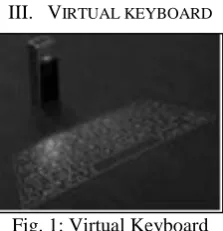
Fig. 1: Virtual Keyboard
A virtual keyboard is actually a key-in device, roughly which uses highly advanced laser technology, to project a full sized keyboard on to a flat surface. Since the invention of computers they had undergone rapid miniaturization. Disks and components grew smaller in size, but only component remained same for decades its keyboard. Since miniaturization of a traditional keyboard is very difficult we go for virtual keyboard. Here, a camera tracks the finger movements of the typist to get the correct keystroke. A virtual keyboard is a keyboard that a user operates by typing on or within a wireless or optical dectable surface or area rather than by depressing physical keys.
Since their invention, computers have undergone rapid miniaturization from being a 'space saver' to 'as tiny as your palm'. Disks and components grew smaller in size, but one component still remained the same for decades - it's the keyboard. Miniaturization of keyboard had proved nightmare for users. Users of PDA’s and smart phones are annoyed by the tiny size of the keys. The new innovation Virtual Keyboard uses advanced technologies to project a full-sized computing key-board to any surface. This device has become the solution for mobile computer users who prefer to do touch-typing than cramping over tiny keys. Typing information into mobile devices usually feels about as natural as a linebacker riding a Big Wheel. Virtual Keyboard is a way to eliminate finger cramping. All that's needed to use the keyboard is a flat surface. Using laser technology, a bright red image of a keyboard is projected from a device such as a handheld. Detection technology based on optical recognition allows users to tap the images of the keys so the virtual keyboard behaves like a real one. It's designed to support any typing speed.
With either approach, a virtual keyboard makes it possible for the user of a very small smart phone or a wearable computer to have full keyboard capability.
IV. OVERVIEW OF FUNCTION KEYS
A. Switching On:
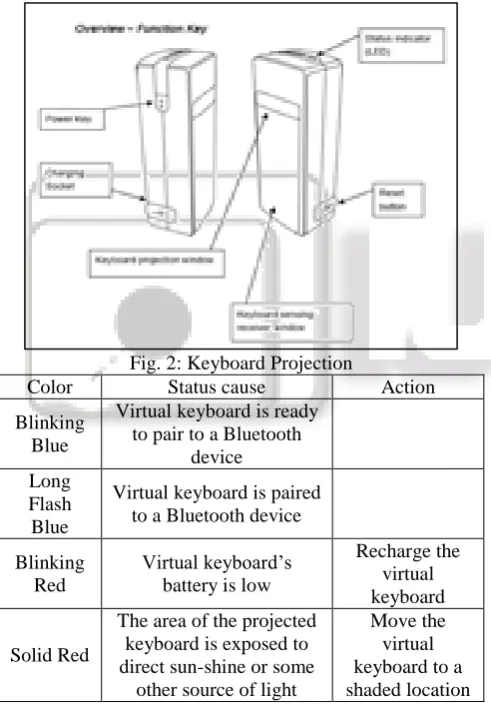
Place the Virtual Keyboard (VKB) on a flat surface with the Keyboard projection and sensing windows facing you. To switch it on press the On/Off button, located on the upper-left hand side.
[image:2.595.46.292.272.633.2]Once the unit is switched on an image of a keyboard is projected on to the surface. Notice that the keyboard image is the basic English keyboard, including 4 Arrow keys, 1 Control, 2 Shift keys, 1 Alt and a VKB dedicated Fn function key. A two-color LED located at the top of the unit indicates the current status of the Virtual Keyboard, where:
Fig. 2: Keyboard Projection
Color Status cause Action
Blinking Blue
Virtual keyboard is ready to pair to a Bluetooth
device Long
Flash Blue
Virtual keyboard is paired to a Bluetooth device
Blinking Red
Virtual keyboard’s battery is low
Recharge the virtual keyboard
Solid Red
The area of the projected keyboard is exposed to direct sun-shine or some
other source of light
Move the virtual keyboard to a shaded location
V. SYSTEM ARCHITECTURE
Figure 1 shows the physical setup of the system. The 3D range camera is placed several centimeters over the input surface, with a well-defined angle facing the working area. The size of the working area, limited by the spatial resolution of the camera, is 15 cm ×25 cm, which is comparable to a full-size laptop-computer keyboard. The display projector is mounted on the camera, facing the same area, which would generate the visual feedback for the keyboard and input information.
The proposed system consists of three main hardware modules:
1) 3D optical range camera 2) Visual feedback, and 3) Processing platform
The range camera is connected to the processing platform, presently a personal computer (PC), via a USB2.0 interface. The visual feedback module communicates with the computer via serial port.
The Swissranger SR-2 3D optical range camera simultaneously measures gray-scale and depth map of a scene. The sensor used in the camera is based on CMOS/CCD technology and it is equipped with an optical band-pass filter to avoid all background light. It delivers gray-scale and depth measurements based on the time-of-flight (TOF) measurement principle with a spatial resolution of 160 × 124 pixels. The light source of the camera is an array of LED’s modulated at 20 MHz with a total optical power output of approx. 800 mW, however only a fraction of this total light power is utilized in the current setup. The depth resolution under these conditions is only about 1.5 cm without any spatial filtering, and may reach 0.6 cm with the spatial filtering with a window size of 5×5 pixels. A detailed discussion of the theoretical background and practical implementation of the camera can be found
Fig. 3: Projected-keyboard demonstration-system setup The depth information supplied by the range camera allows developing simpler and more efficient computer-vision algorithms to estimate the position of fingertips and to locate the corresponding stricken key. Simplicity and efficiency are key elements to enable real-time or even portable applications. However, there are still some challenges associated with the range camera utilized in this project. A number of problems, such as e.g., light scattering, and “close target” artifacts impact achievable depth accuracy. Moreover, the image resolution of the camera is relatively low, thus restricting its use to applications with large view window. As a result the working area of the keyboard is limited today to a sub-optimal size. The current power consumption and size of the range camera are also impediments to its use in truly portable applications. Naturally, the current demo system is composed, in part, by prototypes. Nonetheless, based on our research experience in the field of full-field TOF-based rangefinders, we believe that all these problems will be solved in the near future, and all-solid-state 3D cameras will soon fall in adequate size and price ranges.
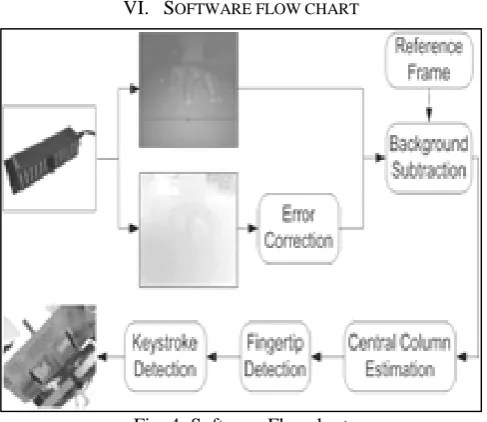
LCD. Whenever the processing algorithm detects a key-striking or key-bouncing event, it sends an UPDATE command to the visual feedback module with specific key information. The feedback module updates the generated display according to the command and thus the user can see the change of the keyboard image as well as textual or graphical updates. Additional audio feedback is used to help the user identify successful keystrokes. The processing algorithm consists of five main modules as shown in Figure 4:
1) Depth map error correction, a camera dependent module based on specific models designed for the range camera 2) Background subtraction
3) Central column estimation 4) Fingertip detection and 5) Keystroke detection.
Note that software modules (2) to (5) are camera independent modules applying computer vision algorithms to track the movement of fingers and to detect the typing event. The 3D range camera is calibrated at startup. The projection matrix of the camera is estimated during calibration. The depth map delivered by the range camera is first processed by the error-correction routine to compensate for errors caused by parallax and distributed clock skews in the camera. The rectified range measurements, combined with gray-scale image, are then subtracted from the reference image and binarized to extract the hand region. After applying the central column estimation, which is defined as the pixel segments associated with fingers that are good candidates for an event, by searching the local extrema in x-coordinate along the hand boundary, and applying the fingertip detection by extracting features with curve modeling, precise location of fingertips can be found in the hand region. Finally, the keystroke detection is obtained by fitting depth curve applying another feature model, and the corresponding hitting positions are mapped back to the world coordinate system to infer the stricken keys. The updated key status is then sent to visual feedback module to generate refreshed display.
[image:3.595.308.541.370.538.2]VI. SOFTWARE FLOW CHART
Fig. 4: Software Flowchart
VII. EXPERIMENTAL RESULTS
In this section, preliminary experimental results of the proposed system are presented. The range camera is connected to a PC with Pentium4 1.8GHz CPU. With these resources, the system could capture images and process them in approx. 30ms intervals, i.e., 33 frames per second on average. This frame rate is high enough for normal typing, which requires a finger speed of at most 10 cm/s. The camera was pre-calibrated with respect to a world coordinate frame associated with the surface, and the construction of the reference frame was achieved in less than 3 seconds. Figure 3 shows a true human hand’s typing motion being tracked by our algorithm and the detected keystroke event in the image sequence, which are marked with white dots. A sequence of frames leading to a specific keystroke is shown. The keystroke of the dynamic fingertip is detected accurately in Figure 3(b). Note that also the other fingers are correctly detected, as they are stationary keystrokes. Stationary keystrokes can be interpreted as REPEAT. Current challenge for the system is the finger occlusion problem for two-handed typing, which is common to most of the vision based hand tracking systems. A solution to this problem is to apply more complicated 3D hand models so that the position of the occluded finger can potentially be estimated. However, this may dramatically lower the system frame rate and cannot fulfill our real-time requirement.
Fig. 5: Result from image sequence
[image:3.595.46.290.530.741.2]Statistics were compiled to evaluate the false detection, misses and incorrect detection rate. False detection occurs when a key is not pressed but a character is issued. A miss occurs when a key is pressed bur no character is issued. Incorrect detection is equivalent to a misprint. User set 1 consists of user who never used this system beforehand, and user set 2 of users who practiced with the system for less than 10 minutes. From table 2 we found that the dominant detection error is the false detection in both cases. This error
is mainly caused by the low lateral resolution of the camera, which could not resolve very small floating distance between the fingers and the table, through that users could not adapt to a flat typing surface is also a reason. Experiments showed that with short time of practice, accuracy and typing speed are both observably enhanced. It was also shown that an appreciably experienced user can reach the normal typing speed of approx 30 words per minute with the presented system.
False detection rate
Missed-strokes rate
Incorrect detection rate
Typing accuracy
Average typing speed (words/min) User set
1 8.5% 3.5% 1% 87% 21.6
User set
2 6.7% 2.7% 1% 89.7% 30.8
Total
7.4% 3% 1% 88.6% 27.1
Table 1: Summary of results of the system-usability tests In general, the surrounding lighting condition would
impact the scene segmentation method if based on static reference frame. However, the infrared LED light source and the camera filter is narrow-banded and centered on a wavelength that only few natural light sources would have as their main component. This enables to extract the hand region according to pre-computed reference frame with very low processing complexity.
In this paper, only static background conditions were discussed. One major problem of having a mobile input device is that of dynamic scene. We are currently working on methods of automatically updating the reference frame if the movement of background is detected. Furthermore, for the comfort of user’s wrist and elbow, generally virtual keyboard systems are developed based on 2D flat keyboard area. However, with the depth information supplied by the range camera, our system could be extended to 3D keyboard without any actual typing surface, which is also the direction for our future study.
VIII. ADVANTAGES AND DRAWBACKS
A. Advantages:
Portability Accuracy
Speed of text entry
Lack of need for flat or large typing surface
Ability to minimize the risk for repetitive strain injuries Flexibility
B. Drawbacks:
Short battery life.
Lighting conditions – In a brightly lit room, the virtual keyboard is less visible.
IX. APPLICATION
There is a vast field of application where virtual keyboard can be used like as:
Personal Digital Assistants (PDA) Space saving computers
Laptops
Industrial environments
Sterile and medical environments Transport (Air, Rail, Automotive)
X. LASER SAFETY PRECAUTION
The Virtual Keyboard device emits two laser beams. One beam (red) projects the keyboard image, and the other beam (invisible) is used for sensing which keys have been touched. The radiation levels of both laser beams do not exceed the Accessible Emission Limits of Class 1, as defined by the international standard and the American standard. The Virtual Keyboard device is, therefore, a “Class 1 Laser product”. This means that the Virtual Keyboard device is safe under reasonably foreseeable conditions of operation. Although the emitted laser beams are safe (as defined by the above standard), it is highly recommended not to stare directly into laser beams.
XI. GENERAL MAINTENANCE
Avoid touching the keyboard sensing receiver window. Never touch the keyboard projection element.
Avoid exposing the keyboard to moisture or extreme temperatures.
Do not disassemble or try to touch the inside of the device.
Do not attempt to charge the device with a different charger than the one provided by VKB.
If the windows become dirty clean only with a soft, lint free dry cloth. Do not use any solvents or cleaners.
XII. CONCLUSION
REFERENCES
[1] www.vkb.com