A Technical Cost Effective Network-Domain
Hosting through Virtualization: a
VMware ESXi
and vSphere Client Approach
Nomnga, P.
Scott, M. S.
Nyambi, P. B
University of Fort Hare, University of Fort Hare University of Fort Hare P/Bag X1314 Alice, 5700, RSA P/Bag X1314, Alice, 5700, RSA P/Bag X1314, Alice, 5700, RSA,
Tel: +27 (0) 40 602 2745 Tel: +27(0) 40 602 2745 Tel: +27(0) 40 602 2745
ABSTRACT
In today‟s fast advancing technology, virtualization has presented the possibility of consolidating unused/underutilized resources into one physical component. This comes with benefits such as saving costs, hardware independence and improving security by isolation; it is no wonder virtualization is gradually being implemented in every aspect of the technology world. A virtualized system is able to run several separate Operating Systems (OSs) in parallel and in one Central Processing Unit (CPU) without the need to reboot. Unlike in a dual boot system, where only a single OS can run at a time requiring rebooting in order to switch to the other OS. Server virtualization is a term used to describe the abstraction of a physical server resource i.e. server consolidation. The VMware integrated Elastic Sky X (ESXi) is a bare metal hypervisor which provides the illusion of a real hardware to the guest (OS). This in turn simplifies underlying hardware by abstraction and therefore promoting better utilization of needed resources. Prior virtualization, server sprawl never presented itself to organizations as a shock, an event where one physical server performs only one function such as printer server, email server to mention but just a few which required a lot of money to maintain in the form of cooling devices and space. This study focuses on server virtualization using the cost effective VMware ESXi and its manager, vSphere client to host a network domain, a case of the Department of Computer Science (CSC), University of Fort Hare. The rationale behind this research project was to consolidate all physical servers into one physical machine without immense consumption of hard disk space since resources are only allocated when needed in a virtualized environment.
Keywords
Cost-effective, Virtualization, VMware ESXi, vSphere-Client, and Hypervisor.
1.
INTRODUCTION
A server is a physical computer that is designed to provide one or more services to other computers on the network. Servers have benefits such as centralized location, ability to control air conditioning, consistent data archiving and speed [2]. Virtualization refers to the abstraction of resources in software of the platform on which a program runs [3]. Basically, one physical machine i.e. the virtual server provides many services to the client, but to the clients it looks like this service is provided by an exclusive physical machine [4]. This breaks through the "one application, one server" barrier and makes possible the consolidation of several servers into one physical server. The original software runs on a platform called a Virtual Machine (VM) which is treated as a guest by the physical hardware and is managed by a Virtual Machine Monitor (VMM) [5]. A VMM allows multiple (OS) and applications to
run concurrently, thus increasing security is referred to as a hypervisor [6]. Virtualization using VMware ESXi, the hypervisor that is managed by vSphere Client, is beneficial because it supports concurrent host access allowing ESXi hosts to share a data store [7]. The evidence that VMs are not aware that they are running on a virtual environment is that they behave exactly like physical computers, only without wastage of resources since the CPU, random-access memory RAM, Hard Disk, Memory etc. are allocated according to the need of the machine [8]. Prior to virtualization, blade servers were the hardware solution to server sprawl (one physical server performs only one function); reducing power consumption, sharing cabling and storage because they are thinner [9]. Virtualization is therefore, the software solution to server sprawl.
A network domain is a centralized computer network where all computers, user accounts and all other devices and security principals are registered in a central database sharing common rules and procedures [10]. A domain contains an Internet Protocol (IP) address which defines it and all devices on the same domain share a common part of the IP address [10]. The domain controller permits synchronized updates and access of information on all computers in the same domain. The Active Directory (AD) takes the role of domain controller which authenticates, authorizes and enforces security policies for all devices in the network domain.
The rationale behind the choice of this study was mainly because of the capabilities and advantages of server virtualization as compared to the other types such as desktop virtualization. Therefore in this paper, a smooth transitional process for advancing a Windows server 200 into a virtual server for hosting the CSC domain is presented. This scientific achievement is presented through providing an extensive and robust literature review, systematic research methodology, design technologies, in-depth server virtualization process, system design analytical process, and system deployment and testing. This virtual platform was created to ensure compatibility of new technologies, reliable network connectivity, security hotfixes, patches and service packs.
2.
RELATED WORK
autonomic control, through management software that maintains the system in a desired state in the face of changing workload and demand [12]. Apart from the reality of enhanced operability that comes with the concept of virtualization, there is also an aspect of cost-effectiveness. In [13] it is argued that Data centers and Information Technology (IT) management are implementing virtual server technology, often as part of a consolidation strategy. Cost savings in the areas of software license management, systems management, data center, and overhead costs, such as electricity, generators, and floor space are key benefits for consolidated virtual server environments.
The experience of the authors in the field of ICT is that, business organizations, government, academic institutions, etc continuously spend large sums of money in buying software licences, electricity, generators and ensuring system management. Similarly, the University of Fort Hare (UFH), CSC department was no different from the rest. Most probably the UFH, CSC department is one of hundreds of other institutions of higher learning across the length and breadth of the world who are still lying behind in server virtualization. Taking full advantage of the findings of [11, 12, 13] this research project aimed at proposing a cost-effective network-domain hosting through virtualization using a VMware ESXi and vSphere client approach. This was done to relieve the CSC department from the financial constraint of not having sufficient funds to purchase and upgrade their servers.
3.
RESEARCH METHODLOGY
In undertaking this research project, Qualitative Research method was used, which is an advancing process of data discovery, description and understanding [14, 6]. This method also includes conceptualization which involves setting out the list of requirements that the system will include. Moreover, this research followed an iteration process which sometimes involves trial and error. The qualitative methods used included task analysis which involved the analysis of the problem statement and observation of the existing system; the requirements specification included:
Usability Guidelines
Technical and Legal Constraints Research Questions
Interviews System Design System Implementation System Deployment System Evaluation
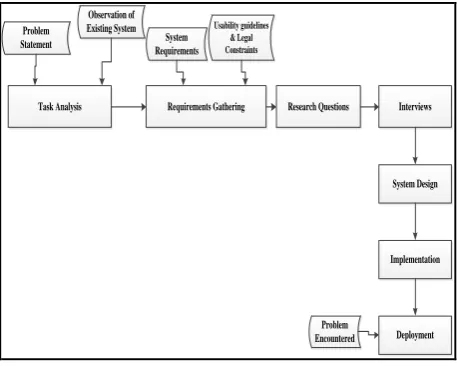
The following figure shows the steps that this research project took to achieve its objectives.
Figure 1 below, presents a chronological research methodology flow which guided this research project:
Task Analysis Problem Statement
Observation of Existing System
Requirements Gathering Research Questions Interviews
System Design
Implementation System
Requirements
Usability guidelines & Legal Constraints
Deployment Problem
[image:2.595.311.540.71.254.2]Encountered
Figure 1. Methodology Flow
4.
DESIGN TECHNOLOGIES
Since the inception of virtualization, many technologies have emerged and these include: Xen, VMware, Citrix XenServer, Microsoft Hyper-V, etc. In this study the design technologies that have been used are: VMware ESXi and vSphere client because they are cost-efficient as they are freely available for download online.ThevSphere client is the application used to manage ESXi remotely [15]. The hardware included a server CPU 64-bit x86 that has 2 cores which is manufactured by HP.
4.1.
Benefits of using VMware over the
other technologies
Below we list the benefits of using VMware as discussed in [16]:
Uses Direct Console User Interface (DCUI) for initial configurations instead of the complicated command line interfaces.
Provides higher security due to its small hypervisor footprint.
Provides greater cost savings because it offers higher VM density per host than the competing technologies.
Total cost of ownership (TCO)
It is the oldest technology and therefore it provides greater reliability, performance and advanced capabilities.
5.
SERVER VIRTUALIZATION
PROCESS
In a virtualized server environment multiple servers within a single physical server are created and special software (VMware ESXi) was used to distribute physical server system to these multiple virtual servers. Consequently, the virtual servers shared the same characteristics as underlying hardware [13]. Some objectives of server virtualization are:
• Enables sharing
• Optimized utilization of resources • Scalability and management of a server‟s
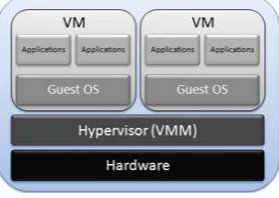
There are three types of server virtualization introduced by VMware that use the binary translation technique for handling instructions in order to virtualize the CPU on x86 architecture [6]. These are Full- virtualization, Para-virtualization and Partial virtualization. The common features shared among the three types of server virtualization are: they all have physical a server called a host that allocates basic machine resources and consist of OS software running on the VM called guest OS [17, 18]. In contrast, they differ in the type of simulation they provide; full virtualization provides a near-native performance due to absence of underlying OS whilst the partial and Para-virtualization run on a host OS. For this reason, full virtualization has been used for this study. Figure 2 below presents the components of a virtualized server:
[image:3.595.369.501.109.212.2]
Figure 2.Virtualized server
5.1.
Full-virtualization
Provides complete simulation for underlying hardware and performance of the CPU and memory is near-native. Full virtualization has two architectures which contrast and complement each other in respect of where they run in the hardware, Type 1 and Type 2 hypervisor [19].
5.1.1.
Type 1 Hypervisor.
Type 1 Hypervisor provides an illusion of a real hardware to guest OS since it is a thin OS, hence referred to as native or bare metal hypervisor [20]. Type 1 has direct access to the underlying physical hardware and the VMs run in isolation. Essentially, the guest OS run at a second level above the hardware. Figure 3 below depicts the components of Type 1 hypervisor:
Figure 3. Type 1 hypervisor
5.1.2.
Type 2 Hypervisor
Contains an additional layer of software that provides utilities to control the virtualization while in guest OS, hence referred to as hosted [19]. Type 2 hypervisor run in a conventional OS environment, so the hypervisor layer becomes a distinct second software level, meaning the guest OS runs at a third level above
[image:3.595.62.295.236.385.2]the hardware [20]. Figure 4 below presents the components of Type 2 hypervisor:
Figure 4. Type 2 hypervisor
In comparison; the Type 1 hypervisor is the most preferable because it provides higher virtualization efficiency and it is suitable for server virtualization. Figure 3 and figure 4 above portrays the difference between hosted and bare metal virtualization, where the bare metal suffers less attack surface than a general-purpose OS. This is because it is built around a virtualization kernel (VMkernel), which is a special-purpose microkernel that provides mechanisms needed to implement an OS [21].
5.2.
Benefits of server virtualization
The well-known benefit of server consolidation through virtualization is cost saving by reducing the number of physical servers therefore saving power resulting in less cooling devices needed and reduces the need of buying new hardware [22]. Since there is only one physical hardware, management and deployment becomes simpler. In addition, the maintenance of physical servers without shutting them down is enabled by the live migration feature of server virtualization which administers migration of running virtual servers to another physical server [7]. Encapsulation and hardware- independence enhance availability and business continuity, in this respect.
5.3.
Risks of server
virtualization
Theories and views on how virtualization affects security of a system are still conflicting. One author argues that better security is a natural result of virtualization [23], whereas another argues that virtualized technologies introduce a platform whose impact on security is not understood by administrators [24,16]. This is because security is influenced by factors such as, dynamic migration and changes; fluctuating workloads; lack of visibility and lack of process management, all which are a result of virtualization [25].
Also, loss of confidentiality caused by virtualization‟s introspection feature that gives the VM ability look inside the VM causes the server to be prone to attacks [26]. Other risks include loss of uniqueness of machines and data because of the replication and copy/backup features [26]. Having many VMs on one physical machine have the following impacts: slow down processes, limits the amount of disk space for each server, and impacts the server‟s ability to store data [26].
6.
SYSTEM DESIGN (THE
ARCHITECTURE)
[image:3.595.119.259.558.657.2]designed and optimized for virtualization [27]. Its key features include advanced snapshot support and concurrent host access allowing multiple ESXi hosts to share a datastore [7]. Benefits of VMware are:
Run multiple applications on a single server. Run a greener datacenter and reduce energy costs. Back up and recover applications more easily.
All the talk about hypervisors and types of virtualizations all depend on the technology that is used in implementation. VMware technology opened up x86-based virtualization in 1998 offering a variation of software based partitioning approaches [28]. Since a basic server needs some form of persistent storage that will store the hypervisor and support files, ESXi does away with that requirement because it implements a bare metal hypervisor without OS (Type 1). The hypervisor is placed in a dedicated compact device and VMware refers to the hypervisor as VMkernel [1]. It is said to have a small 32 footprint which is 5% less than that of ESX [28], this sets a new bar for security and reliability since 2 GB console OS has been removed and management functionality has been implemented directly in the core kernel. Management of VMs is done using the Direct Console User Interface (DCUI). The DCUI is a low-level configuration and management interface that allows configuration of password and Lockdown Mode, restart management network and all other configurations and settings [29]. The vSphere Client is just used for monitoring and managing the ESXi the virtual machines on the virtual environment. It has the following features:
Monitor performance of VMs. Manage VMs.
Diagnose VMs using built-in ping and trace route
6.1.
VMware ESXi (The hypervisor)
The physical server where ESXi is installed that provides a single point of control and services such as access control, performance and monitoring. ESXi abstracts the processor, storage, memory and resources into multiple VMs; it runs on the physical server [30]. In ESXi, all VMware agents run on the (Kernel), unlike its predecessor, ESX which contained a console operating system providing management interface to the host [31].
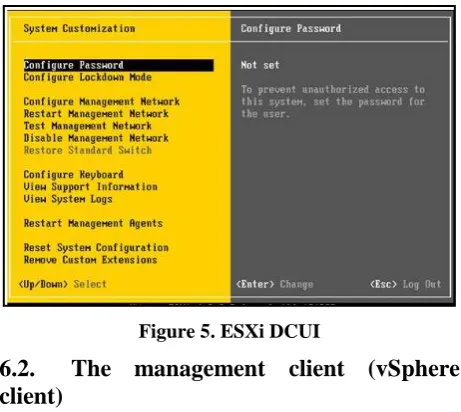
[image:4.595.311.542.70.276.2]This is where the resources from the physical server shared among the VMs are centralized and unified in the data store. These resources include: the CPU, memory, Network Interface Card (NIC) and the disk. These components are shared amongst VMs according to each client‟s needs. ESXi uses the DCUI which is a simple menu-driven interface for configuring the ESXi server [15,7]. It is also used for setting up administration access, configurations and troubleshooting. Figure 5 below is a snapshot of the ESXi DCUI
Figure 5. ESXi DCUI
6.2.
The management client (vSphere
client)
[image:4.595.311.539.375.517.2]The vSphere Client is the interface for ESXi data enter management and also VM access. It provides an option of managing a single host, using theIP address or host name; or for managing multiple hosts by entering the IP address or name of a vCenter Server. It provides a way of accessing and managing the ESXi server remotely from anywhere as long as it is in a Windows environment and the user has administrative rights, this then increases convenience for administrators. Below, figure 6 shows the performance of the ESXi and VMs:
Figure 6. VMware vSphere Client interface showing VMs.
It can clearly be extracted from Figure 6 above that the vSphere client is managing three (3) physical servers virtually. The three (3) physical servers under study are hosted under 172.20.56.87 of the UFH network and are named as Multi-media Lab, Teaching Lab, and Walkin Lab. The vSphere Client is managing them as virtual machines as it can be observed from the Figure 5 above.
Figure 7. Monitoring means of ESXi
6.3. Virtual machines (Windows Server
2003)
These are the isolated guest OS installation that different applications will run on. Virtual machines have the same functionality as the physical hardware they are hosted in and this is made possible by a virtual device which adds benefits such as manageability, security and portability [30]. They are primarily accessed through the vSphere client and they appear as files. This means that they are also the VMs that contain individual IP addresses which can be pinged and accessed from a remote location just like stand-alone hosts. A VM is backed by the physical resources of host and is composed of a set of specifications and configuration files [30]. The domain has been hosted in Windows Server 2003, which according Microsoft is more scalable, secure and delivers better performance than the previous versions [31]. The use of Windows Server 2003 instead of the latest Windows Server 2008 is because it only supports 32-bit servers and Windows Server 2008 is a 64-bit server. The following are the steps necessary to ensure a successfully configured and working VM:
6.3.1.
Installing the Operating System
In Windows Server 2003 the following tasks have been performed: Configure AD which stores information about the users, computers, shared drives or folders, network devices, etc. and administer Domain Name Server to provide a mapping of the computers name to IP addresses in the network environment.
6.3.2.
Installation of VMware tools
VMware tools are a set of drivers and software functions that provide enhanced VM‟s guest OS performance and improves the management of the VM [31]. It improves; Video resolution, mouse movement, shutdown/reboot of guest cleanly and sound [32].
6.4.
The problem
The CSC domain was hosted on Windows Server 2000 which had lost the task manager and had problems with displaying contents. Windows Server 2000 came after Windows New Technology (NT) adding features such as, 32 bit File Allocation Table (FAT32) support, improved stability, and broader range of device drivers including Universal Serial Bus (USB) and Institute for Electrical and Electronics Engineers (IEEE) 1394 support [32].
On the 13th of July 2010, Windows Server 2000 updates and support ended and therefore all machines running on it after this date were doing so without security hotfixes, patches or service packs [33]. In addition, the current, Windows Server 2000 loses network connectivity and it is not compatible with Microsoft Windows 2007 because it cannot administer Remote Desktop Connection and it fails to map network drive. Remote Desktop Connection is used for accessing the server from another computer remotely and still has access to all the servers‟ resources. Finally, the risk of using Windows Server 2000 is that most new technologies are incompatible with it, thus the need for an upgrade.
6.5.
The Users
There are three categories of users who make use of the virtual server both directly and indirectly, these are: administrators, students and staff members. The most significant are the administrators because they are responsible for management of the vCenter Server and VMs through the vSphere Client. They are also responsible for allocating resources to the VMs, creating and removing VMs. Every year new students enrol to undertake computer science studies and that means new user accounts have to be created for such students to access the shared documents in the CSC domain. In addition to students, there are staff members who share information and documents in the domain for students as well.
7.
DEPLOYMENT AND SYSTEM
TESTING
Deployment of the server required testing and evaluation of its usability and accessibility at a computer lab to ensure that it behaved like a physical server. This has been done through: creating new user accounts, adding computers to the domain, mapping the network drive and sharing files. System testing involved a process of verifying whether the created user accounts were able to login to the domain and this required the computers in the lab to be connected to the domain. Connecting the computers to the domain enabled thorough testing of the user accounts including confirmation of the user‟s privileges on resources that have been specified and to check if the accounts don‟t bypass the permission policies.
As system testing involved checking whether or not the created user accounts are able to login to the domain; this required the computers in the Multi-Media Lab to be joined to the domain. Joining the computers to the test.csc.local domain enabled thorough testing of the user accounts including confirmation of the user‟s privileges on resources that have been specified and to check if the accounts don‟t bypass the permission policies. There are two ways of adding a computer to the domain:
Through AD
Through manual configuration on the physical computer.
7.1 Adding a Computer in AD
test.csc.local/Computers. Pressing the button „Next‟ allowed the creation of the object and setting of permissions from its Properties. Also, a computer can be added to a group in a similar procedure as a user is added and such a computer will appear in the organizational units of Users and Computers AD.
Figure 8. Creating a new Computer object
7.2 Adding a computer through manual
configuration
The manual configuration allowed the joining of a computer object before any security policies were specified, unlike joining through the AD which specifies the policies and permissions before joining the domain. Thus, the computer that has been added in AD first will follow the same steps to joining the domain, as much as it will be the same for specifying the policies for the manually added computer. Joining any computer object to a domain required the firewall to be disabled. The computers in the Multi-Media lab already belong to the CSC domain so the first task was to disjoin them from the existing AD domain and reconfigure the DNS server. To perform this there was a need to access the computer properties from “My computer” icon by right clicking and selecting Properties. The task of adding a computer through manual configuration was performed on the “Computer Name” tab, as show in figure 9 below.
Figure 9. System Properties
7.2.1. Removing a Computer from Current Domain
[image:6.595.318.528.151.335.2]Removing a computer from the CSC domain required changing the computer name by joining the computer to a workgroup named “WORKGROUP”. As shown in figure 10 below, the process required the administrators‟ credentials to authenticate the request then followed by a prompt to restart the system for the changes to take effect.
Figure 10. Joining computer into workgroup
7.2.2. Reconfiguring DNS server
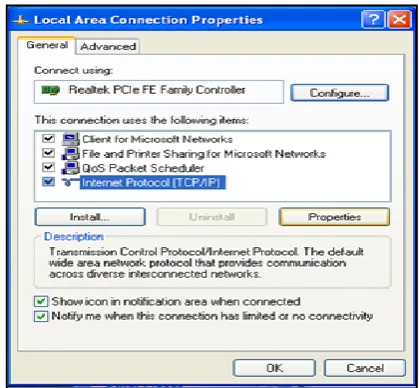
The DNS server was reconfigured to point to the new domain‟s DNS server. This was done by modifying the network properties, found when right clicking on Local Area Connections. Under the Local Area connections properties, internet, Transmission Control Protocol/Internet Protocol (TCP/IP), needed to be modified by clicking on properties as shown below in figure 11. These properties are the same as the ones for the server as shown in figure 12 below. After configuring the IP address the computer was deemed ready to be added to the new AD domain.
[image:6.595.320.530.478.672.2] [image:6.595.64.275.540.724.2]Figure 12. Assigning IP address
7.2.3. Joining a Computer to a New AD Domain
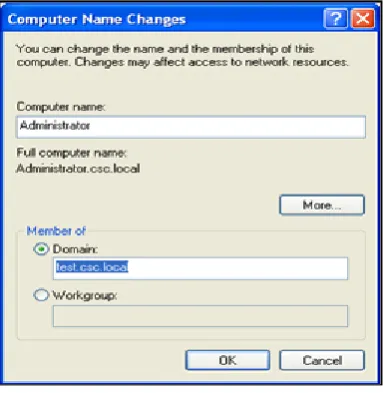
Joining a computer object to the new domain was done in system properties where it was first joined to a workgroup. This required choosing the option “Change” under Computer Name tab, which to location of the domain and workgroup radio button. At this stage the domain option is chosen, leading to the test.csc.local domain, thereafter clicking the “OK” button. Again, the administrator authentication was required before any of these changes were applied. Following these steps a welcome message to the test.csc.local domain popped out indicating that this particular computer has successfully joined the new domain. The final step to ensure that the settings take effect was to reboot the system.
Figure 13. Joining new domain
7.3. Logon to the New Domain
[image:7.595.315.539.73.216.2]To test whether or not the machine has been correctly joined to the domain, each one of the user accounts created in the AD was used to log in and figure 14 below shows that the machine is on the test.csc.local domain called TEST. To ensure that the resources and policies assigned for the computer object and users were accessible to the user, the command “gpupdate” was run in the Disk Operating System (DOS) window. This then presented the final stage of system testing.
Figure 14. Logon window showing the TEST domain
8.
SYSTEM ANALYSIS
System usability analysis included analysis on the server side and client side. On the server side, the analyses included checking the administrator‟s ability to use the system with ease. The client side analysis involved logging in all the computers that belong to the created domain. This was done so as to check the way the AD and DNS functions. The following are the results to the analysis and observations performed with respect to the research objectives:
To investigate the impacts of virtualization technologies and determine the most suitable one for the CSC department.
An in-depth research of virtualization assisted in deciding which method and technology is appropriate for the CSC department, some of the factors considered were the costs and the ease of use of the system. A conclusive analysis resulted in VMware ESXI 5.0 and vSphere Client 5.0 being chosen as the appropriate virtualization technologies for the CSC department.
To design, implement and test the virtualized server and host the CSC domain.
Designing the system was guided by the in-depth study of the architecture of the hypervisor, which helped in the selection of the appropriate hardware and software needed for proper and successful virtualization. The implementation process included installation and configuration of the VMware ESXi and vSphere Client. Also, tests were done to check whether or not the system was working as intended and the system lived up to the expectations. This was done to determine whether or not removing one VM from the environment will affect other VMs.
Produce a server that will be accessible, useful and usable to the administrators, staff and students of the CSC department.
The system was accessible because users (administrators, lecturers and students) in the domain were able to login and for this reason users were able to utilize the resources shared by the Staff members. This was mainly done by creating user accounts in the AD and using them to log in to computers that are already joined to the domain to access the contents.
9.
CONCLUSION
[image:7.595.74.266.420.617.2]of hypervisors, benefits and risks of server virtualization. Also, the authors discussed the problems which confronted the server system of the UFH CSC department which necessitated the undertaking of this research study. One important aspect of a virtualized environment is the installation of VMware tools to enhance performance of the VMs. The system analysis showed that virtualization is easy to use, provides centralized administration and a cost effective solution to business expansion.
10.
ACKNOWLEDGEMENTS
We remain grateful to the University of Fort Hare, Department of Computer Science for having granted us all the necessary resources to undertake this research project.
11.
REFERENCES
[1] Luo Y.,( 2010). Network I/O for virtualization in cloud computing for plastics.IT professional 12, 536-541.
[2] Sportack, M. A. (1998). Networking Essentials. Indianapolis, IN: Sams Publishing.
[3] Hammersley, E. (2007). Professional VMware Server. Indianapolis, Indiana: Wiley Publishing, Inc.
[4] Desai A., (2007). Weblog. Available online: http://wordaligned.org/articles/virtualization. Tell me about virtualization.
[5] Wells P.M., (2008). Adapting to Dynamic Heterogeneity: Virtualization for the Multicore Era.Thesis (PhD).University of Wisconsin- Madison.
[6] Adams K., Agesen O., (2006). A comparison of software and hardware techniques for x86 virtualization. Proceedings of the 12th International Conference on Architectural Support for Programming Languages and Operating Systems. San Jose, CA, pp. 21–25.
[7] VMware (2010). "Configuration Maximums VMware
Vsphere 5". Available online:
http://www.vmware.com/products/vsphere/esxi-and-esx/index.html. Accessed on: 12 May 2012.
[8] Hoopes J., (2008). Virtualization for Security including Sandboxing, Disaster Recovery, High Availability, Forensic Analysis and Honey potting.“An Introduction to Virtualization.Ch.1 p.2.Syngress.
[9] Goodchild, J. (2006). Virtualization software or blade servers: Which is right for server consolidation? Server Virtualization News, June 09. Available online: http://www.searchservervirtualization.com.
[10]Definition of Domain. Webopedia. Available at: http://en.wikipedia.org/wiki/Windows_domain.
[11]Voughan-Nichols S.J., (2008). “Virtualization Sparks Security Concerns”. Technology News. Computer, vol. 41, no. 8, pp. 13–15.
[12]Steinder, Malgorzata, et al. "Server virtualization in autonomic management of heterogeneous workloads." Integrated Network Management, 2007. IM'07. 10th IFIP/IEEE International Symposium on. IEEE, 2007. [13]Chen W., Chan J., Mueller O., Singh M., Väättänen T.,
(2009). DB2 Virtualization. What is Virtualization. IBM Redbooks. ISBN-13: 978-0-7384-3343-1.
[14]Mouton J., Marais H.C., (1988). Basic concepts in the Methodology of the Social Sciences. Pretoria: HSRC.
[15]Davis D., (2010). Understanding the VMware ESXi Direct Console User Interface (DCUI). What You Need to Know About Direct Console User Interface (DCUI) And How To
Configure It. Available online:
http:/www.virtualizationadmin.com/articles- tutorials/understanding-the-vmware-esxi-direct-console-user-interface-dcui.html.
[16]Gold, S., (2007). Time to face virtualized realities, Infosecurity. pp. 35-38.
[17]Scheffy C., (2007). Virtualization for Dummies: AMD Special Edition. Understanding Three Approaches to Virtualization, CH3.Wiley Publishing, Inc. Indiana.
[18]Strickland J. “How Server Virtualization Works”. How staff works. Weblog. Available online:
http://computer.howstuffworks.com/server-virtualization4.htm.
[19]Rist, O., (2010). Windows 2000 end-of-support solution
center. Available online:
http://blogs.technet.com/b/windowsserver/archive/2010/01 /14/windows-2000-server-approaching-end-of-life.aspx
[20]Peters S. Virtualization: Security enabler or security threat? Has anyone stopped to ask?. Computer Security alert. Computer Security Institute, Califonia. Available online:
http://www.firenetltd.it/materiale/SampleVirtualizationCS IALERT.pdf.
[21]Khasnabish B., Lui B., Wang F., (2012). Requirements for Mobility and Interconnection of Virtual Machine and Virtual Network Elements. Network Working Group.
Internet-Draft. Available online:
http://rsync.tools.ietf.org/html/draft-khasnabish-vmmi-problems-01.
[22]Silwa, C. (2008,). Marriott Goes Underground With Disaster Recovery, Virtualization Effort. Retrieved from: http://www.cio.com/article/433665/Marriott_Goes_Under ground_With_Disaster_Recovery_Virtualization_Effort.
[23]Kroeker K.L., (2009). Communication of the ACM.The Evolution of Virtualization.Vol. 52. DOI:10.1145/1467247.1467253.
[24]Yunis M.M., Hughes J., Roge J., (2008). Issues in Information Systems. Real Security in Virtual Systems: A Proposed Model For A Comprehensive Approach To Securing Virtualized Environments. VOL IX, No. 2.
[25]Bratus S., Locasto M., Ramaswamy A., Smith S., (2008). “Traps, events, emulation, and enforcement: managing the yin and yang of virtualization-based security,” in VMSec ‟08: Proceedings of the 1st ACM workshop on Virtual machine security. New York, NY, USA: ACM, 2008, pp. 49–58.
[26]Carroll, M., Kotze, P. & Van Der Merwe, A. (2010). GOING VIRTUAL - Popular Trend or Real Prospect for Enterprise information
[27]VMware (2012). Virtual Machine File System (VMFS).VMware vSphere Features Overview. Available online:
[28]VMware. "Meet the Next Generation of Virtual Infrastructure Technology". Available online: http://www.vmware.com/products/vsphere/esxi-and-esx/index.html. Accessed on: 02 June 2012.
[29]VMware (2011). Technical White Paper. Vmware Esxi 5.0 Operations Guide.California. Available online: http://www.vmware.com/files/pdf/techpaper/vSphere-5-ESXi-Operations-Guide.pdf. Accessesed: 11 May 2012.
[30]Davis D., (2011). Transition to VMware ESXi.Weblog. Available at: http://www.virtualizationadmin.com/articles-
tutorials/vmware-esx-and-vsphere-articles/general/transition-vmware-esxi.html
[31]Babbie E., Mouton J., (2001). The Practice of Social Research. Oxford, South Africa.
[32]Simic, B. cloud and virtualization management. Weblog. Available online: http://apmdigest.com/managing-the- performance-of-virtual-desktops-begins-and-ends-with-the-end-user.
[33]Scarfone, K., Jansen, W., & Tracy, M., (2008). Guide to General Server Security. Recommendations of the National Institute of Standards and Technology. Available online: http://csrc.nist.gov/publications/nistpubs/800-123/SP800-123.pdf.
[34]Donalson G., (2009). What is the point of creating a computer object in Active Directory when you still have to
join the PC? Server faults, Weblog. Available online: http://serverfault.com/questions/41224/what-is-the-point- of-creating-a-computer-object-in-active-directory-when-you-sti. Accessed: 25 September 2012.
Phumzile Nomnga originates from Engcobo, Eastern Cape Province, South Africa. He received his Bachelor of Science degree in 2012 and Bachelor of Science (Honours) in Computer Science degree in 2013 from the University of Fort Hare and is currently persuing his Master of Science in Computer Science degree at the same institution. His research interests are Network Performance Monitoring, WiMax Networks provisioning, Intelligent Systems and m-Health provisioning.
Mfundo Shakes Scott is the Head of the Department of Computer Science and a Researcher of the Telkom Centre of Excellence at the University of Fort Hare. His research interests are network management systems, ICT4D, and e-Service provisioning and Zero-Effort Technologies.