Linux Essentials
The LPI Introductory Programme
able prices – for self-study, school, higher and continuing education and professional training.
Please visithttp://shop.linupfront.com/for details and pricing, or contact us with questions or suggestions.
All representations and information contained in this document have been com-piled to the best of our knowledge and carefully tested. However, mistakes cannot be ruled out completely. The authors and Linup Front GmbH assume no respon-sibility or liability resulting in any way from the use of this material or parts of it or from any violation of the rights of third parties.
Reproduction of trade marks, service marks and similar monikers in this docu-ment, even if not specially marked, does not imply the stipulation that these may be freely usable according to trade mark protection laws. All trade marks are used without a warranty of free usability and may be registered trade marks of third parties.
This document is published under the “Creative Commons-BY-NC-ND 3.0 Un-ported” licence. You may copy and distribute it and make it publically available as long as the following conditions are met:
Attribution You must make clear that this document is a product of Linup Front GmbH.
No commercial use You may not use this document for commercial purposes (contact us if you want to use this document commercially).
No derivatives You may not alter, transform, or build upon this document (con-tact us if necessary).
The full legal license grant can be found at http://creativecommons.org/licenses/by-nc- nd/3.0/legalcode
Authors: Tobias Elsner, Thomas Erker, Anselm Lingnau Technical Editor: Anselm Lingnau⟨[email protected]⟩
Typeset in Palatino, Optima and DejaVu Sans Mono
Contents
1 Computers, Software and Operating Systems 13
1.1 What Is A Computer, Anyway? . . . 14
1.2 Components Of A Computer . . . 15
1.3 Software . . . 19
1.4 The Most Important Operating Systems. . . 20
1.4.1 Windows And OS X . . . 20
1.4.2 Linux . . . 21
1.4.3 More Differences And Similarities. . . 22
1.5 Summary. . . 22
2 Linux and Free Software 25 2.1 Linux: A Success Story . . . 26
2.2 Free Or Open Source? . . . 28
2.2.1 Copyright And “Free Software” . . . 28
2.2.2 Licences . . . 31
2.2.3 The GPL . . . 32
2.2.4 Other Licences . . . 35
2.3 Important Free Software . . . 37
2.3.1 Overview . . . 37
2.3.2 Office and Productivity Tools . . . 37
2.3.3 Graphics and Multimedia Tools . . . 38
2.3.4 Internet Services . . . 39
2.3.5 Infrastructure Software. . . 39
2.3.6 Programming Languages and Development . . . 39
2.4 Important Linux Distributions . . . 40
2.4.1 Overview . . . 40
2.4.2 Red Hat . . . 40
2.4.3 SUSE . . . 41
2.4.4 Debian . . . 42
2.4.5 Ubuntu . . . 43
2.4.6 Others . . . 44
2.4.7 Differences and Similarities . . . 44
3 First Steps with Linux 47 3.1 Logging In and Out . . . 48
3.2 Desktop Environment and Browser . . . 49
3.2.1 Graphical Desktop Environments . . . 49
3.2.2 Browsers . . . 51
3.2.3 Terminals and Shells. . . 51
3.3 Creating and Modifying Text Files . . . 51
4 Who’s Afraid Of The Big Bad Shell? 57 4.1 Why? . . . 58
4.2 Commands . . . 59
4.2.1 Why Commands?. . . 59
4.2.2 Command Structure. . . 60
4.2.3 Command Types . . . 61
4.2.4 Even More Rules . . . 61
5 Getting Help 63 5.1 Self-Help . . . 64
5.2 ThehelpCommand and the--helpOption . . . 64
5.3 The On-Line Manual . . . 64
5.3.1 Overview . . . 64
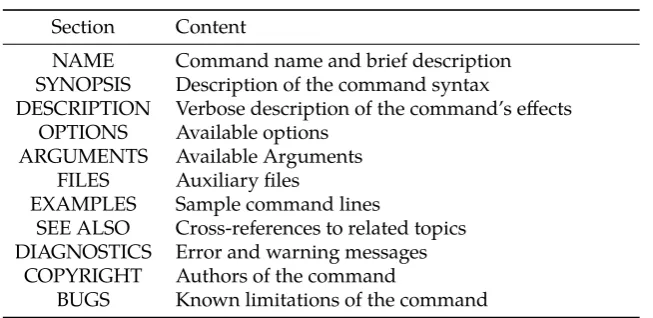
5.3.2 Structure . . . 65
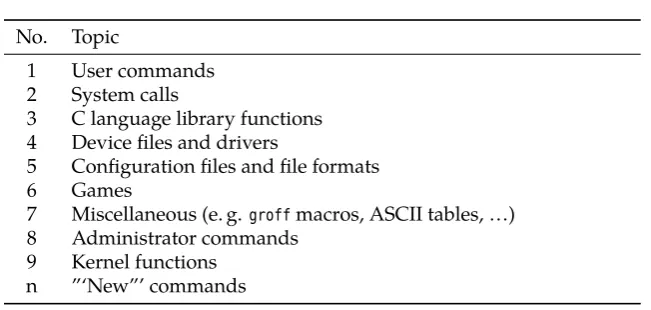
5.3.3 Chapters . . . 66
5.3.4 Displaying Manual Pages . . . 66
5.4 Info Pages . . . 67
5.5 HOWTOs. . . 68
5.6 Further Information Sources . . . 68
6 Files: Care and Feeding 71 6.1 File and Path Names . . . 72
6.1.1 File Names . . . 72
6.1.2 Directories . . . 73
6.1.3 Absolute and Relative Path Names . . . 74
6.2 Directory Commands . . . 75
6.2.1 The Current Directory:cd& Co. . . 75
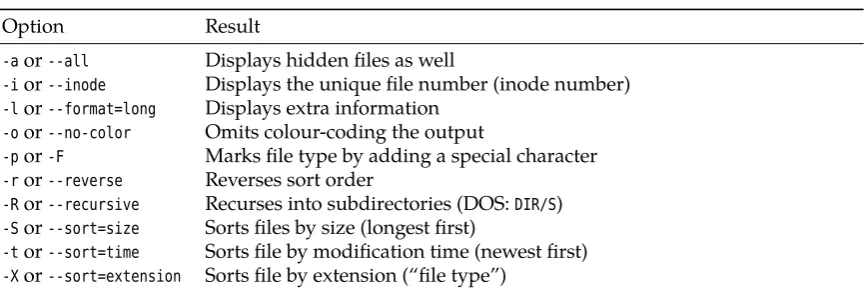
6.2.2 Listing Files and Directories—ls . . . 76
6.2.3 Creating and Deleting Directories:mkdir andrmdir . . . 77
6.3 File Search Patterns . . . 78
6.3.1 Simple Search Patterns . . . 78
6.3.2 Character Classes. . . 80
6.3.3 Braces . . . 81
6.4 Handling Files . . . 82
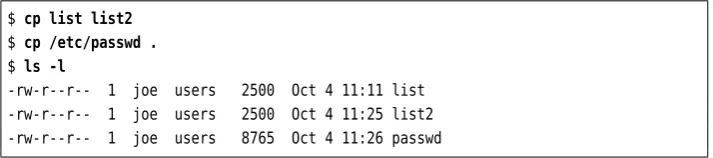
6.4.1 Copying, Moving and Deleting—cpand Friends. . . 82
6.4.2 Linking Files—lnandln -s . . . 84
6.4.3 Displaying File Content—moreandless . . . 87
6.4.4 Searching Files—find . . . 87
6.4.5 Finding Files Quickly—locateandslocate . . . 91
7 Regular Expressions 95 7.1 Regular Expressions: The Basics . . . 96
7.1.1 Regular Expressions: Extras . . . 96
7.2 Searching Files for Text—grep . . . 97
8 Standard I/O and Filter Commands 101 8.1 I/O Redirection and Command Pipelines . . . 102
8.1.1 Standard Channels . . . 102
8.1.2 Redirecting Standard Channels . . . 103
8.1.3 Command Pipelines . . . 106
8.2 Filter Commands . . . 107
8.3 Reading and Writing Files. . . 108
8.3.1 Outputting and Concatenating Text Files—cat . . . 108
8.3.2 Beginning and End—headandtail. . . 108
8.4 Data Management . . . 109
8.4.1 Sorted Files—sortanduniq . . . 109
8.4.2 Columns and Fields—cut,pasteetc. . . 114
9.1 Simple Commands: sleep,echo, anddate. . . 120
9.2 Shell Variables and The Environment. . . 121
9.3 Command Types – Reloaded . . . 123
9.4 The Shell As A Convenient Tool . . . 124
9.5 Commands From A File . . . 127
9.6 The Shell As A Programming Language. . . 128
10 The File System 133 10.1 Terms . . . 134
10.2 File Types. . . 134
10.3 The Linux Directory Tree . . . 135
10.4 Directory Tree and File Systems. . . 143
11 Archiving and Compressing Files 145 11.1 Archival and Compression . . . 146
11.2 Archiving Files Usingtar . . . 147
11.3 Compressing Files withgzip . . . 150
11.4 Compressing Files withbzip2. . . 151
11.5 Archiving and Compressing Files Usingzipandunzip. . . 152
12 Introduction to System Administration 157 12.1 System Administration Basics . . . 158
12.2 System Configuration . . . 159
12.3 Processes . . . 160
12.4 Package Management . . . 165
13 User Administration 169 13.1 Basics . . . 170
13.1.1 Why Users? . . . 170
13.1.2 Users and Groups . . . 171
13.1.3 People and Pseudo-Users . . . 173
13.2 User and Group Information. . . 173
13.2.1 The/etc/passwdFile . . . 173
13.2.2 The/etc/shadowFile . . . 176
13.2.3 The/etc/groupFile . . . 178
13.2.4 The/etc/gshadowFile . . . 179
13.3 Managing User Accounts and Group Information . . . 180
13.3.1 Creating User Accounts . . . 180
13.3.2 ThepasswdCommand . . . 182
13.3.3 Deleting User Accounts . . . 183
13.3.4 Changing User Accounts and Group Assignment . . . 184
13.3.5 Changing User Information Directly—vipw. . . 184
13.3.6 Creating, Changing and Deleting Groups . . . 184
14 Access Control 187 14.1 The Linux Access Control System . . . 188
14.2 Access Control For Files And Directories . . . 188
14.2.1 The Basics . . . 188
14.2.2 Inspecting and Changing Access Permissions. . . 189
14.2.3 Specifying File Owners and Groups—chownandchgrp . . . 190
14.3 Process Ownership . . . 191
14.4 Special Permissions for Executable Files . . . 191
15 Linux Networking 197
15.1 Networking Basics . . . 198
15.1.1 Introduction and Protocols . . . 198
15.1.2 Addressing and Routing . . . 199
15.1.3 Names and the DNS. . . 201
15.1.4 IPv6 . . . 202
15.2 Linux As A Networking Client . . . 203
15.2.1 Requirements . . . 203
15.2.2 Troubleshooting . . . 204
A Sample Solutions 211 B Example Files 223 C Linux EssentialsCertification 227 C.1 Exam Objective Overview . . . 227
C.2 Exam Objectives ForLinux Essentials . . . 228
D Command Index 235
List of Tables
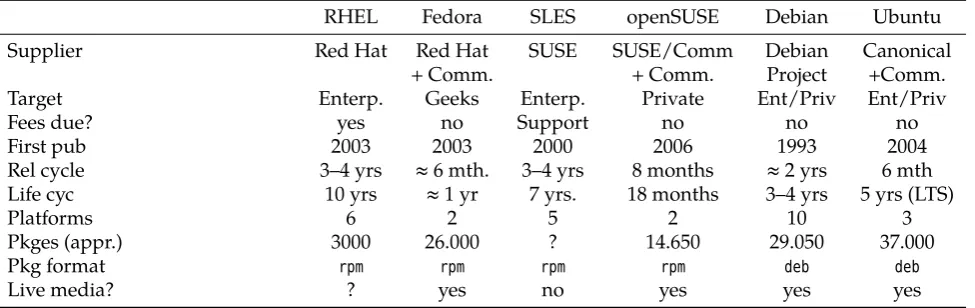
2.1 Comparison of the most important Linux distributions (as of
Febru-ary, 2012) . . . 45
5.1 Manual page sections . . . 65
5.2 Manual Page Topics . . . 66
6.1 Some file type designations inls . . . 76
6.2 Somelsoptions . . . 76
6.3 Options forcp . . . 82
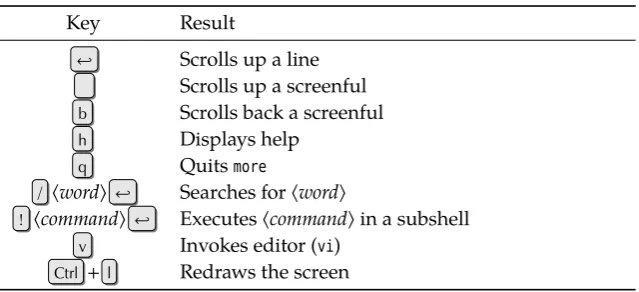
6.4 Keyboard commands formore . . . 87
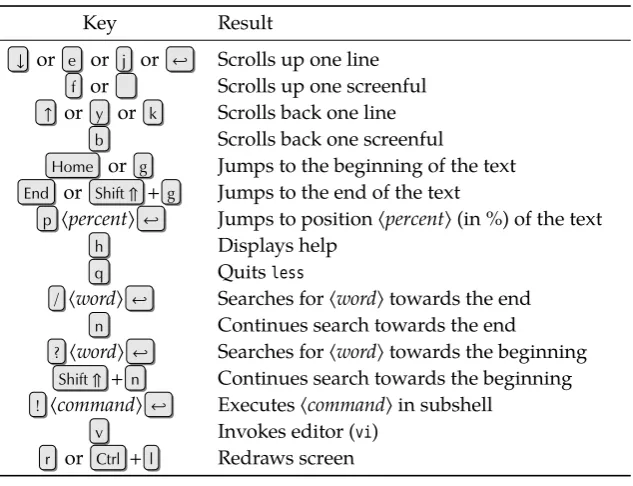
6.5 Keyboard commands forless . . . 88
6.6 Test conditions forfind . . . 88
6.7 Logical operators forfind . . . 89
6.6 Test conditions forfind . . . 89
7.1 Regular expression support . . . 98
7.2 Options forgrep(selected) . . . 98
8.1 Standard channels on Linux . . . 103
8.2 Options forcat(selection) . . . 108
8.3 Options forsort(selection) . . . 112
9.1 Important Shell Variables . . . 122
9.2 Key Strokes withinbash . . . 126
10.1 Linux file types . . . 134
List of Figures
2.1 The Evolution of Linux . . . 27
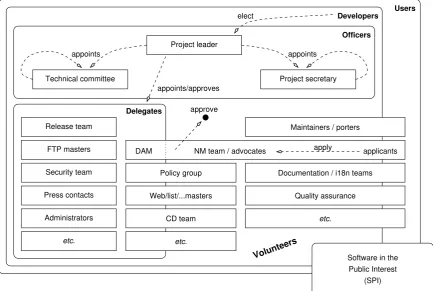
2.2 Organizational structure of the Debian project . . . 42
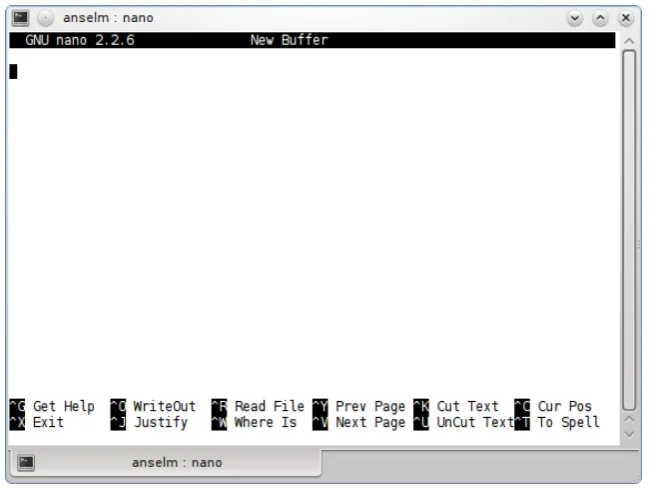
3.1 The GNU Nano text editor . . . 53
5.1 A manual page . . . 66
8.1 Standard channels on Linux . . . 102
8.2 Theteecommand . . . 106
10.1 Content of the root directory (SUSE) . . . 136
Preface
Linux Essentialsis a new certification by theLinux Professional Institute(LPI) which is aimed especially at schools and universities in order to introduce children and young adults to Linux. TheLinux Essentialscertificate is slated to define the basic knowledge necessary to use a Linux computer productively, and through a cor-responding education programme aid young people and adults new to the open source community in understanding Linux and open-source software in the con-text of the ITC industry. See appendix C for more informaton about theLinux Essentialscertificate.
With this training manual, Linup Front GmbH introduces the first comprehen-sive documentation forLinux Essentialsexam preparation. The manual presents the requisite knowledge extensively and with many practical examples and thus provides candidates, but also Linux newcomers in general, with a solid founda-tion for using and understanding the free Linux operating system as well as for attaining in-depth knowledge about running and administering Linux. In addi-tion to a detailed introducaddi-tion to the background of Linux and free/open-source software, we explain the most important Linux concepts and tools such as the shell, how to handle files and scripts, and the file system structure. Insights into system administration, user and permission management and Linux as a network-ing client round off the presentation.
Based on the content of this training manual,Linux Essentialsalumni are well-prepared to pursue further certifications including the LPI’s LPIC programme as well as vendor-specific certificates like those from Red Hat or Novell/SUSE.
The training manual is particularly suitable for aLinux Essentialspreparation class at general-education or vocational schools, academies, or universities, but by virtue of its detailed approach and numerous exercises with sample solutions can also be used for self-study.
This courseware package is designed to support the training course as effi-ciently as possible, by presenting the material in a dense, extensive format for reading along, revision or preparation. The material is divided in self-contained
chapters detailing a part of the curriculum; a chapter’s goals and prerequisites chapters goals prerequisites
are summarized clearly at its beginning, while at the end there is a summary and (where appropriate) pointers to additional literature or web pages with further information.
BAdditional material or background information is marked by the
“light-bulb” icon at the beginning of a paragraph. Occasionally these paragraphs make use of concepts that are really explained only later in the courseware, in order to establish a broader context of the material just introduced; these “lightbulb” paragraphs may be fully understandable only when the course-ware package is perused for a second time after the actual course.
AParagraphs with the “caution sign” direct your attention to possible
prob-lems or issues requiring particular care. Watch out for the dangerous bends!
CMost chapters also contain exercises, which are marked with a “pencil” icon exercises
course-ware package. Each exercise features a level of difficulty in brackets. Exer-cises marked with an exclamation point (“!”) are especially recommended.
Excerpts from configuration files, command examples and examples of com-puter output appear intypewriter type. In multiline dialogs between the user and
the computer, user input is given inbold typewriter typein order to avoid misun-derstandings. The “” symbol appears where part of a command’s output had to be omitted. Occasionally, additional line breaks had to be added to make things fit; these appear as “
”. When command syntax is discussed, words enclosed in angle brack-ets (“⟨Word⟩”) denote “variables” that can assume different values; material in brackets (“[-f⟨file⟩]”) is optional. Alternatives are separated using a vertical bar
(“-a|-b”).
Important concepts are emphasized using “marginal notes” so they can be
eas-Important concepts
ily located;definitionsof important terms appear in bold type in the text as well
definitions
as in the margin.
References to the literature and to interesting web pages appear as “[GPL91]” in the text and are cross-referenced in detail at the end of each chapter.
We endeavour to provide courseware that is as up-to-date, complete and error-free as possible. In spite of this, problems or inaccuracies may creep in. If you notice something that you think could be improved, please do let us know, e.g., by sending e-mail to
1
Computers, Software and
Operating Systems
Contents
1.1 What Is A Computer, Anyway? . . . 14
1.2 Components Of A Computer . . . 15
1.3 Software . . . 19
1.4 The Most Important Operating Systems. . . 20
1.4.1 Windows And OS X . . . 20
1.4.2 Linux . . . 21
1.4.3 More Differences And Similarities. . . 22
1.5 Summary. . . 22
Goals
• Obtaining basic computer hardware knowledge
• Being aware of different operating systems and assessing their commonali-ties and differences
Prerequisites
1.1 What Is A Computer, Anyway?
Before we get into the details of what a computer is, here are a few quotes from notable people within the computing community:
“Originally one thought that if there were a half dozen large com-puters in [the United States], hidden away in research laboratories, this would take care of all requirements we had throughout the
country.” Howard H. Aiken, 1952
Howard Aiken was a computing pioneer and the designer of IBM’s first computer, the “Harvard Mark I”. The first computers in a modern sense were built during
Early computers
World War II to assist with decrypting secret messages or doing difficult calcu-lations, and they were big, complicated and error-prone devices – the electronic components such as transistors or integrated circuits which today’s computers consist of hadn’t been invented yet. What did come to light during this time and the years immediately after the war were a number of basic assumptions that had to hold for a device to be considered a “computer”:
• A computer processesdataaccording to a sequence ofautomaticallyexecuted instructions, aprogram.
• Programs must allow forconditional executionandloops.
• It must be possible to change or replace the program that a computer exe-cutes.
For example, many technical devices – from television sets and digital cameras to washing machines or cars – today contain programmed control units, almost small computers. Even so, we don’t consider these devices “computers”, because they only execute fixed, unchangeable programs. Conversely, a pocket calculator can be used to “process data”, but – at least as long as it isn’t a more expensive “programmable calculator” – that doesn’t happen automatically; a human being must tap the keys.
In the early 1950s, computers were highly specialised devices that one would – exactly as Aiken stipulated – expect to see mostly within research institutions. Science-fiction films of the time display the halls, replete with rows of cupboards containing mysterious spinning reels. Within the space of not quite 70 years, this image has changed dramatically1.
“There is no reason for anyone to have a computer in their home.”
Ken Olsen, 1977
Ken Olsen was the CEO of another computer manufacturer, Digital Equipment
“Small” computers in the 1970s
Corporation (DEC), which spearheaded the development of “small” computers in the 1970s2– where “small” at the time was understood as meaning something like “does not need a machine hall with air conditioning and its own power plant and costs less than a million dollars”; advances in hardware technology allowed this to change, towards the end of the 1970s, to something like “can be bodily lifted by two people”.
BDEC is important to the Linux community because Unix – the operating
system that insprired Linus Torvalds to start Linux some twenty years later – was first developed on DEC PDP-8 and PDP-11 computers.
The 1970s also saw the advent of the first “home computers”. These cannot be
home computers
compared with today’s PCs – one had to solder them together on one’s own (which
1The classic “quote” in this context is usually ascribed to Thomas J. Watson, the CEO if IBM, who is thought to have said, in 1943, something along the lines of “There is a world market for about five computers”. Unfortunately this has never been verified. And if he did actually claim this in 1943, he would have been right at least for the next ten years or so.
would be physically impossible today), and they rarely featured a reasonable key-board and seldom if ever a decent display. They were for the most part a tinkerer’s pastime, much like an electric train set, because in all honesty they weren’t really useful for much at all. Even so, they were “computers” in the sense of our earlier definition, because they were freely programmable – even though the programs had to be laboriously keyed in or (with luck) loaded from audio cassette tape. Still they weren’t taken completely seriously, and Ken Olsen’s quote has accordingly often been misconstrued: He had nothing whatsoever against small computers (he was in the business of selling them, after all). What he didn’t conceive of was the idea of having one’s complete household (heating, lights, entertainment and so on) controlled by a computer – an idea that was quite hypothetical at the time but today seems fairly feasible and perhaps no longer as absurd.
Only during the late 1970s and 1980s, “home computers” mutated from kits to ready-to-use devices (names like “Apple II” or “Commodore 64” may still be familiar to the older members of our audience) and started appearing in offices,
too. The first IBM PC was introduced in 1981, and Apple marketed the first “Mac- IBM PC
intosh” in 1984. The rest, as they say, is history – but one should not forget that the world of computers does not consist of PCs and Macs only. The giant, hall-filling computers of yore are still around – even though they tend to get rarer and often really consist of large groups of PCs that are quite closely related to the PCs on our tables and which cooperate. However, the principle hasn’t changed from Howard Aiken’s time: Computers are still devices that automatically process data according to changeable programs which may contain conditions and loops. And things are likely to stay that way.
Exercises
C1.1[1] What was the first computer you used? What type of processor did it
contain, how much RAM, and how big was the hard disk (if there was one – if not, how was data stored permanently)?
1.2 Components Of A Computer
Let’s take the opportunity of casting a glance at the “innards” of a computer (or, more precisely, an “IBM-compatible” PC) and the components we are likely to find there:
Processor The processor (or “CPU”, for “central processing unit”) is the core of the computer: Here is where the automatic program-controlled data pro-cessing takes place that actually makes it a computer. Today’s processors usually contain several “cores”, which means that the major components of the processor exist multiple times and can operate independently, which in principle increases the computer’s processing speed and thereby its perfor-mance – and particularly fast computers often have more than one proces-sor. PCs normally contain processors by Intel or AMD (which may differ in detail but can execute the same programs). Tablets and smartphones generally use ARM processors, which aren’t quite as powerful but much more energy-efficient. Intel and AMD processors cannot directly execute programs prepared for ARM processors and vice-versa.
RAM A computer’s working memory is called “RAM” (or “random-access mem-ory”, where “random” means “arbitrary” rather than “haphazard”). This stores not only the data being processed, but also the program code being executed.
BThis is an ingenuous trick going back to the computing pioneer John
can manipulate code just as well as addresses or kitchen recipes. (In the old days, one would “program” by plugging and unplugging leads on the outside of the computer, or programs were punched on paper tape or cards and could not be changed straightforwardly.)
Today’s computers normally feature 1 gibibyte of RAM or more. 1 gibibyte is230, or1, 073, 741, 824bytes3 – really an inconceivably large number. By way of comparison: Harry Potter and the Deathly Hallowscontains approxi-mately 600 pages of up to 1,700 letters, spaces, and punctuation characters – perhaps a million characters. Hence, one gibibyte corresponds to about 1,000Harry Pottertomes, at somewhat more than a pound per book that is already a van full of them, and if you’re not just interested in the exploits of the young wizard, 1,000 books is an impressive library.
Graphics card Not so long ago people were happy if their computer could con-trol an electric typewriter to produce its output. The old home computers were connected to television sets, producing images that could often only be called atrocious. Today, on the other hand, even simple “smartphones” feature quite impressive graphics, and common PCs contain graphics hard-ware that would have cost the equivalent of an expensive sports car or small house in the 1990s4. Today’s watchword is “3D acceleration”, which doesn’t mean that the display actually works in 3D (although even that is slowly get-ting fashionable) but thatprocessingthe graphics inside the computer does not just involve left, right, top and bottom – the directions visible on a com-puter monitor – but also front and back, and that in quite a literal sense: For photorealistic games it is quite essential whether a monster lurks in front of or behind a wall, hence whether it is visible or not, and one of the goals of modern graphic cards is to relieve the computer’s CPU of such decisions in order to free it up for other things. Contemporary graphics cards con-tain their own processors, which can often perform calculations much faster than the computer’s own CPU but are not as generally useful.
BMany computers don’t even contain a separate graphics card because
their graphics hardware is part of the CPU. This makes the computer smaller, cheaper, quieter and more energy-efficient, but its graphics performance will also take somewhat of a hit – which may not be an actual problem unless you are keen on playing the newest games.
Motherboard The motherboard is the (usually) rectangular, laminated piece of plastic that the computer’s CPU, RAM, and graphics card are affixed to – to-gether with many other components that a computer requires, such as con-nectors for hard disks, printers, a keyboard and mouse, or network cables, and the electronics necessary to control these connectors. Motherboards for computers come in all sorts of sizes and colours5– for small, quiet comput-ers that can act as video recordcomput-ers in the living room or big servcomput-ers that need a lot of space for RAM and several processors.
Power supply A computer needs electricity to work – how much electricity de-pends on exactly which components it contains. The power supply is used to convert the 240 V AC mains supply into the various low DC voltages that the electronics inside the computer require. It must be selected such that it can furnish enough power for all the components (fast graphics cards are usually the number-one guzzlers) while not being overdimensioned so that it can still operate efficiently.
3People will commonly call this a “gigabyte”, but a “gigabyte” is really109bytes, i. e., nearly 7
per-cent less.
4All thanks, incidentally, to the unflagging popularity of awesome computer games. Whoever be-lieves that video games are of no earthly use should take a minute to consider this.
Most of the electricity that the power supply pumps into the computer will sooner or later end up as heat, which is why good cooling is very impor-tant. For simplicty, most computers contain one or more fans to blow fresh air onto the expensive electronics, or to remove hot air from the case. With appropriate care it is possible to build computers that do not require fans, which makes them very quiet, but such computers are comparatively ex-pensive and usually not quite as fast (since, with processors and graphics cards, “fast” usually means “hot”).
Hard disks While a computer’s RAM is used for the data currently being pro-cessed (documents, spreadsheets, web pages, programs being developed, music, videos, …—and of course the programs working on the data), data not currently in use are stored on a hard disk. The main reason for this is that hard disks can store much more data than common computers’ RAM—the capacity of modern hard disks is measured in tebibytes (1 TiB =240Byte), so they exceed typical RAM capacities by a factor of 100–1000.
BWe pay for this increase in space with a decrease in retrieval times—
RAM access times are measured in nanoseconds while those to data on (magnetic) hard disks are measured in milliseconds. This is a mere 6 orders of magnitude—the difference between a metre and 1,000 kilo-metres.
Traditionally, hard disks consist of rotating platters coated with a magneti-sable material. Read/write heads can magnetise this material in different places and re-read the data thus stored later on. The platters rotate at 4,500 to 15,000 RPM, and the difference between the read/write head and the platter is extremely minute (up to 3 nm). This means that hard disks are quite sensitive to disruption and falls, because if the read/write head comes into contact with the platter while the disk is running—the dreaded “head crash”—the disk is destroyed.
BNewfangled hard disks for mobile computers have acceleration
sen-sors which can figure out that the computer is falling, to try and shut down the hard disk in order to prevent damage.
The newest fashion is SSDs or “solid-state disks”, which instead of magne-tised platters use “flash memory” for storage—a type of RAM which can maintain its content even without electricity. SSDs are faster than magnetic hard disks, but also considerably more expensive per gigabyte of storage. However, they contain no moving parts, are impervious to being shoved or dropped, and save energy compared to conventional hard disks, which makes them interesting for portable computers.
BSSDs are also reputed to “wear out” since the flash storage spaces
(called “cells”) are only rated for a certain number of write opera-tions. Measurements have shown that this does not lead to problems in practice.
There are various methods of connecting a hard disk (magnetic or SSD) to a computer. Currently most common is “serial ATA” (SATA), older computers use “parallel ATA”, also called “IDE”. Servers also use SCSI or SAS (“serially attached SCSI”) disks. For external disks, one uses USB or eSATA (a variant of SATA with sturdier connectors).
BIncidentally: The difference between gigabytes and gibibytes (or
the disk drive manufacturer only uses (quite correctly) “gigabytes”, i. e., billions of bytes, while your computer probably (if inaccurately) calculates the free space in units of “gibibytes” or230bytes.
Optical drives Besides hard drives, PCs usually support optical drives that can read, and often also write, media such as CD-ROMs, DVDs or Blu-ray disks. (Mobile devices sometimes have no room physically for an optical drive, which does not mean such drives can’t be connected externally.) Optical media—the name derives from the fact that the information on there is ac-cessed by means of a laser—are mostly used for the distribution of software and “content” (music or films), and their importance is waning as more and more companies rely on the Internet as a distribution medium.
BIn former times one also considered optical media for backup copies,
but today this is no longer realistic—a CD-ROM can hold up to ap-proximately 900 MiB of data and a DVD up to 9 GiB or so, thus for a full backup of a 1 TiB hard disk you would require 1000 CD-size or 100 DVD-size media, and constantly swapping them in and out would also be a hassle. (Even Blu-ray discs can only fit 50 GiB or so, and drives that canwriteto Blu-ray discs are still fairly expensive.)
Display You can still see it in old movies: the green sheen of the computer screen. In reality, green displays have all but disappeared, colour is in fashion, and new displays are no longer massive hulks like the CRTs (cathode-ray tubes) we used to have, but are slim, elegant monitors based on liquid crystals (LCD, “liquid-crystal display”). LCDs don’t confine themselves to the ad-vantage of taking up less space on a desk, but also neither flicker nor bother the user with possibly harmful radiation—a win-win situation. There are a few disadvantages such as colour changes when you look at the screen at a too-acute angle, and cheaper devices may deliver a blotchy picture because the backlight is not uniform.
BWith CRTs one used to take care to not let them stand around unused
showing the same picture for long periods of time, because the picture could “burn in” and appear as a permanent blurry backdrop. Accord-ingly one used a “screen saver”, which after a certain amount of idle time would replace the content of the screen by a more or less cute an-imation to avoid burn-in (the classic was an aquarium with fish and other aquatic fauna). LCDs no longer suffer from the burn-in problem, but screen savers are still sticking around for decorative value. LCDs are available in all sizes from “smartphone” to wall-size large screens; their most important property is the resolution, which for PC displays
usu-resolution
ally ranges between1366 × 768(horizontally×vertically) and1920 × 1080 “pixels”. (Lower and higher resolutions are possible, but do not necessarily make economic or visual sense.) Many computers support more than one screen in order to enlarge the working space.
BAlso usual today is an aspect ration of16 ∶ 9, which corresponds to
high-definition television—actually a silly development, since most computers aren’t even used for watching television, and a taller but narrower display (such as the formerly-common4 ∶ 3format) is bet-ter suited most of the more frequently-used applications like word processing or spreadsheet calculations.
• One commendable trend, for example, is the simplification of connec-tions. While almost every class of device used to have their own in-terface (parallel inin-terfaces for printers, serial inin-terfaces for modems, “PS/2” interfaces for keyboards and mice, SCSI for scanners, …), to-day most devices use USB (universal serial bus), a relatively foolproof and reasonably fast method which also supports “hot-plugging” con-nections while the computer is running.
• Another trend is that towards more “intelligence” in the peripherals themselves: Formerly, even expensive printers were fairly stupid de-vices at an IQ level of electric typewriters, and programmers had to very carefully send exactly the right control codes to the printer to pro-duce the desired output. Today, printers (at least good printers) are re-ally computers in their own right supporting their own programming languages that make printing much less of a hassle for programmers. The same applies in a similar fashion to many other periperals.
BOf course there are still very stupid printers (especially at lower
price points) which leave preparing the output to the computer itself. However, these still make aprogrammer’slife as easy as their more expensive relations.
Exercises
C1.2[2] Open your computer (possibly under the direction of your teacher,
instructor, or legal guardian—and don’t forget switching it off and unplug-ging it first!) and identify the most important components such as the CPU, RAM, motherboard, graphics card, power supply, and hard disk. Which components of your computer did we not talk about here?
1.3 Software
Just as important as a computer’s “hardware”, i. e., the technical components it consists of6, is its “software”—the programs it is running. This can very roughly be divided into three categories:
• Thefirmware is stored on the computer’s motherboard and can only be firmware
changed or replaced inconveniently if at all. It is used to put the computer into a defined state after switching it on. Often there is a way of invoking a setup mode that allows you to set the clock and enable or disable certain properties of the motherboard.
BOn PCs, the firmware is called “BIOS” (Basic Input/Output System)
or, on newer systems, “EFI” (Extensible Firmware Interface).
BSome motherboards include a small Linux system that purportedly
boots more quickly than Linux and which is supposed to be used to surf the Internet or watch a DVD without having to boot into Windows. Whether this is actually worth the trouble is up to debate.
• Theoperating systemmakes the computer into a usable device: It manages operating system
the computer’s resources such as the RAM, the hard disks, the processing time on the CPU(s) available to individual programs, and the access to other peripherals. It allows starting and stopping programs and enforces a sep-aration between several users of the computer. Besides, it enables—on an elementary level—the participation of the computer in a local area network or the Internet. The operating system frequently furnishes a graphical user
interface and thus determines how the computer “looks and feels” to its users.
When you buy a new computer it is usually delivered with a pre-installed operating system: PCs with Microsoft Windows, Macs with OS X, smart-phones often with Android (a Linux derivative). The operating system, though, is not tied as closely to a computer as the firmware, but can in many cases be replaced by a different one—for example, you can install Linux on most PCs and Macs.
BOr you install Linux in addition to an existing operating system—
usually not a problem either.
• User-level programsallow you to do something useful, such as write
doc-User-level programs
uments, draw or manipulate pictures, compose music, play games, surf the Internet or develop new software. Such programs are also called
applica-applications
tions. Additionally, there are oftenutilitiesthat the operating system
pro-utilities
vides in order to allow you—or a designated “system administrator”—to make changes to the computer’s configuration and so on. Servers, in turn, often support software that provides services to other computers, such as web, mail or database servers.
1.4 The Most Important Operating Systems
1.4.1 Windows And OS X
When talking about computer operating systems, most people will automatically think of Microsoft Windows7. This is due to the fact that nowadays most PCs are sold with Windows preinstalled—really not a bad thing in itself, since their owners can get them up and running without having to take the trouble to install an operating system first, but, on the other hand, a problem because it makes life hard for alternative operating sysetms such as Linux.
BIn fact it is not at all straightforward to buy a computer without a
prein-stalled copy of Windows—for example, because you want to use it exclu-sively with Linux—, except when building one from scratch. Theoretically you are supposed to be able to get a refund for an unused preinstalled copy of Windows from the computer’s manufacturer, but we know of nobody who actually managed to obtain any money.
Today’s Windows is a descendant of “Windows NT”, which was Microsoft’s
Windows NT
attempt to establish an operating system that was up to the standards of the time in the 1990s (earlier versions such as “Windows 95” were graphical extensions to the then-current Microsoft operating system, MS-DOS, and fairly primitive even by the standards of the day). Decency forbids us a critical appreciation of Win-dows here; let it suffice to say that it does approximately what one would expect from an operating system, provides a graphical user interface and supports most peripheral devices (support for more is provided by the individual device manu-facturers).
Apple’s “Macintosh” was launched in 1984 and has since been using an oper-ating system called “Mac OS”. Over the years, Apple made various changes to the
Mac OS
platform (today’s Macs are technically about the same as Windows PCs) and op-erating system, some of them quite radical. Up to and including version 9, MacOS was a fairly flimsy artefact which, for example, only provided rudimentary sup-port for running several programs at the same time. The current “Mac OS X”—the “X” is a Roman 10, not the letter “X”—is based on an infrastructure related to BSD Unix and is not unlike Linux in many ways.
BSince February, 2012, the official name for the Macintosh operating system
is “OS X” rather than “Mac OS X”. If we let slip a “Mac OS” every so often, you know what we really mean.
The big difference between Windows and OS X is that OS X is sold exclusively Differences
with Apple computers and will not run on “normal” PCs. This makes it much more straightforward for Apple to provide a system that is obviously very ho-mogenous. Windows, on the other hand, must run on all sorts of PCs and support a much wider array of hardware components that can occur in completely unfore-seen combinations. Hence, Windows users have to contend with incompatibili-ties that are sometimes difficult or even impossible to sort out. On the other hand, thereisa much greater selection of hardware for Windows-based computers, and prices are, on the whole, less exorbitant.
Windows and OS X are similar in that they are both “proprietary” software: Similarities
Users are forced to accept what Microsoft or Apple put in front of them, and they cannot examine the actual implementation of the system, let alone make changes to it. They are bound to the upgrade schedule of the system, and if the manufac-turer removes something or replaces it by something else, they need to adapt to that.
BThere is one difference here, though: Apple is essentially a hardware
man-ufacturer and only provides OS X to give people an incentive to buy Macs (this is why OS X isn’t available for non-Macs). Microsoft, on the other hand, does not build computers, and instead makes its money selling software such as Windows which runs on arbitrary PCs. Therefore, an operating sys-tem like Linux is much more of a threat to Microsoft than to Apple—most of the people who buy an Apple computer do this because they want anApple
computer (the complete package), not because they are especially interested in OS X. The PC as a platform, however, is being encroached upon by tablets and other new-fangled types of computer that don’t run Windows, and that puts Microsoft under extreme pressure. Apple could easily survive selling just iPhones and iPads instead of Macs—Microsoft without Windows would probably go bankrupt fairly soon in spite of having loads of money in their bank account.8
1.4.2 Linux
Linux is an operating system that was first started out of curiosity by Linus Tor-valds, but then took on a life of its own—in the meantime, hundreds of developers (not just students and hobbyists, but also professionals at companies such as IBM, Red Hat, or Oracle) are developing it further.
Linux was inspired by Unix, an operating system developed in the 1970s at AT&T Bell Laboratories and geared towards “small” computers (see above for the meaning of “small” in this context). Unix soon became the preferred system for research and technology. For the most part, Linux uses the same concepts and basic ideas as Unix, and it is easy to get Unix software to run on Linux, but Linux itself does not contain Unix code, but is an independent project.
Unlike Windows and OS X, Linux isn’t backed by an individual company whose economic success hinges on the success of Linux. Linux is “freely avail-able” and can be used by anyone—even commercially—who subscribes to the rules of the game (as outlined in the next chapter). This together with the fact that by now Linux no longer runs just on PCs, but in substantially identical form on platforms ranging from telephones (the most popular smartphone operating
system, Android, is a Linux offshoot) to the largest mainframes (the ten fastest computers in the world are all running Linux) makes Linux the most versatile operating system in the history of modern computing.
Strictly speaking “Linux” is just the operating systemkernel, i. e., the program that handles the allocation of resources to applications and utilities. Since an oper-ating system without applications isn’t all that useful, one usually installs a Linux distribution, which is to say a package consisting of “Linux” proper and a
se-distributions
lection of applications, utilities, documentation and other useful stuff. The nice thing is that, like Linux itself, most Linux distributions are “freely available” and hence available free of charge or at very low cost. This makes it possible to equip a computer with software whose equivalents for Windows or OS X would run into thousands of dollars, and you do not run the risk of falling foul of licensing re-strictions just because you installed your Linux distribution on all your computers as well as Aunt Millie’s and those of your buddies Susan and Bob.
BThere is more information on Linux and Linux distributions in Chapter 2.
1.4.3 More Differences And Similarities
Actually, the three big operating systems—Linux, Windows, and OS X—differ only in detail in what they present to the users. All three offer a graphical user
graphical user interface
interface (GUI) which allows even casual users to manage their files through sim-ple gestures like “drag and drop”. Many popular applications are available for all three operating systems, so which one you are using at the end of the day be-comes almost immaterial as long as you are spending most of your time inside the web browser, office package, or e-mail program. This is an advantage because it enables a “gradual” migration from one system to the other.
Besides the graphical interface, all three systems also offer a way to use a
“com-command line
mand line” to input textual commands which the system then executes. With Windows and OS X, this feature is mostly used by system administrators, while “normal” users tend to shun it—a question of culture. With Linux, on the other hand, the command line is much less ostracised, which may have to do with its descent from the scientific/technical Unix philosophy. As a matter of fact, many tasks are performed more conveniently and efficiently from the command line, especially with the powerful tools that Linux (and really also OS X) provide. As a budding Linux user, you do well to open up to the command line and learn about its strengths and weaknesses, just as you should learn about the strengths and weaknesses of the GUI. A combination of both will give you the greatest versatil-ity.
Exercises
C1.3[1] If you have experience with a proprietary operating system like
Win-dows or OS X: Which applications do you use most frequently? Which of them are “free software”?
1.5 Summary
Today’s PCs, whether based on Linux, Windows, or OS X, have more similarities than differences—as far as their hardware, their basic concepts, and their use is concerned. Without doubt you can use any of the three to go about your daily work, and none of them is obviously and uncontestedly “the best”.
see that you are prepared to get involved, and we wish you a lot of fun learning, practising, and using Linux and—if you are interested in the LPI’sLinux Essentials
certification—the best of success in the exam!
Summary
• Computers are devices that process data according to an automatically ex-ecuted, changeable program allowing conditional execution and loops. • The most important components of a PC include the processor, RAM,
graphics card, motherboard, hard disks et cetera.
• The software on a computer can be divided into firmware, the operating system, and user-level programs.
• The most popular PC operating system is Microsoft’s Windows. Apple computers use a different operating system called OS X.
• Linux is an alternative operating system for PCs (and many other types of computer) which is not developed by a single company, but by a large num-ber of volunteers.
2
Linux and Free Software
Contents
2.1 Linux: A Success Story . . . 26 2.2 Free Or Open Source? . . . 28 2.2.1 Copyright And “Free Software” . . . 28 2.2.2 Licences . . . 31 2.2.3 The GPL . . . 32 2.2.4 Other Licences . . . 35 2.3 Important Free Software . . . 37 2.3.1 Overview . . . 37 2.3.2 Office and Productivity Tools . . . 37 2.3.3 Graphics and Multimedia Tools . . . 38 2.3.4 Internet Services . . . 39 2.3.5 Infrastructure Software. . . 39 2.3.6 Programming Languages and Development . . . 39 2.4 Important Linux Distributions . . . 40 2.4.1 Overview . . . 40 2.4.2 Red Hat . . . 40 2.4.3 SUSE . . . 41 2.4.4 Debian . . . 42 2.4.5 Ubuntu . . . 43 2.4.6 Others . . . 44 2.4.7 Differences and Similarities . . . 44
Goals
• Knowing the basic principles of Linux and free software • Being able to place the basic FOSS licenses
• Having heard of the most important free applications • Having heard of the most important Linux distributions
Prerequisites
2.1 Linux: A Success Story
In the summer of 1991, Linus Torvalds, who was 21 years old at the time, studied computer science at the technical university of Helsinki, Finland1At the time he owned a new 386 PC that he wanted to experiment with, and amused himself by writing a terminal emulator which ran on the raw hardware without an operat-ing system, and which allowed him to access the university’s Unix system. This program grew into the first Linux operating system kernel.
BUnix was already about 20 years old at that point, but was the operating
system of choice at universities and wherever research or development were done—the scientific “workstations” of the time almost exclusively ran on various versions of Unix.
BUnix itself had started—almost like Linux—as a hobby-type project of Ken
Unix origins
Thompson and Dennis Ritchie at Bell Laboratories, the American telecom-munications giant AT&T’s research arm. It very quickly mutated into quite a useful system, and since it was written, for the most part, in a high-level language (C), it could be ported reasonably quickly to other computing plat-forms than the original PDP-11. In addition, during the 1970s AT&T was forced by a consent decree to refrain from selling software, so Unix was “given away” at cost, without support—and since the system was small and fairly straightforward, it became a popular case study in the operating sys-tem seminars of most universities.
BTowards the end of the 1970s, students of the University of Californa in
Berkeley ported Unix to the VAX, the successor of the PDP-11, and intro-duced various improvements that began to be circulated as “BSD” (short for
BSD
“Berkeley Software Distribution”). Various offshoots of BSD are still current today.
BTo develop the first versions of Linux, Linus made use of “Minix”, a
Unix-Minix
like operating system written for teaching purposes by Andrew S. Tanen-baum of the Free University of Amsterdam. Minix was deliberately kept simple, and it wasn’t freely available, so did not represent a serious operat-ing system—help was obviously needed!2
On 25 August 1991, Linus announced his project to the public and invited the rest of the world to join in. At this point the system functioned as an alternative operating system kernel for Minix.
BAt that time the system didn’t yet have a proper name. Linus called it
“Freax” (as a portmanteau word from “freak” and “Unix”); he did briefly consider “Linux” but rejected this as too egotistical. When Linus’ system was uploaded to the university’s FTP server, Linus’ colleague Ari Lemmke, who didn’t like the name “Freax”, took the liberty of renaming it to “Linux”. Linus later approved of the change.
Linux generated considerable interest and many volunteers decided to collabo-rate. Linux 0.99, the first version licensed under the GPL (Section 2.2.3), appeared in December, 1992, and represented quite a grown-up operating system with com-plete, if simple, Unix functionality.
Linux 2.0 appeared in early 1996 and introduced some important new features
Linux 2.0
such as support for multiprocessors and the ability to load kernel modules at runtime—an important innovation along the road to user-friendly Linux distri-butions.
BAnother new feature in Linux 2.0 was “Tux”, the penguin, as the official
Tux
1Linus Torvalds is an ethnic Finn (he became an American citizen in September, 2010), but a member of the Swedish-speaking minority. This is why he has a reasonably pronounceable name.
0 MB
10 MB
20 MB
30 MB
40 MB
50 MB
60 MB
70 MB
80 MB
1996
1998
2000
2002
2004
2006
2008
2010
2012
2014
Size of linux-*.tar.bz2
[image:27.595.64.533.66.343.2]2.0
2.1
2.2
2.3
2.4
2.5
2.6
3.x
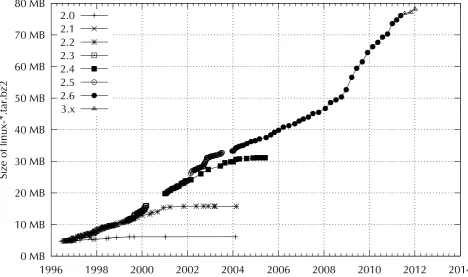
Figure 2.1: The evolution of Linux, measured by the size oflinux- *.tar.bz2. Each marker corresponds with a
Linux version. During the 15 years from Linux 2.0 to Linux 3.2, the size of the compressed Linux source code has increased by a factor of almost 16.
Linux mascot. Linus Torvalds had been set upon by a penguin in Australia, which had greatly impressed him. The iconic sitting penguin with its yel-low feet and beak was drawn by Larry Ewing and made available to the community at large.
Linux 2.6 saw a reorganisation of the development process. While, earlier on, development process
version numbers with an odd second component (such as “2.3”) had been con-sidered developer versions and those with an even second component (like “2.0”) stable versions suitable for end users, the Linux developers resolved to keep de-veloper and stable versions from diverging to the large extent previously seen. Starting with Linux 2.6, there is no longer a separate line of development kernels, but improvements are being introduced into the next version and are tested as extensively as possible before that version is officially released.
BThis works approximately as follows: After Linux 2.6.37 is released, Linus
collects proposed changes and improvements for the next kernel, includes them into his official version and publishes that as Linux 2.6.38-rc1 (for “re-lease candidate 1”). This version is tested by various people, and any fixes or improvements are collected in Linux 2.6.38-rc2 and so on. Eventually the code looks stable enough to be officially released as “Linux 2.6.38”, and the process then repeats with version 2.6.39.
BIn addition to Linus’ official version there are Linux versions that are
In July, 2011, Linus summarily declared the version being prepared, 2.6.40, “Linux 3.0”—purportedly to simplify the numbering, since there were no
par-Linux 3.0
ticularly notable improvements.
BNowadays release candidates are called 3.2-rc1 and so on, and the versions
with fixes after the original release are called 3.1.1, 3.1.2, …
The “Linux” project is by no means finished today. Linux is constantly being extended and improved by hundreds of programmers throughout the world, who serve several millions of satisfied private and commercial users. Neither can it be said that the system is “only” being developed by students and other amateurs— many people working on the Linux kernel have important positions within the computer industry and number among the most respected professional develop-ers around. It can be claimed with some justification that Linux is the operating system with the most versatile hardware support in existence, not only judging by the variety of platforms it runs on (including smartphones and giant mainframes), but also by the availability of hardware drivers for, e. g., the Intel PC platform. Linux also serves as a research and development vehicle for new operating sys-tem ideas in industry and academia; it is without doubt one of the most innovative operating systems available today.
The versatility of Linux also makes it the operating system of choice for applica-tions like virtualisation and “cloud computing”. Virtualisation makes it possible
Virtualisation
to simulate, on a single actual (“physical”) computer, several to many “virtual” computers which use their own operating system and look like real computers to programs running on them. This leads to a more efficient use of resources and to greater flexibility: The common virtualisation infrastructures make it possible to “migrate” virtual machines very quickly from one physical machine to another, and this lets you as the operator of such an infrastructure react very conveniently to load situations or malfunctions. Based on this, cloud computing is the idea of
cloud computing
providing computing power “on demand” in order to allow companies to forego running large computing centres that are only used to a full extent during short periods of peak demand while mostly costing money otherwise. Cloud comput-ing providers allow their customers to use virtual machines through the Internet, charging them based on actual use, and that can lead to sizeable savings compared to maintaining a “real” computing centre, especially when one considers that you as a customer would otherwise have to bear not just the initial construction out-lay, but also the personnel, materiel and energy expenses involved in running a computing centre 24/7.
Exercises
C2.1[2] Search the Internet for the notorious discussion between Andrew S.
Tanenbaum and Linus Torvalds, in which Tanenbaum says he would have failed Linus for producing something like Linux. What do you think?
C2.2[1] What is the version number of the oldest set of Linux kernel sources
that you can locate?
2.2 Free Or Open Source?
2.2.1 Copyright And “Free Software”
became considerably simpler and cheaper (at least as long as one had a printing press to hand), and industrious publishers used this to copy everything they con-sidered worth selling. Authors had nearly no rights at the time; they could be glad if publishers paid them anything at all for printing their works. Widespread reprinting also caused the original printers of a work to feel cheated when others took over their publications without compensation. This led many of them to ask the government for special privileges in order to obtain the exclusive right to pub-lish certain works. Government didn’t object to this, since the rulers tried to keep some control on what was being printed within their spheres of authority. With time, these “privileges” together with other developments like the (laudable) idea to bestow onauthorsthe right for remuneration, mutated into the modern concept of “copyright” (or, more generally, “author’s rights”).
Copyright essentially means that the creator of a work, i. e., the author of a book, painter of a picture, …, has the right of determining what happens to the work. As the author, they can bestow on (or, in practice, sell for money to) a pub-lisher the right to print a book and put it into circulation; the pubpub-lisher gets to earn money while the author does not have to bother with printing, publicity, shipment, etc., which serves both sides.
BIn addition to these “copyrights” there are also “moral rights” like the right
to be identified as the creator of a work. It is often impossible to give these moral rights away.
During the 20th century (roughly), the concepts of copyright were put on an in-ternationally accepted basis and extended to other types of work such as sound recordings and motion pictures.
The advent of computers and the Internet towards the end of the 20th century gravely changed the situation once more: While the purpose of copyright used to be to protect publishers from other publishers (private people were seldom in a position to duplicate books, records, or films on a commercially relevant scale), suddenly everybody who owned a computer was able to duplicate digital con-tent (like software or books, music or movies in digital form) as often as desired and without loss of quality—a disaster for publishers, music, film or software companies, since their existing business models, which were based on the sale of physical artefacts such as books or CDs, were endangered. Since then the “con-tent industry” has been lobbying for tougher copyright laws and higher penalties for “pirate copiers”, as well as trying to hold copyright infringers liable for their infringements (with varying success).
BThe current term is “intellectual property”, which includes not just
copy-rights, but also trademarks and patents. Patents are supposed to compen-sate the inventors of technical processes for documenting and publishing their inventions by giving them a time-limited exclusive right to exploit these inventions (e. g., by allowing others to make use of them for money). Trademarks ensure that nobody gets to exploit, without permission, the popularity of a brand by selling their own products under that name. For example, a trademark on “Coca-Cola” ensures that nobody who is able to concoct a brownish sugar brew gets to sell this as “Coca-Cola”. The three types of “intellectual property” are related but distinct—patents are about ideas, copyright is about the concrete expression of ideas in the shape of actual works, and trademarks are about stopping sleazy business practices.
BYou obtain copyright for a work automatically by producing the work—at
least if the work exhibits a certain minimal creativity. Patents must be reg-istered with the patent office and are examined for novelty. Trademarks can also be registered or else obtained by using a mark for a certain time in commerce and becoming identified with it by the public as the provider of a product or service.
This means that it is, in principle, illegal to copy a program or a complete software package without the explicit consent of the copyright holder (the programmer or their employer).
BIn the early days of the computer it was not common for software to be
sold. You were either given it together with your computer (which used to be expensive enough—millions of dollars) or would write it yourself. On the university scene in the 1960s and 1970s it was utterly normal to swap or copy programs, and in 1976 a certain Bill Gates was horrified to find out that his BASIC interpreter for the MITS Altair 8800 proved very popular indeed and he got lots of kudos for it, but almost nobody found it necessary to pay his asking price! Of course that wasn’t proper on the users’ part, but even theideathat software should be paid for was so outlandish at the time that few people actually entertained the thought.
BAs computers spread through offices during the late 1970s and 1980s, it
be-came more and more common to sell software instead of giving it away. Not only that—the software companies sold only the executable machine code, not the source code that people would be able to examine to find out how the software worked, or even to modify. At some point, Richard M. Stall-man, who used to be an MIT researcher, decided to try and reverse this trend by working on a system that would emphasise the culture of sharing that was the norm during the 1960s and 1970s. This “GNU” system3 remains unfinished, but many of its components are now in use on Linux systems. Richard M. Stallman (often called “RMS” for short) can be thought of as the father of the idea of “free software”. In this context “free” does not mean “free of
free software
charge”, but that the user is “free” to do various things they would not be able or allowed to do with proprietary software4. RMS calls a software package “free” if four conditions, the “Four Freedoms”, are met:
• The freedom to run the program for any purpose (Freedom 0).
• The freedom to study how the program works, and change it to make it do what you wish (Freedom 1).
• The freedom to redistribute copies so you can help your neighbor (Free-dom 2).
• The freedom to improve the program, and release your improvements (and modified versions in general) to the public, so that the whole community benefits (Freedom 3).
Access to the program’s source code is a prerequisite for freedoms 1 and 3. The idea of free software was favourably received in general, but even so the goals of RMS and theFree Software Foundation(FSF) were often misunderstood. In particular, companies took exception to the word “free”, which in spite of appro-priate clarifications was often confused with “cost-free”. At the end of the 1990s, Eric S. Raymond, Bruce Perens and Tim O’Reilly created theOpen Source Initiative
(OSI), whose goal it was to provide better and less ideological marketing for free software. The FSF wasn’t enthusiastic about this “watering down” of its ideas, and in spite of the very similar goals of the FSF and OSI the controversy has not died down completely even now (which to a certain degree may be due to the considerable egos of some of the main people involved).
BWhile the “free” in “free software” encourages the confusion with “no
charge”, the “open source” in “open-source software” can be interpreted such that the source code may be inspected but not modified or passed on—both of which are basic tenets of the OSI. In this sense, neither of the term is 100% unambiguous. The community often refers to “FOSS” (forfree FOSS
3“GNU” is a “recursive acronym” for “GNU’s Not Unix”.
and open-source software) or even “FLOSS” (free, libre, and open-source software, FLOSS
where thelibreis supposed to support the sense of “liberty”).
How to make money with free software if anyone is allowed to change and copy the software? A very legitimate question. Here are a few ideas for “open-source
business models”: business models
• You could provide additional services such as support, documentation, or training for free software and get paid for that (this works very well for your author’s company, Linup Front GmbH, and the LPI seems to be able to make a living from selling Linux certification).
• You could create bespoke improvements or extensions for specific cus-tomers and be paid for your time (even if the result of your development then becomes part of the generally available version). This works even for free software that you didn’t originally write yourself.
BWithin the “traditional” model of proprietary software development,
the original manufacturer of the software has a monopoly on changes and further development. As the customer of such a company, you could be in trouble if the manufacturer discontinues the product or disappears outright (by going bankrupt or getting acquired and dis-solved by a competitor), because you will have gone to great trouble and expense to adopt a piece of software with no future. With free software, you can always try to find somebody to take on support in place of the original manufacturer—if necessary, you can get together with other users of the software who don’t want to be left alone, either. • If you distribute a software package, you could provide a basic version as FOSS and hope that this will entice enough people to buy the proprietary “full version” to really get things done. (The jargon expression for this is “open core”.)
BThis is a two-edged sword: On the one hand, it is of course nice if
there is more free software, but on the other hand the result is often that youneedthe proprietary version because important functionality is not available in the free version and it would be too much work to add that functionality independently. In this case, the “free” version mostly serves as a PR engine if the manufacturer wants to appear mod-ern and “open-source friendly”—to “talk the talk” without “walking the walk”.
2.2.2 Licences
How does a piece of software become “free” or “open source”? We mentioned that certain rights—for example, the right to copy or modify a work—are reserved for the author of the work, but that these rights can also be passed on to others. This
happens (if it happens) by way of a “licence”, a legal document which specifies licence
BProprietary programs often come with an “end-user licence agreement”
end-user licence agreement
(EULA) that the buyer must accept before actually being able to use the software. The software vendor uses the EULA to forbid the buyer to do things the buyer would in fact be allowed to do by copyright law—such as selling the software “used” to someone else, or to say bad things (or indeed anything at all) about the software in public. Such an EULA is a contract that needs to be accepted by both sides, and the legal hurdles (at least in Germany) are fairly high. For example, a software buyer must be able to inspect the EULA conditions before buying the software, or it must at least be possible to return the software unused for a full refund if the buyer does not agree with the EULA.
BOn the other hand, the open-source licences for FLOSS are used to let the
open-source licences
receiver of the software perform actions that would otherwise beforbidden
by copyright. They generally do not try to restrictuseof the software, but for the most part govern questions of modifying and distributing the software. In that sense they do not leave the software receiver worse off than they would have to expect from the sale of any other good. Hence, unlike EU-LAs, free-software licenses are usually not contracts that the receiver must explicitly accept, but one-sided declarations on the part of the software au-thor, and the rights conferred by them constitute extra benefits on top of the simple usage rights inherent in the law.
By now there is a whole zoo of licences fulfilling the basic requirements for free or open-source software. The best-known free-software licence is theGeneral Pub-lic License(GPL) promulgated by Richard M. Stallman, but there are several others. The OSI “certifies” licences that according to its opinion embody the spirit of open source, just as the FSF approves licences that safeguard the “four freedoms”. Lists of approved licences are available from those organisations’ web pages.
BIf you consider starting a free or open-source software project, you are
cer-tainly free to come up with your own licence fulfilling the requirements of the FSF or OSI. However, it is usually better to adopt an existing licence that has already been approved. This means that you do not need to obtain ap-proval for your licence from the FSF or OSI, and the existing licences have usually been examined by legal professionals and can be considered rea-sonably water-tight—as an amateur in contract or intellectual property law you might overlook important details that could get you in trouble later on.
It is important to observe that the proponents of free or open-source software in
FOSS and copyright
no way intend to completely abolish copyright for software. In fact, free software as we know it can only workbecause copyright gives software authors the legal right to make the modification and distribution of their software contingent upon conditions such that the receiver of the software must also be given the right to modify and distribute it. Without copyright, everybody could help themselves to any available piece of software, and central tenets such as the “four freedoms” would be endangered because it would be possible for people to hoard without any sharing at all.
2.2.3 The GPL
The Linux kernel and large parts of what one would otherwise consider “Linux” is distributed under theGeneral Public License(GPL). The GPL was developed by RMS for the GNU project and is supposed to ensure that software that was orig-inally distributed under the GPL remains under the GPL (this type of licence is also referred to as acopyleftlicence). This works approximately like this:
• GPL software must be available in source form and may be used for arbi-trary purposes.
• It is expressly allowed to modify the source and to distribute it in unmodi-fied or modiunmodi-fied form, as long as the receiver is given the same rights under the GPL.
• It is also expressly allowed to distribute (or even sell) GPL software in exe-cutable form. In this case, the source code (including the GPL rights) must be furnished alongside the executables, or must, during a certain period of time, be made available upon request.
B“Source code” in this context means “everything necessary to get the
software to run on a computer”. What that means in a particular case—for example, if it includes the cryptographic keys necessary to start a modified Linux kernel on an appropriately “locked-down” computer—is the subject of heated discussion.
BIf somebody buys GPL software for money, they naturally obtain the
right not just to install that software on all their computers, but also to copy and resell it (under the GPL). One consequence of this is that it does not make a lot of sense to sell GPL software “per seat”, but one important side benefit is that prices for, e. g., Linux distributions stay reasonable.
• If you write a new program incorporating (parts of) a GPL program, the new program (a “derived work”) must also be placed under the GPL.
BHere, too, there is heated debate as to how much and which parts of a
GPL program must be incorporated into another program to make that program a “derived work”. According to the FSF, using a dynamically loadable GPL library within a program forces that program under the GPL, even if it does not by itself contain any GPL code and therefore cannot be considered a “derived work” in the legal sense. How much of this is wishful thinking and how much is actually legally ten