PenPofnt"
PenPoint™ Application
•
GO CORPORATION GO TECHNICAL LIBRARYPenPoint Application Writing Guide provides a tutorial on writing PenPoint applications, including many coding samples. This is the first book you should read as a beginning PenPoint applications developer.
PenPoint Architectural Reference Volume I presents the concepts of the fundamental PenPoint classes. Read this book when you need to understand the fundamental PenPoint subsystems, such as the class manager, application framework, windows and graphics, and so on.
PenPoint Architectural Reference Volume II presents the concepts of the supplemental PenPoint classes. You should read this book when you need to understand the supplemental PenPoint subsystems, such as the text subsystem, the file system, connectivity, and so on.
PenPoint API Reference Volume I provides a complete reference to the fundamental PenPoint classes, messages, and data structures.
PenPoint API Reference Volume II provides a complete reference to the supplemental PenPoint classes, messages, and data structures.
PenPoint User Interface Design Reference describes the elements of the PehPoint Notebook User Interface, sets standards for using those elements, and describes how PenPoint uses the elements. Read this book before designing your application's user interface.
•
•
PenPoinf
MApplication
Writing Guide
GO CORPORATION
GO TECHNICAL LIBRARY
~ Addison-Wesley Publishing Company
trademarks. Where those designations appear in this book and Addison-Wesley was aware of a trademark claim, the designations have been printed in initial capital letters.
The authors and publishers have taken care in preparation of this book, but make no expressed or implied warranty of any kind and assume no responsibility for errors or omissions. No liability is assumed for incidental or consequential damages in connection with or arising out of the use of the information or programs contained herein.
Copyright ©1991-92 GO Corporation. All rights reserved. No part of this publication may be reproduced, stored in a retrieval system, or transmitted; in any form or by any means, electronic, mechanical, photo-copying, recording, or otherwise, without prior written permission of the publisher. Printed in the United States of America. Published simultaneously in Canada.
The following are trademarks of GO Corporation: GO, the PenPoint logo, the GO logo, ImagePoint, PenPoint, Grafpaper, TableServer, BaseStation, EDA, MiniNote, MiniText, and DrawingPaper.
Words are checked against the 77,000 word Proximity/Merriam-Webster Linguibase, ©1983 Merriam Webster. © 1983. All rights reserved, Proximity Technology, Inc. The spelling portion of this product is based onspelling and thesaurus technology from Franklin Electronic publishers. All other products or services mentioned in this document are identified by the trademarks or service marks of their respective companies or organizations.
Warranty Disclaimer GO CORPORATION MAKES NO WARRANTIES, EXPRESS OR IMPLIED, INCLUDING WITHOUT
and Limitation of LIMITATION THE IMPLIED WARRANTIES OF MERCHANTABILITY, FITNESS FORA PARTICULAR
Liability PURPOSE AND NON INFRINGEMENT, REGARDING PEN POINT SOFTWARE OR ANYTHING ELSE. ,GO Corporation does not warrant, guarantee, or make any representations regarding the use or the
results of the use of the PenPoint software, other products, or documentation in terms of its correctness, accuracy, reliability, currentness, or otherwise. The entire risk as to the results and performance of the PenPoint software and documentation is assumed by you. The exclusion of implied warranties is not permitted by some states. The above exclusion may not apply to you.
U.S. Government Restricted Rights
In no event will GO Corporation, its directors, officers, employees, o~ agents be liable to you for any consequential, incidental; or indirect damages (including damages for loss of business profits, business interruption, loss of business information, cost of procurement of substitute goods or technology, and the like) arising out of the use or inability to use the documentation or defects therein even if GO Corporation has been advised of the possibility of such damages, whether under theory of contract, tort (including negligence), products liability, or otherwise. Because some states do not allow the exclusion or limitation of liability for consequential or incidental damages, the above limitations may not apply to you. GO Corporation's total liability to you from any cause whatsoever, and regardless of the form of the action (whether in contract, tort [including negligence], product liability or otherwise), will be limited to $50.
The Pen Point documentation is provided with RESTRICTED RIGHTS. Use, duplication, or disclosure by the U.S. Government is subject to restrictions as set forth in FAR 52.227-19 (Commercial Computer Software-Restricted Rights) and DFAR 252.227-7013 (c) (1) (ii) (Rights in Technical Data and Computer Software), as applicable. Manufacturer is GO Corporation, 919 Bast Hillsdale Boulevard, Suite 400, Foster City, CA 94404.
ISBN 0-201-60857-X
123456789-AL-9695949392
,. Chapter 1 / Introduction 1 ,. Chapter 3 / Application
Intended Audience 1.1 1 Concepts 19
Organization of this Manual 1.2 1 PenPoint Programming is Unique 3.1 20
Other Sources of Information 1.3 2 How Applications Work 3.2 20
Installing and Starting Applications 3.2.1 21
.,. Chapter 2 / PenPoint MS-DOS Installation 3.2.2 21
System Overview 3 PenPoint Installation 3.2.3 22
Design Considerations 2.1 3 Installer Responsibilities 3.2.4 22
User Interface 2.2 3 Running a PenPoint Application 3.3 23
The Pen 2.2.1 4 Life Cycle of a Document 3.3.1 23
Notebook Metaphor 2.2.2 5 Activating a Document 3.3.2 23
Not All Active Documents are On-Screen 3.3.3 24
Object-Oriented Architecture 2.3 5 Application Classes and Instances
3.3.4 24
Architecture and Functionality 2.4 6
PenPoint Drives Your Application 3.4 24
Kernel Layer 2.5 6
Application Objects 3.5 25
System Layer 2.6 7 A Descendant of dsApp 3.5.1 26
File System 2.6.1 7 An Instance of cls Win 3.5.2 27
Resource Manager 2.6.2 8 An Instance of clsObject 3.5.3 28
Networking. 2.6.3 8
Understanding the Application Hierarchy 3.6 28
Windowing 2.6.4 8
The Notebook's ~n Hierarchy 3.6.1 29
Graphics 2.6.5 9 The Desktop
3.6.2 33
Printing 2.6.6 9
The Notebook 3.6.3 33
User Interface Toolkit 2.6.7 10
Page-Level Applications 3.6.4 33
Input and Handwriting Translation 2.6:8 10
Sections 3.6.5 34
Selection Manager and Data Transfer 2.6.9 11
Floating Accessories 3.6.6 34
Component Layer 2.7 12 Embedded Applications 3.6.7 34
Application Framework Layer 2.8 12 Application Data 3.6.8 35
Application Layer 2.9 13 Activating and Terminating Documents 3.7 36
Software Development Environment 2.10 14 Turning a Page and msgAppClose 3.7.1 36
Software Development Kit 2.10.1 14 Restoring Inactive Documents 3.7.2 36
Coding Conventions 2.10.2 14 Page Turning instead of Close 3.7-.3 37
Extensibility 2.10.3 14 Saving State (No Quit) 3.7.4 37
PenPoint Design Guidelines 2.11 15 Documents, not Files and Applications 3.8 37
Conserve Memory 2.11.1 15 No New, No Save As ... 3.8.1 37
Think Small 2.11.2 15 Stationery 3.8.2 38
Use a Modular Design 2.11.3 15 Shutting Down and Terminating Applications 3.9 38
Avoid Duplicating Data 2.11.4 15 Conserving Memory 3.9.1 38
Your Application Must·R~cover 2.11.5 16 Avoiding Duplication 3.9.2 39
Take Advantage of Object-Oriented Hot Mode 3.9.3 39
Programming 2.11.6 16 Components 3.9.4 40
Consider Sharing Code and Data 2.11.7 16
Use Document Orientation 2.11.8 17 ,. . Chapter 4 / PenPoint
Design for File Format Compatibility 2.11.9 17 Class Manager 41
Exploit the Pen 2.11.10 17 Objects Instead of Functions and Data 4.1 41
Use the PenPoint User Interface 2.11.11 17
Messages Instead of Function Calls 4.2 42
Classes Instead of Code Sharing 4.3 43
Message Arguments 4.4.1 45 Exported Names 5.6.6 72
ObjectCall Parameters 4.4.2 46 PenPoint File Structure 5.7 72
Returned Values 4.4.3 47 File Header Comment 5.7.1 73
How Objects Know How to Respond 4.4.4 47 Includes 5.7.2 73
Creating an Object 4.5 48 Defines, Types, Globals 5.7.3 74
Classes and Instances 4.5.1 48 Function Prototypes 5.7.4 74
An Alternative Explanation 4.5.2 48 Message Headers 5.7.5 75
The _NEW Structure 4.5.3 49 Indentation 5.7.6 75
Identifying _NEW Structure Elements 4.5.4 51 Comments 5.7.7 75
Code to Create an Object 4.5.5 51 Some Coding Suggestions 5.7.8 76
Identifying the New Object: UIDs 4.5.6 52 PenPoint Types and Macros 5.8 76
Creating a Class 4.6 53 Data Types 5.8.1 76
New Class Message Arguments 4.6.1 54 Basic Constants 5.8.2 77
Method Tables 4.6.2 55 Legibility 5.8.3 77
Self 4.6.3 56 Compiler Isolation 5.8.4 77
Possible Responses to Messages 4.6.4 57 Data Conversion/Checking 5.8.5 78
Bit Manipulation 5.8.6 79
Chapter 5 / Developing Tags 5.8.7 79
an Application 59 Return Values 5.8.8 79
Designing Your Application 5.1 59 Return Status Debugging Function 5.8.9 81
Designing the User Interface 5.1.1 60 Error-Handling Macros 5.8.10 82
Designing Classes 5.1.2 60 Debugging Assistance 5.9 84
Designing Messages 5.1.3 60 Printing Debugging Strings 5.9.1 84
Designing Message Handlers 5.1.4 60 Assertions 5.9.2 85
Designing Program Units 5.1.5 61 Debug Flags 5.9.3 85
Designing for Internationalization Suggestions 5.9.4 87
and Localization 5.2 61 The Tutorial Programs 5.10 88
Preparing for PenPoint 2.0 5.2.1 61 Empty Application 5.10.1 88
Preparing for Internationalization 5.2.2 63 Hello World (Toolkit) 5.10.2 89
Development Strategy 5.3 64 Hello World (Custom Window) 5.10.3 89
Application Entry Point 5.3.1 65 Counter Application 5.10.4 89
Application Instance Data 5.3.2 65 Tic-Tac-Toe 5.10.5 90
Creating Stateful Objects 5.3.3 65 Template Application 5.10.6 90
Displaying on Screen 5.3.4 66 Other Code Available 5.10.7 90
Creating Component Classes 5.3.5 66
Development Cycles 5.4 66 Chapter 6 / A Simple
Compiling and Linking 5.4.1 66 Application (Empty App) 91
Installing the Application 5.4.2 67 Files Used 6.1 91
Debugging 5.4.3 68 Not the Simplest 6.1.1 91
A Developer's Checklist 5.5 68 Compiling and Linking the Code 6.2 92
Checklist Of Required Interactions 5.5.1 68 Compiling Method Tables 6.2.1 92
Checklist of NoncEssential Items 5.5.2 69 Compiling the Application 6.2.2 92
GO's Coding Conventions 5.6 70 Linking the Application 6.2.3 93
Typedefs 5.6.1 70 Stamping Your Application 6.2.4 93
Variables 5.6.2 70. Installing and Running Empty Application 6.3 94
Functions 5.6.3 71 Interesting Things You Can Do
Code Run-Through 6.5 97 Graphics Overview 8.2 128
PenPoint Source Code File Organization 6.5.1 97 System Drawing Context 8.2.1 128
Empty Application's Source Code 6.5.2 99 Coordinates in Drawing Context 8.2.2 129
Libraries and Header Files 6.5.3 102 When to Paint 8.2.3 129
Class UID 6.5.4 102 When to Create Things? 8.3 129
Class Creation 6.5.5 103 Instance Data 8.3.1 130
Documents, Accessories and Stationery 6.5.6 104 Is It msgNew or msgInit? 8.3.2 130
Where Does the Application Class Window Initialization 8.3.3 131
Come From? 6.6 104 Using Instance Data 8.4 132
Installation and Activation 6.6.1 104 No Filing Yet 8.4.1 132
Handling a Message 6.7 107 Drawing in a Window 8.5 133
Method Table 6.7.1 108
Possible Enhancements 8.6 133
msgDestroy 6.7.2 109
Debugging Hello World 8.7 133
Message Handler 6.8 109 (Custom Window)
Parameters 6.8.1 109
Parameters in EmptyAppDestroy 6.8.2 110 Chapter 9 / Saving and
Status Return Value 6.8.3 110 Restoring Data (Counter App) 135
Message Handlers are Private 6.8.4 111
Saving State 9.1 135
Using Debug Stream Output 6.9 111
Counter Application 9.2 135
The Debugger Stream 6.10 111 Compiling and Installing the Application 9.2.1 137
Seeing Debug Output 6.10.1 111 Counter Application Highlights 9.2.2 137
Chapter 7 / Creating Obiects Counter Class Highlights Instance Data 9.2.3 138 9.2.4 138
(Hello World: Toolkit) 113
Getting and Setting Values 9.2.5 139
HelloTK 7.1 113 Object Filing 9.3 140
Compiling and Installing the Application 7.1.1 114 Handling msgSave 9.3.1 141
Interesting Things You Can Do 7.1.2 114 Handling msgRestore 9.3.2 142
with Hello TK
CounterApp's Instance Data 9.4 142
Code Run-Through for HELLOTKl.C 7.2 114
Memory-Mapped File 9.4.1 143
Highlights of HELLOTKI 7.2.1 114
Opening and Closing The File 9.4.2 143
Sending Messages 7.2.2 115
Filing the Counter Object 9.4.3 145
Creating Toolkit Components 7.2.3 116
Where the Window Goes 7.2.4 120 Menu Support 9.5 146
Why msgAppInit? 7.2.5 120 Buttons 9.5.1 147
Why Did the Window Appear? 7.2.6 121
Chapter 1 0 / Handling
Possible Enhancements 7.2.7 121 Input (Tic-Tac-Toe)
149
Highlights of the Second Hello TK 7.3 122
Only One Client Window per Frame 7.3.1 122 Tic-Tac-Toe Objects 10.1 149
Layout 7.3.2 122 Application Components 10.1.1 149
Possible Enhancements 7.3.3 123 Separate Stateful Data Objects 10.1.2 150
Tic-Tac-Toe Structure 10.2 151
Chapter 8 / Creating A New Class Tic-Tac-Toe Window 10.3 151
(Hello World: Custom Window) 125 Coordinate System 10.3.1 152
Hello World (Custom Window) 8.1 125 Advanced Repainting Strategy 10.3.2 152
Compiling the Code 8.1.1 125 View and Data Interaction 10.4 152
Interesting Things You Can Do with Hello . 8.1.2 127 Data Object Design 10.4.1 152
Highlights of clsHelloWorld 8.1.3 127 Instance Data vs. Instance Info 10.4.2 153
msgRestore 10.4.4 153
The Selection and Keyboard Input 10.5 153
r
Glossary 275How Selection Works 10.5.1 154
More on View and Data Interaction 10.6 155
r
Contributors 285Handwriting and Gestures 10.7 156
Input Event Handling 10.7.1 156
r
Index 287Gesture Handling 10.7.2 156
Keyboard Handling 10.7.3 158
r
Chapter 'I 'I / Refining ther
List of Figures
3-1 Application, View, and Object Classes 26
Application (Tic-Tac-Toe) 159
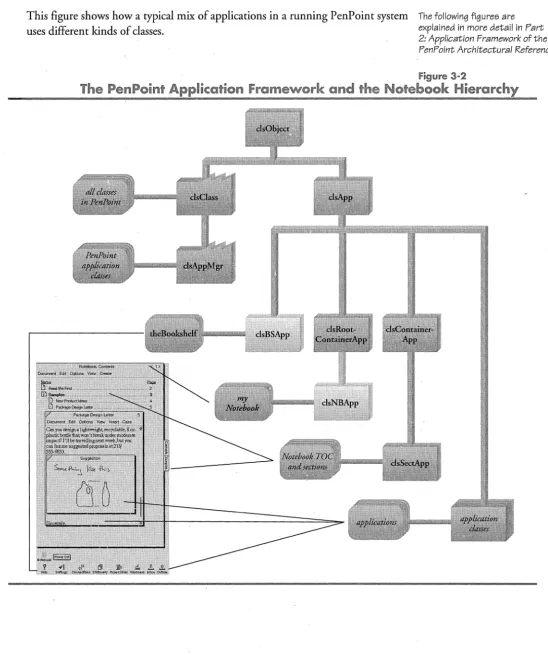
3-2 The PenPoint Application Framework and
Debugging 11.1 159 the Notebook Hierarchy 30
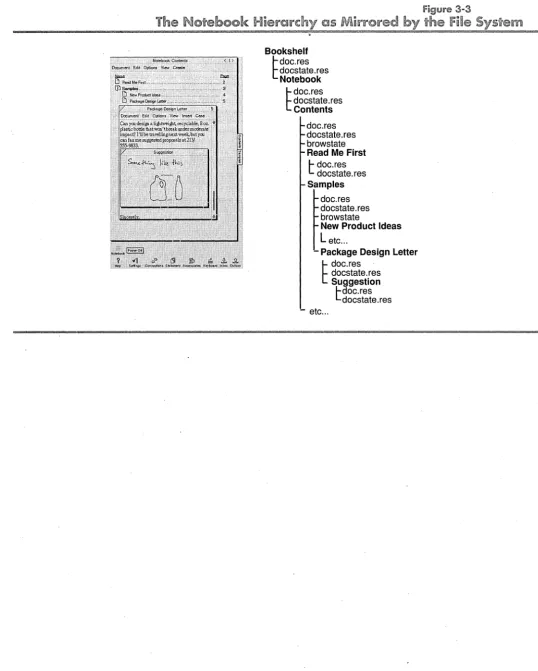
. Tracing 11.1.1 159 3-3 The Notebook Hierarchy as Mirrored by
Debugf Statements and Debug Flags 11.1.2 160 the File System 31
Dumping Objects 11.1.3 161
3-4 The Notebook Hierarchy as Mirrored by
Symbol Names 11.1.4 162 Application Processes 32
Installation Features 11.2 163 4-1 Message Handling by a Class and its
Stationery 11.3 163 Ancestors 44
Creating Stationery 11.3.1 164 4-2 Sending msgListAddI temAt to a List 45 How Tic-Tac-Toe Handles Stationery 11.3.2 165
4-3 How Messages to Instances are Processed
Help Notebook 11.4 165 by Classes 48
Creating Help Documents 11.4.1 165 6-1 Empty Application Option Sheet
96
Quick Help 11.5 166 7-1 VI Toolkit Components 117
Creating Quick Help Resources 11.5.1 167
9-1 CounterApp Objects 137
Standard Message Facility 11.6 168
10-1 Tic-Tac-Toe Classes and Instances 150 Vsing StdMsg Facilities 11.6.1 169
Substituting Text and Defining Buttons 11.6.2 170 11-1 Stationery Notebook & Stationery Menu 164
StdMsg and Resource Files or Lists 11.6.3 170 11-2 Quick Help 166
StdMsg Customization Function 11.6.4 171 11-3 Application and Document Icons 171
Bitmaps (Icons) 11.7 171
r
List of TablesCreating Icons 11.7.1 172
3-1 Notebook Organization and the File
r
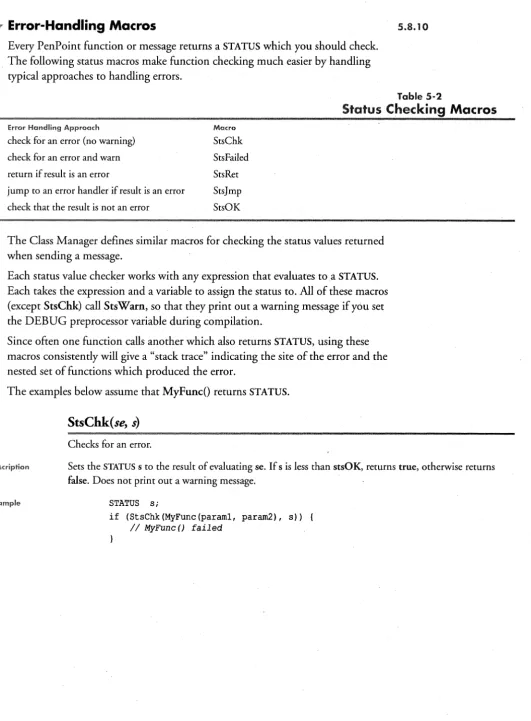
Chapter 12 / Releasing System 33the Application 173 5-1 Generic Status Values 81
Registering Your Classes 12.1 173 5-2 Status Checking Macros 82
Documenting the Application 12.2 173 6~1 WATCOM Compiler and Linker Flags 92
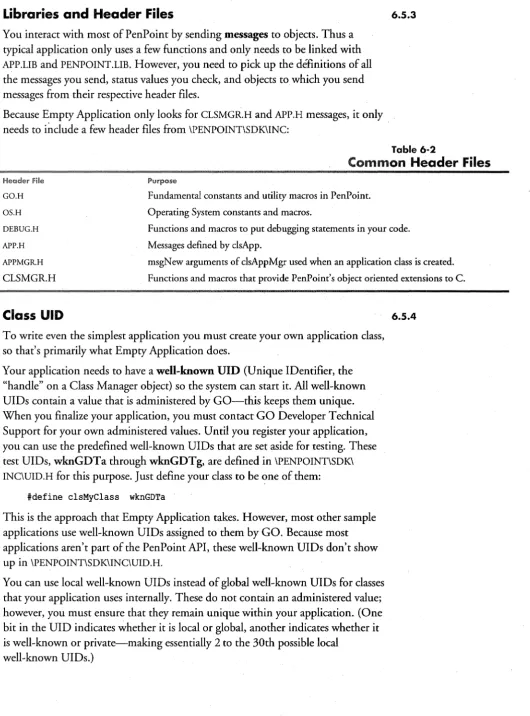
Writing Manuals 12.2.1 173 6-2 Common Header Files 102
Screen Shots 12.2.2 174 10-1 Tic-T ac-Toe Files 151
Gesture Font 12.2.3 174
On-Disk Structure 12.3 174
Chapter 1 / Introduction
. The PenPoint™ operating system is an object-oriented, multitasking operating system that is optimized for pen-based computing. Writing applications for the PenPoint operating system will present you with some new challenges. However, PenPoint contains many features that make application development far easier than development in most other environments.
One feature that makes application development easier is the PenPoint
Application Framework, which eliminates the need to write "boilerplate" code. In other operating systems, programmers must write code to perform housekeeping functions, such as application installation, input and output file handling, and so on. These are provided automatically by the PenPoint Application Framework.
As another example, PenPoint provides most of the on-screen objects used by the PenPoint Notebook User Interface (NUl). By using these objects, your
application can conform to the PenPoint NUl, without a great amount of work on your part.
In this manual, you will learn about the PenPoint operating system, the PenPoint development environment, and,. of course, how to write applications for the PenPoint operating system. The PenPoint Software Development Kit (SDK) contains several sample applications that you can compile and run. These sample applications are used throughout this manual to demonstrate concepts and programming techniques.
"..Intenclecl Audience
This manual is intended for programmers who want to write applications for the PenPoint operating system. It assumes that you are familiar with the C
programming language and related development tools, such as make utilties. You should also be aware of the information in the companion volume, PenPoint
Development Tools. Pay particular attention to Chapter 2, Roadmap to SDK
Documentation, which describes the organization of the PenPoint SDK documentation and recommends a path through the manuals.
".. Organization of 'his Manual
Chapter 1, this chapter, introduces the organization of this manual.
. Chapter 2, System Overview, presents an overall look at the PenPoint Operating System environment. This chapter does not focus on writing applications. Chapter 3, Application Concepts, presents applications from a conceptual point of view. This chapter describes most of the parts of an application that you must
1.1
write, along with parts of applications that are provided for you by the PenPoint Application Framework.
Chapter 4, PenPoint Class Manager, describes the parts of the PenPoint
Operating System that you use to create classes and to create instances of classes. Chapter 5, Developing an Application, discusses a number of points that you must consider when creating an application. This chapter presents a checklist that you can use to ensure that your application is complete; the chapter also and discusses GO's coding conventions.
Chapter 6, A Simple Application (Empty App), introduces a minimal application. By experimenting with this application, you can see just how much the PenPoint Application Framework does for you. This chapter also describes how to compile and debug Pen Point applications.
Chapter 7, Creating Objects (Hello World: Toolkit), describes how you create instances of predefined PenPoint classes and use these objects in your application. Chapter 8, Creating a New Class (Hello World: Custom Window), describes how to create custom windows and presents additional information about using
instance data.
Chapter 9, Saving and Restoring Data (Counter App), describes how to save and restore data from your application.
Chapter 10, Handling Input (Tic-Tac-Toe), describes how to handle input, while also describing a much larger application: Tic-Tac-Toe.
Chapter 11, Refining the Application (Tic-Tac-Toe), describes how to add polish to your application.
Chapter 12, Releasing the Application, describes the steps necessary to make your application available to other PenPoint users.
The appendix contains the complete sample code for the tutorial programs referred to in the previous chapters, along with descriptions of other sample programs provided in the SDK.
Other Sources of Information
For conceptual information about the various classes in PenPoint, see the
PenPoint Architectural Reference.
For information on running PenPoint on a PC and using the PenPoint
development tools and utilities, such as the Pen Point source-level debugger, see
PenPoint Development Tools,. The volume also contains a master index for all SDK volumes, except the PenPoint API Reference.
For reference information on the classes, messages, macros, functions, and structures defined by PenPoint, see the PenPoint API Reference. The information in the PenPoint API Reference is derived directly from the PenPoint header files (in
\PENPOINT\SDK\INC) .
Chapter.2 / PenPoint
System Overview
When GO Corporation undertook to build a mobile, pen-based computer system, we quickly recognized that existing standard operating systems were not adequate for the task. Those systems, designed for the very different needs of keyboard-based desktop computers, would require such extensive rewriting to support this new market that they would no longer run the installed base of applications that made them standard in the first place. We therefore determined that a new, general-purpose operating system would be needed, designed
specifically for the unique requirements of pen-based computing. The result is the PenPoint operating system. This document is a brief introduction and overview of its design goals, architecture, and functionality.
II'"
Design Considerations
Mter extensive research and analysis, GO identified the following key requirements for pen-based system software:
• A direct, natural, intuitive, and flexible graphical user interface
• Strong support for handwriting recognition and gesture based commands • A richer organizational metaphor than the traditional file-system model +A high degree of memory conservation through extensive sharing of code,
data, and resources
• Ability to run on RAM-only as well as_disk-based computers
• Priority-based, preemptive multitasking
• Detachable networking and deferred data transfer
• Hardware independence (ability to move to new processors quickly) The PenPoint operating system was developed to satisfy these requirements.
II'"
User Interface
. PenPoint's most distinctive feature is its innovative user interface. The user interface is the cornerstone on which the entire system is built;
all
other design considerations follow from it. The user interface, in turn, is based on two main organizing principles:• The use of a pen as the primary input device
• A notebook metaphor that is natural and easy to use
The consequences of these two basic design features permeate the entire system.
2.1
".. The Pen
The pen naturally combines three distinct system control functions: pointing, data input, and command Invocation. Like a mouse, it can point anywhere on the screen to designate an operand, specify a location, draw a picture, drag an object or select from a menu. Through sophisticated handwriting recognition software, it can replace the keyboard as a source of text input. Finally, it can do something neither a mouse nor a keyboard can do: issue commands through graphical gestures.
"." Gestures
Gesture$ are simple shapes or figures that the user draws directly on the screen to invoke an action or command. For example, a scratch out X gesture is used to delete, a circle 0 to edit, and a caret /\ to insert. A set of built-in core gestures form the heart of the PenPoint user interface:
Caret /\ Check ../
Circle 0 Cross out
X
Flick left - Flick right
Flick up
I
Flick downInsert space L Pigtail
I
Press
1
TapY
Tap press
·1
Undo ~To exploit the unique properties of the pen, PenPoint provides strong support for gestural command invocation. The same handwriting translation subsystem that recognizes characters for text input also recognizes those shapes that constitute meaningful gestures. The form, location, and context of the gesture then determine the action to be performed and the data objects affected. Because a gesture can be made directly over the target object, it can specify both the operand and the operation in a single act. This gives the pen-based interface a directness and simplicity that cannot be achieved with a mouse.
"." IIPenPointl l Control
The pen has one more notable property as a control device. Because it draws directly on the face of the screen (rather than on a physically separate working surface such as a mouse pad or graphics tablet), it eliminates a major source of difficulty among new computer users-the relationship between movement of the and the movement of the cursor on the screen. With a pen, the user's eye is focused exactly where his or her hand is working. Most PenPoint applications can thus dispense with an on-screen cursor for tracking the pen, though it can still be offered as an optional user preference.
2.2.1
2.2.1.1
CHAPTER 2 I PENPOINT SYSTEM OVERVnW 5 Object-Oriented Architecture
". Notebook Metaphor
2.2.2Instead of a traditional file system based on a hierarchy of nested directories and cryptic file names, PenPoint uses a "notebook" metaphor for information storage and retrieval. By using familiar models of working with paper-based documents, the notebook approach provides a rich variety of natural and intuitive techniques for organizing and accessing information:
• A bookshelf upon which multiple user notebooks may reside, as well as system notebooks for help information and stationery, an inbox and outbox, and various tools and accessories. A user can have any n~mber of notebooks open at once; typical use involves one main notebook.
• A table of contents offering an overview of all available documents in the notebook, allowing easy manipulation and navigation at the global level. The table of contents can be organized in natural page number order, or sorted by name, size, type or date.
• Sections and subsections for hierarchical organization. • Page numbers and notebook tabs for direct random access • Page turning for sequential access
Because the notebook is a familiar, physical, and stable model, a user can employ spatial memory oflayollt and juxtaposition to help find and organize their information.
".Obiec'-Oriented Architecture
To facilitate code sharing and overall memory conservation, PenPoint uses an object-oriented approach to system architecture. All application programming interfaces (APIs) above the kernel layer are implemented using object-oriented programming techniques of subclass inheritance and message passing. This helps
to ensure that PenPoint and its APIs have these characteristics:
• Compact, providing a body of shared code that need not be duplicated by all applications
• Consistent, since all applications share the same implementation of common system and user interface functions
• Flexible, allowing applications to modify PenPoint's behavior by sub classing its built-in classes
The event-driven, object-oriented nature of the system minimizes the need to "reinvent the wheel" with each new application. Programmers can "code by exception," reusing existing code while altering or adding only the specific behavior and functionality that their own applications require. Because the object-oriented architecture is system-wide, these benefits are not restricted to single applications; in fact, applications can share code with each other just as readily as with the system itself.
Architecture and Functionality
Pen Point' s overall software architecture is organized into five layers: 1 The kernel, which provides multitasking process support, memory
management, and access to hardware. The kernel works closely with the PenPoint class manager, which makes PenPoint object oriented.
2 The system layer, which provides windowing, graphics, and user interface support in addition to common operating system services such as filing and networking
3
The component layer, which consists of general-purpose subsystems offering significant functionality that can be shared among applications4 The Application Framework, which serves as a "head start" for building applications
5 The applications themselves
Each of these layers is discussed in detail below.
Kernel Layer
The kernel is the portion of the PenPoint operating system that interacts directly with the hardware. Besides handling such low-level tasks as process scheduling and synchronization, dynamic memory allocation, and resource management, it also provides these services, which .are needed to support the object-oriented software archi tecture:
• Priority-based, preemptive multitasking
• Processes and threads (lightweight tasks sharing the same address space)
• Interprocess communication and semaphores • Task-based interrupt handling
• 32-bit flat memory model
• Protected memory management and code execution
• Heap memory allocation with transparent relocation and compaction (no fixed-length buffers)
• Object-oriented message passing and subclass inheritance
All hardware dependencies in the kernel are isolated into a library subset (the MIL or machine interface layer) to facilitate porting to a wide variety of hardware and processor architectures. The kernel runs on both PC and pen-based machines. All of Pen Point's APIs use full 32-bit addresses.
Other parts of the kernel layer support features that keep PenPoint small and efficient, such as:
J
Loader Unlike a traditional, disk-based operating system, PenPoint's loader does not require multiple copies of system and application code to be present in the machine at the same time. Instead, it maintains a single
2.4
CHAPTER 2 I PEN POINT SYSTEM OVERVIEW '7
instance of all code and resources, which are shared among all clients. When installing a new application, the loader reads in only those components that are not already present in memory.
Power Conservation When running on battery-powered hardware, the kernel reduces power consumption by shutting down the CPU whenever there are no tasks awaiting processor time. Subsequent events such as pen activity or clock-chip alarms generate interrupts that reactivate the CPU. The kernel also monitors the main battery and will refuse to run if power is too low, ensuring reliable protection of user data.
Diskless Reboot Hardware memory protection is used to preserve the integrity of all code, resources, and data. In the event of a crash, the kernel can restart all processes (including its own), with minimal loss of user data and without the need to restart the system from disk drives. C Runtime The kernel includes runtime support for all WATCOM C/386
runtime functions except those DOS- and PC-specific calls that are not applicable to a pen-based notebook environment.
Class Manager PenPoint's Class Manager works closely with the kernel to support object-oriented programming techniques such as
single-inheritance subclassing and message passing. The Class Manager also provides important protection and multitasking services not found in C++ or other object-oriented languages. These services safeguard the operating system against possible corruption arising from the use of object-oriented techniques. For example, instance data for
system-defined classes is protected so that the data cannot be altered by any subclasses. Applications thus derive the benefits of subclassing without jeopardizing the integrity of the system.
System Layer
PenPoint's system layer provides a broader range of support services than a
traditional operating system. In addition to the usual system facilities such as filing and networking, it also provides such high-level services as windowing, graphics, printing, and user interface support. This helps keep application code compact and consistent while facilitating application development for the machine.
File System
PenPoint's file system is designed for compatibility with other existing file systems, particularly MS-DOS, and includes full support for reading and writing MS-DOS-formatted disks. It provides many of the standard features of traditional file systems, including hierarchical directories, file handles, paths, and current working directories, as well as such extended features as 32-character file names, memory-mapped files, object-oriented APIs, and general, client-specified attributes for files and directories.
The PenPoint file system is a strict superset of the MS-DOS file system; all PenPoint-specific information is stored as an MS-DOS file within each MS-DOS
System Layer
2.6
== III
~
III
>
directory. This approach is used when mapping to other file systems as well. Additional, installable volume types are also supported. At present, these include RAM volumes and remote volumes (for access to PC, Macintosh, and file servers).
". Resource Manager
Pen Point's Resource Manager and the resource files that it controls allow applications to separate data from code in a clean, structured way. The Resource Manager can store and retrieve both standard PenPoint objects and application-defined data, in either a specific file or a list of files. Resources can be created directly by the application or by compiling a separate, text-based resource definition file.
". Networking
Pen Point provides native support for smooth connectivity to other computers and networks. Multiple, "autoconfiguring" network protocol stacks can be installed on the fly. AppleTalk protocol is built in, enabling connection to other netWorks through a variety of AppleTalk-compatible gateways. By purchasing the
appropriate TOPS software, users can configure their systems to connect directly to DOS or Macintosh computers~
Through the use of these networking facilities, remote services such as printers are as .easily accessible to PenPoint applications as if they w,ere directly connected. -Remote file systems on desktop computers and-network file servers are also
transparently available via a remote-file-system volume. A user can browse PC and file-server directories, for instance, using PenPoint's connections notebook. Several remote volumes can be installed at once: for example, a PenPoint system can hook directly to a Macintosh and a DOS computer at the same time . . A typical user, while on an airplane, might mark up a FAX, fill out an expense
report to be electronically mailed to the payables department, draft a business letter to be printed, and edit an existing document to be returned to its "home" on a PC's hard disk. Upon connection to the physical devices, conventional operating systems would require that user to run each application, load each document and dispense with it. Pen Point's In Box and Out Box services allow the user to defer and batch data transfer operations for completion at a later time. Upon return to the office and establishing the physical connection, the documents are automatically faxed, printed, and mailed. These services are extensible and can support a wide variety of transfer operations, including electronic mail, print jobs, fax transmissions, and file transfers.
". Windowing
The window system supports nested hierarchies of windows with multiple coordinate systems, clipping, and protection. Windows are integrated with Pen Point's input system, so that incoming pen events are automatically directed to the correct process and window. Windows use little memory and can therefore be used freely by applications to construct their user interface.
2.6.2
2.6.3
CHAPTER 2 / PENPOINT SYSTEM OVERVIEW 9
Usually windows appear on screen, but they can also be created on other, off-screen image devices, such as printers.
Tlie window system maintains a global, screen-wide display plane called the acetate plane, which is where ink from the pen is normally "dribbled" by the pen-tracking software as the user writes on the screen. The acetate plane greatly improves the system's visual responsiveness, both in displaying and in erasing pen marks on the screen.
Graphics
PenPoint's built-in graphics facility, the ImagePoint™ imaging model, unifies text with other graphics primitives in a single, PostScript-like imaging model.
ImagePoint™ graphics can be arbitrarily scaled, rotated, and translated, and can be used for both screen display and printing. ImagePoint's graphics capabilities include these elements:
Polylines Rectangles
Rounded rectangles Polygons
Sampled images Text
Bezier curves Ellipses Arcs Sectors Chords
A picture segment facility allows ImagePoint messages to be stored and played back on demand, facilitating a variety of drawing and imaging applications. For improved performance, the imaging system dynamically creates machine code when appropriate for low-level graphics operations such as direct pixel transfer ("bitblt"). The ImagePoint interface also supports the use of color, (specified in conventional RGB values) allowing PenPoint to run on grey-scale and color screens.
To conserve memory, ImagePoint™ uses outline fonts to render text at any point size. (Bitmap fonts are automatically substituted at low resolutions for improved visual clarity.) Fonts are heavily compressed and some character styles are
synthesized to minimize memory requirements. If a requested font is not present, ImagePoint will find the closest available match. Text characters can be scaled and rotated in the same way as other graphical entities.
Printing
The ImagePoint imaging model is used for printing as well as screen display, allowing applications to use the same image-rendering code for both purposes, rebinding it to either a screen window or a printer as the occasion demands. PenPoint handles all printer configuration, and automatically controls margins, headers, and footers, relieving the application of these details. (As in most other areas of PenPoint, applications can override the default behavior.)
System Layer
2.6.5
One key benefit of this approach is that documents to be faxed are rendered specifically for a 200 DPI output device. The resulting output will be of
sufficiently high quality that mobile users may not require a portable printer at all, opting instead to use a nearby plain paper FAX machine.
PenPoint supports dot-matrix and HP Laserjet printers. When the printer does not have a requested font, the ImagePoint imaging model will render and download one from its own set of outline fonts, ensuring good WYSIWYG correspondence and shielding the user from the complexities of font management.
User Interface Toolkit
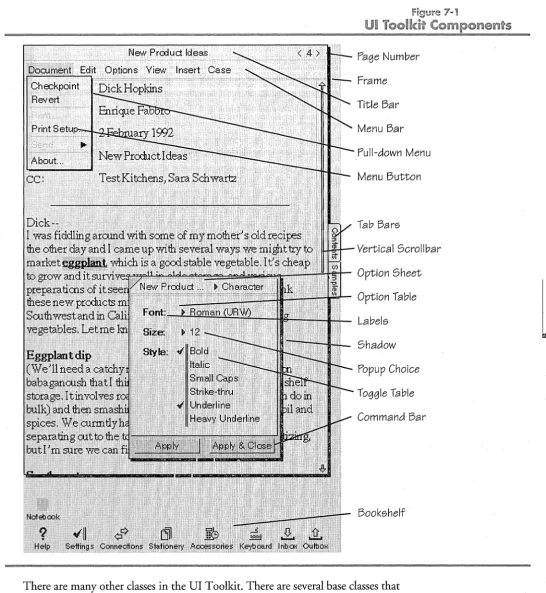
PenPoint's User Interface Toolkit offers a wide variety of on-screen controls:
Menu bars Nonmodal alerts
Pulldown menus Section tabs Window frames Title bars Scroll bars Option sheets Dialog boxes Progress bar Modal alerts Trackers
Push buttons
Exclusive choice buttons Nonexclusive choice buttons Pop-up choice lists
List boxes
Editable text fields Handwriting pads Grabbers
Busy clock
A major innovation in PenPoint's User Interface Toolkit is automatic layout. Instead of specifying the exact position and size of controls, the application need only supply a set of constraints on their relative positions, and the Toolkit will dynamically calculate their exact horizontal and vertical coordinates. This makes it easy for programmers or users to resize elements of the user interface, change their fonts or other visual characteristics, or switch between portrait and landscape ' screen orientations, while preserving the correct proportions and positional relationships.
Input and Handwriting Translation
PenPoint's input subsystem translates input events received by the hardware into messages directed to application objects. The low-level pen events include:
In proximity Out of proximity
Tip down Tip up
Move down Window enter
Move up Window exit
These low-level events can be grouped into higher-level aggregates called scribbles, which are then translated by the handwriting translation (HWX) subsystem into either text characters or command gestures. These characters or
2.6.7
CHAPTER 2 / PENPOINT SYSTEM OVERVIEW 11
gestures in turn are dispatched to the appropriate objects via a rich input distribution model that includes filtering, grabbing, inserting, and routing of input up and down thewindow hierarchy .
. The portion of the GOWrite handwriting translation engine that matches and recognizes character shapes is replaceable, allowing PenPoint to improve its HWX
techniques as better algorithms become available. There are two parts to the handwriting translation engine: the first part matches shapes, the second part uses context to improve the translation.. .
The current HWX engine, developed entirely by GO, recognizes hand-printed characters and has the following characteristics:
• .operates in real time (shape matcher operates at 60 characters per second on 33Mhz 80486)
• Runs in a background process
• Handles mixed upper- and lowercase letters, numerals, and punctuation
• Tolerates characters that overlap or touch
• Recognizes characters independently of stroke order, direction, and time order
• Distinguishes non-unique character forms such as the letter "0" and the numeral "0" (in context)
• Tolerates inconsistency by same user (that is, the user may shape the same character in different ways at different times)
• Can accept optional context-sensitive aids (such as word lists, dictionaries, and character templates) provided by an application. Applications are given great control over this process; they may issue constraints that merely influence the result or force a match against a predefined list.
Although PenPoint is designed primarily for pen-based input, it is not limited to the pen. For high volume data entry, PenPoint is designed to accept input from a keyboard.
As an alternative, PenPoint also provides a software "virtual keyboard." Users can display the keyboard on the screen and input text by tapping on the keys with the pen.
'Y
Selection Manager and Data Transfer
The Selection Manager subsystem maintains a system-wide selection, which is the target for
all
editing operations. The Selection Manager also implements asingle-level stack for temporarily saving the current selection. Editing is based on a move-and-copy model, rather than a "clipboard" (cut-and-paste) model. The source and destination applications negotiate data transfers from one application to another. The destination application requests a list of available data formats from the source application. PenPoint supports a variety of standard transfer formats, including RTF (Rich Text Format), structured graphics, and TIFF
(Tagged Image File Format); applications can extend this list to include other formats as well.
PenPoint's object-oriented architecture also makes possible the PenPoint EDATM or embedded document architecture. This isa unique form of "live" data transfer in which the transferred data carries with it an instance of its own source
application. Through object-oriented message passing, this embedded application instance can then be used to display, edit, or otherwise manipulate the data from within the destination application. Although more conventional forms of "hot links" and DDE (Dynamic Data Exchange) linking are still possible in Pen Point, such live application embedding obviates the need for most of them.
".. Component Layer
Above and beyond the traditional kernel and system facilities, PenPoint adds a rich, powerful, and extensible component layer. Components are general-purpose code units with application-level functionality that can be shared and reused as building blocks by multiple client applications. They speed the development of applications, reduce memory consumption, and provide for more consistent user interfaces and tighter integration across diverse applications. . PenPoint includes several components, such as a multi-font, WYSIWYG text editor and a scribble editing window that can be embedded within any application that needs them. You can include these components in your application without licensing them from GO.
Third-party developers may market components to other developers. Applications may also provide their own general-purpose components to be installed and shared in the PenPoint runtime environment.
".. Application Framework Layer
The Application Framework is a set of protocols rigorously defining the structure and common behavior of a PenPoint application. Through the Application Framework, applications inherit a wide variety of standard behavior, including installation and configuration, creation of new documents, application stationery (template documents), on-line help, document properties, spell checking, search and replace, import/export file dialogs, and printing. New code is required only for added functionality or to modify or override specific aspects of the default behavior. Use of the Application Framework thus yields significant savings in programming time and code space.
An
application developer creates the application code and any resources needed by the application. When a user installs an application, the PenPoint Application Framework takes care of:• Copying the application code and all other auxiliary files to the system • Creating new documents
• Creating and terminating taSks
2.7
CHAPTER 2 / PEN POINT SYSTEM OVERVIEW 13
• Storing and retrieving user data in the file system
• Creating and destroying a main window for the application.
Active documents save their internal state in the file system, but this is invisible to the user: there is no need to save or load the application's state explicitly from one session to the next.
The most innovative aspect of Pen Point's Application Framework is its ability to create true "live compound documents." Users and developers can freely embed a document created by one application inside another document (for example, a business graphics application within a text document). GO refers to this architecture as EDATM (Embedded Document Architecture).
". Application Layer
Using the "live" recursive embedding available through EDA, PenPoint's '
notebook metaphor and user interface are implemented as a set of bundled system applications. Although the user simply perceives these collectively as "the
notebook," they are in fact distinct applications, providing a cleanly delineated and modular architecture.
The key bundled applications include bookshelf, notebook, and section applications that together constitute the core notebook metaphor.
• The Table of Contents (TOC) application provides a user interface for specialized organization and retrieval at the front of the notebook.
• A bundled text editor provides end users with intuitive, pen-based Rich Text editing.
• A standard Send user interface and an Address List allow for the addressing of all electronic mail, fax, and file transfers.
• A file browser allows the user to point'to files and directories and use standard gesture commands to manipulate them.
Multiple instances of the notebook can be created; in fact, the Create, Help, Configuration, and InBox/OutBox applications are all instances of the notebook application. Developers benefit from this code sharing; users benefit from
decreased memory requirements as well as greater consistency in the user interface. The Help Notebook, for example, consists of help documents ordered by section (application), and therefore looks just like the standard table of contents. Users already know how to navigate through this notebook and can even create hyperlink references to important sections. Developers can simply write ASCII text to provide on-line documentation. Documents in the help notebook can be any type of PenPoint application documents. Developers can also leverage
existing application code to build very powerful help systems that can demonstrate real functionality.
Application Loyer
Software Development Environment
With the exception of some hardware-dependent code, PenPoint and the
applications it supports are written entirely in ANSI C, using current versions of leading PC-based development tools. Developers already acquainted with
object-oriented concepts, and with the graphical user interfaces and multitasking found in operating systems like Macintosh and OS/2 Presentation Manager, will find the development environment familiar and will quickly be able to do productive work.
Software Development Kit
The PenPoint SDK provides developers with the documentation and tools to develop applications. The kit includes a source-code symbolic debugger, as well as an outline font editor for creating scalable and rotatable application-specific glyphs. Because PenPoint runs on DOS 386 machines, the full application edit-com pile-debug cycle can be accomplished solely on a Pc, or on a combination of a PC and a computer running PenPoint. In the former
configuration, you use a pen-driven digitizer tablet to simulate pen input. In the latter configuration, the PC serves as a debugging monitor, as well as a convenient repository of the development system libraries, header files, on-line
documentation, and source code.
Coding Conventions
All PenPointcode is written in accordance with modern software engineering standards, including:
• Consistent naming conventions for modules, functions, and variables
• Carefully designed modularity
• Proper commenting and formatting of source code.
Almost all of the C code is structured using object-oriented programming techniques. Classes are defined and objects are created and sent messages by making calls into a library of C routines called the Class Manager. These
techniques are in the mainstream of currently evolving industry practices, but the details are unique to GO and are well documented in the SDK materials.
Extensibility
Pen Point is extensible in a variety of ways, allowing for the addition of new networking protocols, imaging models, font models, and file-system volumes. Pen Point can run on computer architectures ranging from RAM-only, pen-based pocket computers to powerful disk-based workstations with
p~n-tablet
screens. The operating system is a working whole, with most modules integrated and tested as part of the full system since early 1988. Through techniques such as hardware memory protection, object-oriented programming, rigorous2.10
2.10.1
2.10,2
CHAPTER 2 I PEN POINT SYSTEM OVERVIEW 15
Pen Point Design Guidelines
modularization, and extensive sharing of code, PenPoint has the foundations of a highly reliable operating system.
PenPoinl Design Guidelines
2.11To this point, this chapter has presented concepts that relate to the PenPoint operating system as a whole. The remainder of the chapter describes important points that application developers will have to keep in mind while designing and coding PenPoint applications.
"., Conserve Memory
Do not squander memory. Your application should use little memory when active. It must be .able to further reduce its memory usage when off-screen. An application that is packed with functionality but consumes a lot of memory is less likely to be successful than one which meets the key needs while requiring very little memory.
"., Think Small
Most PC programs stand alone as large monolithic programs that attempt to do everything. In the cooperative, multitasking PenPoint en~ironment with its Embedded Document Architecture, it makes more sense to provide programs that present a facet of functionality or that orchestrate other applications and
components. Use existing classes and components where possible rather than writing your own from scratch.
"'''' Use a Modular Design
Consider writing your application as a set of separable components. A component is a separately loadable module (a dynamic .link library or DLL) that provides software functionality. A component has a well-defined programmatic interface so that other software can reuse it or replace it. With modular design, your
application becomes an organizing structure that ties together other components in a useful way. For example, an outliner applicat!on might use a drawing component, a charting component, and a table entry component; you could license these components to or from other developers. GO is working to develop a market for third-party components, and itself offers several components, including Text View™ and the TableServerTM.
"'''' Avoid Duplicating Data
In some Pen Point memory configurations (single-tier, RAM volume), everything is in memory: The RAM volume co-exists with running applications in the same memory. Usually, computers running PenPoint will not be attached to external media. You should be aware of the occasions when data in your application's memory space needlessly duplicates data or code that is also present in the file system. One way to avoid duplication is to use memory-mapped files for your application's data.
2.11.1
2.11.2
2.11.3
When designing for a memory-resident file system, many of the trade-offs appropriate to traditional software design no longer apply. For example, deciding to read a startup file "into memory" makes sense when memory access is several orders of magnitude faster than file access, but in the case of single-tier memory configurations, the file system
is
memory.Your Application Must Recover
Users may go for weeks or months without backing up their PenPoint computer's file system. If your application goes wrong, the PenPoint operat·ing system will try to halt your application rather than the entire computer, but it is your responsi-bility to ensure that a new invocation of your application will be able to recover cleanly using whatever information it finds in the file system. This precept sometimes conflicts with avoiding data duplication, because the memory file system is more bullet-proof than the address space of a running application. For this reason, filed state will usually survive a process crash.
Moreover, most users will not have the PenPoint computer boot disks on hand. That means you cannot rely on the user being able to press the reset switch in a jam. PenPoint uses hardware and software protection techniques to secure against applications unintentionally corrupting the kernel and/or file system, but it is not foolproof.
Take Advantage of Obiect-Oriented Programming
You don't get to vote on using object-oriented techniques. You must write a class for your application that inherits from clsApp. The windows your application displays on the screen must be instances of cIs Win (or instances of a class that inherits from cIsWin). Of course, there are tremendous payoffs from PenPoint's object-oriented approach in program size reduction, code sharing, application consistency, programmer productivity, and elimination of boilerplate code (those large chunks of setup or housekeeping code that appear unchanged in every application) .
Consider Sharing Code and Data
Think about what other parts of Pen Point need to access your classes, what tasks need to run the code in them, and who maintains their data. If your application has a client-server architecture, a separate back-end or a core engine, you'll need to have the picture in mind when choosing local or global memory, dynamic or well-known objects, process or subtask execution, protecting shared data with semaphores and queued access, and so on.
PenPoint is a rich operating system that makes its kernel features available to applications. But a straightforward application may not need to concern itself with any of these decisions. It just interacts with PenPoint subsystems, which make careful use of these features. For example, none of the tutorial programs use any advanced kernel features.
CHAPTER 2 I PEN POINT SYSTEM OVERVIEW 17
Pen Point Design Guidelines
?r
Use
D@~lIJIme~~ OW"gelrilt~tk~Hru 2.11.8In the PenPoint operating system, the user sees documents, not separate programs and program files. Every document on a page is the conjunction of data and a process running an application. This leads to a document-centered approach to application design in place of a program-oriented approach. By comparison, on a Macintosh or IBM-PC compatible computer, the user tends to fire up a program and work on a succession of files. Under PenPoint, the user turns to a new document (or taps in a floating document) and the system unobtrusively turns control over to the right program for that document.
There are many ramifications of this orientation: applications have rio Open ... or Save As ... commands; the PenPoint operating system, not the user, saves data and quits programs; you deliver application templates and defaults to the user as stationery.
",. Design. for File Format Compatibility
The PenPoint application environment differs from that of other operating systems in that PenPoint saves your application data, along with information about objects in the document. Because of this filing method, your data formats within PenPoint will differ from their PC equivalents.
Most PenPoint users, however, will need to read and write application data in formats that are understood by other non-PenPoint applications. Either your application should be able to read and write data in other formats, or you should create an
i~port
or export filter for your PenPoint files. Pen Point provides import and export filters for some common file formats. Because the· import-export mechanism is class based, you or other application developers can create import-export filters for other file formats.",. Exploit the Pen
Graphical user interfaces built around a mouse or other pointing devices lead to flexible program architectures that respond to the user's actions instead of requiring the user to perform certain steps. The pen-oriented notebook interface of Pen Point is even more free-form. Just as with a mouse, the user can point to and manipulate (click, drag, stretch, wipe) entities on-screen, but in the PenPoint operating system the user can also make gestures and handwrite characters "on" the visual entities. Taking advantage of the pen is a challenge and a tremendous opportunity.
",. Use the
Pen Point
User Interface
The Notebook User Interface (NUl) differs from other graphical user interfaces. If you are porting a DOS or Macintosh-based program to PenPoint, rethink your user interface so that it takes advantage of the PenPoint UI Toolkit. Do not create your own interface.
2.11.9
2.11.10
2.11.11
~ III
~
III >
The PenPoint UI Design Reference describes the PenPoint User Interface, its rationale, and how and when to use its components. You should have good reason before you deviate from the PenPoint interface. Remember that a consistent user interface allows users to learn your application quickly; a bad or inconsistent user interface will count against your application in product reviews (and acceptance in the marketplace).
Chapter 3 / Application Concepts
This chapter gives you the big picture of application development for the
PenPoint™ operating system. It introduces the design issues you need to consider when writing an application for a mobile, pen-based computer, how applications work under Pen Point, and how you use the PenPoint classes.
This chapter also presents concepts in general terms to provide the fundamental understanding that puts the balance of this manual in context. You needn't have read any of the other documentation before reading this chapter. However, if you have the SDK software, you might want to read the "Getting Started" document in the Open Me First packet for detailed instruction on how to compile and run the tutorial programs.
If you want a basic look at how the PenPoint operating system works, without a focus on writing applications, read Chapter 2, System Overview. If you need an introduction to object-oriented programming, read these industry publications:
• Principles of Object Oriented Design, Grady Booch, The Benjamin/Cummins
Publishing Co., 1991
• Object-Oriented Programmingfor the Macintosh, Kurt Schmucker, Hayden
Book Company, 1986.
• Object-Oriented Programming: An Evolutionary Approach, Second Edition, Brad]. Cox and Andrew
J.
Novobilski, Addison-Wesley Publishing Company, 1991.However you do it, make sure you come to understand the basics of
object-oriented programming, because in PenPoint every application must be class-based.
This chapter points out some of the aspects of the PenPoint Operating System that particularly affect your approach to application design.
As you know, application development takes place at two levels:
• At an architectural level, where you design your application • At the line-by-line level of program statements.
At the architectural level, this chapter assumes that you have basic familiarity with object-oriented programming. In developing a PenPoint application you'll be designing different kinds of objects and the interactions between them and PenPoint. The section "How Applications Work" introduces the PenPoint Application Framework, which influences and supports the structure of
all
At the programming statement level, this chapter assumes that you are well-versed in C programming. You'll be writing C code that makes heavy use of the
Pen Point Class Manager. The section "Understanding Classes" introduces the Class Manager and shows you what lines of code in PenPoint look like.
With some understanding of the Application Framework and the Class Manager, you'll have the tools necessary to understand simple programs both architecturally and line-by-line. Later chapters in this manual describe the SDK sample programs in \PENPOINT\SDK\SAMPLE (the installation procedure for the SDK creates the
\PENPOINT directory on your hard disk) .
PenPoint Programming is Unique
Just as a PenPoint™ computer is used in work environments that differ from other computers, PenPoint applications execute in an environment that differs from conventional PC application environments. There are eight key differences:
• Stylus-based user interaction • Object-oriented programming • Disk storage not necessary
• Multitasking
• Cooperating, simultaneously active, embedable applications • Graphics-intensive user interface
• Notebook metaphor
• Document-orientation instead of applications and files orientation. Dealing with these aspects of PenPoint requires you to observe a number of guidelines, described in the following sections. The good news is that the software architecture of PenPoint shoulders much of the load for you.
The Class Manager supports the pervasive use of classes and objects throughout Pen Point; not only in the user interface area, but also in areas such as the file system and the imaging model. These classes provide you with ready-made components which you can use as is or customize in your applications. These objects already conserve memory, exploit the pen interface, cooperate with other processes, and so on. In particular, nearly all of the work your application needs to do to work within the PenPoint Notebook is already implemented by pre-existing classes which comprise the PenPoint Application Framework.
How Applications Work
In the PenPoint™ operating system, the environment in which your application runs and how it starts up are unlike any other operating system.
MS-DOS accepts a command line, executes a single program at a time, and pretty much gets out of the way while that program is running. The PenPoint
Application Framework takes an active role in running your application. The Application Framework is responsible for activating, saving, restoring, and
3.1
CHAPTER 3 I APPLICATION CONCEPTS 21 How Applications Work
terminating your application. Additionally, the Application Framework plays a part in installing and deinstalling your application.
Because all PenPoint applications use the Application Framework, all applications behave consistently. Additionally, the Application Framework handles the
housekeeping functions that Macintosh or MS-DOS programs must perform ftom boilerplate code. Meanwhile, the PenPoint Application Framework presents the PenPoint user with multiple small, concurrent documents as part of a
consistent, rich notebook metaphor.
It's difficult to cleanly define the PenPoint Application Framework, because it is both external to your application and something your application is itself a part of. But here's an attempt:
The PenPoint Application Framework is both the protocol for supporting multiple, embeddable, concurrent applications in PenPoint, and the support code that implements most of an application's default response to the protocol.
To help you understand how an application fits into the PenPoint computing environment, this section walks through some important stages in the life of an application. By its end you should understand a little about the PenPoint Application Framework, some of the classes of objects in PenPoint, and why classes are so important. The next section explains class-based programming in PenPoint.
With an understanding of the PenPoint Application Framework and the Class Manager under your belt, you'll be able to work through the tutorials on PenPoint programming that begin in Chapter 6. The tutorial summarizes other PenPoint subsystems: windows, User Interface (UI) toolkit, filesystem, and handwriting translation. The tutorial incorporates these subsystems into a set of increasingly functional sample programs.
Installing and Starting Applications
After acquiring an application, the user must install the application in the PenPoint computer. Usually an application distribution disk contains the code and data that implement the application's classes, and any other classes required by the application.
We'll first look at how a user installs and starts a program on a traditional PC operating system (MS-DOS). Then we'll compare these operations with installing and running an application on PenPoint.
MS-DOS Installation
In MS-DOS, the user usually installs a program by copying the program from distribution disk to a hard disk. Once on the hard disk, the program does nothing until the user types a command to start the program up.
~
a. III
u
Z
o u
z