Reference Manual
Software
for errors contained herein or for incidental or consequential damages in connection with the furnishing, performance, or use of this material. This document contains information which is protected by copyright. All rights are reserved. No part of this document may be photocopied, reproduced, or translated to another language without the prior written consent of Network Computing Devices, Inc.
Copyright © 1990, 1992, 1993, 1994, 1995, 1996 Tektronix, Inc. Wilsonville, Oregon.
Printed in the United States of America or the United Kingdom. All rights reserved. This document may not be copied in whole or in part, or otherwise reproduced except as specifically permitted under U.S. copyright law, without the prior written consent of Network Computing Devices, Inc., 350 North Bernardo Avenue, Mountain View, CA 94043 USA.
Portions of the network computer source code are copyrighted © 1989 by Sun Microsystems, Inc. Sun design patents pending in the U.S. and foreign countries. OPEN LOOK is a trademark of AT&T. Used by written permission of the owners.
Portions of this NCBridge software copyright © 1984-95 Adobe Systems Incorporated. All rights reserved.
Some fonts are copyrighted © 1986, 1985 by Bigelow & Holmes. Lucida is a registered trademark of Bigelow & Holmes.
Trademarks
Network Computing Devices is a registered trademark of Network Computing Devices, Inc. WinDD and NCBridge are trademarks of Network Computing Devices, Inc.
Ethernet is a trademark of Xerox Corporation; UNIX is a registered trademark of AT&T; DEC, DECnet, DECwindows, ULTRIX, SCAMP, VMS, and VT are trademarks of Digital Equipment Corporation; SPARCstation is a registered trademark of SPARC International, licensed exclusively to Sun Microsystems, Inc.; Sun Microsystems, SunOS, NFS, Sun, Sun-3, Sun-4, and OpenWindows are trademarks of Sun Microsystems, Inc.; OSF, OSF/Motif, and Motif are trademarks of Open Software Foundation, Inc.; X and X Window System are trademarks of the Massachusetts Institute of
Technology. Hewlett-Packard, HP, and vue are trademarks of the Hewlett-Packard company. IBM and SMIT are trademarks of International Business Machines. Silicon Graphics and IRIS are registered trademarks and IRIX is a trademark of Silicon Graphics, Inc. OpenConnect is a registered trademark of OpenConnect Systems, Inc. Other trade names used in this document are trademarks or registered trademarks of the manufacturers or vendors of the associated products.
Microsoft, Windows NT and Windows95 are registered trademarks of Microsoft Corporation. Adobe, Acrobat, Display PostScript, and ShowPS are trademarks of Adobe Systems Incorporated which may be registered in certain jurisdictions.
Certifications
UL 1950, CAN/CSA C22.2 No. 950, IEC 950, FCC Class A, EN55022 (class A), EN50082-1, EN60950, C-Tick, VCCI, MPR II (monitors only), CE, Energy Star Compliant (both monitor and logic unit).
Disclaimers
THE SOFTWARE PRODUCTS ARE PROVIDED “AS IS” WITHOUT WARRANTY OF ANY KIND. TO THE MAXIMUM EXTENT PERMITTED BY APPLICABLE LAW, NCD FURTHER DISCLAIMS ALL WARRANTIES, INCLUDING WITHOUT LIMITATION, ANY IMPLIED WARRANTIES OF MERCHANTABILITY, FITNESS FOR A PARTICULAR PURPOSE AND NONINFRINGEMENT. THE ENTIRE RISK ARISING OUT OF THE USE OR PERFORMANCE OF THE SOFTWARE PRODUCTS AND DOCUMENTATION REMAINS WITH THE END USER. TO THE MAXIMUM EXTENT PERMITTED BY APPLICABLE LAW, IN NO EVENT SHALL NCD OR ITS SUPPLIERS BE LIABLE FOR ANY CONSEQUENTIAL, INCIDENTAL, DIRECT, INDIRECT, SPECIAL, PUNITIVE, OR OTHER DAMAGES WHATSOEVER (INCLUDING, WITHOUT LIMITATION, DAMAGES FOR LOSS OF BUSINESS PROFITS, BUSINESS INTERRUPTION, LOSS OF BUSINESS INFORMATION, OR OTHER PECUNIARY LOSS) ARISING OUT OF THE USE OF OR INABILITY TO USE THE SOFTWARE PRODUCTS OR DOCUMENTATION, EVEN IF NCD HAS BEEN ADVISED OF THE POSSIBILITY OF SUCH DAMAGES. BECAUSE SOME STATES/JURISDICTIONS DO NOT ALLOW THE EXCLUSION OR LIMITATION OF LIABILITY FOR CONSEQUENTIAL OR INCIDENTAL DAMAGES, THE ABOVE LIMITATION MAY NOT APPLY TO YOU.
Revisions
Revision history of this document:
Contact Information
Part Number Revision Date Description
8800671
Production Documentation CD-ROM 8800673
Evaluation Documentation CD-ROM
Contents
Preface
Assumptions ... xvii
Manual Organization ... xvii
Conventions... xix
Map to the NCBridge Documentation ... xxi
Discontinued Software Features ... xxii
Chapter 1 Introduction
Overview...1-1 Network Computer Environment ... 1-1 X System Model for the NC ...1-2 Network Computer Software ... 1-3 X Server ... 1-3 Local Clients ... 1-4
Chapter 2 Remote Configuration
Overview...2-1 VMS Logicals...2-2 Command Syntax ... 2-4 Editing the Remote Configuration File ... 2-5 The xp_cnf.txt File ... 2-6 Example Configuration Files ... 2-6 Configuring the Host ... 2-10
Contents
Contents
Contents
Contents
ppp_disable_am ...2-227 ppp_lcp_restart ... 2-227 teklogin_timeout... 2-228 teklogin_require_login... 2-228 teklogin_save_passwords... 2-229 teklogin_show_sessions_in_launcher ... 2-229 teklogin_force_fullscreen_windd...2-230 teklogin_default_session ... 2-230 teklogin_close_on_connect ...2-230 Script Variable Configuration... 2-231 script_variable... 2-231
Chapter 3 Setup
The Setup Main Menu ... 3-2 Moving and Editing in Setup ... 3-9 Selecting Setup Menus and Options ... 3-9 Moving and Sizing the Setup Window ... 3-9 Adding Entries in Text Fields ... 3-10 Editing in Text Fields ...3-10 Saving Setup Settings to a File ... 3-11 Using Remote Setup ... 3-12 The Setup Menus ... 3-13 Configuration Summaries Menu ...3-14 Network Tables and Utilities Menu ... 3-20 Statistics Menu ... 3-22
Chapter 4 Boot Monitor
IMask Command ... 4-13 Keyid Command ... 4-13 KFile Command... 4-15 LANif Command ... 4-15 LANSpeed Command ... 4-16 LOcaladdr Command ... 4-16 Mtu Command... 4-17 NAME Command ... 4-18 NATion Command ... 4-19 NVFactory Command ... 4-20 NVLoad Command ... 4-20 NVSave Command... 4-20 Ping Command... 4-21 RESET Command ... 4-21 Report Command ... 4-22 SElftest Command ... 4-22 TOkenstat Command ... 4-23
Chapter 5 Diagnostics
Kernel Self-Test ... 5-2 Fault Information ... 5-2 Keyboard LED Indicators ... 5-2 Extended Self-Test... 5-6
Chapter 6 Setting Up SNMP
Supported Traps ... 6-1 Configuration File Entry Examples ... 6-1 mib.txt File ... 6-2 System Object Identifier ... 6-2 mib.txt Network Computer-Specific Objects ... 6-2
Chapter 7 Tek220 and Tek340 Emulators
Contents
Appendix A Printing
Printing Using the Spooler ... A-1 Using a Local Printer ...A-2 Using a Remote Printer ... A-6 Defining a Print Screen Key ... A-7 data_xp Application ...A-7 Printing Files Using data_xp ... A-8 Printing Files Using Teemx ... A-9 Serial and Parallel Ports ...A-10
Serial Ports ... A-11 Parallel Port Pinouts ... A-12
Appendix B Keyboards
Optional Keyboards ...B-2 French Canadian Keyboard ...B-3 Using UIS with a French Canadian Keyboard ... B-4 Key Codes, Keysyms, and Key Mappings...B-5 Key Codes for Supported Keyboards ... B-5 Default Key Maps for Keyboards ... B-12 Remapping Key Codes... B-41 7-Bit International Fonts... B-42 Disabling the Keyboard Reboot Function ... B-43 Num Lock... B-44 National Keyboard Support... B-45 DECwindows Keyboard Differences ... B-48 Customizing the Keyboard Configuration ... B-48 Keyboard LEDs... B-49
Appendix C CSLIP
Appendix D Scripting Language
Preface
This manual presents reference information about using NCBridge on network computers. This manual is written for system administrators and network administrators responsible for installing and administering one or more network computers in a distributed-computing environment.
Assumptions
The procedures in this manual assume:
• You understand your operating system and are familiar with the administration of the intended host computer.
• You are familiar with network protocols and understand the concepts related to local-area networks (LAN).
• You are familiar with the X environment, including window managers and display managers.
Manual Organization
This manual contains the following chapters and appendices:
• Preface - explains the terminology and typographical conventions used in this manual. It also contains a list of related documents.
• Chapter 1, Introduction - gives an overview of network computers, including a features description, and strategies for installing and booting network computers.
• Chapter 2, Remote Configuration - gives information about each of the remote configuration commands, including parameters and examples.
• Chapter 7, Tek220 and Tek340 Emulators - provides information about using and configuring the Tek220 and Tek340 emulators.
• Appendix A, Printing - describes printing capabilities and hardcopy utilities.
• Appendix B, Keyboards - describes the optional keyboards, the key codes, and the default keysym-to-key-code mappings used by the keyboards. This appendix also includes information about remapping key codes and setting keyboard configuration.
• Appendix C, CSLIP - contains information about using CSLIP to connect a network computer to a remote IP network. This also provides information about printing over a serial line via a CSLIP connection.
Conventions
Conventions
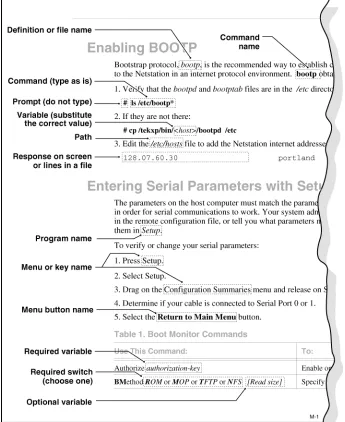
Figure 1 illustrates the typographical conventions used in this manual.
The following terminology is used to describe mouse operations.
Pointing: Using the mouse to position the pointer on an object on the display.
Moving: Using the mouse to change the location of the pointer on the display.
Clicking: Pressing and releasing a mouse button without moving the pointer.
Dragging: Pressing and holding down a mouse button while moving the pointer.
Map to the NCBridge Documentation
Map to the NCBridge Documentation
[image:21.612.186.534.313.643.2]Table 1 presents the contents of the manuals in the NCBridge documentation set. These manuals are included on the Documentation CD-ROM.
Table 1 Available NCBridge Documentation
Manual Title Contents
NCBridge User Manual This manual provides information on using the network computer with NCBridge software.
NCBridge Reference Manual (This manual.) Provides explanation of all NCBridge, Setup Main Menu, and Boot Monitor commands; plus Diagnostics, SNMP, Tek220 and Tek340 Emulator, Printing, Keyboard, CSLIP, and Scripting Language setup.
3270 User Manual Provides information on using the OpenConnect 3270 emulator.
3270E/5250 User Manual Provides information on using the TEEMX 3270E/5250 emulators.
NCBridge for UNIX Installation and Configuration Manual
Provides information for installing NCBridge on a UNIX server and explains how to configure the network computer to download and execute the NCBridge software.
NCBridge for VMS Installation and Configuration Manual
Provides information for installing NCBridge on a VAX VMS server and explains how to configure the network computer to download and execute the NCBridge software.
NCBridge for Windows NT Installation and Configuration Manual
The following documentation from your computer manufacturer would be helpful to look up additional options, subnet masking, and broadcast addresses:
• System Administrator’s Manual
• Network Administrator’s Manual
Discontinued Software Features
As NCD continues to add new features to make your NC hardware more valuable, we are forced to discontinue support for some of the older software features. The following is a list of features that were supported in NCBridge 3.2 and earlier software releases, but are not supported in NCBridge 4.0.
• Serial Xpress
• Local OpenLook Window Manager
• X Blink Extension
• Local 3179G Terminal Emulator
• Sun Audio Intercept Driver for Sun OS Environments
• XIE
• SIE
• Display PostScript and Acrobat Reader
• Flash Control Console Client
• Support for XP10 X terminals
Serial Xpress
Discontinued Software Features
Local OpenLook Window Manager
The local OpenLook window manager (OLWM) is a window manager for the X Window System that implements parts of the OPEN LOOK graphical user interface, original developed by Sun Microsystems, Inc. This feature was previously provided to allow the OLWM program to run as a local client on the Network Computer (NC) to help off load server resources. The OLWM window manager is still supported on the NCs under X Windows by simply running OLWM directly from a Sun host. OLWM is one of the standard window managers on Sun’s Workstation products running Solaris. NCs still offer Local Motif (MWM) or (XPWM) window managers to use in place of OLWM where a local window manager is necessary.
Local 3179G Terminal Emulator
Chapter
1
Introduction
Overview
NCD Network Computers (NC) support the X Window system, ICA protocol for PC application access, local terminal emulators, and a local Netscape NC Navigator browser. The X Window System provides a way to view several textual or graphical applications on a single display. X windows are an industry standard that has been ported to many platforms. Applications that run on X windows are insulated from differences in the underlying operating system; they behave exactly the same on any X-supported platform.
The Netscape NC Navigator browser is a direct port of the Netscape Navigator browser that runs on a Sun Solaris operating system. The Navigator browser allows users to access Web pages and to download Java applets for local execution.
Network Computer Environment
NCD Network Computers support a distributed computing environment, where processing can be shared by one or more of host computers rather than by one centralized computer. This allows applications competing for resources at any given time to be parceled out across the network, so they have minimum impact on each other. The hosts are connected by a network, which allows files to be transferred among computers and also allows processes on different computers to communicate with each other.
X System Model for the NC
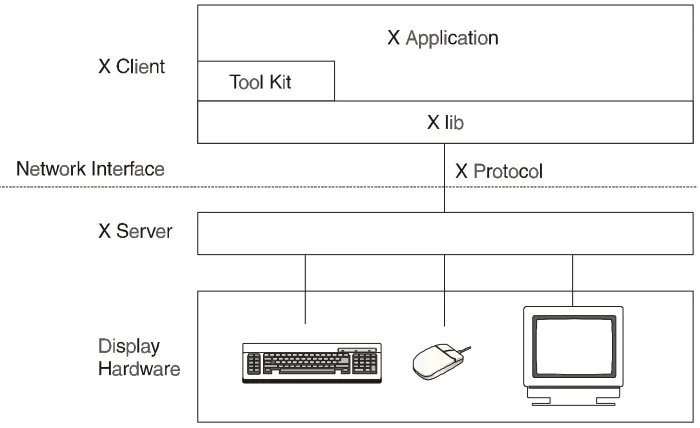
In X terminology, an application process is called a client and the process that controls the display is called a server. Figure 1-1 shows the X Window System client-server model, often referred to as core X. The client communicates with the server via a byte stream, sending X requests and receiving X events from the server.
[image:26.612.109.459.424.638.2]The client and server do not necessarily run on the same host. They often communicate over a network, as shown in Figure 1-1. An X server can listen to several clients at once, providing input and displaying output for each in a separate window. A collection of simultaneously executing X clients is called a session. If necessary, each client can run on a different host, spreading the load across the system for the most efficient use of available resources.
Network Computer Software
Once the system has been set up, the network is totally transparent. The X software cannot tell the difference between local clients, that is, applications running on the same host as the server, and remote clients running on other hosts. When the proper defaults are in place, users cannot tell the difference, either.
Network Computer Software
This section provides an overview of the NCBridge software used for booting and running XP and NC series network computers. The software comes on CD-ROM discs (also on magnetic tape for VMS only). The media contain boot files (the X server image), configuration files, fonts, and font tools to support network computers. Files with .900 extensions (*.900) support NC900 series network computers and so on, as shown in Table 1-1.
X Server
The software environment is the X Window System, Version 11, Release 6. The X server monitors input from the keyboard and mouse, and sends output to the display. The server software is available in two options:
• RAM-based — The server is supplied on CD-ROM discs (and magnetic tape Table 1-1 File Extensions for Supported Models
Binary File Extensions Models These Files Support
*.900 NC900 Series *.500 NC200/NC400 Series *.350 XP Series except XP330 *.330 XP330 Series
Local Clients
Most X applications (clients) run on a host computer, but some local clients can run on an NCD network computer. Depending on the type of network
computer, the following local clients are available:
• Setup provides a user interface for setting up and viewing network computer configuration parameters and running utilities such as ping.
• Motif Window Manager provides a local window manager.
• XP Window Manager provides a local window manager.
• HostMenu provides a list of available login hosts.
• Low Memory Indicator displays an alert if available memory falls below a specified limit.
• Xlock provides a way to lock a network computer’s keyboard only, or the keyboard and display.
• Input Configuration Manager configures a variety of input devices, such as lightpens and tablets.
• Navio, Netscape, Netscape_Lite clients are web browser clients. Netscape_Lite is the same as Netscape minus email and news functions.
• TeemX clients for IBM 3270E and 5250 Emulators (latest emulators).
• 3270 Emulator and 3278 Emulator printer emulator client (older emulators).
• Session Clients support these sessions:
Telnet VT220 or VT340, LAT VT220 or VT340, CTERM VT220 or VT340, Serial (TIP) VT220 or VT340, and CSLIP.
• Client Launcher provides a way to start local clients by selecting clients from a menu.
• Analog Video Player displays analog video sources on a network computer.
Local Clients
• Audio Player provides a way to record and play audio files on a network computer.
• Audio Mixer provides a way to record and play several audio sources.
• Authorization Key Manager provides a way to update the authorization keys of several network computers at once.
• Touchscreen Calibration client provides a graphical interface for calibrating the Trident Touchscreen.
• XClock client for displaying current time from time-server host.
• WinDD client that allows you to access Windows applications from Windows NT hosts.
• Llogin client provides LAT login sessions.
Chapter
2
Remote Configuration
Overview
The remote configuration file (xp.cnf) is used to specify the configuration information for all network computers (NCs) that boot from a specific host. This facility aids the system administrator in efficiently setting up and maintaining NCs. All NCs can be controlled from a central location, eliminating the need to individually set up each one.
Also included is a master copy of the remote configuration file called xp_cnf.txt. This file is provided as a backup copy to be used in case your xp.cnf file is corrupted or in some other way becomes unusable.
Note: If you previously had an xp330.cnf file, rename it to something else or remove it. The network computer no longer reads it.
To use a single remote configuration file to configure different network computer models, use the remote configuration file (xp.cnf) provided in
.../tekxp/boot/config/ on UNIX systems. For Windows NT and
Windows 2000 hosts, this file is located in ...\tekxp\boot\config\. For VMS hosts, xp.cnf is located in the TEK$XP_CONFIG:. directory. This file is read by all NCD NCBridge network computers.
To use separate remote configuration files to configure different network computers, create the remote configuration files and give them unique names. Then use the select command to specify which remote configuration file a
network computer is to use. The select command is discussed in the Restricting Configuration Parameters section in this chapter.
VMS Logicals
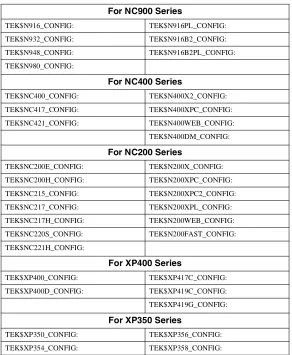
[image:32.612.119.411.347.702.2]For VMS hosts, the logicals listed in the table below point to model-specific remote configuration files. By default, these logicals all point to the same directory. You can display all VMS logicals by issuing a showlog command in VMS. To view only the NCBridge logicals on the VMS system, use the show log TEK* command. Table 2-1 shows all the NCBridge logicals.
Table 2-1 VMS Logicals
For NC900 Series
TEK$N916_CONFIG: TEK$N916PL_CONFIG:
TEK$N932_CONFIG: TEK$N916B2_CONFIG: TEK$N948_CONFIG: TEK$N916B2PL_CONFIG: TEK$N980_CONFIG:
For NC400 Series
TEK$NC400_CONFIG: TEK$N400X2_CONFIG: TEK$NC417_CONFIG: TEK$N400XPC_CONFIG:
TEK$NC421_CONFIG: TEK$N400WEB_CONFIG: TEK$N400DM_CONFIG:
For NC200 Series
TEK$NC200E_CONFIG: TEK$N200X_CONFIG: TEK$NC200H_CONFIG: TEK$N200XPC_CONFIG: TEK$NC215_CONFIG: TEK$N200XPC2_CONFIG:
TEK$NC217_CONFIG: TEK$N200XPL_CONFIG: TEK$NC217H_CONFIG: TEK$N200WEB_CONFIG: TEK$NC220S_CONFIG: TEK$N200FAST_CONFIG: TEK$NC221H_CONFIG:
For XP400 Series
TEK$XP400_CONFIG: TEK$XP417C_CONFIG:
TEK$XP400D_CONFIG: TEK$XP419C_CONFIG: TEK$XP419G_CONFIG:
For XP350 Series
VMS Logicals
For XP330 Series
TEK$XP330_CONFIG: TEK$XP337_CONFIG: TEK$XP334_CONFIG: TEK$XP338_CONFIG:
For XP200 Series
TEK$XP200_CONFIG: TEK$XP217C_CONFIG: TEK$XP200CH_CONFIG: TEK$XP217CH_CONFIG: TEK$XP214C_CONFIG: TEK$XP219CH_CONFIG:
TEK$XP214M_CONFIG: TEK$XP219MH_CONFIG:
For XP100 Series
TEK$XP100_CONFIG: TEK$XP117C_CONFIG:
Command Syntax
The remote configuration file uses the following command syntax:
• A command-line consists of a single command keyword followed by one or more parameters. White space, which is any combination of spaces or tabs, separates the command and its parameters. White space can also precede the command to improve readability. A command-line is terminated by either a newline character or a #, which introduces a comment.
• A comment begins with #. Comments and blank lines are ignored. Comments can appear on the same line as a command; once # is encountered, all subsequent text is ignored until after the next newline.
• A parameter is either a keyword or a string. A parameter begins with any character that is not white space, #, or a newline, and is terminated by the next character that is white space, #, or a newline. A parameter can be enclosed in double quotation marks. These quotation marks are removed from the ends of the parameter before the parameter is used. A pair of double quotation marks with nothing between ("") signifies a null string. If double quotation marks appear at one end of a parameter but not at the other, the character is removed, a warning message is printed in the Console, and the remaining string is used as the parameter.
Note: Some commands take multiple required and/or optional parameters. You must provide all required parameters for a command. The order of the commands in the following sections follows the recommended order for commands within the remote configuration file. You need not enter a command unless you want to set the characteristic to
Editing the Remote Configuration File
Editing the Remote Configuration File
To begin, login as root for UNIX hosts, system for VMS hosts, or administrator for Windows NT hosts. Change the file permissions of the remote configuration file before you start, making it readable by all, and writable by owner.
All the lines in the file are commented out, with their default values shown. The recommended strategy is to edit the file to enable only the specific commands you need to set up your site. User preference entries, such as screen_saver, or entries where values may vary, such as default_visual, should be left alone.
The order in which commands appear in the remote configuration file is significant because some commands depend on the prior execution of another command. For example, xdmcp_server can take either a host name or an IP address as its parameter. If you use a host name, the name must be in the host table when the xdmcp_server command executes. Thus all host_table
commands should precede any xdmcp_host commands in the configuration file. Another example is if you are using an NFS server. In this case, you would have to define the host name and address in the nfs_table entry before you could assign it as an NFS server.
If an error is found, an error message with the line number where the error occurred appears on the system Console window, and command processing continues. In general, if a command appears more than once, the last setting read is the one used. For commands that allow multiple settings, such as the commands that fill tables, each command encountered adds another entry in the table.
Notes: Settings for TDEnet (an implementation of the DECnet protocol), MOP, DAP, Cterm, and VMS autologin only apply to environments with DECnet running on one or more hosts. DECnet does not support Domain Name Service (DNS). You must have the DECnet node number defined.
The
xp_cnf.txt
File
The xp_cnf.txt file is complete with liberal comments and all the settings. This file should be read carefully and used as a guide in selecting the command-lines for your xp.cnf file.
Note: Do NOT modify or delete the xp_cnf.txt file. Instead make a copy for your changes or use the xp.cnf file.
Both xp_cnf.txt and xp.cnf files are located in .../tekxp/boot/config/ on
a UNIX system. For Windows NT and Windows 2000 hosts, these files are located in ...\tekxp\boot\config\. On VMS hosts, xp.cnf is located in
TEK$XP_CONFIG:. Please refer to the xp_cnf.txt file for detailed information about xp.cnf commands.
Example Configuration Files
Example Configuration Files
Example 2-1 Sample UNIX or Windows NT Remote Configuration File
##***** Network Tables ***** #
ip_host_table "128.07.60.01" "oregon" gateway_table "0.0.0.0" "128.07.60.100" gateway_table "128.07.70.00" "128.07.60.110" nfs_table "oregon:/tekxp" "/tekxp" "8192" #
Note: The aforementioned nfs_table example only works on Windows NT if NFS is installed on the NT server.
##***** X Environment Configuration ***** #
backing_store ENABLED host_connect_method WINDD default_host_list WINDD #
##***** TCP/IP Configuration ***** #
subnet_mask 255.255.255.0 broadcast_address 128.07.60.255 name_server_1 128.07.60.01
Example 2-2 Sample VMS Remote Configuration File
## $Header: xp.cnf #
##***** Network Tables ***** #
tde_host_table "11.20::" "idaho::" #
The sections in this chapter follow the order of the remote configuration file on the media and are named after the features. The features that apply to each platform (that each platform supports) are indicated by a check mark ( ♦ ), as shown in Table 2-2.
Table 2-2 Features by Platform Chart
Feature XP
NC200 and
NC400 NC900
Network Tables ♦ ♦ ♦
File Host Configuration ♦ ♦ ♦
X Environment Configuration* ♦ ♦ ♦
Boot Configuration ♦ ♦ ♦
TCP/IP Configuration ♦ ♦ ♦
TDEnet Configuration Parameters ♦ ♦ ♦
Serial Port Configuration Parameters ♦ ♦ ♦
Net to Port Configuration ♦ ♦ ♦
Keyboard Configuration Parameters ♦ ♦ ♦
Input Extensions Configuration Parameters ♦ ♦ ♦
SNMP Configuration ♦ ♦ ♦
Token-Ring Interface ♦ NC200 only
Local Clients ♦ ♦ ♦
LAT Configuration ♦ ♦ ♦
Miscellaneous Functions ♦ ♦ ♦
Including Other Configuration Files ♦ ♦ ♦
Example Configuration Files
Restricting Configuration Parameters ♦ ♦ ♦
Tek220 and Tek340 Configuration ♦ ♦ ♦
Black and White Pixel Compatibility ♦
Flash Memory Configuration ♦ ♦ ♦
HostMenu Configuration ♦ ♦ ♦
Local Print Spooler/Printing ♦ ♦ ♦
DEC Session Manager Configuration ♦ ♦ ♦
TFTP Daemon ♦ ♦ ♦
Exiting Telnet ♦ ♦ ♦
Analog Video Configuration XP300V and X317CVJ
Console Configuration ♦ ♦ ♦
WinDD Configuration ♦ ♦ ♦
RSHD Configuration ♦ ♦ ♦
HW MPEG Player Configuration XP400 ♦
CSLIP Settings ♦ ♦ ♦
Script Variables ♦ ♦ ♦
Table 2-2 Features by Platform Chart (continued)
Feature XP
NC200 and
Configuring the Host
This section describes the remote configuration commands for the host configuration. Here is a list of these commands and their locations:
Command Page
clear_table . . . 2-12
ip_host_table . . . 2-12
tde_host_table . . . 2-13
gateway_table . . . 2-13
nfs_table. . . 2-15
ip_host_entry . . . 2-16
tde_host_entry . . . 2-16
gateway_entry . . . 2-17
nfs_entry . . . 2-17
enable_tdenet . . . 2-18
enable_lat . . . 2-18
lat_service_entries . . . 2-19
lat_services_table. . . 2-19
show_lat_services . . . 2-20
file_access_1 . . . 2-21
file_host_name_1. . . 2-22
file_path_1 . . . 2-23
file_access_2 . . . 2-23
file_host_name_2. . . 2-23
Network Tables
Network Tables
The network tables contain entries that are loaded into the network computer during the boot process. Typically, this is frequently accessed network information you always want stored in the network computer’s NVRAM, such as the boot host, login host or font host.
Another typical use for the network table entries in the remote configuration file is to define host names and addresses for use with other remote configuration commands. For example, there must be an ip_host_table command with the appropriate information in order to use an nfs_table command.
When the remote configuration entries are read, existing values in the network computer’s NVRAM are temporarily overridden. These temporary NVRAM settings can be saved with the save_current_settings command in the remote configuration file or with the Save Settings to File option in Setup.
Entries encountered in the remote configuration file are added to the NVRAM table, overlaying any existing entries, until it is full. Subsequent entries in the remote configuration file are ignored. Use the RAM table commands
(ip_host_entry, tde_host_entry, gateway_entry, and
nfs_entry) or the optional configuration files hosts.tbl and nodes.tbl to maintain a complete list of host names and addresses.
There are four network tables whose entries are stored in the NC’s NVRAM. Each table can have up to four entries. These are the tables:
• ip_host_table is used in environments supporting TCP/IP addressing.
• tde_host_table is used in environments supporting a DECnet protocol.
• gateway_table is used to specify router information in TCP/IP environments.
• nfs_table is used to specify NFS mounts for file and font transfer in TCP/IP environments.
clear_table
clear_table IP_HOST or TDE_HOST or GATEWAY or NFS or DISPLAY_ACCESS
Deletes the entries from the specified NVRAM table.
Parameters
IP_HOST deletes the entries in the IP host table. TDE_HOST deletes the entries in the TDE host table.
GATEWAY deletes the entries in the Gateway table. NFS deletes the entries in the NFS table.
DISPLAY_ACCESS deletes the entries in the Display Access table.
In this example, IP host table and NFS table entries are deleted from NVRAM:
clear_table ip_host clear_table nfs
ip_host_table
ip_host_table ip_address hostname
Specifies Internet host-table entries by Internet Protocol address and host name. The first four entries of this table can be stored in NVRAM using the Setup Menu or by using the save_current_settings command in the xp.cnf file. Additional table entries or entries made with the ip_host_entry command are stored in RAM. Host resolution can also be accomplished with Domain Name Service (DNS) providing a DNS host is available. DNS simplifies host configuration maintenance.
Parameters
ip_address specifies the IP address, which must be in dotted-decimal format.
hostname specifies the name of the host.
In this example, the host oregon has IP address 128.07.60.01:
ip_host_table "128.07.60.01" "oregon"
tde_host_table
tde_host_table
tde_host_table TDEnet_address node_name
The network computer uses these entries to map TDEnet addresses and names. The first four entries of this table can be stored in NVRAM using the Setup Menu or by using the save_current_settings command in the xp.cnf file. Additional table entries or entries made with the tde_host_entry command are stored in RAM.
Parameters
TDEnet_address specifies the TDEnet address.
node_name specifies the name of the host.
In this example, the TDEnet host table contains an entry for the host idaho at TDEnet address 11.20:
tde_host_table "11.20" "idaho"
Note: Four TDEnet nodes may be specified. For additional nodes, use the tde_host_entry command or the optional nodes.tbl file described in Chapter 4 of NCBridge Installation and
Configuration manual for your operating system.
gateway_table
gateway_table ip_net_address ip_gateway_address
The network computer uses this command to specify a gateway-table entry by network and IP address. Gateway entries correlate the address of a remote network that the NC needs to access with the address of the gateway host. The first four entries of this table can be stored in NVRAM using the Setup Menu or the
In this second example, all networks not explicitly specified—as in the previous example—are accessed through IP address 128.07.60.100:
gateway_table "0.0.0.0" "128.07.60.100"
Note: Four gateways may be specified. For additional gateways, use the gateway_entry command or the optional gateway.tbl file described in Chapter 4 of the NCD NCBridge Installation and Configuration manual for your operating system.
Using the Route Manager
The route manager enables a site to take advantage of multiple routers: if a router fails for longer than the TCP connection timeout, the route manager routes traffic to other routers to minimize the lost connections. Route manager balances the network load among the remaining routers until the down router comes back on line. The route manager continues to check the status of the down router, and waits until it is up and back at normal capacity before rerouting any connections back. The route manager is transparent to the user.
The route manager is started with the xp.cnf start command:
start ROUTE_MGR
The route manager uses routers specified with the gateway_table and
gateway_entry remote configuration commands, the gateway.tbl file, the
bootptab file (if the terminal is configured to use bootp protocol), or the
nfs_table
nfs_table
nfs_table file_system_name local_directory transfer_size
The network computer uses these table entries to map remote file systems to local mount points. You can specify a transfer read size for each mount point. NFS directories are frequently used to access additional fonts. The directories must be exported on the host to be accessible to the network computer. To access files or fonts through NFS, either file_access_1 or file_access_2 must be set to NFS. Additional table entries or entries made with the nfs_entry
command are stored in RAM.
Notes: Before NFS directories can be specified, the remote host must either be specified by the ip_host_table command, stored in NVRAM, or domain name service must be enabled. NFS must also be running on your host with the directories exported. Check the NCD NCBridge Installation and
Configuration manual for NFS setup information or consult the vendor documentation for your host computer.
The first four NFS table entries can be stored in NVRAM via the Setup Menu or by using the save_current_settings command in the xp.cnf file. Additional table entries are stored in RAM. You can also store table entries in RAM using the nfs_entry command.
Parameters
file_system_name specifies the remote host path.
local_directory specifies the local path.
transfer_size specifies the block size for NFS transfers (128 to 8192).
ip_host_entry
ip_host_entry ip_address hostname
Specifies Internet Protocol host addresses and names and stores them in RAM, not NVRAM. Multiple entries may be listed in the xp.cnf file.
Parameters
ip_address specifies the IP address in decimal-dot format.
hostname specifies the name of the host.
The following example shows an entry for a host called “vancouver”:
ip_host_entry "128.07.60.01""vancouver"
tde_host_entry
tde_host_entry TDEnet_address node_name
Specifies TDEnet addresses and host names and stores them in RAM, not NVRAM. Multiple entries may be listed in the xp.cnf file.
Parameters
TDEnet_address specifies the TDEnet address.
node_name specifies the name of the host.
The following example shows an entry for a host called “washington” (note the double colon syntax):
gateway_entry
gateway_entry
gateway_entry ip_net_address ip_gateway_address
This command maps network addresses to gateway routers and stores them in RAM, not NVRAM. Multiple entries may be listed in the xp.cnf file. Refer to
Using the Route Manager on page 2-14 for information on multiple routers.
Parameters
ip_net_address specifies the table entry for the network gateway.
ip_gateway_address specifies the gateway IP address in decimal-dot format
In the following examples, the first example shows a typical gateway
configuration. The second example shows a default gateway for networks with a single node going to the outside world.
gateway_entry "128.07.70.00""128.07.60.110"
gateway_entry "0.0.0.0""128.07.60.1"
nfs_entry
nfs_entry file_system_name local_directory transfer_size
Maps NFS mount points to local directory structures and stores them in RAM, not NVRAM. Multiple entries may be listed in the xp.cnf file. You can specify a transfer read size for each mount point.
Parameters
file_system_name specifies the remote host path.
local_directory specifies the local path.
transfer_size specifies the block size for NFS transfers (128 to 8192).
enable_tdenet
enable_tdenet YES or NO
Specifies whether TDEnet is started via the remote configuration file. TDEnet must be authorized for the network computer, and then enabled. For
information about authorizing a feature, refer to the Authorize command in Chapter 4, Boot Monitor.
Parameters
YES specifies that TDEnet is enabled. This is the default if the TDEnet address is entered and the option is authorized on the network computer.
NO specifies the TDEnet is not enabled. This is the default if no TDEnet address is entered.
In this example, TDEnet is enabled:
enable_tdenet YES
enable_lat
enable_lat YES or NO
Specifies whether LAT is started via the remote configuration file.
Parameters
YES specifies that LAT is enabled. This is the default if authorized on the network computer.
NO specifies that LAT is not enabled.
In this example, LAT is not enabled:
lat_service_entries
lat_service_entries
lat_service_entries integer
Specifies the LAT services tables and the number of reserved LAT service entries that the network computer can retain. These entries are unavailable until the broadcast service advertisement has been received by the network
computer. LAT is available only to those network computers that have the DECnet option enabled.
Parameters
integer specifies the number of reserved LAT service entries that the network computer can retain. Keep the number of entries as few as possible to reduce memory usage. The maximum number of entries is 32,767 (default 120).
In this example, there are 120 reserved LAT service entries:
lat_service_entries 120
lat_services_table
lat_services_table node_name service_name
Reserves space for LAT services from a particular node that the network computer can connect to. The maximum number of entries in the
lat_services_table is approximately 20. These nodes appear in the HostMenu
list for LAT entries (refer to the HostMenu topic later in this chapter).
Parameters
node_name specifies the node name on which to reserve space. The name can
be from 1 to 16 characters (any combination of alphanumeric and ASCII codes 192-253).
show_lat_services
show_lat_services YES or NO
Specifies whether the available LAT services display in the HostMenu client and in Tekterm sessions using LLogin (LAT session login). If they do not display, they are not available to users.
Parameters
YES specifies that the LAT services display and are available to users. This is the default.
NO specifies that the available LAT services do not display.
In this example, available LAT services do not display in the HostMenu, or in Tekterm sessions:
File Host Configuration
File Host Configuration
The network computer searches for the .tbl and other configuration files based on the information set up in this section.
During the boot process, the network computer uses the primary host settings to search for the other configuration files. If the files are not found or the primary host is not accessible, the secondary settings, if specified, are used. The hostname and path formats change, depending on the access method.
file_access_1
file_access_1 OFF or NFS or TFTP or DAP
Specifies the access method to connect to the primary host, containing configuration files. The host is specified by file_host_name_1.
Parameters
OFF specifies that the primary path is not used. This is the default.
NFS specifies that the connection to the host is through NFS. NFS can be used as the file access method to any host running NFS.
TFTP specifies that the connection to the host is through TFTP. TFTP can be used as the file access method for hosts supporting TCP/IP.
DAP specifies that the connection to the host is through DAP.
In this example, files are accessed through TFTP:
file_host_name_1
file_host_name_1 ip_address or host_name or TDEnet_address or
TDEnet_nodename
Specifies the primary host where the network computer obtains configuration information, such as a table of font file directories. If file_access_1 is NFS, the
file_host_name should be set to null (""). If file_access_1 is TFTP or DAP,
enter the host name or IP address (use colon format for DAP; use decimal-dot format for TFTP).
Parameters
ip_address specifies the IP address of the host. If file_access_1 is NFS, set this to null ("").
host_name specifies the name of the host. To use a host name, it must be specified in an ip_host_table command, stored in NVRAM, or Name Service must be enabled on the network computer.
TDEnet_address specifies the TDEnet address of the host.
TDEnet_nodename specifies the name of the host. To use a host name, it must
be specified in a tde_host_table command, stored in NVRAM, or Name Service must be enabled on the network computer.
In this example, the host is the NFS directory:
file_host_name_1 ""
In this example, the TFTP host directory is montana:
file_host_name_1 "montana"
In this example, the TFTP host is at IP address 128.07.60.02:
file_host_name_1 "128.07.60.02"
In this example, the TDEnet host is at node address 11.25:
file_path_1
file_path_1
file_path_1 pathname
The network computer uses this entry as the directory to search for configuration and font files on the primary host.
Parameters
pathname specifies the path to the configuration and font files. The default path is /tekxp/boot/config for UNIX hosts, or TEK$XP_CONFIG: for VMS hosts (unless you change the VMS logicals to point to model specific configuration files).
In this example, the path to the .tbl files is TEK$XP_CONFIG:
file_path_1 "TEK$XP_CONFIG:"
file_access_2, file_host_name_2, file_path_2
The network computer uses these commands similar to the file_access_1,
file_host_name_1, and file_path_1 commands for the secondary host. During the boot process, if the .tbl files are not found on the primary host and path, or if the primary host is not accessible, the secondary host and path, if specified, are searched. If the files are found, they are accessed according to the specified secondary protocol.
These examples show files accessed through NFS:
file_access_2 NFS
file_host_name_2 ""
file_path_2 "/tekxp/boot/config"
The previous example assumes that the nfs.tbl contains an entry such as:
Configuring the X Environment
This section describes the commands for X environment configuration:
Command Page
retain_x_settings . . . 2-25
backing_store . . . .2-25
prior_xserver_compatibility. . . 2-26
dual_display_configuration . . . 2-27
display_access_table . . . .2-27
enable_access_control . . . 2-28
enable_bell_speaker. . . 2-29
default_visual . . . .2-30
root_depth . . . 2-32
host_connect_method . . . 2-33
default_host_list. . . 2-34
xdmcp_connect . . . 2-36
primary_xdmcp_server . . . 2-37
secondary_xdmcp_server. . . .2-37
xdmcp_keepalive . . . 2-37
vms_autologin_transport . . . .2-38
vms_autologin_tdenet_host . . . 2-38
vms_autologin_tcpip_host . . . .2-39
screen_saver. . . 2-40
enable_xshm . . . 2-41
enable_xv . . . 2-41
old_decwin_compatible . . . 2-42
vendor_string . . . .2-42
retain_x_settings
retain_x_settings
retain_x_settings YES or NO
The network computer uses this entry to determine if settings are saved when the X server resets after the last X client connection to the server closes.
Parameters
YES specifies that the X server does not reset when logging out. The root window and settings will remain (default).
NO specifies that the X server discards settings, including root window properties and device attributes, and restores default font paths.
In this example, the server saves the settings:
retain_x_settings YES
backing_store
backing_store DISABLED or WHENMAPPED or ENABLED or ALWAYSWHENMAPPED
Specifies whether the network computer saves obscured pixels when a window is obscured or unmapped. When enabled, the network computer uses this entry to request the X server to maintain pixels in portions of client windows that are obscured. The advantage of using “ALWAYSWHENMAPPED” is that every obscured window pixel is saved in RAM, making window operations faster. Keep in mind that this uses RAM resources.
Parameters
DISABLED specifies that backing_store is disabled and client requests are denied.
ALWAYSWHENMAPPED specifies that WHENMAPPED is used if the client does not make a request.
Note: Using WHENMAPPED or ALWAYSWHENMAPPED can use considerable network computer memory.
Table 2-3 shows the effect that each parameter has on client requests. Note that the levels of backing store capability increase from lowest to highest.
In this example, the client can request that the X server saves pixels when the window is mapped:
backing_store WHENMAPPED
prior_xserver_compatibility
prior_xserver_compatibility YES or NO
Specifies that the X server reads the fonts.tbl and xhosts.tbl files using the same method as was used in Version 8.0 and earlier software.
Note: It is recommended that you do not use this command.
Parameters
YES specifies that the X server reads the fonts.tbl and xhosts.tbl files in the same manner as previous versions of the software.
NO specifies that default information in the fonts.tbl and xhosts.tbl files is saved so that server resets do not require these files to be Table 2-3 Effect of backing_store on Client Request
Client Requests
Parameters Default NotUseful WhenMapped Always
dual_display_configuration
dual_display_configuration
This feature is only available on XP100D, XP400D, and NC400 models that have the optional dual monitor card.
dual_display_configuration HORIZONTAL or VERTICAL or MONOHEAD
Specifies whether multiple displays are positioned side by side, stacked vertically, or whether to use only a single display.
Parameters
HORIZONTAL specifies that multiple displays are arranged side by side.
VERTICAL specifies that multiple displays are stacked vertically.
MONOHEAD specifies that a single display is used.
In this example, multiple displays are arranged side by side:
dual_display_configuration HORIZONTAL
display_access_table
display_access_table ip_address or ip_hostname or tdenet_address:: or
tdenet_node::
The display access table allows the specified hosts to access the network
computer. These entries are added to the network computer’s display access list. Only hosts entered here (or in NVRAM) can access the X server on the network computer and open windows or make other changes. Other hosts can be added in the xhosts.tbl file if enable_access_control is set to YES. They can access the display but cannot change the access table or the state of access control.
This command requires either an IP address, host name (specify with
ip_host_table or enable Name Service on the network computer), node address
Note: For VMS hosts that use access control, the host name must be defined in the network computer’s TDEnet host table (i.e., nodes.tbl). If using the DECwindows security window to control access to your network computer, the name of the host running the session manager must be defined in the network computer.
Parameters
ip_address specifies the host’s IP address.
ip_hostname specifies the host’s name.
tdenet_address:: specifies the host’s TDEnet address.
tdenet_node:: specifies the name of the TDEnet host.
In this example, the display access table contains the hosts oregon and utah:
display_access_table "oregon" #TCP/IP name display_access_table "utah::" #DECnet name
enable_access_control
enable_access_control YES or NO
Specifies whether access to the network computer is restricted to the hosts listed in the display access table.
Parameters
YES specifies that access to the network computer is restricted to hosts listed in the display access table.
NO specifies that access to the network computer is not restricted. This is the default.
In this example, access to the network computer is restricted to the hosts listed in the display access table:
enable_bell_speaker
enable_bell_speaker
enable_bell_speaker YES or NO
This command specifies whether the X server bell tone is enabled through either the optional audio speaker on the XP series or the standard speaker on the NC series. By default, a bell tone is always enabled. This command switches from the standard speaker to the high quality audio speaker, if installed. By using this command, a user can adjust the bell volume, which is not possible with the standard speaker.
The bell is heard through the internal speaker. If the external speakers or headphones are plugged into the audio output jack, the bell is heard through the attached device. The bell preempts any audio output in progress from the local Audio and Digital Video Players. It also preempts audio controls set by audio clients, such as volume control, output gain, and mute control. The volume, pitch, and duration of the bell are controlled by X applications, for example, the xset utility. If the audio card is not installed, this command is ignored and the internal bell is used by default. The internal bell is controlled only through the xset utility.
Parameters
YES specifies that the bell speaker is enabled.
NO specifies that the bell speaker is disabled.
In this example, the bell speaker is enabled:
default_visual
default_visual PSEUDOCOLOR or DIRECTCOLOR or STATICCOLOR or TRUECOLOR or STATICGRAY or GRAYSCALE
Specifies the default visual type. See Table 2-4 on page 2-31. The network computer uses this entry to determine the class of colormaps used for the root window. Typically, it is best to let each network computer use the default by leaving this command commented out. Bitonal (grayscale) devices ignore this setting.
Parameters
PSEUDOCOLOR causes a pixel value to be used as an index into a colormap to produce independent RGB values.
DIRECTCOLOR causes a pixel value to decompose into separate RGB subfields. Each subfield separately indexes a colormap for the corresponding value.
STATICCOLOR causes a pixel value to be used as an index into a colormap (that has predefined read-only RGB values) to produce independent RGB values.
TRUECOLOR causes a pixel value to decompose into separate RGB subfields. Each subfield separately indexes a colormap (that has predefined read-only RGB values) for the corresponding value.
STATICGRAY causes a pixel value to be used as an index into a graymap (that has predefined read-only gray values) for the corresponding gray value.
GRAYSCALE causes a pixel value to index a graymap for the corresponding gray value.
default_visual
Table 2-4 shows that the screen can be color or grayscale, can have a color map that is writable or read-only, and can also have a colormap whose indices are decomposed into separate RGB pieces (if you are using a color screen).
In this example, the visual type is set to DIRECTCOLOR, meaning that the default visual colormap is writable and decomposed into separate RGB pieces:
default_visual DIRECTCOLOR Table 2-4 Visual Types
RGB Type
Color Grayscale
Read Only Read/Write Read Only Read/Write
root_depth
root_depth bit_planes
All NC900 network computers can take advantage of NCBridge’s 16-bit plane color support as well as any NC200 or NC400 that has the additional 2MB of video memory (option V2 or NCFV2).
When a network computer is configured to operate in 16-bit plane mode, its X server exports a 16-bit plane TrueColor or DirectColor visual, so the
application can display 65,536 colors instead of only 256 colors in 8-bit plane mode. That means the user can see better visual effects on applications that can take advantage of 16-bit color depth. Running your network computer in 16-bit plane mode also eliminates irksome color flashes that occur when multiple color-intensive applications run simultaneously.
Parameters
bit_planes specifies the bit-depth of the color.
In this example, the bit plane value is 16 (65,536 colors):
root_depth 16 # [8 | 16]
Limitations
Some clients (host or local) will not work in 16-bit plane mode. For example:
• The WinDD ICA client requires 8-bit PseudoColor and cannot be used in 16-bit plane mode. If you try to launch a WinDD ICA client in 16-16-bit plane mode, the ICA client writes a message to the console stating that it “cannot find the PseudoColor visual” and exits.
• The Vplay client (digital video) is not supported in 16-bit plane mode.
These are the only local clients that do not work in 16-bit plane mode.
host_connect_method
host_connect_method
host_connect_method DISABLED or HOSTMENU or XDMCP_DIRECT or XDMCP_INDIRECT or VMS_TDE or VMS_TCP or TELNET or CTERM or LAT or SERIAL0 or SERIAL1 or WINDD
Specifies the method of connecting to the host.
Parameters
DISABLED specifies that you must use the Client Launcher to invoke a Telnet session on the host.
HOSTMENU specifies that you use the HostMenu client to connect to a host. This is the default.
XDMCP_DIRECT specifies that XDMCP (X Display Manager Control Protocol) can display a login window on the network computer, if xdm is running on the host specified with the xdmcp_server command, and if XDMCP is enabled on the host.
To use a host name, it must be specified by the
ip_host_table command, stored in NVRAM, or enable Name Service on the network computer. If the specified host’s address is zero, then the network computer broadcasts to the boot host.
XDMCP_INDIRECT specifies that the network computer broadcasts to a name server (if using DNS).
VMS specifies that DECwindows displays a login window on the network computer, if the TDEnet option is installed on the host. The transport is set with the
default_host_list
default_host_list XDMCP or VMS_TDE or VMS_TCP or TELNET or CTERM or LAT or IBM or WINDD
Specifies which group of hosts display on the HostMenu client after powering on the network computer.
Parameters
XDMCP displays the list of available XDMCP servers.
VMS_TDE displays the list of available VMS TDEnet servers.
VMS_TCP displays the list of available VMS TCP/IP servers.
TELNET displays the list of available TELNET servers.
CTERM displays the list of available CTERM servers.
LAT displays the list of available LAT servers.
IBM displays the list of available IBM hosts to which you can connect using 3270.
XDMCP Security Features
XDMCP Security Features
The XDMCP Direct List feature allows system administrators to better control which hosts are available to users. You can specify a list of hosts that respond when users boot a network computer, bypassing the HostMenu client.
To use the XDMCP Direct List feature, use the following xp.cnf commands:
host_connect_method XDMCP_DIRECT
xdmcp_connect DIRECT
xdmcp_server ip_address or host_name of the host(s) that you want
the user to use. You can repeat this command, listing as many hosts as you wish. List the hosts in priority. The first host listed with this command can be saved in NVRAM. Subsequent hosts cannot be saved in NVRAM.
xdmcp_connect
xdmcp_connect BROADCAST or DIRECT or INDIRECT
Specifies an additional method of connecting to the host specified by
xdmcp_server using XDMCP.
Parameters
BROADCAST specifies that the network computer broadcasts a request for XDMCP server(s) to all local hosts. The HostMenu client displays a menu of all hosts (running xdm) who responded to the request. BROADCAST requires Release 4 (or higher) of X11 (X11R4). This is the default.
DIRECT specifies that the network computer broadcasts to the host specified with the xdmcp_server command. To use a host name, it must be specified by the ip_host_table
command, stored in NVRAM, or enable Name Service on the network computer. If the specified host’s address is zero, then the network computer broadcasts to the boot host.
INDIRECT specifies that the network computer broadcasts to a name server (if using DNS).
Notes: If xdm keeps timing out, you can send keepalive requests by setting xdmcp_keepalive to ON. Refer to the
xdmcp_keepalive command.
For information about XDMCP security features, refer to the XDMCP Security Features topic on page 2-35.
In this example, the network computer connects directly to the host specified by
xdmcp_server:
primary_xdmcp_server
primary_xdmcp_server
primary_xdmcp_server ip_address or hostname
Specifies the primary XDMCP host by IP address or name. The network computer uses this entry as the host to which the network computer connects. If domain name service is not enabled and you specify the host by name, you must specify the host in the ip_host_table entry. If the xdmcp_connect method is BROADCAST, an entry is not needed in this command.
Parameters
ip_address specifies the IP address of the host.
hostname specifies the name of the host.
In this example, the network computer connects to the host at IP address
128.07.60.01:
primary_xdmcp_server "128.07.60.01"
secondary_xdmcp_server
secondary_xdmcp_server ip_address or hostname
Specifies the secondary XDMCP host by IP address or name. Similar to primary_xdmcp_server previously described.
xdmcp_keepalive
xdmcp_keepalive ON or OFF
The network computer uses this entry to control whether keepalive requests are sent to xdm.
Parameters
vms_autologin_transport
vms_autologin_transport DISABLED or TDENET or TCPIP
Specifies the network protocol used to display the VMS autologin window. Use this if you are using VMS as the host_connect_method.
Parameters
DISABLED disables vms_autologin_transport.
TDENET specifies using the DECnet protocol.
TCPIP specifies using the TCP/IP network protocol.
In this example, the network protocol used is TCP/IP:
vms_autologin_transport TCPIP
vms_autologin_tdenet_host
vms_autologin_tdenet_host TDEnet_address or hostname
Specifies the DECnet host to connect to when using the VMS host connect method with TDEnet.
Parameters
TDEnet_address specifies the DECnet address of the host.
hostname specifies the name of the host.
In this example, the network computer connects to the TDEnet host idaho:
vms_autologin_tdenet_host "idaho::"
vms_autologin_tcpip_host
vms_autologin_tcpip_host
vms_autologin_tcpip_host ip_address or hostname
specifies the TCP/IP host to connect to when using the TCP/IP host connect method.
Parameters
ip_address specifies the IP address of the host.
hostname specifies the name of the host.
In this example, the network computer connects to the TCP/IP host oregon:
vms_autologin_tcpip_host "oregon"
screen_saver
screen_saver ON or OFF or POWERSAVE
Specifies whether the screen blanks after 10 minutes of keyboard and mouse inactivity. You can specify a different duration of inactivity with the xset
command.
Note: Some clients override this setting by automatically turning screen_saver off and on during their execution.
Parameters
ON sets the screen to blank after 10 minutes of inactivity. This is the default. The POWERSAVE setting extends the life of the screen better than ON.
OFF turns off the screen blank feature.
POWERSAVE
specifies that the Powersave feature takes effect after 10 minutes of inactivity. Powersave is an energy-saving feature that has three phases:
Stand by
−
after 10 minutes of inactivity, the screen blanks and returns immediately when a key is pressed.Suspend
−
after the screen has been on Stand by for 10 minutes, the screen remains blank and goes into Suspend mode, using less energy than in Stand by mode. When a key is pressed, the screen display returns after a few moments.Off
−
after the screen has been in Suspend mode for 10 minutes, the screen remains blank and goes into Off mode, using minimum energy. When a key is pressed, the screen display returns but takes longer than in Stand by or Suspend modes.Note: The Powersave feature is not available on the XP330 series network computer. For power saving features, the monitor must be “Energy Star” compatible.
Miscellaneous X Settings
Miscellaneous X Settings
enable_xshm
enable_xshm
This command specifies that the X Shared Memory extension is enabled. There are no parameters. Issue the command to enable or comment out the command to not enable.
enable_xv
enable_xv YES or NO
This enables the XV server extension. It allows you to use any analog or digital video client. This includes the local Analog Video Player if the Analog Video hardware is present and the local MPEG Video Player if the MPEG Video option is present. XV must be enabled to use the Analog Video or MPEG Video Player.
Parameters
YES specifies that xv is enabled. This is the default if the Analog Video hardware is present.
NO specifies that xv is not enabled. This is the default if the analog video hardware is not present.
In this example, xv is enabled:
old_decwin_compatible
old_decwin_compatible YES or NO
Older DECwindows clients may expect the X server to only handle bitmap and image data in least significant byte (LSB) order, resulting in scrambled images. To allow these older clients to work properly, enable old_decwin_compatible. If you do not enable this command, older applications may not display correctly, for example, DECwrite graphic attributes and objects, and fonts over 36 points in size.
Parameters
YES specifies that older DECwindows clients can be used.
NO specifies that older DECwindows clients cannot be used.
In this example, older DECwindows clients are to be used:
old_decwin_compatible YES
vendor_string
vendor_string string
Use this command only if using a VT200/LK401 keyboard with a DEC system (VMS or ULTRIX) running DECwindows applications. Some DECwindows applications check the vendor string to determine how the Delete key works on the keyboard (delete the character to the left or to the right of the cursor).
Parameters
string enter the following string if using a VT200/LK401 keyboard on a DEC system with DECwindows applications:
DECWINDOWS (Compatibility String) NCD, Inc.
In this example, a VT200/LK401 keyboard is used with a DEC system running DECwindows applications:
font_cache_limit
font_cache_limit
font_cache_limit amount
Specifies the amount of memory (in kilobytes) to allow for font caching. Fonts are stored in the font cache even if the client closes. To empty the font cache, reset the server, or select the Empty Font Cache opti