March, 2003 DRTC, Bangalore
Paper: N
A Tutorial on HTML
Dimple Patel
Documentation and Research Training Centre Indian Statistical Institute
Bangalore – 560059 email: [email protected]
Abstract
1.
INTRODUCTION
HTML is the language with which Web pages may be designed. HTML allows web documents to be created with ease. The primary objective of using HTML would be to build a web page that communicates readily and effectively to make the document on the web most compelling to access and read.This tutorial describes to the user some of the very basic HTML concepts, tags and features.
2.
EDITOR FOR HTML
HTML is a plain text file and needs a simple text editor to create the tags. However, it is important that all HTML documents have the extension .html which is a four letter extension or .htm in some cases. As most editors allow only three letters, it is important to select an editor that allows four letters as the file extension. Generally, Windows Notepad is used. In addition to that
MS-DOS "edit" may also be used as an editor for writing the HTML files.
3.
SYNTAX OF HTML COMMANDS
In general, the HTML syntax will take the form: <TAG> text </TAG>.
Two points need to be noted:
Ø All tags MUST be enclosed within angular brackets < >.
Ø All commands are used in pairs wherein the <TAG> marks the beginning and </TAG> marks the end.
4.
FRAME WORK OF A WEB PAGE
The framework of a web page is this:
<HTML> <HEAD>
<TITLE> Your Page's Title </TITLE> </HEAD>
<BODY>
The Body of Your Page
</BODY> </HTML>
The <HTML>, </HTML> tells the browser that your page is in HTML code. The <HEAD>, </HEAD> encloses the header of your page.
The <BODY>, </BODY> is that part of your page that will actually be displayed.
5.
HTML TAGS
The frame work thus consists mainly of text, modified by Tags. There are a wide variety of tags, some of which are interpreted differently by different browsers.
While everyone's web page is different, they all have to have the same basic structure. This
5.1. Style Tags
Style Tags modify the way your text looks. The following is a brief list of Style tags: <B>bold</B>
<I>italics</I>
<STRONG>strong</STRONG> <BLINK>blink</BLINK>
<CODE>code</CODE> <EM>emphasize</EM>
<ADDRESS>address</ADDRESS> <CITE>citation</CITE>
<SAMP>sample</SAMP> <KBD>keyboard entry</KBD> <TT>teletype</TT>
<BIG>big print</BIG>
<SMALL>small print</SMALL>
<SUB>subscript</SUB> <SUP>superscript</SUP> <STRIKE>strikeout </STRIKE>
<PRE>preformatted text</PRE>
NOTE: HTML does not recognize more than one consecutive space as separate entities. Hence
ten spaces, 2 carriage returns, 3 tabs and more spaces will not make a difference when viewed by
a browser and looks like a single space on your web page. This is called 奏ext wrapping .
Since HTML interprets carriage returns as spaces, special tags must be used for carriage returns. The <BR> </BR> tag is the same as a carriage return <P></P> is the same as two carriage
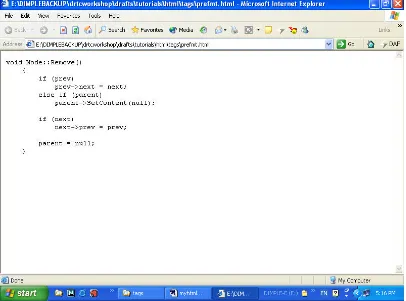
returns. But, this is not suitable to write certain kind of content, like for example a program code. To avoid text wrapping the preformatting text tag <PRE></PRE> is used.
E x a m p E x a m ple:le:
<pre>
void Node::Remove() {
if (prev)
prev->next = next; else if (parent)
parent->SetContent(null); if (next)
next->prev = prev; parent = null;
} </pre>
It will be displayed 疎s is without text wrapping (as in Fig. 1Fig. 1).
Heading Tags are very similar to style tags. Headings come in six sizes, 1-6. 1 is the largest. 6 is smallest. The heading tag also includes an implicit <BR> at the beginning and end. The format
for the heading tags is <H#> with # being a number 1-6, and they look like this:
Size 1 Heading: <H1>
Documentation Research and Training Centre
</H1>
Size 2 Heading: <H2>
Documentation Research and Training Centre
</H2>
Size 5 Heading: <H5>
Documentation Research and Training Centre
</H5>
5.3.
5.3. The <META> TagThe <META> Tag
The <META> tag contains 杜etadata about the web page i.e. it can consist of the keywords for the search engine or it can also be used to refresh the web page at given intervals.
Example: Example:
<META NAME=婆eywords CONTENT=罵ibrary, information science <META HTTP-EQUIV=燃EFRESH CONTENT=
5.4. List
An important HTML tag type is the List. HTML supports three types of lists: * Ordered lists
* Unordered lists * Definition lists. Ordered list
Ordered Lists use <OL> to open the list and </OL> to close the list.
An ordered list would look like this: 1. Mangoes
2. Oranges
3. ...
The items in an ordered list look as above, but the list doesn't have to be numbered!
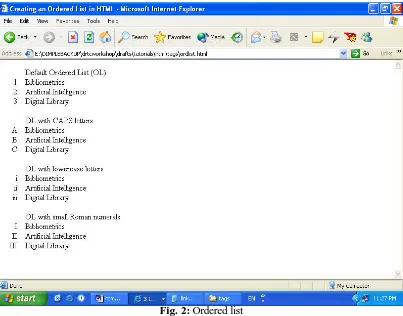
There are different options in ordered lists. The following are a few: <OL TYPE=A> causes the list to be lettered in CAPS
<OL TYPE=a> causes the list to be lettered in lower case
<OL TYPE=I> causes the list to be numbered with large Roman Numerals <OL TYPE=I> causes the list to be numbered in small Roman Numerals
Example: Example:
<OL>
<LH>Default Ordered List (OL)</LH> <LI>Bibliometrics
<LI>Artificial Intelligence <LI>Digital Library </OL>
<OL TYPE=A>
<LH>OL with CAPS letters</LH> <LI>Bibliometrics
<LI>Artificial Intelligence <LI>Digital Library </OL>
<LH>OL with lowercase letters</LH> <LI>Bibliometrics
<LI>Artificial Intelligence <LI>Digital Library </OL>
<OL TYPE=I>
<LH>OL with small Roman numerals</LH> <LI>Bibliometrics
<LI>Artificial Intelligence <LI>Digital Library </OL>
This will displayed in the browser as shown in Fig. 2.
Unordered lists
Unordered Lists use <UL> </UL> to open and close the list. * Mangoes
* Oranges * ...
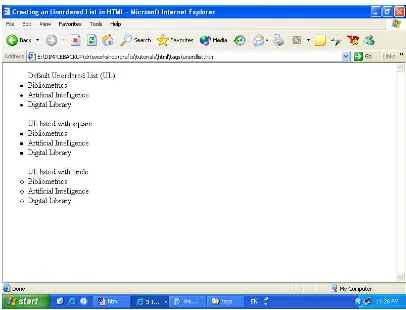
The items in an unordered list look as above. You can also change what the bullet looks like.
There are different options in unordered lists. The following are a few: <UL TYPE=disc> causes the bullet to be a disc
<UL TYPE=square> causes the bullet to be a square <UL TYPE=circle> is the default.
Example:
<HTML> <HEAD>
<TITLE> Creating an Unordered List in HTML</TITLE> </HEAD>
<UL TYPE=disc>
<LH>Default Unordered List (UL)</LH> <LI>Bibliometrics
<LI>Artificial Intelligence <LI>Digital Library </UL>
<UL TYPE=square>
<LH>UL listed with square</LH> <LI>Bibliometrics
<LI>Artificial Intelligence <LI>Digital Library </UL>
<UL TYPE=circle>
<LH>UL listed with circle</LH> <LI>Bibliometrics
<LI>Artificial Intelligence <LI>Digital Library </UL>
</HTML>
Fig. 3: Unordered list Definition lists
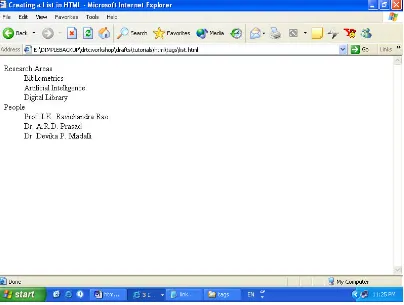
Definition lists are two-part lists, useful for things like glossaries or defining lists of terms.
<DL> </DL> is used to open and close the list.
The list items have two parts: * the term
* the definition.
The definition term is enclosed in <DT> </DT> and should precede the definition. The definition is enclosed in <DD> </DD>. A list header can also be added as with the other list types.
<DL>
<LH> list header </LH>
<DT> term </DT> <DD> definition </DD> ...
<DT> term </DT> <DD> definition </DD> </DL>
<DT> Research Areas</DT> <DD> Bibliometrics
<DD> Artificial Intelligence <DD> Digital Library </DD>
<DT> People </DT>
<DD> Prof. I.K. Ravichandra Rao <DD> Dr. A.R.D. Prasad
<DD> Dr. Devika P. Madalli</DD> </DL>
The list would look like in Fig. 4.
Fig. 4: Definition Lists
It is possible to include a list within a list as shown below: <UL>
<LI>Research Areas </LI> <OL>
<LI>Artificial Intelligence</LI>
<OL TYPE=A> <LI> Expert Systems</LI> </OL>
Which looks like in Fig. 5.
Fig. 5: Nested list
Thus, you can have a list within a list and further, a list within that list.
5.5. Links
Links are what make an HTML page to be more than just a text document. Links come in three basic varieties:
1. Links to other files 2. Links to the same file
3. Link to Multimedia components
Linking to other files
This is possible again in two ways:
a. To another file on the same server b. To another file on a different server
a. To link to another file on the same server <A HREF="path/filename.html"> anchor text </A>. That is called ‘relative linking’.
Example:
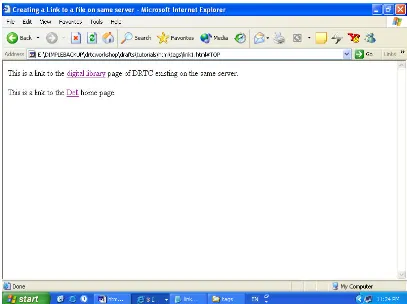
<A HREF="e:\dimple\drtcworkshop\...\digilib.htm">digital library</A> page of DRTC existing on the same server.
The above example will provide a link to the digilib.html file. (See Fig. 6)
b. To link to another file on another server the following command is used <A HREF="http://server/path/filename.html"> anchor text </A>. This is called ‘absolute linking’. The tag is called an ‘anchor’.
Example:
This is a link to the <A HREF="http://www.dell.com">Dell</A> home page.
The above example will provide a link to the Dell Home Page. (See Fig. 6)
Fig. 6: Linking to other files
Linking to a different place in the same file
To link to a different place in the same file, you have to do two things: First you must leave a pointer to the place in the file you want to link to.
Like, <A NAME="abcdefg">. Then, ‘anchor’ i.e. make the text which you want to link to a part of the file. The link will look like
<A HREF="#abcdefg"> anchor text </A>.
<A HREF="http://server/path/file#abcdefg">
Example:
In Fig. 7,Fig. 7, the 6th line is the pointer indicating that part of the file to be linked. In the 21st line, <A HREF="#top"> anchors the word ‘top’ making it a hyperlink to the top of the page. This would link the particular anchor to the top of the page.
Note:
Note: the line numbers are not part of the HTML code, they are given for convenience to denote the line number.
Fig. 7:
Fig. 7: Code to link a section within a file
The page will be displayed like in Fig. 8Fig. 8.
Note
Note that at the bottom of the page the word 禅OP has been anchored i.e. made into a hyperlink. When you click on this word, the screen scrolls to the top of the page.
Link to Multimedia components
• text image • audio • video • animation
To include a picture in your page, you use a slightly different link. <IMG SRC="picture">. The picture can be a relative or absolute link.
Example:
<P>This is an image <A HREF="http://www.google.com"><IMG SRC="go.gif"></A> is a link to the Google website.
The above example, will be displayed in the browser as in Fig. 9Fig. 9.
Fig. 8:
Fig. 9:
Fig. 9: Image linking
5.6. Creating Tables
The <TABLE> tag is used to make tables in HTML. <TR> tag is used to create a table row and the <TD> tag to input table data. An example is,
<HTML> <HEAD>
<TITLE> Creating a Table in HTML</TITLE> </HEAD>
<TABLE BORDER=2> <TR>
<TH>NAME</TH>
<TH>DESIGNATION</TH> </TR>
<TR>
<TD>Aditya Tripathi</TD>
<TD>Senior Research Fellow</TD> </TR>
<TR>
<TD>Biswanath Dutta</TD> <TD>Student</TD>
</TR>
<TR>
<TD>Richa Pandey</TD> <TD>Student</TD> </TR>
The table will be displayed in the browser as in Fig. 10Fig. 10.
Fig. 10:
Fig. 10: A simple table created in HTML
Fig. 11:
Fig. 11: Few tags that can be used with <Table> tag
Fig. 12
What is typed as HTML tags can be viewed only through a browser. It is hence necessary to constantly view the web page by switching into the browser mode as and when necessary. A windows based version allows you to keep both the editor window and the browser window
open, thus making it easier to use.
7.
CONCLUSION
This is a basic idea of HTML that you need to know to write an impressive webpage. It may seem like a lot, but most of it is rather intuitive, and you should pick it up pretty quickly once you start using it. There are many more HTML editors which have various features, but are more or less on the same lines as described. A practical session with more editors gives users a better understanding of web page authoring.
8.
REFERENCES
1. Holzner, S. (2000). HTML Blackbook. New Delhi: Dreamtech Press. 2. Introduction to HTML. from http://www.cwru.edu/help/introHTML/toc.html 3. Beginner's Guide to HTML. from
http://archive.ncsa.uiuc.edu/General/Internet/WWW/HTMLPrimerPrintable.html