Chapter Objectives
This chapter helps you understand■ what instant messaging is.
■ what some of the key features of instant messaging are. ■ what Voice over Internet Protocol (VoIP) is.
■ how to engage in effective instant messaging etiquette. ■ some of the common abbreviations used in instant messaging. ■ how to hold an effective videoconferencing session over the Internet. ■ how instant messaging is transforming the workplace.
Are you ready to get real? Real time, that is. In Chapters 4 and 10, we discussed email, newsgroups, and other forms of communication that work in flex-time. Inflex-time, or asynchronous communication, you email, post a message to a discussion mailing list, or add a blog entry, and then you wait for a period of time until someone responds. This com-munication is asynchronous because it is happening at different times. Comcom-munication that happens at the same time is synchronous communication. Asynchronous communication is beneficial because it doesn’t require the recipient to be sitting at his or her computer waiting to respond. These methods are particularly good for communication when peo-ple are in different time zones, or simply not able to respond at that moment.
But, asynchronous communication also has its drawbacks. For instance, what if both parties are online at the same time and want a more immediate response? What if the parties want to hear, or even see, one another? This chapter is about going live in real time. It is about using your computer and Internet connection to reach out to another party and make more direct contact. It’s about synchronous communication.
Real-Time Communication
chapter
11
11
Instant Messaging
When email just doesn’t seem fast enough, there are a number of programs that will let you use your keyboard to chat in real time with someone who is online anywhere in the world. Instant messenger (IM)programs, also called chatprograms, allow you to insert text and send it instantly to someone else who is using the same IM program. In return, that person will be able to see your message and respond to it immediately. Many people will refer to messages as IMs in context, such as Send me an IMor Someone is IMing me. They will also refer to an online conversation as a chat session.
We’ll focus mainly on the very popular America Online Instant Messenger (AIM), and then talk about how some of the other IM clients differ. You will find that all the chat programs have the same essential features, including managing contacts (some-times called buddies or friends) on a list, blocking so others cannot see your online status and send messages, and audio and video capabilities.
America Online Instant Messenger (AIM)
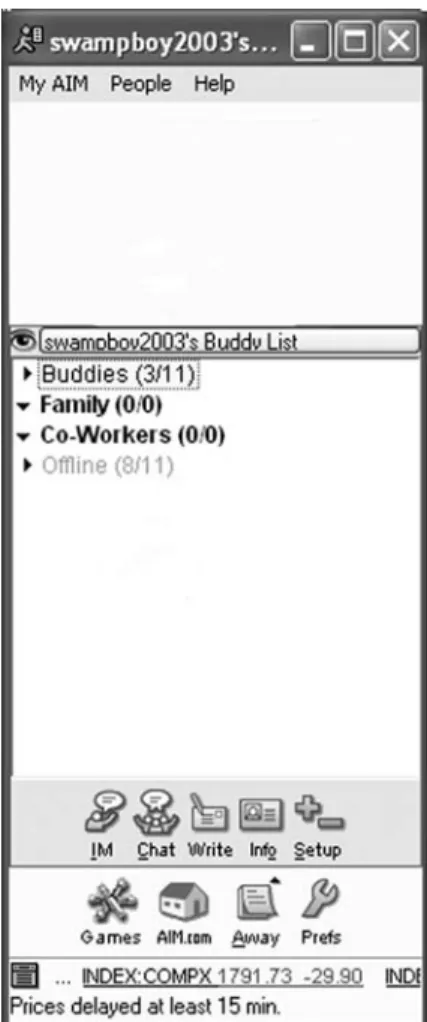
Available for download at http://www.aim.com/, AIM is adware. Subscribers to AOL already have a version of AIM built into their user-interface but non-subscribers can download the chat client and begin using it right away. You’ll need to create a nickname and password for yourself in order to download the software. Once you’ve downloaded and installed this program on your system, it should look something like Figure 11.1.
There are a variety of things you can do to acquire contacts or buddiesfor your list of people you would like to chat with. You can ask friends and family what their AIM nickname is, and you can search by email address. If you would like to add someone who uses AOL, you can extract his or her buddy namefrom his or her email address, and enter it into your buddy list. If you need an AIM buddy to start you off, you can use [email protected] just tyroneadams for short.
c
Open the AIM chat client.c
Click the Setupbutton shown in Figure 11.2. If you don’t have a Setupbutton, you can also use the menu options, People, Find a Buddy, By email address.c
You’ll see another window open on your desktop. At the bottom of this window,you’ll see three preset folders, titled Buddies, Family, and Co-workers. Double-click the Buddies folder to open it.
c
Click the Add Buddybutton, as shown in Figure 11.3.c
Type [email protected] the Open Buddy Name box, and press Enteron your keyboard.You have just added Tyrone L. Adams, one of the authors of this book, to your buddy list. If he is online, go ahead and send him an IM.
c
If he is online, his name will be boldfaced and appear in the onlinecategory of your AIM chat client screen. Double-click his buddy name, and the chat client screen will open. If he is not online, his nickname will appear in the offline cate-gory. If you leave your chat client open, it will notify you when he comes online.I
tip
*
*Leave your instant messenger open when you want to engage in chat sessions. Your online “bud-dies” will be able to see that you are online, and may IM you. If you are busy or are going to be away from your computer for a while, change your status to “away” or “busy” so that others will know why you’re not respond-ing right away.
c
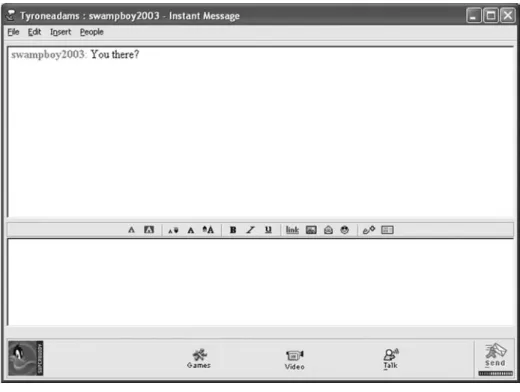
Double-click on his name, type a message and press the Enterkey. Some chat pro-grams require you to click a Sendbutton rather than pressing the Enterkey. Send him a message. It’s that easy! When he replies, you will see his reply in the upper pane after your message. The message window looks similar to Figure 11.4.I
tip
*
*Some ISPs and software companies offer support through instant mes-saging! You can add the ISP account to your buddy list, and delete it when you no longer need it.
Figure 11.1 The AOL Instant Messenger Client (AIM) is an easy-to-use interface that allows you to have control over several IM options.
Figure 11.2 The Setup button located on the bottom-right corner of the AIM client.
Figure 11.3 The Add Buddy button lets you add buddyies to your watch list.
AIM Features
Blocking The blocking feature allows you to blockIMs from a contact or buddy you are blocking. It also prevents other users from seeing when you are online, and you will always appear offline in their lists. So, you’ll have to watch your online etiquette a bit when engaging in chat sessions. This is how you can block a buddy or contact using AIM.
c
Open your AIM chat client.c
There are a variety of methods you can use to block a contact. If your buddy IMs you, you can click the Blockbutton to block this contact, as shown in Figure 11.5. You can also right-click the buddy name on your list to reveal the shortcut menu, and select the Block Buddymenu option. Similarly you can unblock a buddy by right-clicking on the buddy name and selecting the menu item: Unblock Buddy.Figure 11.4 The IM window will open for you to begin conversation with a buddy who is online. All you have to do is double-click the buddy’s name.
Figure 11.5 The Block button allows you to block incoming IMs from someone you would like to suppress.
Private Chat Rooms Another feature that AIM boasts is the ability to host private chat rooms for more than two parties. These chat roomsare places where small groups of peo-ple can meet and discuss issues in real time. So, if you have a need for more than two people at a time to chat, and these users share AIM in common, you can create a mul-tiple party chat room where the conversation can really unfold.
c
Open your AIM chat client.c
Select Peoplefrom the down-menu on your AIM Client.c
Select Send Chat Invitationto your buddy. At this time, you will have to wait for your buddy to acceptthe invitation to your private chat room.c
Repeat as necessary on your buddy list until all your contacts are in the private chat room. Once they are all in the chat room, begin communicating.Sending Files Another feature of IM sessions is the ability to send a file to someone on your buddy list. For example, let’s say that you are working on a team project for school, which requires a lot of group effort. And, let’s also suppose that your team members can-not meet together physically to get their work accomplished. That’s when IMs come in handy. Your group could meet in a chat room on AIM, and distribute graphics, spread-sheets, or just about any type of document necessary to accomplish its task. Sending files has become a versatile means of accomplishing many small-group, team-oriented tasks lately. Here’s how you do it:
c
Open your AIM chat client.c
Begin a chat session with one of your online buddies.c
Select Peoplefrom the drop-down menu in your IM.c
Select Send Filefrom the drop-down menu.c
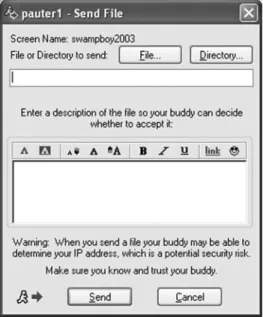
A new window will open on your monitor, as shown in Figure 11.6.Figure 11.6 Looking to transfer a file to your buddy online? The Send File feature under the people drop-down menu will allow you to, while carrying on your IM session.
c
Select Fileif you wish to send a simple file, orc
Select Folderif you wish to send an entire folder.c
Once you have the file or folder selected, click the Send button. It will initiate your transmission.Your buddy will have the opportunity to Acceptor Declinethe file or folder you are trying to send. If your buddy chooses to accept, the file will be transmitted. If your buddy chooses to decline, you will receive a decline message.
Security and Sending Files
Be very cautious about receiving files through a chat client. These files can contain viruses. Use your anti-virus software to scan any files you choose to receive, particularly if the files are executable programs.
Some people are unable to receive files through a chat client because they are behind a firewall. Firewalls are typically configured to disallow attachments through chat clients. In order to transmit files, the chat client establishes a direct computer-to-computer connection between the two contacts, something like a peer-to-peer connec-tion. Firewalls will block direct computer-to-computer connections because of the security risk that these connections pose.
Audio Chat
An added feature built into AIM and other chat clients is the audio chat feature. AIM uses Voice over Internet Protocol (VoIP)to send and receive audio. VoIP is a direct competitor of telephone communication, using the Internet as a carrier. With AIM, you can use your computer system just as you would a telephone, with bidirectional sound capabilities. In order to use audio chat, your computer will require a microphone, speakers, and a full-duplex sound card. In computing, the terms half-duplexand full-duplexdescribe data transfer, and in the case of audio chat, the data is sound. Half-duplex means that data can travel only one way at a time. A walkie-talkie is a good example of half-duplex communication. One person talks, stops, and the next person talks, but both people cannot be talking and listening at the same time. In full-duplex communication, data is transferred in both directions simultaneously.
The telephone is a good example of full duplex communication. In the case of the telephone, both parties can talk and listen at the same time. In the early stages of audio communication over the Internet, communication was half-duplex only. In order to receive full audio communication, your computer’s sound card must support full-duplex sound. Recent computers have this technology, but you should be aware that if you are communicating with someone who has older technology, they might not be able to use audio chat because of this.
To initiate an audio chat, all you need to do is:
c
Open your AIM chat client.c
Right-click a buddy name to reveal the shortcut menu, and click the Send an Instant Messagemenu item. This will open an IM window.c
Click the Talk button in your IM window, as shown in Figure 11.7. You may also have to click the OKbutton to initiate the audio chat.I
tip
*
*Be sure to scan any file you receive for viruses. Even if you know the person who sent you the file, check it for viruses. The per-son sending the file may not know it contains a virus!
I
tip
*
*Make sure your microphone is not too close to your speakers. When the microphone is too close, it will pick up the voices of the other people from the speaker and the feedback will be a terrible echo effect. Another option is to reduce the sensitivity of the microphone through the audio wizard if you cannot physically move your microphone.
Microphones, Speakers,
Headsets, and Web Cams
■ Microphones:In order to be able to use audio or teleconferencing chat, you will need a microphone. You do not need an expensive microphone for audio chat, so if you are purchas-ing a microphone for this purpose only, the least expensive one will do. Some computers come equipped with a built-in microphone. Place your microphone away from your speak-ers. If the microphone is close enough to the speakers, it picks up the speaker output, creating a feedback loop, which results in an echo effect. One effective way to reduce this is to use a headset with a microphone. ■ Speakers:Most computers also come
with speakers, but again, for audio conferencing, the least expensive speakers will do. The speakers should plug into your sound card. Some speakers require an AC outlet or batteries to power the amplifier, but speakers without an amplifier do not require power at all. You can also use headphones instead of speakers if you wish. If you are going to be using the speakers for music or other sound that requires high quality output, then
it’s worth investing in better speakers. ■ Headsets: A headset is a combina-tion of headphones and microphone. It may have a speaker for only one ear, or both, and an adjustable microphone you can position near your mouth. This may be an econom-ical alternative to purchasing a micro-phone and speakers separately. ■ Web Cams: If you plan to do audio
and video conferencing on the Inter-net, you’ll likely want to buy a Web cam (also known as a cam). Some Web cams have a microphone built in. These typically plug into a USB port. Videoconferencing really requires a broadband connection, as the combination of audio and video data requires significant bandwidth to transfer. The Web cam will come with installation software that must be run before you will be able to use your cam online. Individual chat programs may also require you to use the audio/video setup wizard in order to install the microphone and cam for online videoconferencing.
Figure 11.7 The Talk button allows you to use your microphone on your computer to engage in real-time voice conversations with your online contacts.
c
Wait for the connection to be Acceptedby the other party, and for the server to connect you. This may take some time, so be patient.c
Once a connection has been established, begin talking into your microphone. You should be connected and able to send and receive audio signals.Videoconferencing
Many chat programs also have a videoconferencing feature. A videoconference is communication with audio and video. If you have never before held a videoconference, you are in for a treat. Many businesses, organizations, and individuals have Web cams installed on their systems so that people can communicate through videoconferencing.
You can initiate a videoconference by following these steps:
c
Open your AIM chat client.c
Right-click a buddy name to reveal the shortcut menu and click the Send an Instant Messagemenu item. This will open an IM window.c
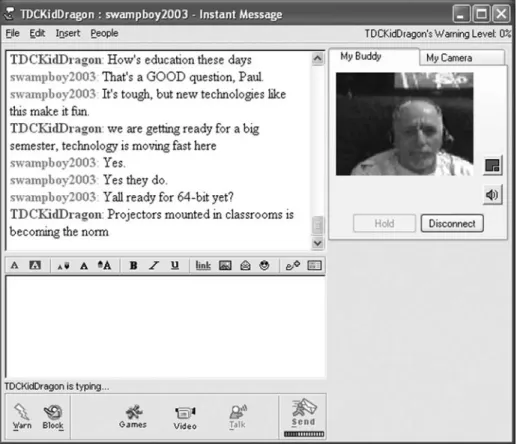
Click the Videobutton on the IM window, as shown in Figure 11.8. If this button does not appear active, it is because your buddy does not have a video connec-tion available. This could be because your contact does not have a Web cam or is using an older version of AIM, which does not support videoconferencing.A video display screen will open in a new window. It should look something like Figure 11.9.
It can take a few minutes to establish a connection. Once the connection is estab-lished, you should be able to hear your contact, and see his or her picture in the IM window. The screen refresh rate varies from one chat program to another and from one connection to another. With some programs and fast connections, the video should look fluid, almost as fast as a movie. Others are slower, and refresh the screen once every few seconds, more like stop motion.
Chat programs often include features such as sending a buddy list to another buddy, saving conversations, and leaving away from computer messages. You can also change your IM message window’s font and background color.
c
Click the My AIMmenu option.You should see menu options including Away Message, Load Buddy List, andEdit Options.The Away Messageoption will allow you to create an away message. When your online status is Away, the away message will be displayed on your contacts’ buddy
I
tip
*
*Be patient when participating in videoconference sessions. Depending upon the speed of your connectivity, the program you are using, and the other videoconfer-ence participant’s equipment, your success may vary. Try many differ-ent videoconference programs to make sure that you are using the right one for you.
Figure 11.8 The Video button will start a videoconference between you and your buddy, provided he or she has a Web cam, too.
lists as your contacts hover the cursor over your contact name. The Save Buddy List and
Load Buddy Listoptions will allow you to save your contact list as a file, and load it again later. You can also send someone your buddy list if you wish.
Let’s have a look at some of the other options available.
c
Click the menu items My AIM, Edit Options, Edit Preferences.c
Explore the options available by clicking on an option in the list on the left, and experimenting with the options that are displayed. You should see options for setting sounds as someone comes online or logs out, options for changing the background color and font in the IM window, file sharing, privacy, and so forth. AIM will allow you to send a text message to a user who is offline, and will deliver the message the next time the user is online. It also includes features such as a stock ticker (15 minute delay), news from around the world, weather updates, and direct news alerts.There are many other popular chat clients available, and you may find that you have some friends who use one program and other friends who use another. It’s worth exploring some of the other chat programs to see the differences in features.
MSN Messenger
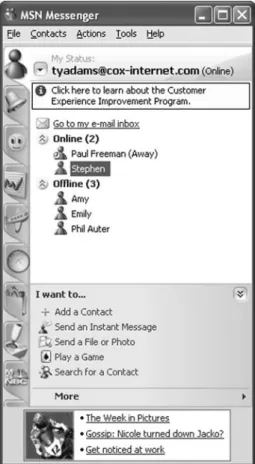
MSN Messenger (http://messenger.msn.com), like AIM, is adware, so you will see advertisements on the bottom of the window while using it. An example of the MSN window is shown in Figure 11.10. MSN Messenger’s features include: sending messages to a mobile device such as cell phone or pager, application sharing, and a whiteboardfeature. Application sharing allows you and another online user to share an application such as a spreadsheet program. Only one of you can control the application at a time, and you must pass control to the online contact in order for him or her to control your applica-tion. This feature is useful for online collaboraapplica-tion. The whiteboardingfeature allows you to post text to, or draw items on, a whiteboard shared by multiple users, also useful for collaboration.
You will find an Add Contactbutton in the main window, which allows you to add a contact to your list, and you can search for contacts by email address. You can use the advanced search feature to search by geographic region or interest. You can right-click on a contact name to find options in the shortcut menu for contacts, including
Send an Instant Message, which opens an IM window, or block to block the user from seeing your online status or sending you messages. You will find configuration options including privacy options and sound options in the Tools, Optionsmenu options. MSN Instant Messenger will not allow you to send a message to contacts who are offline.
Yahoo! Messenger
AIM calls them buddies, MSN Instant Messenger calls them contacts,and Messenger calls them friends. Yahoo! Messenger (http://messenger.yahoo.com/), shown in Figure 11.11, has the same basic functionality as the other chat programs including IM text chat, Web cam, and privacy settings. You will find some of the advanced features, including stock quotes, news from around the world, weather updates, and direct news alerts. One of the interesting features that Yahoo! Messenger has that the other chat clients lack is a built-in Web calendar with programmable reminders. You can set your computer to be your own digital secretary, and remind you of important appointments or meetings you have scheduled. You can also send a message to an offline friend. Yahoo! Messenger also has easy access to a large number of chat rooms in the chatfeature. You will find a large assortment of Yahoo! rooms and the ability to create user rooms as you wish. When you join a chat room, you will find that the conversation can fly by if there are many people chatting in the room. There are chat rooms for subjects including hobbies, technical, professional, and social subjects. If a chat room doesn’t exist for a topic you’d like to chat about, you can create your own user room. Your room will be displayed in the list of user rooms.
ICQ
ICQ (I seek you), shown in Figure 11.12, is available at http://www.icq.com/and also has the basic features of text chat, contact list management, and video conferencing, using a plug-in for Microsoft’s NetMeeting. The interface is a bit different from the other chat clients and the menu is accessed by clicking the Main button at the bottom of the
window. The menu items Main, Preferences will open a window containing preferences for sounds, colors, chat history, and other configuration options. You will have to enable chat history in order to save past chats. ICQ also allows you to float an individual contact name to your desktop, and rename contacts. You can change your online status to invis-ibleso that your contacts see your status as offline, but you can still chat while your status is set to invisible. You can also send a message to a user who is offline.
ICQ offers some interesting features that other chat programs do not, including
ICQ chat. The chat feature allows the recipient to see each character typed as the sender types it, and requires a plug-in. ICQ also attempts to make a communityaround its chat client, by offering services that the other chat clients do not. For instance, if you are just looking to find a random person who is also online, you can use the Chat with a Friendfeature to locate someone. You will find that clicking the Online Statusbutton reveals a menu that includes Chat with a Friend, and you can select Find a Chat Partner
or Available to Chat with a Friend, to make yourself available for random chat. You can also search by geographic area or interests . So, if you are bored, or simply want to learn more about people who are available to chat, this is an intriguing way to meet new and, perhaps, interesting people.
Trillian
Each chat client (AIM, MSN, Yahoo!, and ICQ) accesses a different network. Thus, if your friend is online using AIM and you are using MSN, you won’t see each other. There are several unified messengers that access your accounts on the main chat networks and consolidate your contact lists. The advantage is that you would only have to open one
Figure 11.12 The ICQ Network is another popular chat client. It offers many features that the other chat clients do not.
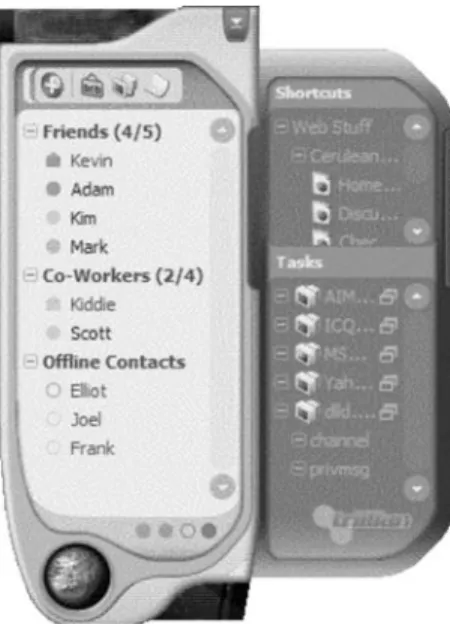
messenger program in order to use text chat with all the contacts on each of your chat clients. Trillian (http://www.trillian.cc) is a popular unified messenger, shown in Figure 11.13. You will need your userids and passwords from each of the chat clients you use, and Trillian will connect to each of these networks and download your contact lists. Trillian supports AIM, MSN Messenger, Yahoo! Messenger, and ICQ. Trillian will also allow you to use the news and stock quote features of the other chat clients.
The chat clients make use of Voice over IP (VoIP) in their audio streaming, but VoIP is a standalone technology that is becoming increasingly popular as an alternative to traditional ground line telephone connections. It requires a broadband Internet connection.
Effective Chatting
A Brief History of Text Chat
No one is certain who invented Talk,but it was heavily used between the lines connect-ing MIT, BBN Consultconnect-ing in Massachusetts, RAND in Santa Monica, and UCLA in the late 1960s. Talk was a simple program that allowed users on networked computers to type messages to one another in real time. As more computers were connected to ARPANET during the 1970s, Talk became a means of communicating with anyone linked to ARPANET. This valuable tool, however, began to affect the productivity of government and corporate employees. Mandates were issued not to use Talk unless it was truly important. But throughout the 1970s and 1980s, users continued to hold chat sessions. Not only was the exchange of information useful, but also communicating with others in this fashion was enjoyable and personable.
I
tip
*
*Unified messengers such as Trillian may not offer all the features of every IM program, but it’s great if you primarily use basic IM features!
Figure 11.13 Trillian basic is a free unified messenger client that helps you manage all of your chat clients in one simple interface.
In 1988, a Finnish programmer named Jarkko Oikarinen wrote a program called Internet Relay Chat daemon (IRC-d) to allow for multi-user real-time communication. Oikarinen and his friends were bulletin board service (BBS)participants. BBSs allowed partic-ipants to post text messages to a virtual bulletin board for public reading. After his BBS became uselessly cluttered with brief personal messages, Oikarinen announced on the BBS that everyone should download his new software application, IRC, and connect to his server for real-time chat. From that moment on, his server was flooded with a flow of participants. IRC was truly revolutionary because it allowed up to 100 participants to engage in synchronous chat sessions, and shifted dialogues across the world into real time. Hundreds of variations upon the original IRC model are still being used today, but the basic model remains the same.
Chat Etiquette and Culture
Whether you’re using a chat room or one-on-one chat window, there are a few trends related to etiquette and chat culture that have emerged. For the most part, you will find that there really doesn’t seem to be any etiquette, in terms of social rules of politeness, as people feel free to say whatever they want, in whatever manner they feel is appropri-ate. And you may not feel that their approach is appropriate for you, in which case you can put the user on your block or ignore list.
■ Do not use all caps. This is considered to be yelling, whether the
communica-tion is text chat or email.
■ Use emoticons and abbreviations to express emotions when communicating to friends. But when using these interfaces for business communication, it is best to avoid the use of emoticons.
■ People can and do adopt any persona they wish when chatting. Be streetwise. Although a great many people are exactly who they say they are, a great many more are not.
■ Chat rooms are fraught with adult chat. If you are a parent, or supervising a child online, be very aware of the child’s online activity.
■ People come and go quickly. A chat can end abruptly because the user
decided to close the window and finish the chat, or because there was an Internet connection disruption and technology prevented the user from continuing the chat. You have no way of knowing which situation occurred.
Effective Videoconferencing
A Brief History of Videoconferencing
Even though videoconferencing seems relatively new, it has actually been around since the 1960s. AT&T introduced its Picturephoneat the 1964 World’s Fair. For a number of reasons, including a lack of bandwidth, a lack of desire by executives to use the tech-nology, and high cost—the product did not catch on. For this reason, most of the effort during the 1970s and 1980s went into developing high-end, expensive conferencing systems that were sold to corporations for use in executive board rooms.
It wasn’t until the 1990s that personal videoconferencing became possible for the average user. In the early 1990s, AT&T introduced five product lines, including the
Voice over Internet Protocol (VoIP)
Voice over Internet Protocol
(VoIP) Defined
VoIP turns the analog signals of voice and sound into a digital signal that can be transmitted over a network, such as the Internet. This technology has allowed many people to communi-cate using voice through their chat clients, and also make phone calls— using services like Dialpad.com (http://www.dialpad.com/) and
Net2-Phone (http://www.net2phone.com/)—
to ordinary telephones throughout the world. VoIP providers offer a viable alternative to the traditional telephone service. You will find a list of VoIP providers at
http://www.voipproviderslist.com/.
What Equipment Is Required?
You will need a microphone, a broadband connection, and a VoIP service provider. VoIP service providers provide a wide-range of inexpensive domestic and international calling plans, so you should definitely shop around before choosing a service. Outside the U.S. and Canada, there has been a rise in the number of tele-phony cafés where people can go in and pay a reduced rate to place their call over the Internet using VoIP enhanced computers.
If you have a broadband connection already installed in your home, but do
not have a computer, another way that you can use VoIP is to purchase a VoIP telephone adapter. The VoIP telephone adapter will connect to your broad-band connection, and allow you to plug any ordinary telephone into the adapter.
Advantages versus
Disadvantages of VoIP
Advantages of VoIP: VoIP is digital data and in some cases it will be clearer than a traditional phone line. VoIP typically offers services that aren’t available on a traditional phone, such as voicemail and multiparty calling, and a permanent phone number regardless of where you move. It is an economical alternative to traditional telephone service, as long distance is not an issue over the Internet. And in the case of VoIP through a chat client, there is no cost at all.
Disadvantages of VoIP: While the disadvantages are few, two main issues arise in using VoIP. First, deter-mining the location of a 911 call over VoIP is difficult because the call is coming from the Internet. Secondly, if the power goes out, so too does your computer and your VoIP telephony adapter. Traditional phone lines are exclusively powered, so you don’t have to worry about power supply issues unless something happens to the lines.
VideoPhone 2500 for home use. But, according to most experts, it was Intel’s involve-ment that caused Internet conferencing to come to life. Intel’s CEO Andy Grove, in late 1990, pushed the company to add richer multimedia capabilities to PCs, which required greater processing power. By 1993, Intel had created a conferencing program called ProShare to take advantage of (and help sell) its more powerful chips.
In the next few years, several companies jumped into this breakthrough market. PictureTel worked with Microsoft, eventually creating a conferencing program called NetMeeting in 1995. Apple released QuickTime Conferencing in 1995, and Intel intro-duced their Video Phone in 1996. These programs could all run on a home computer over plain old telephone service (POTS). CU-SeeMe, another company that sprang to life in the 1990s, introduced the first Internet conferencing system that let multiple people participate simultaneously in a conference over POTS. The other desktop programs were limited to the use of two people at a time.
In order for net conferencing to be practical and affordable, many technological developments had to occur, in addition to the increased processing power of PCs:
■ Compression standards:In order for various Internet-connected computers to exchange video signals, they have to use the same compression standards. Compres-sion condenses the video signal without losing quality. The development and wide-spread use of the H.32* compression standard has made this possible. Even though many conferencing software manufacturers have their own compression standards, nearly all also include H.32*.
■ Inexpensive video cameras:Obviously, to get a video signal you need a video camera. The development of cheaper CCD(charged coupled device) chips, which are used to capture images, brought the cost of a PC video camera to an affordable level.
■ Digital signal processors (DSPs):To convert the video and audio signals into digital information for transmission over the Internet, and convert the received signals to sound and pictures, you need a digital signal processor. This technology is included in your computer hardware.
Videoconferencing Etiquette
Videoconferencing requires a little extra consideration in order to be able to send clear video. There are also a few things to keep in mind if you are using videoconferencing for business.
Optimizing the Setting
Appearance:Remember, people can see you in a videoconference. Since videoconfer-encing is typically used for peer collaboration, casual attire is usually appropriate. However, if you’re using Internet conferencing to conduct an important meeting, you’ll probably need to dress more formally. Regardless, avoid white or light colored shirts; they are so bright they will wash out the picture. You also want to avoid shirts with narrow stripes, since the stripes often appear to wiggle on video. Red outfits tend to bleed, busy prints are distracting, and shiny jewelry reflects a lot of light. Your best bet is to wear a solid blue shirt, or a dark shirt with a subtle pattern.
Lighting:Lighting can make or break a video image. Don’t rely on just the over-head fluorescent light that you find in most offices: the top of your over-head will be bright, while the lower half will be in shadow. Don’t shine a light directly on your face either, since this will wash out your face. Too much light behind you will cause your face to
Common Abbreviations
AFAIK as far as I know
AFK away from keyboard ASAP as soon as possible A/S/L age/sex/location B4N bye for now
BAK back at keyboard BBL be back later BBS be back soon BF boyfriend
BFN bye for now BRB be right back BTW by the way CYA see ya
FAAK falling asleep at the keyboard
F2F face to face
FAQ frequently asked question FWIW for what it’s worth FWD forward
FYI for your information G2G got to go GF girlfriend GL good luck GR8 great IE Internet Explorer by Microsoft
IMHO in my humble opinion IMO in my opinion
IOW in other words IRL in real life JAM just a minute JK just kidding K ok
LOL laughing out loud LTNS long time no see L8R later
MOTD message of the day MYOB mind your own business NP no problem
OIC oh, I see OOTB out of the box OTOH on the other hand
PDA public display of affection POTS plain old telephone service PPL people
ROTF rolling on the floor ROTFL rolling on the floor
laughing RSN real soon now TTFN tah-tah for now TTYL talk to you later WB welcome back YAOTM yet another off-topic
be very dark. Your best bet is to use a variety of indirect light sources. To make sure that you are looking your best, click the Playbutton of your net conferencing program to preview your image. This will give you a good idea of what you look like on screen to the other person.
Background: You need to pay attention to what is behind the subject of the picture, otherwise, it can appear as if trees are growing out of people’s heads. A neutral-to-dark, plain background is best. Movement in the background will detract from the overall video quality, and should definitely be avoided.
Optimizing the Conversation
The lights are on and you’re looking good—so, now what? For most people, talking into a camera is not a natural skill. Here are a few tips that may make the conversation look at bit more natural to the person receiving it.
Eye contact:We all know how important eye contact is in face-to-face conversa-tions. The same is true with videoconferencing: good eye contact communicates inter-est in the other person and that you are paying attention. With videoconferencing, unfortunately, when you look at the other person’s image on your screen you are not making eye contact. To make good eye contact, you have to look directly at the camera. Of course, then you can’t see the other person. The best compromise is to mount your camera to your computer monitor, and then move the videoconferencing window so that it is as close as possible to the camera. So, for example, if you have your camera mounted to the top of your monitor, move the program window to the top of the screen directly below the camera.
Distance:The distance that you stand from another person communicates a great deal as well. The closer you stand, the more intimate the conversation is; the further away that you stand, the more formal. While you can’t move closer to the other person in a videoconference, you can simulate social distance by how close you get to the camera. Adjust your position so that your head and shoulders fill most of the video frame. You should have no more than three people crammed into the video window at one location.
Audio over video:Most of the research that has been done on videoconferenc-ing suggests that even though video is pretty cool, audio is more important for effec-tive communication. If you have to choose between a videoconference with delayed and broken audio, or an audio-only conference, choose the audio. By shutting off the video, you can reduce or even eliminate the delay between when you speak and the other person hears you. This can make the conversation flow much more smoothly. In fact, in some instances you might decide to use the telephone for the audio side of the conference and use your computers for just the video signal. However, you need to be aware if you do this that the video signal on your computer will be slightly delayed and out of sync with the audio signal from the telephone.
Audio quality: You will end up with the best audio quality, and the least frus-trating experience, if both people use headsets, or if you place the speakers far enough away from the microphone to avoid the echo sound feedback.
Video over audio:Even though responsive audio is more important than video, there are some times when video is extremely valuable. We know from interpersonal and nonverbal research that most of the emotional and relational dimensions of messages are communicated nonverbally. Use the video signal to determine the other person’s attitudes and feelings when you can’t infer them from the sound of their voice.
I
tip
*
*Try to set up your camera so that your head and shoulders are in view, so that others can read your facial expressions. People need to see how you react to information, as well as how you present it.
Obviously, the video signal is also crucial when you need to demonstrate actions— show them, don’t tell them.
Etiquette:When you meet face-to-face, you typically shake hands. The equiva-lent greeting in a videoconference is to smile and wave. We are still working out many of the etiquette issues for videoconferencing. For example, if the phone rings while you are in a videoconference, do you answer the phone? When you are on the telephone, you can work on other tasks at the same time; can you write a memo while the other person is watching you? The best answer we can give you at this time is that it depends on your relationship to the other person. If it is someone you know fairly well, you can get away with not devoting your full attention to the videoconference. However, if it is a superior, or someone you need to impress, you ought to devote your full attention to the conference. It is probably best if your first contact with a person whom you never met is over the telephone instead of a videoconference, since the addition of the video signal makes it far more intrusive. Finally, if there are people in the room outside the camera’s eye, you ought to introduce them to the other person.
IM in the Workplace
It may seem as if online chat is a purely social application, but it is a communication tool used widely at the workplace for business communication. In 2004, there were 65 million people worldwide using IM at work for business, and it is estimated that by 2005 there will be 330 million people worldwide using IM at work. Employees are using IM to communicate with coworkers, but also to communicate with clients, and offer more immediate support.
Major IM clients have an enterprise or business version, or have developed their primary version to meet business needs. Use of IM at the workplace has been shown to improve productivity as employees multi-task and hold several conversations simul-taneously, but the biggest benefit is presence awareness. Employees can see who else is online, thus saving them the time wasted by telephone tag with someone who is unavailable.
IM clients can pose huge security risks in the workplace, which must be addressed. The IM equivalent of spam is called spim. These unwanted IMs could also contain viruses that can infect the network. A much larger security risk, however, is in the conversations themselves. Chat is transmitted in clear text, unencrypted, in most chat clients. So an employee can be having a legitimate, confidential chat conversation with someone outside the workplace, but if the conversation is not encrypted, it could be sniffed during transmission. Furthermore, employees could be using chat programs to divulge corporate confidential information inappropriately.
With IM increasing in popularity as a form of business communication, IT depart-ments are also implementing solutions to address these security concerns. Some corpo-rations install an enterprise version of IM software that is used strictly internally. In addition, they may also install IM management software, which searches for keywords in chats and prevents inappropriate chat transmissions. In addition to corporate confi-dential information, inappropriate chat could also include harassment, inappropriate humor, or illegal material. IM management software can also archive IM chats. This may seem like surveillance, however, in many places around the world all business correspondence including email, handwritten notes, and voice mail must be archived for some period of time, and is legally actionable. The American Management Society’s
I
tip
*
*Don’t say anything in an IM at work that you wouldn’t say face to face. IMs can be logged, and it’s too easy to type in the wrong window!
2004 study shows that only 11% of businesses were using IM management software, and yet, the same survey showed that 60% of businesses were using email monitoring software. Businesses are slowly coming to grips with IM as a business tool and starting to put policies and security measures in place to handle it as such. Just as you should be cautioned not to use your work email for personal use, you should also be cautioned not to use your work IM for personal communication. As you should know, any email sent or received from your work address is the property of the company, and as more and more businesses implement an IM management strategy, including archiving of IMs, these too, are the property of the company.
SUMMARY
Now that you’ve read through the chapter, you are prepared to:
■ Block buddies, move to private chat rooms, transfer files using a chat client, and engage in chat client videoconferencing.
■ Understand the revolutionary implication of Voice over Internet Protocol (VoIP). ■ Employ effective instant messaging etiquette by understanding the history and culture
that has evolved around the chat client.
■ Hold successful videoconferencing sessions by adhering to videoconferencing etiquette,
optimizing your environment, and optimizing the conversation.
■ Appreciate how instant messaging is transforming the workplace, and use the chat client to suit your professional needs.
Review Questions and Hands-on Exercises
Review Questions
1. What is the difference between synchronous communication and asynchronous communication?
2. What is an IM?
3. You were online chatting last night and heard that one of your friends was also online chatting at the same time, but your friend did not appear online in your contact list. How could this be explained?
4. You try to send a file to a friend you are chatting with, but the connection does not seem to be working. What might be causing this?
5. What is VoIP?
6. You find yourself using three different chat clients because your friends use dif-ferent chat clients. What can you do to chat with your friends, without having to install all three clients?
7. What is POTS?
8. Give an example of appropriate clothing, background, and lighting that could be used for someone who is going to be using videoconferencing.
9. You are using audio conferencing and you hear an echo of the person’s voice as he or she is speaking. What is the likely cause and possible solution?
10. The corporate lawyer asks you for copies of your communication with a fellow employee. What type of communication should you provide?
12. You are in the middle of a text chat with someone, when suddenly the conver-sation stops. Is this person being rude, or is there some other cause?
Hands-on Exercises
1. Open the AIM chat client and explore the options available in the menu My Aim, Edit Options, Edit Preferences. Perform the following tasks:
a. Change the font for the buddy list Entering Buddy, Online Buddy and Departing Buddy.
b. In the Away Message feature create a new away message labeled gone to lunch and write some suitable text in the text window for this new mes-sage. Click the I’m Away button to set your status to away.
c. In the IM/Buddy Chat option, set the color and font for the chat window.
d. In the IM/Buddy Chat option, click the Sounds button to set sounds for each of the message events. Click the OK button when you are finished setting sounds.
2. Download and install MSN Instant Messenger (http://messenger.msn.com).
a. If you have a Web cam and microphone, select the commands Tools, Audio/Video Tuning Wizard to configure your microphone and cam.
b. Use the commands Tools, Options and select the Personal tab. Click the Share my webcam capabilities with others checkbox and type a nickname in the Type your name as you want others to see it box. Click the OK but-ton to set these options.
c. If you know someone else who uses MSN Instant Messenger, add that per-son to your contact list.
3. Download and install Yahoo! Messenger (http://messenger.yahoo.com). You
may have to get a Yahoo! account if you do not already have one.
a. Use the commands Login, Preferences and select the General category. Make sure the checkbox Automatically start Yahoo! Messenger is unchecked. That will ensure that Yahoo! Messenger does not start each time you turn on your computer.
b. In the Preferences window, select the Appearance category. Change the text color and font for the main messenger window.
c. In the Preferences window, select the Alerts and Sounds category. Select each of the alerts, such as A friend comes online, one at a time and feel free to choose appropriate alert methods at the bottom of the window.
d. Click the OK button when you have finished setting preferences.
e. Use the commands Tools, Chat, Join Room to display the listing of avail-able chat rooms. Feel free to click the assorted category folders and on
the Yahoo! Rooms tab and User Rooms tab. Many of the chat rooms are adult rooms, and you may find some of the names of the rooms offensive. You may join a room by selecting the room, and clicking the Go to Room button. If you are not interested in any of the chat rooms, click the Cancel button to close the chat room window.
f. If you know someone who has a Yahoo! account, add that person as a contact to your contact list.
4. Download and install ICQ (http://www.icq.com). You will have to go through
the steps to create an ICQ account.
a. Click the Online button and select the options Chat with a Friend, and Find a Chat Partner. Click the Find an Online Chat Friend button in the Chat with a Friend window. Do this repeatedly until you come across someone you think you might like to chat with. When you find someone, click the Send Message button and send a friendly hello message to this person.
b. Click the Main button and select the menu option Preferences. Click the Status Mode option and change the Away status to 15 minutes.
c. In the Preferences window, select the History, Alerts and Sounds option. Click the Sounds tab. Feel free to select each event and choose a new sound for each.
d. Click the OK button when you have finished editing preferences.
e. If you know someone who uses ICQ, add him or her as a contact to your list. You can use the menu options Main, Add/Invite users, Find User -> Add to list, in order to find your friend.
5. Download and install Trillian basic (http://www.trillian.cc). You will need
your userids and passwords for AIM, ICQ, and MSN. Configure Trillian to use each of these chat accounts.
6. Which chat package do you prefer, and why?
7. Find a VoIP provider in your area using the list of VoIP providers at
http://www.voipproviderslist.com/. What does the VoIP provider charge for
services?
8. If you have a Web cam and microphone and know someone else who does, try to arrange a videoconference using any of the chat tools discussed in this chapter. If you have time, try each one. You will notice big differences between the quality of video and audio for each of the chat packages. Which one do you prefer?
9. If you use IM at your workplace, find out if your workplace has a policy on monitoring or archiving IM messages, and what your responsibility as an employee is toward saving IM chat sessions.