]
Version
2.10.1
VTGO-PC-508
Accessible Softphone
Function Description Document
IP blue Software Solutions
Table of Contents
Document Description ... 3
VTGO-PC-508 Application Description ... 3
Screenshots with Callouts ... 5
Setting Accessibility Options ... 6
Keyboard Commands... 7
Voice Commands ... 9
TTY/TTD Window ... 9
TTY/TTD Usage ... 10
Document Description
This document provides a product description of the IP blue VTGO-PC-508 IP soft phone application with an emphasis on the accessibility features included to improve usability for persons with visual, audible or mobility impairments.
VTGO-PC-508 Application Description
VTGO-PC-508 is a Microsoft Windows compatible soft phone application that is compliant with the requirements defined under Section 508 Subpart B Section 1194.21 for Software Applications and 1194.23 for Telecommunications products.
The application provides Cisco CallManager compatible IP telephone services with media termination for voice and V.151 TTY/TDD character data. The soft phone can run as a standalone IP phone or it can run in conjunction with the Cisco 7900 series IP
telephone adding the necessary functionality for visually impaired users. The Softphone is compatible with the assistive screen reader JAWS, screen magnifier MAGIC and voice recognition software Dragon Systems Natural Voices.
The softphone provides the following capabilities:
PBX features including Hold/Resume, Transfer/Conference, Call Forward,
Redial, Meet-me Conference, Pickup, Call Park/Retrieve.
Direct Media Termination G.711, G.729, GSM 6.10
High Quality-Low Latency Audio (Dynamic Jitter Buffer)
Multiple Shared Line support (from 1 to 36 lines).
Multiple User Programmable Speed Dial keys
Softkeys for PBX feature operation.
Multiple Directory support for LDAP and Active Directory. Call Logging with dial back.
Call Recording to .wav file on local PC or remote server.
USB Telephone and headset support.
ACD Login/ Logout, Ready /Not Ready , Queue Statistics.
Vocalize inbound Caller ID (name) and CLID (number) using Text to Speech
Vocalize Call Park DN when user Parks a Call.
Vocalize Call Back notification when call back notification is received.
Vocalize Remote Answer Indication when a call is answered on a Shared Line. Provide Phone Status Messages vocalizing the lines in use, on hold, ringing. Formatting of digits strings so they are spoken properly. 91-214-555-1212
reformatted as (214) 555-1212 and read as a phone number. The access codes are dropped.
Play an optional short preamble tone on an inbound call prior to vocalizing caller ID.
Play sound when a call disconnects.
Audible Message Waiting Indications that will play a user selectable sound on a periodic basis and will play a stuttered dial tone when an unread message is in the voice mail box.
Support to vocalize directory name and number entries as they are scrolled. Support for Hotkeys and the mapping of all Graphical User Interface functions to
keyboard.
Global Hotkeys for common phone functions even when softphone is not the
focused window.
TTY/TTD window for use with TTY/TTD terminals based in the PSTN or other
IP network using Cisco Text Relay V.151 for TDD/TTY.
Screenshots with Callouts Main Program Window
Setting Accessibility Options
The Accessibility options are configured under the Tools|Settings| Accessibility Tab Windows XP has SAPI and the Microsoft Sam voice as a standard resource. Addtional voices can be added. To enable the voice, check the enable voice assist check box, then set the volume and rate to your comfort.
Then select the options you want to have voice enabled. If JAWS is present the Softphone will automatically use JAWS instead of SAPI.
Read Directories will read the entries from selected directory. Read Call Log Entries will read the entries stored in the Call Log.
Read Button or Window will vocalize the current focused button or window
selected.
Read Phone number as it is entered will echo the number as it is dialed. Read Settings will vocalize all of the Settings under the Tools Menu. Enable Whisper will announce a second call or call waiting Caller ID.
Enable Ring when Voice assist is on , will allow any ring tones or attached USB phone to ring in addition to the vocalize caller ID.
Keyboard Commands
Global HotKeys Function
Control + ALT + V Launch VTGO-PC from shortcut on desktop Windows Key + V Softphone to foreground from any application Windows Key + A Answer incoming call from any application Windows Key + S Current VTGO-PC status from any application Windows Key + X Hang up active call from any application
Windows Key + C New call from any application
Windows Key + O Current call options from any application Windows Key + Z Pause speech synthesis from any application
Windows Key + P Park Call
Windows Key + T Transfer Call
Windows Key + H Hold
Main Program Window Command keys
F-Keys Function
F1 Help
F2 then arrow keys Activate microphone gain control F2 then Tab then Enter Activate microphone mixer F3 then arrow keys Speaker volume control
F4 Jump to headset button F5 Softkey 1* Redial (when idle or off-hook)
Hold/Resume (active call) Answer (inbound ringing)
Meet Me (off hook, after More key) Park (active call, after More key)
Backspace (during on-hook dialing) F6 Softkey 2* New Call (idle)
End call (off hook or active call)
Conference (active call, after more key) Dial (on-hook dialing)
F7 Softkey 3* Call forward (idle or off hook) Conference (outbound ringing)
Remove last conference member (during conference)
Transfer (active call) F8 Softkey 4* More (off-hook, active call)
Cancel (on-hook dialing) F9 Jump to first softkey F10 System menu
F11 Jump to first line key F12 Jump to first speed dial key Control Silence Voice Synthesis
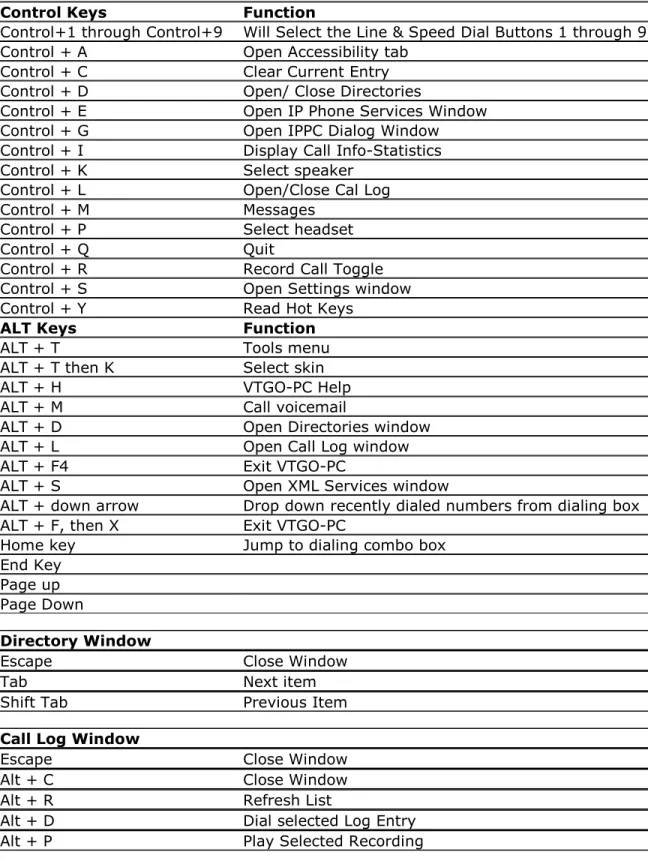
Control Keys Function
Control+1 through Control+9 Will Select the Line & Speed Dial Buttons 1 through 9 Control + A Open Accessibility tab
Control + C Clear Current Entry Control + D Open/ Close Directories
Control + E Open IP Phone Services Window Control + G Open IPPC Dialog Window Control + I Display Call Info-Statistics Control + K Select speaker
Control + L Open/Close Cal Log Control + M Messages
Control + P Select headset Control + Q Quit
Control + R Record Call Toggle Control + S Open Settings window Control + Y Read Hot Keys
ALT Keys Function
ALT + T Tools menu ALT + T then K Select skin ALT + H VTGO-PC Help ALT + M Call voicemail
ALT + D Open Directories window ALT + L Open Call Log window ALT + F4 Exit VTGO-PC
ALT + S Open XML Services window
ALT + down arrow Drop down recently dialed numbers from dialing box ALT + F, then X Exit VTGO-PC
Home key Jump to dialing combo box End Key
Page up Page Down
Directory Window
Escape Close Window Tab Next item Shift Tab Previous Item
Call Log Window
Escape Close Window Alt + C Close Window Alt + R Refresh List
Alt + D Dial selected Log Entry Alt + P Play Selected Recording
Voice Commands
VTGO-PC-508 supports voice input from Dragon Systems Naturally Speaking Voice recognition software. The commands that the soft phone recognizes are :
Command Function
“Dial” or "Make Call"
followed by the phone number to make phone call Example: Dial 9 1 2 1 2 4 8 5 1 2 1 6 “Answer” to answer incoming call
“Hang-up" or "End Call" to disconnect call in progress “Hold” to hold
"Resume" to resume call from hold
TTY/TTD Window
A TTY/TDD is an assistive device that allows deaf and hard-of -hearing people to communicate on the phone. Messages are typed and sent through the phone using a special keyboard/communication device. Hearing- and speech impaired people are able to communicate over telephone lines by connecting a telephone with a typewriter-like terminal called a telecommunications device for the deaf (TDD/TTY). The TDD/TTY has a keyboard, a display screen, and a specialized modem that sends and receives TDD/TTY tones. A user types a message on the terminal, generating tones that are sent over telephone lines to the receiving terminal. These tones are then converted by the receiving terminal into a written message, which is displayed on the call recipient's screen.
VTGO-PC-508 provides a TTY/TDD emulation window. The typed characters are converted to RTP payloads and sent over the IP network to the other party in the call. If the call is from the PSTN, the RTP payloads are converted to tones by the Cisco PSTN
Gateway. This implementation supports TTY/TTD Send and Receive, TTY/TDD Send
w ith V oice R eceive “H earing C arry O ver”, V oice S end w ith T T Y /T D D “V oice C arry O ver”
Softphone utilizes Text payload ID and packet redundancy to ensure delivery of packets when the network is experiencing packet lose. The text characters are transported as text not as tones. The packet redundancy method can be set for double or triple level
redundancy. T his m ethod is com patible w ith C isco’s T ext Relay feature and is close to the proposed v.151 standard.
To use this window establish a call to another VTGO-PC, press Control-T and start typing.
TTY/TTD Usage
To answer an inbound TTY/TTD Call:
This window is automatically opened when an inbound call is from a TTY/TTD Terminal via a Cisco Gateway enabled with Cisco Text Relay options or from another VTGO-PC-508 soft phone.
To make a TTY/TDD call:
1. Run the IP blue Softphone.
2. Call the destination Phone by entering digits on the keyboard or by selecting an entry from the directory.
3. Open the TTY/TTD Window from the Tools Menu or by pressing Control + T
4. Type your normal greeting message: e.g., "HELLO, THIS IS IPBLUE
6. The caller will read what you have typed and will respond. When you see "GA", you'll know it's your turn to type your response.
7. When one party thinks the conversation is over he or she will say "Bye, SK" for "Stop Keying".
8. Typing "SK" or "GA or SK" leaves the conversation open for the other person to respond before ending the conversation.
9. Typing "SKSK" means that you are certain the conversation is complete and you may hang up and turn off the TTY/TDD.
Helpful Hints
Use standard punctuation and other short cuts like typing "Q" at the end of a statement indicating a question.
A dd em otion to your typing. If som ething is funn y, type in "H a!” "laughing", "smile", "big grin", or even "I'm laughing so hard I'm rolling on the floor!". This is considered a courtesy and a way of making conversation more personal.
Don't backspace too much when you make typing mistakes. Just type XX and
continue.
There are some etiquette rules that users of TDDs must be aware of. Because of the inability to detect when a person has finished speaking, the term "Go Ahead" (GA) is used.
Commonly used abbreviations:
CA Communications assistant (another term for a relay operator) GA Go Ahead SK Stop Keying SKSK Now hanging up Q, QQ, QM Question Mark (?) PLS Please RO Relay Operator OIC Oh, I See OPR Operator NBR Number TMW Tomorrow THX Thanks
Cisco IPCC ACD Integration
Softphone integrates with the Cisco IPCC ACD server and will enable easy login via a voice assisted login dialog. The Call Center statistics and Caller ID information will be vocalized to the Agent using SAPI or JAWS if Jaws is installed on the machine. The Softphone provides an accessible interface to the IPCC ACD Login/ Logout. Open with Control+G or from the File Menu Alt+F
Selecting File/IPCC Agent menu item opens IPCC Agent Dialog, where agents can login, change state, etc.