Table
Of
Contents
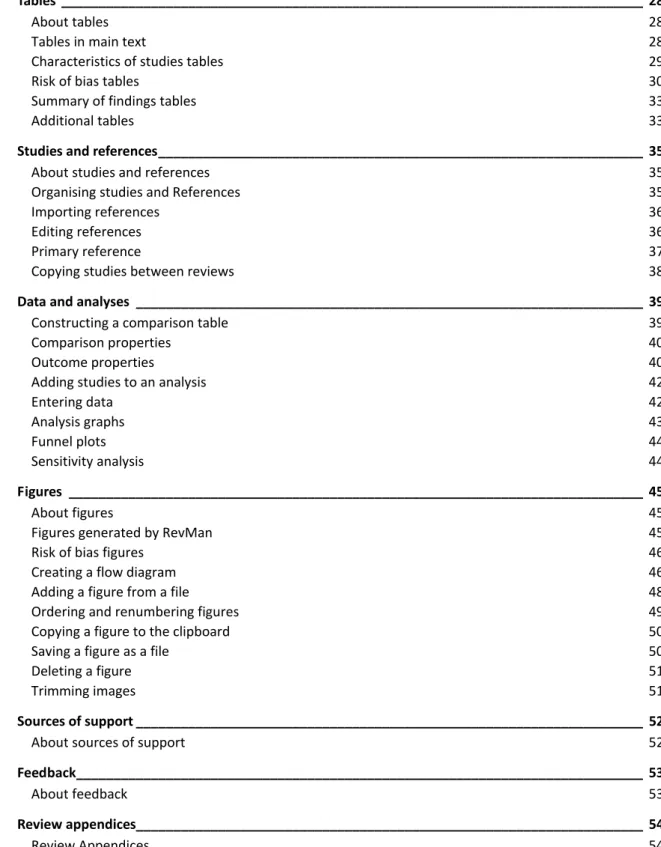
Welcome to RevMan 5.1 ________________________________________________________________ 1 Conventions __________________________________________________________________________ 2 'Review' versus 'Full Review' 2 Using Menus 2 Getting started ________________________________________________________________________ 3 Getting started 3 What's new in RevMan 5.1 3 Starting a review 5 Tutorials 5 Content guidance 6 Using RevMan ________________________________________________________________________ 7 Using RevMan 7 Windows 9 Welcome Window 9 Undo 9 Collapsing and expanding sections 10 Renumbering 10 Keyboard shortcuts 10 Support 11 Reviews_____________________________________________________________________________ 13 Review types 13 Intervention reviews 13 Diagnostic test accuracy reviews 13 Methodology reviews 14 Overviews of reviews 14 Review properties 14 Licence for publication 14 Review/Protocol information ___________________________________________________________ 16 Title 16 Authors 16 Contact person 18 Group authors 18 Dates 18 What's new and History 18 Main text ___________________________________________________________________________ 20 Main text 20 Headings 21 Links 21 Inserting symbols 22 Inserting analysis results 23 Published notes 23 Track changes 24 Find and replace 24 Global replace 25 Importing text 26
Table Of Contents Tables ______________________________________________________________________________ 28 About tables 28 Tables in main text 28 Characteristics of studies tables 29 Risk of bias tables 30 Summary of findings tables 33 Additional tables 33
Studies and references_________________________________________________________________ 35
About studies and references 35 Organising studies and References 35 Importing references 36 Editing references 36 Primary reference 37 Copying studies between reviews 38
Data and analyses ____________________________________________________________________ 39
Constructing a comparison table 39 Comparison properties 40 Outcome properties 40 Adding studies to an analysis 42 Entering data 42 Analysis graphs 43 Funnel plots 44 Sensitivity analysis 44 Figures _____________________________________________________________________________ 45 About figures 45 Figures generated by RevMan 45 Risk of bias figures 46 Creating a flow diagram 46 Adding a figure from a file 48 Ordering and renumbering figures 49 Copying a figure to the clipboard 50 Saving a figure as a file 50 Deleting a figure 51 Trimming images 51 Sources of support ____________________________________________________________________ 52 About sources of support 52 Feedback____________________________________________________________________________ 53 About feedback 53 Review appendices____________________________________________________________________ 54 Review Appendices 54 Notes_______________________________________________________________________________ 55 About notes 55 Internal notes 55 Footnotes 55
Checking and validating reviews _________________________________________________________ 57
Checking spelling 57
Validating reviews 57
RevMan 5 User Guide
Counting words 58
Sharing and submitting reviews _________________________________________________________ 59
Using Archie to manage reviews 59 Versions in Archie 59 Authoring and editorial phase 60 Working with co‐authors 60 My Reviews 60 Checking out 61 Checking in 62 Submitting reviews 63
Storing reviews locally _________________________________________________________________ 64
Saving versions of reviews locally 64 Opening a review 64 Saving a review 65 Local backups 65 Printing _____________________________________________________________________________ 66 Printing reviews 66 Print preview 66 Printing single sections 67 Page setup 67 Preferences__________________________________________________________________________ 69 Preferences 69 General preferences 69 Files preferences 70 Interface preferences 70 Spell checking options 71 Connection Preferences 72 Exporting ___________________________________________________________________________ 74 Exporting text 74 Exporting references 74 Exporting data 74
Diagnostic test accuracy reviews_________________________________________________________ 75
Assessment of methodological quality tables 75 Data and analyses in diagnostic reviews 76 Constructing data tables 76 Covariates 77 Entering data 78 Analysis graphs in diagnostic reviews 79
Welcome
to
RevMan
5.1
Review Manager (RevMan) is The Cochrane Collaboration’s software for preparing and maintaining Cochrane reviews. RevMan facilitates preparation of protocols and full reviews, including text, characteristics of studies, comparison tables, and study data. It can perform meta‐analysis of the data entered, and present the results graphically. In addition to reviews of studies of the effects of healthcare interventions, you can use RevMan to write reviews of diagnostic test accuracy studies, reviews of studies of methodology and overviews of reviews. This user guide focuses primarily on of Cochrane Intervention reviews, with special sections for the features that are specific to the other review types.
Even if you are not new to RevMan, the Getting started section is a good place to begin.
We kindly ask you to cite RevMan whenever its output is used in works other than Cochrane Reviews. RevMan is cited as: Review Manager (RevMan) [Computer program]. Version 5.1. Copenhagen: The Nordic Cochrane Centre, The Cochrane Collaboration, 2011.
Conventions
Conventions used in this user guide.
This user guide covers all four types of Cochrane review, but is focuses primarily on Cochrane Intervention reviews because these are by far the most common. There are special sections for the features that are specific to the other review types.
'Review' versus 'Full Review'
In this user guide, we generally use the term 'review' to describe a Cochrane review regardless of its stage or type, and the more precise terms 'Title', 'Protocol', and 'Full Review' to refer to specific stages of the review.Using Menus
Menu actions will be described using the '>' sign. For example, "... use File > Import > Text of review" means that you should: 1. Click on File on the menu bar to open the File menu. 2. Move the pointer to the Import section to expand its subsections. 3. Click on the Text of Review item.Context
or
right
‐
click
menus
We will use the term 'right‐click menu' for what is also known as a 'context menu'. Most computers will be equipped with a mouse with multiple buttons, and on these, the menu will be activated by clicking the right button. If you have a single‐button mouse, you will need to use a keyboard‐click combination to open the menu. On Mac OS, the combination is Ctrl‐click.
Getting
started
Getting started
If you are new to RevMan, or to version 5.1, you might wish to begin by reading the following sections of this user guide:
Starting a review ‐ how to begin working on a new review.
What's new ‐ lists the many changes since version 5.0 of RevMan.
Tutorial ‐ self‐paced training that teaches you the basics of RevMan 5.1.
What's new in RevMan 5.1
Text editing Extended text character support, including Arabic and Chinese. Multiple links (to studies, figures, etc.) can be added to the text with fewer clicks. Links can be ordered chronologically or alphabetically when inserted. Tracked changes can be resolved for a selection of text or table cells. Smaller spacing between paragraphs in tables. Insert Symbol dialog shows the decimal code for the selected symbol (allows Alt+code insertion). Yellow text marker applicable to text with tracked changes and/or text that includes links. Sticky marker maintains switch to highlight text ‐ even after moving insertion point. Review information Support for multiple affiliations per author. Review number is displayed and, optionally, printed. Text of Review / Main text Split screen option for the Text of Review tab. User defined headings can be inserted at the same level as recommended (activated) headings. Any text under a subheading is maintained when the subheading is deactivated. Primary reference is shown when hovering the mouse over a study link. Context sensitive Handbook icon for Text of Review tab. Tables Imported Summary of Findings tables are editable in RevMan. When a Summary of Findings table is created in RevMan, you can choose the outcomes and columns to include. Risk of Bias names and descriptions have been been reworded. Labels for Risk of Bias judgement have changed to High risk, Unclear risk, and Low risk. Order of Risk of Bias items (domains) can be modified. Risk of Bias tables can be copied between reviews. All Risk of Bias items are enabled by default when a new review is created.
RevMan 5.1 User Guide
Additional tables can be added based on clipboard content. Studies and References
On the study edit tab you can see the outcomes for which data have been entered for the study. In addition to the standard pick list for journal titles, you can maintain your own list. References in Vancouver format (journal articles only) can be imported. Import of references to Cochrane Reviews from The Cochrane Library works more smoothly. The number of ignored text lines is displayed when importing references. Data and analyses
Calculator tool facilitates data entry by allowing transformation between effect sizes, confidence intervals, standard errors, Z and P values into data required by RevMan. Test for subgroup differences available for all analyses including Mantel‐Haenszel fixed effect and random effects models. Studies can be added to outcomes based on Risk of Bias judgements, year range, or free text search in the Outcomes section of Characteristics of included studies. Quick toolbar buttons for switching between effect measures and random effect/fixed effects models. Labels on forest plots can be changed at the comparison level. More options/properties immediately available when adding a new outcome. More outcomes properties can be exported. Figures Support for creation and editing of PRISMA flow diagrams. Option for showing four decimals instead of two on forest plot figures. Review and file management
My Reviews screen makes it easier to access the reviews you are involved in and helps decide whether to check out a review or open a local file. When opening a review file that you haven’t checked out, you are prompted if you want to mark the review as checked out. Contact person of review is shown on the Check Out screen. Opening a file from a temporary location (e.g. the directory where your browser stores downloaded files) does not change the default directory. When opening a file, list view vs. details view is maintained from last session. Validation Link from validation report to relevant edit screen for correcting problem. Error if withdrawn reviews contain other events than Amended. Warning if Plain language summary exceeds 400 words. Warning if links in the text to numbered items, e.g. figures, do not appear in numerical order. Warning if date of What’s new event is in the future. Warning if a link in a protocol refers to a section that is only published for full reviews. Warning if an additional reference shares its identifier with a study.
Getting started
Warning if the DOI for a reference to a Cochrane Review is incorrectly formatted.
Warning if an outcome using the generic inverse variance data type has enabled the participants columns but has not used them.
Warning if there are more than 6 figures. Diagnostic test accuracy reviews
Default specificity range for SROC plots changed from 0.05–0.95 to 0.7–0.99. Improved symbols for SROC plots with more colours available. Improved legends for SROC plots. Covariate categories can be defined with fewer clicks. Prevalence included in calculator. Miscellaneous Welcome screen improved and reorganised. Non‐Cochrane mode disables features specific to Cochrane use. Wizard buttons renamed to Continue when a follow up action is chosen. Previous/Next buttons on edit tabs for browsing through references, outcomes, etc. Help Reorganised Help menu, structured by content area. Tutorial for diagnostic test accuracy reviews included. Link to RevMan forum. Link to Handbook for Diagnostic Test Accuracy Reviews updated. Tutorial review available on Mac OS X.
Starting a review
If you wish to use RevMan for a Cochrane review, you must base the review on a designated
template provided by your Review Group. However, you can also create reviews within RevMan for
purposes other than publication in The Cochrane Library.
Getting
a
review
template
When your Review Group has prepared the template, they will either:
send you the file, or
let you know that it is ready for check out from Archie.
Creating
a
new
review
Click the New button on the toolbar. This opens the New Review Wizard. Warning: If you create a review within RevMan instead of using a template from your Review Group, it might not be possible to make this into a Cochrane review for publication in The Cochrane Library without substantial later editing on your part to transfer the contents of your file into an official template.
Tutorials
The RevMan tutorial provides an introduction to the process of writing a Cochrane review. There are two tutorials, one for Intevention Reviews, and one for Diagnostic Test Accuracy Reviews.RevMan 5.1 User Guide
T
O OPEN A TUTORIAL1. Choose Help > Tutorial > Intervention Reviews (or Help > Tutorial > Diagnostic Test Accuracy Reviews). This opens the tutorial document PDF file. 2. Follow the instructions in the tutorial document. Note: to open the tutorials, you must have software for viewing PDF files installed on your computer, e.g. the free Adobe Acrobat Reader, available from www.adobe.com/products/acrobat/readstep2.html.
Content guidance
This user guide is focused on helping you use the software, and does therefore not provide guidance on review content or methodology. For such guidance please refer to the relevant Cochrane handbook or section, see below. The Help menu also includes links to the websites for the Cochrane Style Resource and the Online Learning Modules. If you need further assistance, please contact your Cochrane Review Group.Guidance
for
intervention
reviews
The Cochrane Handbook for Systematic Reviews of Interventions is included with RevMan as a Help file.
T
O OPEN THE HANDBOOK
Choose Help > Handbook > Intervention Reviews.
Many sections of reviews have also been linked directly with a relevant section in the handbook.
T
O GET CONTEXT‐
SPECIFIC HANDBOOK HELP
Do one of the following: Right‐click the element and choose Handbook. In windows or tabs with a Handbook button, click Handbook. RevMan also includes a link to the handbook website, where you may find information about handbook updates, an online version (with nicer formatting than is possible in the Help file included with RevMan), and information on how to obtain PDF versions of chapters for easier printing.
T
O VISIT THE HANDBOOK WEBSITE
Choose Help > Handbook > Intervention Reviews (Online).
Guidance
for
diagnostic
reviews
Chapter 4, 'Guide to the contents of a Cochrane review and protocol' of the Cochrane Handbook for Diagnostic Test Accuracy Reviews is included with RevMan as help file.
T
O OPEN THE DIAGNOSTIC HANDBOOK
Choose Help > Handbook> Diagnostic Test Accuracy Reviews.
For more information on the handbook for diagnostic reviews, see the Cochrane Diagnostic Test Accuracy Working Group website. To do so, choose Help > Handbook > Diagnostic Test Accuracy Reviews (Online).
Guidance
for
methodology
reviews
and
overviews
Using
RevMan
Using RevMan
RevMan works on multiple operating systems (MS Windows, Mac OS and Linux) because it has been developed using the Java Swing platform. This also means that RevMan will not always look the same as programs developed specifically for your operating system. You can choose between various sets of 'look and feel' for RevMan. These are different for each operating system (see Interface preferences). In this user guide, we will use the Metal look and feel for all examples.Overview
At the top of RevMan's main window is the menu bar and the main toolbar. Each open review document is displayed in its own window, which consists of an outline pane on the left and the content pane on the right. Panes Panes are used in several places in RevMan, e.g. on the tabs for data and analyses. There is a panel divider between any two panes. You can click and drag the divider to adjust the relative size of the two panes. At one end of the divider there are two small arrow buttons, which can be used to collapse one of the panes, or restore a collapsed pane. Split view You can split the Text of Review pane into two sections by using View > Split Text of Review. This will enable you compare or reuse information from separate review sections with out having to jump back and forth.
RevMan 5.1 User Guide
Menus,
toolbars
and
keyboard
shortcuts
The main menu bar contains menus that include all functions that apply to reviews in general. The most frequently used functions are also available from the main toolbar. The outline pane has its own toolbar for functions related to the outline elements, that is, functions that only apply for a specific review section or element, and not the whole review. These functions can also be found in the element's right‐click menu. Some functions have keyboard shortcuts, which are shown in the menu next to the function. See
Keyboard shortcuts for a full list of all shortcuts.
Many functions are also available in right‐click menus. The right‐click menu for a particular type of element contains those functions that are unique to that element type, or commonly used for it. Examples: Saving a review ‐ This is a button on the toolbar, is available from the File menu: File > Save, and has the keyboard shortcut Ctrl‐S. Importing text ‐ This is used less frequently and is only available from the File menu: File > Import > Text of Review. Merging cells ‐ This function can only be used for table cells, so it is available from the Table menu and the right‐click menu for tables.
Using
the
outline
The outline serves three functions: You can use it to navigate around the review, either by moving to a particular section in the Text of Review, or by opening the properties of an element in a new tab (see below). A single click on an outline element moves the view in the content pane to that section, while a double‐click opens the element's tab (if that element opens in a separate tab). You can use it to modify or reorder elements of the review. For an example, see Organising studies.
For each section of a review, it can display the validation status (see Validating reviews); whether it has a note; and, for Protocols, whether the section is published.
Tabs
When you open a review, the content pane only contains the Text of Review tab, where most of a review is edited. But some sections, such as references, have a special structure. When you open such a section, a new tab is added to the content pane. You can have an unlimited number of tabs open. To close a tab, click the 'X' in front of the tab name. If you wish to close all open tabs, except for the Text of Review tab, use Window > Close All Tabs. Tip: You can turn a tab into a separate window by double‐clicking the tab. You can turn such a window back into a tab by minimising it.
Protected
text
Blue is used for text that you cannot directly modify, such as fixed Headings.
Saving
Any change you make is immediately applied in the version you have open. You can use the save button in the menu bar at any time, or you can wait until you have finished editing your review. See Saving a review. Tip: You do not have to save your work manually all the time, because RevMan automatically saves a backup every 10 minutes. This is the default setting which you can change under General Preferences.
Using RevMan
Closing
reviews
You can close a review by checking it back in to Archie, or by simply closing the main review window. When you close a review by closing the main window, RevMan can offer a number of options: For a review checked out from Archie, and not saved locally after the checkout: If changes have been made, RevMan offers an option to check the review back in. If no changes have been made, RevMan offers an option for undoing the check‐out. For a review that has been saved locally (which may have been checked out before it was saved): If changes have been made since saving, RevMan offers an option to save the review. If no changes have been made, the review is closed. In all the options listed above, you can always click Cancel to return to the review without closing it.
Windows
Each review you open will have its own window inside RevMan. In addition, many functions will open a separate window, and you can also transform tabs (see Using RevMan) into windows by double‐ clicking the tab. For basic instructions on manipulating the size and location of windows, see the user documentation for your operating system. If you have more than one review open, you can use the following options in the Window menu to arrange them: Tile Horizontally ‐ this arranges the review windows side by side. Tip: To maximize the width of the content pane while using this option, collapse the outline pane. (see Using RevMan). Tile Vertically ‐ this arranges the review windows from top to bottom. Arrange All ‐ this arranges all review windows in a grid. It is mainly useful for 4 or more windows. Tip: All open windows are listed in the Window menu. If you have problems locating a previously opened window, click its name in the Window menu to bring it to the front.
Welcome Window
The Welcome window opens when you start RevMan, unless you choose a different startup option. This window allows you to: Go to My Reviews. See My Reviews. Open a review saved on your local machine. See Opening a review.
Read user documentation (Tutorial, Handbook or Help).
Tip: Pause the mouse cursor over a particular option to see its description on the right hand side. You can also choose a different startup option from the list at the bottom.
See also Interface preferences
Undo
Nearly all changes you make in RevMan can be undone with the Undo function. The maximum number of possible undo actions is determined by the Undo History Size setting, which you can specify under General preferences.
RevMan 5.1 User Guide
T
O UNDO AN ACTION1. Click the Undo button.
T
O REDO AN ACTION1. Click the Redo button Tip: Pause the pointer over the Undo or Redo button to see a tool tip describing what will happen if clicked.
Collapsing and expanding sections
Review sections can be collapsed in the Text of Review tab to allow you to view only those sections you find relevant.T
OC
OLLAPSE OR EXPAND A SECTION
Click the Collapse or Expand Section icon in front of the section heading. Tip: To include all sub‐sections, Shift‐click the Collapse or Expand icon. You can turn off the ability to collapse sections under Interface preferences.
Renumbering
Some review elements are numbered. This includes comparisons and outcomes (in Intervention reviews), tests (in Diagnostic reviews) and figures. When a numbered item is deleted, the may leave a gap in the numbering sequence. You can use the renumber function to correct this.T
O RENUMBER ITEMS1. Click the parent element in the outline. For example, to renumber outcomes, click the parent comparison. 2. Click Renumber [element] on the outline toolbar.
Keyboard shortcuts
The following shortcuts are available in the Windows version of RevMan. Action Shortcut Bold Ctrl‐B Clear Delete Check Spelling F7 Copy Ctrl‐C Cut Ctrl‐X Find Ctrl‐F Find and Mark Links Ctrl‐L Handbook, Intervention Reviews F2 Handbook, Diagnostic Test Accuracy Reviews F3Using RevMan Help F1 Italic Ctrl‐I Insert a symbol Alt‐[unicode number] See note. New Ctrl‐N Open Ctrl‐O Paste Ctrl‐V Print Ctrl‐P Redo Ctrl‐Shift‐Z Refresh F5 Replace Ctrl‐R Save Ctrl‐S Select all Ctrl‐A Underline Ctrl‐U Undo Ctrl‐Z Note: You can type symbols directly into the text by pressing the Alt key while typing the Unicode number. For example, Alt+20293 gives . You can look up the Unicode number for a given character in the Insert Symbol window.
Support
This section is about support for the software‐related aspects of using RevMan. For assistance with review methodology, see the section on Content guidance.If you need help with using RevMan, but cannot find the answer in this user guide or on the RevMan website, you can ask you Cochrane Review Group for assistance. If you encounter a possible bug in RevMan, or wish to suggest and improvements, you can send these directly to the developer team.
T
O REPORT A PROBLEM1. Choose Help > Report a Problem. This opens the online problem reporting form. 2. Describe the problem as clearly as possible. If the support team cannot understand your report, it will take longer for them to help you. Describe the steps that led up to the problem, and the exact nature of the problem. Remember to include the exact wording of any error messages. 3. Submit the form. The support team will get back to you as soon as possible, usually within 24 hours on weekdays.
RevMan 5.1 User Guide
T
O SUGGEST AN IMPROVEMENT
1. Choose Help > Make a Suggestion. This opens the online suggestion form. 2. Fill in and submit the form.
See the RevMan web site at www.ims.cochrane.org/RevMan for more information, such as the FAQ (Frequently Asked Questions).
Reviews
Review types
RevMan 5 can be used to produce all four basic types of Cochrane reviews, namely:
Intervention reviews
Diagnostic test accuracy reviews
Methodology reviews Overviews of reviews
Intervention reviews
This user guide covers all four types of Cochrane review, but is written from the perspective of Cochrane Intervention reviews because these are by far the most common. There are special sections for the features that are specific to the other review types.Diagnostic test accuracy reviews
Background:
Systematic
reviews
of
diagnostic
test
accuracy
The main steps of a Cochrane review of diagnostic test accuracy studies are the same as the main steps of a Cochrane review of the effects of interventions: 1. Framing the question and definition of the objectives 2. Search and selection of studies 3. Quality assessment 4. Data extraction 5. Statistical analysis 6. Interpretation and presentation of results However, there are some differences between intervention and diagnostic test accuracy research that impose special challenges to each of these six steps: Many different designs are likely to have been used in diagnostic test accuracy studies, mostly non‐ randomized observational studies. There is no single, dominant design, such as the randomized trial for the effects of interventions, which is least prone to bias. This also complicates the indexing of diagnostic test accuracy studies in electronic bibliographic databases, such as MEDLINE. The quality of the diagnostic test accuracy studies is likely to vary very widely, even among studies that have very similar designs. The relationship between study quality and study outcome is unclear, although several researchers have studied these relationships (Lijmer, Rutjes). Study quality is also difficult to assess because of the generally poor quality of the reporting of study methods. The outcomes of diagnostic test accuracy research are very dependent on setting and patient population. Sensitivity, specificity, likelihood ratios and odds ratios depend very much on the characteristics of the people in whom the test is used, including any prior testing. These data are also reported poorly in most studies. There is likely to be significant heterogeneity across diagnostic test accuracy studies, with many sources of heterogeneity being unique to this type of research, notably the role of the positivity threshold and the presence of various biases. The methodology for quality assessment, meta‐analysis and investigation of heterogeneity in diagnostic test accuracy are underdeveloped compared to the methodology for intervention research. Sensitivity analysis
RevMan 5.1 User Guide
It is not possible to conduct sensitivity analyses in RevMan by omitting individual diagnostic studies. These analyses need also to be done outside RevMan.
See also Assessment of methodological quality tables, Data and analyses in diagnostic reviews,
Constructing data tables, Covariates, Entering data, Analysis graphs in diagnostic reviews
Methodology reviews
Cochrane Methodology reviews bring together the findings of studies relevant to the methods of evaluating health and social care, sometimes with meta‐analyses of their results. The structure of Cochrane Methodology reviews is very similar to the structure of Cochrane Intervention reviews but, because the target of the methodological intervention is likely to be a research study (rather than a person), some of the headings and subheadings have been changed to reflect this.Overviews of reviews
For information on this type of Cochrane reviews, please see Chapter 22 of the Handbook.Review properties
Cochrane reviews have an overall set of properties that can be viewed in RevMan. However, some of these can be edited only in Archie.T
O OPEN A REVIEW'
SP
ROPERTIES
1. Right‐click the topmost heading in outline, for example "Intervention review", and choose Properties. The Properties window opens.
General
properties
The Review ID and DOI are identifiers used in Archie and The Cochrane Library. The Review Number can be used as a short label for the review. It can be edited in RevMan. The Version number shows the version number of the review in Archie.
The Version description contains the description of the latest version when a review is checked out. It can be edited in RevMan. Status shows if the review is active, withdrawn or inactive. The Stage in RevMan can be either Protocol or Full Review. See the Handbook for details of these two stages. The stages Vacant Title and Registered Title are used in Archie, but not in RevMan.
Keywords
This element of reviews is currently not used. Text for this section will be added when the element comes into use.
MeSH
terms
This element of reviews is currently not used. Text for this section will be added when the element comes into use.
Licence for publication
Authors of Cochrane reviews are required to assign an exclusive licence to The Cochrane Collaboration to publish their review in electronic editions of The Cochrane Library. This is done through a special licence form that is generated from Archie, based on information from the review. Your Review Group will inform you when you need to fill in the form. The message will include a link to your online form and detailed instructions on how to proceed.Reviews
In case of severe problems with your access to the online form, you might be asked to complete a paper form generated from RevMan.
T
O GENERATE AL
ICENCE FORP
UBLICATION FORM
1. Choose File > Reports > Licence for Publication.
Review/Protocol
information
Title
The review title is shown at the top of the main text window, where it can be edited.
Note: when a review title has been agreed with the Review Group, authors should not change the title without the agreement of their Review Group.
You can use italic, super‐ and subscript in review titles, but you cannot modify the font or size, nor apply bold or underline.
Changing a review's title will not affect an existing filename used for the review (see Storing reviews
locally), but it will affect the overall title of the review in Archie when the review is checked in.
Authors
The byline and author affiliations shown at the top of the Review Information section are
generated automatically from the authors linked to a review.
You can use RevMan to choose the authors in the list and their order, but changes to the details for
the authors must be made in Archie.
An author is assigned to a review by linking the review with her record in Archie. This means that a record must exist in Archie before an author can be added to a review. When an author has been assigned to a review, her details are stored within the review file, but they cannot be edited in RevMan. The contact details for author that are included in reviews are updated in two ways: automatically, whenever a review is checked out from Archie, the latest details for each author are inserted in the file; manually, by using the Refresh function (see below).
A review must have at least one author. If you create a review within RevMan (see Starting a review), a temporary author that is not linked to the Archie server may be created. If you have entered your name (under Preferences) this will be used for the author created, otherwise '[Empty name]' will be shown.
The Contact person does not need to be in the list of authors.
When you make changes to the list of authors or the Contact person, RevMan does not check with Archie if you have permission to do so. But when a review is checked in, your author changes will only take effect in Archie if you have the relevant permission. The report shown after you check in a review lists all changes to authors, and whether they were carried out or not. Archie also allows setting up multiple author affiliations, by associating several of the person's addresses with the review.
T
O ASSIGN AN AUTHOR1. Expand the Review information heading in the outline. 2. Right‐click the Authors heading and choose Add Author. The New Author Wizard opens. 3. Choose whether to add an author that is linked to Archie, or a local record. Note: Local records should not be used for Cochrane reviews. 4. Type the first name, last name or both. You can narrow your search to authors in one Review Group by using the Author in Review Group pull‐down list, or to those people with an author document role by using the Authors on This Review Only check box.
Review/Protocol information 5. Click Search. RevMan connects to Archie, and when the search is completed, the results are shown in the top right pane. Note: if you specify a Review Group, but leave the name fields blank, all authors from that group are retrieved. This will typically take some time. 6. Click the name of the author you wish to assign. If the person is not in the list, modify your search and try again. If you cannot find the person, they might not have a record in Archie. In such cases you should send the person's details to your Review Group so they can create the record. 7. Click Finish.
T
O REMOVE AN AUTHOR1. Expand the Review Information and Authors headings in the outline. 2. Right‐click the name of the person and choose Delete Author.
T
O CHANGE AUTHOR ORDERING
1. Expand the Review Information and Authors headings in the outline.
2. Right‐click the author you wish to move and choose Move Up or Move Down.
T
O VIEW AN AUTHOR'
S DETAILS
1. Expand the Review Information and Authors headings in the outline. 2. Either
double‐click the author name, or
right‐click the name and choose Edit Author.
Author details open in a new tab in the main window ‐ see Using RevMan for more on tabs. The right pane of the author details tab will show the full set of information for that author, while the left pane will show how much of that information will be published in the review.
Editing
author
details
RevMan does not allow author's details to be edited, but instead relies on data from Archie. This is to ensure that the correct and most up‐to‐date information for each author is used in every review they contribute to. An exception to this rule is local records, where you can edit the name, but no other details. The details of a person in Archie can be modified by the person in question (if the person has a user account), and by the Super Users of their Primary Entity. If you think there may be more recent details for the author available in Archie, you can download these to the review.
T
O UPDATE AUTHOR DETAILS
1. Open the author's details (see above) 2. Click Refresh.
Citation
example
RevMan will generate an example of how the review's citation will look based on the information currently in RevMan, but the Year and issue information shown will not match what will be published since that is dependent upon the actual issue in which the review is published. If a Last Citation Issue is available (see Dates), that information will be used in the example citation, otherwise "[year]" and "[issue]" will be used.
RevMan 5.1 User Guide
Contact person
A Cochrane review must have a contact person. This is done by linking a review to a person record
in Archie.
Although the functionality is similar to that of Authors, the two sections are maintained
independently. The person used for the Contact person is usually one of the authors, but does not have to be.
See Authors for information on how to modify the Contact person.
Group authors
If a team of authors wish to be cited as group, this can be achieved by using Archie's Group Author functionality. Records for group authors can be linked to reviews just like any other Archie record. Note: Group author records cannot have Archie user accounts, so authors that wish to work on a review by connecting to Archie must be assigned to the review as individuals.
See Authors for information on how to assign authors.
Dates
You can add or modify the Assessed as Up‐to‐date, Date of Last Search, and Next Stage Expected fields by using the calendar tool or typing in the date.
T
O USE THE CALENDAR TOOL TO CHOOSE A DATE:
1. Click the calendar button next to the field
2. Use the arrows next to the month and year to navigate to desired month. 3. Click the date.
T
O TYPE IN THE DATE:
1. Use the date format dd mmm yyyy. For example, to input 24 December 2007, type "24 Dec 2007". When you are typing, the text in the field will be red if it cannot be parsed into a valid date. Protocol First Published, Review First Published and Last Citation Issue are expressed as issues of The Cochrane Library. These cannot be edited in RevMan. If available, they are included in the review when it is checked out from in Archie.
What's new and History
You can use What’s new events to describe the changes to the protocol or review since it was last published. You can include multiple events in the What new section. For example, if your review has been updated, and the update has lead to a change in the conclusions, you should add both an 'Updated' event and a 'New citation: conclusions changed' event. The three event types 'New citation: conclusions changed', 'New citation: conclusions not changed' and 'No longer being updated' are mutually exclusive, so you can only have one of these in your What's new section. What’s new events that do not relate to the current version of the review should be listed in the History. For more information on using What's new and History, see the Handbook.T
O ADD AW
HAT'
S NEW EVENT
1. Right‐click What's new and choose Add What's New Event. The New What's New Event Wizard opens.
Review/Protocol information 2. Select the type of event from the pull down list. 3. Click Next. 4. Add a description of the event. 5. Click Next. 6. Assign a date for the event. The current date will be used by default. 7. Click Finish.
E
DITING AW
HAT'
S NEW EVENT
To change the date, click the calendar button and choose a new date ‐ see Dates.
To change the event type, select the type of event from the pull down list.
To modify the description, edit the field.
T
O MOVE AW
HAT'
S NEW EVENT TOH
ISTORY
1. Right‐click the event in the outline, and choose Move to > History.
Main
text
Main text
The main text contains a number of fixed headings that must be in every review. These cannot be modified, but you can add your own subheadings, see Headings.
Each text section can collapsed and expanded individually, see Collapsing and expanding sections.
Paragraphs
and
line
breaks
Text in RevMan is divided into paragraphs that are separated by spacing, but do not have a blank line in between. This means that you should only press the Enter key once to create a new paragraph. The spacing between paragraphs in RevMan cannot be modified. Generally, you should use paragraphs or one of the list formats. If you need to insert a line break, you can do this with Shift‐Enter. Some types of formatting apply to paragraphs as a whole, while some formatting can be used for individual characters.
Paragraph
formatting
Formatting that can be applied at the paragraph level are bulleted and ordered lists, and indentation, which can be used for creating nested lists (i.e. lists within lists).
T
O APPLY LIST FORMAT
1. Select the text that should be in the list. 2. Click the Bulleted List or Ordered list button on the toolbar. The list format is applied with each paragraph becoming a separate list item. You can construct nested lists by using the indent buttons to adjust the level of list items.
Character
formatting
You can format your text in the published review with bold, italics, underline, superscript and subscript by using the buttons on the main toolbar. You can also apply text marker (ie, a yellow highlight) within RevMan, but this formatting will not be published (the highlighted text itself will be published, but without the highlighting). If you click the Sticky Marker button to the right of the text marker, everything you type will be highlighted, until you turn off the Sticky marker again. Note: formatting such as bold or italics should not be used to signify a sub‐heading. The heading paragraph styles must be used for this, see Headings. You cannot modify the font size of individual characters, but you can change the overall size of the text as it appears in RevMan, see Interface options.
Links
You can insert links to other sections in the review, such as studies, or figures, see Links.
Symbols
See Inserting symbols
Tables
See Tables in main text
Track
changes
Main text
Headings
The main text of every Cochrane review contains fixed headings. These fixed headings are included
as 'protected text', which cannot be deleted and is shown in blue.
Three other types of headings can be used:
Predefined recommended headings.
Suggested optional headings.
User‐defined headings.
Headings are structured through heading levels, with Heading 1 being the highest level. This is reserved for the main section headings, such as Abstract and Discussion. A subheading should always be one level lower that the predefined heading of its parent section. For example, if you wish to add the optional heading "Adverse outcomes" under "Types of outcome measures", the heading should be added as a Heading 4, since the parent heading is at the Heading 3 level.
Recommended
headings
All recommended headings are predefined in RevMan and included when a new review is created. They are represented with special icons in the outline:
T
O REMOVE A RECOMMENDED HEADING
1. Right‐click the heading and choose Deactivate Heading.
Note: Deactivating a heading will move any text in that section to the preceding section.
T
O ACTIVATE A RECOMMENDED HEADING
1. Locate the heading in the outline. 2. Right‐click the heading and choose Activate Heading. Note: You do not have to include any text between a section's fixed heading and its first recommended subheading. If you do not do so, RevMan will show a blank line after the fixed heading so that text can be included there at a later date. This blank line will not appear when the review is published.
Optional
and
user
‐
defined
headings
Optional and user defined headings are added manually. The optional headings are described in the Handbook.
T
O ADD AN OPTIONAL OR USER‐
DEFINED HEADING
1. Enter the heading text on a separate line.
2. Apply the relevant heading style using the pull‐down list in the toolbar.
See also Main text.
Links
You can work with links in several ways. You can insert links by choosing them from a list or you can type the link text and mark it as a link later.
When a link has been made, the link text cannot be edited. If the relevant property of the destination element is modified, all links to it will be updated automatically.
RevMan 5.1 User Guide
T
O INSERT A LINK1. Either: place the cursor where you wish the link to appear, or select a string of text that the link should replace. 2. Click the Link button. The Link window opens. 3. Choose the type of resource to link to. The relevant resources will be listed on the right. If you had selected some text that matches a possible destination, such as "Figure 2", the type and destination will be pre‐selected for you. 4. If linking to studies or references, choose between ordering the items chronologically (the default) or alphabetically. 5. Click the destination. Or, if you are inserting a link to an internet resource, enter the address ("http://" is optional), and the text that should be used for the link. Tip: You can select multiple items by holding the Ctrl key while clicking the references. 6. Click OK. The link(s) appear in the text
T
O MODIFY A LINK1. Place the cursor within the link. 2. Click the Link button. The Link window opens, allowing you to specify the link options. See 'To insert a link'.
T
O SEARCH FOR LINKS
1. Select some text.
2. Use Tools > Find and Mark Links.
T
O GO TO A LINK'
S DESTINATION
1. Right‐click the link and choose Follow Link.
T
O DELETE A LINK COMPLETELY
1. Delete the link text.
T
O REMOVE A LINK1. Place the cursor within the link. 2. Click the Remove Link button . The link is removed, but the text is retained.
Inserting symbols
RevMan supports a variety of symbols, Greek, Latin, Cyrillic and East‐Asian characters.Main text
T
O INSERT A SYMBOL1. Locate the cursor where you want to insert a symbol, and one of the following: Click on the toolbar. Right‐click and choose Insert Symbol ... 2. Select the symbol to insert. 3. Click OK. Tip: You can also type symbols directly into the text by pressing the Alt key while typing the Unicode number. For example, Alt+20293 gives . You can look up the Unicode number for a given character by using the Insert Symbol window. Depending on the language and version of your operating system, you may need to install East Asian characters to include them into the Symbol Table.
T
O INSTALLE
ASTA
SIAN CHARACTERS(W
INDOWSXP)
1. Click Start > Control Panel > Regional Languages and Options. 2. Click the Languages tab. 3. Check Install files for East Asian languages. 4. Click Apply. 5. If asked, insert the Windows XP installation CD and follow remaining instructions from the computer.
See also Keyboard shortcuts.
Inserting analysis results
You can insert the result of an analysis (summary estimate plus 95% confidence intervals) into the text of the review as a string provided by RevMan.
T
O INSERT AN ANALYSIS RESULT
1. Place the cursor at the point in the text where you wish to insert the result. 2. Choose Format > Insert Analysis Results. The Insert Analysis Results window opens, showing all comparisons and outcomes. 3. Click the outcome that you wish to insert results from. The analysis results of the highlighted outcome will be shown in the box below the list. Note: Only outcomes set to calculate totals and subtotals will generate a result that can be inserted. For more information totals, see Outcome properties.
4. Click OK. The results are inserted in the text. Note: Results are inserted as ordinary text, which can be edited. When results have been inserted, they are not updated automatically if the analysis changes.
Published notes
Published notes is an optional section of the main text that can be used for notes to be published with the review. If you have notes that apply to specific sections, you may be able to insert these as Footnotes.In addition to the Published notes and footnotes, you can attach Internal notes to any section of the review. These will not be published.
RevMan 5.1 User Guide
Track changes
You can use the Track Changes feature to record most changes made to the review text, so that they can subsequently be accepted or rejected.
T
O RECORD CHANGES YOU MAKE
1. Click the Track Changes button on the toolbar.
Inserted text will be in green, and deleted text will be in red, with strike through. Tip: enter your name under General preferences to have your name recorded for the changes you make.
Resolving
changes
You can review and accept or reject changes as you come across them in the text, or you can use a function to go through each change. When you see an individual change in the text, pausing the cursor over the change displays a tool tip that shows when the change was made and by whom.
T
O RESOLVE AN INDIVIDUAL CHANGE
1. Right‐click the changed text and choose Accept Change or Reject Change.
Tip: You can select a block of text containing several changes, and then accept or reject all changes in the selected block by using the right‐click menu.
T
O RESOLVE MULTIPLE CHANGES
1. Use Tools > Accept or Reject Changes. The Accept or Reject Changes window opens. 2. To find the next change after the cursor position click the Find button. If a change is found, it will be selected in the Text of Review pane. 3. Click Accept or Reject as appropriate. The next change found will be highlighted. If you wish to accept or reject all further changes automatically, use Accept All or Reject All. 4. Repeat 3 as needed. 5. Click OK.
Limitations
Sections that are edited in a separate pane (so they appear in protected text in the Text of Review pane), such as references, cannot have their tracked changed resolved in the text of Review. Instead, you must open each section individually to resolve its changes. You can also accept every single change, including those in other sections, without reviewing them by using the Global replace function.
Publication
and
track
changes
If a review that contains tracked changes is marked for publication, the version published will include all the changes as if they had been accepted, with no special formatting.
Find and replace
You can use the Find function to locate text in the whole review, except for sections that are collapsed. See Collapsing and expanding sections.
Main text
The Replace function allows you to replace the found text in nearly all of the review, with the exception of protected text sections. Examples of protected text include the fixed and optional headings, which you can not modify, and the references, which you can only modify on their own separate tabs.
The Global replace function works on more sections, but does not allow you to review changes individually.
T
O FIND TEXT1. Use Edit > Find. The Find window opens. 2. Enter the text string you wish to find. Tip: if you had selected some text before opening the Find window, the selection will automatically be suggested as the text to find. 3. Specify any additional criteria. You can select one or more of the following options: Match case Find whole words only (e.g. searching for ‘sum’ with this option selected would find ‘sum’ but not ‘summary’) Ignore protected text Formatting: Bold, Italic, Underline, Superscript, Subscript, and Text Marker. 4. Click Find. If the text string is found, it will be shown in the Text of Review tab. 5. If you wish to look for further occurrences, repeat step 4. 6. Click Cancel when you have finished.
T
O REPLACE TEXT1. Use Edit> Replace. The Replace window opens. 2. Enter the text you wish to find and specify any additional criteria ‐ see 'To find text'. 3. Enter the text you wish to replace the found text with. If you leave this field blank, using Replace or Replace all will delete the found text without replacement. 4. Click Find. Repeat if necessary until you have located the first occurrence of the text string that you wish to replace. 5. Either: Click Replace to replace the currently selected occurrence. Repeat this to replace additional occurrence one at a time. Click Replace All to replace al occurrences of the search string. Note: You cannot replace protected text, such as headings. 6. Click Cancel when you have finished.
Tip: Ctrl‐F and Ctrl‐R are the keyboard shortcuts for Find and Replace.
Global replace
RevMan 5.1 User Guide
Replacing a particular string of text with another string. This is similar to Find and replace, but also affects sections that are not editable or visible in the Text of Review pane, such as protected text (e.g. references) or collapsed sections. Making a change throughout the review, such as deleting all notes. Note that you cannot combine the two uses; when you choose one of the bottom options, the function to replace text is disabled.
T
O REPLACE TEXT1. Choose Edit > Global Replace. The Global replace window opens. 2. Enter the text to find, and the text to replace with. 3. Click OK.
T
O REMOVE ALL MARKER,
ACCEPT ALL CHANGES OR DELETE ALL NOTES
1. Choose Edit > Global Replace. The Global replace window opens.
2. Select on or more of the following options:
Globally Remove All Marker. This removes all text marker (the yellow highlight), but leaves the marked text.
Globally Accept Tracked Changes. This accepts all tracked changes without reviewing them individually. Globally Delete Notes. This deletes all notes from the review. 3. Click OK.
Importing text
RevMan can import the main text of the review from files in HTML format. But the file must have the correct headings, and cannot have too much extra formatting. The function is primarily intended for importing files that were originally exported from RevMan (see Exporting text).Warning: If you edit RevMan HTML files in Microsoft Word and import them back into RevMan, check the results carefully. For example, you will most likely have to reapply the correct paragraph formatting for all bulleted and numbered lists.
T
O IMPORT TEXT1. Use File > Import > Text of Review. The Import Text Wizard opens. 2. Click Next. The Open window opens. 3. Locate and click the file you wish to import. Click Open. The wizard shows a preview of the chosen file. To choose a different file, click the Open button. 4. Click Next. The wizard shows a list of the text sections. If you click a section name, the pane on the right shows what would be imported for that section. 5. Select the sections to import and click Finish. The number of successfully imported sections is reported. 6. Click OK.
Main text
Tables
About tables
There are five types of table in RevMan:
Tables in main text ‐ optional, used for presenting limited amounts information in tabular format within the main body of text.
Characteristics of studies tables ‐ mandatory tables used for recording the characteristics of studies that are included, excluded, awaiting classification, or ongoing. Each type of study has a number of predefined attributes, and you can include additional attributes.
Risk of bias tables ‐ optional, used for additional characteristics of included studies. They are called Assessment of methodological quality tables in diagnostic reviews.
Summary of findings tables ‐ optional, can be generated with Grade Profiler software and imported as read only tables, or created within RevMan.
Additional tables ‐ optional, used for tables that are too large, or not sufficiently important to be in the main body of text.
Appearance
of
published
tables
RevMan does not reproduce the exact appearance of tables as they will be published in The Cochrane Library.
Tables in main text
You can use tables within the main body of text.
Constructing
in
‐
text
tables
T
O INSERT A TABLE
1. Position the cursor where you wish a table to appear 2. Click the Table button.
A table containing three rows and three columns will be inserted.
T
O ADD ROWS OR COLUMNS
1. Right‐click a table cell where you wish the new row or column to appear.
2. Choose either Insert Row Above, Insert Row Below, Insert Column To The Left, or Insert Column To The Right.
T
O REMOVE ROWS OR COLUMNS
1. To remove multiple rows or columns, select a series of cells that span the rows or columns you wish to remove. 2. Right click a cell in the rows or columns you wish to remove. 3. Choose Delete Rows or Delete Columns.
T
O MERGE CELLS1. Select the�