Adaptive Server
®
Enterprise
15.7
Copyright © 2012 by Sybase, Inc. All rights reserved.
This publication pertains to Sybase software and to any subsequent release until otherwise indicated in new editions or technical notes. Information in this document is subject to change without notice. The software described herein is furnished under a license agreement, and it may be used or copied only in accordance with the terms of that agreement.
Upgrades are provided only at regularly scheduled software release dates. No part of this publication may be reproduced, transmitted, or translated in any form or by any means, electronic, mechanical, manual, optical, or otherwise, without the prior written permission of Sybase, Inc.
Sybase trademarks can be viewed at the Sybase trademarks page at http://www.sybase.com/detail?id=1011207. Sybase and the marks listed are trademarks of Sybase, Inc. ® indicates registration in the United States of America.
SAP and other SAP products and services mentioned herein as well as their respective logos are trademarks or registered trademarks of SAP AG in Germany and in several other countries all over the world.
Java and all Java-based marks are trademarks or registered trademarks of Oracle and/or its affiliates in the U.S. and other countries.
Unicode and the Unicode Logo are registered trademarks of Unicode, Inc.
IBM and Tivoli are registered trademarks of International Business Machines Corporation in the United States, other countries, or both.
All other company and product names mentioned may be trademarks of the respective companies with which they are associated.
Use, duplication, or disclosure by the government is subject to the restrictions set forth in subparagraph (c)(1)(ii) of DFARS 52.227-7013 for the DOD and as set forth in FAR 52.227-19(a)-(d) for civilian agencies.
Adaptive Server Enterprise Overview ...1
Edition Overview ...1
Determining the Current Edition ...2
Available Options for Adaptive Server ...2
Server Component Descriptions and Directory Layout
...3
Tools for Managing Adaptive Server Enterprise ...5
PC-Client Product Descriptions and Directory Layout
...6
Separately Installable PC-Client Products ...7
Planning an Adaptive Server Installation ...9
Determine Whether to Install or Upgrade Adaptive
Server ...9
Obtaining a License ...9
SySAM License Server ...11
IPv6 Configuration ...11
SySAM Licensing Checkout ...12
System Requirements ...13
Preparing to Install Adaptive Server ...15
Managing Java in the Database During Installations
and Upgrades ...16
Adaptive Server Installation ...19
Installing Adaptive Server in GUI Mode ...19
Minimally Configuring Adaptive Server in GUI Mode ....21
Creating a Response File for Unattended Adaptive
Server Installations ...25
Installing Adaptive Server from the Command Line ...25
Installing Adaptive Server in Unattended, Silent Mode
...26
Installer Changes from Adaptive Server 12.5.4 to
Adaptive Server 15.7 ...27
Installation of Version 15.7 Over an Existing 15.x
Adaptive Server ...29
Determining the Adaptive Server Version ...29
Backing Up Adaptive Server ...29
Installing Adaptive Server Using Binary Overlay ...30
Postinstallation Tasks ...31
Stopping and Starting Services ...31
Verifying that Servers are Running ...32
Verifying Your Connection to the Servers ...32
PC-Client Installation ...33
System Requirements for Clients ...34
Installing the Client ...34
Getting Started After Installing ...36
Uninstalling PC-Client ...39
Setting the System Administrator Password ...39
Installing Sample Databases ...40
Default Devices for Sample Databases ...40
Running the Database Scripts ...41
Installing the interpubs Database ...41
Installing the jpubs Database ...42
Maintaining Sample Databases ...43
Adaptive Server Upgrades ...45
Upgrade Considerations for Component Integration
Services ...45
Preparing to Upgrade ...46
Performing Preupgrade Tasks ...46
System Table and Stored Procedure Changes
During Upgrade ...49
Reserved Words ...49
Preparing the Database and Devices ...50
The sybprocsdev device ...52
Upgrade to Adaptive Server 15.7 ...55
Upgrading Adaptive Server on WIndows ...55
Testing the Adaptive Server Upgrade ...56
Postupgrade Tasks ...57
Running the instmsgs.ebf Script ...58
Restoring Functionality in Adaptive Server After
Upgrading ...59
Reenabling Auditing ...60
Reenabling Replication Server After the
Dataserver Upgrade ...60
Adaptive Server Components and Related Products ...63
Upgrading Job Scheduler ...63
Upgrading Job Scheduler Templates ...64
Upgrading Java in the Database ...67
Enabling Java in the Database in a High
Availability System ...67
Upgrading Backup Server ...68
Upgrading Databases Using Dump and Load ...68
How Compiled Objects are Handled When Upgrading
Adaptive Server ...69
Finding Compiled Object Errors Before
Production ...70
Adaptive Server Downgrades ...73
Preparing to Downgrade Adaptive Server ... 73
Downgrading from Adaptive Server 15.7 ...74
Additional Considerations for New Features Used ...76
Restoring Original Messages After a Downgrade ...77
Downgrading Job Scheduler ...77
Downgrading an Adaptive Server that Uses
Encryption ... 78
Downgrade Considerations for Adaptive Server with
Replicated Databases ...79
Post-Downgrade Tasks for Adaptive Server ... 79
Uninstalling Adaptive Server ...81
Removing an Existing Adaptive Server ... 82
Troubleshoot SySAM ...83
If the Installation Program Cannot Find a Suitable
License ...87
If Adaptive Server Cannot Check Out a License and
Starts Using a License Under a Grace Period ...88
E-Mail Notifications ...89
Before You Contact Sybase Technical Support ...89
Troubleshoot the Server ...91
Error Logs for Installation Utilities ...92
Error Logs for Sybase Servers ...93
Troubleshooting Common Installation Problems ...93
Stopping Adaptive Server After a Failure ...94
Recovering from a Failed Installation ...95
If Adaptive Server Fails the Preupgrade Eligibility Test
...95
When an Upgrade Fails ...96
If You Can Identify the Cause of the Upgrade
Failure ...96
Restoring Databases After a Failed Upgrade ...96
Recovering from a Failed Upgrade ...96
If You Cannot Identify the Cause of an Upgrade
Failure ...98
Obtaining Help and Additional Information ...99
Technical Support ...99
Downloading Sybase EBFs and Maintenance Reports
...99
Sybase Product and Component Certifications ...100
Creating a MySybase Profile ...100
Accessibility Features ...100
Adaptive Server Enterprise Overview
Adaptive Server® Enterprise is based on a client/server model, communicating with its clients
over the network via the Tabular Data Stream™ (TDS) protocol. Each client process may
execute on one machine and communicate with a database server on the same or a different machine.
Adaptive Server runs as an application on top of an operating system. The hardware that the operating system runs on is completely transparent to Adaptive Server, which sees only the operating system's user interfaces. To enhance performance on multiprocessor systems, configure multiple processes (engines).
Adaptive Server is divided into a DBMS component and a kernel component. The kernel component uses the operating system services for process creation and manipulation, device and file processing, and interprocess communication. The DBMS component manages SQL statement processing, accesses data in a database, and manages different types of server resources.
Edition Overview
Sybase® offers various editions of Adaptive Server® Enterprise.
• Enterprise Edition – has no limit on scalability and can run all available options that can be purchased separately.
• Small Business Edition – has limited scalability, and runs a limited set of options that are purchased separately.
• Developer Edition – has limited scalability and includes many of the options that are included in the Enterprise Edition.
See the Sybase Software Asset Management Users Guide for information about unlocking editions and optional features.
There is a change to the license quantity used by per-CPU and per-chip license types. Adaptive Server version 15.7 and later checks out the same number of licenses as the number of cores on the machine (or chips, depending on the license type) regardless of any configuration settings. This correction from earlier versions of the server, in which if Adaptive Server was licensed per CPU or CPU chip, the requested license quantity was reduced if the max online engines configuration parameter was set to fewer than the number of CPUs on the machine. The Adaptive Server installer automatically installs the SySAM License Server if you choose the full installation option or enter a served license when it prompts you for the SySAM license key. You can also choose to install the license server using the installer's custom installation option. See the Sybase Software Asset Management Users Guide to generate licenses.
Determining the Current Edition
If you already use Adaptive Server, find out what edition you are running with the sp_lmconfig system procedure.
Enter:
sp_lmconfig 'edition'
Adaptive Server returns a value of EE, SE, or DE based on the edition that is currently running. See the Reference Manual for more information about the sp_lmconfig command.
Available Options for Adaptive Server
Sybase offers various optional features for Adaptive Server, such as data compression, partitions, and encrypted columns.
• Data compression – Enables compression for regular and large object data, which uses
less storage space for the same amount of data, reduces cache memory consumption, and improves performance due to lower I/O demands.
• Security and directory services – Provides lightweight directory services and
network-based authentication and encryption using SSL and Kerberos. • Partitions – Enables semantic partitioning for table row data.
• Encrypted columns – Increases security parameters and allows for addition of datatypes.
• Tivoli Storage Manager – Enables the database to back up and restore operations to IBM
Tivoli Storage Manager.
• In-memory database – Provides zero-disk-footprint in-memory database support that is
fully integrated with Adaptive Server for high-performance transactional applications. Provides performance enhancements to disk-resident databases with relaxed durability properties.
Adaptive Server editions and optional features are unlocked by SySAM licenses. See the Sybase Software Asset Management Users Guide.
Server Component Descriptions and Directory Layout
Adaptive Server includes server components that are installed into specific directories.
Product Description
Adaptive Server Installed into the ASE-15_0 directory. • Adaptive Server – the database server.
• Backup Server – an Open Server™-based application that manages all da-tabase backup (dump) and restore (load) operations.
• XP Server – an Open Server application that manages and executes exten-ded stored procedures (ESPs) from within Adaptive Server.
• Job Scheduler – provides a job scheduler for Adaptive Server. Job Scheduler components are located in their own directory at ASE-15_0/job-scheduler/.
Software Devel-oper Kit (SDK)
Installed into the OCS-15_0 directory. • Open Client (Client Library, dblib) • ESQL/C
• ESQL/COBOL • XA
• ODBC (Windows, Solaris SPARC, Solaris x64, Linux Power, HP-UX Ita-nium, IBM AIX) – a driver used to connect to Adaptive Server from ODBC-based applications.
• OLEDB (Windows only) – a provider used to connect to Adaptive Server from OLEDB-based applications.
• ADO.NET (Windows only) – a provider used to connect to Adaptive Server from .NET based applications.
Product Description
shared directo-ry
The shared directory contains components and libraries that are shared by several other components. In earlier versions, this directory was named shared-1_0.
• Sybase Central 6 – is a Java-based framework used by the system manage-ment tools.
• Java Runtime Environment (JRE) – is a runtime Java virtual machine used to execute Java-based programs, such as Sybase Central. Adaptive Server includes the JRE. In typical installations, by default, the JRE is fully in-stalled. In custom installations, if you select a component for installation that requires the JRE, the JRE is also automatically selected for installation. It is located in the shared/JRE-6_0 * directory.
Adaptive Server plug-in
Installed into the %SYBASE%\shared\sybasecentral6* directo-ry.
Note: Sybase recommends that you use the Sybase Control Center to monitor Adaptive Server instead, as the plug-in does not support any of the new features of Adaptive Server 15.7. See Tools for Managing Adaptive Server Enterprise on page 5.
Language mod-ules
Installed into the locales directory. Provides system messages and date/ time formats.
Character sets Installed into the charsets directory. Provides character sets available for use with Adaptive Server.
Collation sequen-ces
Installed into the collate directory. Provides the collation sequences avail-able for use with Adaptive Server.
Sybase Software Asset Manage-ment (SySAM)
Installed into the SYSAM-2_0 directory. Provides asset management of Adaptive Servers and optional features.
Web Services Installed into the WS-15_0 directory. An optional product that provides ac-cess to Adaptive Server using HTTP/SOAP and WSDL.
Interactive SQL Interactive SQL is a GUI tool that allows you to execute SQL statements, build scripts, and display data from Adaptive Server. It is installed into the DBISQL directory.
Product Description
Unified Agent Unified Agent is a management framework that provides runtime services to manage, monitor, and control distributed Sybase resources. Agents plug into the framework and provide the ability to manage specific components. It is installed into the UA directory UAF-2_0 directory.
jutils-3_0
utilities
A collection of Adaptive Server utility programs including ribo, a tool to trace TDS traffic between client program and Adaptive Server.
jConnect™ for
JDBC™
Installed into the jConnect-7_0 directory. Provides a Java Database Con-nectivity (JDBC) driver for Adaptive Server.
Note: Sybase strongly recommends you install the ECDA DirectConnect option or
MainframeConnect™ DirectConnect™ for z/OS, including DirectConnect Manager, into its
own directory.
Tools for Managing Adaptive Server Enterprise
Sybase Control Center is a server application that uses a Web browser-based client to deliver an integrated solution for monitoring and managing Sybase products.
Sybase Control Center provides a single, comprehensive, Web-administration console for real-time performance, status, and availability monitoring of large-scale Sybase enterprise servers. Sybase Control Center combines a modular architecture, a rich client administrative console, agents, common services, and tools for managing and controlling Sybase products. It includes historical monitoring, threshold-based alerts and notifications, alert-based script execution, and intelligent tools for identifying performance and usage trends.
Although the Adaptive Server 15.7 installation includes the Adaptive Server plug-in for Sybase Central (which contains software for managing Sybase servers and its associated servers), Sybase recommends that you use the Sybase Control Center to monitor Adaptive Server, as the plug-in does not support any of the new features of Adaptive Server 15.7.
PC-Client Product Descriptions and Directory Layout
An Adaptive Server installation includes additional products that are installed into specific directories.
Product Description
Software Devel-oper Kit (SDK)
Installed into the OCS-15_0 directory: • Open Client™ (Client Library, dblib) • ESQL/C
• ESQL/COBOL • XA
• Adaptive Server Enterprise extension module for Python
DataAccess
directory
• (Windows and Linux only) ODBC – a driver used to connect to Adaptive Server from ODBC-based applications.
• (Windows only) OLEDB – a provider used to connect to Adaptive Server from OLE DB-based applications.
• (Windows only) ADO.NET – a provider used to connect to Adaptive Server from .NET based applications.
Shared directo-ry
The shared directory contains components and libraries that are shared by several other components. In earlier versions, this directory was named Shared. • Sybase Central 6 – is a Java-based framework used by the system management
tools.
• Java Runtime Environment (JRE) – is a runtime Java virtual machine used to execute Java-based programs, such as Sybase Central.
Adaptive Serv-er Plug-in
Installed into ASEP directory. This plug-in contains the management software for managing Adaptive Server and its associated servers.
Language Mod-ules
Installed into the locales directory. Provides system messages and date/time formats.
Character Sets Installed into the charsets directory. Provides character sets available for use with Adaptive Server.
jConnect Installed into the jConnect-7_0 directory. Provides a Java Database Con-nectivity (JDBC) driver for Adaptive Server.
Product Description
Interactive SQL
Interactive SQL is a GUI tool that allows you to execute SQL statements, build scripts, and display data from Adaptive Server. It is installed into the DBISQL directory.
jutils-3_0 utilit-ies
A collection of Adaptive Server utility programs including ribo, a tool to trace TDS traffic between client program and Adaptive Server.
Separately Installable PC-Client Products
In addition to PC-Client, the PC-Client CD includes several products that install separately. Product Description
InfoMaker A tool for personal data access, management, and reporting, used by both devel-opers and end users. InfoMaker allows you to create InfoMaker presentation-quality reports and powerful queries. It complements client/server business ap-plications and development tools as well as desktop productivity suites. PowerDesigner
Physical Archi-tect
A tool for data modeling, including database design, generation, maintenance, reverse engineering, and documentation for database architects.
Planning an Adaptive Server Installation
Understand the basics of an Adaptive Server installation.1. Read the release bulletins for the most current information on the Sybase products you are
installing, including the "Special Installation Instructions" sections.
2. Review hardware and system requirements to ensure that your system meets the
version-level, RAM, and network protocol requirements for your platform.
3. Read Determine Whether to Install or Upgrade Adaptive Server on page 9 to confirm
what type of installation to run.
Determine Whether to Install or Upgrade Adaptive Server
Identify whether to install or upgrade Adaptive Server.
The instructions in this guide differ depending on whether you are installing or upgrading Adaptive Server. Identify that which best fits your scenario:
• No Adaptive Server installed – if you never had Adaptive Server on your machine, perform all of the prerequisite tasks then see the installation instructions.
• Adaptive Server currently installed, running a version earlier than 15.x – is a major—or full—upgrade.
• Adaptive Server currently installed, running version 15.x or later – is a minor upgrade that is performed automatically through a binary overlay, with no manual steps involved.
Obtaining a License
Before installing your product, choose a SySAM license model, determine the license server information, and obtain license files.
When you purchase SySAM 2–enabled Sybase products, you must generate, download, and deploy SySAM product licenses.
• If you purchased your product from Sybase or an authorized Sybase reseller, go to the secure Sybase Product Download Center (SPDC) at https://sybase.subscribenet.com and log in to generate license keys. The license generation process may vary slightly, depending on whether you ordered directly from Sybase or from a Sybase reseller • If you ordered your product under an SAP® contract and were directed to download from
SAP Service Marketplace (SMP), you can use SMP at http://service.sap.com/licensekeys to generate license keys for Sybase products that use SySAM 2-based licenses.
1. Choose a SySAM license model:
License Model Description
Unserved license model
Licenses are obtained directly from the license file. If you are using an unserved license, save the license file to the machine on which you install the product.
Served license mod-el
A license server manages the allocation of licenses among multiple ma-chines.
2. For the served license model, decide whether to use an existing or new license server.
The license server and your product installation need not share the same machine, operating system, or architecture.
3. If you choose the served license model:
• Decide whether to use an existing or new license server.
The license server and your product installation do not need to share the same machine, operating system, or architecture.
• To install on a machine that is running a SySAM 1.0 license server, follow migration instructions in the SySAM Users Guide to migrate to the newer SySAM version.
Note: There can be only one instance of a SySAM license server running on a given
machine. To set up a SySAM 2 license server on a machine that is already running a SySAM 1.0 license server, migrate the old license server to SySAM 2. A migrated license server can serve licenses for both SySAM 1.0 and SySAM-2-enabled products.
4. Get your host IDs – when you generate licenses at the Sybase Product Download Center
(SPDC) or SAP Service Marketplace (SMP), you must specify the host ID of the machine where the licenses will be deployed. For:
• Unserved licenses – the host ID of the machine where the product will run. If you are running a product with per-CPU or per-chip licensing that supports SySAM sub-capacity and want to run the product in a virtualized environment, see SySAM Sub-capacity Licensing in the SySAM Users Guide.
• Served licenses – the host ID of the machine where the license server will run. To use an existing license server, you must know the server host name and port number. If Sybase assigns any port numbers to you for use with Adaptive Server, exclude these numbers from any port-scanning software you run. Adaptive Server attempts to service each scan as a login attempt, which may lead to poor performance.
5. Before installing your product, get license files from SPDC or from SMP using the access
information you receive from Sybase or your Sybase reseller.
Log in to SPDC or SMP by using the information in your welcome e-mail message.
Note: If you purchased your Sybase software from a Sybase reseller, you receive a Web
If you plan to use sub-capacity licensing, see the SySAM Users Guide for information on how to configure using the sysamcap utility.
SySAM License Server
Make sure that you have installed the required SySAM license server version. Replication Server 15.5 and later include FLEXnet Publisher license server manager, which is platform-specific.
• License server version
You must install the SySAM license server version 2.1 or later. To determine the current license server version, use the sysam version command.
Note: License server version 2.0 and earlier do not include this command.
The SySAM license server installer is available in your ASE_installer_image/
sysam_setup directory. You can also download the latest license server from the SySAM License Server and Utilities Install Web site at http://www.sybase.com/sysam/ server.
• FLEXnet Publisher version
Table 1. FLEXnet Publisher Versions Supported on Windows Platforms Platforms FLEXnet Publisher Version
Windows (32-bit) 11.6.1 Windows (64-bit) 11.5
If you use a SySAM license server, you must update the SySAM license server to at least version 2.1, which includes the FLEXnet Publisher version 11.6.1 license server components on all platforms, before installing Replication Server 15.7. To check the version of your license server, examine the license server log or execute:
cd %SYBASE%\SYSAM-2_0\bin lmutil lmver lmgrd
IPv6 Configuration
Use the sysam configure command to choose the version of the license server based on your environment.
Adaptive Server includes IPv4 and IPv6 versions of the SySAM license server software. By default, the installer configures SySAM for IPv4 support.
The IPv4 version of the license server cannot be used properly if you have enabled IPv6 on the license server host. If this is the case, you can:
• Disable IPv6 TCP/IP protocol on the license server host. • Use another Windows host that does not have IPv6 enabled.
• Use a UNIX host for the license server. You can use the IPv4 version of the license even if both IPv4 and IPv6 are enabled on UNIX.
If you are using the IPv6 version of the license server on a Windows host, you can access this license server only through the IPv6 protocol. Any host with an IPv4 only network stack cannot obtain licenses from this IPv6 license server. To resolve this issue:
• Use a UNIX host for the license server. License servers on UNIX can serve licenses to both IPv4 and IPv6 client hosts.
• Use two separate Windows machines. Set up two license servers on two different hosts in the network; one to serve the IPv4 network and the other one to serve the IPv6 network. You can use the SySAM script to configure the appropriate version of the license server: sysam configure [IPv6|IPv4]
For example, to configure use of the IPv4/IPv6 dual stack binaries, use: sysam configure IPv6
SySAM Licensing Checkout
If Adaptive Server was licensed using a per-processor license type in versions earlier than 15.7, the license quantity was determined at start-up.
Adaptive Server periodically checks the number of processors it can use and attempts to check out additional licenses for any increase. Replication Server shuts down after a 30-day grace period expires if additional licenses are not made available within this period.
System Requirements
Before installing Adaptive Server, ensure that your system is updated with the latest patches and system requirements. Do not use a patch that is earlier than the version suggested for your operating system. Use the patch recommended by the operating system vendor, even if it supersedes the patch listed.
Identify the Windows Service Pack level from Control Panel > System, or by running the winver command.
Windows Requirements
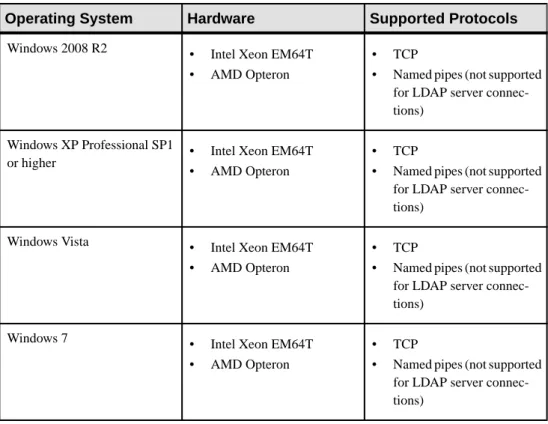
Table 2. Windows X86 and X64 System Requirements
Operating System Hardware Supported Protocols
Windows 2008 R2 • Intel Xeon EM64T • AMD Opteron
• TCP
• Named pipes (not supported for LDAP server connec-tions)
Windows XP Professional SP1
or higher • Intel Xeon EM64T • AMD Opteron
• TCP
• Named pipes (not supported for LDAP server connec-tions)
Windows Vista • Intel Xeon EM64T • AMD Opteron
• TCP
• Named pipes (not supported for LDAP server connec-tions)
Windows 7 • Intel Xeon EM64T • AMD Opteron
• TCP
• Named pipes (not supported for LDAP server connec-tions)
Windows X86 memory requirements are: • Minimum RAM for Adaptive Server – 80MB
• Minimum RAM per additional user, with default stack size, packet size, and user log cache size – 156KB
• Default user stack size – 41KB Windows X64 memory requirements are:
• Minimum RAM for Adaptive Server – 127MB
• Minimum RAM per additional user, with default stack size, packet size, and user log cache size – 83KB
• Default user stack size – 73KB
The value of minimum RAM per additional user depends on the connection needs. See the System Administration Guide for information about configuring memory.
Use either of the following patches for both X86 and X64:
• Microsoft Visual C++ 2005 Service Pack 1 Redistributable Package and KB973544 • Microsoft Visual Studio 2005 Service Pack 1 and KB971090
Table 3. Windows Disk Space Requirements
Product Windows X86 Windows 64
Adaptive Server typical installation 502MB 500MB Default databases created during installation,
with Adaptive Server using a 4K page size
306MB 306MB
Total 658MB 656MB
Note: To use ODBC, OLE DB, or ADO.NET drivers, you must install Microsoft .NET
Framework 2.0 Service Pack 1, or the installer displays errors and the drivers do not function. Confirm that .NET Framework 2.0 Service Pack 1 is listed as a currently installed program in
Control Panel > Add or Remove Programs.
Ensure that you have the required operating system patches for the Java Runtime Environment (JRE) version 6.
Preparing to Install Adaptive Server
Prepare your system before starting the installation.1. Ensure that the account used to start the server has read and write permissions over the
directory in which you are installing the server. You may need to create nonadministrative logins to install the server into personal directories.
2. Review the SySAM licensing procedures and plan your server configuration using the
configuration guide for your platform.
3. Create a Sybase account with administrative privileges for consistency and security. This
user account could be "sybase" or any other username. Use this account to perform all installation and device-creation tasks.
This user must have permission privileges from the top (or root) of the disk partition or operating system directory down to the specific physical device or operating system file. Maintain consistent ownership and privileges for all files and directories. A single user —the Sybase system administrator with read, write, and execute permissions—should perform all installation, upgrade, and setup tasks.
If you are installing Adaptive Server on more than one computer, create the "sybase" user account on each machine.
The user should be a member of the Windows system-defined "Administrators" group so that the installation process can create the entries in the service control manager for all the Sybase processes.
4. Log in to the machine as the Sybase user.
Maintain consistent ownership and privileges for all files and directories. A single user —the Sybase system administrator with read, write, and execute permissions—should perform all installation, upgrade, and setup tasks.
5. If you have enabled the Java in the database feature, create the sybpcidb database and disable the feature during the installation. See Managing Java in the Database During Installations and Upgrades on page 16.
6. Decide where to install Adaptive Server:
• Make sure there is sufficient disk space and temporary directory space available. • Ensure that there are no spaces in the path name of the directory.
7. Decide whether you want licensing events to trigger e-mail alerts, and the severity of the
events that generate e-mail messages.
If you choose to have e-mail notifications for license events, know your: • SMTP server host name
• Port number for an SMTP server
Note: If Sybase assigns any port numbers to you for use with Adaptive Server, make
Server attempts to service each scan as a login attempt, which could lead to poor performance.
• E-mail return address
• Recipients of the notifications
• Severity level of an event that triggers mail. Your choices are:
• None
• Informational
• Warning
• Error
Managing Java in the Database During Installations and
Upgrades
If you have enabled the Java in the database feature, create the sybpcidb database before installing or upgrading to Adaptive Server version 15.7.
If you plan to use sqlupgrade utility to upgrade from a pre-15.0.x Adaptive Server, do not disable the Java in the database feature. The sqlupgrade utility automatically disables, then re-enables, the feature.
1. Create the sybpcidb database. The sybpcidb database stores configuration information for the pluggable component interface (PCI) and all pluggable component adapter (PCA) components. This database is used by the installpcidb script. For example: 1> disk init 2> name = "sybpcidb_dev", 3> physname = "${SYBASE}/data/sybpcidb_dev.dat", 4> size = '24MB' 5> go
1> create database sybpcidb on sybpcidb_dev = 24 2> go
The device and database sizes depend on the Adaptive Server page size: • 2K page size – 24MB
• 4K page size – 48MB • 8K page size – 96MB • 16K page size – 192MB
2. Disable the Java in the database feature:
1> sp_configure 'enable java', 0 2> go
Note: If you are upgrading from a pre 15.0.x server, do not disable Java in the database
feature. sqlupgrade automatically disables this feature before an upgrade and re-enables the feature after an upgrade.
3. Reenable the feature after you have successfully installed or upgraded to Adaptive Server
15.7:
1> sp_configure 'enable java', 1 2> go
Adaptive Server Installation
Install Adaptive Server.The installer creates the target directory (if it does not yet exist) and installs the selected components into that directory.
Note: Adaptive Server Enterprise 15.7 includes new major versions of Adaptive Server and
many of the supporting components. Installing Adaptive Server version 15.7 into the same directory with existing products should not impact the existing products. However, installing other products on top of Adaptive Server version 15.7 may result in one or more products not working correctly.
Sybase strongly recommends that you install Adaptive Server version 15.7 into its own directory if possible. If you must install other products into the same directory, install Adaptive Server version 15.7 last.
At the end of the installation, you can verify the product installation. You may need to perform additional configuration procedures before using some products.
Installing Adaptive Server in GUI Mode
Use GUI mode to install Adaptive Server and related products for use. Prerequisites
Shut down all programs before running the installer. Task
1. Insert the Adaptive Server installation media in the appropriate drive, or download and
extract the Adaptive Server installation image from the Sybase Product Download Center (SPDC) or the SAP Service Marketplace (SMP).
2. If the installer does not launch automatically, go to Start > Run, and open setup.exe.
3. Select the language.
4. On the Welcome screen, click Next.
5. Accept the default directory or enter a new path, then click Next.
If you see a Choose Update Installation pane, this means you have an earlier version of the server, and you need to perform an upgrade rather than a new installation. See Adaptive Server Upgrades on page 45.
• Typical
• Full
• Custom – if you choose this, you see the Products and Features Selection window.
Select the products to install. The installer installs unselected items if your selections are dependent on them.
7. Select the software license type for the Adaptive Server suite:
• Install licensed copy of Adaptive Server Suite
• Install Free Developer Edition of Adaptive Server Suite
• Evaluate Adaptive Server Suite which is valid for 30 days from the installation date
8. Choose the most appropriate region, read the license terms, then click I agree. Click Next.
9. (Licensed copy of Adaptive Server Suite only) Specify the license type:
• Enter a license file. If it is a served license key, you are prompted to set up the license server.
• Use an existing license server
• Proceed without specifying license information for the duration of 30 days from the installation date.
10. (Licensed copy of Adaptive Server Suite only) Specify product edition:
• Enterprise Edition
• Small Business Edition
• Developer Edition
• Unknown – select this if you are unsure about the license type.
Note: Choosing Unknown prevents you from being able to select Optimize Adaptive Server, later in the installation process.
Depending on the edition, you can also select the license type under which the product is licensed.
11. (Licensed copy of Adaptive Server Suite only) To configure your server to send e-mail
notifications about license management events that require attention, provide: • SMTP server host name
• SMTP server port number • E-mail return address • Recipient e-mail addresses
• Message severity that triggers e-mail messages In the summary window, click Next.
12. Verify the installation type and that you have enough disk space for the installation. Click Next.
The installation status window displays the result of the installation process.
Minimally Configuring Adaptive Server in GUI Mode
Use GUI mode to minimally configure Adaptive Server and related products for use.
1. If you installed the Adaptive Server plug-in, select enable or disable to remember the
Adaptive Server password, then click Next.
2. Depending on the products you have installed, you may be prompted to configure new
servers. Select the servers you want to configure. Unselect any items you do not want to configure now:
• Configure a new Adaptive Server
• Configure a new Backup Server – see the System Administration Guide. • Configure a new XP Server – see the Transact-SQL® Users Guide.
• Configure Job Scheduler – see the Job Scheduler Users Guide. • Enable Self Management
• Configure Web Services – see Web Services Users Guide.
• Configure an Unified Agent – see Unified Agent and Agent Management Console. Click Next.
3. Enter your custom Adaptive Server configuration information:
• Adaptive Server name • Port number
• Error log – name and location of the error log file. • Application type:
• (Default) MIXED – both OLTP and DSS.
• OLTP – online transaction Processing generally consists of smaller, less complex transactions.
• DSS – decision-support systems generally have less update activity with large complex queries. • Page size: • 2KB • (Default) 4KB • 8KB • 16KB
Note: The default page size selection changed to 4KB in Adaptive Server version 15.5.
The default in earlier versions was 2KB. If you plan to load database dumps from an Adaptive Server with a page size that is not 4KB, enter the page size to match the database dump.
• Language • Character set • Sort order
• Optimize Adaptive Server configuration – if you select this option, you must also provide this information:
• Available physical memory for Adaptive Server – on 32-bit Windows, this value is either 1792MB or 80 percent of available RAM, whichever is smaller. On 64-bit Windows, this value is either 2816MB or 80 percent of available RAM, whichever is smaller.
• Available CPU for Adaptive Server – the value is 80 percent of the physical CPU, with a minimum of 1.
Note: If the value specified is larger than the available resource for allocation to the
server, the optimize configuration may fail, causing the server to not start.
• Create sample databases – create or install sample databases. Make sure you calculate the additional space for your master device.
After customizing your Adaptive Server configuration, click Next to record the input fields.
4. You see the second custom configuration window.
• Master device – name of master device and the path where it should be located. • Master device size – the default options are:
• 2KB page size – 30MB • 4KB page size – 60MB • 8KB page size – 120MB • 16KB page size – 240MB
• Master database size – the default options are: • 2KB page size – 13MB
• 4KB page size – 26MB • 8KB page size – 52MB • 16KB page size – 104MB • System procedure device path
• System procedure device and database size – the default is 172MB. • System device path
• System device size – the default options are: • 2KB page size server – 3MB
• 4KB page size server – 6MB • 8KB page size server – 12MB • 16KB page size server – 24MB
• System database size – the default options are: • 2KB page size server – 3MB
• 4KB page size server – 6MB • 8KB page size server – 12MB • 16KB page size server – 24MB • Temporary database device • Temporary database device size:
• 2KB page size server – 100MB • 4KB page size server – 100MB • 8KB page size server – 100MB • 16KB page size server – 100MB • Temporary database size:
• 2KB page size server – 100MB • 4KB page size server – 100MB • 8KB page size server – 100MB • 16KB page size server – 100MB
• Enable PCI in Adaptive Server – if you select this option, provide this additional information:
• PCI device • PCI device size
• PCI database size – PCI device and PCI database size are the same: • 2KB page size server – 24MB
• 4KB page size server – 48MB • 8KB page size server – 96MB • 16KB page size server – 192MB
After customizing your Adaptive Server configuration, click Next to record the input fields.
5. Enter the Backup Server information:
• Backup Server name • Port number • Error log Click Next.
6. Enter the XP Server configuration information:
• Port number • Error log Click Next.
7. Enter Job Scheduler information:
• Job Scheduler
• Agent name
• Management device
• Management device size – the default is 75MB • Management database size – the default is 75MB Click Next.
8. Custom-configure self management:
• Self management user name • Self management password
Note: If you choose the default user name "sa," you cannot enter the password. The "sa"
default password is null.
9. Custom-configure Web Service:
• Producer HTTP Port Number • Producer HTTPS Port Number • Producer Host Name
• Certificate Password
• Confirm Certificate Password • Keystore Password
• Confirm Keystore Password • Producer Log File
• Consumer Port Number • Consumer Log File
10. Choose a Self-Discovery Service Adapter to configure:
• UDP Adapter
• JINI Adapter – if you select this, enter: • JINI host name
• JINI port number • JINI heart beat period
11. Security Login Modules – choose the security login modules for the Unified Agent, then
click Enable:
• Simple Login Module – a dialog asks you to change the user name and password
• Adaptive Server Login Module
• NT Proxy Login Module
12. Verify that the values that appear in the Configure New Servers Summary window are
correct, then click Next. You see the Configure Server Progress window
You may see the restart window, which reminds you to either log out or restart your machine to complete the installation process.
Adaptive Server and related products have been successfully installed, and minimally configured for use. See Installing Sample Databases on page 40, to begin experimenting with your servers, or see the System Administration Guide for more advanced topics. If you encounter any errors, see the Troubleshooting Guide.
Creating a Response File for Unattended Adaptive Server
Installations
By saving installation configuration information into a response file during the initial GUI installation, you can perform subsequent installations of Adaptive Server using a silent—or "unattended"—method.
Note: Adaptive Server version 15.7 uses a rearchitected installation program that is
incompatible with response files generated for versions 15.0.3 and earlier. Do not use response files from these earlier versions; create a new one from a 15.7 installation instead.
To create a response file when installing in GUI or console mode, specify the -r command line argument. The -r argument records your responses to the installation wizard prompts and creates a response file when the InstallAnywhere wizard exits. The response file is a text file that you can edit to change any responses prior to using it in any subsequent installations. A sample response file exists at installer image/sample_response.txt.
Create a response file during GUI installation by specifying the -r command-line argument, and, optionally, specifying the name of your response file:
setupConsole.exe -r response_file_nameWhere:
• -r – specifies the command line argument
• response_file_name – (Optional) is the absolute path of the file into the installation information is stored, such as \tmp\responsefile.txt.
Note: The directory path you specify must already exist.
Installing Adaptive Server from the Command Line
Choose command line installation if you are developing custom installation scripts, or you prefer a nonwindowing interface.
1. To display Western European fonts such as French, English, and Italian on a Windows
platform:
a) Run chcp 1252 to change the code page to 1252, which is the code page that Java uses to display Western European fonts for Windows.
b) Open the properties of cmd.exe and set Font to Lucida Console c) Continue with the installation steps to run the console mode.
2. At the command line, enter:
setupConsole.exe -i console
The installation program starts.
3. If the installation program launches automatically, select Cancel to stop the GUI
installation, then launch the setup program from a terminal or console.
The flow of the installation is identical to a regular GUI installation, except that the display is written to a terminal window and responses are entered using the keyboard.
Installing Adaptive Server in Unattended, Silent Mode
If you have more than one installation of Adaptive Server to perform, you can, after running the installer in GUI mode and recording the responses into a response file, edit the file to customize the responses. You can then use that response file to answer the installer when you run the installer in silent mode.
Prerequisites
Use setupConsole.exe -r responseFileName to generate a installation response file during a console or GUI installation.
Task
Run the following, where responseFileName is the absolute path of the file name containing the installation options you chose:
setupConsole.exe –f responseFileName -i silent -DAGREE_TO_SYBASE_LICENSE=true
Note: You must agree to the Sybase License Agreement when installing in silent mode. You
can either:
• Include the option -DAGREE_TO_SYBASE_LICENSE=true in the command line argument.
• Edit the response file to include the property AGREE_TO_SYBASE_LICENSE=true. Except for the absence of the GUI screens, all actions of InstallAnywhere are the same, and the result of an installation in silent mode is exactly the same as one done in GUI mode with the same responses.
Warning! Sybase recommends that you use the setupConsole.exe executable, which runs in the foreground when you are running a silent installation. The normal setup.exe executable runs in the background, giving you the impression that the installation has terminated, and results in additional installation attempts using the silent installation. Multiple installations at the same time may corrupt the Windows Registry and lead to a failure to restart the operating system.
Installer Changes from Adaptive Server 12.5.4 to Adaptive
Server 15.7
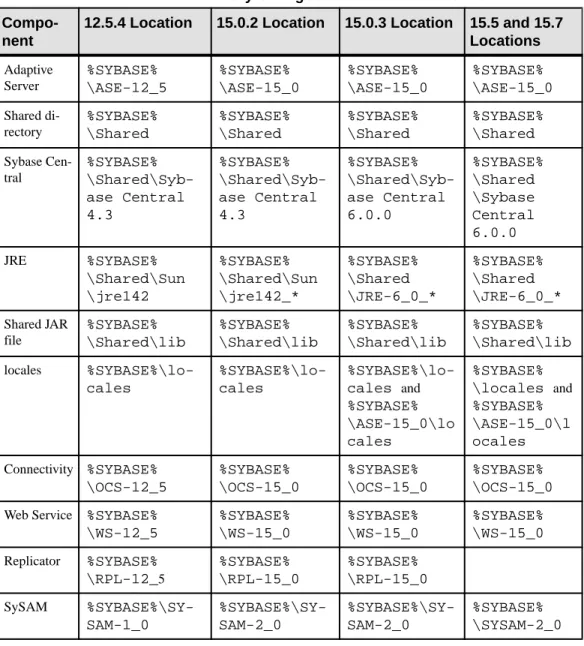
The directory structures for Adaptive Server installations differ depending on version. Table 4. Directory Changes for Windows Platforms
Compo-nent
12.5.4 Location 15.0.2 Location 15.0.3 Location 15.5 and 15.7 Locations Adaptive Server %SYBASE% \ASE-12_5 %SYBASE% \ASE-15_0 %SYBASE% \ASE-15_0 %SYBASE% \ASE-15_0 Shared di-rectory %SYBASE% \Shared %SYBASE% \Shared %SYBASE% \Shared %SYBASE% \Shared Sybase Cen-tral %SYBASE% \Shared\Syb-ase Central 4.3 %SYBASE% \Shared\Syb-ase Central 4.3 %SYBASE% \Shared\Syb-ase Central 6.0.0 %SYBASE% \Shared \Sybase Central 6.0.0 JRE %SYBASE% \Shared\Sun \jre142 %SYBASE% \Shared\Sun \jre142_* %SYBASE% \Shared \JRE-6_0_* %SYBASE% \Shared \JRE-6_0_* Shared JAR file %SYBASE% \Shared\lib %SYBASE% \Shared\lib %SYBASE% \Shared\lib %SYBASE% \Shared\lib locales %SYBASE%\lo-cales %SYBASE%\lo-cales %SYBASE%\lo-cales and %SYBASE% \ASE-15_0\lo cales %SYBASE% \locales and %SYBASE% \ASE-15_0\l ocales Connectivity %SYBASE% \OCS-12_5 %SYBASE% \OCS-15_0 %SYBASE% \OCS-15_0 %SYBASE% \OCS-15_0 Web Service %SYBASE%
\WS-12_5 %SYBASE% \WS-15_0 %SYBASE% \WS-15_0 %SYBASE% \WS-15_0 Replicator %SYBASE% \RPL-12_5 %SYBASE% \RPL-15_0 %SYBASE% \RPL-15_0 SySAM %SYBASE%\SY-SAM-1_0 %SYBASE%\SY-SAM-2_0 %SYBASE%\SY-SAM-2_0 %SYBASE% \SYSAM-2_0
Compo-nent
12.5.4 Location 15.0.2 Location 15.0.3 Location 15.5 and 15.7 Locations Job Schedu-ler %SYBASE% \JS-12_5 %SYBASE% \ASE-15_0\jo bscheduler %SYBASE% \ASE-15_0\jo bscheduler %SYBASE% \ASE-15_0\j obscheduler Unified Agent %SYBASE% \UAF-2_0 %SYBASE% \UAF-2_0 %SYBASE% \UAF-2_5
Installation of Version 15.7 Over an Existing
15.x Adaptive Server
Use a binary overlay to install Adaptive Server 15.7 over an existing version 15.x. If you have enabled the Java in the database feature, create the sybpcidb database and disable the feature during the installation. See Managing Java in the Database During Installations and Upgrades on page 16.
Determining the Adaptive Server Version
Verify that your current version of Adaptive Server is not earlier than 15.x before using the binary overlay.
If your server is at a 15.x version level, you can begin installing Adaptive Server 15.7. Verify that your version of Adaptive Server you have is version 15.x:
• If your server is running:
1> select @@version 2> go
• If your server is not running:
%SYBASE%\%SYBASE_ASE%\bin\sqlsrvr -v
If the result shows that the Adaptive Server is lower than version 15.x, you cannot use the binary overlay, but use an upgrade method instead. See Adaptive Server Upgrades on page 45.
Backing Up Adaptive Server
Installing Adaptive Server version 15.7 overwrites the current Adaptive Server software. Before installing, verify that your databases are error free, and back up the Sybase directory.
1. To ensure that your database is error free, run dbcc checkdb, dbcc checkcatalog and dbcc checkstorage before loading any new Adaptive Server binaries, including the master database. If the dbcc commands reveal problems, check the Error Messages and Troubleshooting Guide for actions necessary to fix the problem. If the error is not listed in the manual, call Sybase Technical Support.
2. After you have verified that your database is error free, back up your %SYBASE% directory in case you need to roll back to the original version of the software.
3. Adaptive Server provides the uninstmsgs.ebf script for backing up sysmessages before upgrading to 15.5. Use it to back up sysmessages before running
instmsgs.ebf.
Installing Adaptive Server Using Binary Overlay
Use InstallShield to install Adaptive Server version 15.7 on top of an Adaptive Server that is no earlier than version 15.x.
1. From your SYBASE directory, shut down the servers that are using the binaries, 2. Use InstallShield to load the new software from the CD or DVD.
Navigate to the CD or DVD drive and enter ./setup.bin. InstallShield starts automatically.
3. Install Adaptive Server 15.7 into the existing %SYBASE% installation path.
Note: Once files are loaded into your %SYBASE% directory, select not to configure the new server, and click Continue to finish the installation.
4. Restart Adaptive Server:
$SYBASE/$SYBASE_ASE/install/startserver [-f RUN_server_name file]
5. Navigating to Start > Setting > Control Panel > Administrative Tools > Services > Sybase SQLserver_servername, then stop and start the services to restart Adaptive
Server.
6. Run select @@version. The server should now be at version 15.7.
7. In Adaptive Server version 15.7, several changes have been made to the system stored
procedures and many new error messages have been added. After performing a binary overlay, you must perform the postinstallation tasks before running installmaster or instmsgs.ebf.
Postinstallation Tasks
After you install the server, set it up.The Adaptive Server installation includes folders containing sample client library applications. These sample programs are included for training purposes only and are not intended to be installed in a production environment.
If you are setting up a production environment, remove these directories:
• %SYBASE%\OCS-15_0\sample • %SYBASE%\DataAccess\ODBC\samples • %SYBASE%\jConnect-7_0\sample2 • %SYBASE%\jConnect-7_0\classes\sample2 • %SYBASE%\ASE-15_0\sample • %SYBASE%\WS-15_0\samples
Stopping and Starting Services
Sybase recommends that you perform all of the steps below after installing Adaptive Server on Windows platforms.
Perform these steps as the "sybase" user that installed the Adaptive Server product. Verify that the "sybase" user is a member of the Windows system-defined group "Administrators" so the user has the access privileges to perform these steps.
1. Stop all Adaptive Server services.
From the Windows task manager, select Start > Settings > Control Panel >
Administrative Tools > Services. Select each of the Sybase Adaptive Server entries and
stop them. There are separate entries in for Sybase Adaptive Server SQLServer, XPServer, BCKServer, and SYSAM.
2. Identify the drives and folders where the Adaptive Server software is installed, and identify
the Adaptive Server disk devices. Use Windows Explorer or cacls (a Windows command line utility) to set access permissions on the identified drives and folders.
Sybase recommends that you grant full control to the user "sybase" and deny access to others on all identified drives, files, and folder hierarchies.
If users other than "sybase" need access to files (configuration files, programs, libraries, and so on) in the folder hierarchy, limit their access to read and execute. The administrator should carefully review this access, and any other further permissions, to ensure they are required.
• From the Windows task manager, select Start > Settings > Control Panel >
Administrative Tools > Services. Select each of the Sybase Adaptive Server entries
installed.
• Set the "Log On" properties for each of the entries to use "sybase" and the password for this account. This action results in the user "sybase" being granted "log on as a service" rights by Windows.
• Select each of the Sybase Adaptive Server entries that you stopped in the first step, and start them.
Verifying that Servers are Running
Verify the servers are running. Prerequisites
Before starting the server, make sure you have stopped, then started the services related to the server.
Task
If you have already started the server, do not run the command a second time. Running it more than once can cause problems.
1. From the Windows task manager, select Start > Settings > Control Panel > Administrative Tools > Services.
2. Scroll through the list of services until you locate Sybase Adaptive Server servername,
where servername is the name of the server.
The Status column indicates if it is started. If it is not, select the server, then click Start.
Verifying Your Connection to the Servers
Verify your connection to the servers. Use isql to perform a quick test:
• At the command prompt, enter the following, where server_name is the Adaptive Server name:
%SYBASE%\%SYBASE_OCS%\bin\isql -Usa -Ppassword -Sserver_name
Warning! The first time you log in to Adaptive Server, there is a default "sa" user name
with all of the privileges but no password. After logging in for the first time, Sybase strongly advises you to change the system administrator’s password.
You see the isql prompt if the login is successful. • At the isql prompt, enter:
1> select @@version 2> go
The output should show Adaptive Server at version 15.7. If you encounter errors, see the Troubleshooting Guide. Alternatively, start dsedit.
1. From the Windows taskbar, select Start > Programs > Sybase > Connectivity > Open Client Directory Service Editor.
2. Select a Directory Services window to open, then click OK. 3. Highlight servername (the name of the server you want to test). 4. Select Server Option > Ping.
A successful connection returns the message that the connection succeeded.
PC-Client Installation
The PC-Client installer contains client applications and utilities you can use to access the Adaptive Server to execute queries or manage the server. It also contains the Sybase Open Client/ Open Server™ Software Developers Kit, which you can use to develop applications
that access the server, and ODBC, OLE DB, and ADO.NET clients.
Client applications, such as Sybase Central and Open Client, access Adaptive Server. The Sybase PC-Client CD includes the Software Developer’s Kit (SDK) for Windows platforms, consisting of:
• Embedded SQL™
• Embedded SQL™/C (ESQL/C)
• Embedded SQL/Cobol (ESQL/Cobol)
• XA-Library™ – XA Interface Library for ASE Distributed Transaction Manager
• Adaptive Server Enteprise extension module for Python • Additional connectivity language modules
• Open Client™ (CT-Library, DB-Library™)
• Microsoft Cluster Server Resource Type for ASE • Interactive SQL
• Sybase Central™
• ASE ADO.NET Data Provider • ASE OLE DB Provider by Sybase • ASE ODBC Driver by Sybase • ASE plug-in
• QPTune
• SySAM License Utilities
• DBISQL
• SDC Administration Utility
System Requirements for Clients
Check the system requirements for the machine on which you plan to install the PC-Client.
Type Requirement
Product PC-Client Hardware P4 1.0GHz
Operating system Windows Server 2008 R2, Windows Vista, Windows 7, Windows XP Suggested minimum RAM 512MB
Note: If you are using ODBC, OLE DB, or ADO.NET drivers, make sure that Microsoft .NET
Framework 2.0 Service Pack 1 is installed on your Windows machine. To confirm that it is installed, select Control Panel > Add or Remove Programs and verify that .NET Framework appears in the list of currently installed programs.
Installing the Client
The PC-Client CD contains several components that are each packaged with their own installer. When you insert the PC-Client CD, a menu program launches automatically. The menu program presents the list of components that can be installed from the CD and allows you to install them one at a time. Before installing any products, review the readme.txt file, which contains a brief description of each of the products, lists dependencies, and contains any last-minute instructions or changes.
Warning! If you installed PC-Client Components during the Adaptive Server installation, do
not reinstall them, and do not install them in a different directory.
The PC-Client CD contains 32-bit and 64-bit SDK. It installs 32-bit SDK on 32-bit OS; and 64-bit SDK on 64-bit OS.
If your 64-bit OS computer already has the 32-bit SDK/Adaptive Server, run the 32-bit PC-Client installer in the "pcclient32" folder.
PC-Client components are provided so they can be installed on client computers. You may install PowerDesigner®, and InfoMaker® on the same computer as Adaptive Server.
1. Verify that your computer has sufficient disk space for each product.
2. If you are unloading components, log in using an account with administrator privileges. 3. Close any open applications or utilities to free memory and system resources.
4. Go to Start > Run to start the installation program, and enter the following, where X is the directory into which you have copied the PC-Client installation files:
X:\autorun.exe
5. Select Client Components 15.7. You see the Welcome window. 6. Select a country, agree to the licensing terms.
7. Enter the directory path. If you specify a destination that contains an earlier version of the
server, you see Choose Update Installation, and you can select the features to update.
8. Only if you are installing a new server, choose the type of installation:
Typical Install Installs the default components that most users need. Full Install Installs every component on the CD.
Custom Install Allows you to select the components to install. Certain components are automatically installed if they are required to run other selected components. If you select Custom Install, specify the components to install.
9. The Summary window displays every component to be installed by the installer, the
required disk space, and the available disk space.
10. If the target directory does not have enough free space, the available space appears in red.
Click Previous to return to the previous window and change your selections, or Cancel to quit the installer.
Creating a Response File for Unattended Adaptive Server Installations By saving installation configuration information into a response file during the initial GUI installation, you can perform subsequent installations of Adaptive Server using a silent—or "unattended"—method.
Note: Adaptive Server version 15.7 uses a rearchitected installation program that is
incompatible with response files generated for versions 15.0.3 and earlier. Do not use response files from these earlier versions; create a new one from a 15.7 installation instead.
To create a response file when installing in GUI or console mode, specify the -r command line argument. The -r argument records your responses to the installation wizard prompts and creates a response file when the InstallAnywhere wizard exits. The response file is a text file that you can edit to change any responses prior to using it in any subsequent installations. A sample response file exists at installer image/sample_response.txt.
Create a response file during GUI installation by specifying the -r command-line argument, and, optionally, specifying the name of your response file:
setupConsole.exe -r response_file_nameWhere:
• -r – specifies the command line argument
• response_file_name – (Optional) is the absolute path of the file into the installation information is stored, such as \tmp\responsefile.txt.
Installing the Client in Unattended, Silent Mode
After running the installer in GUI mode and recording the responses into a response file, edit the file to customize the responses.
To install in unattended, silent mode, run:
setupConsole.exe –f responseFileName -i silent -DAGREE_TO_SYBASE_LICENSE=true
where responseFileName is the absolute path of the file name containing the installation options you chose.
Agree to the Sybase License Agreement when installing in silent mode by either: • Including this text in the command-line argument:
-DAGREE_TO_SYBASE_LICENSE=true, or • Editing the response file to include the property
AGREE_TO_SYBASE_LICENSE=true
The only difference when you install the client in silent mode is the absence of the GUI screens. All actions and responses are the same as using InstallAnywhere.
Warning! Sybase recommends that you use the setupConsole.exe executable, which runs in the foreground when you are running a silent installation. The normal setup.exe executable runs in the background, giving you the impression that the installation has terminated, and results in additional installation attempts using the silent installation. Multiple installations at the same time may corrupt the Windows Registry and lead to a failure to restart the operating system.
Getting Started After Installing
After installing Adaptive Server, Sybase Central, and the Java Runtime Environment, test the installation and network connections. Adaptive Server communicates with other Adaptive Servers, Open Server applications (such as Backup Server), and client software on your network. Clients can talk to one or more servers, and servers can communicate with other servers by remote procedure calls.
For Sybase products to interact with one another, each product must know where the others reside on the network. Sybase stores this information in the interfaces file on Windows or in a Lightweight Directory Access Protocol (LDAP) server.
1. Select Start > Programs > Sybase > Sybase Central 6.0.0.
2. Select Tools > Connect from the Sybase Central menu bar to activate an Adaptive Server
login window.
3. Log in using the default user ID, "sa," without a password. If you have changed the
password, use the new password.
5. To disconnect from a server, select Tools > Disconnect , or right-click the connected server
icon and select Disconnect.
6. Exit Sybase Central.
Configuring libtcl.cfg for LDAP
Use the libtcl.cfg file to specify an LDAP server name, port number, DIT base, user name, and password to connect to an LDAP server.
When an LDAP server is specified in the libtcl.cfg file, the server information is accessible only from the LDAP server. Adaptive Server ignores the interfaces file. Open Client and Open Server applications that use the -i option at start-up override the
libtcl.cfg file and use the interfaces file. See the Adaptive Server configuration guide for your platform for more information.
1. Configure the libtcl.cfg file to use directory services—use any standard ASCII text editor to:
• Remove the semicolon (;) comment markers from the beginning of the LDAP URL lines in the libtcl.cfg file under the [DIRECTORY] entry.
• Add the LDAP URL under the [DIRECTORY] entry. See the Configuration Guide for supported LDAP URL values.
In its simplest form on 32-bit LDAP drivers, the libtcl.cfg file is in this format:
[DIRECTORY]
ldap=libsybdldap.dll
The file format is same for both 32-bit and 64-bit LDAP drivers on Windows.
Warning! Ensure that the LDAP URL is on a single line.
ldap=libsybdldap.dll
ldap://host:port/ditbase??scope?? bindname=username?password
For example (entry shown on multiple lines only for readability):
[DIRECTORY]
ldap=libsybdldap.dll
ldap://huey:11389/dc=sybase,dc=com??one?? bindname=cn=Manager,dc=sybase,dc=com?secret
Note: On Windows x64, the .dll file is called libsybdldap64.dll.
2. Verify that the appropriate environment variable points to the required third-party
libraries. The Netscape LDAP SDK libraries are in %SYBASE%\%SYBASE_OCS% \dll.
The Windows PATH environment variable must include this directory. Adding a Server to the Directory Service