Student Reading for Unit 1: Basic computer terms
in simple language
Computer hardware refers to the physical parts of a computer and related devices. These devices and parts can be divided into two types:
External hardware devices (also called ‘peripherals’)
1) These include monitors, keyboards, mice, printers, and scanners. 2) Internal hardware devices (also called ‘components’)
These include the central processing unit (CPU), which houses mother boards, hard drives, and RAM. (You will read about these devices and parts separately.)
Different computer programs have different hardware requirements that list the minimum hardware required for the software to run.
Commonly used computers
These are the computer types that are most commonly used: Desktop computers
Laptop or notebook computers Tablet PCs
Handheld computers Desktop computer
A desktop computer (or desktop PC) is a computer that mostly stays in a single location, meaning it is not ‘portable’. It is usually a machine that has a tower-type hardware that houses the internal hardware components. Some desktop computers are all-in-one machines, such as iMacs. Desktop computers must remain connected to a wall outlet for power. They do not have an internal battery like mobile phones or laptops.
The majority of the computers used at home or in computer laboratories are desktop computers. Sometimes the desktop computers are also called ‘workstations’.
Laptop computers
Laptop computers are portable computers that you can take with you and use in different places. They include a screen, a keyboard, and a ‘touchpad’, which serves as the mouse. Because laptops are meant to be used as portable computers, they have a battery, which allows them to operate without being plugged into a power outlet. Laptops also include a power adapter that allows them to use power from an outlet and recharges the battery. Laptops have almost the same features and functions that a desktop computer offers to a layman.
Although laptop computers provide convenience, they are more expensive than desktop computers. If portability is not a requirement for a user, then he or she should go for a desktop computer.
Tablet computers
Tablet PCs are small-sized handheld computers that have a touch screen or a pen-enabled interface. The ‘pen’, or ‘stylus’, is a special type of pointed device for working with touch screens. This screen can take user input by ‘touch’ function.
Main parts of a personal computer
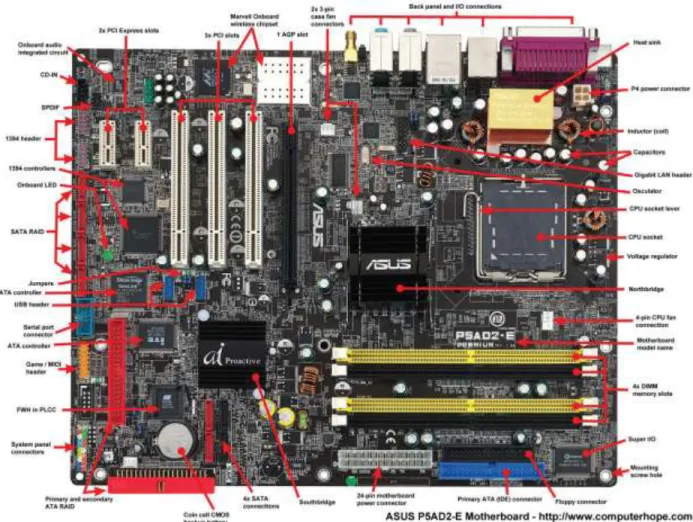
MotherboardThe motherboard’s main job is to hold the computer’s microprocessor chip and let everything else connect to it. Every hardware device installed to the computer connects to the system through the motherboard. Hard drives, power supplies, memory modules, and adapter cards all connect to the motherboard via cables, which are inserted into the appropriate slots or connectors on the board. Along the motherboard are circuits that allow these components to transfer data back and forth.
In other words, everything that runs the computer or enhances its performance is either part of the motherboard or plugs into it via a slot or port.
(Reference: How Stuff Works: http://computer.howstuffworks.com/motherboard1. htm)
A motherboard is generally called ‘mainboard’ in layman’s language. It houses the main circuit board and other important electronic components of a computer, including the CPU and memory. It also provides connectors for other computer peripherals (sound cards, video cards, network cards, hard drives, etc.).
Diagram of a motherboard CPU
CPU stands for ‘central processing unit’. We can call it the brain of the computer. It processes everything from basic instructions to complex computer functions. Any time something needs to be computed, it gets sent to the CPU. When your computer is turned on, the CPU keeps functioning in the background all the time. Usually, the users don’t need to interact directly with CPU hardware. The CPU can also be referred to simply as the ‘processor’.
A CPU Practice task:
Disassemble the motherboard and reassemble it once to get a basic hands-on introduction to some of the computer hardware.
RAM (Random Access Memory)
This is another type of memory and is basically your computer’s short-term memory. RAM is measured in megabytes, abbreviated as MB. The more RAM you have, the faster your computer will work.60
Storage devices
Hard drive
The hard drive is your computer’s memory that saves users’ data. It is a device inside your computer that holds tons and tons of information. Some of the biggest hard drives can hold as much information as 1000 sets of encyclopedias. Hard drive size is measured in gigabytes, abbreviated as GB, or terabytes,
abbreviated as TB.
A hard drive Practice task:
Compare the sizes of different hard disks. Once you know basic computer skills, you can get the
information about disk size by going to ‘My computer’ and right-clicking on ‘Properties’ for any memory disk attached to your computer or your computer’s internal hard disk (commonly called ‘local disk’, or C drive), as shown in the image.
Portable storage devices: USB
USB stands for ‘universal serial bus’. It is commonly called ‘USB’. USB is the most common type of computer port used in today’s computers. It is an ‘industry standard’ for data transfer, communication, and other types of connection to a computer. It is also used for ‘power supply’ between computer and other hardware devices. The majority of mobile phones being used today come with a USB data cable that allows the phone to be connected to a computer to transfer or access data stored on the phone (text, images, videos, etc.).
USB can be used to connect other portable storage devices (like a USB memory disk or hard drive, keyboard, mouse, digital camera, printer, scanner, etc.).
USB port (left), USB disk (also called a ‘USB stick’, right)
If your computer has a limited number of USB slots (also called ‘ports’), you can always increase the number of slots by attaching a hardware called a ‘USB hub’.
Read more about USB:
http://en.wikipedia.org/wiki/Universal_Serial_Bus. Practice task:
Locate the USB port of different computers (and other devices) in your laboratory, home, or wherever accessible. Plug a USB device into the USB port and observe how the computer screen reacts when it ‘finds’ and identifies the device.
Compact disk storage devices
CD-ROM drive (Compact Disc – Read-Only Memory)
CDs are disks that store data. A CD-ROM drive is a CD player for your computer. It is better than a common CD player because it also plays and reads other types of data, not just music CDs. It also plays game CDs and CDs with computer programs on them as well. Most computers have CD-ROM drives. Computers equipped with a CD-ROM drive can only ‘read’ CDs.
CD-RW drive (Compact Disc – ReWritable)
A CD-RW drive does the same thing as a CD-ROM drive, but a CD-RW drive also lets you record data on CDs, or digitally ‘write’ on CDs. You can record your data files, photographs, videos, music CDs, game CDs, and CDs with computer programs on them with a RW drive. Some computers have CD-RW drives.64
DVD drive (Digital Versatile Disc)
DVDs are discs that have a much bigger storage capacity than CDs. In other words, DVDs hold a lot more information than CDs. A DVD-R drive is the same thing as a CD-ROM drive, but a DVD-R drive can also play discs. Some more expensive computers have DVD drives.
DVD-R drives only allow users to ‘read’ DVDs, while DVD-RW drives also allow users to ‘write’ on DVDs (commonly called ‘burning’ a DVD).
Input and output (I/O) devices
Keyboard
A keyboard
The keyboard is one of the primary input devices used with a computer. A keyboard is basically a board of keys, i.e. an arrangement of buttons and keys that can be pressed to make an ‘input’ to a computer. The keyboard resembles a typewriter keyboard, with an arrangement of letters, numbers, and some special keys. This keyboard layout is known as the QWERTY design, which gets its name from the first six letters across in the upper-left-hand corner of the keyboard.
Most of today’s computer keyboards also have a row of function keys (F1 through F16) along the top of the keyboard, arrow keys arranged in an upside-down T, and a numeric keypad on the right-hand side. Some keyboards have even more buttons, allowing you to change the system volume, eject a CD, or open programs such as your email or Web browser.
In normal usage, the keyboard is used to type text and numbers into a word processor, text editor, or other program. A keyboard is also used to give commands to the operating system of a computer, such as Windows’ Control-Alt-Delete combination (these three keys pressed together), which brings up a task window or shuts down the machine.
Mouse
Like the keyboard, a mouse is another input device. A ‘mouse’ in computer language is a hand-operated electronic device that controls the coordinates of a cursor on your computer screen as you move it around. In simple terms, the function of a mouse is to control a cursor on the monitor that can be used to tell your computer what to do. On the bottom of the device is a ball that rolls on the surface of the table or
mousepad. Modern mice replace the ball with an optical feature. Such a mouse is called an optical mouse.
Optical mouse Scanner
In computing, an image scanner is a device that optically scans images, printed text, handwriting, or objects and converts them to digital images. (Source: Wikipedia:
http://en.wikipedia.org/wiki/Image_scanner.)
A scanner is a device that can ‘look’ at text and images and then save them into your computer. A scanner works like an eye of a computer.
Monitor
A computer monitor, or screen, is the part that looks like a television, and it displays all the information coming from the computer. The monitor is also called the ‘display’ or ‘screen’. The monitor displays the computer’s user interface and open programs, allowing the user to interact with the computer, typically using the keyboard and mouse.
The older technology for monitors was based on cathode ray tubes (CRTs), which made them rather heavy and caused them to take up a lot of desk space. Most modern monitors are built using an advanced liquid crystal display (LCD) technology and are commonly referred to as flat-screen displays. These thin monitors take up much less space than the older CRT displays. This means that people with LCD monitors have more desk space to clutter up with stacks of papers, pens, and other objects. With advancements in computer technology, the monitors or display screens have also become input devices with a ‘touch-type’ screen.
Printer
A printer is another peripheral device that allows you to print text and images from your computer onto paper. Printers are available in a wide range of features. Most personal printers are directly attached to a computer with a cable, but some do not need a cable (wireless). In offices, many people share a common printer that is connected to a network. Modern computers also offer scanning, photocopying, and emailing features.
Printer
Parts of a laptop computer
The basic parts of a laptop computer are the screen, keyboard, touchpad, speakers, battery, and AC adaptor. Beyond these basic parts are the hardware items located inside the laptop and the peripherals, which are optional pieces of hardware that enable the computer to accomplish additional tasks. Monitor
The laptop monitor (the part that resembles a television screen) is where the computer displays text and pictures.
Keyboard
The laptop keyboard is a piece of hardware that resembles a typewriter keyboard. It is one of the primary ways you communicate with the computer and enter data.
Speakers
Speakers on a laptop are usually small and built into the screen or the body of the laptop. The speakers allow you to hear computer sounds, audio streamed from the Internet, CDs, and DVDs, and more.68
Touchpad
On a laptop, a touchpad is a substitute for the mouse. Move your finger on the touchpad to move around the screen and select text and objects. The buttons below the touchpad operate like mouse buttons.
Touchpad of a laptop Battery
The battery in a laptop serves as its lifeline. A laptop will work without a battery if it is receiving power from a power adapter. The battery allows you to be more mobile without having to be near a power outlet for an extended period of time. Most laptop batteries will last for about 1.5–2 hours before needing to be recharged. If your battery dies or has a defect, you can buy a new one from your computer’s manufacturer or a local computer or electronics store.
AC Adaptor
The AC adaptor is the source of electric power for a laptop. The power adapter does two jobs when it is plugged in: powers the laptop and charges the battery.
Glossary of other computer terms
Hard copyA hard copy is a printed document. It may be a text file, photograph, drawing, or any other type of printable file. For example, instead of emailing a business memo, it may be sent out as a hard copy, or an actual physical paper containing the memo.
Soft copy (also called ‘electronic copy’)
When a document is created on a computer, it is typically saved as a file on the computer’s hard drive. This is sometimes referred to as a ‘soft copy’. While the file can be easily opened and edited on a computer, it can also be easily deleted. Therefore, sometimes printing a hard copy is done to create a physical backup of the document.