User’s Guide
PowerAlert
®Network Management System
Software Version 12.04.0056
Note: PowerAlert is not required to operate your UPS system. For the latest PowerAlert updates, go to www.tripplite.com/software.IMPORTANT:
This User’s Guide is for PowerAlert NMS Version 12.04.0056.
If you are installing PowerAlert Local or PowerAlert Network
Shutdown Agent please refer to the User’s Guides for those software
1.
Pre-Installation Instructions
Tripp Lite’s PowerAlert software family is separated into three distinct editions. This
User’s Guide applies to PowerAlert Network Management System (PANMS) Version
12.04.056. Do not install more than one edition of PowerAlert on a single
computer.
PowerAlert Network Management System: This edition of PowerAlert should be installed by advanced users only. See Figure 1.1 for a list of major features available in PowerAlert Network Management System. Note that all the functions available
through PowerAlert Local will be available for the remote devices and also for the
host computer, including monitoring and controlling UPS systems connected to the host computer via local USB and/or serial connections. PowerAlert Network Management System requires the free Java Runtime Environment 1.6 or later.
Warning: Only one copy of PowerAlert Network Management System can be used per IP network subnet. You should obtain the approval of your network administrator before installation.
Feature Comments
Manage multiple UPS systems on the network
Monitors hundreds∗
of SNMP-‐ enabled Tripp Lite UPS Systems or PDUs.
Mass configuration
Allows mass configuration of PowerAlert Local software or SNMPWEBCARD firmware (version 12.04.0040 through 12.04.0055)
Autodiscovery of local devices Supported Autodiscovery of SNMP-‐enabled
devices
Discovers SNMPWEBCARD firmware and PowerAlert Local software (version 12.04.0040 and above)
Mass Update
Allows multiple cards to have their firmware updated automatically.
Figure 1.1: PowerAlert NMS Key Features
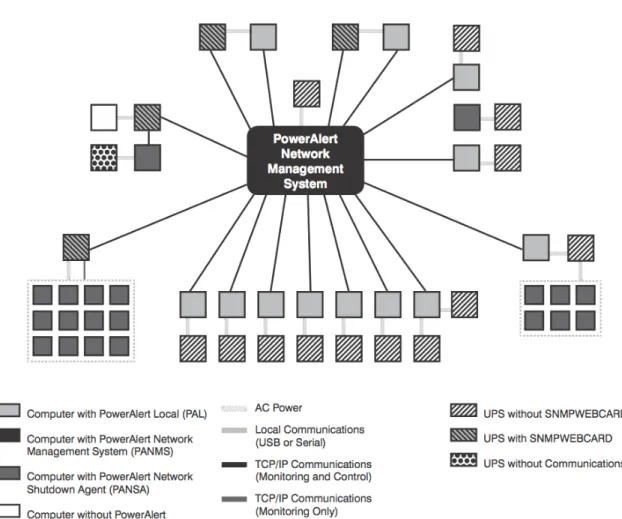
Figure 1.2: PowerAlert Network Topology Example
2.
System Requirements for PANMS
For Windows® (Windows XP, Server 2003 R2, Vista, Server 2008, Windows 7 and 8):
• Pentium 4 CPU
• 512MB RAM
• Java Runtime Environment 1.6.0_4 or above
• TCP/IP (IPv4) network connection
• Available USB or serial port (optional)
• Open TCP/UDP ports 3664, 3665, 161 and 162 (any firewall)
For LINUX:
• Fedora 15, CentOS 6.3, and OpenSUSE 11
• Tripp Lite SNMPWEBCARD or supported PowerAlert Local system
(12.04.0040 and above)
• Open TCP/UDP ports 3664, 3665, 161 and 162 (any firewall)
• Root user (required for installation)
• Supported local UPS with an RS232 interface (optional)
IMPORTANT: Ensure that you firewall has ports open for TCP and UDP communications. Failure to do so will result in incorrect operation of PANMS.
3.
Installation
3.1 Windows Installation Step 1 – Java Software Installation
IMPORTANT: Before installing PANMS, you MUST install Java Runtime
Environment 6 or above. The latest version and installation instructions are available at www.java.com. Installation will fail if Java is not installed.
Step 2 – PANMS Software Installation -‐ Windows
After intstalling the Java Runtime Environment, double-click the PowerAlert installer (setup.exe) and follow the on-screen prompts. The PowerAlert installer will attempt to uninstall previous versions of PowerAlert. Tripp Lite recommends uninstalling previous versions manually prior to installation via the control panel.
Windows 8 Users – Please Note
The installer will create a PowerAlert Network Management System tile on the
Windows 8 start page. To launch the console, click on the tile. To manually pin the
console to the Start Page, right-click on the Startpage background, select All Apps
and then right-click on the PowerAlert Consoletile and selecting Pin to Start.
Thereafter, click on the PowerAlert Consoletile on the Start page to launch the
console.
Warning: Do not install more than one edition of PowerAlert on a single
computer. Do not install PowerAlert Network Management System without first obtaining the approval of your network administrator.
3.2 Linux Installation Step 1 – File Installation
Copy the appropriate software file to your local machine and enter the following as
root:
rpm -i <rpm-file-name> [--nodeps].
Use the RPM manpage to help you through any installation issues.
Step 2 – Daemon/Service Installation
PowerAlert will install to the directory /var/tripplite/poweralert, and will locate the
daemon/service process for PANMS within /var/tripplite/poweralert/engine/panmsd.
To control the status parameters and actions of each daemon/service, type ./panmsd
from the /etc/init.d directory.
Step 3 – Java Console Installation
The Java consoles for PowerAlert Network Management System are located in /var/tripplite/poweralert/console as panms_console.sh.
To launch a console, type ./panms_console.shfrom the /var/tripplite/poweralert console directory in a terminal.
4.
Uninstalling Software (Linux)
Note: Uninstalling software requires root access.
• To uninstall any application using Fedora, type rpm –e panms
• To uninstall any application using OpenSUSE, type rpm -e opensuse-panms
5.
PANMS Operation
5.1 IntroductionPowerAlert Network Management System is for advanced users only. PowerAlert Network Management System can monitor and control up to 250 SNMP-enabled devices, including UPS systems with an SNMPWEBCARD*, UPS systems that appear on the network via PowerAlert Local (or previous versions of PowerAlert*) and network-enabled PDUs*. All the functions available through the PowerAlert Local console (See the User Guide
for PowerAlert Local for details) will be available for the remote devices and also for local devices that are directly connected to the host computer.
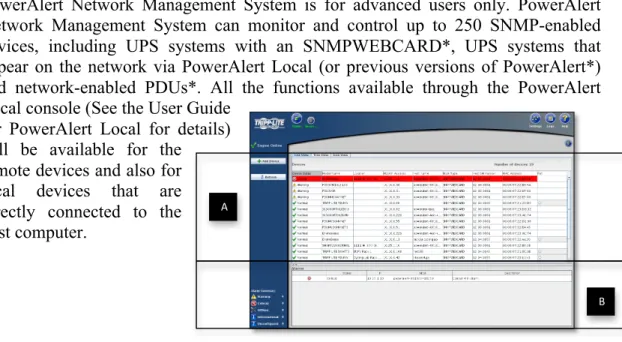
Figure 5.2.1 – Management Console Warning: Only one copy of PowerAlert Network Management System can be used per IP network subnet.
*Software or firmware version 12.04.0040 and above.
5.2 Management Console
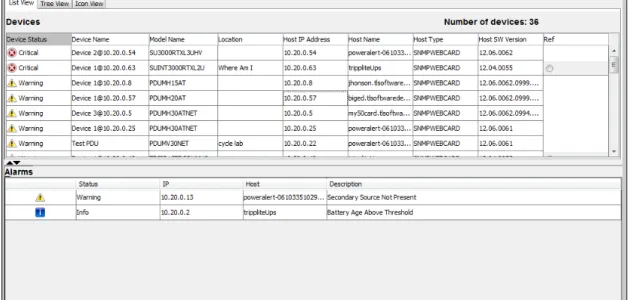
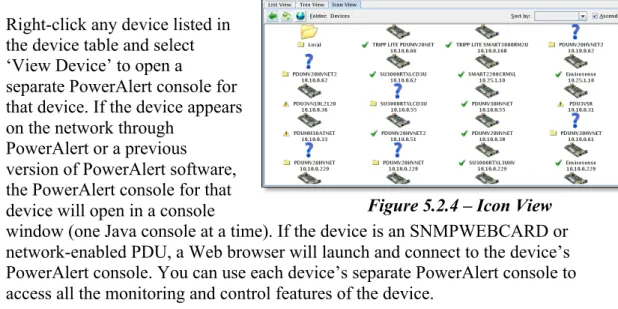
PowerAlert Network Management System’s primary monitoring and control interface is the management console (Figure 5.2.1), which can be viewed either as a list (Figure 5.2.2), a tree (5.2.3) or an icon view (5.2.4). All manageable devices found during the
discovery process (up to 250 in the free version of PowerAlert NMS) are listed
in the device table A. Click any of the column headings to sort the table by the data in
that column; click again to reverse the sort.
The “Status” column of the device table displays an icon that represents the device status. (If the device has more than one alarm, the icon for the most serious alarm is shown.) The row’s color reflects the device status: Normal=White, Critical=Red, Warning=Yellow, Information=Light Blue, Offline/Unreachable=Light Gray.
A
Figure 5.2.2 – List View
Rows that change from normal to an alarm status will move to the top of the table
automatically. You can right-click the device row andChoose “Acknowledge Alarm”
to remove the alarm status from the row and restore the previous sort order. The alarm icon will remain unchanged until the device reports
that the alarmhas cleared. You can see
additional alarm detail about the highlighted device, including separate listings of multiple
alarms, in the “Alarms” Section B of the
management console.
The “Device Name,” “Model Name,” and “Location” columns display model information reported by the device. The “IP address” column of the device table displays the IP address assigned to the SNMPWEBCARD or
the computer that is connected to the device.
Figure 5.2.3 – Tree View
An SNMPWEBCARD connected to an ENVIROSENSE environmental sensor or a computer connected to two UPS systems will show two devices with the same IP address, but other devices will each have a unique IP address. Any devices connected directly to the PowerAlert Network Management System host computer will show “localhost” in the IP address column. The “Host Type” column displays whether the device appears on the network via SNMPWEBCARD or PowerAlert software (i.e. card or PC). The “Version” column shows the firmware or software version number.
Right-click any device listed in the device table and select ‘View Device’ to open a
separate PowerAlert console for that device. If the device appears on the network through
PowerAlert or a previous version of PowerAlert software, the PowerAlert console for that device will open in a console
window (one Java console at a time). If the device is an SNMPWEBCARD or network-enabled PDU, a Web browser will launch and connect to the device’s PowerAlert console. You can use each device’s separate PowerAlert console to access all the monitoring and control features of the device.
IMPORTANT SECURITY NOTE: If you have disabled launching Java applets in your web browser, ensure that you have installed the Java console launcher for your version of the SNMPWEBCARD. Refer to the Release Notes included in the firmware release bundle (or CD) of your SNMPWEBCARD for information on how to install the console launcher.
5.3 Device Addition and Removal
Delete a device from the device table by right-clicking the device row and
selecting “Remove device” from the pop-up menu as show in Figure 5.3.1. Add devices by clicking the “Add Device” button located in the upper left section of the management console window. Select whether you want to discover a local device or a remote device in the “Add a Device” pop-up window (Figure 5.3.2).
Figure 5.3.1 – Right-click Menu
When you choose to discover a remote device, the “Add Network Devices” window appears (Figure 5.3.3). Network device discovery can search the entire local subnet* if you enter an asterisk in the last octet of the IP address (192.168.1.*), or it can
search specific IP addresses. Click the “Add to list” button after enteringeach IP
address. Next, add the community strings for the SNMPWEBCARD devices that will be searched.
The default community string for
SNMPWEBCARD firmware 12.04.0040 or later is “tripplite”. Click the “Add to list” button after entering each community string. After entering all the required information, initiate the discovery process by clicking the “OK” button. A progress bar and numeric display will indicate the number of nodes discovered, and newly discovered devices will be added to the device table.
Figure 5.3.2 – Add Device
If you enter a specific IP address, and the device is not discoverable, you’ll see a message stating that a device could not be found. PowerAlert Network Management System searches for devices that appear on the network via SNMPWEBCARD
firmware, PowerAlert Local or previous versions of PowerAlert (12.04.0019 and above), but it does not search for
PowerAlert Network Shutdown Agent. PANMS automatically configures the following agents to send SNMP notifications to PowerAlert Network
Management System:
Figure 5.3.3 Add Network Devices • SNMPWEBCARD Firmware Version 12.04.0048 and above
• SNMPWEBCARD Firmware Version 12.04.0045 • SNMPWEBCARD Firmware Version 12.04.0040 • PowerAlert Local 12.04.0040 and above
• PowerAlert Software 12.04.0019 and above: The following agents will be discovered, but require manual configuration to send SNMP notifications to PowerAlert Network Management System:
• SNMPWEBCARD Firmware Version 12.04.0019
• SNMPWEBCARD Firmware Version 12.04.0030
• SNMPWEBCARD Firmware Version 12.04.0032
When PowerAlert Network Management System discovers a device that requires manual configuration, it appears in the device table with a “?” status icon, indicating
an un-configured device alarm. See 5.6 Clearing Unconfigured Device Alarms for
manual configuration instructions.
*Discovery searches the local IP subnet only (Class C). If the IP network is not a Class C network (192.0.0.0 through 223.255.255.255) a pop-up window will indicate that the discovery process can only performed on a class C network. 5.4 SNMPWEBCARD Firmware
Launch the Application
If the SNMPWEBCARD Mass Update tool is installed on your PANMS workstation, right-clicking on the SNMPWEBCARD listed on the PANMS Console and selecting
“Update SNMPWEBCARD Firmware” will launch the Update Console. Note: The
Mass Update tool is not available on all operating systems.
NOTE: To update multiple SNMPWEBCARDs at once, hold down the Control button on the keyboard, then right-click on any of the selected cards.
Figure 5.4.1 – Updating a Card
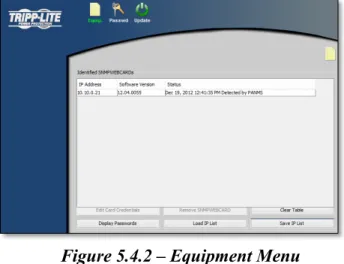
Equipment Menu
This menu displays the list of SNMPWEBCARDs that have been selected for version update.
In this menu, the user can add, edit, or remove one or more SNMPWEBCARDs. The “Set Global Password” button on this screen allows the user to set the username and
password for all the SNMPWEBCARDs in one step.
If each card has a different username and/or password, the user must manually edit
each card to add the username and/or password info.
NOTE: The Update tool refers to these username/passwords when performing the version update. Setting the global password in this menu does not change the card login authentication. It is only used during the update process.
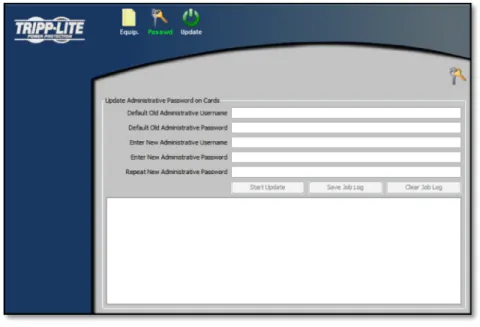
Password Menu
This menu is used for updating the administrative username and/or password for the
SNMP- WEBCARDs listed on the Equipment Menu. The default username and password must be defined to begin the update process.
Figure 5.4.3 – Password Menu
NOTES: Only cards of version 12.04.0048 and later support username change. All other
SNMPWEBCARDs have fixed administrative user name “admin” and can only have their password updated. Set Global Username/Password is incompatible with Version 12.06.0060 or later of SNMPWEBCARD.
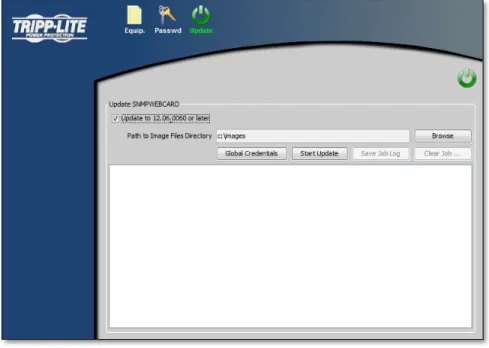
Update Menu
This menu is used for SNMPWEBCARD version updates. Figure 5.4.4 shows the configuration for updating SNMPWEBCARDS to Version 12.06.0060 or later. When updating to Version 12.04.0055 or earlier, please do not rename the image file and driver file: only the original names are recognized by the application. Also make sure the image version chosen is correct. Choosing the wrong version may cause the card(s) to end in an inoperable state.
IMPORTANT: SNMPWEBCARDs running versions before 12.04.0048 (using
original hardware), cannot be upgraded to version 048 or above. Also,
SNMPWEBCARDs using version 12.04.0048 or later cannot be downgraded below 12.04.0048.
Figure 5.4.4 – Update Menu
If an SNMPWEBCARD does not have username and password on the Equipment screen, and the username and password are not defined on this menu, manufacturing defaults will be used. If the username and password do not match the actual username and password of a SNMPWEBCARD, the SNMPWEBCARD will not be updated.
Important: You must enter Administrator and FTP credentials (including port #) for Version Updates to occur. This can be done globally by selecting the “Global Credentials” button or on the Equipment Menu by selecting the “Edit Device Credentials” button. If FTP is turned off on the card the Mass Updater will automatically enable FTP during the update process and disable it at the completion of the update process.
NOTE: If necessary, the update process will try to query its version from the SNMPWEBCARD. If the query fails and the SNMPWEBCARD version cannot be determined, this SNMPWEBCARD will not be updated. After the version update process is complete, the card version on the PANMS Console will update.
5.5 Mass Configuration
Mass configuration allows you to create a global device configuration that you can
apply to all compatible devices listed in the device table. Important: Devices with
software or firmware versions prior to 12.04.0040 and later than 12.04.0055 do not support mass configuration.
Step 1 - Configure Reference Source
Choose a device (software or firmware version 12.04.0040 to 12.04.0055) that
appears in the device table to use as a reference source. The settings for the reference source will be duplicated on all the target devices for the mass configuration.
Configure all settings for the reference source to match the global settings you want for mass configuration. (You can configure the reference source through the
management console or any other configuration method it supports, as long it’s listed in the device table.)
Configurable Items:
1. Event Settings
2. E-mail Settings
3. SNMP Trap Destinations
Step 2 -‐ Select Configuration Reference
Highlight the reference source in the device table and right-click the row. Select “Set configuration
reference” from the pop-up menu (Figure 5.5.1). The reference source’s configuration will be stored in memory. (Alternative method: click the radio button in the reference column to select the reference source.)
Note: If you configured the reference source outside the management console, confirm that the IP number of the device you select in the table matches the IP
number of the reference source. Figure 5.5.1 – Set Target
Step 3 -‐ Choose Targets
Highlight one or more devices in the device list (Use Ctrl + right-click to select multiple devices, or control + right-click if the devices are not listed side by side.) Highlighted devices will be configured to match the configuration reference. Remember that any highlighted devices must be version 12.04.xxxx.
Step 4 -‐ Apply Reference Configuration
After highlighting the target devices, right-click the highlighted devices and select “Apply ref. configuration” from the pop-up menu. (“Apply ref. configuration” will
Click the “Yes” button in the confirmation window if you are certain that you’re ready to proceed, otherwise click the “No” button.
Step 5 -‐ Review Configuration Status
After you click the “Yes” button in the confirmation window, a status window will show a configuration progress bar, a count of devices configured and a list of devices that shows whether each was configured successfully (Figure 5.5.2). The devices that are un-configured will have a blue question mark next to their rows. Also, a Help menu (“Click Here for Help”) will appear at the bottom left of the PANMS console.
Figure 5.5.2 – Mass Config Complete 5.6 Clearing Unconfigured Device Alarms
PowerAlert Network Management System automatically attempts to configure discovered Tripp Lite devices. Configuration may not be complete for some SNMPWEBCARD devices, which will show an “Unconfigured Device” alarm (identified by a “?” status icon). To clear an alarm, double-click the device’s IP address to open its console window, then follow the steps shown below for the appropriate firmware level.
SNMPWEBCARD Firmware 12.04.0040, 12.04.0045 and 12.04.0048, and 12.06.006x
An “Unconfigured Device” alarm on these devices indicates that a read-only SNMP community string was used to discover the device. You can clear the alarm by changing the read-only community string to read/write, or you can enter a new read/write community string, delete the IP address from the device listing and add the device again using the new community string.
22
Mass configuration allows you to create a global device configuration that you can
apply to all compatible devices listed in the device table. (Devices with software or
firmware versions older than 12.04.0040 do not support mass configuration.)
S
TEP1
Configure Reference Source
Choose a device (software or firmware version 12.04.0040 or above only)
that appears in the device table to use as a reference source. The settings for the reference source will be duplicated on all the target devices for the mass
configuration. Configure all settings for the reference source to match the global settings you want for mass configuration. (You can configure the reference source through the management console or any other configuration method it supports, as
long it’s listed in the device table.)
Configurable Items:
Event Settings 1.
E-mail Settings 2.
SNMP Trap Destinations 3.
S
TEP2
Select Configuration Reference
Highlight the reference source in the device table and right-click the row. Select
“Set configuration reference” from the pop-up menu (Figure 6.5.1). The reference source’s configuration will be stored in memory. (Alternative method: click the
radio button in the reference column to select the reference source.) Note: If you
configured the reference source outside the management console, confirm that
the IP number of the device you select in the table matches the IP number of the reference source.
S
TEP3
Choose Targets
Highlight one or more devices in the device list (Figure 6.5.2). (Use Ctrl + right-click to select multiple devices, or control + right-right-click if the devices are not listed
side by side.) Highlighted devices will be configured to match the configuration reference. Remember that any highlighted devices must be version 12.04.0040.
S
TEP4
Apply Reference Configuration
After highlighting the target devices, right-click the highlighted devices and select
“Apply ref. configuration” from the pop-up menu. (“Apply ref. configuration” will not be available unless a reference source configuration has already been retrieved.) Click the “Yes” button in the confirmation window (Figure 6.5.3) if
you are certain that you’re ready to proceed. (Click the “No” button if you are not certain.)
S
TEP5
Review Configuration Status
After you click the “Yes” button in the confirmation window, a status window (Figure 6.5.4) will show a configuration progress bar, a count of devices configured and a list of devices that shows whether each was configured successfully
(Figure 6.5.5). The devices that are unconfigured will have a blue question mark
next to their rows. Also, a Help menu (“Click Here for Help”) will appear at the bottom left of the PANMS console.
Figure 6.5.3: Confirm Mass Configuration
Window
Figure 6.5.5: Mass Configuration Complete Window Figure 6.5.2: Set Configuration Target Window Figure 6.5.1: Mass Configuration Set Target Window
Figure 6.5.4: Mass
Configuration Status
Window
6.5 Mass Configuration
SNMPWEBCARD Firmware 12.04.0034
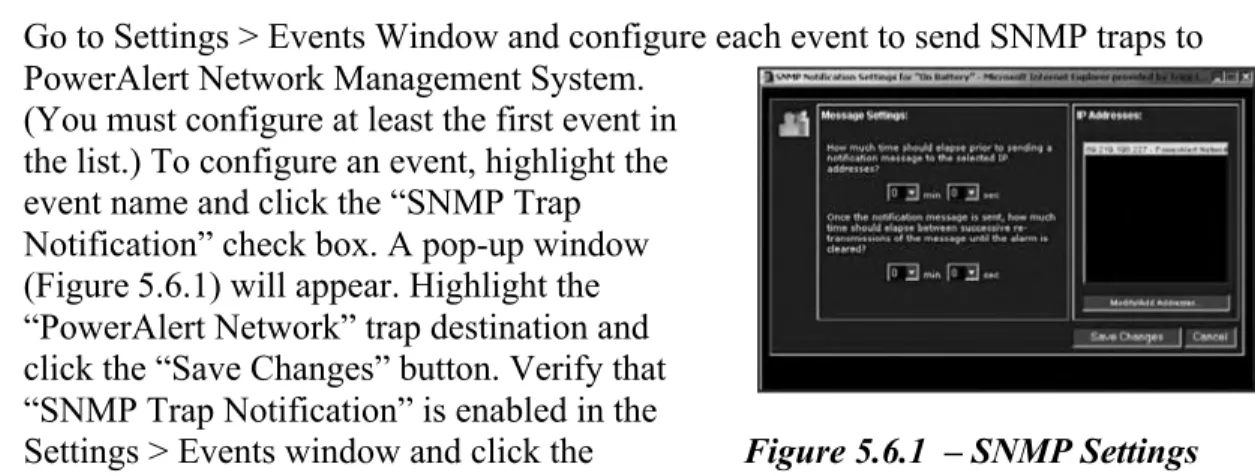
Go to Settings > Events Window and configure each event to send SNMP traps to PowerAlert Network Management System.
(You must configure at least the first event in the list.) To configure an event, highlight the event name and click the “SNMP Trap Notification” check box. A pop-up window
(Figure 5.6.1) will appear. Highlight the
“PowerAlert Network” trap destination and click the “Save Changes” button. Verify that “SNMP Trap Notification” is enabled in the
Settings > Events window and click the Figure 5.6.1 – SNMP Settings
“Save Changes” button. Repeat for each event. (PowerAlert Network
Management System will periodically check the device to see if the first event is configured to send traps. When the configuration change is detected, the “Un-configured Device” alarm will clear.)
SNMPWEBCARD Firmware 12.04.0019-‐0032
1. Go to Settings > Contacts Window
2. Click the “SNMP” tab.
3. Select the “PowerAlert Network Management” entry – it will have an empty
IP address.
4. Click the “Edit” button and enter IP address for the PowerAlert Network
Management System station.
5. Go to Settings > Events.
6. Configure all events to send SNMP traps to “PowerAlert Network
Management” – you must configure at least the first event in the list.
7. When PowerAlert Network Management System detects the configuration
change, it will clear the “Un-configured Device” alarm for that device.
23
PowerAlert Network Management System automatically attempts to
configure discovered Tripp Lite devices. Configuration may not complete for some SNMPWEBCARD devices, which will show an “Unconfigured Device” alarm (identified by a “?” status icon). To clear an alarm, double-click the device’s IP
address to open its console window, then follow the steps shown below for the
appropriate firmware level.
SNMPWEBCARD Firmware 12.04.0040, 12.04.0045 and 12.04.0048 An “Unconfigured Device” alarm on a 12.04.0040-12.04.0048 device indicates
that a read-only SNMP community string was used to discover the device. You can clear the alarm by changing the read-only community string to read/write, or you can enter a new read/write community string, delete the IP address from the device listing and add the device again using the new community string.
SNMPWEBCARD Firmware 12.04.0034
Go to Settings > Events Window (Figure 6.6.1) and configure each event to send SNMP traps to PowerAlert Network Management System. (You must configure at least the first event in the list.) To configure an event, highlight the event name and click the “SNMP Trap Notification” check box. A pop-up window (Figure 6.6.2)
will appear. Highlight the “PowerAlert Network” trap destination and click the
“Save Changes” button. Verify that “SNMP Trap Notification” is enabled in the
Settings > Events window and click the “Save Changes” button. Repeat for each event. (PowerAlert Network Management System will periodically check the device
to see if the first event is configured to send traps. When the configuration change is detected, the “Unconfigured Device” alarm will clear.)
SNMPWEBCARD Firmware 12.04.0019-0032
Go to Settings > Contacts Window (Figure 6.6.3). 1.
Click the “SNMP” tab. 2.
Select the “PowerAlert Network Management” entry – it will have an empty IP 3.
address.
Click the “Edit” button and enter IP address for the PowerAlert Network
4.
Management System station. Go to Settings > Events. 5.
Configure all events to send SNMP traps to “PowerAlert Network
6.
Management” – you must configure at least the first event in the list. When PowerAlert Network Management System detects the configuration 7.
change, it will clear the “Unconfigured Device” alarm for that device.
Figure 6.6.2: SNMP Settings Window
Figure 6.6.3: Settings > Contacts Window Figure 6.6.1: Settings > Events Window 6.6 Clearing Unconfigured Device Alarms
6. PowerAlert Network Management System
(continued)You can set up PowerAlert Network Management System to forward your UPS system’s alarm records to an e-mail or SNMP trap. Use the check boxes to select which alarm categories will be forwarded.
Figure 6.7.1: Logs Email Tab 6.7 Email/Trap Forwarding
Copyright © 2013 Tripp Lite. All Rights Reserved. All trademarks are the property of their respective owners.
5.7 Email/Trap Forwarding
You can set up PowerAlert Network Management System to forward your UPS system’s alarm records to an e-mail or SNMP trap. Use the check boxes to select which alarm categories will be forwarded.
Figure 5.7.1 – SNMP Settings
5.8 Logging
Because events are stored internally, you can convert the event log into a text file and automatically e-mail it to pre-selected contacts periodically.
Figure 5.8.1 – Event Log Email Config 5.9 Event Log Sorting
Allows the event log to be displayed based upon user selected sort criteria.
Figure 5.9.1 – Sort Criteria
23
PowerAlert Network Management System automatically attempts to
configure discovered Tripp Lite devices. Configuration may not complete for some SNMPWEBCARD devices, which will show an “Unconfigured Device” alarm (identified by a “?” status icon). To clear an alarm, double-click the device’s IP
address to open its console window, then follow the steps shown below for the
appropriate firmware level.
SNMPWEBCARD Firmware 12.04.0040, 12.04.0045 and 12.04.0048 An “Unconfigured Device” alarm on a 12.04.0040-12.04.0048 device indicates
that a read-only SNMP community string was used to discover the device. You can clear the alarm by changing the read-only community string to read/write, or you can enter a new read/write community string, delete the IP address from the device listing and add the device again using the new community string.
SNMPWEBCARD Firmware 12.04.0034
Go to Settings > Events Window (Figure 6.6.1) and configure each event to send SNMP traps to PowerAlert Network Management System. (You must configure at least the first event in the list.) To configure an event, highlight the event name and click the “SNMP Trap Notification” check box. A pop-up window (Figure 6.6.2)
will appear. Highlight the “PowerAlert Network” trap destination and click the
“Save Changes” button. Verify that “SNMP Trap Notification” is enabled in the
Settings > Events window and click the “Save Changes” button. Repeat for each event. (PowerAlert Network Management System will periodically check the device
to see if the first event is configured to send traps. When the configuration change is detected, the “Unconfigured Device” alarm will clear.)
SNMPWEBCARD Firmware 12.04.0019-0032
Go to Settings > Contacts Window (Figure 6.6.3). 1.
Click the “SNMP” tab. 2.
Select the “PowerAlert Network Management” entry – it will have an empty IP 3.
address.
Click the “Edit” button and enter IP address for the PowerAlert Network
4.
Management System station. Go to Settings > Events. 5.
Configure all events to send SNMP traps to “PowerAlert Network
6.
Management” – you must configure at least the first event in the list. When PowerAlert Network Management System detects the configuration 7.
change, it will clear the “Unconfigured Device” alarm for that device.
Figure 6.6.2: SNMP Settings Window
Figure 6.6.3: Settings > Contacts Window Figure 6.6.1: Settings > Events Window 6.6 Clearing Unconfigured Device Alarms
6. PowerAlert Network Management System
(continued)You can set up PowerAlert Network Management System to forward your UPS system’s alarm records to an e-mail or SNMP trap. Use the check boxes to select which alarm categories will be forwarded.
Figure 6.7.1: Logs Email Tab 6.7 Email/Trap Forwarding
Because events are stored internally, you can convert the event log into a text file and automatically e-mail it to pre-selected contacts periodically.
In addition to PowerAlert Engine, PowerAlert for Mac OS adds another daemon, PowerAlertUserNotify, and an agent called PowerAlertUserNotifyAgent. Users will be are notified of a pending shutdown if enough time was specified in the shutdown configuration. OS GUI Users are presented with an option to “Log Out” or push “OK” to ignore the message. Users should always “Log Out” if they don’t intend to cancel the shutdown. Any user who sees the notice should be encouraged to Log Out promptly. When configuring the shutdown timer, sufficient time should be allowed for active users to save their work and “Log Out,” or to give an administrator sufficient time to cancel the shutdown. When specifying a shutdown delay time, ensure that the UPS will have enough battery power to support the computer through its shutdown process.
Figure 6.8.1: Event Log Email Configurations
Figure 6.8.2: Logs > Events
6.8 Logging
6.10 Mac OS Special Features
6. PowerAlert Network Management System
(continued)Allows the event log to be displayed based upon user selected sort criteria.
6.9 Event Log Sorting
24 Because events are stored internally, you can convert the event log into a text file
and automatically e-mail it to pre-selected contacts periodically.
In addition to PowerAlert Engine, PowerAlert for Mac OS adds another daemon, PowerAlertUserNotify, and an agent called PowerAlertUserNotifyAgent.
Users will be are notified of a pending shutdown if enough time was specified in the shutdown configuration. OS GUI Users are presented with an option
to “Log Out” or push “OK” to ignore the message. Users should always “Log Out” if they don’t intend to cancel the shutdown. Any user who sees the
notice should be encouraged to Log Out promptly. When configuring the shutdown timer, sufficient time should be allowed for active users to save their work and “Log Out,” or to give an administrator sufficient time to cancel the shutdown. When specifying a shutdown delay time, ensure that the UPS
will have enough battery power to support the computer through its shutdown process.
Figure 6.8.1: Event Log Email Configurations
Figure 6.8.2: Logs > Events 6.8 Logging
6.10 Mac OS Special Features
6. PowerAlert Network Management System (continued)
Allows the event log to be displayed based upon user selected sort criteria.
6.
Technical Support
Tripp Lite technical support personnel are available via email and the web at:
Web
The latest PowerAlert software updates are available at
http://www.tripplite.com/software/