Page 55 of 83
APPENDIX K – PSCRS JOB AID
Access PSCRS home page by navigating to: http://pscrs.cov.virginia.gov/default.aspx
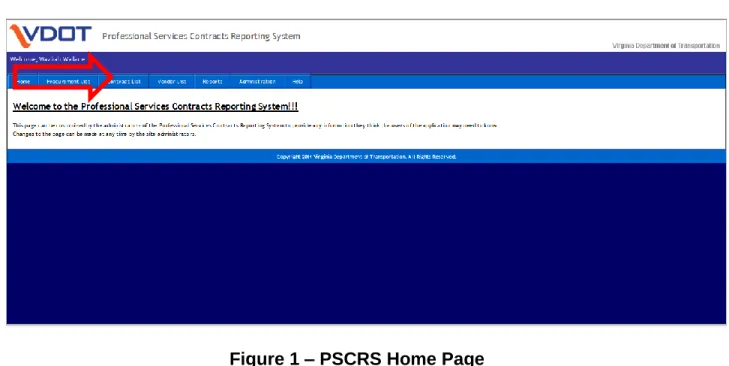
Figure 1 – PSCRS Home Page
Once on the homepage users should select the “Contract List” Module tab to access the database of professional service contracts.
Page 56 of 83
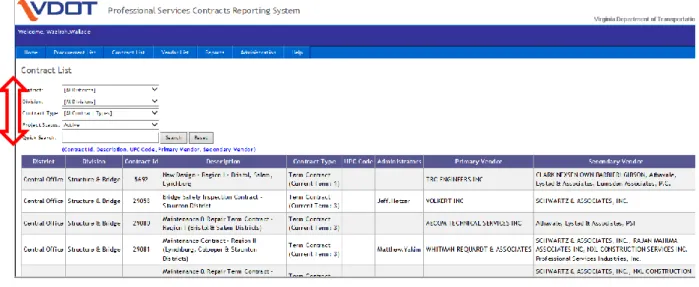
Figure 2 – Contract List Default Page
In the Contract List users may filter the contract list by District, Division, Contract Type and Project Status or Quick Search by entering key contract information (i.e. contract number, UPC or key words).
Page 57 of 83
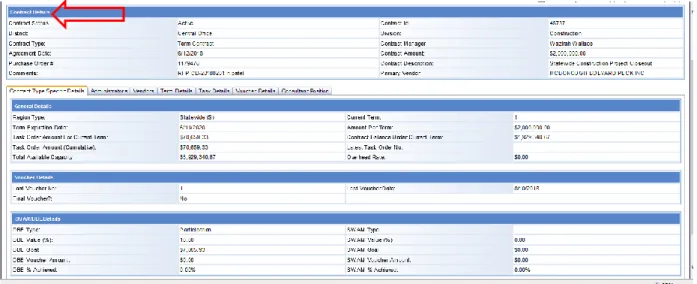
Figure 3 – Contract Details Screen
Once the contract the user intends to review is filtered or found by the quick search feature, the user should select the contract record by clicking the desired record. This will open the “Contract Details/Contract Type Specific Details” screen.
The Contract Details screen provides a summary of the critical contract information that is captured in the subsequent tabs. All tabs include:
● Contract Type Specific Details ● Administrators
● Vendors ● Term Details ● Voucher Details ● Consultant Positions
Page 58 of 83
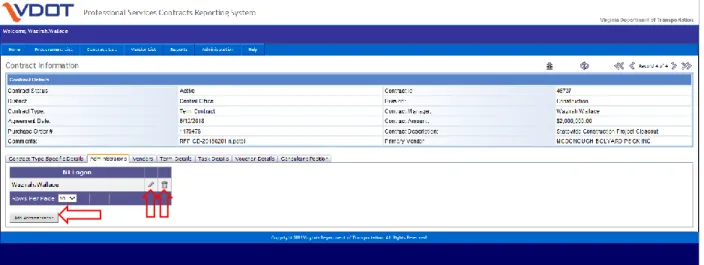
Figure 4 – Administrators Tab
The Administrators tab should be utilized by Contract Managers to identify Administrators of the specific contract. Administrators may include any person who performs official duties on behalf of the Department in relation to the management and administration of the consultant services.
Administrators should be added, deleted and/or revised by the Contract Manager as contract administration staff change.
Page 59 of 83 Figure 5 – Vendors Tab
The Vendors tab contains a list of the vendor/consultant team which have been awarded the contract. Upon execution of the contract the Vendors tab is populated by the Consultant Procurement Office identifying the selected firm(s), whether they are the prime or subconsultant, and identifying each firm’s SWaM and/or DBE Status. For accurate reporting it is essential that the correct vendor is selected and each vendor’s identifying information is accurate.
Page 60 of 83
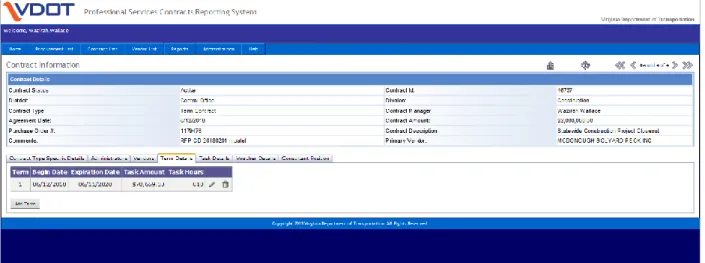
Figure 6 – Term Details Tab
The Term Details tab identifies the begin date, and expiration date of each contract term. As task orders are entered into PSCRS the system provides the cumulative task order value and hours for each given term. Upon execution of the contract, the Term Details tab is populated by the Consultant Procurement Office identifying the first term begin date and expiration date.
Page 61 of 83 PSCRS Task Orders
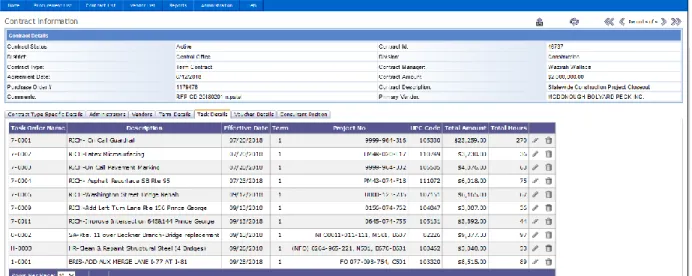
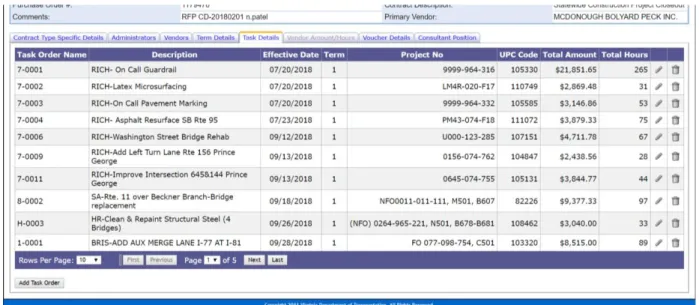
Figure 7 – Task Details Tab
The Term Details tab is utilized to capture the record of each task order that is executed under the consultant contract. Column headings may be selected for sorting and ordering the task orders. Each task order record must include the following:
● Task Order Name – The task order name/number serves as a unique identifier for each task order
● Description – Should be brief and may include a route, service provided, names and identifying task information
● Effective Date – Shall be the date the Notice to Proceed is executed/date the Department provide written approval for the consultant to begin work
● Term – Will be auto-populated
● Project No. – may include various project numbers ● UPC Code – may include various UPC’s
● Total Amount – Will generate based on the total team dollar value entered ● Total Hours – Will generate based on the total team dollar value entered
The total term task order value reflected in PSCRS will be locked in at the time of a renewal. As task orders are entered into PSCRS, the system provides the cumulative task order value and hours to other tabs.
Page 62 of 83
Figure 8 – Add Task Order
To add a new task order, users must select the “Add Task Order” button at the bottom left of the screen.
To revise a task order already in the system, users must select the pencil icon to the right of the task order they wish to revise. “ ”
To delete a task order already in the system, users must select the trashcan icon to the right of the task order they wish to delete. “ ”
Page 63 of 83
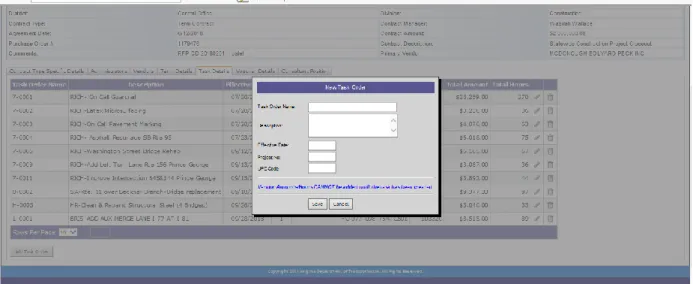
Figure 9 – New Task Order 1. Enter the task order Name/Number
2. Enter the task order description
3. Enter the effective date of the Notice to Proceed 4. Enter the project number(s)
5. Enter the UPC code(s) 6. Select “Save”
Once the user has selected to save the entry the task order details just entered will populate on the following screen.
Page 64 of 83
Figure 10 – Add Task Order Allocation
Users must review the executed task order documents and detail the allocation of proposed contract dollars/amount and hours to each prime and Subconsultant as identified in the task order and enter the amounts in this screen by selecting the pencil icon to the right of each consultant.
Table 1 – Allocation Example Proposed Contract Amount Proposed Man Hours Entered: Prime Consultant: $50,000 500 Subconsultant A: $25,000 250 Subconsultant B: $25,000 250 Populated
Page 65 of 83
Figure 11 – New Task/Vendor Order
1. Enter the contract/task order amount allocated for the selected consultant 2. Enter the man-hour total allocated for the selected consultant
Page 66 of 83
Figure 12 – Task Details Tab 2
Once saved the user will be returned to the Add Task Order Allocation screen in Figure 10. Users will repeat the processes associated with Figure 10 and Figure 11 for each prime and subconsultant identified in the task order until all contract/task order dollars and hours are accounted for.
Once complete select “Save” to be returned to the Task Details tab.
Page 67 of 83 PSCRS Voucher Details
Figure 13 – Voucher Details Tab
The Voucher Details tab is utilized to capture the record of each voucher that is processed by the Department for the specific contract. Once a complete and accurate consultant invoice is received and approved for payment. The Contract Administrator must update the Voucher Details tab. Each voucher record must include the following:
● Voucher No. – The voucher number entry should reference the consultants invoice number and may include additional reference information beneficial to the Department
● Vendor, Prime, SWaM and DBE – This information is populated based on previously entered consultant details and is auto-populated
● Voucher Date – The date the complete and accurate and consultant invoice is received
● Hours – Total consultant hours per prime and subconsultant ● Amount – Total dollar value per consultant
● Previous Hours, Previous Amount – Is auto-populated from information previously entered in the system
As invoices are entered, the cumulative invoice value per prime and subconsultant is calculated at the bottom of all invoices.
The column headings may be selected for sorting and ordering the list by the column heading.
Page 68 of 83
Figure 14 – Add Voucher Cont’d
To add a new voucher, users must select the “Add Voucher” button at the bottom left of the screen.
To revise a voucher already in the system, users must select the pencil icon to the right of the voucher entry they wish to revise. “ ”
To delete a voucher already in the system, users must select the trashcan icon to the right of the voucher entry they wish to delete. “ ”
Page 69 of 83
Figure 15 – Add Voucher Allocation Chart
Users must review the approved invoice documents and allocate the invoiced dollars/amount and hours to each prime and subconsultant as identified in the invoice. Once the user has selected “Add Voucher”, the user should enter the following:
1. Enter the Voucher No. 2. Enter the Voucher Date 3. Enter Comments (optional)
4. Enter the total hours per consultant in “Increase hours this voucher period for each firm” field
5. Enter the total dollar amount per consultant in “Increase amount this voucher period for each firm” field
6. Select “Save”
Note: For reporting purposes, it is critical that all prime and subconsultant payments and hours are allocated separately and correctly.
The “Total hours billed to date for each firm” and “Total amount billed to date for each firm” fields will auto-populate based on previous voucher entries.
Page 70 of 83
Figure 16 – Task Details Tab 2
Once the entry has been saved, the user will be returned to the Voucher Details Tab. On the Voucher Details tab, confirm the data entry for each consultant is correct and the voucher subtotal is accurate.
On the Voucher Details tab users have the option to export the Voucher Details to Excel, a pdf document and/or the printer by selecting the “Export to Excel” button at the bottom left of the screen.