Getting Started
with
Table of Contents
Introduction ... 3
Selecting a Pre-defined Event Set-up ... 4
Creating a Custom Event Set-up ... 7
Choose a Pre-defined Watchlist or Create a Custom One ... 11
Pre-defined Watchlists ... 11
Creating a Custom Watchlist... 15
Introduction
When active traders are looking to make investment decisions, it is important to have a real-time view of the price action and know which instruments are “Set Up” to move. This kind of information is crucial for active traders looking to get in or out of an investment at the right price, or for hyper-active traders looking for intraday trades.
Intraday Trader can help active traders get real-time notifications of Intraday Events™ using pre-defined criteria. Intraday Trader also allows traders to tailor their Intraday Event setups to show them what they want to see, zeroing in on opportunities they’re more likely to trade. The next few sections of this document will explore how to choose and create Intraday Events setup that are right for the needs of an individual trader.
Selecting a Pre-Defined Event Set-Up
To get started in choosing an event setup, click on the “Event Setup Library” tab.
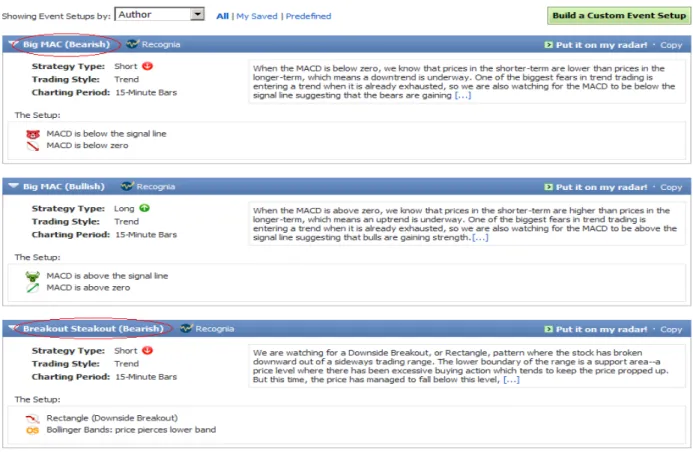
On the Event setup page you can see a variety of pre-defined setups to choose from. Each Setup has a name based on the criteria it uses.
Figure 3: Predefined Events List
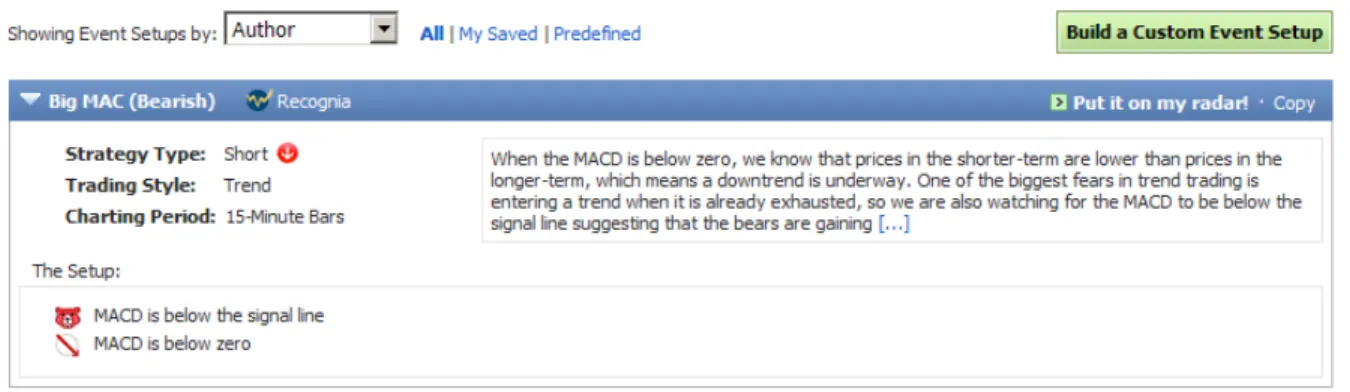
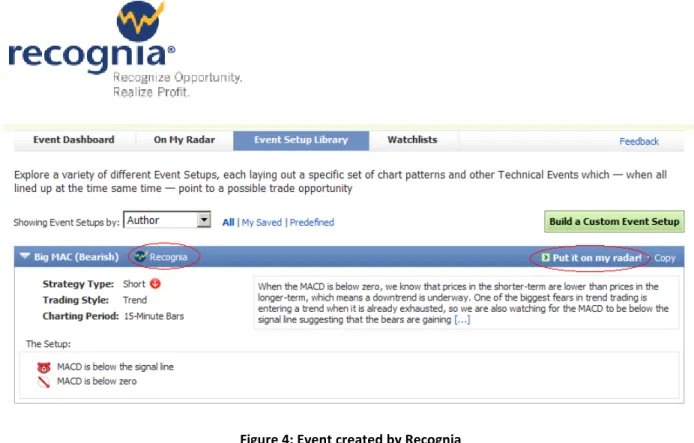
The “Big MAC (Bearish)” setup for example looks for “MACD” below the “Signal Line”. You can also see the strategy type and trading style; in this case it’s a “Short” strategy and “Trend Trading” style. There is also more information provided in this description box to help you understand what the criteria means. Please also note that because these are pre-defined setups, Recognia® is listed as the author to the right of the setup title. When you’ve chosen the setup that best suits the criteria you are looking for click the link “Put it on my radar!”.
Figure 4: Event created by Recognia
From here a box will open where you are able to choose which watchlist you want to cover and you have an opportunity to customize the name of the Setup.
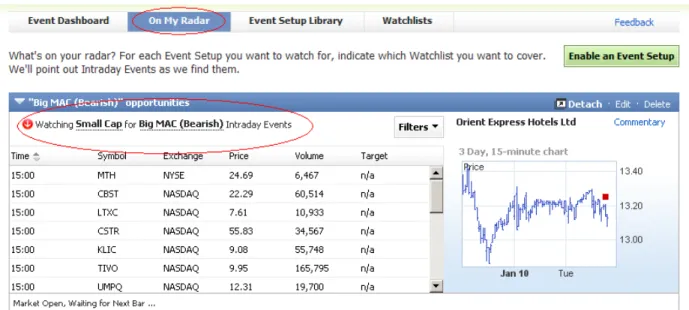
Once you’re done, hit save. You will then see your setup appear on your radar screen.Click “On My Radar” tab to see your watchlist with chosen event setup.
Figure 6: Watchlist on My Radar
After a few seconds it will generate the last 3 days’ worth of information that matched the pattern and signals in the setup, and then update the information in real-time every 15 minutes.
Creating a Custom Event Setup
If you wish to instead create a custom strategy with specific criteria to match your trading style, just return to the “Event Setup Library” and click on “Build a Custom Event Setup”.
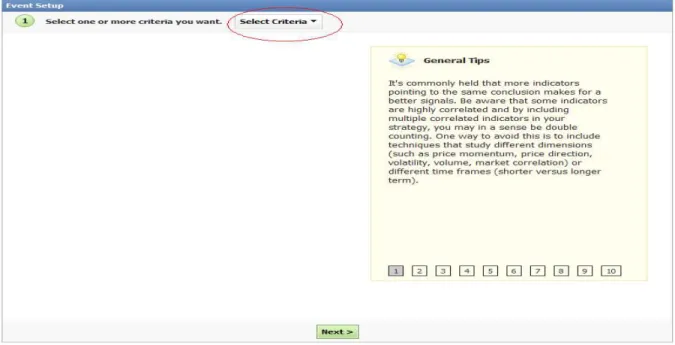
This will open Event Setup window. You can now click on click on “select criteria” to view the criteria by category or implication.
Categories include factors such as classic patterns, moving averages, and oscillators.
Figure 9: Categories of events available
For this example we’ll choose from the “Gaps” category, and select “Gap Up”. As you can see some information pops up in the right panel that explains what your selected criteria means. In order to confirm this selection just click “Add Criteria” below the definition.
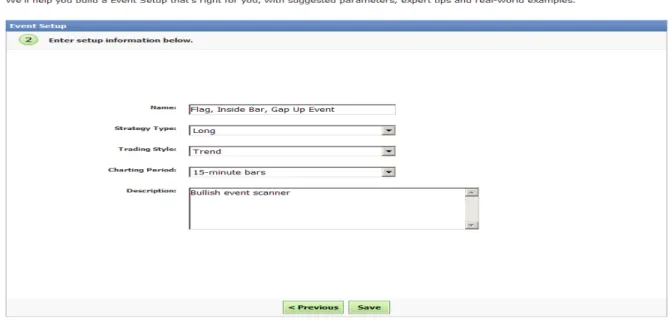
For this example we’ll also choose “Inside Bar (Bullish)” and “Flag (Bullish)”. With certain criteria you can add additional detail to narrow your down you selection. Once you are happy with the setup, hit “Next”. You will be prompted to provide the details for your setup, including name, strategy type, trading style, and you can include a description if you choose. Hit save when you are done, and then click “Ok” if you want to add this Intraday Event setup to your radar.
Choose a Pre-Defined Watchlist or Create a Custom One
With so many symbols in the market it is important for a trader, especially an active trader, to have the ability to narrow their search to the symbols they want to watch. Recognia’s Intraday Trader allows traders to do just that. Once you have chosen the events that are important to you, and you want to add them to your radar, you simply associate that event setup with a watchlist.
Predefined Watchlists
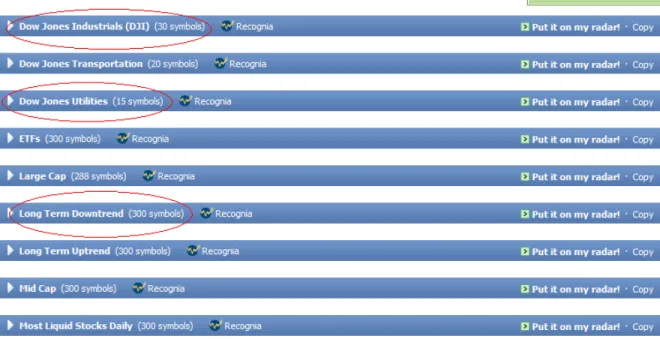
From the main screen within Intraday Trader, click on the “Watchlists” tab. You will be taken to a page with a series of pre-defined watchlists that have been set up to assist you in getting started.
You have several watchlists to choose from. Some of them include the Dow Jones Industrials, or Long Term Downtrends. For this example let’s choose the Dow Jones Industrials. When you click on the triangle on the left a box extends below showing you the stocks associated with this list. You can see the stock symbol and name, as well as the exchange it trades on. In the area on the right there is a brief description of the list.
Figure 13: Open view of a watchlist
To choose this as your watchlist click on “Put it on my radar”. This opens a window where you can pick the Intraday Events setup you wish to look for within this list. Pick the event setup you want, rename this setup if you wish, then click on “Save”.
Figure 14: Applying an event setup to a watchlist
Once you do that you will be taken to the “On My Radar” page and see your newly defined setup. Information from the last 5 trading days will be automatically generated and then every 15 minutes the real-time results will be generated.
Figure 15: Custom watchlist on my radar
Another way to select a watchlist is after you’ve chosen or created an Intraday Event setup. You will automatically be asked to choose one to associate with that setup.
Creating a Custom Watchlist
If you choose, you can create a watchlist of your very own to help you zero in on opportunity you want to see and are more likely to trade. Click on “Create a Custom Watchlist” from under the “Watchlist” tab.
The first thing you will be asked to do is name this watchlist, and add a description if you like. Once you’ve filled in the appropriate information click “Save”.
You will see your blank watchlist appear and you can now begin creating a symbol list. In the empty box, simply type in the symbols of stocks you want to monitor, and then click “Add” to add them to the list. When you are done you can once again select “Put it on my radar” to associate it with one of your event setups.
Monitor the Intraday Events as They Occur
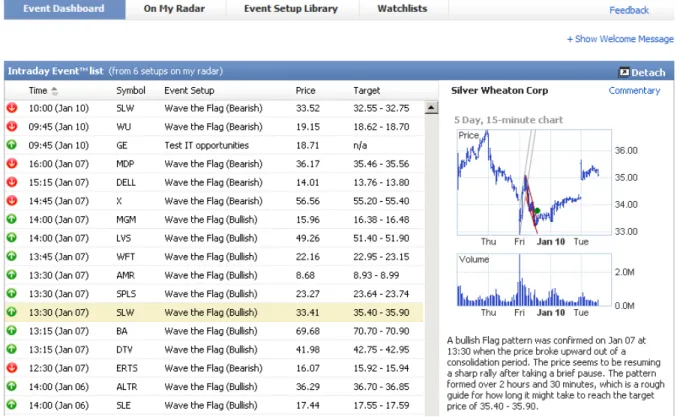
For active traders, having the tools to be able to monitor stocks for the real-time setups throughout the day is key. Recognia’s Intraday Trader is just that kind of tool. Traders are able to choose what intraday events are important to them, and what watchlists they want to cover when looking for these events. The main screen within Intraday Trader is the “Event Dashboard”. This page shows you a summary of all Intraday Events within the setups you’ve included on your radar. If you wish to get more focused results stemming from the particular setups you’ve created choose the “On My Radar” tab. Once here, you can see all of your event setups – as well as a few default ones that you can delete or edit as you choose.
Figure 19: Event dashboard
From the list of event setups we’ll focus on "’Wave the flag (bearish)” for this example. It is the last event, which occurred at “12:15” with the symbol “MOS”. You can also see what price it’s trading at and the Target Price. Please note that the Target column will only have a value when the criterion within
your event setup includes a classic chart pattern. To the right you can see the full company name and a chart displaying the result of that particular stock. If you wish to get more detailed information simply go to “Commentary” and a new window will open with information on the stock. This live commentary explains the Intraday Event in detail – what elements are appearing on the chart and what it means. You can view up to 20 days’ worth of information, and get details on why the event was identified. For this stock the event was picked up because it is a “bearish flag pattern”.
If you don’t want to have your browser open or don’t want to monopolize your screen space, but still want to monitor your events, simply click “Detach” to open a dashboard window.
Figure 21: Movable windows
When you do this a window launches containing your event information. You can place this anywhere on your screen to fit in with your workflow and it will continue to show you updates as they occur. If you wish to get back to the full Intraday Trader program, simply click “Launch Full Application”.
Figure 22: Back to full application
Recognia’s Intraday Trader™ is an investment tool to help active traders make informed decisions to get in or out of an investment at the right price, or to help hyper-active traders looking for intraday trades. With the guided, interpreted experience, your skill level with technical analysis doesn’t matter. Intraday Trader allows you to choose or create events that are important to you, and specify what watchlist you want to cover, and monitor the event throughout the trading day.