BIG-IP
®
Installation Guide
version 4.0
Installation Guide i
Service and Support Information
Product Version
This manual applies to version 4.0 of the BIG-IP® Controller.
Obtaining Technical Support
Contacting F5 Networks
Web tech.f5.com
Phone (206) 272-6888
Fax (206) 272-6802
Email (support issues)
Email (suggestions) [email protected]
Web www.f5.com
Toll-free phone (888) 961-7242 Corporate phone (206) 272-5555
Fax (206) 272-5556
Email [email protected]
Mailing Address 401 Elliott Avenue West Seattle, Washington 98119
ii BIG-IP® Controller 4.0
Legal Notices
Copyright
F5 Networks, Inc. (F5) believes the information it furnishes to be accurate and reliable. However, F5 assumes no responsibility for the use of this information, nor any infringement of patents or other rights of third parties which may result from its use. No license is granted by implication or otherwise under any patent, copyright, or other intellectual property right of F5 except as specifically described herein. F5 reserves the right to change specifications at any time without notice.
Copyright 1997-2001, F5 Networks, Inc. All rights reserved.
Trademarks
F5, BIG-IP, 3-DNS, SEE-IT, and GLOBAL-SITE are registered trademarks of F5 Networks, Inc. EDGE-FX, iControl, and FireGuard are trademarks of F5 Networks, Inc. Other product and company names are registered trademarks or trademarks of their respective holders.
Export Regulation Notice
The BIG-IP® Controller may include cryptographic software. Under the Export Administration Act, the United States government may consider it a criminal offense to export this BIG-IP® Controller from the United States.
Export Warning
This is a Class A product. In a domestic environment this product may cause radio interference in which case the user may be required to take adequate measures.
FCC Compliance
This equipment generates, uses, and may emit radio frequency energy. The equipment has been type tested and found to comply with the limits for a Class A digital device pursuant to Part 15 of FCC rules, which are designed to provide reasonable protection against such radio frequency interference.
Operation of this equipment in a residential area may cause interference, in which case the user at his own expense will be required to take whatever measures may be required to correct the interference.
Any modifications to this device, unless expressly approved by the manufacturer, can void the user's authority to operate this equipment under part 15 of the FCC rules.
Canadian Regulatory Compliance
This class A digital apparatus complies with Canadian I CES-003.
Standards Compliance
Installation Guide iii Acknowledgments
This product includes software developed by the University of California, Berkeley and its contributors. This product includes software developed by the Computer Systems Engineering Group at the Lawrence Berkeley Laboratory.
This product includes software developed by the NetBSD Foundation, Inc. and its contributors. This product includes software developed by Christopher G. Demetriou for the NetBSD Project. This product includes software developed by Adam Glass.
This product includes software developed by Christian E. Hopps. This product includes software developed by Dean Huxley. This product includes software developed by John Kohl. This product includes software developed by Paul Kranenburg. This product includes software developed by Terrence R. Lambert. This product includes software developed by Philip A. Nelson. This product includes software developed by Herb Peyerl.
This product includes software developed by Jochen Pohl for the NetBSD Project. This product includes software developed by Chris Provenzano.
This product includes software developed by Theo de Raadt. This product includes software developed by David Muir Sharnoff. This product includes software developed by SigmaSoft, Th. Lockert.
This product includes software developed for the NetBSD Project by Jason R. Thorpe.
This product includes software developed by Jason R. Thorpe for And Communications, http://www.and.com. This product includes software developed for the NetBSD Project by Frank Van der Linden.
This product includes software developed for the NetBSD Project by John M. Vinopal. This product includes software developed by Christos Zoulas.
This product includes software developed by Charles Hannum.
This product includes software developed by Charles Hannum, by the University of Vermont and State Agricultural College and Garrett A. Wollman, by William F. Jolitz, and by the University of California, Berkeley, Lawrence Berkeley Laboratory, and its contributors.
This product includes software developed by the University of Vermont and State Agricultural College and Garrett A. Wollman.
In the following statement, "This software" refers to the Mitsumi CD-ROM driver: This software was developed by Holger Veit and Brian Moore for use with "386BSD" and similar operating systems. "Similar operating systems" includes mainly non-profit oriented systems for research and education, including but not restricted to "NetBSD," "FreeBSD," "Mach" (by CMU).
In the following statement, "This software" refers to the parallel port driver: This software is a component of "386BSD" developed by William F. Jolitz, TeleMuse.
iv BIG-IP® Controller 4.0
This product includes software developed by the Apache Group for use in the Apache HTTP server project (http://www.apache.org/).
This product includes software developed by Darren Reed. (© 1993-1998 by Darren Reed).
This product includes software licensed from Richard H. Porter under the GNU Library General Public License (© 1998, Red Hat Software), www.gnu.org/copyleft/lgpl.html.
This product includes the standard version of Perl software licensed under the Perl Artistic License (© 1997, 1998 Tom Christiansen and Nathan Torkington). All rights reserved. You may find the most current standard version of Perl at http://www.perl.com.
Table of Contents
Installation Guide vii
Introduction
Getting started ...Intro-1 Choosing a configuration tool ... Intro-1 Using the Administrator Kit ...Intro-2 Stylistic conventions ...Intro-3 Finding additional help and technical support resources ... Intro-6 What’s new in version 4.0 ... Intro-7 3-DNS on the BIG-IP Controller ... Intro-7 OneConnect™ content switching with HTTP Keep-Alives ...Intro-7 Bridging and Layer 2 forwarding ... Intro-7 HTTP Redirect pool property ... Intro-8 Load balance any IP protocol ... Intro-8 Link aggregation and fail-over ... Intro-8 On-the-fly content converter ... Intro-8 SNAT automap feature ...Intro-9 Health monitors ... Intro-9 Performance monitors ... Intro-9 Default controller configuration ... Intro-9 Web-based Configuration utility enhancements ...Intro-10 Learning more about the BIG-IP Controller product family ...Intro-10
1
Setting Up the Hardware
Unpacking the hardware ... 1-1 Hardware provided with the controller ...1-1 Peripheral hardware that you provide ... 1-2 Familiarizing yourself with the controller ... 1-3 Using the 4U hardware configuration ... 1-3 Using the 2U hardware configuration ... 1-6 Environmental requirements ... 1-7 General guidelines ... 1-8 Guidelines for DC powered equipment ...1-9 Installing and connecting the hardware ... 1-9
2
Creating the Initial Software Configuration
Gathering the information ... 2-1 First-Time Boot utility settings ... 2-1 Keyboard type ... 2-1 Product selection ...2-2 Root password ...2-2 Host name ... 2-3
Table of Contents
viii BIG-IP® Controller 4.0
Default route ... 2-3 Redundant system settings ... 2-3 Interface media settings ... 2-4 VLANs and IP addresses ... 2-5 Remote web server access ... 2-6 Time zone ... 2-7 DNS forwarding proxy settings ...2-7 Remote administrative access ... 2-8 NTP support ...2-9 NameSurfer ...2-9 First-Time Boot utility configuration list ...2-9 Starting the First-Time Boot utility ...2-12 Running the utility from the console or serial terminal ...2-12 Running the utility remotely ...2-13
3
Additional Setup Options
Overview of additional setup options ... 3-1 Defining additional host names ...3-1 Downloading the SSH client to your administrative workstation ... 3-3 Downloading the F-Secure SSH client from the web server ... 3-3 Setting up the F-Secure SSH client on a Windows 95 or
Windows NT workstation ... 3-4 Setting up the F-Secure SSH client on a UNIX workstation ... 3-4 Addressing general networking issues ... 3-5 Addressing routing issues ... 3-6 Configuring DNS on the BIG-IP Controller ...3-10 Configuring email ...3-13 Using a serial terminal with the BIG-IP Controller ...3-14 Configuring a serial terminal in addition to the console ...3-16 Configuring a serial terminal as the console ...3-16 Forcing a serial terminal to be the console ...3-17 Configuring RADIUS authentication ...3-18 Using RADIUS ports on the BIG-IP Controller ...3-19 Configuring sshd version 2.x ...3-20 Configuring sshd version 1.x ...3-21
Index
Introduction
• Getting started
• Using the Administrator Kit
• What’s new in version 4.0
• Learning more about the BIG-IP Controller
product family
Introduction
Installation Guide Intro - 1
Getting started
Before you start installing the controller, we recommend that you browse the BIG-IP Administrator Guide and find the load balancing solution that most closely addresses your needs. If the BIG-IP Controller is running the 3-DNS software module, you may also want to browse the 3-DNS Administrator Guide to find a wide area load balancing solution. Briefly review the basic
configuration tasks and the few pieces of information, such as IP addresses and host names, that you should gather in preparation for completing the tasks.
Once you find your solution and gather the necessary network information, turn back to the Installation Guide for hardware installation instructions, and then return to the Administrator Guide to follow the steps for setting up your chosen solution.
Choosing a configuration tool
The BIG-IP Controller offers both web-based and command line configuration tools, so that users can work in the environment that they are most comfortable with.
The First-Time Boot utility
All users will use the First-Time Boot utility, a wizard that walks you through the initial system set up. You can run the First-Time Boot utility from the command line, or from a web browser. The First-Time Boot utility prompts you to enter basic system information including a root password and the IP addresses that will be assigned to the network interfaces. The BIG-IP Installation Guide provides a list of the specific pieces of information that the First-Time Boot utility prompts you to enter.
The Configuration utility
The Configuration utility is a web-based application that you use to configure and monitor the load balancing setup on the BIG-IP Controller. Once you complete the installation instructions described in this guide, you can use the Configuration utility to
Introduction
Intro - 2 BIG-IP® Controller 4.0
perform the configuration steps necessary for your chosen load balancing solution. In the Configuration utility, you can also monitor current system performance, and download administrative tools such as the SNMP MIB or the SSH client. The Configuration utility requires Netscape Navigator version 4.7 or later, or
Microsoft Internet Explorer version 5.0 or later.
The bigpipe and bigtop command line utilities
The bigpipe™ utility is the command line counter-part to the Configuration utility. Using bigpipe commands, you can configure virtual servers, open ports to network traffic, and configure a wide variety of features. To monitor the BIG-IP Controller, you can use certain bigpipe commands, or you can use the bigtop™ utility, which provides real-time system monitoring. You can use the command line utilities directly on the BIG-IP Controller console, or you can execute commands via a remote shell, such as the SSH client (encrypted communications only), or a Telnet client (for countries restricted by cryptography export laws). For detailed information about the command line syntax, seethe BIG-IP Reference Guide, Chapter 2, bigpipe Command Reference, and the BIG-IP Administrator Guide, Chapter 18, Monitoring and Administration.
Using the Administrator Kit
The BIG-IP® Administrator Kit provides all of the documentation you need to work with the BIG-IP Controller. The information is organized into the guides described below.
◆ BIG-IP Installation Guide
This guide walks you through the basic steps needed to get the hardware plugged in and the system connected to the network. Most users turn to this guide only the first time that they set up a controller. The BIG-IP Installation Guide also covers general network administration issues, such as setting up common network administration tools including Sendmail.
Introduction
Installation Guide Intro - 3
◆ BIG-IP Administrator Guide
This guide provides examples of common load balancing solutions, as well as additional administrative information. Before you begin installing the controller hardware, we recommend that you browse this guide to find the load balancing solution that works best for you.
◆ BIG-IP Reference Guide
This guide provides basic descriptions of individual BIG-IP objects, such as pools, nodes, and virtual servers. It also provides syntax information for bigpipe commands, other command line utilities, configuration files, and system utilities.
◆ F-Secure SSH User Guide
This guide provides information about installing and working with the SSH client, a command line shell that supports remote encrypted communications. The SSH client and corresponding user guide is distributed only with BIG-IP Controllers that support encryption.
◆ 3-DNS Administrator and Reference Guides
If your BIG-IP Controller includes the optional 3-DNS software module, your administrator kit also includes manuals for using 3-DNS Controller software. The 3-DNS Administrator Guide provides wide area load balancing solutions and general administrative information. The 3-DNS Reference Guide provides information about configuration file syntax and system utilities specific to the 3-DNS Controller.
Stylistic conventions
To help you easily identify and understand important information, our documentation uses the stylistic conventions described below.
Using the solution examples
All examples in this documentation use only non-routable IP addresses. When you set up the solutions we describe, you must use IP addresses suitable to your own network in place of our sample addresses.
Introduction
Intro - 4 BIG-IP® Controller 4.0
Identifying new terms
To help you identify sections where a term is defined, the term itself is shown in bold italic text. For example, a virtual server is a specific combination of a virtual address and virtual port,
associated with a content site that is managed by a BIG-IP Controller or other type of host server.
Identifying references to objects, names, and commands
We apply bold text to a variety of items to help you easily pick them out of a block of text. These items include web addresses, IP addresses, utility names, and portions of commands, such as variables and keywords. For example, with the bigpipe pool <pool_name> show command, you can specify a specific pool to show by specifying a pool name for the <pool_name> variable.
Identifying references to other documents
We use italic text to denote a reference to another document. In references where we provide the name of a book as well as a specific chapter or section in the book, we show the book name in bold, italic text, and the chapter/section name in italic text to help quickly differentiate the two. For example, you can find
information about bigpipe commands in the BIG-IP Reference Guide,bigpipe Command Reference.
Identifying command syntax
We show complete commands in bold Courier text. Note that we do not include the corresponding screen prompt, unless the command is shown in a figure that depicts an entire command line screen. For example, the following command shows the
configuration of the specified pool name:
bigpipe pool <pool_name> show
or
Introduction
Installation Guide Intro - 5
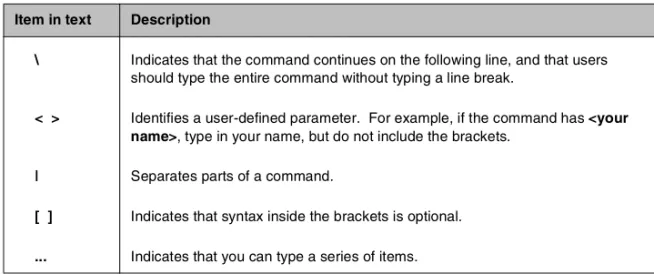
Table Intro.1 explains additional special conventions used in command line syntax.
Item in text Description
\ Indicates that the command continues on the following line, and that users should type the entire command without typing a line break.
< > Identifies a user-defined parameter. For example, if the command has <your name>, type in your name, but do not include the brackets.
| Separates parts of a command.
[ ] Indicates that syntax inside the brackets is optional. ... Indicates that you can type a series of items.
Introduction
Intro - 6 BIG-IP® Controller 4.0
Finding additional help and technical support resources
You can find additional technical information about this product in the following locations:
◆ Release notes
Release notes for the current version of this product are available from the product web server home page, and are also available on the technical support site. The release notes contain the latest information for the current version, including a list of new features and enhancements, a list of fixes, and, in some cases, a list of known issues.
◆ Online help
You can find help online in three different locations:
• The web server on the product has PDF versions of the guides included in the Administrator Kit.
• The web-based Configuration utility has online help for each screen. Simply click the Help button in the toolbar. • Individual bigpipe commands have online help, including
command syntax and examples, in standard UNIX man page format. Simply type the command followed by the word help, and the BIG-IP Controller displays the syntax and usage associated with the command.
◆ Third-party documentation for software add-ons
The web server on the product contains online documentation for all third-party software, such as GateD.
◆ Technical support via the World Wide Web
The F5 Networks Technical Support web site,
http://tech.F5.com, provides the latest technical notes, answers to frequently asked questions, updates for administrator guides (in PDF format), and the Ask F5 natural language question and answer engine. To access this site, you need to obtain a customer ID and a password from the F5 Help Desk.
Introduction
Installation Guide Intro - 7
What’s new in version 4.0
The BIG-IP Controller offers the following major new features in version 4.0, in addition to many smaller enhancements.
3-DNS on the BIG-IP Controller
With this release of the BIG-IP Controller, you can order the full wide-area load balancing functionality of the 3-DNS Controller combined with the local-area load balancing functionality of the BIG-IP Controller. An advantage you gain with this configuration is that the combined configuration requires less rack space.
OneConnect
™content switching with HTTP Keep-Alives
OneConnect content switching allows you to turn on the Keep-Alive functionality on your Web servers.You can now configure BIG-IP Controller rules to support HTTP 1.1 Keep-Alive functionality. This feature allows you to benefit from the Keep-Alive features on your Web servers.
Another benefit of this feature is client aggregation. You can aggregate client connections by configuring a SNAT for inbound requests. This reduces the number of connections from the BIG-IP Controller to back-end servers and from clients to the BIG-IP Controller.
Bridging and Layer 2 forwarding
The bridging and Layer 2 forwarding functionality in this release provides the ability to bridge packets between VLANs and between VLANs on the same IP network. The layer 2 forwarding feature provides the ability to install a BIG-IP Controller without changing the IP network configuration. For an example of how to use layer 2 forwarding, see VLAN group in the BIG-IP Reference Guide, Chapter 1, Configuring the BIG-IP Controller.
Introduction
Intro - 8 BIG-IP® Controller 4.0
HTTP Redirect pool property
The HTTP redirect feature adds the ability to redirect clients to another site or server or to a 3-DNS Controller when the members of a pool they were destined for are not available. For more information, see HTTP Redirect (specifying a fallback host) inthe BIG-IP Reference Guide, Chapter 1, Configuring the BIG-IP Controller.
Load balance any IP protocol
The load balance any IP protocol feature provides the ability to load balance IP protocols other than TCP or UDP. This means that you can load balance VPN client connections across a number of VPNs, eliminating the possibility of a single point of failure. For more information, see the BIG-IP Administrator Guide,Chapter 7,
Using IPSEC with VPN Gateways.
Link aggregation and fail-over
The link aggregation feature provides the ability to combine multiple Ethernet links into a single trunk. This allows you to increase available bandwidth incrementally and improve link reliability. For more information, see Trunks in the BIG-IP Reference Guide, Chapter 1, Configuring the BIG-IP Controller.
On-the-fly content converter
The on-the-fly content converter provides a simplified method of converting URLs in HTML files passing through the BIG-IP Controller to ARLs that point to the Akamai Freeflow NetworkTM. For more information, see the BIG-IP Administrator Guide, Chapter 13, Configuring a Content Converter.
Introduction
Installation Guide Intro - 9
SNAT automap feature
The SNAT automap feature provides the ability to automatically map a SNAT to a BIG-IP Controller VLAN or self IP address. This simplifies the ability to load balance multiple internet ISPs. For more information, see SNATs inthe BIG-IP Reference Guide,
Chapter 1, Configuring the BIG-IP Controller.
Health monitors
This release contains predefined templates that you can use to define many different types of monitors (EAVs and ECVs) that check the health and availability of devices in the network. You can associate a monitor with a single node or many nodes. For more information, see the Health monitors inthe BIG-IP Reference Guide, Chapter 1, Configuring the BIG-IP Controller.
Performance monitors
A performance monitor gathers statistics that are the basis for load balancing decisions made with the Dynamic Ratio load balancing method. You can implement Dynamic Ratio load balancing on RealNetworks RealServer platforms, Windows platforms equipped with Windows Management Instrumentation (WMI), and on platforms that support simple network management protocol (SNMP). For more information, see the Configuring servers and the BIG-IP Controller for Dynamic Ratio load balancing under
Pools inthe BIG-IP Reference Guide, Chapter 1, Configuring the BIG-IP Controller.
Default controller configuration
The BIG-IP Controller includes a default configuration that allows you to connect to a controller remotely and configure it by command line or from a web-based user interface. The default configuration provides a default IP address (RFC 1918) on the default internal VLAN or on the Admin VLAN if the controller has
Introduction
Intro - 10 BIG-IP® Controller 4.0
three interfaces. You can connect to the default IP address and log on to the controller with the default user name and password. This provides the ability to run the First-Time Boot utility from a remote SSH client or from a web browser. For more information, see the BIG-IP Installation Guide, Chapter 2, Creating the Initial Software Configuration.
Web-based Configuration utility enhancements
This release includes a number of improvements to the web-based Configuration utility. There are new wizards for tasks such as adding virtual servers, rules, monitors, and initial setup. A new tab-style navigation system simplifies navigation in the utility. In addition to the wizards for completing simple tasks, this release includes several configuration wizards that simplify creating a configuration for the BIG-IP Controller. These wizards include the Basic Site Configuration wizard, the Secure Site Configuration wizard, and the Active-active wizard.
Learning more about the BIG-IP Controller
product family
The BIG-IP Controller platform offers many different software systems. These systems can be stand-alone, or can run in redundant pairs, with the exception of the BIG-IP e-Commerce Controller, which is only available as a stand-alone system. You can easily upgrade from any special-purpose BIG-IP Controller to the BIG-IP HA Controller, which supports all BIG-IP Controller features.
◆ The BIG-IP HA Controller with optional 3-DNS software module
The BIG-IP HA Controller provides the full suite of local area load balancing functionality. The BIG-IP HA Controller also has an optional 3-DNS software module which supports wide-area load balancing.
Introduction
Installation Guide Intro - 11
◆ The combined product BIG-IP Controller
The combined product BIG-IP Controller provides the ability to choose from three different BIG-IP Controller feature sets. When you run the First-Time Boot utility, you specify the controller type:
•The BIG-IP LB Controller
The BIG-IP LB Controller provides basic load balancing features.
•The BIG-IP FireGuard Controller
The BIG-IP FireGuard Controller provides load balancing features that maximize the efficiency and performance of a group of firewalls.
•The BIG-IP Cache Controller
The BIG-IP Cache Controller uses content-aware traffic direction to maximize the efficiency and performance of an group of cache servers.
◆ The BIG-IP e-Commerce Controller
The BIG-IP e-Commerce Controller uses SSL acceleration technology to increase the speed and reliability of the secure connections that drive e-commerce sites.
1
Setting Up the Hardware
• Unpacking the hardware
• Familiarizing yourself with the controller
• Environmental requirements
Setting Up the Hardware
Installation Guide 1 - 1
Unpacking the hardware
There are four basic tasks you must complete to get the controller installed and set up.
• Review the hardware requirements
• Familiarize yourself with the controller hardware • Review the environmental requirements
• Connect the controller to the network and optionally connect the peripheral hardware.
The controller comes with the hardware that you need for installation and maintenance. However, you must also provide standard peripheral hardware, such as a keyboard or serial terminal, if you want to administer the controller directly.
Hardware provided with the controller
When you unpack the controller, you should make sure that the following components are included:
• One power cable
• One PC/AT-to-PS/2 keyboard adapter • Four rack-mounting screws
• Two keys for the front panel lock • One extra fan filter
• One BIG-IP Administrator Kit
If you purchased a hardware-based redundant system, you also received one fail-over cable to connect the two controller units together (network-based redundant systems do not require a fail-over cable).
Chapter 1
1 - 2 BIG-IP® Controller 4.0
Peripheral hardware that you provide
For each controller in the system, you need to provide the following peripheral hardware:
◆ If you plan to use direct administrative access to the controller, you need standard input/output hardware for direct
administrative access to the controller. Either of the following options is acceptable:
• A VGA monitor and PC/AT-compatible keyboard • Optionally, a serial terminal and a null modem cable (see
Using a serial terminal with the BIG-IP Controller, on page 3-14, for serial terminal configuration information)
◆ If you want to use the default controller configuration, you must have an administrative workstation on the same IP network as the BIG-IP Controller.
◆ You also need network hubs, switches, or concentrators to connect to the controller network interfaces. The devices you select must be compatible with the network interface cards installed in the controller. The devices can support 10/100 Ethernet, Gigabit Ethernet, or FDDI/CDDI (including multiple FDDI and full duplex).
• Ethernet requires either a 10 Mbps or 100 Mbps hub or switch • FDDI/CDDI requires no additional hardware, but a
concentrator or a switch is optional
• Gigabit Ethernet requires a compatible Gigabit Ethernet switch If you plan on doing remote administration from your own PC workstation as most users do, we recommend that you have your workstation already in place. Keep in mind that the First-Time Boot utility prompts you to enter your workstation’s IP address when you set up remote administrative access.
Setting Up the Hardware
Installation Guide 1 - 3
Familiarizing yourself with the controller
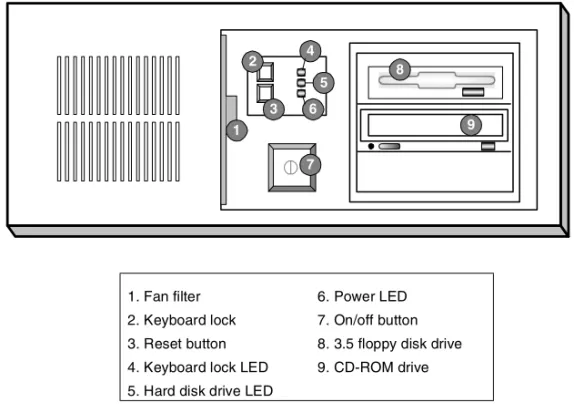
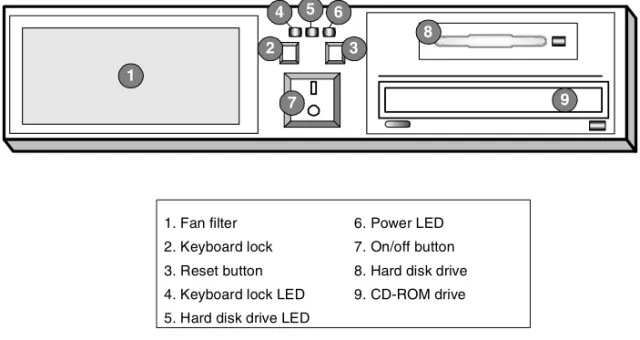
The controller is offered in 4U and 2U hardware configurations. Before you begin to install the controller, you may want to quickly review the following figures that illustrate the controls and ports on both the front and the back of a 4U controller and a 2U controller.
Using the 4U hardware configuration
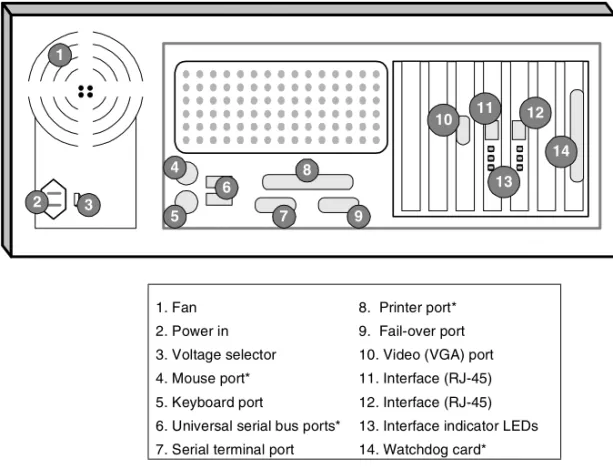
This section describes the front and back layout of a 4U controller. If you have a special hardware configuration, such as those that include more than two interface cards, the ports on the back of your unit will differ slightly from those shown in Figure 1.2, on page 1-5.
Note
The interfaces on every controller are individually labeled, so it should be clear what each port is, no matter which hardware configuration you have purchased. For detailed information about interface naming, see the BIG-IP Reference Guide, Interface naming convention.
Chapter 1
1 - 4 BIG-IP® Controller 4.0
Figure 1.1 illustrates the front of a 4U controller with the access panel open. On the front of the unit, you can turn the unit off and on, or you can reset the unit. You can also view the indicator lights for hard disk access and for the keyboard lock.
Figure 1.2, the following figure, illustrates the back of a 4U controller. Note that all ports are labeled, even those which are not intended to be used. Ports marked with an asterisk (*) in the list following do not need to be connected to any peripheral hardware.
1. Fan filter 2. Keyboard lock 3. Reset button 4. Keyboard lock LED 5. Hard disk drive LED
6. Power LED 7. On/off button 8. 3.5 floppy disk drive 9. CD-ROM drive
Figure 1.1 Front view of a 4U controller
2 4
3 5 6
7
8
Setting Up the Hardware
Installation Guide 1 - 5
*Not to be connected to any peripheral hardware. Figure 1.2 Back view of a 4U controller
1. Fan 2. Power in 3. Voltage selector 4. Mouse port* 5. Keyboard port
6. Universal serial bus ports* 7. Serial terminal port
8. Printer port* 9. Fail-over port 10. Video (VGA) port 11. Interface (RJ-45) 12. Interface (RJ-45) 13. Interface indicator LEDs 14. Watchdog card* 1
9 7
10
5
2 3
4 6
8
11
13 12
Chapter 1
1 - 6 BIG-IP® Controller 4.0
Using the 2U hardware configuration
This section describes the front and back layout of a 2U controller. If you have a special hardware configuration, such as those that include more than two interface cards, the ports on the back of your unit will differ slightly from those shown in Figure 1.4, on page 1-7.
Note
The interfaces on every controller are individually labeled, so it should be clear what each port is, no matter which hardware configuration you have purchased. For detailed information about interface naming, see the BIG-IP Reference Guide, Interface naming convention.
Figure 1.3 illustrates the front of a 2U controller with the access panel open. On the front of the unit, you can turn the unit off and on, or you can reset the unit. You can also view the indicator lights for hard disk access and for the keyboard lock.
1. Fan filter 2. Keyboard lock 3. Reset button 4. Keyboard lock LED 5. Hard disk drive LED
6. Power LED 7. On/off button 8. Hard disk drive 9. CD-ROM drive
Figure 1.3 Front view of a 2U controller 3 4
2
5 6
7 9
8 1
Setting Up the Hardware
Installation Guide 1 - 7
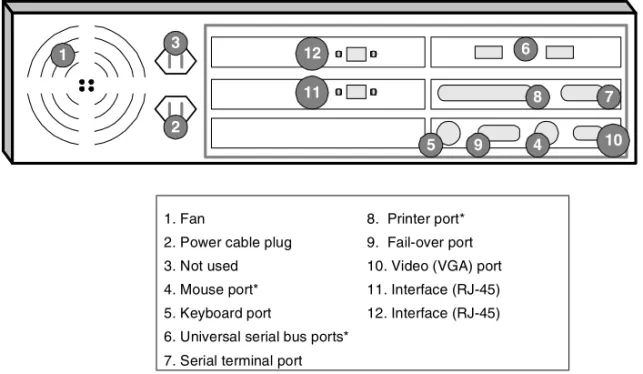
Figure 1.4, the following figure, illustrates the back of a 2U controller. Note that all ports are labeled, even those which are not intended to be used. Ports marked with an asterisk (*) in the list following do not need to be connected to any peripheral hardware.
*Not to be connected to any peripheral hardware. Figure 1.4 Back view of a 2U controller
Environmental requirements
Before you install the controller, review the following guidelines to make sure that you are installing and using the controller in the appropriate environment.
1. Fan
2. Power cable plug 3. Not used 4. Mouse port* 5. Keyboard port
6. Universal serial bus ports* 7. Serial terminal port
8. Printer port* 9. Fail-over port 10. Video (VGA) port 11. Interface (RJ-45) 12. Interface (RJ-45) 1
2 3
4 5
6
7 8
9 10
11 12
Chapter 1
1 - 8 BIG-IP® Controller 4.0
General guidelines
A controller is an industrial network appliance, designed to be mounted in a standard 19-inch rack. To ensure safe installation and operation of the unit:
• Install the rack according to the manufacturer’s instructions, and check the rack for stability before placing equipment in it. • Build and position the rack so that once you install the
controller, the power supply and the vents on both the front and back of the unit remain unobstructed. The controller must have adequate ventilation around the unit at all times.
• Do not allow the air temperature in the room to exceed 40° C. • Do not plug the unit into a branch circuit shared by more
electronic equipment than the circuit is designed to manage safely at one time.
• Verify that the voltage selector is set appropriately before connecting the power cable to the unit.
The unit must be connected to Earth ground, and it should have a reliable ground path maintained at all times.
!
The controller contains a lithium battery. There is danger of an explosion if you replace the lithium battery incorrectly. We recommend that you replace the battery only with the same type of battery originally installed in the unit, or with an equivalent type recommended by the battery manufacturer. Be sure to discard all used batteries according to the manufacturer’s instructions.
Setting Up the Hardware
Installation Guide 1 - 9
Guidelines for DC powered equipment
A DC powered installation must meet the following requirements: • Install the unit using a 20 Amp external branch circuit
protection device.
• For permanently connected equipment, incorporate a readily accessible disconnect in the fixed wiring.
• Use only copper conductors.
Installing and connecting the hardware
There are six basic steps to installing the hardware. You simply need to install the controller in the rack, connect the peripheral hardware and the external and internal interfaces, and then connect the fail-over and power cables. If you have a unit with three or more network interface cards (NICs), be sure to review step 3 in the following procedure.
WARNING
Do not turn on a controller until all peripheral hardware is connected to the unit.
This equipment is not intended for operator serviceability. To prevent injury and to preserve the manufacturer’s warranty, allow only qualified service personnel to service the equipment.
Install DC powered equipment only in restricted access areas, such as dedicated equipment rooms, equipment closets, or similar locations.
Chapter 1
1 - 10 BIG-IP® Controller 4.0
To install the hardware
1. Insert the controller in the rack and secure it using the four rack-mounting screws that are provided.
2. Connect the hardware that you have chosen to use for input/output:
• If you are using a VGA monitor and keyboard, connect the monitor connector cable to the video port (number 10 in Figure 1.2 for 4U, or in Figure 2.4 for 2U), and connect the keyboard connector cable to the keyboard port (number 5 in Figure 1.2 for 4U, or in Figure 2.4 for 2U). Note that a PC/AT-to-PS/2 keyboard adapter is included with each controller (see the component list on page 1-1).
• Optionally, if you are using a serial terminal as the console, connect the serial cable to the terminal serial port (number 7 in Figure 1.2 for 4U, or in Figure 2.4 for 2U). Also, you should not connect a keyboard to the controller. If there is no keyboard connected to the controller when it is started or rebooted, the controller defaults to using the serial port as the console.
3. Connect the external interface (number 12 in Figure 1.2 for 4U, or in Figure 2.4 for 2U) to the network from which the controller receives connection requests.
If you have purchased a unit with three or more network interface cards (NICs), be sure to note or write down how you connect the cables to the internal and external interfaces. When you run the First-Time Boot utility, it automatically detects the number of interfaces that are installed and prompts you to configure more external interfaces, if you want. It is important to select the correct external interface based on the way you have connected the cables to the back of the unit.
4. Connect the internal interface (number 11 in Figure 1.2 for 4U, or in Figure 2.4 for 2U) to the network that houses the array of servers, routers, or firewalls that the controller load balances.
Setting Up the Hardware
Installation Guide 1 - 11
5. If you have a hardware-based redundant system, connect the fail-over cable to the terminal serial port on each unit (number 7 in Figure 1.2 for 4U, or number 7 in Figure 2.4 for 2U).
6. Connect the power cable to the controller (number 2 in Figure 1.2 for 4U, or Figure 2.4 for 2U), and then connect it to the power source.
WARNING
Before connecting the power cable to a power supply, customers outside the United States should make sure that the voltage selector is set appropriately. This check is necessary only if the controller has an external voltage selector.
2
Creating the Initial Software
Configuration
• Gathering the information
• First-Time Boot utility settings
Creating the Initial Software Configuration
Installation Guide 2 - 1
Gathering the information
Once you install and connect the hardware, the next step in the installation process is to turn the system on and run the First-Time Boot utility. The First-Time Boot utility defines the initial configuration settings required to install the BIG-IP Controller into the network. You can run the First-Time Boot utility remotely from a web browser, or from an SSH or Telnet client, or you can run it directly from the console.
Before you connect to the controller, we recommend that you gather the list of information outlined in the following section. Note that the screens you see are tailored to the specific hardware and software configuration that you have. For example, if you have a stand-alone system, the First-Time Boot utility skips the redundant system screens.
Once you have gathered the information and are ready to run the utility, refer to Starting the First-Time Boot utility, on page 2-12.
First-Time Boot utility settings
The following sections provide detailed information about the settings that you define in the First-Time Boot utility.
Tip
A list is provided at the end of this section where you can fill in this information. See First-Time Boot utility configuration list, on page 2-9
Keyboard type
Select the type of keyboard you want use with the BIG-IP Controller. The following options are available:
• Belgian • Bulgarian MIK
Chapter 2
2 - 2 BIG-IP® Controller 4.0
• French • German
• Japanese - 106 key • Norwegian • Spanish • Swedish • US + Cyrillic
• US - Standard 101 key • United Kingdom
Product selection
If you are configuring a BIG-IP Cache Controller, BIG-IP Fire Guard, or BIG-IP Load Balancer, you must now select one of these three as your product. When you have made your selection, the features supported by that product will be enabled.
You may change your product selection at a later time using the config combo command.
WARNING
Once you have configured your system based on one of the three product selections (BIG-IP Cache Controller, BIG-IP Fire Guard, or BIG-IP Load Balancer), changing the product selection will most likely invalidate that configuration. Therefore you will need to change and update your configuration after you have rebooted the system under the new product selection.
Root password
A root password allows you command line administrative access to the BIG-IP Controller system. The password must contain a minimum of 6 characters, but no more than 32 characters. Passwords are case-sensitive, and we recommend that your password contain a combination of upper- and lower-case
Creating the Initial Software Configuration
Installation Guide 2 - 3
characters, as well as numbers and punctuation characters. Once you enter a password, the First-Time Boot utility prompts you to confirm your root password by typing it again. If the two
passwords match, your password is immediately saved. If the two passwords do not match, the First-Time Boot utility provides an error message and prompts you to re-enter your password.
WARNING
The root password and keyboard selection are the only settings that are saved immediately, rather than confirmed and committed at the end of the First-Time Boot utility process. You cannot change the root password until the First-Time Boot utility completes and you reboot the BIG-IP Controller (see the BIG-IP Administrator Guide, Monitoring and Administration). Note that you can change other system settings when the First-Time Boot utility prompts you to confirm your configuration settings.
Host name
The host name identifies the BIG-IP Controller itself. Host names must be fully qualified domain names (FQDNs). The host portion of the name must start with a letter, and must be at least two characters.
Default route
If a BIG-IP Controller does not have a predefined route for network traffic, the controller automatically sends traffic to the IP address that you define as the default route. Typically, a default route is set to a router’s IP address.
Redundant system settings
There are two types of settings you need to define for redundant systems: unit IDs, and fail-over IP addresses.
Chapter 2
2 - 4 BIG-IP® Controller 4.0
Unit IDs
The default unit ID number is 1. If this is the first controller in the redundant system, use the default. When you configure the second controller in the system, type 2. These unit IDs are used for active-active redundant controller configuration.
Choosing a fail-over IP address
A fail-over IP address is the IP address of the unit which will take over if the current unit fails. Type in the IP address configured on the internal interface of the other BIG-IP Controller in the redundant pair.
Interface media settings
Configure media settings for each interface. The media type options depend on the network interface card included in your hardware configuration. The First-Time Boot utility prompts you with the settings that apply to the interface installed in the controller. The BIG-IP Controller supports the following types: • auto
• 10baseT • 10baseT,FDX • 100baseTX • 100baseTX,FDX • Gigabit Ethernet
Note
If you do not know the correct setting for your switch or hub, you can set the media type to auto and change it later when you know the correct setting. Check your switch or hub documentation for this information.
Creating the Initial Software Configuration
Installation Guide 2 - 5
WARNING
The configuration utility lists only the network interface devices that it detects during boot up. If the utility lists only one interface device, the network adapter may have come loose during shipping. Check the LED indicators on the network adapters to ensure that they are working and are connected.
VLANs and IP addresses
You can create a new VLAN or use the default internal and external VLANs to create the BIG-IP Controller configuration. Determine whether you want to have security turned on for a VLAN, or off for the VLAN. Then, type the IP address settings for the VLAN. The IP address settings include:
• Security settings
• IP address, netmask, and broadcast
• Floating self IP address, netmask, and broadcast
We recommend that you set the floating self IP address as the default route for target devices, such as servers. The floating self IP address is owned by the active controller in an active/standby configuration.
Note
The IP address of the external VLAN is not the IP address of your site or sites. The IP addresses of the sites themselves are specified by the virtual IP addresses associated with each virtual server you configure.
Interfaces assigned to VLANs
After you configure the VLANs you want to use on the controller, you can assign interfaces to the VLANs. If you use the default internal and external VLANs, we recommend that you assign at least one interface to the external VLAN, and at least one interface to the internal VLAN. The external VLAN is the one on which the
Chapter 2
2 - 6 BIG-IP® Controller 4.0
BIG-IP Controller receives connection requests. The internal VLAN is typically the one that is connected to the network of servers, firewalls, or other equipment that the BIG-IP Controller load balances.
Primary IP address/VLAN association for host name
After you assign interfaces to VLANs, you can choose one VLAN/IP address combination as the primary IP address to associate with the controller host name.
Remote web server access
The BIG-IP web server provides the ability to set up remote web access on each VLAN. When you set up web access on a VLAN, you can connect to the web-based configuration utility through the VLAN. To enable web access, specify a fully qualified domain name (FQDN) for each VLAN. The BIG-IP web server
configuration also requires that you define a user ID and password. If SSL is available, the configuration also generates authentication certificates.
The First-Time Boot utility guides you through a series of screens to set up remote web access.
• The first screen prompts you to select the VLAN you want to configure for web access. After you select an interface to configure, the utility prompts you to type a fully qualified domain name (FQDN) for the interface. You can configure web access on one or more interfaces.
• After you configure the interface, the utility prompts you for a user name and password. After you type a user name and password, the utility prompts you for a vendor support account. The vendor support account is not required.
• The certification screen prompts you for country, state, city, company, and division.
Creating the Initial Software Configuration
Installation Guide 2 - 7
WARNING
If you ever change the IP addresses or host names on the BIG-IP Controller interfaces, you must reconfigure the BIG-IP web server to reflect your new settings. You can run the re-configuration utility from the command line using the following command:
reconfig_httpd
You can also add users to the existing password file, change a password for an existing user, or recreate the password file, without actually repeating the remote web server configuration process. For more information, see the BIG-IP Reference Guide, BIG-IP Controller Configuration Utilities.
WARNING
If you have modified the remote web server configuration outside of the configuration utility, be aware that some changes may be lost when you run the reconfig_httpd utility. This utility overwrites the httpd.conf file and openssl.conf, but does not warn you before doing so.
Time zone
Next, you need to specify your time zone. This ensures that the clock for the BIG-IP Controller is set correctly, and that dates and times recorded in log files correspond to the time zone of the system administrator. Scroll through the list to find the time zone at your location. Note that one option may appear with multiple names. Select the time zone you want to use, and press the Enter key to continue.
DNS forwarding proxy settings
You only need to complete this step if you want machines inside your BIG-IP managed network to use DNS servers outside of that network (for example, for reverse DNS lookup from a web server).
Chapter 2
2 - 8 BIG-IP® Controller 4.0
Specify the DNS name server and domain name for DNS proxy forwarding by the BIG-IP Controller. For more information on DNS proxy forwarding see Configuring DNS on the BIG-IP Controller, on page 3-10.
Remote administrative access
After you configure remote web access, the First-Time Boot utility prompts you to configure remote command line access. On most BIG-IP Controllers, the first screen you see is the Configure SSH screen, which prompts you to type an IP address for SSH command line access. If SSH is not available, you are prompted to configure access through Telnet and FTP instead.
When you configure shell access, the First-Time Boot utility prompts you to create a support account for that method. You can use this support account to provide a support engineer access to the BIG-IP Controller.
When the First-Time Boot utility prompts you to enter an IP address for administration, you can type a single IP address or a list of IP addresses, from which the BIG-IP Controller will accept administrative connections (either remote shell connections, or connections to the web server on the BIG-IP Controller). To specify a range of IP addresses, you can use the asterisk (*) as a wildcard character in the IP addresses.
The following example allows remote administration from all hosts on the 192.168.2.0/24 network:
192.168.2.*
Note
For administration purposes, you can connect to the BIG-IP Controller floating self IP address, which always connects you to the active controller in an active/standby redundant system. To connect to a specific controller, simply connect directly to the IP address of that BIG-IP Controller.
Creating the Initial Software Configuration
Installation Guide 2 - 9
NTP support
You can synchronize the time on the controller to a public time server by using Network Time Protocol (NTP). NTP is built on top of TCP/IP and assures accurate, local timekeeping with reference to clocks located on the Internet. This protocol is capable of synchronizing distributed clocks, within milliseconds, over long periods of time. If you choose to enable NTP, make sure UDP port 123 is open in both directions when the controller is behind a firewall.
NameSurfer
If you have the 3-DNS module installed, you can configure NameSurfer to handle DNS zone file management for the controller. We strongly recommend that you configure NameSurfer to handle zone file management by selecting NameSurfer to be the master on the controller. If you select NameSurfer as the master, NameSurfer converts the DNS zone files on the controller and handles all changes and updates to these files. (You can access the NameSurfer application directly from the Configuration utility for the 3-DNS module).
First-Time Boot utility configuration list
The following list outlines the settings that the First-Time Boot utility prompts you to enter. For detailed information about these settings, see the previous section.
Type of keyboard
_____________________________________________
Root password for the BIG-IP Controller
Chapter 2
2 - 10 BIG-IP® Controller 4.0
Fully qualified hostname for the BIG-IP Controller
_____________________________________________
Default route for the BIG-IP Controller
_____________________________________________
Redundant system settings
• Unit ID number
Unit 1 ____________________________________ Unit 2 ___________________________________ • Fail-over IP address
Unit 1 ____________________________________ Unit 2 ___________________________________
Interface media settings
_____________________________________________
VLANs and IP addresses
• Use default internal and external VLANs? Yes ___ No___ • Security settings
Internal VLAN __________________________________ External VLAN _________________________________ Admin VLAN (optional) _________________________ • IP address, netmask, and broadcast for each VLAN
External VLAN _____-_____-_____-_____ _____-_____-_____-_____ _____-_____-_____-_____ Internal VLAN _____-_____-_____-____ _____-_____-_____-____ _____-_____-_____-____ Admin VLAN _____-_____-_____-____ _____-_____-_____-____ _____-_____-_____-____
Creating the Initial Software Configuration
Installation Guide 2 - 11
• Shared IP alias, netmask, and broadcast (redundant system) _____-_____-_____-_____
_____-_____-_____-_____ _____-_____-_____-_____
Assigning interfaces to VLANs
• External VLAN _________________________________ • Internal VLAN __________________________________ • Admin VLAN __________________________________
Select the primary VLAN/IP address to associate with host name
_____-_____-_____-_____ on VLAN __________________
Remote administrative web access
• External VLAN
FQDN _________________________________________ • Internal VLAN
FQDN _______________________________________ • Admin VLAN (option on some controllers)
FQDN _______________________________________ • Certificate information
User name ____________________________________ Password ____________________________________ Country_______________________________________ State _________________________________________ City _________________________________________ Company _____________________________________ Division ______________________________________
Time zone
Chapter 2
2 - 12 BIG-IP® Controller 4.0
DNS forwarding proxy settings
DNS server_________________________________________ Fully qualified domain name (FQDN)______________________
Remote administrative command line access (single IP or multiple IPs)
_____-_____-_____-_____
Configure NTP support
Public clock server(s)_______________________________
3-DNS software module settings (optional)
Configure NameSurfer
User name _______________________________________ Password ________________________________________ Set NameSurfer as master zone file_____________________
Starting the First-Time Boot utility
The First-Time Boot utility prompts you to enter the same information, whether you run the utility from a web browser, or from the command line. When the utility completes we recommend that you reboot the controller. This automatically removes the default IP address and root password provided specifically for the purposes of running the First-Time Boot utility remotely. The BIG-IP Controller replaces the default IP address and root password with the password and IP addresses that you define while running the utility.
Running the utility from the console or serial terminal
Before you can run the First-Time Boot utility from either the console or a serial terminal, you must first login. Use the following default user name and password to login.Creating the Initial Software Configuration
Installation Guide 2 - 13
Username: root
Password: default
After you login, you can start the utility directly from the console or serial terminal by typing the command config. Once you complete the utility, we recommend that you reboot the BIG-IP Controller.
Note
If you want to set up a terminal connection directly to the BIG-IP Controller, see Using a serial terminal with the BIG-IP
Controller, on page 3-14.
Running the utility remotely
You can run the First-Time Boot utility remotely only from a workstation that is on the same LAN as the controller. To allow remote connections for the First-Time Boot utility, the BIG-IP Controller comes with two pre-defined IP addresses, and a pre-defined root password. The default root password is default, and the preferred default IP address is 192.168.1.245. If this IP address is unsuitable for your network, the BIG-IP Controller uses an alternate IP address, 192.168.245.245. However, if you define an IP alias on an administrative workstation in the same IP network as the BIG-IP Controller, the controller detects the network of the alias and uses the corresponding default IP address.
Once the utility finishes and the system reboots, these default IP addresses and root password are replaced by the information that you entered in the First-Time Boot utility.
Setting up an IP alias for the default IP address before you start the controller
You must set up an IP alias for your remote workstation before you turn on the controller and start the First-Time Boot utility. The remote workstation must be on the same IP network as the controller. If you add this alias prior to booting up the BIG-IP Controller, the controller detects the alias and uses the corresponding address.Chapter 2
2 - 14 BIG-IP® Controller 4.0
To set up an IP alias for the alternate IP address
The IP alias must be in the same network as the default IP address you want the BIG-IP Controller to use. For example, on a UNIX workstation, you might create one of the following aliases:
◆ If you want the controller to use the default IP address
192.168.1.245, then add an IP alias to the machine you want to use to connect to the controller using the following command:
ifconfig exp0 add 192.168.1.1
◆ If you want to use the default IP address 192.168.245.245, then add an IP alias such as:
ifconfig exp0 add 192.168.245.1
WARNING
On Microsoft Windows or Windows NT machines you must use a static IP address, not DHCP. Within the network configuration, add an IP alias in the same network as the IP in use on the controller. For information about adding a static IP address to a Microsoft Windows operating system, please refer to your vendor’s documentation.
Determining which default IP address is in use
After you configure an IP alias on the administrative workstation in the same IP network as the BIG-IP Controller and you turn the system on, the BIG-IP Controller sends ARPs on the internal VLAN to see if the preferred 192.168.1.245 IP address is in use. If the address is appropriate for your network and is currently available, the BIG-IP Controller assigns it to the internal VLAN. You can immediately use it to connect to the controller and start the First-Time Boot utility.
If the alternate network is present on the LAN, 192.168.245.0/24, or if the node address 192.168.1.245 is in use, then the BIG-IP Controller assigns the alternate IP address 192.168.245.245 to the internal VLAN instead.
Creating the Initial Software Configuration
Installation Guide 2 - 15
Starting the utility from a web browser
When you start the utility from a web browser, you use the selected default IP address as the application URL.
To start the First-Time Boot utility in a web browser
1. Open a web browser on a workstation connected to the same IP network as the internal VLAN of the controller. 2. Type the following URL, where <default IP> is the IP
address in use on the BIG-IP Controller internal VLAN.
https://<default IP>
3. At the login prompt, type root for the user name, and
default for the password.
The Configuration Status screen opens.
4. On the Configuration Status screen, click Start Wizard. 5. Fill out each screen using the information from the
First-Time Boot utility configuration list. After you complete the First-Time Boot utility, the BIG-IP Controller reboots and uses the new settings you defined.
Note
You can rerun the First-Time Boot utility from a web browser at any time by clicking the First-Time Boot utility link on the home screen.
Starting the utility from the command line
You can run the command line version of the First-Time Boot utility from a remote SSH client or from a Telnet client.
To start the First-Time Boot utility from the command line
1. Start an SSH client on a workstation connected to the same IP network as the internal VLAN of the controller. (See
Downloading the SSH client to your administrative workstation, on page 3-3, for information on downloading the SSH client from the BIG-IP Controller.)
Chapter 2
2 - 16 BIG-IP® Controller 4.0
2. Type the following command, where <default IP> is the IP address in use on the BIG-IP Controller internal VLAN.
ssh <default IP>
3. At the login prompt, type root for the user name, and
default for the password.
4. At the BIG-IP Controller prompt, type the following command to start the command-line based First-Time Boot utility.
config
5. Fill out each screen using the information from the First-Time Boot utility configuration list. After you complete the First-Time Boot utility, the BIG-IP Controller reboots and uses the new settings you defined.
Note
You can rerun the First-Time Boot utility at any time using the config command. For more information about rerunning this utility, refer to the BIG-IP Reference Guide.
3
Additional Setup Options
• Overview of additional setup options
• Defining additional host names
• Downloading the SSH client to your
administrative workstation
• Addressing general networking issues
• Using a serial terminal with the BIG-IP
Controller
Additional Setup Options
Installation Guide 3 - 1
Overview of additional setup options
This chapter contains details about additional setup options you may want to configure for the controller. The options described in this chapter include:
• Defining additional host names
• Preparing workstations for command line access • Addressing general networking issues
• Using a serial terminal with the BIG-IP Controller • Configuring RADIUS authentication
Defining additional host names
Once you complete the First-Time Boot utility, you may want to insert additional host names and IP addresses for network devices into the /etc/hosts file to allow for more user-friendly system administration. In particular, you may want to create host names for the IP addresses that you will assign to virtual servers. You may also want to define host names for standard devices such as your routers, network interface cards, and the servers or other equipment that you are load balancing.
Chapter 3
3 - 2 BIG-IP® Controller 4.0
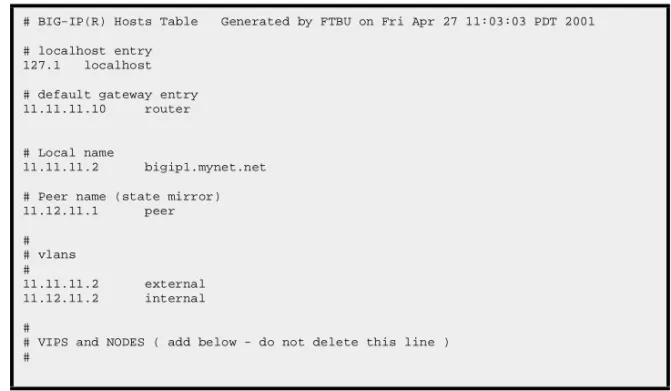
The /etc/hosts file, as created by the First-Time Boot utility, is similar to the example shown in Figure 3.1.
This sample hosts file lists the IP addresses for the default router, the internal VLAN, and the external VLAN, and it contains place holders for both the virtual servers and the content servers that the BIG-IP Controller will manage.
WARNING
If you have modified the /etc/hosts file with something other than the First-Time Boot utility, such as vi or pico, be aware that your changes may be lost when you run the First-Time Boot utility (config file). The First-Time Boot utility overwrites the /etc/hosts file and openssl.conf, but it does not warn you before doing so.
# BIG-IP(R) Hosts Table Generated by FTBU on Fri Apr 27 11:03:03 PDT 2001 # localhost entry
127.1 localhost # default gateway entry 11.11.11.10 router
# Local name
11.11.11.2 bigip1.mynet.net # Peer name (state mirror) 11.12.11.1 peer #
# vlans #
11.11.11.2 external 11.12.11.2 internal
#
# VIPS and NODES ( add below - do not delete this line ) #
Additional Setup Options
Installation Guide 3 - 3
Downloading the SSH client to your
administrative workstation
From BIG-IP Controllers that support encrypted communications, you can download the SSH client to your administrative
workstation in preparation for remote command line access. In addition to running BIG-IP command line utilities, you can also use the SSH suite for file transfer to and from the BIG-IP Controller, as well as for remote backups.
The SSH client is available for both Windows and UNIX
platforms, and you can download your preferred client either from the web server or using an FTP connection. You can find detailed information about the SSH client in the F-Secure SSH manual, provided with your BIG-IP Administrator Kit.
Note
If your BIG-IP Controller does not support encrypted connections, you can use a Telnet shell for remote command line access.
WARNING
The F-Secure SSH license agreement allows you to use two copies of the F-Secure SSH client. If you require additional licenses, you need to contact Data Fellows. For information about contacting Data Fellows, as well as information about working with the SSH client, refer to the F-Secure manual included with your BIG-IP Controller.