Chapter 21 – Web Servers
(IIS and Apache)
(IIS and Apache)
Outline
21.1 Introduction
21 2 HTTP Request Types
21.2 HTTP Request Types
21.3 System Architecture
21.4 Client-Side Scripting versus Server-Side Scripting
21.5 Accessing Web Servers
21.6 Microsoft Internet Information Services (IIS)
21.6.1 Microsoft Internet Information Services
(IIS) 5.0
21 6 2 Microsoft Internet Information Services
21.6.2 Microsoft Internet Information Services
(IIS) 6.0
21.7 Apache Web Server
21.8 Requesting Documents
21 8 1 XHTML
21.8.1 XHTML
21.8.2 ASP.NET 21.8.3 Perl
21.8.4 PHP
Objectives
• In this lesson, you will learn:
– To understand a Web server’s functionality – To understand a Web server s functionality.
– To introduce Microsoft Internet Information Services (IIS) and Apache Web server.
21.1 Introduction
• Web server
– Responds to client requests by providing resources – Responds to client requests by providing resources
• URI (Uniform Resource Identifier)
• Web server and client communicate with
• Web server and client communicate with
platform-independent Hypertext Transfer Protocol
(HTTP)
21.1 Introduction
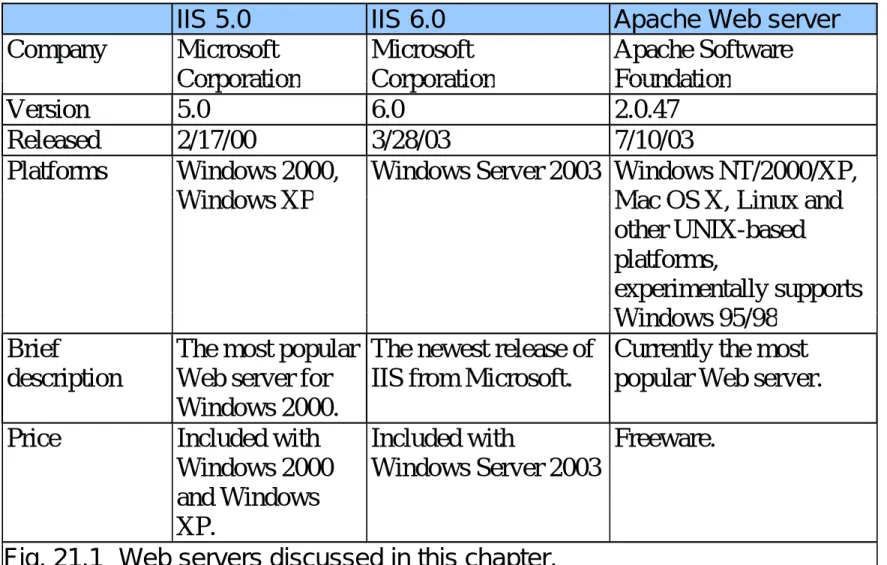
IIS 5.0 IIS 6.0 Apache Web server Company Microsoft Corporation Microsoft Corporation Apache Software Foundation
Corporation Corporation Foundation
Version 5.0 6.0 2.0.47
Released 2/17/00 3/28/03 7/10/03 Platforms Windows 2000,
Wi d XP
Windows Server 2003 Windows NT/2000/XP, M OS X Li d Windows XP Mac OS X, Linux and
other UNIX-based platforms,
experimentally supports Wi d 95/98
Windows 95/98 Brief
description
The most popular Web server for Windows 2000.
The newest release of IIS from Microsoft.
Currently the most popular Web server.
Price Included with Windows 2000
and Windows XP.
Included with
Windows Server 2003
Freeware.
21.2 HTTP Request Types
• Request methods
– get
– get
– post
– Retrieve and send client form data to Web server – Post data to a server-side form handler
21.3 System Architecture
• Multi-tier application (
n
-tier application)
– Information tier (data or bottom tier) – Information tier (data or bottom tier)
• Maintains data for the application
• Stores data in a relational database management system (RDBMS)
(RDBMS)
– Middle tier
• Implements business logic and presentation logic • Control interactions between application clients and
application data
– Client tier (top tier)Client tier (top tier)
• Application’s user interface
• Users interact directly with the application through the client tier
21.4 Client-Side Scripting versus
Server-Side Scripting
p
g
• Client-side scripts
– Validate user input – Validate user input
• Reduce requests needed to be passed to server • Access browser
• Enhance Web pages with DHTML, ActiveX controls, and applets
• Server-side scripts
Server side scripts
– Executed on server
– Generate custom response for clients
– Wide range of programmatic capabilities
– Access to server-side software that extends server functionality
21.5 Accessing Web Servers
• Request documents from Web servers
– Host names – Host names
– Local Web servers
• Access through machine name or localhost
– Remote Web servers
• Access through machine name
– Domain name or Internet Protocol (IP) addressDomain name or Internet Protocol (IP) address
• Domain name server (DNS)
– Computer that maintains a database of host names and their corresponding IP address
21.6 Microsoft Internet Information Services
(IIS)
(
)
• An enterprise-level Web server that is included
with Windows
21.6.1 Microsoft Internet Information
Services (IIS) 5.0
(
)
• FTP Site
– Used for transferring large files across the Internet – Used for transferring large files across the Internet
• HTTP Site
– Used most frequently to request documents from WebUsed most frequently to request documents from Web servers
• SMTP Virtual Server
– Sends and receives electronic mail
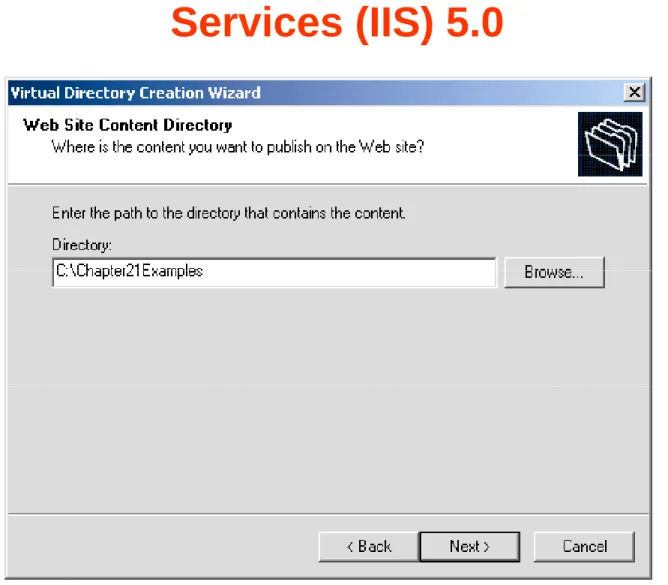
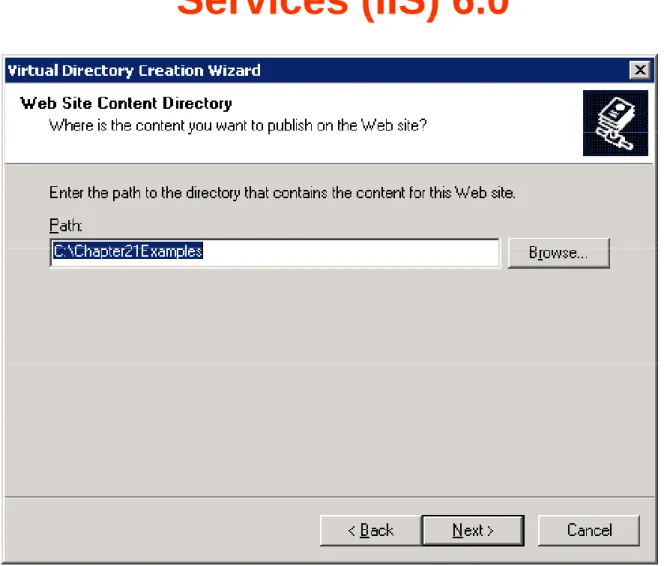
• Web Site Content Directory
21.6.1 Microsoft Internet Information
Services (IIS) 5.0
(
)
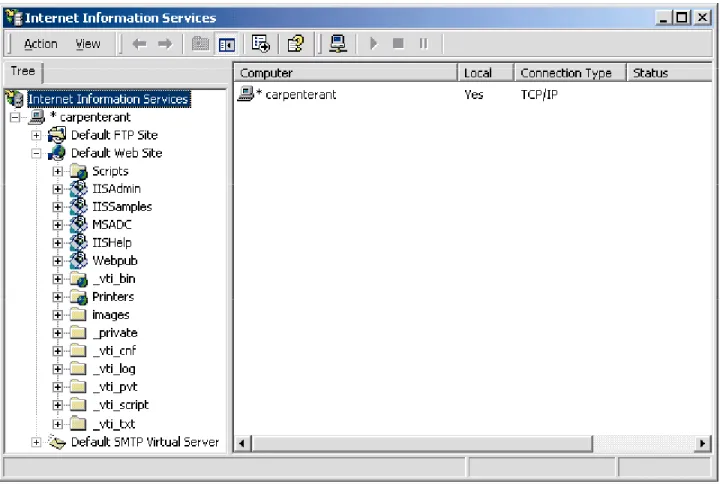
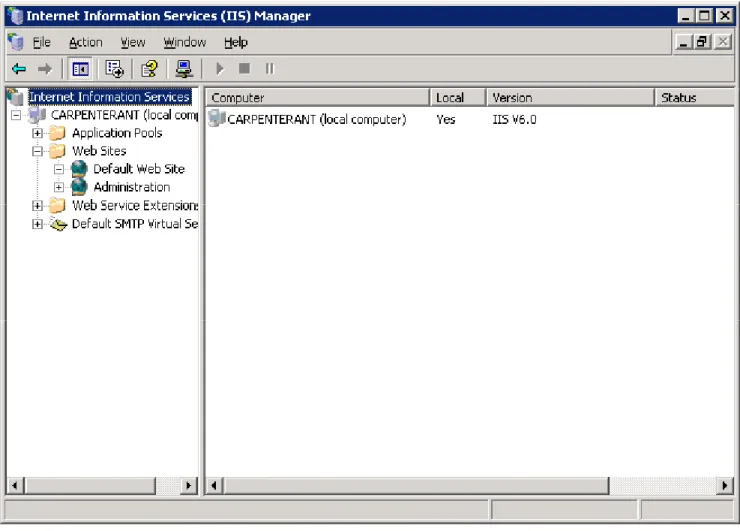
Fig. 21.3 Internet Information Serviceswindow ofInternet Services Manager. Fig. 21.3 Internet Information Serviceswindow of Internet Services Manager.
21.6.1 Microsoft Internet Information
Services (IIS) 5.0
(
)
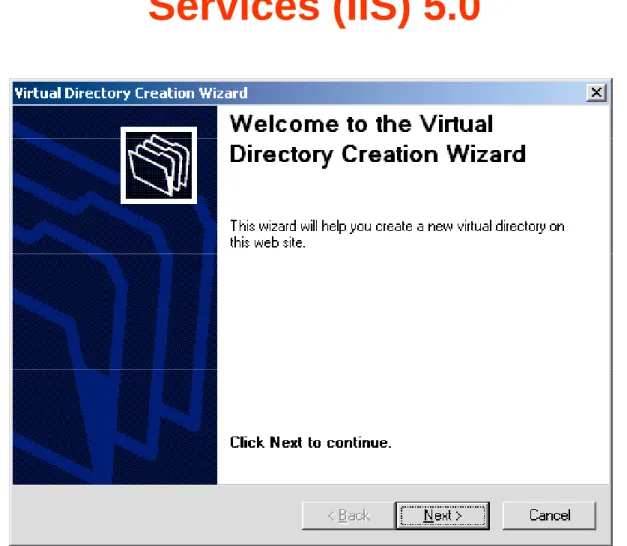
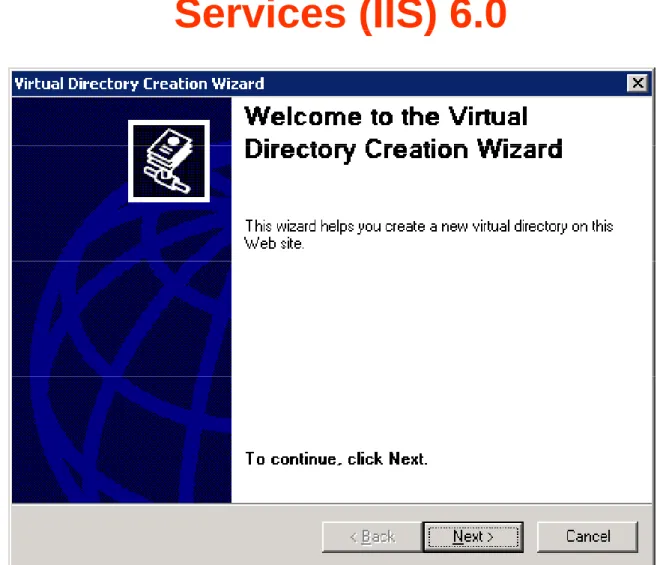
Fig. 21.4 Virtual Directory Creation Wizardwelcome dialog. Fig. 21.4 Virtual Directory Creation Wizardwelcome dialog.
21.6.1 Microsoft Internet Information
Services (IIS) 5.0
(
)
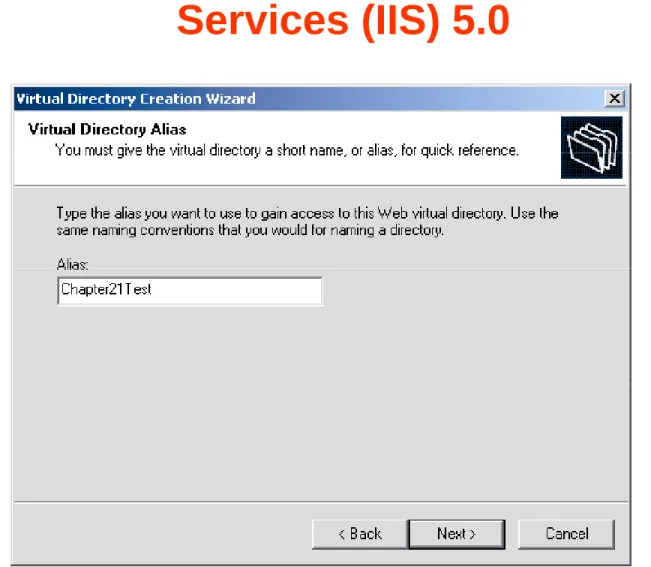
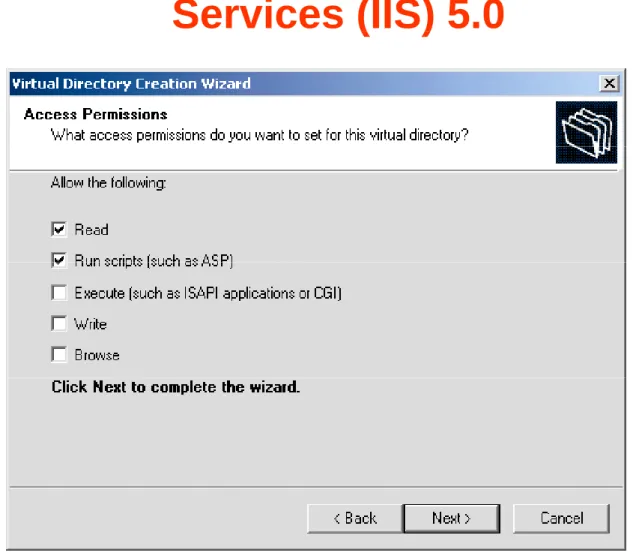
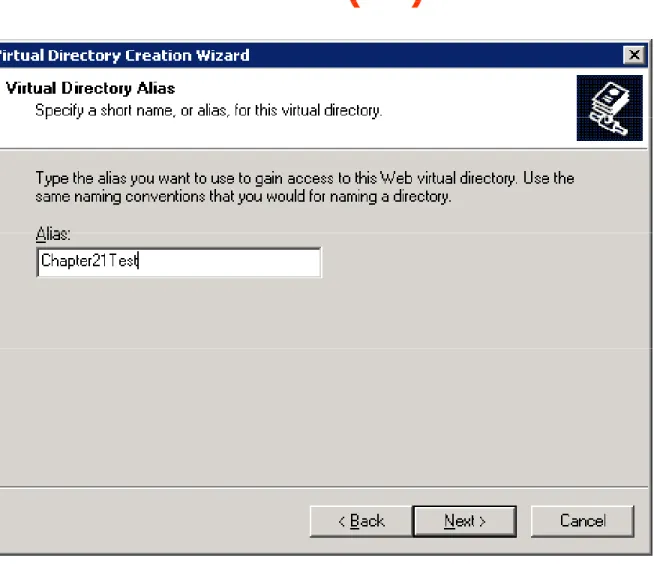
Fi 21 5 Vi t l Di t Ali di l f th Vi t l Di t C ti Wi d
21.6.1 Microsoft Internet Information
Services (IIS) 5.0
(
)
21.6.1 Microsoft Internet Information
Services (IIS) 5.0
(
)
21.6.2 Microsoft Internet Information
Services (IIS) 6.0
(
)
21.6.2 Microsoft Internet Information
Services (IIS) 6.0
(
)
21.6.2 Microsoft Internet Information
Services (IIS) 6.0
(
)
21.6.2 Microsoft Internet Information
Services (IIS) 6.0
(
)
21.6.2 Microsoft Internet Information
Services (IIS) 6.0
(
)
21.7 Apache Web Server
• Currently the most popular Web server
Stabilit
• Stability
• Efficiency
P t bilit
• Portability
• Open-source
21.7 Apache Web Server
21.8 Requesting Documents
• Requesting five different documents
– XHTML – XHTML – ASP.NET – Perl
– PHP – Python
21.8.1 XHTML
• Request XHTML documents from IIS 6.0 or
Apache
Apache
– Launch Internet Explorer
21.8.1 XHTML
21.8.2 ASP.NET
• Request ASP.NET document from IIS 5 or 6
– Launch Internet Explorer – Launch Internet Explorer
– Enter ASP.NET document’s location in Address field
• Apache support ASP Classic but doesn’t support
p
pp
pp
ASP.NET
21.8.2 ASP.NET
21.8.3 Perl
• Request Perl document from IIS 5 or 6
– Launch Internet Explorer – Launch Internet Explorer
– Enter the Perl document’s location in the Address field
• Request Perl document on Apache Web server
q
p
– Put all Perl documents in cgi-bin directory
– Launch Internet Explorer
21.8.3 Perl
Fig. 21.18 Requesting test.pl from IIS 5.
Fig 21 19 Requesting test pl from IIS 6 Fig. 21.19 Requesting test.pl from IIS 6.
21.8.3 Perl
Fig. 21.20 Requesting test.pl from Apache. Fig. 21.20 Requesting test.pl from Apache.
21.8.4 PHP
• Request PHP documents from IIS 5 and 6
– Launch Internet Explorer – Launch Internet Explorer
– Enter PHP document’s location in the Address field
• Request PHP documents from Apache
q
p
– Save PHP documents in the htdocs directory
– Launch Internet Explorer
21.8.4 PHP
Fig. 21.21 Requesting test.php from IIS 5.
21.8.4 PHP
21.8.5 Python
• Request Python documents from IIS 5 and 6
– Launch Internet Explorer – Launch Internet Explorer
– Enter Python document’s location in the Address field
• Request Python documents from Apache Web
q
y
p
server
– Put Python documents in cgi-bin directory
– Launch Internet Explorer
21.8.5 Python
Fig. 21.24 Requesting test.py from IIS.
21.8.5 Python
21.9 Web Resources
• www.microsoft.com/msdownload/ntoptionpack/askwiz.asp • www.w3.org/Protocols
• www.apache.org • httpd.apache.org
• httpd.apache.org/docs-2.0 • www.apacheweek.com
• linuxtoday.com/stories/18780.html • www.iisanswers.com