Industrial
ITInform IT Enterprise Historian
Enterprise Historian
3BUF 001 152 D1
Version 3.2/1 Hot Fix 1 for Patch 4 Release Notes
Introduction
This document provides release information for hot fix 1 for Enterprise Historian version 3.2/1 patch 4 for history. This hot fix fixes a problem with the PDL API. It is possible for a Produce IT batch application to send data to a PDL task after the task has been marked as finished (task ID set to -1 or -2). Prior to this hot fix, when this occurred, the PDL API task ID would be converted from an unsigned integer to a double word (4294967294 or 4294967295). This invalid task ID would be stored with the message in the message log and would cause subsequent PDL and message archives to fail.
When this hot fix is installed, completed tasks will be set to zero. Storing this task ID value in the message log will not cause archives to fail.
This hot fix must be installed on all Enterprise Historian Server and Produce IT Batch (History Client) nodes.
You can check whether or not this hot fix has already been installed using the procedure described Verifying Installation on page 11.
Instructions for installing this hot fix are provided in Installation on page 2.
Making a Backup Enterprise Historian
Installation
This hot fix must be installed on all Enterprise Historian Server AND Produce IT Batch (History Client) nodes. This section describes the basic steps for installing the patch on both node types.
There are seven basic steps for installing this hot fix: 1. Make a backup of your system.
2. Verify that you have the correct version of History software with patch 4. 3. Obtain the hot fix file from ABB Solutions Bank.
4. Stop the applicable Information Management and Produce IT Batch services. 5. Move the current pdlApiSrv.exe file from its current location to a new folder.
This lets you revert back to the pre-hot fix installation if necessary.
6. Extract the new files from the zip file obtained from ABB and copy the new files to the History/bin directory.
7. Restart the computer.
8. Verify that the hot fix has been installed.
Detailed instructions for these basic steps are provided in the following sections.
Making a Backup
It is strongly recommended that you make a backup of your system before installing any new software. It is recommended that you make an image copy of all disks on the Enterprise Historian server that contain Enterprise Historian program and data files. You should also back up your history data periodically. If you have not followed these recommendations, then do so now before installing this hot fix.
For Produce IT Batch, if you have redundant batch servers, perform this procedure on the secondary server first. Switch the secondary to primary server status, then perform this procedure on the other batch server.
Enterprise Historian Checking the version of Your Current Installation
Checking the version of Your Current Installation
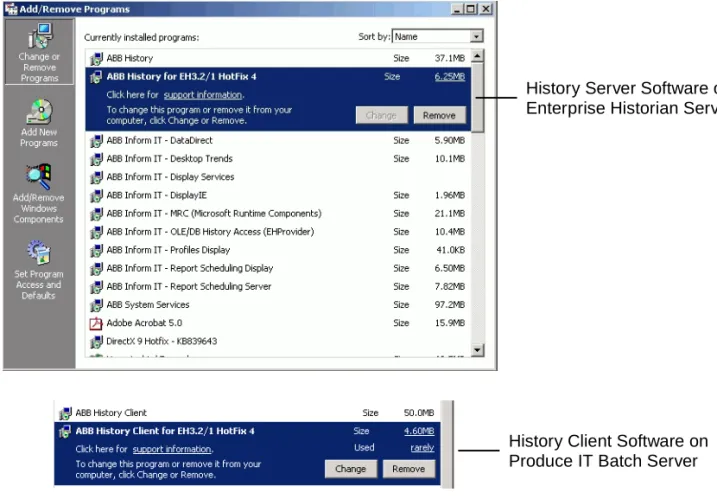
This hot fix requires Enterprise Historian version 3.2/1 History Server or History Client software with Patch (Hot Fix) 4. Use the Windows Add/Remove Programs utility to check whether or not this software is installed, Figure 1.
If your history software installation does not have Patch 4, install it now before you install this hot fix. Refer to the release notes for Enterprise Historian Version 3.2/1 Patch 4 to install the patch if necessary.
Figure 1. Checking Your Current History Software Installation
History Server Software on Enterprise Historian Server
History Client Software on Produce IT Batch Server
Downloading the Hot Fix Installation File Enterprise Historian
Downloading the Hot Fix Installation File
The hot fix is available as a zip file in the ABB Library. Download the hot fix file from the ABB Library to the computer where the hot fix is being installed. In the ABB Library drill down to:
Product Group = Control Products and Systems Product Family = Industrial IT - Inform IT Product SubFamily = Enterprise Historian Product = Enterprise Historian 3.2/1
The hot fix file name is EH321HS251P4HF1.zip.
Stopping Services
When you install this hot fix on the Produce IT Batch node (history client), you must stop the PDL Data and Message Servers BEFORE you can replace the pdlApiSrv.exe file. Also stop all Produce IT Batch services. See Stopping the PDL Data and Message Servers on the Produce IT Batch Node on page 5.
When you install this hot fix on the Enterprise Historian sever, you must stop the ABB Process Administration Service. This will also stop the PDL Data and
Message Servers. See Stopping the ABB Process Administration Service on the EH Server on page 7.
Enterprise Historian Stopping Services
Stopping the PDL Data and Message Servers on the Produce IT Batch Node Stop the PDL Data and Message Servers via the EH Connection Configuration tool: 1. Launch this tool from the Windows task bar choose: Start>ABB Industrial IT
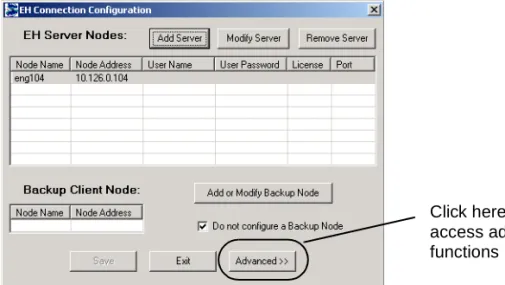
>Inform IT>History>EH Connection Configuration, Figure 2. 2. Click Advanced in the EH Connection Configuration dialog, Figure 3.
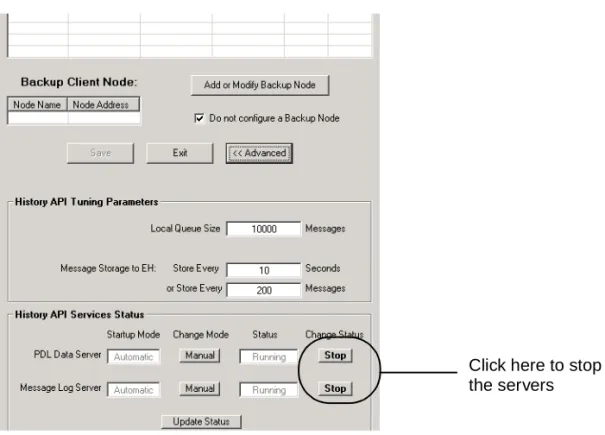
3. At the bottom of the Advanced view, click the Stop buttons for the respective servers, Figure 4.
Figure 2. Launching the EH Connection Configuration Tool
Figure 3. Accessing Advanced Functions for EH Connection Configuration
Click here to access advanced functions
Stopping Services Enterprise Historian
4. Click the Update Status button to verify the servers are stopped, Figure 5.
5. Click Exit to exit the EH Connection Configuration tool.
Also stop all batches and batch-related services before installing the hot fix.
Figure 4. Stopping the Servers
Figure 5. Confirming Servers Stopped
Click here to stop the servers
Enterprise Historian Retaining the Original File
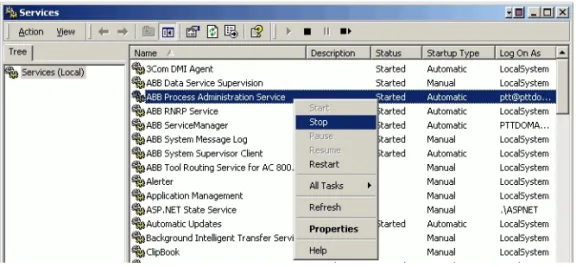
Stopping the ABB Process Administration Service on the EH Server Use the Windows Services utility under Administrative Tools in the Windows Control Panel to stop the ABB Process Administration service on the Enterprise Historian server:
1. Choose Start>Settings>Control Panel>Administrative Tools>Services. 2. Select the ABB Process Administration Service, then right-click and choose
Stop from the context menu.
3. Close the Services utility window.
Retaining the Original File
Preserve the original file to be replaced by this hot fix by moving it from its current location to a new folder. This lets you revert back to the pre-hot fix installation if necessary. The file provided by this hot fix is pdlApiSrv.exe. This file is located in the History/bin directory. The %hs_home% environment variable specifies the path to the History directory.
1. Enter the %hs_home% environment variable in the Plant Explorer, Figure 7.
Retaining the Original File Enterprise Historian
2. Drill down in History to the bin directory.
3. Make a new folder in the bin directory, for example: OldFiles.
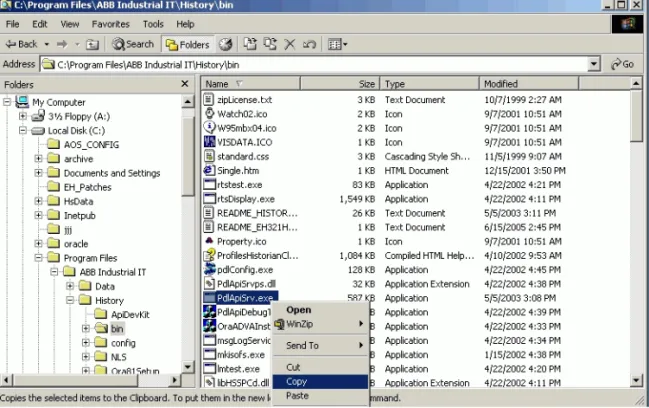
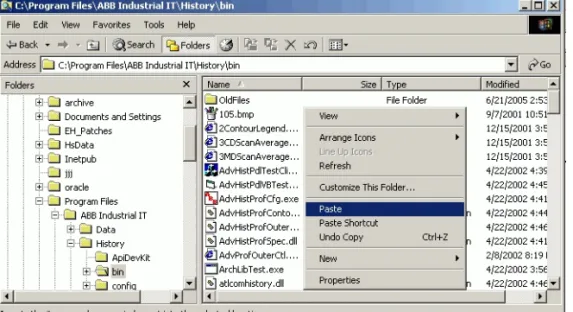
4. Find the pdlApiSrv.exe file in the bin directory. To preserve this file, copy it from History/bin, Figure 8, and paste it in the new folder.
Figure 7. Using the %hs_home% Environment Variable
Enterprise Historian Installing the New Hot Fix Files
Installing the New Hot Fix Files
Go to the directory where you put the hot fix .zip file, then extract and copy the files, Figure 9.
Open the zip file
Extract to a specified location
Copy the extracted files
Restarting the Computer Enterprise Historian
5. Then paste the files in the history/bin directory, Figure 10. Respond Yes when asked whether or not to replace the existing file.
Restarting the Computer
Restart the computer when you are finished copying the files. This will
automatically start the services that were stopped earlier. Also start any batches that were stopped.
Enterprise Historian Verifying Installation
Verifying Installation
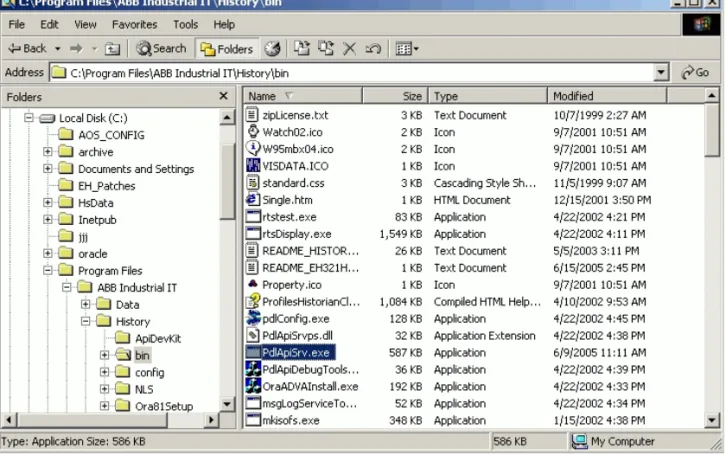
To verify the hot fix installation, check the creation date of the pdlApiSrv.exe file in the history/bin directory. The correct date is 6/9/2005 11:11 AM, Figure 11.