
Honeywell Universal Modbus Interface
Reference
Notice
This document contains Honeywell proprietary information. Information contained herein is to be used solely for the purpose submitted, and no part of this document or its contents shall be reproduced, published, or disclosed to a third party without the express permission of Honeywell Limited Australia.
While this information is presented in good faith and believed to be accurate, Honeywell disclaims the implied warranties of merchantability and fitness for a purpose and makes no express warranties except as may be stated in its written agreement with and for its customer.
In no event is Honeywell liable to anyone for any direct, special, or consequential damages. The information and specifications in this document are subject to change without notice.
Copyright 2003 – Honeywell Limited Australia Honeywell Trademarks
Experion PKS®, PlantScape®, SafeBrowse®, TotalPlant® and TDC 3000® are U.S. registered trademarks of Honeywell International Inc.
Honeywell Enterprise Buildings Integrator™ is a trademark of Honeywell International Inc.
Other Trademarks
Microsoft and SQL Server are either registered trademarks or trademarks of Microsoft Corporation in the United States and/or other countries.
Trademarks that appear in this document are used only to the benefit of the trademark owner, with no intention of trademark infringement.
Contents
1 Getting Started
Support and Documentation for Universal Modbus . . . 6
About the Universal Modbus Interface . . . 6
Other Documentation for Universal Modbus . . . 6
Control Products Wizard . . . 8
2 Universal Modbus Controller Setup
Connecting your Controller. . . 10Setting up Your Connections. . . 10
Universal Modbus TCP Connection . . . 14
Configuring Communication Parameters . . . 16
RS485 Devices . . . 16
TCP/IP Devices . . . 16
3 Universal Modbus Controller Configuration and Addressing
Defining a Universal Modbus Channel . . . 18Universal Modbus Channel Main Properties . . . 18
Universal Modbus Port Properties. . . 20
Defining a Universal Modbus Controller . . . 24
Universal Modbus Controller Main Properties . . . 24
Defining a Universal Modbus Address for a Point Parameter Value . . . 28
Entering an Address . . . 28
Named Register Addresses . . . 33
Troubleshooting Point Configuration . . . 34
Errors when point building . . . 34
Error when scanning . . . 34
Optimizing Scanning Performance . . . 35
4 Server and Station Tasks for Universal Modbus
Testing Communications with the Server . . . 38Troubleshooting Universal Modbus Configuration Errors . . . 40
Common Problems . . . 40
Problems with Specific Controller Models . . . 41
5 Device Information
Devices . . . 51Non-numbered Addresses . . . 99
6 HC900 and UMC800 SPP and Recipe Support
Overview . . . 102 Planning. . . 103 Resource Requirements. . . 103 Migration/Conversion Requirements . . . 104 Configuration . . . 106 Configuring a Recipe. . . 106 Configuring a SP Profile . . . 107Configuring a Combined Recipe. . . 108
Configuring SPP Monitoring. . . .110
Operation . . . .113
Downloading a Recipe . . . .113
Downloading a SP Profile . . . .114
Downloading a Combined Recipe. . . .114
Controlling a SP Programmer . . . .115
1
Getting Started
This reference describes how to set up, configure, and test Universal Modbus controller communications with the server. There is detailed information for defining the controller using Quick Builder.
Complete each step before commencing the next.
Steps for Connecting and Configuring an Universal Modbus Controller:
The Control Products wizard makes it easier to configure a controller if you have only used its standard options. See “Control Products Wizard” on page 8.
Steps: Go to:
Connect and set up the Universal Modbus controller according to the controller’s user manual’s instructions
page 10
Use Quick Builder to define channels page 18
Use Quick Builder to define controllers page 24
Download channel and controller definitions to the server
Enable channels and test communications page 38
Troubleshooting communication errors page 40
Support and Documentation for Universal Modbus
About the Universal Modbus Interface
The Universal Modbus Interface enables the server to interface to any Control Products controller that implements the Honeywell Universal Modbus protocol. The Honeywell Universal Modbus protocol is the Honeywell implementation of the Modbus RTU Communications protocol for serial RS-485, RS-232 or Ethernet networks. Configuration information relating to specific controllers is supplied in separate user manuals (see “Other Documentation for Universal Modbus” on page 6).
This Interface is supported only by systems that are licensed for Universal Modbus.
To check your system licence:
1 In Station, select Configure > Server Licence Details from the Station menu. 2 Go the Interfaces page.
All licensed options for your system display. Ensure that “Universal Modbus” is listed.
Contact your local supplier for further licensing details.
Other Documentation for Universal Modbus
The following documents are available from Honeywell:
• Modbus RTU Serial Communications User Manual (Part number 51-52-25-66)
• Overview and Planning Guide
• HC900 Modbus/TCP Communications User Manual (Part number 51-52-25-111)
The controller communication and configuration user manuals are listed below. Instrument Model User Manual Part Number
RSX, VPR100, VRX100, UDC5300, VRX180 51-52-35-68 DR4300 51-52-25-71 DR4500 51-52-25-69 UDC 2300 51-52-25-75
Support and Documentation for Universal Modbus
UDC3300 51-52-25-70
51-52-25-38 UDC3000 A Modbus 485 RTU Communication Manual
DPR180 / DPR250 EN1I-6189 DPR180/DPR250
Communication Option Manual
UMC800 52-52-25-87 Modbus RTU Serial
Communications User Manual
HC900 51-52-25-107
51-52-25-111 HC900 Hybrid Controller Ethernet Modbus/TCP Communications User Manual
TrendView - Minitrend, Multitrend, ez
Trend 43-TV-25-08 Communications Manual
Ethernet Bridge Card (UMC900, VRX180 / DPR180 / DPR250
51-52-25-96 Ethernet Interface Manual Instrument Model User Manual Part Number
Control Products Wizard
The Control Products wizard makes it easy to configure a controller and its associated points. The wizard guides you through the standard configuration tasks, and can download the configuration details to the server. You can also use the wizard to modify the configuration details of an existing controller.
You can access the wizard either in Quick Builder, where the wizard adds the controller to the current project. To start the wizard from Quick Builder, select it from the Tools menu. To use the wizard in Quick Builder, select:
Tools > Control Products Wizard. Note
2
Universal Modbus Controller
Setup
This chapter describes how to set up an Universal Modbus controller. The tasks for setting up a Universal Modbus controller are:
For: Go to:
Connecting to the server page 10
Connecting your Controller
Many different types of controllers can be connected to the same Universal Modbus network. The only requirements are that every controller on the same network use the same connection type and baud rate, and that each controller use a unique device identification number.
Setting up Your Connections
Control Products controllers are designed to communicate using the Modbus TCP Ethernet, RS485 or the RS-232 specification. See the User Manual specific to your Control Products controller for information about cabling requirements. Devices using RS-232 can be connected directly to a RS-232 port on the server, or to a terminal server.
Two methods are supported for connecting the server to an RS-485 network of Control Products controllers:
• Using an RS-232 to RS-485 converter (see “Using an RS-232/485 Converter” on page 11).
• Directly connecting the server to the RS-485 network via an add-in card (see “Using an RS-485 Adapter” on page 13).
You can also connect to Ethernet TCP/IP networks using Modbus/TCP protocol using two methods:
• Direct Ethernet connection (HC900, TrendView)
• Ethernet - Modbus bridge (internal option for UMC800, VRX180, DPR180 and DPR250)
Make sure that you read the User Manual specific to your Control Products controller before connecting your controllers to the network.
Connecting your Controller
Using an RS-232/485 Converter
Honeywell recommends that you use the Black Box LD485-HS RS-232/485 Interface Converter, model number ME837A, or a Black Box IC109A-R2. These converters have been qualified by Honeywell. Use of another converter might produce unexpected results.
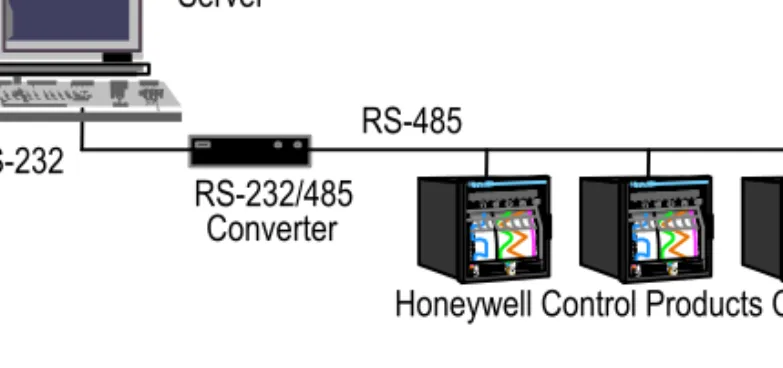
Connect an RS-232 port on the server to the RS-232 port on the Black Box converter using a standard RS-232 straight through cable. Then connect the Black Box converter and the Control Products controllers to the RS-485 network as shown in “Black Box (2-wire) Connections” on page 11.
Black Box Connections
Figure 1 RS-232 to RS-485 Converter RS-232 Server RS-232/485 Converter RS-485
Honeywell Control Products Controllers
Figure 2 Black Box (2-wire) Connections
+ Black Box RS-485 Port RS-485 Network
Tx B Tx A -+ +- -Rx A Rx B 120 Honeywell Control Products Controllers
Ensure that the black box switches are configured with the following settings. Figure 3 Black Box (4-wire) Connections
Black Box RS-485 Port RS-485 Network Tx B Tx A Rx A Rx B Tx+ Tx- Rx-Rx+ Tx+ Tx- Rx-Rx+ Tx+ Tx- Rx-Rx+ 120 120 Honeywell Control Products Controllers
Switch Setting Description
XW1A jumper in* Configure RS-232 port as DCE. XW1B jumper out Do not configure RS-232 port as DTE. W8 B-C 2-wire (half-duplex) operation.
W9 C* 0 ms RTS/CTS delay.
W15 B-C RS-485 transmitter enabled by data.
W5 A-B* RTS/CTS normal.
W17 C 2 ms transmitter enabled time. This is good for 9600 Baud. Decrease for higher Baud rates. Increase for lower Baud rates. A - 30 ms
B* - 7 ms C - 2 ms D - 0.7 ms E - 0.15 ms
W16 B* 0.1 ms delay before receiver enabled. Term ON RS-485 receiver terminated. Bias OFF* Line bias off.
Connecting your Controller
Using an RS-485 Adapter
Honeywell recommends using the Stallion EasyConnection 8/32 ISA, 8/32 PCI, 8/64 ISA or 8/64 PCI adapters with the Stallion RS-232 to RS-485 8-port dual interface asynchronous module. Honeywell has qualified this adapter. Use of another adapter may produce unexpected results.
Installing the Stallion EasyConnection Serial Adapter
Stallion EasyConnection serial adapters are suitable for connection to RS-232, RS-422 and RS-485 devices.
Install the adapter, port module, and driver in the server as described in the Stallion documentation.
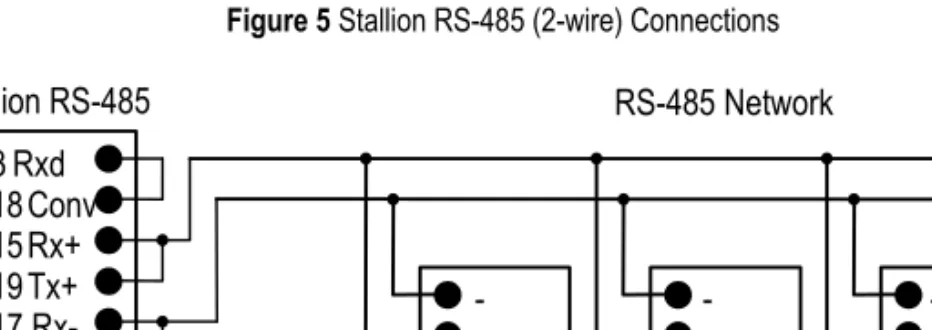
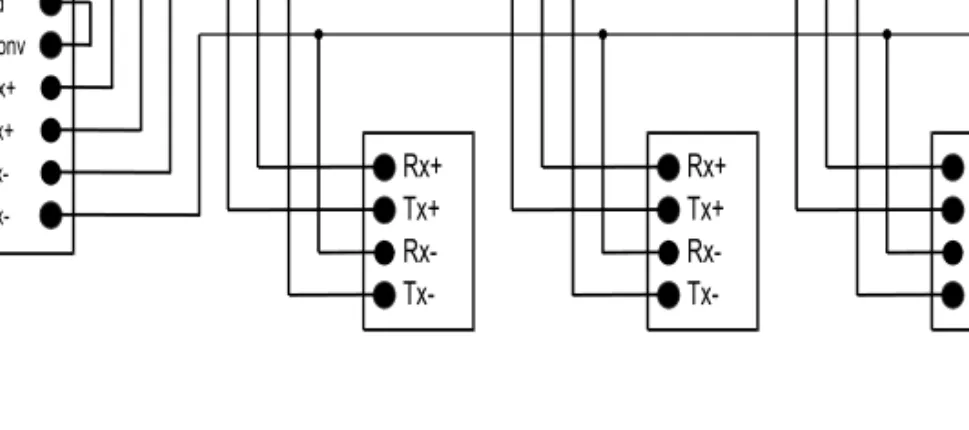
Connect a port on the Stallion port module directly to the RS-485 network as shown in “Stallion RS-485 (2-wire) Connections” on page 13 and in “Stallion RS-485 (4-wire) Connections” on page 14. Next, connect your Control Products controllers to the RS-485 network.
Figure 4 Stallion EasyConnection Adapter
Server
Stallion 8-Port serial interface
RS-485
Honeywell Control Products Controllers
Figure 5 Stallion RS-485 (2-wire) Connections
Stallion RS-485 RS-485 Network 18 Conv 3 Rxd 15 Rx+ 19 Tx+ 120 17 Rx-25 Tx- + -+ -+
-Universal Modbus TCP Connection
To connect controllers to the server communicating using the UModbus TCP protocol, you are required to have network adapter (NA card) connected to an Ethernet network on both the server as well as the controller. An external TCP/IP bridge (Lantronix DR1-IAP) may also be used for RS-485 network connection to Ethernet.
Figure 6 Stallion RS-485 (4-wire) Connections Stallion RS-485 RS-485 Network 120 120 18 Conv 3 Rxd 15 Rx+ 19 Tx+ 17 Rx-25 Tx-Rx+ Tx+ Rx- Tx-Rx+ Tx+ Rx- Tx-Rx+ Tx+ Rx-
Tx-Figure 7 Non-redundant Universal Modbus TCP Network Architecture
LAN/WAN NA card Server NA card Controller Ethernet/Modbus bridge Serial RS-485 Honeywell Control Products Controllers
Connecting your Controller
Redundant Communication Architecture
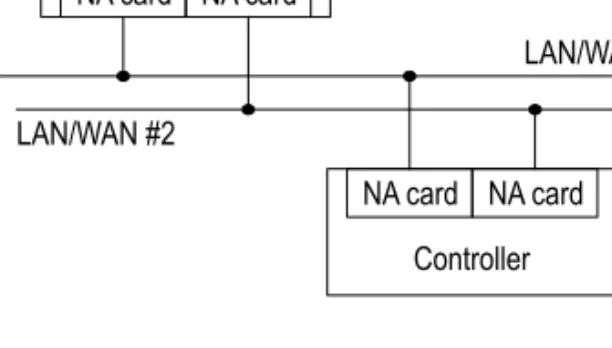
If you require redundant communications, you must have two separate network adapters (NA card) on both the server and the controller which are connected to separate Ethernet subnets. This architecture is not presently supported in the controllers.
Figure 8 Redundant Universal Modbus TCP Network Architecture
LAN/WAN #1 Server NA card NA card Controller NA card NA card LAN/WAN #2
Configuring Communication Parameters
RS485 Devices
Before using your Control Products controllers, ensure that all communication parameters are configured correctly for each controller. Configure each controller to use the following communication parameters.
Make sure that each controller on the RS-485 network is configured for the same Baud rate. When you are ready to configure the server, you will need to know what Baud rate each RS-485 network is using.
Every controller using the same connection to the server (RS-232 or RS-485) should have a unique Universal Modbus device identification number. Make a list showing what number has been associated with each of your controllers. You will need this information when using Quick Builder to configure the server to use your Control Products controllers.
TCP/IP Devices
Ensure every controller or TCP/IP bridge device on the Ethernet network has a unique IP address. Make a list showing what IP addresses have been associated with each controller or bridge device. You will need this information when using Quick Builder to configure the server to use your Control Products controllers. Note that any serial Control Products controllers connected to a TCP bridge must also conform to communications parameters for RS485 devices. Each must also have a unique physical address on the RS-485 network.
Parameter Value
Number of Start Bits 1
Number of Data Bits 8
Number of Parity Bits 0
3
Universal Modbus Controller
Configuration and Addressing
This chapter describes how to configure a Universal Modbus controller for the system using Quick Builder. For each configuration procedure, there is detailed information covering all supported Universal Modbus devices.
The Quick Builder controller configuration tasks are described:
You can simplify configuration tasks by using the Control Products wizard. See “Control Products Wizard” on page 8.
For: Go to:
Steps for defining a Universal Modbus channel page 18 Steps for defining a Universal Modbus controller page 24 Defining an address for a point parameter value page 28
Defining a named address page 28
Defining a non-named address page 32
Troubleshooting point configuration page 34
Defining a Universal Modbus Channel
Build a channel for each RS-485, RS-232 or Ethernet TCP/IP physical connection from your server. Note that you can multi-drop several controllers on the one serial RS-485 channel, provided they all use the same Baud settings.
To define a channel using Quick Builder: 1 Click to add a channel.
2 In the Add Items dialog box, select Channel as the item and Universal Modbus as the channel type.
3 Enter the channel details on the Main property page for the channel. For help with the channel definitions, see Universal Modbus Channel Main Properties. 4 To complete the channel definition, click the Port tab and define either a
serial, terminal server or a LANVendor port (for Ethernet Modbus/TCP). See “Universal Modbus Port Properties” on page 20.
Universal Modbus Channel Main Properties
Use the Main tab to enter the basic channel properties for a Universal Modbus channel.
Property Description
Name Type a unique name for the channel. A maximum of 10 alphanumeric characters can be used. (Double quotation marks and spaces are not allowed.)
Description (Optional) Type a description of the channel. A maximum of 30 characters can be used, including spaces.
Defining a Universal Modbus Channel
Marginal Alarm Limit The communications alarm marginal limit at which the channel is declared to be marginal. When this limit is reached, a high priority alarm is generated. A channel barometer monitors the total number of requests and the number of times the controller did not respond or response was incorrect. The barometer increments by 2 or more, depending on the error and decrements for each good call.
To calculate an acceptable limit, multiply the square root of the number of controllers on the channel by the average Marginal Alarm Limit defined for those controllers. (Normally, you specify the same value for all controllers on a channel). For example, if there are 9 controllers on the channel and their Marginal Alarm Limit is set to 25, the value would be [ 3 is square root ] x 25 = 75.
Fail Alarm Limit The communications alarm fail limit at which the channel is declared to have failed. When this barometer limit is reached, an urgent alarm is generated.
Set this to double the value specified for the channel Marginal Alarm Limit.
Write Delay If the channel is on a serial port, specify the minimum number of milliseconds that the server must wait before writing to any controller on the channel. See “Channel Write Delay Settings” on page 20.
Connect Timeout Amount of time (in seconds) the server waits to connect to the controller before abandoning the connection. Type a new value in this field if you do not want the default, 10 seconds.
Use the default value unless the communications line has a high error rate or unless you are using modems. Read Timeout Amount of time (in seconds) that the server waits for a
reply from the controller. Type a new value in this field if you do not want the default, 2 seconds.
Use the default value unless the communications line has a high error rate or unless you are using modems. Item Type Shows the type of item specified when this item was
created.
Last Modified Shows the date of the most recent modification to this channel’s property details.
Channel Write Delay Settings
Serial devices using the RS-485 protocol require a minimum period during which no communications occur. Different devices have different requirements. You should configure the write delay to be the largest value required by any device on your RS-485 network. See the following table for requirements of individual devices.
Where a delay is specified in number of characters, convert the value to milliseconds using this formula:
Time(ms) = (1000 x Characters)/Baud Rate Write delay should be rounded up to the nearest whole number.
For example, 3.5 Chars at 9600 Baud = (1000 x 3.5)/9600 = 3.6ms (round to 4ms)
Universal Modbus Port Properties
The Port tab defines the communication-related properties for a channel. The Port Type for Universal Modbus can be:
• Serial. A serial communications interface, such as RS-485. See “Serial Port Properties” on page 21.
• TerminalServer. A communications link that enables controllers with a serial interface to be connected to a LAN. See “TerminalServer Port Properties” on page 22.
• LANVendor. A communications interface using TCP/IP to controllers connected to a LAN.
Item Number This field displays the unique item number currently assigned to this item by Quick Builder. You can change the item number displayed in this field if you need to match your current server database configuration. The item number must be between 1 and the maximum number of channels allowed for your system.
Property Description RSX, VPR, UDC5300, UMC800 DPR100, DPR180, DPR250 DR4300 DR4500 UDC3300, UDC2300 3.5 Chars 3.5 Chars V 4: 20 ms V 5 or greater: 3.5 Chars + 2ms V 57 and 58: 20ms V 59 or greater: 3.5 Chars + 2 ms 20 ms
Defining a Universal Modbus Channel
Serial Port Properties Note
The Serial Port settings must match the settings on your communication devices.
Property Description
Serial Port Name The device name of the serial port.
Baud Rate The number of data bits per second. The default is 9600.
Number of Data Bits The number of data bits used for transmission. The default is 8.
Stop Bits The number of stop bits used for transmission. The default is 1.
Parity The parity verification used on the port. The default is NONE.
Checksum Select None.
XON/XOFF The type of XON/XOFF software flow control used to stop a receiver from being overrun with messages from a sender. The types are:
• None (default)
• Input (use XON/XOFF to control the flow of data on the receive line)
• Output (use XON/XOFF to control the flow of data on the transmit line)
TerminalServer Port Properties
Handshaking Options RS-232
• Enable RTS/CTS flow control. Select to stop a receiver from being overrun with messages from a sender by using RTS/CTS for flow control. • Detect DCD. Select if the Data Carrier Detect
communication status line of the COM port requires monitoring (usually when using modem or
microwave linking). When selected, the
communications fails if the desired COM status line is not high—for example, on a dial-up link
connection for a modem.
• Detect DSR. Select if the Data Set Ready
communication status line of the COM port requires monitoring (usually when using modem or
microwave linking). When selected, the
communications fails if the desired COM status is not achieved.
Note: No options available for RS-422. RS-485
• Enable Stallion RS-485 Half Duplex. Select for a Stallion EasyConnection.
• Echo (Required for RS-485 2-wire ports). Select so that the server expects the messages it sends to the port on the transmit line to be echoed back on the receive line. Select for a Stallion EasyConnection adapter. Do not select for a Black Box Converter.
Property Description
Property Description
Terminal Server TCP Host Name
Terminal Server TCP Port No
The name and port number of terminal server to which the channel is connected.
You can specify either a TCP host name or an IP address, but it must match the TCP host name used when you installed and internally configured the terminal server.
Idle Timeout The time, in seconds, the channel waits for a successful connection to the server before closing the connection. A value of 0 indicates that the connection is never closed.
Defining a Universal Modbus Channel
Redundant Port Properties
A communication port used as a redundant link has the same channel name but a requires a different port name to its twin. All other entries are identical to those of the primary port.
Defining a Universal Modbus Controller
You need to define a controller to describe each product on a channel. To define a controller using Quick Builder:
1 Click to add a controller.
2 In the Add Items dialog box, select Controller as the item and Universal Modbus as the controller type.
3 Enter the property definitions for the controller on the controller Main property page.
Universal Modbus Controller Main Properties
Use the Main tab to define the basic properties for a Universal Modbus controller.
Property Description
Name Type a unique name for the controller. A maximum of 10 alphanumeric characters can be used. (Double quotation marks and spaces are not allowed.)
For LAN connected controllers, the name must not contain Underscore ( _ ) characters. This name is used to look up the IP address in the Hosts file or DNS if you do not specify an IP Address property.
In the case of communications redundancy when the IP Addresses are not defined in Quick Builder, the IP Address 1 and 2 must be specified in the server hosts file. The host name for IP Address 1 is then the Name property with an “A” appended to it and the host name for IP Address 2 is the Name property with a “B” appended to it.
Description (Optional) Type a meaningful description for this controller. A maximum of 30 characters, including spaces, can be entered.
Channel Name The name of the channel on which the controller communicates. In the list of channel names, click the name. You need to have defined the channel in order for it’s name to appear in the list.
Defining a Universal Modbus Controller
Marginal Alarm Limit The communications alarm marginal limit at which the controller is declared to be marginal. When this value is reached, a high priority alarm is generated. This limit applies to the controller barometer which monitors the total number of requests to the controller and the number of times the controller did not respond or response was incorrect. The barometer increments by 2 or more, depending on the error and decrements for each good call.
Type a new value in this field if you do not want the default, 25.
Fail Alarm Limit The communications alarm fail limit at which the controller is declared to have failed. When this value is reached, an urgent alarm is generated.
Set this to double the value specified for the controller Marginal Alarm Limit.
Device Type Enter the acronym for the type of controller you are using. See “Available Device Types” on page 26. Device Identifier The Universal Modbus identification number assigned
to your device.
Offset Enter the lowest address within the range you intend to use. See “Using Offsets” on page 26.
By default use 0.
Item Type Shows the type of item specified when this item was created.
Last Modified Shows the date of the most recent modification to this channel’s property details.
Item Number This field displays the unique item number currently assigned to this item by Quick Builder. You can change the item number displayed in this field if you need to match your current server database configuration. The number must be between 1 and the maximum number of controllers allowed for your system.
IP If the channel Port Type is LANVendor, enter the controller’s IP address here. If the IP address is not specified, the controller name is used as the TCP host name. For more information see the Name property.
Available Device Types
Using Offsets
The server can only access a maximum of 4096 records in a particular file. Therefore if the server needs to access records beyond that limit, you may need to define several “logical” controllers in Quick Builder for a device, each with an appropriate offset.
For Universal Modbus, use an offset to reference addresses outside the range 0x0000 and 0x1FFF. For example, if you have to refer to addresses between 0x0000 and 0x4000 within a device, you will need to create two controllers, one with an OFFSET=0 (the default) for all addresses up to 0x1FFF, and one with OFFSET=2000 for all addresses between 0x2000 and 0x3FFF.
HC900 and UMC800 Controller OFFSET Addresses
The Controller OFFSET address entry for the UMC800 and HC900 relative to parameter category is provided in the following table. For example, for an HC900, to access up to 24 control loops, all Variables, and up to 1000 Signal Tags would require setup of two virtual controllers with offset entries of 0 and 2000 respectively.
Type Acronym Controller Device
RSX RSX Controller
VPR100 VPR100 Controller
VRX100 VRX100 Controller
VRX180 VRX180 Controller
UDC5300 Universal Digital Controller 5300 UDC2300 Universal Digital Controller 2300 UDC3300 Universal Digital Controller 3300 DR4300 DR4300 Circular Chart Recorder DR4500 DR4500 Circular Chart Recorder DPR180 Digital Process Recorder 180 DPR250 Digital Process Recorder 250
UMC800 UMC800 Controller
HC900 HC900 Controller
Defining a Universal Modbus Controller
Parameter Category OFFSET Address for Controller
UMC800 HC900 Point Addressing
Control Loops 0 (loops 1 to 16) 0 (loops 1 to 24) Named (acronyms) Control Loops (25 – 32) Not applicable 6000 Modbus Hex codes Variables (MATH_VAR) 0 (all Variables, 1-150) 0 (all Variables, 1-600) Named (acronyms)
SP Programmers 1 to 4 0 0 Named (acronyms) SP Programmers 5 to 8 Not applicable Not supported
Signal Tags (TAG) 2000 (Signal Tags 1–500)
2000 (Signal Tags 1–1000)
Named (acronyms)
Signal Tags 1001-2000 Not applicable 4000 Modbus Hex codes
SP Scheduler 1 2000 2000 Named (acronyms)
SP Scheduler 2 Not applicable 2000 Named (acronyms)
Sequencers 1 - 4 Not applicable 4000 Modbus Hex codes Alternator, Stage,
Ramp, HOA, Device Control
Defining a Universal Modbus Address for a Point
Parameter Value
Different addresses are available depending on the type of device to which you are connected. Addresses that are read-only can only be used as source addresses. Addresses that are write-only can only be used as destination addresses.
Addresses that are available for both read and write operations can be used as both source and destination addresses.
Entering an Address
For source, and destination addresses the format for a Universal Modbus controller address is:
ControllerName Location
If you would like help when defining an address, click next to Address to display Address Builder. For details, see the help.
Location Syntax for Named Addresses
Named addresses can be either: • Non-numbered Address • Numbered Address Non-numbered Address
Part Description
ControllerName The name of the Universal Modbus controller. Location The location in the controller where the value is
recorded. The syntax depends on the address type: • “Location Syntax for Named Addresses” on page 28 • “Location Syntax for Non-named Addresses” on
Defining a Universal Modbus Address for a Point Parameter Value
For addresses that occur in only one location, specify the name of a register within your controller simply using the syntax:
AddressName [Format]
Numbered Address
For address types that occur multiple times within the device (for example, more than one analog input), use the syntax:
AddressName Number [SubAddressName][Format]
Example The following example addresses the Process Variable (PV) of the second loop: LOOP 2 PV
Process variable for loop 1: LOOP 1 PV
Typical Control loop parameter addressing (where n is the loop number):
Part Description
AddressName Matches an address from “Non-numbered Addresses” on page 99.
Format (Optional) Specify only if the device does not use the default format for that address. Different addresses will have different default formats.
Part Description
AddressName Name of the address, for example, loop. See “Numbered Addresses” on page 51 for address names.
Number The number of the address. See “Numbered Addresses” on page 51 for address numbers.
SubAddress Name (Optional) Some types of numbered addresses can have sub-addresses. For example, every loop has a Process Variable (PV) and a Set Point (WSP). See “Device Information” on page 49.
Format (Optional) Specify only if the device does not use the default format. See “Data Formats” on page 33.
Parameter Source Address Destination Address Process Variable (PV) LOOP n PV Not configurable Set Point (SP) LOOP n WSP1 LOOP n WSP Output (OP) LOOP n OPWORK2 LOOP n OPWORK
Loop Tuning constants (possible AUX parameters for a loop point):
Digital Output values (used on a status point):
Digit Input values (used on a status point):
Signal Tag and Variable Named Address Support for the HC900 and UMC800
Signal Tags (read only) with TAG as the named parameter and Variables
(read/write) with MATH_VAR as the named parameter may be assigned to analog (floating point) or digital status points. The Variable and Signal Tag list (Tag Information) should be printed out from the controller configuration to obtain the sequential number listing and the data type (Analog or Digital) so that the proper point assignment may be made.
“Analog” Signal Tag Example:
MODE (MD) LOOP n LOOPSTAT LOOP n MODEIN 1. LSP1 or SP1 can be used if the parameter WSP is unavailable.
2. OP can be used if the parameter OPWORK is unavailable.
Parameter Source Address Destination Address
Parameter Source Address Destination Address Gain LOOP n GAIN1 LOOP n GAIN1
Reset LOOP n RESET1 LOOP n RESET1
Rate LOOP n RATE1 LOOP n RATE1
Parameter Source Address Destination Address
PV DO n Not configurable
OP DO n DO n1
1. Note that not all devices support writing to digital output addresses. See “Digital Output Control Strategies” on page 31.
Parameter Source Address Destination Address
PV DI n Not configurable
Parameter Source Address Destination Address
Defining a Universal Modbus Address for a Point Parameter Value
“Digital” Signal Tag Example:
“Digital” Variable Example:
“Analog” Variable Example:
Digital Output Control Strategies
Some controllers support the use of digital outputs as destination addresses; however, this functionality may have unintended consequences.
Digital outputs are typically controlled by the controller itself. If you use a digital output in a destination address, the server value will always override the value the controller expects to use. Once the output has been “forced” by the server, control cannot be returned to the controller. (that is, the server value will always have precedence).
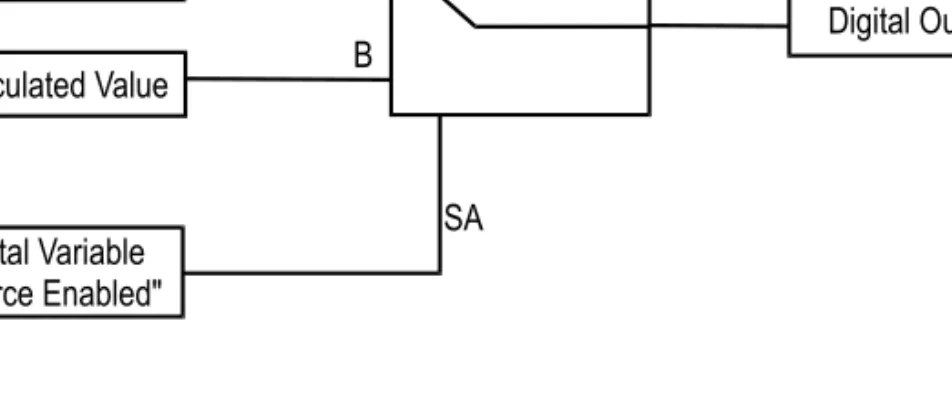
Because of this potential problem, the use of the digital output as a destination address has been disabled for the UMC800. Instead if you have a control strategy as shown in “Digital Output Control Strategy - Example 1” on page 31, rather than use “Digital Output” as the destination of a server point parameter, use the strategy shown in the “Digital Output Control Strategy - Example 2” on page 32. This strategy uses two server destination addresses, “Force Value” and “Force Enabled”. “Force Enabled” enables you to switch between the local value, “Calculated Value”, and the server value, “Force Value”.
Parameter Source Address Destination Address
PV TAG n Not Configurable
Parameter Source Address Destination Address
PV MATH_VAR n Not Configurable
OP MATH_VAR n MATH_VAR n
Parameter Source Address Destination Address
PV MATH_VAR n Not Configurable
SP MATH_VAR n MATH_VAR n
Figure 9 Digital Output Control Strategy - Example 1
Location Syntax for Non-named Addresses
Addresses without names can be addressed directly using the format: n:0xA [Format]
Table Types
Figure 10 Digital Output Control Strategy - Example 2
Calculated Value
Digital Output
Digital Variable
"Forced Value"
Digital Variable
"Force Enabled"
Digital Switch
A
B
SA
Part Descriptionn Table number. See “Table Types” on page 32 for table descriptions and their number.
A Address within the table.
Format (Optional) Only used for Input and Holding register tables (3 and 4). If a format is not specified, the format defaults to IEEEFP. See “Data Formats” on page 33 for more information.
Table Description Table Number Point Type Address Type Digital Output (also
known as Coil)1
0 Status Source/Destination2
Digital Input 1 Status Source
Input Registers 3 Status/Analog/Accumulator Source
Holding Registers 4 Status/Analog/Accumulator Source/Destination 1. See “UMC800 Problems” on page 41 and “HC900 Problems” on page 43. 2. See “Digital Output Control Strategies” on page 31.
Defining a Universal Modbus Address for a Point Parameter Value
Data Formats
The data format tells the server how to interpret the register value. The possible formats are:
Non-named Address Examples (for HC900):
Named Register Addresses
See “Device Information” on page 49 for addresses relevant to your device.
Data Format Description Point Type
IEEEFP 32-bit IEEE floating point value. (Big Endian)
Status/Analog/Accumulator
n Bit field. n represents the starting bit (0 to 15). This cannot be used with a named address.
Status
MODE Informs the server that the address is a mode parameter.
Status/Analog/Accumulator
UINT2 Unscaled 16-bit integer. Status/Analog/Accumulator
Parameter Point Type Address Type Point Table/Address/ Format
Controller OFFSET Address Signal Tag 1001 Analog Source 4:0x42CD IEEEFP 4000
Loop 25 PV Analog Source 4:0x7840 IEEEFP 6000
Loop 25 A/M Stat Status Source/ Destination
4:0x78FA 0 (Bit 0 of 16-bit register)
6000
*Analog In, Slot 2, Channel 2, of Rack 2
Analog Source 3:0x112 IEEEFP 0
*Digital In, Slot 8, Channel 3, of Rack 1
Status Source 1:0x72 0
Step Number of Sequencer 1
Analog Source 4:0x5AA9 UINT2
(16-bit Integer)
4000
* All I/O beyond Rack 1 in an HC900 must be addressed using hex addressing while all I/O in Rack 1 can be accessed using DI, DO, and AI named addresses, for example, D1 9, AI 18.
Troubleshooting Point Configuration
Errors when point building
84E0h
Invalid address for this type of controller specified. 8426h
Invalid data format for this type of controller specified.
Error when scanning
(Errors appear in log) 0106h
A request to the controller timed out. This could be caused by a
communication setup problems (for example, wrong address or Baud rate). A channel write delay value being too low could also cause this problem. See “Channel Write Delay Settings” on page 20. Try increasing the value to solve the problem.
8102h
An invalid address has been reported by the controller. This could be caused by the wrong address, the wrong data type, or the wrong controller type.
Optimizing Scanning Performance
Optimizing Scanning Performance
The maximum amount of data that can be acquired from an controller is
influenced by the rate of sending scan packets to the controller. An understanding of the Universal Modbus scan packets will help you configure points so that optimal data acquisition performance can be achieved by maximizing the amount of data acquired with each scan packet.
The scan packets that have been built can be listed by using the list scan utility, lisscn. Listing scan packets helps verify the scanning strategy. See the
4
Server and Station Tasks for
Universal Modbus
This chapter describes tasks for the Universal Modbus controller that you perform either on the server or from any Station.
For: Go to:
Testing communications with the server page 38
Testing Communications with the Server
Use the test utility umbtst to test the communications. Before using the utility, make sure that:• You have set up your Control Products controllers according to their user manuals.
• All cables are connected.
• You have configured your channels in Quick Builder without error and downloaded all configuration information to the server without error.
• The server need not be running while using the utility as long as the database service is running. If making a connection through a terminal server, the server daemon service should also be running.
• The server is not communicating with your devices. The umbtst utility might interfere with communications.
To stop the server, type the command at the command prompt:
hscserver /load
Answer y to every prompt. This unloads the server, but leaves the database in memory.
To use the test utility, start a command prompt window and type: umbtst. When prompted for the channel number, type chn01 for channel 1 and so on. For help using this utility, type ?.
To check if your devices are present, use the find a,b command. This command locates all Universal Modbus devices on the channel with IDs between a and b. For example:
C:\>umbtst
Enter LRN or device name of channel
chn01
Enter command:
find 1,4
FIND device with id 1 to 4, at 28-May-98 14:06:52 Device 1 ?
Device 2 ?
Device 3 ? ...responding Device 4 ?
Testing Communications with the Server
q
If you do not know the device name of your channel, select View > System Status > Channels from the Station menu. To the left of the channel name is the channel number. The device name of the channel will be the letters “chn” followed by the two-digit channel number. For example, your Universal Modbus channel “COM3” might be channel number 1. Its device name will be “chn01”.
Troubleshooting Universal Modbus Configuration Errors
Common Problems
Error message/problem Explanation/solution You see the error in the server log file:
Error code 0106 (Device Timeout)
The server has not received a response from the controller.
You see the error in the server log file: Error code 8102 (MODBUS error 2 - illegal data address)
You either specified an illegal address, or an illegal number of addresses.
You see the error in the Station Message Zone when you try to change the OP parameter:
CONTROL - Illegal mode for control of parameter
The point is in AUTO mode, or its equivalents (AUTO-LSP, CASC, AUTO-RSP). You must change the mode of the point to MAN or its equivalents (MAN-LSP, MAN-RSP).
You see the error in the Quick Builder output file:
Address is outside hardware cross reference table
You have upgraded your database from a previous server version and the there is not enough room to store the controller addresses. To rectify the problem, follow these steps: 1. Make a backup of \server\data. 2. At the command prompt, type:
sysbld -preserve -full. 3. Answer Y to the first two queries. 4. When presented with the ability to change
all sorts of database values, press <Enter> until you see the following message:
There are 8192 addresses per rtu. Enter required number of addresses 5. Change the number of addresses per rtu
(controller) to 32766.
6. Keep pressing <Enter> until the sysbld command terminates.
Troubleshooting Universal Modbus Configuration Errors
Problems with Specific Controller Models
UDC3300 ProblemsUMC800 Problems
The address LOOP n SP doesn’t download.
The SP parameter is not a valid named address because there are a number of set point types available, and a simple SP is ambiguous. WSP stands for working set point and SP1 stands for set point 1. In most cases, WSP works best. Error message/problem Explanation/solution
Error message/problem Explanation/solution • You attempt to change a Setpoint in
Station and the value changes on the Station display but not on the controller faceplate.
• You attempt to change a Setpoint in Station and the value on the Station display changes to a different value and the controller’s faceplate doesn’t change.
The communications link between the controller and server can become
overwhelmed. The solution is to increase the COM > Tx Delay on the controller faceplate.
Error message/problem Explanation/solution • You know that you should use the
address LOOP n
parametername but you don’t know what value to use for n. • You want to access the process
variable of the only PID loop you have configured. You used the number n which appears on the top right-hand corner of the PID block (LOOP n PV), but the values shown by the server don’t seem to match those values in your controller.
The number shown on the top right-hand side of the PID block does NOT correspond with the loop number. You can find out the appropriate number by selecting File > Print > Block Parameters in the Honeywell Control Builder configuration utility.
One of the properties printed out is Modbus ® loop number. Use this number for your loops.
The address PID n PV doesn’t download.
The PID part of the address is not valid and doesn’t appear in the Universal Modbus driver documentation.
You cannot use the names of control blocks within Control Builder as Universal Modbus addresses. You can only use the addresses listed in the Universal Modbus documentation. You know that you should use the
address AI n but you don't know what value to use for n.
The analog input number is calculated using the formula: n = (m-1) * 4 + c. n = the analog input number.
m = the module/slot number. The UMC800 has 16 slots, numbered 1 to 16.
c = the channel number (of the analog input). The analog input devices have up to four channels, numbered 1 to 4.
You know that you should use the address DI n or DO n but you don’t know what value to use for n.
The digital input number is calculated using the formula: n = (m-1) * 16 + c.
n = the digital input or output number. m = the module/slot number. The UMC800 has 16 slots, numbered 1 to 16.
c = the channel number (of the digital input or output). The digital I/O devices have up to 16 channels, numbered 1 to 16.
You want to write to a digital output. Honeywell recommends against writing to a digital output because this forces the output to a particular state, which cannot be overridden using the UMC800 internal logic. (Since this practice is inherently dangerous, it is not supported.)
You can create a safer implementation using digital variables and some UMC800 logic blocks.
You see the error:
***** PNTBLD ERROR ***** illegal MODICON plc address in the Quick Builder output when trying to download a signal tag as a source address (such as TAG 2) to the server.
You might be trying to download to a controller whose OFFSET address is not 0x2000. Please read the Universal Modbus documentation about address ranges and OFFSET. Error message/problem Explanation/solution
Troubleshooting Universal Modbus Configuration Errors
HC900 Problems
You see the error:
***** PNTBLD ERROR ***** illegal MODICON plc address in the Quick Builder output when trying to download a signal tag, such as TAG 2, as a destination address to the server.
Signal tags are read-only parameters, so cannot be used as destination addresses. Please read the Universal Modbus documentation about read-only and write-only addresses.
You don’t know what number to use for the signal tag using named address TAG or variable using named address MATH_VAR.
1. Start the configuration utility Honeywell Control Builder configuration utility. 2. Select File > Print.
3. Select Tag Properties then click OK. 4. Your printout should show, amongst other
items, your signal tags. To the right of the words “Signal Tag” or “Variable” you should see a number. This is the tag number you should use in the address TAG n or MATH_VAR n.
Error message/problem Explanation/solution
Error message/problem Explanation/solution You know you should use the address
LOOP n parametername but you don’t know what value to use for n.
You want to access the process variable of the only control loop that you have configured. You used the number n
which appears on the upper-right hand corner of the PID block (LOOP n PV), but the values shown by the server don’t seem to match those values in your controller.
The block execution order number shown on the upper right-hand side of the block does NOT correspond with the loop number. The loop number corresponds with order of entry of the PID loop blocks only. You can find the appropriate number by selecting File > Print Report Preview, then select FBD’s icon and Block Modbus Parameters in the Hybrid Control (HC) Designer configuration. The Loop Blocks are listed by number. Use this number for your loops. Loop numbers 1 – 24 are supported using Named addressing. Loops 25-32 require Non-named addressing using hex addresses for the parameters. For loops 25 – 32, you know that this
requires Non-named addressing using hex parameter addresses but there is no mode support for Auto-Manual and Remote-Local SP in combination from the standard station point displays.
This is true. For loops 1- 24, using named addresses, the mode is handled as 2 bits and Station selections are available for
AUTO-LOC, AUTO-REM, MAN-LOC, and MAN-REM. However, for loops 25 – 32 with hex addressing only one bit may be addressed for Mode – Auto/Manual or Remote/Local. See Non-named Address examples for HC900.
For analog inputs in the first rack, you know that you should use the address AI
n but you don’t know what value to use for n.
For the first rack only, the analog input number is calculated using the formula:
n = (m-1) * 8 + c.
n = the analog input number
m = the module/slot number. The HC900 has up to 12 slots depending on rack size, numbered 1 to 12.
c = the channel number (of the analog input). The analog input cards have 8 channels, numbered 1 to 8. The 2nd AI channel for slot/module 2 in Rack 1 is AI 10. I don’t know to access analog inputs
beyond the first rack.
If you have provided a Signal Tag for the Analog Input block output, use this tag number and TAG as the address name, for example, TAG 45 for a controller with an OFFSET address of 2000. Otherwise, you must use Non-Named hexadecimal addressing for a controller with an offset of 0. The address ranges for the racks are as follows: Rack 1: 0 - FF
Rack 2: 100-1FF Rack 3: 200 – 2FF Rack 4: 300 – 3FF Rack 5: 400 – 4FF
Zero-based addressing is used and two contiguous registers comprise the floating point data. Table 3 (Modbus Function Code 4) is used for access. The first analog channel for slot/module 1 in Rack 2 is: 3:x100 IEEEFP, channel 2 is 3:x102 IEEEFP, channel 8 is 3:x10E IEEEFP. There are 8 inputs per slot/module.
Troubleshooting Universal Modbus Configuration Errors
For analog inputs in the first rack, you know that you should use the address DI
n or DO n but you don’t know what value to use for n.
For the first rack only, the digital or output number is calculated using the formula:
n = (m-1) * 16 + c.
n = the analog input number
m = the module/slot number. The HC900 has up to 12 slots depending on rack size, numbered 1 to 12.
c = the channel number (of the digital input or output). The digital I/O cards have 8 or 16 channels, numbered 1 to 8 or 1 to 16. An allocation of 16 I/O is made for each slot/module regardless of type. The 2nd DI channel for slot/module 3 in Rack 1 is DI 34. I don’t know to access digital I/O beyond
the first rack.
If you have provided a Signal Tag for the Digital Input or Output block output, use this tag number and TAG as the address name, for example, TAG 56 for a controller with an OFFSET address of 2000. Otherwise, you must use Non-Named hexadecimal addressing for a controller with an offset of 0. The address ranges for the racks are as follows: Rack 1: 0 - FF
Rack 2: 100-1FF Rack 3: 200 – 2FF Rack 4: 300 – 3FF Rack 5: 400 – 4FF
Zero-based addressing is used and two contiguous registers comprise the floating point data. Table 1 is used for access to digital inputs and Table 0 is used for digital outputs. The 3rd digital input channel for slot/module 6 in Rack 2 is 1:x152, the 4th digital input on the same module is 1:x153. The 5th digital output for slot/module 8 in Rack 3 is 0:x274. There are 8 inputs per slot/module. An allocation of 16 I/O is made for each slot/module regardless of type.
You want to write to a digital output. Honeywell recommends against writing to a digital output since this forces cannot be returned to normal via Modbus
communications. Use the HC Designer tool concurrently for force actions where force removal is supported. You may also use digital Variables and logic blocks in the controller configuration to implement the force more safely via Station.
You see the error:
****** PNTBLD ERROR******* illegal MODICON plc address
in the Quick Builder output when trying to download a signal tag as a source address (such as TAG 2) to the server.
You might be trying to download to a controller whose OFFSET address is not 2000. Please read the Universal Modbus documentation about offset ranges and OFFSET.
You see the error:
****** PNTBLD ERROR******* illegal MODICON plc address
in the Quick Builder output when trying to download a signal tag such as TAG 2 as a destination address to the server.
Signal tags are read-only parameters, so cannot be used as destination addresses. You will need to use Variables in your HC900 configuration instead for writes. Please read the Universal Modbus documentation about read-only and write-only addresses.
You don’t know what number to use for accessing an HC900 Signal Tag or a Variable.
Start the Hybrid Control (HC) Designer configuration tool.
Select File > Print Report Preview Select FBD’s icon in the dialog box. Select Tag Information from the pull-down menu
This listing shows the Variables and Signal Tags used in the configuration listed by tag name and in number sequence. Use the number in the # column as your reference for use in the address TAG n (for Signal Tags) or
MATH_VAR n for Variables.
You may print out this list for reference by selecting the Print button from Print Preview. Error message/problem Explanation/solution
Troubleshooting Universal Modbus Configuration Errors
You want to know which HC900 Signal Tags or Variables are digital in nature so that they can be applied to Status points.
You can apply Signal Tags (read only) and Variables (read/write) to digital Status points if they are digital data types. See above for information related to viewing/printing the Tag Information Report. The Data Type column lists whether the parameter is Digital or Analog. If digital, you may apply to Status points. The UMB driver does the floating point conversion to integer translation to read or write an ON (1) or OFF (0) condition. You want to know how to input a set
point programmer point to use the standard screens in Station for viewing an HC900 set point programmer table and the profile pre-plot.
Consult the HC900 SPP & Recipe Support Users Guide. Support is for programmers 1-4 only. There is no UMB driver support for programmers 5-8.
5
Device Information
This chapter lists numbered and non-numbered addresses, their parameter details and the devices which are supported.
This following devices are supported by the Universal Modbus controller: • RSX • VPR100 • VRX100 • VRX180 • UDC5300 • DR4300 • DR4500 • DPR180 • DPR250 • UDC2300 • UDC3300 • UMC800 • HC900 • TrendView
For numbered address details about:
For details about: Go to:
Alarm Set Point Value Group page 64
Alarm Set Point Value Group page 65
Alarm Status page 67
For information about non-numbered addresses, see “Non-numbered Addresses” on page 99.
Alarm Status Com page 70
Alarm Status Digital page 68
Alarm Status Event page 69
Alarm Status Math page 70
Analog Input page 60
Communication or Constant Value Group page 62
Digital Input Table page 71
Digital Input Table page 71
Digital Output Table page 72
Digital Output Table page 73
Math, Variable or Calculated Value Group page 63
Math or Calculated Value Status page 65
PID Loop page 51
Set Point Scheduler #1 Segment page 92
Set Point Scheduler #2 Segment page 95
Set Point Scheduler Values page 88
Set Point Programmer page 73
Set Point Programmer #1 Profile Segment page 79 Set Point Programmer #2 Profile Segment page 81 Set Point Programmer #3 Profile Segment page 84 Set Point Programmer #4 Profile Segment page 86
Set Point Program Additional Values page 78
Tagged Signal page 61
Totalizer Value Group page 64
Totalizer Value Status page 66
Devices
Devices
Baud Rates Supported
The following table lists the devices and their supported baud rates.
Numbered Addresses
PID LoopThe following table lists the devices which support PID Loops and their formats. Note
Baud rates are not applicable to HC900 or TrendView devices. These devices use Ethernet connections.
Baud Rate Supported
Device 300 600 1200 2400 4800 9600 19200 38400
RSX Yes Yes Yes Yes Yes Yes Yes Yes
VPR100 Yes Yes Yes Yes Yes Yes Yes Yes
VRX100 Yes Yes Yes Yes Yes Yes Yes Yes
VRX180 Yes Yes Yes Yes Yes Yes Yes v
UDC5300 Yes Yes Yes Yes Yes Yes Yes Yes
DR4300 Yes Yes Yes Yes Yes Yes Yes Yes
DR4500 Yes Yes Yes Yes Yes
DPR180 Yes Yes Yes Yes Yes Yes Yes Yes
DPR250 Yes Yes Yes Yes Yes Yes Yes Yes
UDC2300 Yes Yes Yes Yes Yes Yes Yes
UDC3300 Yes Yes Yes Yes Yes Yes Yes
UMC800 Yes Yes Yes Yes Yes Yes Yes Yes
Device Supported Address Format Range
RSX LOOP [n] [param] [n] = 1 to 2
The following table lists the details of the PID Loop parameters.
VRX100 LOOP [n] [param] [n] = 1 to 2
VRX180 LOOP [n] [param] [n] = 1 to 8
UDC5300 LOOP [n] [param] [n] = 1 to 2
DR4300 LOOP [n] [param] [n] = 1 to 1
DR4500 LOOP [n] [param] [n] = 1 to 2
UDC2300 LOOP [n] [param] [n] = 1 to 1
UDC3300 LOOP [n] [param] [n] = 1 to 2
UMC800 LOOP [n] [param] [n] = 1 to 16
HC900 LOOP [n] [param] [n] = 1 to 24
Device Supported Address Format Range
Param Address Line Param Format
Ac
ces
s Devices
Process Variable LOOP [n] PV1 Floating Point RO RSX, VPR100, VRX100, VRX180, UDC5300, DR4300, DR4500, UDC2300, UDC3300, UMC800, HC900
Output LOOP [n] OP Floating Point RW RSX, VPR100, VRX100, VRX180, UDC5300, DR4300, DR4500, UDC2300, UDC3300, UMC800, HC900
Input #1 LOOP [n] INP1 Floating Point RO RSX, VPR100, VRX100, VRX180, UDC5300, DR4300, DR4500, UDC2300, UDC3300, UMC800, HC900 Gain #1 (Prop Band #1 if active)
LOOP [n] GAIN1 Floating Point RW RSX, VPR100, VRX100, VRX180, UDC5300, DR4300, DR4500, UDC2300, UDC3300, UMC800, HC900
Devices
Prop Band #1 LOOP [n] PROP1 Floating Point RW RSX, VPR100, VRX100, VRX180, UDC5300, DR4300, DR4500, UDC2300, UDC3300, UMC800, HC900
DIR LOOP [n] DIR Floating Point RO RSX, VPR100,
VRX100, VRX180, UDC5300, DR4300, DR4500, UDC2300, UDC3300, UMC800, HC900
Reset #1 LOOP [n] RESET1 Floating Point RW RSX, VPR100, VRX100, VRX180, UDC5300, DR4300, DR4500, UDC2300, UDC3300, UMC800, HC900
Rate #1 LOOP [n] RATE1 Floating Point RW RSX, VPR100, VRX100, VRX180, UDC5300, DR4300, DR4500, UDC2300, UDC3300, UMC800, HC900
PV Low Range LOOP [n] PVLOW Floating Point RO RSX, VPR100, VRX100, VRX180, UDC5300, DR4300, DR4500, UDC2300, UDC3300, UMC800, HC900
PV High Range LOOP [n] PVHIGH Floating Point RO RSX, VPR100, VRX100, VRX180, UDC5300, DR4300, DR4500, UDC2300, UDC3300, UMC800, HC900
Alarm #1 SP #1 LOOP [n] AL1SP1 Floating Point RW RSX, VPR100, VRX100, VRX180, UDC5300, DR4300, DR4500, UDC2300, UDC3300, UMC800, HC900
Param Address Line Param Format
Ac
ces
Alarm #1 SP #2 LOOP [n] AL1SP2 Floating Point RW RSX, VPR100, VRX100, VRX180, UDC5300, DR4300, DR4500, UDC2300, UDC3300, UMC800, HC900 Gain #2 (Prop Band #2 if active)
LOOP [n] GAIN2 Floating Point RW RSX, VPR100, VRX100, VRX180, UDC5300, DR4300, DR4500, UDC2300, UDC3300, UMC800, HC900
Prop Band #2 LOOP [n] PROP2 Floating Point RW RSX, VPR100, VRX100, VRX180, UDC5300, DR4300, DR4500, UDC2300, UDC3300, UMC800, HC900
DB LOOP [n] DB Floating Point RW RSX, VPR100,
VRX100, VRX180, UDC5300, DR4300, DR4500, UDC2300, UDC3300, UMC800, HC900
Reset #2 LOOP [n] RESET2 Floating Point RW RSX, VPR100, VRX100, VRX180, UDC5300, DR4300, DR4500, UDC2300, UDC3300, UMC800, HC900
Rate #2 LOOP [n] RATE2 Floating Point RW RSX, VPR100, VRX100, VRX180, UDC5300, DR4300, DR4500, UDC2300, UDC3300, UMC800, HC900
Set Point #1 LOOP [n] SP1 Floating Point RW RSX, VPR100, VRX100, VRX180, UDC5300, DR4300, DR4500, UDC2300, UDC3300, UMC800, HC900
Param Address Line Param Format
Ac
ces
Devices
Local Set Point #1
LOOP [n] LSP1 Floating Point RW RSX, VPR100, VRX100, VRX180, UDC5300, DR4300, DR4500, UDC2300, UDC3300, UMC800, HC900
Local Set Point #2
LOOP [n] LSP2 Floating Point RW RSX, VPR100, VRX100, VRX180, UDC5300, DR4300, DR4500, UDC2300, UDC3300, UMC800, HC900
Alarm #2 SP #1 LOOP [n] AL2SP1 Floating Point RW RSX, VPR100, VRX100, VRX180, UDC5300, DR4300, DR4500, UDC2300, UDC3300, UMC800, HC900
Alarm #2 SP #2 LOOP [n] AL2SP2 Floating Point RW RSX, VPR100, VRX100, VRX180, UDC5300, DR4300, DR4500, UDC2300, UDC3300, UMC800, HC900
SP Low Limit LOOP [n] SPLOW Floating Point RW RSX, VPR100, VRX100, VRX180, UDC5300, DR4300, DR4500, UDC2300, UDC3300, UMC800, HC900
SP High Limit LOOP [n] SPHIGH Floating Point RW RSX, VPR100, VRX100, VRX180, UDC5300, DR4300, DR4500, UDC2300, UDC3300, UMC800, HC900 Output Low Limit
LOOP [n] OPLOW Floating Point RW RSX, VPR100, VRX100, VRX180, UDC5300, DR4300, DR4500, UDC2300, UDC3300, UMC800, HC900
Param Address Line Param Format
Ac
ces
OP High Limit LOOP [n] OPHIGH Floating Point RW RSX, VPR100, VRX100, VRX180, UDC5300, DR4300, DR4500, UDC2300, UDC3300, UMC800, HC900 Output Working Value
LOOP [n] OPWORK Floating Point RW RSX, VPR100, VRX100, VRX180, UDC5300, DR4300, DR4500, UDC2300, UDC3300, UMC800, HC900
RATIO LOOP [n] RATIO Floating Point RW RSX, VPR100, VRX100, VRX180, UDC5300, DR4300, DR4500, UDC2300, UDC3300, UMC800, HC900
BIAS LOOP [n] BIAS Floating Point RW RSX, VPR100, VRX100, VRX180, UDC5300, DR4300, DR4500, UDC2300, UDC3300, UMC800, HC900
Deviation LOOP [n] DEV Floating Point RO RSX, VPR100, VRX100, VRX180, UDC5300, DR4300, DR4500, UDC2300, UDC3300, UMC800, HC900
Auto / Manual LOOP [n] AMSTAT Discrete (bits). [Status Point Only] RW RSX, VPR100, VRX100, VRX180, UDC5300, DR4300, DR4500, UDC2300, UDC3300, UMC800, HC900 Writable Controller Mode
LOOP [n] MODEIN Control Mode - Auto / Man State (bit 0) and LSP / RSP State (bit 2). RW RSX, VPR100, VRX100, VRX180, UDC5300, DR4300, DR4500, UDC2300, UDC3300, UMC800, HC900
Param Address Line Param Format
Ac
ces
Devices
Remote / Local Set Point State
LOOP [n] RSP_STATE Discrete (bits). [Status Point Only] Bit 0, 0 = LSP, 1 = RSP RW RSX, VPR100, VRX100, VRX180, UDC5300, DR4300, DR4500, UDC2300, UDC3300, UMC800, HC900
Tune Set State LOOP [n]
TUNE_SET_STATE Discrete (bits). [Status Point Only] RW RSX, VPR100, VRX100, VRX180, UDC5300, DR4300, DR4500, UDC2300, UDC3300, UMC800, HC900 Read-only mode for the PID Loop
LOOP [n] LOOPSTAT
Mode Status - Bit 0 = Auto / Man State. Bit 2 = LSP / RSP State. RO RSX, VPR100, VRX100, VRX180, UDC5300, DR4300, DR4500, UDC2300, UDC3300, UMC800, HC900 Read-only AUTO / MAN Mode LOOP [n]
STATUS_MODE Discrete (bits). [Status Point Only] Bit 0, 0 = Man, 1 = Auto RO RSX, VPR100, VRX100, VRX180, UDC5300, DR4300, DR4500, UDC2300, UDC3300, UMC800, HC900 Currently Selected Set Point LOOP [n] STATUS_SP Discrete (bits). [Status Point Only] RO RSX, VPR100, VRX100, VRX180, UDC5300, DR4300, DR4500, UDC2300, UDC3300, UMC800, HC900 Currently Selected Local or Remote Set Point LOOP [n] STATUS_RSP Discrete (bits). [ Status Point Only]
RO RSX, VPR100, VRX100, VRX180, UDC5300, DR4300, DR4500, UDC2300, UDC3300, UMC800, HC900 Currently Selected Tune Set LOOP [n]
STATUS_TUNE Discrete (bits). [Status Point Only] Bit 0, 0 = Tune Set 1, 1 = Tune Set 2 RO RSX, VPR100, VRX100, VRX180, UDC5300, DR4300, DR4500, UDC2300, UDC3300, UMC800, HC900
Param Address Line Param Format
Ac
ces
Remote Set Point (RSP)
LOOP [n] RSP Floating Point RW RSX, VPR100, VRX100, VRX180, UDC5300, UMC800, HC900
Set Point #2 LOOP [n] SP2 Floating Point RW RSX, VPR100, VRX100, VRX180, UDC5300, UMC800, HC900
Working Set Point (WSP)
LOOP [n] SPWORK Floating Point RW RSX, VPR100, VRX100, VRX180, UDC5300, UMC800, HC900
Remote Set Point (RSP)
LOOP [n] RSP Floating Point RO DR4300, DR4500, UDC2300, UDC3300, UMC800, HC900 Set Point #2 LOOP [n] SP2 Floating Point RO DR4300, DR4500,
UDC2300, UDC3300, UMC800, HC900 Working Set
Point (WSP)
LOOP [n] SPWORK Floating Point RO DR4300, DR4500, UDC2300, UDC3300 Working Set
Point (SPWORK)
LOOP [n] WSP Floating Point RO DR4300, DR4500
Working Set Point (SPWORK)
LOOP [n] WSP Floating Point RW RSX, VPR100, VRX100, VRX180, UDC5300, UDC2300, UDC3300, UMC800, HC900 Process Variable Override Value
LOOP [n] PVOVR Floating Point RW UDC2300, UDC3300
Set Point Override Value
LOOP [n] SPOVR Floating Point RW UDC2300, UDC3300
Output Override Value
LOOP [n] OPOVR Floating Point RW UDC2300, UDC3300
Set Point State LOOP [n] SP_STATE Discrete (bits). [Status Point Only]
RW UDC2300, UDC3300 Param Address Line Param Format
Ac
ces
Devices
Set Point State LOOP [n] SP_STATE Discrete (bits). [Status Point Only] Bit 0, 0 = SP1, 1 = SP2 RW RSX, VPR100, VRX100, VRX180, UDC5300, DR4300, DR4500, UDC2300, UMC800, HC900
Input #2 LOOP [n] INP2 Floating Point RO RSX, VPR100, VRX100, VRX180, UDC5300, DR4300, DR4500, UDC2300, UDC3300
Cycle Time #1 LOOP [n] CYCLE1 Floating Point RW RSX, VPR100, VRX100, VRX180, UDC5300, DR4300, DR4500, UDC2300, UDC3300
Cycle Time #2 LOOP [n] CYCLE2 Floating Point RW RSX, VPR100, VRX100, VRX180, UDC5300, DR4300, DR4500, UDC2300, UDC3300
Local Set Point #3
LOOP [n] LSP3 Floating Point RW RSX, VPR100, VRX100, VRX180, UDC5300, DR4300, DR4500, UDC2300, UDC3300 Temperature in carbon potential loop
LOOP [n] TEMP Floating Point RO UMC800, HC900
Cycle Time #1 LOOP [n] CYCLE1 Floating Point RO UMC800, HC900 Cycle Time #2 LOOP [n] CYCLE2 Floating Point RO UMC800, HC900 Manual Reset LOOP [n]
MAN_RESET
Floating Point RW UMC800, HC900
Feed Forward
Gain LOOP [n] FF_GAIN Floating Point RW UMC800, HC900 Local Percent
Carbon Monoxide
LOOP [n] PCTCO Floating Point RW UMC800, HC900
Furnace Factor LOOP [n] FFCTR Floating Point RW UMC800, HC900 Percent
Hydrogen
LOOP [n] H2 Floating Point RW UMC800, HC900 Param Address Line Param Format
Ac
ces


![arxiv: v2 [hep-th] 22 Jun 2015](data:image/gif;base64,R0lGODlhAQABAIAAAP///wAAACH5BAEAAAAALAAAAAABAAEAAAICRAEAOw==)