Field Alert -
FA20030025B
FA20030025B
August, 2003
Nomenclature: Harmony Network Communications Coupler
Subject: Firmware upgrade instructions
The firmware in the HNCC is flash firmware. As new releases come out, the firmware will be distributed as a file and the user must flash the new firmware to the NCC. The HNCC firmware upgrade can only be performed from an FTP server ( IIS software installed on PC ). FTP server software can be loaded on a NT workstation or server and Windows 2000. For Windows NT, the FTP server software comes on the NT option pack CD. There are also a number of other FTP server software applications available. Some specific installation instructions for the Windows NT option pack load are detailed below. When creating a new FTP server, it is important to implement all known virus preventive patches. Visit the Microsoft web site and contact your Virus software manufacturer to ensure you are running the appropriate patches and upgrades.
The HNCC firmware has two components: the boot firmware and the operating firmware. There are two copies each of the operating firmware and the boot firmware in the HNCC flash memory. In each case, one is the working partition and one is offline. The upgrade always goes to the offline partition. This protects the HNCC from being permanently disabled by an error during firmware download. There can be up to four firmware downloads to completely upgrade the NCC and all of it's partitions.
The boot firmware starts running when power is applied or the unit is restarted using the stop/restart pushbutton. It tests and initializes the hardware, then loads and runs the selected operating firmware. Some new firmware releases may not require that the bootrom firmware be upgraded. These exceptions will be noted in the release notes for the new firmware releases. Both copies of the boot firmware are downloaded to a single memory address. A user-selectable hardware switch on the HNCC CPU board selects which copy of the boot firmware will be run at startup.
The operating firmware is downloaded to two different memory addresses: 0xFFA00100 and 0xFFC00100. A user-changeable option selects which copy of the operating
Field Alert -
FA20030025B
Firmware upgrade steps:
1.Be sure you have a PC that is running FTP server services. If you do not have one, you will need to install the FTP Server software on the PC that will be the FTP server. If running Windows NT workstation, this feature is available on the Windows NT 4.0 Option Pack. There are also many FTP server programs available for download from the World Wide Web. Specific installation instructions for the FTP Server software on the Windows NT 4.0 Option Pack are included here for loading on a Windows NT
workstation. This load of the FTP server is known to work properly for firmware flashing to the NCC. While other FTP server programs might work, it is the responsibility of the user to install and configure the FTP Server software to prepare for the firmware flashing. Install the Option Pack CD. Select Install from the startup window that appears. Follow the screen prompts until you get to the window where you select the software options. Be sure the option ‘Personal Web Server ( PWS )’ is selected (Other items may be selected as well. You can deselect any and all other options that can be deselected if you want.) Highlight the Personal Web Server ( PWS ) selection and click on ‘show components’. Check the option ‘File Transfer Protocol ( FTP ) Server’.Continue with the installation. When prompted for the installation path for the various servers, leave the paths at default except for the drive location. You can change that to any local harddrive. Complete the installation and reboot the PC.
2. Make note of the following information as you will be prompted for it later: The computer name of the FTP server PC
The IP address of the FTP server PC The IP address of the NCC
Use IPCONFIG /ALL from an MSDOS prompt on the FTP server machine to determine the IP address and computer name of the FTP server. If the FTP server machine gets its address using DHCP its address may change from time to time so it is a good idea to check each time you want to download firmware. The NCC IP address is user configured through the faceplate of the NCC. This setting can be viewed via the faceplate display on the NCC.
3. Use the ping command from the FTP server PC to confirm that the FTP server PC can ‘see’ the NCC. If the ping command fails, resolve the network problems between the FTP server PC and the NCC. Continue only after successfully ‘pinging’ the NCC from the FTP Server PC
4. Check the version of operational and bootrom firmware currently loaded in the NCC. Do this by opening a Telnet session on the FTP server machine. Connect to the NCC using the NCC IP address as the Host name in the telnet prompt. If running A_0
firmware, you’ll immediately get a -> prompt. If running A_1, you’ll be prompted for a login and password. Login = HNCC, password = ABBService ( both are case sensitive and should be entered as they appear here. ) Then you’ll get the -> prompt.
Field Alert -
FA20030025B
NOTE: This command can occasionally halt the NCC. A reset from the faceplate pushbutton will recover the NCC should this occur.
Example feedback from FlashReport command: Oxffa00100
HNCCflsh –Revision: A0 Build 3768 – Thu Feb 03 15:40:54 – 2000
0xffc00100
HNCCflsh –Revision: A0 Build 3768 – Thu Feb 03 15:40:54 – 2000
Oxffe00100
HNCCflsh –Revision: A0 Build 3769 – Thu Feb 03 15:44:42 – 2000
Oxfff00100
HNCCflsh –Revision: A0 Build 3769 – Thu Feb 03 15:44:42 – 2000
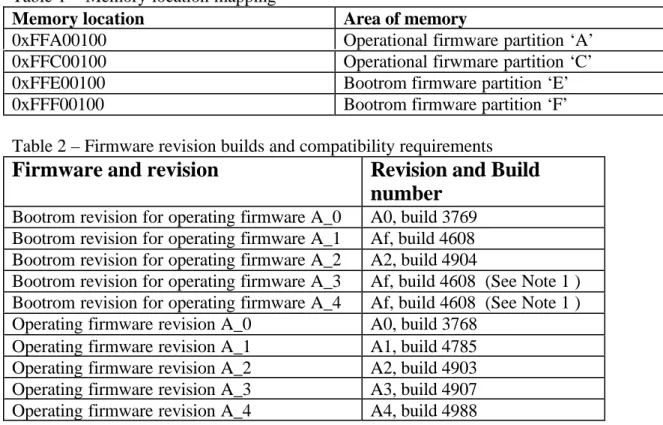
Table 1 – Memory location mapping
Memory location Area of memory
0xFFA00100 Operational firmware partition ‘A’ 0xFFC00100 Operational firwmare partition ‘C’ 0xFFE00100 Bootrom firmware partition ‘E’ 0xFFF00100 Bootrom firmware partition ‘F’ Table 2 – Firmware revision builds and compatibility requirements
Firmware and revision
Revision and Build
number
Bootrom revision for operating firmware A_0 A0, build 3769 Bootrom revision for operating firmware A_1 Af, build 4608 Bootrom revision for operating firmware A_2 A2, build 4904
Bootrom revision for operating firmware A_3 Af, build 4608 (See Note 1 ) Bootrom revision for operating firmware A_4 Af, build 4608 (See Note 1 ) Operating firmware revision A_0 A0, build 3768
Operating firmware revision A_1 A1, build 4785 Operating firmware revision A_2 A2, build 4903 Operating firmware revision A_3 A3, build 4907 Operating firmware revision A_4 A4, build 4988
Note 1: Bootrom A2, build 4904 was developed to support a hardware change in the NCC. Users running A_1 operating firmware revision or earlier should not upgrade the bootrom to A2 when upgrading the operating firmware to A_3 or A_4. Users running A_2 operating firmware revision can leave the bootrom at A2 and upgrade the operating firmware revision to A_3 and A_4. There is no advantage and actually possible difficulty if you upgrade the bootrom to A_2 on NCCs that were originally delivered with A0 or Af bootrom revisions.
Field Alert -
FA20030025B
Note 2: The NIO revision does not need to be upgraded. The revision shipped is the revision used for any bootrom and operating firmware revision.
5. Download the required firmware files from SolutionsBank. Copy the firmware .bin files ( both the boot rom file and the operating firmware file ) to the INETPUB/ftproot folder. Note: Some upgrades may not require the bootrom firmware be upgraded. Refer to Table 2 above to determine which files you may need.
6. Check the backup boot enable switch setting ( looking at the faceplate, the switch is on the left side of the NCC enclosure – see Figure 1). NOTE: This step may be skipped if the bootrom firwmare does not have to be upgraded per Table 2 ). Ensure it is set to ‘backup boot disabled’. This requires the removal of the HNCC from the docking station. Refer to the HNCC product instruction manual for details on removal of the HNCC.
Field Alert -
FA20030025B
NOTE: The seating of the NCC in the docking station is critical. A quick check to give you confidence that the NCC is seated well is to check the firmware revision as reported from the NCC faceplate display. If the NIO firmware is reported correctly ( E7 or E8), that is a good sign that the NCC is seated well in the docking station. If the NIO firmware reports back nothing or unusual characters, reseat the NCC and check again, repeating those steps until the NIO revision is reported correctly.
Normal NCC power up start up indications: Power A and B LEDs are green.
Status LED is amber
After about 15-20 seconds, the status LED will go out. After another 30 seconds or so, the Run LED will turn green.
After another 15-20 seconds, the faceplate display will illuminate, reporting the main screen.
7. Return to Telnet, connecting to the NCC. Enable the telnet logging feature to capture the screen activity. While this is not required, it will likely prove helpful if problems are encountered.
8. Run bootChange to setup the required parameters in the NCC. Edit the values in the fields to be correct for your system. To change the value for one of the above fields, simply type in the correct information immediately after the incorrect text. Do not proceed to the next line until you’ve changed the value of the field of interest. Use the -sign to dump out of a field if typos can't be corrected. Read the tips below the example screen display for further details on some of the bootChange fields.
bootChange output: boot device : cs processor number : 0
host name : <name of FTP server computer> file name : <blank is O.K.>
inet on ethernet (e) : <ethernet address and subnet mask of the NCC> inet on backplane (b): <should be blank>
host inet (h) : <IP address of FTP server computer>gateway inet (g) : <IP address of NCC local side of Gateway>user (u) : <ftp user name, recommend using anonymous> ftp password (pw) (blank = use rsh): <ftp password>
flags (f) : 0x0
targetname (tn) : nccuut
startup script (s) : <should be blank>
Field Alert -
FA20030025B
To double check that the changes took affect, simply run the bootChange command again to see the new values. If any value is wrong or didn’t get changed, change it again. Once the bootChange parameters are as desired, run the reboot command. You will have to reconnect the Telnet session. Hints for determining correct values in a typical system:
• Typically networks are configured to use the xxx.xxx.xxx.1 node of a subnet as the address of the gateway to the rest of the network.
• On a typical system with a subnet mask of 255.255.255.0, the typical gateway address would be xxx.xxx.xxx.1 where xxx.xxx.xxx are the first three octets of the HNCC’s IP address.
• If there is a PC on the same subnet as the HNCC, you may use IPCONFIG from an MSDOS prompt on the FTP server PC to determine the subnet’s default gateway.
• The simplest and most common way to configure FTP servers on private networks is to allow anonymous logins only. In such a configuration, the user (u) field should be set to anonymous, and the ftp password (pw) field can be set to any valid string (e.g. hncc).
• inet on ethernet ( e ) format: xxx.xxx.xxx.xxx;FFFFFF00. This should report the NCC IP address in standard IP address notation and the subnet mask in HEX ( FFFFFF00 = 255.255.255.0 ).
• The other ( 0 ) field will read either FLASHBOOT=0xFFA00100 or
FLASHBOOT=0xFFC00100. This information will be important later on in this instruction. At this time, leave this field as is.
9. Validate that the FTP server is the default load device. Check this using the pwd
command. The reply should indicate the FTP server computer name followed by a colon and the -> prompt. Example:
. -> pwd . TESTPC:
If the reply indicates something other than the FTP server computer name, reboot the NCC using the reset button on the faceplate of the NCC. Reconnect to the NCC in Telnet, run the pwd command again. Repeat steps 7 & 8 until the correct response is obtained. 10. You must now navigate to the working directory. This is the folder containing the firmware .bin files. The default folder is inetpub/ftproot. Use the ls command to do a directory listing of the current folder. If the .bin files are not listed, you are not in the correct folder. Use the cd command to navigate to the correct folder.
Field Alert -
FA20030025B
11. Now download the bootrom firmware ( reminder: you may skip this step if the required revision is already running per Table 2 ). Since the backup bootrom switch is set to disabled ( step 3 ), we are loading to the backup bootrom area. Use the following command, being case and space sensitive:
burn "bootrom filename including extension",0xFFE00100
( replace the filename reference in the above command with the actual name of the bootrom file ).
Several messages will appear. Eventually, the message complete will appear and the -> prompt will appear. That download is complete.
12. Test the download by switching the backup boot enable switch to enabled
( reminder: you may skip this step if the required revision is already running per Table 2 ). This will reboot the NCC. If the NCC comes up successfully, the download was successful and you are ready to do the second boot download. If the NCC does not boot up, put the backup boot switch to disabled and perform steps 8 through 10 again. 13. With the backup boot switch enabled, perform the download again. ( reminder: you may skip this step if the required revision is already running per Table 2 ).
burn "bootrom filename including extension",0xFFE00100
Notice that the memory location is the same as the first download. The switch change handles the redirection of the download. Type the command just like it appears above ( replacing the filename comment with the actual name of the bootrom file. )
14. Test this download by switching the backup boot enable switch to disabled .
( reminder: you may skip this step if the required revision is already running per Table 2 ).
This will reboot the NCC. If the NCC comes up successfully, the download was
successful. If the download failed, put the backup boot enable switch back to enabled and perform the download steps again.
15. Run FlashReport again to confirm both bootrom areas have been upgraded.
( reminder: you may skip this step if the required revision is already running per Table 2 ).
16. Re-connect with Telnet, confirm the working directory is the directory with the operating firmware file.
17. Now determine which FLASHBOOT partition is the operating partition. The NCC is running either from the A partition or the C partition. Check this by running the version command. The resulting feedback will report which partition is running. It is important to know which partition is running as you will want to download to the 'other' partition.
Field Alert -
FA20030025B
Sample version command results:
VxWorks (for PowerPC 603e) version 5.4.2. Kernel: WIND version 2.5.
Made on Mar 28 2002, 17:51:39. Boot line:
cs(0,0)USABBCLEW00205::HNCCstrt e=10.127.17.72:ffffff00 h=10.127.40.136 g=10.127.17.1 u=anonymous pw=blank o=FLASHBOOT=0xFFA00100
Notice that the FLASHBOOT value is currently set to the A parition. That is the current boot partition being used to run the NCC at that time. In this example, we will burn to the ‘C’ partition first as the ‘A’ partition is the one running the NCC at this time.
18. Download the operating firmware to the 'offline' partition using the following command:
burn "operating firmware filename including extension",0xFF?00100 where ? = either A or C, whichever is the offline partition.
Several messages will appear. Eventually, the message complete will appear and the -> prompt will appear. That download is complete
19. Test the download. Do this by first running the bootChange command to change the FLASHBOOT parameter to the newly downloaded partition. The last field
( other (o) ) determines which partition will run on the next reboot. Change this field from it's existing memory location to the other partition memory location. Include the 'FLASHBOOT=' part of the text when changing that field.
Then, reboot the NCC using the reboot command. If the NCC comes up successfully, the download was successful. Using the NCC faceplate display, confirm that the new
firmware revision is reported. You could also run the FlashReport command. If the download failed, run bootChange to change the FLASHBOOT memory location back to the original partition and perform the download to the offline partition again.
NOTE: Once the running partition is operating on A_1 revision or greater, the Telnet connection requires a login and password. The login name is HNCC, the password is ABBService. Both the login and password are case sensitive.
20. One final time, check that the default load device is the FTP server PC ( pwd command ) and that the working directory is the directory with the firmware file ( ls command ). If the ls command fails with an error about the HNCC login, from the -> prompt, type -> iam "anonymous"
Field Alert -
FA20030025B
burn "operating firmware filename including extension",0xFF?00100 where ?= the offline partition letter( A or C ).
22. Test that the download was successful. First, run bootChange, set the FLASHBOOT memory location to the location just downloaded to. Reboot the NCC. If the NCC comes up successfully, all downloads are complete. Check the firmware revision as reported by the NCC display and/or from the FlashReport command.
===================================================== Sample telnet session: bootrom download
-> pwd ( this replies back with the FTP server PC name ) TESTPC:
value = 11 = 0xb
-> cd "flash" (this command changes the download directory to a folder named ‘flash’ ) value = 0 = 0x0
-> ls ( this command lists the files in the current working folder ) bootrom.bin
operatefirmware.bin value = 0 = 0x0
-> burn "bootrom.bin",0xffe00100
This board is configured with 4 Flash ROMs. Electronic I.D. = 0x12249 Am29LV160BB Locating file bootrom.bin... found. Allocating 0x3C3F0 bytes... done. Loading data....
Shutting off interrupts. I'll be busy for a while... Verifying data....
Operation complete. value = 0 = 0x0 ->
====================================================
Reference: REFERENCE INFO