Version 6.5
Backup and Recovery White Paper
EMC Corporation
Corporate Headquarters:
Hopkinton, MA 01748-9103 1-508-435-1000 www.EMC.com
THE INFORMATION IN THIS PUBLICATION IS PROVIDED AS IS. EMC CORPORATION MAKES NO REPRESENTATIONS OR WARRANTIES OF ANY KIND WITH RESPECT TO THE INFORMATION IN THIS PUBLICATION, AND SPECIFICALLY DISCLAIMS IMPLIED WARRANTIES OF MERCHANTABILITY OR FITNESS FOR A PARTICULAR PURPOSE.
Use, copying, and distribution of any EMC software described in this publication requires an applicable software license. For the most up-to-date listing of EMC product names, see EMC Corporation Trademarks on EMC.com.
Table of Contents
Overview
...
4Introduction
...
4Disaster recovery
...
5Kinds of backups
...
5How does a backup work
...
6Backup and recovery configuration strategies
...
6Content Server recovery overview
...
8Overview of Content Server Backup and Restore
...
11What must be backed up on Content Server
...
12Static data
...
12Content Server binaries
...
13Content Server configuration
...
13Additional Content Server files
...
13RDBMS Binaries
...
13General OS Binaries and Registry
...
13Dynamic Data
...
13Content file storage areas
...
14RDBMS Metadata
...
14Content Server Cold Backup
...
14Shutting down a server
...
14Using the Documentum Content Server Manager (Windows only)
...
15Using the Windows Services applet (Windows only)
...
15Performing the backup
...
15Restarting a server
...
15Content Server Hot Backup
...
16Restoring Content Server
...
18Synchronizing the restored data
...
18Restoring if content is newer
...
19Restoring if metadata is newer
...
19Example of checking object-content consistency
...
20Sample program to check object-content consistency
...
21DmMessageArchiveContentConsistency.java
...
21SessionInfo.java
...
24Back up and Restore Full-text Indexes
...
26Overview
...
27Configure the system for backup and restore
...
27Perform a cold backup
...
28Verify Full-text Index Completeness and Accuracy
...
31Overview
...
31Modifying the parameter file
...
32Additional parameters
...
33Running the index verification tool
...
35Accuracy verification acceptable failures
...
37Resubmitting objects to the index agent
...
37Overview
These topics are included: • Introduction, page 4
• Disaster recovery, page 5
• Kinds of backups, page 5
• How does a backup work, page 6
• Backup and recovery configuration strategies, page 6
• Content Server recovery overview, page 8
Introduction
Backup and recovery is a component of business continuity. Business continuity is the umbrella term that covers all efforts to keep critical data and applications running despite any type of interruption (including both planned and unplanned). Planned interruptions include regular maintenance or upgrades. Unplanned interruptions could include hardware or software failures, data corruption, natural or man-made disasters, viruses, or human error. Backup and recovery is essential for operational recovery; that is, recovery from errors that can occur on a regular basis but are not catastrophic—for example, data corruption or accidentally deleted files. Disaster recovery is concerned with catastrophic failures.
Note:Even though high availability (HA) is part of business continuity, it is not covered in this guide.
When planning for backup and recovery, you should decide on how much data loss you’re willing to incur. You can use this decision to calculate how often you need to perform backups. Backups should be performed at fixed intervals. The length of time between backups is called the Recovery Point Objective (RPO); that is, the maximum amount of data that you are willing to lose. You should also decide how long you’re willing to wait until the data is completely restored and business applications become available. The time it takes to completely restore data and for business applications to become available is called the Recovery Time Objective (RTO). Your RTO can be different from your RPO. For example, you might need an extremely short RPO to minimize potential data loss, but you can have a high RTO in which you can tolerate 12 to 24 hours to recover data and get your business applications back online.
After determining your recovery time and recovery point objectives, then you can determine how much time you actually have to perform your backups; the amount of time you have to perform
your backup is typically called your backup window. The backup window determines the type and level of your backups. For example, if you have a system that requires 24-hour, 7-days-a-week, 365-days-a-year availability, then there is no backup window. So, you would have to perform an online backup (also known as a hot backup) in which the system is not taken offline.
Lastly, as the number of backups increase, the space required to store them will also increase. Therefore, you should consider how long you are required to retain your backups (which is also referred to a data retention period) and plan for the appropriate amount of storage space.
When your deployment fails, you recover it by restoring it to a previously consistent state (that is, a particular point in time) from your backups. Restoring a deployment to a particular point in time is also known as a point-in-time recovery.
Disaster recovery
In a disaster recovery (DR) configuration, the source deployment—that is, the set of machines and installed software that comprise the Content Server system—is backed up to a target deployment. These are the basic levels of disaster recovery:
• Data disaster recovery only — Only data backups are replicated but no target
hardware/software deployment exists. The source deployment must be recovered using the data backups.
• Disaster recovery deployment with reduced capacity — Data and configuration backups are replicated to another target deployment with existing hardware and software, but which has a reduced capacity compared to the original one. For example, the machines in the target deployment might not be as powerful as the ones in the source deployment.
• Disaster recovery deployment with full capacity — Data and configuration backups are replicated to target deployment with existing hardware and software and that has the same capacity as the original one
Kinds of backups
There are different levels of backups:
• Full— A complete copy of all of the required files. A specific kind of full backup is a synthetic full backup (also known as a constructed backup). In a synthetic full backup, a full backup and the next incremental backup are combined to create a new full backup. This allows a full backup to be created offline, which allows the system to continue functioning without any performance degradation or disruption to users. Synthetic full backups are used when the backup window is too small for the other options.
• Incremental— Only the changes after the most recent backup—either a full or incremental backup. Faster backup than cumulative; could be slower to restore than cumulative because there could be more files to restore.
• Cumulative— (also known as a differential) All of the changes after the most recent full backup (that is, it includes all of the incremental backups after the last full backup). Slower backup than incremental; could be faster to restore than incremental because there could be fewer files to restore.
There are also various types of backup techniques:
• Cold— A full backup of the entire system while the entire system is shut down.
Although the backup and restore times can be long, you do not need to perform a cold backup often and the restore time can be accurately estimated.
• Warm— A backup that is performed while some functionality of the system is made unavailable.
Although the backup and restore times can be medium to long, the system can still provide some services.
• Hot— A backup performed while the system continues to run normally and all functionality is available.
How does a backup work
Backing up a system replicates copies of the required files at a specific point in time to another location (for example, another server, datastore, or tape). Replication can be asynchronous or synchronous. In synchronous replication, the primary system must receive a confirmation from the remote system that the data was successfully received. So, the data is always in sync, but performance may be slow because of large data volume or the long distance between systems. In asynchronous replication, the primary system does not wait for the remote system to confirm that the data was received. So, performance is faster than synchronous replication, but the data may not always be in sync. There is also the potential for data loss, so consistency procedures must be run upon recovery. However, if the asynchronous replication technology supports consistency groups, then the data can be assured of being in sync. Consistency groups enables you to define a group of storage areas for interdependent applications, such as the Content Server, RDBMS, full-text indexes, to be coordinated. Furthermore, that consistency group monitors all disks that are assigned to it (as well as the I/O writes to these disks) to ensure write order fidelity across these disks. EMC Symmetrix Data Remote Facility/Asynchronous (SDRF/A) supports consistency groups.
A snapshot , which is a type of point-in-time backup, can be a backup of only the changes since the last snapshot. You can create copy-on-write or split-mirror snapshots. A copy-on-write snapshot is a differential copy of the changes that are made every time new data is written or existing data is updated. A copy-on-write snapshot uses less disk space than a split-mirror snapshot but requires more processing overhead. A split-mirror snapshot is a full copy of the entire volume that is created by breaking the mirror of a mirroring storage system.
Continuous data protection is a kind of incremental backup that is typically performed for each write transaction such that recovery can occur at practically any point—even individual write operations. EMC RecoverPoint provides continuous data protection.
Backup and recovery configuration strategies
There are several kinds of strategies and technologies that you can use when initially configuring your system:
• Business continuance volumes (BCVs)— BCVs are mirror images of an associated primary disk volume. They are very flexible in that you can use multiple BCVs for a single production volume for different purposes, such as one for backups, another for application testing, and yet another one third-party software updates and decision support. Because you are creating an exact mirror of the primary disk volume, backup is practically instantaneous (that is, there is no backup window) and recovery is quite fast—although BCVs do not decrease your space requirements.
• Data partitioning— Intelligently partitioning your data into specific datastores can assist in making your backup and restore operations more efficient. For example, as data changes less frequently, you can move it to less expensive archival datastores. The archival datastores can be backed up less frequently and offline; whereas data that is being actively worked on may need more frequent backups that must be performed online while the system is running. • Data compression— Data compression compacts data, which assists in reducing storage
space requirements. There are two kinds of data compression: hardware-based, which uses a dedicated microprocessor designed specifically to handle the compression workload without restricting throughput; and software-based, which uses the computer’s main processor to compact data. Although software-based compression is cheaper and easier to update, its performance is slower and compression is not as efficient as hardware-based.
• Data de-duplication— Data de-duplication eliminates redundant copies of the same data, which assists in reducing storage space requirements. There are two types of data de-duplication:
— File de-duplication: Saves one copy of a file when there are multiple identical copies. — Data de-duplication: Bit and block-level data de-duplication looks within a file and saves
unique iterations of each block.
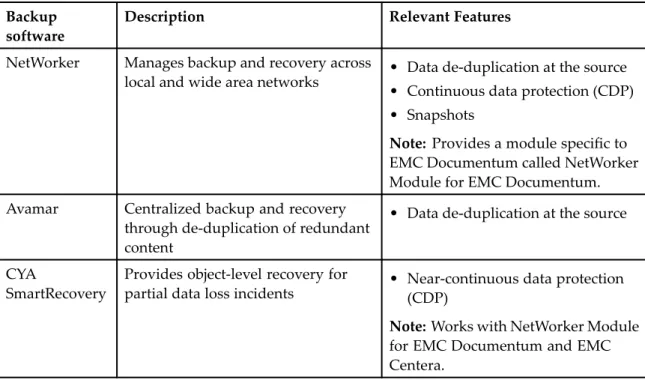
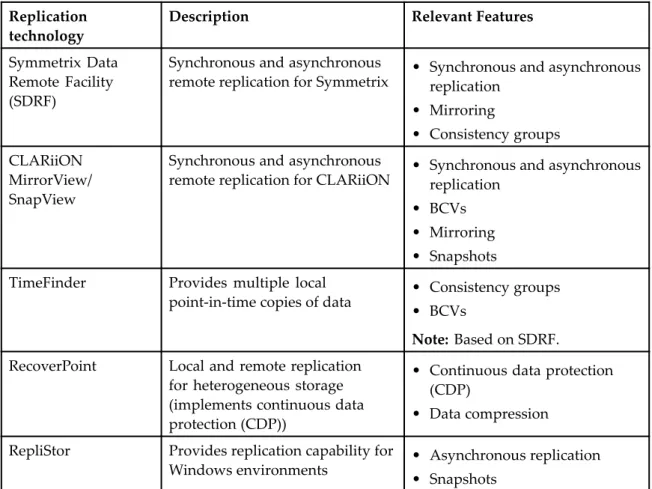
Table 1, page 7 andTable 2, page 8 lists EMC backup software and replication technologies and their features that are relevant to backup and recovery.
Table 1. EMC backup software
Backup software
Description Relevant Features
NetWorker Manages backup and recovery across
local and wide area networks • Data de-duplication at the source • Continuous data protection (CDP) • Snapshots
Note: Provides a module specific to EMC Documentum called NetWorker Module for EMC Documentum. Avamar Centralized backup and recovery
through de-duplication of redundant content
• Data de-duplication at the source
CYA
SmartRecovery
Provides object-level recovery for
partial data loss incidents • Near-continuous data protection(CDP)
Note:Works with NetWorker Module for EMC Documentum and EMC Centera.
Table 2. EMC replication technologies
Replication technology
Description Relevant Features
Symmetrix Data Remote Facility (SDRF)
Synchronous and asynchronous
remote replication for Symmetrix • Synchronous and asynchronousreplication • Mirroring
• Consistency groups CLARiiON
MirrorView/ SnapView
Synchronous and asynchronous
remote replication for CLARiiON • Synchronous and asynchronousreplication • BCVs
• Mirroring • Snapshots TimeFinder Provides multiple local
point-in-time copies of data • Consistency groups • BCVs
Note: Based on SDRF. RecoverPoint Local and remote replication
for heterogeneous storage (implements continuous data protection (CDP))
• Continuous data protection (CDP)
• Data compression RepliStor Provides replication capability for
Windows environments • Asynchronous replication • Snapshots
.
Content Server recovery overview
You may need to recover your entire Content Server deployment or only part of it. A recovery of your entire deployment is described here because it is the most complex kind of recovery. Although there are many different potential storage configurations for Content Server, they all have a number of commonalities:
1. Content Server is usually deployed in a disaster recovery configuration:
• All data stores for the database, content, and full-text indexes are replicated from the primary site to a disaster recovery site.
• The disaster recovery site is backed up using a BCV-like (that is, snapshot) technology. 2. Data replication from the primary site to the disaster recovery site completes within the RPO.
Because the amount of data being replicated differs between the database, content, and full-text indexes, the overall amount of time it takes for each one to be completely replicated also differs. In general, content takes the longest to replicate; whereas the database takes the shortest to replicate. Consequently, the replication time for content is the maximum replication
time for the entire deployment (as illustrated inFigure 1, page 10). The data replication rate depends on the network bandwidth and the oncoming load as well as a host of other environment factors. In order to set the RPO correctly, you must determine the maximum amount of time it takes for data (new and modified) to be completely replicated from the primary site to the disaster recovery site.
3. Backups are performed as follows:
• Content is backed up incrementally or, if Centera is the storage area, not required to be backed up (as illustrated inFigure 1, page 10).
• The database is hot backed up incrementally at regular intervals—as determined by the recovery point objective and the maximum replication time.
The amount of time that elapses between database backups (referred to as the database backup interval) should be at least three times as long as the entire deployment’s maximun replication time (inFigure 1, page 10, the database backup interval is four times the maximum replication time).
• Full-text indexes are cold backed up.
The full-text index backup interval is at least two times that of the database backup interval (as illustrated inFigure 1, page 10). In addition, you must wait for at least two times the entire deployment’s maximum replication time before backing up the FIXML (a quick BCV snapshot is recommended).
Tip:In practice, since the full-text indexes can be restored point-in-time from the database and content, the full-text indexes could be backed up as infrequently as once a week whereas the database and content would be backed up many times a day (as illustrated in
Figure 1, page 10). Full-text index backups must be performed frequently enough to meet the RTO. That is, the full-text index point-in-time recovery is determined by the amount of data received during the full-text index backup interval.
Figure 1. RPO for disaster recovery site (including data replication from the primary site)
Note:
• Italicized text indicates that the operation is optional (as is the case for Content Backup). • The time scale and line lengths of the operations indicate only a rough order of
magnitude—that is, they are not typical nor do they represent a recommendation.
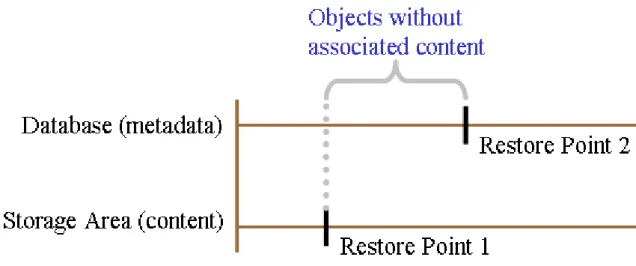
Figure 1, page 10illustrates the most complex recovery case in which object metadata (in the database) is replicated faster than both the content storage area and the full-text indexes. Consequently, when the primary site completely fails (the Point of Failure inFigure 1, page 10), the database is more current than the content (relative to consistency) and there may be objects that point to content that does not exist in the storage areas—the Content Server is considered to be in an inconsistent state.
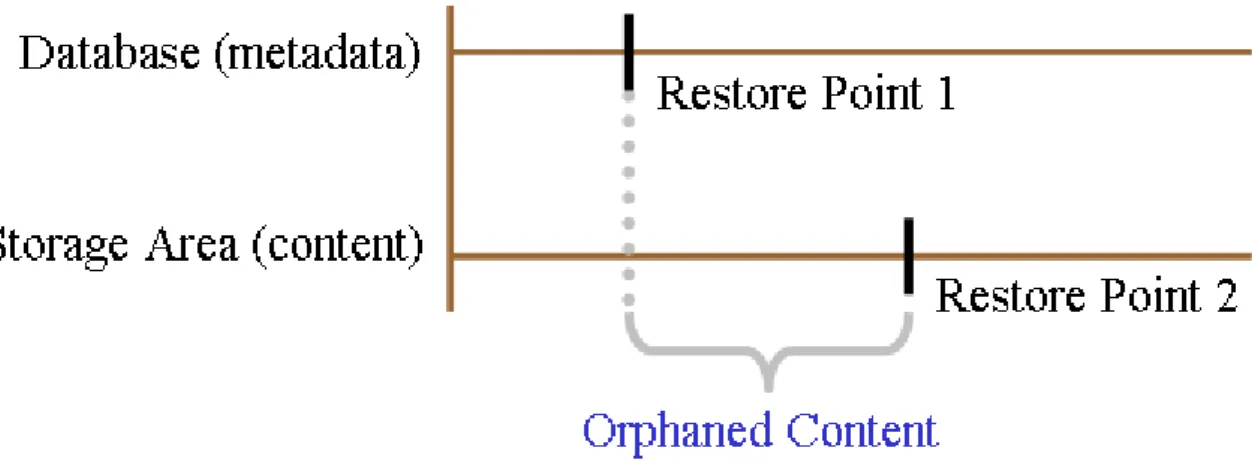
Note:If the content is newer than the metadata, there will be content in the storage area that is not associated with any objects in the database. This is called orphaned content. Orphaned content indicates that some transactions occurred in the database that were not included in the database backup. However, orphaned content will not adversely affect Content Server.
To recover from an inconsistent Content Server state:
1. Restore the database to the point in time when it was consistent with the content. SeeRestoring Content Server, page 18.
For example, assuming that the replication data latency is at least three times as great as the time it takes to back up the database, you should restore the database to the last incremental backup or to the second-to-the-last backup.
Do not roll back the database to a point before the full-text backup, because a re-feed of the full-text index will leave objects on the full-text index that may never get cleaned up.
Tip: You can optionally re-feed the content after synchronizing the full-text indexes with the database and content.
3. Roll back the full-text index to its last cold backup before the database backup. SeeRestore an index at a particular point in time, page 29.
The ftintegrity tool can be used to identify objects that have not been indexed (and objects that are indexed but not in the repository) and use that information to make the full-text indexes consistent with the Content Server’s database and content.
Note:The full-text indexes at the disaster recovery site must be restored from the cold backup (because the replicated full-text indexes at the disaster recovery site are not guaranteed to be in a consistent state)
Overview of Content Server Backup
and Restore
Content Server is the software that manages the repository and full-text index and implements the core content management capabilities available to clients and applications. The repository is an abstraction representing all the data managed by Content Server. The repository consists of content and metadata. Examples of content are documents, emails, and attachments, and examples of metadata are content owners, modification dates, and retention periods. Content is stored in storage areas on the server host’s file system or an external storage device such as a NAS or SAN device. Metadata is stored in a relational database, and that database also stores its data on the database host’s file system or external storage devices. As Content Server adds content, it adds the metadata for the content into the database. For example, when an email with an attachment is stored, the email and the attachment are stored as content, and information about the email sender and receivers, and the fact that the attachment is associated with a particular email are stored as metadata.
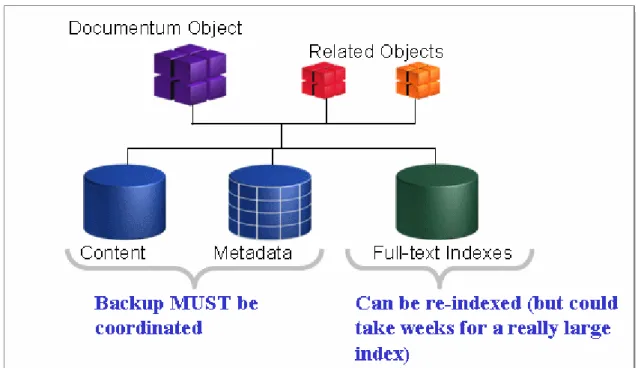
Since Content Server modifies both the storage area and the database for every operation on content, any backup and recovery strategy must take into account the interdependency of the data in the storage areas and in the database. The idea is to capture the storage areas and the database as close to a single point in time as possible. When these elements are recovered to that same point, Content Server will be consistent and will function properly. In practice, the backups of the two elements may not be precisely to the same point in time. In those cases, there are tools to inspect and repair these consistency issues.
Full-text indexing also has data dependencies to consider when planning backup and restore. Full-text indexing backup and restore will be covered in a later chapter.
Figure 2. Backup for Object Consistency
For smaller installations, suspending the system and performing a cold backup is a good strategy for insuring storage area and database consistency, and is the simplest use case. (This case is covered inContent Server Cold Backup, page 14.) However, Content Server is commonly used in enterprise-wide applications requiring high-availability and short RPOs, so we will also discuss some backup and restore strategies that do not require shutting down Content Server.
What must be backed up on Content
Server
Whether you can do cold backups, or must do hot (or warm) backups, you must plan for the data that must be backed up. Some of the data is relatively static (for example, the installation binaries), while other data is dynamic (for example, a work-in-progress Word document). To restore the archive after a disaster, you will need to have backups of both kinds of data.
Static data
Data in this category changes relatively infrequently. Installation binaries only change because of an installation or upgrade to the product. Configuration files change when features are enabled, new storage areas are added, or at other kinds of configuration changes. These occur at irregular intervals that may be measured in weeks, months or years. For disaster recovery, these files should be regularly backed up, but you should have a plan in place to capture the changes, either by scheduling backups for these files when changes are made, or by having a regular schedule of backups that cover the frequency of changes to your system.
Content Server binaries
Note: Windows only.
The location of Content Server Binaries is selected at installation time. Look for the value of the $DM_HOME environment variable to show where the files are in your installation. For example, the default value for this variable in a Windows environment, for release 6.5 is C:\Documentum\product\6.5. You will need to backup all the files in this directory.
Content Server configuration
Note: Windows only.
The location of the Content Server configuration files is also selected at installation time. These are stored at the location $DOCUMENTUM/dba in your installation. For example, the default value for this location in a Windows environment, for release 6.5 is C:\Documentum\dba. You will need to backup all the files in this directory.
Additional Content Server files
Note: Windows only.
These files include files in addition to Content Server binaries and configuration files associated with Content Server and other EMC Documentum products that are also installed on your system. Locations to backup are $DOCUMENTUM (default: C:\Documentum),
$DOCUMENTUM_SHARED (default: C:\Program Files\Documentum\Shared), and in Windows environments C:\Program Files\Documentum.
RDBMS Binaries
These files include all the binaries installed by the database. You will need to check for the location of these files to be sure that they are included in the static data you backup. For example, Oracle installations typically use the location $ORACLE_HOME for binaries.
General OS Binaries and Registry
Your recovery planning should include the OS critical binaries needed for your applications. Backup the Windows Registry as well as other required files.
Dynamic Data
Dynamic data needs more frequent recurring backups. This is the data that is constantly being created and modified as items are added to the repository by Content Server. Over time, this dynamic data becomes the largest category of data in the system You will have to plan for how
frequently to backup this data to meet your RPO. For example, to meet an hourly RPO, you will have to do an incremental or cumulative backup at least hourly, based off of a regularly done full backup. A typical backup strategy will use regular full backups with either incremental or cumulative backups in the RPO window. At restore time, you restore the latest full backup, and then restore the chain of incremental backups, or the latest cumulative backup.
Content file storage areas
The content storage areas contain the documents, emails, attachments, and other content files managed by Content Server. These storage areas can be created at various locations and on various devices. If you do not know where these are located, refer toEMC Documentum Content Server Administration Guidefor information about storage areas.
RDBMS Metadata
Refer to your RDBMS documentation for how and what to backup in your installation. Typically, you will want to backup the database tablespaces, control files, and any redo logs. You may also want to backup views created by Content Server. When determining what to backup, consider if the data can be rebuilt and how long it will take to rebuild.
Content Server Cold Backup
For a cold backup, you will stop Content Server, perform the backup, then restart the server.EMC Documentum Content Server Administration Guidecovers stopping and starting Content Server in detail, for a variety of configurations and operating systems. However, the essential information is provided here for your convenience.
The instructions for a cold backup are found in the following sections: • Shutting down a server, page 14
• Performing the backup, page 15
• Restarting a server, page 15
Shutting down a server
Note: Windows only.
You can use Documentum Content Server Manager, or the Windows Services applet to shut down a server.
If the repository has multiple active servers, use Documentum Administrator to shut down one of the servers. For instructions, refer to the Documentum Administrator online help.
The procedures in this section shut down the main server thread (parent server).
Using the Documentum Content Server Manager
(Windows only)
To shut down a server using the Content Server Manager:
1. Navigate toStart > Programs > Documentum > Documentum Content Server Manager. 2. Select theRepositoriestab.
3. Select the repository from the list of repositories. 4. ClickStop.
Using the Windows Services applet (Windows only)
Content Server is installed as a Windows service. You can use the Windows Services applet to stop the server.
To stop a server using the Services applet:
1. Navigate toStart>Control Panel>Administrative Tools>Services. The Services applet appears.
2. Select the server. 3. ClickStop.
Performing the backup
After Content Server is shut down, the storage areas will be static and can be backed up, using standard backup tools and the strategy you have developed for your system. While the Content Server is still shut down, backup the RDBMS following the procedures you have developed for your installation.
Since Content Server is shut down while performing a cold backup, the storage areas and the RDBMS are in sync, and there should be no consistency issues when these are restored.
Restarting a server
How you restart a server depends on the repository configuration.
If a repository has other active servers, use Documentum Administrator to restart the server. For instructions, refer to the Documentum Administrator online help.
If a repository has only one server or if all servers for a repository are shut down, use the following procedure to restart a server for the repository.
To restart a server using Content Server Manager:
1. Log into the machine where Content Server is installed as the Documentum installation owner. 2. Navigate toStart > Programs > Documentum > Documentum Content Server Manager. 3. Select the repositories tab.
4. Click Start.
To restart a server using the Windows Services applet:
1. Navigate toStart>Control Panel>Administrative Tools>Services. The Services applet appears.
2. Select the server. 3. ClickStart.
Content Server Hot Backup
Cold backup becomes unworkable when the availability requirements of your system don’t allow enough downtime to perform the required backup activities. As the size of the data increases, backup time also increases, so large enterprise systems typically use some form of hot (or warm) backup strategy.
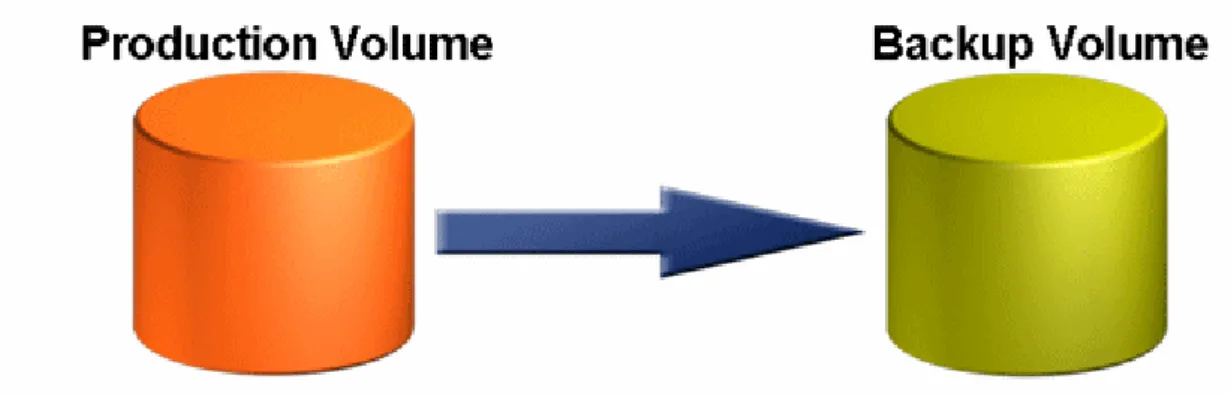
When you must move to a hot backup strategy, it is also a good time to implement some sort of disaster recovery (DR) site involving continuous sequestering of data to the DR site, using more capable storage technology. A common solution is to implement some kind of data mirroring to the DR site. The active data is mirrored at the DR site, and commonly, backup is performed at the DR site on the mirrored data. The active data volume is with your production system, and the backup volume is located in the DR site. More sophisticated data storage devices provide methods to replicate data outside of the application I/O path, so backups can be almost continuous and can be done without a performance penalty to the application.
Typical solutions would include optimizing for cost and performance. For example, in Content Server installations used for email archiving, the content storage areas will store large volumes of data that is relatively static. The content of most of the archived emails, once ingested, remains unchanged for most of its lifecyle. The RDBMS data stores, however, are much more mutable. In a system like this you would generally select different storage technologies for each kind of data. Using different types of storage for different types of data does provide much finer control over the system, but requires careful planning of backup and restore scenarios.
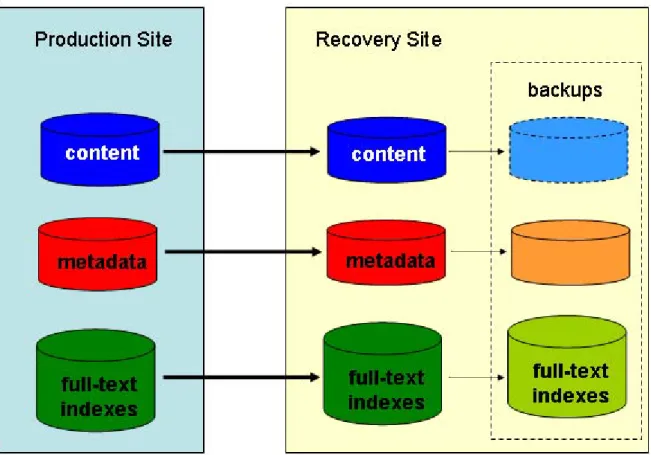
For the large amounts of relatively static data, EMC Centera devices are a common solution. Data is stored in the device, and the device itself handles replication to a backup volume. Commonly, Centera devices are replicated to a DR site, but not backed up after replication. For the RDBMS data, typical solutions would include creating recovery site volumes using EMC CLARiiON or Symmetrix devices. Frequently these devices are configured to use SRDF/A replication, an asynchronous technology. The production site device sends data and continues operation without waiting for confirmation that the recovery site device has received and written the sent data. This imposes less of a performance hit on the production site than do synchronous technologies. The figure shows content in the storage areas and the metadata stored in the RDBMS using different storage technologies. The production volumes of both kinds of data are moved to the recovery site using the corresponding technology so that the recovery site is mirroring the production volumes at the production site. Backups are taken at the recovery site. In the figure, the content backup is shown as a dotted-line drawing, because Centera devices are not typically backed up, but content should be backed up if using other technologies.
In a configuration like this, you will have to carefully consider the technologies involved, in order to be assured that you can sync up the recovery data properly when you restore it. Coordinating the backup is more complicated when you use different technologies with different latencies. For example, the typical content replication lag time is longer for the Centera devices than for the other technologies, so a backup to the same point in time, or a catastrophic failure at the production site would leave the database metadata later than the content. You will need to understand the expected lags in backups in order to restore them properly.
Restoring Content Server
Two categories of restoring Content Server are discussed in this chapter: restoring a cold backup and restoring a hot backup. The cold backup case is much simpler. Hot backups require a more thorough understanding of the architecture, and more attention to the timing of the backups and using database tools and Content Server jobs to repair object inconsistencies.
The general process is the same for both cases. To restore Content Server: 1. Shut down the server, if it is running.
Use the procedure described earlier.
2. Restore the RDBMS (metadata) and the storage areas (content). Restore your backup data using the tools you used to do the backups. 3. Restart the server.
Use the procedure described earlier. 4. Synchronize the restored data.
The last step is described in the next section.
Synchronizing the restored data
After the content and metadata are restored, there are only three possibilities: the metadata and content are restored to the exact same time (typical only with cold backups), the content is newer, or the metadata is newer. In this section, newer refers to the time of creation of the data at the production site, not the time of the backup. Since there can be different time lags for content and metadata, a backup of content that happened later in time can have older data than that of the metadata backup, even though the metadata backup occurred earlier in time.
For example, assume that the content data that is replicated to the DR site lags by two hours, and that the metadata lags by one hour. If your metadata backup is taken thirty minutes after the content backup, then the metadata backup is actually thirty minutes newer than the content backup.
If the restore point is the same for both (the exact same time), then the data is synchronized, and no further action is required. For small repositories, the administrative job, dm_ConsistencyChecker, will perform a number of consistency checks and help verify that the restore was successful. See
larger repositories, that job will not be able to complete in time to meet your RTO, so you’ll have to develop another strategy to insure the consistency of your repository.
In planning for DR and backup and restore, use the characteristics of your architecture to plan for which scenario is likely to occur.
Restoring if content is newer
If the content is newer than the metadata, there will be content in the storage area that is not associated with any objects in the database. This is called orphaned content. Orphaned content indicates that some transactions occurred in the database that were not included in the database backup. However, orphaned content will not adversely affect Content Server, so you may choose to ignore the orphaned content.
If the timestamps for your backups are reliable, and you account for any variance in lag times for the data replication from the production site, you will be able to identify the case of orphaned content. You can also use the dm_ConsistencyChecker job to test for this condition. For large installations, it may not be possible to run the consistency checker job within the RTO period, so the timestamp method may be your method of choice to identify this condition.
Figure 5. Storage Area Backup is Newer
Orphaned content can be removed by running the administrative job, dm_DMClean, described in
EMC Documentum Content Server Administration Guide, but typically you would only use this on a small repository as there will not be enough time to run it on a large repository and meet your RTO goal. However, you may choose to run it at a later time as part of regular maintenance of Content Server.
Restoring if metadata is newer
When the metadata is newer than the content, there will be objects in the database that point to content that does not exist in the storage areas. This condition is likely if the lag time for hot backup
of the content is longer than the lag time for the backup of the metadata. Your recovery strategy must plan for a way to repair this condition, since Content Server will be adversely affected by this.
Figure 6. Database Backup is Newer
One possible scenario involves restoring the database from an earlier incremental backup. If you use this method, the content will be newer than the metadata, and you can use the techniques described for this condition.
Another possibility is to use your database tools (transaction logs or journals) to unroll the state of the database back in time to match (or to be earlier than) the state of the storage areas. Depending on how you have set up your database, you may be able to roll back the metadata and lose very little.
To determine how far to roll back the database, you can use the timestamp method to attempt to roll back to just before the content backup. If you have considerable experience with Content Server, or if you use the services of EMC Professional Services (and qualified 3rd party Integrators), it is possible to create a customized application, perhaps a script, for restore that will check the objects in the database against the contents to find the oldest database objects that have content successfully restored to the content area.
Example of checking object-content consistency
In Content Server, archived email is typically associated with the dm_message_archive type. This type stores the text of the email as a content file, but uses renditions to store the email attachments. Unlike other common Content Server applications, you will need to verify that all the content renditions are accessible, as well as the primary content, to be sure that the object and the contents are consistent.
A possible customized solution would involve the following: 1. Restore the content and database, then start Content Server
2. Use a customized application to query all the dm_message_archive objects that are a few hours old (depending on your backup cycle and data replication lag time). Use getpath (or
getfile) on the content and content renditions to verify if they are accessible. If the getpath (or getfile) fails, then object is inconsistent. Use the results to get the time when the Content Server becomes inconsistent. See the next section for sample application code.
3. Stop Content Server and the database.
4. Restore the database to the time before the Content Server becomes inconsistent. 5. Restart the database and Content Server
6. Now that the metadata restore point is earlier than the content restore point, follow the procedures for the case of the content being newer than the metadata.
Sample program to check object-content consistency
The following code sample is an example of how you can query Content Server for the
dm_message_archive objects stored in an email archive, and determine if the objects are associated with content. The output of this sample will help you determine the time when Content Server becomes inconsistent. With that information, you will restore the metadata to a time before Content Server is inconsistent.
If you are not familiar with compiling and running custom client programs with Content Server, seeEMC Documentum Foundation Classes Development Guide. In compiling this sample, be sure to have a copy of dfc.properties in the classpath.
The sample is split into two files, DmMessageArchiveContentConsistency.java and SessionInfo.java.
DmMessageArchiveContentConsistency.java
/*
* DmMessageArchiveContentConsistency.java *
* Copyright (C) 2009 EMC Documentum, Inc., All rights reserved * */ import java.util.List; import java.util.StringTokenizer; import com.documentum.fc.client.IDfACL; import com.documentum.fc.client.IDfCollection; import com.documentum.fc.client.IDfFolder; import com.documentum.fc.client.IDfGroup; import com.documentum.fc.client.IDfQuery; import com.documentum.fc.client.IDfSession; import com.documentum.fc.client.IDfSysObject; import com.documentum.fc.client.IDfPersistentObject; import com.documentum.fc.client.IDfUser; import com.documentum.fc.common.DfException; import com.documentum.fc.common.DfLogger; import com.documentum.fc.common.IDfId;
public class DmMessageArchiveContentConsistency { /**
*/
public static void main(String[] args) { // Process Arguments
if (args.length < 5) { System.out.println(
"Required arguments are <repository> <user> <password> " + "<domain> <Est_RPO_st_Time> "); System.exit(-1); } s_repository = args[0]; s_userName = args[1]; s_password = args[2]; s_domain = args[3]; s_EstRpoStartTime = args[4];
System.out.println("time to check = " + s_EstRpoStartTime ); s_domain = "";
checkDmMessageArchiveContentConsistency( ) ; } // end Main
public static SessionInfo getSessionInfo() { if (m_sessionInfo == null) {
System.out.println("Connecting to docbase " + s_repository +
" user = " + s_userName + " pass = " + s_password ); m_sessionInfo = new SessionInfo(s_repository, s_userName,
s_password, s_domain);
System.out.println("Connected to docbase " + s_repository ); }
return m_sessionInfo; }
private static void checkDmMessageArchiveContentConsistency() { long intermediateStartTime = System.currentTimeMillis(); IDfSession session = null;
try {
// first find all of the content objects & corresponding
// dm_message_archive objects that were created after the start // time. We need the attachment count (to look for attachments. // We assume that only page 0 is needed for the primary content // (otherwise we would have to be more precise).
//
getSessionInfo();
session = m_sessionInfo.getSession();
IDfQuery query = SessionInfo.getClientX().getQuery();
String queryString = "select ma.r_object_id, ma.attachment_count, " + "c.set_time from dm_message_archive ma, dmr_content c " + "where any c.parent_id = ma.r_object_id " +
"and c.set_time > DATE(’" + s_EstRpoStartTime + "’)"; query.setDQL(queryString);
IDfCollection co1 = query.execute(session, IDfQuery.READ_QUERY); int objCount = 0;
while (co1.next() == true ){
IDfId objId = co1.getId("r_object_id");
int attachmentCount = co1.getInt("attachment_count"); String setDate = co1.getString("set_time");
IDfSysObject obj = (IDfSysObject) session.getObject(objId); if (attachmentCount > 0) {
IDfCollection col2 =
while( col2.next() == true) {
String foo = col2.getString("page_modifier"); String format = col2.getString("full_format"); if (foo != null && foo.length() > 0 ) {
try {
obj.getFileEx2("c:/temp/tempfile",
format, 0, foo, false); } catch (DfException dfe) {
// Something didn’t allow us to get the file. // It’s likely that the file replication // lagged the content and we are at the // remote site after a site failover System.out.println(
"Error attempting to getFile for " + objId + " with attachment " + foo + " : " + dfe );
System.out.println(
"Restore metadata before " + setDate ); } } } } try { obj.getPath(0);
} catch (DfException dfe) {
// the primary content isn’t there.
System.out.println("Error attempting to getFile for " + objId );
System.out.println("Restore metadata before " + setDate );
}
System.out.println("object " + objId + " ... ok"); }
} catch (DfException dfe ) {
System.out.println("Error trying to get object list" + dfe);
}
long intermediateEndTime = System.currentTimeMillis(); System.out.println(
"Done. (" + (intermediateEndTime - intermediateStartTime)/1000 + " seconds)");
}
private static SessionInfo m_sessionInfo = null; private static String s_repository;
private static String s_userName; private static String s_password; private static String s_domain;
private static String s_EstRpoStartTime; }
SessionInfo.java
/*
* SessionInfo.java *
* Copyright (C) 2009 EMC Documentum, Inc., All rights reserved * */ import java.util.ArrayList; import com.documentum.com.DfClientX; import com.documentum.com.IDfClientX; import com.documentum.fc.client.DfClient; import com.documentum.fc.client.IDfClient; import com.documentum.fc.client.IDfSession; import com.documentum.fc.client.IDfSessionManager; import com.documentum.fc.common.DfException; import com.documentum.fc.common.DfLogger; import com.documentum.fc.common.DfLoginInfo; import com.documentum.fc.common.IDfLoginInfo; import com.documentum.services.config.IDocbaseContext; public class SessionInfo {
public SessionInfo(String repository, String userName, String password, String domain) {
m_docbaseContext = new DocbaseContext(repository, userName, password, domain);
}
static public IDfClient getIDfClient() { if (s_client == null) {
try {
s_client = DfClient.getLocalClient(); if (s_client == null) {
throw new IllegalStateException( "Cannot get IDfClient interface."); }
} catch (DfException dfe) {
DfLogger.trace(null, dfe.getStackTraceAsString(), null, null); System.out.println(dfe.getMessage()); System.out.println(dfe.getStackTraceAsString()); System.exit(-1); } } return s_client; } /**
* Returns a global IDfClientX interface instance. *
* @return IDfClientX instance */
public static IDfClientX getClientX() {
return s_clientX; }
static public IDfSessionManager getSessionManager() { if (s_sessionMgr == null) {
IDfClient client = getIDfClient();
s_sessionMgr = client.newSessionManager(); if (s_sessionMgr == null) {
throw new IllegalStateException(
"Cannot get IDfSessionManager interface."); }
}
return s_sessionMgr; }
public IDfSession getSession() {
return getSession(m_docbaseContext.getCurrentDocbaseName()); }
private IDfSession getSession(String repository) { IDfSession session = null;
try {
IDfSessionManager sessionMgr = getSessionManager(); sessionMgr.clearIdentity(repository);
sessionMgr.setIdentity(repository, m_docbaseContext.getLoginInfo()); session = sessionMgr.getSession(repository);
} catch (DfException dfe) {
DfLogger.trace(null, dfe.getStackTraceAsString(), null, null); System.out.println(dfe.getMessage()); System.out.println(dfe.getStackTraceAsString()); System.exit(-1); } m_connectedRepositories.add(repository); return session; }
public void releaseSession(IDfSession session) { String repository = null;
if (session != null) { try {
repository = session.getDocbaseName(); } catch (DfException dfe) {
DfLogger.trace(null, dfe.getStackTraceAsString(), null, null); System.out.println(dfe.getMessage()); System.out.println(dfe.getStackTraceAsString()); System.exit(-1); } getSessionManager().release(session); m_connectedRepositories.remove(repository); } }
public IDocbaseContext getDocbaseContext() { return m_docbaseContext;
}
private class DocbaseContext implements IDocbaseContext { public DocbaseContext(String repository, String userName,
String password, String domain) { m_repository = repository;
m_loginInfo = new DfLoginInfo(); m_loginInfo.setUser(userName); m_loginInfo.setPassword(password);
m_loginInfo.setDomain(domain); }
public IDfSession getCurrentDfSession() { return getSession();
}
public String getCurrentDocbaseName() { return m_repository;
}
public String getCurrentUserName() { return m_loginInfo.getUser(); }
public IDfSession getDfSession(String repository) { return getSession(repository);
}
public boolean isCurrentDocbaseConnected() {
return m_connectedRepositories.contains(m_docbaseContext .getCurrentDocbaseName());
}
public IDfLoginInfo getLoginInfo() { return m_loginInfo;
}
private IDfLoginInfo m_loginInfo = null; private String m_repository;
}
private ArrayList<String> m_connectedRepositories = new ArrayList<String>(1); private DocbaseContext m_docbaseContext = null;
private static IDfClient s_client = null;
private static final IDfClientX s_clientX = new DfClientX(); private static IDfSessionManager s_sessionMgr = null;
}
Back up and Restore Full-text Indexes
These topics are included: • Overview, page 27
• Perform a cold backup, page 28
Overview
An index installation backup consists of these required directories and files:
• FIXML files — Represent the content and properties of repository objects. These files are used by the index server to create the binary index files.
• Binary index files — Represent the final index against which queries are executed. • Configuration files, including custom files — Contain configuration specifications for a
specific index server installation. For example, index agent and multinode installation profile configuration files. Some example of options that system-wide configuration files set are: grammatical normalization, specific rendition formats to index, processing of batched returns for queries that are not FTDQL, a thesaurus to implement thesaurus searching.
• Status server data files — Contain state and routing information for all documents in the indexing system.
You can create only a cold, full backup of an index because all of an index’s files are changed periodically over the course of a day; that is, the static copy of an index is completely replaced by its dynamic copy. The dynamic copy is constantly being updated (as a result of additions or deletions of content and objects in the associated repository); whereas the static copy (against which queries run) remains unchanged until the dynamic copy replaces it.
In order to perform a cold backup, the entire indexing system is shut down. During the backup, no content is indexed nor are query results returned during the backup. If you cannot perform a cold backup because your backup window (that is, the time that is available for the indexing system to be backed up) is smaller than the time is takes for the backup, then consider a high availability configuration.
For more information about full-text indexing high availability configurations, see theDocumentum System Planning Guide.
Index backups require approximately three times more storage than the actual index size, because of the static and dynamic copies of the index.
When your full-text index installation fails, you recover it by restoring it to a previously consistent state (that is, a particular point in time) from your backups. Restoring to a particular point in time is also known as a point-in-time recovery. If you have partitioned your full-text index storage areas or have a multinode configuration, then you may only need to recover those storage areas or nodes that have failed.
If the associated Content Server has also failed, then you will need to coordinate your full-text index recovery with the Content Server recovery.
Configure the system for backup and restore
Follow these best practices to configure the indexing system for optimal backup and restore operations:
• In a disaster recovery configuration, perform the backup at the remote replication site—not the primary site—because you will be assured of an index backup that is consistent with the Content Server backup.
• If you use SRDF/A (Symmetrix Remote Data Facility/Asynchronous), you will have to wait for the indexing server to complete indexing and for the index to be replicated to the remote site. Before backing up the indexing installation at the remote site, you must wait at least two times as long as it takes for the content to replicate to the remote site (which is sometimes called replication data latency).
Perform a cold backup
To perform a cold backup:
• Shut down all administrator, index, and search processes • Back up each index and FIXML directory and contents • Back up the status server data directory and contents 1. Stop index agents.
2. Validate the processes running on each node. For example, execute this command:
nctrl sysstatus
which generates a list of processes running. For example:
Status for node : host1
FASTSEARCH: /h1/dmadmin/dctm/fulltext/IndexServer
Disk status: 11% used - 440.51 GB free - 51.91 GB used - 492.42 GB total
Module Name Process Name PID Status
---Web Server httpd Running
J2EE j2ee 2411 Running
Name Service nameservice 1576 Running
Document Processor procserver_2 2316 Running
Status Server statusserver 2072 Running
Content Distributor contentdistributor 1756 Running
Log Server logserver 1068 Running
RTS Top Dispatcher topfdispatch 1960 Running
Node Controller nctrl 1548 Running
RTS Indexer indexer 1812 Running
Document Processor procserver_1 2268 Running
QRServer qrserver 2028 Running
RTS Search search-1 1880 Running
Storage Service storageservice User suspended
Config Server configserver 1696 Running
3. Stop administrator and all indexing and search processes on each node. For example: • On Windows:
net stop FastDSService
• On Unix and Linux:
cd $DOCUMENTUM/fulltext/IndexServer/bin ./setupenv.sh
./shutdown.sh
4. Back up FIXML directories on all nodes (see the trsrearchrc.xml file). Typically, the directory is /fast/data/fulltext/fixml
5. Back up binary index directories on all nodes (see the trsrearchrc.xml file). Typically, the directory is /fast/data/fulltext/index
6. Back up the status server files in the $DOCUMENTUM/fulltext/IndexServer/data/status directory.
The status server stores state and routing information, such as what indexer column holds a particular document, for all documents in the system. This information is persisted under $FASTSEARCH/data/status. If this directory structure is backed up, the status server can be easily restored to its previous state.
7. Back up the configuration files in the $DOCUMENTUM/fulltext/IndexServer/etc directory on all nodes.
This directory should include these files: • CSConfig.xml
• routing.cfg • NodeState.xml • NodeConf.xml
• IndexAgent.xml (backup of this file is optional.)
8. Back up the CUSTOM files in these directories on each node: • $DOCUMENTUM/fulltext/IndexServer/var
• $DOCUMENTUM/fulltext/IndexServer/resources/dictionaries
9. Restart administrator and all indexing and search processes on each node. For example: • On Windows:
net start FastDSService
• On Unix and Linux:
cd $DOCUMENTUM/fulltext/IndexServer/bin ./setupenv.sh
./startup.sh
Restore an index at a particular point in time
If you have partitioned your full-text index storage areas or have a multinode configuration, then only use this procedure for nodes that have failed and/or the nodes that are associated with the storage areas that have failed. You will have to re-install the full-text indexing software on a new machine for any node that has experienced a hardware failure. You will have to establish a new storage area for any one that has experienced a hardware failure.
1. Stop all index agents (if they were not already stopped) on each failed node.
2. Stop administrator and all indexing and search processes (if they were not already stopped) on each failed node. For example:
• On Windows:
net stop FastDSService
• On Unix and Linux:
cd $DOCUMENTUM/fulltext/IndexServer/bin ./setupenv.sh
./shutdown.sh
3. Determine your point-in-time recovery.
4. Recover the configuration files in $DOCUMENTUM/fulltext/IndexServer/etc directory on the each node, if necessary.
5. Recover CUSTOM files in $DOCUMENTUM/fulltext/IndexServer/var directory and/or $DOCUMENTUM/fulltext/IndexServer/resources/dictionaries directory, if necessary. 6. Recover FIXML and/or binary indexes to directories on all nodes depending on your
point-in-time recovery decisions. (See rtsrearchrc.xml file for locations)
7. Restart the admin and all indexing and search processes on each node as follows: • On Windows, execute this command:
net start FASTDSService
• On Unix and Linux, execute these commands:
cd $DOCUMENTUM/fulltext/IndexServer/bin ./setupenv.sh
./startup.sh
8. Validate the processes running on each node by executing this command.
nctrl sysstatus
The status of each process will be displayed. For example:
Status for node : host1
FASTSEARCH: /h1/dmadmin/dctm/fulltext/IndexServer
Disk status: 11% used - 440.51 GB free - 51.91 GB used - 492.42 GB total
Module Name Process Name PID Status
---Web Server httpd Running
J2EE j2ee 2411 Running
Name Service nameservice 1576 Running
Document Processor procserver_2 2316 Running
Status Server statusserver 2072 Running
Content Distributor contentdistributor 1756 Running
Log Server logserver 1068 Running
RTS Top Dispatcher topfdispatch 1960 Running
Node Controller nctrl 1548 Running
RTS Indexer indexer 1812 Running
Document Processor procserver_1 2268 Running
QRServer qrserver 2028 Running
RTS Search search-1 1880 Running
Storage Service storageservice User suspended
Config Server configserver 1696 Running
9. Run State of Index job to create a report on non-indexed objects.
10. Run dm_FTCreateEvents job or manually recreate any full-text events desired.
11. Verify that all documents are restored to the node by using Matching Engines and Collections in the FAST administration page.
12. Run the ftintegrity tool to check the index. a. Run the ftintegrity utility.
SeeVerify Full-text Index Completeness and Accuracy, page 31. b. Resubmit any documents that were not indexed.
SeeResubmitting objects to the index agent, page 37.
Note:You can also query to find all objects created between the last backup and failure and resubmit those objects for indexing.
Verify Full-text Index Completeness
and Accuracy
These topics are included: • Overview, page 31
• Modifying the parameter file, page 32
• Running the index verification tool, page 35
• Resubmitting objects to the index agent, page 37.
Overview
Use the ftintegrity utility to verify the completeness or accuracy or both of an index. Use this tool after completing a recovery of an index, an index migration, or adding an index to an existing repository.
When run in completeness mode, the utility generates three reports: • res-comp-common.txt
This file contains the object IDs of all documents that are found in both the index and in the repository.
• res-comp-dctmonly.txt
This file contains the object IDs of all indexable documents that are found in the repository but not in the index.
Note: The ftintegrity tool is not aware of object types that you have chosen not to index, through either a custom filter or the specification of selective indexing in Documentum Administrator. If you have chosen not to index one or more object types, the object IDs of instances of those types will still appear in this file.
• res-comp-fastonly.txt
This file contains the object IDs of documents found in the index, but not in the repository. When running in accuracy mode, you can check a subset of documents or all documents in the index. For each document the utility performs the following operations:
1. Gets metadata from the repository
2. Chooses a random metadata item and generates a random test for that item. For example, it might generate the query: subject like “%foo”, r_content_szie>4000 3. Runs a test program named “iftdql’ to find that document.
The utility is installed when the index agent is configured. Each index agent instance has an associated parameter file, called ftintegrity.params.txt. This file identifies the repository on which the utility operates. It also accepts parameters, which you must complete before running the utility, that identify the user name and password used to connect to that repository. The utility is found in: • On Windows
Drive:\Program Files\Documentum\IndexAgents\ftintegrity
• On UNIX and Linux
$DOCUMENTUM_SHARED/IndexAgents/ftintegrity
The utility is run from the command line. Before running the utility, you must modify its associated parameter file to add the user name and password. For instructions on modifying the file, refer toModifying the parameter file, page 32. For instructions on running the utility, refer to
Running the index verification tool, page 35.
After you run the utility, you may wish to resubmit documents for indexing if the utility reports missing documents. For resubmission instructions, refer toResubmitting objects to the index agent, page 37.
Modifying the parameter file
Before running the index verification tool, modify the parameter file to include login information for the repository for which you created the indexes.
Caution:The instruction below save a Superuser name and password to the file system in a plain text parameter file. For security reasons, you may wish to remove that information from the file after running the ftintegrity tool. It is recommended that you save the parameter file in a location accessible only to the repository Superuser and installation owner.
To modify the parameter file:
1. Navigate to the parameter file location. • On Windows:
C:\Documentum\bea9.2\domains\DctmDomain\upload\ IndexAgentN\IndexAgentN.war
• On UNIX and Linux:
$DOCUMENTUM_SHARED/bea9.2/domains/DctmDomain/ upload/IndexAgentN/IndexAgentN.war
whereNis the number of the index agent.
2. Open the ftintegrity.params.txt file in a text editor. The first line is
-D repositoryname
whererepositorynameis the repository for which you created a new index. 3. Add the following two lines immediately after the first line
-U username
-P password
whereusernameis the user name of the Superuser whose account was used to install the index agent andpasswordis the Superuser’s password.
4. Save the ftintegrity.params.txt file to %DOCUMENTUM%\fulltext\IndexServer\bin (Windows) or $DOCUMENTUM/fulltext/IndexServer/bin (UNIX).
Additional parameters
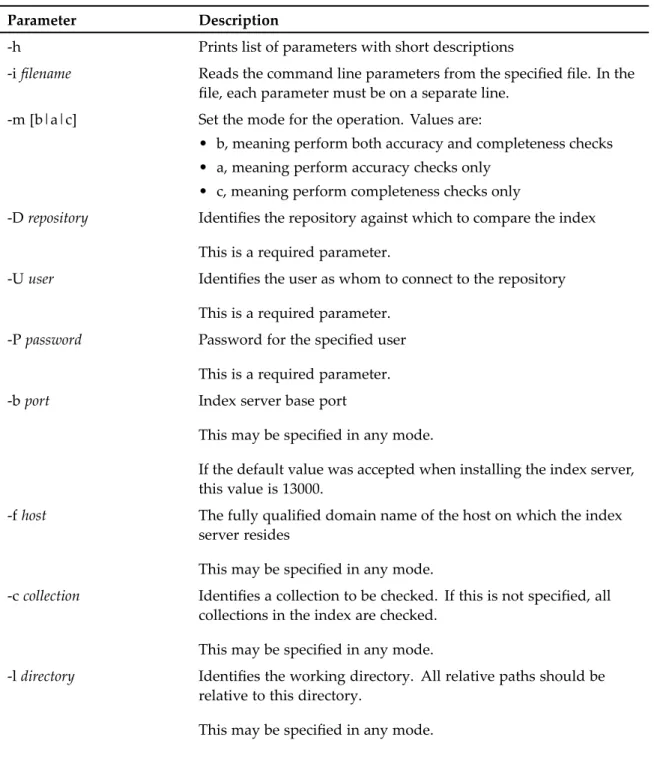
Table 3, page 33lists the full set of parameters it is possible to provide on the command line or in the parameter file for ftintegrity.
Table 3. ftintegrity parameters
Parameter Description
-h Prints list of parameters with short descriptions
-ifilename Reads the command line parameters from the specified file. In the file, each parameter must be on a separate line.
-m [b|a|c] Set the mode for the operation. Values are:
• b, meaning perform both accuracy and completeness checks • a, meaning perform accuracy checks only
• c, meaning perform completeness checks only
-Drepository Identifies the repository against which to compare the index This is a required parameter.
-Uuser Identifies the user as whom to connect to the repository This is a required parameter.
-Ppassword Password for the specified user This is a required parameter. -bport Index server base port
This may be specified in any mode.
If the default value was accepted when installing the index server, this value is 13000.
-fhost The fully qualified domain name of the host on which the index server resides
This may be specified in any mode.
-ccollection Identifies a collection to be checked. If this is not specified, all collections in the index are checked.
This may be specified in any mode.
-ldirectory Identifies the working directory. All relative paths should be relative to this directory.
Parameter Description
-Fpath Identifies the file from which to read object IDs. This is used only in completeness mode. -Tpath Identifies the file to which to save object IDs.
This is used only in completeness mode.
-dnumber Specifies the number of random documents to test. Setting this to 0 means to test all documents. However, if the number of objects in the repository is large, it is recommended that you set this to a non-zero value. Exhaustive accuracy queries cause the utility to run very slowly.
This is used only in accuracy mode.
-qnumber Specifies the number of queries to generate for each document. This is used only in accuracy mode.
-spath Identifies the file containing selected document object IDs for which to test
This is used only in accuracy mode.
-n Directs the utility to test only for the document ID and version number. No queries are generated.
This is used only in accuracy mode.
-Xpath Specifies the path to the query plug-in mapping file This is used only in accuracy mode.
-Ipath Specifies the command line for the DumpIDs program. The program records r_object_id values in a file used by ftintegrity. This argument is set automatically.
This is used only in accuracy mode.
-Apath Specifies the command line for the DumpAttrs program. The program records property values in a file used by ftintegrity. This argument is set automatically.
This is used only in accuracy mode.
-Qpath Specifies the command line for the iftdql program. This program is a small standalone tool that allows you to run Content Server-like queries without the Content Serer to test full-text.
For example:
C:\Program
Files\Documentum\IndexAgents\ftintegrity\iftdql.exe
Parameter Description
-Lpath Identifies the location of the query plug-in object This is used only in accuracy mode.
-tpath Specifies the location of the query conversion trace file This is used only in accuracy mode.
-wnumber Defines the number of queries to wait for before logging progress This is used only in accuracy mode.
-rnumber Specifies the number of seconds to wait before retrying a failed query
This is used only in accuracy mode.
Running the index verification tool
Use these instructions for running the index verification tool. If you are on UNIX or Linux, the tool can be started by running the run_ftintegrity.sh script, which sets the required environment variables. The run_ftintegrity.sh script is located in $DOCUMENTUM/fulltext/IndexServer/bin.
Note: Regardless of whether you use the script or command line, you must pass the same arguments.
To run the index verification tool:
1. Navigate to %DOCUMENTUM%\fulltext\IndexServer\bin (Windows) or $DOCUMENTUM/fulltext/IndexServer/bin (UNIX).
2. To verify both completeness and accuracy, open a command prompt and type the following command and press Enter:
cobra ftintegrity.py -i ftintegrity.params.txt -m b
Note: The ftintegrity tool is not aware of object types that you have chosen not to index, through either a custom filter or the specification of selective indexing in Documentum Administrator. If you have chosen not to index one or more object types, the object IDs of instances of those types will appear in the generated res-comp-dctmonly.txt file.
3. To verify completeness only, open a command prompt and type the following command and press Enter:
cobra ftintegrity.py -i ftintegrity.params.txt -m c
Note: The ftintegrity tool is not aware of object types that you have chosen not to index, through either a custom filter or the specification of selective indexing in Documentum Administrator. If you have chosen not to index one or more object types, the object IDs of instances of those types will appear in the generated res-comp-dctmonly.txt file.