Making a Web Application
Operable by Physically and
Mentally Challenged Users
A Web site is usable when it is simple, fast to navigate and
all information is presented in an easily readable format for
all users. So what if all kinds of users are not able to use the
content of the Web site? What if they are not able to
understand and comprehend the content provided? Can
such Web sites be considered as usable? The answer to this
question is simply “No” if looked at from a holistic view
point and “Yes” of course if the group of users who actually
cannot use it is ignored. Any Web site needs to be
accessible to all before it becomes usable for them. In
other words Accessibility comes before Usability.
Accessibility means access to a Web site/application by
everyone, regardless of ability. Accessibility ensures that
people with disabilities can perceive, understand,
navigate, and interact with Web sites and applications. An
accessible Web site/application is available to people with
disabilities including those with vision impairment or loss,
physical impairment, hearing impairment or loss, cognitive
impairment, or literacy impairment and also to people
who are challenged by technological/infrastructure
constraints such as low bandwidth or limited internet
connection.
This paper tries to address how to make a Web site
accessible in general and how to address the “Operability”
aspect of Web site Accessibility.
About the Authors
Muktikanta SendhaMukti is a Solution Architect with 12 years of experience at Tata Consultancy Services (TCS). He has been involved in architecting solutions on a diverse set of technology platforms for customers in Financial Services, Insurance, Manufacturing and Retail industries. Currently he is leading the User Experience Design Center of Excellence and is a Certified Usability Analyst (CUA) from Human Factors International.
Angeline George
Angeline George, with a Bachelor's degree in Computer Science, has worked with TCS since 2008. Her main area of experience has been in designing and developing user-interactive, rich internet web applications. She is a Certified Usability Analyst (CUA) from Human Factors International. She has worked on different web applications and helped make many websites browser
compatible and usable across Financial, Travel & Hospitality industries. She has also completed Sun certifications in Java Programming (SCJP) and Web Component Development (SCWCD) and is proficient with HTML, CSS jQuery and PHP programming languages.
Table of Contents
1. Introduction 4
2. WCAG 2.0 Principles 5
3. Making a Website Operable 6
4. Conclusion 22
Introduction
More than 14 percent of the total population in major countries (for example, United States, Canada, Brazil, India, UK, Australia, New Zealand) has disability in some form or the other.
Worldwide approximately 650 million people have either complete or partial disability.
However, a major share of Web applications is still not accessible to this group of users either fully or partially. In other words these users are deprived of the benefit of the world wide web to some extent.
On December 13, 2006, the United Nations formally agreed on the Convention on the Rights of Persons with Disabilities, the first human rights treaty of the 21st century, to protect and enhance the rights and opportunities of the world's estimated 650 million disabled people. As of April 2011, 99 of the 147
signatories had ratified the Convention. Countries that sign the convention are required to adopt national laws, and remove old ones, so that persons with disabilities will, for example, have equal rights to
education, employment, and cultural life; to the right to own and inherit property; to not be discriminated against in marriage and to not be unwilling subjects in medical experiments.
When sites are correctly designed, developed and edited, all users can have equal access to information and functionality. For example, when a site is coded with semantically meaningful HTML, with textual equivalents provided for images and with links named meaningfully, this helps blind users using text-to-speech software and/or text-to-Braille hardware. When text and images are large and/or enlargeable, it is easier for users with poor sight to read and understand the content. When links are underlined (or otherwise differentiated) as well as coloured, this ensures that colour blind users will be able to notice them.
Governments across the world have also formulated legislations and regulations in order to enforce providers to make their applications accessible to users of varying disability. However, there are still a large share of applications which are not compliant with accessibility guidelines defined by the World Wide Web Consortium.
In the year 1998, the World Wide Web Consortium (W3C) launched a project named the Web Accessibility Initiative (WAI). In May 1999 the WAI published the very first Web Content Accessibility Guidelines WCAG 1.0. Since then these have been widely accepted as the definitive guidelines on how to create accessible Web sites. On 11 December 2008, the WAI released the WCAG 2.0 as a recommendation. At present W3C WAI recommends using WCAG 2.0, instead of WCAG 1.0.
This paper addresses some key recommendations of WCAG 2.0 and how to write code which is compliant with these guidelines up to AA Level.
Figure 1: Disabled Population Wold wide
Disabled Population (% of Total)
Canada 0%
EU USA Australia New Zealand 5% 10% 20% 25% 15% UK
WCAG 2.0 Principles
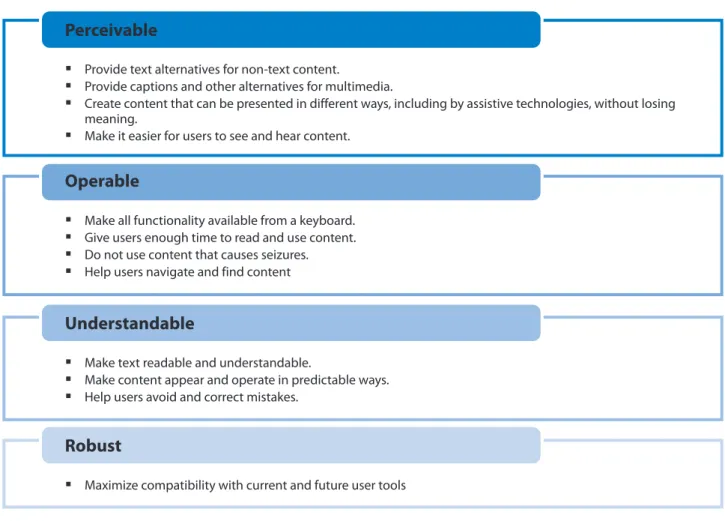
WCAG 2.0 has 12 guidelines that are organised under four principles: Perceivable, Operable,
Understandable, and Robust. For each guideline, there are testable success criteria, which are at three levels: A, AA, and AAA.
In order for a Web page to conform to WCAG 2.0, one of the following levels of conformance should be met in full:
§ Level A: For Level A conformance (the minimum level of conformance), the Web page should satisfy all the Level A Success Criteria, or a conforming alternate version is provided.
§ Level AA: For Level AA conformance, the Web page should satisfy all the Level A and Level AA Success Criteria, or a Level AA conforming alternate version is provided.
§ Level AAA: For Level AAA conformance, the Web page should satisfy all the Level A, Level AA and Level AAA Success Criteria, or a Level AAA conforming alternate version is provided.
Figure 2: WCAG 2.0 Principles
Perceivable
Operable
Understandable
Robust
§ Provide text alternatives for non-text content.
§ Provide captions and other alternatives for multimedia.
§ Create content that can be presented in different ways, including by assistive technologies, without losing meaning.
§ Make it easier for users to see and hear content.
§ Make all functionality available from a keyboard. § Give users enough time to read and use content. § Do not use content that causes seizures.
§ Help users navigate and find content
§ Make text readable and understandable.
§ Make content appear and operate in predictable ways. § Help users avoid and correct mistakes.
Making a Website Operable
WCAG 2.0 includes principles, guidelines, success criteria and techniques. The 2nd principle outlined by WCAG 2.0 is “Operable” which could be achieved by addressing the following four major success criteria:
n By making the application accessible and operable by keyboard n By providing sufficient time to users so that they can use the content
n By avoiding content which could cause seizures in users with mental disorder n By providing tips to easily navigate and find content.
Guideline 2.1 Keyboard Accessible
WCAG 2.0 guideline mentions that all functionality must be available from a keyboard. Apart from universal keyboard input, other types of input such as optimised speech input, optimised mouse/pointer input, and others, should also be supported. In other words the users should be able to provide inputs as well as control the navigation and interaction using keyboard.
Techniques to Ensure Keyboard Control
n User agents provide the keyboard operation of HTML form controls and links. In addition, the user
agent maps the form controls and links to an accessibility API. Assistive technologies use the
accessibility API to extract appropriate accessibility information, such as role, name, state, and value, and present them to users. The role is provided by the HTML element, and the name is provided by the text associated with that element. Elements for which values and states are appropriate also expose the values and states via multiple mechanisms.
Example: Links
User agents provide mechanisms to navigate to and select links. In the following example code, the role is "link" from the <a href>. The value is the URI in the 'href' attribute.
Ensure correct tab and reading order in PDF documents (PDF). For sighted users, the logical order of PDF content is also the visual order on the screen. For keyboard and assistive technology users, the tab order through content, including interactive elements (form fields and links), determines the order in which these users can navigate the content. The tab order must reflect the logical order of the document.
Success Criteria 2.1.1 -- Keyboard: When content can be operated through a keyboard or alternate keyboard, it is operable by people with no vision (who cannot use devices such as mice that require eye-hand coordination) as well as by people who must use alternate keyboards or input devices that act as keyboard emulators. Keyboard emulators include speech input software, sip-and-puff software, on-screen keyboards, scanning software and a variety of assistive technologies and alternate keyboards. Individuals with low vision also may have trouble tracking a pointer and find the use of software much easier if they can control it from the
keyboard. (Level A)
<a href="www.example.com">Example Site</a> n
Common tab-order errors include:
n Form fields missing from the tagged content.
n Form fields in the wrong location in the PDF content; for example, at the end of non-interactive
content.
n Provide links and link text using the “/Link” structure element in PDF documents. That is, make the link
information programmatically available to user agents so that links are recognisable when presented in a different format.
n Provide interactive form controls for PDF documents. The types of PDF form controls are: text input
field, check box, radio button, combo box, list box, and button.
Techniques for Providing Keyboard-triggered Event Handlers
n Use both keyboard and other device-specific functions:
Using both keyboard-specific and mouse-specific events together ensures that content can be operated by a wide range of devices. For example, a script may perform the same action when a keypress is detected that is performed when a mouse button is clicked.
Example: In this example of an image link, the image is changed when the user positions the pointer over the image. To provide keyboard users with a similar experience, the image is also changed when the user tabs to it.
Example Code:
n Make actions keyboard accessible by using the onclick event of anchors and buttons:In order to ensure
that scripted actions can be invoked from the keyboard, they are associated with "natively actionable" HTML elements (links and buttons). The onclick event of these elements is device independent. While "onclick" sounds like it is tied to the mouse, the onclick event is actually mapped to the default action of a link or button. The default action occurs when the user clicks the element with a mouse, but it also occurs when the user focuses the element and presses Enter or Spacebar, and when the element is triggered via the accessibility API.
Example: Link that runs a script and has no fallback for non-scripted browsers. This approach should only be used when script is relied upon as an Accessibility Supported Technology.
Even though you do not want to navigate away from this link, you must use the href attribute on the “a” element in order to make this a true link and get the proper eventing. In the following example "www.google.com" has been used as the link target and the link will never be navigated.
$('#textbox').keyup(function(event){
$('#msg-keyup').html('keyup() is triggered!, keyCode = ' + event.keyCode + ' which = ' + event.which) });
Example Code:
The "return false;" at the end of the actUponIt () event handling function tells the browser not to navigate to the URI. Without it, the page would refresh after the script ran.
n Use redundant keyboard and mouse event handlers:
To change a decorative image in response to a mouse or focus event, use the onmouseover and onmouseout events to change a decorative image when the mouse moves on top of or away from an element on the page. Also, use the onfocus and onblur events to change the image when the element receives and loses focus.
Example Code: <script> function actUponIt() { //do something return false; } </script>
<a href="www.google.com" onclick="return actUponIt ();">do something</a>
<a href="menu.php" onmouseover="swapImageOn('menu')"
onfocus="swapImageOn('menu')" onmouseout="swapImageOff('menu')" onblur="swapImageOff('menu')">
<img id="menu" src="menu_off.gif" alt="Menu" /> </a>
Success Criteria 2.1.2 -- No Keyboard Trap:
A 'keyboard trap' occurs when a person who uses a keyboard cannot move focus away from an interactive element or control using the keyboard alone.
Guideline - If keyboard focus can be moved to a component of the page using a keyboard interface, then focus can be moved away from that component using only a keyboard interface, and, if it requires more than
unmodified arrow or tab keys or other standard exit methods, the user is advised of the method for moving focus away. (Level A)
Techniques for No Keyboard Trap
n Ensure that keyboard users do not become trapped in a subset of the content that can only be exited
using a mouse or pointing device. Example:
Once a user tabs into an applet, further tabs are handled by the applet preventing the person from tabbing out. However, the applet is designed in such a way that it returns keyboard focus back to the parent window when the person finishes tabbing through the tab sequence in the applet.
n Allow keyboard focus to move to and from Flash content embedded in a Web page.
In browsers other than Internet Explorer, there is a problem related to keyboard accessibility of embedded Flash content. The problem is that, many browsers do not support moving keyboard focus between the Flash content and HTML content without using a mouse. Once focus is placed inside the Flash content, a keyboard user will be trapped there. Similarly, when focus is placed somewhere else on the HTML content (outside the Flash content), it will be impossible to move focus to the content.
Many users who have disabilities need more time to complete tasks than the majority of users: they may take longer to physically respond, they may take longer to read things, they may have low vision and take longer to find things or to read them, or they may be accessing content through an assistive technology that requires more time. These kinds of users should be provided with enough time to read and use content.
n Turn off: The user is allowed to turn off the time limit before encountering it; or
n Adjust: The user is allowed to adjust the time limit before encountering it over a wide range that is at
least ten times the length of the default setting; or
n Extend: The user is warned before time expires and given at least 20 seconds to extend the time limit
with a simple action (for example, "press the space bar"), and the user is allowed to extend the time limit at least ten times; or
n Real-time Exception: The time limit is a required part of a real-time event (for example, an auction),
and no alternative to the time limit is possible; or
n Essential Exception: The time limit is essential and extending it would invalidate the activity; or n 20 Hour Exception: The time limit is longer than 20 hours.
Guideline 2.2 Enough Time
Success Criteria 2.2.1 -- Timing Adjustable: For each time limit that is set by the content, at least one of the following is true: (Level A)
Techniques for Timing Adjustable
Situation A - If there is session time limit:
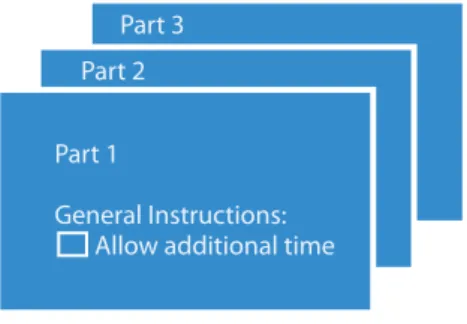
1. Provide a checkbox on the first page of a multipart form that allows users to ask for longer session time limit or no session time limit. The objective of this technique is to minimise the risk that users with disabilities will lose their work by providing a checkbox to request additional time to complete multipart forms.
Example: A checkbox for requesting a specific extension
A Web page contains the first part of a three-part form. Immediately following the general instructions for completing the form is a checkbox with the label, “Allow an additional 15 minutes to complete each part of this form."
2. Provide a mechanism for the user to turn the time limit off. To do this - the mechanism should be available at or near the top of the page so that it can be found and activated quickly by people with a wide range of disabilities.
Example: A page has a listing of news headlines that automatically update every minute. At the top of the page is a link that turns off the updating.
Situation B - If a time limit is controlled by a script on the page:
1.Provide a way for the user to turn the time limit off
2.Provide the user with a means to set the time limit to 10 times the default time limit
Example: An airline has an online ticket purchasing application. By default, the application has a one minute time limit for each step of the purchase process. At the beginning of the session, a Web page includes information that says, "We expect that each step in the purchasing process will take users one minute to complete. Would you like to adjust the time limit?" followed by several radio buttons "1 minute, 2 minutes, 5 minutes, 10 minutes."
Part 1
General Instructions: Allow additional time
Part 2 Part 3
Figure 3: Checkbox Example
Welcome to ABC Airways
We expect that each step in the purchasing process will take users one minute to complete. Would you like to adjust the time limit?
1 Minute 2 Minutes 5 Minutes 10 Minutes
3. Provide a script that warns the user a time limit is about to expire and subsequently allow the user to extend the default time limit.
Example: A Web page contains current stock market statistics and is set to refresh periodically. When the user is warned prior to refreshing the first time, the user is provided with an option to extend the time period between refreshes
Situation C - If there are time limits on reading:
1. Allow the content to be paused and restarted from where it was paused. If the user needs to pause the movement, to reduce distraction or to have time to read it, they should be able to do so, and then restart it as needed.
Example: A site contains a scrolling news banner at the top of the page. Users who need more time to read it can press the Escape key to pause the scrolling. Pressing Escape again restarts it.
2. Provide a way for the user to turn the time limit off .
3. Scrolling content is difficult to read by users with low vision or with cognitive disabilities. The
movement is also distracting sometimes making it difficult for users to concentrate on other parts of the Web page. Use script to scroll content, and providing a mechanism to pause it in such scenarios.
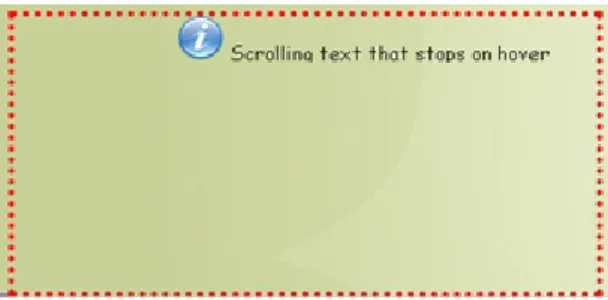
4. Provide a mechanism to allow users to display moving, scrolling, or auto-updating text in a static window or area. Some Web pages display scrolling text because there is limited space available. Scrolling the text in a small text window makes the content available for users who can read quickly enough, but causes problems for users who read more slowly or use assistive technology. This technique provides a mechanism to stop the movement and make the entire block of text available statically. The text may be made available in a separate window or in a (larger) section of the page. Users can then read the text at their own speed.
Example:
Figure 5: Marquee Text that can be Stopped on Hover
Success Criteria 2.2.2 -- Pause, Stop, Hide: For moving, blinking, scrolling, or auto-updating information, all of the following are true: (Level A)
Moving, blinking, scrolling: For any moving, blinking or scrolling information that (1) starts
automatically, (2) lasts more than five seconds, and (3) is presented in parallel with other content, there is a mechanism for the user to pause, stop, or hide it unless the movement, blinking, or scrolling is part of an activity where it is essential; and
Auto-updating: For any auto-updating information that (1) starts automatically and (2) is presented in parallel with other content, there is a mechanism for the user to pause, stop, or hide it or to control the frequency of the update unless the auto-updating is part of an activity where it is essential.
Techniques for 2.2.2 - Pause, Stop, Hide
1. Allow the content to be paused and restarted from where it was paused.
Example: A Web page contains a link to a Flash animation. Text immediately preceding the link should inform the user that pressing the spacebar will pause the animation and restart it again.
2. Limit the blinking of content to five seconds which minimises the distraction caused by blinking content and enable users to re-focus on the other content on the page.
Example: An animated image is used to highlight items on sale. Within a list of items for purchase, an image of a red tag followed by the phrase "On sale" is used to indicate items being offered at a reduced price. The image of the red tag blinks on loading of the page and stops within five seconds.
3. Use a technology to include blinking content that can be turned off via the user agent.
Example: A page contains a blinking banner intended to draw the user's attention to it. The banner is an animated gif image which repeats indefinitely. The user presses the "Esc" key, which causes the user agent to stop the animation of all animated gif images on the page.
4. Set animated gif images to stop blinking after n cycles (within five seconds). The objective of this technique is to ensure that animated gif images stop blinking within five seconds. There are three aspects of the design of animated gif images that work together to determine how long the image blinks (or otherwise animates):
n The number of frames in the image, which are discrete images in the animation sequence n The frame rate, which is how long each image is displayed
n The number of repetitions, which is how many times the entire animation is performed.
Example: A simple blinking image. An image has 2 frames, a frame rate of .5 seconds, and 3 repetitions. The animation has duration of (2 * 0.5 * 3) seconds, or exactly 3 seconds, and therefore meets the requirements of the success criterion.
Duration of the animation (in sec) = number of frames * frame rate * number of repetitions.
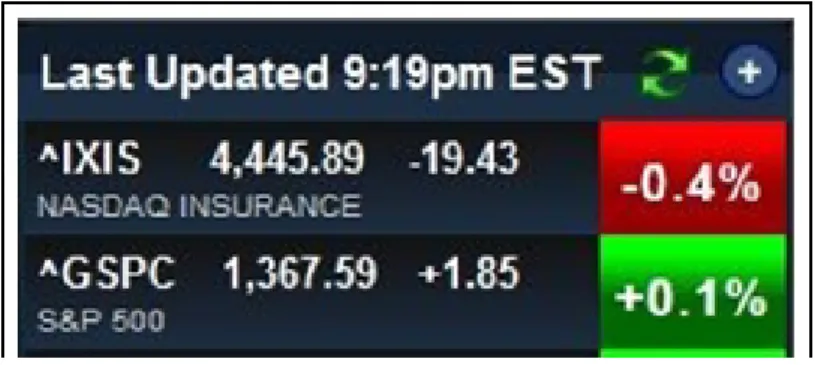
5.Use a control in the Web page that stops moving, blinking, or auto-updating content. Since the control should be placed in the Web page, the control itself should meet the appropriate level of WCAG
conformance for example, it should have appropriate contrast, a name that identifies it and it should also be keyboard accessible. The control should be placed either at the top of the page or adjacent to the moving content.
Example: Stock Market Ticker
Do not design content in a way that is known to cause seizures. Some people with seizure disorders can have a seizure triggered by flashing visual content.
Techniques for 2.3.1 - Three Flashes or Below Threshold
1. Ensure that no component of the content flashes more than three times in any 1-second period. Since some users may be using screen enlargers, this technique limits the flashing of any size content to no more than three flashes in any 1-second period.
Example: If the content has lightning flashes then design in such a way that lightning only flashes two or three times without a pause in flashing.
2. Keep the flashing area small enough. If you have something that flashes more than three times in a one second period, but the area that is flashing is less than 25 percent of 10 degrees of visual field (which represents the central area of vision in the eye), then it would automatically pass.
3. Use a tool to ensure that content does not violate the general flash threshold or red flash threshold.
Guideline 2.3 Seizures
Success Criteria 2.3.1 -- Three Flashes or Below Threshold: Web pages do not contain anything that flashes more than three times in any one second period, or the flash is below the general flash and red flash thresholds. (Level A)
Guideline 2.4 Navigable
Success Criteria 2.4.1 -- Bypass blocks: A mechanism is available to bypass blocks of content that are repeated on multiple Web pages. (Level A) The intent of this Success Criterion is to allow people who navigate sequentially through content more direct access to the primary content of the Web page. Web pages and applications often have content that appears on other pages or screens. Examples of repeated blocks of content include but are not limited to navigation links, heading graphics, and advertising frames. Small repeated sections such as individual words, phrases or single links are not considered blocks for the purposes of this provision.
Provide ways to help users navigate, find content, and determine where they are.
Techniques for 2.4.1 - Bypass Blocks
1.Create links to skip blocks of repeated material using one of the following techniques:
n Add a link at the top of each page that goes directly to the main content area.
Example: An online newspaper
n Add a link at the beginning of a block of repeated content to go to the end of the block.
Example: Skip navigation links
n Add links at the top of the page to each area of the content.
2. Group blocks of repeated material in a way that can be skipped:
n Provide heading elements at the beginning of each section of content.
Example Code:
<h2>Navigation</h2> <ul>
<li><a href="about.htm">About us</a></li> <li><a href="contact.htm">Contact us</a></li> ...
</ul>
<h2>All about headings</h2>
n Use map to group links. Sighted users very often ignore navigation parts and start reading the content
of the page. Someone using a screen reader must first listen to the text of each link in the navigation bar before reading the content. This technique uses the map element to mark up content so that a user with a screen reader can jump over the navigation bar and avoid reading all of the links.
Example: In this example, the map element groups a set of links; the title attribute identifies it as a navigation bar.
Example Code:
n Use frame elements to group blocks of repeated material and use the title attribute of the frame and
iframe elements.
Example: The following example shows the use of two frames to organise content. The source of the first frame is the Web page, navigation.html, which contains the HTML for the navigation. This frame has a title attribute which identifies it as a navigation bar. The second frame contains the main content of the site as indicated by the source parameter of main.html and the title attribute, "Main News Content" which identifies its function.
Example Code:
<map title="Navigation Bar"> <p>
[<a href="home.html">Home</a>] [<a href="search.html">Search</a>]
[<a href="new.html">New and highlighted</a>] [<a href="sitemap.html">Site map</a>]
</p> </map>
<frameset cols="20%, *">
<frame src="navigation.html" name="navbar" title="Navigation Bar" /> <frame src="main.html" name="maincontent" title="Main News Content" /> <noframes>
<p>View <a href="noframe.html">no frame version</a>.</p> </noframes>
Success Criteria 2.4.2 -- Page Titled: Web pages have titles that describe topic or purpose. (Level A).
Success Criteria 2.4.3 -- Focus Order: If a Web page can be navigated sequentially and the navigation sequences affect meaning or operation, focusable components receive focus in an order that preserves meaning and operability. (Level A)
Titles help users find content and orient themselves within it. When titles appear in site maps or lists of search results, users can more quickly identify the content they need. User agents make the title of the page easily available to the user for identifying the page. For instance, a user agent may display the page title in the window title bar or as the name of the tab containing the page.
Techniques for 2.4.2 - Page Titled
1.Provide descriptive titles for Web pages:
n Provide a title using the HTML “TITLE” element.
Example Code:
Techniques for 2.4.3 - Focus Order
1.Place the interactive elements such as links and form controls in an order that follows sequences and relationships within the content. Each technology defines its default tab order, so the mechanism for placing the controls in the content will depend on the technology used.
Example: A form contains two text input fields that are to be filled in sequentially. The first text input field is placed first in the content; the second input field is placed second.
<html xmlns="http://www.w3.org/1999/xhtml"> <head>
<title>The World Wide Web Consortium</title> </head>
<body> ... </body> </html>
Compliant Code
<form action=""> Do you have a vehicle:
<input type="radio" name="vehicle" value="Yes" /> Yes
<input type="radio" name="vehicle" value="No" /> No
<br><br>
If yes,Vehicle No: <input type="text" name="vehicleno"/>
</form>
Non-Compliant Code
<form action="">
Vehicle No: <input type="text" name="vehicleno"/>
<br><br>
Do you have a vehicle:
<input type="radio" name="vehicle" value="Yes" /> Yes
<input type="radio" name="vehicle" value="No" /> No
</form>
2.Give focus to elements in an order that follows sequences and relationships within the content using one of the following techniques:
n Create a logical tab order through links, form controls, and objects.
Example: A Web page contains a search field in the upper right corner. The field is given tabindex="1" so that it will occur first in the tab order, even though it is not first in the content order
n Make the DOM order match the visual order (CSS). The order of content in the source code can be
changed by the author to any number of visual presentations with CSS. Each order may be meaningful in itself but may cause confusion for assistive technology users.
Example: A website has placed a navigation bar visually in the top left corner of the page directly below its initial logo. In the source code, the navigation elements appear after the elements encoding the logo.
A user with low vision who uses a screen magnifier in combination with a screen reader may be confused when the reading order appears to skip around on the screen. A keyboard user may have trouble predicting where focus will go next when the source order does not match the visual order.
Compliant Code
<div class="site_logo">
<a href="http://www.oneindia.in/"> <img title="Oneindia : Online Portal" alt="Oneindia : Online Portal"
src="http://images.oneindia.in/oneindia-logo.gif"> </a> <br> <input type="text" style="background: url("http://www.google.co.in/images/g oogle_custom_search.gif") no-repeat scroll left center;">
</div>
<div class="menu"> <ul>
<li> Home </li> <li>Movies</li> <li> Travel </li> </ul>
</div>
Non-Compliant Code
<div class="site_logo">
<a href="http://www.oneindia.in/"> <img title="Oneindia : Online Portal" alt="Oneindia : Online Portal"
src="http://images.oneindia.in/oneindia-logo.gif"> </a> <br> <div class="menu"> <ul>
<li> Home </li> <li>Movies</li> <li> Travel </li> </ul>
</div>
<input type="text" style="background: url("http://www.google.co.in/images/g oogle_custom_search.gif") no-repeat scroll left center;">
</div>
3. Insert dynamic content into the Document Object Model:
Insert dynamic content into the Document Object Model immediately following its trigger element (Scripting). The objective of this technique is to place inserted user interface elements into the Document Object Model (DOM) in such a way that the tab order and screen-reader reading order are set correctly by the default behaviour of the user agent. This technique can be used for any user interface element that is hidden and shown, such as menus and dialogs.
Techniques for 2.4.4 - Link Purpose (In Context)
1.Provide link text that describes the purpose of a link for anchor elements. The description lets a user distinguish this link from links in the Web page that lead to other destinations and helps the user determine whether to follow the link.
Example Code:
Success Criteria 2.4.4 -- Link Purpose (In Context): The purpose of each link can be determined from the link text alone or from the link text together with its programmatically determined link context, except where the purpose of the link would be ambiguous to users in general. (Level A)
2.Provide text alternatives for the area elements of image maps. When an image is the only content of a link, the text alternative for the image describes the unique function of the link. When the content of a link contains both text and one or more images, if the text is sufficient to describe the purpose of the link, the images should have an empty text alternative.
Example: Using the alt attribute for the img element to describe the purpose of a graphical link.
3.Allow the user to choose short or long link text using one of the following techniques:
n Provide a control near the beginning of the Web page that changes the link text. n Use scripts to change the link text
4. Identify the purpose of a link using link text combined with the text of the enclosing sentence. Example: A Web page contains the sentence "To advertise on this page, click here."
Although the link phrase 'click here' is not sufficient to understand the link, the information needed precedes the link in the same sentence.
5.Provide a supplemental description of the purpose of a link:
n Supplement link text with the title attribute
Example Code:
<a href="routes.html">
<img src="topo.gif" alt="Current routes at Boulders Climbing Gym" /> </a>
<a href="http://example.com/africa/kenya.elephants.ap/index.html" title="Read more about failed elephant evacuation">
Evacuation Crumbles Under Jumbo load </a>
Success Criteria 2.4.5 -- Multiple Ways: More than one way is available to locate a Web page within a set of Web pages except where the Web Page is the result of, or a step in, a process. (Level AA) Even small sites should provide users some means of orientation. For a three or four page site, with all pages linked from the home page, it may be sufficient simply to provide links from and to the home page where the links on the home page can also serve as a site map.
Techniques for 2.4.5 - Multiple Ways
1.Provide links to navigate to related Web pages. 2.Provide a Table of Contents.
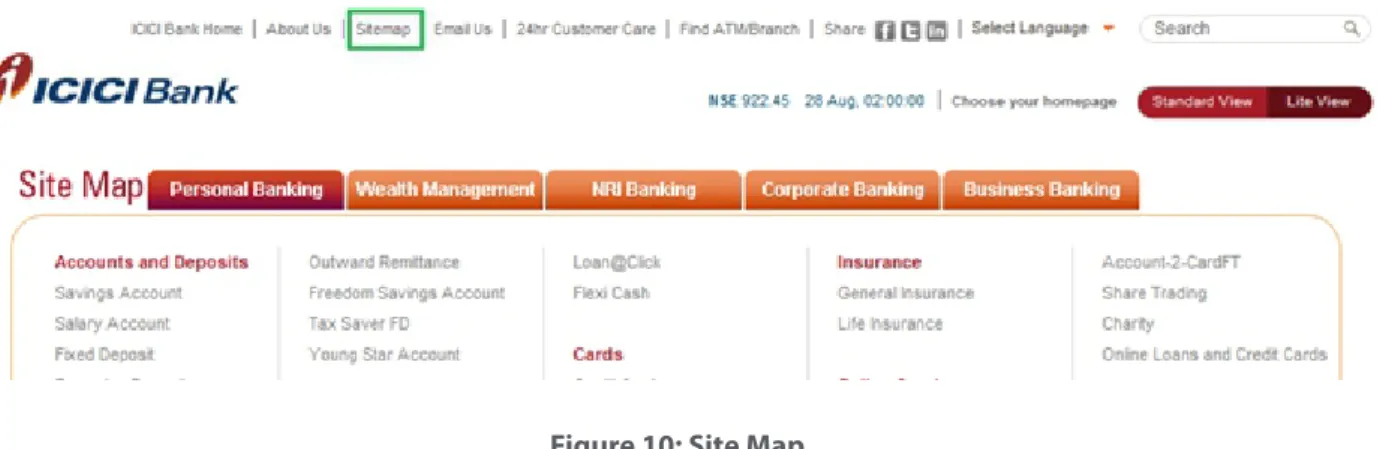
3.Provide a site map.
A site map is a Web page that provides links to different sections of the site. To make the site map available within the site, at a minimum every page that is listed in the site map contains a link to the site map.
4.Provide a search function to help users find content.
5. For smaller Web sites provide link to all of the pages from the home page. In this way, the home page serves as two mechanisms in one. It provides the usual navigation to pages. It also is a de facto site map to the site.
Techniques for 2.4.6 - Headings and Labels
1.Provide descriptive headings. Descriptive headings and titles work together to give users an overview of the content and its organization.
Example Code:
Success Criteria 2.4.6 -- Headings and Labels: Headings and labels describe topic or purpose. (Level AA) When headings are clear and descriptive, users can find the information they seek more easily, and they can understand the relationships between different parts of the content more easily. Descriptive labels help users identify specific components within the content.
<h1>Disaster preparation</h1> <h2>Flood preparation</h2> <h2>Fire preparation</h2>
2.Provide descriptive labels to ensure that the label for any interactive component within Web content makes the component's purpose clear.
Example: A form asking the name of the user with fields properly labelled.
Techniques for 2.4.7 - Focus Visible
1.Use user interface components that are highlighted by the user agent when they receive focus. When authors use standard controls for which the user agent provides this support, users are informed of the focus location in a standard, predictable way.
Example: When html text input fields receive focus, browsers display a blinking vertical bar at the insertion point in the text field.
2.Use CSS to change the presentation of a user interface component when it receives focus.
3.Use default or author-supplied, highly visible focus indicator. When an element receives focus, the background colour or border is changed to make it visually distinct. When the element loses focus, it returns to its normal styling. This technique can be used on any HTML user agent that supports Script and CSS, regardless of whether it supports the:focus pseudoclass.
Example: In this example, when the link receives focus, its background turns yellow. When it loses focus, the yellow is removed.
Example Code:
Success Criteria 2.4.7 -- Focus Visible: Any keyboard operable user interface has a mode of operation where the keyboard focus indicator is visible. (Level AA)
<script>
function toggleFocus(el) {
el.style.backgroundColor = el.style.backgroundColor=="yellow" ? "inherit" : "yellow"; }
</script> ...
<a href="example.html" onfocus="toggleFocus(this)" onblur="toggleFocus(this)"> focus me</a>
Conclusion
The basic concept behind Web site operability is everybody should be able to use the tools and mechanisms required to operate the Web site. Although operability may seem easy, it can be very challenging at times. Every control, every link, and every button on the site is a potential point of failure for operability. Without appropriate consideration for the disabled, you can run the risk that disabled users will be unable to access the site.
Keyboard accessibility with sites developed using AJAX tool kits is also a major issue. Many of the AJAX techniques, such as drag and drop interfaces, click and type editing areas and quick edit screens, are driven by methods which are not keyboard accessible. Consideration for the needs of disabled users when creating AJAX-driven applications can also solve many of these problems.
With the advance of technology and new innovations of Assistive Technologies every day, the operability of Web sites by disabled users is becoming easier day by day due to inherent features/technologies built into these Assistive Technologies. However, an attempt should be made to make the application code compliant with WCAG 2.0 AA standard which is the most widely accepted accessibility compliance standard in present context and will make the site operable by all kinds of disabled users.
References
M 11 12 I I I IT Services Business Solutions Outsourcing
Subscribe to TCS White Papers
TCS.com RSS: http://www.tcs.com/rss_feeds/Pages/feed.aspx?f=w Feedburner: http://feeds2.feedburner.com/tcswhitepapers Contact
For more information, contact [email protected]
About Tata Consultancy Services (TCS)
www.tcs.com
Tata Consultancy Services is an IT services, consulting and business solutions organization that delivers real results to global business, ensuring a level of certainty no other firm can match. TCS offers a consulting-led, integrated portfolio of IT and IT-enabled infrastructure, engineering
TM
and assurance services. This is delivered through its unique Global Network Delivery Model , recognized as the benchmark of excellence in software development. A part of the Tata Group, India’s largest industrial conglomerate, TCS has a global footprint and is listed on the National Stock Exchange and Bombay Stock Exchange in India.