SYMBOLIC TAPE EDITOR
PREFACE
The program discussed in this manual, though written for use on the Programmed
Data Processor-7 computer, can also be used without change on DigitaPs
Pro-.grammed Data Processor-4. Th is compatibil ity between the I ibraries of the two
computers results in three major advantages:
1. The PDP-7 comes to the user complete with an extensive
se-lection of system programs and routines making the full data
pro-cessing capabil ity of the new computer immediately available to
each user, eliminating many of the common initial programming
delays.
2. The PDP-7 programming system takes advantage of the many
man-years of field testing by PDP-4 users.
3. Each computer can take immediate advantage of the
continu-ing program developments for the other.
CON
TE N
TSIntroduction ... 0 • • • • 0 • • • • 0 • • • • • • • • • • • • • • • • • • • • • • • • •
How the Ed i tor Works ••••••••••••••••••••••••••••••••••••• 0 • •
Operating Modes 0 • • • • • • • • • • • 0 • • • • • • • • • • • • • • • • • • 0 0 0 0 • 0 0 •
Commands ... " " ... .
Arguments ••.••.•.••.••.••.••••.•••.••••••.••••.•.• . ,' ..•
Spec ia I Functions •••••• 0 0 • 0 0 • 0 • • 0 0 •
Parity Checking •.••.•••••••••• 0 • • • 0 • 0 • • • • • • • • • • • • • • • • 0 •
ASC II Input and Output. 0 0 • • • • • • • 0 • • • • 0 • • • • • • 0 • • • 0 • • 0 • 0 • 0
Using the Editor ... .
Exampl e 1 •••••• 0 0
Rearrang ing Text on Output ••••• 0 • 0 0 0 0 • 0 0 • 0 0 0 • • • 0 0 • 0 0 0 0 0 0
Exampl e 2 •••• 0 • • • • 0 0 • • • • • • • • • • 0 • • • • • • 0 • • • 0 • 0 • 0 • 0 0 • • 0 0 0
The Editor's Command Repertoire ••• 0 • • 0 • • • • • • • • 0 • 0 • • • • • 0 0 0 • • • 0
Input- Tape Operations 0 0 • 0 • • • • • • • • • • o • • • 0 0 • • • • 0 0 • • • • • 0 . 0 •
Editing ••••• 0 0 • • • 0 • • • • • • • • • • • • • • • • • !t • • • • • • • • • • • ~ • • • • • • •
Text Examination o.
Punching Operations •••••• 0 • • • • • • • • • • • • • • • • • • • • o. 0 0 • • • 0 0
Appendix 1 Summary of Editor Operations 0 • • • • • • 0 • • • • • • • • 0 • • • • •
Appendix 2 Using the Editor with Teletype Model 28 KSR o. 0 • • • 0 •
Appendix 3 Character Set Equivalences •• 0 • • • 0 • • o • • • 0 . 0 0 • • • o . 0 •
v
2
2
3
4
6
6
7
7
11
12
15
16
17
18
20
22
24
INTRODUCTION
Of all the necessary jobs confronting the programmer when debugging, perhaps the most tedious
is making a corrected symbol ic program. It involves seemingly endless dupl ication, listing,
splicing, and close attention. The Symbolic Tape Editor for Programmed Data Processor-7 helps
to I ighten the task and speed up the process of correcting programs by using the computer to
perform the drudgery.
In brief, the Editor reads a section of symbolic tape into core memory, where it is available for
examination and correction. The corrected text can then be punched out on a new tape. Text
maya Iso be entered directly from the keyboard for origina I tape preparation. The Editor accepts
tape input and provides output in either ASCII* or FIODEC codes. Tapes can be converted
from one to the other using the Symbol ic Tape Editor. In this description, it is assumed that
ASC II tapes are used; where the treatment differs for FIODEC it wi II be noted. Keyboard
communication with the Editor may be accomplished on either Teletype Model 33 KSR or Model
28 KSR. This manual assumes use of Model 33 KSR; Appendix 2 contains instructions for using
Model 28 KSR where this differs from Model 33.
The information to be corrected is stored in a text buffer, which occupies all of memory not
taken up by the Editor itself and has a capacity of approximately 4000 characters in a PDP-7
with 4096 words of memory, or approximately 16,000 characters in one with 8192 words.
HOW THE EDITOR WORKS
By convention, paper tape information is organized into various-sized blocks. The larger blocks
are called pages and are separated by form feed codes on paper tape (FIODEC: stop codes).
Each page is divided into smaller blocks called lines, which are separated by carriage return
- line feed pairs (FIODEC: CR). A terminating carriage return, line feed pair is part of the
line that precedes it.
In the text buffer, lines are implicitly numbered decimally in sequence beginning with 1. Form
feeds (FIODEC:: stop codes) are not stored in memorYi hence there are no page divisions in
the text buffer, and the entire contents of the Editor's buffer are treated as a single page. The
user may organize h is output into pages if he wishes.
Operating Modes
In order to distinguish between commands to itself and text to be entered into the buffer, the
Editor operates in one of two modes. In Command mode, typed input is interpreted as
direc-tions to the Editor to perform some operation. In Text mode, all typed input is taken as text
to be inserted in or appended to the contents of the text buffer. To help the user keep track
of the mode, a visual indication is provided by the LIN
K
I ight on the PDP-7 console. In Com-mand mode, this light is Offi in Text mode, it is on.Commands
A command directs the Edi tor to perform some operation. A command consists of a single letter preceded by zero, one, or two arguments. If we let E represent any command letter, the three
ways of constructing a command are:
No arguments
One argument
Two arguments
E~* nE~
m,n~
Note that two arguments must be separated by a comma, but that no comma separation is
al-lowed between the argument(s} and the command.
To be executed, a command must be followed by a carriage return. Th is is the signa I to the
Editor to process the information just typed. The Editor responds with a I ine feed as soon as it
has processed the command and begun the operation. If the Editor is doing something at the time
a carriage return is typed (such as punching or reading tape), delay may occur before the I ine feed is
returned. Ifamistakeismadewhiletypingacommand, the entire line may be ignored by typing
Line Feed.
Arguments
An argument may be any dec ima I integer, spec ia I symbol, or ari thmetic expression, consisting
of decimal ihtegers or special symbols separated by the addition (space) or subtraction (minus
sign) operators.
Examples: 256
1-39
25-3
12 48-7
. 4
The following two characters are special symbols in the Editor.
1
This symbol represents the total number of lines in the text buffer. If there are 100 I ines in the text buffer, the symbol1
has a value of 100. It is used primarily for referencing thelast I ine in the buffer.
Example:
IL).
Th is wi II cause the last I ine in the text buffer tobe listed.
The symbol period
(J
has a va lue equa I to the number of thelast I ine involved in an Editor operation. The va lue of period
will be equal to the number of the last line referenced or
typed in except in the case of the delete commaod (D), where
it will be equal to the number of the line preceding the first
deleted line. In each command description that follows, the
va lue of .:.. after the completion of the operation is stated.
Example:
23,
.C)
Lines 23 to the current line are changed.~pec ia I Func tions
Certain keys have spec ial operating functions. The first three below are nonprinting, so the
symbol in parentheses is used to indicate the operation of the assoc ioted key.
Carriage Return (~ )
Continuation (? ~)
line Feed
(+)
Rub Out (RO)
In both Command and Text modes, this is the signal for the
Editor to process the information just typed. In Command
mode, the operation specified is to be performed. In Text
mode, it means that the preceding I ine of text is to be placed
in the buffer.
In Text mode, this facilitates adding comments to successive
lines or for end-of-line corrections. If ,a line of text is
ter-minated by this pair instead of a single carriage return, the
I ine will be entered as usua I; then the line immediately
fol-lowing it wi II be printed up to but not inc luding its carriage
return. Thus, the new I ine is left open for additions or
cor-rections. The editing example in the next section illustrates
the use of
?;'.
NOTE: If in text mode as a result of the Y command, continuation may not be used.This character has two meanings dependiing on when it is used.
If it is struck after some information has been typed, it causes that information to be deleted. Used thus in either mode, it
has the effect of erasing mistakes. When it has processed the
line feed, the Editor responds with a carriage return. If, in
Command mode, line feed is the first character typed on a
line, the next I ine of text (I ine .+1) wi II be pri nted.
This key has three distinct functions. Typing RO in Command
mode will cause the next line of text to be printed. The use
of RO for i-his purpose is preferred to that of I ine feed since it
Colon (:)
Pressing RO in Text mode will cause the last character of an
incomplete line of text-to be deleted from the input buffer.
Continued striking of this key will cause successive characters
to be de I e ted one by one, work i ng from the end of the line
back to the beginning. In this way, a mistake can be corrected
wi thout having to retype t~e whole line.
Example: Instead of DAC PTEM, the following line was typed:
DAC CTE
To correct the line, RO is struck three times, erasing the last
three letters in succession, E, T, and C. The correct text is
then typed, and the resulting line appears on the teleprinter
as:
DAC CTEPTEM
/
It is stored in the text buffer, however, in correct form, as:
DAC PTEM
In Text mode, the rub out key has another function. Typed
im-mediately after a carriage return, it signals the Editor to return
to Command mode. If one deletes all the characters in an
in-complete line and then strikes RO one more time, the Editor will
a Iso return to Command mode. No keyboard response is
pro-vided by the Editor; but when it enters Command mode, the
LINK light, which has been on while in Text mode, goes out.
When this symbol is typed in Command mode, the Editor will
print the decimal value of the argument that precedes it
fol-lowed by a carriage return. It is frequently used for
determin-ing the number of I ines of text in the buffer.
Example:
/: 57
or in determining the number of the current line:
32
Tabu lation (--.j) The bell key produces a tabulation when struck. However PDP-7 keyboards vary; some have tab hardware, others do
not. A tab is automatic on the former, but the Editor spaces
out the tabulation on those keyboards without automatic tabs.
To indicate to the Editor which type of keyboard is being used,
AC switch 1 should be set as follows:
ACS1 Down Keyboard equipped with automatic tabulation.
Up Keyboard withollt automatic tab.
The foregoing appl ies only to input; the Editor spaces out all
tabs when printing.
Parity Checking
When symbolic input from tape is in FlO DEC code, the Editor will check parity, if desired,
under control of AC switch 17. When a parity error is encountered, a diagnostic is printed
which gives the line number and the character code in error. For example:
PARITY IN LINE 23 CHAR IS 252
The offending character is automatically replaced by code 76
8, which is unused in the FIOO EC set, and the Editor continues reading. During the editing process when a line containing a
parity error is printed, the error code is printed as ? .
ASC II I nput and Output
Tape format for input and output must be indicated by setting AC switches 15 and 16 as follows:
ACS15 Down FIODEC output
Up ASC II ou tput
ACS16 Down FIODEC input
In addition when ACS15 is up, output control for ASCII is provided by AC switches 13 and 14.
ACS13
ACS14
Down Tape feeds are punched as 000
Up Tape feeds are punched as 200
.
Down ASCII tab code is punched
Up Tabs are translated into the number of spaces to effec t proper forma tti ng
USING THE EDITOR
Example 1
The following detailed example of the editing of a page of text will familiarize the reader with
the basic operations of the Edi tor. All of the commands are described in full after the example,
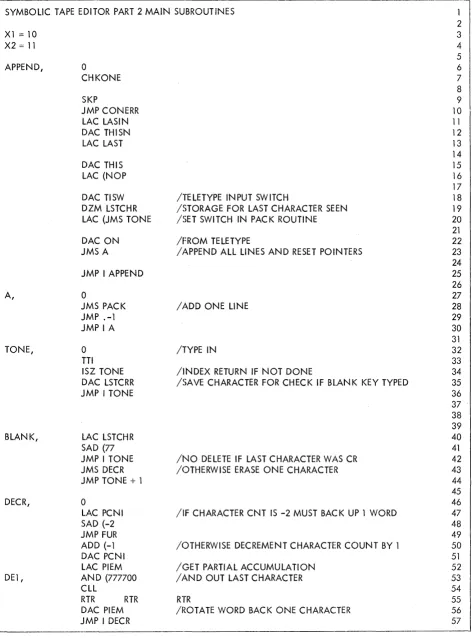
and the sample page of text is reproduced in Figure 1 •
To begin, place the Editor program tape in the reader and load the program into memory. * The
Editor starts automatically with cleared buffers. All subsequent operations, including loading
the symbol ic tape to be edited, are performed through the Editor from the teleprinter keyboard.
Now set the AC swi tches as desired. Our sample text is a page from the symbol ic tape of the
Editor itself; it is punched in ASCII format. We wish to have ASCII output, and we assume that
the keyboard has automatic tabulation. Our AC switch control settings are as follows:
ACS 13 14 15 16
down down down up up
The Editor is now ready to read a symbolic tape or accept text from the teleprinter.
Whenever the Editor encounters an interrupt from a device other than the teleprinter, tape
reader, or punch, it will halt with the I/O status word displayed in the AC lights. The user
should examine the status word to determine the source of the interrupt, set the proper I/O
com-mand to clear the interrupt flag into the AC switches and depress CONTINUE to load it. The
*For a detailed description of how to load a binary object program tape, see the PDP-7 Assembler (Digital 7-3-S).
SYMBOLIC TAPE EDITOR PART 2 MAIN SUBROUTINES 1 2
Xl
=
10 3X2
=
11 45
APPEND, 0 6
CHKONE 7
8
SKP 9
JMP CONERR 10
LAC LASIN 11
DAC THISN 12
LAC LAST 13
14
DAC THIS 15
LAC (NOP 16
17
DAC TlSW ITELETYPE INPUT SWITCH 18
DZM LSTCHR ISTORAGE FOR LAST CHARACTER SEEN 19 LAC (JMS TONE ISET SWITCH IN PACK ROUTINE 20 21
DAC ON IFROM TELETYPE 22
JMSA I APPEND ALL LINES AND RESET POINTERS 23 24
JMP I APPEND 25
26
A, 0 27
JMS PACK I ADD ONE LINE 28
JMP .-1 29
JMPIA 30
31
TONE, 0 ITYPE IN 32
TTl 33
ISZ TONE IINDEX RETURN IF NOT DONE 34
DAC LSTCRR ISAVE CHARACTER FOR CHECK IF BLANK KEY TYPED 35
JMP I TONE 36
37 38 39
BLANK, LAC LSTCHR 40
SAD (77 41
JMP I TONE INO DELETE IF LAST CHARACTER WAS CR 42
JMS DECR IOTHERWISE ERASE ONE CHARACTER 43
JMP TONE + 1 44
45
DECR, 0 46
LAC PCNI IIF CHARACTER CNT IS -2 MUST SAC K UP 1 WORD 47
SAD (-2 48
JMP FUR 49
ADD (-1 IOTHERWISE DECREMENT CHARACTER COUNT BY 1 50
DAC PCNI 51
LAC PIEM IGET PARTIAL ACCUMULATION 52
DEl, AND (777700 I AND OUT LAST CHARACTER 53
CLL 54
RTR RTR RTR 55
DAC PIEM IROTATE WORD BACK ONE CHARACTER 56
JMP I DECR 57
[image:15.613.85.557.70.708.2]computer will halt immediately. The user should then reset the AC switches to their original
control settings and depress CONTINUE again. The manually inserted I/O command will be
executed and processing resumed. The Editor wi II c lear the flags of the following devices upon
loading:
Paper Tape Reader Paper Tape Punch Keyboard-printer Clock
Mag Tape Type 57A Line Printer Type 62 Card Reader
Card Punch Display Light Pen Character Generator
However, if the insta Ilation has a number of spec ia I I/O devices, the above operation may
have to be performed a number of times after loading the Editor.
The Editor may be restarte~ at address 22 without affecting the contents of the buffer.
We are now ready to read in our symbol ic text. The command for this operation is:
R~
This causes the Editor to read the input tape until a form feed (FIODEC: stop code) or the
phys-ica I end of tape is encountered.
Once the text is in the buffer, we might wish to fi nd out how many lines there are in the page,
as follows:
/: 57
With this information, we can find our, way a,bout the page. Note that blank I ines are included
in the count.
The first task is to insert a comment before the I ine that begins with the symbol A. In order to
do this, we must find the number of that line. This can be done by asking the Editor to print
out a line with the number we estimate is the correct one. We can see that the I ine is a little
less than ha Ifway down the page, and we know that there are 57 I ines on the page, so we ask
for line 25 using the command L, as follows:
25L~
JMP 1 APPEND
Now we see from the program copy thclt the line we want is really two lines further on.
To insert text before the desired line, we will use the command 271. This causes the Editor to
enter Text mode. As many lines of text as we wish are then entered into the text before line 27.
Having done so, we strike the RO key to return to Command mode. The result of our work:
271~
---I
/THE FOLLOWING SUBROUTINES HANDLlE~---I
/INCOMING DATA.~(RO)
If we wish, we can now verify our work by asking for a printout of the lines including the new
text. Bear in mind that the inserted lines have been added; the buffer now contains 59 lines;
and all lines after the insertion have had their numbers increased b)1 two. Our verification
would look I ike this:
25,29L~
A,
JMP I APPEND
/THE FOLLOWING SUBROUTINES HANDLE
/INCOMING DATA.
o
Our next correction is to change the name of the subroutine PACK to LPAC. To do this, we
use the Change command, C. From the previous printout, we know that the I ine beginning
with the symbol A is now line 29, so the one we wish to change is now line 30. The operation
is completed as follows:
30C~
Suppose we wish to insert a comment following the next I ine in the buffer. Using the
Continua-tion operator, we can do so easily, as shown:
30C~
---I
JMS LP AC
---1/
ADD ONE LINE? ~---I
JMP .-1Now we add the comment and return to Command mode.
30C~
--.j
JMS LPAC
---I /
ADD ONE LI NE? ~-.j
JMP .-1---I
/GET NEXTLlNE~
(RO)
If we have no further corrections to make, we are ready to punch out the corrected text. The
following sequence of commands causes the contents of the buffer to be punched, followed by
some tape feed and a stop code. Finally, the contents of the buffer are totally erased.
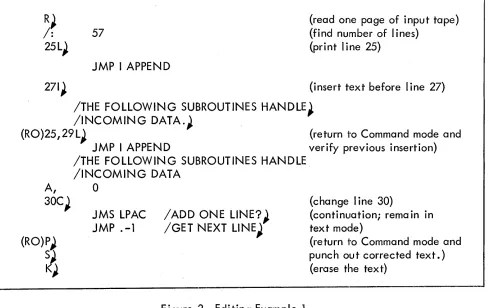
We are now ready to read the next page of the input tape. Figure 2 shows the whole of our
operations for this example; the comments in parentheses summarize what happens.
Rearranging Text on Output
Text may be rearranged on output by using the nPand n,mP commands to punch lines or groups
of lines from the Editor's buffer in the order of their selection by the user rather than their order
in the buffer. The buffer contents are unaffected by this process.
For example, if we wished to relocate the six lines beginning at line 40 in the sample text at the end of the page, we would type:
l,39P)
46,/P~
40,
45PJ
S~to punch the first sectiqn of text
to punch the final section of text
to relocate the desired I ines to the end of the tape being punched
to complete the page with a stop code and tape feed
R~
/:
25L)
57
JMP I APPEND
(read one page of input tape) (find number of lines)
(print line 25)
271) (insert text before line 27)
, /THE FOLLOWING SUBROUTINES HANDLE) /INCOMING DATA.) ,
(RO)25,29L) (return iro Command mode and JMP I APPEND verify previous insertion)
A,
30e)
(RO)P)
S~
K)
/THE FOLLOWING SUBROUTINES HANDLE /INCOMING DATA
o
JMS LPAC JMP
.-1
/ ADD ONE LINE?) /GET NEXT LINE)
Figure 2 Editing Example 1
Example 2
(change line 30)
(continuation; rema in in text mode)
(return iro Command mode and punch out corrected text.) (erase the text)
This example illustrates some of the more subtle commands available to the Editor user. It is
suggested that this section not be studied until the user has become clcquainted with the
funda-mental aspects of the Editor illustrated in Example 1 •
To begin, we return to the sample text as given in Figure 1 and read the page into the buffer.
R)
Suppose now we wish to make an addition to a I ine following symbol ic location BLAN K. To
find its line number in the buffer, we will use the nG command. This command searches from
line!!. until a line is found which does not begin with a tab, carriage return, or slash and prints
the line. To avoid stopping at earlier symbolic addresses, we choose!!. as 35.
35G~
[image:19.612.70.558.71.379.2]To find the I ine number, we use the character period •
. :40
We know the I ine we are concerned with is two numbers further, that is line 42. In line 42,
we wish to change the instruction JMP I TONE to JMS TONE deleting the I and changing the
P to S. To accomplish this, we use the command nY. This causes line ~ to be typed slowly
and allows interruption with the rub out (RO) and alteration of the printed text. A carriage
return wi" append the unprinted portion of the line of text to the buffer.
42Y~
JMP I(RO)
This rub out (RO) puts the Editor into text mode. Now type the insertion or delete using the
rub out key:
JMP I(RO) (RO) (RO) (RO) S
The first rub out put the Editor into Text mode; the second rub out deletes the I, the third rub
out deletes the space, the fourth rub out deletes the P. Now the S is added, and a carriage
return appends the unprinted portion of the line to the buffer. We list the line to check our
corrections.
42L~
JMS TONE
INO
DELETE IF LAST CHARACTER WAS CRTo modify another portion of this line, it would be necessary to repeat the nY command. To
inspectthealtered line without bothering to print the comments, we could use the command nQ.
This suppresses a" text following the second tab on each line.
42Q)
JMSTONE
Now suppose we want to punch the corrected text but move the instnJctions beyond the address
DECR to the next page of our tape. We can punch the first portion of text down to line 46,
then delete it moving DECR to line 1.
l,45P~
SI
1,450
1
1 L)
DECR,~
o
We may now read the next page of tape into the buffer following thEl instruction JMP I DECR.
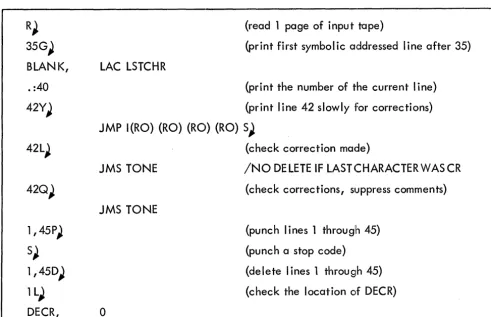
Figure 3 summarizes this example.
R)
35G~
BLANK,
. :40
42Y)
42L)
l,45P)
S~
1,450)
1 L)
DECR,
(read 1 page of input tape)
(print first symbolic addressed line after 35)
LAC LSTCHR
(print the number of the current line)
(print line
42
slowly for corrections)JMP I(RO} (RO) (RO) (RO) S~
JMS TONE
JMS TONE
o
(check correction made)
INO
DELETE IF LASTCHARACTERWASCR(check corrections, slJPpress comments)
(punch lines 1 througlh
45)
(punch a stop code)
(delete lines 1 througjh
45)
(check the location of DECR) [image:21.618.75.550.67.246.2] [image:21.618.67.558.302.619.2]THE EDITOR'S COMMAND REPERTOIRE
The commands are grouped under four headings:
Input Tape Operations
Editing
Text Exam ination
Output (Punching) Operations
The following rules must be obeyed:
If a command requires one or two arguments, they musf be provided. If an argument is missing,
the Editor prints the error message,
ARG MISSING
and ignores the command as typed.
If an argument is greater than the final line in the buffer, the Editor prints
?
and ignores the command.
If a command does not take an argument and one is provided, the Editor simply types
?
and ignores the command. Note that some commands can legitimately take all three forms:
zero, one, or two arguments.
If a character not in the command repertoire is typed, the error message is again,
?
and the command is ignored.
If, while adding text to the buffer, either by reading or editing, the contents come within
200 characters of the storage capac i ty, the Editor interrupts at the end of the I ine be ing
en-tered with the message,
BUFFER ALMOST FULL
If the programmer persists in adding tex.t after this message, the Editor will interrupt a second
time when there is no more room wi th the message,
.
BUFFER IS FU LL
At this point, no more text may be inserted in the buffer. Some commands may still be used,
however, such as examination or deletion, and the buffer may be punched.
Input-Tape Operations
In these commands, the form feed (FIODEC: stop code) and the physical end of the input tape
are both end-of-page indicators. If an end of tape is encountered before the completion of a
command, the operation is terminated.
Command
R
nR
Z
nZ
Action
Read a page of text. The Editor will read information from
the input tape until a form feed (FIODEC: stop code) or
the physical end of tape is encountered. The incoming
text is appended to the contents of the buffer; no
informa-tion in the buffer is lost. The form feE!d is not entered into
the buffer.
Read ~ lines (not pages) of text. The Editor will read n
I ines and append them to the contents of the buffer.
Read-ing will cease if a form feed (FIODEC: stop code) or the end
of tape is encountered before ~ I ines have been read.
Skip one page of text. The input tape will be moved
for-ward until a form feed (FIODEC: stop code) is encountered.
The contents of the buffer are unaffected.
Skip ~ pages of text. The contents of the text buffer are
Editing
The following commands permit the alteration of text in the Editor's buffer.
Command
nD
n,mD
A
nl
nC
Action
Delete line n. Line n is removed from the text buffer. The
numbers of all lines following it are reduced by one, as is
the line count. .=n-1 after execution.
Delete lines!!through~, inclusive. The line following
line m becomes the new line n • • =n-1 after execution.
Append. The Editor enters Text mode upon processing this
command, and the user may then type in any number of
lines of text. These will be appended to the end of the
text in the buffer or placed into a previously empty buffer.
The line count is increased accordingly. This command may
be given wi th an empty buffer to enter text. • =/ after
ex-ecution.
Insert text before line n. The Editor enters Text mode to
accept input. No information is lost. The first I ine typed
becomes the new line n. The numbers of all lines
follow-ing the insertion, as well as the line count, are increased
by the number of
I
ines inserted. If ~I
ines are inserted, then • =n+k-1 after execution.Change line!!. Line!! is deleted, and the Editor enters
Text mode to accept input. The user may now insert as
many lines of text as he wishes in place of the deleted
line. If more than one I ine is inserted, subsequent lines
wi II be renumbered. If ~ lines are inserted, . =n+k-1 after
execution.
- - - -
._---""---Command
n,mC
n,mX
nY
K
Action
Change lines ~ through~. These lines (inclusive) are deleted.
The user may insert any number of linc~s (or none at all) in
their place. Period will be equal to lrhe number of the last
I ine typed in.
External insertion. The Editor will read the next n lines of
text from the symbol ic tape in the reader and insert them after
line ~ in the text buffer. If a form feed (FIODEC: stop code)
is encountered before ~ I ines have been read, reading will
stop. Period wi II be equa I to the number of the last I ine
in-serted.
Type line ~ at reduced speed (l charclcter/second) to allow
for correction of individual characters within a line.
Strik-ing the rub out key after any charactE!r will suspend output
and put the Editor in Text mode. The user may then delete
text using the rub out key or add text. Typing a carriage
return causes the unprinted text remaining in the line to be
appended to the corrected buffer and the Edi tor to be
re-turned to the Command mode. . =n after execution.
The contents of the buffer are comple'tely erased. The
values of / and. are set to zero.
Text Examination
The following commands will cause the printout of all or any part of the contents of the :text
buffer. Printing may be stopped at any time by the use of AC switch
Q.
Normally, this switchis down. If it is turned on then off at any time during a printout, i·he operation wi II stop
im-mediately. The line being printed is unaffected in the buffer. If this occurs in the middle of
operation. Execution of any of the following commands may be halted in this manner.
The contents of the text buffer are unaffected by the following operations unless specified.
Command
nL
n,mL
W
nW
Q
nQ
n,mQ
Action
Print line n. This line will be typed out, followed by a
carriage return and a I ine feed. .=n after execution. *
Print lines ~ through~, inclusive • • =m after execution.*
Write. This causes the Editor to print the entire text
con-tained in the buffer. The buffer remains intact. .=/ after
execution.
Write ~ pages. The text buffer is cleared, and the Editor
reads ~ pages from tape, printing each one on a separate
page, spac ing across page perforations automatica lIy. This
command is equivalent to executing K, followed by the
sequence, R, W, K, performed.!! times or until a physical
end of tape is encountered. The buffer wi II be empty upon
completion of this command.
Uncommented print. The Edi tor wi II print the entire
con-tents of the buffer, suppressing all text on each line after
the second tabulation. Normally, this has the effect of
suppressing comments in the program. .=/ after execution.
Print I ine ~ uncommented. Line ~ wi II be printed up to the
second tabulation; all information following this is not
printed. .=n after execution.
Print I ines ~ through ~ uncommented. .=m after execution.
*Whether printing is stopped or not.
Command
nG
B
Action
Get and print next location symbol. The Editor will scan
the text beginning with line ~ until it encounters a line
beginning with a character other than),
+
,~,
or / .This I ine is printed. Period wi II be equa I to the number
of the I ine printed.
Back up and print. Line. -1 will be printed. The va lue
of period is decreased by one after execution.
Punching Operations
The following commands provide for the output of corrected text or for the dupl ication of pages
of the input tape. As with reading, punching can be halted by the lJse of AC switch O. In this
case, however, the switch must be kept up until processing of the punch command is finished.
This is readily apparent by watching the AC lights. While processing, the AC is active; as
soon as the operation is finished, the AC lights go out. ACSO may then be turned off, and the
Editor is ready to accept the next command.
Command
P
nP
n,mP
S
Action
Punch the entire contents of the text blUffer. This is
pre-ceded by a short length of tape feed. The contents of the
text buffer are unaffected by th is command.
Punch line~. This is preceded by a short length of tape
feed. .=n after execution.
Punch I ines ~ through!!! ' inc lusive. .=m after execution.
Punch a form feed (FIODEC: stop code). This is preceded
Command
nF
o
N
nN
nT
Action
Feed,!! lines of tape. The Editor will punch,!! lines of tape
feed.
Punch one page. The Editor wi II punch the contents of the
text buffer followed by a form feed (FIODEC: stop code)
and then clear the buffer. This command is equivalent to
the sequence: P, 5, K.
Punch, then read the next page. The Editor wi
II
punch the contents of the buffer and a form feed (FIODEC: stop code)clear the buffer, and read the next page of tape into the
buffer. This command is equivalent to the sequence:
0,
R.Punch, duplicate, and read. The Editor will punch the
contents of the buffer , punch a form feed (FIODEC: stop
code) clear the buffer, duplicate !!.-1 pages of tape, and
then read the ,!!th page into the text buffer. This command
is equ iva lent to the sequence: P, 5, (n-l) T, R
Tape duplication. The Editor will clear the buffer, then
read and punch!!. pages of tape. The buffer is empty upon
completion of this command, which is equivalent to the
sequence: K, n{R, P, 5, K)
If, within the range of this command, the Editor encounters
two form feeds (FIODEC: stop codes) with nothing more
than tape feed between them, only one will be punched.
However, the Editor wi II count the space between them
as a separate page in reading the input tape.
APPENDIX 1
SUMMARY OF EDITOR OPERATIONS
AC Switch Settings
Switch Function
0 Down Normal operation.
Up Stop printing or punching
Down Teletype with automcltic tabulation.
Up Te letype wi thout automatic tab.
13
Down ASC II ta pe feeds pu nc hed as 000.Up ASC II tape feeds punched as 200.
14
Down ASCII output: transm'it tab characters.Up Convert tabs into proper number of spaces.
15
Down Punch output in FIODEC code.Up Punch output in ASC II code.
16
Down Input tape is in FIODEC code.Up Input tape is in ASC II code.
17
Down Check parity on FIODEC input tapewhen reading.
Up Ignore parity errors.
~ec ia I Key Functions
rub out key (text mode)
rub out key (y command)
rub out key (command mode)
I ine feed
carriage return
Leave text mode (if first character typed)i otherwise, erase last character.
Stop output.
Pr i n t nex t line.
Print next line (if first character typed)i otherwise delete all typed input.
Command A B nC n,mC nD n,mD nF nG nl K nL n,mL N
mN
o
P nP n,mP Q nQ n,mQ R nR SnT
W
nW n/mX nYZ
nZ Argumentso
o
1 2 12
1 1 1o
12
o
o
o
1 2o
12
o
1
o
1o
1 2 1o
1Editor Command Summary
Function
Append.
Back up and print. Change line n.
Change I inesn through m. Delete line n:- -Delete linesn through m. Feed n I ines of tape.
-Get next location tag after line n. Insert text before line n. -Ki II the text buffer.
Print line n.
Print lines-n through m.
Punch and Next page-: Equivalent to
P,
S,K, R.
Punch, duplicate, and read. Equivalent to
P, S, m-l (T)
IR.
Punch and kill. Equivalent to P, S, K.
Punch the contents of the buffer. Punch line n.
Punch I ines-n through m.
Print uncom~ented -- entire buffer. Print line n uncommented.
Print I ines-n through m uncommented. Read one p;-ge of text.
Read n I ines of tape.
Punchform feed (FIODEC: stop code). Duplicate n pages of tape. Equivalent to K, n(R/-P, S, K).
Write the entire buffer.
Write n pages. Equ iva lent to K, n(R, W, K).
Extern;-I insert. Insert n lines of text from tape after line m.
Individual character~orrection on line n. Skip one page of text.
SkiP!!. pages of text.
APPENDIX 2
USING THE EDITOR WITH TELETYPE MODEL 28 KSR
Specia,1 functions (see page 4).
1. Continuation - use $~ in place of
?
~.2. Use BLANK key in place of RUB OUT key.
(On Model 28 keyboards, it is necessary to hold down the ~JNLK key if
BLANK is to be repeatedly struck, otherwise the keyboard will lock.)
Parity checking (see page 6).
The parity error code is $.
NON-EQUIVALENT CHARACTERS
Regardless of the format of input or output tapes, the Editor stores all text internally in FIODEC
Conc ise Code (6-bit characters). Any FIODEC code which does not have a standard
equiva-lence on the Type 28 Teleprinter Keyboard, as spec ified in Appendix 1, may be placed into
text by using the format
$abc
where the characters bc represent the 2-digit octal code. The first character a must be 0 if
the code is to be lower case; 1 if in upper case. Such a code wi II appear in the same format
when printed by the teleprinter. However, the code will appear on FIODEC output tapes as
the character whose code is bc in the proper case.
Example: There is no equivalent character combination on the Type 28
Teleprinter Keyboard for the FIODEC backspace. Consequently,
in order to overprint an
a
with a slash, the user would have totype 0$075/ on the teleprinter. This character would appear in
the buffer as 0 (letter), backspace, / (slash). If a tape were
punched containing this sequence and read by a Flexowriter,
CHARACTER SET EQUIVALENCES
The Teletype Model 28 KSR character set, represented by a 5-bit co~e, is considerably smaller
..~' . . ";
than either the ASCII (7-bit) or 'FIODEC (6-bit) sets. As a result, it is necessary to use an
escape character in order to represent all the characters of ~he latter two sets when using the
Teletype 28 keyboard and printer. This escape character is
1.
It means that the character im-mediately following the1
is to be interpreted differently than it would if it appeared alone. Ineffect, the $c pair (where
.s
represents any Teletype 28 character) is interpreted as representing a single ASCII or FIODEC character. Appendix 3 gives the equivalences among the three sets.APPENDIX 3
CHARACTER SET EQUIVALENCES
ASCII, Teletype 33 KSR FIODEC Teletype 28 KSR
0-9
0-9
0-9
A-Z a-'z A-Z
A-Z A-Z $A-$Z
(period)
,
,
,
(m inus sign)
/
/
/
/
{center dot, period}
; ; (center dot, comma) ;
( ( (
) } }
+
+
&t
t
#
*
x (multiply)II II $11
$1
=
=
$:$( $)
<
<
$->
>
$&~ V ' $?
%
:J
$,! V $/
&
A
$#RO -
..
(blank)$;
\
(vertical stroke) $!$ (underbar) II
no equiva lent (center dot) $.
# (overbar)
Form Feed Stop Code n.e.
Ia~
Tab)~e·11
momoomD
EQUIPMENTCORPORATION
MAVNARD,MASSACHUSETTS