Prepared by
ChartNexus Pte Ltd
Chart Your Success
GETTING STARTED
USER GUIDE
GETTING STARTED
USER GUIDE
In the highly competitive stock market, it is crucial that you have the right tool to help you make sound trading decisions.
ChartNexus is just this tool for you.
ChartNexus is a financial charting software that allows you to view and analyse the charts of the stocks of the world’s leading stock markets with Technical Analysis studies.
If you have not downloaded the free ChartNexus software, you can do so at http://www.chartnexus.com/software/cnx.php
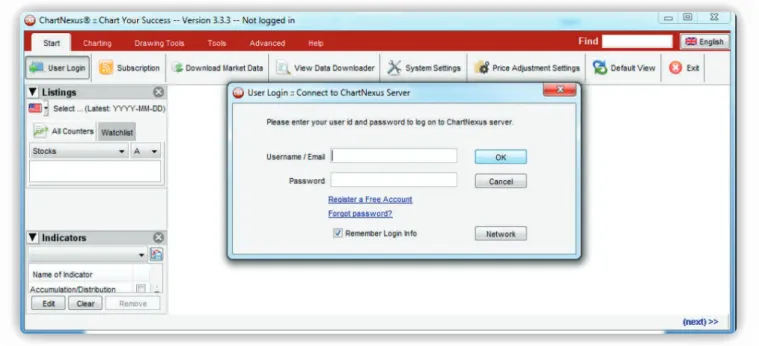
Doubleclick on the CNX icon on your desktop or in your saved folder. Upon starting up your ChartNexus software, you will be greeted with a User Login Window.
Key in your Username/Email and Password, then click on OK to log in.
HOW TO
LOGIN INTO YOUR ACCOUNT
01.
CNX
CNX
2.1 Updating Latest Market Data
If the ChartNexus software detects an internet connection, it will automatically update the latest data for the selected markets.
You may hide the window for the EndOfDay updates by clicking on the button shown in the picture below:
HOW TO Select Market and
Update Latest Data
02.
Fig 2.1: Hiding EndOfDay Updates Window
You can also manually initialize the market data updating process. To do so, click on the “Start” button on the top left side of the window, followed by the “Download Market Data” button.
2.2 Selecting or Adding Markets
To select or add desired markets, click on “System Settings” button.
Select “Data” at the top of the window to view the markets available for download. You may select more than one market by clicking on the checkboxes on the right.
Do remember to apply the settings before closing the window by clicking on the “Apply” button at the bottom of the window.
Fig 2.3: Locating the “System Settings” button
Now, we are good to go!
Let’s get started on how to open the chart of a stock counter, for example, F&N on the SGX Market (Singapore Stock Exchange).
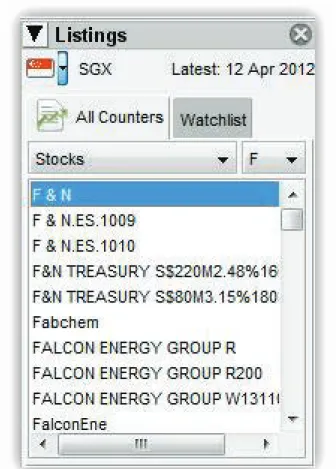
Look for the “Listings” window on the left column, it should resemble the one below:
HOW TO
Open Chart
03.
Fig 3.1: Listings Window
STEP A
Click on the small arrow on the top left to select which market you would be interested to look at. Using our above example of F&N (Fraser & Neave), we will select “SGX”.
STEP B
Select the first letter of the stock counter you are searching for, for example, F for F&N.
STEP C
From the list below, find and doubleclick on the desired stock counter.
STEP D
Hurray!
You will see the chart appear on the right window, resembling this:
STEP E
An experienced trader will have a set of indicators to strengthen his or her stock analysis such as gauging the momentum or underlying trend of the stock.
Let’s take a look at how to add two of the most commonlyused indicators to our charts: Volume and Moving Average.
4.1 Volume
On the bottom left of the user interface, you will see the “Indicators” window.
Using the scroll bar on the right side of the window, scroll down and tick the checkbox next to the “Volume” option.
HOW TO
Add Indicators
04.
Fig 4.1: Selecting “Volume” on the Indicators Window
You should see the “Volume” table bar graphs at the bottom of your stock chart, like in the example below:
4.2 Moving Average
In the same “Indicators” window found on the bottom left of the user interface, scroll down and tick the checkbox next to the “Moving Average” option.
Fig 4.1: Selecting “Volume” on the Indicators Window
After the “Moving Average” option is selected, you should see a red line running across the candlesticks. Here you are, how to add Volume and the Moving Average indicator into your easytonavigate stock charts in just a few simple steps! Fig 4.1: Selecting “Volume” on the Indicators Window Congrats on getting started in trading analysis and more importantly, discovering ChartNexus, which will provide you the leading edge in predicting stock price action! Now that you have started on your ChartNexus software, here’s wishing you a fruitful and fulfilling trading education with us. The ChartNexus software comes with 3 years of historical data free, however, if you want more data or you need a stock screener that screens the market for stocks satisfying certain technical criteria, feel free to visit the link below. !""#$%%&&&'(!)*"+,-./'(01%/02"&)*,%3+4,-'#!# Remember, the more knowledge you are equipped with, the easier you can make an informed choice and ride the waves of the turbulent financial markets.
Congratulation!
You are GOOD TO GO!
Still Unsure of how to
Interpret the charts?
Do join us at our Handholding workshops, where our experienced trainers will explain how to fully utilize the Technical Indicators on ChartNexus software and share the Basics of Technical Analysis with you.
SIMPLY CONTACT US AND COME ON DOWN FOR OUR FREE EDUCATIONAL SEMINARS TODAY!
For assistance,
do feel free to drop us a mail at [email protected]
Start developing your own
winning trading strategy & Chart Your Success
today!
WE WOULD LOVE