Email to Fax Quick Start Tutorial
MM-10-017-D
Introduction
Welcome and Thank You for choosing to evaluate our email to fax capabilities. In this Free Trial you will have the opportunity to fax documents directly from your desktop and see how faxing becomes as easy as sending an email. Your free trial account will remain active for 30 days. You have received an email with your personal User ID and Password along with several files for use in this Free Trial. Included in the attachments are 2 sample cover pages for this tutorial and your continued use, 2 sample fax merge documents, 1 sample document, and the “Fax Service Utility 2000” standard MS Windows print driver. Save the files to a folder on your hard drive that can be retrieved during the trial.
Tutorial Overview
This Tutorial consists of Five Illustrations, which will demonstrate how email to fax benefits you in all your faxing needs. The illustrations include sending several different types of faxes “with”
and “without cover pages” and using the “fax merge feature” for documents like
“Memorandums” and “Event Announcements”.
Until you have completed the tutorial, we suggest you use the name of a colleague as the
recipient. However, you should also send the documents to your fax number so you can examine the results of each illustration. Upon completing the tutorial, you will still have plenty of free Trial fax pages you can send to your colleagues.
Illustration 1 – Sending an email as a Faxed Memo Utilizing the “Fax Merge” feature
Illustration 2 - Sending literature with a Formal Cover Page
Illustration 3 – Sending an Event Announcement addressed to the recipient using the “Fax Merge” feature, without a Cover Page
Installing the Fax Service Utility 2000
Illustration 4 – Attaching your own document and sending it via email to a fax machine with a “Company Standard” Cover Page
Email to Fax Tutorial
Illustration One
Send a memo utilizing the “Fax Merge” featureA. From your computer start your email software. Note: your current email identity must be the same as the email address that you used to register with our Free Trial.
B. Open the Address Book of your email software. In MS Outlook the Address Book is selected from the Tools menu. In Netscape Communicator the Address Book is selected from the Communicator menu.
C. “Click on New Contact” or New Card
D. Enter a First Name and Last Name of anyone you know in the appropriate fields. You may also want to add a company name as part of the recipient’s identity. This can be done by entering their first and last name in the First Name field and their company name in the Last Name field.
E. In the Email Address field enter your 10 digit fax number followed by @messagevision.net. This should look like [email protected].
F. “Click OK”
G. Open a New Message in your email software
H. In the “To” field type the recipient’s name that you entered in your Address Book I. Enter a subject in the Subject Field
J. Type a message in the Message Body area of the email, then “press the send button”
Illustration Two
- Send Literature with a Formal Cover Page
Selecting a Cover Page
A. To do this, “Start your web browser” ( MS Internet Explorer, Netscape, etc) B. In the URL Location type www.messagevision.net
C. At the top of the screen “click Log On”
D. In the dialog box that appears “enter the User Name and Password” that was supplied. E. The first screen that appears will be the Compose screen. Go to the bottom of the screen and
“click the Preferences button.”
F. Once you are in the Preferences screen, “click on the middle button Fax Defaults”
G. In the top right corner of the screen you will see an area called Select Cover Page. Use the arrow on the right of current selection to view the other available cover pages. “Select Formal Cover”. “Click Save defaults”. This will be the cover page used in the next step of the Free Trial.
Sending a Contract with a Cover Page
A. Start your email software and open a new message. Remember that your current email identity must be the same as the email address that you used to register with our Free Trial. B. In the “To” field type the recipient’s name that you entered in you Address Book
C. Enter a subject in the Subject Field
D. Type a message in the Message Body area of the email.
E. “Click on the Attach icon” on your email window. This will often look like a paper clip F. A window will open allowing you to browse your hard drive. From this window select the
folder that contains the files you saved from the initial email.
G. Once you are in the folder, select the file called General Services and “click the Open button”. This will attach the document to your email.
H. “Click Send”
Email to Fax Tutorial
Illustration Three
– Sending an Event Announcement “Personalized” to the
recipient “No Cover Page”Selecting a “Fax Merge Document”
A. Start your web browser ( MS Internet Explorer, Netscape, etc) B. In the URL Location type www.messagevision.net
C. At the top of the screen “click Log On”
D. In the dialog box that appears enter the User Name and Password that was supplied in this email.
E. The first screen that appears will be the Compose screen. Go to the bottom of the screen and “click the Preferences button.”
F. Once you are in the Preferences screen, “click on the middle button Fax Defaults”
G. In the top right corner of the screen you will see an area called Select Cover Page. Use the arrow on the right of current selection to view the other available Cover Pages and Fax Merge Documents. “Select Event Announcement”. “Click Save Defaults”. This will be the Fax Merge Document used in this illustration.
Sending the Price List that is “Personalized” to the recipient “No Cover Page”
A. Start your email software and open a new message. Remember that your current email identity must be the same as the email address that you used to register with our Free Trial. B. In the “To” field type the recipient’s name that you entered in you Address Book
C. “Click Send”
Fax Service Utility 2000 – Print Driver
The complete Illustrations Four and Five in which you will attach your own document you must install the Fax Service Utility 2000 (FSU 2000) Print Driver. To insure the quality of the
document you send to a fax machine you must use the FSU 2000 print driver. The print driver also keeps a copy of all the documents you have faxed.
Installing your Fax Service Utility 2000 Print Driver
A. From MS Windows Explorer, locate the folder that contains the attachments for our email to you.
B. “Click the attachment icon” or “Double click on the icon labeled Fax Service Utility 2000.” This will launch Setup and Installation programs for our MS Windows compatible print driver. You will need to exit all programs before initiating this step because it will require you to restart your computer at the end of the installation. Please read and follow all of the instructions as the install takes place.
Email to Fax Tutorial
Illustration Four -
Attaching and sending “Your Own Document” with a Cover PageSelecting the “Company Standard” Cover Page
A. Start your web browser ( MS Internet Explorer, Netscape, etc) B. In the URL Location type www.messagevision.net
C. At the top of the screen “click Log On”
D. In the dialog box that appears enter the User Name and Password that was supplied in this email.
E. The first screen that appears will be the Compose screen. Go to the bottom of the screen and “click the Preferences button.”
F. Once you are in the Preferences screen, “click on the middle button Fax Defaults”
G. In the top right corner of the screen you will see an area called Select Cover Page. Use the arrow on the right of current selection to view the other available cover pages. Select Company Standard. “Click Save Defaults.” This will be the cover page used in this illustration of the Free Trial.
Creating your own “High Quality Document” to be faxed via email
A. Open an existing or create a new document (Word, Excel, etc) and.
B. When you have completed the document, go to the File menu and select Print.
C. When the print window appears, change the printer selection from the existing or default printer name to Fax Service. This is done by clicking on the arrow next to the printer name
and moving the mouse over the printer named Fax Service.
D. Once this is done “Click OK”. This will create a newly rendered file with the file name and application suffix and place it in a folder called Faxes on your hard drive.
Attaching and sending “Your Own Document” with a Cover Page
A. Start your email software and open a new message. Remember that your current email identity must be the same as the email address that you used to register with our Free Trial. B. In the “To” field type the recipient’s name that you entered in you Address Book
C. Enter a subject in the Subject Field
D. Type a message in the Message Body area of the email.
E. “Click on the Attach icon” on your email window. This will often look like a paper clip F. A window will open allowing you to browse your hard drive. From this window select the
Faxes folder
G. Once you are in the Faxes folder, select the file that was saved by the Fax Services print driver and “click the Insert button or double click the selection”. This will attach the document to your email.
H. “Click Send”
Illustration Five
- Send Your Own Document Without a Cover Page
Selecting the “No Cover Page”
A. Start your web browser (MS Internet Explorer, Netscape, etc) B. In the URL Location type www.messagevision.net
C. At the top of the screen “click Log On”
D. In the dialog box that appears enter the User Name and Password that was supplied in this email.
E. The first screen that appears will be the Compose screen. Go to the bottom of the screen and “click the Preferences button”.
F. Once you are in the Preferences screen, “click on the middle button Fax Defaults”
G. In the top right corner of the screen you will see an area called Select Cover Page. Use the arrow on the right of current selection to view the other available cover pages. “Select No Cover Page. Click Save Defaults”. This will be the cover page used in the next step of the Free Trial.
Creating your own “High Quality Document” to be faxed via email
A. Start a commonly used application (Word, Excel, etc) and open an existing or create a new document.
B. When you have completed the document, go to the File menu and select Print.
C. When the print window appears, change the printer selection from the existing or default printer name to Fax Service. This is done by clicking on the arrow next to the printer name and moving the mouse over the printer named Fax Service.
D. Once this is done and “click OK.” This will create a newly rendered file with the file name and application suffix and place it in a folder called Faxes on your hard drive.
Attaching and sending “Your Own Document” Without a Cover Page
A. Start your email software and open a new message. Remember that your current email identity must be the same as the email address that you used to register with our Free Trial. B. In the “To” field type the recipient’s name that you entered in you Address Book
C. “Click on the Attach icon” on your email window. This will often look like a paper clip D. A window will open allowing you to browse your hard drive. From this window select the
Faxes folder
E. Once you are in the Faxes folder, select the file that was saved by the Fax Services print driver and “click the Insert button or double click the selection.” This will attach the document to your email.
F. “Click Send”
Account Management
In order to provide exceptional Account Management services, we have constructed a variety of capabilities accessed through your web browser. The Account Management encompasses several functions, which empower you to monitor, configure, and manage vital areas of your faxing activity and are organized in three categories:
User Profile Management (Selecting or Changing your Profile)
• User Information and Password
• Email Notifications of Successful, Retry, or Unable to Deliver Fax notices • Header strip
• Cover Page and Fax Merge document • Time Zone Selection
Document Control
• Fax Scheduler • Queue Manager • History and Reporting • Import and Manage Lists
• Creating and Managing New Phonebooks • Creating a Cover Page or Fax Merge Document
Document Management
Fax Merge
• Creating your Fax Merge Document • Importing your Fax Merge Document Custom Cover Pages
• Creating your Custom Cover Page • Importing you Custom Cover Page
user management functions. By doing this users can maintain their email identity, redirect notifications, or change their residential time zone.
User Information and Password
1. From your web browser click the Compose button. 2. At the bottom of the screen click Preferences. 3. In the Preferences screen click Personal Information.
4. The personal information screen contains fields that identify you and can appear on your coverpage. To change any of these fields, type the new data into the appropriate box and click save.
5. The Personal Information screen also allows you to manage your password. To change your password, type your old/current password in the box labeled Old Password
6. Type your new password in the box labeled New Password
7. Type your new password again in the box labeled Re-enter New Password. 8. Click the button labeled Change Password
9. A dialog box will appear informing you that your password has been changed and you will be asked to login. Click OK
10. Enter your User Name and new Password in the dialog box and click OK. Email Notifications (Selecting or Changing Default Settings)
1. From your web browser click the Compose button. 2. At the bottom of the screen click Preferences.
3. In the Preferences screen click Fax Defaults Information.
4. In the Fax Defaults screen you will be able to set the email address to be notified under various conditions. Enter the email address for each of the desired notifications in the Success, Retry, or Failure boxes.
5. If you are a Fax to Email subscriber, you can also configure the email address you wish to receive your faxes. Enter that email address in the box labeled Receive.
6. To save now click on Save Defaults
Header Strip (Selecting or Changing Default Settings)
You can configure a header strip with up to four user selectable fields to appear on the top of each fax page of the fax job. These fields will automatically be populated with the corresponding data from your Phonebook directory.
1. From your web browser click the Compose button. 2. At the bottom of the screen click Preferences.
7. To save now click on Save Defaults
Selecting your Default Cover Page or a Fax Merge Document 1. From your web browser click the Compose button.
2. At the bottom of the screen click Preferences.
3. In the Preferences screen click Fax Defaults Information.
4. In the area labeled Select Cover Page click on the arrow to view the choices in your cover page directory.
5. Move your mouse to select you default choice 6. To save now click on Save Defaults
Time Zone Selection (Selecting or Changing Default Settings) 1. From your web browser click the Compose button.
2. At the bottom of the screen click Preferences.
3. In the Preferences screen click Fax Defaults Information.
4. In the area labeled Time Displays select your desired time zone in the box labeled Report Times in
5. Directly below that box select either 24 hour or 12 hour reporting in the Time Format box 6. To save now click on Save Defaults
transmit, and monitor status of each fax job. Additionally, the details of each fax job are reported to the user.
Fax Scheduler
The fax scheduler function allows the user to set a future time and date for the fax job to be initiated.
1. From your browser click on Compose.
2. In the upper right hand corner of the Compose screen you will see a button labeled Schedule Fax For. Directly below the button is the current date of the time zone selected in your Preferences.
3. To change the schedule to a future time and or date, click the Schedule Fax For button. A window will appear allowing you to pick a date up to 30 days from the current date and a future time
4. To set a future date click on the arrow next to the Month field. 5. Move your cursor to the date that you wish to select and click.
6. To set a future time, select the arrow on the Hour field and Minutes field and click on your selection.
7. Click Submit. Your scheduled time and date should appear in the Compose window.
8. When you are ready, click the Send Fax button on the Compose page. Your fax job will be queued but will not be sent until your scheduled time and date.
Queue Manager
The Queue screen gives visibility and control of each fax entry from each fax job. The screen provides current status and empowers each user to modify fax entries held in the queue.
A. Viewing your Fax Queue
HOW DID I GET THERE
1. From your browser click on the Queue button.
2. A new screen will appear listing all your fax entries currently in the Queue. 3. Select the fax entry in the queue window
B. Delete a Fax
4. Click Delete. The fax entry will be deleted from the queue
5. Select the fax entry in the queue window. The entry must not be in the Fax Active state.
C. Hold a Fax
6. Click Hold. The fax entry will be held in the queue waiting further action. The entry must not be in the Fax Active state.
11. At this point a new screen will appear providing you with detailed information about this fax entry and allowing you to change certain fields like name, company, and fax number of the recipient. You can also change the email notifications, number of retries, and retry interval for the fax entry.
12. Make the change in the appropriate field and click Change. This will make the changes to the fax entry and automatically requeue the fax.
13. If this fax entry had failed for any reason, you can click on Reason for Failure. 14. A new window will appear detailing each failure and the cause.
15. To return to the Modify screen click OK.
16. To inspect your message that is on the cover page of the fax entry, click See Message. This will display the message.
17. To return to the Modify screen click OK.
18. If no changes are necessary in the Modify screen, click Cancel. This will return you to the Queue screen.
19. To Delete, Hold, or Re-queue all entire in the queue click Select All. 20. To reverse this process, click Unselect All.
21. To view the current state of the queue click Refresh Display. History and Reporting
The service also empowers its clients to view and report status of every fax job. 1. From the Compose screen, click History
2. A screen will appear allowing you to select a specific time-period to view the history of your fax jobs. By default, the service will select all jobs within the last 4 hours. If you want to increase or decrease the historical view, change the number of hours in the screen.
3. To go back further that the current date, remove the check in the box immediately below number of hours.
4. Select a new date-and-time and click OK.
5. This will produce a new screen with a list of fax jobs submitted in that time-period with summary information.
6. To get additional information about the fax job, click Details. This will produce a screen with additional information about the fax job including:
• List of Recipients • Queue Submit Time • Cover Page
• Service Level • Reference Info • Page Count • Source of Fax • Subject
7. To get a report on the results of the fax job click Back. 8. Click Generate Summary.
Creating and Managing New Phonebooks
Creating and Managing New Phonebooks – Users can create, modify, or delete Phonebooks from their browser interface.
Messagevision.net provides capabilities to import your fax lists from any common database or contact management system. Once the lists are in Messagevision.net, they are easily updated and managed on-line. Users can create, modify, or delete Phonebooks from their browser interface.
A. Create a New Phonebook
1. From your web browser click the Names button.
2. Click on the Create New button at the bottom of the screen
3. In the next screen you will asked to enter the Phonebook name. Fill in the new name and click OK.
4. You will be returned to the names screen where you can add the records to your new Phonebook manually or import them from another source.
B. Importing a List to Create a Phonebook
To import a list from your database or contact management software, it must be exported or saved as a comma delimited file (CSV). This is the required format to import to a Messagevision.net Phonebook.
1. From your web browser click the Names button.
2. At the bottom of the screen you will see a row of buttons. The left side is to manage individual records of a Phonebook. The right side is to manage the Phonebooks.
3. From the right side click Import.
4. Once in the Data Import screen, you will have the option of entering a new Phonebook name or replacing an existing. To generate a new Phonebook, enter a name in the first field. 5. To replace or add to an existing Phonebook, click on the arrow next to the Existing Name and
select the Phonebook you are replacing or adding additional records.
6. If you are replacing or adding to an existing Phonebook, you will also need to select the Replace or Add radio button.
7. Click the Proceed button.
8. The next screen is the Data File Upload screen. Click the Browse button and select the CSV file that you want to import.
13. The next screen will inform you of the number of records that were successfully imported. Click the Return to Names button.
14. It is a good idea to scroll through a few records in Phonebook Entries and make sure the fields have mapped correctly.
C. Delete a Phonebook
1. From your web browser click the Names button. 2. Click on the Delete button at the bottom of the screen
3. In the next screen you will be asked to select the Phonebook you wish to delete. Select the Phonebook name and click OK.
4. You will be returned to the Names screen where you can add the records to your new Phonebook manually or import them from another source.
5. If you mistakenly deleted a Phonebook, you can click the Restore button
6. This will show you a list of backup Phonebooks including the on that you just deleted. Select that Phonebook from the list of backups and click the Proceed button.
D. Rename or Duplicate
1. From your web browser click the Names button.
2. Click on the Rename or Duplicate button at the bottom of the screen
3. In the next screen you will be asked to select the Phonebook you wish to rename or provide a name for the duplicate Phonebook. Select the Phonebook name and click OK.
Messagevision.net supplies each user with a default cover page and a directory of personal cover pages and fax merge documents. Through the browser, each user has the ability to import and store 100 cover page or fax merge documents. By using predefined keywords, our service will dynamically substitute values from your phonebook into your document. For a list of keywords, refer to Table 1 – Cover Page Keywords in this document or to the online Help section in the Messagevision.net web browser pages.
Personalize:
You may personalize a coverpage by including Substitution Keywords in a page that you have prepared for faxing. The coverpage may be in letter form and include selected Substitution Keywords in a manner similar to a mail merge.
Mail Merge :
Uses the basic ideas as a coverpage but done in a letter format. You can use Substitution Keywords to insert names and addresses personalized to each person to whom you have faxed. Fax Merge
Merge key, definable fields from your Phonebook directory directly into you document. In order to access this functionality you will need to start your browser and go www.messagevision.net. Once you are at this web site, Log On with your User Name and Password.
A. Creating your Fax Merge document
1. Create the Fax Merge document with your word processing or graphics application program. Insert the appropriate cover page keyword in each of the areas. For a list of keywords, refer to Table 1 – Cover Page Keywords in this document or to the online Help section in the
Messagevision.net web browser pages.
2. There must be adequate space to the right of each keyword for any Phonebook data that will be substituted in that field.
3. When you have completed the document, go to the File menu and select Print.
4. When the print window appears, make sure that a Postscript printer is selected. This is done by clicking on the arrow next to the printer name and moving the mouse over the Postscript printer name.
5. In the Print window, you must also check the box labeled “Print to File” 6. Now click the OK button.
7. A dialog box will appear asking you to choose a file name and a folder to save the file. 8. Once you have entered a name and selected a folder, click OK. This will save your file in a
12. Once you are at the Preferences screen click on the right side button labeled Cover Page Management.
13. In the Cover Page Management screen, enter the name of your new Fax Merge document in the first box or, if you are replacing an existing Fax Merge Document, click on the arrow in the second box to display current cover pages.
14. Click the Browse button. This will open a browse window of your hard drive. Find the folder and Postscript file that was saved in step 7.
15. Once you have found the file, select the file and click open or double click the file selection. 16. Click Import. This will upload your new cover page to your personal Cover Page and Fax
Merge directory. When the upload is completed, a box will appear saying “Cover Page Import was Successful”.
17. Click on Return to Compose Page.
18. Once you are back at the Compose Page you can click on the Cover Page selection and make sure that your new Fax Merge document name is in the list. It would also be a good idea to generate a test to make sure that the Fax Merge page gets faxed correctly.
Custom Cover Pages
Create and import custom fax cover pages from any word processing or graphics application, which identify your company and or department. Import and store them in your private Cover Page and Fax Merge directory.
A. Creating your custom Cover Page
1. Create the customer cover page with your word processing or graphics application program. Insert the appropriate cover page keyword in each of the areas. For a list of keywords, refer to Table 1 – Cover Page Keywords in this document or to the online Help section in the
Messagevision.net web browser pages.
2. When you have completed the document, go to the File menu and select Print.
3. When the print window appears, make sure that a Postscript printer is selected. This is done by clicking on the arrow next to the printer name and moving the mouse over the Postscript printer name.
4. In the Print window, you must also check the box labeled “Print to File” 5. Now click the OK button.
6. A dialog box will appear asking you to choose a file name and a folder to save the file. 7. Once you have entered a name and selected a folder, click OK. This will save your file in a
Postscript format. You will be accessing this file in a later step.
B. Importing your custom Cover Page
8. Open your browser to www.messagevision.net. 9. Log on and go to the Compose page.
10. At the bottom of the compose page, click on the button labeled Preferences.
17. Once you are back at the Compose Page you can click on the Cover Page selection and make sure that your new cover page name is in the list. It would also be a good idea to generate a test to make sure that the cover page gets faxed correctly.
Table 1 - Cover Page Keywords:
Substitution Keyword Description
DATESTRING: Replaced with current date
PAGE COUNT: Replaced with number of pages included
Personal Information Screen
FROMNAME: Replaced with the "Name" Field
FROMORG: Replaced with the "Company" Field
FROMVOICE: Replaced with the "Phone" Field
FROMFAX: Replaced with the "Fax" Field
FROMEMAIL: Replaced with the "E-Mail" Field
Compose Screen
TEXT0…TEXT25: Replaced with the first 26 lines of the "Message" Field
For Single Fax in the Compose Screen
TONAME: Replaced with the "Name" Field
TOORG: Replaced with the "Company" Field
TOFAX: Replaced with the "Fax" Field
TOSUBJECT: Replaced with the "Subject" Field
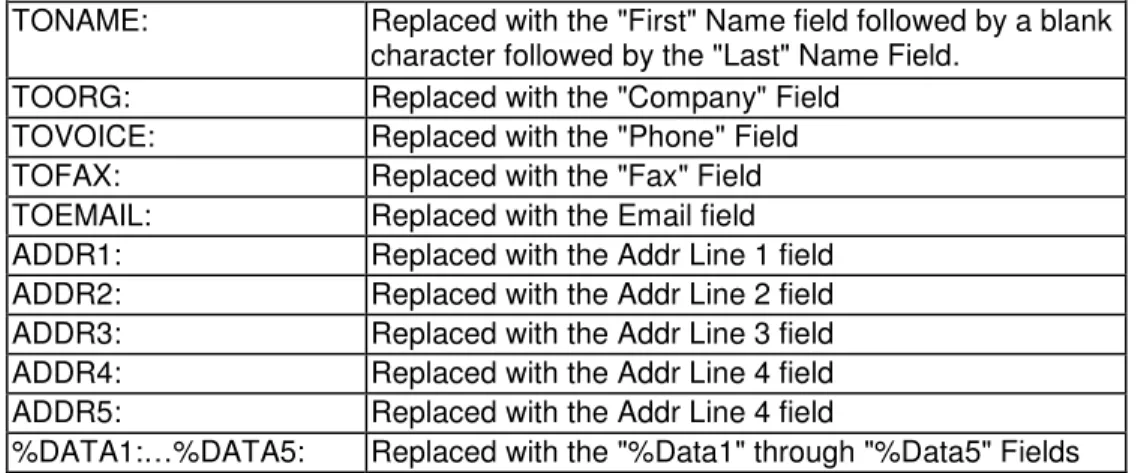
Faxing from a Phonebook in the Names screen
TONAME: Replaced with the "First" Name field followed by a blank
character followed by the "Last" Name Field.
TOORG: Replaced with the "Company" Field
TOVOICE: Replaced with the "Phone" Field
TOFAX: Replaced with the "Fax" Field
TOEMAIL: Replaced with the Email field
ADDR1: Replaced with the Addr Line 1 field
ADDR2: Replaced with the Addr Line 2 field
ADDR3: Replaced with the Addr Line 3 field
ADDR4: Replaced with the Addr Line 4 field
ADDR5: Replaced with the Addr Line 4 field