Installing and Using Ascent Capture 7.0
This section contains important notes that you should review before installing Ascent Capture 7.0. Complete installation requirements and instructions can be found in your Installation Guide for Ascent Capture and Ascent Capture Internet Server.
Administrative Privileges
In order to install Ascent Capture 7.0, you must have full Windows administrative privileges.
Certified Operating Systems
The following operating systems have been certified for this release of Ascent Capture 7.0. Note If your previous version of Ascent Capture was installed on a Windows operating system that does not comply with the operating requirements for this version of Ascent Capture, you must first upgrade your Windows operating system. Next, upgrade to the latest version of Ascent Capture. See the Installation Guide for Ascent Capture and Ascent Capture Internet Server for more information.
Server Files and Software
Kofax has certified the following operating systems for the server files and software. • Windows 2000 Professional with Service Pack 4
• Windows 2000 Server with Service Pack 4
• Windows Server 2003 (Standard or Enterprise editions) Client Workstations
The following operating systems have been certified for Ascent Capture standalone and client workstations.
• Windows 2000 Professional with Service Pack 4 • Windows 2000 Server with Service Pack 4
• Windows Server 2003 (Standard or Enterprise editions) • Windows XP Professional with Service Pack 2
Important Notes About Installing Ascent Capture 7.0
This section contains information about installing Ascent Capture 7.0. Insufficient Drive Space When Installing Ascent Capture 7.0
Due to a limitation with Microsoft SQL Server 2000 Desktop Engine (MSDE 2000), you may receive the following error message.
There is not enough space on drive <drive> to extract this package.
Note that when you receive this error message, you will have plenty of disk space available on the workstation.
This is a problem with Microsoft and the component used to package SQL Server.
Workaround: Article ID 301913 on the Microsoft Web site states “To work around this problem,
add or delete files on your computer so that the free disk space is not a multiple of 4-gigabytes.” Installation Issue With Windows XP and the Adrenaline Scanner Controller
If you are installing Ascent Capture on a Windows XP Professional Service Pack 2 operating system with the Adrenaline scanner controller, you may receive a Microsoft Digital Signature warning message during the installation process. In certain situations, this message will not display in the foreground and the installation will appear as if it has stopped. If this occurs, you will need to display this message by pressing ALT+TAB and then click OK to close the message. (SPR 00015976)
The warning message occurs because the Local Computer Policy setting is set to either: “Warn but allow installation” or “Do not allow installation.” By default, the unsigned driver installation behavior in Windows is set to “Silently succeed” for setup programs. For more information, refer to your Microsoft MMC online help.
Error When Installing Email Import Service On Windows XP Professional
If you are installing the Ascent Capture Email Import Service and use an account with Administrative rights, you may receive the following error message. (SPR 00015914)
You must have Administrator rights to install the Ascent Capture Email Import service. The error message occurs because of your Windows XP local security settings. Refer to “Network access: Sharing and security model for local accounts” on the Microsoft TechNet Web site for more information.
Important Notes About Upgrading to Ascent Capture 7.0
This section contains information about upgrading to Ascent Capture 7.0. Close All Applications
Before upgrading the Ascent Capture Server or standalone workstation to Ascent Capture 7.0, you must close all applications. This means that all of the Ascent Capture modules on every
workstation must be closed, including the Ascent Capture Internet service, and any third party applications. (SPR 00015944)
The services that must remain running are the Ascent Capture Licensing service (Ascent Capture Service) and the MSDE service (MSSQL$AscentCapture). Both the Ascent Capture Licensing service and MSDE service must continue running for the installation to complete successfully. When upgrading to Ascent Capture 7.0, note the following:
• You must disable the Ascent Capture Internet service. To disable the Ascent Capture Internet service run the following from the command line:
<Ascent Capture Folder>\bin\aciscfg.exe/d
• You must stop all Ascent Capture modules running as services. The services must remain stopped until Ascent Capture 7.0 is upgraded. We recommend that you set the startup type selection to “Manual,” that way the services will not automatically start when you are prompted to reboot during the upgrade process.
Refer to the Installation Guide for Ascent Capture and Ascent Capture Internet Server for information about upgrading to Ascent Capture 7.0.
Remove Workstation and Scan/Import License
Before activating the Ascent Capture 7.0 license, you must remove the Workstation and Scan/ Import (Limited) station license from the remote site profiles.
If you do not remove the station license from the remote site profiles, the activation process may fail.
Windows Server 2003 Enterprise Edition Operating System
When upgrading an Ascent Capture 6.1 workstation to Ascent Capture 7.0 on a Windows Server 2003 Enterprise Edition operating system, you will receive the following error message and the upgrade will terminate. (SPR 00015745)
Running Ascent Capture 7.0 With Ascent Capture 6.x
Ascent Capture 6.x can coexist with Ascent Capture 7.0. However, the following conditions will occur:
• All Ascent Capture 6.x Workstation and Scan (Limited) Licenses will appear as Scan Licenses.
• Ascent Capture Internet server’s volume licenses will continue to display. • Only Ascent Capture 7.0 part numbers will be available for new purchases.
• Ascent Capture Internet Server Licenses will display as License 31 and will be ignored. • Any Remote Station Licenses will display as License 32 and will be ignored.
• Any Scan/Import Licenses will display as License 33 and will be ignored.
• You will not be able to purchase more Ascent Capture Internet server capacity when using Ascent Capture 6.x. Only Ascent Capture Internet Server Licenses will be available.
Windows XP Service Pack 2 Issues
Kofax has tested Ascent Capture 7.0 and Ascent Capture Internet Server 7.0 with Windows XP Professional Service Pack 2, and reports the following issues. There are no other known issues at this time.
Windows XP Service Pack 2 Firewall
The default settings on the Windows firewall may interfere with certain Ascent Capture operations by blocking access to several ports required by either Ascent Capture or Ascent Capture Internet Server.
X To open ports in the Windows firewall
1 From the Windows taskbar, select Start | Run.
2 In the text box, enter Regedit and click OK. The Registry Editor dialog box will display. 3 If you have a standalone installation, navigate to:
HKEY_LOCAL_MACHINE\SOFTWARE\Microsoft\Microsoft SQL Server\AscentCapture\MSSQLServer\SuperSocketNetLib\Tcp\TcpPort Otherwise, if you have a client system, navigate to:
HKEY_LOCAL_MACHINE\SOFTWARE\Microsoft\MSSQLServer\Client\SuperSocket NetLib\Tcp
4 Make a note of the dynamically assigned port for later use.
5 From the Windows taskbar, select Settings | Control Panel | Security Center. The Security Center dialog box will display.
6 From the Windows Firewall dialog box, select the Exceptions tab. 7 Click Add Port. The Add a Port dialog box will display.
8 From the Add a Port dialog box, click Change Scope. The Change Scope dialog box will display.
9 Specify a scope appropriate for your security policies. 10 Click OK to save your settings and close the dialog box.
Name: Ascent Capture TCP 2424 Port Number: 2424
Note If desired, you can change the port name to another name that is meaningful to you. 12 If necessary, select the TCP option.
13 Click OK to add the port to your exceptions list and close the dialog box.
14 Click Add Port again, and repeat this procedure to add the UDP port 1434 and the TCP port 1433. Enter the following parameters:
Note You can use any name that is meaningful to you.
15 Repeat this procedure for the dynamic TCP port that you located in the Registry Editor, and select the TCP option (suggested name is “Ascent Capture Dynamic TCP”).
16 After all the ports have been entered, click OK to save your settings and close the Windows Firewall dialog box.
Customizations Created in .NET
If you have developed custom components using .NET, you should reference the following interop assemblies.
Port Name Port Number Option
UDP 1434: Ascent Capture UDP 1434 1434 UDP
TCP 1433: Ascent Capture TCP 1433 1433 TCP
Table 1. Interop Assemblies
Custom Applications Interop Assembly
Admin OCX Kofax.Ascent Capture AdminModule.Interop.dll Runtime OCX Kofax.AscentCaptureAdminModule.Interop.dll Release scripts Kofax.ReleaseLib.Interop.dll
Configuring VirtualReScan (VRS)
During the installation of Ascent Capture 7.0, you will not be prompted to enter your VRS certified scanner model. However, you will need to run either the VRS Component Installer or the VRS Restore Default Values utility, depending upon your VRS certified scanner model. (SPR 00014679) Refer to the following sections for more information.
Newer VRS Certified Scanners
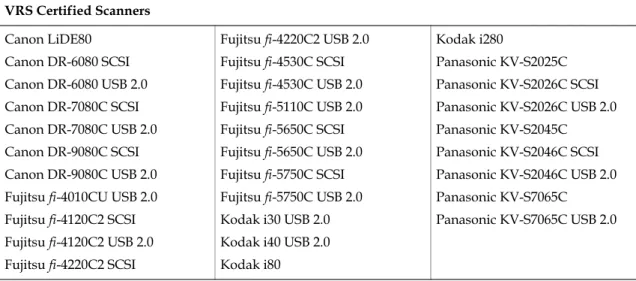
Table 2 lists the newer VRS certified scanners. If your VRS certified scanner is in this list, you will need to run the VRS Component Installer.
Refer to the VirtualReScan Installation Guide for instructions.
Table 2. Newer VRS Certified Scanners
VRS Certified Scanners Canon LiDE80
Canon DR-6080 SCSI Canon DR-6080 USB 2.0 Canon DR-7080C SCSI Canon DR-7080C USB 2.0 Canon DR-9080C SCSI Canon DR-9080C USB 2.0 Fujitsu fi-4010CU USB 2.0 Fujitsu fi-4120C2 SCSI Fujitsu fi-4120C2 USB 2.0 Fujitsu fi-4220C2 SCSI
Fujitsu fi-4220C2 USB 2.0 Fujitsu fi-4530C SCSI Fujitsu fi-4530C USB 2.0 Fujitsu fi-5110C USB 2.0 Fujitsu fi-5650C SCSI Fujitsu fi-5650C USB 2.0 Fujitsu fi-5750C SCSI Fujitsu fi-5750C USB 2.0 Kodak i30 USB 2.0 Kodak i40 USB 2.0 Kodak i80
Kodak i280
Panasonic KV-S2025C Panasonic KV-S2026C SCSI Panasonic KV-S2026C USB 2.0 Panasonic KV-S2045C Panasonic KV-S2046C SCSI Panasonic KV-S2046C USB 2.0 Panasonic KV-S7065C Panasonic KV-S7065C USB 2.0
Older VRS Certified Scanners
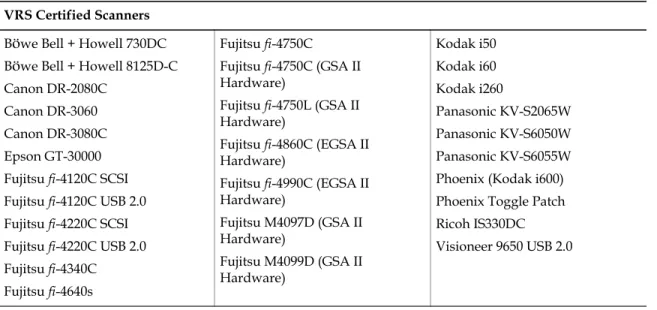
Table 3 lists the older VRS certified scanners. If your VRS certified scanner is in this list, you will need to run the VRS Restore Default Values utility (RDV).
Note Before you start the RDV utility, make certain that VRS is not running.
X To install the VRS Restore Default Values utility
1 Insert your VRS for Ascent Component CD into your CD-ROM drive.
2 From your Windows taskbar, select Start | Run, browse to the RDV folder on the CD and select Setup.exe. The Restore Default Values installation Welcome dialog will display. 3 Click Next. RDV setup will begin. When the progress indicator disappears, the RDV
installation is complete.
X To run the RDV utility
1 From your Windows taskbar, select Start | Run. 2 In the text box, enter RDV.exe.
Table 3. Older VRS Certified Scanners
VRS Certified Scanners Böwe Bell + Howell 730DC Böwe Bell + Howell 8125D-C Canon DR-2080C
Canon DR-3060 Canon DR-3080C Epson GT-30000 Fujitsu fi-4120C SCSI Fujitsu fi-4120C USB 2.0 Fujitsu fi-4220C SCSI Fujitsu fi-4220C USB 2.0 Fujitsu fi-4340C Fujitsu fi-4640s
Fujitsu fi-4750C
Fujitsu fi-4750C (GSA II Hardware)
Fujitsu fi-4750L (GSA II Hardware)
Fujitsu fi-4860C (EGSA II Hardware)
Fujitsu fi-4990C (EGSA II Hardware)
Fujitsu M4097D (GSA II Hardware)
Fujitsu M4099D (GSA II Hardware)
Kodak i50 Kodak i60 Kodak i260
Panasonic KV-S2065W Panasonic KV-S6050W Panasonic KV-S6055W Phoenix (Kodak i600) Phoenix Toggle Patch Ricoh IS330DC Visioneer 9650 USB 2.0
Switching From Standard Database to SQL Server Database
The Ascent Capture Database Utility (DBUtil.exe) allows you to switch from the Standard database to the SQL Server database configuration. However, if you switch from the Standard database to a SQL Server database that has collation settings that include “case sensitivity” or “language” specifications, you may receive the following error message. (SPR 00013936)
Error 1004: A database error occurred while moving the database (80040FA6, [4006] KdoLib: Execute command error: Error executing SQL command. Invalid column name ‘ProfilePrimarykey’. (207) (CREATE VIEW viewAdminUsers AS SELECT
Users.ProfilePrimaryKey FROM Users LEFT JOIN Relationships ON Users.ProfilePrimaryKey=Reletionships.ProfilePrimaryKey
WHERE Relationships.RightTableType=1 AND Relationships.RightTablePrimaryKey=1 AND Users.Temp=0 UNION SELECT DISTINCT Users.ProfilePrimaryKey
FROM Users LEFT JOIN User_Group
ON Users.ProfilePrimaryKey=User_Group.UserProfilePrimaryKey
WHERE User_Group.GroupProfilePrimaryKey IN ( SELECT Relationships.ProfilePrimarykey FROM Relationships WHERE Relationships.RightTableType=1 AND
Relationships.RightTablePrimaryKey=1 AND Users.Temp=0 )))
The Standard database refers to the Microsoft SQL Server Desktop Engine (MSDE), which is included with Ascent Capture.
Ascent Capture supports the SQL_Latin1_General_CP1_CI_AS collation. In addition, “Case insensitive” must be selected.
The following configuration options are required for Microsoft SQL Server: • The “min memory per query” option is set at a minimum to 1024 Kbytes • The “nested triggers” option is set to 0 (OFF)
• The “remote login timeout” option is set at a minimum to 20 seconds • The following “user option” settings are configured to:
3 DISABLE_DEF_CNST_CHK = OFF 3 IMPLICIT_TRANSACTIONS = OFF 3 ANSI_NULLS = OFF
For more information about the configuration options, refer to the documentation that came with your Microsoft SQL Server database or the MSDN Web site.
Note In order for you to change the collation on the SQL Server database, you must install a new instance. Refer to the documentation that came with your Microsoft SQL Server database.