September 2010 Version 1.0
Disclaimer
This document is compiled with the greatest possible care. However, errors might have been introduced caused by human mistakes or by other means. No rights can be derived from possible inaccuracies or errors as this is not a contractual agreement, but for information only.
Online Backup Client User Manual
Professional Edition
Software version 3.13
For Microsoft Windows
Page 2 of 41
1. Contents
1. Contents... 2 2. Product Information ... 5 2.1. System Requirements ... 5 3. Features ... 6 3.1. Application plug-ins ... 6 3.2. Scheduled backup ... 6 3.3. Management Console ... 6 4. Setup ... 7 4.1. Setup Wizard ... 7 4.2. Registration Wizard ... 8 5. Wizards ... 10 5.1. Backup Wizard ... 10 5.1.1. Advanced options ... 11 5.2. Restore Wizard ... 126. The client interface ... 13
7. Home view ... 14
8. Backup ... 15
8.1. Manage backup tasks ... 15
8.2. Creating a backup task ... 15
8.3. Task Properties ... 15 8.3.1. General tab ... 15 8.3.2. Data tab ... 16 8.3.3. Schedule ... 17 8.3.4. Filter ... 18 8.3.5. Advanced tab ... 18
8.4. Monitor backup progress... 19
Page 3 of 41
9. Restore ... 21
9.1. View stored data ... 21
9.2. Restore data ... 21
9.2.1. Restore local backup ... 21
9.3. Restore Options ... 22
9.3.1. Version ... 22
9.3.2. Location ... 22
9.3.3. Calculate restore size ... 23
9.3.4. Advanced ... 23
9.4. Deleting stored data ... 23
9.5. Monitor restore process ... 24
10. Reports and Logs ... 25
10.1. Reports ... 25
10.2. Logs... 25
10.3. Cleaning Reports and Logs ... 26
11. Options... 27
11.1. General tab ... 27
11.2. Backup and Restore tab ... 27
11.3. Advanced tab ... 28
12. Support ... 30
13. About ... 30
14. Windows System State ... 31
14.1. Backup of the SystemState ... 31
14.2. Restore of a SystemState ... 32
15. Microsoft Exchange 2000/2003 ... 33
15.1. Introduction ... 33
15.2. Backup on mail store level (ESE plug-in)... 33
15.2.1. Backup requirements ... 34
Page 4 of 41
15.4. Backup on folder level ... 35
15.4.1. Backup Requirements ... 36
15.5. Restore on folder level ... 37
15.6. Backup of Exchange using VSS ... 38
16. Microsoft SQL Server 2000/2005 ... 39
16.1. Introduction ... 39
16.2. Backup ... 39
16.2.1. Backup requirements ... 39
16.2.2. Further notes on backup procedures... 40
16.3. Restore ... 40
Page 5 of 41
2. Product Information
Product: Online Backup Client
Version: 3.13.2.1
2.1. System Requirements
Operating System Windows 2000 Professional
Windows XP (Home / Professional)
Windows Vista / 7
Windows Server 2000 / 2003 / 2008 / Small Business Server
Linux* (RedHat, SuSE, Debian and Debian based systems such as Ubuntu)
Mac OS X* Tiger (10.4.10 and higher)
Mac OS X* Leopard (10.5.0 and higher)
Hardware Resources PC with 300 megahertz (MHz) or higher processor clock speed recommended
128 MB memory
25 MB of disk space
Internet connection (e.g. ADSL, SDSL)
Required software Microsoft .Net framework 2.0**
Java 1.5 platform or higher is required ***
* A separate manual is available for the Online Backup Client for Linux and Mac OS X ** Only required for the Microsoft Windows version of the client
Page 6 of 41
3. Features
3.1. Application plug-ins
The Online Backup Client makes it very easy to backup Microsoft Outlook, Outlook Express, Favorites and Windows System State, containing e.g. Windows Registry, Active Directory and System and Boot Files.
Figure 1: Data selection options
3.2. Scheduled backup
You can make one or more scheduled backup tasks. You can schedule the tasks multiple times a day, weekly or monthly. After the tasks are created, they will run through their schedule automatically. After completion of a backup, a report is sent by e-mail. You are always up-to-date on the status of your backups.
3.3. Management Console
The Online Backup Service also includes a Management Console, which can be accessed through an internet browser (e.g. Internet Explorer). It has several functions:
Access your data to restore or remove a file Change user settings (e.g. password)
Page 7 of 41
4. Setup
4.1. Setup Wizard
After executing the setup you can choose your preferred language for the Setup Wizard. Currently English, Dutch, French, German, Spanish, Italian and Polish are supported.
Figure 2: Choose language
The next steps are:
Accepting the license agreement Choosing an installation directory Choosing a Start Menu folder name Selecting preferred shortcuts
Figure 3: Setup Online Backup Client
If the .Net framework (2.0) is not yet installed on your computer, you can retrieve this freely from the Microsoft download site.
When the completion screen shows, the Online Backup Client is successfully installed on your computer!
Figure 4: Installing the client
Page 8 of 41
4.2. Registration Wizard
When the Online Backup Client is started for the first time, it will start with the Registration Wizard. The Registration Wizard guides you to fill in the account information and encryption key. With the encryption key your data will be encrypted and decrypted.
Figure 5: Registration wizard
First, you need to fill in the username and password that you have created or obtained from your Online Backup Provider.
Figure 6: User account
Note: If you don‟t remember your password you can click on the link below the password text field. A reminder will then be sent to your registered e-mail address.
Note: If there is a problem with the username and password, several causes can apply to this:
The username and/or password does not exist or is incorrect
The time on your machine differs very much from the real time (more than 24 hours) Required port 443 (SSL) is blocked by an anti-virus program or firewall on the network Note: This screen also displays the computer name which will be registered at the Backup Server to
Page 9 of 41 The next wizard page will ask you to set an encryption key.
This key encrypts all backup data and decrypts data when restoring.
You can set the encryption key only once. After setting this key it cannot be changed. If you forget the encryption key, it is impossible to access your backup data. Please keep a copy of the encryption key in a safe place.
Figure 7: Encryption Key
IMPORTANT: This key is unique and can only be chosen once and cannot be changed
afterwards. Treat this key with great care, since it is required to restore your files after a system crash.
Note: It is possible to store a reminder which can be sent to your personal e-mail address. In this wizard the field to enter the reminder will change into a link: „Forgot your encryption key?‟
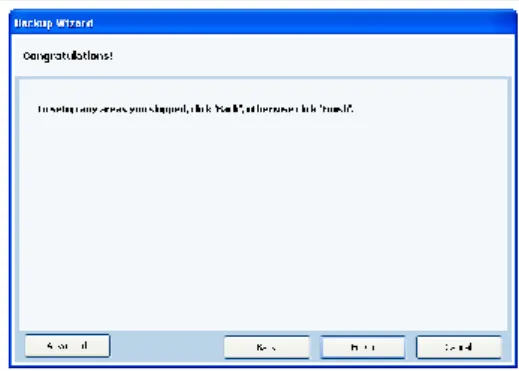
The wizard is now finished. If the Online Backup Client is installed for the first time, the Registration Wizard will present the option to start the „Backup Wizard‟ after finishing.
Figure 8: End of Registration Wizard
Page 10 of 41
5. Wizards
5.1. Backup Wizard
The Backup Wizard provides a clear and friendly way to detect important data for backup and makes configuring a first backup task very easy.
Figure 9: Start of Backup Wizard
The first view in the wizard allows you to name the task. It also provides a dropdown box with profiles of important data. Selecting an item in the drop down box will also show a description of what the profile contains.
Figure 10: Set the task
The next view will allow you to schedule the backup task. You can set time and frequency. The frequency can be set as:
Once
Multiple times a day Daily
Weekly Monthly
Figure 11: Set a schedule
Page 11 of 41 Now the backup task is fully configured. When clicking on the
„Finish‟ button the task will appear in the Online Backup Client. You can also click the „Advanced‟ button to specify more options.
Figure 12: End of Backup Wizard
5.1.1. Advanced options
The advanced options consist of two extra steps in the wizard to configure filters and backup location.
Filter
The first view allows you to filter the data in the task. You have to add a filter and determine if the filter ignores the files („except files‟) or allows only the files in the filter and ignores all other files („only files‟).
Figure 13: Select a filter
Local Backup
The next view of „Advanced‟ will allow you to determine if the backup has to be performed online or locally. If you choose to backup locally, you need to specify the destination location for the backup (a local folder on the pc or an external medium).
When you enable compression, the result will be put in a large zip archive. This can take while to complete. If you leave this option disabled, compression on the individual files will still be applied.
Figure 14: Select Offline Backup
(local backup)
Page 12 of 41
5.2. Restore Wizard
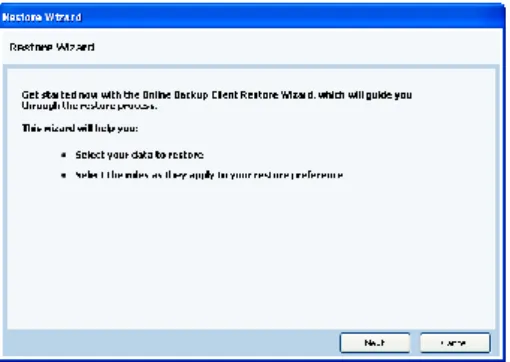
The Restore Wizard provides a clear and friendly way to restore your data. Click on Restore Wizard in the „Home‟ view of the Online Backup Client.
Figure 15: Start of Restore Wizard
In the next view you can see the data on the Backup Server. Here you can select the data that needs to be restored.
Figure 16: Select your file or folder
Next, you can specify the location where the restored data must be placed and the „overwrite rules‟.
Next to that you can choose to calculate the restore size. Enabling this option allows the Online Backup Client to give an estimation of the restore time remaining. Skipping this calculation saves time.
Figure 17: Restore rules In the next view you can choose to filter out specific files or
folders during the restore.
By clicking [Start] in the last screen, the restoration of your files will begin.
Page 13 of 41
6. The client interface
The main interface of the Online Backup Client, shown in the figure on the right, consists of 3 components:
1. Navigation Panel 2. Account Information 3. Main Panel (e.g. Home)
Figure 19: Client interface
Navigation panel
The Navigation Panel is the main navigation through the Online Backup Client. The options:
Home: Monitor the status and use Wizards Backup: Create and manage backup tasks Restore: Restore your remote backup data
Reports and Logs: View status information of executed backups Options: Configure program settings
Support: View contact information for support
About: Additional information about the Online Backup Client
Account Information
Shows account details, such as:
Account Name
Amount of Remote Storage Program Status
Usage of your Remote Storage
Main Panel
The Main Panel is the working space of the Online Backup Client. This panel will change its view, while navigating through the Online Backup Client.
1 3
Page 14 of 41
7. Home view
Overall status
When starting the Online Backup Client, the program will show the Home view. This view can also be accessed through the Navigation Panel. On top of the Home view you can see the overall status of the backup service.
Figure 20: Overall Status
Wizards
Right beneath the overall status, you can start Wizards to help you with registration, creation of backup tasks and restoration of data.
Figure 21: Supportive Wizards
Task statuses
At the bottom of the Home view the last three ran backups are shown. Next to the task names you can see their statuses and the date/time they finished.
Below the table the next scheduled backup task is shown including the start date and time.
Figure 22: Status of the last and next backup
Page 15 of 41
8. Backup
8.1. Manage backup tasks
By clicking on „Backup‟ in the Navigation Panel, you can manage your backup tasks. By selecting a task in the task list, you can examine its specifications. You can manually run, edit or delete the task. It is also possible to create new tasks.
Figure 23: Backup
8.2. Creating a backup task
To create a backup task, click on [New Task] below the task list in the Backup view. „Task Properties‟ will pop up; it allows you to configure the task. If you cancel Task Properties, the task will not be saved. Read more about how to configure a task with Task Properties in paragraph 8.3.
8.3. Task Properties
Task Properties appears when creating a new task, or editing an existing task. It allows you to configure the settings of the task. Task Properties contains 4 tabs:
General: Task Name, Description and run options Data: Select data resources for backup Schedule: Time and Frequency
Filter: Exclude files and folders from backup
8.3.1. General tab
The „General‟ tab allows you to set the general options of the backup task.
Name and Description
It is advised to give the backup task a descriptive name to increase the recognition of the task when monitoring. Optionally you can enter a task description.
Page 16 of 41
Checkboxes
Active
When checked, the task is activated and will be performed by schedule.
Shutdown Computer when completed
When checked, your system will shut down automatically after completion of the backup task. This option has been disabled on servers. Also, the client has to be running for this option to be effective. If the client is closed the computer will not shutdown, to prevent unexpected shutdowns. In case a shutdown is desired even if the client is not running, you can add the following post script in the backup task: Shutdown s -t 600
Figure 24: General view
Backup Type
By default, the Online Backup Client makes backups online (to an external Backup Server, over the Internet). It is also possible to make a local backup, e.g. to a removable hard disk. This results in a self-extractable ZIP file which can be shipped to your Online Backup Provider. The Online Backup Provider can include the data in your backup account.
By selecting the „Offline backup (local backup)‟ radio button, a default local backup directory is displayed in the „Location‟ textbox. It is possible to change this location by browsing an additional directory. When you enable Compression, the result will be put in a large zip archive. This can take while to complete. If you leave this option disabled, compression on the individual files will still be applied.
8.3.2. Data tab
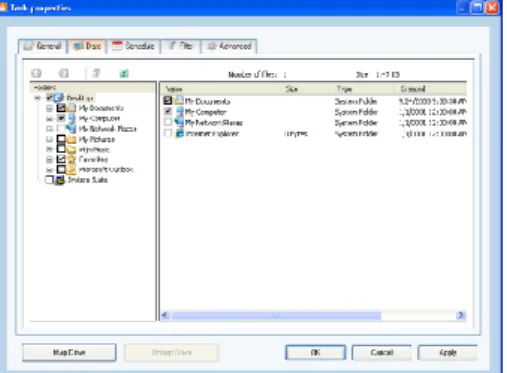
The „Data‟ tab allows you to select data to backup within the task. You can easily navigate through your system with the Windows Explorer-like tree at the left. Data can be selected by checking the boxes in front of the files and folders.
When a folder is selected for backup, underlying files and folders are automatically included in the selection, unless
Page 17 of 41 explicitly deselected.
Note: If a folder is checked with a grey background only a subset of this folder is part of the backup set.
Note: A light grey square in front of a file or folder means that it is not possible adopt that item in the backup set
Map network drives
You can map additional network drives, by clicking on „Map Drive‟. A drive letter will be added to the data tree, which can be selected for backup.
8.3.3. Schedule
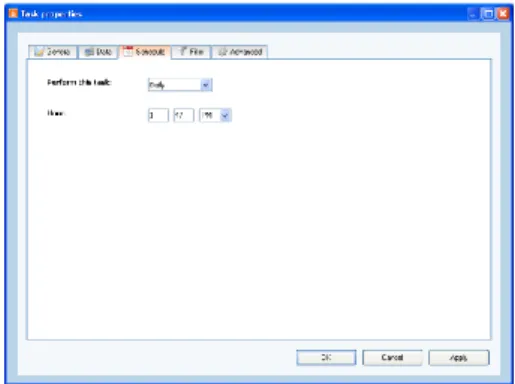
You can set a schedule for the backup task in the „Schedule‟ tab. A task can be scheduled by setting a start time and frequency.
By default, the schedule is set to a daily backup at the time the task originally is created.
Figure 26: Set a schedule
The following frequencies can be set:
Multiple daily: Task is performed one or multiple times a day Once: Task is performed once
Daily: Task is performed daily
Weekly: Task is performed one or multiple days a week Monthly: Task is performed once a month
Page 18 of 41
8.3.4. Filter
The „Filter‟ tab offers the possibility to exclude files and folders from the backup set. You can also choose to include hidden files by checking the checkbox.
Figure 27: Filter view
Filter options:
No file filtering (default)
Filter out files on file name/extension („Except specific files‟)
Filter out all files except with certain file name/extension („Except all but specific files‟) Filter out folders by browsing their locations.
Note: To specify a filter, regular search expressions can be inserted: Filter document (.doc) files: *.doc
Filter files starting with hello: hello* Filter a specific file: ntuser.dat
8.3.5. Advanced tab
Enable Volume Shadow Copy
When checked, the task will backup files that are in use (open files).
Page 19 of 41
Pre-Script
A Pre-Script is an advanced option to run certain operations before starting the backup task. You can simply browse a command or batch file (e.g. C:\scripts\command.bat) which will be executed prior to the start of the backup task.
Continue if Pre-Script fails
When checked, the backup will be performed, even if the
prescript did not run properly. Figure 28: Advanced options view
Post-Script
A Post-Script is an advanced option to run certain operations after a backup task has run. You can simply browse a command or batch file (e.g. C:\scripts\command.bat) which will be executed after the backup task is completed.
8.4. Monitor backup progress
The backup process can be monitored by clicking on „Details‟ on the bottom of the application. The „Details‟ bar is only shown during a backup process. The „Details‟ screen will pop-up automatically when a backup task is initiated.
Figure 29: Details during a backup
8.4.1. Details screen
Progress bars
File progress: The progress of the backup of the indicated file Total progress: The progress of the total backup task
Details table (shown on click [Details>>])
Full: Full backed up files
Patch: Patched backed up files (incremental backup patch over last backup) NoNeed: Unchanged files (unchanged compared to last backup)
Page 20 of 41 Skipped: Skipped files (details in the logs)
Done: The total amount of processed data Total: The total amount of selected data %Done: The percentage of processed data
Other information
Avg.upl.speed: The average upload speed Remaining time: The estimated remaining time Elapsed time: The elapsed time
Compression: The average compression rate of the backed up data Size uploaded: The size of the uploaded data
Page 21 of 41
9. Restore
9.1. View stored data
Your remotely stored data can be accessed by clicking „Restore‟ in the Navigation Panel. The „Restore‟ view allows you to restore this remote data to your computer.
The Windows Explorer-like view shows one or more computers, because the data are related to their source computer. When you open a computer node, you will notice that all data kept the same structure as it was on your computer.
Figure 30: Restore
9.2. Restore data
Data can be restored per file, folder or drive. Select files, folders or drives you want to restore in the Restore view. By clicking [Restore] the „Restore Options‟ screen will pop up and allows you to select a version and a restore location. Read paragraph 9.3 for more information.
9.2.1. Restore local backup
Within the Restore view it is possible to import your local backups. This allows you to restore data from e.g. a local hard disk to your computer.
Select „Import local backup‟ in the Restore view, then open a „local backup file‟, which is a ZIP file. This file can be created by yourself (local backup), or delivered by your Online Backup Provider, for fast restoring purposes. Once the local backup is loaded in the tree of the Restore view, you can restore the data in the same way as your remote data.
Figure 31: Select ‘local backup file’
for restore
Page 22 of 41
9.3. Restore Options
9.3.1. Version
The client can store multiple versions of files, by default the Online Backup Client stores 3 versions of a file. This amount can be changed in the „Options‟ view (paragraph: 11.2 of this manual).
Latest version
To restore the latest version, keep the version setting unchanged. This means that the „Latest version‟ radio button is selected.
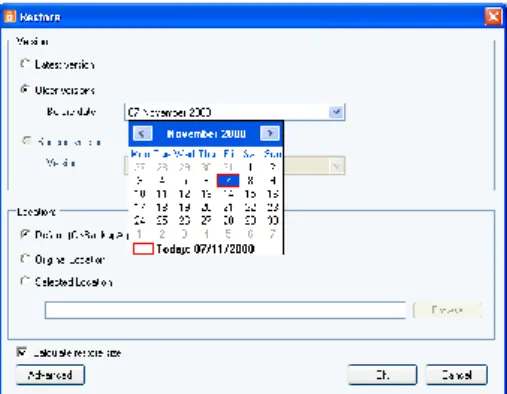
Restore at date
It is possible to restore a file or folder at a selected date in history. Select the „Older versions‟ radio button. Now you can select a date in history. The latest backed up versions of the selected files or folder before that date will be restored (if that backup version exists).
Figure 32: Easy date selection
Restore specific version
A specific version of a stored file can be selected. To do so, select the „Specific version‟ radio button.
The available versions of the file will be displayed in the dropdown box. Simply select the favored version.
Figure 33: All file versions
9.3.2. Location
Page 23 of 41
Default location
The Default location is predefined. The default location can be changed in the Options view (see paragraph 11.2).
Original location
When „Original location‟ is selected, the files will be restored to their original location on your computer. If the files already exist on your computer, the Online Backup Client will prompt Overwrite options.
Selected location
If you want to browse a location, choose this option.
9.3.3. Calculate restore size
You can choose to calculate the restore size. Enabling this option allows the Online Backup Client to give an estimation of the restore time remaining. Skipping this calculation saves time.
9.3.4. Advanced
When clicking [Advanced], a popup will show that allows you to use Pre- and Post-scripts. For more information on these scripts, read the paragraphs „Pre-script‟ and „Post-script‟ in paragraph 8.3.1.
9.4. Deleting stored data
First select the data that needs to be deleted (you can select multiple files or folders). Click on [Delete] in the lower main
panel to delete the file(s).
Figure 34: Confirm delete action
Note: Removing a folder with many files might cause the folder not to disappear immediately, since the server software will execute this in the background.
Page 24 of 41
9.5. Monitor restore process
The restore process can be monitored by clicking on „Details‟ on the bottom of the application during the process of a restore (the details-screen will pop-up automatically when a restore is initiated).
Figure 35: Restoring Data
Progress information
File progress: The progress of the restore of the indicated file Files Restored: The number of files that have been restored Files Skipped: The number of files that have been skipped Bytes Restored (MB): The amount of restored files in Megabytes Bytes Skipped (MB): The amount of skipped files in Megabytes Bytes Received (MB): The amount of received files in Megabytes Avg.downl.speed: The average download speed
Remaining time: The estimated time remaining Elapsed time: The elapsed time
Compression: The average compression rate of the backed up data Size downloaded: The size of the downloaded data
Page 25 of 41
10. Reports and Logs
10.1. Reports
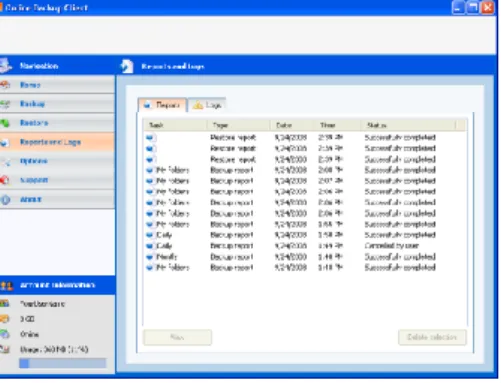
The “Reports”-view shows a history of reports. You can view the status of past backups and restores.
Details of a report can be viewed by selecting the report and clicking on [View]. This report will also be sent to you by e-mail after a task is completed.
Figure 36: Report view
10.2. Logs
The „Logs‟ view shows a history of log files. Three types of events can occur:
Information
This is information on the progress of the backup or restore procedure
Warning
Non fatal errors occurred during the backup or restore process.
Error
A fatal error has occurred in the Online Backup Client.
Figure 37: Log view
Details of a log message can be viewed by selecting the specific log message and clicking on [View]. This shows a dialog with detailed information of the message.
Figure 38: Log Event Details
Page 26 of 41
10.3. Cleaning Reports and Logs
In a few steps it is possible to clean the reports or logs list. In the list of reports or logs, you can make a selection (using ctrl and shift). To clear the list, click on [Delete Selection].
Figure 39: Deleting Reports and
Page 27 of 41
11. Options
You can change program and process settings in the Options view, which can be accessed through the „Options‟ button in the Navigation Panel. The Options view contains the following tabs:
General
Backup and Restore Advanced
11.1. General tab
In the General tab, you can set general options of the Online Backup Client. Self explaining checkboxes can be used to configure the program settings. Next to that you can set the language of the Online Backup Client. You can also change your password of your backup account.
Note: It might not be possible to change your password in the Online Backup client, since your Online Backup Provider can disable this option.
11.2. Backup and Restore tab
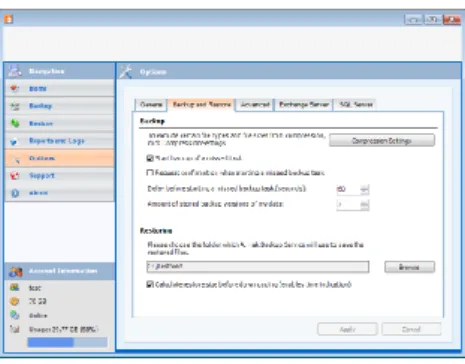
In the Backup and Restore tab, you can set options that are specific for backing up and restoring with the Online Backup Client.
Version
In this view the maximum number of versions of backed up files can be set. The default value is 3 versions, minimum is 2.
Figure 40: Default restore directory Restore folder
The textbox contains the default restore location. This is the folder where data is restored by default when you don‟t choose a specified folder.
Page 28 of 41
Backup
Start backup of missed task
When this setting is enabled, the missed tasks will automatically start the next time the service of the Online Backup Client is started.
Request confirmation when starting a missed task
When this option is enabled you get a pop up box where you can choose to start the missed backup task(s)
Compression Settings
You can add file extensions that should never be compressed during backup. You can add multiple extensions separated with commas.
Minimum file size (bytes): Smaller files will not be compressed
Maximum file size (bytes): Larger files will not be compressed. (0 = no maximum file size)
11.3. Advanced tab
Advanced
Backup- and restore-privileges
This overrules access rights for administrators for backup purposes
Add Backup/Restore reports to windows logs Used to track errors in the backup or restore processes.
Enable the diagnostics
Diagnostics is a logging system for error tracking Figure 41: The advanced tab
Perform backup by background service
This option is used to make backups of servers while the user is logged off.
Advanced Encryption type
Encryption of the data can be encrypted with AES 128 bits or 256 bits encryption. Where the AES 128 Bits encryption is faster, AES 256 bits encryption is more secure.
Page 29 of 41 You can select the folder where temporary files are stored before they are transferred to the Backup Server.
Note: Make sure there is enough disk space available to store the largest file to upload
Note: Make sure that this is an empty folder, because this folder is cleared after the backup
Windows Service
The Online Backup Service performs backups when the client is not running. Current Service Status shows if this service is running. When it is not running, it can be started manually with [Start Service].
Connection
Timeout factor for service requests
This is a service based timeout interval that can be set depending on the speed and reliability of the internet connection. It is a multiplier of the default timeout interval of 10 seconds.
Bandwidth usage
This allows you to adjust the upload speed in percentage (%) of the available bandwidth between the Online Backup Client and the Backup Server.
Page 30 of 41
12. Support
Clicking on “Support” in the "Navigation" panel will give contact details of your Online Backup Provider.
Figure 42: Support contact
information
13. About
Clicking on “About” in the "Navigation" panel will give details on the version of the software and the license of the software.
Figure 43: About Screen
Page 31 of 41
14. Windows System State
This chapter explains how to backup and restore system state on Windows 2008 differentially.
14.1. Backup of the SystemState
Step 1: Install Server backup features, including command-line tools
Step 2: Ensure you have an additional storage volume available with at least 30 GB of data capacity Step 3: Create a new file 'systemstatebackup.bat' containing the following script:
@echo off & Setlocal Set "tDrive=E:"
Set "sFolder=%tDrive%\WindowsImageBackup\%COMPUTERNAME%\SystemStateBackup\" Set "sFilyType=vhd"
Set "tDir=%tDrive%\WindowsImageBackup\%COMPUTERNAME%\SystemStateBackup\mergepoint" C:\Windows\system32\wbadmin start systemstatebackup -backuptarget:%tDrive% -quiet IF EXIST %tDir% ( echo Merge point ok... ) else ( Set NMP=TRUE & No Merge Point, creating merge point... )
IF Definded NMP ( MD "%tDir%" ) PushD "%sFolder%" &&(
FOR /R "." %%i IN (*) DO (
If /i "%%~xi"==".%sFileType%" ( echo Moving %%i & MOVE "%%i" "%tDir%\merge.file" ) ) ) GOTO:end :domerge echo %%i :mkmp mkdir %tDir :fail
echo "There was a problem..." & GOTO:end :end
Step 4: Change the tDrive volume to the appropriate volume for the system state backups Step 5: Plan the 'systemstatebackup.bat' in the Windows Task Scheduler to run daily Step 6: Test the scheduled script
Step 7: Create a new backup task in the Online Backup Client
Step 8: Select the 'WindowsImageBackup' folder on the volume on which the system state backups are stored
Step 9: Configure the task and save it
The task will now upload the system state backups according to the task schedule.
Beware that the initial backup can be up to 4 GB's large, while differentials will be between 80 and 400 MBs.
Page 32 of 41
14.2. Restore of a SystemState
Step 1: Restore all data in the 'WindowsImageBackup' folder using the Online Backup Client Step 2: Open the most recently timestamped subfolder of the
'WindowsImageBackup\%COMPUTERNAME%\SystemStateBackup' folder Step 3: Open the 'CatalogCopy' file situated in notepad
Step 4: Find the GUID (separated by spaces) located next to the '\ \ ? \ V o l u m e {' text Step 5: Copy the GUID and remove all spaces
Step 6: Rename the merge.file to 'GUID'.vhd
Step 7: Move the file to its original location, being the most recently timestamped subfolder of the 'WindowsImageBackup\%COMPUTERNAME%\SystemStateBackup' folder
Step 8: Run 'wbadmin get versions' to obtain the version number of system state backup to recover Step 9: Run 'wbadmin start systemstaterecovery -version:[yourversion]' to start the full recovery This will execute a full recovery of your machine, please consult Microsoft online resources for additional options during restore
Page 33 of 41
15. Microsoft Exchange 2000/2003
15.1. Introduction
To support backup and restore of MS Exchange Server 2000 or MS Exchange Server 2003, the Online Backup Client has to be installed on the same machine the server. The Online Backup Client supports Exchange backup in three ways:
Through an ESE plug-in for Exchange mail store backup
Through the folder level backup option (enables backup of separate mailboxes) Through VSS by performing a backup of .edb and .stm files on the file system
Note: ESE is the API of Exchange allowing backup applications to make a consistent and reliable backup.
15.2. Backup on mail store level (ESE plug-in)
To enable backup of mail stores, this option must be activated first. This can be done by checking „Activate Exchange
backup‟ in the „Exchange Server‟ tab in the „Options‟ view.
Figure 44: Activate ESE plug-in
Now the plug-in is activated, complete Servers, Storage Groups and single Stores can be selected for backup, in the Data tab in Task Properties.
Apart from the requirements listed below, performing a backup of an Exchange item is not different from doing backups of regular files and does not involve any further user actions.
Figure 45: Exchange server in ‘Data’ tab
Note: „Circular logging‟ on the Storage group must be disabled
Note: A mail store that is requested to be backed up must be mounted in order to be accessed. Dismounted Stores may appear in the folder-pane but cannot be backed up.
Page 34 of 41 For Exchange Store level backups, you can set advanced options in the „Advanced‟ tab of the Options view. The following options can be set:
Exchange Advanced Options
Truncate the transaction logs after a full backup: This means that the log files will be truncated in the Exchange database when a full backup of the Exchange Store is enforced.
Enforce Full Exchange store/SQL Backup
Let the Online Backup Client decide: This means that if more than 66% of the dataset changed compared with the already backed up data, the client will enforce a full backup again
Always: This means the Online Backup Client will always enforces a full backup
Never: This means that there will never be a full backup again, other than the first backup
15.2.1. Backup requirements
MS Exchange Server must be installed and running on the local machine in order to perform backups
The user that performs a backup must be assigned backup and restore privileges Circular logging must be disabled
Note: The Online Backup Client performs full or incremental backups. However, since incremental backups require a continuous series of log files, it is not possible to use third party software when the Online Backup Client is used to schedule backups of Exchange. This also holds vice versa. Third party software can cause data loss, since some programs remove logs.
15.3. Restore on mail store level
Backups of mail stores are listed in the „MS Exchange Server‟ folder in the „Restore‟ view. This folder holds sub folders for every Exchange Server that has been backed up. The restore can be performed in the same way as a normal data restore. Read chapter „Restore‟ for more details on restoring from the Restore view.
Page 35 of 41 The complete restore procedure has been defined in a separate Whitepaper because this is a delegate task. You can download it from our support site:
http://support.backupagent.com/index.php?_m=downloads&_a=viewdownload&downloaditemid=92&na v=0,34
15.4. Backup on folder level
The „folder level backup‟ option is meant to backup separate mailboxes and its subfolders. This option offers an alternative to a full backup of MS Exchange 2003 and enables you to perform small restores of parts of the mail stores.
To enable a folder level backup, the option „Activate Exchange server backup on folder level‟ must be checked. This checkbox can be found on the „Exchange Server‟ tab in the Options view.
Figure 46: Activate Exchange
Server on Folder Level
When folder level backup is activated a new „MS Exchange (folder level)‟ node is added to the selection tree of the Data tab in Task Properties. This node can be expanded and allows you to browse through and select all mail stores, mailboxes and subfolders. Selected items will be added to the backup task.
Figure 47: Overview of mailboxes in
data selection dialog
Note: For ease of use and overview it is recommended to create a separate task for Exchange folder level backup. Do not mix this data with files to prevent confusion.
You are now ready to backup Exchange mailboxes. A backup of mailboxes works similar to the backup of files and folders. Next to that, Additional metadata concerning mailbox properties and settings are also uploaded.
Note: Please make sure that the temp-folder of the Online Backup Client is set to a path with enough available temporary disk space, since folder level backup can require a comprehensive amount.
Page 36 of 41
15.4.1. Backup Requirements
Additional requirements
MS Exchange 2003 Service pack 2 must be installed Windows 2003 must be installed
Hot fix KB908072 for Exchange 2003 must be installed:
http://support.backupagent.com/index.php?_m=downloads&_a=viewdownload&downloadit emid=36&nav=0,26
Security settings
The „SystemMailbox‟-user must not be hidden from the Exchange address list
The local and/or domain administrator must have „receive as‟ and „send as‟ permission to the mail store(s).
How-to: Un-hide SystemMailbox-user
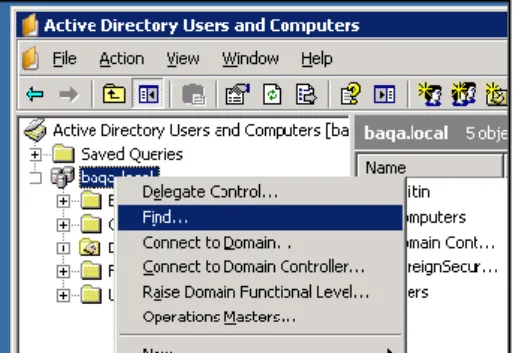
1. Start the Active Directory management application 2. On the parent node for all users, right-click and
choose „Find users…‟
3. In the „Find Users‟-dialog, type „SystemMailbox‟ in the „Name‟ field and click „Find…‟:
4. Select the user and open its properties
Figure 48: Find SystemMailbox
5. On the properties, click on the „Exchange Advanced‟ tab
6. Make sure the „Hide from Exchange address list‟ checkbox is unchecked
7. Click OK and close the application 8. (Re)start the Online Backup Client
Page 37 of 41
How-to: Change permissions of the administrator
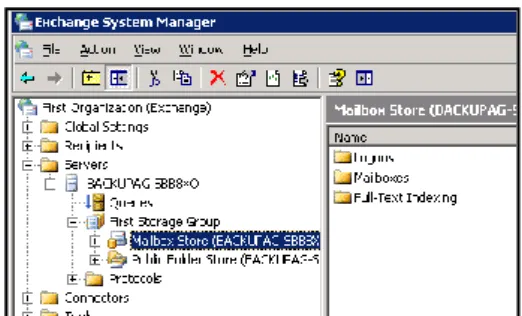
1. Start the MS Exchange System Manager 2. Browse to the mail store node in the tree 3. Right-click on the node and choose properties 4. In the Properties dialog, click on the Security-tab 5. On the Security-tab, click on the Advanced-button
Figure 50: Select Exchange Mailbox Store
6. In the „permission entries‟ list, select the local and/or domain administrator and click „Edit…‟
7. In the Permission Entry dialog browse through the list of permissions
8. Check the „receive as‟ checkbox permission in the „allow‟ column
9. Check the „send as „ checkbox permission in the „allow‟ column
10. Click Ok and close the application 11. (Re)start the Online Backup Client
Figure 51: Set Receive As and Send As options
Note: If the Exchange Server is a Domain Controller, then the Domain Administrators must also have permission for „Send As‟ and „Receive As‟.
15.5. Restore on folder level
Once mailboxes are backed up on the Backup Server, restoring is possible on any Exchange server. You can browse for mailbox items in the „Restore‟ view. To restore, simply select one or more items and then click on [Restore].
Page 38 of 41 Now, the Restore Options screen pops up. When you select
„Original Location‟ in the „Restore to MS Exchange Server‟ options, you will overwrite the current data in the folder in Exchange.
When choosing „Create copy of item‟, an additional folder with a „Copy of‟-prefix (i.e. „Copy of Inbox‟) will be created in the user‟s mailbox.
Figure 53: Select Restore location
Caution: Overwriting the items may cause data loss. It is strongly recommended to use this option
only in case the original mailbox is empty or contains old data.
Caution: If you restore in „Copy of item‟ mode, be aware that this copy might be part of next backup
if the complete mailbox is selected for backup.
Note: For ease of use and overview it is recommended to create a separate task for Exchange folder level backup. Do not mix this data with files to prevent confusion.
15.6. Backup of Exchange using VSS
Finally Online Backup Client supports VSS and this can force Exchange to write a consistent backup copy of the .edb-file and the .stm file to the shadow volume. Therefore selecting these files is a reliable way of making a daily full backup, which will be patched as a file by Online Backup Client to upload only the changes.
Figure 54: Backup Exchange using
Page 39 of 41
16. Microsoft SQL Server 2000/2005
16.1. Introduction
16.2. Backup
When a connection to the SQL Server is established, the „MS SQL Server‟ icon will be visible in the Folder pane of the „Data‟ tab in the Task Properties. The databases are child-nodes.
Select databases to add them to the backup task, so they will be backed without any further user intervention.
Figure 56: Select SQL database
16.2.1. Backup requirements
A connection to the SQL Server is created using Integrated Security or by a user provided username/password combination. In any case the Online Backup Client must be provided with sufficient rights to perform the SQL backup procedures.
User permissions for MS SQL Server 2000 are described here:
http://www.microsoft.com/technet/prodtechnol/sql/2000/maintain/sqlbackuprest.mspx.
In order to create a backup of a database, the user that connects to the SQL Server must be assigned the sysadmin Server Role and the db_backupoperator and dbo_owner DB roles.
The Online Backup Client supports backup and restore of SQL Server 2000 and SQL Server 2005.This option can be activated by selecting 'Activate SQL Server Backup' in the „SQL-Server‟ tab in the Options view.
Also the location of the SQL Server can be set in this tab. By default, this location is '127.0.0.1' (local machine) for MS SQL Server 2000 and '[MACHINENAME]\[INSTANCENAME]‟ for MS SQL Server 2005. User credentials are also required.
Figure 55: ‘SQL Server’ tab
Page 40 of 41
16.2.2. Further notes on backup procedures
The Online Backup Client connects to the local MS SQL Server so only backups of local databases can be performed.
The tempdb database cannot be backed up or restored. Do not select this database for backup.
The Online Backup Client can perform 'full' and 'differential' backups on MSSQL Server. The backup method that will be used is chosen automatically.
16.3. Restore
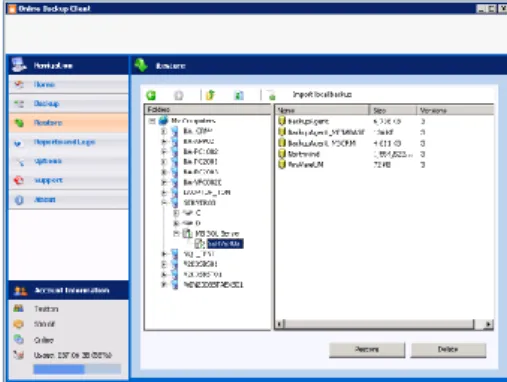
Databases that are available for restore can be found in the „MS SQL Server‟ folder in the „Restore‟ view. This folder contains the „SQL Server‟ folder, which contains the backed up databases. These databases can be selected for restore.
Figure 57: Select SQL database for
restore
When the restore procedure is started you are asked for a destination folder of the database files. Please note that this location will be the location where MS SQL Server will mount the restored database. The default location that is used by MS SQL Server to store database files is C:\Program Files\Microsoft SQL Server\MSSQL\Data.
The Online Backup Client will try and download the database that is to be restored and insert it into the local instance of MS SQL Server. If a database with the same name already exists on the computer, it will be overwritten. You can choose to
create a copy or to overwrite the original database.
Figure 58: Select restore location
Page 41 of 41
16.3.1. Restore requirements
The Online Backup Client must be provided with correct permissions to perform the restore operation. According to Microsoft the user that connects to the Server must have the sysadmin and dbcreator Server roles and db_owner DB role assigned to it. More information:
http://www.microsoft.com/technet/prodtechnol/sql/2000/maintain/sqlbackuprest.mspx
A restore of the master database can only be performed when the Server is in single user mode. SQL Server can be started in single user mode from the command line using the -m command line option: "\Program Files\Microsoft SQL Server\MSSQL\Binn\sqlservr" -m.
Note: The Online Backup Client connects to the local MS SQL Server so only restores into the local computer can be performed.