Chapter 8: Criminal History
Reporting Menu
1/06Criminal History Reporting
This section contains general instructions for generating Crimin al Histor y Reporting information.
These sections contain an overview, automated reporting procedure, rejections and corrections handling, and information presented for each of the menu options:
-File Extract
-Extracted Items List -Extracted Items Error List -Create Transaction File For JIS/CHR
-Back-up Transaction File For Mailing To JIS
-Criminal History Reporting Master List
-Re-send to JIS
1/06 General Overview
GENERAL OVERVIEW
Information entered through the Case Management Menu can be extracted, reported, and copied to attain the reporting requirements of Michigan's Criminal Records Reporting laws. In response to increasing work load in the courts and the need for improved quality of the Criminal History Reporting record base Judicial Information Systems has automated the reporting process.
The File Extract option will copy information to be reported to a transaction file. This file can be printed before copying the file to a diskette. The diskette shall be sent to Judicial Information Systems (JIS). JIS will copy the diskette to the JIS central database, and send the information to the Michigan Department of State Police Criminal Justice Data Center via electronic communications. Rejections will be sent to the court in a computer printed report.
1/06 Accessing Criminal History Reporting Menu
ACCESSING CRIMINAL HISTORY REPORTING MENU
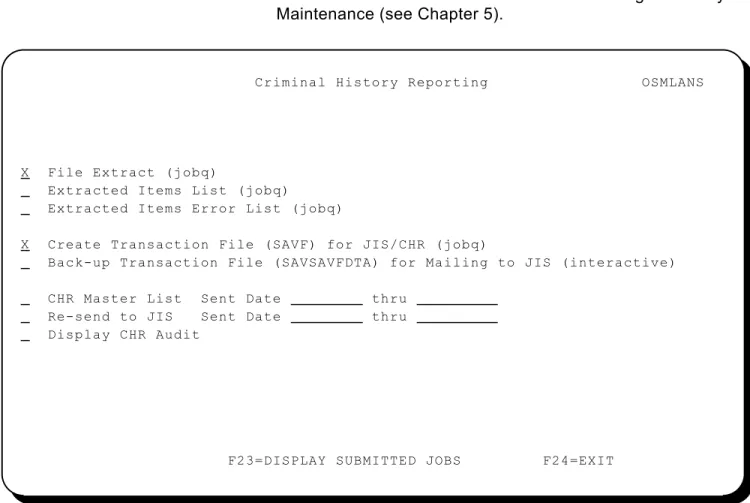
Accessing the Screen The Criminal History Reporting Menu (Figure 188) appears when the Criminal History Reporting Menu option is selected from the Circuit System Function screen. The Criminal History Reporting Menu can be secured to user access through Security File Maintenance (see Chapter 5).
Criminal History Reporting OSMLANS X File Extract (jobq) Extracted Items List (jobq) Extracted Items Error List (jobq) X Create Transaction File (SAVF) for JIS/CHR (jobq) Back-up Transaction File (SAVSAVFDTA) for Mailing to JIS (interactive) CHR Master List Sent Date thru
Re-send to JIS Sent Date thru Display CHR Audit
F23=DISPLAY SUBMITTED JOBS F24=EXIT
1/06 Automated Reporting Procedure
AUTOMATED REPORTING PROCEDURE
We suggest that the file be created and sent to us on a weekly basis.
1. Sign-on to Judicial Information Systems, Circuit Court Menu with pre-defined user-id (JIS/circuit user id format and must have *savsys, jobctl special authority)
2. Type option 8, press enter.
3. Type an 'X' next to File Extract (jobq) and . . .
Type an 'X' next to Create Transaction File (SAVF) for JIS/CHR, press Enter.
WARNING: Do NOT run the extract process a subsequent time before the extract file is sent to or picked up by JIS. If this occurs, the original extract is overlaid and will not get reported.
4. The letter 'S' will appear where the 'X's were This means the 2 requests were submitted to the job queue. This could take 10 minutes to 1 hour, depending on the computer's work load and the size of the circuit files.
5. DO NOT CONTINUE UNTIL Create Transaction File (SAVF) for JIS/CHR has completed.
How do you know when it has completed?
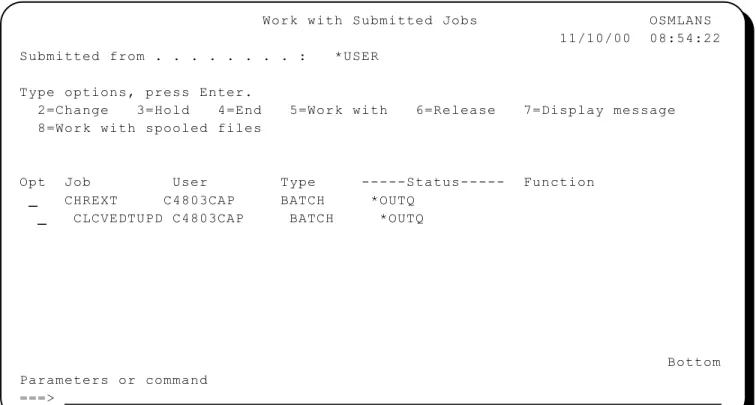
On the Criminal History Reporting (CHR) Menu, press F23 to display submitted jobs (Figure 189). The following display will appear:
1/06 Automated Reporting Procedure
* The Status column must read OUTQ for both jobs (CHREXT, and CLCVEDTUPD) before continuing.
6. If the file is to be sent to JIS on a diskette, tape, or cartridge, omit this step and continue with Step 7.
Electronic file transfer option is available if your computer has dedicated or switched telephone line access to the Southfield JIS Computer. Steps 7 - 11 can be omitted and replaced by one of the following procedures below. To determine which procedure to use or obtain more information on this option, contact the JIS Circuit Software Team.
6a. Electronic File Transfer via Dedicated Telephone Line
Type an "X" next to Transmit Transaction File (XSAVF) to JIS/CHR Via Phone Line. Press Enter. This request is
Work with Submitted Jobs OSMLANS 11/10/00 08:54:22 Submitted from . . . : *USER Type options, press Enter. 2=Change 3=Hold 4=End 5=Work with 6=Release 7=Display message 8=Work with spooled files Opt Job User Type ---Status--- Function CHREXT C4803CAP BATCH *OUTQ CLCVEDTUPD C4803CAP BATCH *OUTQ
Bottom Parameters or command ===>
1/06 Automated Reporting Procedure
Figure 190. Sample Save File Data (SAVSAVFDTA) Prompt
submitted to the job queue. The file should take approximately 15 minutes to be received at JIS Southfield.
6b. Electronic File Transfer via Switched Telephone Line
There is no option on the CHR menu for electronic file transfer via a switched telephone line.
Instead, call the Operations Department at JIS Southfield at 1-800-572-1116. Inform the operations staff that your Criminal History (CHR) file is ready. The operations staff will work with the user or the system operator to perform the steps necessary to send the file to JIS Southfield via the telephone line. The file should take approximately 15 minutes to be received at JIS Southfield.
7. Load the diskette, tape, or cartridge. The tape or cartridge can be initialized with the device type's density default. An 8" diskette should be initialized with the diskette format of *savrst. All media should be labeled with the standard ANSI conventions.
8. Type an 'X' next to Back-up Transaction File (SAVSAVFDTA) for mailing to JIS (interactive), press enter.
9. The following prompt screen (Figure 190) will be displayed:
Save File Data (SAVSAVFDTA) Type choices, press Enter.
Device . . . TAP01 Name
End of tape option . . . . *REWIND *REWIND *LEAVE *UNLOAD
Bottom F3=Exit F4=Prompt F5=Refresh F10=Additional parameters F12=Cancel
F13=How to use this display F24=More keys
1/06 Automated Reporting Procedure
10. Label the tape (externally) with the following information: 18th Judicial Circuit Court (your circuit identification) Bay County (your county)
Current Date
11. Send labeled tape to: (labels available upon request) Judicial Information Systems
Operations Dept.-CHR American Center Building 27777 Franklin Road, Ste 1300 Southfield, MI 48034
The tape will be mailed back to the return address on the mailing box by the JIS-Southfield Operations Department.
1/06 Display CHR Audit
DISPLAY CHR AUDIT
Overview
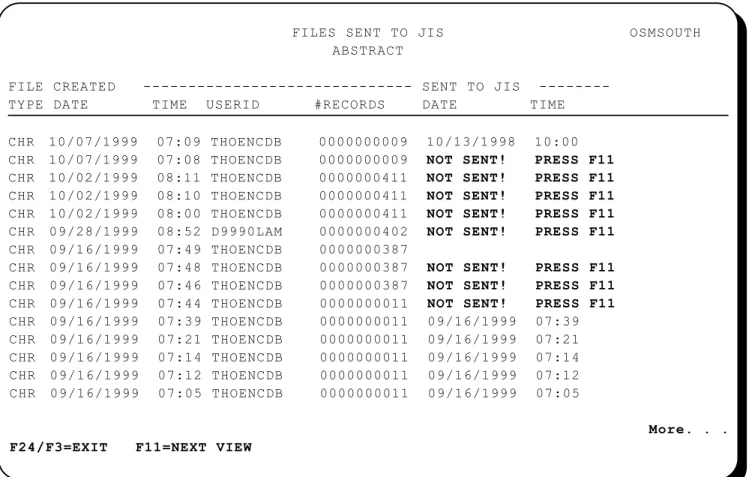
The File Sent to JIS CHR Report (Figure 201) contains information about the activity that occurred to the CHR medial file.
Printing the Report The Files Sent to JIS - CHR Report is selected from the CHR Reporting Menu by typing an “X” in the next to this option.
Report Information The Files Sent to JIS provides the following information for CHR listed on the report.
FILE TYPE The name of the file the information was obtained from. CREATED DATE The date the record was created.
FILES SENT TO JIS OSMSOUTH
ABSTRACT
FILE CREATED --- SENT TO JIS ---TYPE DATE TIME USERID #RECORDS DATE TIME
CHR 10/07/1999 07:09 THOENCDB 0000000009 10/13/1998 10:00 CHR 10/07/1999 07:08 THOENCDB 0000000009 NOT SENT! PRESS F11 CHR 10/02/1999 08:11 THOENCDB 0000000411 NOT SENT! PRESS F11 CHR 10/02/1999 08:10 THOENCDB 0000000411 NOT SENT! PRESS F11 CHR 10/02/1999 08:00 THOENCDB 0000000411 NOT SENT! PRESS F11 CHR 09/28/1999 08:52 D9990LAM 0000000402 NOT SENT! PRESS F11 CHR 09/16/1999 07:49 THOENCDB 0000000387
CHR 09/16/1999 07:48 THOENCDB 0000000387 NOT SENT! PRESS F11 CHR 09/16/1999 07:46 THOENCDB 0000000387 NOT SENT! PRESS F11 CHR 09/16/1999 07:44 THOENCDB 0000000011 NOT SENT! PRESS F11 CHR 09/16/1999 07:39 THOENCDB 0000000011 09/16/1999 07:39 CHR 09/16/1999 07:21 THOENCDB 0000000011 09/16/1999 07:21 CHR 09/16/1999 07:14 THOENCDB 0000000011 09/16/1999 07:14 CHR 09/16/1999 07:12 THOENCDB 0000000011 09/16/1999 07:12 CHR 09/16/1999 07:05 THOENCDB 0000000011 09/16/1999 07:05 More. . . F24/F3=EXIT F11=NEXT VIEW
1/06 Display CHR Audit
USERID The ID of the user that created the record.
#RECORDS The number of records in the file at the time the activity occurred. SENT TO JIS DATE The date the record was sent to JIS.
TIME The time the record was sent to JIS.
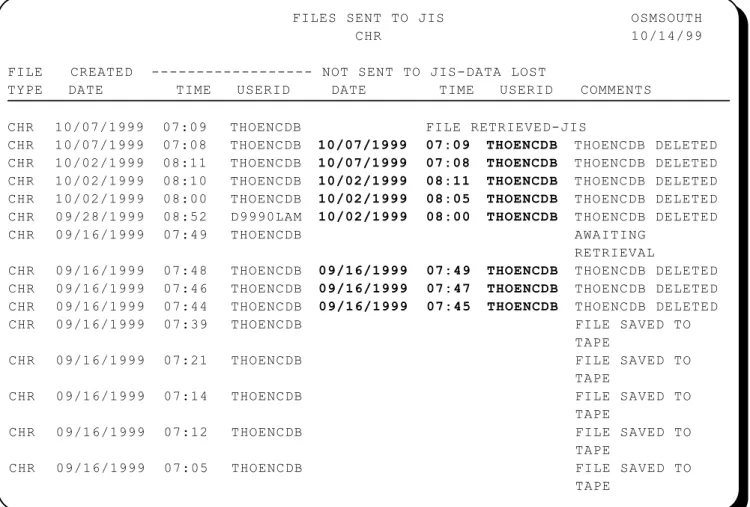
If the file was not sent, press F11 to see the screen below to determine why the file was not sent.
FILES SENT TO JIS OSMSOUTH
CHR 10/14/99
FILE CREATED --- NOT SENT TO JIS-DATA LOST
TYPE DATE TIME USERID DATE TIME USERID COMMENTS
CHR 10/07/1999 07:09 THOENCDB FILE RETRIEVED-JIS
CHR 10/07/1999 07:08 THOENCDB 10/07/1999 07:09 THOENCDB THOENCDB DELETED CHR 10/02/1999 08:11 THOENCDB 10/07/1999 07:08 THOENCDB THOENCDB DELETED CHR 10/02/1999 08:10 THOENCDB 10/02/1999 08:11 THOENCDB THOENCDB DELETED CHR 10/02/1999 08:00 THOENCDB 10/02/1999 08:05 THOENCDB THOENCDB DELETED CHR 09/28/1999 08:52 D9990LAM 10/02/1999 08:00 THOENCDB THOENCDB DELETED
CHR 09/16/1999 07:49 THOENCDB AWAITING
RETRIEVAL
CHR 09/16/1999 07:48 THOENCDB 09/16/1999 07:49 THOENCDB THOENCDB DELETED CHR 09/16/1999 07:46 THOENCDB 09/16/1999 07:47 THOENCDB THOENCDB DELETED CHR 09/16/1999 07:44 THOENCDB 09/16/1999 07:45 THOENCDB THOENCDB DELETED
CHR 09/16/1999 07:39 THOENCDB FILE SAVED TO
TAPE
CHR 09/16/1999 07:21 THOENCDB FILE SAVED TO
TAPE
CHR 09/16/1999 07:14 THOENCDB FILE SAVED TO
TAPE
CHR 09/16/1999 07:12 THOENCDB FILE SAVED TO
TAPE
CHR 09/16/1999 07:05 THOENCDB FILE SAVED TO
TAPE
1/06 Rejections from Michigan State Police
REJECTIONS FROM MICHIGAN STATE POLICE, CENTRAL RECORDS DIVISION
CORRECTIONS
AND REJECTIONS Rejections from the Criminal Justice Data Center, should be very similar to rejections being received using the manual reporting system. The Court will receive a printout identifying the reason for rejection. Once identified, corrections shall be made via the court/disposition screen which disposed a charge, the clerk screen event that closed the case, or the case header screen to modify the SID, CTN number, and/or arrest name.
CODE FILE ADDITIONS
AND CHANGES To be compatible with Michigan Criminal Justice Systems codes, (for valid CHR disposition codes see Code Tables 1 and 4).
Correcting Errors 1. Correct the errors by making modifications to the related Circuit Court files.
2. Follow the CHR Reporting Procedure described previously on the next scheduled CHR extract date.
1/06 Menu Selection Definitions
MENU SELECTION DEFINITIONS
FILE EXTRACT The File Extract should be run weekly. This will access and update a CHR Master file. This file will contain CHR information from the court's master, charge and sentencing files for each count. The conviction master will be updated only if there is a disposition on the charge and the sentencing information for the charge or case is available. Modification or deletions of the information in the court's master, charge and sentencing files will also result in a corresponding update to the CHR master file. This can be determined by comparing the current entry in the CHR master file with what is on the court's master, charge and sentencing files. Deletions can be determined by the absence of information in the court's master, charge and sentence file when reading the CHR master file. The reason for the file and the continued modification is so that statistical information that is being stored at the SCAO, and Courts sending Criminal History Reporting information in this manner, have conviction information that is in sync with that being retained by the local Courts.
EXTRACTED ITEMS LIST This report will list all of the records that have been flagged to be sent to SCAO-JIS. This will provide the court the ability to review those CHR records that are flagged to be sent and to make the appropriate corrections, if need be. Error messages are not listed on this report.
EXTRACTED ITEMS This report will list all of the records that have been flagged ERROR LIST to be sent to JIS/CHR that contain errors. Error messages will be listed on this report. Multiple errors may be printed per record. Records in error will not be sent to JIS/CHR. These records will continue to appear on this list (each week) until corrections are made.
1/06 Menu Selection Definitions
CREATE TRANSACTION This procedure performs three tasks: First, it reads the CHR FILE (SAVF) FOR Master file and copies those records that are error-free to be
JIS/CHR sent. The record is flagged as sent to JIS/CHR and the (INTERACTIVE) current date updates the date-sent-to-JIS/CHR field. Second,
the Extracted Items Error List, as described previously, will automatically be produced. At this point, the save file is ready to be sent to JIS. The user or the system operator can back-up the save file to a tape or diskette and mail to JIS or use the electronic transfer function to transmit the file to JIS.
BACK-UP TRANSACTION This procedure backs up the save file containing error-free FILE FOR MAILING conviction records to an initialized tape, diskette, or cassette. TO JIS Steps 7 - 11 of the Automated Reporting Procedure, described previously, list the functions to be performed for this procedure. TRANSMIT TRANSACTION This option is available only to those users whose computer FILE (XSAVF) is connected with JIS's computer in Southfield by a dedicated TO JIS/CHR telephone line. This procedure will send the save file containing error-free conviction records over a telephone line to JIS. If this option is chosen, the Back-Up Transaction file for mailing to JIS should not be performed. For more information on this option, contact the JIS Circuit Software Team.
CRIMINAL HISTORY This is a listing of all records in the CHR master file. Selection REPORTING MASTER can be made by a "sent to JIS date" or by case number.
LIST
RE-SEND TO JIS This option allows selected records previously sent or previously updated as sent to be sent again, ignoring the flags updated from the original Create Transaction File (SAVF) for JIS/CHR. This option should only be used when requested by JIS.
1/06 Possible Errors/Corrective Action
POSSIBLE ERRORS/CORRECTIVE ACTION
INVALID ORI NUMBER Update your county record with the ORI assigned by the Michigan State Police, CHR Division.
INVALID CTN NUMBER Update the CTN in case header.
INVALID PACC CODE Add code to PACC code table or correct PACC code in court charge entry.
INVALID DISPOSITION Disposition code is not valid to CHR. Modify clerk or court CODE: ___ event using a code acceptable by CHR (see code table 1 and
4 for acceptable CHR codes).
NAME IS INVALID. Modify or enter the name at arrest on the court case header SPECIAL CHARACTERS screen. Periods (.), apostrophes ('), parentheses (()), slashes
ARE NOT ALLOWED (/), numbers (0-9), et cetera, are not valid to CHR. IN NAME
NAME IS INVALID Modify or enter the name at arrest on the court case header EMBEDDED BLANKS ARE screen. Separate first name and middle name with a comma. NOT ALLOWED WITHIN Separate name suffix (ie JR SR II III IV) by entering name
suf-PARTS OF A NAME fix after a third comma.
INVALID NAME SUFFIX Modify or enter the name at arrest on the court case header (FOUND AFTER THIRD screen. Use a third comma before entering the valid suffix.
COMMA). ONLY JR SR II III IV ARE VALID
INVALID SID USING Modify SID on the court case header screen. CHECK DIGIT