CIS Exchange Server 2003 Benchmark
Version 1.0
Copyright 2005, The Center for Internet Security
www.cisecurity.org
Warnings
Do not attempt to implement any of the settings in this guide without first testing in a non-operational environment.
This document is only a guide containing recommended security settings. It is not meant to replace well-structured policy or sound judgment. Furthermore, this guide does not address site-specific configuration issues. Care must be taken when implementing this guide to address local operational and policy concerns.
The security configuration described in this document has been tested on a Windows Server 2003 system. Extra care should be taken when applying the configuration in other environments.
SOFTWARE IS PROVIDED "AS IS" AND ANY EXPRESS OR IMPLIED WARRANTIES, INCLUDING, BUT NOT LIMITED TO, THE IMPLIED WARRANTIES OF
MERCHANTABILITY AND FITNESS FOR A PARTICULAR PURPOSE ARE
EXPRESSLY DISCLAIMED. IN NO EVENT SHALL THE CONTRIBUTORS BE LIABLE FOR ANY DIRECT, INDIRECT, INCIDENTAL, SPECIAL, EXEMPLARY, OR
CONSEQUENTIAL DAMAGES (INCLUDING, BUT NOT LIMITED TO, PROCUREMENT OF SUBSTITUTE GOODS OR SERVICES; LOSS OF USE, DATA, OR PROFITS; OR BUSINESS INTERRUPTION) HOWEVER CAUSED AND ON ANY THEORY OF LIABILITY, WHETHER IN CONTRACT, STRICT LIABILITY, OR TORT (INCLUDING NEGLIGENCE OR OTHERWISE) ARISING IN ANY WAY OUT OF THE USE OF THIS SOFTWARE, EVEN IF ADVISED OF THE POSSIBILITY OF SUCH DAMAGE.
TERMS OF USE AGREEMENT
Background.The Center for Internet Security ("CIS") provides benchmarks, scoring tools, software, data,
information, suggestions, ideas, and other services and materials from the CIS website or elsewhere (“Products”) as a public service to Internet users worldwide. Recommendations contained in the Products (“Recommendations”) result from a consensus-building process that involves many security experts and are generally generic in nature. The Recommendations are intended to provide helpful information to organizations attempting to evaluate or improve the security of their networks, systems, and devices. Proper use of the Recommendations requires careful analysis and adaptation to specific user requirements. The Recommendations are not in any way intended to be a “quick fix” for anyone’s information security needs.
No Representations, Warranties, or Covenants.
CIS makes no representations, warranties, or covenants whatsoever as to (i) the positive or negative effect of the Products or the Recommendations on the operation or the security of any particular network, computer system, network device, software, hardware, or any component of any of the foregoing or (ii) the accuracy, reliability, timeliness, or completeness of the Products or the Recommendations. CIS is providing the Products and the Recommendations “as is” and “as available” without representations, warranties, or covenants of any kind.
User Agreements.
By using the Products and/or the Recommendations, I and/or my organization (“We”) agree and acknowledge that:
1. No network, system, device, hardware, software, or component can be made fully secure;
2. We are using the Products and the Recommendations solely at our own risk;
3. We are not compensating CIS to assume any liabilities associated with our use of the Products or the Recommendations, even risks that result from CIS’s negligence or failure to perform;
4. We have the sole responsibility to evaluate the risks and benefits of the Products and Recommendations to us and to adapt the Products and the Recommendations to our particular circumstances and requirements;
5. Neither CIS, nor any CIS Party (defined below) has any responsibility to make any corrections, updates, upgrades, or bug fixes; or to notify us of the need for any such corrections, updates, upgrades, or bug fixes; and
6. Neither CIS nor any CIS Party has or will have any liability to us whatsoever (whether based in contract, tort, strict liability or otherwise) for any direct, indirect, incidental, consequential, or special damages (including without limitation loss of profits, loss of sales, loss of or damage to reputation, loss of customers, loss of software, data, information or emails, loss of privacy, loss of use of any computer or other equipment, business interruption, wasted management or other staff resources or claims of any kind against us from third parties) arising out of or in any way connected with our use of or our inability to use any of the Products or Recommendations (even if CIS has been advised of the possibility of such damages), including without limitation any liability associated with infringement of intellectual
property, defects, bugs, errors, omissions, viruses, worms, backdoors, Trojan horses or other harmful items.
Grant of Limited Rights.
CIS hereby grants each user the following rights, but only so long as the user complies with all of the terms of these Agreed Terms of Use:
1. Except to the extent that we may have received additional authorization pursuant to a written agreement with CIS, each user may download, install and use each of the Products on a single computer;
2. Each user may print one or more copies of any Product or any component of a Product that is in a .txt, .pdf, .doc, .mcw, or .rtf format, provided that all such copies are printed in full and are kept intact, including without limitation the text of this Agreed Terms of Use in its entirety. Retention of Intellectual Property Rights; Limitations on Distribution.
The Products are protected by copyright and other intellectual property laws and by international treaties. We acknowledge and agree that we are not acquiring title to any intellectual property rights in the Products and that full title and all ownership rights to the Products will remain the exclusive property of CIS or CIS Parties. CIS reserves all rights not expressly granted to users in the preceding section entitled “Grant of limited rights.”
Subject to the paragraph entitled “Special Rules” (which includes a waiver, granted to some classes of CIS Members, of certain limitations in this paragraph), and except as we may have otherwise agreed in a written agreement with CIS, we agree that we will not (i) decompile, disassemble, reverse engineer, or otherwise attempt to derive the source code for any software Product that is not already in the form of source code; (ii) distribute, redistribute, encumber, sell, rent, lease, lend, sublicense, or otherwise transfer or exploit rights to any Product or any component of a Product; (iii) post any Product or any component of a Product on any website, bulletin board, ftp server, newsgroup, or other similar mechanism or device, without regard to whether such mechanism or device is internal or external, (iv) remove or alter trademark, logo, copyright or other proprietary notices, legends, symbols or labels in any Product or any component of a Product; (v) remove these Agreed Terms of Use from, or alter these Agreed Terms of Use as they appear in, any Product or any component of a Product; (vi) use any Product or any component of a Product with any derivative works based directly on a Product or any component of a Product; (vii) use any Product or any component of a Product with other products or applications that are directly and specifically dependent on such Product or any component for any part of their functionality, or (viii) represent or claim a particular level of
compliance with a CIS Benchmark, scoring tool or other Product. We will not facilitate or otherwise aid other individuals or entities in any of the activities listed in this paragraph.
We hereby agree to indemnify, defend, and hold CIS and all of its officers, directors, members, contributors, employees, authors, developers, agents, affiliates, licensors, information and service providers, software suppliers, hardware suppliers, and all other persons who aided CIS in the creation, development, or maintenance of the Products or Recommendations (“CIS Parties”)
harmless from and against any and all liability, losses, costs, and expenses (including attorneys' fees and court costs) incurred by CIS or any CIS Party in connection with any claim arising out of any violation by us of the preceding paragraph, including without limitation CIS’s right, at our expense, to assume the exclusive defense and control of any matter subject to this indemnification, and in such case, we agree to cooperate with CIS in its defense of such claim. We further agree that all CIS Parties are third-party beneficiaries of our undertakings in these Agreed Terms of Use.
The distribution of the NSA Security Recommendations is subject to the terms of the NSA Legal Notice and the terms contained in the NSA Security Recommendations themselves
(http://nsa2.www.conxion.com/cisco/notice.htm).
CIS has created and will from time to time create, special rules for its members and for other persons and organizations with which CIS has a written contractual relationship. Those special rules will override and supersede these Agreed Terms of Use with respect to the users who are covered by the special rules.
CIS hereby grants each CIS Security Consulting or Software Vendor Member and each CIS Organizational User Member, but only so long as such Member remains in good standing with CIS and complies with all of the terms of these Agreed Terms of Use, the right to distribute the Products and Recommendations within such Member’s own organization, whether by manual or electronic means. Each such Member acknowledges and agrees that the foregoing grant is subject to the terms of such Member’s membership arrangement with CIS and may, therefore, be modified or terminated by CIS at any time.
Choice of Law; Jurisdiction; Venue
We acknowledge and agree that these Agreed Terms of Use will be governed by and construed in accordance with the laws of the State of Maryland, that any action at law or in equity arising out of or relating to these Agreed Terms of Use shall be filed only in the courts located in the State of
Maryland, that we hereby consent and submit to the personal jurisdiction of such courts for the purposes of litigating any such action. If any of these Agreed Terms of Use shall be determined to be unlawful, void, or for any reason unenforceable, then such terms shall be deemed severable and shall not affect the validity and enforceability of any remaining provisions.
Acknowledgement
We thank the MITRE Corporation for its collaborative effort in the development of this guide. Working closely with our NSA representatives and Center for Internet Security representatives, the MITRE team—Len LaPadula (task leader), Charles Schmidt (technical lead), and Lisa Nordman (task product manager)—generated the security recommendations and rationales in this guide and produced the document.
Trademark Information
Microsoft and Windows are either registered trademarks or trademarks of Microsoft Corporation in the United States and/or other countries.
All other product and enterprise names are registered trademarks or trademarks of their respective companies.
Table of Contents
Warnings
iii
TERMS OF USE AGREEMENT
iv
Acknowledgement
viii
Trademark Information
viii
Table of Contents
x
List of Figures
xii
List of Tables
xii
Introduction
1
Target Audience 1
Target Environment 1
Getting the Most from this Guide 2
About the Compliance Checking Tool 3
About this Guide 3
Chapter 1: General Exchange Security Guidance
5
Native Mode vs. Mixed Mode 6
Front-End/Back-End Server Configuration 6
Roles 7
Logs 8
Exchange Features 9
Important Security Points 10
Chapter 2: Recommended Security Settings for Exchange Controls
11
Chapter 3: Rationales for Exchange Controls Security Settings
49
List of Figures
Figure 1. Recommended Exchange Front-end/Back-end Server Architecture
7
List of Tables
Table 1. Roles and Required Services to be Enabled
8
Table 2. Security Recommendations
14
Introduction
The purpose of this guide is to provide the reader with security configuration guidance for Microsoft’s Exchange Server 2003.1 Furthermore, it is assumed that the underlying operating system is Microsoft’s Windows Server 2003. The recommendations contained herein have been tested on a Windows Server 2003-based platform. Although most of the recommendations will apply even if Exchange is loaded over a different Windows OS, no statements regarding security or operability can be made for other platform
configurations.
WARNING: This guide does not provide security guidance for the underlying operating system and other functionality (for example, Active Directory, Domain Controllers, etc), except those functions which are specifically necessary for secure implementation and operation of Exchange.
Target Audience
This document is intended for system administrators, but should be read by anyone involved with or interested in installing and/or configuring Exchange. We assume that the reader is a knowledgeable system administrator. In the context of this document, a knowledgeable system administrator is defined as someone who can create and manage accounts and groups, understands how operating systems perform access control, understands how to set account policies and user rights, is familiar with how to set up auditing and read audit logs, and can configure other similar system-related functionality. Additionally, it is assumed that the reader is a competent Exchange administrator. Consequently, no tutorial-type information is provided regarding Exchange or electronic messaging in general. Many documents and books exist which provide this information, including Microsoft’s web presence at http://www.microsoft.com. That site leads to an extensive array of Exchange-related material.
Target Environment
It is critical for the reader to realize that this document is intended to provide security guidance solely for Exchange implementation within a “Specialized-Security - Limited Functionality” environment. This environment is defined as one in which extremely strict security must be implemented due to high mission-criticality or the presence of a
significant threat environment. It is expected that few organizations will want to implement all recommendations contained in this document, which is why the security level is referred to as “Specialized Security.” Additionally, if all recommendations are implemented, the Exchange server will provide only “limited functionality;” a number of necessary messaging functions might not work. It is anticipated that high security environments which these recommendations target will find it necessary to ignore certain recommendations and instead use default settings.
A suggestion to ignore recommended high-security settings may seem counterintuitive to those with a desire for high security, but nearly all readers of this document will find it
1 Within this document, the term “Exchange” refers to Microsoft’s Exchange Server 2003, unless specifically noted otherwise.
necessary to do so in certain situations. For example, an Exchange server is more susceptible to attack if it is running as an NNTP server. Consequently, we recommend that NNTP be disabled. However, if an enterprise’s requirements mandate that
Exchange be implemented as an NNTP server within a high-security environment, then the recommendation to disable NNTP will need to be disregarded. As a second example, it is imperative to retain logged data for forensic and other purposes. However, an administrator logging large quantities of data may find that disk space quickly becomes full. If sufficient backup space is not available or operational restrictions preclude regular and frequent backup and archival activities, the enterprise might determine that certain high-security logging recommendations are untenable and will need to resort to a lesser security posture.
It is highly recommended that the reader consult related security documents before implementing recommendations contained in this document. For example, Exchange Server 2003 and Exchange Server Front-End and Back-End Topology provides security and configuration advice for those implementing Exchange in a “front-end” and “back-end” architecture. When implementing Exchange on the Windows Server 2003 operating system, Windows Server 2003 Security Guide should be consulted. If Windows Server 2000 is used, implement security guidance from Windows Server 2000 Operating System Level 2 Benchmark Consensus Baseline Security Settings. Information regarding
security for Microsoft’s Internet Information Services (IIS) can be found at:
http://www.microsoft.com/security/guidance/prodtech/IIS.mspx. Finally, for environments with less stringent security requirements such as “legacy” and “enterprise” 2
environments, the reader is referred to Exchange Server 2003 Security Hardening Guide.
Getting the Most from this Guide
The following list contains suggestions to facilitate successful use of this guide:
WARNING: This list does not address site-specific issues and every setting or suggestion in this guide should be tested on a non-operational network.
Read the guide in its entirety. Omitting or deleting steps can potentially lead to an unstable system and/or network that will require reconfiguration and reinstallation of software.
Perform pre-configuration recommendations.
Perform a complete backup of your system before implementing any of the recommendations in this guide.
Ensure that the latest bug fixes have been installed.
Use security settings that are appropriate for your environment.
2 A “legacy” environment is defined herein as one in which an administrator is migrating in an operational environment from an older Exchange version such as Exchange 5.5 or Exchange Server 2000. An “enterprise” environment is defined herein as one in which Exchange is being implemented within a large organizational unit. Typically, this environment requires stringent security measures, but the large variety of business processes within a big organization require that many Exchange functions be relaxed from their highest possible settings in order to accommodate the large set of messaging functions required.
About the Compliance Checking Tool
The Center for Internet Security offers a compliance checking tool which serves as a companion to this document. Due to technical considerations, not every
recommendation in this document is scored by the tool. The table in Chapter 2 identifies which recommendations are checked by the tool, as opposed to those that will require manual inspection. Whether or not the administrator uses the tool to inspect compliance, it will be necessary to manually implement the recommendations. The tool conducts only compliance checking; it does not modify the platform. NOTE: The CIS tool is not
currently available. Please check the CIS website at http://www.cisecurity.org for updated information on the tool availability.
About this Guide
This document consists of the following chapters and appendixes: Chapter 1 – General Exchange Security Guidance
This chapter contains general security guidance for installing and running Exchange. For example, securing the underlying operating system, applying all applicable patches, and ensuring specific services are enabled.
Chapter 2 – Recommendation Security Settings for Exchange Controls
Chapter 2 provides security recommendations for specific controls and describes how to manually implement the recommendations.
Chapter 3 – Rationales for Exchange Control Security Settings
Chapter 3 supplies rationales for the security recommendations made in Chapter 2. Rationales provide a brief description of the control’s functionality, recommended value, and a synopsis of the risks if the recommended value is not implemented.
Chapter
1
General Exchange Security Guidance
This chapter contains general security guidance for Exchange Server 2003. The following recommendations are provided to facilitate a more secure platform. Review all recommendations to ensure they comply with local policy. Do not install Exchange Server 2003 on a domain controller.
Load the operating system and secure it before loading Exchange onto the platform. It is important to realize that the system cannot be considered to be secured until the operating system has first been secured. If the operating system is not secured, Exchange functionality might be secure but the platform as a whole will be vulnerable.
Ensure the following services have been started before attempting to install Exchange:
NNTP HTTP SMTP
World Wide Web .NET Framework
Ensure that all relevant operating system security patches have been applied. Ensure that all relevant Exchange security patches have been applied.
Exchange Administrator should require a User’s network/domain username to be different than their email alias. The possible threat in not following this
recommendation: once a malicious user has access to your email address, they now have a valid network/domain username to conduct malicious activity.
Subscribe to the Windows Security mailing list at:
http://www.microsoft.com/technet/security/bulletin/notify.mspx
Visit and implement appropriate recommendations at the vendor’s web site: http://www.microsoft.com/exchange/techinfo/security/default.asp
Because the recommendations in this document yield a Specialized Security - Limited Functionality posture, it is essential that the administrator:
Carefully review the recommendations to ensure that they are not disabling functionality that is required by their enterprise.
Test the settings in a non-production environment before deployment. The recommended settings only increase security. It is essential to continually
Native Mode vs. Mixed Mode
Exchange Server 2003 can operate in two modes: native mode and mixed mode. Exchange 2003 servers running in native mode can rename and consolidate
administrative groups, define routing groups and administrative groups, move mailboxes between servers in different administrative groups, create an administrative group that spans multiple routing groups, and use query-based distribution groups. Mixed mode environments do not provide that functionality. Native mode does not allow Exchange 2003 to interoperate with Exchange 5.5 systems.
Mixed mode was designed for Exchange 2003 to interoperate with Exchange 5.5 systems, and is the default mode. If your environment contains Exchange 5.5 systems, mixed mode should be used. To switch from mixed mode to native mode, all of the Exchange servers in your organization must be running Exchange 2003 or
Exchange 2000. Once the Exchange servers have been updated, the switch to Native mode can take place. Once the switch occurs, the change cannot be reversed, and the organization is no longer able to interoperate with Exchange 5.5 systems. For more information about how to switch to native mode, see the Exchange Server 2003 Deployment Guide (http://go.microsoft.com/fwlink/?linkid=14576).
Front-End/Back-End Server Configuration
Exchange 2003 supports front-end and back-end server architectures. The front-end server is a server running Exchange 2003 that does not host mailboxes or public folder stores. The front-end server forwards client requests to the back-end server for
processing. Mailboxes and/or public folder stores are hosted on the back-end server(s) that are running Exchange 2003. The advantages of using front-end/back-end server topology are as follows:
A single namespace for each user. Offload processing.
Strengthened security: Front-end server can be positioned as the single point of access and located after a firewall(s).
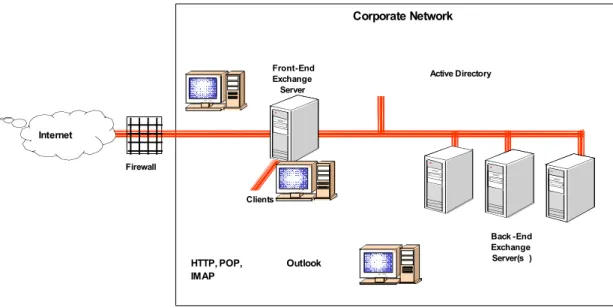
Scalability: As an enterprise expands, adding additional front-end and back-end servers can assist in the expansion as well as address load balancing issues. Figure 1 depicts the recommended Exchange front-end and back-end server
architecture. It should be noted that while we recommend placing a firewall in front of the front-end server, we were unable to configure this in our small lab environment. In a real world environment, it is critical to place a firewall in front of each front-end machine. This adds an additional layer of protection between the internet and the front-end server.
Active Directory Internet Corporate Network Firewall Clients HTTP, POP, IMAP Outlook Front-End Exchange Server Back -End Exchange Server(s )
Figure 1. Recommended Exchange Front-end/Back-end Server Architecture For additional information on how to set up Exchange front-end and back-end
architecture, refer to Microsoft’s Exchange Server 2003 and Exchange 2000 Server Front-End and Back-End Topology
(http://www.microsoft.com/technet/prodtechnol/exchange/2003/library/febetop.mspx).
Roles
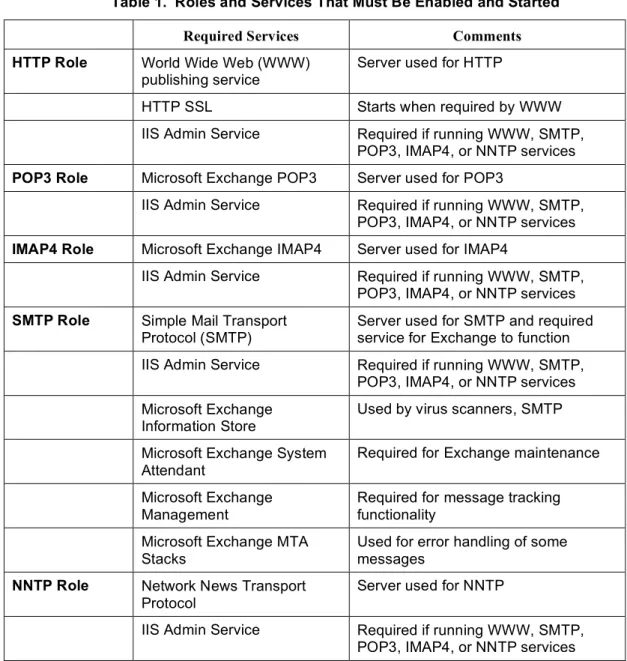
Exchange 2003 Servers can be configured to function with a specific role. That is, as an HTTP Server, IMAP4 Server, POP3 Server, NNTP Server or SMTP Server. This paper provides security recommendations based on each of these roles. Table 1 identifies services on the server that must be enabled and started for a role to function. For example, if your server was configured as a POP3 server, both Microsoft Exchange POP3 service and the IIS Manager Service should be started. The SMTP service must be running on every Exchange Server 2003, because the entire Exchange Server 2003 messaging system depends on it. Without the SMTP service, Exchange will not function.
Table 1. Roles and Services That Must Be Enabled and Started
Required Services Comments
HTTP Role World Wide Web (WWW) publishing service
Server used for HTTP
HTTP SSL Starts when required by WWW
IIS Admin Service Required if running WWW, SMTP, POP3, IMAP4, or NNTP services POP3 Role Microsoft Exchange POP3 Server used for POP3
IIS Admin Service Required if running WWW, SMTP, POP3, IMAP4, or NNTP services IMAP4 Role Microsoft Exchange IMAP4 Server used for IMAP4
IIS Admin Service Required if running WWW, SMTP, POP3, IMAP4, or NNTP services SMTP Role Simple Mail Transport
Protocol (SMTP) Server used for SMTP and required service for Exchange to function IIS Admin Service Required if running WWW, SMTP,
POP3, IMAP4, or NNTP services Microsoft Exchange
Information Store
Used by virus scanners, SMTP
Microsoft Exchange System Attendant
Required for Exchange maintenance
Microsoft Exchange Management
Required for message tracking functionality
Microsoft Exchange MTA Stacks
Used for error handling of some messages
NNTP Role Network News Transport Protocol
Server used for NNTP
IIS Admin Service Required if running WWW, SMTP, POP3, IMAP4, or NNTP services
Logs
There are a number of logging capabilities in Exchange 2003. For example, diagnostic logging, message tracking, activity logging, and audit logging. The volume of data these logs can generate in a day can be enormous and cause Exchange to fail. Exchange will dismount its stores if it detects that it has run out of disk space, resulting in a complete loss of Exchange services. To avoid potential problems with logging data, it is required that all log files be written to separate partitions from the partitions used by the Exchange Stores.
Exchange Features
Outlook Mobile Access (OMA): OMA is a text interface for accessing Exchange server based email, calendars, contacts, and tasks. It was designed to be accessed with PDAs and/or telephones with small displays and web based capabilities. By default OMA is disabled. We recommend keeping the default at “disabled” unless there is specific enterprise policy/need to enable OMA.
ActiveSync: ActiveSync is a service provided by Exchange Server 2003 that allows users to synchronize e-mail, calendaring, and contact information between the Exchange server and Windows supporting mobile devices, such as PDAs. When Exchange is installed, ActiveSync is enabled by default. Disable ActiveSync, unless enterprise policy states it is needed. Disabling ActiveSync restricts connectivity methods to the server, helps to reduce attack vectors as well as reduce the ways in which viruses may be introduced to your network, and provides (admittedly limited) control over how easily messages and other posts are allowed to leave your exchange network.
Outlook Web Access (OWA): OWA is a remote email client and a basic Exchange Server 2003 messaging service. OWA allows users to access mailboxes and folders using an Internet browser that is compliant with HTML 3.2 and JavaScript standards. The HTML standard provides drag and drop functionality, expandable folder hierarchies, HTML composition, toolbar tips and Kerberos authentication. The newest OWA client does not support offline mode, Outlook journaling, or copying or moving items between folders. OWA is installed automatically with Exchange Server 2003, and cannot be removed. Disable OWA, unless enterprise policy states it is needed. Disabling OWA restricts connectivity methods to the server, helps reduce attack vectors, and reduce the ways in which viruses maybe introduced to the network.
Public Folders: Exchange Server 2003 supports public folders. The purpose of public folders is to provide common access to messages and files. Files can be dragged and dropped into public folders for instant sharing. In addition, sorting rules can be applied to public folders to ensure items are arranged by name or date. Each server has one default public folder store (named the Public Folder Store) that supports the Public Folder tree. There can be up to five stores per storage group, and any number of the five stores may be public folders. Lastly, users can be granted access or denied access to specific public folders.
Public Folder Tree: Public Folder Trees are a group of public folders in a hierarchical structure. One tree can have multiple public folder stores. Each Exchange organization has one default public tree. Additional public folder trees can be created that users can access using Outlook Web Access.
Mailbox Stores: Mailbox Stores is a database for storing mailboxes in Exchange 2003. Mailbox stores hold data that is private to an individual and contain mailbox folders generated each time a new mailbox is created for an individual. Stores are located in storage groups. There can be up to five stores per storage group, and any number of the five stores may be mailbox stores. Each mailbox store has a set of transaction logs associated with it. These transaction logs provide detailed information of messages received and sent from a store in a storage group.
Important Security Points
Do not install Exchange Server 2003 on a domain controller.
Ensure that all relevant operating system security patches have been applied. Ensure that all relevant Exchange security patches have been applied.
Exchange Administrator should require a User’s network/domain username to be different than their email alias. The possible threat in not following this
recommendation: once a malicious user has access to your email address, they now have a valid network/domain username to conduct malicious activity.
Because the recommendations in this document yield a Specialized Security - Limited Functionality posture, it is essential that the administrator:
Carefully review the recommendations to ensure that they are not disabling functionality that is required by their enterprise.
Strengthen security by using Front-end/Back-end server configuration.
Configure log files so that they are written to partitions that are separate from the partitions used by the Exchange Stores.
Chapter
2
Recommended Security Settings for Exchange
Controls
This chapter supplies control-specific Exchange guidance. (In this document, the term “control” refers to a specific parameter or setting through which the administrator configures the platform through the user-interface.)
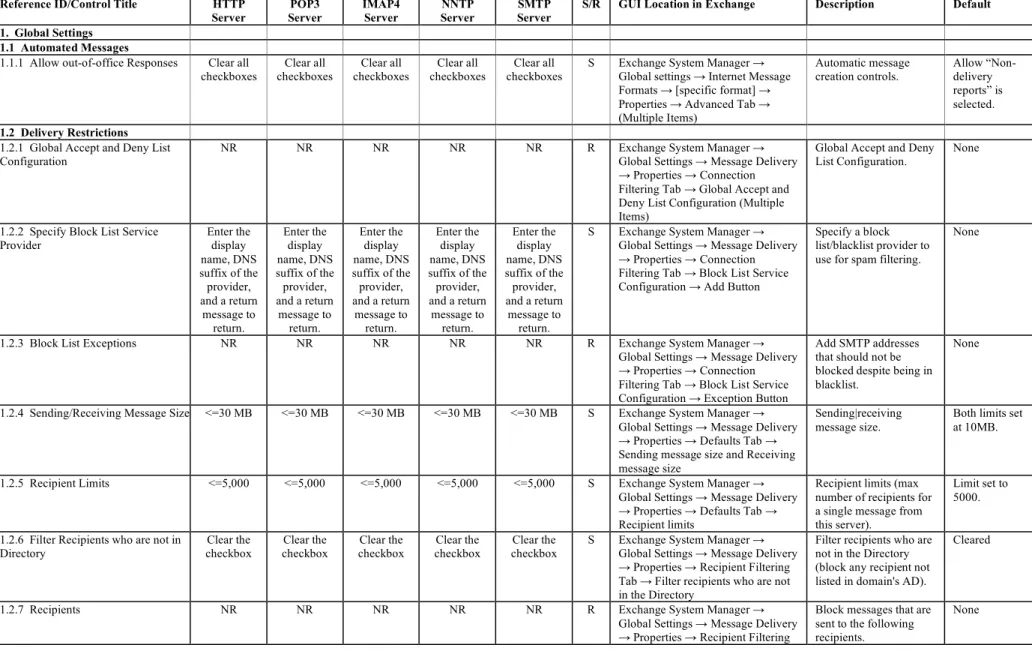
Table 2 identifies the specific security recommendations. The information contained in the control table is the primary means by which the administrator can secure the Exchange platform. Several types of information are provided in the control table. The fundamental security-related information provided includes:
■ The control name
■ The recommended security setting for the control
■ How the administrator can navigate through the user-interface to access that control
The following is an explanation of the column and row headings in the table. Column Headings:
■ Reference ID/Control Title—Number and Title associated with specific control for referencing purposes.
■ Roles: HTTP Server—Recommended values for Exchange Server platforms which have been implemented as HTTP servers.
■ Roles: POP3 Server—Recommended values for Exchange Server platforms which have been implemented as POP3 servers.
■ Roles: IMAP4 Server—Recommended values for Exchange Server platforms which have been implemented as IMAP4 servers.
■ Roles: NNTP Server—Recommended values for Exchange Server platforms which have been implemented as NNTP servers.
■ Roles: SMTP Server—Recommended values for Exchange Server platforms which have been implemented as SMTP servers.
■ S/R/Manual—Identifies whether a control is included in the compliance-checking tool assessment-of-compliance (“scorable”), or whether the control value is only reported by the tool and not included in the assessment (“reportable”). Lastly, items that are marked (“manual”), means the tool can neither score nor report on the item.
■ GUI Location and Control Name in Exchange—Navigation path through the Exchange GUI to locate the control setting and the name of the control as it appears in the MS Exchange Graphical User Interface (GUI). The GUI path assumes that the display administrative groups and display routing groups have been checked.
■ Description—A short description of the capability provided by the control.
■ Default—The controls initial value upon system initialization. Row Headings:
■ Global Settings: Security controls directly related to global settings.
■ HTTP: Security controls directly related to the HTTP protocol.
■ IMAP: Security controls directly related to the IMAP4 protocol.
■ Mailbox Stores: Security controls directly related to mailbox stores.
■ NNTP: Security controls directly related to network news transport protocol.
■ POP3: Security controls directly related to the POP3 protocol.
■ Public Folder Stores: Security controls directly related to public folder stores.
■ Public Folders: Security controls directly related to public folders.
■ Routing Groups: Security controls directly related to routing groups.
■ Servers: Security controls directly related to servers.
■ SMTP: Security controls directly related to the SMTP protocol.
■ User Level Controls: Security controls directly related to user level controls. Row Sub-headings:
■ Admin Post Requests: Items related to deleting or posting specific articles, and creating or deleting newsgroups.
■ Authentication: Items related to authentication options.
■ Automated Messages: Items related to automatic response, forwarding, and delivery messages.
■ Backup/Restore: Items related to backup and restores. For example, last time of full/incremental backup, do not delete items until fully backed up, and
maintenance intervals.
■ Connections: Items related to connection limits and timeouts, SSL connection options, port and relay.
■ Deletion Settings: Items related to deletion settings, i.e., keep deleted items for x-number of days and age limits on public folders controls.
■ Delivery Restrictions: Items related to filtering, recipient limits, message size, user and list restrictions.
■ Directory Access: Items related to accessing directories, i.e., scripts, executables, and access controls.
■ Display: Items which display policies.
■ Enabled Services: Items related to enabling services.
■ Logging: Items related to enabling logging, audit tracking, and archiving controls.
■ Mounting Stores: Items related to mounting or not-mounting specific stores at startup.
■ Permissions: Items related to group and/or username permissions, permissions of administration of public folders, permissions of exchange recipients and roles.
■ Storage Limits: Items related to storage limits.
■ Visibility: Items that control whether or not a public store was visible.
Sometimes there is more than one way through the user-interface to implement a setting. It is highly recommended to configure the Exchange GUI to display both administrative groups and routing groups. This configuration directly corresponds to the configuration used by this document when it describes object container hierarchies for various controls. Failure to follow this recommendation will not make your Exchange server any less secure, but it may make this document slightly more difficult to use. In most cases it is irrelevant as to which path or functionality is used. However, in cases where the method will make a difference in the final security posture, these are identified. For example, settings made from the IIS interface are usually overwritten by settings made through the Exchange System Manager (ESM) interface. Because of this, the rationales for these controls direct the administrator to configure the security setting using ESM.
Table 2. Security Recommendations
Reference ID/Control Title HTTP
Server POP3 Server IMAP4 Server NNTP Server SMTP Server
S/R GUI Location in Exchange Description Default
1. Global Settings 1.1 Automated Messages
1.1.1 Allow out-of-office Responses Clear all checkboxes Clear all checkboxes Clear all checkboxes Clear all checkboxes Clear all checkboxes
S Exchange System Manager → Global settings → Internet Message Formats → [specific format] → Properties → Advanced Tab → (Multiple Items) Automatic message creation controls. Allow “Non-delivery reports” is selected. 1.2 Delivery Restrictions
1.2.1 Global Accept and Deny List Configuration
NR NR NR NR NR R Exchange System Manager → Global Settings → Message Delivery → Properties → Connection Filtering Tab → Global Accept and Deny List Configuration (Multiple Items)
Global Accept and Deny List Configuration.
None
1.2.2 Specify Block List Service
Provider Enter the display name, DNS suffix of the provider, and a return message to return. Enter the display name, DNS suffix of the provider, and a return message to return. Enter the display name, DNS suffix of the provider, and a return message to return. Enter the display name, DNS suffix of the provider, and a return message to return. Enter the display name, DNS suffix of the provider, and a return message to return.
S Exchange System Manager → Global Settings → Message Delivery → Properties → Connection Filtering Tab → Block List Service Configuration → Add Button
Specify a block list/blacklist provider to use for spam filtering.
None
1.2.3 Block List Exceptions NR NR NR NR NR R Exchange System Manager → Global Settings → Message Delivery → Properties → Connection Filtering Tab → Block List Service Configuration → Exception Button
Add SMTP addresses that should not be blocked despite being in blacklist.
None
1.2.4 Sending/Receiving Message Size <=30 MB <=30 MB <=30 MB <=30 MB <=30 MB S Exchange System Manager → Global Settings → Message Delivery → Properties → Defaults Tab → Sending message size and Receiving message size
Sending|receiving message size.
Both limits set at 10MB.
1.2.5 Recipient Limits <=5,000 <=5,000 <=5,000 <=5,000 <=5,000 S Exchange System Manager → Global Settings → Message Delivery → Properties → Defaults Tab → Recipient limits
Recipient limits (max number of recipients for a single message from this server).
Limit set to 5000.
1.2.6 Filter Recipients who are not in Directory Clear the checkbox Clear the checkbox Clear the checkbox Clear the checkbox Clear the checkbox
S Exchange System Manager → Global Settings → Message Delivery → Properties → Recipient Filtering Tab → Filter recipients who are not in the Directory
Filter recipients who are not in the Directory (block any recipient not listed in domain's AD).
Cleared
1.2.7 Recipients NR NR NR NR NR R Exchange System Manager → Global Settings → Message Delivery → Properties → Recipient Filtering
Block messages that are sent to the following recipients.
Reference ID/Control Title HTTP
Server Server POP3 IMAP4 Server Server NNTP Server SMTP S/R GUI Location in Exchange Description Default
Tab → Recipients
1.2.8 Senders NR NR NR NR NR R Exchange System Manager → Global Settings → Message Delivery → Properties → Sender Filtering Tab → Senders
Block messages that claim to be from the following senders.
None
1.2.9 Archive Filtered Messages Select the
checkbox Select the checkbox Select the checkbox Select the checkbox Select the checkbox S Exchange System Manager → Global Settings → Message Delivery → Properties → Sender Filtering Tab → Archive filtered messages
Archive filtered
messages. Cleared
1.2.10 Filter Messages with Blank Sender Select the checkbox Select the checkbox Select the checkbox Select the checkbox Select the checkbox
S Exchange System Manager → Global Settings → Message Delivery → Properties → Sender Filtering Tab → Filter messages with blank sender
Filter messages with blank sender.
Cleared
1.2.11 Drop Connection if Address Matches Filter Select the checkbox Select the checkbox Select the checkbox Select the checkbox Select the checkbox
S Exchange System Manager → Global Settings → Message Delivery → Properties → Sender Filtering Tab → Drop connection if address matches filter
Drop connection if address matches filter (immediately drop the connection if message would be filtered).
Selected
1.2.12 Accept Messages Without Notifying Sender of Filtering
Select the checkbox (cannot be set if “Drop connection if address matches filter” [item 1.2.11] is selected) Select the checkbox (cannot be set if “Drop connection if address matches filter” [item 1.2.11] is selected) Select the checkbox (cannot be set if “Drop connection if address matches filter” [item 1.2.11] is selected) Select the checkbox (cannot be set if “Drop connection if address matches filter” [item 1.2.11] is selected) Select the checkbox (cannot be set if “Drop connection if address matches filter” [item 1.2.11] is selected)
S Exchange System Manager → Global Settings → Message Delivery → Properties → Sender Filtering Tab → Accept messages without notifying sender of filtering
Accept messages without notifying sender of filtering. (Filter silently to avoid giving indications that messages were filtered to the sender.)
Cleared
1.3 Enabled Services
1.3.1 Enable Outlook Mobile Access Clear the checkbox and delete the OMA Virtual Directory from IIS Clear the checkbox and delete the OMA Virtual Directory from IIS Clear the checkbox and delete the OMA Virtual Directory from IIS Clear the checkbox and delete the OMA Virtual Directory from IIS Clear the checkbox and delete the OMA Virtual Directory from IIS
S Exchange System Manager → Global Settings → Mobile Services → Properties → General Tab → Outlook Mobile Access → Enable Outlook Mobile Access and Enable unsupported devices
Enable Outlook Mobile access and Enable unsupported devices (do not require recipient device to be recognized).
Reference ID/Control Title HTTP
Server Server POP3 IMAP4 Server Server NNTP Server SMTP S/R GUI Location in Exchange Description Default
1.3.2 Enable User Initiated Synchronization Clear the checkbox and delete the Microsoft- Server-ActiveSync Virtual Directory Clear the checkbox and delete the Microsoft- Server-ActiveSync Virtual Directory Clear the checkbox and delete the Microsoft- Server-ActiveSync Virtual Directory Clear the checkbox and delete the Microsoft- Server-ActiveSync Virtual Directory Clear the checkbox and delete the Microsoft- Server-ActiveSync Virtual Directory
S Exchange System Manager → Global Settings → Mobile Services → Properties → General Tab → Exchange ActiveSync → Enable user initiated synchronization/Enable up-to-date notifications/Enable notifications to user specified SMTP addresses
Enable user initiated synchronization (if disabled, turns off ActiveSync), Enable up-to-date notifications (alerts from the server that handheld should resync) and Enable notifications to user specified SMTP addresses. All three cleared. 1.4 Logging
1.4.1 Archive Filtered Messages See item 1.2.9 See item 1.2.9 2. HTTP
2.1 Authentication
2.1.1 Certificate Wizard Execute Wizard to Install Certificate Execute Wizard to Install Certificate Execute Wizard to Install Certificate Execute Wizard to Install Certificate Execute Wizard to Install Certificate
S IIS Manager → [server] → Web Sites → Default Web Site → Properties → Directory Security Tab → Server Certificate Button → Wizard Button
Install or modify certificates.
When clicked, the web server certificate wizard runs. 2.1.2 Enable Anonymous Access NR NR NR NR NR R IIS Manager → [server] → Web
Sites → Default Web Site → Properties → Directory Security Tab → Authentication and access control → Edit Button → Enable anonymous access
Whether access to the HTTP service should be anonymous.
Cleared
2.1.3 Username/Password Use the IUSR_<co mputer-name> account Use the IUSR_<co mputer-name> account Use the IUSR_<co mputer-name> account Use the IUSR_<co mputer-name> account Use the IUSR_<co mputer-name> account
R IIS Manager → [server] → Web Sites → Default Web Site → Properties → Directory Security Tab → Authentication and access control → Edit Button → Enable anonymous access → User name and Password
When users connect to the HTTP server anonymously, what user name they should they use.
IUSR_<compu ter name> & associated password.
2.1.4 Authenticated Access Select integrated windows authenticati on checkbox Select integrated windows authenticati on checkbox Select integrated windows authenticati on checkbox Select integrated windows authenticati on checkbox Select integrated windows authenticati on checkbox
S IIS Manager → [server] → Web Sites → Default Web Site → Properties → Directory Security Tab → Authentication and access control → Edit Button → Authenticated access (Multiple Items)
Which authentication methods should be used to connect to the HTTP server. Integrated Windows authentication is selected. 2.1.5 Authentication Method to Access Exchange Virtual Directory
Delete the Exchange Virtual Directory or (if Outlook Web Access must be used), enable only Delete the Exchange Virtual Directory or (if Outlook Web Access must be used), enable only Delete the Exchange Virtual Directory or (if Outlook Web Access must be used), enable only Delete the Exchange Virtual Directory or (if Outlook Web Access must be used), enable only Delete the Exchange Virtual Directory or (if Outlook Web Access must be used), enable only
S Exchange System Manager → Administrative Groups →
[administrative group] → Servers → [server] → Protocols → HTTP → Exchange Virtual Server → Exchange → Properties → Access Tab → Authentication Settings → Authentication Button
One or more methods of authentication must be selected. Integrated Windows Authentication and Basic authentication selected.
Reference ID/Control Title HTTP
Server Server POP3 IMAP4 Server Server NNTP Server SMTP S/R GUI Location in Exchange Description Default
Integrated Windows Authenticati on and Basic authenticati on. Integrated Windows Authenticati on and Basic authenticati on. Integrated Windows Authenticati on and Basic authenticati on. Integrated Windows Authenticati on and Basic authenticati on. Integrated Windows Authenticati on and Basic authenticati on. 2.1.6 Authentication Method to
Access Exadmin Virtual Directory
Integrated Windows authenticati on selected Integrated Windows authenticati on selected Integrated Windows authenticati on selected Integrated Windows authenticati on selected Integrated Windows authenticati on selected
S Exchange System Manager → Administrative Groups →
[administrative group] → Servers → [server] → Protocols → HTTP → Exchange Virtual Server → Exadmin → Properties → Access Tab → Authentication Settings → Authentication Button
One or more methods of authentication must be selected. Integrated Windows Authentication selected. 2.1.7 Authentication Method to
Access ActiveSync Virtual Directory ActiveSync Delete the Virtual Directory or (if ActiveSync is used) select only basic authenticati on Delete the ActiveSync Virtual Directory or (if ActiveSync is used) select only basic authenticati on Delete the ActiveSync Virtual Directory or (if ActiveSync is used) select only basic authenticati on Delete the ActiveSync Virtual Directory or (if ActiveSync is used) select only basic authenticati on Delete the ActiveSync Virtual Directory or (if ActiveSync is used) select only basic authenticati on
S IIS Manager → [server] → Web Sites → Default Web Site → Microsoft Server-ActiveSync → Properties → Directory Security Tab → Authentication and access control → Edit Button → Authenticated access (Multiple Items)
One or more methods of authentication must be selected.
Basic authentication
2.1.8 Authentication Method to Access Outlook Mobile Access Virtual Directory Delete the OMA Virtual Directory or (if OMA is used) select only basic authenticati on Delete the OMA Virtual Directory or (if OMA is used) select only basic authenticati on Delete the OMA Virtual Directory or (if OMA is used) select only basic authenticati on Delete the OMA Virtual Directory or (if OMA is used) select only basic authenticati on Delete the OMA Virtual Directory or (if OMA is used) select only basic authenticati on
S IIS Manager → [server] → Web Sites → Default Web Site → OMA → Properties → Directory Security Tab → Authentication and access control → Edit Button → Authenticated access (Multiple Items)
One or more methods of authentication must be selected.
Basic authentication
2.1.9 Enable Forms Based Authentication Select the checkbox Select the checkbox Select the checkbox Select the checkbox Select the checkbox
S Exchange System Manager → Administrative Groups →
[administrative group] → Servers → [server] → Protocols → HTTP → Exchange Virtual Server → Properties → Settings Tab → Outlook Web Access → Enable Forms Based Authentication
Determine whether web forms can provide authentication information. Enable Forms Based Authentication checkbox is cleared.
Reference ID/Control Title HTTP
Server Server POP3 IMAP4 Server Server NNTP Server SMTP S/R GUI Location in Exchange Description Default
2.1.10 Authentication Method to Access Public Virtual Directory
Delete the Public Virtual Directory or (if public folders are used, select only Integrated Windows Authenticati on and Basic authenticati on. Delete the Public Virtual Directory or (if public folders are used, select only Integrated Windows Authenticati on and Basic authenticati on. Delete the Public Virtual Directory or (if public folders are used, select only Integrated Windows Authenticati on and Basic authenticati on. Delete the Public Virtual Directory or (if public folders are used, select only Integrated Windows Authenticati on and Basic authenticati on. Delete the Public Virtual Directory or (if public folders are used, select only Integrated Windows Authenticati on and Basic authenticati on.
S Exchange System Manager → Administrative Groups →
[administrative group] → Servers → [server] → Protocols → HTTP → Exchange Virtual Server → Public → Properties → Access Tab → Authentication Settings → Authentication Button
One or more methods of authentication must be selected. Integrated Windows authentication and Basic authentication are selected. 2.1.11 Require Secure
Channel/Require 128 bit encryption to Microsoft-Server-ActiveSync Virtual Directory Delete the ActiveSync Virtual Directory or (if ActiveSync is used) require both a secure channel and 128 bit encryption. Delete the ActiveSync Virtual Directory or (if ActiveSync is used) require both a secure channel and 128 bit encryption. Delete the ActiveSync Virtual Directory or (if ActiveSync is used) require both a secure channel and 128 bit encryption. Delete the ActiveSync Virtual Directory or (if ActiveSync is used) require both a secure channel and 128 bit encryption. Delete the ActiveSync Virtual Directory or (if ActiveSync is used) require both a secure channel and 128 bit encryption.
S IIS Manager → [server] → Web Sites → Default Web Site → Microsoft Server ActiveSync → Properties → Directory Security Tab → Secure communications → Edit Button → Require secure channel (SSL) (Multiple Items)
Server Communications
Options. Cleared
2.1.12 Require Secure Channel (SSL) and Require 128 bit encryption to OMA Virtual Directory
Delete the OMA Virtual Directory or (if OMA is used) require both a secure channel and 128 bit encryption. Delete the OMA Virtual Directory or (if OMA is used) require both a secure channel and 128 bit encryption. Delete the OMA Virtual Directory or (if OMA is used) require both a secure channel and 128 bit encryption. Delete the OMA Virtual Directory or (if OMA is used) require both a secure channel and 128 bit encryption. Delete the OMA Virtual Directory or (if OMA is used) require both a secure channel and 128 bit encryption.
S IIS Manager → [server] → Web Sites → Default Web Site → OMA → Properties → Directory Security Tab → Secure communications → Edit Button → Require secure channel (SSL) (Multiple Items)
Server Communications Options.
Reference ID/Control Title HTTP
Server Server POP3 IMAP4 Server Server NNTP Server SMTP S/R GUI Location in Exchange Description Default
2.1.13 Require Secure Channel (SSL) and Require 128 bit encryption to Public Virtual Directory
Delete the Public Virtual Directory or (if public folders are used) require both a secure channel and 128 bit encryption. Delete the Public Virtual Directory or (if public folders are used) require both a secure channel and 128 bit encryption. Delete the Public Virtual Directory or (if public folders are used) require both a secure channel and 128 bit encryption. Delete the Public Virtual Directory or (if public folders are used) require both a secure channel and 128 bit encryption. Delete the Public Virtual Directory or (if public folders are used) require both a secure channel and 128 bit encryption.
S IIS Manager → [server] → Web Sites → Default Web Site → Public → Properties → Directory Security Tab → Secure communications → Edit Button → Require secure channel (SSL) (Multiple Items)
Server Communications Options.
Cleared
2.1.14 Require Secure Channel (SSL) and Require 128 bit encryption to Exchange Virtual Directory
Delete the Exchange Virtual Directory or (if OWA is used) require both a secure channel and 128 bit encryption. Delete the Exchange Virtual Directory or (if OWA is used) require both a secure channel and 128 bit encryption. Delete the Exchange Virtual Directory or (if OWA is used) require both a secure channel and 128 bit encryption. Delete the Exchange Virtual Directory or (if OWA is used) require both a secure channel and 128 bit encryption. Delete the Exchange Virtual Directory or (if OWA is used) require both a secure channel and 128 bit encryption.
S IIS Manager → [server] → Web Sites → Default Web Site → Exchange → Properties → Directory Security Tab → Secure
communications → Edit Button → Require secure channel (SSL) (Multiple Items)
Server Communications Options.
Cleared
2.1.15 Require Secure Channel (SSL) and Require 128 bit encryption to Exadmin Virtual Directory
Clear the checkboxes Clear the checkboxes Clear the checkboxes Clear the checkboxes Clear the checkboxes
S IIS Manager → [server] → Web Sites → Default Web Site → Exadmin → Properties → Directory Security Tab → Secure
communications → Edit Button → Require secure channel (SSL) (Multiple Items)
Server Communications Options.
Cleared
2.2 Connections
2.2.1 TCP Port/SSL Port 80/443 80/443 80/443 80/443 80/443 S IIS Manager → [server] → Web Sites → Default Web Site → Properties → Web Site Tab → Web site identification → TCP port and SSL port
TCP port used by HTTP
and HTTPS daemon. 80/443
2.3 Delivery Restrictions 2.3.1 Address/Domain Name
Restrictions NR NR NR NR NR R IIS Manager → [server] → Web Sites → Default Web Site → Properties → Directory Security Tab → IP Address and domain name restrictions → Edit Button
Whether access is granted or denied by default and any IP addresses (or subnets) that should be
exceptions to the general rule.
Default granted to all with no exceptions.
Reference ID/Control Title HTTP
Server Server POP3 IMAP4 Server Server NNTP Server SMTP S/R GUI Location in Exchange Description Default
2.4 Directory Access
2.4.1 Execute Permissions for OWA Virtual Directory Delete the Exchange Virtual Directory or (if OWA is used) select none Delete the Exchange Virtual Directory or (if OWA is used) select none Delete the Exchange Virtual Directory or (if OWA is used) select none Delete the Exchange Virtual Directory or (if OWA is used) select none Delete the Exchange Virtual Directory or (if OWA is used) select none
S Exchange System Manager → Administrative Groups →
[administrative group] → Servers → [server] → Protocols → HTTP → Exchange Virtual Server → Exchange → Properties → Access Tab → Execute permissions
Whether scripts, scripts and executables, or neither can be executed.
“None” is selected [other options are scripts, scripts and executables. 2.4.2 Access Control to OWA Virtual
Directory Delete the Exchange Virtual Directory or (if OWA is used) select read, write, script source access, and directory browsing Delete the Exchange Virtual Directory or (if OWA is used) select read, write, script source access, and directory browsing Delete the Exchange Virtual Directory or (if OWA is used) select read, write, script source access, and directory browsing Delete the Exchange Virtual Directory or (if OWA is used) select read, write, script source access, and directory browsing Delete the Exchange Virtual Directory or (if OWA is used) select read, write, script source access, and directory browsing
S Exchange System Manager → Administrative Groups →
[administrative group] → Servers → [server] → Protocols → HTTP → Exchange Virtual Server → Exchange → Properties → Access Tab → Access Control
Read, write, script source access, or directory browsing. Read, write, script source access, directory browsing are selected.
2.4.3 Access Controls to Exadmin
Virtual Directory write, script Select read, source access, and directory browsing Select read, write, script source access, and directory browsing Select read, write, script source access, and directory browsing Select read, write, script source access, and directory browsing Select read, write, script source access, and directory browsing
S Exchange System Manager → Administrative Groups →
[administrative group] → Servers → [server] → Protocols → HTTP → Exchange Virtual Server → Exadmin → Properties → Access Tab → Access Control (Multiple Items)
Read, write, script source access, or directory browsing. Read, write, script source access, directory browsing are selected. 2.4.4 Execute Permissions to access
Exadmin Virtual Directory
Select “None” Select “None” Select “None” Select “None” Select “None”
S Exchange System Manager → Administrative Groups →
[administrative group] → Servers → [server] → Protocols → HTTP → Exchange Virtual Server → Exadmin → Properties → Access Tab → Execute Permissions (Multiple Items)
Whether scripts, scripts and executables, or neither can be executed.
None
2.4.5 Access Control to ActiveSync Virtual Directory Delete the ActiveSync Virtual Directory or (if ActiveSync is used) grant read access only Delete the ActiveSync Virtual Directory or (if ActiveSync is used) grant read access only Delete the ActiveSync Virtual Directory or (if ActiveSync is used) grant read access only Delete the ActiveSync Virtual Directory or (if ActiveSync is used) grant read access only Delete the ActiveSync Virtual Directory or (if ActiveSync is used) grant read access only
S IIS Manager → [server] → Web Sites → Default Web Site → Microsoft-Server-ActiveSync → Properties → Virtual Directory Tab → Access Control (Multiple Items)
Read, write, script source access, or directory browsing. Read is enabled. (This cannot be changed in this GUI.)
Reference ID/Control Title HTTP
Server Server POP3 IMAP4 Server Server NNTP Server SMTP S/R GUI Location in Exchange Description Default
2.4.6 Execute Permissions to access ActiveSync Virtual Directory
Delete the ActiveSync Virtual Directory or (if ActiveSync is used) grant scripts and executables the ability to run Delete the ActiveSync Virtual Directory or (if ActiveSync is used) grant scripts and executables the ability to run Delete the ActiveSync Virtual Directory or (if ActiveSync is used) grant scripts and executables the ability to run Delete the ActiveSync Virtual Directory or (if ActiveSync is used) grant scripts and executables the ability to run Delete the ActiveSync Virtual Directory or (if ActiveSync is used) grant scripts and executables the ability to run
S IIS Manager → [server] → Web Sites → Default Web Site → Microsoft-Server-ActiveSync → Properties → Virtual Directory Tab → Execute permissions (Multiple Items)
Whether scripts, scripts and executables, or neither can be executed.
Scripts and Executables are selected. (This cannot be changed in this GUI.)
2.4.7 Access Control to OMA Virtual Directory Delete OMA Virtual Directory or (if OMA is to be used) grant read access only Delete OMA Virtual Directory or (if OMA is to be used) grant read access only Delete OMA Virtual Directory or (if OMA is to be used) grant read access only Delete OMA Virtual Directory or (if OMA is to be used) grant read access only Delete OMA Virtual Directory or (if OMA is to be used) grant read access only
S IIS Manager → [server] → Web Sites → Default Web Site → OMA → Properties → Virtual Directory Tab → Access Control (Multiple Items)
Read, write, script source access, or directory browsing. Read is enabled. (This cannot be changed in this GUI.)
2.4.8 Execute Permissions to access
OMA Virtual Directory Delete OMA Virtual Directory of (if OMA is to be used) enable scripts only to be run Delete OMA Virtual Directory of (if OMA is to be used) enable scripts only to be run Delete OMA Virtual Directory of (if OMA is to be used) enable scripts only to be run Delete OMA Virtual Directory of (if OMA is to be used) enable scripts only to be run Delete OMA Virtual Directory of (if OMA is to be used) enable scripts only to be run
S IIS Manager → [server] → Web Sites → Default Web Site → OMA → Properties → Virtual Directory Tab → Execute permissions (Multiple Items)
Whether scripts, scripts and executables, or neither can be executed.
Scripts are enabled. (This cannot be changed in this GUI.)
2.4.9 Execute Permissions to access Public Virtual Directory
Delete the Public Virtual Directory of (if public folders are to be used) select none. Delete the Public Virtual Directory of (if public folders are to be used) select none. Delete the Public Virtual Directory of (if public folders are to be used) select none. Delete the Public Virtual Directory of (if public folders are to be used) select none. Delete the Public Virtual Directory of (if public folders are to be used) select none.
S Exchange System Manager → Administrative Groups →
[administrative group] → Servers → [server] → Protocols → HTTP → Exchange Virtual Server → Public → Properties → Access Tab → Execute Permissions
Whether scripts, scripts and executables, or neither can be executed.
None is selected [other options are scripts, scripts and executables.