Digital Signage with Apps
Digital Signage with Apps Project...6 New Project...6 Scheduler...6 Layout Panel...7 Property Panel...8 Transfer...12 FTP Transfer...12 USB Transfer...13 Local Transfer...14 Manage Apps...15 Settings...16
Help and about...17
Default Apps...18 ...18 Clock...18 ...18 Date...18 ...18 Media Player...18 ...19 Slideshow...19 ...19 Flickr...19 ...20
RSS Ticker Tape...20
...20
Twitter Ticker Tape...20
...21
Text Ticker Tape...21
...21
Weather Bug...21
Digital Signage with Apps: First Glance
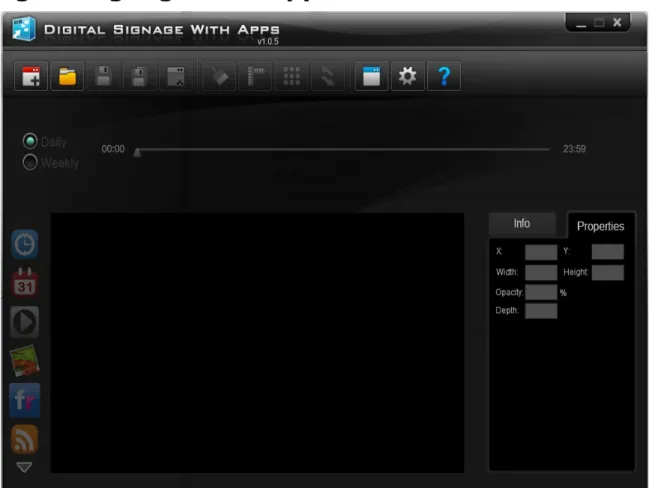
Figure 1.1: Computer Application’s User Interface
Menu Bar
Create Project
Create new project, clear and reset all fields back to default.
Open Project
Opens a existing project for editing
Close Project
Closes currently open project, clear and reset all field back to default
Clear Layouts
Ruler
Toggle on/off horizontal and vertical rulers on stage
Grid
Toggle on/off horizontal and vertical grid on stage
Transfer
Transfer project configuration file to device for playback. Transfer modes include FTP, USB and local. Refer to the Transfer section on page 10 for more details.
Manage Apps
Import new apps, delete imported apps and view app details
Settings
Show all configurable settings for the computer application
Help
Shows the Digital Signage with Apps computer application version, check for software updates and access the user manual
Project
New Project
1. To start, click the “Create Project” button in the menu bar.
2. A popup will appear asking for the name of the project. Type a project name in and click create. NOTE: Project names only allow alphanumeric, dash (-) and underscore
(_).
Figure 2.1: Create New Project
Scheduler
1. There are two modes for the scheduler that can be selected.
• The daily option will repeat all layouts every day.
• The weekly option allows you to specify different schedules for each day of the week.
Figure 2.2: Daily Scheduler Panel
Figure 2.3: Weekly Scheduler Panel
2. Once the project is created, the scheduler's scrollbar will be enabled.
3. Drag the arrow or key in the specific timestamp for a layout. NOTE: the timeline is
4. Click on the plus button to add a layout to the current timestamp.
Figure 2.4: Add Layout
Add
Create a layout on the timestamp where the arrow is pointing
Standby
Will set the device into standby at the current timestamp
Remove
Deletes the currently selected layout
Duplicate To
Duplicates current layout to another point on the timeline
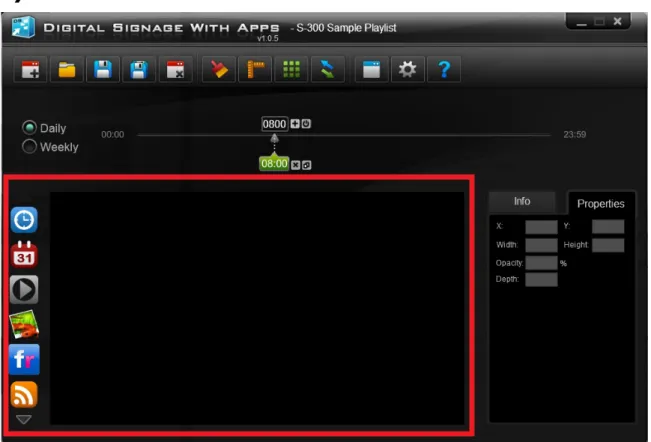
Layout Panel
• Once a layout is added, the layout panel will be enabled.
• All default and imported apps will be shown on the left side.
• To add an app to a layout, simply drag and drop it onto the stage.
• Once the app is added to the stage, an icon representing the app will be added to the layer panel on the right.
• The app’s position within the stage reflects the position it will have on the output screen when the playlist is running.
• When there are multiple apps stacked on each other, the app that being overlaid cannot be clicked on as the app on top of it will have priority instead. Selection is possible by clicking the icon that represents the app on layer panel on the right side of the stage.
• To copy an app and all its settings, simply right click on the app and select copy. Then right click anywhere in the stage and select paste. You can do this on the same layout or a different one.
Although there is no limitation on the number of apps that can be added to a stage, it is recommended to keep the total number of apps to a minimum in order to maximize playback smoothness.
Property Panel
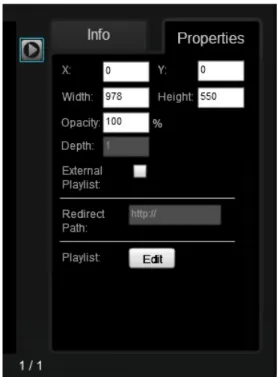
The property panel will show the information and the detailed configuration of currently selected app.
• x - Shows the x-axis position of the selected app
• y - Shows the y-axis position of the selected app
• width - Shows the width of the selected app
• height - Shows the height of the selected app
• opacity - Shows the level of opacity of the selected app
• depth – Shows the depth of selected app. The app with the larger depth value will be shown on top of an app with the smaller value.
• Properties such as x, y and opacity can be configured.
• Properties such as width, height and depth may or may not be configurable depending on the app author’s configuration.
• Disabled fields will be greyed out and configurable field will be shown in a white box.
• Each app may have extra configuration fields depending on its function.
Playlist
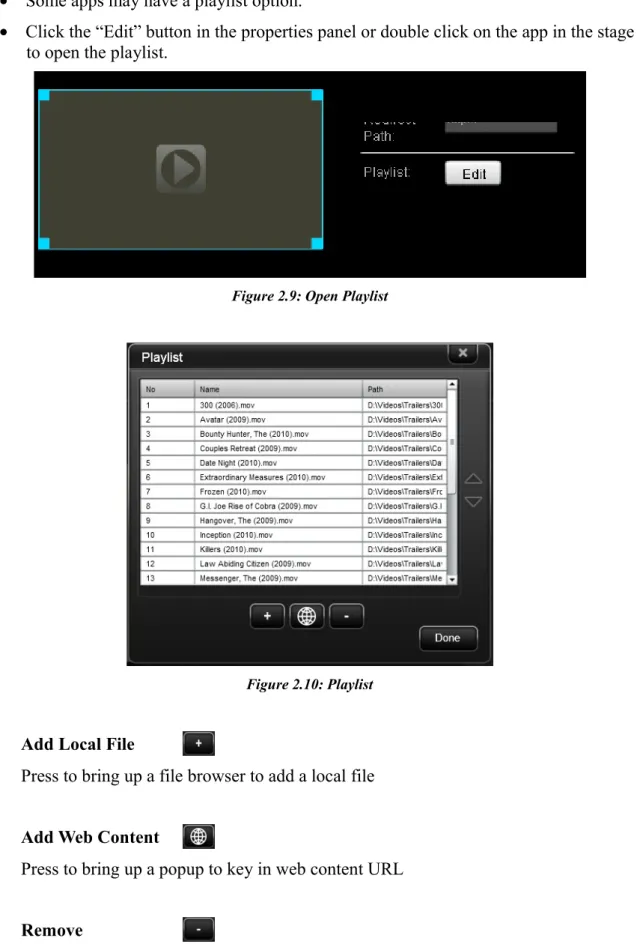
• Some apps may have a playlist option.
• Click the “Edit” button in the properties panel or double click on the app in the stage to open the playlist.
Figure 2.9: Open Playlist
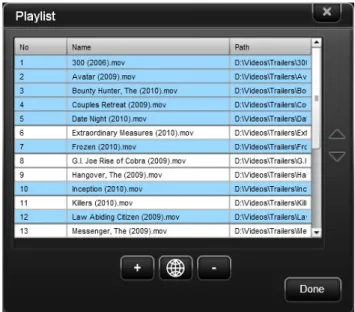
Figure 2.10: Playlist
Add Local File
Press to bring up a file browser to add a local file
Add Web Content
Press to bring up a popup to key in web content URL
Remove
Sort Up
Press to move the currently selected item(s) up
Sort Down
Press to move the currently selected item(s) down
Figure 2.11: Web Link
Pictures with dimensions more than 1280x720 or a file size more than 1MB will be scaled down before the transfer.
Edit Multiple Items
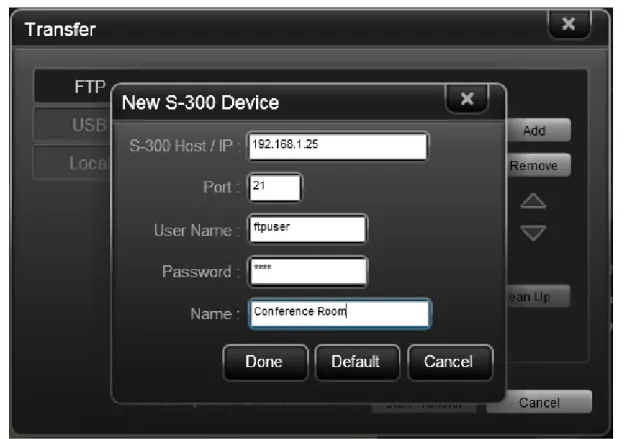
To edit multiple items within the same playlist, hold the control key down and left click all desired items. You can select consecutive items by holding down the shift key and left clicking on the first and last item.
Transfer
After you’ve completed the project's layouts design, press the transfer to bring up the transfer options. There are 3 type of transfers; FTP, USB and local.
FTP Transfer
Figure 3.1: FTP Transfer Popup
You can specify one or more devices to transfer the project to. Click the “Add” button and enter in all the required information to connect to the device(s).
• Host / IP – The hostname or IP address of the S-300 you want to access
• Port – The FTP port for connection (Default is 21; configured on device)
• User Name – The FTP user name (Default device user name is “ftpuser”)
• Password – The FTP password (Default device password is “1234”) There are 5 FTP functions.
• Screen Off – Used to remotely disable the display output
• Screen On – Used to remotely enable the display output
• Reboot – Used to remotely restart the S-300
• Clean Up – Used to remotely erase all content on the internal USB storage device
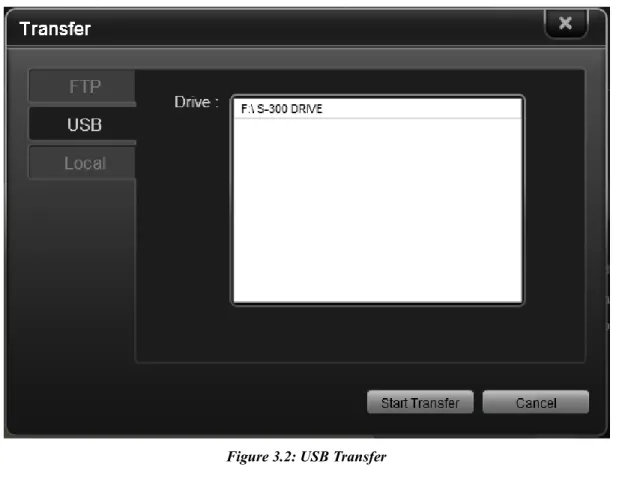
USB Transfer
Figure 3.2: USB Transfer
1. Plug in a USB storage device into your computer’s USB port. 2. The application will detect and display the connected USB devices. 3. Select a drive by clicking on the list.
4. Press start to begin the transfer.
5. Once the transfer is complete, remove the USB storage device from your computer and plug the device into the external USB port on the S-300. The transfer process will automatically start and the project files will be copied onto the internal USB storage drive. NOTE: The transfer process will not start if device is in the setup menu.
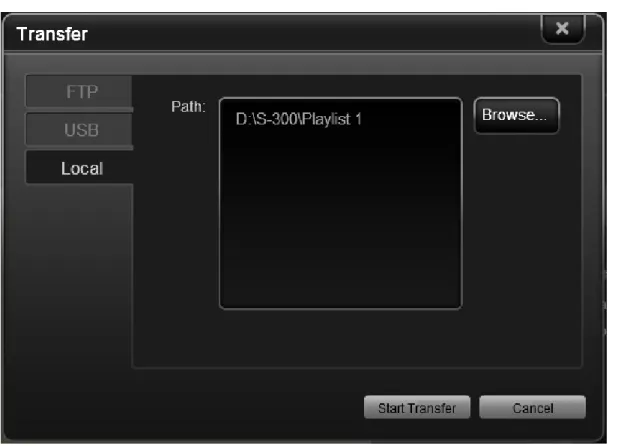
Local Transfer
Figure 3.3: Local Transfer
1. Click the “Browse” button to bring up a file browser. 2. Select a folder to output the current project configuration.
Manage Apps
Figure 4.1: Manage Apps
• All default and imported apps will be shown in the list on the left.
• Users can click on each app to view the app details.
• Users can import new apps by clicking the “Import” button to browse for an app folder. If the app folder contains all necessary files, the app will be imported.
• Users can delete a selected app by clicking the “Delete” button. A confirmation popup will be shown and the app will be deleted if the user selects yes. You cannot delete the default apps.
Settings
Figure 5.1: Application Settings
Users can change the computer application’s settings here.
• Week Start From – Select the first day of the week
• Prompt Before Exit – Enable or disable the exit application prompt
• Prompt For Update – Enable or disable the update notification prompt
• USB Size – Define the size of the USB drive in your S-300 device (Default USB size is 4GB)
• Language – Specify the display language for the computer application
Settings such as “Week Start From” and “Language” require the application to be restarted for the changes to go into effect.
Help and about
Figure 6.1: Help and About
• Users can check for new versions of the computer application manually by clicking the “Update” button.
Default Apps
Clock
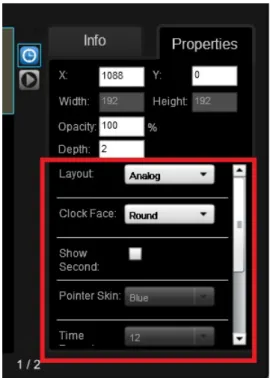
Analog or digital clock Properties:
• Layout – Select either a digital or analog clock display
• Clock Face – Specify a round or rectangle clock face for the analog clock
• Show Second – Enable or disable the seconds counter
• Pointer skin – Select either a green or blue clock hands
• Time Format – Specify a 12 or 24 hour time format for the digital clock
• Time Zone – Specify the time zone
Date
Shows the current date, day and month
Media Player
A media player for all S-300 supported video, audio and picture files in a specified playlist. Properties:
• External Playlist – Specify an external playlist file hosted on an HTTP/HTTPS server.
• Playlist Path – Specify a valid HTTP/HTTPS path for the media player to retrieve an S-300 playlist if the External Playlist option is checked.
• Playlist – Create a playlist of local video, audio and picture files to be uploaded to the device and played in order.
Slideshow
Create a slideshow with your photos (JPG and PNG files only) Properties:
• External Playlist – Specify an external playlist file hosted on an HTTP/HTTPS server.
• Playlist Path – Specify a valid HTTP/HTTPS path for the media player to retrieve an S-300 playlist if the External Playlist option is checked.
• Playlist – Create a list of local picture files to be uploaded to the device and played in order.
• Transition Style – Enable/disable a fade transition effect between images
• Alignment – Specify the image’s alignment in the slideshow app after scaling (Left/Center)
• Scaling Options – Specify what picture scaling method to use:
o Aspect Ratio – Keep the image’s original aspect ratio when resizing to fit the slideshow app’s dimensions.
o Actual Size – Uses the images original size. NOTE: If the picture is larger than
the slideshow app’s window size, aspect ratio scaling will be used.
o Stretch – Stretches the image to fill the entire slideshow app’s dimensions.
Flickr
Display a slideshow using Flickr’s public photos or a user’s photos or user's photos. Properties:
• Public Photo – Set to use Flickr’s public photos for a slideshow
• Search Keyword – Specify a keyword to match against Flickr’s public photos.
• Screen Name – Specify a user's Flickr screen name to use their photos for a slideshow.
• Photo set name – Specify a Flickr user’s photo set to use for a slideshow.
• Transition Style – Enable/disable a fade transition effect between images
• Photo interval – Specify the duration for each image to be displayed.
• Scaling options – Specify what picture scaling method to use
o Aspect Ratio – Keep the image’s original aspect ratio when resizing to fit the slideshow app’s dimensions.
o Actual Size – Uses the images original size. NOTE: If the picture is larger than
the slideshow app’s window size, aspect ratio scaling will be used.
RSS Ticker Tape
Pull an RSS feed and display it in a scrolling ticker tape fashion. Properties:
• RSS Path – URL path for a valid RSS XML feed
• Refresh Time – How often the app should check for RSS feed updates (in minutes)
• Show Icon – Delineate separate messages with the RSS feed icon
• Marquee Speed – Set how fast the ticker tape scrolls across the screen (in pixels per second)
• Gap – Specify how much space is in between each message (in pixels)
• Text Size – Specify the size of the text.
• Text Color – Specify what color the text should be displayed in.
• Enable Background – Enable a solid background color for the RSS Ticker Tape app (unchecked = transparent)
• Background Color – Specify the background color for the RSS Ticker Tape app if enabled.
• Background Opacity – Specify the opacity of the RSS Ticker Tape app if enabled.
Twitter Ticker Tape
Display a Twitter user’s tweets in a scrolling ticker tape fashion. Properties:
• Screen name – Specify which Twitter username to pull tweets from.
• Refresh Time – How often the app should check for new tweets (in minutes)
• Show Icon – Delineate separate messages with the user’s Twitter icon
• Marquee Speed – Set how fast the ticker tape scrolls across the screen (in pixels per second)
• Gap – Specify how much space is in between each message (in pixels)
• Text Size – Specify the size of the text.
• Text Color – Specify what color the text should be displayed in.
• Enable Background – Enable a solid background color for the Twitter Ticker Tape app (unchecked = transparent)
• Background Color – Specify the background color for the Twitter Ticker Tape app if enabled.
Text Ticker Tape
Display a text message in either a static or scrolling ticker tape fashion. Properties:
• Message – Enter the message you want to scroll across the screen.
• Message is in HTML – Specify to render the message as HTML.
• Text Size – Specify the size of the text.
• Text Color – Specify what color the text should be displayed in.
• Enable Background – Enable a solid background color for the Text Ticker Tape app (unchecked = transparent)
• Background Color – Specify the background color for the Text Ticker Tape app if enabled.
• Background Opacity – Specify the opacity of the Text Ticker Tape app if enabled.
• Enable Marquee – Enable marquee scrolling (from right to left)
• Message Align – Specify the message alignment (left, center and right); only available if marquee is not enabled.
• Multiline – Specify if the message is a single line or multiline output.
• Marquee Speed – Set how fast the ticker tape scrolls across the screen (in pixels per second)
• Gap – Specify how much space is in between each message (in pixels)
Weather Bug
Display the current weather for a specific area; powered by WeatherBug.com. Properties:
• City Name / US Zip Code – Specify a city name or US postal code for weather information.
• Temperature Scale – Specify which format should be used; Fahrenheit or Celsius.
• Refresh Time – How often the app should check for updated weather information
• Skin – Specify which UI skin should be used (SilverBlack/Sea Green).
• Show Location – Enable to indicate the location in the app
• Show Today Weather – Enable to show the weather forecast for the entire day
• Show Forecast – Enable to show the weather forecast for the following days