Proliphix
Remote Management
User Guide
Rev 1.1 Page 2 of 13
Table of Contents
1.
Intended Audience... 3
2.
Remote Management... 4
3.
Remote Management Interface (RMI)... 5
3.1. Accessing
My
Account ... 5
3.2. Device
List
Page ... 7
3.3.
Account Profile Page ... 9
3.4. Downloads
Page... 10
3.5.
Device Statistics Page ... 11
3.6. TMI
Page ... 12
Rev 1.1 Page 3 of 13
1. Intended Audience
The Remote Management User Guide is intended to be read by customers who own either the Basic Series or Professional Series Network Thermostats and who wish to remotely manage their thermostats through secure authentication at the Proliphix web site.
If you own one or more Basic Series thermostats (e.g. NT20e) and they were NOT installed by an authorized Proliphix Installer/dealer, you must complete all the steps in the Proliphix Remote Management Setup Guide before you may manage your thermostats remotely as described in this manual. Please complete the Remote Management Provisioning Procedure before you continue in this Guide.
If you own one or more of either the Basic Series (NT20e) or Professional Series (NT120e) Thermostats and they were installed by an Authorized Proliphix Installer, you may use this guide to assist you in remotely managing your thermostats.
! Note !
If a VPN is used to access your thermostats remotely, they will appear to reside on your “local” network. You will therefore not need to control them through the Proliphix Remote Management Service via the Proliphix web site. However, email notification due to alarm conditions will NOT be available with VPN use.
Rev 1.1 Page 4 of 13
2. Remote Management
The Proliphix Network Thermostats were designed specifically to communicate directly over the Internet using the Internet Protocol (IP). This capability allows the user to securely access, manage and control their thermostats from anywhere in the world with the use of common web browser.
To provide this Remote Management capability, Proliphix has invested significantly to develop a software application running on a secure and highly reliable web server which intercommunicates to registered Proliphix Thermostats on a periodic interval to ensure that each thermostat is “reachable” by any web browser throughout the internet.
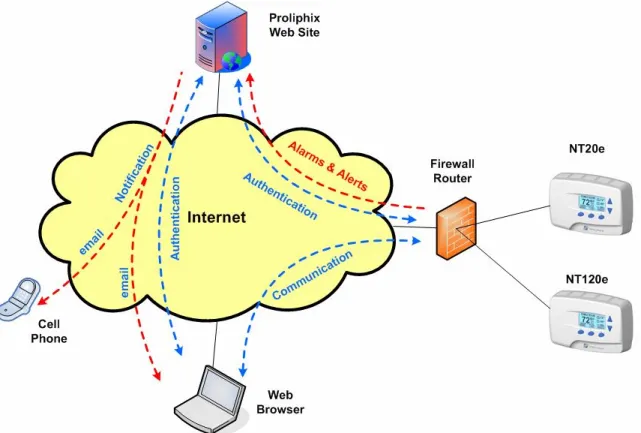
This Server Software provides user authentication, IP address independence and email alarm notification. In Figure 1 below, a user on a web browser somewhere accessible to the Internet, logs onto the Proliphix web site. After the user has authenticated as a registered Proliphix thermostat owner, the server communicates to the thermostat to open a secure channel between the user’s web browser and the desired thermostat. Communication between the user and their thermostat can then be invoked by the user through the Remote Management GUI. The user simply clicks on links in the browser to access his/her thermostats with no knowledge of IP addressing.
Figure 1 – Remote Management and Control
Additionally, alarms or alerts detected at the thermostats are communicated immediately to the Proliphix web Server Software for processing. Notification of these alarms and exception conditions are then communicated to the user (or their agents) via email to either their cell phones or standard email accounts.
Rev 1.1 Page 5 of 13
3. Remote Management Interface (RMI)
After your thermostats have successfully connected with the Proliphix Server Software, you may access the Proliphix web site (www.proliphix.com) with your account information to manage your thermostat over the Internet.
3.1. Accessing My Account
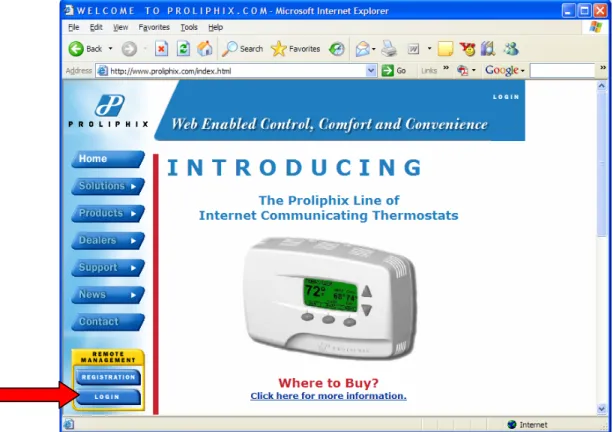
Press the LOGIN button in the Remote Management button group on the Proliphix home page to access the Login Page.
Figure 1 – Proliphix Home Page
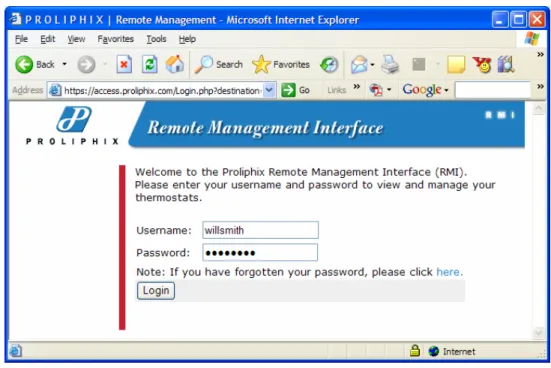
Enter your assigned username and password to access your account. If you registered your NT20e thermostat with Proliphix, you were assigned an initial username and password by Proliphix.
If your thermostats were installed by an authorized Proliphix Installer/Dealer, you will be assigned a username and password by them.
Rev 1.1 Page 6 of 13
Figure 2 – Remote Management Login Page
Note that in Figure 2 you have an option to have the Server Software re-issue another password if your password has been forgotten. A new password will be administered to the email address associated with the account.
Rev 1.1 Page 7 of 13
3.2. Device List Page
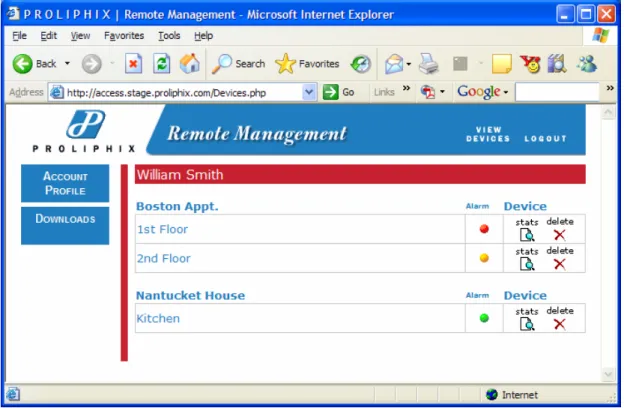
After successful authentication after you login, you will be directed to your Device List Page. The Device List Page is organized in tables. There are as many tables as there are sites (i.e. properties) defined by the user.
In the example in Figure 4, the customer William Smith owns two properties, one in Boston and the other on Nantucket Island. The thermostats for each property are represented in rows in each table. There are two thermostats in Smith’s Boston property, 1st Floor and 2nd Floor. The Kitchen thermostat is the only thermostat in his Nantucket property.
Figure 4 – Device List Page
Button Definitions
Account Profile:
Page which includes the user’s (e.g. William Smith) editable account information Downloads:
Page which includes utilities for downloading software upgrades for the thermostat. View Devices:
Displays Device List Page. Logout:
Rev 1.1 Page 8 of 13
Device List Field Definitions (see Figure 4 above) Zone Name: (e.g. 1st Floor)
- Name given to each thermostat within the Thermostat Management Interface (TMI). The coloring of the name represents its status;
Blue – The thermostat is reachable for remote management. It continues to successfully intercommunicate with the Proliphix Server Software. If this name is blue, the link is active and the TMI Status & Control (default) page for that thermostat will be viewed.
Orange – The thermostat is unreachable. The thermostat has successfully notified the
server of its existence, but the Server Software is unable to respond to the thermostat. This is usually an indication that the user’s firewall router has inhibited access to the thermostat.
Red – The thermostat is unreachable. The Server Software has not received periodic messaging from the thermostat. It is likely that the thermostat and the Server Software maintained a connection at one time but now that connection has been lost.
Alarm: (or alert notification)
- Color indicator signifying type of alarm received by this thermostat. Currently there are two classes of alarms communicated by the thermostat to the Server Software. The colors of this thermostat include;
Green - There are no alarms pending.
Red – This is the highest severity level alarm. A Low Temperature Alarm is an example of an alarm at this severity level. If the thermostat experiences a Low
Temperature Alarm this indicator will take precedence over a Yellow indicator. Yellow - This is the lowest severity level alarm. A Filter Change Reminder alert is an
example of this severity level. This alarm will be pre-empted by a red alarm condition.
Device Stats:
- Directs the user to the Device Statistics Page. Information on this page includes thermostat statistics, remote management statistics, notification email accounts and alarm status details. (See Section 3.5)
Rev 1.1 Page 9 of 13
3.3.
Account Profile Page
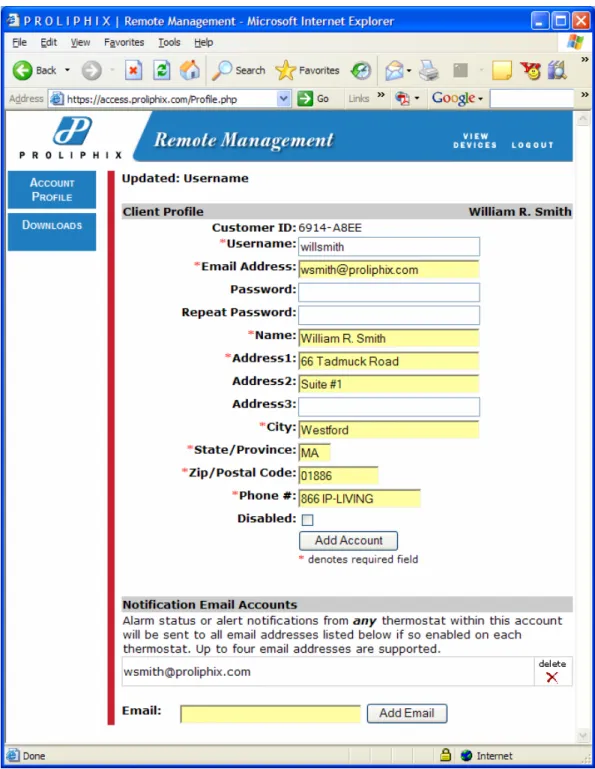
It is within the Account Profile Page that the user can change the account username and password. Other contact information must be provided to ensure Remote Management privileges. On this page the user may also set up to four email addresses which will be notified upon the occurrence of any thermostat alarm or alert associated with this account (i.e. 1st Floor, 2nd Floor, Kitchen).
Rev 1.1 Page 10 of 13
3.4. Downloads Page
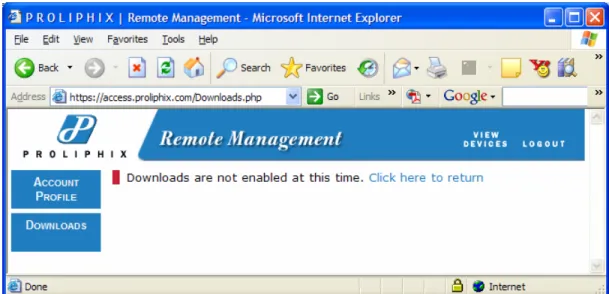
The Downloads page contains links to both the Proliphix Upgrader utility and its associated documentation. The Upgrader Utility is a Proliphix application which allows the user the ability to upgrade their thermostats with the latest software features and functions either locally on the same network, or remotely via the Internet.
This page will be updated as new features, functions and products are released.
Rev 1.1 Page 11 of 13
3.5. Device Statistics Page
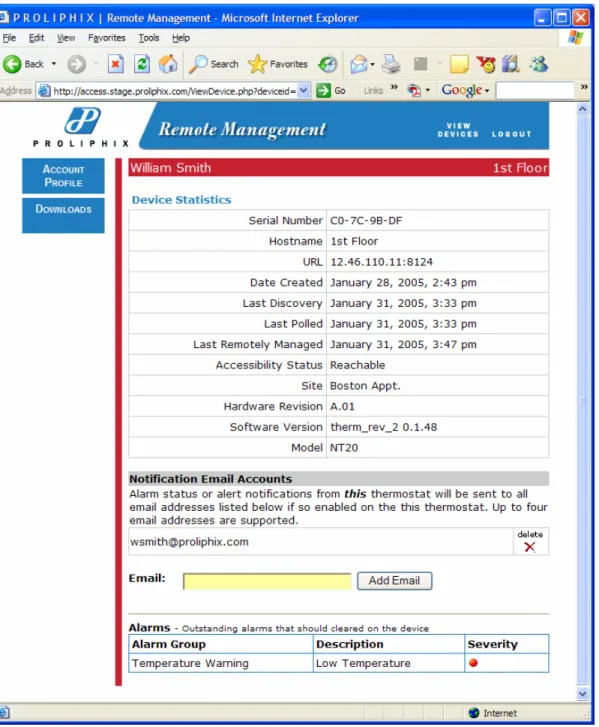
This Page displays pertinent thermostat specific Remote Management information. Specifically it contains the thermostat serial number, its last know WAN IP address and port number, the last known discovery exchange, and the time the thermostat was remotely managed.
In addition, pending alarms are described more specifically and email accounts for alarm notification can be added.
Rev 1.1 Page 12 of 13
3.6. TMI Page
The Thermostat Management Interface (TMI) Page contains two components, the Remote Management Header and the thermostat TMI. The Remote Management Header allows the user to be able to return back to the Device List Page (“View Devices” button) to continue viewing other thermostats. The TMI is the same TMI used to manage the thermostat on the local network.
The Nantucket Kitchen NT20e thermostat (TMI) is shown in Figure 8 below.
Rev 1.1 Page 13 of 13
4. Customer Assistance
When contacting Proliphix for technical assistance, please have the following information available: 1. Thermostat model and serial number.
2. Type of heating/cooling system (example: gas, oil, or electric; warm air, hot water, heat pump, steam or gravity)
3. Location and number of wires attached to thermostat
For additional assistance, please contact Proliphix Technical Support using the following: