Step-by-Step Programming with
Base SAS
®The correct bibliographic citation for this manual is as follows: SAS Institute Inc. 2001.Step-by-Step Programming with Base SAS®Software. Cary, NC: SAS Institute Inc. Step-by-Step Programming with Base SAS®Software
Copyright © 2001 by SAS Institute Inc., Cary, NC, USA. ISBN 978-1-58025-791-6
All rights reserved. Produced in the United States of America.
For a hard-copy book: No part of this publication may be reproduced, stored in a retrieval system, or transmitted, in any form or by any means, electronic, mechanical, photocopying, or otherwise, without the prior written permission of the publisher, SAS Institute Inc.
For a Web download or e-book: Your use of this publication shall be governed by the terms established by the vendor at the time you acquire this publication.
U.S. Government Restricted Rights Notice. Use, duplication, or disclosure of this software and related documentation by the U.S. government is subject to the Agreement with SAS Institute and the restrictions set forth in FAR 52.227-19 Commercial Computer Software-Restricted Rights (June 1987).
SAS Institute Inc., SAS Campus Drive, Cary, North Carolina 27513. February 2007
SAS®Publishing provides a complete selection of books and electronic products to help customers use SAS software to its fullest potential. For more information about our e-books, e-learning products, CDs, and hard-copy books, visit the SAS Publishing Web site atsupport.sas.com/pubsor call 1-800-727-3228.
SAS®and all other SAS Institute Inc. product or service names are registered trademarks or trademarks of SAS Institute Inc. in the USA and other countries. ®indicates USA
registration.
Contents
P A R T
1
Introduction to the SAS System
1
Chapter 1
4
What Is the SAS System?
3
Introduction to the SAS System 3 Components of Base SAS Software 4 Output Produced by the SAS System 8 Ways to Run SAS Programs 11
Running Programs in the SAS Windowing Environment 13 Review of SAS Tools 15
Learning More 16
P A R T
2
Getting Your Data into Shape
17
Chapter 2
4
Introduction to DATA Step Processing
19
Introduction to DATA Step Processing 20
The SAS Data Set: Your Key to the SAS System 20 How the DATA Step Works: A Basic Introduction 26 Supplying Information to Create a SAS Data Set 33 Review of SAS Tools 41
Learning More 41
Chapter 3
4
Starting with Raw Data: The Basics
43
Introduction to Raw Data 44
Examine the Structure of the Raw Data: Factors to Consider 44 Reading Unaligned Data 44
Reading Data That Is Aligned in Columns 47 Reading Data That Requires Special Instructions 50 Reading Unaligned Data with More Flexibility 53 Mixing Styles of Input 55
Review of SAS Tools 58 Learning More 59
Chapter 4
4
Starting with Raw Data: Beyond the Basics
61
Introduction to Beyond the Basics with Raw Data 61 Testing a Condition before Creating an Observation 62 Creating Multiple Observations from a Single Record 63 Reading Multiple Records to Create a Single Observation 67
Problem Solving: When an Input Record Unexpectedly Does Not Have Enough Values 74
iv
Chapter 5
4
Starting with SAS Data Sets
81
Introduction to Starting with SAS Data Sets 81 Understanding the Basics 82
Input SAS Data Set for Examples 82 Reading Selected Observations 84 Reading Selected Variables 85
Creating More Than One Data Set in a Single DATA Step 89 Using the DROP= and KEEP= Data Set Options for Efficiency 91 Review of SAS Tools 92
Learning More 93
P A R T
3
Basic Programming
95
Chapter 6
4
Understanding DATA Step Processing
97
Introduction to DATA Step Processing 97 Input SAS Data Set for Examples 97 Adding Information to a SAS Data Set 98
Defining Enough Storage Space for Variables 103 Conditionally Deleting an Observation 104 Review of SAS Tools 105
Learning More 105
Chapter 7
4
Working with Numeric Variables
107
Introduction to Working with Numeric Variables 107 About Numeric Variables in SAS 108
Input SAS Data Set for Examples 108 Calculating with Numeric Variables 109 Comparing Numeric Variables 113 Storing Numeric Variables Efficiently 115 Review of SAS Tools 116
Learning More 117
Chapter 8
4
Working with Character Variables
119
Introduction to Working with Character Variables 119 Input SAS Data Set for Examples 120
Identifying Character Variables and Expressing Character Values 121 Setting the Length of Character Variables 122
Handling Missing Values 124 Creating New Character Values 127
Saving Storage Space by Treating Numbers as Characters 134 Review of SAS Tools 135
Learning More 136
Chapter 9
4
Acting on Selected Observations
139
v
Selecting Observations 141 Constructing Conditions 145 Comparing Characters 152 Review of SAS Tools 156 Learning More 157
Chapter 10
4
Creating Subsets of Observations
159
Introduction to Creating Subsets of Observations 159 Input SAS Data Set for Examples 160
Selecting Observations for a New SAS Data Set 161
Conditionally Writing Observations to One or More SAS Data Sets 164 Review of SAS Tools 170
Learning More 170
Chapter 11
4
Working with Grouped or Sorted Observations
173
Introduction to Working with Grouped or Sorted Observations 173 Input SAS Data Set for Examples 174
Working with Grouped Data 175 Working with Sorted Data 181 Review of SAS Tools 185 Learning More 186
Chapter 12
4
Using More Than One Observation in a Calculation
187
Introduction to Using More Than One Observation in a Calculation 187 Input File and SAS Data Set for Examples 188
Accumulating a Total for an Entire Data Set 189 Obtaining a Total for Each BY Group 191
Writing to Separate Data Sets 193
Using a Value in a Later Observation 196 Review of SAS Tools 199
Learning More 200
Chapter 13
4
Finding Shortcuts in Programming
201
Introduction to Shortcuts 201 Input File and SAS Data Set 201
Performing More Than One Action in an IF-THEN Statement 202 Performing the Same Action for a Series of Variables 204
Review of SAS Tools 207 Learning More 209
Chapter 14
4
Working with Dates in the SAS System
211
Introduction to Working with Dates 211 Understanding How SAS Handles Dates 212 Input File and SAS Data Set for Examples 213 Entering Dates 214
Displaying Dates 217
vi
Using SAS Date Functions 223
Comparing Durations and SAS Date Values 225 Review of SAS Tools 227
Learning More 228
P A R T
4
Combining SAS Data Sets
231
Chapter 15
4
Methods of Combining SAS Data Sets
233
Introduction to Combining SAS Data Sets 233 Definition of Concatenating 234
Definition of Interleaving 234 Definition of Merging 235 Definition of Updating 236 Definition of Modifying 237
Comparing Modifying, Merging, and Updating Data Sets 238 Learning More 239
Chapter 16
4
Concatenating SAS Data Sets
241
Introduction to Concatenating SAS Data Sets 241 Concatenating Data Sets with the SET Statement 242 Concatenating Data Sets Using the APPEND Procedure 255
Choosing between the SET Statement and the APPEND Procedure 259 Review of SAS Tools 260
Learning More 260
Chapter 17
4
Interleaving SAS Data Sets
263
Introduction to Interleaving SAS Data Sets 263 Understanding BY-Group Processing Concepts 263 Interleaving Data Sets 264
Review of SAS Tools 267 Learning More 267
Chapter 18
4
Merging SAS Data Sets
269
Introduction to Merging SAS Data Sets 270 Understanding the MERGE Statement 270 One-to-One Merging 270
Match-Merging 276
Choosing between One-to-One Merging and Match-Merging 286 Review of SAS Tools 290
Learning More 290
Chapter 19
4
Updating SAS Data Sets
293
vii
Updating with Incremental Values 300
Understanding the Differences between Updating and Merging 302 Handling Missing Values 305
Review of SAS Tools 308 Learning More 309
Chapter 20
4
Modifying SAS Data Sets
311
Introduction 311
Input SAS Data Set for Examples 312
Modifying a SAS Data Set: The Simplest Case 313
Modifying a Master Data Set with Observations from a Transaction Data Set 314 Understanding How Duplicate BY Variables Affect File Update 317
Handling Missing Values 319 Review of SAS Tools 320 Learning More 321
Chapter 21
4
Conditionally Processing Observations from Multiple SAS Data Sets
323
Introduction to Conditional Processing from Multiple SAS Data Sets 323 Input SAS Data Sets for Examples 324
Determining Which Data Set Contributed the Observation 326 Combining Selected Observations from Multiple Data Sets 328 Performing a Calculation Based on the Last Observation 330 Review of SAS Tools 332
Learning More 332
P A R T
5
Understanding Your SAS Session
333
Chapter 22
4
Analyzing Your SAS Session with the SAS Log
335
Introduction to Analyzing Your SAS Session with the SAS Log 335 Understanding the SAS Log 336
Locating the SAS Log 337
Understanding the Log Structure 337 Writing to the SAS Log 339
Suppressing Information to the SAS Log 341 Changing the Log’s Appearance 344
Review of SAS Tools 346 Learning More 346
Chapter 23
4
Directing SAS Output and the SAS Log
349
Introduction to Directing SAS Output and the SAS Log 349 Input File and SAS Data Set for Examples 350
Routing the Output and the SAS Log with PROC PRINTTO 351
Storing the Output and the SAS Log in the SAS Windowing Environment 353 Redefining the Default Destination in a Batch or Noninteractive Environment 354 Review of SAS Tools 355
viii
Chapter 24
4
Diagnosing and Avoiding Errors
357
Introduction to Diagnosing and Avoiding Errors 357 Understanding How the SAS Supervisor Checks a Job 357 Understanding How SAS Processes Errors 358
Distinguishing Types of Errors 358 Diagnosing Errors 359
Using a Quality Control Checklist 366 Learning More 366
P A R T
6
Producing Reports
369
Chapter 25
4
Producing Detail Reports with the PRINT Procedure
371
Introduction to Producing Detail Reports with the PRINT Procedure 372 Input File and SAS Data Sets for Examples 372
Creating Simple Reports 373 Creating Enhanced Reports 381 Creating Customized Reports 391
Making Your Reports Easy to Change 399 Review of SAS Tools 402
Learning More 405
Chapter 26
4
Creating Summary Tables with the TABULATE Procedure
407
Introduction to Creating Summary Tables with the TABULATE Procedure 408 Understanding Summary Table Design 408
Understanding the Basics of the TABULATE Procedure 410 Input File and SAS Data Set for Examples 412
Creating Simple Summary Tables 413
Creating More Sophisticated Summary Tables 419 Review of SAS Tools 431
Learning More 433
Chapter 27
4
Creating Detail and Summary Reports with the REPORT Procedure
435
Introduction to Creating Detail and Summary Reports with the REPORT Procedure 436
Understanding How to Construct a Report 436 Input File and SAS Data Set for Examples 438 Creating Simple Reports 439
Creating More Sophisticated Reports 446 Review of SAS Tools 454
Learning More 458
P A R T
7
Producing Plots and Charts
461
Chapter 28
4
Plotting the Relationship between Variables
463
ix
Plotting One Set of Variables 466 Enhancing the Plot 468
Plotting Multiple Sets of Variables 473 Review of SAS Tools 480
Learning More 481
Chapter 29
4
Producing Charts to Summarize Variables
483
Introduction to Producing Charts to Summarize Variables 484 Understanding the Charting Tools 484
Input File and SAS Data Set for Examples 485 Charting Frequencies with the CHART Procedure 487 Customizing Frequency Charts 494
Creating High-Resolution Histograms 503 Review of SAS Tools 514
Learning More 518
P A R T
8
Designing Your Own Output
519
Chapter 30
4
Writing Lines to the SAS Log or to an Output File
521
Introduction to Writing Lines to the SAS Log or to an Output File 521 Understanding the PUT Statement 522
Writing Output without Creating a Data Set 522 Writing Simple Text 523
Writing a Report 528 Review of SAS Tools 535 Learning More 536
Chapter 31
4
Understanding and Customizing SAS Output: The Basics
537
Introduction to the Basics of Understanding and Customizing SAS Output 538 Understanding Output 538
Input SAS Data Set for Examples 540 Locating Procedure Output 541 Making Output Informative 542 Controlling Output Appearance 548 Controlling the Appearance of Pages 550 Representing Missing Values 561
Review of SAS Tools 563 Learning More 564
Chapter 32
4
Understanding and Customizing SAS Output: The Output Delivery System
(ODS)
565
Introduction to Customizing SAS Output by Using the Output Delivery System 565 Input Data Set for Examples 566
Understanding ODS Output Formats and Destinations 567 Selecting an Output Format 568
x
Selecting the Output That You Want to Format 577 Customizing ODS Output 585
Storing Links to ODS Output 589 Review of SAS Tools 590
Learning More 592
P A R T
9
Storing and Managing Data in SAS Files
593
Chapter 33
4
Understanding SAS Data Libraries
595
Introduction to Understanding SAS Data Libraries 595 What Is a SAS Data Library? 596
Accessing a SAS Data Library 596 Storing Files in a SAS Data Library 598
Referencing SAS Data Sets in a SAS Data Library 599 Review of SAS Tools 601
Learning More 601
Chapter 34
4
Managing SAS Data Libraries
603
Introduction 603
Choosing Your Tools 603
Understanding the DATASETS Procedure 604 Looking at a PROC DATASETS Session 605 Review of SAS Tools 606
Learning More 606
Chapter 35
4
Getting Information about Your SAS Data Sets
607
Introduction to Getting Information about Your SAS Data Sets 607 Input Data Library for Examples 608
Requesting a Directory Listing for a SAS Data Library 608 Requesting Contents Information about SAS Data Sets 610 Requesting Contents Information in Different Formats 613 Review of SAS Tools 615
Learning More 615
Chapter 36
4
Modifying SAS Data Set Names and Variable Attributes
617
Introduction to Modifying SAS Data Set Names and Variable Attributes 617 Input Data Library for Examples 618
Renaming SAS Data Sets 618 Modifying Variable Attributes 619 Review of SAS Tools 626
Learning More 627
Chapter 37
4
Copying, Moving, and Deleting SAS Data Sets
629
Introduction to Copying, Moving, and Deleting SAS Data Sets 629 Input Data Libraries for Examples 630
xi
Copying Specific SAS Data Sets 634
Moving SAS Data Libraries and SAS Data Sets 635 Deleting SAS Data Sets 637
Deleting All Files in a SAS Data Library 639 Review of SAS Tools 640
Learning More 640
P A R T
10
Understanding Your SAS Environment
641
Chapter 38
4
Introducing the SAS Environment
643
Introduction to the SAS Environment 644 Starting a SAS Session 645
Selecting a SAS Processing Mode 645 Review of SAS Tools 652
Learning More 654
Chapter 39
4
Using the SAS Windowing Environment
655
Introduction to Using the SAS Windowing Environment 657 Getting Organized 657
Finding Online Help 660
Using SAS Windowing Environment Command Types 660 Working with SAS Windows 663
Working with Text 667 Working with Files 671
Working with SAS Programs 676 Working with Output 682
Review of SAS Tools 690 Learning More 692
Chapter 40
4
Customizing the SAS Environment
693
Introduction to Customizing the SAS Environment 694 Customizing Your Current Session 695
Customizing Session-to-Session Settings 698 Customizing the SAS Windowing Environment 702 Review of SAS Tools 707
Learning More 708
P A R T
11
Appendix
709
Appendix 1
4
Additional Data Sets
711
Introduction 711 Data Set CITY 712
Raw Data Used for “Understanding Your SAS Session” Section 713 Data Set SAT_SCORES 714
xii
Data Set GRADES 717
Data Sets for “Storing and Managing Data in SAS Files” Section 718
Glossary
723
1
P A R T
1
Introduction to the SAS System
3
C H A P T E R
1
What Is the SAS System?
Introduction to the SAS System 3
Components of Base SAS Software 4
Overview of Base SAS Software 4
Data Management Facility 4
Programming Language 5
Elements of the SAS Language 5
Rules for SAS Statements 6
Rules for Most SAS Names 6
Special Rules for Variable Names 6
Data Analysis and Reporting Utilities 6
Output Produced by the SAS System 8
Traditional Output 8
Output from the Output Delivery System (ODS) 9
Ways to Run SAS Programs 11
Selecting an Approach 11
SAS Windowing Environment 11
SAS/ASSIST Software 12
Noninteractive Mode 12
Batch Mode 12
Interactive Line Mode 13
Running Programs in the SAS Windowing Environment 13
Review of SAS Tools 15
Statements 15
Procedures 15
Learning More 16
Introduction to the SAS System
SAS is an integrated system of software solutions that enables you to perform the following tasks:
3 data entry, retrieval, and management 3 report writing and graphics design 3 statistical and mathematical analysis 3 business forecasting and decision support 3 operations research and project management 3 applications development
4 Components of Base SAS Software 4 Chapter 1
At the core of the SAS System is Base SAS software which is the software product that you will learn to use in this documentation. This section presents an overview of Base SAS. It introduces the capabilities of Base SAS, addresses methods of running SAS, and outlines various types of output.
Components of Base SAS Software
Overview of Base SAS Software
Base SAS software contains the following: 3 a data management facility3 a programming language
3 data analysis and reporting utilities
Learning to use Base SAS enables you to work with these features of SAS. It also prepares you to learn other SAS products, because all SAS products follow the same basic rules.
Data Management Facility
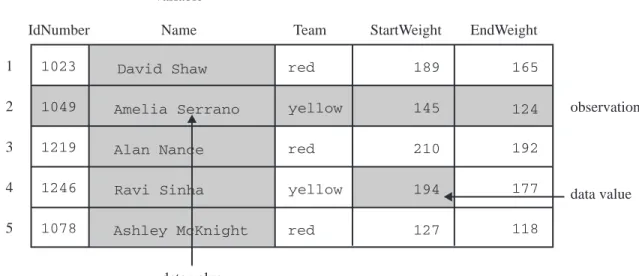
SAS organizes data into a rectangular form or table that is called aSAS data set. The following figure shows a SAS data set. The data describes participants in a 16-week weight program at a health and fitness club. The data for each participant includes an identification number, name, team name, and weight (in U.S. pounds) at the beginning and end of the program.
Figure 1.1 Rectangular Form of a SAS Data Set
IdNumber 1023 1049 1219 1246 1078 1 2 3 4 5 StartWeight Team Name variable data value EndWeight David Shaw Amelia Serrano Alan Nance Ravi Sinha Ashley McKnight red yellow red yellow red 189 145 210 194 127 165 124 192 177 118 data value observation
What Is the SAS System? 4 Programming Language 5
an observation contains all the data values for an entity; a variable contains the same type of data value for all entities.
To build a SAS data set with Base SAS, you write a program that uses statements in the SAS programming language. A SAS program that begins with a DATA statement and typically creates a SAS data set or a report is called aDATA step.
The following SAS program creates a SAS data set named WEIGHT_CLUB from the health club data:
data weight_club; u
input IdNumber 1-4 Name $ 6-24 Team $ StartWeight EndWeight; v Loss=StartWeight-EndWeight; w
datalines; x
1023 David Shaw red 189 165 y 1049 Amelia Serrano yellow 145 124 y 1219 Alan Nance red 210 192 y 1246 Ravi Sinha yellow 194 177 y 1078 Ashley McKnight red 127 118 y ; U
run;
The following list corresponds to the numbered items in the preceding program:
uThe DATA statement tells SAS to begin building a SAS data set named WEIGHT_CLUB.
vThe INPUT statement identifies the fields to be read from the input data and names the SAS variables to be created from them (IdNumber, Name, Team, StartWeight, and EndWeight).
wThe third statement is an assignment statement. It calculates the weight each person lost and assigns the result to a new variable, Loss.
xThe DATALINES statement indicates that data lines follow.
yThe data lines follow the DATALINES statement. This approach to processing raw data is useful when you have only a few lines of data. (Later sections show ways to access larger amounts of data that are stored in files.)
UThe semicolon signals the end of the raw data, and is a step boundary. It tells SAS that the preceding statements are ready for execution.
Note: By default, the data set WEIGHT_CLUB is temporary; that is, it exists only for the current job or session. For information about how to create a permanent SAS data set, see Chapter 2, “Introduction to DATA Step Processing,” on page 19. 4
Programming Language
Elements of the SAS Language
The statements that created the data set WEIGHT_CLUB are part of the SAS programming language. The SAS language contains statements, expressions, functions and CALL routines, options, formats, and informats – elements that many
6 Data Analysis and Reporting Utilities 4 Chapter 1
Rules for SAS Statements
The conventions that are shown in the programs in this documentation, such as indenting of subordinate statements, extra spacing, and blank lines, are for the purpose of clarity and ease of use. They are not required by SAS. There are only a few rules for writing SAS statements:
3 SAS statements end with a semicolon.
3 You can enter SAS statements in lowercase, uppercase, or a mixture of the two. 3 You can begin SAS statements in any column of a line and write several
statements on the same line.
3 You can begin a statement on one line and continue it on another line, but you cannot split a word between two lines.
3 Words in SAS statements are separated by blanks or by special characters (such as the equal sign and the minus sign in the calculation of the Loss variable in the WEIGHT_CLUB example).
Rules for Most SAS Names
SAS names are used for SAS data set names, variable names, and other items. The following rules apply:
3 A SAS name can contain from one to 32 characters. 3 The first character must be a letter or an underscore (_).
3 Subsequent characters must be letters, numbers, or underscores. 3 Blanks cannot appear in SAS names.
Special Rules for Variable Names
For variable names only, SAS remembers the combination of uppercase and
lowercase letters that you use when you create the variable name. Internally, the case of letters does not matter. “CAT,” “cat,” and “Cat” all represent the same variable. But for presentation purposes, SAS remembers the initial case of each letter and uses it to represent the variable name when printing it.
Data Analysis and Reporting Utilities
The SAS programming language is both powerful and flexible. You can program any number of analyses and reports with it. SAS can also simplify programming for you with its library of built-in programs known asSAS procedures. SAS procedures use data values from SAS data sets to produce preprogrammed reports, requiring minimal effort from you.
For example, the following SAS program produces a report that displays the values of the variables in the SAS data set WEIGHT_CLUB. Weight values are presented in U.S. pounds.
options linesize=80 pagesize=60 pageno=1 nodate;
proc print data=weight_club; title ’Health Club Data’; run;
What Is the SAS System? 4 Data Analysis and Reporting Utilities 7
Output 1.1 Displaying the Values in a SAS Data Set
Health Club Data 1
Id Start End
Obs Number Name Team Weight Weight Loss
1 1023 David Shaw red 189 165 24
2 1049 Amelia Serrano yellow 145 124 21
3 1219 Alan Nance red 210 192 18
4 1246 Ravi Sinha yellow 194 177 17
5 1078 Ashley McKnight red 127 118 9
To produce a table showing mean starting weight, ending weight, and weight loss for each team, use the TABULATE procedure.
options linesize=80 pagesize=60 pageno=1 nodate;
proc tabulate data=weight_club; class team;
var StartWeight EndWeight Loss;
table team, mean*(StartWeight EndWeight Loss); title ’Mean Starting Weight, Ending Weight,’; title2 ’and Weight Loss’;
run;
The following output shows the results:
Output 1.2 Table of Mean Values for Each Team
Mean Starting Weight, Ending Weight, 1
and Weight Loss
---| | Mean |
| |---|
| |StartWeight | EndWeight | Loss |
|---+---+---+---|
|Team | | | |
|---| | | |
|red | 175.33| 158.33| 17.00|
|---+---+---+---|
|yellow | 169.50| 150.50| 19.00|
---A portion of a S---AS program that begins with a PROC (procedure) statement and ends with a RUN statement (or is ended by another PROC or DATA statement) is called a
PROC step. Both of the PROC steps that create the previous two outputs comprise the following elements:
3 a PROC statement, which includes the word PROC, the name of the procedure you want to use, and the name of the SAS data set that contains the values. (If you omit the DATA= option and data set name, the procedure uses the SAS data set that was most recently created in the program.)
8 Output Produced by the SAS System 4 Chapter 1
3 a RUN statement, which indicates that the preceding group of statements is ready to be executed.
Output Produced by the SAS System
Traditional Output
A SAS program can produce some or all of the following kinds of output:
a SAS data set
contains data values that are stored as a table of observations and variables. It also stores descriptive information about the data set, such as the names and arrangement of variables, the number of observations, and the creation date of the data set. A SAS data set can be temporary or permanent. The examples in this section create the temporary data set WEIGHT_CLUB.
the SAS log
is a record of the SAS statements that you entered and of messages from SAS about the execution of your program. It can appear as a file on disk, a display on your monitor, or a hardcopy listing. The exact appearance of the SAS log varies according to your operating environment and your site. The output in Output 1.3 shows a typical SAS log for the program in this section.
a report or simple listing
ranges from a simple listing of data values to a subset of a large data set or a complex summary report that groups and summarizes data and displays statistics. The appearance of procedure output varies according to your site and the options that you specify in the program, but the output in Output 1.1 and Output 1.2 illustrate typical procedure output. You can also use a DATA step to produce a completely customized report (see “Creating Customized Reports” on page 391).
other SAS files such as catalogs
contain information that cannot be represented as tables of data values. Examples of items that can be stored in SAS catalogs include function key settings, letters that are produced by SAS/FSP software, and displays that are produced by SAS/GRAPH software.
external files or entries in other databases
What Is the SAS System? 4 Output from the Output Delivery System (ODS) 9
Output 1.3 Traditional Output: A SAS Log
NOTE: PROCEDURE PRINTTO used:
real time 0.02 seconds
cpu time 0.01 seconds
22
23 options pagesize=60 linesize=80 pageno=1 nodate; 24
25 data weight_club;
26 input IdNumber 1-4 Name $ 6-24 Team $ StartWeight EndWeight; 27 Loss=StartWeight-EndWeight;
28 datalines;
NOTE: The data set WORK.WEIGHT_CLUB has 5 observations and 6 variables. NOTE: DATA statement used:
real time 0.14 seconds
cpu time 0.07 seconds
34 ; 35 36
37 proc tabulate data=weight_club; 38 class team;
39 var StartWeight EndWeight Loss;
40 table team, mean*(StartWeight EndWeight Loss); 41 title ’Mean Starting Weight, Ending Weight,’; 42 title2 ’and Weight Loss’;
43 run;
NOTE: There were 5 observations read from the data set WORK.WEIGHT_CLUB. NOTE: PROCEDURE TABULATE used:
real time 0.18 seconds
cpu time 0.09 seconds
44 proc printto; run;
Output from the Output Delivery System (ODS)
The Output Delivery System (ODS) enables you to produce output in a variety of formats, such as
3 an HTML file
3 a traditional SAS Listing (monospace) 3 a PostScript file
3 an RTF file (for use with Microsoft Word) 3 an output data set
10 Output from the Output Delivery System (ODS) 4 Chapter 1
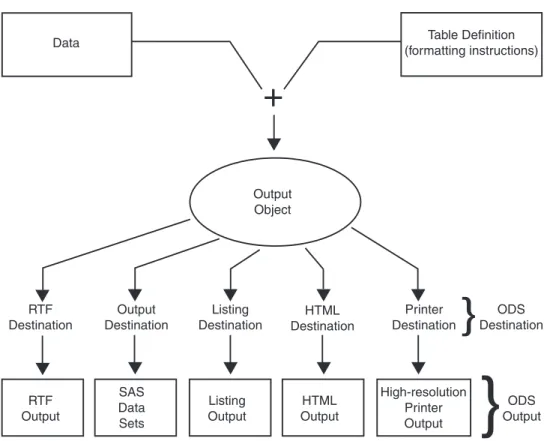
Figure 1.2 Model of the Production of ODS Output
Data Table Definition
(formatting instructions) Output Object RTF Output SAS Data Sets Listing Output HTML Output High-resolution Printer Output ODS Output
}
+
RTF Destination Output Destination Listing Destination HTML Destination Printer Destination ODS Destination}
The following definitions describe the terms in the preceding figure:
data
Each procedure that supports ODS and each DATA step produces data, which contains the results (numbers and characters) of the step in a form similar to a SAS data set.
table definition
The table definition is a set of instructions that describes how to format the data. This description includes but is not limited to
3 the order of the columns
3 text and order of column headings 3 formats for data
3 font sizes and font faces
output object
ODS combines formatting instructions with the data to produce an output object. The output object, therefore, contains both the results of the procedure or DATA step and information about how to format the results. An output object has a name, a label, and a path.
Note: Although many output objects include formatting instructions, not all do. In some cases the output object consists of only the data.4
ODS destinations
An ODS destination specifies a specific type of output. ODS supports a number of destinations, which include the following:
What Is the SAS System? 4 SAS Windowing Environment 11
produces output that is formatted for use with Microsoft Word.
Output
produces a SAS data set.
Listing
produces traditional SAS output (monospace format).
HTML
produces output that is formatted in Hyper Text Markup Language (HTML). You can access the output on the web with your web browser.
Printer
produces output that is formatted for a high-resolution printer. An example of this type of output is a PostScript file.
ODS output
ODS output consists of formatted output from any of the ODS destinations.
For more information about ODS output, see Chapter 23, “Directing SAS Output and the SAS Log,” on page 349 and Chapter 32, “Understanding and Customizing SAS Output: The Output Delivery System (ODS),” on page 565.
For complete information about ODS, see SAS Output Delivery System: User’s Guide.
Ways to Run SAS Programs
Selecting an Approach
There are several ways to run SAS programs. They differ in the speed with which they run, the amount of computer resources that are required, and the amount of interaction that you have with the program (that is, the kinds of changes you can make while the program is running).
The examples in this documentation produce the same results, regardless of the way you run the programs. However, in a few cases, the way that you run a program determines the appearance of output. The following sections briefly introduce different ways to run SAS programs.
SAS Windowing Environment
The SAS windowing environment enables you to interact with SAS directly through a series of windows. You can use these windows to perform common tasks, such as locating and organizing files, entering and editing programs, reviewing log information, viewing procedure output, setting options, and more. If needed, you can issue operating system commands from within this environment. Or, you can suspend the current SAS windowing environment session, enter operating system commands, and then resume the SAS windowing environment session at a later time.
Using the SAS windowing environment is a quick and convenient way to program in SAS. It is especially useful for learning SAS and developing programs on small test files. Although it uses more computer resources than other techniques, using the SAS windowing environment can save a lot of program development time.
12 SAS/ASSIST Software 4 Chapter 1
SAS/ASSIST Software
One important feature of SAS is the availability of SAS/ASSIST software.
SAS/ASSIST provides a point-and-click interface that enables you to select the tasks that you want to perform. SAS then submits the SAS statements to accomplish those tasks. You do not need to know how to program in the SAS language in order to use SAS/ASSIST.
SAS/ASSIST works by submitting SAS statements just like the ones shown earlier in this section. In that way, it provides a number of features, but it does not represent the total functionality of SAS software. If you want to perform tasks other than those that are available in SAS/ASSIST, you need to learn to program in SAS as described in this documentation.
Noninteractive Mode
In noninteractive mode, you prepare a file that contains SAS statements and any system statements that are required by your operating environment, and submit the program. The program runs immediately and occupies your current workstation session. You cannot continue to work in that session while the program is running,* and you usually cannot interact with the program.** The log and procedure output go to prespecified destinations, and you usually do not see them until the program ends. To modify the program or correct errors, you must edit and resubmit the program.
Noninteractive execution may be faster than batch execution because the computer system runs the program immediately rather than waiting to schedule your program among other programs.
Batch Mode
To run a program in batch mode, you prepare a file that contains SAS statements and any system statements that are required by your operating environment, and then you submit the program.
You can then work on another task at your workstation. While you are working, the operating environment schedules your job for execution (along with jobs submitted by other people) and runs it. When execution is complete, you can look at the log and the procedure output.
The central feature of batch execution is that it is completely separate from other activities at your workstation. You do not see the program while it is running, and you cannot correct errors at the time they occur. The log and procedure output go to prespecified destinations; you can look at them only after the program has finished running. To modify the SAS program, you edit the program with the editor that is supported by your operating environment and submit a new batch job.
When sites charge for computer resources, batch processing is a relatively
inexpensive way to execute programs. It is particularly useful for large programs or when you need to use your workstation for other tasks while the program is executing. However, for learning SAS or developing and testing new programs, using batch mode might not be efficient.
* In a workstation environment, you can switch to another window and continue working.
What Is the SAS System? 4 Running Programs in the SAS Windowing Environment 13
Interactive Line Mode
In an interactive line-mode session, you enter one line of a SAS program at a time, and SAS executes each DATA or PROC step automatically as soon as it recognizes the end of the step. You usually see procedure output immediately on your display monitor. Depending on your site’s computer system and on your workstation, you may be able to scroll backward and forward to see different parts of your log and procedure output, or you may lose them when they scroll off the top of your screen. There are limited facilities for modifying programs and correcting errors.
Interactive line-mode sessions use fewer computer resources than a windowing environment. If you use line mode, you should familiarize yourself with the
%INCLUDE, %LIST, and RUN statements inSAS Language Reference: Dictionary.
Running Programs in the SAS Windowing Environment
You can run most programs in this documentation by using any of the methods that are described in the previous sections. This documentation uses the SAS windowing environment (as it appears on Windows and UNIX operating environments) when it is necessary to show programming within a SAS session. The SAS windowing
environment appears differently depending on the operating environment that you use. For more information about the SAS windowing environment, see Chapter 39, “Using the SAS Windowing Environment,” on page 655.
The following example gives a brief overview of a SAS session that uses the SAS windowing environment. When you invoke SAS, the following windows appear.
Display 1.1 SAS Windowing Environment
14 Running Programs in the SAS Windowing Environment 4 Chapter 1
window; it contains the SAS log for the session. The window at the bottom right is the Program Editor window. This window provides an editor in which you edit your SAS programs.
To create the program for the health and fitness club, type the statements in the Program Editor window. You can turn line numbers on or off to facilitate program creation. The following display shows the beginning of the program.
Display 1.2 Editing a Program in the Program Editor Window
When you fill the Program Editor window, scroll down to continue typing the program. When you finish editing the program, submit it to SAS and view the output. (If SAS does not create output, check the SAS log for error messages.)
The following displays show the first and second pages of the Output window.
What Is the SAS System? 4 Procedures 15
Display 1.4 The Second Page of Output in the Output Window
After you finish viewing the output, you can return to the Program Editor window to begin creating a new program.
By default, the output from all submissions remains in the Output window, and all statements that you submit remain in memory until the end of your session. You can view the output at any time, and you can recall previously submitted statements for editing and resubmitting. You can also clear a window of its contents.
All the commands that you use to move through the SAS windowing environment can be executed as words or as function keys. You can also customize the SAS windowing environment by determining which windows appear, as well as by assigning commands to function keys. For more information about customizing the SAS windowing
environment, see Chapter 40, “Customizing the SAS Environment,” on page 693.
Review of SAS Tools
Statements
DATASAS-data-set;
begins a DATA step and tells SAS to begin creating a SAS data set. SAS-data-set
names the data set that is being created.
%INCLUDEsource(s)</<SOURCE2> <S2=length> <host-options>>;
brings SAS programming statements, data lines, or both into a current SAS program.
RUN;
tells SAS to begin executing the preceding group of SAS statements.
For more information, see Statements inSAS Language Reference: Dictionary.
Procedures
PROCprocedure <DATA=SAS-data-set>;
16 Learning More 4 Chapter 1
For more information about using procedures, see theBase SAS Procedures Guide.
Learning More
Basic SAS usage
For an entry-level introduction to basic SAS programming language, seeThe Little SAS Book: A Primer, Second Edition.
DATA step
For more information about how to create SAS data sets, see Chapter 2, “Introduction to DATA Step Processing,” on page 19.
DATA step processing
For more information about DATA step processing, see Chapter 6, “Understanding DATA Step Processing,” on page 97.
17
P A R T
2
Getting Your Data into Shape
Chapter
2
. . . .Introduction to DATA Step Processing
19
Chapter
3
. . . .Starting with Raw Data: The Basics
43
Chapter
4
. . . .Starting with Raw Data: Beyond the Basics
61
19
C H A P T E R
2
Introduction to DATA Step
Processing
Introduction to DATA Step Processing 20
Purpose 20
Prerequisites 20
The SAS Data Set: Your Key to the SAS System 20
Understanding the Function of the SAS Data Set 20
Understanding the Structure of the SAS Data Set 22
Temporary versus Permanent SAS Data Sets 24
Creating and Using Temporary SAS Data Sets 24
Creating and Using Permanent SAS Data Sets 24
Conventions That Are Used in This Documentation 25
How the DATA Step Works: A Basic Introduction 26
Overview of the DATA Step 26
During the Compile Phase 28
During the Execution Phase 28
Example of a DATA Step 29
The DATA Step 29
The Statements 29
The Process 30
Supplying Information to Create a SAS Data Set 33
Overview of Creating a SAS Data Set 33
Telling SAS How to Read the Data: Styles of Input 34
Reading Dates with Two-Digit and Four-Digit Year Values 35
Defining Variables in SAS 35
Indicating the Location of Your Data 36
Data Locations 36
Raw Data in the Job Stream 37
Data in an External File 37
Data in a SAS Data Set 37
Data in a DBMS File 38
Using External Files in Your SAS Job 38
Identifying an External File Directly 38
Referencing an External File with a Fileref 39
Review of SAS Tools 41
Statements 41
20 Introduction to DATA Step Processing 4 Chapter 2
Introduction to DATA Step Processing
Purpose
The DATA step is one of the basic building blocks of SAS programming. It creates the data sets that are used in a SAS program’s analysis and reporting procedures. Understanding the basic structure, functioning, and components of the DATA step is fundamental to learning how to create your own SAS data sets. In this section, you will learn the following:
3 what a SAS data set is and why it is needed 3 how the DATA step works
3 what information you have to supply to SAS so that it can construct a SAS data set for you
Prerequisites
You should understand the concepts introduced in Chapter 1, “What Is the SAS System?,” on page 3 before continuing.
The SAS Data Set: Your Key to the SAS System
Understanding the Function of the SAS Data Set
Introduction to DATA Step Processing 4 Understanding the Function of the SAS Data Set 21
Figure 2.1 From Raw Data to Final Analysis
You begin with raw data, that is, a collection of data that has not yet been processed by SAS. You use a set of statements known as aDATA stepto get your data into a SAS data set. Then you can further process your data with additional DATA step
programming or with SAS procedures.
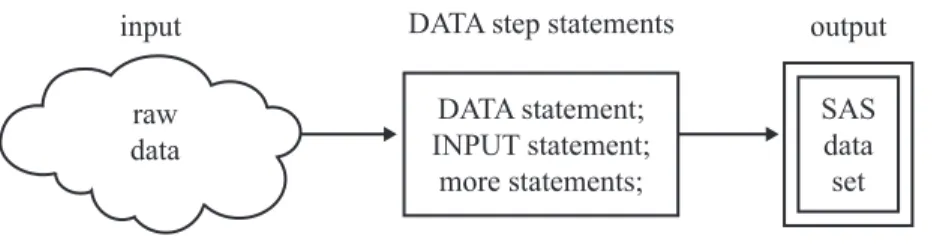
In its simplest form, the DATA step can be represented by the three components that are shown in the following figure.
Figure 2.2 From Raw Data to a SAS Data Set
SAS processes input in the form of raw data and creates a SAS data set.
When you have a SAS data set, you can use it as input to other DATA steps. The following figure shows the SAS statements that you can use to create a new SAS data set.
Figure 2.3 Using One SAS Data Set to Create Another
input DATA step statements output
DATA statement; SET, MERGE, MODIFY, or UPDATE;
more statements; existing
SAS data set
22 Understanding the Structure of the SAS Data Set 4 Chapter 2
Understanding the Structure of the SAS Data Set
Think of a SAS data set as a rectangular structure that identifies and stores data. When your data is in a SAS data set, you can use additional DATA steps for further processing, or perform many types of analyses with SAS procedures.
The rectangular structure of a SAS data set consists of rows and columns in which data values are stored. The rows in a SAS data set are calledobservations, and the columns are calledvariables. In a raw data file, the rows are called recordsand the columns are calledfields. Variables contain the data values for all of the items in an observation.
For example, the following figure shows a collection of raw data about participants in a health and fitness club. Each record contains information about one participant.
Figure 2.4 Raw Data from the Health and Fitness Club
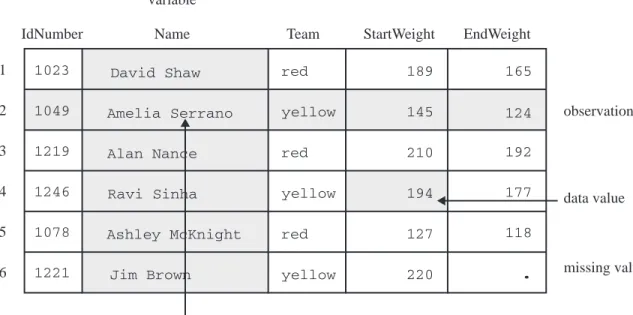
The following figure shows how easily the health club records can be translated into parts of a SAS data set. Each record becomes an observation. In this case, each
Introduction to DATA Step Processing 4 Understanding the Structure of the SAS Data Set 23
Figure 2.5 How Data Fits into a SAS Data Set
IdNumber 1023 1049 1219 1246 1078 1221 1 2 3 4 5 6 StartWeight Team Name variable data value EndWeight David Shaw Amelia Serrano Alan Nance Ravi Sinha Ashley McKnight Jim Brown red yellow red yellow red yellow 189 145 210 194 127 220 165 124 192 177 118 . data value observation missing value
In a SAS data set, every variable exists for every observation. What if you do not have all the data for each observation? If the raw data is incomplete because a value for the numeric variable EndWeight was not recorded for one observation, then thismissing valueis represented by a period that serves as a placeholder, as shown in observation 6 in the previous figure. (Missing values for character variables are represented by blanks. Character and numeric variables are discussed later in this section.) By coding a value as missing, you can add an observation to the data set for which the data is incomplete and still retain the rectangular shape necessary for a SAS data set.
Along with data values, each SAS data set contains a descriptor portion, as illustrated in the following figure:
Figure 2.6 Parts of a SAS Data Set
The descriptor portion consists of details that SAS records about a data set, such as the names and attributes of all the variables, the number of observations in the data set, and the date and time that the data set was created and updated.
Operating Environment Information: Depending on your operating environment and the engine used to write the SAS data set, SAS may store additional information about a SAS data set in its descriptor portion. For more information, refer to the SAS
24 Temporary versus Permanent SAS Data Sets 4 Chapter 2
Temporary versus Permanent SAS Data Sets
Creating and Using Temporary SAS Data Sets
When you use a DATA step to create a SAS data set with aone-level name, you normally create atemporarySAS data set, one that exists only for the duration of your current session. SAS places this data set in aSAS data libraryreferred to as WORK. In most operating environments, all files that SAS stores in the WORK library are deleted at the end of a session.
The following is an example of a DATA step that creates the temporary data set WEIGHT_CLUB.
data weight_club;
input IdNumber Name $ 6--20 Team $ 22--27 StartWeight EndWeight; datalines;
1023 David Shaw red 189 165 1049 Amelia Serrano yellow 145 124 1219 Alan Nance red 210 192 1246 Ravi Sinha yellow 194 177 1078 Ashley McKnight red 127 118 1221 Jim Brown yellow 220 . ;
run;
The preceding program code refers to the temporary data set as WEIGHT_CLUB. SAS. However, it assigns the first-level name WORK to all temporary data sets, and refers to the WEIGHT_CLUB data set with its two-level name, WORK.WEIGHT_CLUB. The following output from the SAS log shows the name of the temporary data set.
Output 2.1 SAS Log: The WORK.WEIGHT_CLUB Temporary Data Set
162 data weight_club;
163 input IdNumber Name $ 6-20 Team $ 22-27 StartWeight EndWeight; 164 datalines;
NOTE: The data set WORK.WEIGHT_CLUB has 6 observations and 5 variables.
Because SAS assigns the first-level name WORK to all SAS data sets that have only a one-level name, you do not need to use WORK. You can refer to these temporary data sets with a one-level name, such as WEIGHT_CLUB.
To reference this SAS data set in a later DATA step or in a PROC step, you can use a one-level name:
proc print data = weight_club; run;
Creating and Using Permanent SAS Data Sets
Introduction to DATA Step Processing 4 Temporary versus Permanent SAS Data Sets 25
your operating environment’s file system. The libref functions as a shorthand way of referring to a SAS data library. Here is the form of the LIBNAME statement:
LIBNAMElibref’your-data-library’;
where
libref
is a shortcut name to where your SAS files are stored. librefmust be a valid SAS name. It must begin with a letter or an underscore, and it can contain uppercase and lowercase letters, numbers, or underscores. A libref has a maximum length of 8 characters.
’your-data-library’
must be the physical name for your SAS data library. The physical name is the name that is recognized by the operating environment.
Operating Environment Information: Additional restrictions can apply to librefs and physical file names under some operating environments. For more information, refer to the SAS documentation for your operating environment.4
The following is an example of the LIBNAME statement that is used with a DATA step:
libname saveit ’your-data-library’; u data saveit.weight_club; v
...more SAS statements...
;
proc print data = saveit.weight_club; w run;
The following list corresponds to the numbered items:
uThe LIBNAME statement associates the libref SAVEIT withyour-data-library, whereyour-data-libraryis your operating environment’s name for a SAS data library.
vTo create a new permanent SAS data set and store it in this SAS data library, you must use the two-level name SAVEIT.WEIGHT_CLUB in the DATA statement. wTo reference this SAS data set in a later DATA step or in a PROC step, you must
use the two-level name SAVEIT.WEIGHT_CLUB in the PROC step.
For more information, see Chapter 33, “Understanding SAS Data Libraries,” on page 595.
Conventions That Are Used in This Documentation
Data sets that are used in examples are usually shown as temporary data sets specified with a one-level name:
data fitness;
In rare cases in this documentation, data sets are created as permanent SAS data sets. These data sets are specified with a two-level name, and a LIBNAME statement precedes each DATA step in which a permanent SAS data set is created:
26 How the DATA Step Works: A Basic Introduction 4 Chapter 2
How the DATA Step Works: A Basic Introduction
Overview of the DATA Step
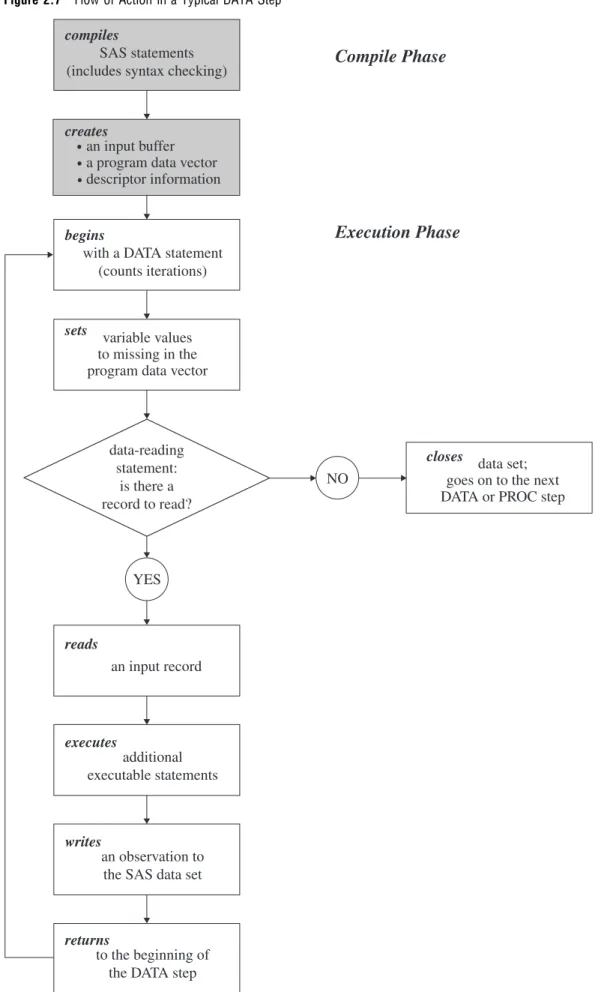
Introduction to DATA Step Processing 4 Overview of the DATA Step 27
Figure 2.7 Flow of Action in a Typical DATA Step
data-reading statement:
is there a record to read?
reads
an input record
executes
additional executable statements
writes
an observation to the SAS data set
returns
to the beginning of the DATA step
compiles
SAS statements (includes syntax checking)
creates
an input buffer a program data vector descriptor information
begins
with a DATA statement (counts iterations)
sets variable values
to missing in the program data vector
closes data set;
goes on to the next DATA or PROC step NO
YES
Compile Phase
28 During the Compile Phase 4 Chapter 2
During the Compile Phase
When you submit a DATA step for execution, SAS checks the syntax of the SAS statements and compiles them, that is, automatically translates the statements into machine code. SAS further processes the code, and creates the following three items:
input buffer is a logical area in memory into which SAS reads each record of data from a raw data file when the program executes. (When SAS reads from a SAS data set, however, the data is written directly to the program data vector.)
program data vector
is a logical area of memory where SAS builds a data set, one observation at a time. When a program executes, SAS reads data values from the input buffer or creates them by executing SAS language statements. SAS assigns the values to the appropriate variables in the program data vector. From here, SAS writes the values to a SAS data set as a single observation.
The program data vector also contains two automatic variables, _N_ and _ERROR_. The _N_ variable counts the number of times the DATA step begins to iterate. The _ERROR_ variable signals the occurrence of an error caused by the data during execution. These automatic variables are not written to the output data set.
descriptor information
is information about each SAS data set, including data set attributes and variable attributes. SAS creates and maintains the descriptor information.
During the Execution Phase
All executable statements in the DATA step are executed once for each iteration. If your input file contains raw data, then SAS reads a record into the input buffer. SAS then reads the values in the input buffer and assigns the values to the appropriate variables in the program data vector. SAS also calculates values for variables created by program statements, and writes these values to the program data vector. When the program reaches the end of the DATA step, three actions occur by default that make using the SAS language different from using most other programming languages:
1 SAS writes the current observation from the program data vector to the data set.
2 The program loops back to the top of the DATA step.
3 Variables in the program data vector are reset to missing values.
Note: The following exceptions apply:
3 Variables that you specify in a RETAIN statement are not reset to missing values.
3 The automatic variables _N_ and _ERROR_ are not reset to missing.
For information about the RETAIN statement, see “Using a Value in a Later Observation” on page 196.4
Introduction to DATA Step Processing 4 Example of a DATA Step 29
Example of a DATA Step
The DATA Step
The following simple DATA step produces a SAS data set from the data collected for a health and fitness club. As discussed earlier, the input data contains each
participant’s identification number, name, team name, and weight at the beginning and end of a 16-week weight program:
data weight_club; u
input IdNumber 1-4 Name $ 6-24 Team $ StartWeight EndWeight; v Loss = StartWeight - EndWeight; w
datalines; x
1023 David Shaw red 189 165 1049 Amelia Serrano yellow 145 124 1219 Alan Nance red 210 192 1246 Ravi Sinha yellow 194 177 1078 Ashley McKnight red 127 118 1221 Jim Brown yellow 220 . 1095 Susan Stewart blue 135 127 1157 Rosa Gomez green 155 141 1331 Jason Schock blue 187 172 1067 Kanoko Nagasaka green 135 122 1251 Richard Rose blue 181 166 1333 Li-Hwa Lee green 141 129 1192 Charlene Armstrong yellow 152 139 1352 Bette Long green 156 137 1262 Yao Chen blue 196 180 1087 Kim Sikorski red 148 135 1124 Adrienne Fink green 156 142 1197 Lynne Overby red 138 125 1133 John VanMeter blue 180 167 1036 Becky Redding green 135 123 1057 Margie Vanhoy yellow 146 132 1328 Hisashi Ito red 155 142 1243 Deanna Hicks blue 134 122 1177 Holly Choate red 141 130 1259 Raoul Sanchez green 189 172 1017 Jennifer Brooks blue 138 127 1099 Asha Garg yellow 148 132 1329 Larry Goss yellow 188 174 ; x
The Statements
The following list corresponds to the numbered items in the preceding program:
30 Example of a DATA Step 4 Chapter 2
vThe INPUT statement creates five variables, indicates how SAS reads the values from the input buffer, and assigns the values to variables in the program data vector.
wThe assignment statement creates an additional variable called Loss, calculates the value of Loss during each iteration of the DATA step, and writes the value to the program data vector.
xThe DATALINES statement marks the beginning of the input data. The single semicolon marks the end of the input data and the DATA step.
Note: A DATA step that does not contain a DATALINES statement must end with a RUN statement.4
The Process
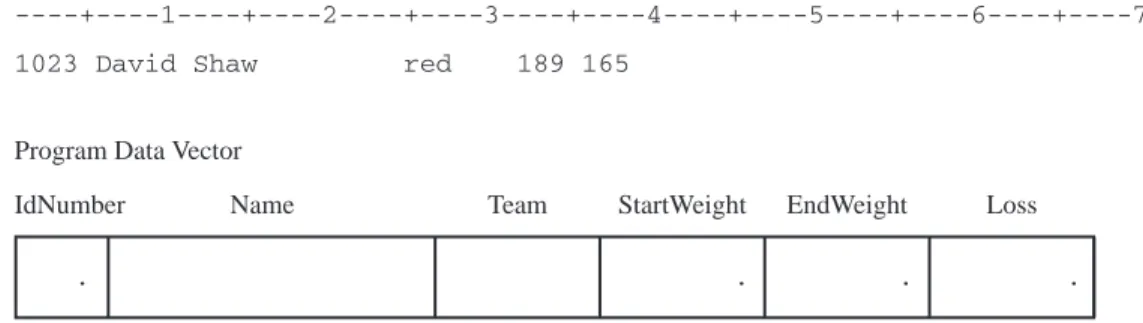
When you submit a DATA step for execution, SAS automatically compiles the DATA step and then executes it. At compile time, SAS creates the input buffer, program data vector, and descriptor information for the data set WEIGHT_CLUB. As the following figure shows, the program data vector contains the variables that are named in the INPUT statement, as well as the variable Loss. The values of the _N_ and the _ERROR_ variables are automatically generated for every DATA step. The _N_ automatic variable represents the number of times that the DATA step has iterated. The _ERROR_ automatic variable acts like a binary switch whose value is 0 if no errors exist in the DATA step, or 1 if one or more errors exist. These automatic variables are not written to the output data set.
All variable values, except _N_ and _ERROR_, are initially set to missing. Note that missing numeric values are represented by a period, and missing character values are represented by a blank.
Figure 2.8 Variable Values Initially Set to Missing
Input Buffer Program Data Vector
IdNumber Name Team StartWeight EndWeight Loss
----+----1----+----2----+----3----+----4----+----5----+----6----+----7
. . . .
Introduction to DATA Step Processing 4 Example of a DATA Step 31
Figure 2.9 Values Assigned to Variables by the INPUT Statement
Input Buffer Program Data Vector
IdNumber Name Team StartWeight EndWeight Loss
----+----1----+----2----+----3----+----4----+----5----+----6----+----7
1023 David Shaw red 189 165
1023 David Shaw red 189 165 .
When SAS assigns values to all variables that are listed in the INPUT statement, SAS executes the next statement in the program:
Loss = StartWeight - EndWeight;
This assignment statement calculates the value for the variable Loss and writes that value to the program data vector, as the following figure shows.
Figure 2.10 Value Computed and Assigned to the Variable Loss
Input Buffer Program Data Vector
IdNumber Name Team StartWeight EndWeight Loss
----+----1----+----2----+----3----+----4----+----5----+----6----+----7
1023 David Shaw red 189 165
1023 David Shaw red 189 165 24
SAS has now reached the end of the DATA step, and the program automatically does the following:
3 writes the first observation to the data set
3 loops back to the top of the DATA step to begin the next iteration 3 increments the _N_ automatic variable by 1
3 resets the _ERROR_ automatic variable to 0
32 Example of a DATA Step 4 Chapter 2
Figure 2.11 Values Set to Missing
Input Buffer Program Data Vector
IdNumber Name Team StartWeight EndWeight Loss
----+----1----+----2----+----3----+----4----+----5----+----6----+----7
1023 David Shaw red 189 165
. . . .
Execution continues. The INPUT statement looks for another record to read. If there are no more records, then SAS closes the data set and the system goes on to the next DATA or PROC step. In this example, however, more records exist and the INPUT statement reads the second record into the input buffer, as the following figure shows.
Figure 2.12 Second Record Is Read into the Input Buffer
Input Buffer Program Data Vector
IdNumber Name Team StartWeight EndWeight Loss
----+----1----+----2----+----3----+----4----+----5----+----6----+----7
1049 Amelia Serrano yellow 145 124
. . . .
The following figure shows that SAS assigned values to the variables in the program data vector and calculated the value for the variable Loss, building the second
observation just as it did the first one.
Figure 2.13 Results of Second Iteration of the DATA Step
Input Buffer Program Data Vector
IdNumber Name Team StartWeight EndWeight Loss
----+----1----+----2----+----3----+----4----+----5----+----6----+----7
1049 Amelia Serrano yellow 145 124
1049 Amelia Serrano yellow 145 124 21
Introduction to DATA Step Processing 4 Overview of Creating a SAS Data Set 33
Now that SAS has transformed the collected data from raw data into a SAS data set, it can be processed by a SAS procedure. The following output, produced with the PRINT procedure, shows the data set that has just been created.
proc print data=weight_club;
title ’Fitness Center Weight Club’; run;
Output 2.2 PROC PRINT Output of the WEIGHT_CLUB Data Set
Fitness Center Weight Club 1
Id Start End
Obs Number Name Team Weight Weight Loss
1 1023 David Shaw red 189 165 24
2 1049 Amelia Serrano yellow 145 124 21
3 1219 Alan Nance red 210 192 18
4 1246 Ravi Sinha yellow 194 177 17
5 1078 Ashley McKnight red 127 118 9
6 1221 Jim Brown yellow 220 . .
7 1095 Susan Stewart blue 135 127 8
8 1157 Rosa Gomez green 155 141 14
9 1331 Jason Schock blue 187 172 15
10 1067 Kanoko Nagasaka green 135 122 13
11 1251 Richard Rose blue 181 166 15
12 1333 Li-Hwa Lee green 141 129 12
13 1192 Charlene Armstrong yellow 152 139 13
14 1352 Bette Long green 156 137 19
15 1262 Yao Chen blue 196 180 16
16 1087 Kim Sikorski red 148 135 13
17 1124 Adrienne Fink green 156 142 14
18 1197 Lynne Overby red 138 125 13
19 1133 John VanMeter blue 180 167 13
20 1036 Becky Redding green 135 123 12
21 1057 Margie Vanhoy yellow 146 132 14
22 1328 Hisashi Ito red 155 142 13
23 1243 Deanna Hicks blue 134 122 12
24 1177 Holly Choate red 141 130 11
25 1259 Raoul Sanchez green 189 172 17
26 1017 Jennifer Brooks blue 138 127 11
27 1099 Asha Garg yellow 148 132 16
28 1329 Larry Goss yellow 188 174 14
Supplying Information to Create a SAS Data Set
Overview of Creating a SAS Data Set
You supply SAS with specific information for reading raw data so that you can create a SAS data set from the raw data. You can use the data set for further processing, data analysis, or report writing. To process raw data in a DATA step, you must
3 use an INPUT statement to tell SAS how to read the data
3 define the variables and indicate whether they are character or numeric