590-660-501E
Cyclades
®ACS Advanced Console Server
Installation/Administration/User Guide
For Technical Support:The Cyclades ACS advanced console server has been tested and found to comply with the limits for Class A digital devices, pursuant to Part 15 of the FCC rules. These limits are designed to provide reasonable protection against harmful interference when the equipment is operated in a commercial environment.
This equipment generates, uses and can radiate radio frequency energy and, if not installed and used in accordance with the Installation and Service Manual, may cause harmful interference to radio communications. Operation of this equipment in a residential area is likely to cause harmful interference in which case the user is required to correct the problem at his or her own expense.
Notice about FCC Compliance for All Cyclades ACS Advanced Console Server Models To comply with FCC standards, the Cyclades ACS advanced console server requires the use of a shielded CAT 5 cable for all interface ports. Notice that this cable is not supplied with either of the products and must be pro-vided by the customer.
Canadian DOC Notice
The Cyclades ACS advanced console server does not exceed the Class A limits for radio noise emissions from digital apparatus set out in the Radio Interference Regulations of the Canadian Department of Communications. L’Cyclades ACS advanced console server n’émete pas de bruits radioélectriques dépassant les limites
applicables aux appareils numériques de la classe A prescrites dans le règlement sur le brouillage radioélectrique edicté par le Ministère des Communications du Canada.
Safety and EMC Approvals and Markings
FCC Part 15 A, ICES-003, C-Tick, VCCI Class A, BSMI Class A, MIC Class A, CE (EN55022 Class A, EN55024, EN60950-1), GS, CB, CSA/UL 60950-1, Solaris Ready™, NEBS for ACS 16 NEBS and ACS 32 NEBS with single or dual DC power supplies
Cyclades
®
ACS Advanced
Console Server
Installation/Administration/User
Guide
Avocent, the Avocent logo, The Power of Being There, DSView and Cyclades are registered trademarks of Avocent Corporation or its affiliates in the U.S. and other countries. All other marks are the property of their respective owners.
This symbol is intended to alert the user to the presence of important operating and maintenance (servicing) instructions in the literature accompanying the appliance.
Dangerous Voltage
This symbol is intended to alert the user to the presence of uninsulated dangerous voltage within the product’s enclosure that may be of sufficient magnitude to constitute a risk of electric shock to persons.
Power On
This symbol indicates the principal on/off switch is in the on position.
Power Off
This symbol indicates the principal on/off switch is in the off position.
Protective Grounding Terminal
This symbol indicates a terminal which must be connected to earth ground prior to making any other connections to the equipment.
iii
Table of Contents
List of Tables ... vii
List of Figures ... xi
Chapter 1: Introduction ... 1
Overview ... 1
Connectors on the ACS Console Server ... 1
Accessing the ACS Console Server and Connected Devices ... 2
Web Manager... 2
Prerequisites for Using the Web Manager ... 3
Types of Users... 3
Security ... 3
Authentication ... 4
IPv6 ... 5
Services not supporting IPv6 ... 5
VPN ... 5
Packet Filtering ... 6
Structure of IP filtering... 6
Add rule and edit rule options ... 7
SNMP ... 8
Notifications, Alarms and Data Buffering ... 8
Syslog servers ... 8
Managing Users of Connected Devices... 9
Configuring access to connected devices ... 9
ACS Console Server and Power Management ... 9
Configuring power management ... 11
Options for managing power ... 11
Hostname Discovery ... 12
Chapter 2: Installation ... 13
Important Pre-installation Requirements ... 13
Basic Installation Procedures... 13
Making an Ethernet connection... 14
Making a direct connection to configure the network parameters... 14
Turning on the console server and the connected devices ... 15
Performing basic network configuration using the wiz command ... 16
Adding users and configuring ports using the Web Manager ... 20
Other Methods of Accessing the Web Manager... 20
Installing PC Cards ... 21
Connecting PDUs ... 21
Chapter 3: Web Manager for Regular Users... 25
Using the Web Manager ... 25
Features of Regular User Forms ... 26
Connect ... 26
Connect to the console server... 27
Connect to serial ports ... 27
Connection protocols for serial ports... 28
IPDU Power Management... 29
Outlets Manager ... 29
Outlets Group Ctrl... 30
View IPDU info... 30
Security ... 32
Chapter 4: Web Manager for Administrators... 33
Common Tasks for ACS Console Server Administrators... 33
Common Features of Administrator Forms... 34
Logging Into the Web Manager ... 35
Overview of Administrative Modes... 36
Wizard mode ... 36
Expert mode ... 37
Chapter 5: Configuring the ACS Console Server in Wizard Mode ... 39
Step 1: Security Profile ... 39
Step 2: Network Settings ... 43
Step 3: Port Profile ... 44
Step 4: Access ... 45
Table of Contents v
Step 6: System Log ... 49
Chapter 6: Applications... 51
Configuring the Console Server in Expert Mode... 51
Overview of menus and forms... 51
Applications Menu and Forms... 53
Connect ... 53
IPDU Power Management ... 54
Applications - IPDU Power Mgmt. - Outlets Group Ctrl... 57
Applications - IPDU Power Mgmt. - View IPDUs Info... 58
Applications - IPDU Power Mgmt. - Configuration ... 60
Applications - IPDU Power Mgmt. - Software Upgrade... 61
Expert - Applications - PMD Configuration... 62
Applications - PMD Configuration- General ... 62
Applications - PMD Configuration- Outlet Groups ... 62
Applications - PMD Configuration- Users Management... 63
Expert - Applications - Terminal Profile Menu ... 66
Chapter 7: Network Menu and Forms ... 69
Host Settings ... 70
General host settings ... 70
Disabling and enabling IPv4 or IPv6 protocols... 71
IPv4 settings... 72 IPv6 settings... 73 Syslog ... 77 PCMCIA Management... 78 VPN Connections ... 87 SNMP ... 91 Firewall Configuration ... 95 Host Table... 104 Static Routes ... 105
Chapter 8: Security Menu and Forms ... 109
Users and Groups ... 109
Active Ports Sessions ... 112
Configuring authentication for console server logins ... 113
Security Profiles... 120
Security certificates ... 124
Chapter 9: Ports Menu and Forms ... 127
Physical Ports ... 127
Virtual Ports ... 148
Ports Status ... 151
Ports Statistics ... 152
Expert - Ports - Hostname Discovery ... 153
Chapter 10: Administration Menu and Forms ... 155
System Information ... 155 Notifications... 156 Time/Date... 160 Boot Configuration ... 162 Backup Configuration... 164 Upgrade Firmware ... 166 Reboot ... 167 Online Help... 167 Appendices... 171
Appendix A: Technical Specifications ... 171
Appendix B: Safety, Regulatory and Compliance Information... 172
vii
List of Tables
Table 1.1: ACS Console Server Connectors ... 2
Table 1.2: Authentication Methods Supported ... 4
Table 1.3: Add Rule and Edit Rule Option Definitions ... 7
Table 1.4: TCP Protocol Option Definitions... 7
Table 1.5: Common Administrator Tasks for Configuring Software... 9
Table 2.1: ACS Console Server Serial Port Pin-out... 15
Table 2.2: Tasks Related to Connecting PDUs ... 22
Table 3.1: Description of Regular User Web Interface... 26
Table 3.2: Java Applet Buttons for Connecting to the Console Server ... 27
Table 3.3: Available Serial Port Protocols ... 28
Table 3.4: Regular User - Outlet Management Buttons ... 30
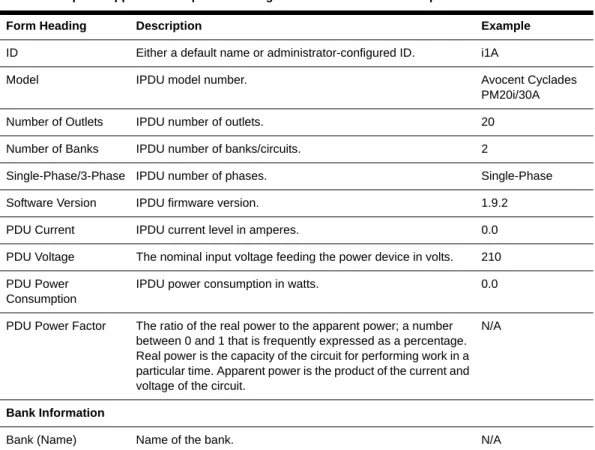
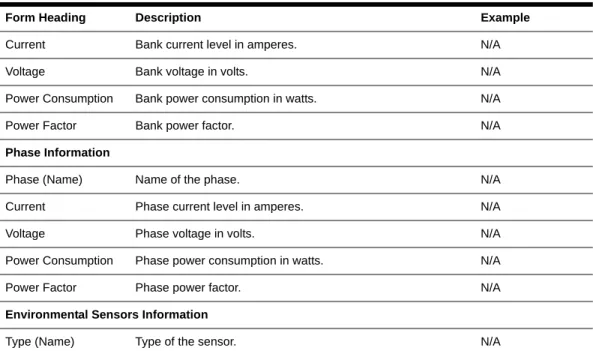
Table 3.5: Power Management Display Information by Detected IPDU... 30
Table 4.1: Administrator - Common Administrative Tasks ... 33
Table 4.2: Description of Administrator Web Manager Buttons... 34
Table 4.3: Administrator - Options for Trying, Saving and Restoring Configuration Change... 35
Table 4.4: Administrator - Logout Button and Other Information in the Upper Right ... 35
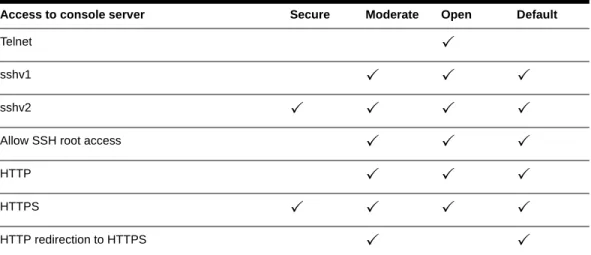
Table 5.1: Wizard - Serial Port Enabled Services for Each Security Profile... 40
Table 5.2: Wizard - Serial Port Enabled Services for Each Security Profile... 40
Table 5.3: Wizard - Enabled Protocols for Each Security Profile ... 40
Table 5.4: Port Profile Setup Options ... 44
Table 5.5: Wizard - Add User Dialog: Field Names and Definitions ... 46
Table 5.6: Wizard - Data Buffering Field Names and Definitions ... 48
Table 5.7: Differences Beween Remote and Local Data Buffering ... 48
Table 6.1: Expert Mode Screen Elements... 52
Table 6.2: Expert - Outlets Manager Icons Description ... 56
Table 6.3: Expert - Outlet Groups Ctrl Information ... 57
Table 6.4: Expert - Applications - Ipdu Power Mgmt - View IPDUs Info Description... 58
Table 6.5: IPDU Power Mgmt Configuration Description ... 60
Table 6.6: Conventions Used in Specifying Outlets for User Accessibility... 64
Table 6.7: Outlet Designations on Daisy-chained IPDUs (PM10 shown)... 65
Table 6.8: Methods for Specifying a Specific Port on Daisy-chained IPDUs... 66
Table 7.1: Expert - Network Menu Descriptions ... 69
Table 7.2: Network - Host Settings General Tab Form Field ... 70
Table 7.3: Network - Host Setting - IPv4 Field Defintions ... 73
Table 7.4: Network - Host Setting - IPv6 Field Defintions ... 74
Table 7.5: Modem Dialog Box Fields... 80
Table 7.6: ISDN Dialog Box Fields... 81
Table 7.7: GSM Dialog Box Fields ... 82
Table 7.8: Ethernet Dialog Box Fields ... 83
Table 7.9: CompactFlash / Hard Drive Dialog Box Fields ... 84
Table 7.10: Wireless LAN Dialog Box Fields... 85
Table 7.11: CDMA Dialog Box Fields ... 86
Table 7.12: Field and Menu Options for Configuring a VPN Connection... 89
Table 7.13: Expert - Fields and Menu Options for SNMP Configuration ... 93
Table 7.14: Expert - TCP Options Fields ... 99
Table 7.15: UDP Options ... 99
Table 7.16: Expert - Firewall Configuration Input/Output Interface and Fragments Fields ... 100
Table 7.17: Expert - Target LOG Options Selection Fields ... 101
Table 7.18: Reply Packet Names and Definitions ... 102
Table 7.19: Routing Type Fields in the New/Modify Route Dialog Box ... 106
Table 8.1: Expert - Add User Dialog Field Names and Definitions... 110
Table 8.2: Expert - Active Ports Sessions Information... 112
Table 8.3: Tasks for Setting up Authentication Servers... 114
List of Tables ix
Table 8.5: Enabled Services to Access the Serial Ports Under Each Security Profile... 121
Table 8.6: Enabled Protocols for Each Security Profile Shown with a P ... 122
Table 9.1: Connections Protocols When Serial Port is Connected to Device Console Port ... 129
Table 9.2: Available Connection Protocols When Terminal is Connected to a Serial Port ... 130
Table 9.3: Connection Protocols for Modems or IPDUs. ... 131
Table 9.4: Access Form Menu and Fields ... 135
Table 9.5: Expert - Authentication Methods and Fallback Mechanisms ... 136
Table 9.6: List of Authentication Method Procedures... 137
Table 9.7: Data Buffering Form Fields ... 139
Table 9.8: Expert - Multi User Form Fields... 141
Table 9.9: Available Options from the Allow Multiple Sessions Pull-down ... 141
Table 9.10: Expert - Power Management Form Fields ... 143
Table 9.11: Other Form Fields... 145
Table 9.12: New/Modify Port Dialog Box Fields. ... 149
Table 9.13: Expert - Port Status Read-Only Form ... 152
Table 9.14: Expert - Ports-Port Status Read-Only Form ... 152
Table 9.15: Expert - Ports - Hostname Discovery Fields... 153
Table 10.1: System Information Form ... 155
Table 10.2: Notifications Form Fields ... 156
Table 10.3: Email Notifications Dialog Box Fields ... 157
Table 10.4: Pager Notification Add/Edit Dialog Box Fields... 158
Table 10.5: SNMP Trap Notifications Add/Edit Dialog Box Fields... 159
Table 10.6: Boot Configuration Form Fields ... 163
Table 10.7: Backup Configuration Settings if Using FTP Server ... 164
Table 10.8: Backup Configuration if Using Storage Device ... 165
Table 10.9: Expert - Upgrade Firmware Form Fields ... 166
xi
List of Figures
Figure 1.1: Front of the ACS Console Server ... 1
Figure 1.2: ACS Console Server Connectors ... 1
Figure 2.1: Placement of Mounting Brackets (Forward Mounting Configuration Shown) ... 13
Figure 2.2: Configuration Wizard Screen. ... 17
Figure 2.3: Current Configuration Wizard Screen for Option 0 (IPv4 Enabled) ... 18
Figure 3.1: Regular User Form... 26
Figure 4.1: Administrator - Web Manager Buttons ... 34
Figure 4.2: Example of Web Manager Form in Wizard Mode... 37
Figure 4.3: Example of Web Manager Form in Expert Mode... 38
Figure 5.1: Administrator - Physical Ports Factory Settings... 41
Figure 5.2: Wizard - Step 1: Security Profile Form ... 42
Figure 5.3: Custom Security Profile Dialog Box ... 43
Figure 6.1: Expert Mode Screen Elements ... 52
Figure 6.2: Expert - SSH session Java Applet... 53
Figure 6.3: Expert - Applications - IPDU Power Mgmt. - Outlets Manager... 55
Figure 6.4: PMD Configuration - Users Management ... 64
Figure 6.5: Various Outlet Designations on Daisy-chained IPDUs ... 65
Figure 6.6: Expert - Applications - Terminal Profile Menu... 66
Figure 6.7: Expert - Terminal Profile Menu Example ... 67
Figure 7.1: Expert - Network - Host Settings ... 70
Figure 7.2: Expert - Network - Host Settings - IPv4 (DHCP disabled) ... 72
Figure 7.3: Expert - Network - Host Settings - IPv6 ... 73
Figure 7.4: Expert - Network - Syslog ... 77
Figure 7.5: Expert - Network - PCMCIA Management... 78
Figure 7.6: PC Card Type by Slot ... 79
Figure 7.7: Expert - CompactFlash/Hard Disk PC Card Configuration Dialog Box ... 84
Figure 7.8: Expert - Wireless LAN PC Card Configuration Dialog Box... 85
Figure 7.9: Expert - VPN New/Modify Connection Dialog Box ... 88
Figure 7.10: Security Custom Profile Dialog... 90
Figure 7.11: Expert - Network - SNMP ... 92
Figure 7.12: Expert - New/Mod SNMP v1 v2 Configuration Dialog Box... 93
Figure 7.13: Expert - New/Mod SNMP v3 Configuration Dialog Box ... 94
Figure 7.14: Expert - Network - Firewall Configuration ... 95
Figure 7.15: Expert - Firewall Configuration Edit Chain Dialog Box ... 96
Figure 7.16: Firewall Configuration User-defined Chain Message ... 96
Figure 7.17: Expert - Firewall Configuration Add Chain Dialog Box ... 96
Figure 7.18: Firewall Configuration Edit Rules for chain_name Form ... 97
Figure 7.19: Firewall Configuration Edit Rules for chain_name Buttons... 97
Figure 7.20: Expert - Firewall Configuration Add Rule and Edit Rule Dialog Boxes ... 97
Figure 7.21: Firewall Configuration TCP Protocol Fields and Menu Options... 98
Figure 7.22: Firewall Configuration Add Rule and Edit Rule UDP Protocol Fields... 99
Figure 7.23: Input/Output Interface Fields and Fragments Menu Options ... 100
Figure 7.24: Firewall Configuration Add Rule and Edit Rule LOG Target Fields ... 101
Figure 7.25: Firewall Configuration Add Rule and Edit Rule REJECT Target Menu Options. 101 Figure 7.26: Edit Chain Dialog Box ... 103
Figure 7.27: Expert - Network - Host Tables ... 104
Figure 7.28: Expert - Network - Static Routes ... 105
Figure 7.29: Expert - Static Routes Add and Edit Dialog Boxes - Default Route... 105
Figure 7.30: Expert - Static Routes Add and Edit Dialog Boxes - Network Route ... 106
Figure 7.31: Expert - Static Routes Add and Edit Dialog Boxes - Host Route ... 106
Figure 8.1: Expert - Security - Users and Groups Form... 109
Figure 8.2: Expert - Security - Active Ports Sessions... 112
Figure 8.3: Expert - Security - Authentication ... 113
Figure 8.4: Expert - Security - Authentication - LDAP ... 117
Figure 8.5: Expert - Administration - Time/Date ... 119
Figure 8.6: Expert - Security - Authentication - Kerberos ... 119
Figure 8.7: Expert - Security - Authentication - NIS ... 120
Figure 8.8: Expert - Security - Security Profile... 120
Figure 8.9: Expert - Physical Ports Default Factory Settings ... 123
Figure 8.10: Serial Ports Protocol Incompatibility Dialog Box ... 123
Figure 8.11: Custom Security Profile Dialog Box ... 124
Figure 9.1: Ports - Physical Ports... 127
Figure 9.2: Ports - Physical Ports - General Form ... 128
Figure 9.3: Ports - Physical Ports - Data Buffering Enabled ... 138
Figure 9.4: Ports - Physical Ports - Power Management, Enable IPMI Checked... 142
List of Figures xiii
Figure 9.6: Ports - Physical Ports -Power Management -Allow Users and Groups ... 145
Figure 9.7: Ports - Virtual Ports ... 148
Figure 9.8: Ports - Virtual Ports - New/Modify Port Dialog Box ... 149
Figure 9.9: Ports - Virtual Ports - New/Modify Port Dialog Box ... 150
Figure 9.10: Ports - Virtual Ports - New/Modify - Port Names Dialog box ... 151
Figure 9.11: Ports - Ports Status (Read-Only)... 151
Figure 9.12: Ports - Port Statistics (Read-Only)... 152
Figure 10.1: Expert - Administration - Time/Date ... 160
Figure 10.2: Expert - Administration - Time and Date - NTP Enable ... 161
Figure 10.3: Expert - Administration - Time/Date - Edit Custom... 162
1
C H A P T E R
1
Introduction
Overview
Each model in the Cyclades® ACS advanced console server family is a 1U appliance serving as a
single access point for accessing and administering servers and other devices, supporting both IPv4 and IPv6 protocols. The following figure shows the front of the console server.
.
Figure 1.1: Front of the ACS Console Server
Connectors on the ACS Console Server
The following figure depicts the connectors on the back of a typical ACS console server.
Figure 1.2: ACS Console Server Connectors
3 4
NOTE: The number of serial ports and power supplies depends on the model.
Accessing the ACS Console Server and Connected Devices
You can access a console server and the connected servers or devices either locally or remotely using any of the following methods.
• Web Manager through LAN/WAN IP networks.
• A modem, ISDN, GSM or CDMA optional PCMCIA card.
• Using the Web Manager, you can log in and launch a console session such as Telnet or SSH to connect to the devices attached to the console server’s serial ports.
• Connecting a server running a terminal emulation program enables an administrator to log into the console server and either enter commands in the console server shell or use the Command Line Interface (CLI) tool.
NOTE: Only one root or admin user can have an active CLI or Web Manager session. A second root or admin user must abort the session or close the other user’s session.
CAUTION: If there are cron jobs running through automated scripts, a root or admin user login can cause the automated cron jobs to fail.
Web Manager
ACS console server administrators perform most tasks through the Web Manager either locally or from a remote location. The Web Manager runs in a browser and provides a real-time view of all equipment connected to the console server.
The administrator can use the Web Manager to configure users and ports. An authorized user can access connected devices through the Web Manager to troubleshoot, maintain, cycle power and reboot connected devices.
Access the Web Manager using one of the following ways: • The IP Network.
• A dial-in or callback connection with one of the following:
Table 1.1: ACS Console Server Connectors Number Description
1 Power connection. This may be single or dual power. Dual power requires two power cords.
2 Serial port connectors.
3 Ethernet port connectors.
Chapter 1: Introduction 3
• An optional external modem connected to one of the serial ports. • A modem on an optional PCMCIA modem card.
• An optional CDMA, GSM or ISDN card.
Prerequisites for Using the Web Manager
The following conditions must be met prior to accessing the Web Manager.
• Basic network parameters must be defined on the console server so the Web Manager can be launched over the network.
• The dynamically-assigned IP address of the console server must be known. This address is found in one of the following three ways:
• Make an inquiry to the DHCP server on the subnet that the console server resides, using the MAC address.
• Connect to the console server remotely using Telnet or SSH and use the ifconfig command.
• Connect directly to the console server and use the ifconfig command through a terminal emulator application.
• A Web Manager user account must be defined. The admin has an account by default, and can add regular user accounts to grant access to the connected servers or devices using the Web Manager.
Types of Users
The ACS console server supports the following user account types:
• The root user who can manage the console server and its connected devices. The root user performs the initial network configuration. Access privileges are full read/write and management.
NOTE: It is strongly recommended that you change the default password tslinux before setting up the console server for secure access to the connected servers or devices.
• Users who are in an Admin group with administrative privileges. The admin user belongs to this group.
NOTE: It is strongly recommended that you change the default passwordcyclades for the admin user. • Regular users who can access the connected devices through the serial ports they are
authorized for. Regular users have limited access to the Web Manager features.
Security
The Cyclades ACS advanced console server includes a set of security profiles that consists of predefined parameters to control access to the console server and its serial ports. This feature
provides more control over the services that are active at any one time. As an additional security measure, all serial ports are disabled by default, allowing the administrator to enable and assign individual ports to users.
NOTE: The Default security profile parameters are the same as the Moderate profile.
Authentication
The ACS console server supports a number of authentication methods to assist the administrator with user management. Authentication can be performed locally or with a remote server, such as RADIUS, TACACS+, LDAP or Kerberos. An authentication security fallback mechanism is also employed should the negotiation process with the authentication server fail. In such situations, the console server follows an alternate defined rule when the authentication server cannot authenticate the user.
The following table lists the supported authentication methods.
Table 1.2: Authentication Methods Supported Authentication Type Definition
None No authentication.
DSView Authentication is performed with a DSView® 3 server.
DSView/Local DSView management software authentication is tried first, then Local. DSViewDownLocal Local authentication is performed only if the DSView 3 server is down. Kerberos Authentication is performed using a Kerberos server.
Kerberos/Local Kerberos authentication is tried first, switching to Local if unsuccessful. KerberosDownLocal Local authentication is performed only when the Kerberos server is down. LDAP Authentication is performed against an LDAP database using an LDAP server. LDAP/Local LDAP authentication is tried first, switching to Local if unsuccessful.
LDAPDownLocal Local authentication is performed only when the LDAP server is down.
LDAPDownLocal/Radius Local authentication is performed only when the LDAP server is down, switching to Radius if unsuccessful.
Local Authentication is performed locally. For example using the /etc/passwd file. Local/Radius Authentication is performed locally first, switching to Radius if unsuccessful. Local/TACACS+ Authentication is performed locally first, switching to TACACS+ if unsuccessful. Local/NIS Authentication is performed locally first, switching to NIS if unsuccessful.
Chapter 1: Introduction 5
IPv6
The ACS console server is compliant with IPv4, IPv6 and dual stack protocols so that you can enable IPv4 only, IPv6 only or both protocols, with support for dial-up connections and primary network connections. You can configure the appliance to obtain its IPv6 network parameters from a DHCPv6 server, by static configuration (IP address, prefix length and default gateway) or stateless auto-configuration. You can add an appliance to the local network using either its IPv6 address or a DNS name.
Services not supporting IPv6
The following services do not support IPv6: • NIS authentication
• NFS data logging • ISDN PC card dial-up • Virtual ports
VPN
The console server administrator can set up VPN connections to establish an encrypted
communication between the console server and a host on a remote network. The encryption creates a security tunnel for dedicated communications.
NIS NIS authentication is performed.
NIS/Local NIS authentication is tried first, switching to Local if unsuccessful. NISDownLocal Local authentication is performed only when the NIS server is down. OTP Uses the one time password (OTP) authentication method. OTP/Local Uses the local password if the OTP password fails.
Radius Authentication is performed using a Radius authentication server. Radius/Local Radius authentication is tried first, switching to Local if unsuccessful. RadiusDownLocal Local authentication is performed only when the Radius server is down. TACACS+ Authentication is performed using a TACACS+ authentication server. TACACS+/Local TACACS+ authentication is tried first, switching to Local if unsuccessful. TACACS+DownLocal Local authentication is tried only when the TACACS+ server is down.
Table 1.2: Authentication Methods Supported (Continued) Authentication Type Definition
You can use the VPN features on the console server to create a secure connection between the console server every machine on the subnet at the remote location or between the console server and a single remote host.
To set up a security gateway, install IPSec on any machine performing networking over IP, including routers, firewall machines, application servers and end-user machines.
The ESP and AH authentication protocols are supported. RSA Public Keys and Shared Secret are supported.
For detailed information and procedures to configure a VPN connection, see VPN Connections on page 87.
Packet Filtering
The administrator can configure the device to filter packets like a firewall. IP filtering is controlled by chains and rules.
Structure of IP filtering
The Firewall Configuration form in the Web Manager is structured on two levels: • The view table of the Firewall Configuration form containing a list of chains. • The chains which contain the rules controlling filtering.
Chain
A chain is a named profile that includes one or more rules defining either a set of characteristics to look for in a packet or what to do with any packet having all the defined characteristics.
The console server filter table contains a number of built-in chains, each referenced according to the packet type they handle. As defined in the rules for the default chains, all input and output packets and packets being forwarded are accepted.
Rule
Each chain can have one or more rules that define either the packet characteristics being filtered or what to do when the packet matches the rule.
Each filtered packet characteristic is compared against the rules. All defined characteristics must match. If no rules are found then the default action for that chain is applied.
Administrators can:
• Add a new chain and specify rules for that chain • Add new rules to existing chains
Chapter 1: Introduction 7
Add rule and edit rule options
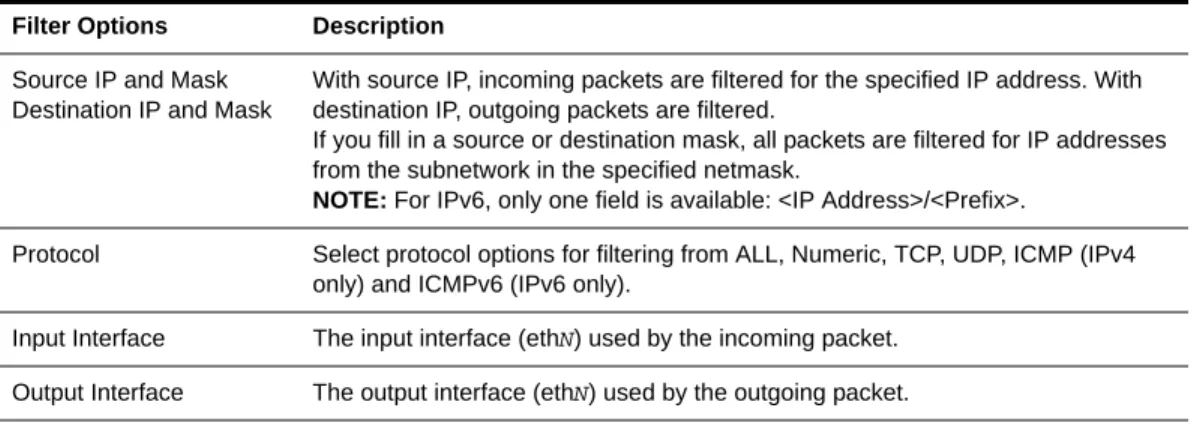
When you add or edit a rule, you can define any of the options described in the following table.
Flag any of the above elements with Inverted to perform target action on packets not matching any criteria specified in that line. For example, if you select DROP as the target action, specify Inverted
for a source IP address and do not specify any other criteria in the rule, any packets arriving from any other source IP address than the one specified are dropped.
Numeric protocol options
If you select Numeric as the protocol when specifying a rule, you need to specify the desired number.
TCP protocol options
If you select TCP as the protocol when specifying a rule, you can define the following options.
UDP protocol options
Select UDP options by selecting UDP as the protocol when selecting a rule. Choose either the Source or Destination Port from the field, as defined above.
Table 1.3: Add Rule and Edit Rule Option Definitions Filter Options Description
Source IP and Mask Destination IP and Mask
With source IP, incoming packets are filtered for the specified IP address. With destination IP, outgoing packets are filtered.
If you fill in a source or destination mask, all packets are filtered for IP addresses from the subnetwork in the specified netmask.
NOTE: For IPv6, only one field is available: <IP Address>/<Prefix>.
Protocol Select protocol options for filtering from ALL, Numeric, TCP, UDP, ICMP (IPv4 only) and ICMPv6 (IPv6 only).
Input Interface The input interface (ethN) used by the incoming packet. Output Interface The output interface (ethN) used by the outgoing packet.
Table 1.4: TCP Protocol Option Definitions Field/Menu option Definition
Source or Destination Port Specify a source or destination port number for filtering. Specify a range to filter TCP packets for any port number within the range.
TCP Flags Specify any of the flags: SYN (synchronize), ACK (acknowledge), FIN (finish), RST (reset), URG (urgent), PSH (push) and one of the Any, Set, or Unset conditions to filter TCP packets for the specified flag and selected condition.
ICMP protocol options
When you select ICMP as a protocol when specifying a rule, you can select the ICMP options available on the display.
Target actions
The Target is the action to be performed on an IP packet that matches all the criteria specified in a rule.
NOTE: If the LOG and REJECT targets are selected, additional options are available. For detailed information on LOG target options, see LOG target on page 100.
For detailed information on REJECT target options, see REJECT target on page 101.
SNMP
The administrator can activate the Simple Network Management Protocol (SNMP) agent that resides on the console server so that the SNMP agent sends notifications about significant events or traps to an SNMP management application. The console server SNMP agent supports SNMP v1/v2 and v3.
See To configure SNMP: on page 94 for more information.
Notifications, Alarms and Data Buffering
The administrator can set up logging, notifications and alarms to alert administrators of problems. System generated messages on the console server and the connected servers or devices can be sent to syslog servers for handling. The administrator can also configure data buffering to store data from communication on serial ports for monitoring.
Data from communication with serial-connected consoles can be stored locally in the console server’s flash memory or remotely either on an NFS server or a syslog server.
Syslog servers
Messages about the console server and connected servers or devices can be sent to central logging servers, called syslog servers. Console data from devices connected to serial ports can be stored in data buffer files on syslog servers. By default, logging and data buffering are not done.
Prerequisites for logging to syslog servers
Before configuring syslogging, ensure that syslog server is pre-configured with a public IP address and is accessible from the console server. The system administrator must obtain both the IP address of the syslog server from the syslog server’s administrator and the facility number for messages from the console server. Facility numbers are used on the syslog server for handling messages generated by multiple devices.
Chapter 1: Introduction 9
Facility numbers for syslog messages
Each syslog server has seven local facility numbers available for its administrator to assign to different devices or groups of devices, at different locations. The available facility numbers are Local0 through Local7.
Example of using facility numbers
The syslog system administrator sets up a server called syslogger to handle log messages from two console servers. One console server is located in São Paulo, Brazil and the other in Fremont, California. The syslog server’s administrator wishes to aggregate messages from the São Paulo console server into the local1facility and to aggregate messages from Fremont console server into the local2facility.
On syslogger the system administrator has configured the system logging utility to write messages from thelocal1 facility to the /var/log/saopaulo-config file and the messages from the local2 facility to the/var/log/fremont-configfile. If you were in Fremont and identifying the syslog server using the Web Manager, according to this example, you would select the facility number local2 from the Facility Number pull-down menu on the Syslog form.
Managing Users of Connected Devices
This section provides a list of tasks that a Cyclades ACS advanced console server administrator can perform to enable access to connected devices.
Configuring access to connected devices
During hardware installation of the console server, the installer connects the servers, devices and any IPDUs to the serial ports. During software configuration, the console server administrator performs the common tasks listed in the following table.
ACS Console Server and Power Management
Authorized users can turn on, turn off and reboot devices that are plugged into one of the following types of power devices, which can be optionally connected to any of the serial ports:
• Avocent PM Power Distribution Units (PM PDUs) - With Avocent PM PDUs, up to 128 PDU outlets can be daisy-chained from a single serial port.
• Cyclades PM Intelligent Power Distribution Units (IPDUs) - With Cyclades PM IPDUs, up to 128 IPDU outlets can be daisy-chained from a single serial port.
Table 1.5: Common Administrator Tasks for Configuring Software
Task Where Documented
To Configure a Serial Port Connection Protocol for a Console Connection Page 131 To Configure User Access to Serial Ports Page 136
• Avocent SPC power control devices.
• Server Technology Sentry™ family of Switched Cabinet Power Distribution Units (CDUs) and switched CDU Expansion Module (CW/CX) power devices.
• Server Technology Sentry Power Tower XL™ (PTXL) and Power Tower Expansion Module (PTXM) power devices.
• Server Technology Sentry Smart CDU (CS) and smart CDU Expansion Module power devices with version 6.0g or later.
NOTE: The term PDU is used to refer to any of these types of power devices.
The ACS console server automatically recognizes and supports a Cyclades PM IPDU or Avocent SPC device when the serial port to which the power device is connected has been configured for power management.
Additional requirements for Server Technology IPDUs
For supported Server Technology IPDUs the following additional requirements apply:
• The ACS console server must be managed by a DSView 3 server (DSView 3 software version 3.4.1 or above).
• The needed power device license must be present, and the power device must be added to the DSView 3 software.
The license is automatically downloaded from the DSView 3 server onto the console server. Configuration and management can then be performed either through the DSView software or through the Web Manager.
Conventions used to identify outlets
Several formats (such as outlet names, outlet groups, IPDU IDs and port names) can be used to identify outlets during configuration, as described below:
• An administrator can configure optional names for each outlet to replace the default names assigned by the system. Outlet names must begin with a letter. Valid characters are letters, numbers, dash (-) and underscore (_). When an outlet name is configured, the name can be used in other power management configurations.
• An administrator can configure outlet groups. Once defined, outlet groups are specified with the dollar sign ($) prefix followed by the outlet group name: $outlet_groupname. For example, $Cyclades_IPDU specifies an outlets group called Cyclades_IPDU.
• An administrator can specify outlets in any of the following ways: • With a name that was configured for the outlet
• With an outlet group name preceded by the $ suffix • With the IPDU ID assigned to the IPDU
Chapter 1: Introduction 11
The IPDU and port number are always followed by one or more outlet numbers in brackets: [outlets]. Commas between outlet numbers indicate multiple outlets. Hyphens indicate a range. For example, [1,5-8] specifies outlets 1, 5, 6, 7 and 8.
• IPDU ID - An IPDU ID is automatically assigned to each IPDU when the port to which it is connected is configured for power management. An administrator can optionally assign a name to each IPDU. Both automatically assigned and administrator-assigned names are referred to as IPDU IDs.
• Specify outlets with the IPDU ID in the following format: IPDU_ID[outlets]. For example, ilA[4,5] specifies outlets 4 and 5 on an IPDU whose ID is ilA.
• When devices are plugged into more than one IPDU, you can separate multiple IPDU entries with commas in the form IPDU_ID[outlets],IPDU_ID[outlets]. For example, i1A[1,5],i1B[2] specifies two outlets on IPDU i1A and one outlet on a daisy-chained IPDU whose IPDU ID is ilB.
• Port number - To specify outlets by the port number to which the IPDU is connected, use the suffix !ttyS followed by the port number followed by [outlets]. For example, !ttyS2[16] indicates outlet 16 on an IPDU that is connected to serial port 2.
You can specify outlets in a chain of IPDUs with the port ID two different ways:
• By the outlet sequence. For example, in !ttyS3[2,16], outlet number 2 is the second outlet on the first IPDU in a chain that is connected to port 3. If the first IPDU has 10 outlets, outlet number 16 would be the sixth outlet on the second IPDU.
• By IPDU sequence, identified with alphabetic characters. The first IPDU is A and the second is B and so forth. Precede the character with a hyphen. For example, !ttyS3-B[6] would also refer to the sixth outlet on the second IPDU in the chain connected to port 3.
Configuring power management
Administrators commonly perform power management through the Web Manager to assign power management permissions to users, configure IPMI devices and configure ports for power
management.
Configuring ports for power management by authorized users
Administrators of connected devices who have power management permissions can do power management while connected by using a hotkey that brings up a power management screen. For IPMI power management, the default hotkey is Ctrl+Shift+I. For IPDU power management, the default hotkey is Ctrl+p.
Options for managing power
Authorized users can perform power management through the console server by using forms in the web manager, from a power management screen while logged into a device or from the command line while logged into the console server.
An authorized user with administrative privileges can perform IPDU and IPMI power management. A regular user with permissions to the connected devices can perform IPDU power management.
Power management through the Web Manager
Users with power management permissions can perform power management through the Web Manager. The Web Manager menu includes two power management options, both discussed in Chapter 6.
Power management from the console server command line interface (CLI)
ACS console server administrators can use the ipmitool command to manage power on IPMI devices while logged into the console server with administrative rights. The ipmitool command is documented in the Cyclades ACS Command Reference Guide.
Hostname Discovery
An administrator can configure hostname discovery on the console server. When hostname discovery is enabled for a serial port, the console server attempts to discover the hostname of the server connected to the port. If the hostname of a server is successfully discovered, the hostname of the device connected to it is shown as the serial port alias.
If the server is later moved to another port, and the new port is also configured for hostname discovery, the hostname for the server is again discovered at the new serial port.
NOTE: If the console server is being managed through DSView 3 software, hostname discovery can be configured through the DSView 3 software.
An administrator can also configure site-specific probe and answer strings. These strings are used to probe the target device that is connected to the selected serial port and extract the hostname from the answer that is received in response to the probe string. The result of each probe string is matched against all answer strings. If no match is found, the next probe string is sent until there are no more probe strings or a match occurs. The default strings have a broad range and work in most cases.
NOTE: Probe string configuration requires knowledge of C-style escape sequences. Answer strings require knowledge of POSIX extended regular expressions. Hostnames longer than 31 characters are truncated when the hostname is assigned to the serial port alias.
13
C H A P T E R
2
Installation
Important Pre-installation Requirements
Before installing and configuring the console server, ensure that you have the following: • Root Access on your local UNIX machine to use the serial ports.
• An appropriate terminal application for your operating system.
• IP address, DNS, Network Mask and Gateway addresses of your server or terminal, the console server and the machine to which the console server is connected.
• A web browser that supports the console server Web Manager, such as Netscape, Internet Explorer, Firefox or Mozilla.
• Java 2 Runtime Environment (JRE) version 1.4.2 or later. If a more recent version is available, go to http://java.com to locate and download the latest version of J2RE.
Basic Installation Procedures
Mounting the console server
You can mount the ACS console server on a wall, rack or cabinet or place it on a desktop or other flat surface. Two brackets are supplied with six hex screws for attaching the brackets to the console server for mounting.
Figure 2.1: Placement of Mounting Brackets (Forward Mounting Configuration Shown)
• You will need a hex screwdriver and the nuts and bolts provided with the mounting brackets to perform the following procedure.
To rack mount the console server:
1. Install the brackets on to the front or back edges of the ACS console server using a screw driver and the screws provided with the mounting kit.
2. Mount the console server unit in a secure position.
Making an Ethernet connection
Connect a CAT5 patch cable from the console server port labeled 10/100Base-T to an Ethernet hub or switch.
To connect devices to serial ports:
Using patch cables with RJ-45 connectors and DB-9 console adaptors assemble crossover cables to connect the console server serial ports to the device’s console port.
NOTE: For ACS 16 NEBS and ACS 32 NEBS models with single or dual DC power supplies, you must use shielded cables when connecting devices to all ports. Shielded cables are required to comply with NEBS Level 3 certification on these models. In addition, to meet RoHS requirements, a ferrite bead with equal or better impedance than TDK ZCAT2436-1330 must be installed on the Ethernet cable near the console server’s Ethernet port.
Making a direct connection to configure the network parameters.
On your Windows workstation, ensure that a terminal emulation program is installed. On servers running a UNIX-based operating system such as Solaris or Linux, make sure that a compatible terminal emulator such as Kermit or Minicom is installed.
To connect to the console port:
You can use a CAT5 straight-through cable with RJ-45 connectors and the appropriate adaptor provided in the product box to assemble a console cable. All adaptors have an RJ-45 connector on one end and either a DB25 or DB9 male or female connector on the other end.
1. Connect the RJ-45 end of the cable to the port labeled Console on the console server. 2. Connect the adaptor end of the cable to the console port of your server or device.
3. Open your terminal emulation program, start a connection session, select an available COM port and enter the following console parameters.
• Bits per second: 9600 bps • Data bits: 8
• Parity: None • Stop bit: 1
Chapter 2: Installation 15
Console server serial port pin-out information
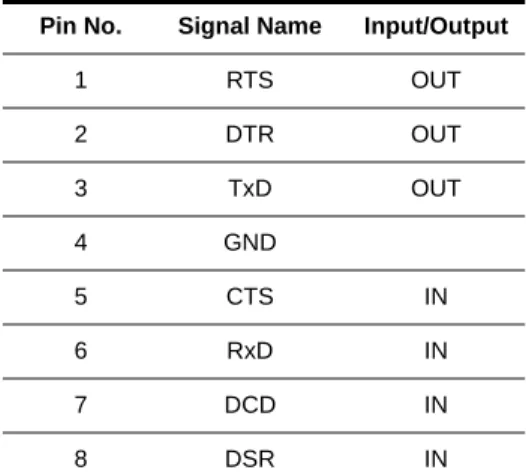
The following table provides the serial port pin-out information for the ACS console server.
Turning on the console server and the connected devices
Perform the following procedures in the order shown to avoid problems with components on connected devices.
To turn on the console server when using AC powered units:
1. Make sure the console server’s power switch is off. 2. Plug in the power cable.
3. Turn the console server’s power switch(es) on.
To turn on the console server when using DC powered units:
1. Make sure the console server’s power switch is off and the DC power wires are not connected to the DC power source.
2. Remove the protective cover from the terminal block. 3. Attach the earth ground line to the labeled ground screw. 4. Attach the 0V line to the labeled return screw.
5. Attach the -48V line to the labeled -48V screw. 6. Reattach the protective cover.
7. Attach the DC power wires to the DC power source, and then turn the console server’s power switch(es) on.
NOTE: If your console server model is equipped with dual power supplies, make sure you turn both power switches on. After system initialization, a beep sound may warn if one of the power supplies is off.
Table 2.1: ACS Console Server Serial Port Pin-out Pin No. Signal Name Input/Output
1 RTS OUT 2 DTR OUT 3 TxD OUT 4 GND 5 CTS IN 6 RxD IN 7 DCD IN 8 DSR IN
To turn on connected devices:
Turn on the power switches of the connected devices only after you have completed the physical connection to the console server.
Performing basic network configuration using the wiz command
The following procedure assumes that a hardware connection is made between the console server’s console port and the COM port of a server.
To log into the console server through the console:
From your terminal emulation application, log into the console port as root.
console server login: root Password: tslinux
WARNING:For security reasons, it is recommended that you change the default password for root (tslinux)and admin (cyclades)as soon as possible. To change the default password of a root user, enter the passwd command at the prompt and enter a new password when prompted. To change the default password of an admin user, enter passwd admin at the prompt and enter a new password when prompted.
NOTE: The Security Advisory appears the first time console server is accessed or after a reset to factory default parameters.If you are upgrading the firmware on the console server, the previously configured security parameters are retained in the Flash memory.
To use the wiz command to configure network parameters:
1. Launch the Configuration Wizard by entering the wiz command. [root@CAS root]# wiz
As shown in the sample screen below, the system displays the configuration wizard banner and begins running the wizard.
Chapter 2: Installation 17
Figure 2.2: Configuration Wizard Screen.
2. At the prompt, press Enter to view the default settings. 3. At the prompt, enter n to change the defaults.
Set to defaults (y/n)[n]: n
4. Press Enter to accept the default hostname, or enter your own hostname and then press Enter. Hostname [CAS]: <hostname server name>
5. The IP version Configuration form is displayed. Select the IP version you wish to run and press
Enter. Choices are IPv4 enabled (0), IPv6 enabled (1) or Dual Stack (2).
NOTE: Depending on which IP configuration you choose, the Wizard will direct you to the appropriate form.
To configure for IPv4 protocol:
1. If you have typed 0 or 2 for IP version configuration, the IPv4 Configuration form will appear and give you the choice to use DHCP to assign an IP address for your system. Default is Y. 2. Press Enterto keep DHCP enabled or type n to specify a static IP address for console server.
By default, the console server uses the IP address provided by the DHCP server. If your network does not use DHCP, the console server will default to 192.168.160.10.
Do you want to use DHCP to automatically assign an IP for your system? (y/n)[y] :
NOTE: If you choose to use DHCP and have selected IPv4 enabled (option 0), the IPv4 Current Configuration verification screen will be displayed as shown below.
*********************************************************** ********* C O N F I G U R A T I O N W I Z A R D ********* ***********************************************************
INSTRUCTIONS for using the Wizard: You can:
1) Enter the appropriate information for your system and press ENTER or
2) Press ENTER if you are satisfied with the value within the brackets [ ] and want to go on to the next parameter or
3) Press ESC if you want to exit.
NOTE: For some parameters, if there is nothing within the brackets, it will continue to ask for a value. In that case, you must enter a valid value or # if you do not wish to configure the value.
Figure 2.3: Current Configuration Wizard Screen for Option 0 (IPv4 Enabled)
3. Verify that the configuration is correct and press Enter. You will be prompted to activate the configuration settings.
4. If you typed n to change the default static IP address, enter a valid IPv4 system address. System IP[192.168.160.10]: <console server_IP_address>
5. Press Enter. Enter the IP address for the gateway. Gateway IP[eth0] : <gateway_IP_address> 6. Press Enter. Enter the netmask for the subnetwork.
Network Mask[#] : <netmask> 7. Press Enter.
NOTE: If you have selected IPv4 enabled and have set the static IP, gateway and netmask addresses, the IPv4 Current Configuration verification screen will be displayed. Check all parameters and press Enter. You will be prompted to activate the configuration settings.
To configure for IPv6 protocol:
1. If you entered option 1 or 2 for IP version configuration, the IPv6 Configuration Method form will be displayed.
2. Choices for IPv6 configuration are Stateless Only (0), Static (1) or DHCP (2). The default is Stateless Only. Type the number corresponding to your choice and press Enter. The choice you enter selects the method used to assign the IPv6 system address.
*************************************************************** *********** C O N F I G U R A T I O N W I Z A R D *********** ***************************************************************
Current configuration:
Hostname : Rogreto
Domain name : corp.company.com Primary DNS Server : 172.26.29.4 Second DNS Server : #
IPv4 Configuration: DHCP : enabled
IPv6 Configuration: Disable
Chapter 2: Installation 19
• Stateless Only: The router will multicast the IPv6 prefix along with the console server’s MAC address, then listen for the other devices on the local network to allow the router to assign the IPv6 address.
• Static: You must manually assign a unique IPv6 address for the console server. • DHCP: The router will request the IPv6 address from the DHCPv6 server.
3. The DHCPv6 options form is displayed. Choices are None (0), DNS (1), Domain (2) and DNS and Domain (3). Type the number corresponding to your choice and press Enter.
• From None (0): Enter your domain name. • From Domain (1): Enter your domain name. • From DNS (2): Follow the on-screen instructions.
• From DNS (3): The Current Configuration screen is displayed. 4. If None (0) or Domain (1), enter your domain name.
Domain name[corp.avocent.com] :
5. Enter the IPv4 or IPv6 address for the Primary DNS (domain name) server.
Primary DNS Server[172.26.29.4] : <DNS_server_IPv4_or_IPv6_address> 6. Press Enter. The Current Configurations screen appears. If correct, enter y after the prompts
shown in the following screen example.
Are all these parameters correct? (y/n)[n]: y
Do you want to activate your configurations now? (y/n)[y]: y
Do you want to save your configuration to Flash? (y/n)[n]: y
7. To confirm the configuration, enter the ifconfig command.
8. After the initial configuration, proceed to the Web Manager to select a security profile as described in the following section.
NOTE: To use the Web Manager, obtain your ACS console server’s IP address. The console server may be set up with a static IP address at your site. By default, the console server uses the IP address provided by the DHCP server. If your network does not use DHCP, then the console server defaults to 192.168.160.10.
Selecting a security profile using the Web Manager
After the initial configuration, connect to the Web Manager by entering the IP address of the console server in a supported browser.
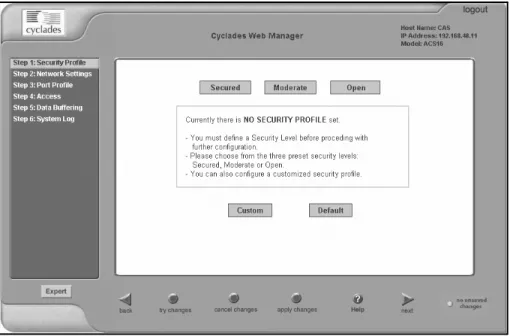
NOTE: Once you log in to the Web Manager, a Security Profile must be selected to further configure console server using the Web Manager. For this reason your browser redirects to Wizard - Step1: Security Profiles.
Selecting a Security Profile
Select a pre-defined Security Profile or define a Custom profile for specific services. The profiles are:
• Secured - Disables all protocols except sshv2, HTTPS and SSH to Serial Ports.
• Moderate - Enables sshv1, sshv2, HTTP, HTTPS, Telnet, SSH and Raw connections to Serial Ports, ICMP and HTTP redirection to HTTPS.
• Open - Enables Telnet, sshv1, sshv2, HTTP, HTTPS, SNMP, RPC, ICMP, SSH and Raw connections to Serial Ports.
• Default - Sets the profile to the same configuration as Moderate profile. • Custom - Allows custom configuration of individual protocols and services. For detailed information on Security Profiles, see Security Profiles on page 120.
The administrator can perform the following tasks using the Web Manager. • Administer the console server and its connected devices.
• Configure user and group permissions.
• Access the serial ports and the connected devices.
Adding users and configuring ports using the Web Manager
NOTE: From the factory, the console server is configured with all serial ports disabled.The administrator can add users, enable or disable the serial ports and select and assign specific users to individual ports. For more information on managing users and ports, see Security Menu and Forms on page 109 and Ports Menu and Forms on page 127.
Other Methods of Accessing the Web Manager
You can access the Web Manager using either DHCP or the default IP address.
NOTE: Accessing the Web Manager using either DHCP or the default IP address requires additional setup and configuration specific to your site’s network configuration.
To use a dynamic IP address to access the Web Manager:
This procedure assumes that DHCP is enabled and that you are able to obtain the dynamic IP address currently assigned to the console server.
1. Mount the console server.
2. Connect servers and other devices to be managed through the console server. 3. Turn on the console server and connected devices.
4. Enter the console server’s IP address in the browser’s address field.
5. Log in to the console server and finish configuring users and other settings using the Web Manager.
Chapter 2: Installation 21
To use the default IP address to access the Web Manager:
The default IP address for the console server is 192.168.160.10. This procedure assumes that you are able to temporarily change the IP address of a server located on the same subnet as the ACS console server.
1. On a server that resides on the same subnet as the console server, change the network portion of the IP address of that server to 192.168.160. For the host portion of the IP address, you can use any number except 10, 0 or 255.
2. Open a browser on the server with the changed address. Enter the console server’s default IP address, http://192.168.160.10, to bring up the Web Manager and log in.
Installing PC Cards
The front panel of the console server has two PC card slots. You can insert and configure one card in each of the slots.
To see a list of supported PC cards go to http://www.avocent.com/ and follow the product links for the ACS console server.
To install a PC card:
1. Insert the PC card into slot 1 or slot 2.
2. Use the Web Manager to configure the PC card.
NOTE: A hard disk PC card is automatically mounted and configured once it is inserted.
To remove a PC card:
CAUTION: Always use the Web Manager to eject a PC card. Any other method may cause a kernel panic. 1. Eject the card by using the Eject button on the Web Manager’s PC Management form, Expert -
Network - PCMCIA Management - Eject. 2. Remove the card from the slot.
To configure a PC card:
See To configure a PC card: on page 79 and the sections related to the type of card you need to configure.
Connecting PDUs
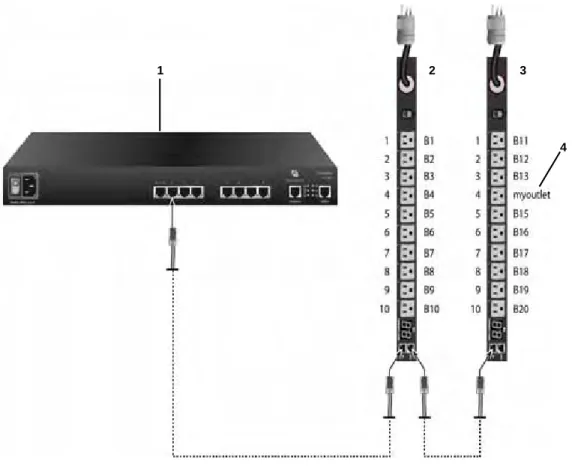
You can connect Avocent PM PDUs and Cyclades PM IPDUs to the serial ports on the console server using an RJ-45 to RJ-45 UTP cable. Avocent PM PDUs and Cyclades IPDUs include two RS-232 outlets for serial management and daisy-chaining. Any combination of Avocent PM PDUs and/or Cyclades IPDUs up to 128 outlets can be daisy-chained into a single virtual power
The daisy chain can include Avocent PM PDUs and Cyclades IPDUS with the following restrictions:
• Avocent PM PDUs should be the first in the daisy chain. • All Cyclades IPDUs should have firmware version 1.9.2 or later.
The following table lists the related tasks on connecting IPDU units and managing power.
Connecting third-party IPDUs
IPDUs from SPC and ServerTech can be connected to and managed by the ACS console server. Special cabling and an adaptor is required for this purpose. These cables and adaptors are available from Avocent,or you can build your own cable as needed. See Console server serial port pin-out information on page 15 for this purpose.
NOTE: ServerTech IPDU installation, management and operation is license based through Avocent’s DSView®3 management software only.
To daisy-chain PDUs to the console server:
This procedure assumes that you have one Avocent PM PDU or Cyclades IPDU connected to a serial port on the console server.
NOTE: Daisy-chaining is not possible with SPC power control devices. ServerTech PDUs will allow only one level (Master and Slave) of daisy chaining.
1. Connect one end of a UTP cable with RJ-45 connectors to the OUT port of the PDU connected to the serial port on the console server.
2. Connect the other end of the cable to the IN port of the next PDU.
3. Repeat steps 1 and 2 until you have connected the desired number of PDUs. Only one additional level is allowed with ServerTech PDUs.
Table 2.2: Tasks Related to Connecting PDUs
Task Where Documented
Configure serial ports for power management protocol. To configure a serial port for IPDU power management: on page 144
How administrators perform IPDU power management using the Web Manager
IPDU Power Management on page 54
How regular users manage power outlets using the Web Manager
IPDU Power Management on page 29
Connect the IPDU to the console server unit and daisy-chain multiple IPDUs.
To daisy-chain PDUs to the console server: on page 22
Chapter 2: Installation 23
Contact Avocent Technical Support for more information on: • Installing SPC devices and ServerTech PDUs
• Replacing an Avocent CCM console management appliance with a Cyclades ACS console server
• Cabling requirements for using the ACS console server with SPC devices and ServerTech PDUs
25
C H A P T E R
3
Web Manager for Regular Users
Using the Web Manager
ACS console server users perform most tasks through the Web Manager. The Web Manager runs in a browser and provides a real-time view of all equipment connected to the console server.
Authorized users can use the Web Manager to access devices connected to serial ports: • If a device console is connected, the user can access the console of the target device. • If a terminal is connected, the user can connect from the terminal to the console server and
access other servers.
• If a modem is connected, a user can dial in and access the console server and connected devices.
• If an IPDU is connected, a user can manage power for devices connected to the outlets of the IPDU.
To log into the Web Manager:
1. Type the console server’s IP address in your browser’s address field.
NOTE: Refer to Chapter 2 for requirements to start the Web Manager. 2. Press Enter. The Web Manager Login form is displayed. 3. Enter your username and password.
Features of Regular User Forms
The following figure shows features of the Web Manager when regular users log in.
Figure 3.1: Regular User Form
NOTE: The form area changes according to which menu option is selected.
Connect
When you select the Connect option, the form displayed will allow you to connect to the console server or to serial ports.
Table 3.1: Description of Regular User Web Interface Number Description
1 Form area.
2 Console server information area and logout button. This area contains the following information: logout button - Press logout to exit the current session. The login screen is displayed.
Host Name - Displays the console server’s hostname selected by the administrator. IP Address - Displays the console server’s current IP address.
Model - The model number of the console server.
3 Side navigation menu. Select one of the options to change the content in the form area. For regular users, the choices are Connect, IPDU Power Mgmt. and Security.
1
3
Chapter 3: Web Manager for Regular Users 27
Permission to access a port or perform power management is granted by the administrator when your user account is created.
Connect to the console server
When you click the Connect to ACS radio button on the Connect form, a Java applet viewer appears running an SSH session on the console server. A Java applet displays when you connect to the console server. The IP address of the console server is followed by the session type.
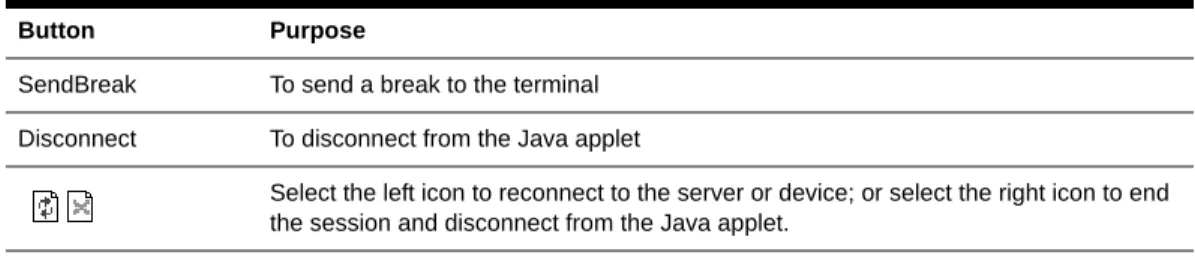
The following table describes the available buttons in the Java applet:
Connect to serial ports
The list of serial ports includes the port names or administrator-defined aliases only for ports you have permission to access.
Port access requirements
When you connect to a serial port to access a server or another device, access rights to the specific serial port on the console server is required.
NOTE: If an authentication server is setup in your network, an authentication method and the related parameters should be setup to allow access to the connected devices.
When you select a port from the Serial pull-down list and click the Connect button, a Java applet viewer appears. The Connected to message in a gray area at the top of the screen shows the IP address of the console server followed by the TCP port number.
Table 3.2: Java Applet Buttons for Connecting to the Console Server Button Purpose
SendBreak To send a break to the terminal Disconnect To disconnect from the Java applet
Select the left icon to reconnect to the server or device; or select the right icon to end the session and disconnect from the Java applet.
Connection protocols for serial ports
You can access a server or a device connected to a serial port by using the connection protocol specified for the port. The following table shows the protocols available for the serial ports.
TCP port numbers for serial ports
The TCP port numbers by default start at 7001 for serial port 1 and increment up to the number of serial ports on your console server. The console server administrator may change the default port numbers if needed.
To use Telnet to connect to a device through a serial port:
For this procedure you need the hostname of the console server or its IP address and the TCP port number for the serial port to which the device is connected.
• To use Telnet in a shell, enter the following command: telnet hostname | IP_address TCP_port_number
To close a Telnet session:
Enter the Telnet hotkey defined for the client. The default is Ctrl ] and q to quit.
To use SSH to connect to a device through a serial port:
For this procedure, you need the username configured to access the serial port, the TCP port number and the hostname of the console server or its IP address.
• To use SSH in a shell, enter the following command:
SSH - # ssh -l username:TCP_port_number console_server_IP_address|or the hostname
To close an SSH session:
Enter the hotkey defined for the SSH client followed by a period. The default is ~.
NOTE: Make sure you enter the escape character followed by a period at the beginning of a line to close the SSH session.
Table 3.3: Available Serial Port Protocols Connection Type Protocol
Console Access Server (CAS) Telnet, ssh, Telnet&ssh, Raw
Terminal Server (TS) Telnet, sshv1, sshv2, Local Terminal, Raw Socket Dial-up PPP-No Auth., PPP, SLIP, CSLIP