Copyright © 2011 Raritan, Inc. LX-v2.4.5-0A-E October 2011 255-80-8009-00
Dominion LX
User Guide
Release 2.4.5
express prior written consent of Raritan, Inc.
© Copyright 2011 Raritan, Inc. All third-party software and hardware mentioned in this document are registered trademarks or trademarks of and are the property of their respective holders.
FCC Information
This equipment has been tested and found to comply with the limits for a Class A digital device, pursuant to Part 15 of the FCC Rules. These limits are designed to provide reasonable protection against harmful interference in a commercial installation. This equipment generates, uses, and can radiate radio frequency energy and if not installed and used in accordance with the instructions, may cause harmful interference to radio communications. Operation of this equipment in a residential environment may cause harmful interference.
VCCI Information (Japan)
Raritan is not responsible for damage to this product resulting from accident, disaster, misuse, abuse, non-Raritan modification of the product, or other events outside of Raritan's reasonable control or not arising under normal operating conditions.
Rack Mount Safety Guidelines
In Raritan products which require Rack Mounting, please follow these precautions:
Operation temperature in a closed rack environment may be greater than room temperature. Do not exceed the rated maximum ambient temperature of the appliances. See Specifications. Ensure sufficient airflow through the rack environment.
Contents
Chapter 1 Introduction
1
LX Overview ... 2 LX Photos ... 4 Package Contents ... 7 LX Client Applications ... 7 Hardware ... 8 Software ... 9 LX Help ... 9 Related Documentation ... 10 Terminology ... 10Chapter 2 Installation and Configuration
12
Overview ... 12Default Login Information ... 12
Getting Started ... 13
Step 1: Configure the KVM Target Servers ... 13
Step 2: Configure Network Firewall Settings ... 26
Step 3: Connect the Equipment ... 27
Step 4: Configure the LX ... 29
Valid Special Characters for Target Names ... 33
Step 5: Launch the LX Remote Console ... 34
Step 6: Configure the Keyboard Language (Optional) ... 35
Step 7: Configure Tiering (Optional) ... 36
Chapter 3 Working with Target Servers
37
LX Interfaces ... 37LX Local Console Interface: LX Devices ... 38
LX Remote Console Interface ... 38
Launching the LX Remote Console ... 38
Interface and Navigation ... 40
Scanning Ports ... 45
Managing Favorites ... 48
Logging Out ... 51
Proxy Server Configuration for Use with MPC, VKC and AKC... 51
Virtual KVM Client (VKC) and Active KVM Client (AKC) ... 53
About the Virtual KVM Client ... 53
About the Active KVM Client ... 53
Toolbar ... 55
Connection Properties ... 57
Keyboard Options ... 59 Video Properties ... 65 Mouse Options... 70 Tool Options ... 75 View Options ... 78 Help Options ... 80 Multi-Platform Client (MPC) ... 80
Launching MPC from a Web Browser ... 80
Chapter 4 Virtual Media
82
Overview ... 83Prerequisites for Using Virtual Media ... 85
Virtual Media in a Linux Environment ... 86
Conditions when Read/Write is Not Available ... 88
Using Virtual Media ... 88
Virtual Media File Server Setup (File Server ISO Images Only) ... 89
Connecting to Virtual Media ... 90
Disconnecting Virtual Media ... 93
Chapter 5 User Management
94
User Groups ... 94User Group List... 95
Relationship Between Users and Groups ... 95
Adding a New User Group ... 95
Modifying and Existing User Group ... 99
Users ... 99
User List ... 100
Adding a New User ... 100
Modifying an Existing User ... 101
Logging a User Off (Force Logoff) ... 101
Authentication Settings ... 102
Implementing LDAP/LDAPS Remote Authentication ... 103
Returning User Group Information from Active Directory Server ... 107
Implementing RADIUS Remote Authentication ... 108
Returning User Group Information via RADIUS ... 111
RADIUS Communication Exchange Specifications ... 111
User Authentication Process ... 113
Configuring and Enabling Tiering ... 121
Enabling Direct Port Access via URL ... 124
Enabling the AKC Download Server Certificate Validation ... 125
Configuring Modem Settings ... 126
Configuring Date/Time Settings ... 127
Event Management ... 128
Configuring Event Management - Settings ... 129
Configuring Ports ... 131
Configuring Standard Target Servers ... 132
Configuring KVM Switches ... 132
Configuring LX Local Port Settings... 134
Changing the Default GUI Language Setting ... 136
Chapter 7 Security Management
138
Security Settings ... 138Login Limitations ... 139
Strong Passwords ... 140
User Blocking ... 142
Encryption & Share ... 144
SSL Certificates ... 147
Chapter 8 Maintenance
149
Audit Log ... 149Device Information ... 150
Backup and Restore ... 151
Upgrading CIMs ... 153
Upgrading Firmware ... 153
Upgrade History ... 155
Rebooting the LX ... 155
Chapter 9 Diagnostics
157
Network Interface Page ... 157Network Statistics Page ... 158
Ping Host Page ... 160
Trace Route to Host Page ... 160
Device Diagnostics ... 161
Chapter 10 Command Line Interface (CLI)
163
Overview ... 163Accessing the LX Using CLI ... 164
SSH Connection to the LX ... 164
SSH Access from a Windows PC ... 164
Logging In ... 165
Navigation of the CLI ... 165
Completion of Commands ... 165
CLI Syntax -Tips and Shortcuts ... 166
Common Commands for All Command Line Interface Levels ... 166
Initial Configuration Using CLI ... 167
Setting Parameters ... 167
Setting Network Parameters ... 167
CLI Prompts ... 168
CLI Commands ... 168
Security Issues ... 169
Administering the LX Console Server Configuration Commands ... 169
Configuring Network ... 169
Interface Command ... 170
Name Command ... 171
IPv6 Command ... 171
Chapter 11 LX Local Console
172
Overview ... 172Simultaneous Users ... 172
LX Local Console Interface: LX Devices ... 173
Security and Authentication ... 173
Supported Video Resolutions - Local Console ... 174
Port Access Page (Local Console Server Display) ... 174
Accessing a Target Server ... 175
Scanning Ports - Local Console ... 176
Using Scan Options ... 177
Hot Keys and Connect Keys ... 177
Connect Key Examples ... 178
Special Sun Key Combinations ... 178
Returning to the LX Local Console Interface ... 179
Local Port Administration ... 179
Configuring LX Local Console Local Port Settings ... 180
LX Local Console Factory Reset ... 182
Resetting the LX Using the Reset Button ... 183
Appendix A Specifications
184
LX Specifications ... 184Certified Modems ... 190
Remote Connection ... 190
Supported Keyboard Languages ... 191
TCP and UDP Ports Used ... 193
Events Captured in the Audit Log and Syslog ... 194
Network Speed Settings ... 195
Appendix B Updating the LDAP Schema
197
Returning User Group Information ... 197From LDAP/LDAPS ... 197
From Microsoft Active Directory ... 197
Setting the Registry to Permit Write Operations to the Schema ... 198
Creating a New Attribute ... 198
Adding Attributes to the Class ... 199
Updating the Schema Cache ... 201
Editing rciusergroup Attributes for User Members ... 201
Appendix C Informational Notes
205
Overview ... 205Java Runtime Environment (JRE) ... 205
IPv6 Support Notes ... 206
Keyboards ... 207
Non-US Keyboards ... 207
Macintosh Keyboard ... 209
Fedora ... 210
Resolving Fedora Core Focus ... 210
Mouse Pointer Synchronization (Fedora) ... 210
Resolving Issues with Firefox Freezing when Using Fedora ... 210
Video Modes and Resolutions ... 211
SUSE/VESA Video Modes ... 211
Supported Video Resolutions Not Displaying ... 211
VM-CIMs and DL360 USB Ports ... 211
MCUTP ... 212
Virtual Media ... 213
Virtual Media via VKC and AKC in a Windows Environment ... 213
Virtual Media Not Refreshed After Files Added ... 214
Active System Partitions ... 214
Drive Partitions ... 214
Virtual Media Linux Drive Listed Twice ... 215
Mac and Linux Locked, Mapped Drives ... 215
Accessing Virtual Media on a Windows 2000 Server Using a D2CIM-VUSB ... 215
Target BIOS Boot Time with Virtual Media ... 215
Virtual Media Connection Failures Using High Speed for Virtual Media Connections .... 215
CIMs ... 215
Windows 3-Button Mouse on Linux Targets ... 215
Windows 2000 Composite USB Device Behavior for Virtual Media ... 216
Appendix D Frequently Asked Questions
217
Chapter 12 LX FAQs... 218
Index
223
In This Chapter
LX Overview ... 2 LX Photos ... 4 Package Contents ... 7 LX Client Applications ... 7 Hardware ... 8 Software... 9 LX Help ... 9LX Overview
The LX®
KVM-over-IP switches give one to two remote users, with an independent local port, BIOS-level access and control of up to 16
servers. When implementing tiering functionality, users can easily control up to 256 computers from a single console. These appliances,
specifically designed for small to midsize businesses (SMBs), offer economical, remote access from anywhere, efficient reliable server management, and a minimum initial investment that provides affordable scalability.
The LX comes standard with Raritan‟s Universal Virtual Media™
,
providing the widest variety of CD, DVD, USB, internal and remote drives that can be mounted locally, enabling remote management tasks and eliminating the need to travel. For a clear, crisp view, the modern architecture platform supports high definition (HD) 1920x1080 remote video resolution and a common, modern, browser-based GUI for both local and remote access, requires little training, provides at-the-rack productivity, and ensures efficient use of all IT resources. Servers can be accessed from Windows®, Linux®, Sun® or Macintosh® through the
leading browsers or stand-alone, with no client license fees. With cabling bundles options, SMB IT staff can minimize their initial investment today while preserving the option for added functionality tomorrow.
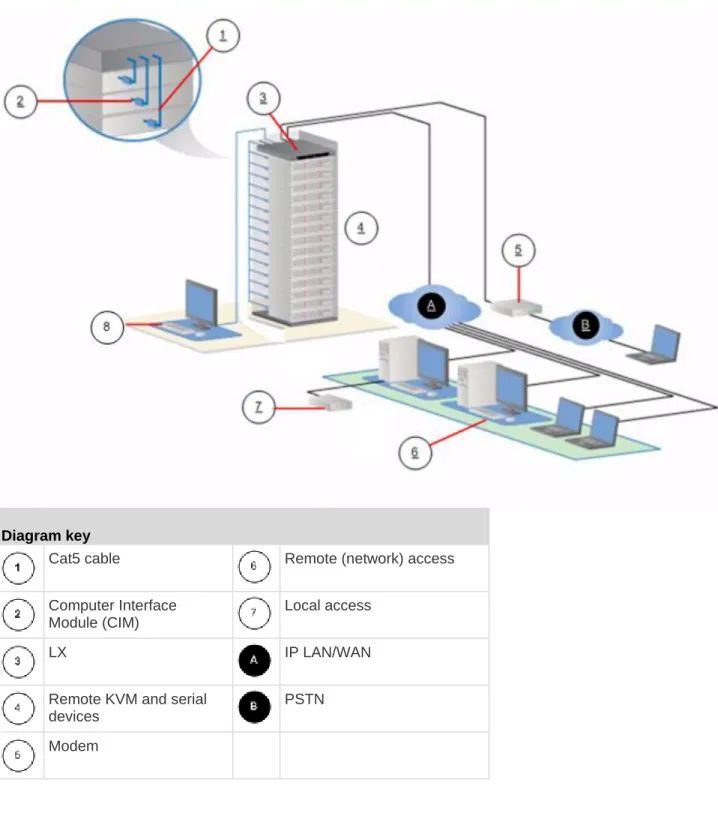
Diagram key
Cat5 cable Remote (network) access
Computer Interface Module (CIM)
Local access
LX IP LAN/WAN
Remote KVM and serial devices
PSTN
LX Photos
LX 116
Package Contents
Each LX ships as a fully-configured stand-alone product in a standard 1U 19" rackmount chassis. Each LX device ships with the following contents: Amount included Item 1 LX device 1 Rackmount kit 1 AC power cord
1 LX Quick Setup Guide
1 Application note
1 Warranty card
LX Client Applications
The following client applications can be used in the LX: Product Works with...
MPC RRC VKC RSC AKC
LX 2.4.5 (or later)
See the KVM and Serial Client Guide for additional information on the client applications. Also see the Working with Target Servers (on page 37) section of this guide, which contains information on using the clients with the LX.
Note: MPC and VKC require the Java™
Runtime Environment (JRE™
). AKC is .NET based.
Hardware
Integrated KVM-over-IP remote access 8 and 16 server port models
Up to 2 video channels that allows up to 2 users to connect to the LX at once
Multiple user capacity (1/2 remote users; 1 local user) UTP (Cat5/5e/6) server cabling
Ethernet port (10/100/1000 LAN) Field upgradable
Local user port for in-rack access
Three back panel USB 2.0 ports for supported USB devices
Fully concurrent with remote user access
Local graphical user interface (GUI) for administration Modem support
Front and rear LED indicators for the device status, boot-up and firmware upgrades
Hardware Reset button
Serial port to connect to an external modem 19" rack-mountable (brackets included)
Software
Virtual media support in Windows®
, Mac®
and Linux®
environments with D2CIM-VUSB and D2CIM-DVUSB CIMs
Port scanning and thumbnail view of targets within a configurable scan set
Absolute Mouse Synchronization with D2CIM-VUSB CIM and D2CIM-DVUSB CIMs
Plug-and-Play
Web-based access and management Intuitive graphical user interface (GUI)
256-bit encryption of complete KVM signal, including video and virtual media
LDAP, Active Directory®
, RADIUS, or internal authentication and authorization
DHCP or fixed IP addressing SNMP and Syslog management IPv4 and IPv6 support
LX and generic tiering
LX Help
The LX help provides information on how to install, set up, and configure the LX. It also includes information on accessing target servers, using virtual media, managing users and security, and maintaining and diagnosing the LX.
See the LX release notes for important information on the current release before you begin using the LX.
A PDF version of the help can be downloaded from the Raritan Firmware and Documentation page on the Raritan website. Raritan recommends that you refer to the Raritan website for the most up-to-date user guides available.
To use online help, Active Content must be enabled in your browser. If you are using Internet Explorer 7, you must enable Scriplets. Consult your browser help for information on enabling these features.
Related Documentation
The LX help is accompanied by the LX Quick Setup Guide, which can be found on the Raritan Firmware and Documentation page of Raritan's
website (
http://www.raritan.com/support/firmware-and-documentation).
Installation requirements and instructions for client applications used with the LX can be found in the KVM and Serial Access Clients Guide, also found on the Raritan website. Where applicable, specific client functions used with the LX are included in the help.
Terminology
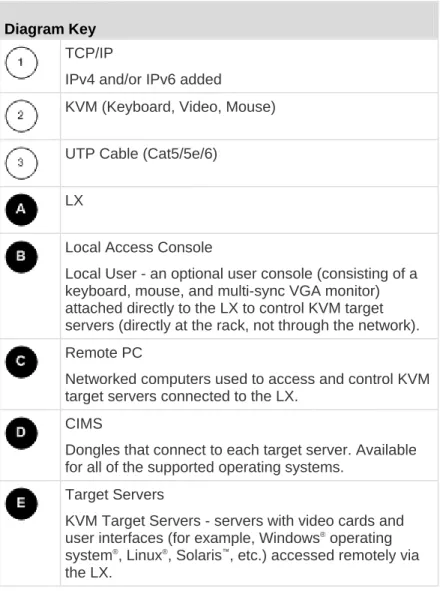
Diagram Key TCP/IP
IPv4 and/or IPv6 added
KVM (Keyboard, Video, Mouse)
UTP Cable (Cat5/5e/6)
LX
Local Access Console
Local User - an optional user console (consisting of a keyboard, mouse, and multi-sync VGA monitor) attached directly to the LX to control KVM target servers (directly at the rack, not through the network). Remote PC
Networked computers used to access and control KVM target servers connected to the LX.
CIMS
Dongles that connect to each target server. Available for all of the supported operating systems.
Target Servers
KVM Target Servers - servers with video cards and user interfaces (for example, Windows® operating
system®, Linux®, Solaris™
, etc.) accessed remotely via the LX.
See Supported CIMS and Operating Systems - LX for a list of the supported operating systems and CIMs.
In This Chapter
Overview ... 12 Default Login Information ... 12 Getting Started ... 13
Overview
This section provides a brief overview of the installation process. Each step is further detailed in the remaining sections of this chapter.
To install and configure the LX:
Step 1: Configure the KVM Target Servers (on page 13)
Step 2: Configure Network Firewall Settings (on page 26)
Step 3: Connect the Equipment (on page 27)
Step 4: Configure the LX (on page 29)
Step 5: Launch the LX Remote Console (on page 34)
Step 6: Configure the Keyboard Language (Optional) (on page
35)
Step 7: Configure Tiering (Optional) (on page 36)
Also included in this section is the default login information you will need. Specifically, the default IP address, user name and password. See
Default Login Information (on page 12).
Default Login Information
Default Value
User name The default user name is admin. This user has administrative privileges.
Default Value
Important: For backup and business continuity purposes, it is strongly recommended that you create a backup administrator user name and password and keep that information in a secure location.
Getting Started
Step 1: Configure the KVM Target Servers
KVM target servers are the computers that are accessed and controlled via the LX. Before installing the LX, configure all KVM target servers to ensure optimum performance. This configuration applies only to KVM target servers, not to the client workstations (remote PCs) used to access the LX remotely.
Desktop Background
For optimal bandwidth efficiency and video performance, use solid color backgrounds whenever possible. Backgrounds featuring photos or complex gradients might degrade performance.
Supported Video Resolutions
Ensure that each target server's video resolution and refresh rate are supported by the LX and that the signal is noninterlaced.
Video resolution and cable length are important factors in the ability to obtain mouse synchronization. See Target Server Connection
Distance and Video Resolution (on page 190).
The LX supports these resolutions:
Resolutions 640x350 @70Hz 1024x768@85 640x350 @85Hz 1024x768 @75Hz 640x400 @56Hz 1024x768 @90Hz 640x400 @84Hz 1024x768 @100Hz 640x400 @85Hz 1152x864 @60Hz 640x480 @60Hz 1152x864 @70Hz 640x480 @66.6Hz 1152x864 @75Hz
Resolutions 640x480 @72Hz 1152x864 @85Hz 640x480 @75Hz 1152x870 @75.1Hz 640x480 @85Hz 1152x900 @66Hz 720x400 @70Hz 1152x900 @76Hz 720x400 @84Hz 1280x720@60Hz 720x400 @85Hz 1280x960 @60Hz 800x600 @56Hz 1280x960 @85Hz 800x600 @60Hz 1280x1024 @60Hz 800x600 @70Hz 1280x1024 @75Hz 800x600 @72Hz 1280x1024 @85Hz 800x600 @75Hz 1360x768@60Hz 800x600 @85Hz 1366x768@60Hz 800x600 @90Hz 1368x768@60Hz 800x600 @100Hz 1400x1050@60Hz 832x624 @75.1Hz 1440x900@60Hz 1024x768 @60Hz 1600x1200 @60Hz 1024x768@70 1680x1050@60Hz 1024x768@72 1920x1080@60Hz Mouse Modes
The LX operates in Absolute Mouse Mode™
, Intelligent Mouse Mode and Standard Mouse Mode.
Mouse parameters do not have to be altered for Absolute Mouse Synchronization but a D2CIM-VUSB or D2CIM-DVUSB is required. For
Windows XP, Windows 2003 and Windows 2008 Settings
To configure KVM target servers running Microsoft®
Windows XP®
operating system, Windows 2003®
operating system or Windows 2008® operating systems:
1. Configure the mouse settings:
a. Choose Start > Control Panel > Mouse. b. Click the Pointer Options tab.
c. In the Motion group:
Set the mouse motion speed setting to exactly the middle speed.
Disable the "Enhance pointer precision" option.
Disable the Snap To option.
Click OK.
Note: When you are running Windows 2003 on your target server, if you access the server via KVM and perform any one off the actions listed below, mouse synchronization may be lost if it has been previously enabled. You will need to select the Synchronize Mouse command from the Mouse menu in the client to enable it again. Following are the actions that may cause this to occur:
- Opening a text editor.
- Accessing the Mouse Properties, Keyboard Properties, and Phone and Mode Options from the Windows Control Panel.
2. Disable transition effects:
a. Select the Display option from the Control Panel. b. Click the Appearance tab.
c. Click Effects.
d. Deselect the "Use the following transition effect for menus and tooltips" option.
e. Click OK.
Note: For KVM target servers running Windows XP, Windows 2000 or Windows 2008, you may wish to create a user name that will be used only for remote connections through the LX. This will enable you to keep the target server's slow mouse pointer motion/acceleration settings exclusive to the LX connection.
Windows XP, 2000, and 2008 login pages revert to preset mouse parameters that differ from those suggested for optimal LX performance. As a result, mouse synchronization may not be optimal for these
screens.
Note: Proceed only if you are comfortable adjusting the registry on Windows KVM target servers. You can obtain better LX mouse
synchronization at the login pages by using the Windows registry editor to change the following settings: HKey_USERS\.DEFAULT\Control Panel\Mouse: > MouseSpeed = 0;MouseThreshold
1=0;MouseThreshold 2=0.
Windows 7 and Windows Vista Settings
To configure KVM target servers running Windows Vista®
operating system:
1. Configure the mouse settings:
a. Choose Start > Settings > Control Panel > Mouse.
b. Select "Advanced system settings" from the left navigation panel. The System Properties dialog opens.
c. Click the Pointer Options tab. d. In the Motion group:
Set the mouse motion speed setting to exactly the middle speed.
Disable the "Enhanced pointer precision" option.
Click OK.
2. Disable animation and fade effects:
a. Select the System option from the Control Panel.
Animate controls and elements inside windows
Animate windows when minimizing and maximizing
Fade options:
Fade or slide menus into view
Fade or slide ToolTips into view
Fade out menu items after clicking 3. Click OK and Close the Control Panel.
To configure KVM target servers running Windows 7®
operating system:
1. Configure the mouse settings:
a. Choose Start > Control Panel > Hardware and Sound > Mouse. b. Click the Pointer Options tab.
c. In the Motion group:
Set the mouse motion speed setting to exactly the middle speed.
Disable the "Enhanced pointer precision" option.
Click OK.
2. Disable animation and fade effects:
a. Select Control Panel > System and Security.
b. Select System and then select "Advanced system settings" from the left navigation panel. The System Properties dialog appears. c. Click the Advanced tab.
d. Click the Settings button in the Performance group to open the Performance Options dialog.
e. Under Custom options, deselect the following checkboxes:
Animation options:
Animate controls and elements inside windows
Animate windows when minimizing and maximizing
Fade options:
Fade or slide menus into view
Fade or slide ToolTips into view
Fade out menu items after clicking 3. Click OK and Close the Control Panel.
Windows 2000 Settings
To configure KVM target servers running Microsoft® Windows
2000®
operating system:
1. Configure the mouse settings:
a. Choose Start > Control Panel > Mouse. b. Click the Motion tab.
Set the acceleration to None.
Set the mouse motion speed setting to exactly the middle speed.
Click OK.
2. Disable transition effects:
a. Select the Display option from the Control Panel. b. Click the Effects tab.
Deselect the "Use the following transition effect for menus and tooltips" option.
3. Click OK and close the Control Panel.
Note: For KVM target servers running Windows XP, Windows 2000 or Windows 2008, you may wish to create a user name that will be used only for remote connections through the LX. This will enable you to keep the target server's slow mouse pointer motion/acceleration settings exclusive to the LX connection.
Windows XP, 2000, and 2008 login pages revert to preset mouse parameters that differ from those suggested for optimal LX performance. As a result, mouse synchronization may not be optimal for these
screens.
Note: Proceed only if you are comfortable adjusting the registry on Windows KVM target servers. You can obtain better LX mouse
synchronization at the login pages by using the Windows registry editor to change the following settings: HKey_USERS\.DEFAULT\Control Panel\Mouse: > MouseSpeed = 0;MouseThreshold
a. Choose Main Menu > Preferences > Mouse. The Mouse Preferences dialog appears.
b. Click the Motion tab.
c. Within the Speed group, set the Acceleration slider to the exact center.
d. Within the Speed group, set the Sensitivity towards low.
e. Within the Drag & Drop group, set the Threshold towards small. f. Close the Mouse Preferences dialog.
Note: If these steps do not work, issue the xset mouse 1 1 command as described in the Linux command line instructions.
2. Configure the screen resolution:
a. Choose Main Menu > System Settings > Display. The Display Settings dialog appears.
b. From the Display tab, select a Resolution supported by the LX. c. From the Advanced tab, verify that the Refresh Rate is
supported by the LX.
Note: Once connected to the target server, in many Linux graphical environments, the <Ctrl> <Alt> <+> command will change the video resolution, scrolling through all available resolutions that remain enabled in the XF86Config or /etc/X11/xorg.conf, depending on your X server distribution.
To configure KVM target servers running Linux (command line):
1. Set the mouse acceleration to exactly 1 and set the threshold to exactly 1. Enter this command: xset mouse 1 1. This should be set for execution upon login.
2. Ensure that each target server running Linux is using a resolution supported by the LX at a standard VESA resolution and refresh rate. 3. Each Linux target server should also be set so the blanking times are
within +/- 40% of VESA standard values:
a. Go to the Xfree86 Configuration file XF86Config.
b. Using a text editor, disable all non-LX supported resolutions. c. Disable the virtual desktop feature (not supported by the LX). d. Check blanking times (+/- 40% of VESA standard).
Note: If you change the video resolution, you must log off of the target server and log back in for the video settings to take effect.
Note for Red Hat 9 KVM Target Servers If you are running Red Hat®
9 on the target server using a USB CIM, and are experiencing problems with the keyboard and/or mouse, there is an additional configuration setting you can try.
Tip: You might have to perform these steps even after a fresh OS installation.
To configure Red Hat 9 servers using USB CIMs:
1. Locate the configuration file (usually /etc/modules.conf) in your system.
2. Using the editor of your choice, make sure that the alias usb-controller line in the modules.conf file is as follows:
alias usb-controller usb-uhci
Note: If there is another line using usb-uhci in the /etc/modules.conf file, it needs to be removed or commented out.
3. Save the file.
4. Reboot the system in order for the changes to take effect. Linux Settings (Red Hat 4)
Note: The following settings are optimized for Standard Mouse mode only.
To configure KVM target servers running Linux® (graphical user
interface):
1. Configure the mouse settings:
a. Red Hat 5 users, choose Main Menu > Preferences > Mouse. Red Hat 4 users, choose System > Preferences > Mouse. The Mouse Preferences dialog appears.
2. Configure the screen resolution:
a. Choose Main Menu > System Settings > Display. The Display Settings dialog appears.
b. On the Settings tab, select a Resolution supported by the LX. c. Click OK.
Note: Once connected to the target server, in many Linux graphical environments, the <Ctrl> <Alt> <+> command will change the video resolution, scrolling through all available resolutions that remain enabled in the XF86Config or /etc/X11/xorg.conf, depending on your X server distribution
Note: If you change the video resolution, you must log out of the target server and log back in for the video settings to take effect.
SUSE Linux 10.1 Settings
Note: Do not attempt to synchronize the mouse at the SUSE Linux®
login prompt. You must be connected to the target server to synchronize the mouse cursors.
To configure the mouse settings:
1. Choose Desktop > Control Center. The Desktop Preferences dialog appears.
2. Click Mouse. The Mouse Preferences dialog appears. 3. Open the Motion tab.
4. Within the Speed group, set the Acceleration slider to the exact center position.
5. Within the Speed group, set the Sensitivity slider to low.
6. Within the Drag & Drop group, set the Threshold slider to small. 7. Click Close.
To configure the video:
1. Choose Desktop Preferences > Graphics Card and Monitor. The Card and Monitor Properties dialog appears.
2. Verify that a Resolution and Refresh Rate is in use that is supported by the LX. See Supported Video Resolutions for more information. Note: If you change the video resolution, you must log out of the target server and log back in for the video settings to take effect.
Make Linux Settings Permanent
Note: These steps may vary slightly depending on the specific version of Linux®
in use.
To make your settings permanent in Linux (prompt):
1. Choose System Menu > Preferences > Personal > Sessions. 2. Click the Session Options tab.
3. Select the "Prompt on log off" checkbox and click OK. This option prompts you to save your current session when you log out. 4. Upon logging out, select the "Save current setup" option from the
dialog. 5. Click OK.
Tip: If you do not want to be prompted upon log out, follow these procedures instead.
To make your settings permanent in Linux (no prompt):
1. Choose Desktop > Control Center > System > Sessions. 2. Click the Session Options tab.
3. Deselect the "Prompt on the log off" checkbox.
4. Select the "Automatically save changes to the session" checkbox and click OK. This option automatically saves your current session when you log out.
Sun Solaris Settings
To configure KVM target servers running Sun™
Solaris™
:
1. Set the mouse acceleration value to exactly 1 and the threshold to exactly 1. This can be performed from:
2. All KVM target servers must be configured to one of the display resolutions supported by the LX. The most popular supported resolutions for Sun machines are:
Display resolution Vertical refresh rate Aspect ratio
1600 x 1200 60 Hz 4:3 1280 x 1024 60,75,85 Hz 5:4 1152 x 864 75 Hz 4:3 1024 x 768 60,70,75,85 Hz 4:3 800 x 600 56,60,72,75,85 Hz 4:3 720 x 400 85 Hz 9:5 640 x 480 60,72,75,85 Hz 4:3
3. KVM target servers running the Solaris operating system must output VGA video (H-and-V sync, not composite sync).
To change your Sun video card output from composite sync to the nondefault VGA output:
1. Issue the Stop+A command to drop to bootprom mode.
2. Issue the following command to change the output resolution: setenv output-device screen:r1024x768x70
3. Issue the boot command to reboot the server.
You can also contact your Raritan representative to purchase a video output adapter:
If you have: Use this video output adapter: Sun 13W3 with composite
sync output
APSSUN II Guardian converter Sun HD15 with composite
sync output
1396C converter to convert from HD15 to 13W3 and an APSSUN II Guardian converter to support composite sync
Sun HD15 with separate sync output
APKMSUN Guardian converter
Note: Some of the standard Sun background screens may not center precisely on certain Sun servers with dark borders. Use another background or place a light colored icon in the upper left hand corner. Mouse Settings
To configure the mouse settings (Sun Solaris 10.1):
2. Choose Mouse Style Manager. The Style Manager - Mouse dialog appears.
3. Set the Acceleration slider to 1.0. 4. Set the Threshold slider to 1.0. 5. Click OK.
Accessing the Command Line 1. Right click.
2. Choose Tools > Terminal. A terminal window opens. (It is best to be at the root to issue commands.)
Video Settings (POST)
Sun systems have two different resolution settings: a POST resolution and a GUI resolution. Run these commands from the command line. Note: 1024x768x75 is used as an example here; substitute the resolution and refresh rate you are using.
To check current POST resolution:
Run the following command as the root: # eeprom output-device
To change POST resolution:
1. Run # eeprom output-device=screen:r1024x768x75. 2. Log out or restart computer.
Video Settings (GUI)
The GUI resolution can be checked and set using different commands depending on the video card in use. Run these commands from the command line.
Note: 1024x768x75 is used as an example here; substitute the resolution and refresh rate you are using.
Card To check resolution: To change resolution: 32-bit # /usr/sbin/pgxconfig -prconf 1. # /usr/sbin/pgxconfig -res
1024x768x75
2. Log out or restart computer. 64-bit # /usr/sbin/m64config -prconf 1. # /usr/sbin/m64config -res
1024x768x75
2. Log out or restart computer. 32-bit
and 64-bit
# /usr/sbin/fbconfig -prconf 1. # /usr/sbin/fbconfig -res 1024x768x75
2. Log out or restart computer. IBM AIX 5.3 Settings
Follow these steps to configure KVM target servers running IBM®
AIX™
5.3.
To configure the mouse:
1. Go to Launcher. 2. Choose Style Manager.
3. Click Mouse. The Style Manager - Mouse dialog appears.
4. Use the sliders to set the Mouse acceleration to 1.0 and Threshold to 1.0.
5. Click OK.
To configure the video:
1. From the Launcher, select Application Manager. 2. Select System_Admin.
3. Choose Smit > Devices > Graphic Displays > Select the Display Resolution and Refresh Rate.
4. Select the video card in use.
5. Click List. A list of display modes is presented.
6. Select a resolution and refresh rate supported by the LX. See Supported Video Resolutions for more information.
Note: If you change the video resolution, you must log out of the target server and log back in for the video settings to take effect.
Make UNIX Settings Permanent
Note: These steps may vary slightly depending on the type of UNIX®
(for
example, Solaris™
, IBM®
AIX™
) and the specific version in use. 1. Choose Style Manager > Startup. The Style Manager - Startup
dialog appears.
2. On the Logout Confirmation dialog, select the On option. This option prompts you to save your current session when you log out.
Apple Macintosh Settings
For KVM target servers running an Apple Macintosh® operating system,
the preferred method is to use the D2CIM-VUSB and Absolute Mouse Synchronization.
Step 2: Configure Network Firewall Settings
To enable remote access to the LX, your network and firewall must allow communication on TCP Port 5000. Alternatively, configure the LX to use a different TCP port, then allow communication on that port. To access the LX via a web browser, your firewall must allow access to TCP Port 443 (Standard HTTPS). Access to TCP Port 80 (Standard HTTP) enables automatic redirection of HTTP requests to HTTPS.
Step 3: Connect the Equipment
A. AC Power
To connect the power supply:
Attach the included AC power cord to the LX and plug it into an AC power outlet.
B. Network Port
To connect the network:
Connect a standard Ethernet cable (included) from the network port to an Ethernet switch, hub, or router.
C. Local Access Port (Local PC)
For convenient access to target servers while at the rack, use the LX Local Access port. While the Local Access port is required for installation and setup, it is optional for subsequent use. The Local Access port also provides a graphical user interface from the LX Local Console for administration and target server access. See Configuring LX Local Port Settings for additional information.
To connect the local port:
Attach a multi-sync VGA monitor, mouse and keyboard to the respective Local User ports using a USB keyboard and mouse. The port connections are located on the back panel of the LX.
Connection Description
Monitor Attach a standard multi-sync VGA monitor to the HD15 (female) video port.
Keyboard Attach a standard USB keyboard to one of the USB Type A (female) ports.
Mouse Attach a standard USB mouse to one of the USB Type A (female) ports.
D. Target Server Ports
For convenient access to target servers while at the rack, use the LX Local Access port. While the Local Access port is required for installation and setup, it is optional for subsequent use. The Local Access port also provides a graphical user interface from the LX Local Console for administration and target server access. See Configuring LX Local Port Settings for additional information.
To connect a target server to the LX:
3. Attach the keyboard/mouse connector of your CIM to the
corresponding ports on your target server. Using a standard straight-through UTP (Cat5/5e/6) cable, connect the CIM to an available server port on the back of your LX device.
Note: The DCIM-USB G2 provides a small slide switch on the back of the CIM. Move the switch to P for PC-based USB target servers. Move the switch to S for Sun USB target servers.
A new switch position takes effect only after the CIM is power-cycled. To power-cycle the CIM, remove the USB connector from the target server and plug it back in a few seconds later.
E. Modem Port (Optional)
The LX features a dedicated modem port for remote access even when the LAN/WAN is unavailable. Using a straight-through serial (RS-232) cable, connect an external serial modem to the port labeled MODEM on the back of the LX. See Specifications (on page 184) for a list of certified modems and Configuring Modem Settings (on page 126) for information on configuring the modem.
Note: Raritan recommends configuring the modem by enabling the CD (carrier detect) setting.
Step 4: Configure the LX
The first time you power up the LX device, there is some initial configuration that you need to perform through the LX Local Console: Change the default password
Assign the IP address
Name the KVM target servers
The LX can be configured remotely via web browser. This requires the workstation have an appropriate Java Runtime Environment (JRE) version installed.
Changing the Default Password
The LX ships with a default password. The first time you start the LX you are required to change that password.
To change the default password:
1. Once the unit has booted, enter the default username (admin) and password (raritan). Click Login.
2. Enter the old password (raritan), enter a new password and then enter the new password again. Passwords can be up to 64 characters in length and can consist of English, alphanumeric and special characters. Click Apply. Click OK on the Confirmation page.
Note: The default password can also be changed from the Raritan Multi-Platform Client (MPC).
Assigning an IP Address
These procedures describe how to assign an IP address on the Network Settings page. For complete information about all of the fields and the operation of this page, see Network Settings (on page 115).
To assign an IP address:
1. Choose Device Settings > Network. The Network Settings page opens.
2. Specify a meaningful Device Name for your LX device. Up to 32 alphanumeric characters using valid special characters and no spaces.
3. In the IPv4 section, enter or select the appropriate IPv4-specific network settings:
a. Enter the IP Address if needed. The default IP address is 192.168.0.192.
b. Enter the Subnet Mask. The default subnet mask is 255.255.255.0.
c. Enter the Default Gateway if None is selected from the IP Auto Configuration drop-down.
d. Enter the Preferred DHCP Host Name if DHCP is selected from the IP Auto Configuration drop-down.
e. Select the IP Auto Configuration. The following options are available:
None (Static IP) - This option requires that you manually specify the network parameters.
This is the recommended option because the LX is an infrastructure device and its IP address should not change.
DHCP - Dynamic Host Configuration Protocol is used by networked computers (clients) to obtain unique IP addresses and other parameters from a DHCP server.
c. Enter the Prefix Length. This is the number of bits used in the IPv6 address.
d. Enter the Gateway IP Address.
e. Link-Local IP Address. This address is automatically assigned to the device. It is used for neighbor discovery or when no routers are present. Read-Only
f. Zone ID. This identifies the device with which the address is associated. Read-Only
g. Select the IP Auto Configuration. The following options are available:
None - Use this option if you do not want an auto IP configuration and prefer to set the IP address yourself (static IP). This is the default and recommended option.
If None is selected for the IP auto configuration, the following Network Basic Settings fields are enabled: Global/Unique IP Address, Prefix Length, and Gateway IP Address allowing you to manually set the IP configuration.
Router Discovery - Use this option to automatically assign IPv6 addresses that have Global or Unique Local significance beyond that of the Link Local, which only applies to a directly connected subnet.
5. Select Obtain DNS Server Address Automatically if DHCP is selected and Obtain DNS Server Address is enabled. When Obtain DNS Server Address Automatically, the DNS information provided by the DHCP server will be used.
6. If Use the Following DNS Server Addresses is selected, regardless of whether DHCP is selected or not, the addresses entered in this section will be used to connect to the DNS server.
Enter the following information if the Following DNS Server
Addresses option is selected. These addresses are the primary and secondary DNS addresses that will be used if the primary DNS server connection is lost due to an outage.
a. Primary DNS Server IP Address b. Secondary DNS Server IP Address 7. When finished, click OK.
See LAN Interface Settings for information in configuring this section of the Network Settings page.
Note: In some environments, the default LAN Interface Speed & Duplex setting Autodetect (autonegotiator) does not properly set the network parameters, which results in network issues. In these instances, setting the LX LAN Interface Speed & Duplex field to 100 Mbps/Full Duplex (or whatever option is appropriate to your network) addresses the issue. See the Network Settings (on page 115) page for more information.
Configuring Date/Time Settings (Optional)
To set the date and time:
1. Choose Device Settings > Date/Time. The Date/Time Settings page opens.
2. Choose your time zone from the Time Zone drop-down list. 3. To adjust for daylight savings time, check the "Adjust for daylight
savings time" checkbox.
4. Choose the method you would like to use to set the date and time:
User Specified Time - Choose this option to input the date and time manually. For the User Specified Time option, enter the date and time. For the time, use the hh:mm format (using a 24-hour clock).
Synchronize with NTP Server - Choose this option to synchronize the date and time with the Network Time Protocol (NTP) Server. 5. For the Synchronize with NTP Server option:
a. Enter the IP address of the Primary Time server.
b. Enter the IP address of the Secondary Time server. Optional 6. Click OK.
Naming Target Servers
Valid Special Characters for Target Names
Character Description Character Description
! Exclamation point ; Semi-colon
" Double quote = Equal sign
# Pound sign > Greater than sign
$ Dollar sign ? Question mark
% Percent sign @ At sign
& Ampersand [ Left bracket
( Left parenthesis \ Backward slash
) Right parenthesis ] Right bracket
* Asterisk ^ Caret
+ Plus sign _ Underscore
, Comma ` Grave accent
- Dash { Left brace
. Period | Pipe sign
/ Forward slash } Right brace
< Less than sign ~ Tilde
: Colon
Remote Authentication
Supported Protocols
To simplify management of usernames and passwords, the LX provides the ability to forward authentication requests to an external
authentication server. Two external authentication protocols are supported: LDAP/LDAPS and RADIUS.
Note on Microsoft Active Directory Microsoft®
Active Directory®
uses the LDAP/LDAPS protocol natively, and can function as an LDAP/LDAPS server and authentication source for the LX. If it has the IAS (Internet Authorization Server) component, a Microsoft Active Directory server can also serve as a RADIUS authentication source.
Create User Groups and Users
As part of the initial configuration, you must define user groups and users in order for users to access the LX.
The LX uses system-supplied default user groups and allows you to create groups and specify the appropriate permissions to suit your needs.
User names and passwords are required to gain access to the LX. This information is used to authenticate users attempting to access your LX. See User Management (on page 94) for details on adding and editing user groups and users.
Step 5: Launch the LX Remote Console
To launch the LX Remote Console:
1. Log in to any workstation with network connectivity to your LX, and that has Microsoft .NET® and/or Java Runtime Environment® installed
(JRE®
is available on the Java websitehttp://java.sun.com/). 2. Launch a supported web browser such as Internet Explorer®
or Firefox®.
3. Enter the URL: http://IP-ADDRESS or http://IP-ADDRESS/akc for .NET, where IP-ADDRESS is the IP address assigned to your LX. You can also use https, the DNS name of the LX assigned by the administrator (provided that a DNS server has been configured), or type the IP address in the browser (LX always redirects the IP address from HTTP to HTTPS.)
4. Enter your username and password. Click Login. Access and Control Target Servers Remotely
The LX Port Access page provides a list of all LX ports, as well as the connected target servers, their status, and availability.
Switching between Target Servers
To switch between KVM target servers:
1. While already using a target server, access the LX Port Access page.
2. Click the port name of the target you want to access. The Port Action menu appears.
3. Choose Switch From in the Port Action menu. The new target server you selected is displayed.
Disconnecting a Target Server
To disconnect a target server:
Click the port name of the target you want to disconnect. When Port Action menu appears, click Disconnect.
Step 6: Configure the Keyboard Language (Optional)
Note: This step is not required if you are using the US/International language keyboard.
If you are using a non-US language, the keyboard has to be configured for the appropriate language. In addition, the keyboard language for the client machine and the KVM target servers has to match.
Consult the documentation for your operating system for additional information about changing the keyboard layout.
Changing the Keyboard Layout Code (Sun Targets)
Use this procedure if you are using a DCIM-SUSB and would like the keyboard layout changed to another language.
To change the keyboard layout code (DCIM-SUSB only):
1. Open a Text Editor window on the Sun™
workstation.
2. Check that the Num Lock key is active and press the left Ctrl key and the Del key on your keyboard. The Caps Lock light starts to blink, indicating that the CIM is in Layout Code Change mode. The text window displays: Raritan Computer, Inc. Current keyboard layout code = 22h (US5 UNIX).
3. Type the layout code desired (for example, 31 for the Japanese keyboard).
4. Press Enter.
5. Shut down the device and power on once again. The DCIM-SUSB performs a reset (power cycle).
Step 7: Configure Tiering (Optional)
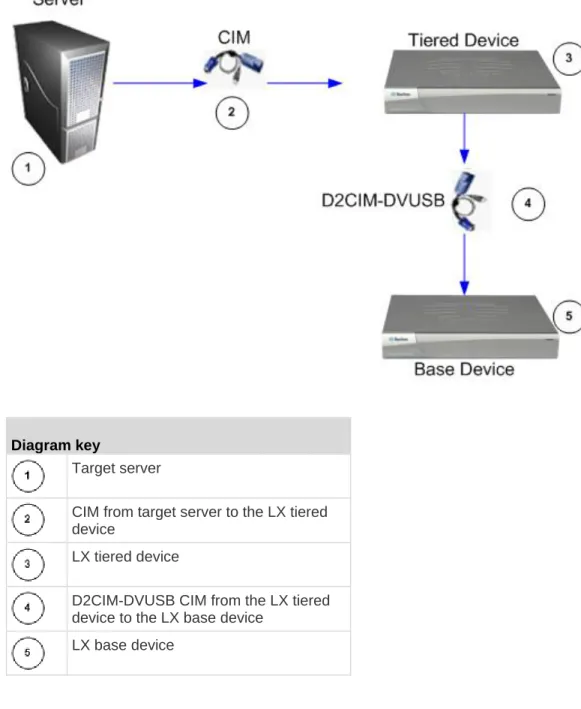
LX and generic tiering are supported by the LX. See the Device Management (on page 115) section for more information on this feature.
Connect from a target server port on the base device to the tier LX Local Access port video/keyboard/mouse ports using a D2CIM-DVUSB.
To enable tiering:
1. From the tier base, choose Device Settings > Device Services. The Device Service Settings page appears.
2. Select Enable Tiering as Base.
3. In the Base Secret field, enter the secret shared between the base and the tiered devices. This secret is required for the tiered devices to authenticate the base device. You will enter the same secret word for the tiered device.
4. Click OK.
5. Enable the tiered devices. From the tiered device, choose Device Settings > Local Port Settings.
6. In the Enable Local Ports section of the page, select Enable Local Port Device Tiering.
7. In the Tier Secret field, enter the same secret word you entered for the base device on the Device Settings page.
In This Chapter
LX Interfaces ... 37 LX Local Console Interface: LX Devices ... 38 LX Remote Console Interface ... 38 Proxy Server Configuration for Use with MPC, VKC and AKC ... 51 Virtual KVM Client (VKC) and Active KVM Client (AKC) ... 53 Multi-Platform Client (MPC) ... 80
LX Interfaces
There are several user interfaces in the LX, providing you with easy access anytime, anywhere to targets. These include the LX Local Console, the LX Remote Console, the Virtual KVM Client (VKC), the Active KVM Client (AKC), and the Multi-Platform Client (MPC). The following table identifies these interfaces and their use for target server access and administration locally and remotely:
User Interface Local Remote
Access Admin Access Admin LX Local Console
LX Remote Console Virtual KVM Client (VKC) Multi-Platform Client (MPC)
Active KVM Client (AKC)
The following sections of the help contain information about using specific interfaces to access the LX and manage targets:
Local Console Remote Console Virtual KVM Client Multi-Platform Client
LX Local Console Interface: LX Devices
When you are located at the server rack, the LX provides standard KVM management and administration via the LX Local Console. The LX Local Console provides a direct KVM (analog) connection to your connected servers; the performance is exactly as if you were directly connected to the server's keyboard, mouse, and video ports.
There are many similarities among the LX Local Console and the LX Remote Console graphical user interfaces. Where there are differences, they are noted in the help.
The LX Local Console Factory Reset option is available in the LX Local Console but not the LX Remote Console.
LX Remote Console Interface
The LX Remote Console is a browser-based graphical user interface that allows you to log in to KVM target servers and serial targets connected to the LX and to remotely administer the LX.
The LX Remote Console provides a digital connection to your connected KVM target servers. When you log into a KVM target server using the LX Remote Console, a Virtual KVM Client window opens.
There are many similarities among the LX Local Console and the LX Remote Console graphical user interfaces, and where there are
differences, they are noted in the user manual. The following options are available in the LX Remote Console but not the LX Local Console: Virtual Media
Favorites Backup/Restore Firmware Upgrade SSL Certificates
Launching the LX Remote Console
pop-Depending on your browser and security settings, you may see various security and certificate warnings. It is necessary to accept these warnings to launch the LX Remote Console.
You can reduce the number of warning messages during subsequent log ins by checking the following options on the security and certificate warning messages:
In the future, do not show this warning. Always trust content from this publisher.
To launch the LX Remote Console:
1. Log in to any workstation with network connectivity to your LX, and that has Microsoft .NET®
and/or Java Runtime Environment®
installed (JRE® is available on the Java websitehttp://java.sun.com/).
2. Launch a supported web browser such as Internet Explorer®
or Firefox®
.
3. Enter the URL: http://IP-ADDRESS or http://IP-ADDRESS/akc for .NET, where IP-ADDRESS is the IP address assigned to your LX. You can also use https, the DNS name of the LX assigned by the administrator (provided that a DNS server has been configured), or type the IP address in the browser (LX always redirects the IP address from HTTP to HTTPS.)
4. Type your user name and password. If this is the first time logging in, log in with the factory default user name (admin) and password (raritan, all lower case). You will be prompted to change the default password. Click Login.
See Virtual KVM Client (VKC) and Active KVM Client (AKC) (on page
53) for information on the LX functions available via the Remote Console.
Interface and Navigation
LX Interface
Both the LX Remote Console and the LX Local Console interfaces provide a web-based interface for device configuration and
administration, as well as target server list and selection. The options are organized into various tabs.
After a successful login, the Port Access page opens listing all ports along with their status and availability. Two tabs are provided on the page - View by Port and Set Scan. On the View by Port tab, sort by Port Number, Port Name, Status (Up and Down), and Availability (Idle, Connected, Busy, Unavailable, and Connecting) by clicking on the column heading. Change the number of ports displayed on the page by entering a number in the Rows per Page field at the bottom right of the page and clicking Set. See Port Access Page (on page 43) for more information.
Use the Set Scan tab to scan for up to 32 targets that are connected to the LX. See Scanning Ports (on page 45).
Left Panel
The left panel of the LX interface contains the following information. Note that some information is conditional and will only be displayed if you are a certain of user, are using certain features, and so on. Conditional information is noted here.
Information Description When displayed?
Time & Session The date and time the current session started.
Always
User Username Always
State The current state of the application, either idle or active. If idle, the application tracks and displays the time the session has been idle.
Always
Your IP The IP address used to access the LX.
Always
Last Login The last login date and time.
Always
Device Information Information specific to the LX you are using.
Always
Device Name Name assigned to the device.
Always
IP Address The IP address of the LX. Always Firmware Current version of
firmware.
Always
Device Model Model of the LX Always Configured As
Base or Configured As Tiered*
If you are using a tiering configuration, this
indicates if the LX you are accessing is the base device or a tiered device.
When the LX is part of a tiered configuration
Port States The statuses of the ports being used by the LX.
Always
Connected Users The users, identified by their username and IP address, who are
currently connected to the LX.
Information Description When displayed? Online Help Links to online help. Always
Favorite Devices See Managing Favorites
(on page 48).
Always
LX Console Navigation
The LX Console interfaces provide many methods for navigation and making your selections.
To select an option (use any of the following):
Click on a tab. A page of available options appears.
Hover over a tab and select the appropriate option from the menu. Click the option directly from the menu hierarchy displayed
(breadcrumbs).
To scroll through pages longer than the screen:
Use Page Up and Page Down keys on your keyboard. Use the scroll bar on the right.
Port Access Page
After successfully logging on to the LX Remote Console, the Port Access page appears. By default, the View by Port tab will be displayed on the Port Access page. This page lists all of the LX ports, the connected KVM target servers, and their status and availability. The Port Access page provides access to the KVM target servers connected to the LX. KVM target servers are servers that you want to control through the LX device. They are connected to the LX ports at the back of the device.
Note: For each connection to a KVM target server, a new Virtual KVM Client window opens.
If you are using a tiered configuration in which a base LX device is used to access multiple other tiered devices, the tiered devices are viewed on the Port Access page by clicking on the Expand Arrow icon to the left of the tier device name. See Configuring and Enabling Tiering (on page 121) for more information on tiering.
The port scanning feature is accessed from the Set Scan tab on the Port Access page. The feature allows you to define a set of targets to be scanned. Thumbnail views of the scanned targets are also available. Select a thumbnail to open that target in its Virtual KVM Client window.
To use the Port Access page:
1. From the LX Remote Console, click the Port Access tab. The Port Access page opens.
The KVM target servers are initially sorted by Port Number. You can change the display to sort on any of the columns.
Port Number - Numbered from 1 to the total number of ports available for the LX device.
Port Name - The name of the LX port. Initially, this is set to Dominion-LX-Port# but you can change the name to something more descriptive. When you click a Port Name link, the Port Action Menu appears.
Note: Do not use apostrophes for the Port (CIM) Name.
Type - The type of server or CIM.
Status - The status for standard servers is either up or down.
Availability - The availability of the server.
2. Click the Port Name of the target server you want to access. The Port Action Menu appears. See Port Action Menu for details on available menu options.
3. Choose the desired menu command from the Port Action Menu. 4. Define a set of ports to be scanned on the LX using the Set Scan
To change the display sort order and/or view more ports on the same page:
1. Click the column heading by which you want to sort. The list of KVM target servers is sorted by that column.
2. In the Rows per Page, enter the number of ports to be displayed on the page and click Set.
Port Action Menu
When you click a Port Name in the Port Access list, the Port Action menu appears. Choose the desired menu option for that port to execute it. Note that only currently available options, depending on the port's status and availability, are listed in the Port Action menu:
Connect - Creates a new connection to the target server. For the LX Remote Console, a new Virtual KVM Client page appears. For the LX Local Console, the display switches to the target server and switches away from the local user interface. On the local port, the LX Local Console interface must be visible in order to perform the switch. Hot key switching is also available from the local port.
Note: This option is not available from the LX Remote Console for an available port if all connections are busy.
Switch From - Switches from an existing connection to the selected port (KVM target server). This menu item is available only for KVM targets. This option is visible only when a Virtual KVM Client is opened.
Note: This menu item is not available on the LX Local Console. Disconnect - Disconnects this port and closes the Virtual KVM Client
page for this target server. This menu item is available only when the port status is up and connected, or up and busy.
Note: This menu item is not available on the LX Local Console. The only way to disconnect from the switched target in the Local Console is to use the hot key.
Scanning Ports
The LX provides a port scanning feature that searches for selected targets and displays them in a slide show view, allowing you to monitor up to 32 targets at one time. You can connect to targets or focus on a specific target as needed. Scans can include standard targets, tiered Dominion devices, and KVM switch ports.
Note: Scanning for tiered devices is not supported by the Multi-Platform Client (MPC).
When you start a scan, the Port Scan window opens. As each target is found, it is displayed as a thumbnail in a slide show. The slide show scrolls through the target thumbnails based on the default interval of 10 seconds or according to the interval you specify. As the scan scrolls through the targets, the target that is the focus of the slide show displays in the center of the page. See Scan Settings (on page 78)
You can change the time between the slide show thumbnail rotation, the thumbnail focus interval, and the page display settings from the Scan Settings tab of the Virtual KVM Client (VKC), Active KVM Client (AKC) and Multi-Platform Client (MPC) Tools > Options dialog. See Scan
Settings (on page 78).
The name of the target is displayed below its thumbnail and in the task bar at the bottom of the window. If a target is busy, a blank screen is displayed instead of the target server access page.
The status of each target is indicated by green, yellow and red lights that are displayed below the target thumbnail and, as the target is the focus of the rotation, in the task bar. The status lights indicate the following: Green - the target is up/idle or up/connected
Yellow - the target is down but connected
Red - the target is down/idle, busy, or otherwise not accessible This feature is available from the Local Port, Virtual KVM Client (VKC), Active KVM Client (AKC) and Multi-Platform Client (MPC).
Note: MPC uses a different method for initiating a scan than the other
Raritan clients. See Set Scan Group in the KVM and Serial Client
Guide for details. The scan results and scan options differ between the Remote Console and the Local Console. See Scanning Ports - Local Console (on page 176).
To scan for targets:
1. Click the Set Scan tab on the Port Access page.
2. Select the targets you want to include in the scan by selecting the checkbox to the left of each target, or select the checkbox at the top of the target column to select all targets.
3. Leave the Up Only checkbox selected if you only want targets that are up to be included in the scan. Deselect this checkbox if you want to include all targets, whether up or down.
4. Click Scan to begin the scan. As each target is scanned, it is displayed in slide show view on the page.
5. Click Options > Pause to pause the slide show and stop it from moving between targets, click Options > Resume to resume the slide show.
6. Click on a target thumbnail to scan it next.
Using Scan Options
Following are options available to you while scanning targets. With the exception of the Expand/Collapse icon, all of these options are selected from the Options menu in the upper left of the Port Scan viewer. The options will return to their defaults when you close the window.
Hide or View Thumbnails
Use the Expand/Collapse icon at the upper left of the window to hide or view thumbnails. Expanded is the default view.
Pause the Thumbnail Slide Show
Pause thumbnails from rotating between one target and the next by selecting Options > Pause. Rotating thumbnails is the default setting.
Resume the Thumbnail Slide Show
Resume the thumbnail rotation by selecting Options > Resume.
Size the Thumbnails in the Port Scan Viewer
Enlarge the size of the thumbnails by selecting Options > Size > 360x240.
Minimize the size of the thumbnails by selection Options > Size > 160x120. This is the default thumbnail size.
Change the Orientation of the Port Scan Viewer
View thumbnails along the bottom of the Port Scan viewer by selecting Options > Split Orientation > Horizontal.
View thumbnails along the right of the Port Scan viewer by selecting Options > Split Orientation > Vertical. This is the default view.
Managing Favorites
A Favorites feature is provided so you can organize and quickly access the devices you use frequently. The Favorite Devices section is located in the lower left side (sidebar) of the Port Access page and provides the ability to:
Create and manage a list of favorite devices Quickly access frequently-used devices
List your favorites either by Device Name, IP Address, or DNS hostname
Discover LX devices on its subnet (before and after login)
Retrieve discovered LX devices from the connected Dominion device (after login)
To access a favorite LX device:
Click the device name (listed beneath Favorite Devices). A new browser opens to that device.
To display favorites by name:
Click Display by Name.
To display favorites by IP Address:
Click Display by IP.
To display favorites by the host name: