Test Plan: Executing a VDI Proof of
Concept (POC)
Virtual Desktop Infrastructure (VDI) has clear advantages over physical PCs. But implementations can be overwhelming. With so many moving parts, where do you start? How can you be sure you’re not overlooking critical success criteria? This VDI test plan accounts for all the details to ensure your project is a success.
Introduction
Virtual Desktop Infrastructure (VDI), when implemented correctly, can provide clear advantages over physical PCs:
Mobility/BYOD – End users can access their Windows desktops and applications anywhere, anytime from any device, including zero/thin clients, home PCs, smart phones, and pads.
Security – Critical applications and data are moved from the edge into the data center, where they are more secure.
Long-Term CapEx Savings – Thin and zero clients have much longer lifespans than PCs and laptops, enabling IT to get out of the device management business and avoid recurring 3-5 year PC refresh cycles.
Energy Savings – Zero and thin clients use significantly less power than PCs and laptops. Manageability and OpEx Savings – Desktop layering software for VDI makes it far easier
to package and deliver applications and apply Windows updates, compared to the legacy PC management tools that are required to manage physical desktops.
Support – Virtual desktops don’t have the physical hardware issues that PCs have. Non-persistent virtual desktops that are damaged by user configurations can be fixed in minutes by Level 1 support staff with a simple reboot. Persistent desktops managed by desktop layering technology can be fixed just as easily by rolling back the
Personalization layer to an earlier, “clean” snapshot.
When implemented incorrectly, however, VDI can lead to cost overruns, unhappy end users, far more management complexity than exists with physical PCs, and, ultimately, project failure. Unfortunately, this is too often the case. Why?
VDI Proof of Concept (POC) test plans are often incomplete, and fail to anticipate all of the use cases, desktop configurations, and requirements for full scale production. As a result, what seemed to work fine for 10 users becomes too hard to manage and too costly to implement for 200 users.
This white paper provides POC recommendations and a test plan to ensure that your VDI pilot takes into account everything you’ll need for VDI production success. It also includes links to successful customer implementations in a variety of industries so you can learn from what others have done.
Audience
The intended audience for this white paper is VDI project leads, field consultants, solution architects, and sales engineers who want to test Unidesk VDI management software in
1. Use Case Definition
A successful VDI POC starts with identifying the Use Cases that will be required for your implementation. A university may have “Economics 422 Lab,” Biology 201 Lab,” “Faculty,” “Athletics,” and “Registrar.” A state or local government organization may have “Court,” “Sheriff,” “Health,” “Emergency Management,” “Highway,” “Fire,” “Corrections,” and “Tax Collection.” A manufacturing firm may have “Procurement,” “Customer Support,”
“Manufacturing Floor Kiosks,” “Marketing,” “R&D”, and “Sales.”
When defining the use case it’s important to collect as much information as possible about desktop requirements. Requirements for each use case can be generally divided between Service Level Requirements and Functional Requirements.
State of Ohio Department of Developmental Disabilities spent the time up front to document its many use cases, service level requirements, and functional requirements. The agency even ran two separate pilots – one with mock users and one with real users – to ensure that VDI would deliver the expected results. The outcome was an award-winning 1,400-desktop VDI
implementation with Unidesk and VMware Horizon View that has been yielding ROI since 2011. Architecture and engineering service firm STV, Inc. is deploying more than 1,000 virtual
desktops with Unidesk and VMware Horizon View for its employee base of high-end knowledge workers. VDI performance, availability, and peripheral requirements for architects, engineers, project managers, and consultants – many of whom use 3D modeling and CAD apps – are significantly different than they would be for a call center. The firm went through 2 phases of planning and POC to ensure it got VDI right.
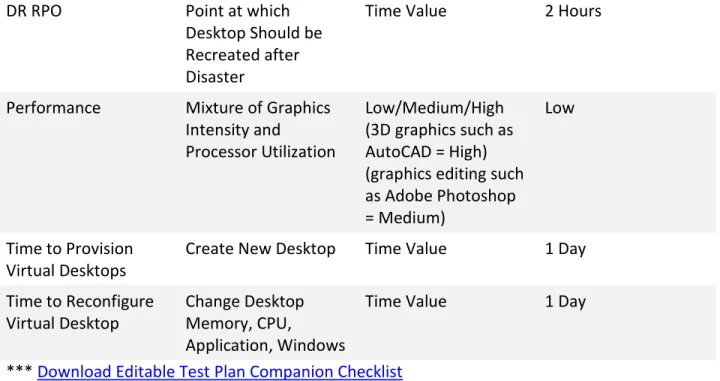
The following tables give you a starting point for capturing service level and functional requirements for your POC. Note that it’s often better to define and test fewer use cases in their entirety rather than to test small parts of many use cases.
Service Level Requirements
Requirement Description Options Selection Availability Time Desktop is Up % Value 99.90% Operational RTO Recovery Time for
Desktop
Time Value 2 Hours Operational RPO Recovery Point for
Desktop
Time Value 1 Day
DR RTO Time to Recover
Desktop From Disaster
DR RPO Point at which Desktop Should be Recreated after Disaster
Time Value 2 Hours
Performance Mixture of Graphics Intensity and
Processor Utilization
Low/Medium/High (3D graphics such as AutoCAD = High) (graphics editing such as Adobe Photoshop = Medium)
Low
Time to Provision Virtual Desktops
Create New Desktop Time Value 1 Day Time to Reconfigure
Virtual Desktop
Change Desktop Memory, CPU,
Application, Windows
Time Value 1 Day
*** Download Editable Test Plan Companion Checklist
Functional Requirements
Requirement Description Options Selection Operating System What OS is required for
the virtual desktop
Windows XP, 7, 8 Vista, Linux
Windows 7 32-bit Bi-directional Audio Allowing microphone
input and speaker output
Yes/No Yes
Phone System Integration
Runs agent to display information from the phone system
Yes/No No
Web Portal User can access virtual desktop via a web portal
Yes/No Yes
Printing Is printing required by Yes/No Yes Location-aware Printers dynamically
change based on location
Yes/No No
USB Peripherals Will USB devices at the users workstation be used
Yes/No Yes
Graphic Intensity Based on criteria below, what are the graphical computing requirements
Low/Med/High Med
HD Streaming Yes/No (Yes=High) No
Streaming Media
Media Player Yes/No (Yes=High) Yes
Flash Player Yes/No (Yes=High) Yes
DirectX Yes/No (Yes=Med) Yes
CAD Yes/No (Yes=Med) No
PowerPoint Yes/No (Yes=Med) Yes
Streaming Media Frequently
How often is streaming media required?
Often/Sometimes /Seldom
Sometimes Processor Utilization
Expectation
What is the CPU requirement?
Low/Med/High (450 Mhz/900 Mhz/1350 Mhz)
Low
Client Drive Mapping Do users require access to drives from client device?
Yes/No Yes
CD/DVD Read Access Do users require read access to local CD/DVD?
Yes/No No
CD/DVD Write Access Do users require write access to local CD/DVD?
Yes/No No
Multi-Monitor Do users require more than one display?
#/No No
Web Camera Do users require a web camera?
Yes/No No
2. Application Delivery
Application delivery is one of the most overlooked challenges in VDI implementations, and is rarely given enough focus during POCs. Many organizations underestimate the number of applications their users use on a daily basis, and the number of different desktop configurations required by each use case.
Application delivery considerations generally fall into the following categories:
Application volume – The total number of applications that need to be delivered. Application interoperability – Whether the application needs to communicate or integrate with other applications (Microsoft Word and web browser plug-ins being common examples).
Standard applications – Whether the application is needed by all or a majority of users. Departmental applications – Whether the application is needed by a subset of users
(often in the 5-50 user range).
One-off (or ad hoc) applications – Whether the application is needed by just a handful of users (typically less than 5).
Update frequency – How often the application needs to be patched or updated. Isolation – Whether the application needs to be isolated from other apps and from
Windows (usually required to run multiple versions of the same app on the same desktop at the same time, e.g. Java Run Time).
Your answers to these questions will determine which of the following application delivery methods would best suit your environment.
Delivering Applications as Part of Your Windows Image
Many organizations take the shortcut of building apps into their Windows image to expedite their VDI POC. If your production environment will have a low application volume (less than 10 apps), few if any departmental or one-off applications (all desktops are pretty much the same), and infrequent application patches and updates (once every 6 months), this is a fine approach. Updating the Windows image every time an app needs updating should work for both your POC and your production deployment.
However, if you have a larger volume of applications (30+), numerous departmental and one-off applications, or high update frequencies, delivering apps as part of your Windows image will likely not work. Virtualizing your apps so that they can be delivered and updated independent of your Windows image will be required.
Virtualizing Applications with Isolation Technology
Traditional application virtualization tools like VMware ThinApp and Microsoft App-V are excellent for isolating applications. Their approach packages apps in protective “bubbles,” effectively hiding them from Windows and other apps. This is useful for running multiple versions of the same software (e.g. Java) on the same desktop.
However, there are several things to consider when deciding whether to use these tools to package and deliver all applications:
1. Isolating apps is IT resource-intensive and time-consuming. The process of packaging applications with isolation technology requires significant time for desktop setup, pre-scans, post-pre-scans, scripting workarounds, Windows registry changes, and deployment. It’s not unusual to spend an entire day virtualizing a single app. City of Yuma, Arizona found this to be the case in its VDI POC. After taking 2 weeks to virtualize 2 of its core applications, the city realized it needed an alternative solution.
2. Not all apps can be isolated. Even if you’re an expert, there is a long list of apps that cannot be virtualized with traditional app virtualization tools. Apps with system services and boot time drivers (e.g. antivirus, printers, scanners, etc.), homegrown apps, and apps with complex Setup procedures often won’t work. Hamilton County, Indiana found its VDI project stuck at 100 desktops for over a year with these issues. QuickBooks, Roxio DVD burner, Dymo label writer, Track-It! help desk, Odyssey court and justice software, and many other apps would not virtualize. When outside consultants couldn’t make them work, the county realized an alternative solution was needed.
3. Isolated apps can’t cross-communicate. Virtualizing apps in protective “bubbles” is very useful for the small number of apps that require multiple versions on the same desktop. But for the 95% of apps that need to share data, link to each other, and cross-communicate, isolation becomes a major problem. Bernstein Shur, like many law firms, uses 15 different legal plug-ins for Microsoft Word and Microsoft Outlook. The plug-ins change often, so they tried to virtualize them to make updates easier. Yet once the plug-ins were isolated, they could no longer communicate with Word and Outlook – the very apps for which they were designed. Bernstein Shur realized another solution was needed.
Virtualizing Applications with Layering Technology
Application layering technology from vendors like Unidesk is the newer, easier way to virtualize applications in VDI. Only a few minutes are required to layer an app – anyone who knows how to run Setup can do it. Once apps are layered, they can be assigned to one or more desktops without reinstallation. The next time the desktops reboot, the applications will be present and available to the users.
Layering uses file system and Windows registry virtualization (also called “C: drive virtualization”) and is already in action at the millisecond Windows boots, compared to
traditional application virtualization, which runs after Windows has already completed its boot cycle. As a result, 99.5% of apps can be virtualized as layers, including system services, drivers, and complex applications.
Layered applications are not isolated. They appear to Windows as if they are natively installed, so they do not have the interoperability and cross-communication limitations of isolated applications.
In your POC, you should be able to easily layer most of your Standard and Departmental apps to prove that they can be centrally assigned, patched, and maintained by IT, and that they can cross-communicate where needed. City of Yuma, Hamilton County, and Bernstein Shur all did this when they ran their POCs with Unidesk and VMware Horizon View.
One-off applications that are only needed by a few users can be layered. More often, they are installed directly onto desktops by end users (if they are given administrator rights) or by IT staff. If the desktops are set to be persistent, these one-off apps and all other customizations will be retained through logouts, reboots, and Windows patches. Persistent desktops that are provisioned with layering technology share a single Windows gold image layer and common application layers, so the old concerns with persistent desktops in VDI – high storage
consumption and inefficient Windows patching – are no longer issues.
Application layering and application isolation can also be used together. For example, many customers use Unidesk layers for central distribution, version control, and rollback of ThinApp packages for applications that need to be isolated.
Documenting Your Application Inventory and Application Requirements
Use this table to take inventory of your applications and document delivery considerations for each app. This will make it easy to determine which application delivery method is right for you.
Application Standard Dept. One-Off Interop Update
Adobe Flash Player 11 ActiveX
Yes No No Yes 6 months
Adobe Flash Player 11 ActiveX 64-bit
No Yes No Yes 6 months
Adobe Flash Player 11 Plugin
No Yes No Yes 6 months
Adobe Reader X (10.1.4) Yes No No Yes 6 months
Adobe Shockwave Player 11.6
No Yes No Yes 6 months
AllMedia Grabber No No Yes No 9 months
Apple Application Support
Atomic Alarm Clock 5.81
Bullzip PDF Printer 7.2.0.1304
Centra Client
Cisco Systems VPN Client 4.8.01.0300
Cisco WebEx Meetings
Citrix Desktop Receiver
Citrix online plug-in - web
Citrix HTML5 HDX Engine
Citrix offline plug-in
Citrix online plug-in - web
Citrix XenApp Plugin for Hosted Apps
Connector ID
CopySafe PDF
CopySafe Plugin
DAEMON Tools Lite
Dell Laser MFP 1815 Software Uninstall
Everything 1.2.1.371
FastStone Capture 5.2
Google Quick Search Box
GPL Ghostscript 8.61
GPL Ghostscript Fonts
GPL MPEG-1/2 DirectShow Decoder Filter
GPL Ghostscript Lite 8.70
Greenshot
Growl for Windows
Growl Outlook Add-In
Installer
Icon Restore 1.0
Java DB 10.2.2.0
Java Platform, Enterprise Edition 5 SDK
JavaFX 2.1.1
KB2600644_Mui_1033
KeePass Password Safe 2.13
Ken Test Application
Lotus Notes 8.5.1
Microsoft Document Explorer 2008
Microsoft Dynamics CRM 2011 for Microsoft Office Outlook
Microsoft Forefront Client Security Antimalware Service
Microsoft Forefront Client Security State Assessment Service
Microsoft Forefront Endpoint Protection 2010
Microsoft Help Viewer 1.1
Microsoft IntelliPoint 8.1
Microsoft Lync 2010
Microsoft Lync Web App Plug-in
Microsoft Office Communicator 2007 R2
Microsoft Office Live Meeting 2007
Microsoft Office Professional Plus 2010
Microsoft Online Services Sign-in Assistant
Microsoft Operations Manager 2005 Agent
Microsoft Outlook Social Connector Provider for Facebook 64-bit
Microsoft Report Viewer Redistributable 2008 SP1
Microsoft Silverlight
Microsoft SQL Server 2008 R2 (64-bit)
Microsoft SQL Server VSS Writer
Microsoft User Experience Virtualization Agent
Microsoft Visio Professional 2010
Microsoft Visual Studio 2010 Premium - ENU
Mozilla Firefox 13.0.1 (x86 en-US)
Network Recording Player
Notepad++
QuickTime
SonicWALL Global VPN Client
System Center Operations Manager 2012 Agent
SysTrack Administrative Tools
ThinApp Adobe Reader 8.2.0 (VMware ThinApp)
ThinApp Adobe Reader X (VMware ThinApp)
TweetDeck
Virtual Machine Planner (x64)
VirtualCloneDrive
VMware Tools
VMware View Agent
VMware vSphere Client 5.0
WebEx
WebEx Productivity Tools
Windows Live ID Sign-in Assistant
Windows Media Format 11 runtime
3. Image Management
Almost every IT organization’s vision for VDI is one clean Windows master – the elusive “gold image” – for all virtual desktops. Yet, many VDI projects stall or fail due to large numbers of images that must be patched to stay current with Microsoft Windows hot fix and service pack releases.
The problem almost always starts in the POC. Busy IT staffs, as discussed in the previous section, narrow the POC scope to a handful of applications, and deliver the apps by building them into the Windows image. But this rarely translates to production deployments, when desktops need different sets of apps. Building every possible app into a single Windows image would force every app to be licensed for every user, which no organization can afford. Plus, the entire master image would have to be updated every time a single app needs updating.
So, many organizations start creating different Windows images with different combinations of apps built-in. The image is no longer golden, and they’re soon patching 10, 20, or more
different images instead of one.
Sunrise Health discovered this during the POC for its 3,000-user VDI project. The IT team reached out to sister healthcare regions to learn from their experiences, and found that image sprawl and high patching costs were major VDI problems. Sunrise Health made “1 gold image” a requirement of their POC, and layered over 70 different applications during its Citrix
XenDesktop and Unidesk pilot to prove that all apps could all be delivered separate from Windows.
As Sunrise Health found, layering enables one clean golden Windows OS layer to be used for all desktops, since all applications can be quickly and easily packaged as separate application layers, and since physical VM settings (e.g. CPU, memory) are attributes of each desktop, not the gold image. Note a different OS layer will be required for each OS version that you run. The following table helps you determine the number of images your VDI implementation will require with layering technology.
Requirement Number of Images
Windows XP 32-bit 1
Windows XP 64-bit 0
Windows 7 32-bit 1
Windows 7 64-bit 0
Windows 8 64-bit 0 Windows Server 2008 with
Desktop Experience
0 Windows Server 2012 with
Desktop Experience
0
4. Storage Capacity and IOPS
The POC is a good opportunity to understand exactly how much storage capacity and IOPS your production VDI deployment will require.
Capacity: Full Clone Desktops
While creating thick-provisioned, full-sized clones is an easy way to get a VDI POC up and running, it rarely scales when you move into production. Using round numbers, if you allocate 20 GBs of storage for Windows itself, 15 GBs of storage for applications, and 5 GBs of storage for user customizations and data, you’re looking at approximately 40 GBs per desktop. You may be able to find 400 GBs on your SAN for a 10-desktop pilot. But a 500-desktop
production implementation would require approximately 20 TBs. The high cost of SAN storage is why few customers implement full-sized virtual desktops.
Capacity: Cloned Desktops with Block-Based Image Sharing
VMware Linked Clones, Citrix Provisioning Server (PVS), and Citrix Machine Creation Services (MCS) are image sharing technologies that can be used to significantly reduce the amount of storage needed to implement VDI.
These block-based image sharing technologies build virtual desktops (clones) using the virtual disk of a single parent virtual machine. This dramatically reduces the time needed to set up new virtual machines, and the amount of disk space the clone uses.
When you factor in the delta disk which stores all changes or differences between the parent VM and the cloned desktop, the storage capacity savings offered by these technologies can range from 50-70% of a thick-provisioned, full sized desktop. A 500-desktop VDI
implementation would then require only 6-10 TBs.
The drawback with these technologies is that they only work for non-persistent desktops. Delta disks are invalidated whenever the parent virtual machine is patched, which results in all user customizations – display settings, icons, application preferences, user-installed apps and plug-ins – to be lost. This is why a complex set of additional tools for user virtualization, profile management, application virtualization, and image management must be implemented with these technologies.
Capacity: Layered Desktops
With desktop layering technology, layered desktops may be persistent or non-persistent. Yet, both types of desktops are as storage-efficient as non-persistent desktops provisioned with block-based image sharing technology.
Layered desktops are assigned to specific users or roles at first login. Desktops share a single instance of the
Windows OS layer and all Application layers, so patches and updates are applied only once and storage utilization is greatly reduced.
Because layering is based on file system and registry (C: drive) virtualization, all desktop customizations, including applications and plug-ins that are installed by IT administrators and end users, are sustained. Base layers can be patched as often as IT wants without affecting the upper layers.
With layering, the only difference between persistent and non-persistent desktops is whether the Personalization layer is reset after each use. If a desktop is configured as persistent, the Personalization layer is left intact. If a desktop is configured as non-persistent, the
Personalization layer is wiped clean. The decision of whether to deploy persistent and non-persistent desktops can now be based solely on use case, since both require minimal storage, and both are built using common layers that only need to be patched once.
The following table helps you estimate your storage requirements for your VDI POC and production implementation.
Desktop Components Storage Capacity
OS Layer 16 GB
Application Layers (~50 apps) 200 GB
User Layer (per desktop, persistent-only) 5 GB Boot Images (per desktop, for vSwap, pagefile, dump file) 4 GB *** Download Editable Test Plan Companion Checklist
500 full-sized desktops, assuming each desktop required 40 GBs of capacity, would normally require 20 TB of storage capacity.
However, Unidesk stores OS and Application layers only once per datastore, eliminating redundant Windows OS and application storage. The following formula can be used to
calculate Unidesk storage requirements: ((OS layer size + Application layers size) * (# of Desktop CachePoints + 1 Master CachePoint)) + (# of desktops * size of User layer) + (Boot images * # of desktops) = Total Space Required
Plugging these numbers in, a 500 persistent desktop deployment would require: ((16+200)*7) + (500*5) + (500*4) = 6 TB, for an average of only 12 GB per desktop and a savings of 70%
compared to full-sized desktops.
If you use desktop layering technology with new storage arrays that provide in-line
de-duplication and compression capabilities, storage reduction will be even more dramatic. Egan Company, a building and construction firm in the Twin Cities region of Minnesota, is using Unidesk, VMware Horizon View, and a flash-optimized storage array from Tegile for its fast-growing VDI implementation. Unidesk’s single instance storage of layers combined with Tegile’s de-duplication and compression has reduced VDI storage capacity 90% at Egan, for an average of only 2.5 GB per persistent desktop.
IOPS: All Desktops
Insufficient I/O performance is another common cause of VDI project failure. What works well in your POC often doesn’t work so well once the rotating disks in your old SAN array are being accessed by many production virtual desktops at the same time. Desktops will get more sluggish as I/O performance suffers. And users will start asking for their old PCs back. Kawasaki Motors Manufacturing USA, Waxahachie Independent School District, and William Woods University all discovered during their POCs that mechanical disks would not provide the IOPS necessary for production success. All three chose desktop layering software to simplify VDI management and reduce storage capacity requirements, and flash-optimized storage arrays to deliver enough IOPS to ensure a high-performance user experience.
This Easy-to-Use VDI IOPS Calculator is a good resource to plan how many IOPS you will need for your VDI POC and production installs.
5. Personalization and Customization
Most users will expect a PC-like experience when you convert them to VDI. They will not be satisfied with a virtual desktop that does not sustain their settings and configurations between sessions. They will want to pick up immediately where they “left off,” regardless of which device they are using for access.
You may also learn from your application inventory that you have a large number of application “one-offs” – apps that are used by only a few users. You may not want to bother virtualizing or layering these apps, and instead let them be directly installed as needed.
Persistent desktops are the best way to address both of these requirements. Persistent desktops that are provisioned with layering technology share a single Windows gold image layer and common application layers. As a result, the old concerns with persistent desktops in VDI – high storage consumption and inefficient Windows patching – are no longer relevant. Colby-Sawyer College virtualized its faculty and staff desktops first. From their POC, they knew that persistent desktops would be needed to save the many one-off apps used by professors. With solutions like Unidesk, the Personalization Layer leverages the native Windows Profile to retain all profile settings, eliminating the need for profile management tools. The
Personalization Layer also captures all writes, including data and user-installed apps. By allocating a specific amount of space to each Personalization Layer, you can enable your end users to install their own one-off apps to ease the burden on IT, and still control how big each User Layer can be. Or, if you don’t want to give out administrative rights to end users, you can have IT staff install one-off apps into the Personalization layer on behalf of the end user. By configuring the Personalization Layer snapshot frequency, you can also enable your service desk to quickly repair desktops that are broken by a user modification. Level 1 service desk personnel can roll the Personalization Layer back to any previous snapshot for any desktop to quickly eradicate malware, viruses, DLL conflicts, or other problems, essentially “undoing” whatever damage the user may have caused.
The following table provides a way to test Personalization capabilities during your VDI POC. Personalization Test for VDI POC
1. Have a user install Google Toolbar while using their desktop. Verify that it works with the web browser packaged and delivered as a layer by IT. Patch the Windows layer and the web browser layer and apply the new layer versions to the user’s desktop. Verify that Google Toolbar is still there after the desktop is patched and rebooted. 2. Install a print driver for the user. Verify it can print. Patch the Windows layer and apply the new layer version to the user’s desktop. Verify that the print driver is still present and printing works after the desktop is patched and rebooted.
3. Change the background of the desktop. Follow same steps as above. 4. Save files to the desktop. Follow same steps as above.
5. Configure the Personalization layer snapshot frequency. Make sure a snapshot has been taken. Install user-installed apps and create data. Restore the desktop to the earlier snapshot. Verify that the user-installed apps and data created after the snapshot are gone.
6. Working With Your End Users
It is extremely important to select the right user group for POC testing. Users should be as representative as possible for the chosen use cases. Users should also be friendly to IT, and willing to provide feedback. Here are a few techniques that smart IT teams are employing to ensure end user acceptance of VDI:
Arm influencers with “cool” mobile devices. When Sunrise Health kicked off its virtual desktop deployment, the IT team gave Apple iPads to the opinion leaders in each department, and encouraged them to walk around and show off how they could access their desktops, X-rays, MRIs, and EMR apps from any floor or wing. It wasn’t long before every worker wanted an iPad and a virtual desktop. VDI demand grew so quickly, it outpaced delivery of the back-end servers and storage.
Educate them on the benefits. Before Bernstein Shur started implementing VDI, the IT team gave demonstrations to the law firm’s attorneys. They showed how virtual desktops would save their sessions, let them resume working from any device at the office, home, courts, or appointments, and give them 24x7 access to legal applications. For attorneys who are under pressure to maximize billable hours and respond quickly to clients, this was music to their ears.
Include them in the project. Leading food processing manufacturer TIPPER TIE ran focus groups with end user representatives from each department during their VDI planning stage. By gathering end user input and making them feel listened to, the IT team had their backing from the start.
At the end of your POC, conducting a survey with your end users is a good way to ensure VDI will meet their requirements. Here are some sample questions.
Sample POC Survey Questions
1. Was the login process and interaction with your virtual desktop intuitive? Did you experience any problems?
2. Was the performance of the applications on your virtual desktop adequate? Please explain your expectations for performance followed by your experience.
3. Was your desktop experience from home and other locations different from your experience at work? What were the differences?
4. Was the functionality and performance of printing adequate? Please explain your expectations for printing followed by your experience.
5. What if any issues did you experience during the POC? Was there anything missing compared to your physical PC?
6. Now that you understand how the virtual desktop works, how do you think it will help you? What do you see as the biggest benefits?
7. POC Test Plan
Following are sample test plans that summarize many of the requirements already discussed. Visit the Unidesk Technical Training Center for more details and instructions for each step. Sample POC Test Plan for IT
1. Follow the POC checklist to setup POC environment
2. Install Unidesk and a broker such as Citrix XenDesktop or VMware Horizon View
3. Prep your Gold Image using the Unidesk Unattend Builder and Optimization Builder (available in the Unidesk Download Center)
4. Import the OS layer and provision your first test desktops.
5. Create an OS layer version and patch the OS. Assign the new layer version to a desktop and test to see if the patch “took.”
6. Create Installation Machines for application layering.
7. Create App Layers for the applications defined in the POC. Assign them to desktops and make sure the applications run properly.
8. Create your first user desktops.
9. Add desktops to broker pools to test Citrix XenDesktop or VMware Horizon View integration.
10.Hold training sessions and have users use their desktops.
11.Create new application layers and assign them to user desktops. Update the OS layer and assign it to desktops. See if the users notice any changes to their personal “stuff.” 12.Revert to earlier app and OS layer versions to verify mistakes can be undone.
13.Have your Level 1 help desk reset a user’s Personalization layer to an earlier snapshot to verify that user mistakes can be undone.
14.Create templates with pre-selected combinations of layers. Use them to create desktops.
15.Change maintenance schedules. Verify that desktops are rebuilt when they are supposed to be.
Sample POC Test Plan for End Users
1. Work in the virtual desktop environment as much as possible. 2. Browse with different web browsers.
3. Use most common standard applications (e.g. Microsoft Office) 4. Use critical business/organizational applications.
5. Use graphics-intensive apps such as Adobe Creative Suite and CAD. 6. Open and save files with a USB flash drive and network shared drive. 7. Print to various network printers.
8. Access virtual desktop from home PC.
9. Access virtual desktop from BYOD device (iPad, Android).
10.Install an application and plug-in. Verify it persists between sessions.
11.Change profile settings (e.g. display settings, app preferences). Verify they persist between sessions.
Summary
You should now be equipped to implement a VDI Proof of Concept that will accurately reflect your requirements for full-scale VDI production success. If you found the customer examples to be helpful, more can be found at http://www.unidesk.com/customers/success-stories
If there is information you were looking for but didn’t find, let us know by emailing us at [email protected]
Unidesk Corporation, 313 Boston Post Road West, Marlborough, MA 01752 USA Tel 508-573-7800 Fax 508-573-7801
Copyright © 2014 Unidesk Corp. All rights reserved. This product is protected by U.S. and international copyright and intellectual property laws. Unidesk is a registered trademark of Unidesk Corp. in the United States and/or other jurisdictions. All other marks and names mentioned herein may be trademarks of their respective companies. Item No: UNI-WP-POC -TEST-PLAN Date: March 2014