Dell™ vRanger™ 7.1
© 2014 Dell Inc. ALL RIGHTS RESERVED.
This guide contains proprietary information protected by copyright. The software described in this guide is furnished under a software license or nondisclosure agreement. This software may be used or copied only in accordance with the terms of the applicable agreement. No part of this guide may be reproduced or transmitted in any form or by any means, electronic or mechanical, including photocopying and recording for any purpose other than the purchaser’s personal use without the written permission of Dell Inc.
The information in this document is provided in connection with Dell products. No license, express or implied, by estoppel or otherwise, to any intellectual property right is granted by this document or in connection with the sale of Dell products. EXCEPT AS SET FORTH IN THE TERMS AND CONDITIONS AS SPECIFIED IN THE LICENSE AGREEMENT FOR THIS PRODUCT, DELL ASSUMES NO LIABILITY WHATSOEVER AND DISCLAIMS ANY EXPRESS, IMPLIED OR STATUTORY WARRANTY RELATING TO ITS PRODUCTS INCLUDING, BUT NOT LIMITED TO, THE IMPLIED WARRANTY OF MERCHANTABILITY, FITNESS FOR A PARTICULAR PURPOSE, OR NON-INFRINGEMENT. IN NO EVENT SHALL DELL BE LIABLE FOR ANY DIRECT, INDIRECT, CONSEQUENTIAL, PUNITIVE, SPECIAL OR INCIDENTAL DAMAGES (INCLUDING, WITHOUT LIMITATION, DAMAGES FOR LOSS OF PROFITS, BUSINESS INTERRUPTION OR LOSS OF INFORMATION) ARISING OUT OF THE USE OR INABILITY TO USE THIS DOCUMENT, EVEN IF DELL HAS BEEN ADVISED OF THE POSSIBILITY OF SUCH DAMAGES. Dell makes no representations or warranties with respect to the accuracy or completeness of the contents of this document and reserves the right to make changes to specifications and product descriptions at any time without notice. Dell does not make any commitment to update the information contained in this document.
If you have any questions regarding your potential use of this material, contact: Dell Inc.
Attn: LEGAL Dept 5 Polaris Way Aliso Viejo, CA 92656
Refer to our web site (software.dell.com) for regional and international office information.
Patents
Protected by U.S. Patents 8,046,550; 8,060,476; 8,135,930; 8,166,265; 8,335,902; and 8,429,649. Additional patents pending.
Trademarks
Dell, the Dell logo, NetVault, and vRanger are trademarks of Dell Inc. and/or its affiliates. Other trademarks and trade names may be used in this document to refer to either the entities claiming the marks and names or their products. Dell disclaims any proprietary interest in the marks and names of others.
vRanger Installation/Upgrade Guide Updated - July 2014
Software Version - 7.1
Legend
CAUTION:A CAUTION icon indicates potential damage to hardware or loss of data if instructions are not followed.
WARNING:A WARNING icon indicates a potential for property damage, personal injury, or death.
Contents
Introduction to this guide . . . 5
vRanger – at a glance . . . 5
Key benefits . . . 5
Major feature list . . . 6
Target audience . . . 6
Recommended additional reading . . . 7
Before you install . . . 8
Before installing vRanger . . . 8
vRanger licensing levels . . . 8
Trial license . . . 9
Single license limitation . . . 9
vRanger installation overview . . . .10
Installing the vRanger server . . . .10
Available backup transports . . . .10
Installing vRanger in a virtual machine . . . .11
Installing vRanger on a physical server . . . .13
Optimizing your network for backups . . . .14
Installing the vRanger database . . . .15
Database options . . . .15
Installing the databases . . . .16
Installing the vRanger virtual appliance . . . .16
Virtual appliance usage . . . .16
Deployment locations . . . .17
Creating a vRanger repository . . . .17
Repository storage devices . . . .17
Bandwidth to repositories . . . .18
Repository size . . . .18
Configuring vCenter permissions . . . .18
vSphere 5 . . . .19
vSphere 4.x . . . .20
Configuring the Service Console . . . .21
Service Console configurations . . . .21
System requirements and compatibility . . . 23
Requirements for the vRanger machine . . . .23
Hardware requirements . . . .23
Supported operating systems for installation . . . .24
Supported SQL versions . . . .25
Supported platforms . . . .25
Supported vSphere versions . . . .25
Supported Hyper-V Versions . . . .26
Supported platforms for physical machine backup . . . .26
Supported Linux file systems for Linux file-level recovery . . . .27
Feature level requirements . . . .27
Standard backup, restore, and replication . . . .27
HotAdd . . . .28
File-level recovery - Windows . . . .28
File-level recovery - Linux . . . .28
Configuration requirements . . . .29
Supported disk types . . . .29
File-level recovery disk requirements . . . .29
HotAdd disk requirements . . . .29
Password security setting policy . . . .29
Port requirements . . . .29
Compatibility with other applications . . . .30
Microsoft Volume Shadow Copy Service (VSS) . . . .31
Installing vRanger . . . 33
vRanger installation overview . . . .33
Installing vRanger . . . .33
Installing the vRanger Catalog Service . . . .35
Upgrading vRanger . . . 37
Before upgrading vRanger . . . .37
Virtual Appliance Changes . . . .37
Licensing changes in vRanger . . . .37
vRanger editions . . . .37
Upgrading a previous vRanger installation . . . .38
Upgrading the vRanger virtual appliance . . . .39
Upgrading a previous vReplicator installation . . . .41
About Dell . . . 42
Contacting Dell . . . .42
1
Introduction to this guide
• vRanger – at a glance• Key benefits • Major feature list • Target audience
• Recommended additional reading
vRanger – at a glance
vRanger is the market-leading backup, recovery and backup management solution for virtual environments. Featuring a new platform technology, vRanger reduces the backup window, provides smarter backup options, and offers more scalability features while using fewer resources.
vRanger capabilities:
• Performs incremental, differential or full image backups of virtual machines.
• Quickly restores the entire virtual machine or just specific files.
• Manages disaster recovery strategies and protects critical data in virtual environments.
• Offers the ability to replicate virtual machines to more than one destination, thus allowing users to accomplish multiple High Availability and Disaster Recovery objectives based on their specific needs.
Key benefits
• Exploits vSphere 5 performance and scalability enhancements
• Provides high-speed, resource-efficient backup, replication and recovery of virtual machine (VM) images
• Provides high-speed backup and recovery of physical servers.
• Delivers up to 90 percent backup storage savings when paired with Dell™ NetVault™ SmartDisk - vRanger™ Edition
• Includes capability for distributed segment processing through DD Boost™ support for faster backups to
EMC® Data Domain® systems
• Optional deployment as a low-resource consumption Virtual Appliance (VA) for low-impact scalability
• Offers VA cluster support and easy VA deployment through a wizard
• Improves VM backup and recovery performance with HotAdd support
• Optimizes use of critical resources in virtual environments, including hypervisor hosts, networks and storage
• Protects real-world VM deployments with multiple hosts and hundreds of VMs or more
• Ensures archive integrity
• Delivers proven reliability
• Provides unmatched performance and scalability
• Comes with world-class service and support
Major feature list
• VMware ReadyTM Certified for vSphere 5 — Ensures reliable, safe, and scalable operation with vSphere
5.
• VMware ESX and ESXi Support — Provides a wide range of backup and recovery and disaster recovery (DR) capabilities for VMware virtual infrastructures.
• Virtual Appliance (VA) Architecture — Through centralized and wizard-driven deployment and administration from the vRanger server, delivers highly scalable and cost effective distributed data handling and throughput through VAs.
• Disk-to-Disk Backup and Deduplication — Offers a NetVault SmartDisk - vRanger Edition add on for enterprise-class deduplication that reduces backup storage footprints by up to 90 percent.
• EMC Data Domain Boost Support — Includes distributed segment processing through DD Boost for significantly faster backups to Data Domain systems.
• VMware HotAdd Support — Performs LAN-free backups with vRanger installed inside a VM and from the vRanger VA. In addition, HotAdd accelerates network backups of ESXi.
• Patented Active Block Mapping (ABM)— Eliminates inactive and white space blocks from protected Windows virtual machines to speed backup, replication, and recovery jobs as well as reduce network and storage requirements.
• Instant File-Level Recovery for Windows and Linux — Enables you to quickly restore a single file from a backup image in the repository through a one-step process.
• Native, Full Catalog Capability, patent-pending — Provides native, full catalog of every image in the backup repository, enabling immediate identification of available recovery positions, with one-click restore. Wildcard scanning feature quickly locates backup repository files to be restored.
• Advanced Encryption Standard (AES)-256 — Secures protected images block-by-block on the VMware host as they’re read so they’re also secure over the network and in the backup repository.
• Synthetic Recovery — Delivers single-pass restore, reading each required block only one time from multiple full, incremental and differential backup images in the repository for the fastest, most efficient results.
• vMotion and Storage vMotion Support — vSphere 5 vMotion support ensures vRanger automatically protects VMs as they move from one host to another, even when backup jobs are running. It also ensures vRanger follows VM storage disks when they are relocated to different data stores; locks VM storage disks when vRanger accesses the disks during a job.
• Advanced Savepoint Management — Allows you to manage and use multiple point-in-time copies of backup and replica images for precise image, file, and object restores.
• Dynamic Resource Management — Optimizes real-time use of critical resources; ensures efficiency and that jobs complete faster without exceeding resource capacity.
Target audience
This guide is intended for backup administrators and other technical personnel who are responsible for designing and implementing a backup strategy for the organization. A good understanding of the operating system (OS) on which vRanger is running is assumed.
Recommended additional reading
The following documentation is also available:
• Dell™ vRanger™ User’s Guide – This guide describes how to configure and work with vRanger.
• Dell™ vRanger™ Integration Guide for EMC® Data Domain® Boost™ – This guide describes how to
configure vRanger to work with a Data Domain Boost repository to achieve source-side deduplication of backup data.
• Dell™ vRanger™ Integration Guide for NetVault SmartDisk - vRanger™ Edition – This guide describes how to configure vRanger to work with a NetVault SmartDisk - vRanger Edition repository to achieve
deduplication of backup data.
• Total Virtual Data Protection - Protecting virtualized applications with Dell™ vRanger™ and Dell™ Recovery Manager – This guide describes how vRanger can work with Recovery Manager products to protect key services such as Active Directory, Exchange, and SharePoint.
2
Before you install
• Before installing vRanger• vRanger installation overview • Installing the vRanger server • Installing the vRanger database • Installing the vRanger virtual appliance • Creating a vRanger repository
• Configuring vCenter permissions • Configuring the Service Console
Before installing vRanger
Before installing vRanger, you will need to decide the best architectural option for your environment. In addition, there are some preliminary configurations that should be made in order to get the most out of vRanger. The sections in this chapter provide some basic information that you will need in order to decide where and how to deploy vRanger.
vRanger licensing levels
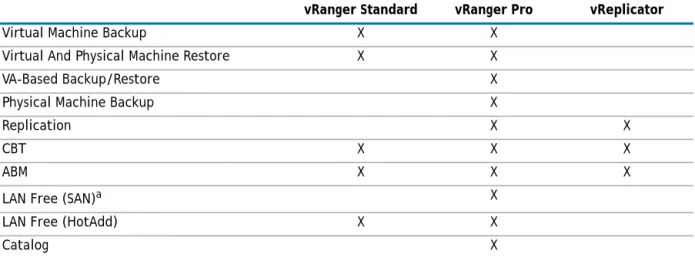
There are three levels of vRanger Licensing, each with different available features:
• vRanger Standard
• vRanger Pro
• vReplicator
NOTE: If you are upgrading a previous vRanger version, see Upgrading vRanger.
Table 1. Available features
vRanger Standard vRanger Pro vReplicator
Virtual Machine Backup X X Virtual And Physical Machine Restore X X VA-Based Backup/Restore X Physical Machine Backup X
Replication X X
CBT X X X
ABM X X X
LAN Free (SAN)a X
LAN Free (HotAdd) X X
For virtual machine backup, a license for vRanger controls the number of source CPUs that you can configure for backup. For licensing purposes, a multi-core processor is counted as a single CPU. For physical backup, each server protected consumes one physical backup license.
Trial license
You may evaluate vRanger using the trial license included with the product. The trial provides vRanger Pro functionality as described below:
• Virtual Machine Backup: 30 CPUs for 30 days
• Virtual Machine Replication: 30 CPUs for 30 days
• Physical Machine Backup: 10 physical machines for 30 days
In order to continue using vRanger past the trial period, you must purchase a license and import the new license key provided to you by Dell. If you do not receive your license key, visit
https://support.software.dell.com/licensing-assistance.
Extended trial licenses
In some cases, it may be necessary to expand the scope of a trial license (add more CPUs for replication for example), extend the duration of a trial, or test a new feature with an already licensed version of vRanger. Starting with vRanger 6.1, you may add an extended trial license in order to temporarily augment the duration or scope of your existing license.
When using an extended trial license, there are a few key points to remember:
• When applying an extended license over an existing or trial license, the highest license count will be used.
• Extended trial licenses make all “Pro” features available during the duration of the extended trial. See the table in vRanger licensing levels for more information.
• When an extended trial license expires, or is removed, the primary license will be applied.
• When applying an extended trial license, the list of licensed hosts and physical servers is not maintained. When the extended trial license expires or is removed, you may need to reconfigure host or server licensing to match your original configuration.
Single license limitation
vRanger is available in three versions: vRanger SE, vRanger Pro, and vReplicator. Note that outside of an extended trial period (see Extended trial licenses for more information), only one version of vRanger can be licensed on a machine at any one time. For example, you cannot license vRanger SE and vReplicator on the same machine.
Windows File-level Recovery X X Linux File-level Recovery X
a.Note that in the vRanger UI, “LAN Free” is used to encompass both traditional LAN-Free (with vRanger on a physical proxy connected to your Fibre SAN) and Free via HotAdd (with vRanger in a VM). Traditional LAN-Free operations are restricted to vRanger Pro licenses only. vRanger Standard can still perform LAN-LAN-Free backups and restores via VMware’s HotAdd API.
NOTE: Virtual and physical machine backup functions are licensed separately.
Table 1. Available features
vRanger installation overview
A complete vRanger installation includes four components: the vRanger server; the vRanger database; the vRanger virtual appliances; and at least one repository. The sections below provide information on the options available for each component.
• Installing the vRanger server • Installing the vRanger database • Installing the vRanger virtual appliance • Creating a vRanger repository
• Configuring vCenter permissions
Installing the vRanger server
vRanger can be installed either on a physical server or in a virtual machine. As long as the vRanger machine meets the specifications detailed in System requirements and compatibility, application performance should be similar regardless of which option is chosen.
• Virtual Machine – When installing vRanger in a virtual machine, you eliminate the need for dedicated hardware while maintaining high performance. Due to the lower cost and increased flexibility, this is the recommended approach. For information on installing in a virtual machine, see Installing vRanger in a virtual machine.
• Physical Server – The primary benefit of installing vRanger on a physical server is that the resource consumption of backup activity is off-loaded from the virtual environment to the physical proxy. For more information on installing on a physical server, see Installing vRanger on a physical server. Regardless of which approach you chose, vRanger can leverage the vRanger virtual appliances to perform backup, restore, and replication tasks. This provides greater scalability while distributing the resource
consumption of data protection activities across multiple hosts. See Installing the vRanger virtual appliance for more information.
Available backup transports
vRanger supports multiple data transport options for backup and restore tasks. The vRanger backup and restore wizards will automatically select the best transport option available based on your configuration. The available transports are:
• VA-based HotAdd – will mount the source VM’s disk to the vRanger virtual appliance deployed on the source host (or cluster). This allows vRanger to have direct access to the VM data through VMware’s I/O stack rather than the network.
This is the preferred transport method, and is available regardless of where vRanger is installed. The vRanger virtual appliance must be deployed to the source host (or cluster) for this transport to be available.
• Machine based HotAdd – if vRanger is installed in a virtual machine, this method will mount the source VM’s disk to the vRanger virtual machine. This allows vRanger to have direct access to the VM data through VMware’s I/O stack rather than the network.With this method, the backup processing activity occurs on the vRanger server.
• VA-based LAN – will transfer the source VM’s data from the source disk to the vRanger virtual appliance over the network. With this method, the backup processing activity occurs on the vRanger virtual appliance.
NOTE: If the host is not properly licensed, or the VA cannot access the storage for the source VM, HotAdd will not be available. If a virtual appliance is configured and HotAdd is not available, a network backup will be performed from the virtual appliance.
• Machine-based LAN – If there is no vRanger VA deployed, vRanger will transfer the source VM’s data from the source disk to the vRanger machine over the network. With this method, the backup processing activity occurs on the vRanger server. For ESXi servers (which do not have the service console), data will be sent via VMware’s VDDK transport.
• Machine-based SAN – If there is no virtual appliance configured, vRanger will perform a check to see the vRanger server is configured for SAN backups. This is a high performance configuration that requires vRanger to be connected to your fibre or iSCSI network. In addition, the VMFS volumes containing the VMs to be protected must also be properly zoned/mapped to the vRanger server.
Installing vRanger in a virtual machine
When vRanger is installed in a virtual machine, you can perform backups and restores either over the network or in a LAN-Free mode which uses the SCSI HotAdd functionality on VMware ESX (i). The sections below provide a summary of each method. Note that replication and physical backup tasks are always performed over the network.
Available transports
The transports available when vRanger is installed in a virtual machine are listed below:
• With vRanger VA:
• VA-based HotAdd
• VA-based LAN
• Machine-based HotAdd
• Machine-based LAN
• Without the vRanger VA
• Machine-based HotAdd
• Machine-based LAN
HotAdd backups [virtual machines only]
When vRanger is installed in a virtual machine, LAN-Free backups are made possible by VMware’s HotAdd disk transport.
During backups with HotAdd, the source VM’s disks are mounted to the vRanger virtual machine, allowing vRanger direct access to the VM’s data through VMware’s I/O stack. Backup processing occurs on the vRanger VM, with the data then being send to the configured repository.
Requirements for a HotAdd configuration
In order to use vRanger with HotAdd, vRanger must be installed in a VM, and that VM must be able to access the target VM’s datastore(s). In addition, all hosts that the vRanger VM could be vMotioned to must be able to see the storage for all VMs that vRanger will be configured to back up.
NOTE: For machine-based transports, the “machine” referenced is the vRanger machine (physical or virtual).
The transport method describes only how data is read from the source server, not how the data is sent to the repository.
NOTE: The backup transport method describes only how data is read from the source server, not how the data is sent to the repository.
NOTE: The use of HotAdd requires that the target hosts are licensed with VMware Enterprise or higher licensing. For more information on HotAdd requirements, see HotAdd.
Configuring vRanger for HotAdd
When using HotAdd, make sure to disable automount on the vRanger machine. This will prevent Windows on the vRanger VM from assigning a drive letter to the target VMDK.
To configure vRanger for HotAdd
1 From the start menu, click Run, and then enter diskpart.
2 Run the automount disable command to disable automatic drive letter assignment. 3 If using a SAN, verify that the SAN policy is set to Online All by typing san and hitting Enter.
If it is not, set it to online all by typing san policy=onlineAll.
4 Run the automount scrub command to clean any registry entries pertaining to previously mounted volumes.
LAN backups
vRanger can perform LAN backups one of two ways - either through the vRanger machine, or by using the vRanger VA.
VA-based LAN
This option will transfer the source VM’s data from the source disk to the vRanger virtual appliance over the network using VMware’s VDDK LAN transport.The backup processing activity occurs on the vRanger virtual appliance, then the data is sent to the repository directly.
Machine-based LAN
If there is no vRanger VA deployed, vRanger will transfer the source VM’s data from the source disk to the vRanger VM over the network. With this method, the backup processing activity occurs on the vRanger server. For network-based backups when using ESX, or for physical server backups, the backup data flows “direct to target” from the source server to the target repository. This means that the vRanger server does not process any of the backup traffic. For ESXi servers (which do not have the service console), data will be sent via VMware’s VDDK transport
Considerations for installing vRanger in a virtual machine
Read the notes below regarding limitations and considerations about installing vRanger in a VM:
• When installing vRanger in a VM, it is not supported to perform a machine-based backup of the vRanger VM. In other words, the vRanger VM cannot back itself up. You may, however, perform a VA-based backup of the vRanger VM.
• When creating the virtual machine for vRanger, it is recommended to create a fresh VM rather than cloning an existing VM or template.
In recent versions of Windows, volumes are recognized by a serial number assigned by Windows. When VMs are cloned, the serial number for each VM volume is cloned as well. During normal operations, this is not an issue, but when vRanger is cloned from the same source or template as a VM being backed up, the vRanger volume will have the same serial number as the source volume.
For backup operations using HotAdd, source disk volumes are mounted to the vRanger VM. If the source VM volumes have the same disk serial number as the vRanger volume (which will be the case with cloned VMs), the source VM’s serial number will be changed by Windows when mounted to the vRanger VM. When restoring from these backups, the boot manger will not have the expected serial number, causing the restored VM not to boot until the boot information is corrected.
NOTE: Generally, this configuration will yield the slowest performance, and should be avoided if possible. A better option would be to deploy a virtual appliance to any ESXi servers, and use that virtual appliance for backup and restore tasks.
Installing vRanger on a physical server
Installing vRanger on a physical server provides a method to off-load backup resource consumption from the ESX/ESXi host and network. While you can perform Machine-based LAN in this configuration, LAN-free backups [virtual machine backups only] are the primary driver for using vRanger in a physical server.
Available transports
The transports available when vRanger is installed in a physical machine are listed below:
• With vRanger VA:
• VA-based HotAdd
• VA-based LAN
• Machine-based SAN
• Machine-based LAN
• Without the vRanger VA
• Machine-based SAN
• Machine-based LAN
LAN-free backups [virtual machine backups only]
With vRanger installed on a physical machine, you may perform LAN-Free backups with either the VA-Based HotAdd or Machine-based SAN transports.
VA-based HotAdd
This transport will mount the source VM’s disk to the vRanger virtual appliance deployed on the source host (or cluster). This allows vRanger (through the VA) to have direct access to the VM data through VMware’s I/O stack rather than the network. In this configuration, data is sent directly from the VA to the repository.
This is the recommended transport option due to the simplicity and flexibility of the configuration. In order to use this option, you must have a vRanger virtual appliance deployed on every host or cluster for which you wish to configure backups. See Requirements for a HotAdd configuration for more information on HotAdd.
Machine-based SAN
This transport option uses your fibre-channel infrastructure to transport backup data to the vRanger machine. In order to perform machine-based SAN backups, vRanger must be installed on a physical system attached to your SAN environment. This is a high performance configuration that requires vRanger to be connected to your fibre or iSCSI network. In addition, the VMFS volumes containing the VMs to be protected must also be properly zoned/mapped to the vRanger server.
Configuring vRanger for machine-based SAN backups
With vRanger will be installed on a physical server, the following configurations must be made:
• Disable automount on the vRanger machine:
From the start menu, select “Run” and enter diskpart.
Run the automount disable command to disable automatic drive letter assignment.
NOTE: With vRanger installed on a physical server, you can still take advantage of the vRanger virtual appliances for backup, restore, and replication activity. See Installing the vRanger Virtual Appliance for more information.
• Run the automount scrub command to clean any registry entries pertaining to previously mounted volumes.
• On your storage device, zone your LUNs so that the vRanger HBA (or iSCSI initiator) can see and read them.
• Only one vRanger server should see a set of VMFS LUNs at one time. For backups only, The vRanger server should have only read-only access to the LUNs. In order to perform LAN-Free restores, ensure that the vRanger server has Read + Write access to any zoned VMFS LUNs to which you wish to restore.
LAN backups
vRanger can perform LAN backups one of two ways - either through the vRanger machine, or by using the vRanger VA.
VA-based LAN
This option will transfer the source VM’s data from the source disk to the vRanger virtual appliance over the network using VMware’s VDDK LAN transport.The backup processing activity occurs on the vRanger virtual appliance, then the data is sent to the repository directly.
Machine-based LAN
If there is no vRanger VA deployed, vRanger will transfer the source VM’s data from the source disk to the vRanger machine over the network. With this method, the backup processing activity occurs on the vRanger server. For network-based backups when using ESX, or for physical server backups, the backup data flows “direct to target” from the source server to the target repository. This means that the vRanger server does not process any of the backup traffic. For ESXi servers (which do not have the service console), data will be sent via VMware’s VDDK transport
Installing with other applications
Customers often want to install vRanger on the same server as another application. Due to the wide variety of factors that may impact performance, it is impossible to make blanket recommendations. Some key concerns to keep in mind:
• Many customers, in an effort to maximize their hardware investment, want to install vRanger on the same server as VMware vCenter. This practice is not recommended.
• During testing, many customers install vRanger with other Dell products. In this case it is not recommended to install vRanger on the same machine as vFoglight.
• Only one version of vRanger may be installed on a machine at one time. For example, you may not install vRanger SE and vReplicator on the same machine.
Optimizing your network for backups
vRanger pushes a lot of data through the network very quickly. While this performance is good for minimizing your backup window, if not configured properly it can degrade your production network.
An important best practice is to separate the backup traffic from the production network by configuring a dedicated backup network.
NOTE: Generally, this configuration will yield the slowest performance, and should be avoided if possible. A better option would be to deploy a virtual appliance to any ESXi servers, and use that virtual appliance for backup and restore tasks.
1 Using the first (primary) NIC, connect the vRanger server, the vRanger virtual appliances, the vCenter Server, and Management Network of each ESX Server host to the production network.
2 Create a virtual switch, connecting it to a dedicated physical NIC on each ESX host. This becomes the dedicated backup network.
3 On the vRanger server, each VA, and each repository, configure a second virtual NIC.Connect this NIC to the dedicated backup network.
NIC Teaming
NIC Teaming is a feature of VMware Infrastructure that allows you to connect a single virtual switch to multiple physical Ethernet adapters. To utilize NIC teaming, two or more network adapters must be up-linked to a virtual switch. The main advantage of NIC teaming is increased network capacity for the virtual switch hosting the team.
When bonding NICs into a team, it is important to use NICs from the same vendor as different NIC vendors achieve bonding differently. When using teamed NICs with vRanger, it is critical that the NICs are teamed for performance rather than load balancing. vRanger backups are streamed as a continuous file - changing NICs during a data stream will cause backup errors.
Installing the vRanger database
vRanger utilizes a SQL database to store application and task configuration data. The database can be either the embedded SQL Express instance (the default option)or a SQL database running on your own SQL Server or SQL Express instance.
Database options
The database deployment occurs during the initial installation of vRanger. The default option installs a SQL Express database on the vRanger server. You may, if desired, install vRanger using a separate SQL Server instance. If you are going to use your own SQL instance and wish to use the vRanger cataloging feature, the SQL instance must be installed on the vRanger server. For more information, see Installing the databases.
Default
The Installation Wizard will default with a selection to install vRanger with the embedded SQL Express 2008 R2 database. The SQL Express database can only be installed on the vRanger server.
External SQL Instance
The Installation Wizard will guide you through configuring vRanger with an external SQL database. There is also an option in the Install Wizard to configure the database connection manually, but the guided approach is recommended.
NOTE: For more information on NIC teaming, refer to the VMware Knowledge Base article 1004088:
http://kb.vmware.com/kb/1004088
NOTE: While the embedded SQL Express database is free and simple to install, there is a size limit of 10 GB per database.
Installing the databases
When installing vRanger, consider the database selection carefully as migrating from a SQL Express installation to an external SQL database carries a risk of corrupting application data.
The cataloging function of vRanger requires that the application and catalog database be installed on the vRanger server. There are two options to accomplish this:
• Use the default SQL Express 2008 R2 installation, which will install vRanger, the vRanger database, and the Catalog database on the same machine. While this is the most straight forward option, SQL Express 2008 R2 databases are limited in size to 10 GB.
• If you don’t want to use the default SQL Express database, you can also install a supported Microsoft SQL Server version on the vRanger machine, and install the vRanger databases on that instance. While there is no hard-coded limit to database size, this is a more complicated installation.
If you will not be using cataloging, in order to provide the most flexibility, it is recommended to install vRanger using an external SQL database server. This will allow you to relocate the vRanger installation simply by installing the application in another location, and pointing the Install Wizard to the existing database.
Sizing the catalog database
The vRanger catalog process collects and records metadata and path information for files updated since the last backup and catalog entry. Depending on the number of VMs protected, and the number of files in each VM, the catalog database may grow quite rapidly.
Actual database growth will vary depending on the Guest OS and the number of files changed between backups, but the information below can be used as an approximate guide.
• With default filtering, the full catalog of a generic Windows 2008 VM is approximately 500 files, or approximately 0.2 MB.
• Incremental and differential backups will only catalog changed files, making the catalog record for these backups considerably smaller. Using incremental and/or differential backups will allow you to store catalog data for many more savepoints than if you used only full backups.
Installing the vRanger virtual appliance
The vRanger virtual appliance can process backup and restore tasks in addition to replication tasks. This allows you to scale backup, restore, and replication activity across multiple hosts or clusters, while maintaining central scheduling and reporting control from a single vRanger server.
While the deployment and configuration of the virtual appliance are covered in more detail in “Configuring a virtual appliance” in the Dell vRanger Pro User’s Guide, the information below should help you understand the usage of the virtual appliance.
Virtual appliance usage
The vRanger virtual appliance can be used to perform the following operations. For each of these operations, the processing activity occurs on the VA.
• Backup – network and LAN-Free (HotAdd)
• Restore – network and LAN-Free (HotAdd)
• File-level restore
NOTE: Many Windows files are not cataloged due to filtering (see “About catalog filtering” in the Dell vRanger Pro User’s Guide). An amount of data equal to a standard Windows 2008 installation will result in a larger catalog footprint.
• Linux file-level restore
• Replication
Deployment locations
The locations to which the vRanger virtual appliance(s) should be deployed depend on the specifics of the virtual environment in question.Some general guidelines for VA deployment are:
• You may share a single virtual appliance among the hosts within a cluster. You may install a virtual appliance to some or all hosts within a cluster as well. If a VA is not detected on the host, vRanger will check if the host is part of a cluster, and then if that cluster has a VA available.
• You must have a virtual appliance deployed on any ESXi host or cluster that will be used for replication and backup. This is true regardless of whether the host or cluster will be used as the source or target of the replication task.
• When using the virtual appliance for replication, both the source and target host or cluster must use a virtual appliance.
Creating a vRanger repository
Designed for ease-of-use in recovery operations, repositories eliminate the need for countless backup locations and endless configurations. With vRanger, you can configure a repository once, and use it forever.
Repositories can be one of the formats below:
• CIFS
• NFS (version 3)
• FTP
• SFTP
• NetVault SmartDisk
• EMC® Data Domain® Boost™
• Dell DR4000 Disk Backup Appliance
A repository is essentially a directory on a supported file system that vRanger uses to store savepoints (backup archives). When viewed from outside vRanger (through Windows Explorer, for example), a repository consists of a configuration file (GlobalManifest.metadata) and directories for each savepoint.
Any time you add a repository in vRanger a GlobalManifest.Metadata XML file is created in the selected folder. It is the presence of that manifest file that tells vRanger that a repository exists in that folder.
Repository location, along with the configuration of jobs to those repositories, plays a significant role in the performance of vRanger. Use the recommendations below to aid on planning your repository configuration.
Repository storage devices
Slow disk performance has been shown to negatively impact the backup performance of vRanger. When configuring repositories, special attention should be paid to the type of storage devices used.
The use of SAS (Serial Attached SCSI) disk drives are recommended. SAS drives typically offer a 30% performance improvement over SATA drives.
NOTE: The vRanger VA is now bundled with vRanger, and can be found in: C:\Program Files\Dell\vRanger\Client\vRanger-Virtual-Appliance_704.ova
The use of external USB drives or low quality NAS devices is not recommended. If these types of storage are used, the vRanger configuration settings must be adjusted to accommodate the slow devices. Recommended configuration settings for slower repositories are shown below. These configurations can be made in the
vRanger Configuration Options dialog, available on the Tools> Options menu.
• Maximum number of tasks running off a LUN = 3 • Maximum number of tasks running off a host = 1 • Maximum number of tasks running per repository = 2
If no errors are received with these settings, increment the tasks per repository value by 1 to find the best fit for your environment.
Bandwidth to repositories
While performance varies based on environmental factors, data throughput during a single backup task can reach up to 100 MB/s. If we assume a standard case of a repository connected via a Gigabit network, then as little as ten concurrent jobs can saturate the link to that repository.
Although there is no ability to throttle data transmissions from a source server vRanger can limit the number of simultaneous backup tasks on a per-repository level.
Repository size
There is no limit to the number of savepoints that can be stored in a vRanger repository. There are, however, environmental limits on the size of a single directory. The available options, and their limits, are described below.
• Default Configuration – A standard volume, with an MBR partition on a basic disk, has a limit of 2 TB. This is the default configuration for Windows Server 2003. In this configuration, the vRanger repository cannot exceed 2 TB.
• Dynamic Disks – Dynamic disks contain dynamic volumes, including simple volumes, spanned volumes, striped volumes, mirrored volumes, and RAID-5 volumes. A repository located on dynamic disk volumes can be as large as 64 TB. For more information, see the Microsoft TechNet article:
http://technet.microsoft.com/en-us/library/cc773268(WS.10).aspx
• GPT Volumes – GPT provides a more flexible mechanism for partitioning disks than the older Master Boot Record (MBR) partitioning scheme that has been common to PCs. GPT partitions are supported on Windows Server 2003, SP1 and later, and can reach up to 256 TB. For more information, see
http://www.microsoft.com/whdc/device/storage/GPT_FAQ.mspx
Configuring vCenter permissions
vRanger requires a vCenter account to function properly. To comply with security best practices, Dell recommends creating a vCenter user account with the minimum required permissions for vRanger to use. The procedures differ slightly depending on which version of vCenter you are using. For vSphere 5.x, see the section below. For vCenter 4.0, see vSphere 4.x.
NOTE: This configuration is a global configuration, meaning that it applies to all repositories.
NOTE: The volume limitations described in this section are limitations within the Microsoft Windows environment.
vSphere 5
The permissions required for backup and restore operations in a vSphere 5 environment differ slightly from the permissions required for previous versions of vCenter. If you have migrated to vSphere 5 aft0er creating a vRanger user account, update the permissions accordingly to avoid job interruption.
To create a vRanger user on vSphere 5
1 Navigate to Administration > Roles. 2 Select Add Role.
3 Enter a name for the role, such as “vRanger Non-Admin”.
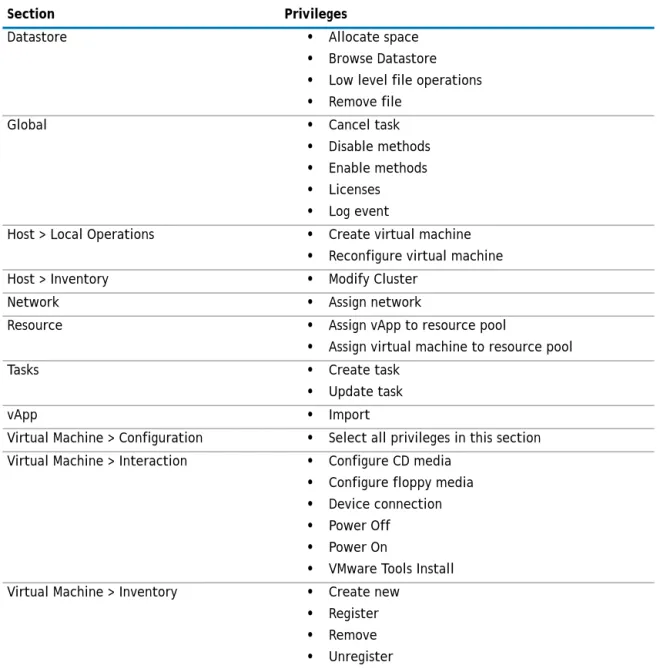
4 In the Privileges section, set the permissions according the table below:
Table 2. Available permissions
Section Privileges
Datastore • Allocate space
• Browse Datastore
• Low level file operations
• Remove file Global • Cancel task
• Disable methods
• Enable methods
• Licenses
• Log event
Host > Local Operations • Create virtual machine
• Reconfigure virtual machine Host > Inventory • Modify Cluster
Network • Assign network
Resource • Assign vApp to resource pool
• Assign virtual machine to resource pool Tasks • Create task
• Update task
vApp • Import
Virtual Machine > Configuration • Select all privileges in this section Virtual Machine > Interaction • Configure CD media
• Configure floppy media
• Device connection
• Power Off
• Power On
• VMware Tools Install Virtual Machine > Inventory • Create new
• Register
• Remove
5 Navigate to the Inventory view
6 Right-click the desired level to grant user permission, such as the main vCenter level. Click Add Permission.
7 Add and locate the desired user account, and select the recently created User Role. Click Add. 8 Click OK.
vSphere 4.x
To create a vRanger user on vSphere 4
1 Navigate to Administration > Roles. 2 Select Add Role.
3 Enter a name for the role, such as “vRanger Non-Admin”.
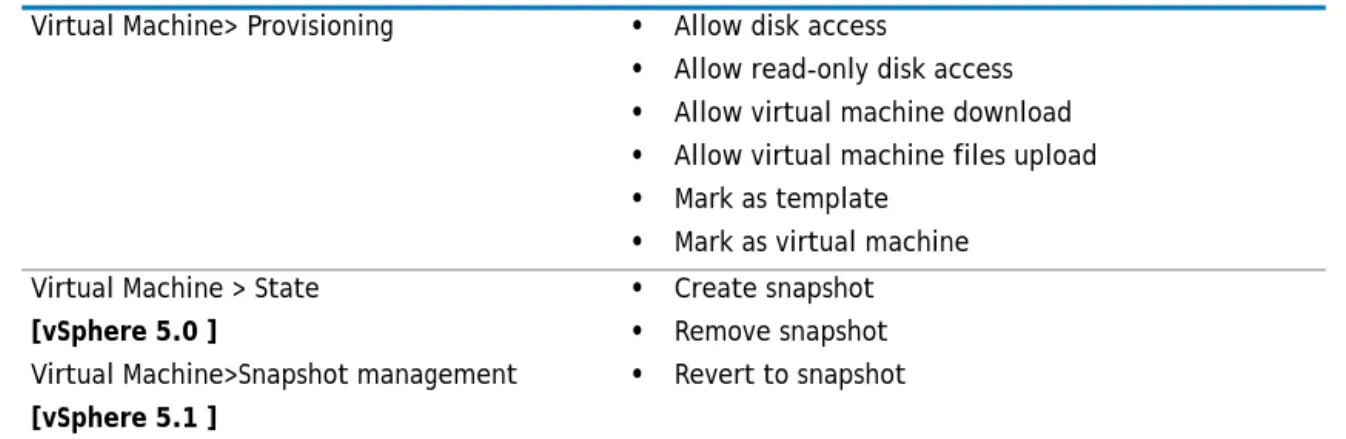
4 In the Privileges section, set the permissions according the table below: Virtual Machine> Provisioning • Allow disk access
• Allow read-only disk access
• Allow virtual machine download
• Allow virtual machine files upload
• Mark as template
• Mark as virtual machine Virtual Machine > State
[vSphere 5.0 ]
Virtual Machine>Snapshot management
[vSphere 5.1 ]
• Create snapshot
• Remove snapshot
• Revert to snapshot
NOTE: When you add the vCenter to vRanger’s inventory, use this account for authentication.
Table 3. Available permissions
Section Privileges
Datastore • Allocate space
• Browse Datastore Global • Licenses
• Log event
Host > Local Operations • Create virtual machine
• Reconfigure virtual machine Network • Assign network
Resource • Assign virtual machine to resource pool Tasks • Create task
• Update task
Virtual Machine > Configuration • Select all options in this section
Table 2. Available permissions
5 Navigate to the Inventory view.
6 Right-click the desired level to grant user permission, such as the main VC level.Click Add Permission. 7 Add and locate the desired user account, and select the recently created user role and click Add. 8 Click OK.
Configuring the Service Console
During standard backup operations, the ESX Service Console is used to run vRanger backup tools. The additional performance load placed on the Service Console should be addressed by implementing the suggestions below.
Service Console configurations
Dell recommends that the two changes below are made on your ESX hosts to optimize the regular backup of VMs. These ESX resource reservations are not mandatory and recommended only for operation efficiency.
Increase the VIM CPU reservation (2500-3200 MHz)
1 In the VI Client inventory, select the ESX host > Configuration tab > System Resource Allocation > Advanced. In the System Resource Pools view, select VIM and click Edit Settings.
2 Adjust the CPU reservation slider up to the equivalent of one core (2500-3200 MHz). 3 Select Expandable Reservation and Unlimited.
4 Click OK to save.
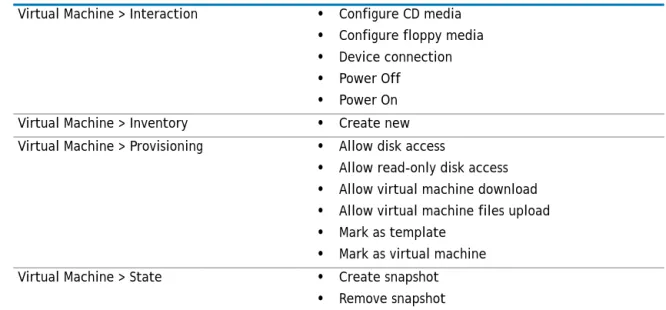
Virtual Machine > Interaction • Configure CD media
• Configure floppy media
• Device connection
• Power Off
• Power On Virtual Machine > Inventory • Create new Virtual Machine > Provisioning • Allow disk access
• Allow read-only disk access
• Allow virtual machine download
• Allow virtual machine files upload
• Mark as template
• Mark as virtual machine Virtual Machine > State • Create snapshot
• Remove snapshot
NOTE: When you add the vCenter to vRanger’s inventory, use this account for authentication.
IMPORTANT: These changes are only necessary if you are using VMware ESX. VMware ESXi /ESX 5 servers do not have the Service Console.
Table 3. Available permissions
Increase the Service Console CPU reservation to 1500 MHz
1 In the VI Client inventory, select the ESX host > Configuration tab > System Resource Allocation > Advanced. In the System Resource Pools view, select Console and click Edit Settings.
2 Adjust the CPU reservation slider up to 1500 MHz. 3 Select Expandable Reservation and Unlimited. 4 Click OK to save.
Increase the RAM allocated to the Service Console to 800 MB
1 In the VI Client inventory, select the ESX host > Configuration tab > Memory. Click Properties. 2 On the Memory window, enter a value between 256MB and 800MB for the service console parameter.
3 Click OK to save
NOTE: For troubleshooting purposes, VMware recommends that you increase the service console RAM to 800MB.
3
System requirements and compatibility
• Requirements for the vRanger machine • Supported platforms
• Feature level requirements • Configuration requirements
• Compatibility with other applications
Requirements for the vRanger machine
In order to maximize application performance, and to ensure error-free operation, you must ensure that the machine on which vRanger is installed meets the requirements as documented in this section.
Requirements for the vRanger machine are divided among three sections:
• Hardware requirements
• Supported operating systems for installation
Review each of these sections thoroughly before installing vRanger.
Hardware requirements
The hardware requirements to run vRanger can vary widely based on a number of factors. Therefore, you should not do a large scale implementation without first completing a scoping and sizing exercise.
vRanger - physical machine
The hardware recommendations for the vRanger physical machine are described below.
vRanger - virtual machine
The hardware recommendations for using vRanger in a virtual machine are described below.
NOTE: Refer to HotAdd for LAN-Free and Hot Add installation requirements.
CPU Any combination equaling 4 cores of CPUs are recommended. Example 1 quad-core CPU; 2 dual-core CPUs.
RAM 4GB RAM is required.
Storage At least 4 GB free hard disk space on the vRanger machine.
HBA For LAN-Free, it is recommended to use two HBAs - one for read operations and one for writing.
Requirements for Physical Backup and Restore
When backing up from and restoring to a physical server, vRanger uses a client run on that server to perform backup and restore operations. To effectively process the backup workload, the physical server must meet the requirements below:
Supported operating systems for installation
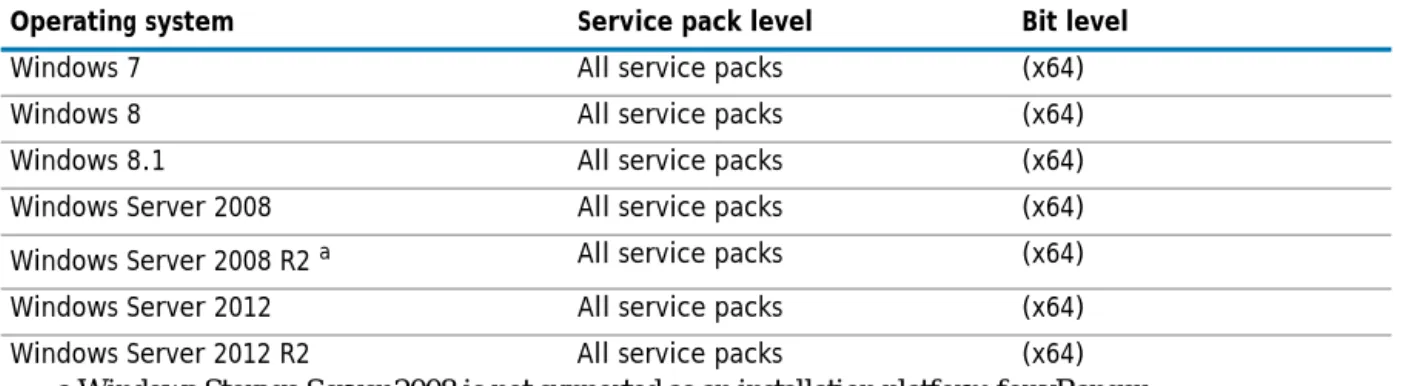
The following operating systems are supported for installation of vRanger.
Additional required software
In addition to a supported version of Windows and a supported VMware infrastructure, you may need some additional software components, depending on your configuration.
• Microsoft .Net Framework – vRanger requires the .Net Framework 4.5. The vRanger installer will install it if not detected.
• SQL Server [optional] – vRanger utilizes two SQL databases for application functionality. vRanger can install a local version of SQL Express 2008 R2 or you can chose to install the vRanger databases on your own SQL instance.
• vRanger Virtual Appliance – The vRanger virtual appliance is a small, pre-packaged Linux distribution that servers as a platform for vRanger operations away from the vRanger server. vRanger uses the virtual appliance for the functions below:
• replication to and from ESXi hosts
• file-level recovery from Linux machines
• optionally for backups and restores. CPU Four (4) vCPUs.
RAM 4 GB RAM is recommended.
Storage At least 4 GB free hard disk space on the vRanger machine.
CPU Any combination equaling 4 cores of CPUs are recommended. Example 1 quad-core CPU; 2 dual-core CPUs.
RAM 2GB RAM is required.
Table 4. Supported operating systems
Operating system Service pack level Bit level
Windows 7 All service packs (x64) Windows 8 All service packs (x64) Windows 8.1 All service packs (x64) Windows Server 2008 All service packs (x64) Windows Server 2008 R2 a
a.Windows Storage Server 2008 is not supported as an installation platform for vRanger.
All service packs (x64) Windows Server 2012 All service packs (x64) Windows Server 2012 R2 All service packs (x64)
Supported SQL versions
The default installation option is to install vRanger with the SQL Express 2008 R2 database, but you may use your own SQL instance if you prefer.
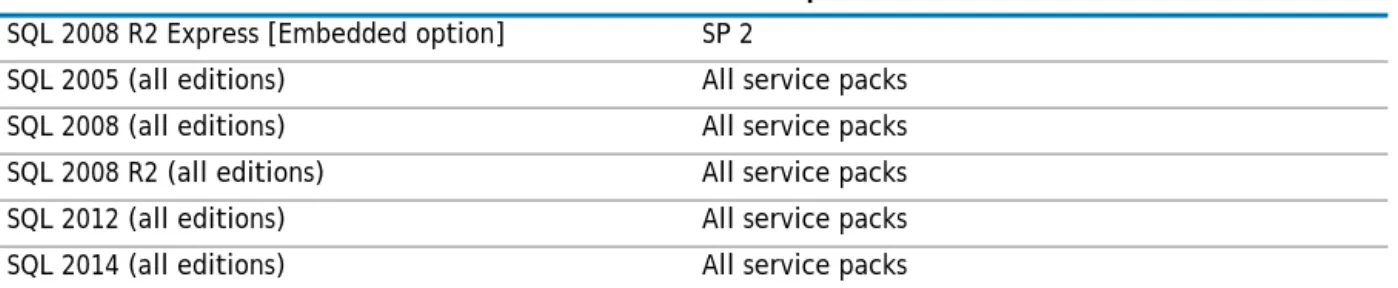
If you chose to use your own SQL instance, and wish to use the vRanger Cataloging function, you will need to install the SQL instance on the vRanger server as the Catalog database must be local to vRanger. The following versions of Microsoft SQL are supported by vRanger.
Supported platforms
The sections below list the platforms and operating systems supported for backup, restore, and replication operations.
Supported vSphere versions
vRanger supports backup, restore, and replication operations against the following versions of VMware Infrastructure:
Equivalent version support policy
In addition to what is listed in this guide, vRanger provides support for VMware versions where the following criteria have been met:
Table 5. Supported versions of SQL Server
Version Service pack level
SQL 2008 R2 Express [Embedded option] SP 2
SQL 2005 (all editions) All service packs SQL 2008 (all editions) All service packs SQL 2008 R2 (all editions) All service packs SQL 2012 (all editions) All service packs SQL 2014 (all editions) All service packs
Table 6. vSphere versions
Component Supported versions
ESX(i) Servers • 4.1
• 5.0
• 5.1
• 5.5
NOTE: ESXi replication requires the use of the vRanger virtual appliance. vCenter • 4.1
• 5.0
• 5.1
• 5.5
vSphere License vRanger does not support any operation against free versions of ESX(i). These versions do not provide the necessary APIs for vRanger to function.
NOTE: The naming convention used in this policy section follows the standard product release versioning scheme of (Major.Minor.Update.Patch)
• VMware updates or patches to a supported major or minor release are also supported, unless otherwise stated.
• Major or minor versions that are newer than what is listed in this guide are not supported and require a separate qualification effort, unless otherwise stated.
vRanger and VM snapshots
vRanger’s backup and replication functionality requires the ability to create a snapshot. In certain
circumstances, the creation of VM snapshots is not supported by VMware. In these cases, backup and replication of these VMs or disks is not possible. Some common examples are:
• RDM Disks in physical compatibility mode
• Disks in independent mode
• Fault tolerant VMs.
Supported Hyper-V Versions
vRanger supports backup and restore operations against the following versions of Microsoft Hyper-V Server:
Supported platforms for physical machine backup
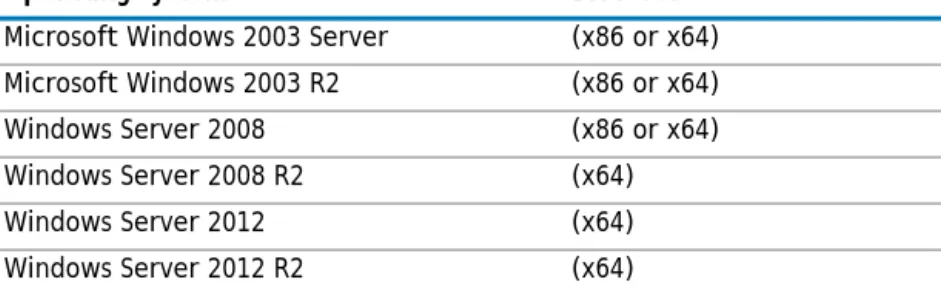
vRanger supports backup and restore operations against the following operating systems:
Supported virtual appliance versions
vRanger 7.1 supports the virtual appliance versions below:
• 7.0.x or later.
NOTE: This list is not exhaustive. Any configuration in which snapshots are not supported by VMware, or not possible, is not supported by vRanger.
Table 7. Hyper-V versions
Component Supported versions
Hyper-V Servers • Windows Server 2012
• Windows Server 2012 R2
Table 8. Supported platforms
Operating system Bit level
Microsoft Windows 2003 Server (x86 or x64) Microsoft Windows 2003 R2 (x86 or x64) Windows Server 2008 (x86 or x64) Windows Server 2008 R2 (x64) Windows Server 2012 (x64) Windows Server 2012 R2 (x64)
IMPORTANT: In vRanger 7.0, the virtual appliances have been updated to a 64-bit architecture.If you have previously deployed vRanger virtual appliances, you should upgrade these virtual appliances to the 64-bit version before running the jobs in vRanger 7.0 in order to get the expected results. See Upgrading the vRanger virtual appliance for more information.
Supported Linux file systems for Linux file-level
recovery
These file systems are supported for Linux file-level recovery.
• EXT 2, 3 and 4
• ReiserFS
• JFS
• XFS
• Logical Volume Manager (LVM) is supported in vRanger 5.3 and later versions.
• LVM is supported for file-level recovery only for Volume Groups containing a single physical disk.
Review the information below in order to understand the functions and limitations of vRanger’s Linux file-level recovery feature
• Linux file-level recovery requires the vRanger virtual appliance.
• vRanger requires you to recover the Linux files to an intermediate Windows machine. When you recover Linux files to a Windows machine, you will lose the file permissions.
• The source VM properties needs to show the OS type as Linux. If this is not configured properly, vRanger will not identify the savepoint as a Linux VM.
Feature level requirements
Some vRanger features and functions have requirements or limitations that do not apply to the rest of the product. Review this list to ensure that all requirements are understood. The features and functions described here are:
• Standard backup, restore, and replication • HotAdd
• File-level recovery - Windows • File-level recovery - Linux
• Microsoft Volume Shadow Copy Service (VSS)
Standard backup, restore, and replication
For basic backup and replication functions, vRanger supports any Guest OS that is supported by VMware. For a complete list, see VMware’s Guest Operating System Installation Guide.
For advanced functions, such as file-level recovery or additional application consistency, see the requirements in the sections below.
• File-level recovery - Windows • File-level recovery - Linux
• Microsoft Volume Shadow Copy Service (VSS)
NOTE: When performing a Linux file-level recovery from a NetVault SmartDisk repository, only the EXT 2, 3 and 4 file systems are supported. LVM is supported by NetVault SmartDisk.
Replication requirements
The following limitations and requirements apply to replication:
• vRanger replication will not operate with servers that are behind a NAT firewall. In order to properly replicate through an NAT firewall, you must have an IP tunnel in place between two NAT'ed subnets. Contact your ISP provider to see if this option is available to you.
• Hybrid replication is not supported for ESXi, nor for ESX when using the Virtual Appliance.
• The virtual machine hardware cannot be changed during replication. For this reason, the VM must be at a hardware version level that is compatible with both the source and target servers. The ESX(i) version of the source and target hosts does not matter, as long as the VM hardware is supported on both ESX(i) versions. For more information on VM hardware versions, consult the VMware documentation topic “Virtual Machine Compatibility”.
• A continuous connection between source and target sites is required when replication is taking place.
• Excessive network packet loss could result in replication failure.Replication will work with links having average packet loss of less than 2%. Replication is not designed to work in replication environments where packet loss can exceed commercially accepted limits.
• Networks having 99% Uptime/Availability will generally provide for good Replication performance.
HotAdd
In order to perform backup/restore/replication tasks using HotAdd, vRanger must be installed on a virtual machine. Additionally:
• HotAdd only works on SCSI disks. IDE disks and vRDMs are not supported.
• Datastores for the target virtual machines must be accessible to the vRanger VM.
• vRanger can only perform operations on VMs within the same datacenter.
• HotAdd cannot be used if the VMFS block size of the datastore containing the virtual machine folder for the target virtual machine does not match the VMFS block size of the datastore containing the vRanger VM. For example, if you back up a virtual disk on a datastore with 1MB blocks, the proxy must also be on a datastore with 1MB blocks.
• Backing up thick disk requires the maximum disk size to be available. When backing up a thick disk, the vRanger VM’s datastore must have at least as much space available as the maximum configured disk size for the virtual machine to be backed up.
File-level recovery - Windows
In order to perform a file-level recovery from a windows VM, the VM must meet the following requirements:
• The VMs must be using basic disks,
• The VMs must use an MBR partition. GPT partitions are not supported.
File-level recovery - Linux
Review the information below in order to understand the functions and limitations of vRanger’s Linux file-level recovery feature
• Linux file-level recovery requires the vRanger virtual appliance.
• vRanger requires you to recover the Linux files to an intermediate Windows machine. When you recover Linux files to a Windows machine, you will lose the file permissions.
• The source VM properties needs to show the OS type as Linux. If this is not configured properly, vRanger will not identify the savepoint as a Linux VM.
• See Supported virtual appliance versions for a list of supported file systems.
Configuration requirements
Supported disk types
vRanger operates with some basic restrictions on the type of disks and partitions used in the environment. The sections below describe the limitations as they apply to specific features and functions.
File-level recovery disk requirements
In order to perform a file-level recovery from a windows VM, the VM must meet the following requirements:
• The VMs must be using basic disks. Dynamic disks are not supported
• The VMs must use an MBR partition. GPT partitions are not supported.
HotAdd disk requirements
When using the HotAdd transport, the following disk restrictions and requirements apply.
• HotAdd only works on SCSI disks. IDE disks and vRDMs are not supported.
HotAdd cannot be used if the VMFS block size of the datastore containing the virtual machine folder for the target virtual machine does not match the VMFS block size of the datastore containing the vRanger VM. For example, if you back up a virtual disk on a datastore with 1MB blocks, the proxy must also be on a datastore with 1MB blocks.
• Dynamic disks are not supported
• GPT partitions are not supported
Password security setting policy
Weak passwords compromise system security. When you create and update passwords in vRanger, follow as many of these guidelines as your environment allows:
• A password should not include a significant portion of a user or account name. A password should be at least six characters long and should contain several characters from these categories:
• Uppercase letters in English (A-Z)
• Lowercase letters in English (a-z)
• Digits (0-9)
• Non-alphabetic characters (for example, $, !, #, %)
Port requirements
Additional port requirements
For the virtual appliance designated for Linux file-level recovery, the firewall must be configured to allow ICMP (ping) packets.
Compatibility with other applications
vRanger can be used in conjunction with a variety of applications to provide additional functionality. The table below summarizes which applications are supported by the most recent versions of vRanger.
Table 9. Ports
Port number Protocol Direction
21 TCP vRanger/VA/ESX4 Host to FTP Repository 22 TCP vRanger/VA/ESX4 Host to SFTP Repository
vRanger to ESX4 Host vRanger to VA VA to VA
53 TCP vRanger/VA/ESX4 Host to DNS Server 137 TCP vRanger/VA/ESX4 Host to CIFS Repository 137 UDP vRanger/VA/ESX4 Host to CIFS Repository 138 UDP vRanger/VA/ESX4 Host to CIFS Repository 139 TCP vRanger/VA/ESX4 Host to CIFS Repository 443 TCP vRanger and VA to ESX hosts
vRanger and VA to vCenter
445 TCP vRanger/VA/ESX4 Host to CIFS Repository vRanger to VA
902 TCP vRanger to Hosts VA to Hosts
2049 TCP vRanger/VA/ESX4 Host to NFS Repository 2049 UDP vRanger/VA/ESX4 Host to NFS Repository
37453 TCP vRanger/VA/ESX4 Host to NetVault SmartDisk Repository 10011 TCP RDA Control Channel
11000 TCP RDA Data Channel
Microsoft Volume Shadow Copy Service (VSS)
vRanger uses Microsoft’s Volume Shadow Copy Service (VSS) to provide application consistency. In order to leverage VSS, the following conditions must be met:
• The source server must be running an operating system that supports VSS quiescing. See Supported guest operating systems for VSS.
• For virtual machine backups, you must be running ESX 4 (or later) with updated VMware Tools.
• For application consistency, the application must support VSS quiescing. See Required configuration for application consistency [virtual machines only] for more information.
Supported guest operating systems for VSS
• MS Windows Server 2003
• MS Windows Server 2003 SP1
Table 10. Compatibility
Application vRanger Version
Company Name Version 6.0 6.1 7.0 7.1 Support details
Dell
RMEa
a.Recovery Manager for Exchange
5.1 X This product is Unicode-enabled, but is not localized into non-English languages. 5.5.1 X This product is Unicode-enabled, but is
not localized into non-English languages. RMADb
b.Recovery Manager for Active Directory
8.2 X This product is Unicode-enabled, but is localized only in German.
8.2.1 X X This product is Unicode-enabled, but is localized only in German.
8.5.1 X This product is Unicode-enabled, but is not localized into non-English languages. RMSPc
c.Recovery Manager for SharePoint
4.2 X This product is Unicode-enabled, but is not localized into non-English languages. 4.3.4 X
4.5.0 X 4.6
NetVault
SmartDisk 1.62.0.1 X X X X
10.0 X
DR OSd
d.Operating System for the Dell DR Series Appliance
3.1 X Version 3.1 is required for RDA integration
EM
C
DD OSe
e.Data Domain Operating System
5.1 X X X 5.2 X X X
5.4 X
• MS Windows Server 2003 SP2
• MS Windows Server 2003 R2
• MS Windows Server 2003 R2 SP1
• MS Windows Server 2003 R2 SP2
• MS Windows Server 2008
• MS Windows Server 2008 SP2
• MS Windows Server 2008 R2
• MS Windows Server 2012
• MS Windows Server 2012 R2
Required configuration for application consistency [virtual
machines only]
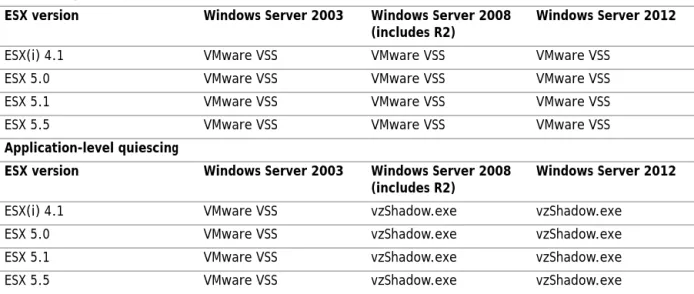
As shown in the table below, application consistency is not always available with the basic quiescing options. In these situations, you may use vRanger’s VSS Tools for application-level consistency.
Table 11. Achieving consistency File-level quiescing
ESX version Windows Server 2003 Windows Server 2008
(includes R2) Windows Server 2012
ESX(i) 4.1 VMware VSS VMware VSS VMware VSS ESX 5.0 VMware VSS VMware VSS VMware VSS ESX 5.1 VMware VSS VMware VSS VMware VSS ESX 5.5 VMware VSS VMware VSS VMware VSS
Application-level quiescing
ESX version Windows Server 2003 Windows Server 2008 (includes R2)
Windows Server 2012
ESX(i) 4.1 VMware VSS vzShadow.exe vzShadow.exe ESX 5.0 VMware VSS vzShadow.exe vzShadow.exe ESX 5.1 VMware VSS vzShadow.exe vzShadow.exe ESX 5.5 VMware VSS vzShadow.exe vzShadow.exe